All your assets—including forms, AI agents, tables, apps, sign documents, workflows, reports, and boards—are now neatly organized in one place. No more jumping between tabs or hunting through menus to find what you need. Everything you’ve built and shared is right at your fingertips, making it easier than ever to stay focused and get things done.
By default, you’ll see all your assets together, but you can quickly filter them by type or use sorting options to arrange your workspace however you prefer. Whether you like to keep things grouped by project, date, or category, you’re in control of how your workspace looks and feels. It’s a simple way to keep everything tidy and easy to access, so you can spend less time searching and more time creating.
Filtering Asset Type
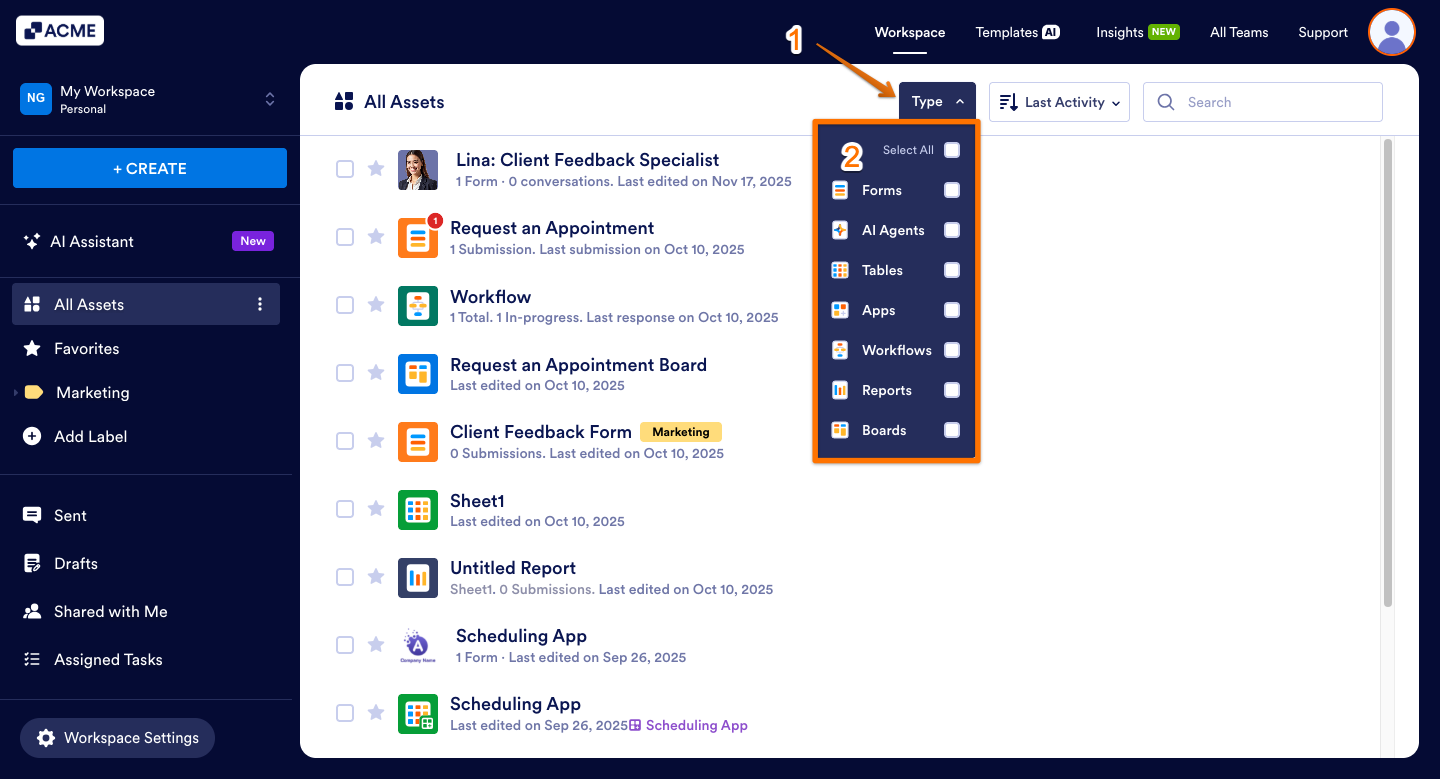
You can easily filter your assets by type to quickly find what you’re looking for in your workspace. Here’s the quick way to do it:
- On your Workspace page, click on the Type tab on the top-left side of the screen.
- In the dropdown menu, you can view all your assets and customize your display by selecting or unselecting the Checkboxes for specific asset types.
Searching Specific Asset
You can quickly find any asset by typing its name into the search bar in your workspace—no need to scroll or dig around. Here’s what to do:
- On your Workspace page, enter your Asset Title in the Search bar on the right side of the screen, and you’re all set.
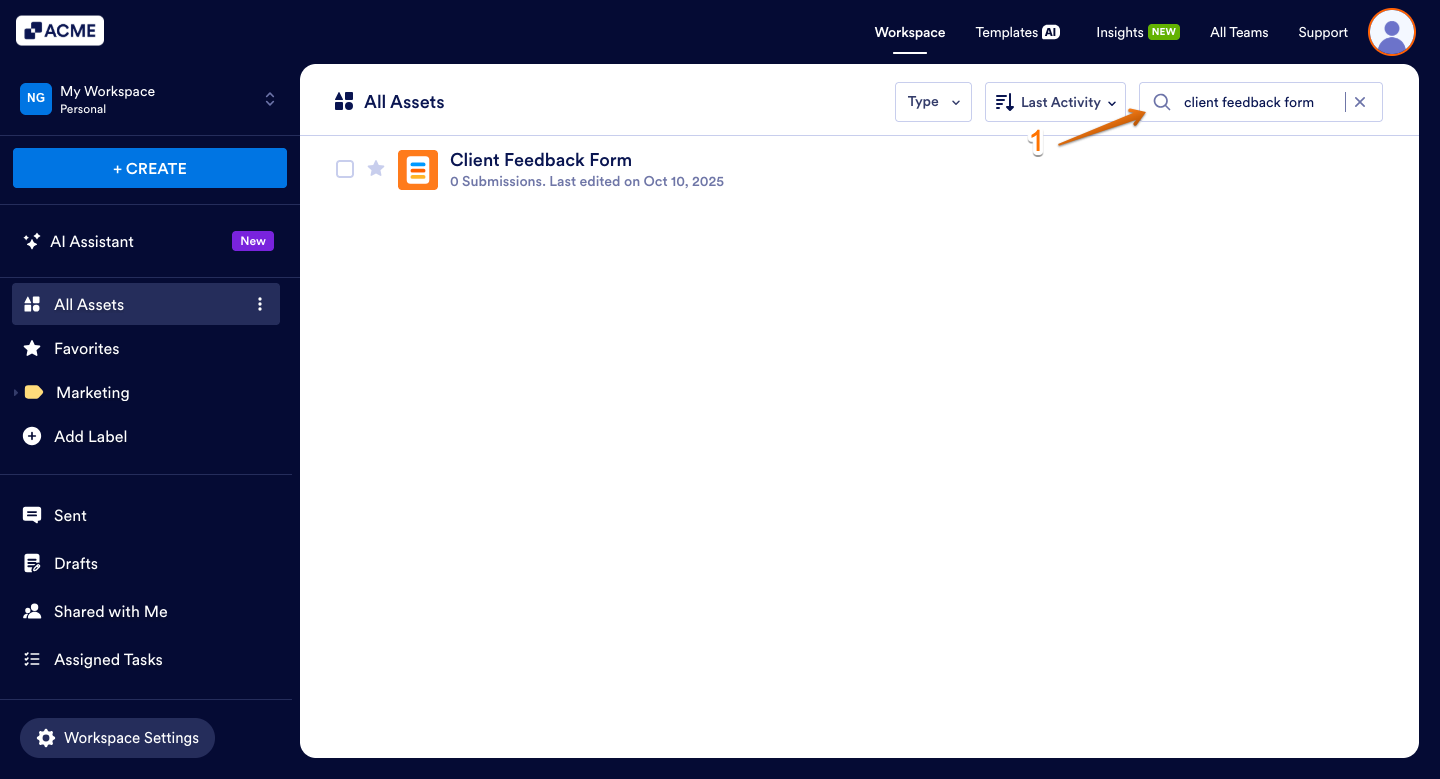
That’s it. Now, your workspace will show only the assets that match the title you entered, making it easy to focus on exactly what you’re looking for.
Sorting Assets
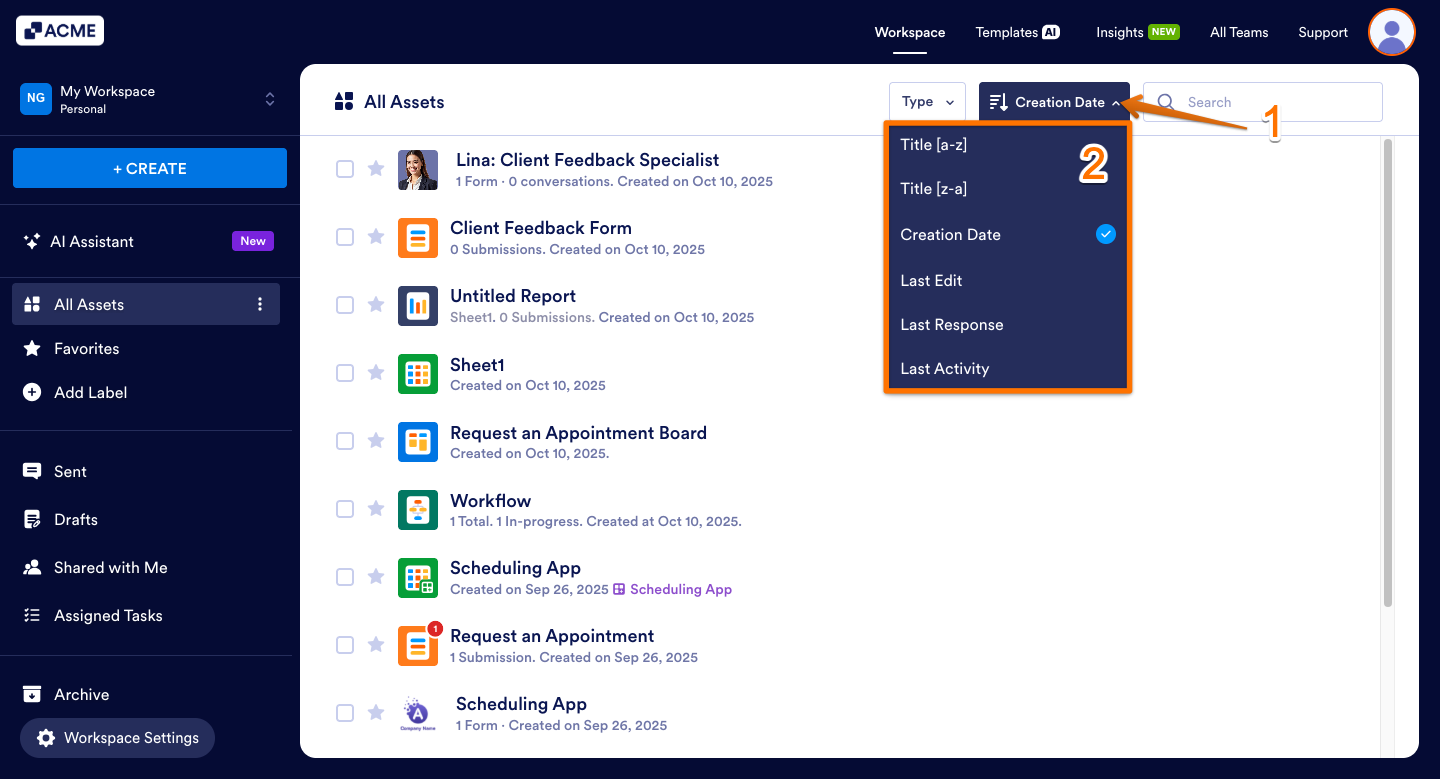
You can also organize your assets by using the different pre-set filters, making it easier to find exactly what you need. You’ll just need to do this:
- On your Workspace page, click on the Sorting tab on the right side of the Type tab.
- In the dropdown menu, sort your assets by selecting one of these filters:
- Title (A-Z) — Arranges Assets in alphabetical order.
- Title (Z-A) — Lists Assets in reverse alphabetical order.
- Creation Date — Shows the newest Assets first.
- Last Edit — Displays the most recently updated Assets at the top.
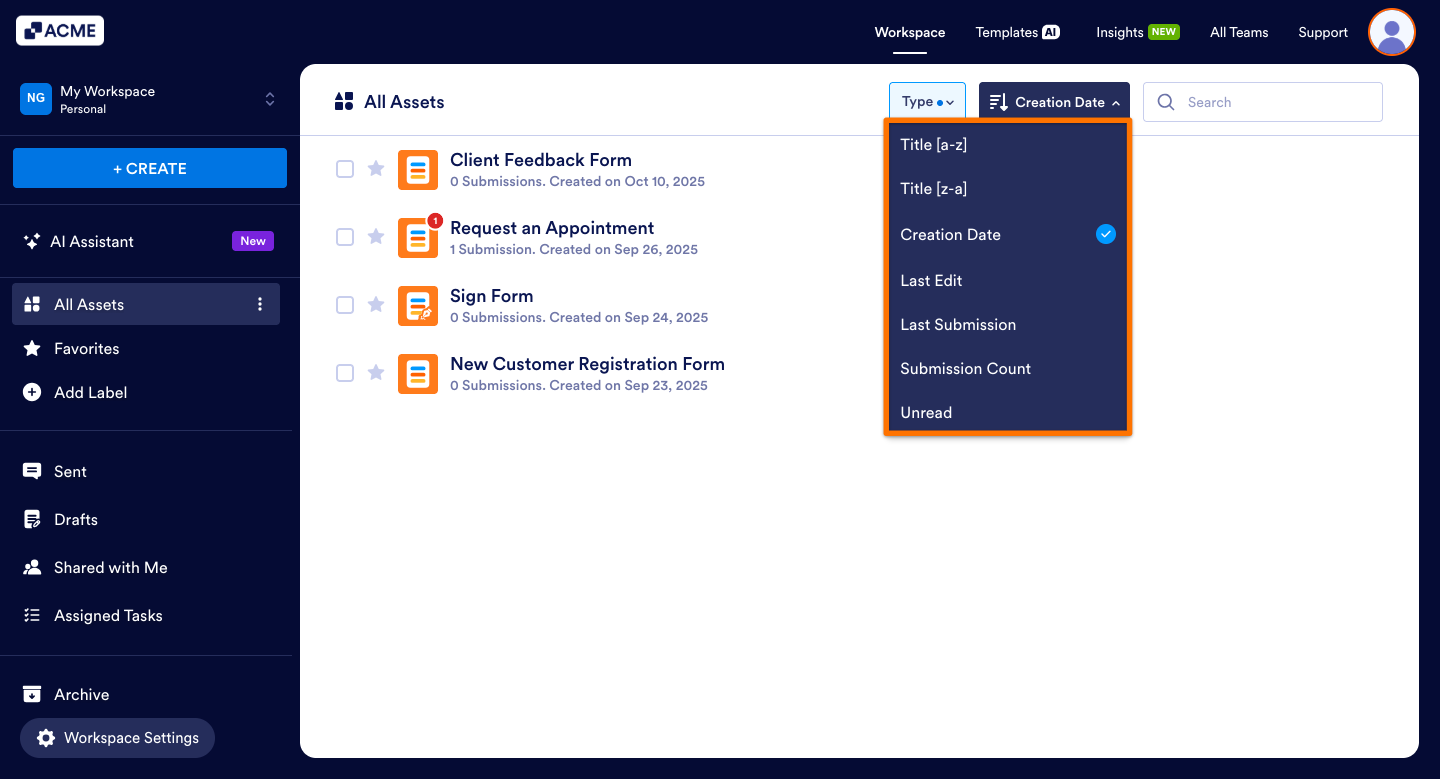
When you filter your assets to show only forms, you’ll unlock extra sorting options. This lets you organize your forms in a way that works best for you, using different criteria:
- Title [A-Z] — Sorts forms alphabetically from A to Z.
- Title [Z-A] — Sorts forms alphabetically from Z to A.
- Creation Date — Arranges forms by their creation date, from newest to oldest.
- Last Edit — Sorts forms based on the most recent modifications.
- Last Submission — Orders forms by the date of the most recent submission.
- Submission Count — Ranks forms by the total number of submissions received.
- Unread — Displays forms with unread submissions first.

Send Comment: