With AI Agent Insights, you can filter statistics within a specific date range to analyze trends, track performance, or compare activity across different periods. The selected timeframe applies to all metrics, including those in the Performance and Conversations tabs. In addition, the Performance Breakdown list shows only the agents and their metrics that are relevant to the chosen period. This guide explains how to filter and view AI Agent statistics for a specific timeframe.
How to Select Date Range in AI Agent Insights
Within AI Agent Insights, you can select the date range you want to observe the agent-related insights. The date range you choose is also applied to both Performance and Conversations tabs, so you don’t need to reselect it each time you navigate between them.
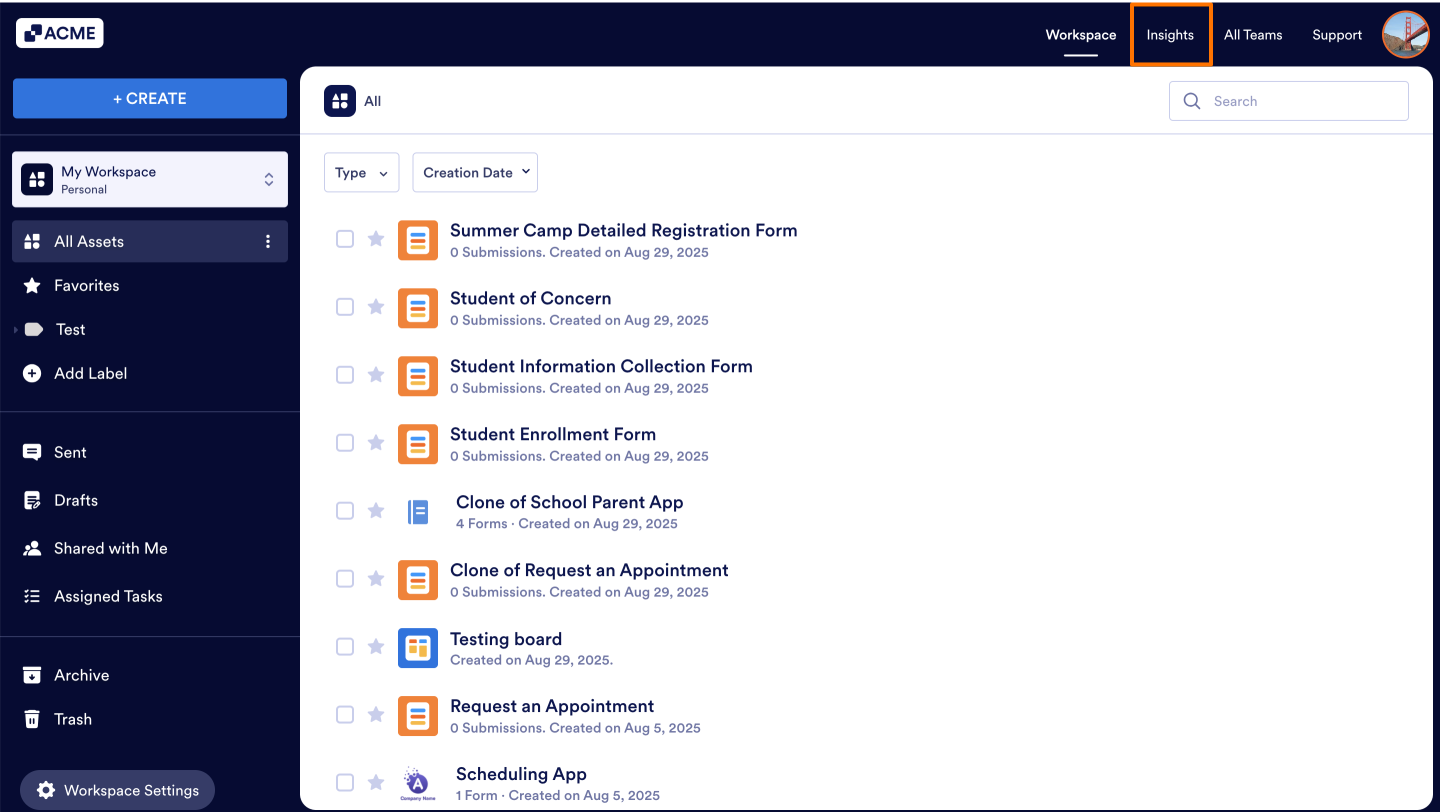
- In My Workspace page, click on Insights in the top-right side of the page.
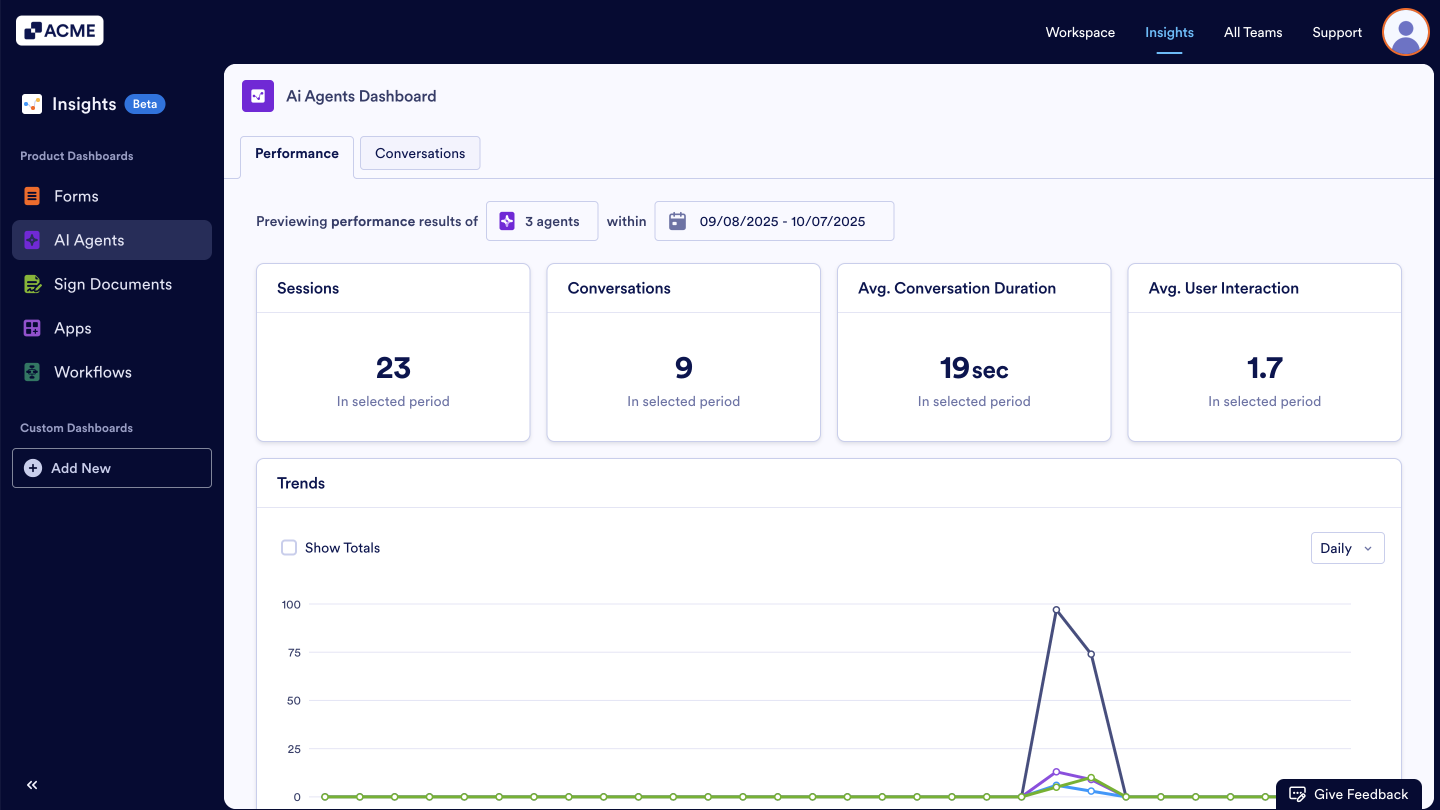
- On the Insights page, click on AI Agents in the menu on the left side of the page.
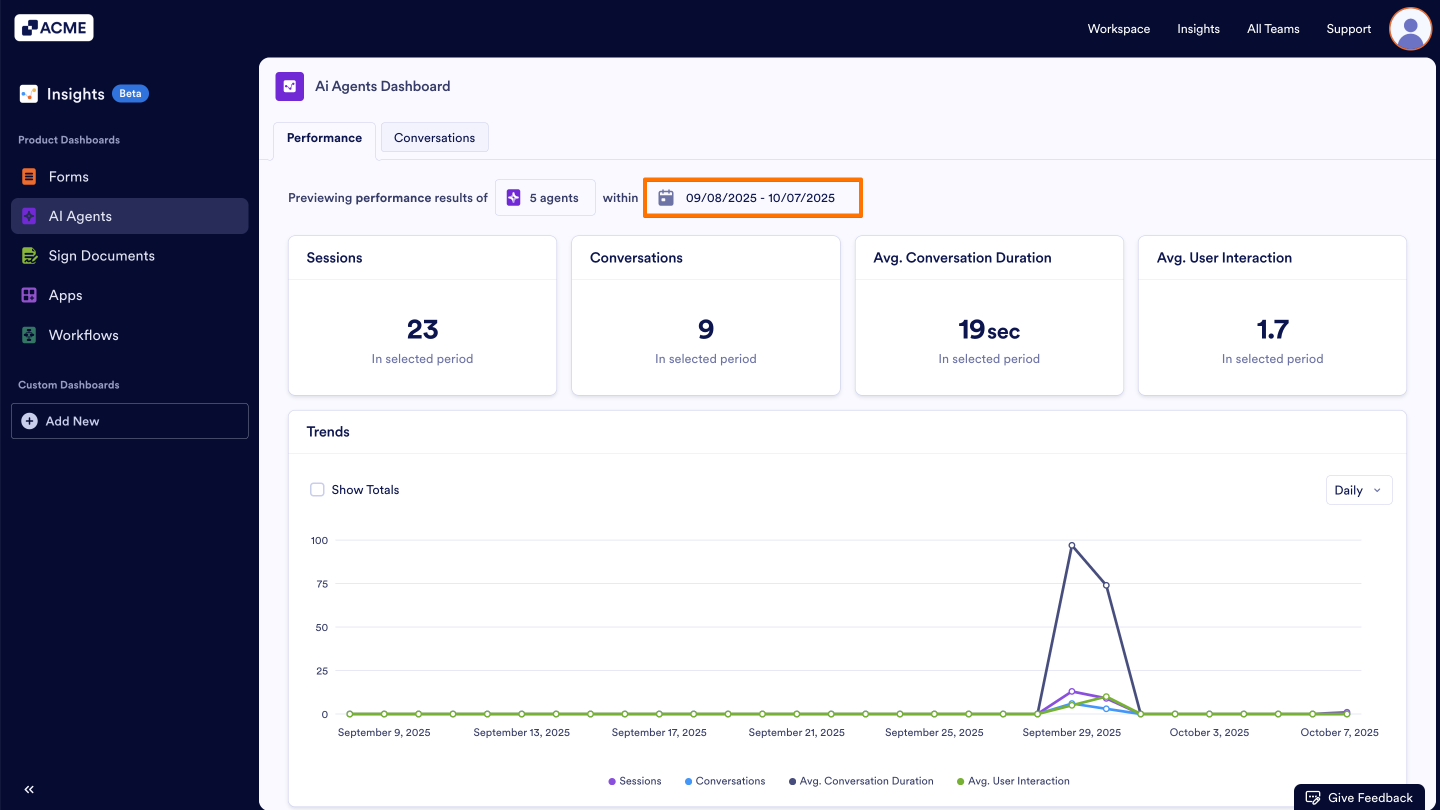
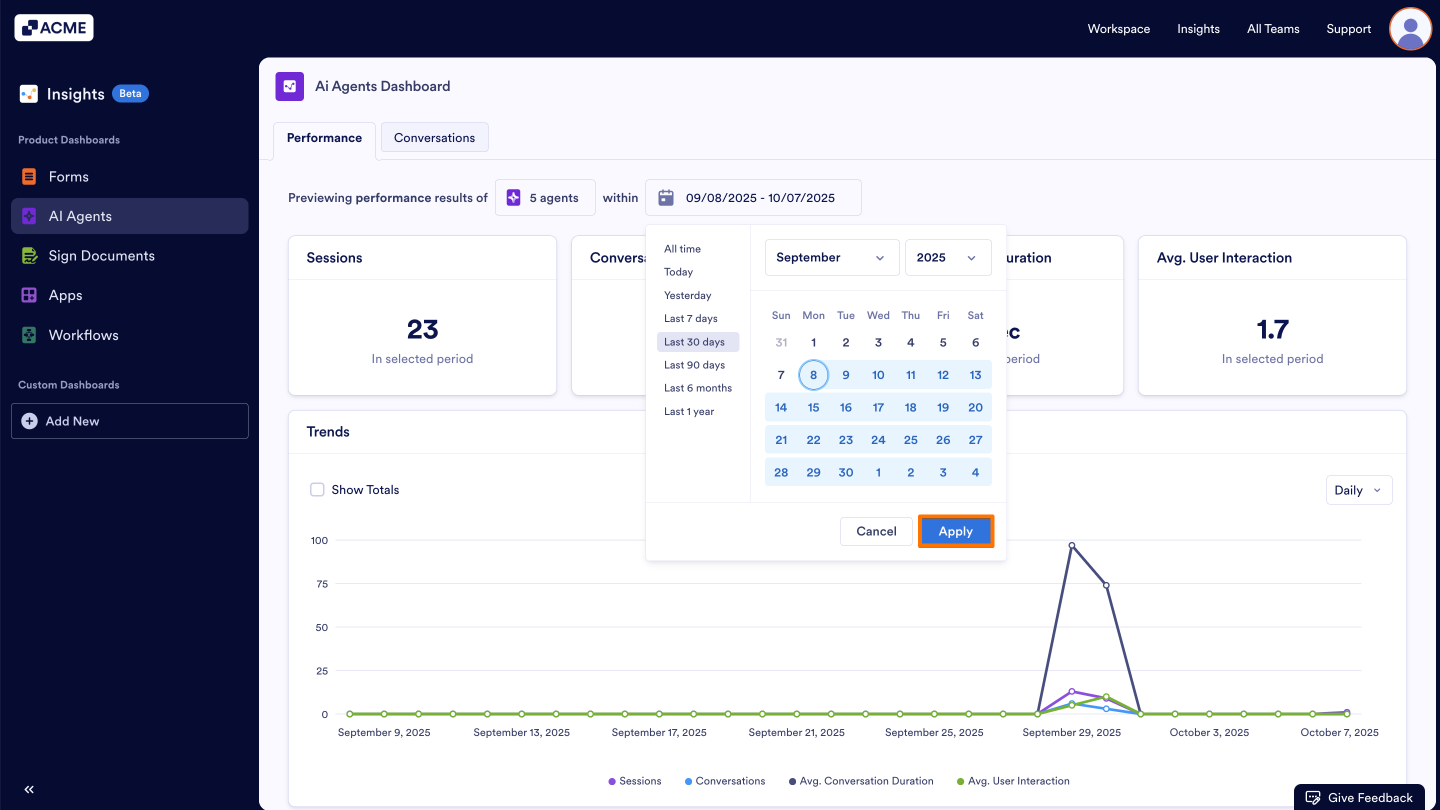
- Under the AI Agent Insights, click on the date range filter just above the metrics.
- You can select a predefined range such as All Time, Today, Yesterday, Last 7 days, Last 30 days, Last 90 days, Last 6 months, Last 1 year or select your preferred date range from the right.
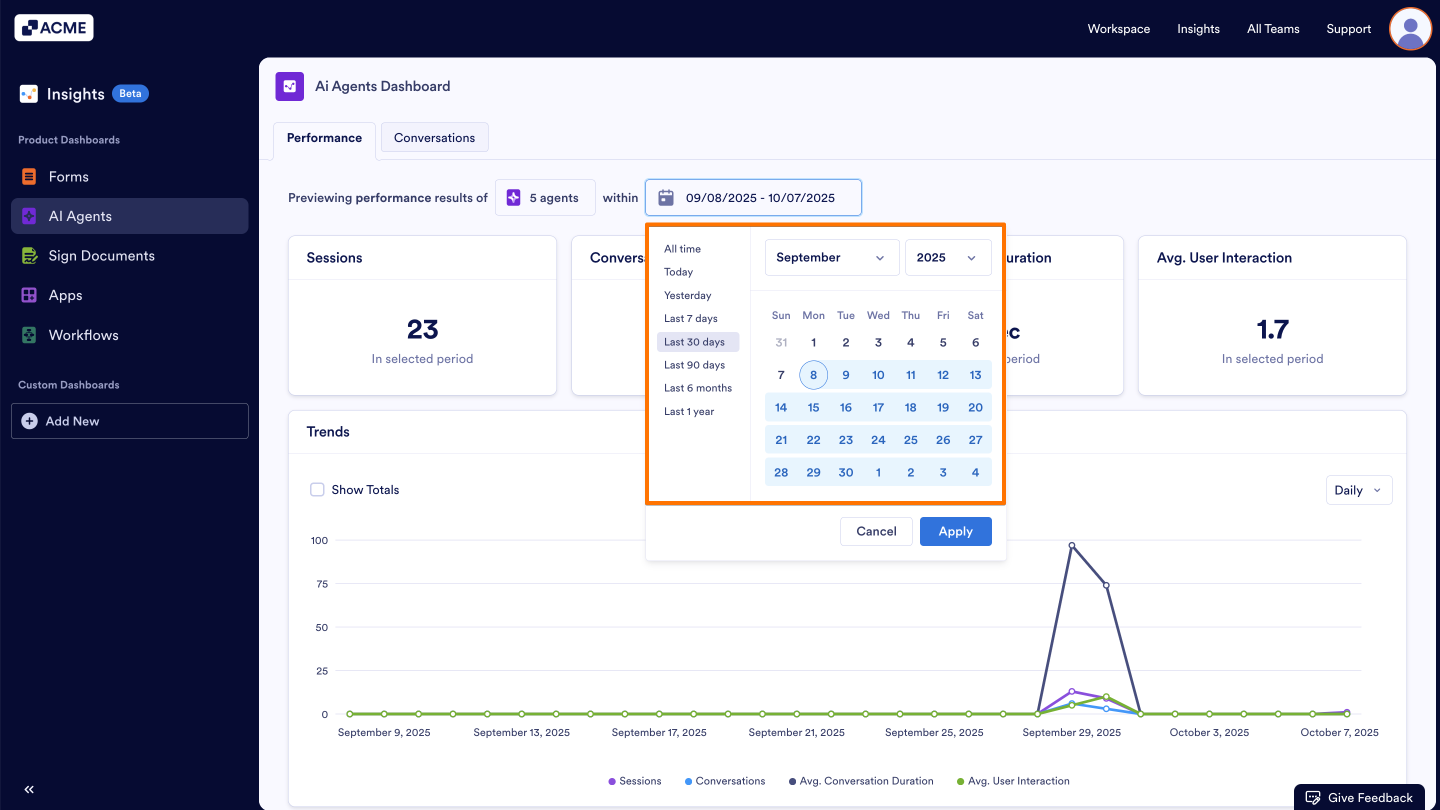
- Click on Apply.
Troubleshooting Tips
- If no data appears, check that the AI Agent has activity within the selected timeframe.
- Make sure the data you want to review align with the date range.
See also:
How to view Individual AI Agent usage metrics in Insights?
How to Download AI Agent Metrics as Excel or CSV from Insights?

Send Comment: