Sign Insights allows you to filter document-related insights by a date range to analyze performance, track completion rates, and compare activity over time. The date you selected once is applied to the Documents and Audience tabs so you do not have to select a date range every time you move across the tabs.
How to Select Date Range in Sign Insights
You can follow the steps below to select a date range:
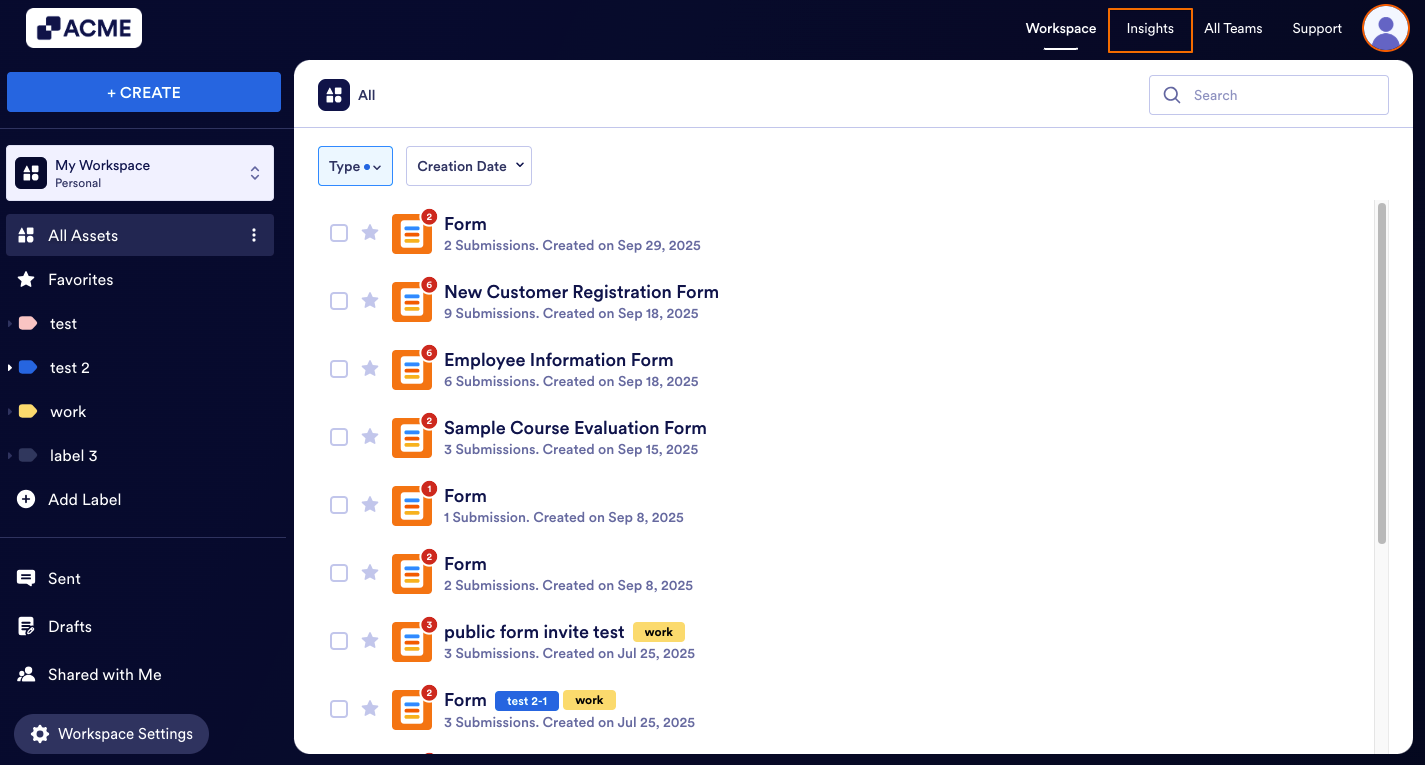
- In My Workspace page, click on Insights in the upper right-hand corner of the page.
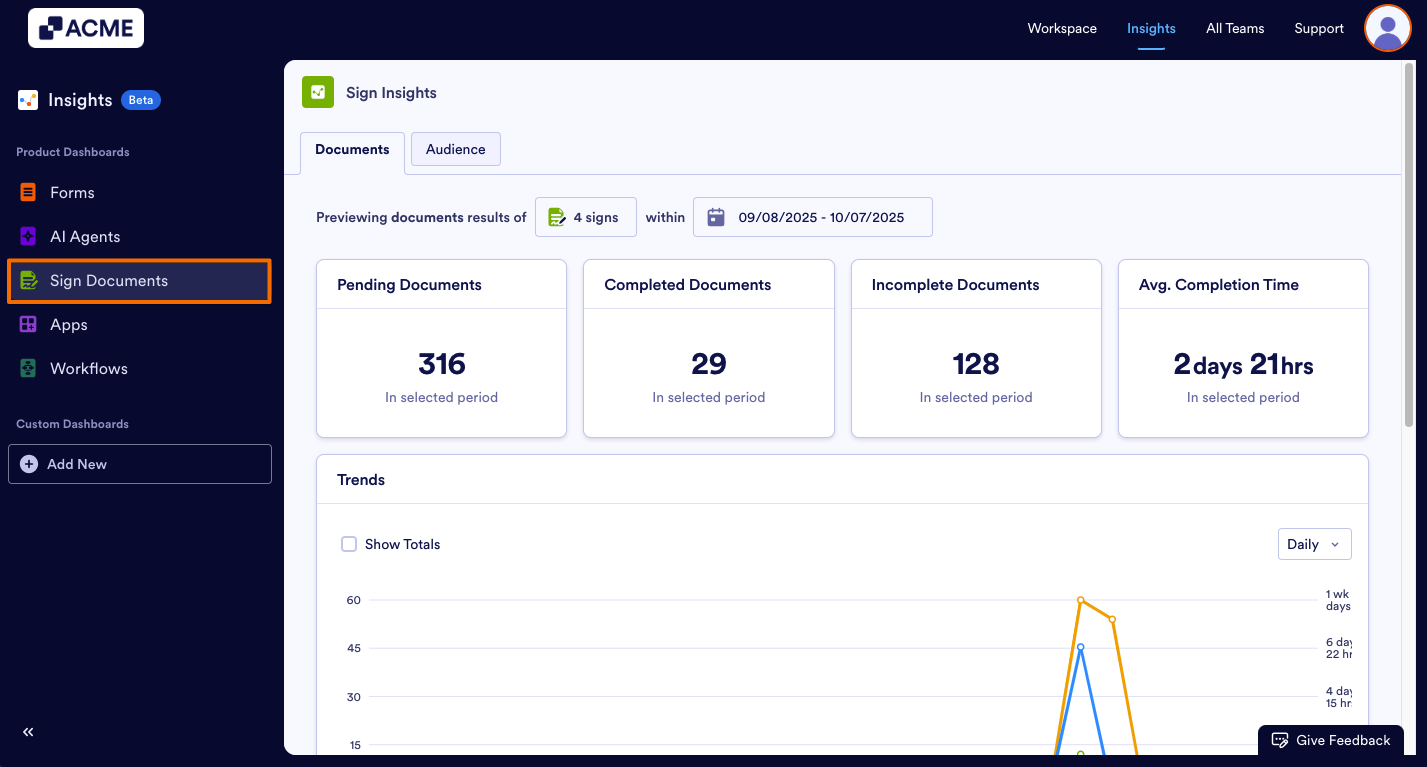
- On the Insights page, click on Sign Documents in the menu on the left side of the page.
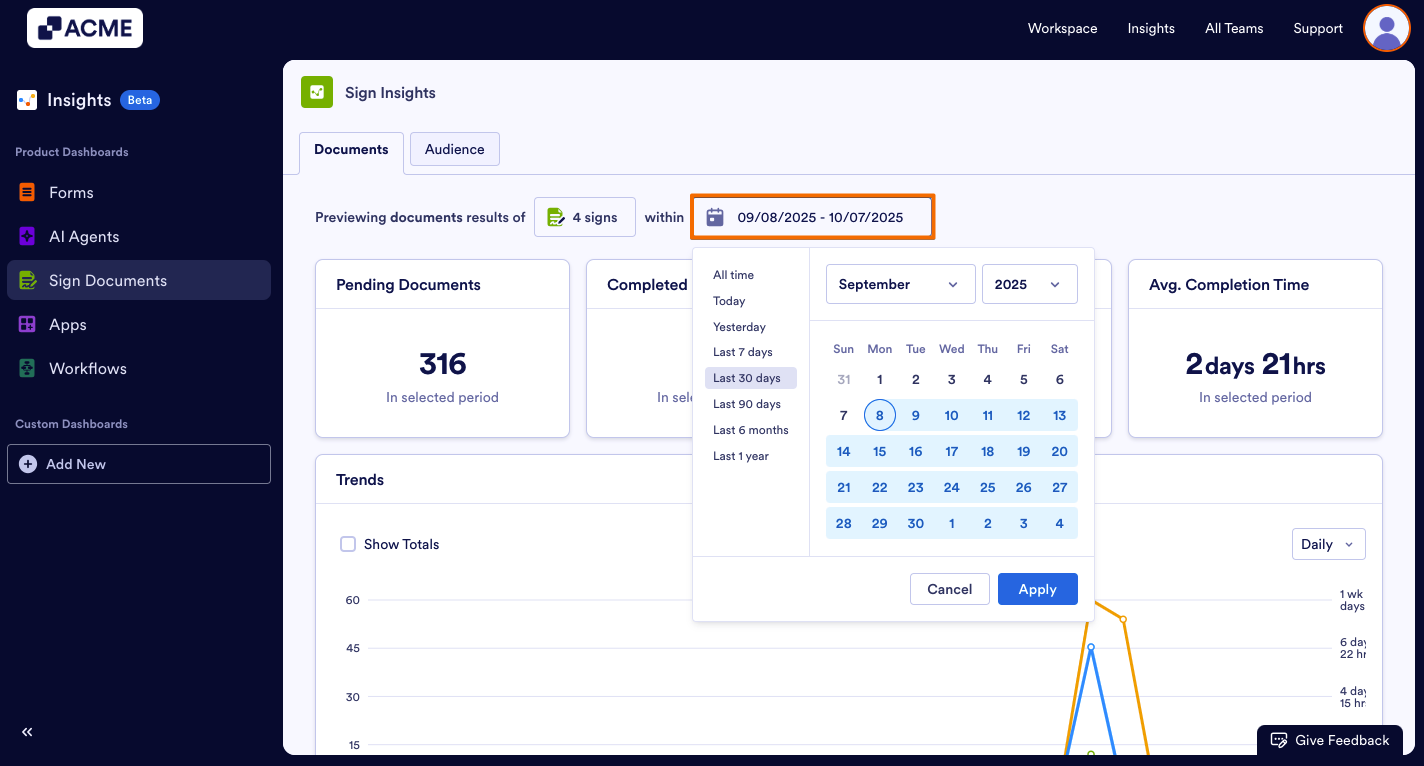
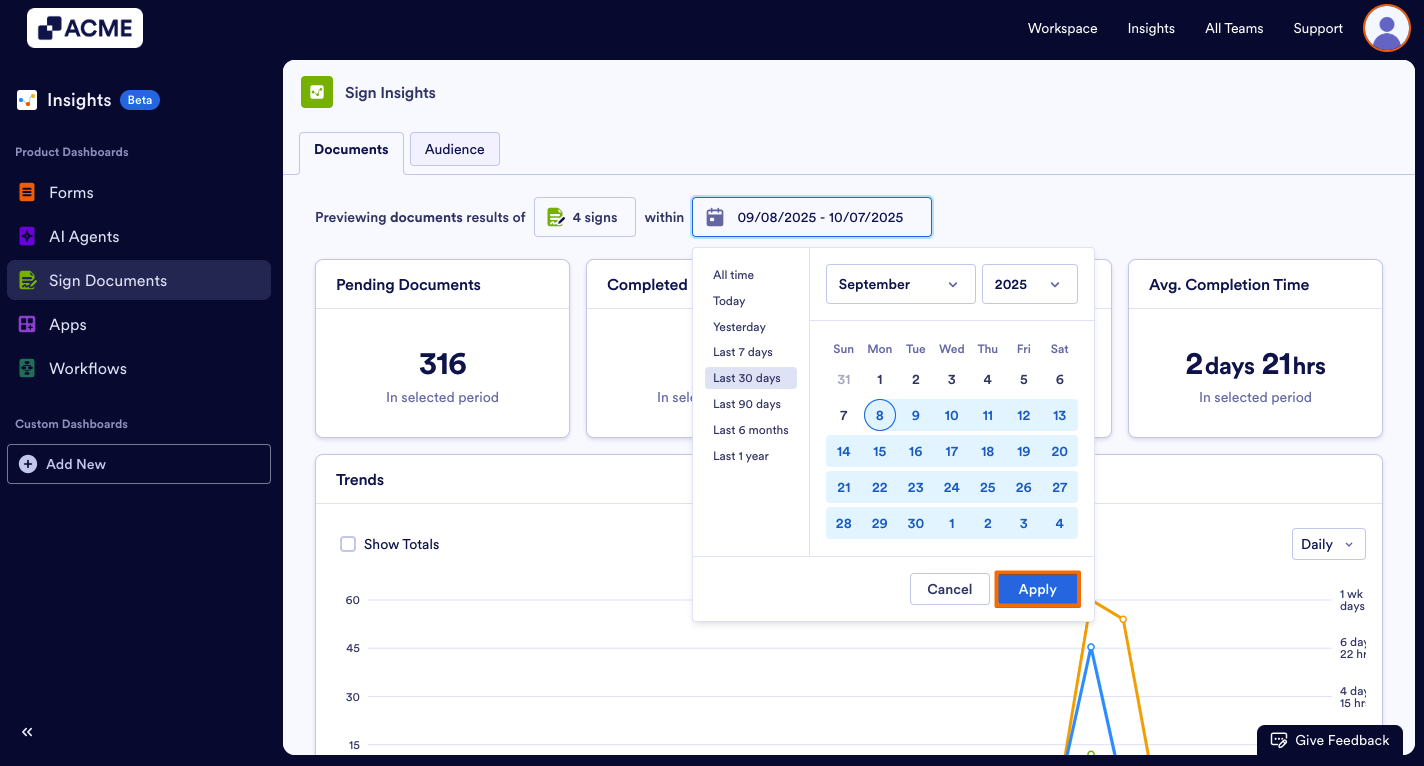
- Under the Sign Insights, click on the date range filter just above the metrics.
- You can select a predefined range such as All Time, Today, Yesterday, Last 7 days, Last 30 days, Last 90 days, Last 6 months, Last 1 year or select your preferred date range from the right.
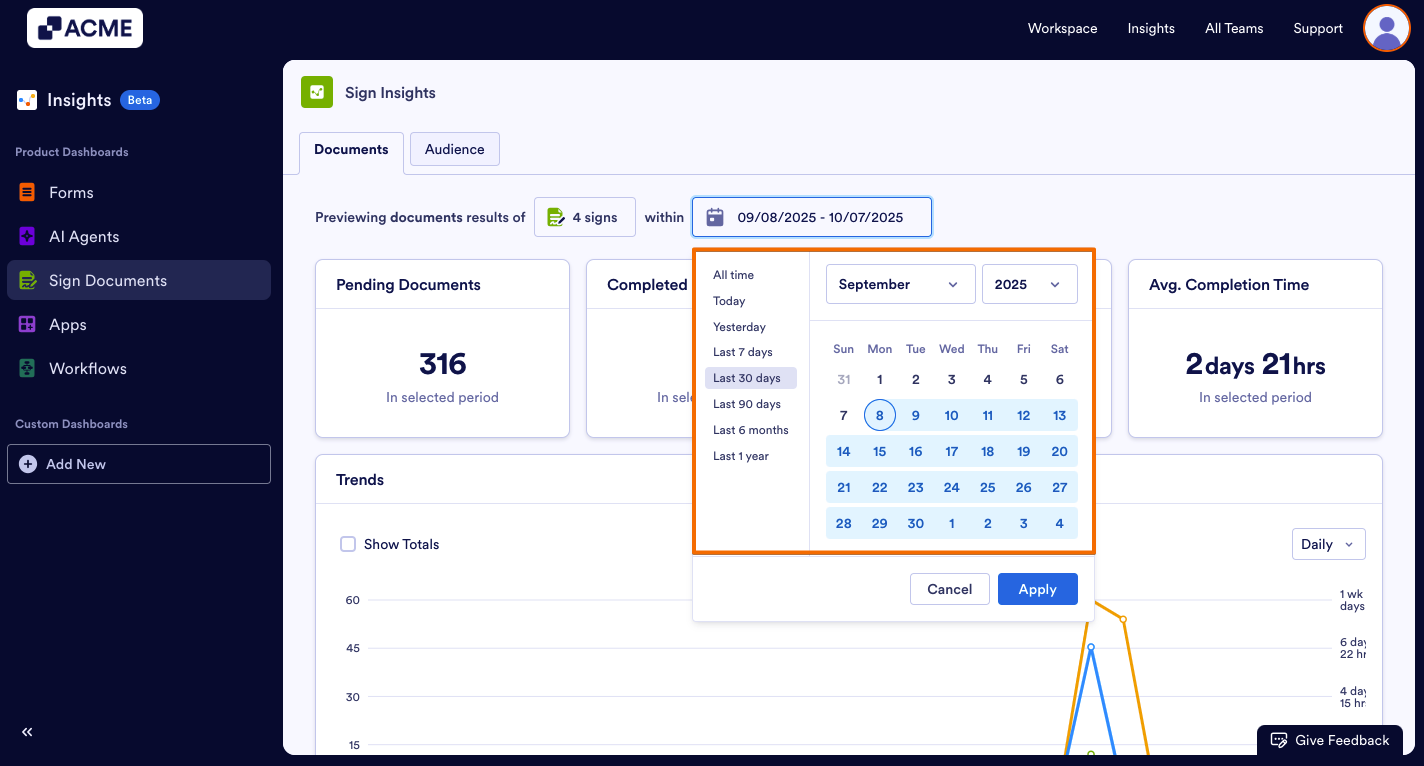
- Click on Apply.
Troubleshooting Tips
- If no data appears, check that the sign document has submissions within the selected timeframe.
- Make sure the data you want to review align with the date range.
- Depending on the date range you’ve selected, some options might not be available. For example, if your date range for the tab is set to last seven days, you won’t be able to select monthly or yearly
See also:
How to View Individual Sign Document Metrics in Insights?
How to Download Sign Document Metrics as Excel or CSV from Insights?

Send Comment: