Field IDs and unique names are identifiers for the different fields in your form. They are automatically generated and can be used for referencing values and customizing appearance with CSS.






Finding the Field's Unique Name
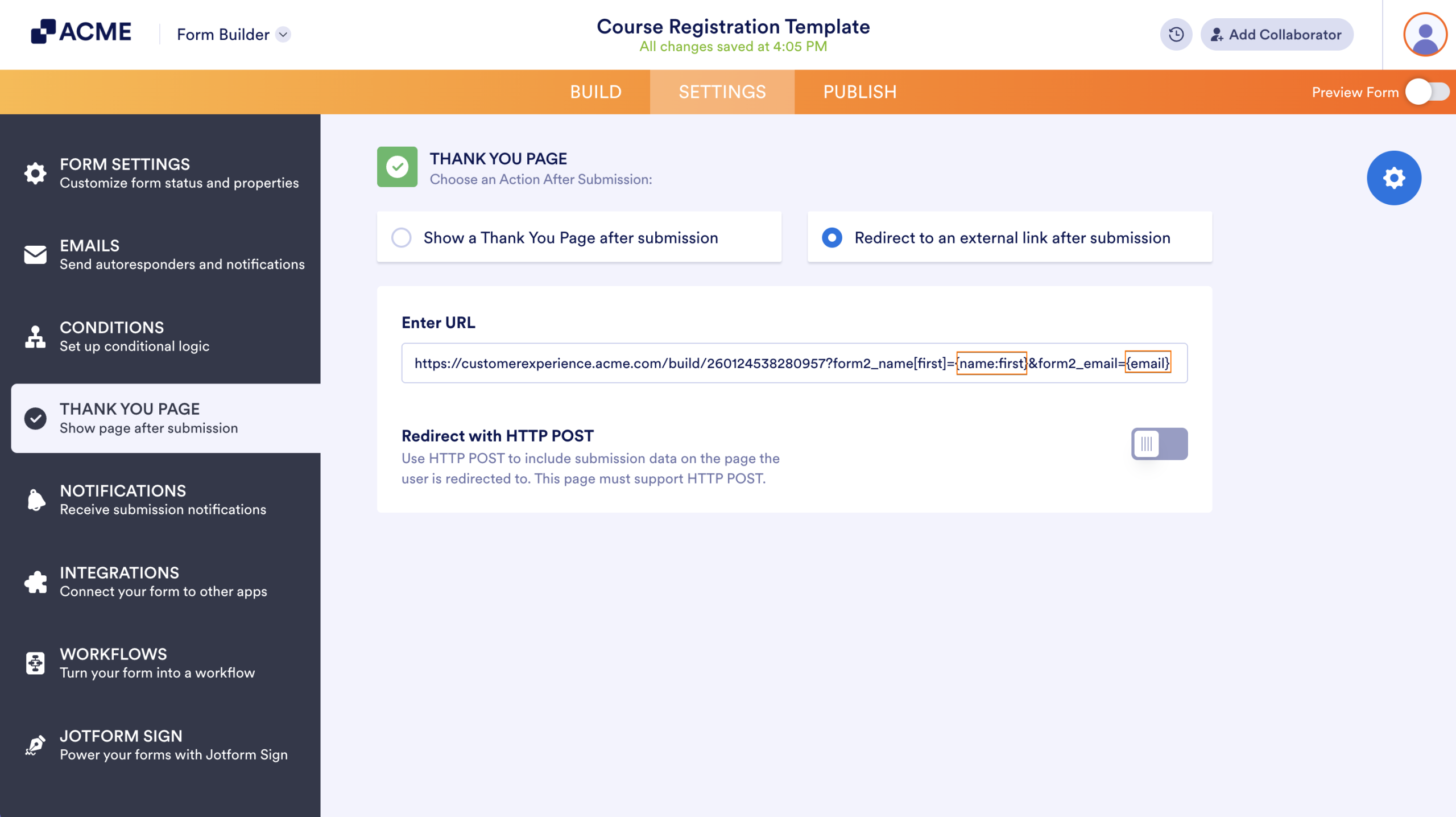
A field's unique name can be used to reference its value in other places like in email alerts, on the Thank You page, or in other fields. It can also be used to prepopulate a form field.
To get a field's unique name:
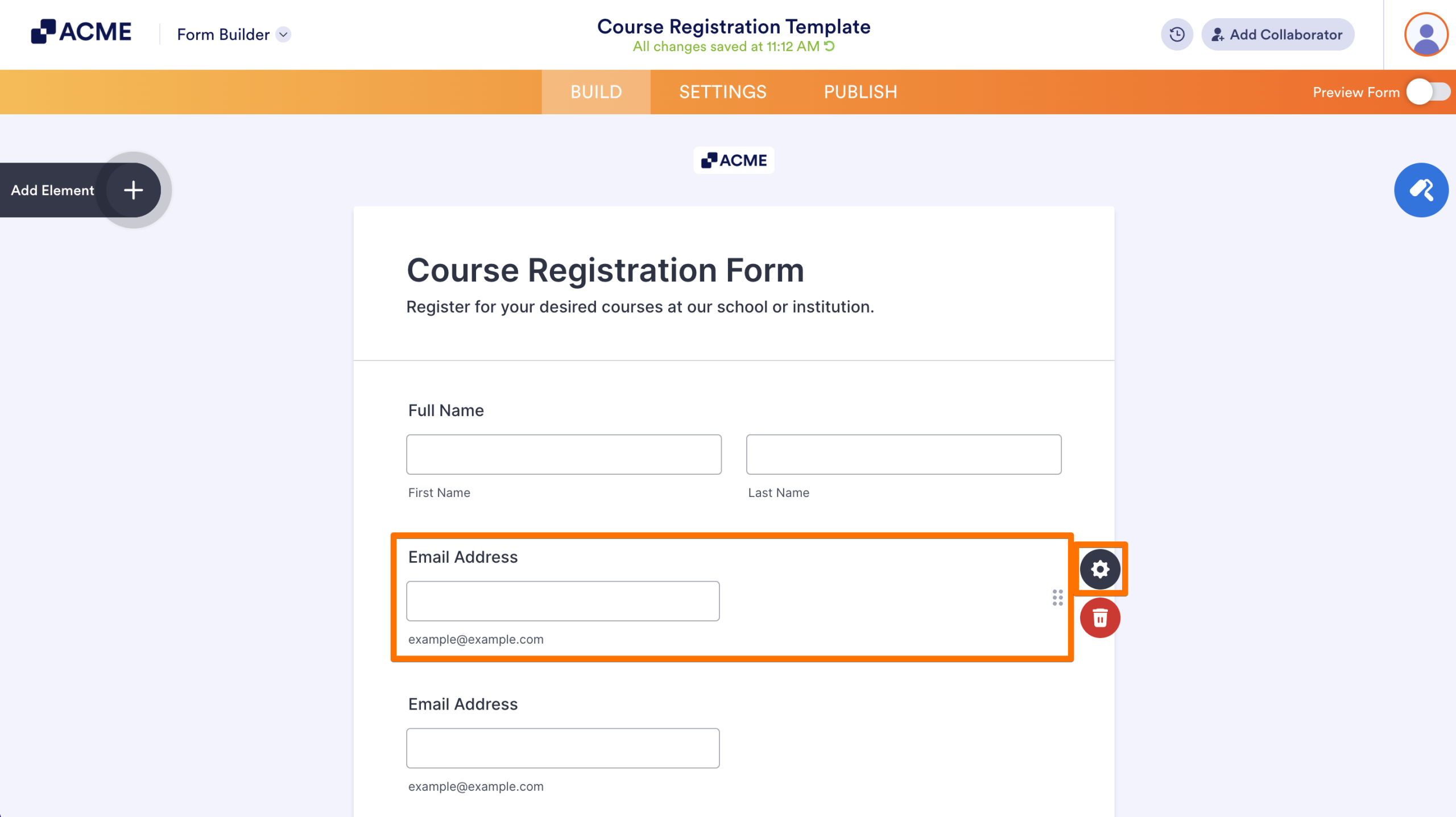
- In the Form Builder, select the form element and click on the Gear icon to open properties.
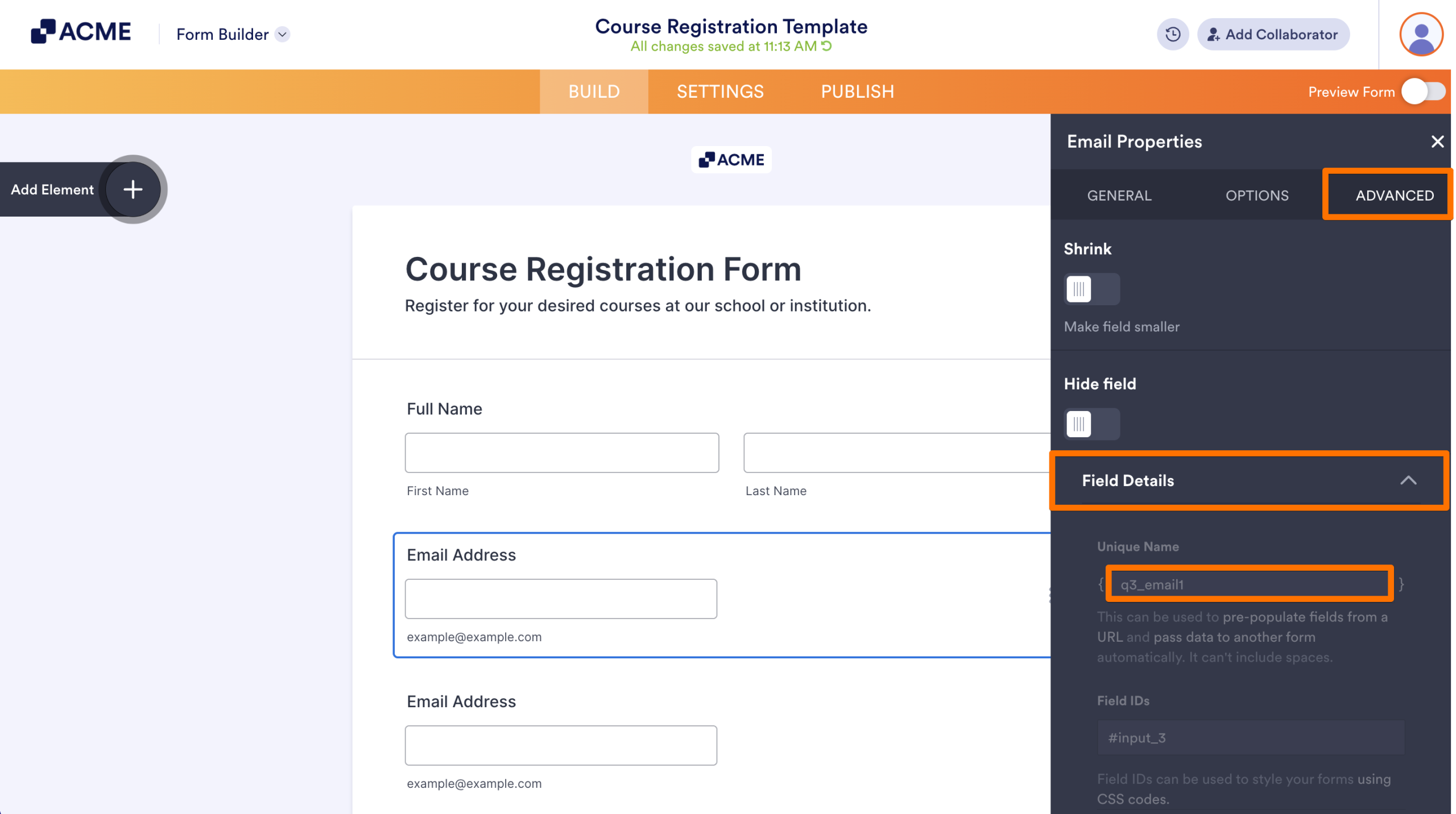
- In the properties panel, go to Advanced at the top.
- Scroll down to the bottom and expand Field Details.
- Copy the value in the Unique Name field.
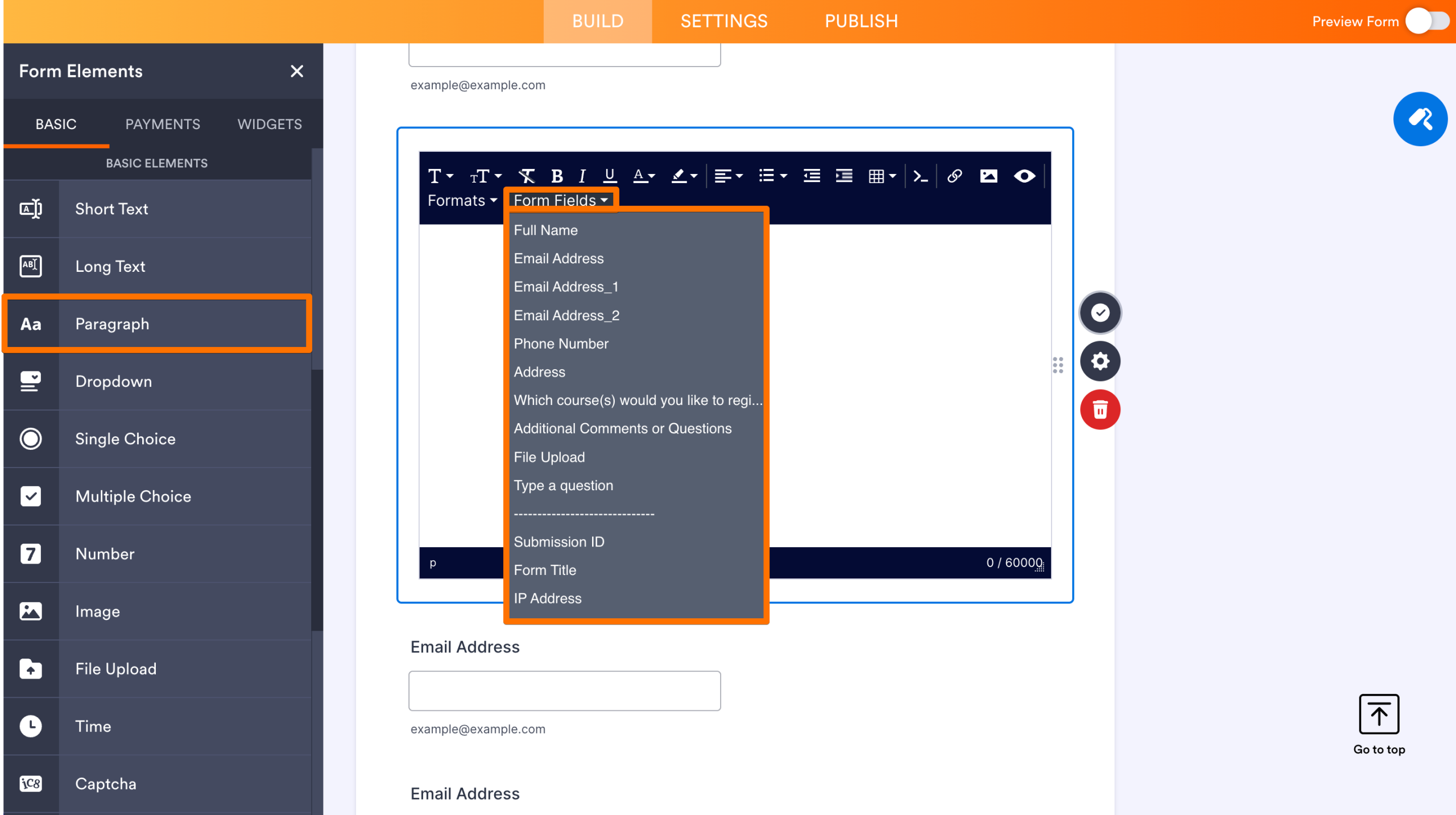
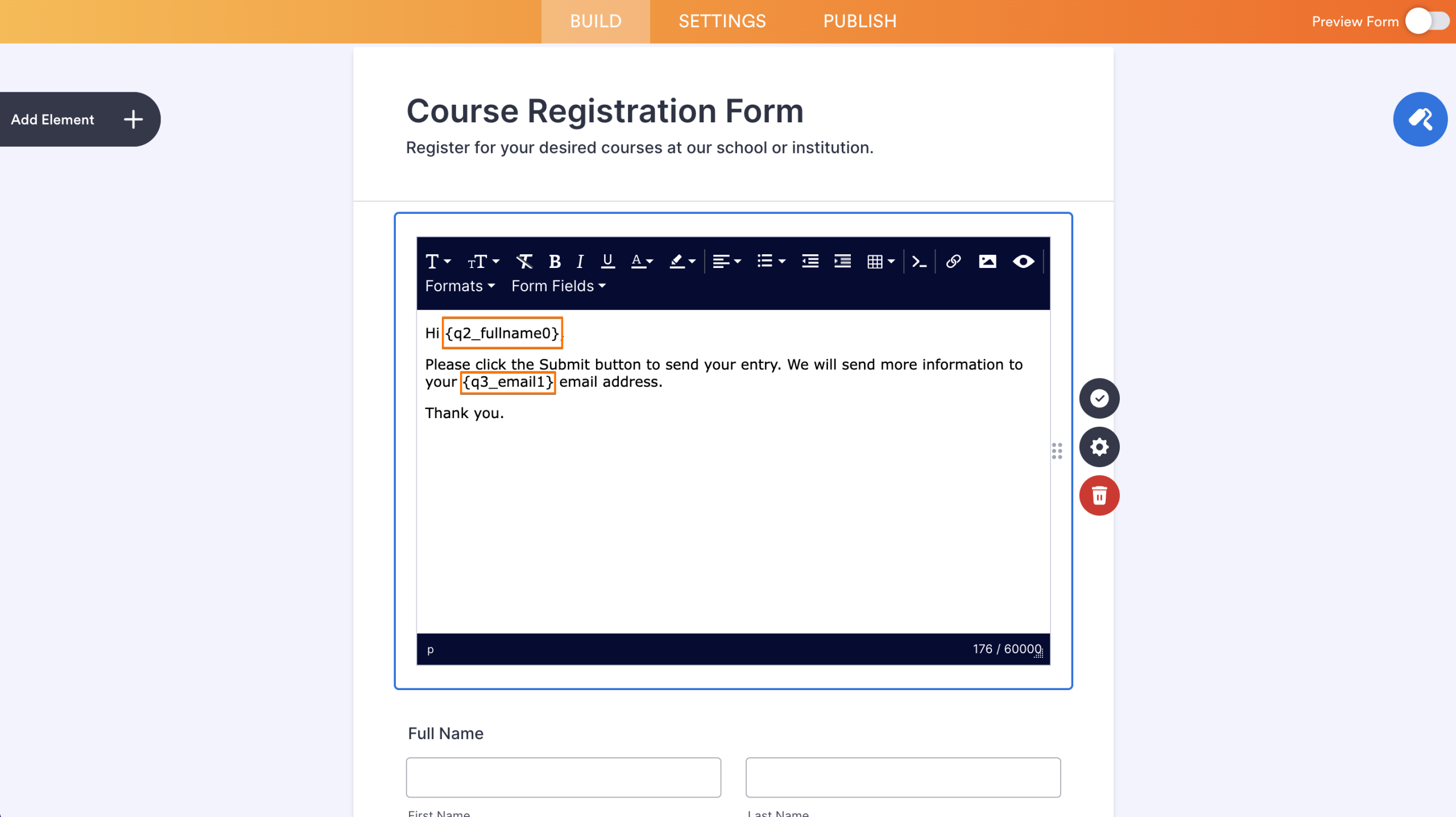
For form elements that don't have the Field Details section, you can use the Form Fields tool in the Paragraph element.
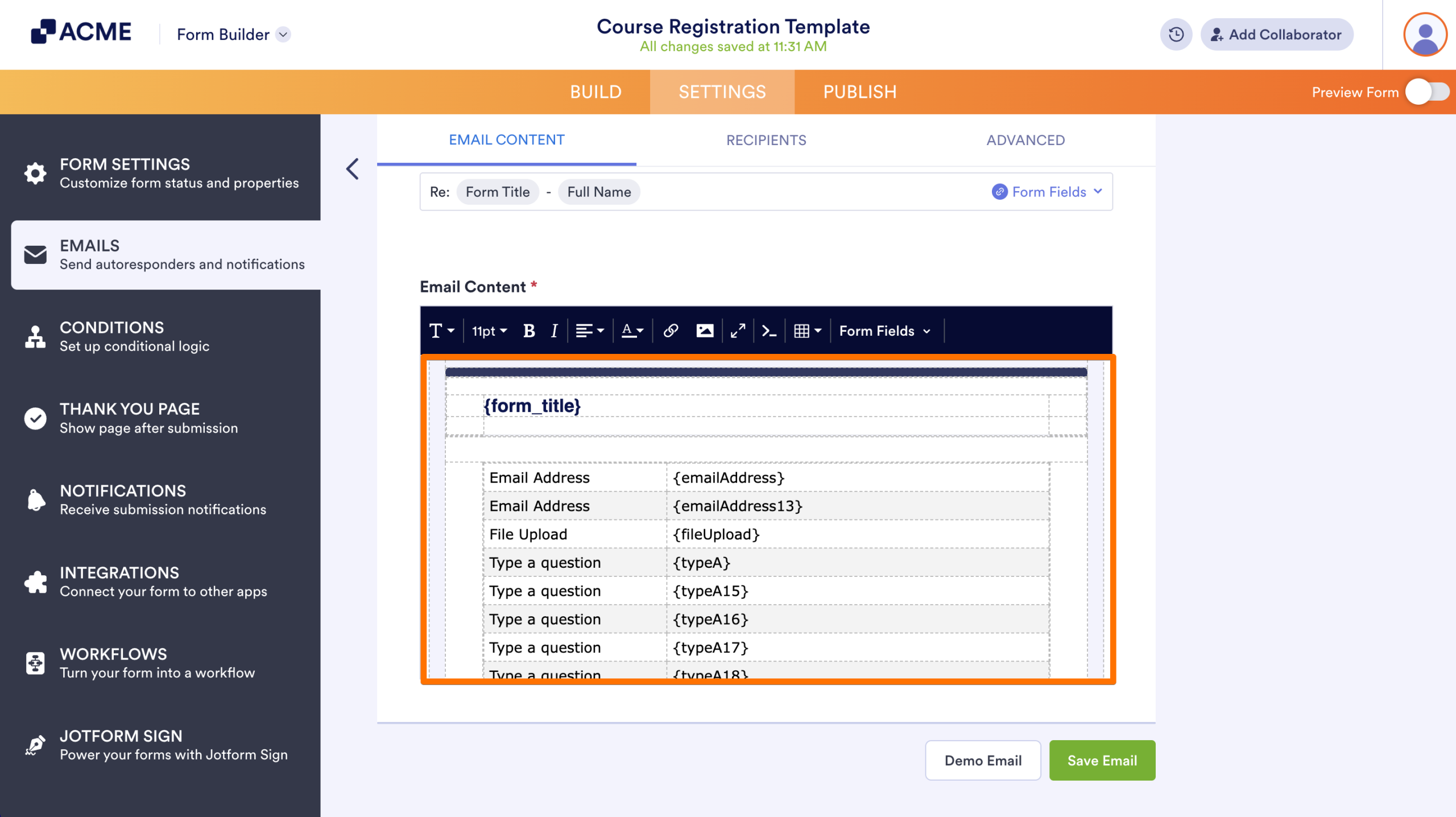
The fields' unique names can also be found in your form's default email alerts. To learn more, see Explanation of Email Notification and Autoresponder Settings.
Once you have your fields' unique names, you can use them to display their corresponding values in Paragraph elements, email alerts, or on the Thank You page.


Finding the Field's IDs
Customizing the appearance of your fields using CSS is a common task where you need the field IDs to apply your custom CSS codes. To get a field's IDs:
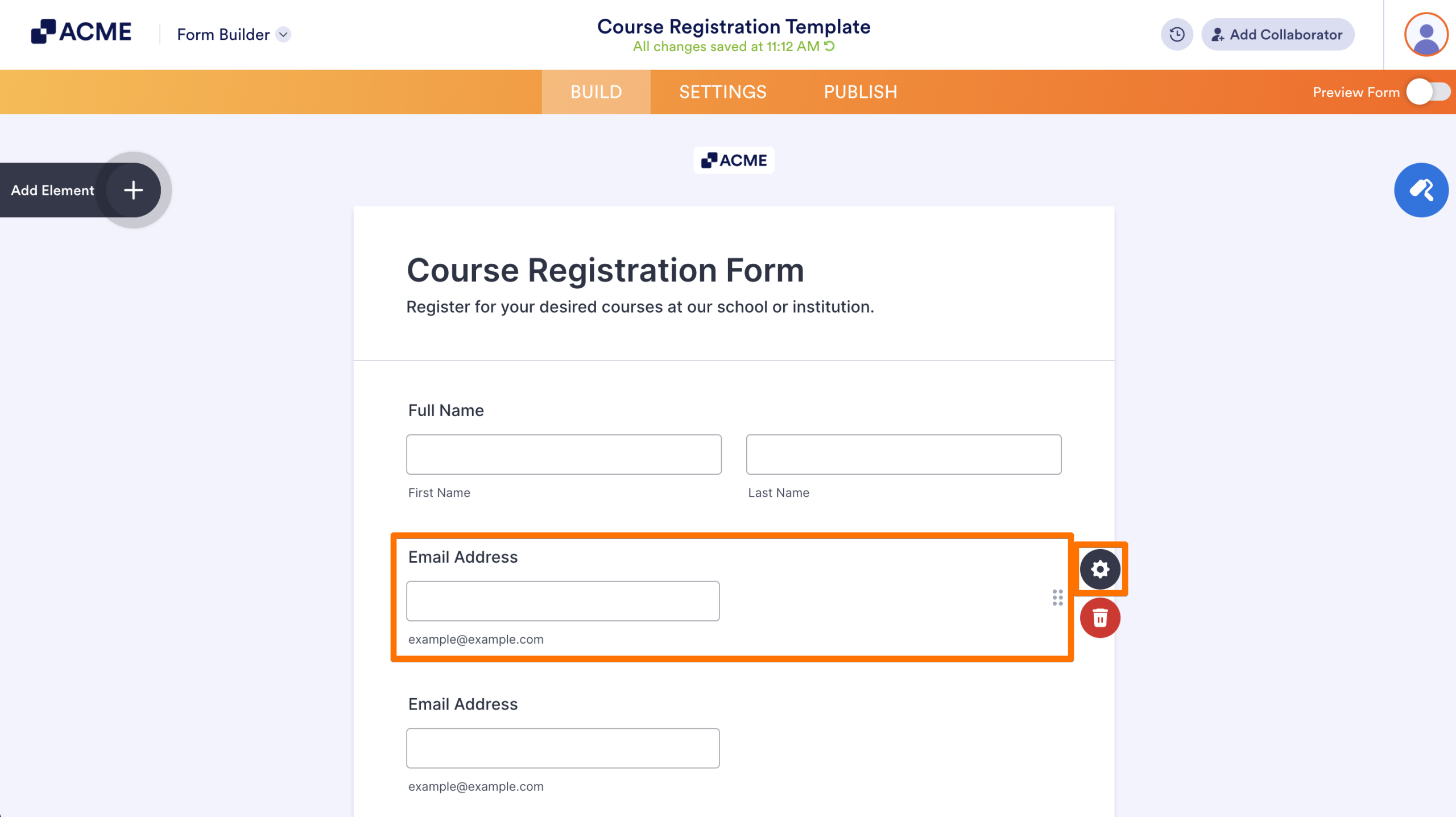
- In the Form Builder, select the form element and click on the Gear icon to open properties.
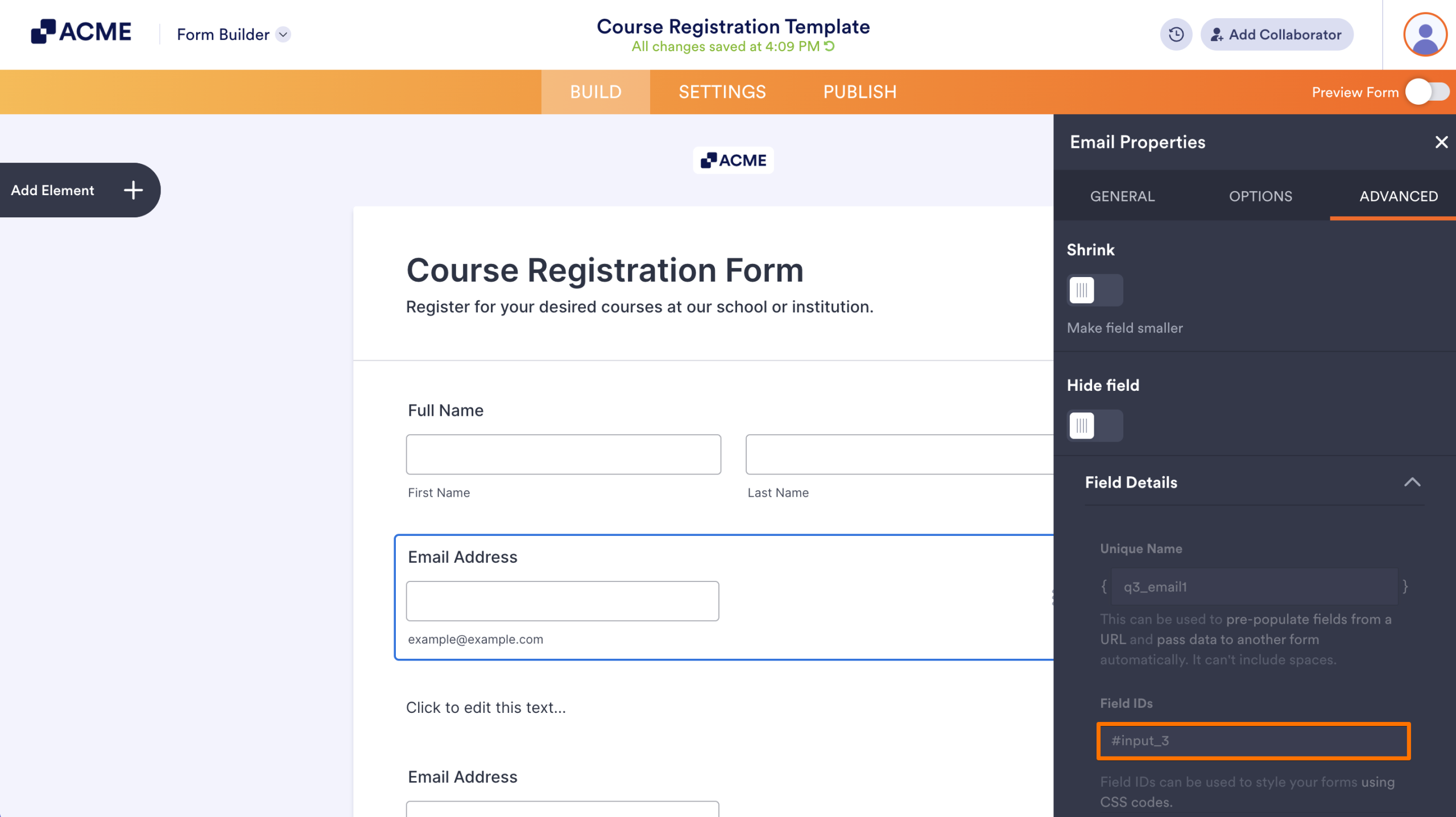
- In the properties panel, go to Advanced at the top.
- Scroll down to the bottom and expand Field Details.
- Copy the value in the Field IDs field.

Send Comment: