Hide Form Fields lets you control what users see and interact with on your forms. It allows you to include fields that work behind the scenes without being visible to form users. These hidden fields can have default values, be filled conditionally, or be updated later by someone else.
Even though they aren’t shown on the form, their values can still be included in reports, used for data analysis, sent to other platforms through integrations, or applied in conditions and internal processes like approval workflows.
This feature is especially helpful when:
- A field is designed to hold information added after the form is submitted, such as admin-only notes or updates made during a review process.
- You want to use the field’s functionality (like calculations, setting default values, or capturing hidden data) without it being visible.
- You want to simplify the user experience by displaying only the essential fields up front.
- A field is used to collect system-generated data, such as timestamps or unique IDs.
- You want to include a field for tracking or logging purposes without it being visible to users.
- A field is intended for integrations or automated processes that don’t require user input.
When creating or editing your form in the Form Builder, you can hide field elements directly from their context menu or field properties or even hide several at once. This makes it fast and flexible to set up your form exactly how you need it.
Note
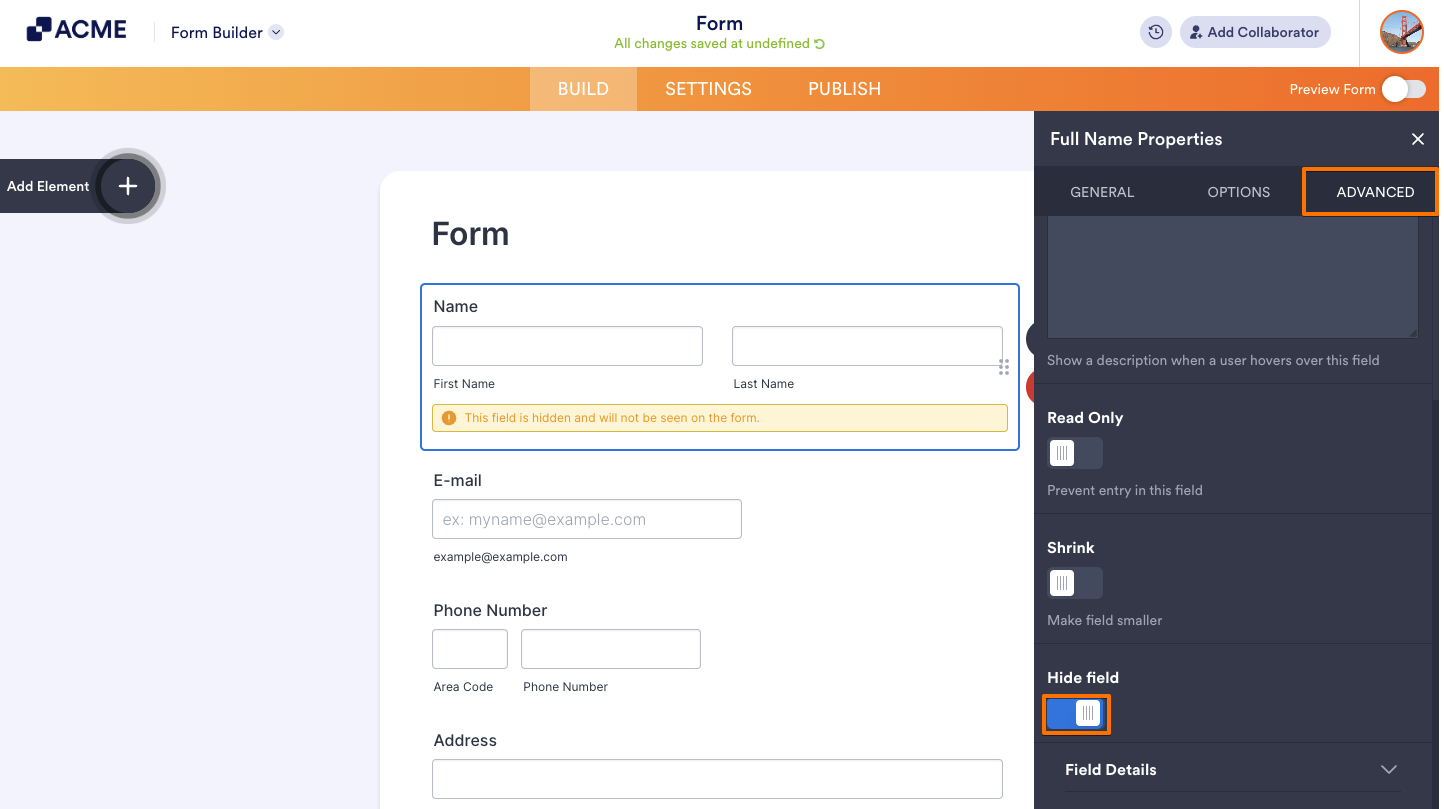
- Hidden form fields that are unselected appear grayed out in Form Builder. When selected, a message will indicate that the field is hidden and will not be visible on the form.
- Hidden form fields would still appear in form email notifications and autoresponders. If you want hidden field values excluded from email alerts, you can edit the content of your form emails and manually remove them.
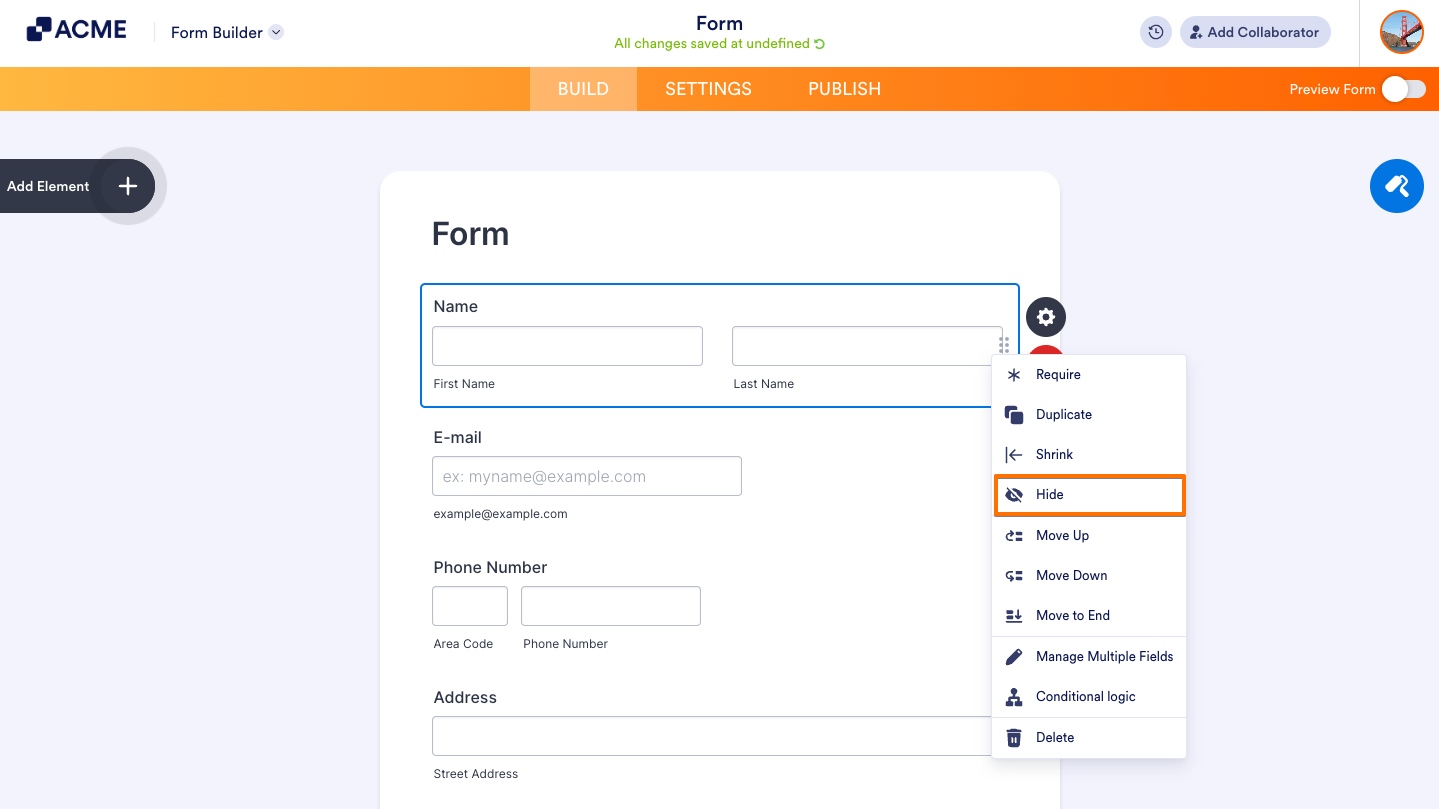
Hiding via Context Menu
Follow this step to hide individual fields using their context menu:
- In Form Builder, right-click a field and select Hide from the context menu.
Pro Tip
Pressing the Menu key on your keyboard while a field is selected in Form Builder will also open that field’s Context Menu.
Hiding via Field Properties
These steps will show you how to hide form elements through their Properties:
- In Form Builder, select the field you want to hide.
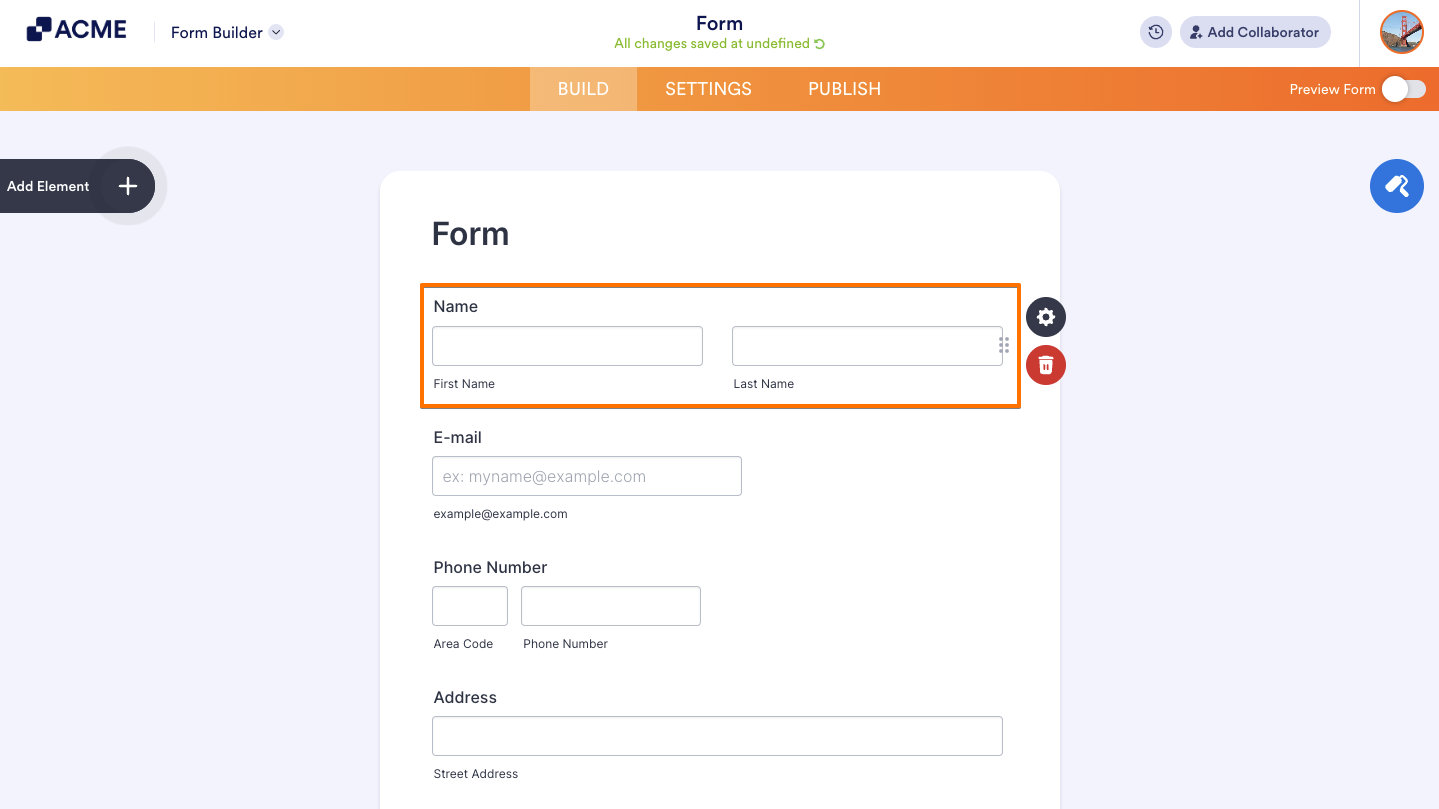
- On the right side of the field, click on the Gear icon to open its Properties.
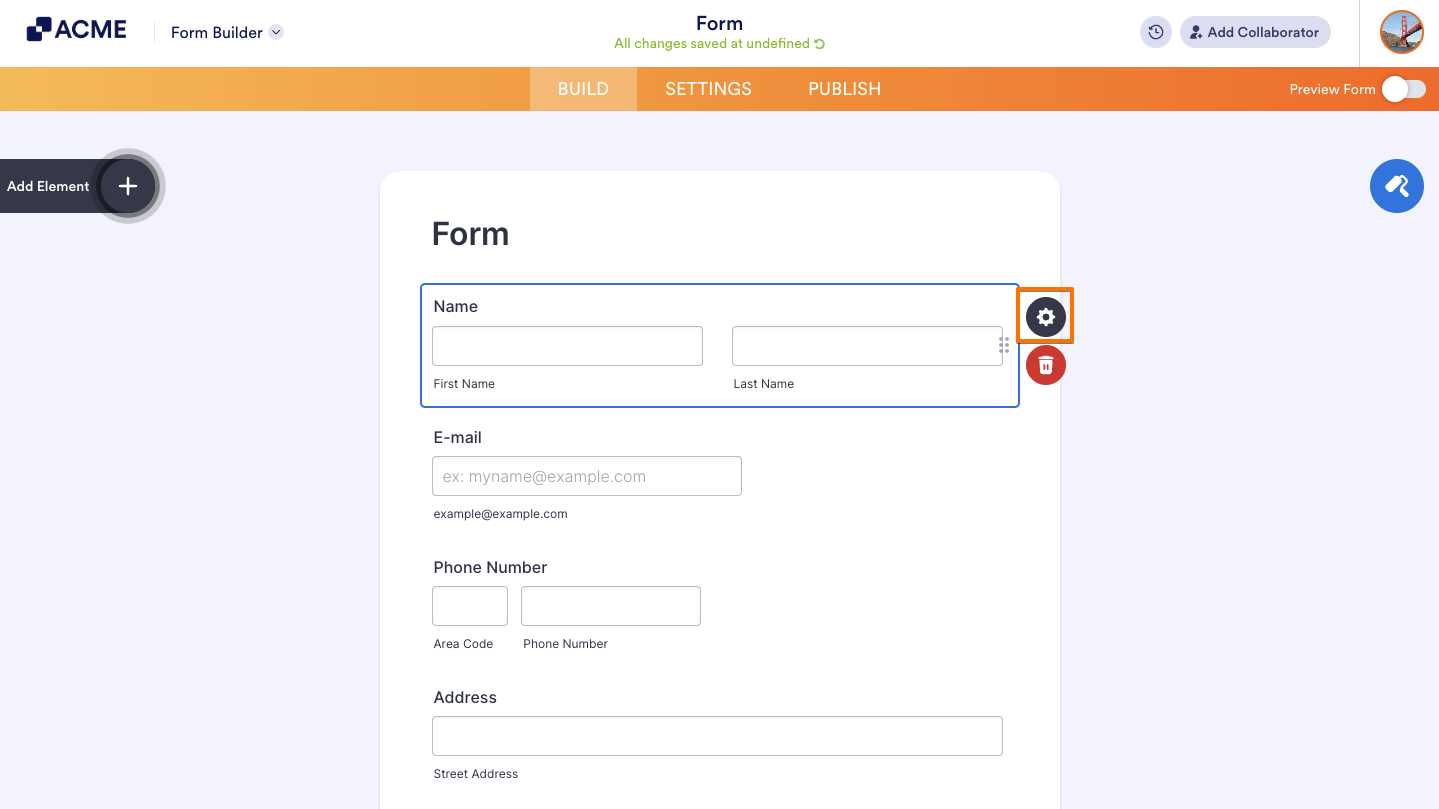
- Next, go to the Advanced tab.
- Scroll to the Hide Field property and toggle it to the On position.
Hiding Multiple Elements at Once
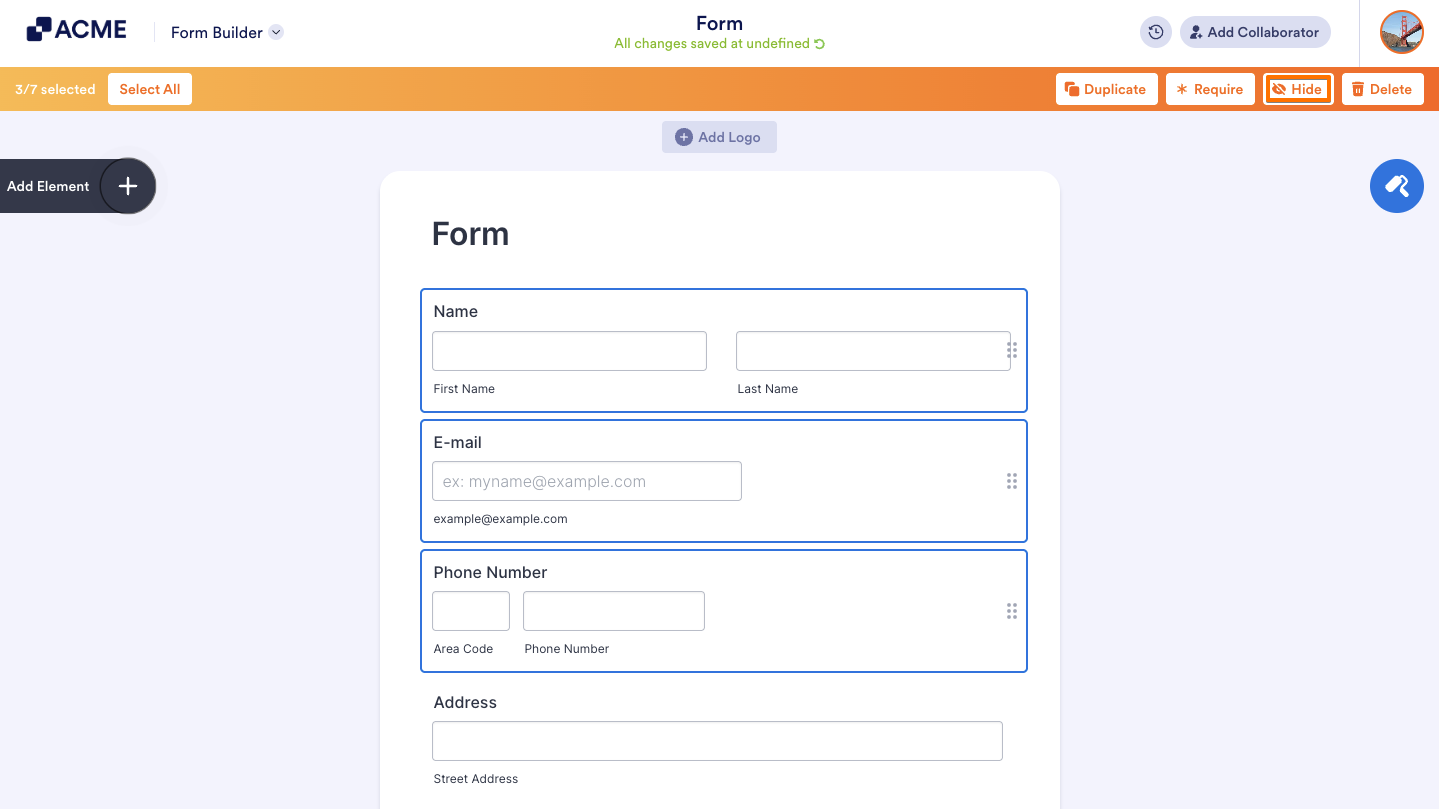
The feature of hiding multiple fields at the same time increases efficiency, allowing you to quickly adjust the form layout without needing to hide each field individually. Follow these steps to hide multiple fields at once:
- In Form Builder, hold the CTRL key or Command ⌘ on Mac and click fields to select multiple fields without deselecting the ones already selected.
- Once the fields are selected, in the toolbar at the top, click on Hide.
Note
- If you select a field and then select another field while holding the Shift key, it will select both fields and any fields in between them, if there are any.
- Pressing CTRL + A or Command + A on Mac will select all fields in the Form Builder.
For more information about hiding multiple fields at the same time, see How to Manage Multiple Fields.

Send Comment: