With Show/Hide Field conditional logic, you can control which fields appear based on how someone answers a question. It’s a simple way to keep your form clean and focused, so people only see the information that actually matters to them. This not only makes your form easier to complete but also creates a smoother, more personalized experience for your users. Whether you’re simplifying long forms or guiding people step by step, this feature helps keep everything clear and clutter-free.
Showing or Hiding Fields Conditionally
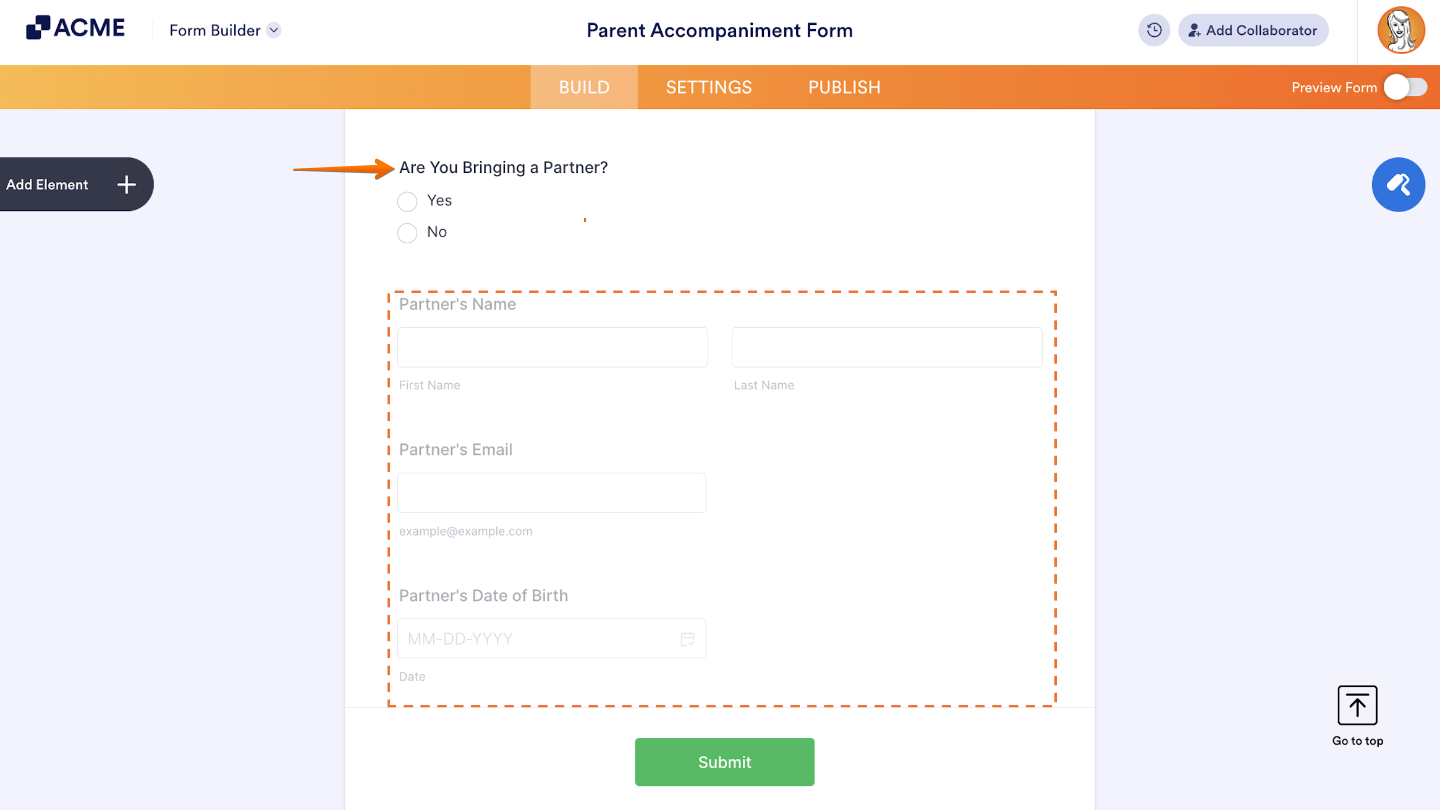
For example, let’s say you want to reveal a few extra questions only when they’re actually needed. In the demo form below, we’ll apply Conditional Logic to the question “Are you bringing a partner?” If the person selects “Yes,” a set of follow-up questions will appear—keeping the form simple for everyone else and more relevant for those who need to provide additional details.
Setting it up is quick—here’s how:
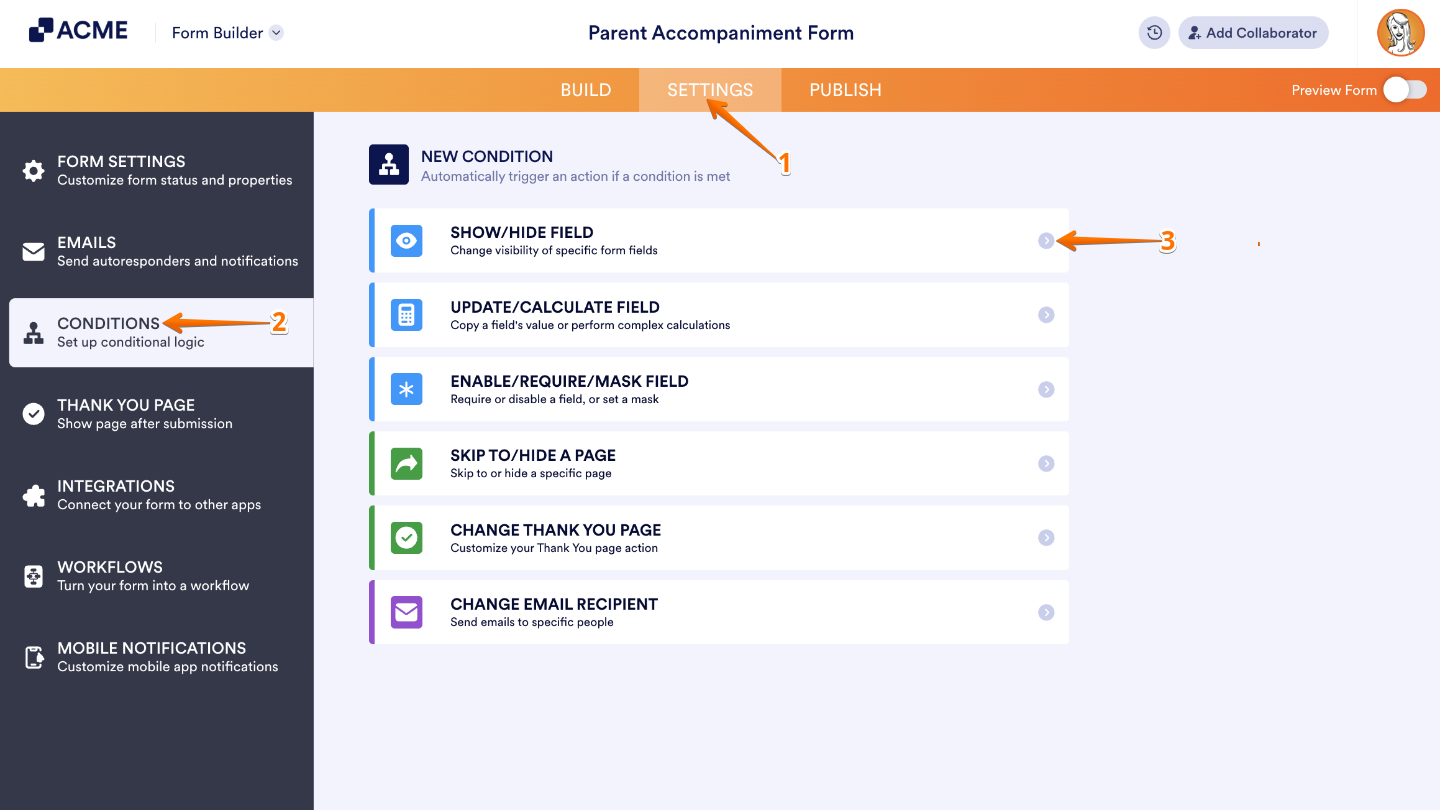
- In Form Builder, in the orange navigation bar at the top of the page, click on Settings.
- In the menu on the left side of the page, click on Conditions.
- Then, in the New Condition menu, click on Show/Hide Field.
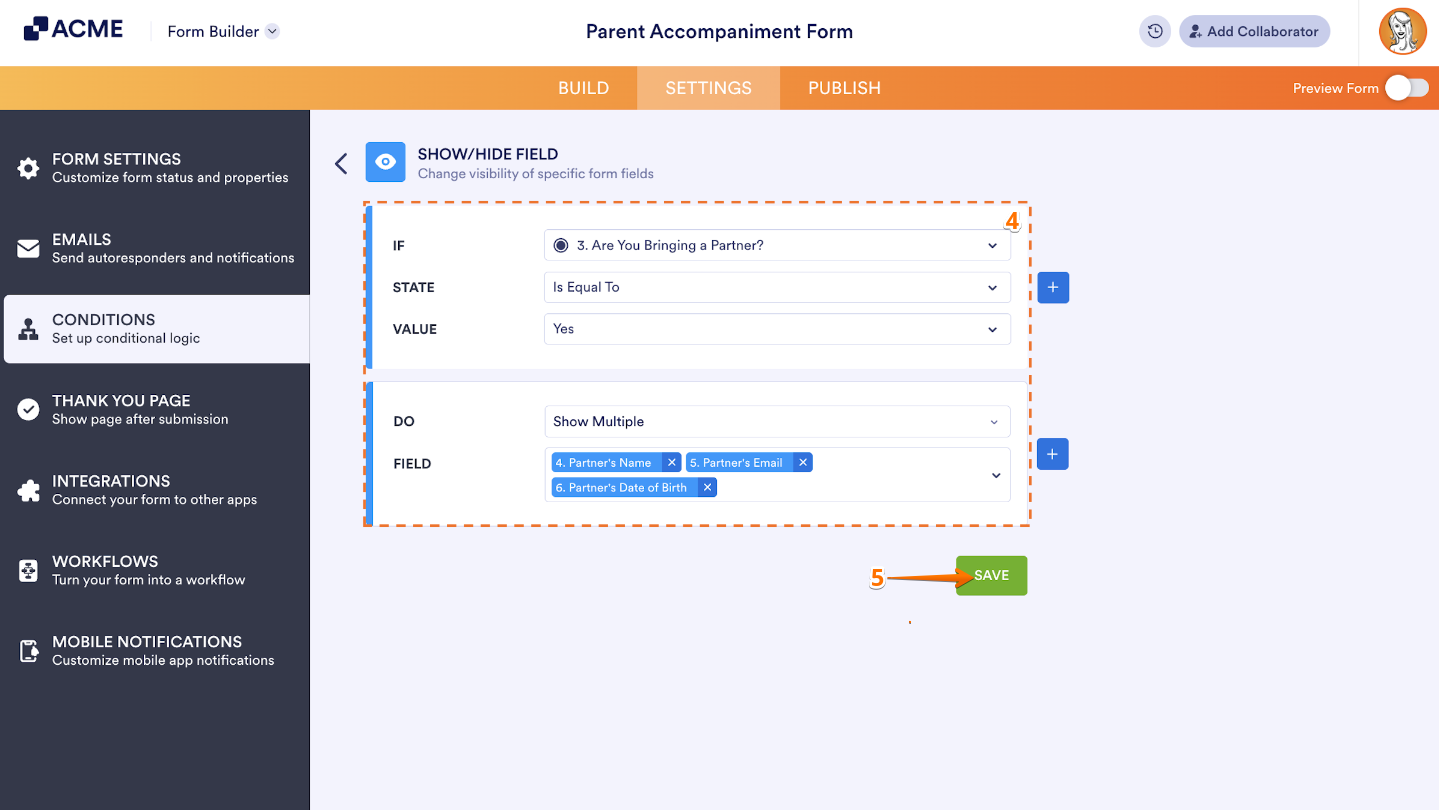
- Now, configure your condition rules, and then set Do to Show or Hide the selected Field. (In this example, we used Show, so when the condition is met, it’ll display the selected fields.)
- Once done, click on Save.
You’re all set. Now your form will only show the fields that are relevant based on the user’s answers. Let’s break that down:
- The IF condition checks whether the person answered “Yes” to the question “Are you bringing a partner?”
- If that’s true, the DO action — Show Multiple — will reveal all the follow-up fields you selected. If not, those fields stay neatly hidden so the form doesn’t feel cluttered.
TIP:
You can select more than one field at a time by using Ctrl+Click or Shift+Click—a handy shortcut when you’re showing a whole group of questions.

Send Comment: