The Date Picker element lets your form fillers easily select dates on your form. If you want to limit which dates can be chosen, like only weekends or certain date ranges, you can set these restrictions in the Advanced Options of the Date Picker.
How to Set Date Limits in the Date Picker Element
You can easily set your date limits in your Date Picker Element in a simple way. Here’s how to do it:
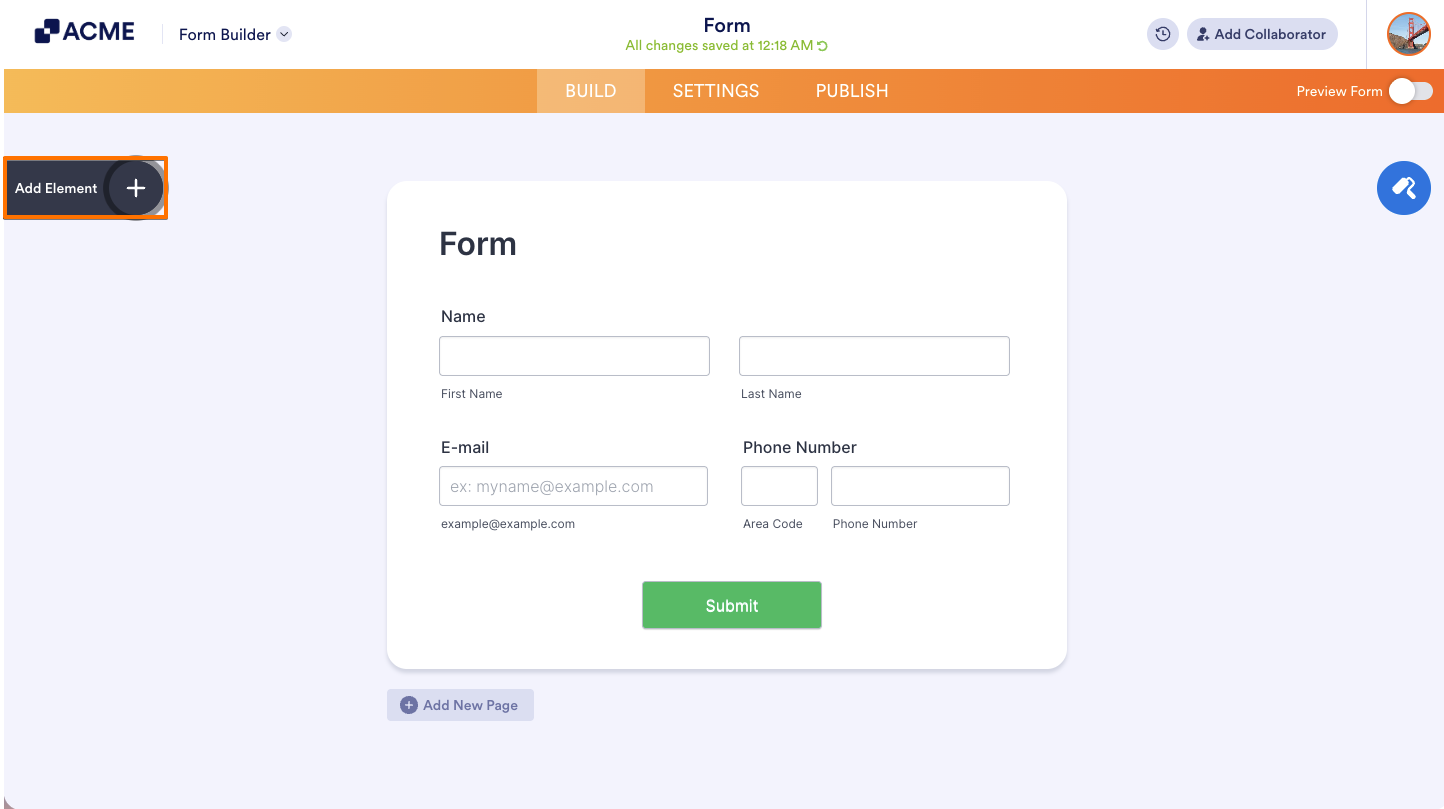
- In Form Builder, on the left side of the page, click on Add Element.
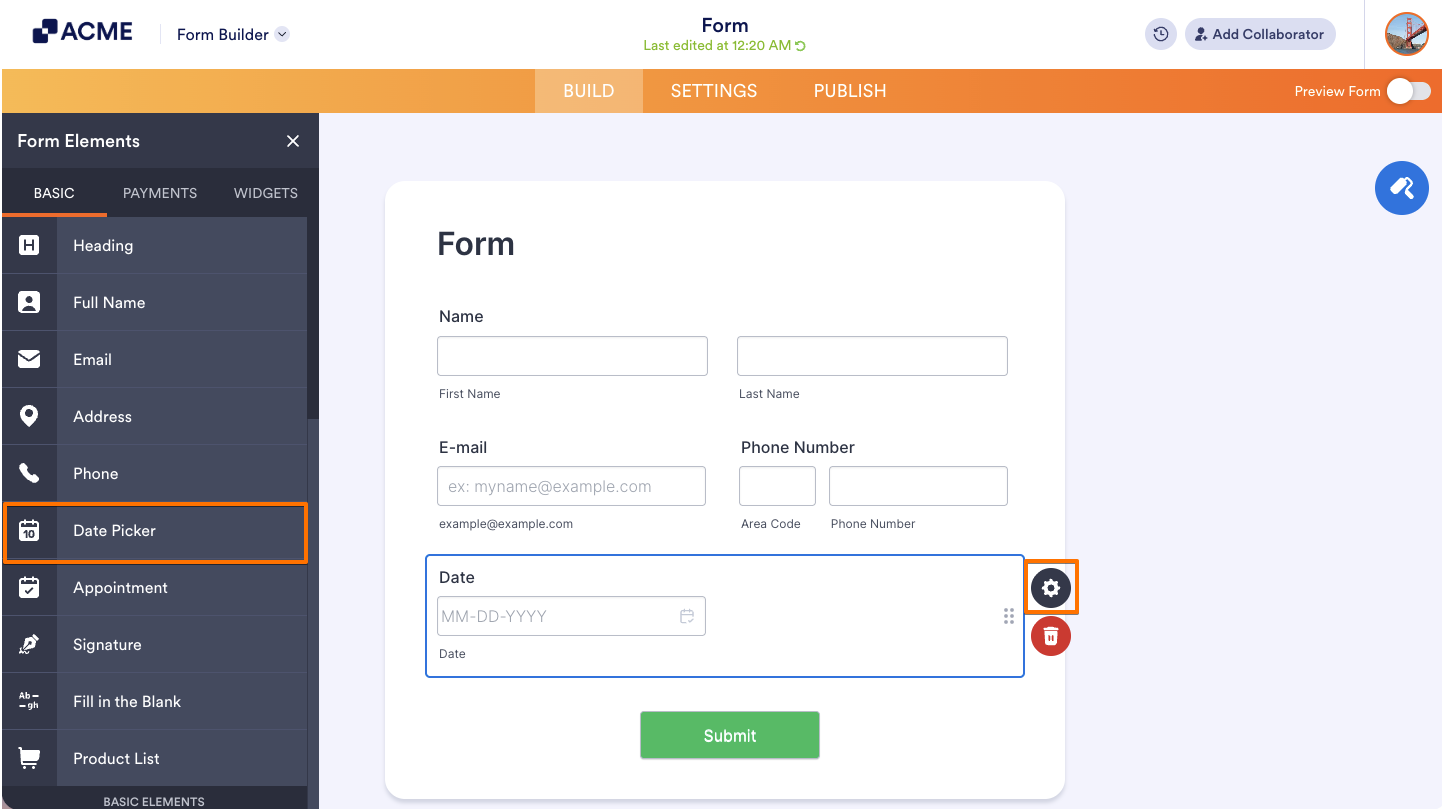
- Under the Basic tab, click on the Date Picker to add it to your form.
- Next, click on the Gear icon next to the Date Picker field.
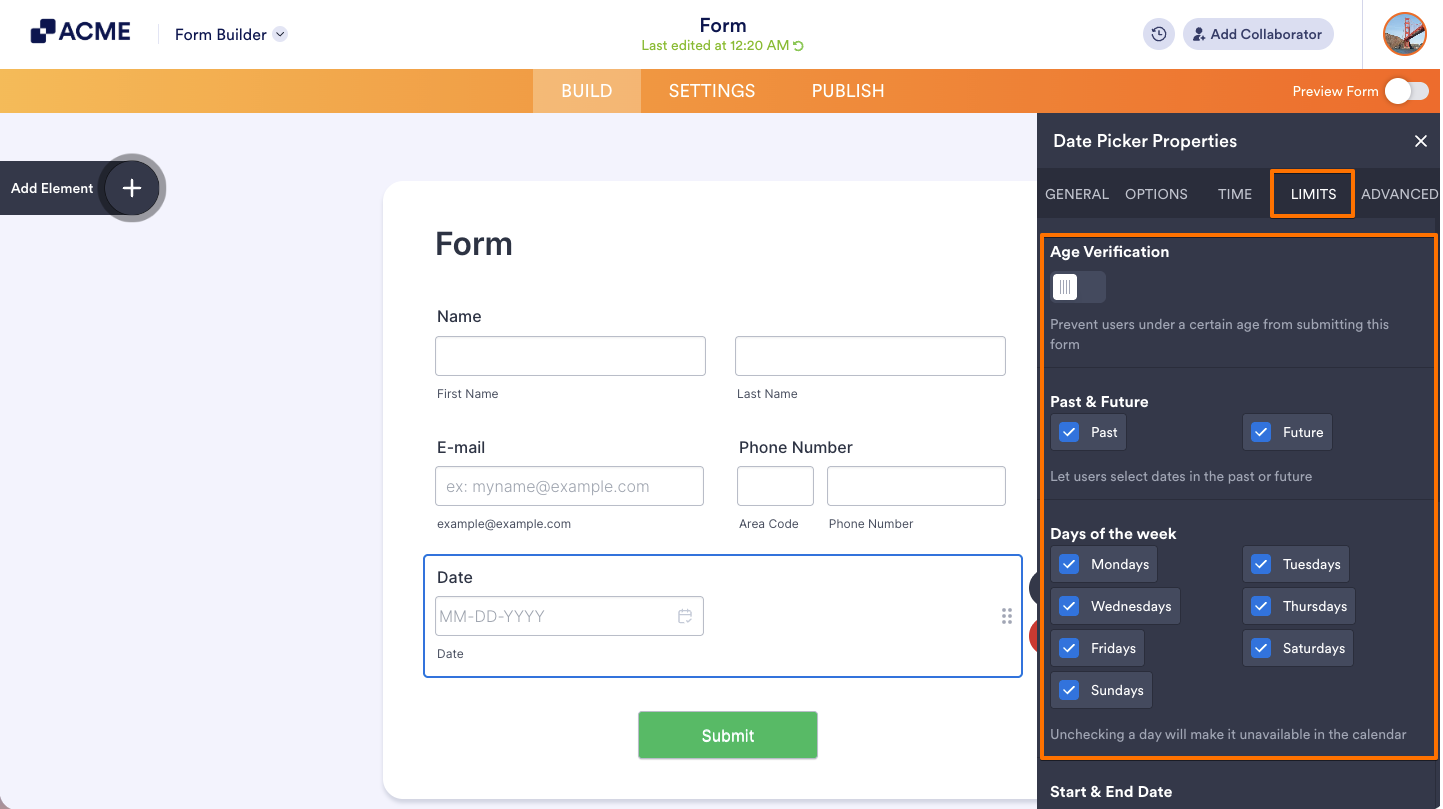
- Now, in the Date Picker Properties window that opens on the right side of the page, under the Limits tab, you can set up the following to disable your dates:
- Age Verification — Prevents form fillers under a certain age from submitting your form.
- Past & Future — Enable Past or Future to allow selection of past or future dates, respectively.
- Days of the Week — Choose which days of the week are selectable. For example, uncheck Saturday and Sunday to allow only weekdays.
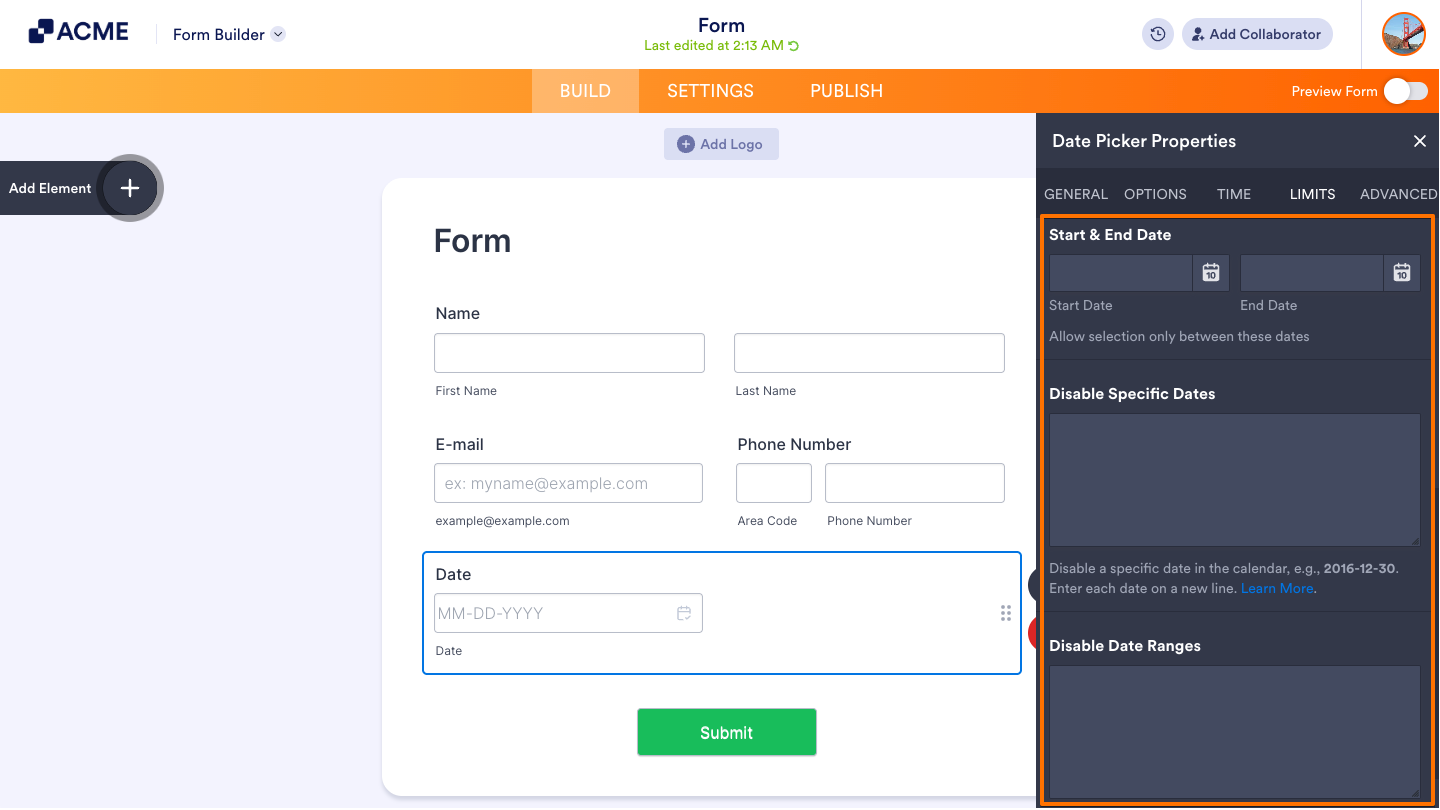
- Start & End Date — Limits date selection to a specific range.
- Disable Specific Dates — Blocks specific dates using supported formats:
- 2017-07-30 disables July 30, 2017
- 07-01 disables July 1st of every year
- 15 disables the 15th day of every month.
- Disable Date Ranges — Lets you disable multiple ranges of dates. For example:
- 1990-01-01>1999-12-31 disables all dates in the 1990s
- 0000-01-01>1999-12-31 disables all dates before the year 2000
Note
Any changes you make in the Date Picker Properties are automatically saved.
How to Set Dynamic Date Limits Using the Start & End Date Option in Date Picker
You can create dynamic date restrictions in your form by using the today+{n} format, where {n} is the number of days added to the current date. This is especially useful for forms like bookings, appointments, or scheduling where date availability needs to be time-sensitive.
For example, let’s say you want to allow users to book a date starting one week from today, and you only want to keep the booking window open for one week. Here’s how to set that up:
- While you’re still under the Limits tab of your Date Picker field, set the Start Date field to today+7. This means users can only start booking one week after submission.
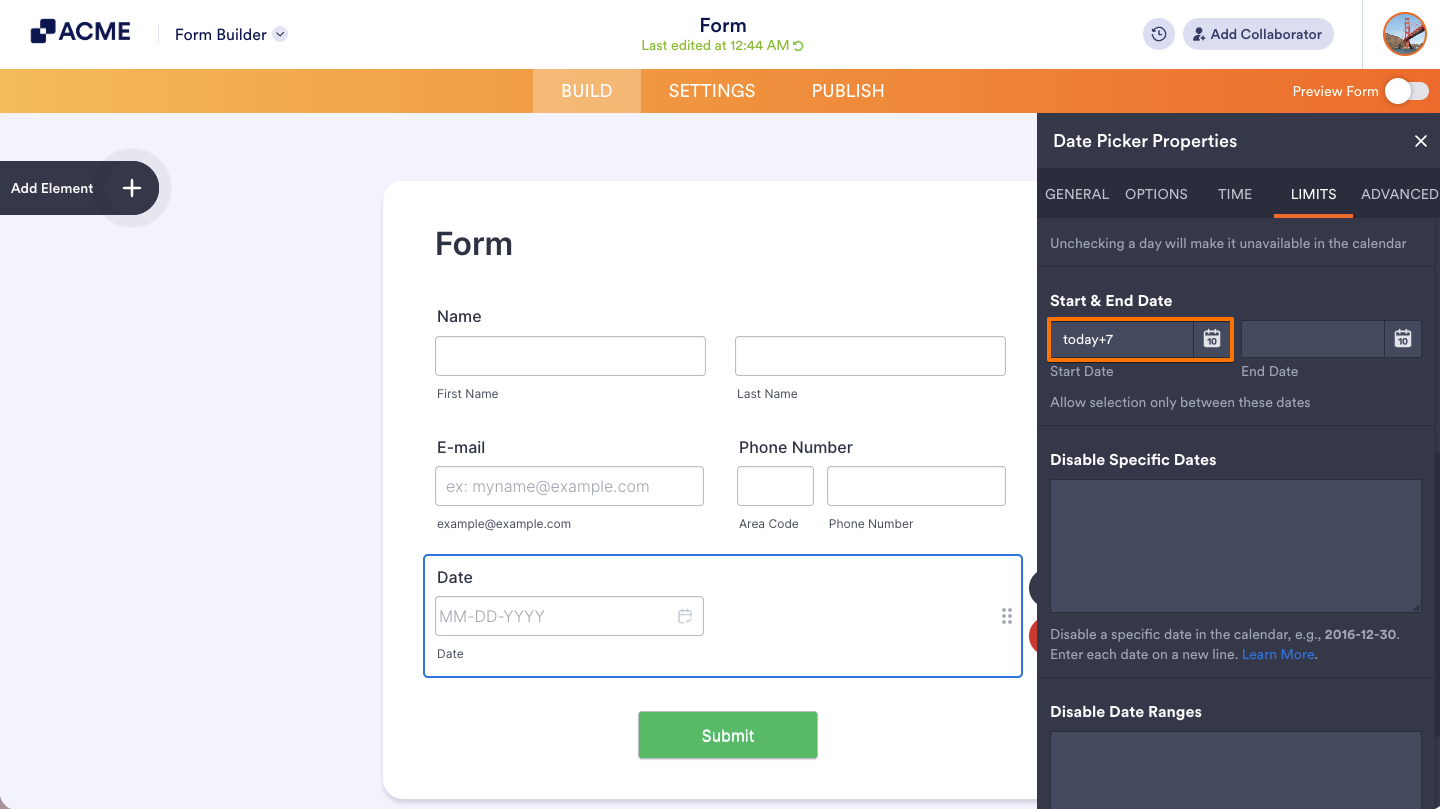
- Then, set the End Date field to today+13. This limits selection to a one-week window (from day 7 to day 13).
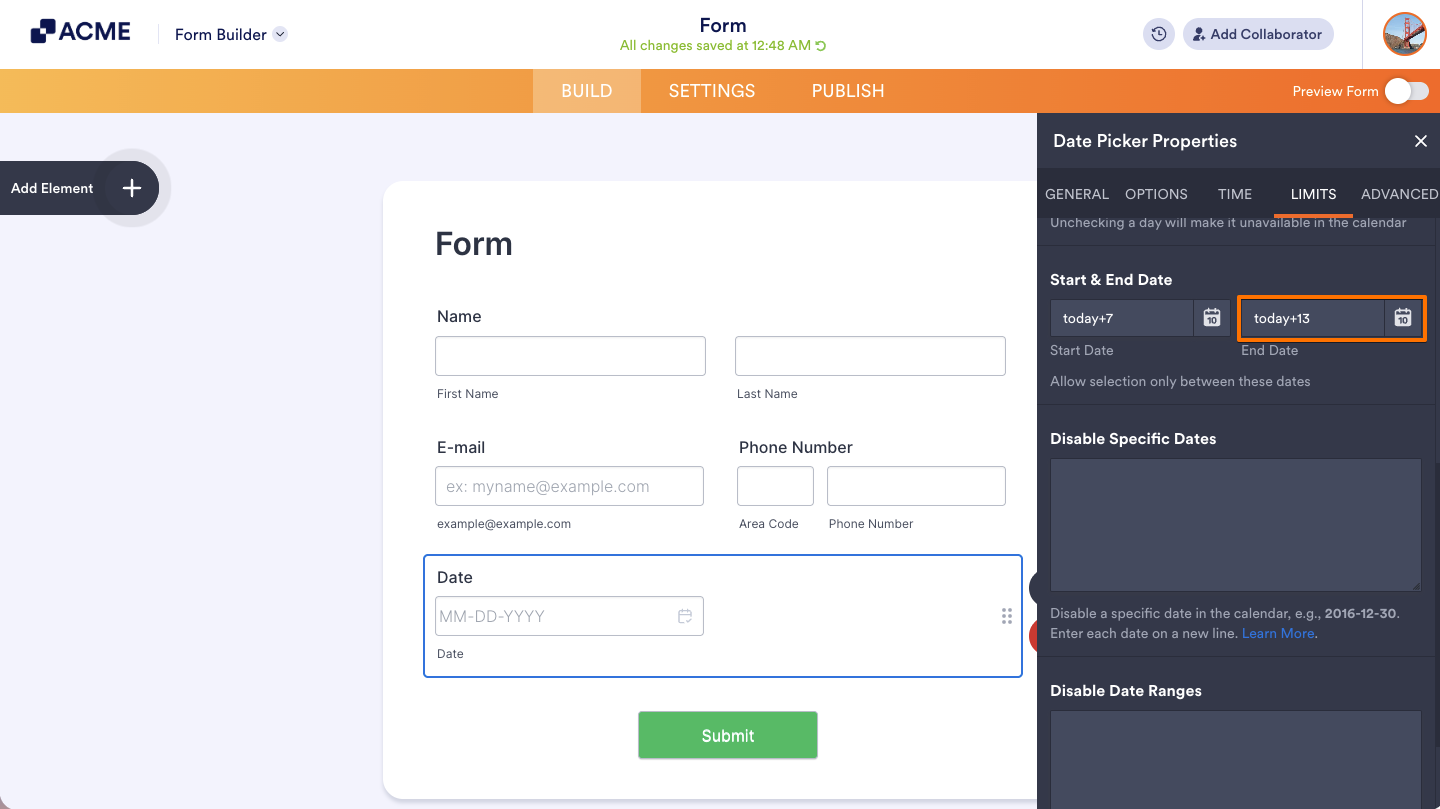
And you’re all set! Only dates between one and two weeks from today will be available for selection.

Send Comment: