You can easily control how many options users select in a Multiple Choice field. For example, if you have eight options, you can require users to choose at least three and no more than five. Want them to select an exact number? Simply set the minimum and maximum values to the same number.
Whether you’re creating a new form or updating an existing one, it’s simple to add a Multiple Choice field and set your selection limits. Here’s how to do it:
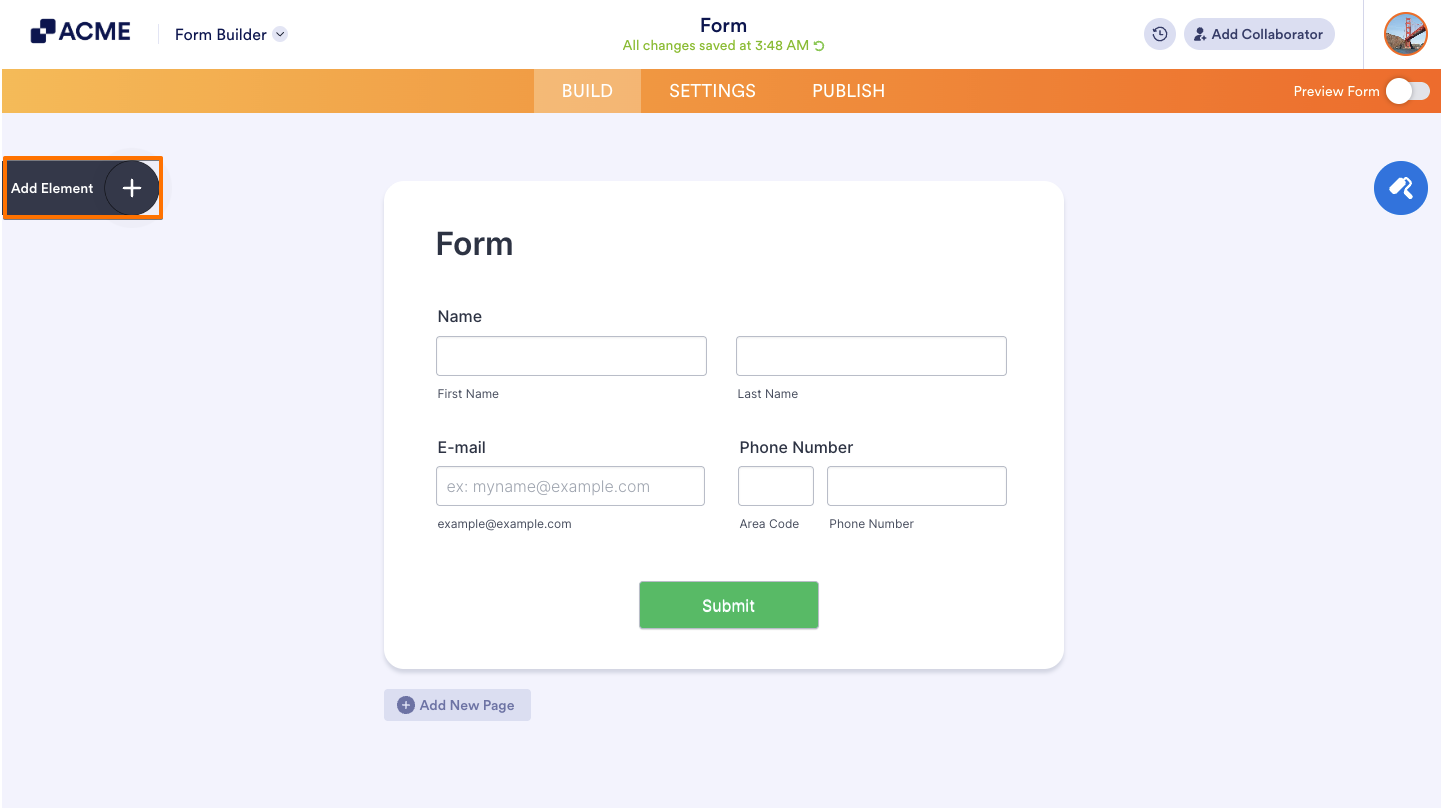
- In Form Builder, on the left side of the page, click on Add Element.
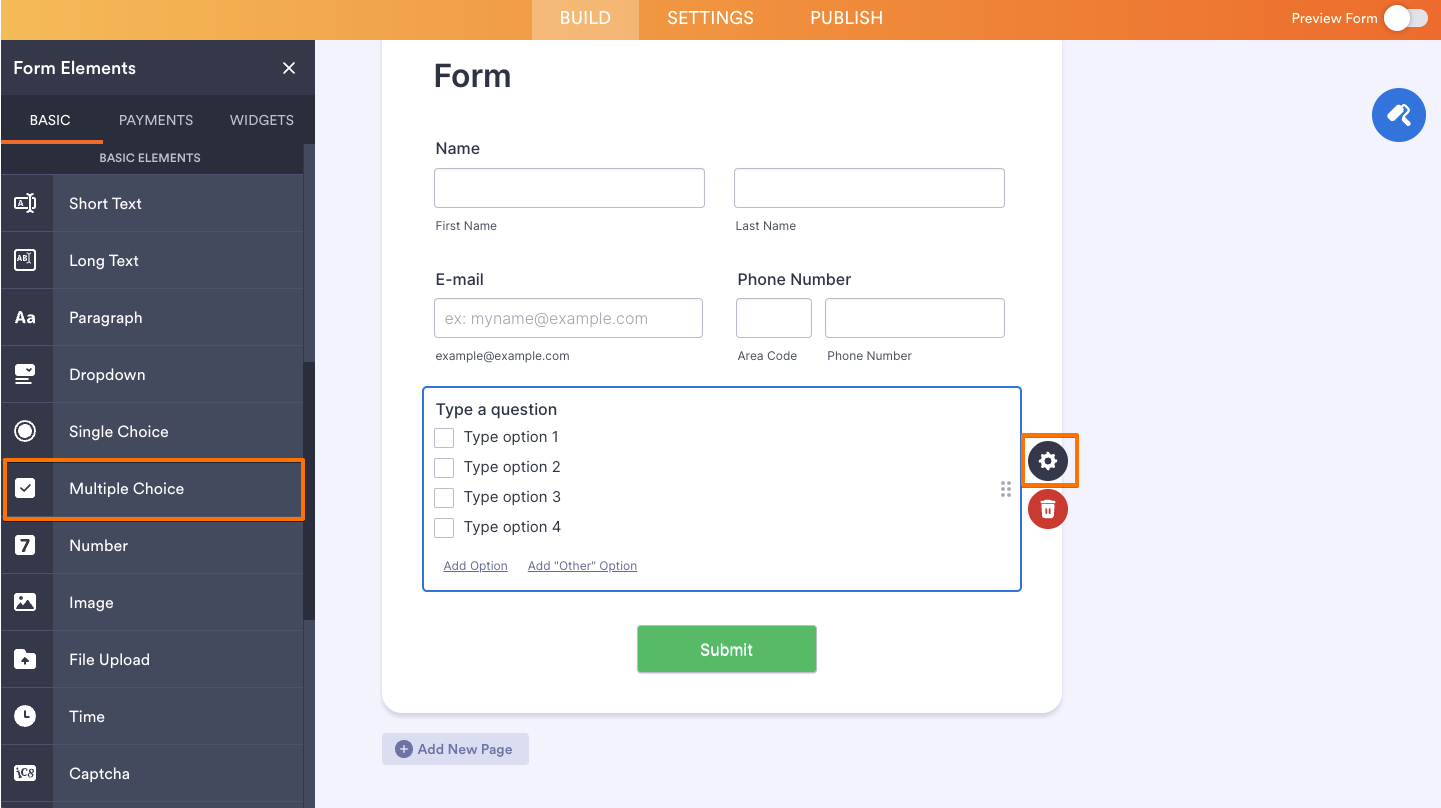
- Now, in the Form Elements menu, under the Basic tab, click on Multiple Choice.
- Next, on the right side of the Multiple Choice field, click on the Gear icon.
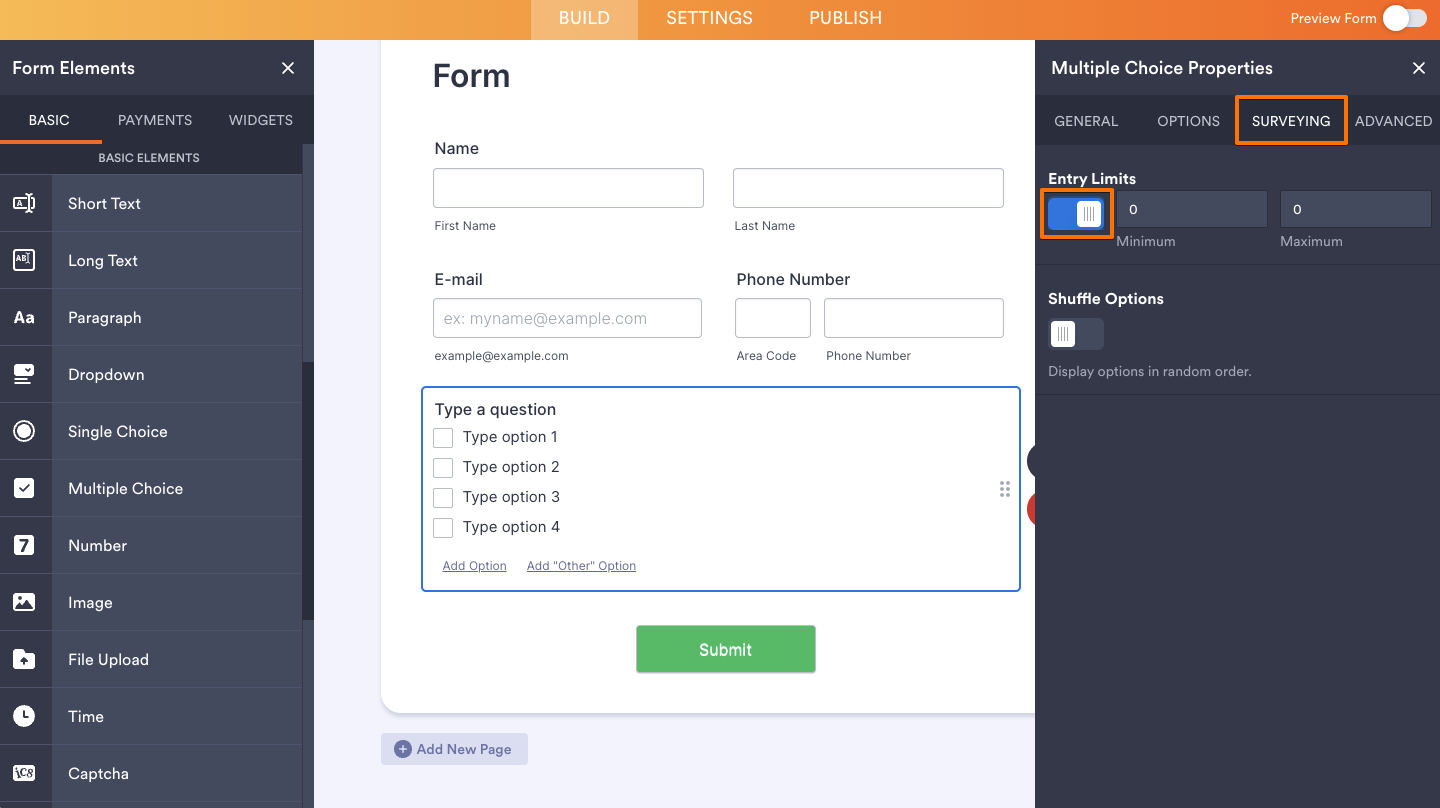
- In the Multiple Choice Properties panel, open the Surveying tab and toggle the Entry Limits property to On.
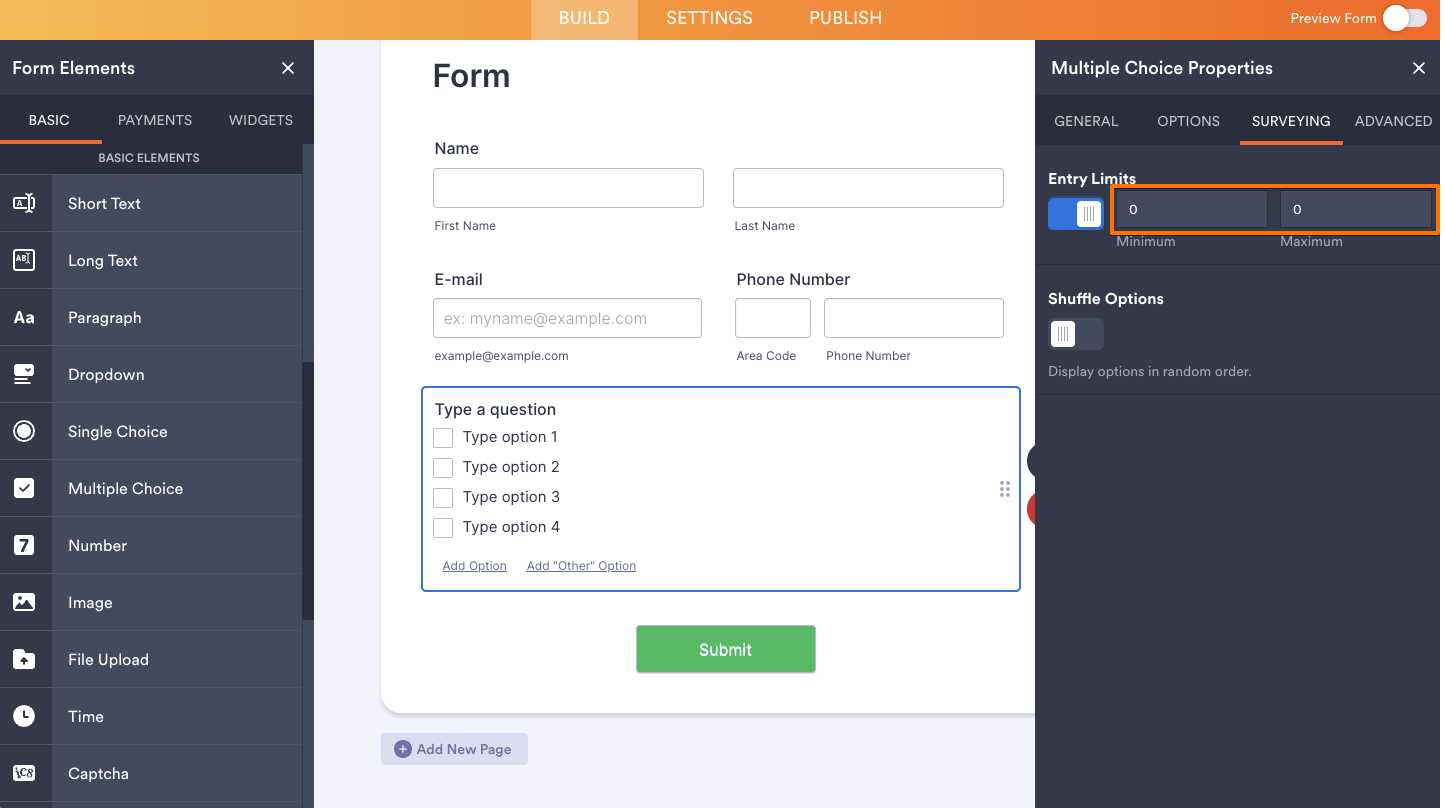
- Enter the Minimum and Maximum number of entries in the fields next to the toggle.
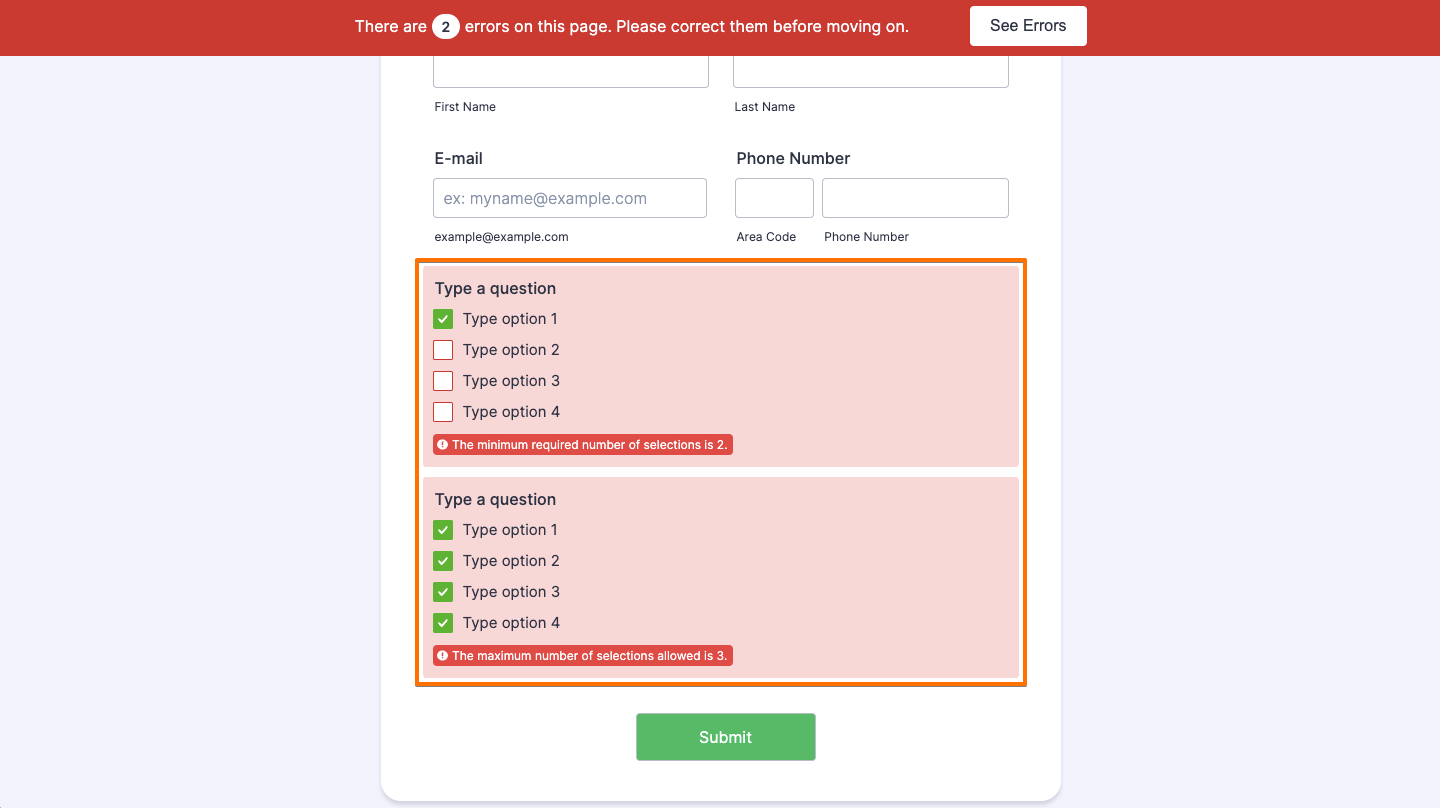
That’s it. Now, you’ve successfully set limits for how many checkboxes can be selected in the Multiple Choice field on your form. Here’s what it’ll look like when someone doesn’t meet the minimum selection requirement or when the maximum limit is exceeded:
Notes
- Any changes you make in the Surveying tab of the Multiple Choice Properties window are saved automatically.
- You can customize the entry limit error message in Form Builder Settings. Check out our guide on How to Change Your Form Warning Messages to learn more about it.

Send Comment: