What is a Guest User?
A Guest User is an external (and unlicensed) user who’s been granted access to your forms to submit, view, or edit their own responses.

Logging Guest Accounts out of Your Organization
As an Admin, you can log any guest users out of their accounts from within the Admin Console. That user’s current login session will expire, and they will be required to log in again before they will be able to access any shared assets.
Tip: Any guest accounts that are still in Pending status cannot be logged out this way (as they haven’t opened the invite link yet).
You can log guest users out in two different ways, and even log multiple guest users out at once. Let’s walk through these options together, below:
Logging Out of Guest Accounts from the User Management Page
- Starting in the Admin Console, click on Users in the menu on the left side of the page.
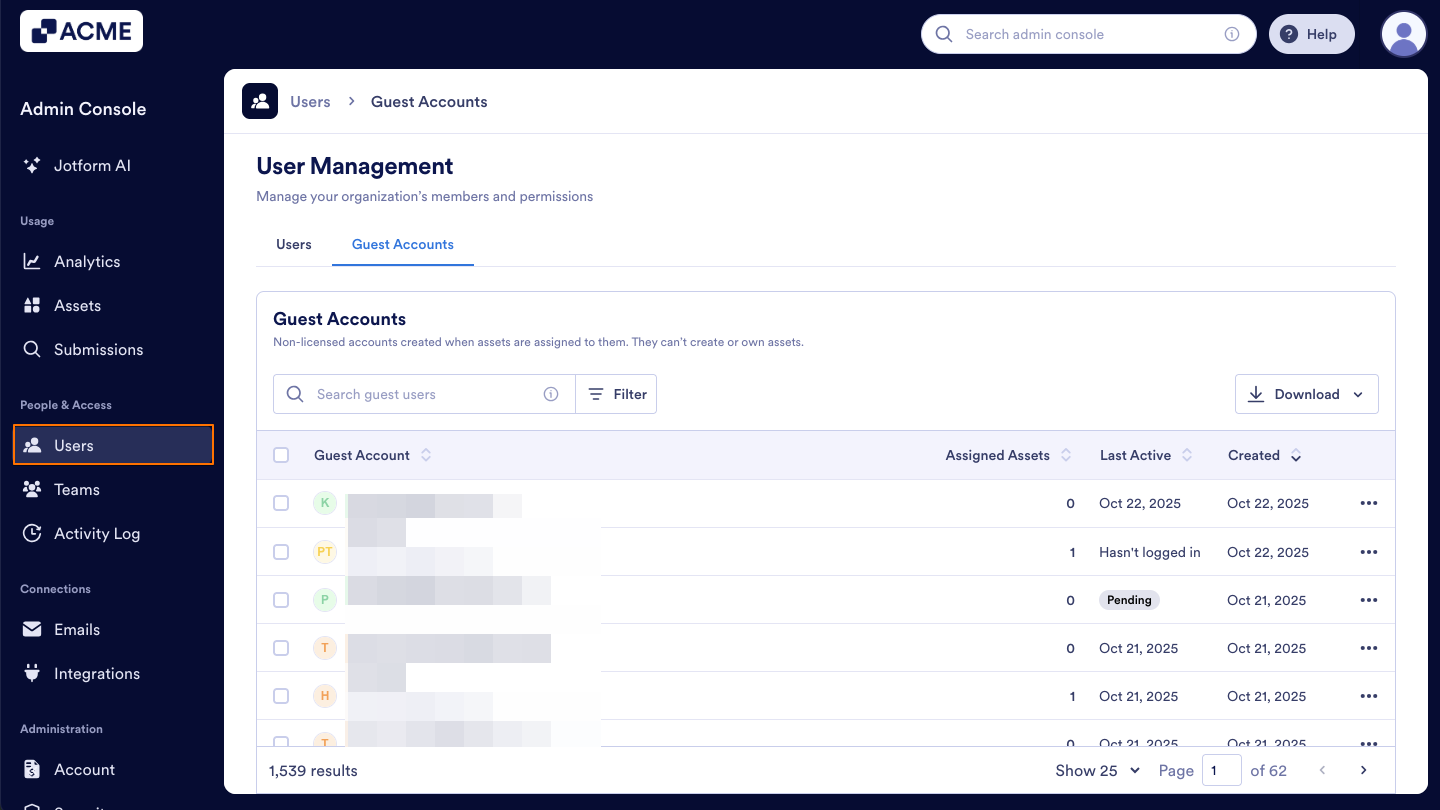
- Next, click on the Guest Accounts tab and search for the user you’d like to log out.
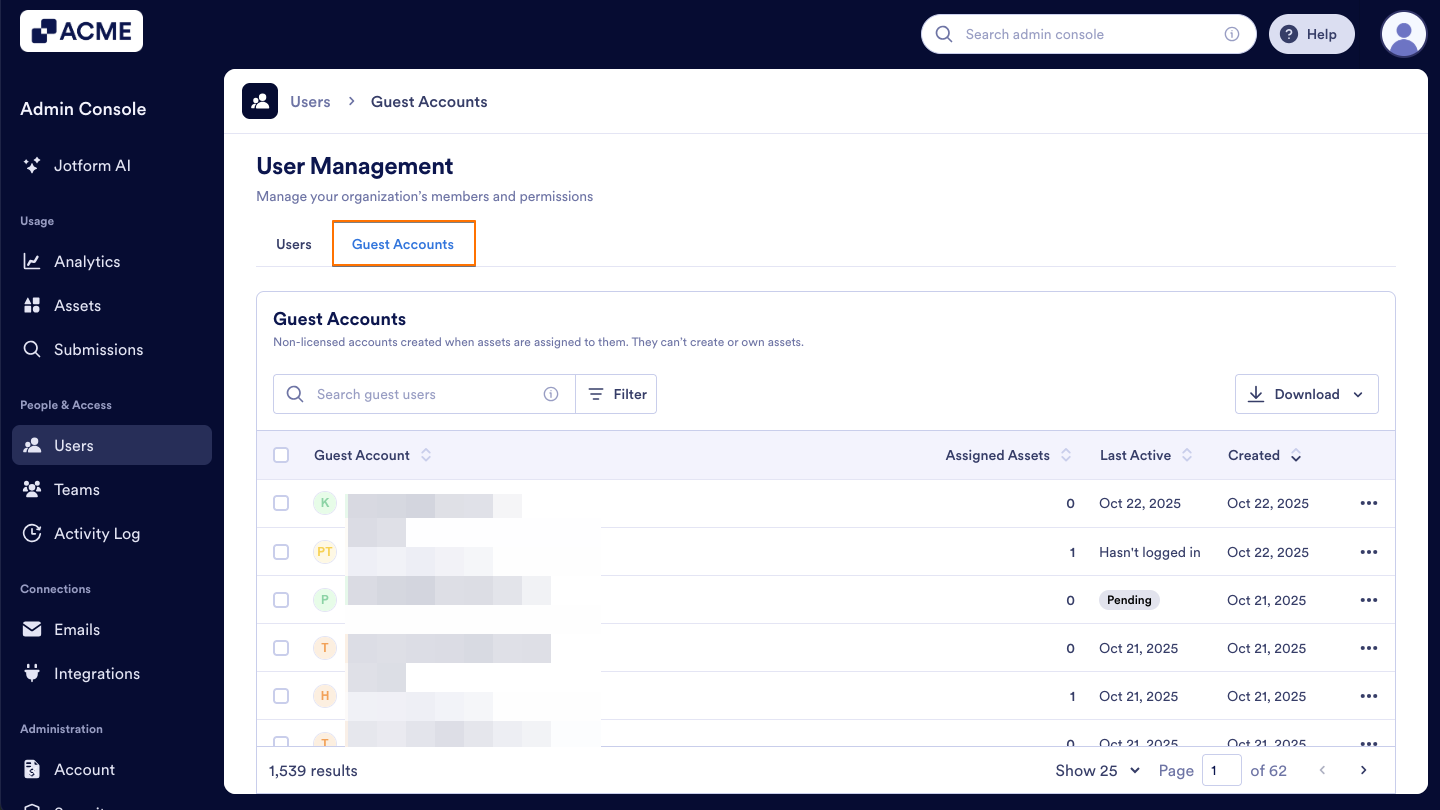
- Now, click the Three Dots icon located to the right of the guest user you want to log out.
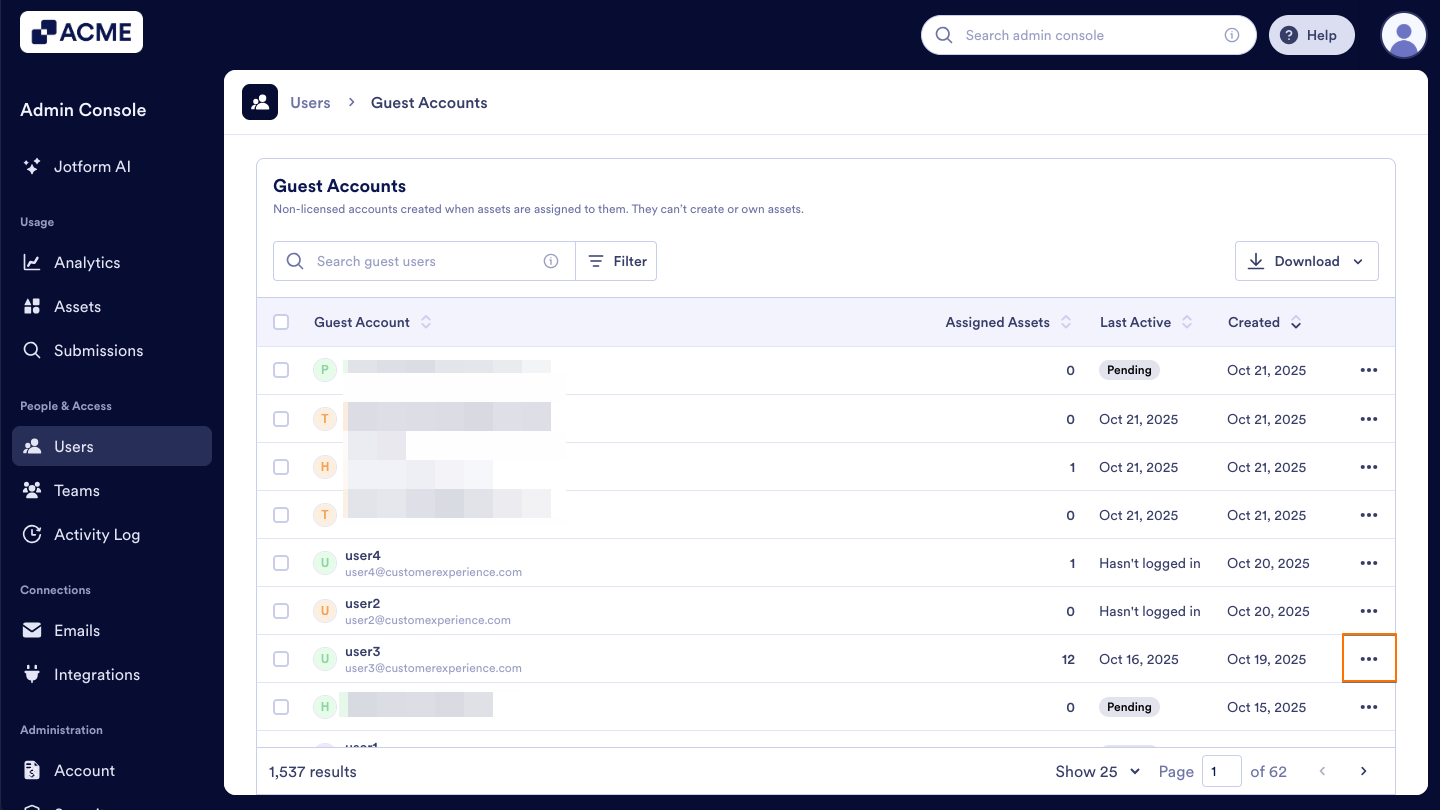
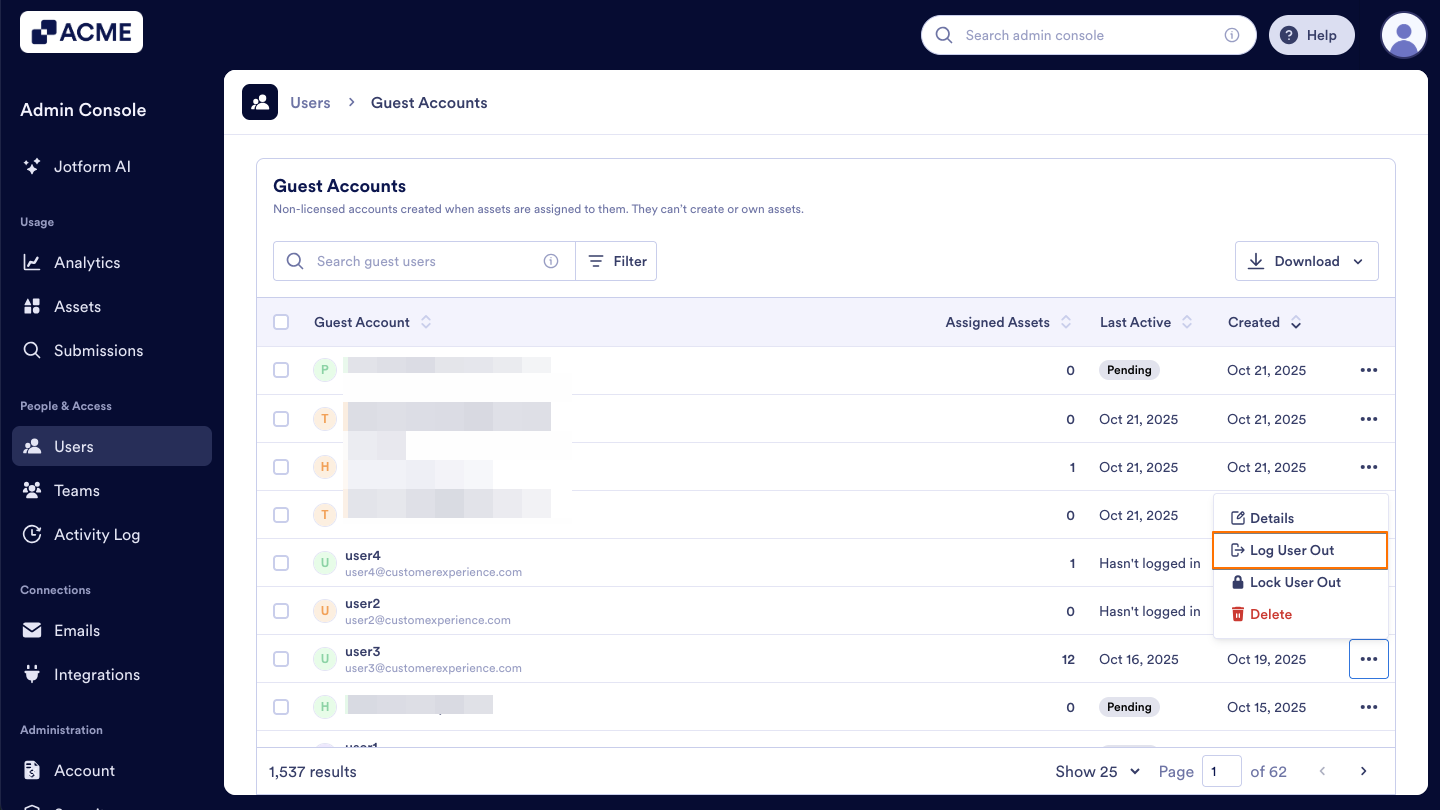
- Then, click Log User Out in the dropdown menu.
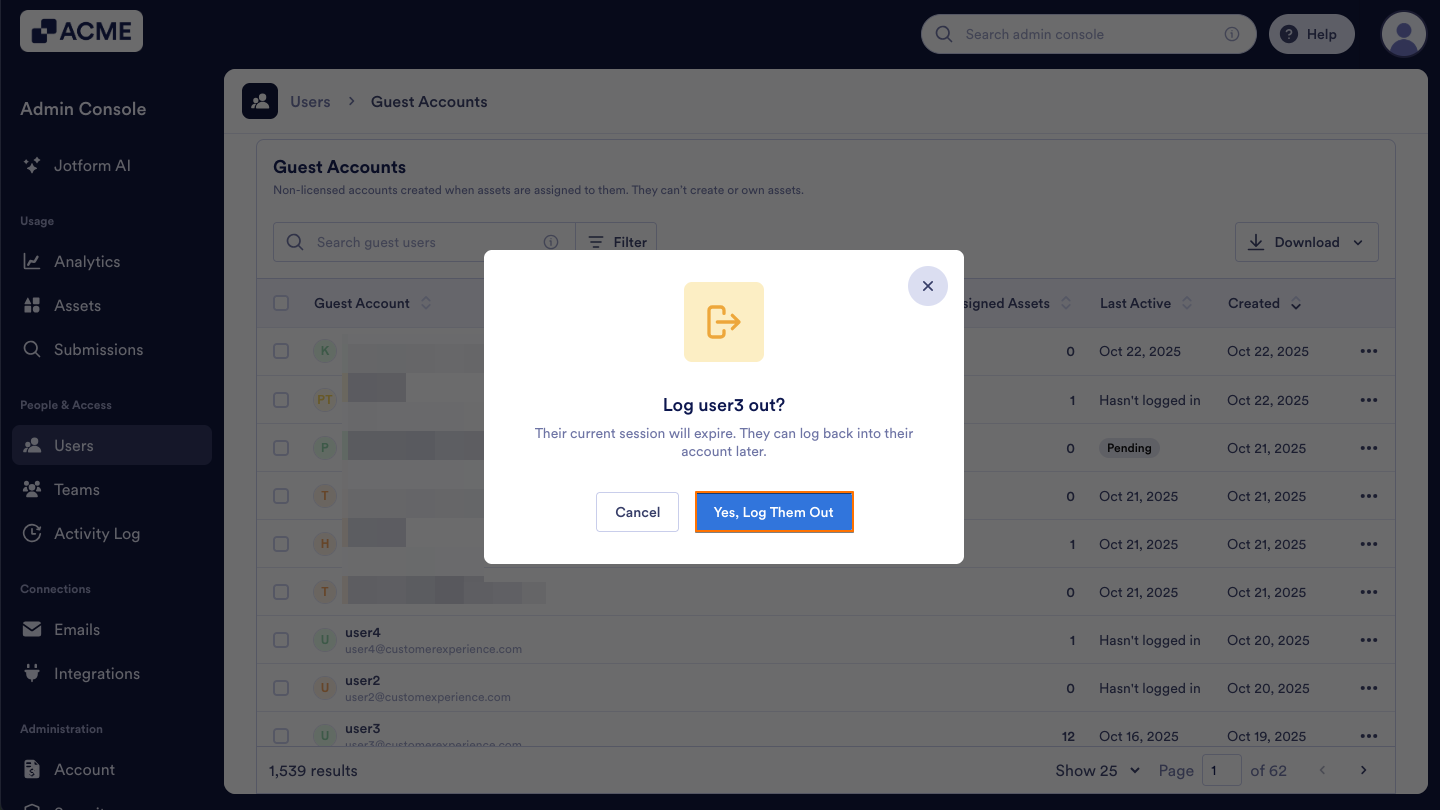
- Confirm this action in the popup window by clicking Yes, Log Them Out.
Logging Out of Guest Accounts from the Details Tab within a Specific Guest User’s Profile
- Starting in the Admin Console, click on Users in the menu on the left side of the page.
- Next, click on the Guest Accounts tab located at the top of the User Management page.
- Click on the username of the user you want to log out.This opens a sidebar on the right side of the screen that contains several tabs, such as Details, Assets, and Activity.
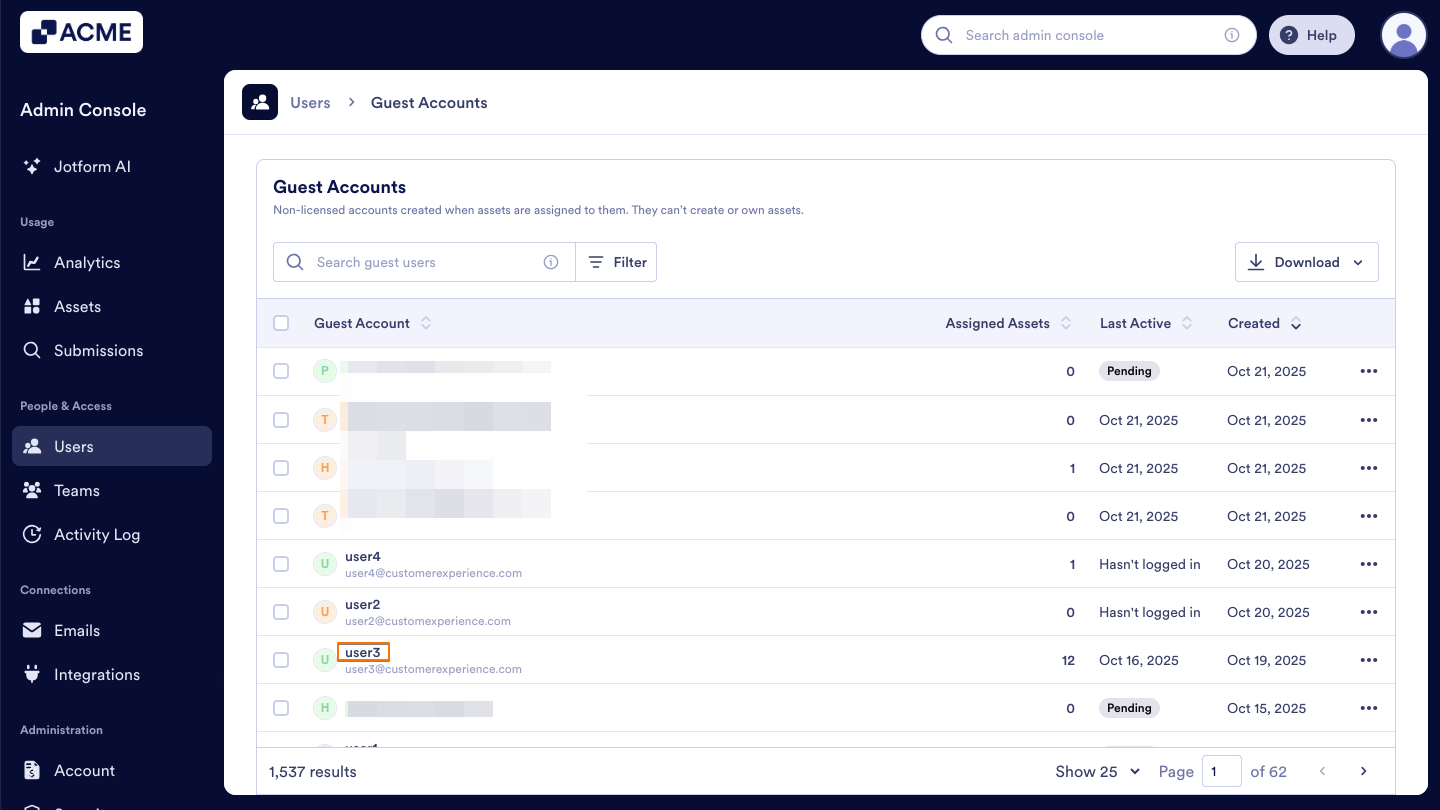
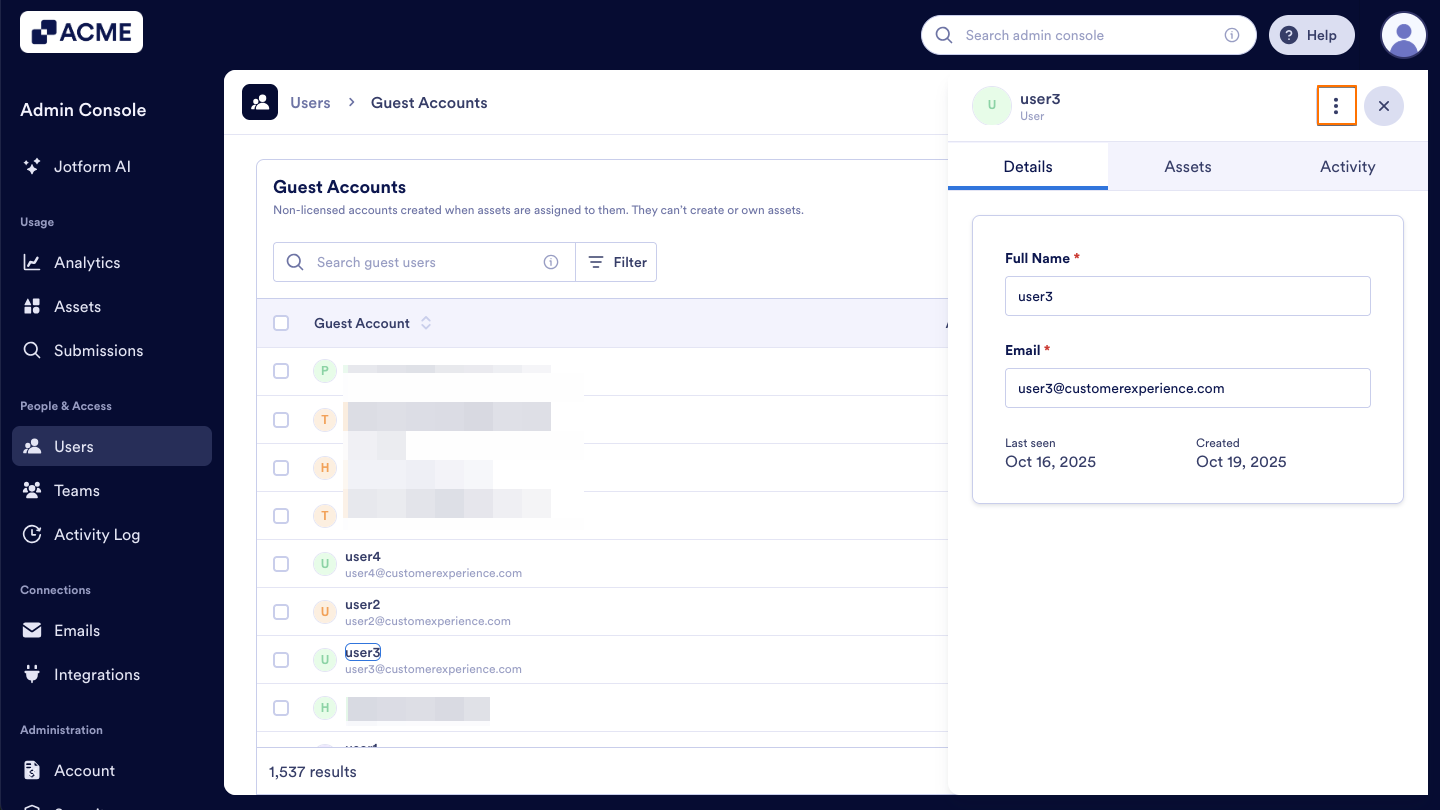
- In the Details section of that sidebar, click on Three-dots next to the username
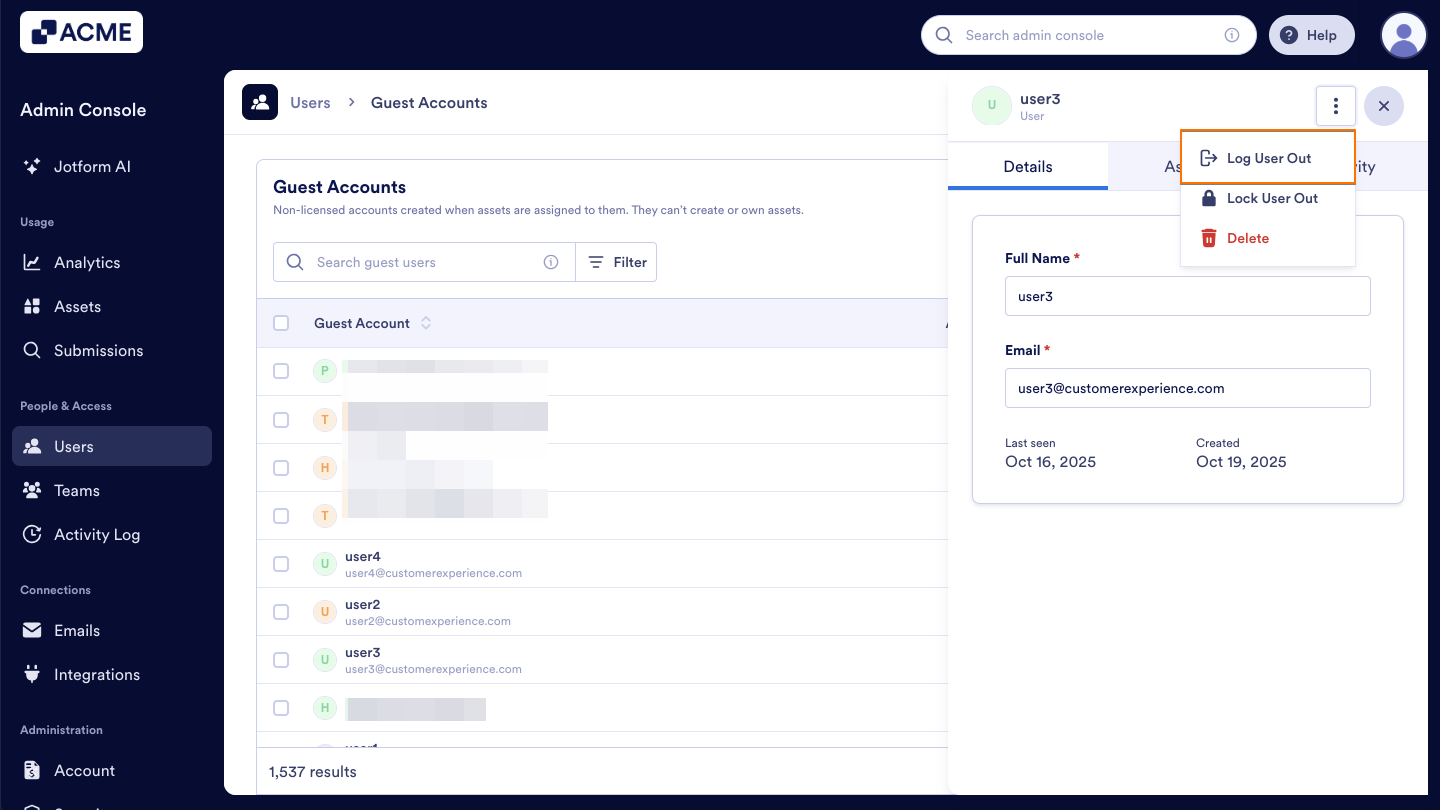
- Select Log User Out.
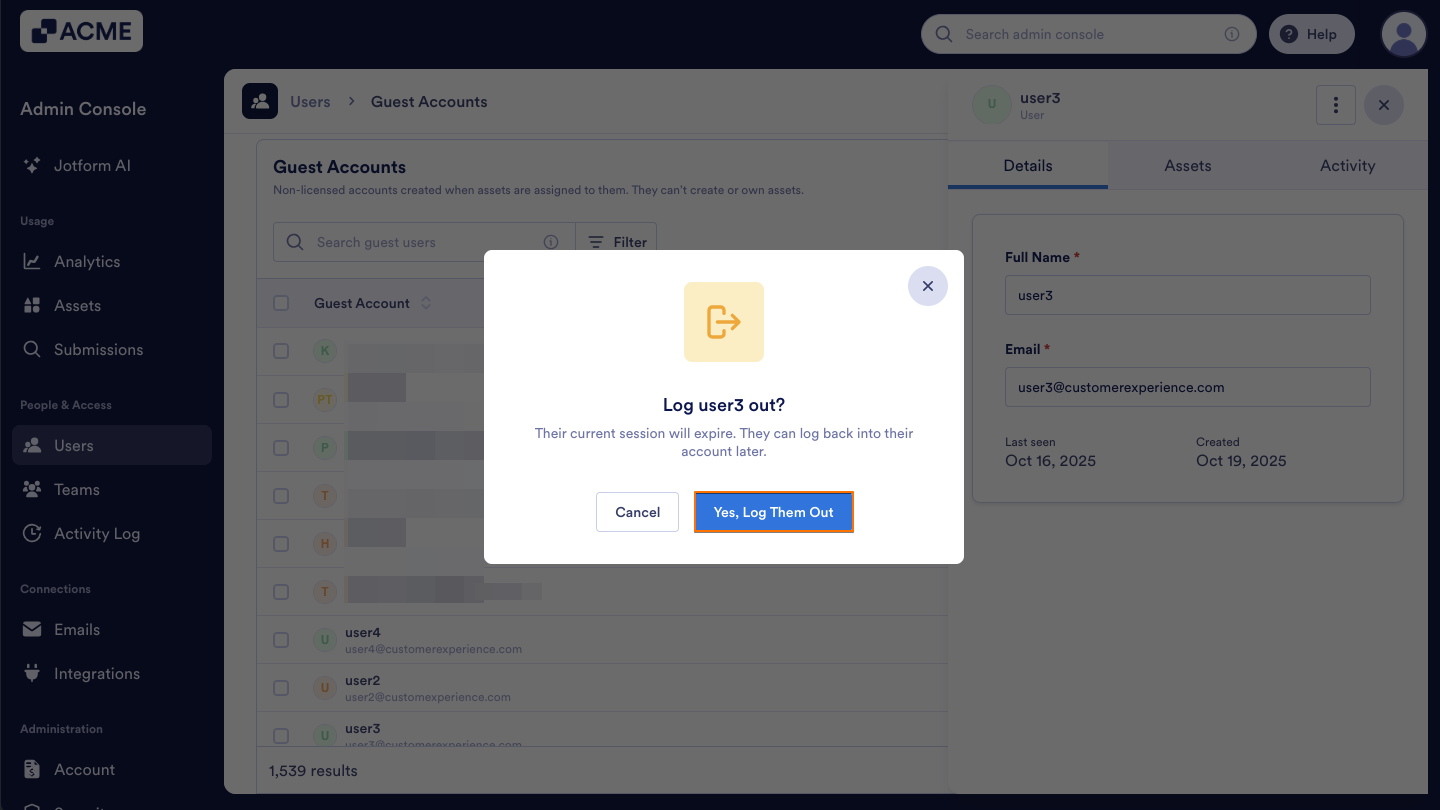
- Confirm this action in the popup window by clicking Yes, Log Them Out.
Logging Guest Accounts out of Your Organization in Bulk
You can also log out multiple guest users at once from within your User Management Screen.
- Starting in the Admin Console, click on Users in the menu on the left side of the page.
- Next, click on the Guest Accounts tab located at the top of the User Management page.
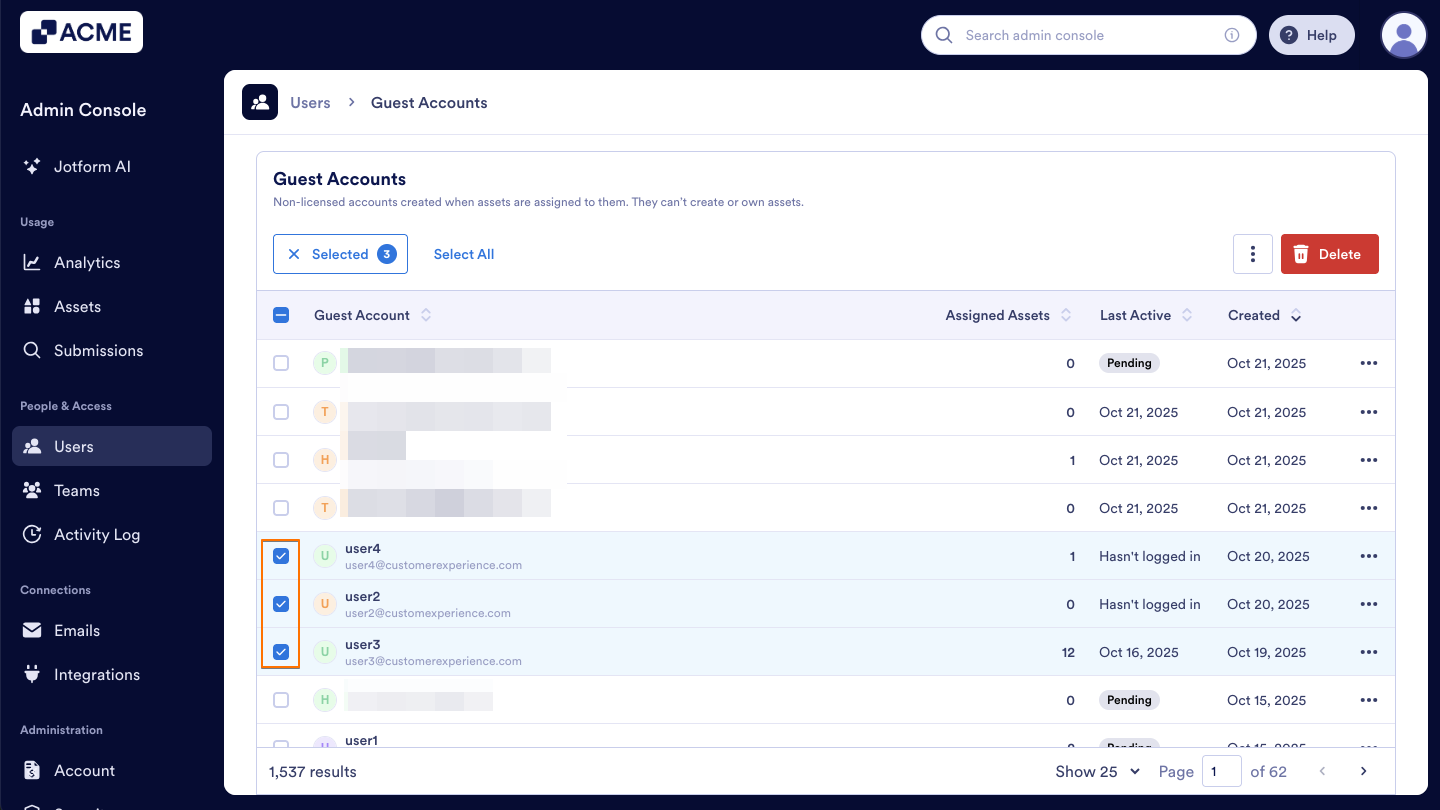
- Once you’ve decided which guest users you want to log out, click on the checkboxes to the left of their names to select them.
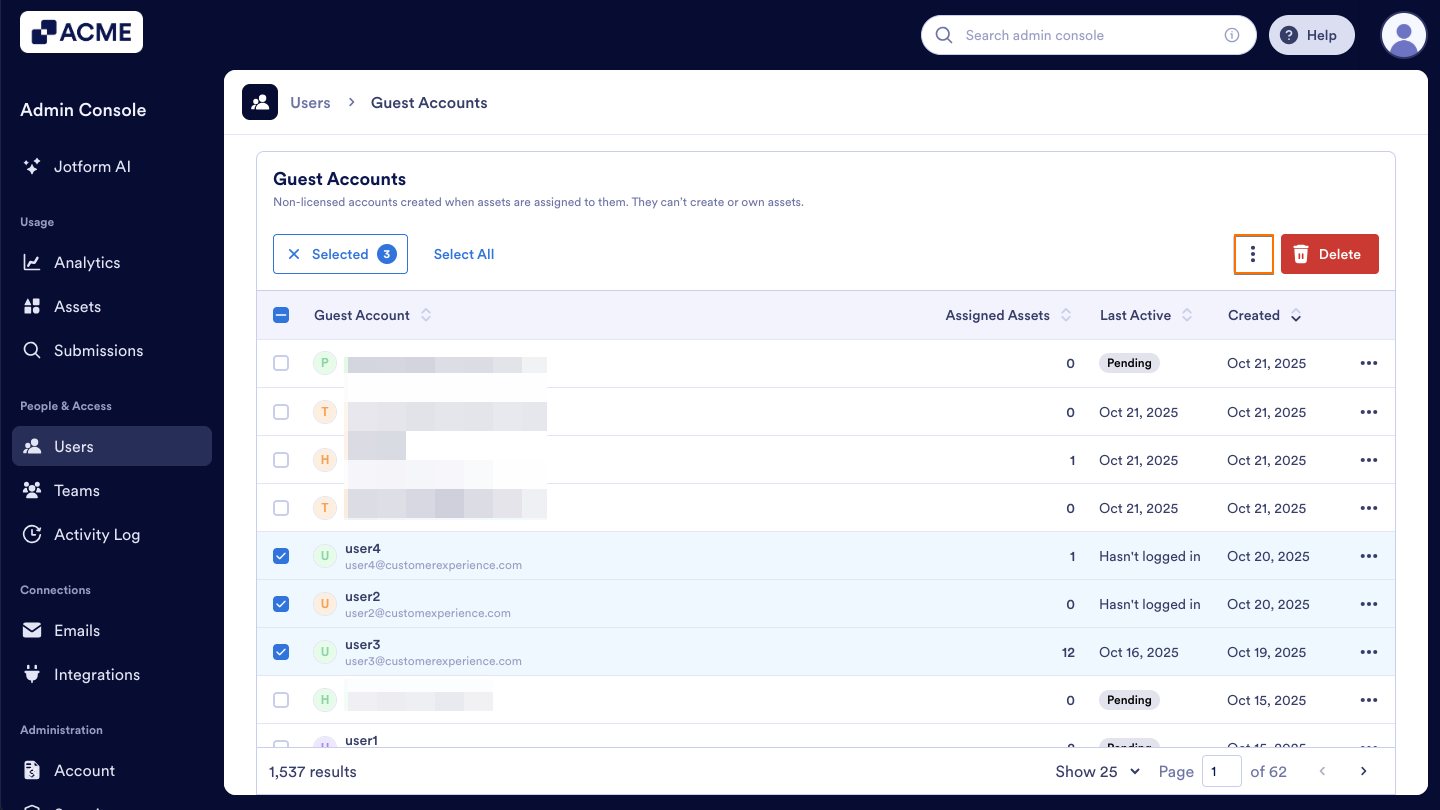
- With those users selected, click on the Three Dots icon near the top right of the Guest Accounts table.
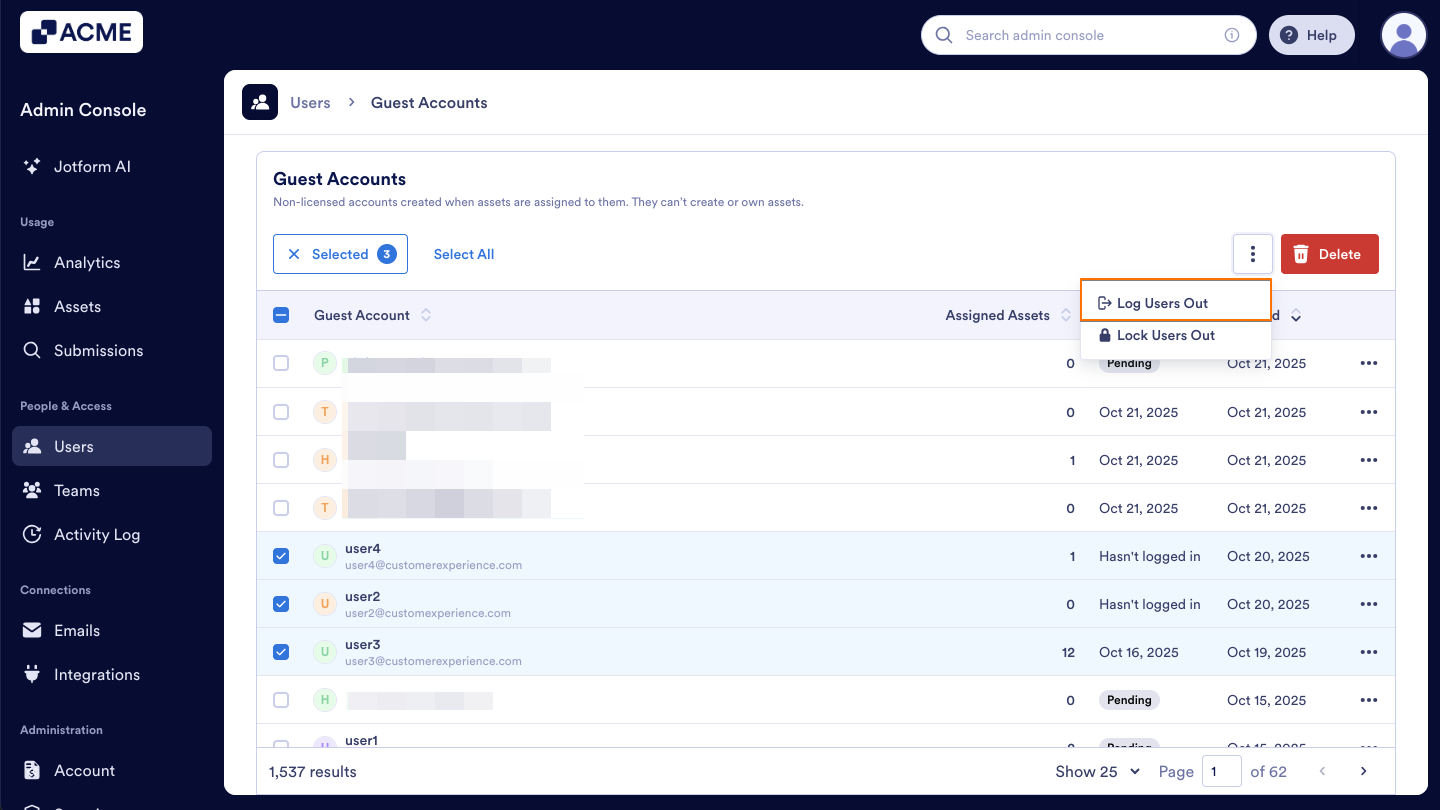
- Then, click Log Users Out in the dropdown menu.
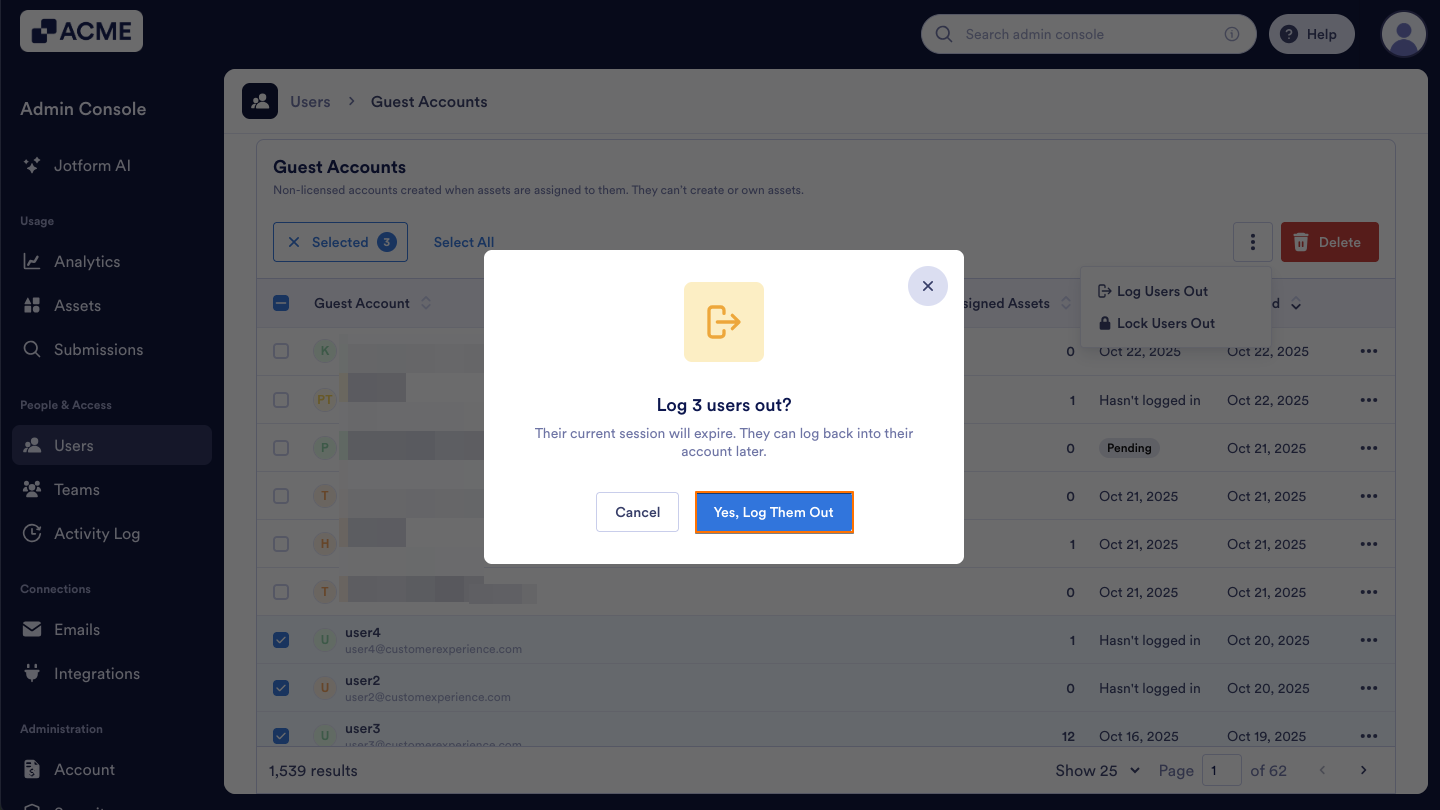
- Confirm this action in the popup window by clicking Yes, Log Them Out.
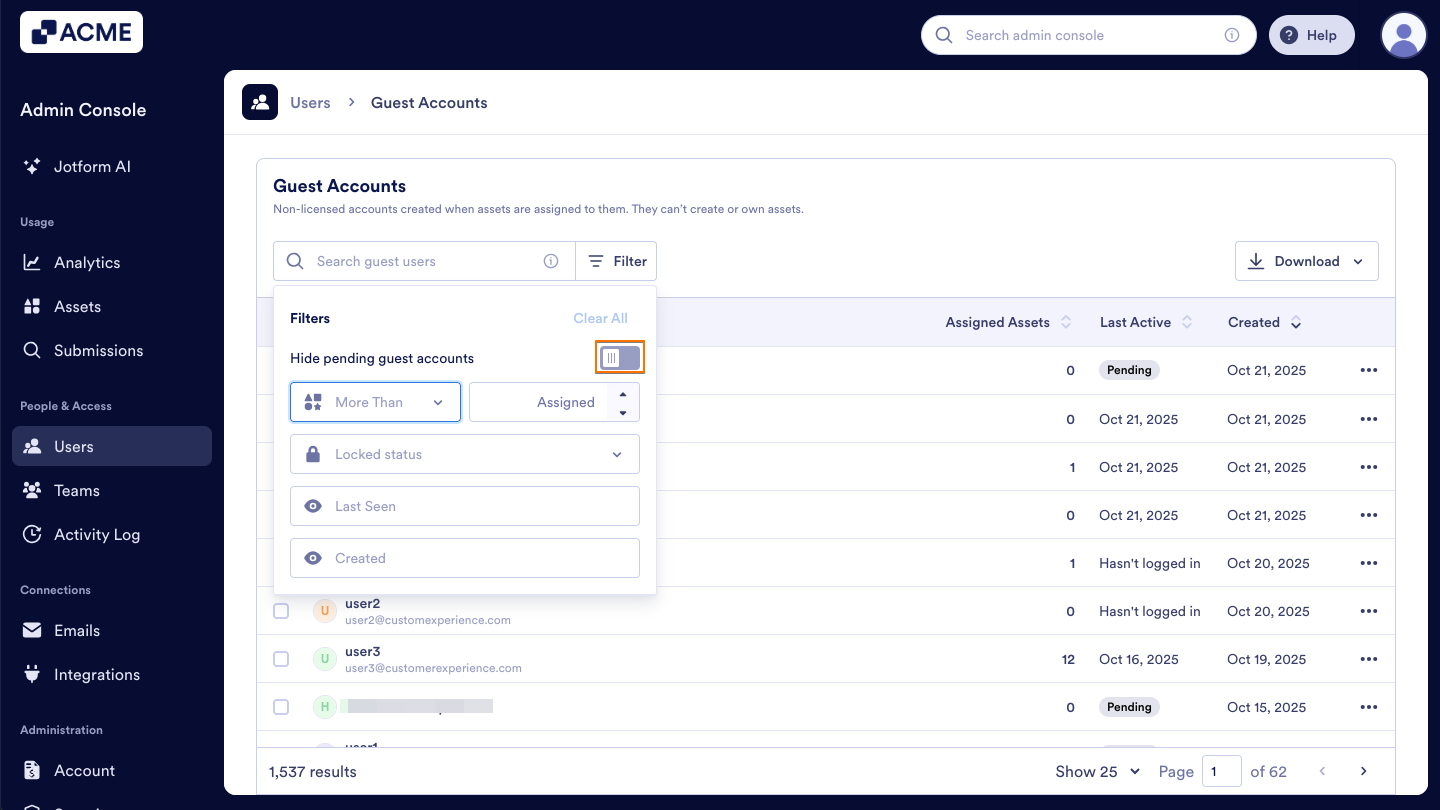
Tip: Make sure that any guest accounts still in Pending status aren’t selected—bulk logout actions won’t work on their accounts (since they haven’t accepted their invite yet) and this will prevent you from successfully logging out the other guest users you’ve selected. To help prevent this, you can filter this page to hide Pending Accounts before selecting guest users from this list.
- Hide pending guest accounts: This option will hide the pending accounts from the list.
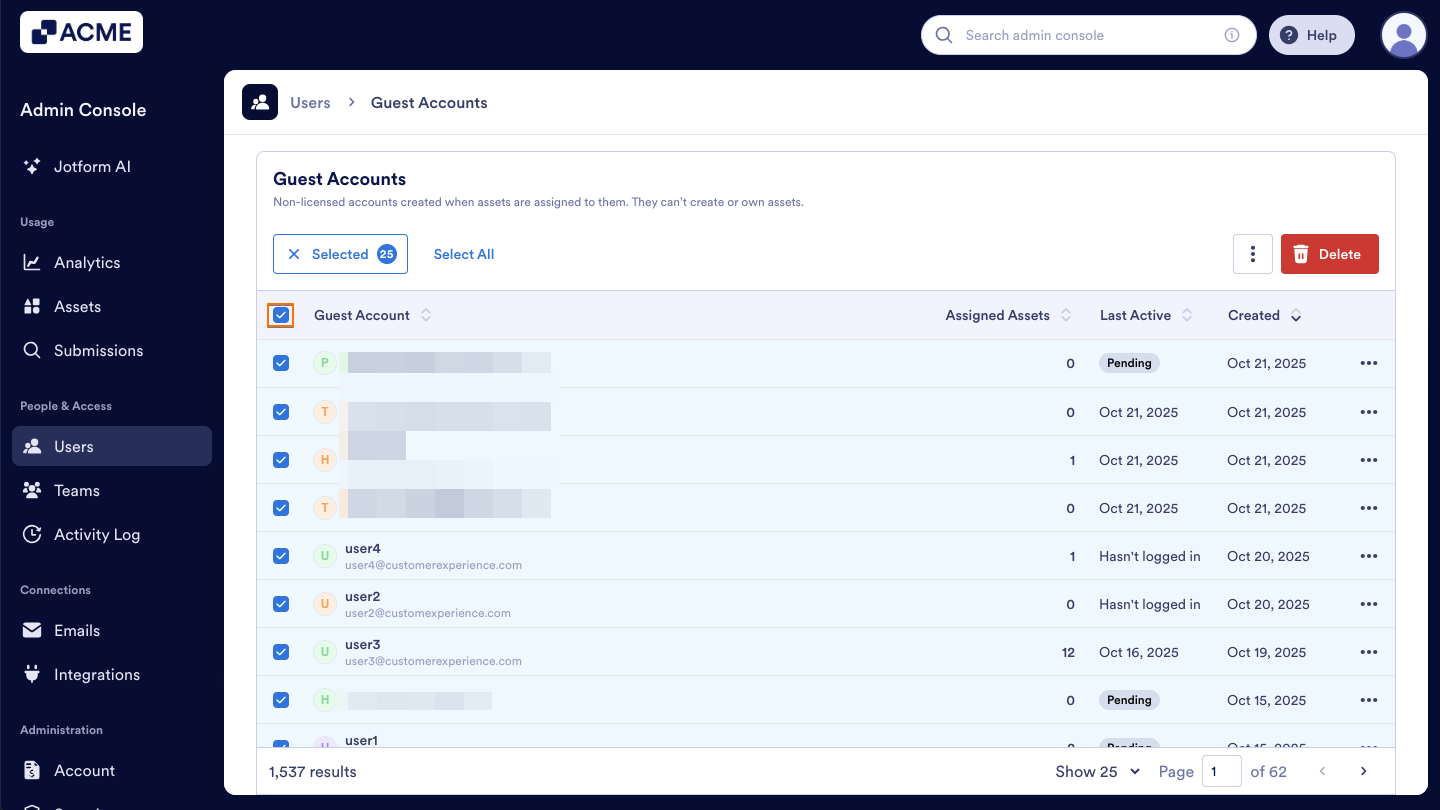
- Guest Account Checkbox: By clicking on this checkbox, you will be able to select all guest accounts that are visible in the list.
See also:
- How to Lock Guest Accounts in Your Organization from the Admin Console
- How to Unlock Guest Accounts in Your Organization from the Admin Console
- How to Delete Guest Accounts in Your Organization from the Admin Console
- How to Update Guest Account Information in Your Organization from the Admin Console

Send Comment: