With Jotform, you can easily refine and evolve your app using AI App Builder, shaping both its design and structure without starting over. As your needs change, you can adjust its layout, style, and content to keep everything aligned with your goals.
Jotform’s AI App Builder makes it simple to tailor your app for different audiences, whether for internal teams, clients, or general users. It gives you the flexibility to experiment with new ideas and make meaningful changes while maintaining creative control over your app’s overall experience.
Whether you’re refining your app’s look or scaling it with new sections and features, modifying your app using AI App Builder is simple and quick. Here’s how to get going:
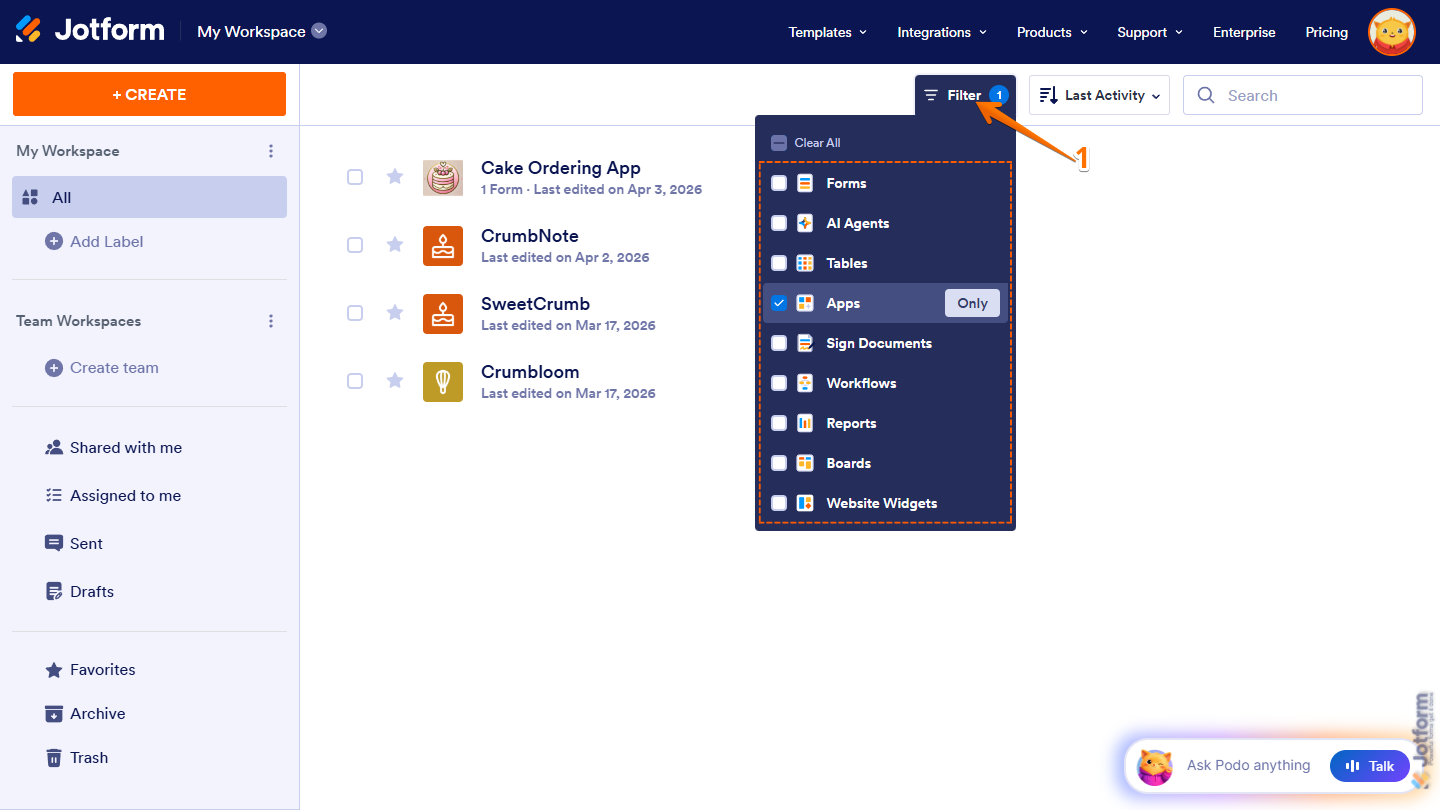
- On your Workspace page, click on Filter at the top, and in the Dropdown menu that opens, tick the box next to Apps so only they’ll be shown on the page.
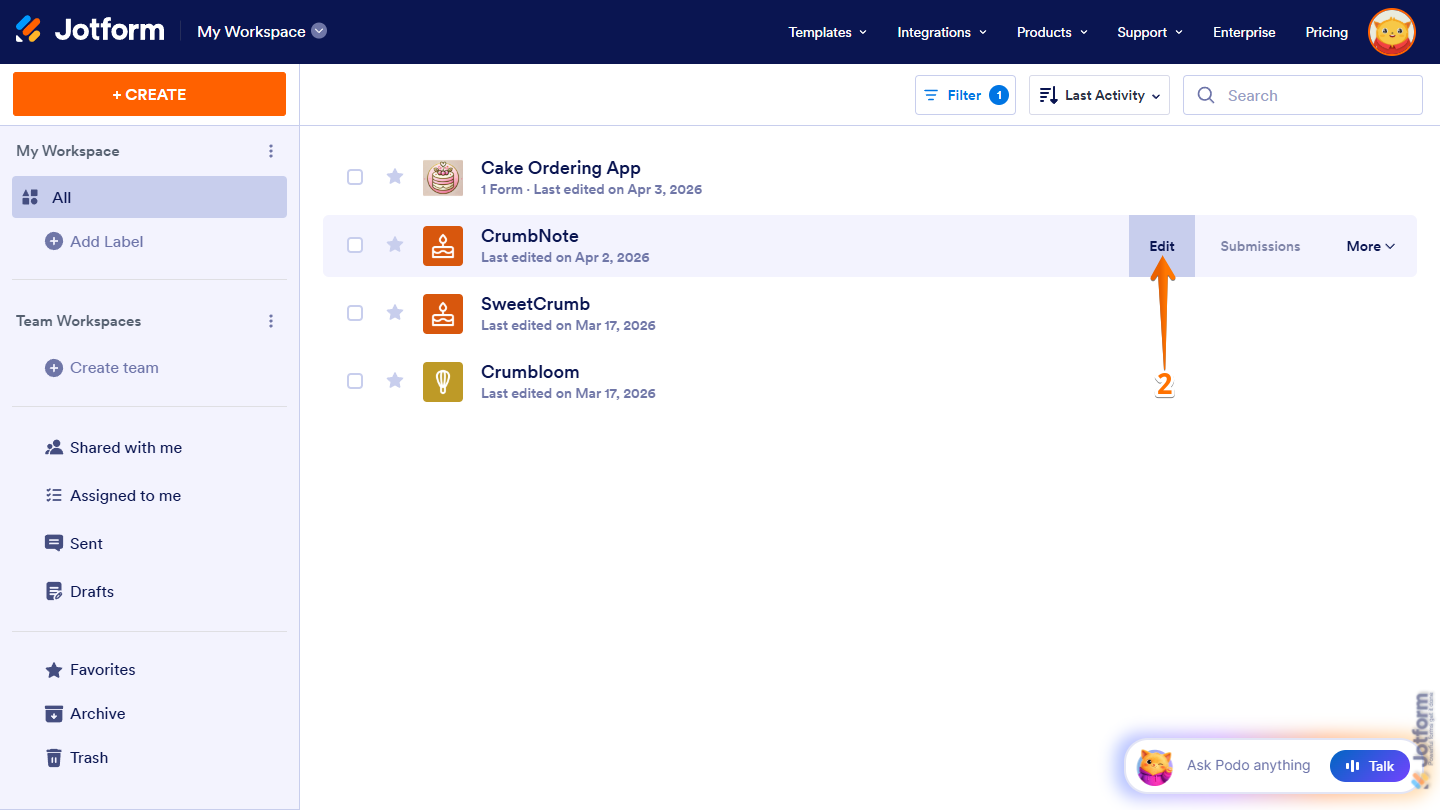
- Hover your mouse over the app you want to modify and click on Edit on the right side of the page.
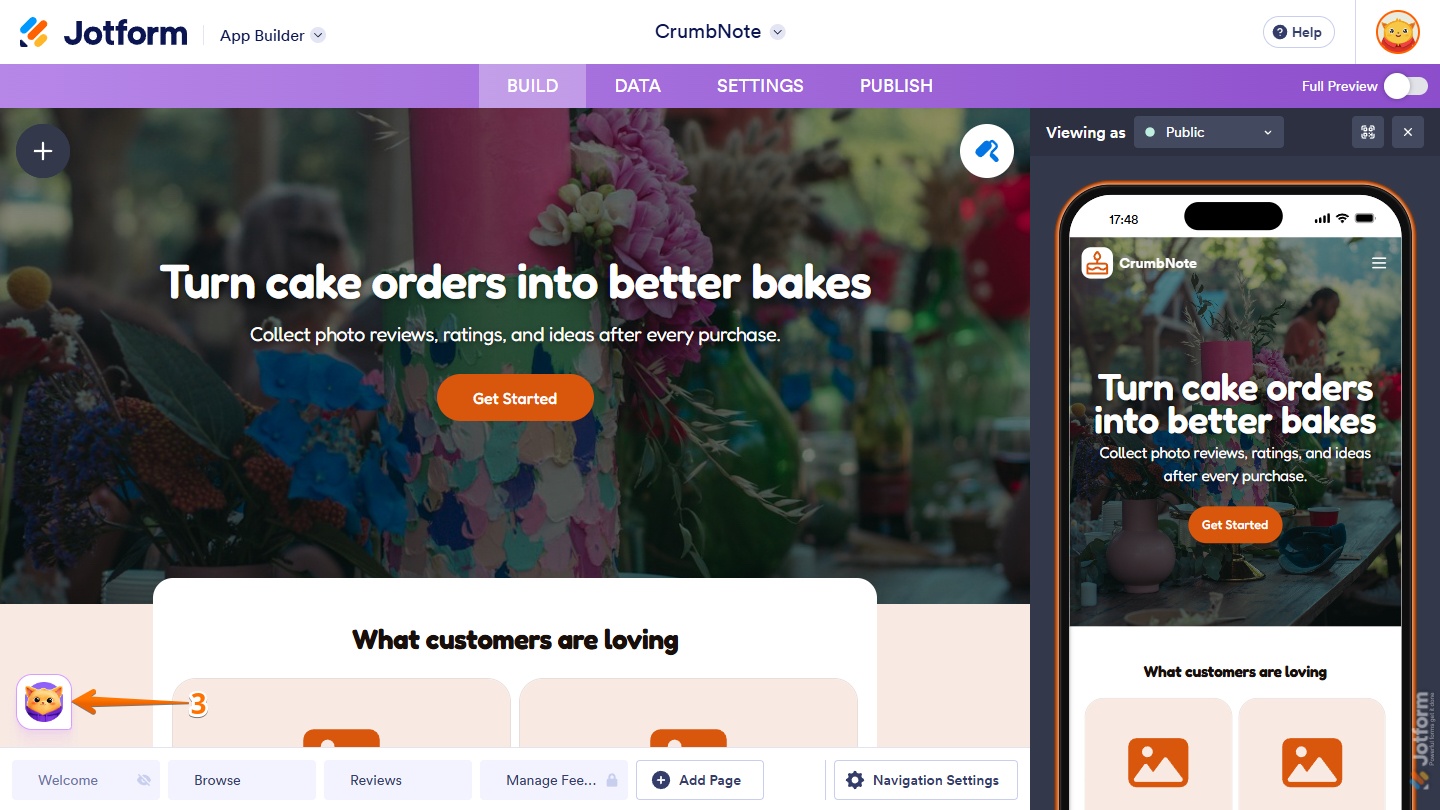
- Now, on the bottom left side of App Builder, click on the Podo icon.
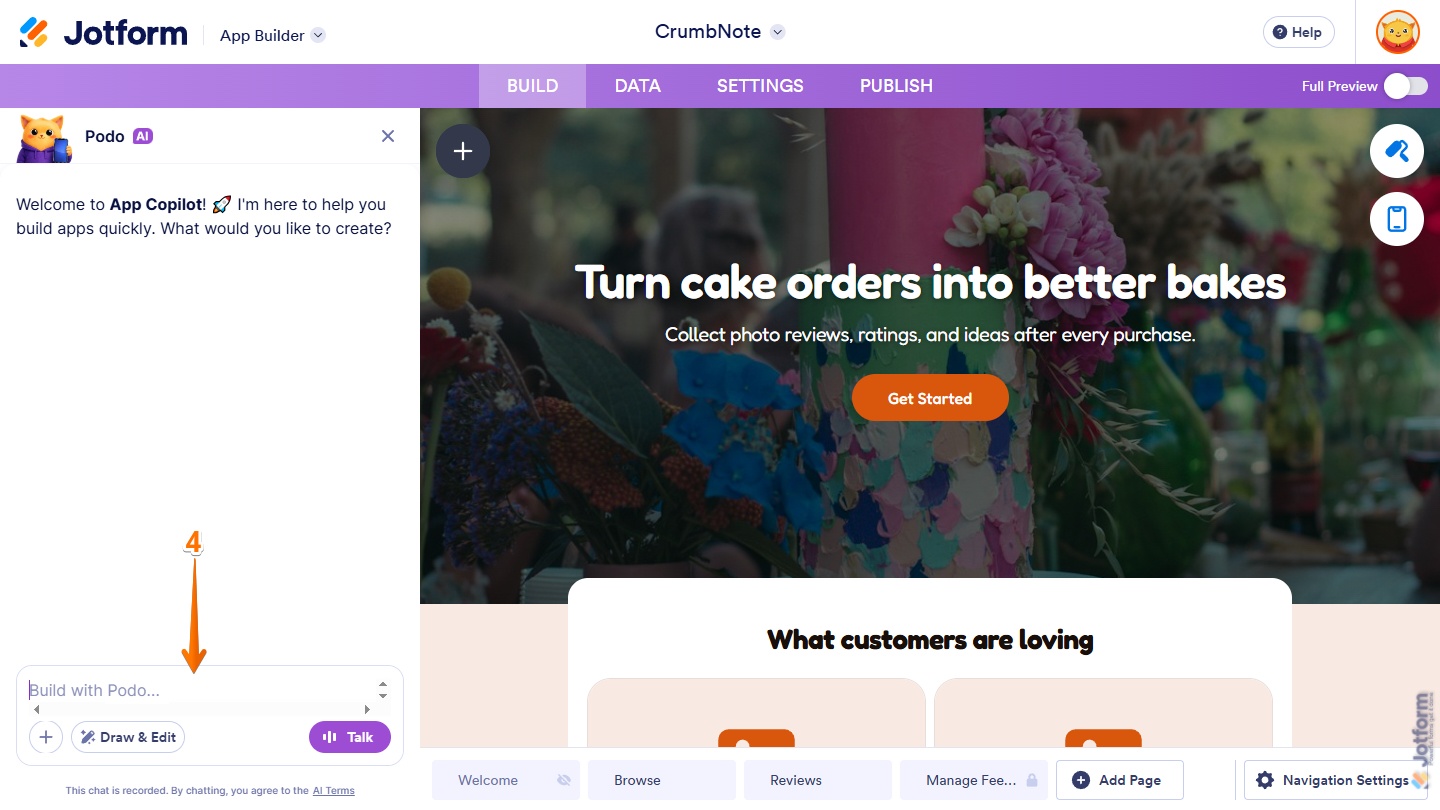
- Then, in the chat box at the bottom of the App Copilot AI chat window that opens, enter a description of the visual or structural changes you want to make to your app.
Here are some example prompts you can try if you already know which parts of your app you want to customize and how you want them to look:
- Can you add a feedback form to the homepage so I can start collecting user opinions?
- Can you change the primary button colors to soft green to match my logo?
- Can you change the overall theme of my app to a dark mode style with blue accents?
- Can you add a ‘Contact Us’ page with a map and a simple contact form?
- Can you reduce the size of the [Card Element 1 Title Here], [Card Element 2 Title Here], and [Card Element 3 Title Here] card elements?
- Can you change the font color to black?
- Can you add a ‘Results’ page and a dashboard where users can view their exam results?
- To apply changes to a specific element, select it in your app to include it in your prompt.
Pro Tip
To apply changes to multiple elements in your app at once, press and hold the CTRL key (or Command ⌘ on Mac), then click on each element you want to select. To select a consecutive range of elements, press and hold the Shift key, then click on the first and last elements in that range.
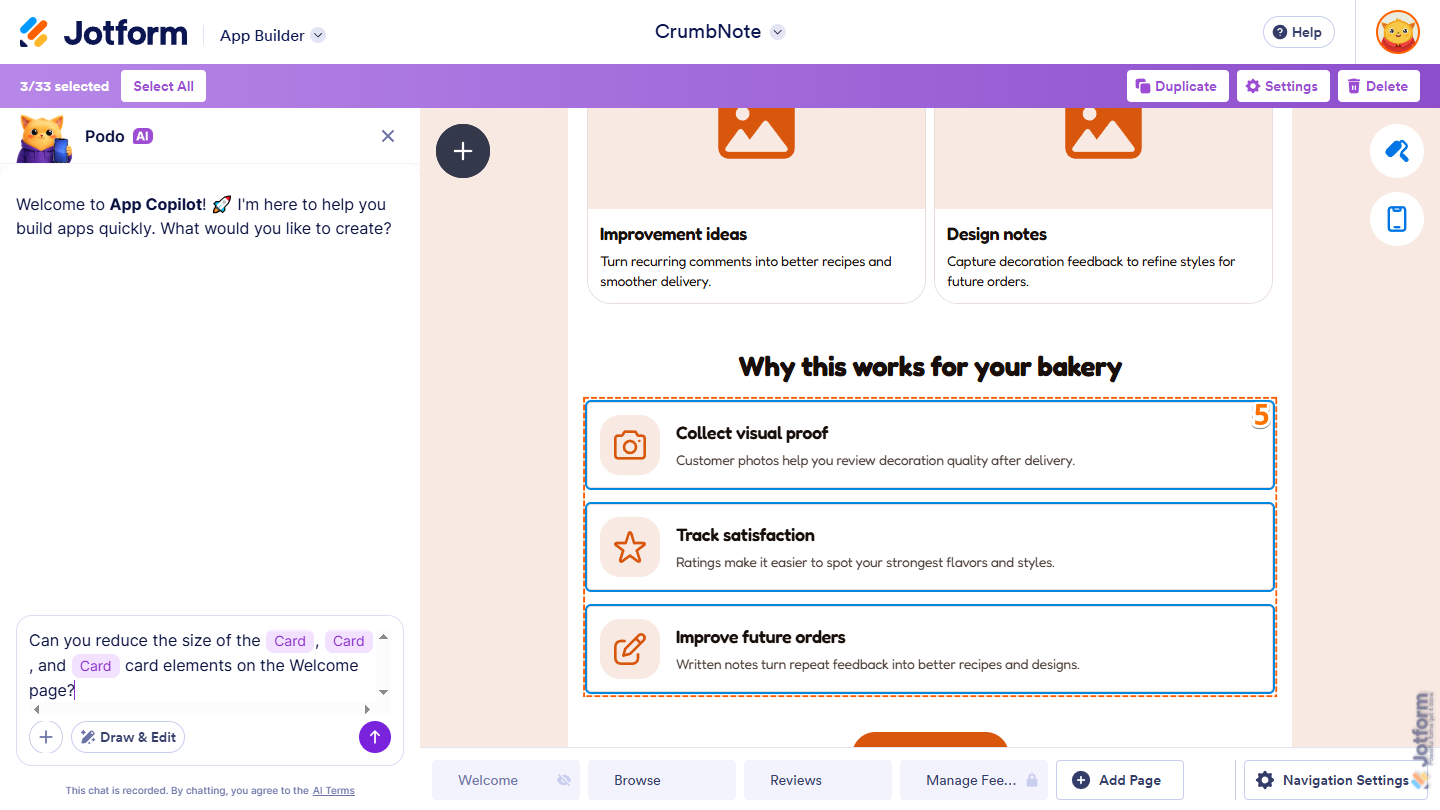
- When everything looks correct, press the Enter key on your keyboard or click on the Upward Arrow icon on the right.
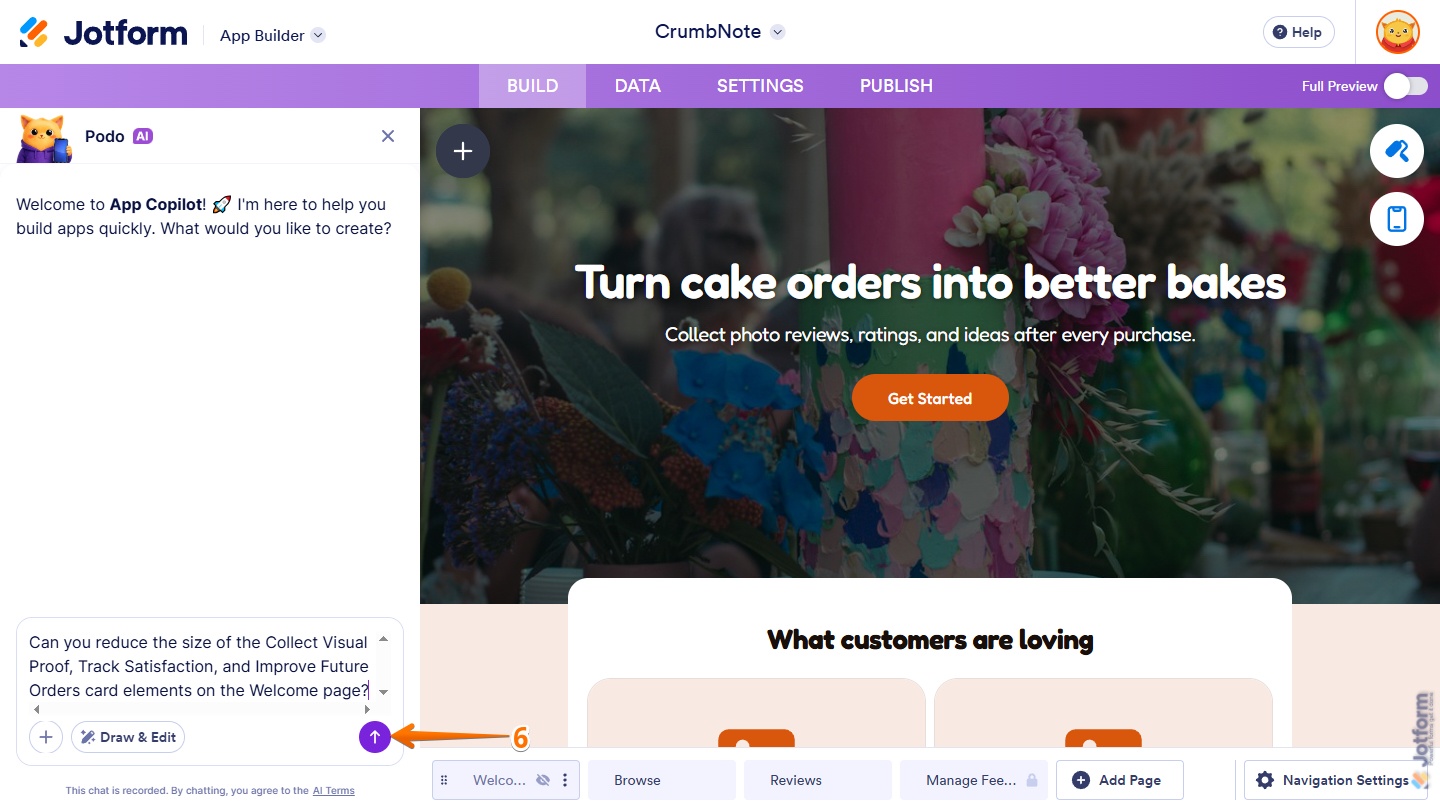
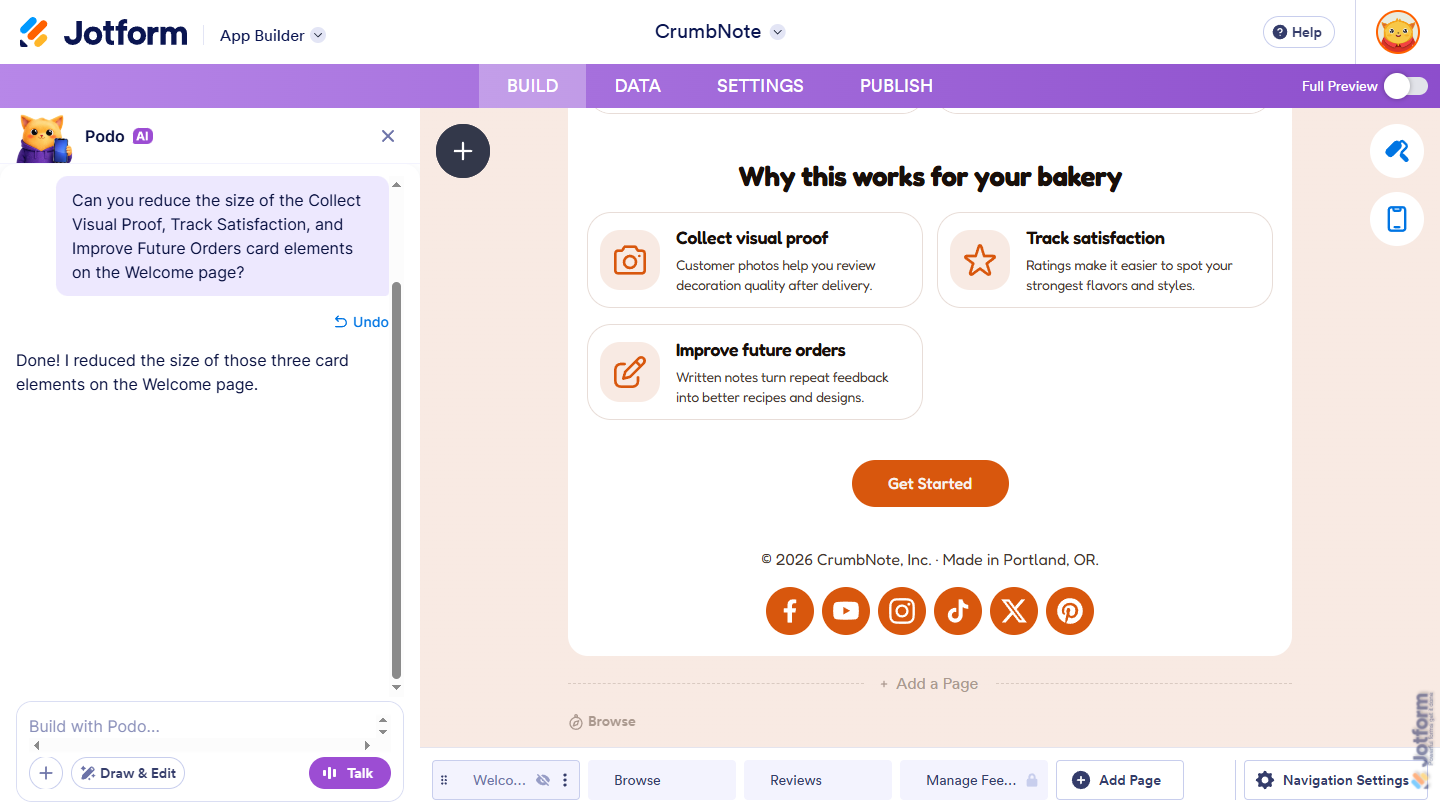
That’s all there is to it. Your updates will appear instantly in the app preview, giving you a real-time view of how your changes come together. This makes it easy to keep refining and adjusting your app until everything looks and works the way you want.
Pro Tip
You can always undo your latest modification if you’d like to revert a recent change. Check out our guide on How to Undo Changes and Revert Back to the Latest Version with AI App Builder to learn more.

Send Comment: