The ability to position elements is one of the best features of a form builder. It allows you to quickly add and move fields anywhere in the form. There are a few different ways to position elements on your form. Check out the list below:
- Drag and Drop
- Shrink
- Expand/Unshrink
- Move to a New Line
- Merging the Lines Together
- Manage Multiple Fields at the Same Time
Drag and Drop
Drag and drop is the easiest way to add and arrange elements on your form. All you need to do is left-click your mouse, then drag and drop the element to your preferred location in the form.
Shrink
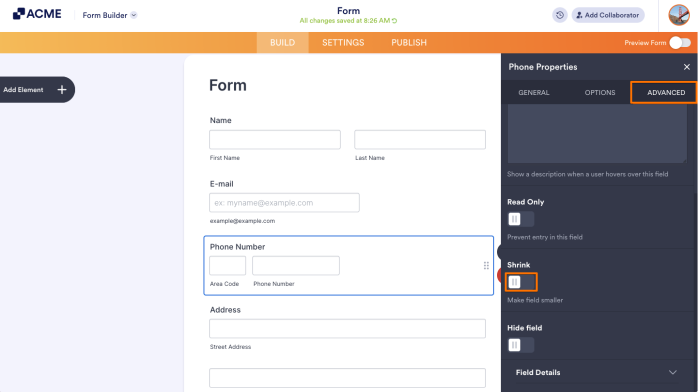
The Shrink option is best used when you want to place multiple elements on the same line. To shrink an element, open the field’s Properties, go to the Advanced tab, and toggle Shrink to On.
Shrinking an element reduces it to the minimum width it needs. When multiple shrunk elements are placed next to each other, they automatically arrange themselves using the fewest lines possible.
Expand/Unshrink
Expanding an element back to full width is just as easy. Go back to the Advanced tab of the element Properties and toggle the Shrink option to Off.
Move to a New Line
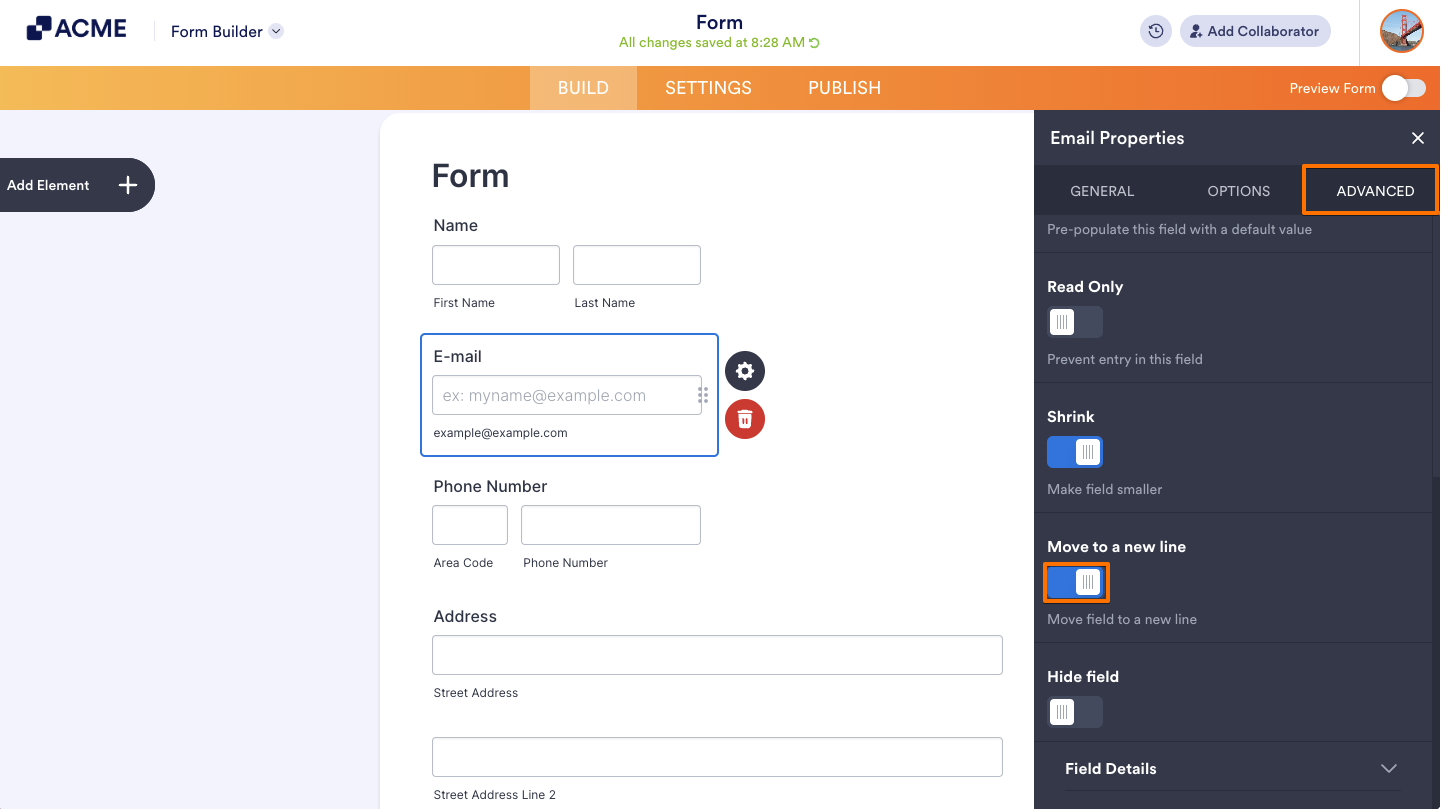
If you want to shrink an element while keeping it on its own line, open the element’s Properties, go to the Advanced tab, and toggle Move to a new line to On.
Note
In the new default theme, shrinking two elements in the Form Builder will automatically place them in a single row. In other themes, depending on the form’s width, the Form Builder may merge three or more fields into one row.
Merging the Lines Together
For example, if you have two fields displayed on one line and later decide you’d prefer four fields per line, you can merge the lines by turning off the Move to a new line option.
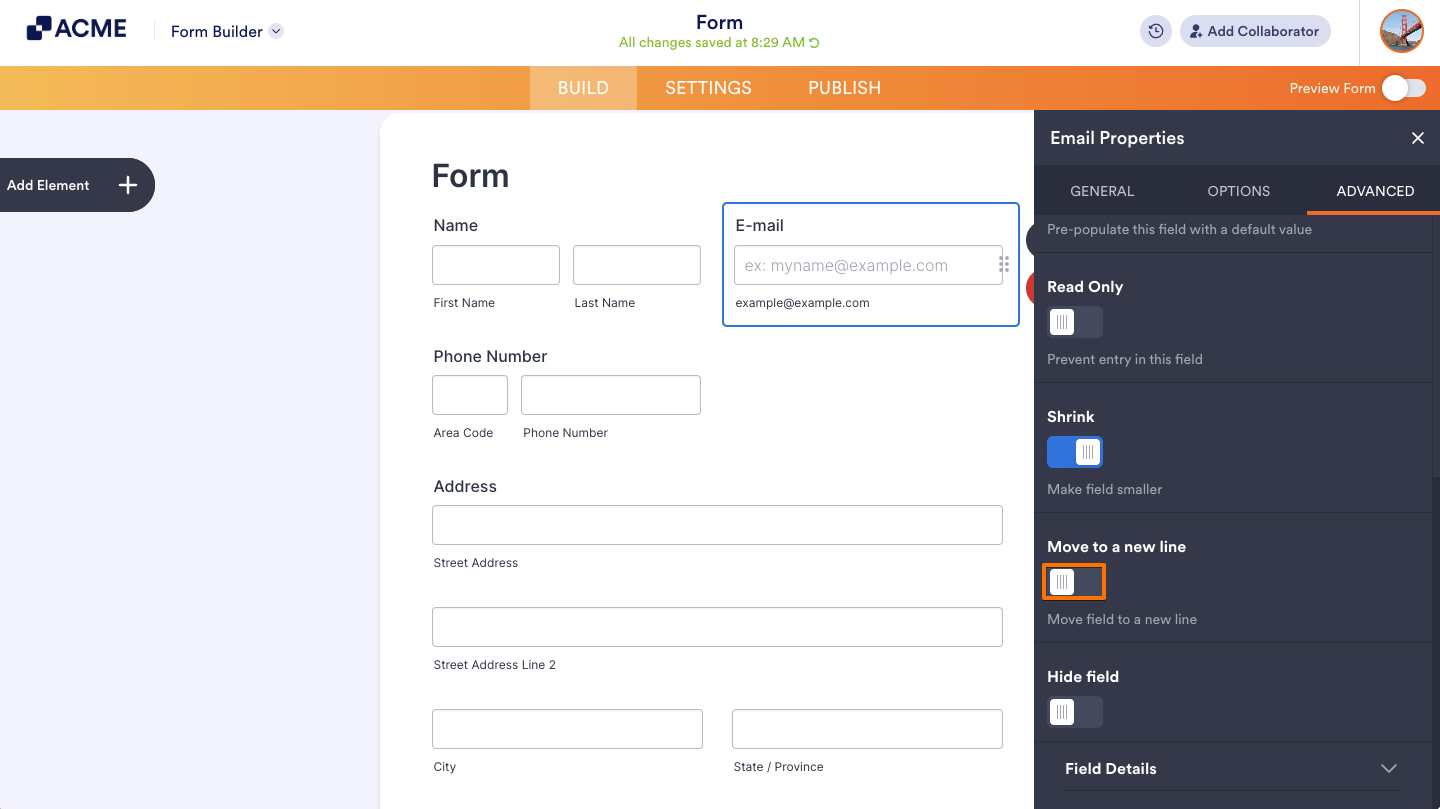
Keep in mind that having two or more rows per line is supported only in the older themes. With the new default theme, you’ll need to add custom CSS to align three or more fields in a single row. If you need help with this, feel free to contact the support team.
Manage Multiple Fields at the Same Time
Want to take your form’s easy-to-use Form Builder to the next level? This feature is perfect for you! Options like duplicate, remove, require, and un-require help you save time by letting you manage multiple fields at once.
Curious how it works? Check out our complete guide on How to Manage Multiple Fields.

Send Comment: