As an Admin, you can revoke a user’s access to assets in your organization from within the Admin Console. This can be useful whenever an employee no longer needs access to a particular asset.
Revoking Users Access to Assets
Removing a user’s access to certain assets can be accomplished in two different locations—in your User Management screen or within the Asset Tab located in a specific user’s profile. Let’s walk through both of those options together, down below:
From the User Management Screen
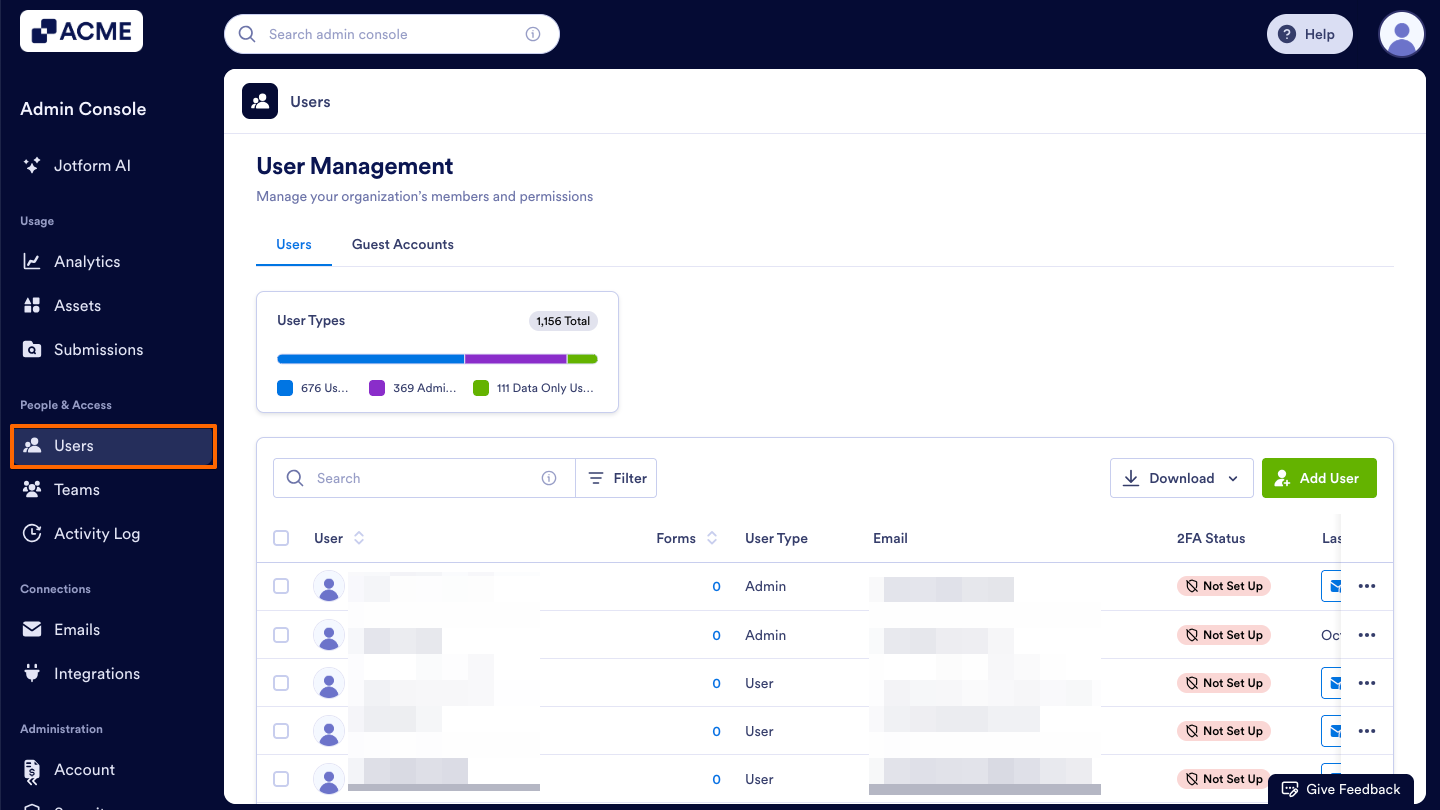
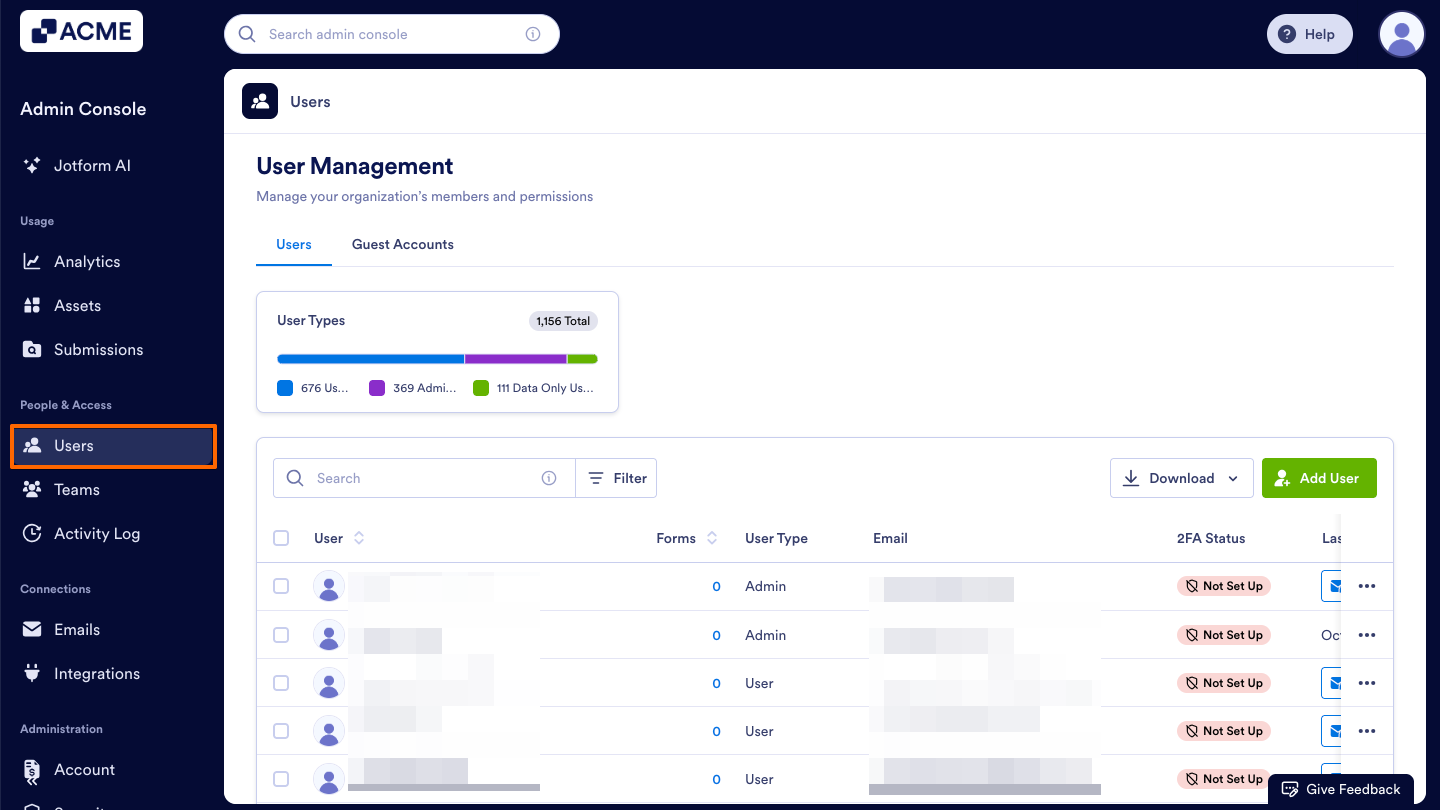
- Starting in the Admin Console, click on Users in the menu on the left side of the page.
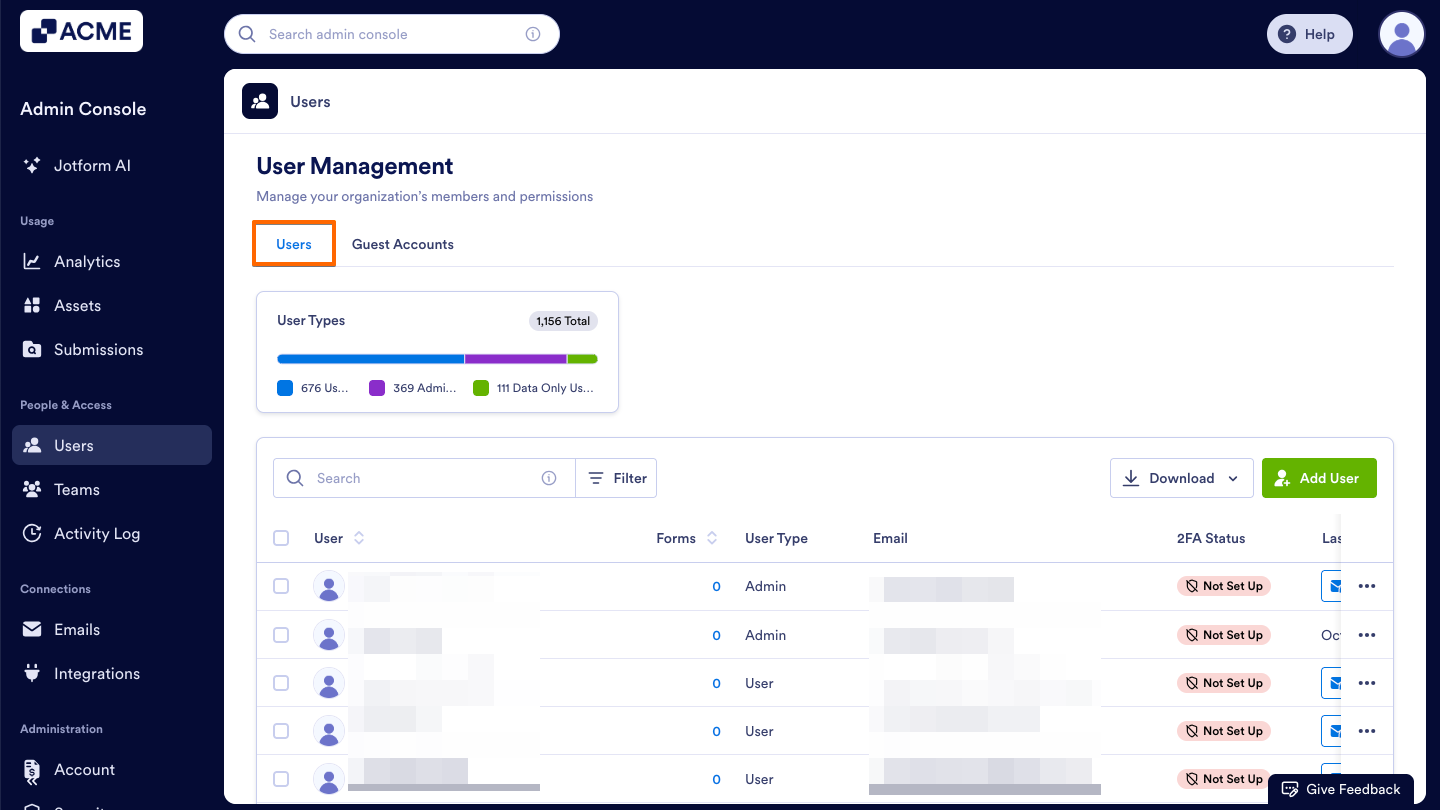
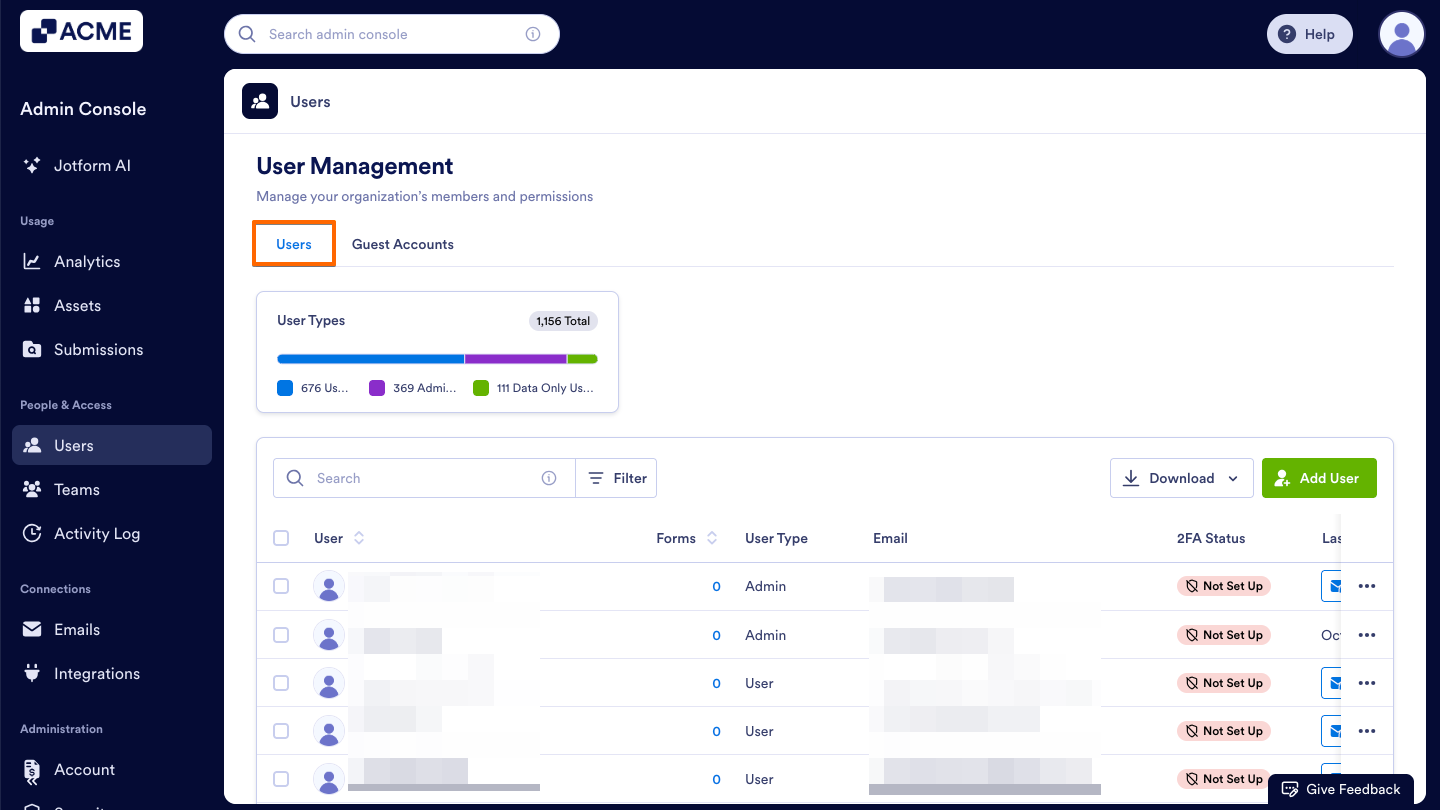
- Next, click on the Users tab located at the top of the User Management page.
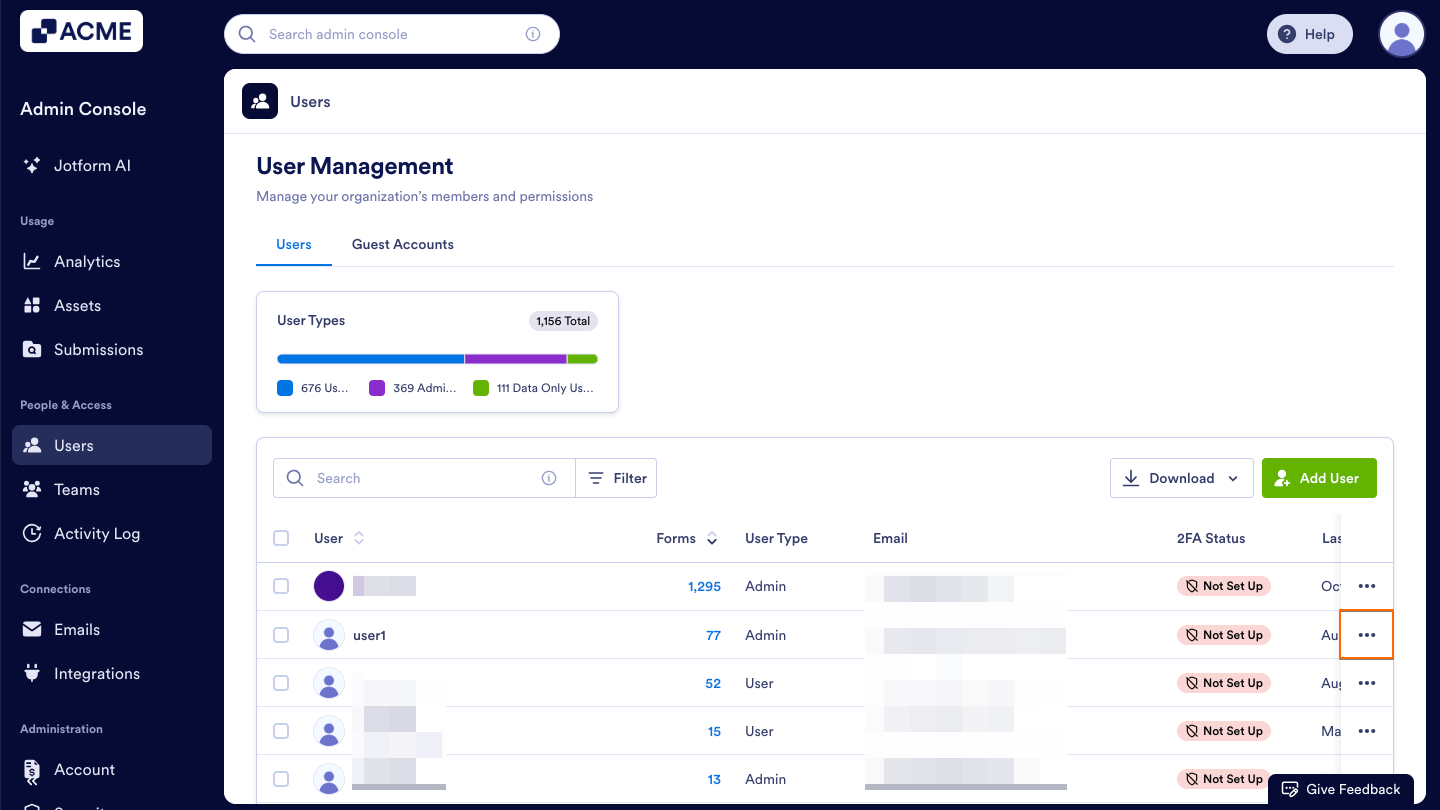
- Then, decide which user’s access you’d like to revoke and click the Three Dots icon to the right of their name.
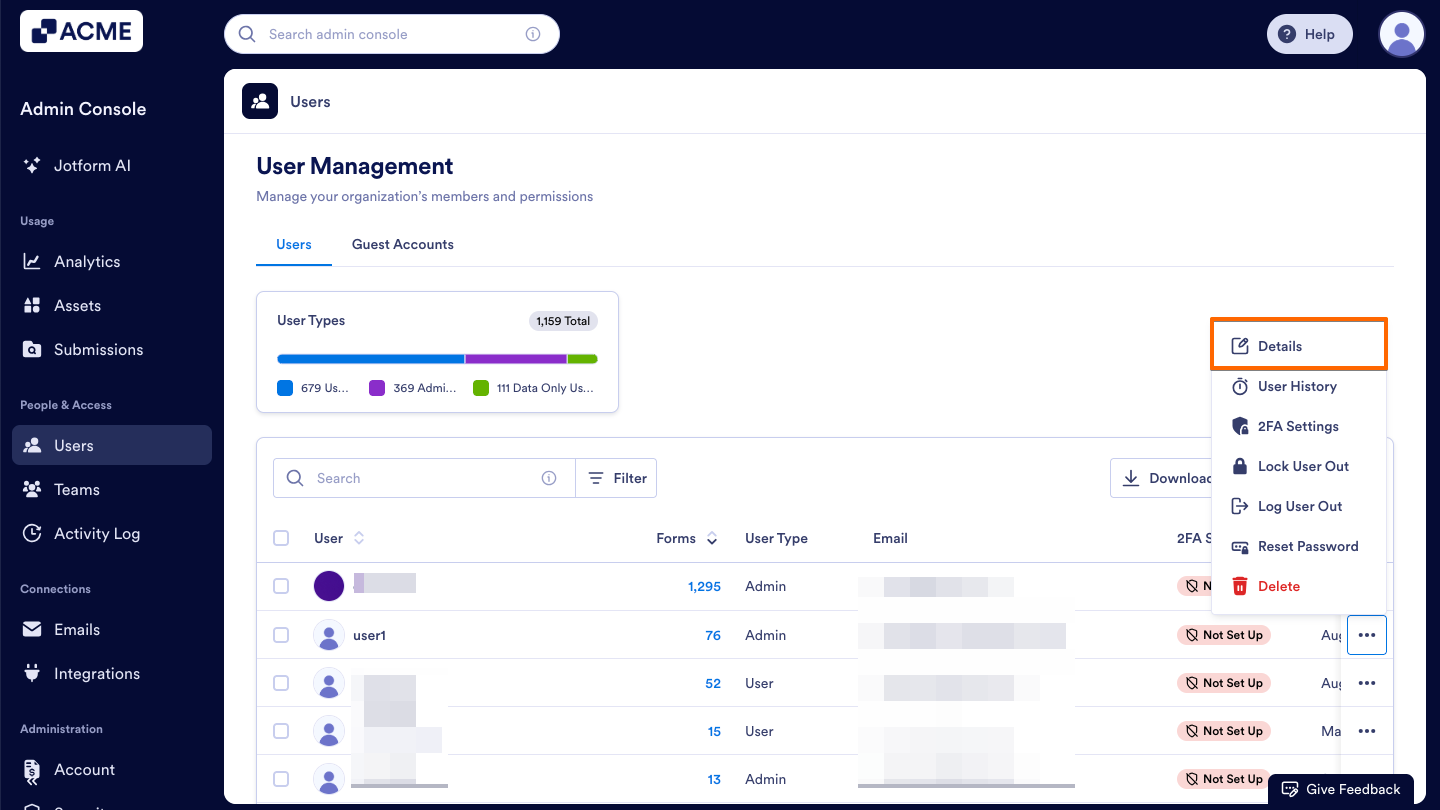
- Now, select Details in the dropdown menu. This opens a sidebar on the right side of the screen that contains several tabs, such as Details, Assets, and Activity.
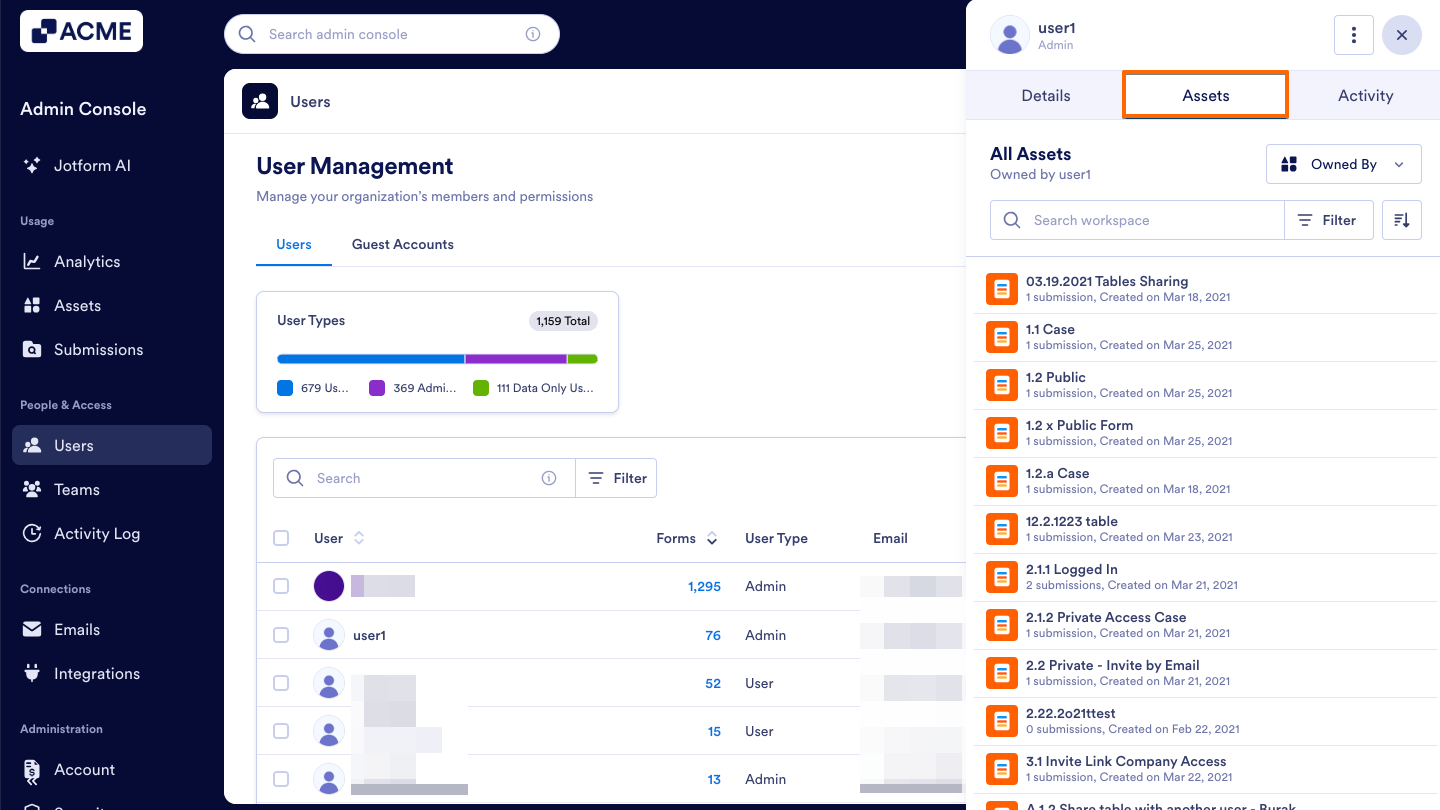
- In that sidebar, select the Assets tab to view that specific user’s assets.
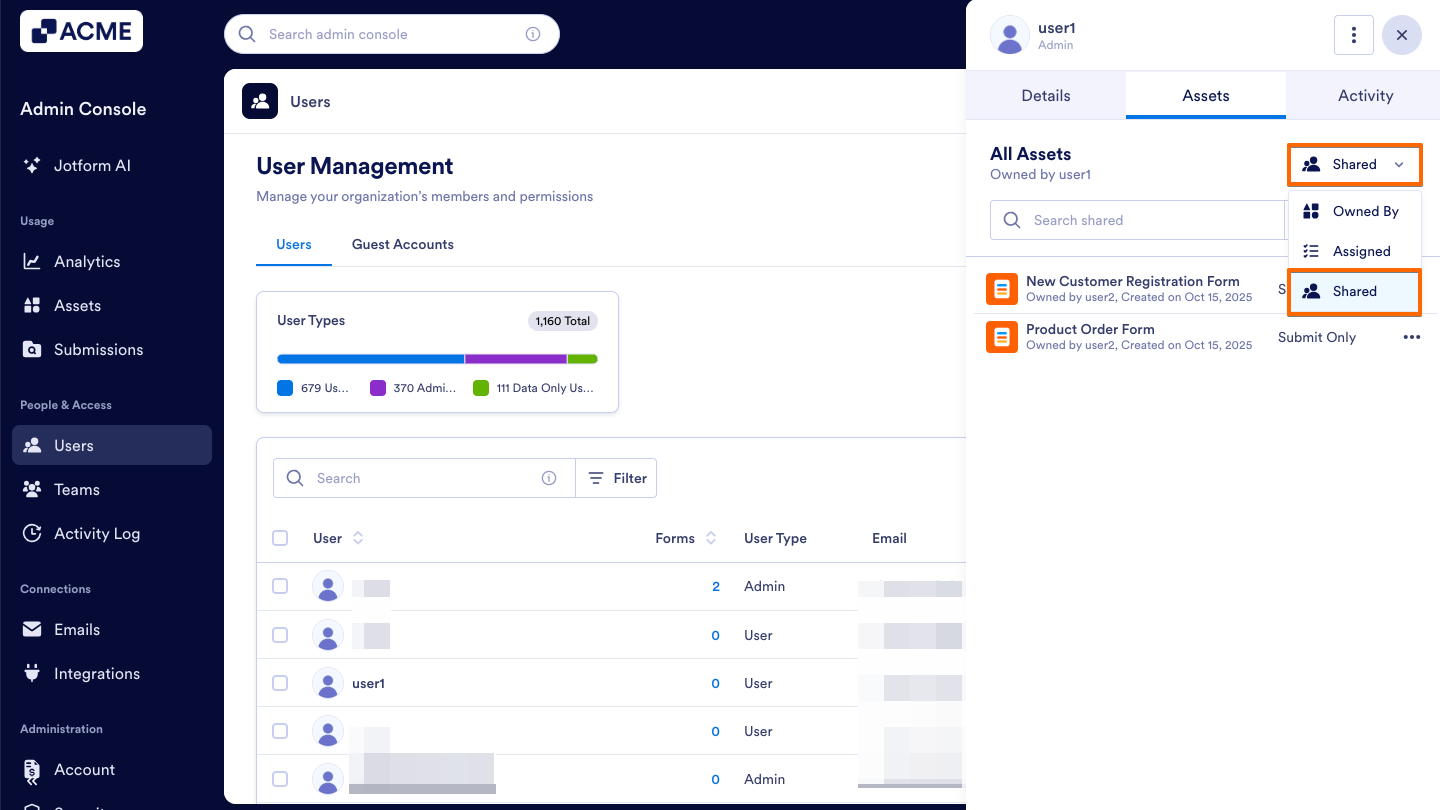
- Now, click on the dropdown located near the top right of the sidebar and change the asset type to Shared.
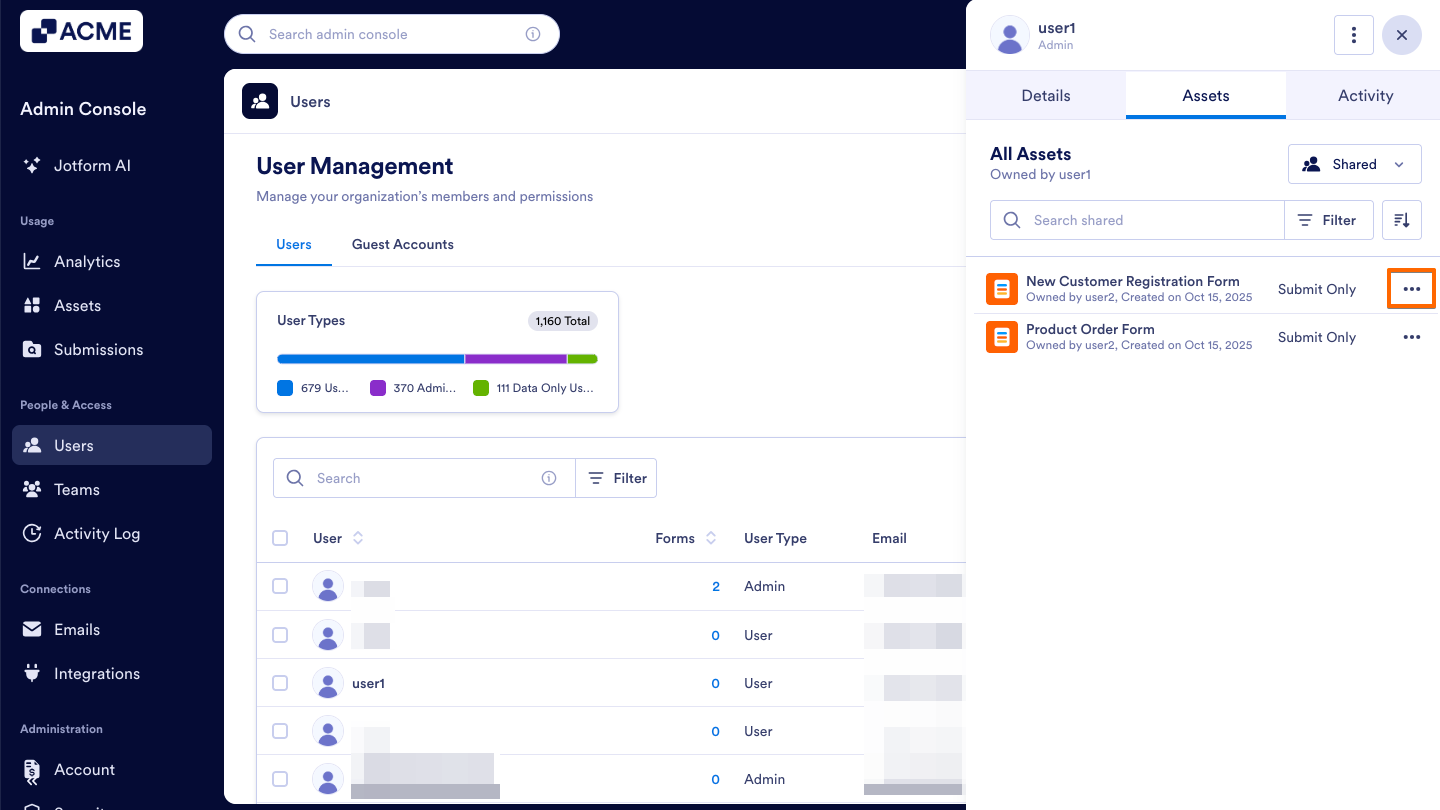
- Next, locate the specific asset you’d like to revoke access to and click on the Three Dots icon located to the right.
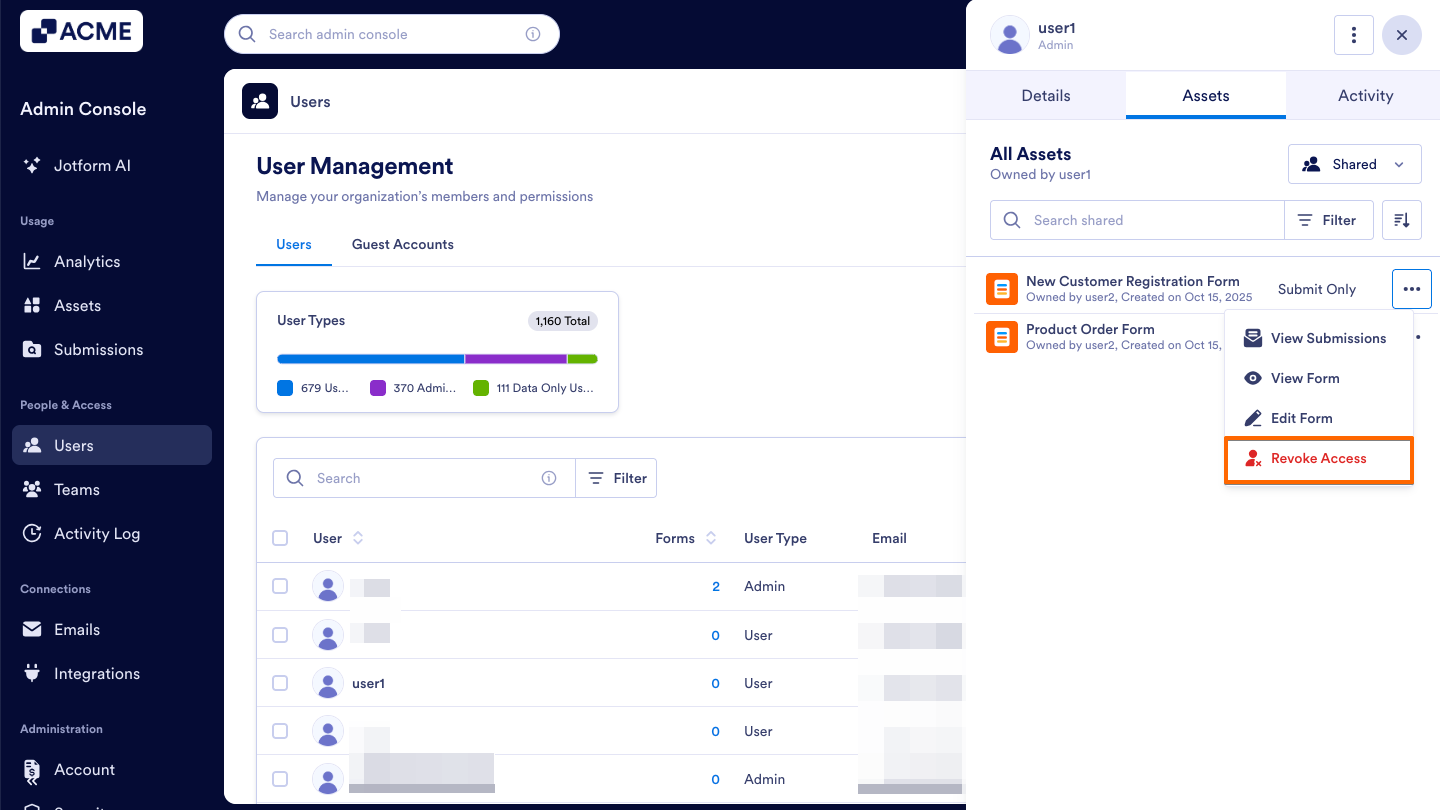
- Now, click on Revoke Access in the dropdown menu.
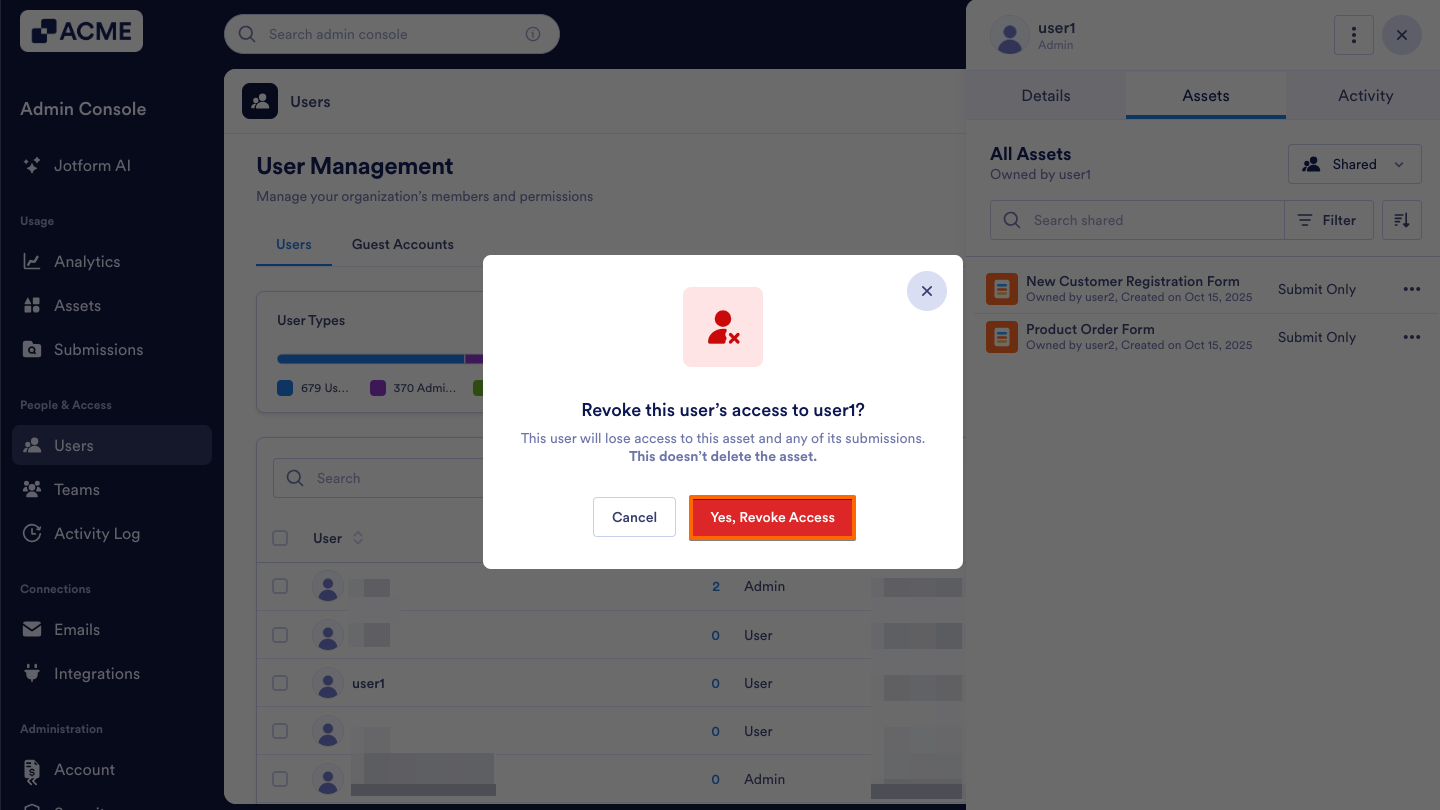
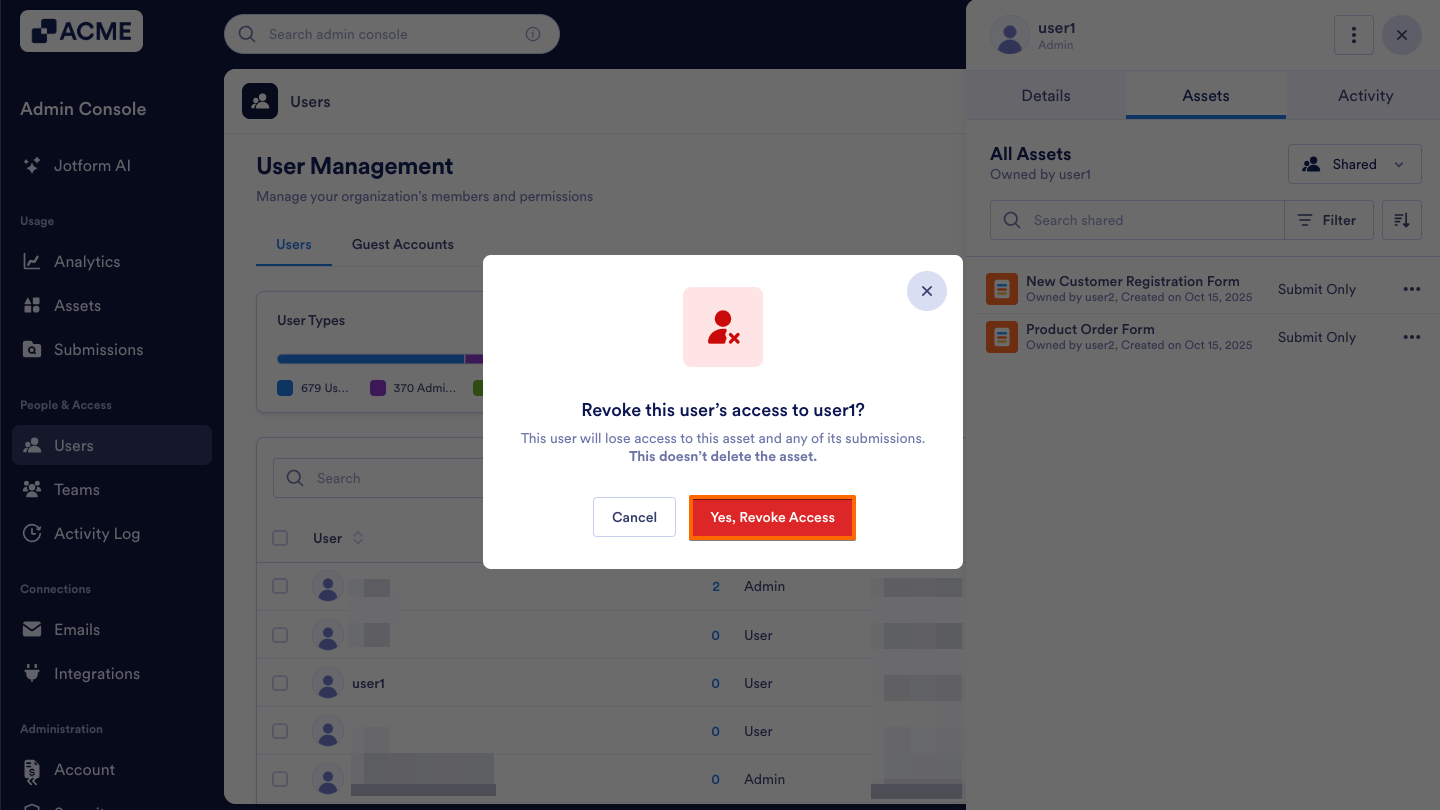
- Finally, confirm this action in the popup window by clicking Yes, Revoke Access.
From the Assets Tab within a Specific User’s Profile
- Starting in the Admin Console, click on Users in the menu on the left side of the page.
- Next, click on the Users tab located at the top of the User Management page.
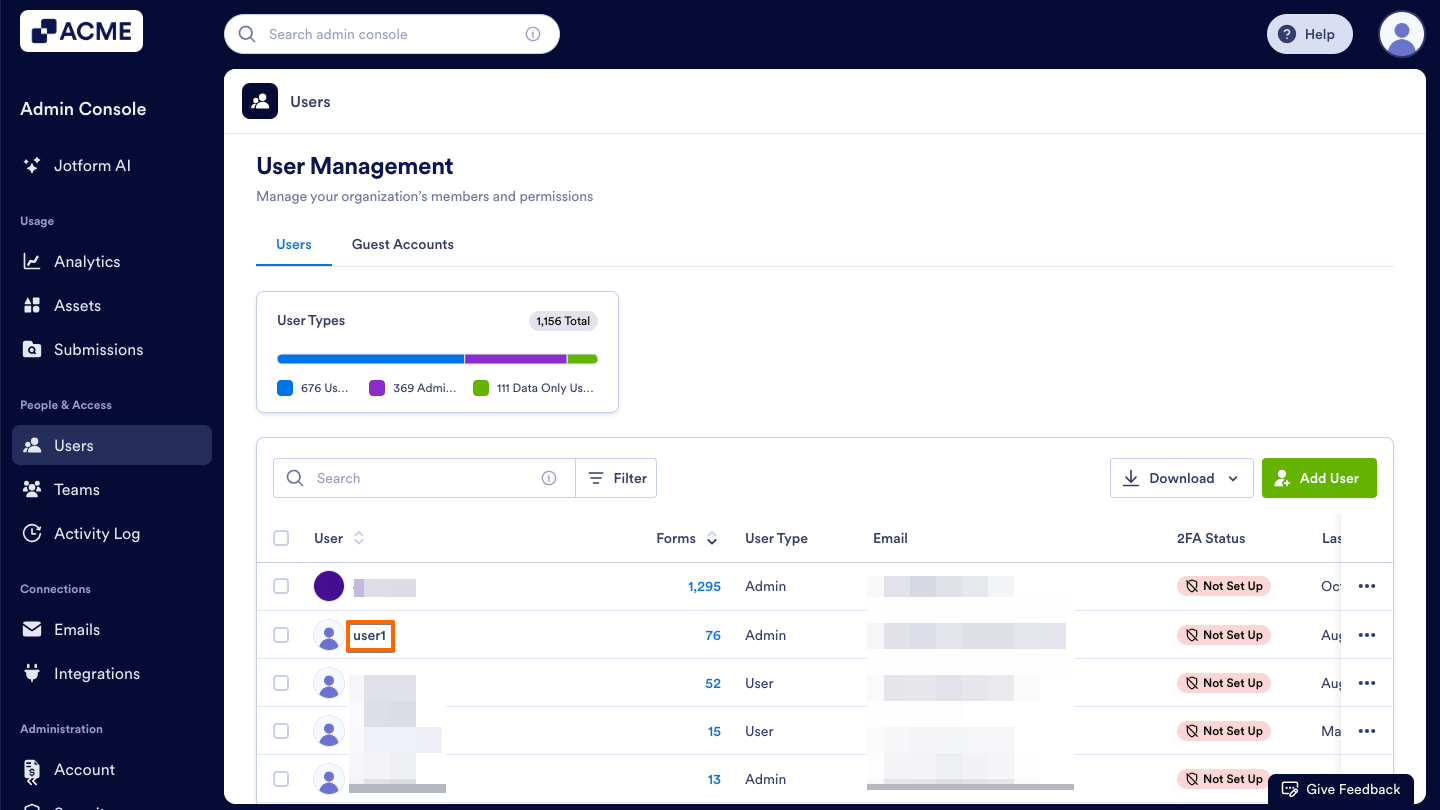
- Then, decide which user’s access you’d like to revoke and click on their username. This opens a sidebar on the right side of the screen that contains several tabs, such as Details, Assets, and Activity.
- In that sidebar, select the Assets tab to view that specific user’s assets.
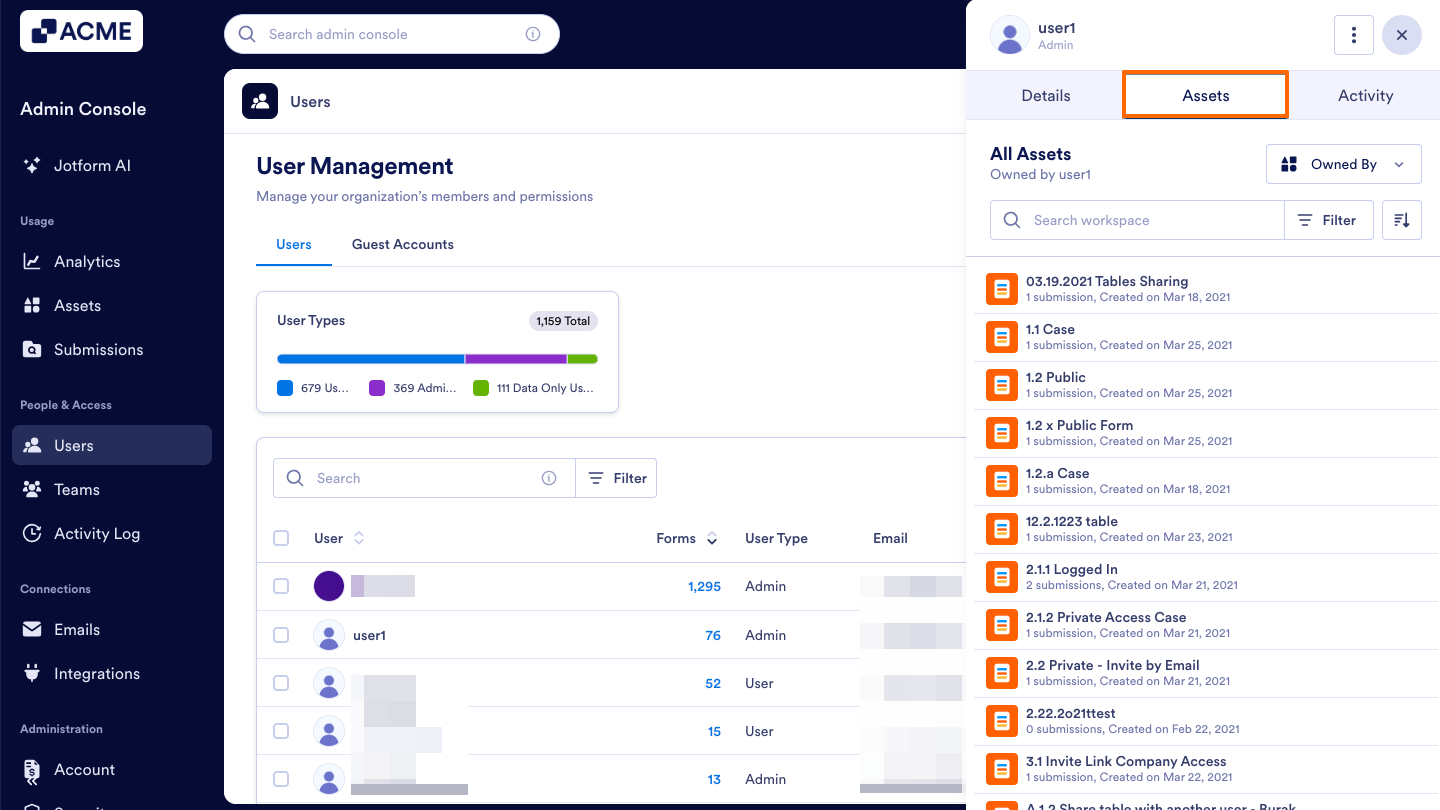
- Now, click on the dropdown located near the top right of the sidebar and change the asset type to Shared.
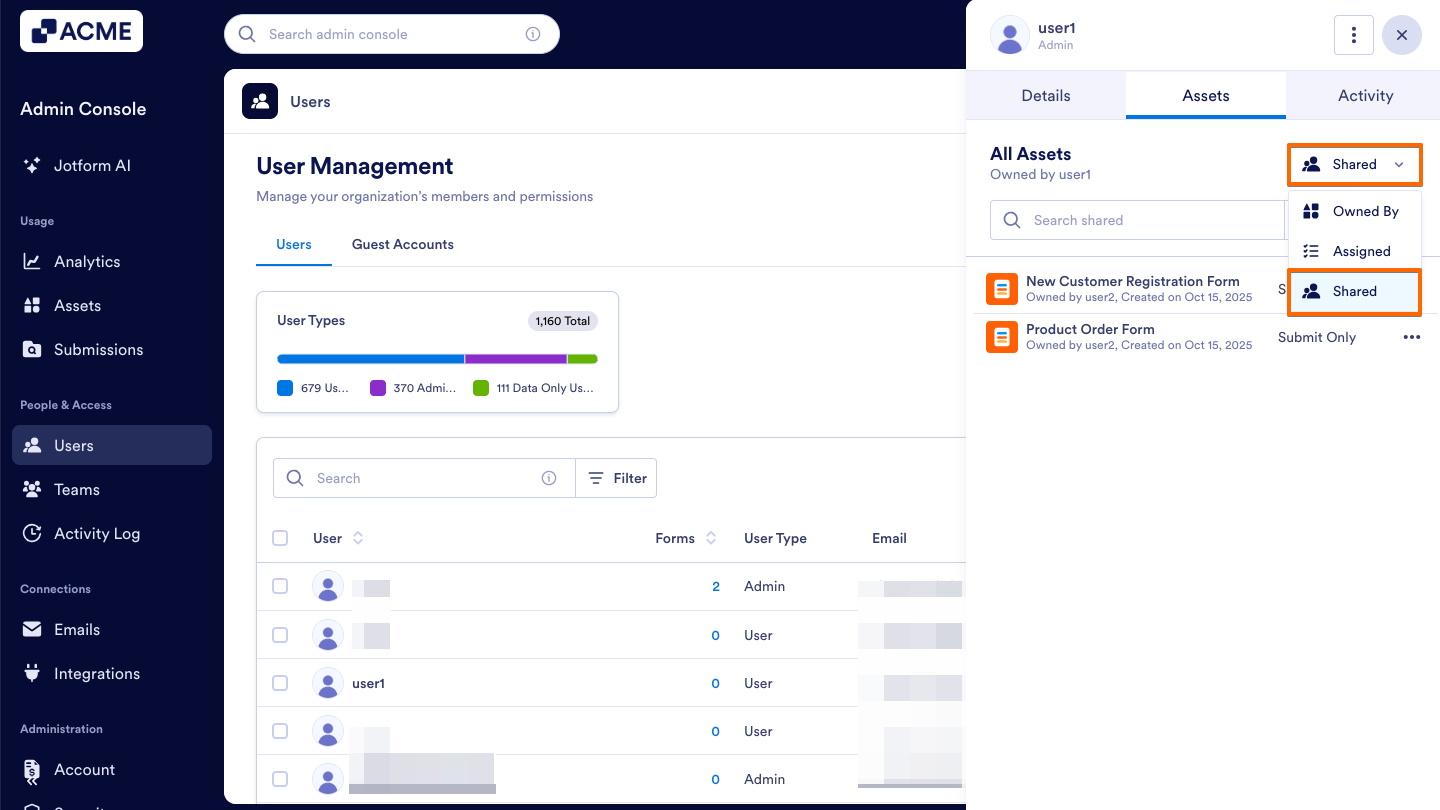
- Next, locate the specific asset you’d like to revoke access to and click on the Three Dots icon located to the right.
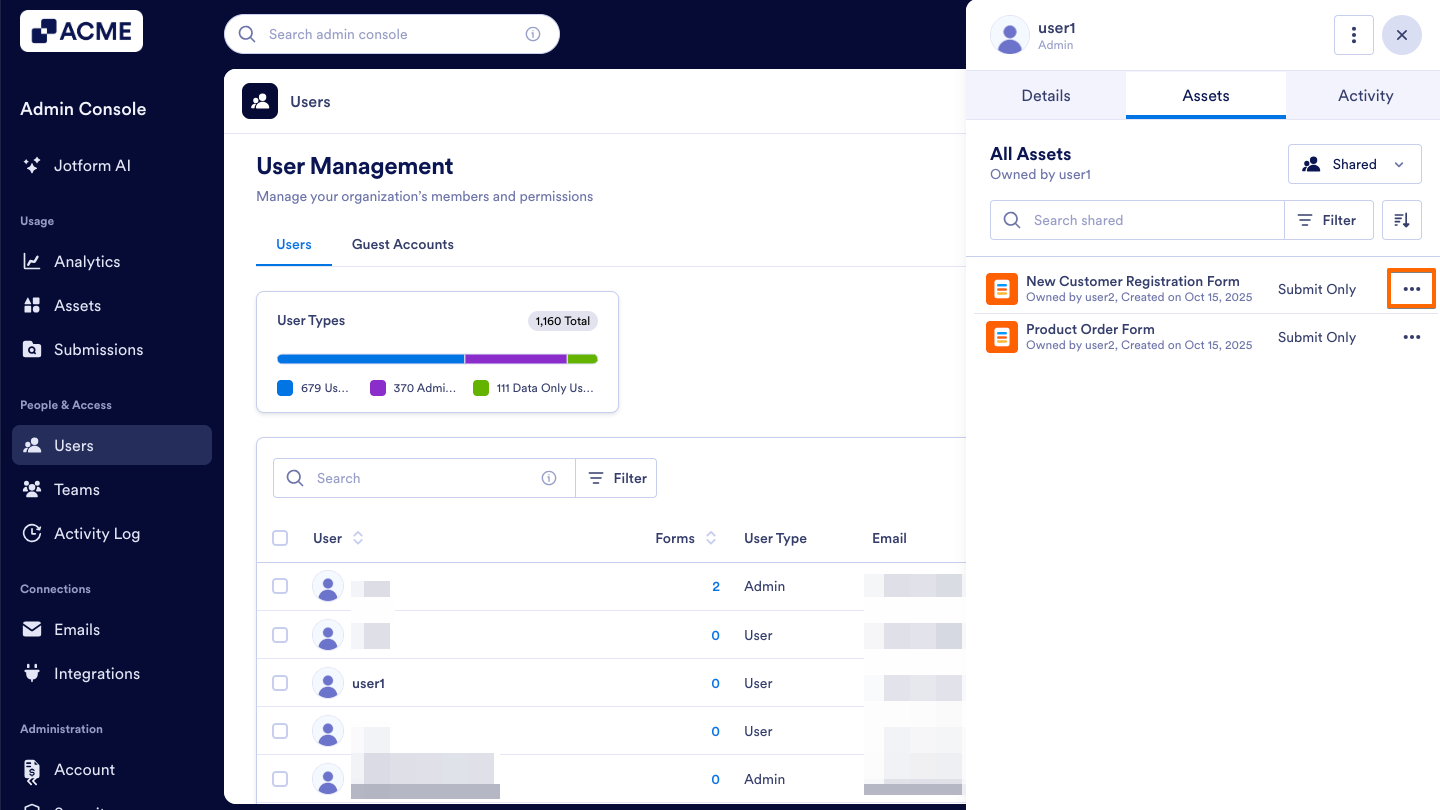
- Finally, click on Revoke Access in the dropdown menu.
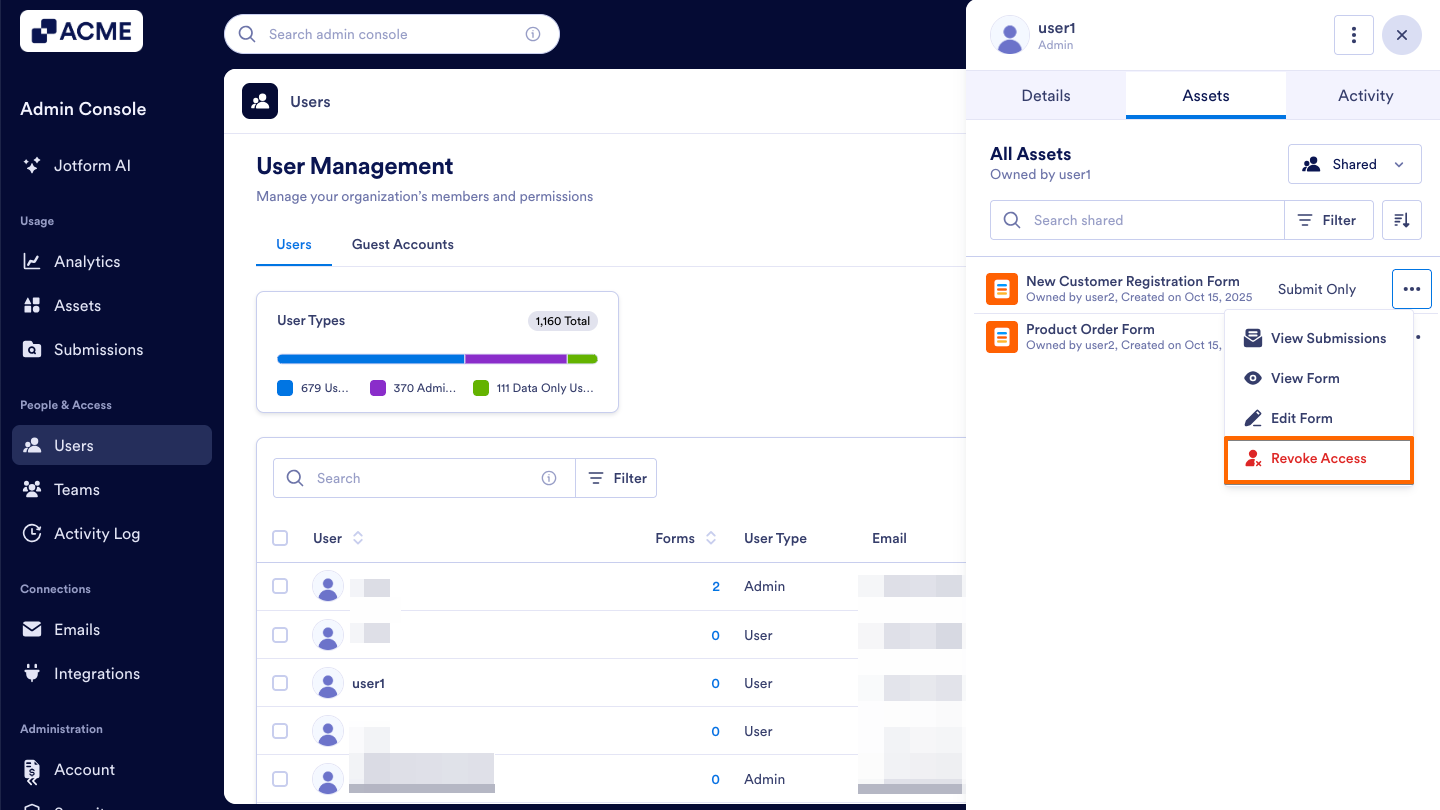
- Finally, confirm this action in the popup window by clicking Yes, Revoke Access.
Note
If you’d like to view or manage assigned assets before revoking access, see How to View and Manage Assigned Assets in Your Organization from the Admin Console

Send Comment: