The Short and Long Text fields are two of the most commonly used fields in the Form Builder. The Short Text field is ideal for brief or minimal text input, such as a subject line. The Long Text, on the other hand, is for accepting lengthy texts.
With these fields, you can set entry or character limits. This option lets you set the minimum and maximum number of characters that can be entered.
Setting up Character Limit in Short Text Field
To set a character limit:
- In Form Builder, click on the Short Text field.
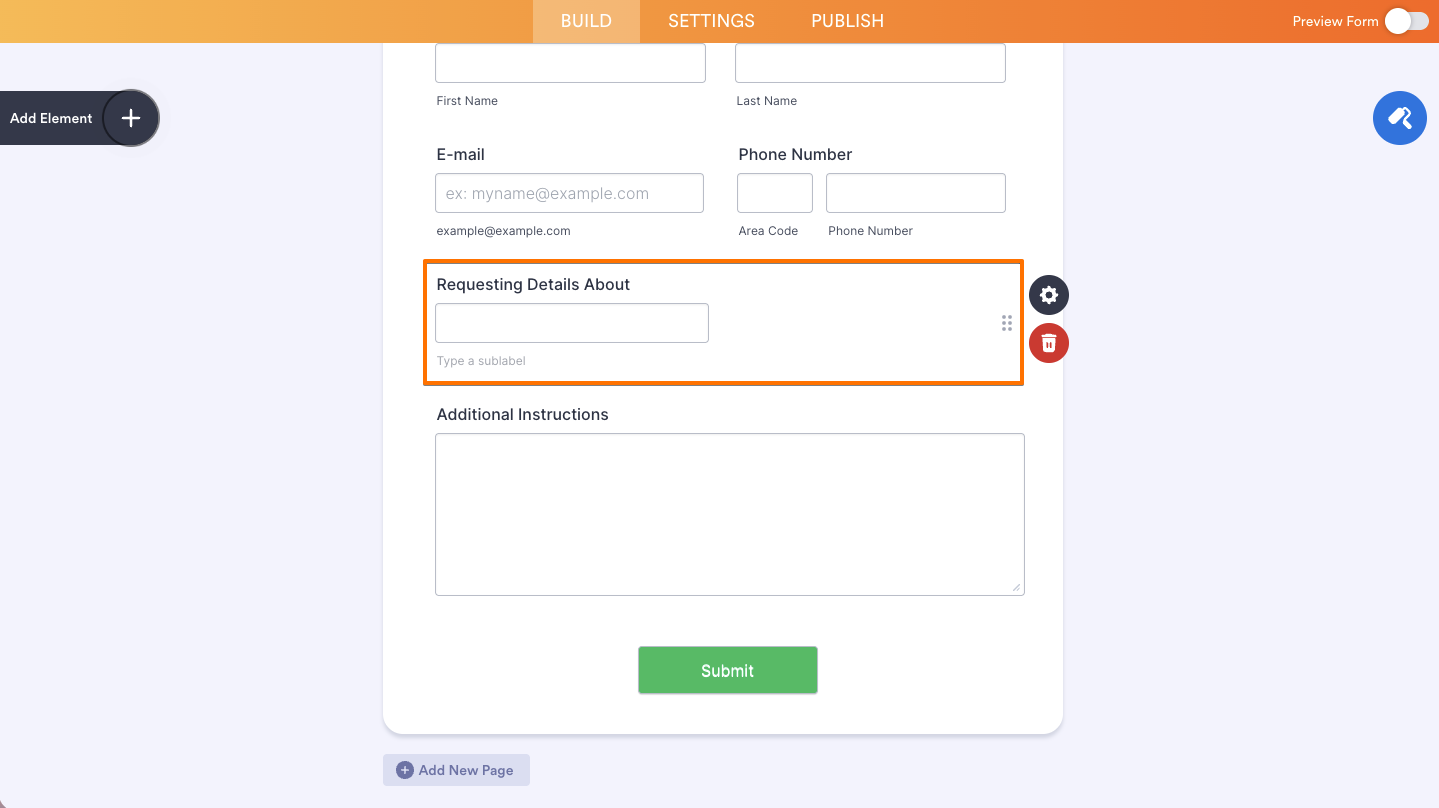
- On the right side of the field, click on the Gear icon to open its properties panel.
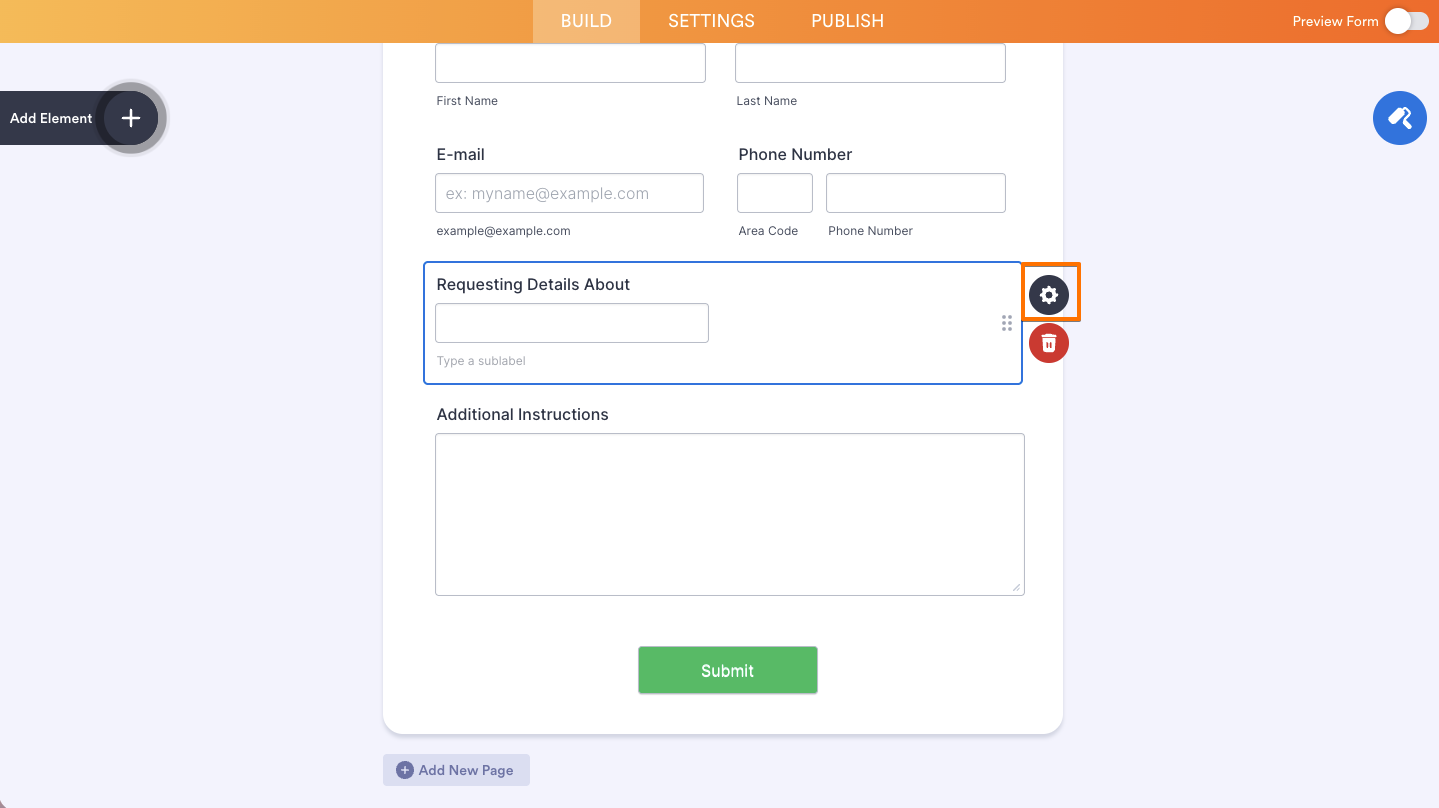
- Go to the Options tab.
- Toggle on the Character Limit option to enable it, then enter the desired values in the Minimum and Maximum fields.
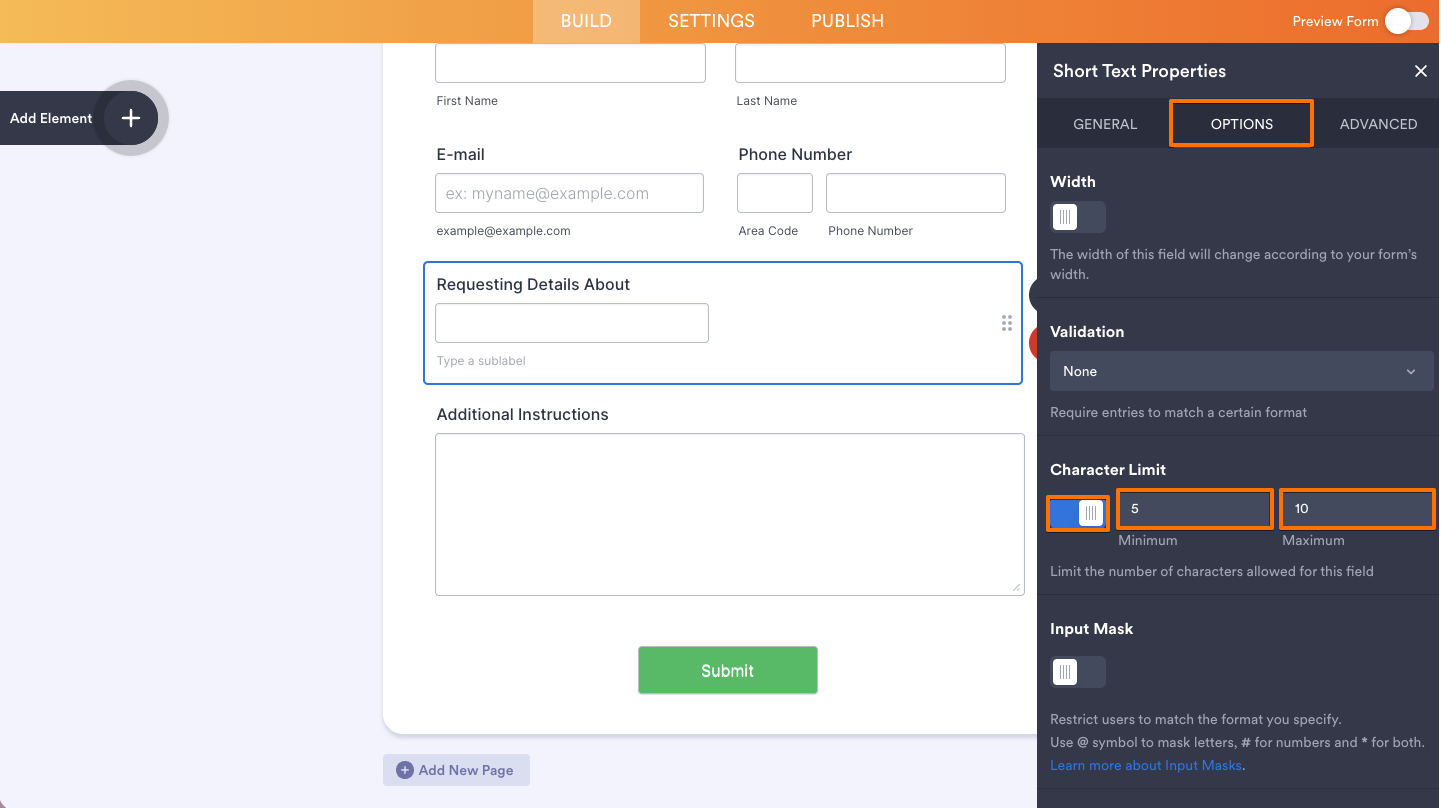
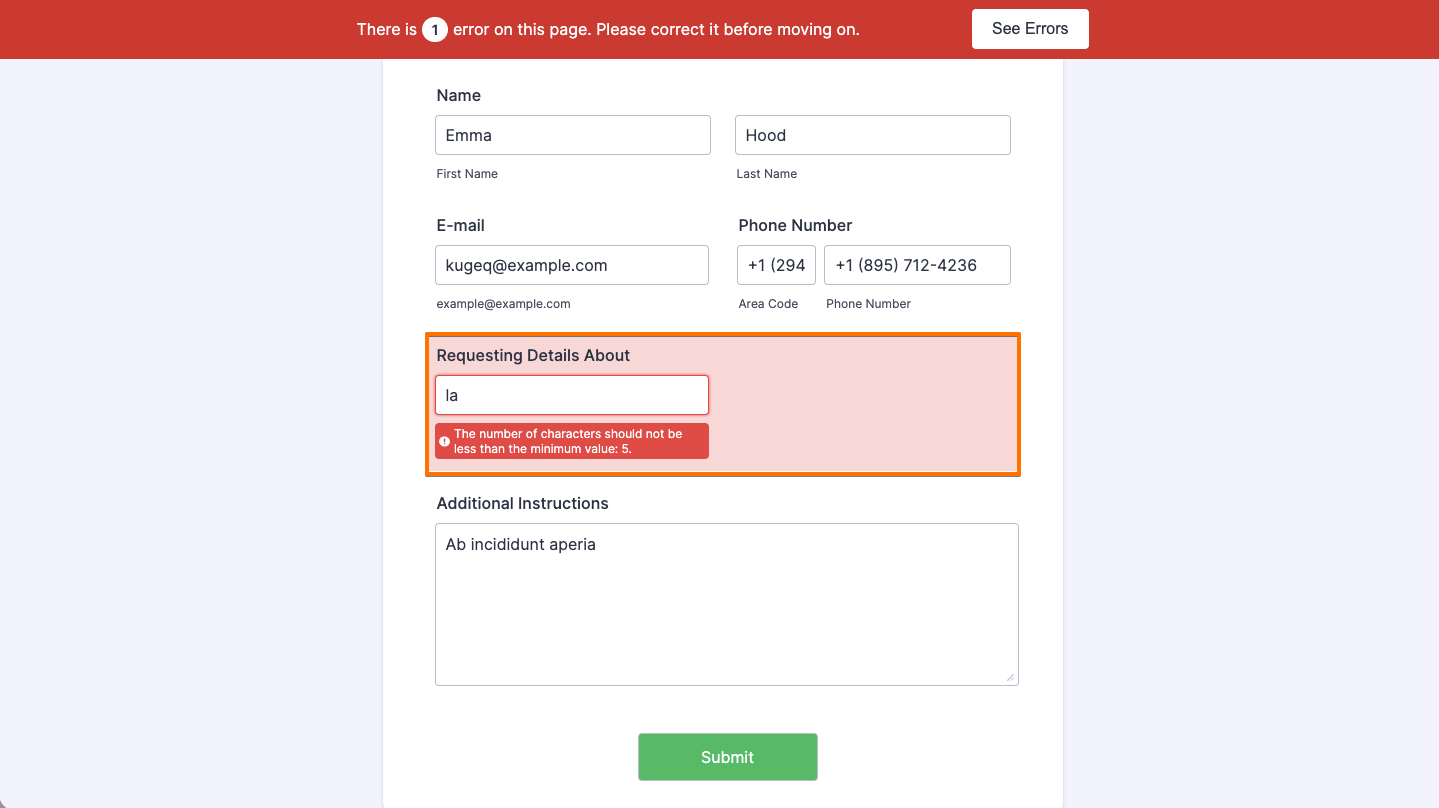
When a minimum value is set, the form displays an error if the requirement is not met. There is no error message for the maximum value; instead, additional input is prevented once the maximum is reached. The error will look like this:
Setting up Entry Limit in Long Text Field
To set an entry limit:
- In Form Builder, click on the Long Text field.
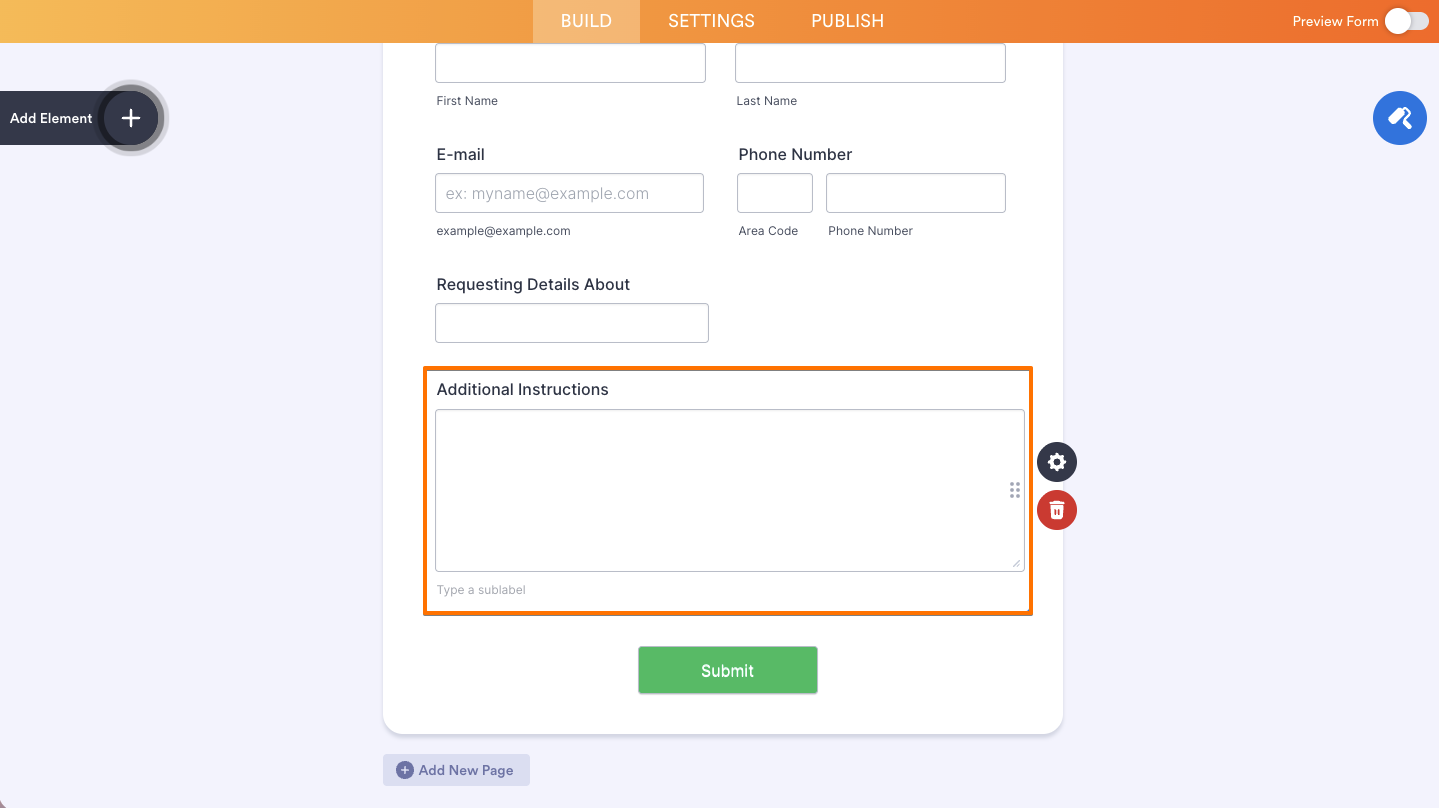
- On the right side of the field, click on the Gear icon to open its properties panel.
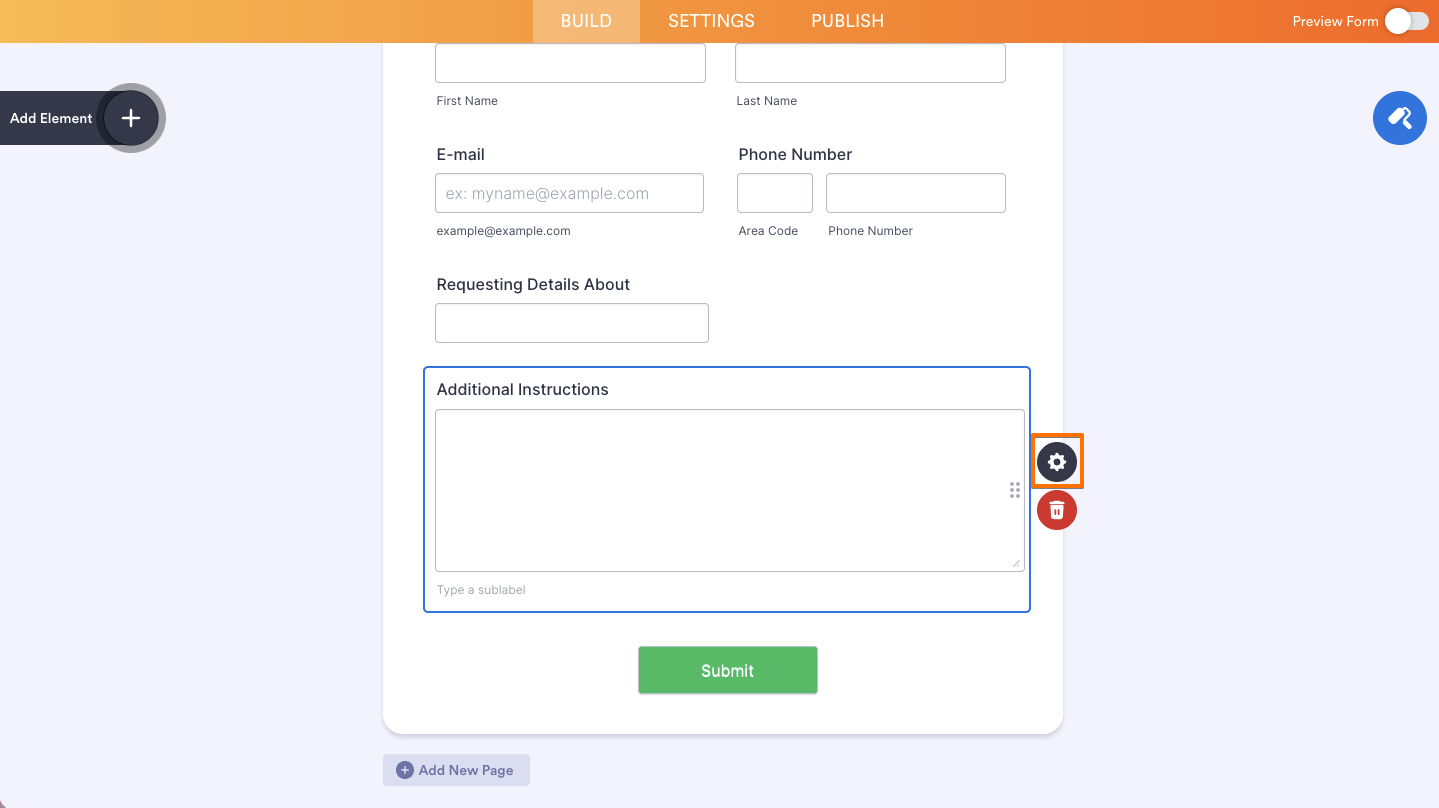
Tip
You can also double-click the field to open its properties.
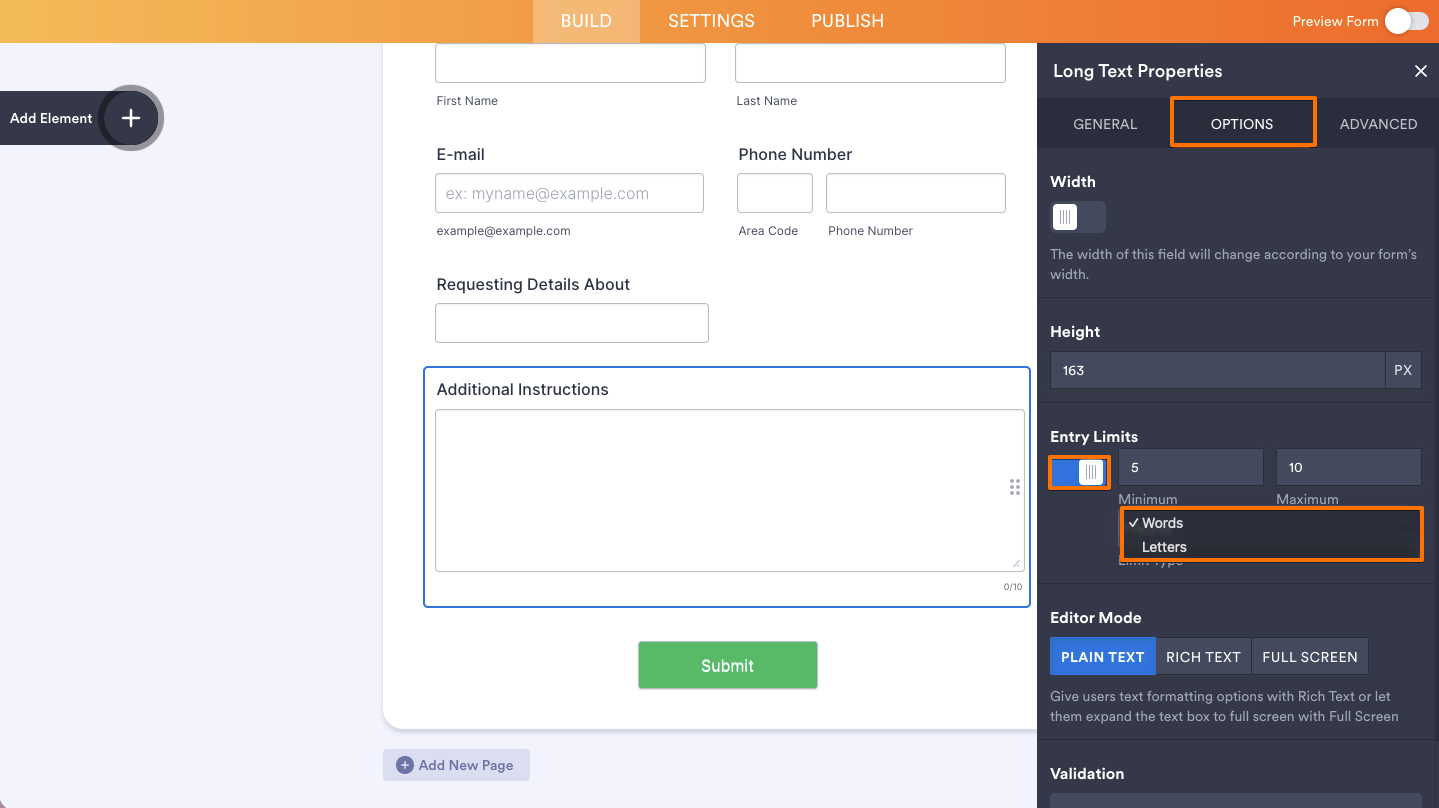
- Go to the Options tab.
- Toggle on the Entry Limits to enable it.
- In the Limit Type dropdown menu, choose to either limit it to Words or Letters.
- Set both Minimum and Maximum appropriately.
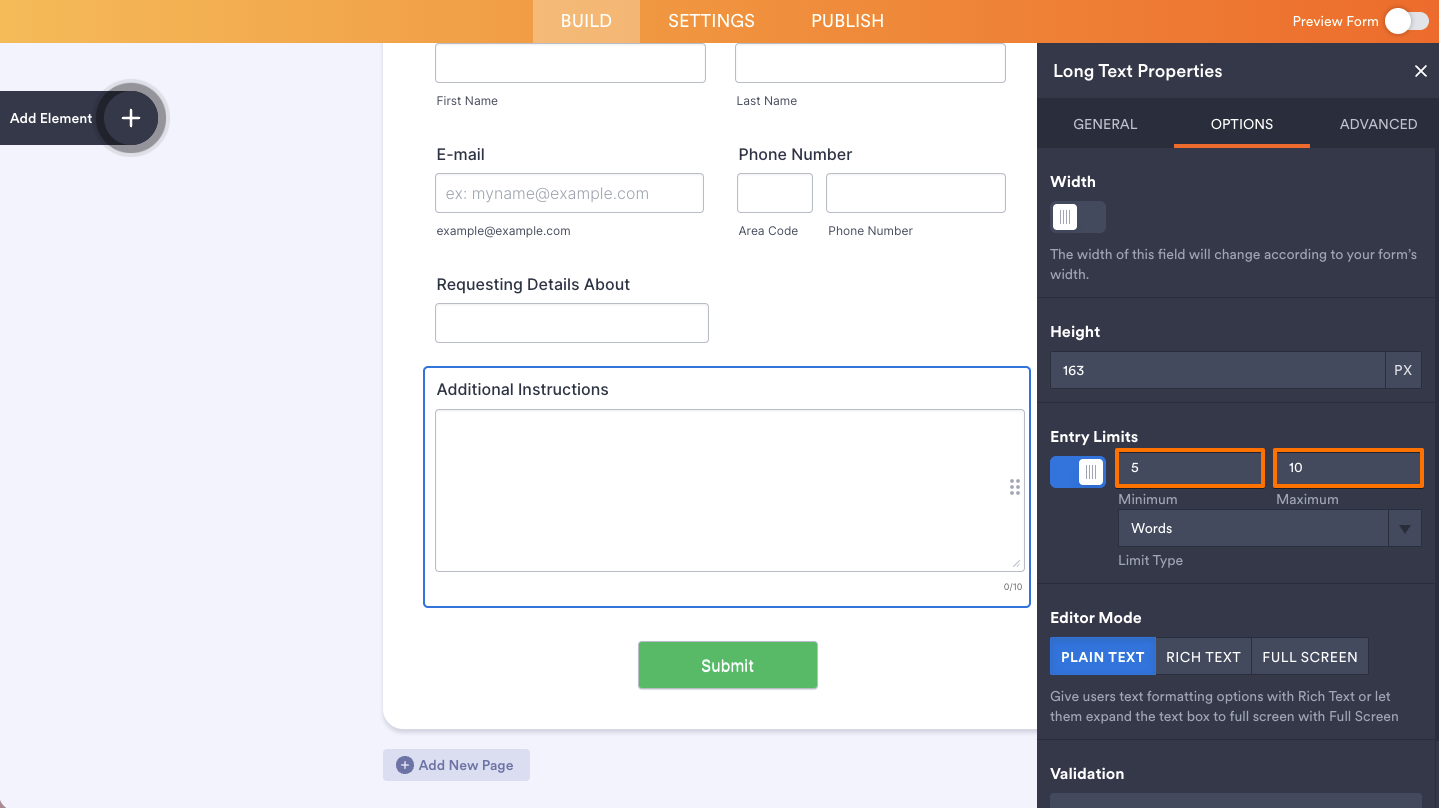
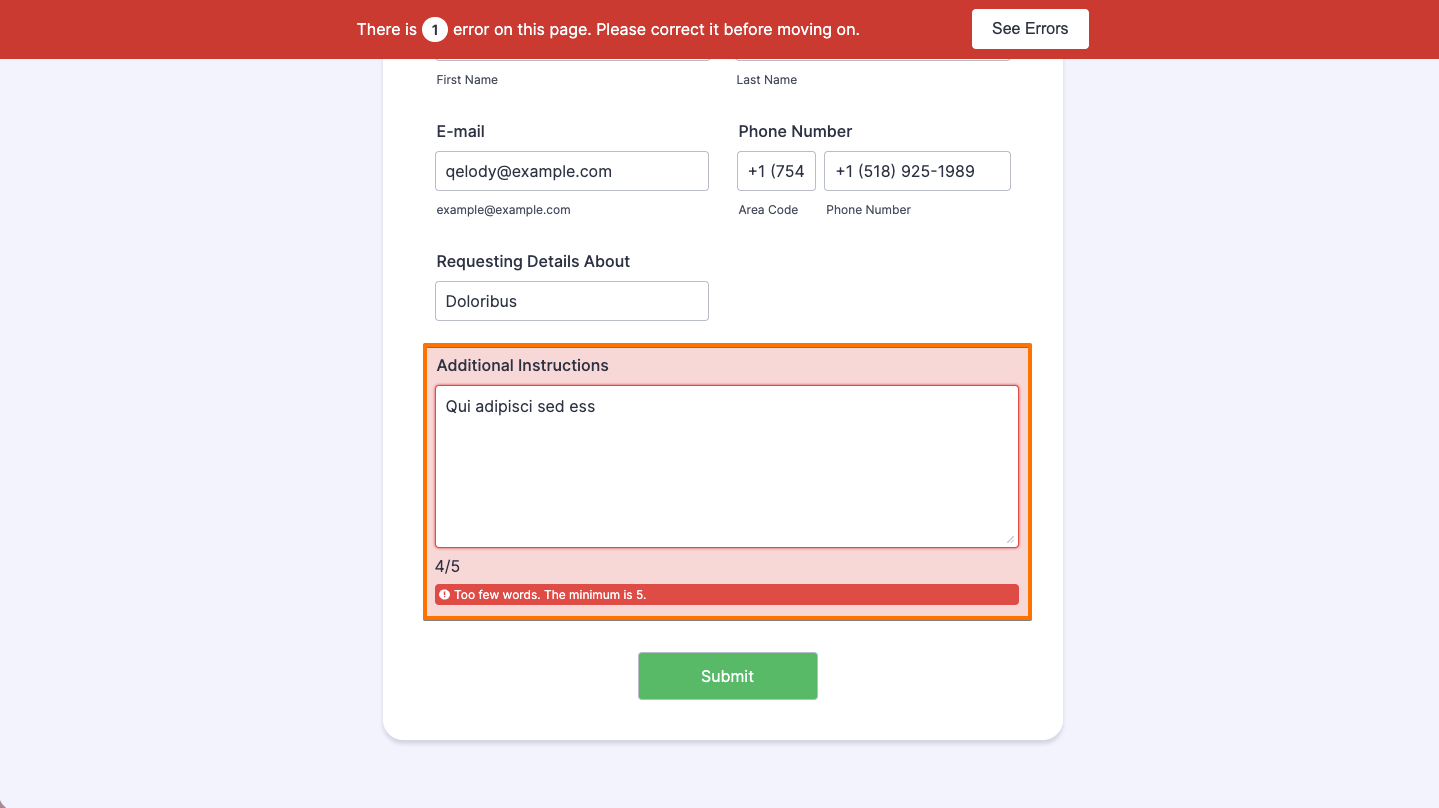
The Long Text also displays an error when the minimum is not met, and it will stop accepting input if the maximum is reached. You’ll also see the number of characters or words entered at the bottom left side of the input area. Below is a screenshot of the error and the limit indicator:

Send Comment: