As an Admin, you have global control over the Form Builder. You can curate a list of approved widgets for your organization or disable the functionality entirely to ensure data compliance and a standardized form structure across your organization.
Enabling or Disabling the Widgets Tab
Use these steps to show or hide the entire Widget category within the Form Builder for all users.
- In the Admin Console, click on Assets on the left-hand side of the page.
- Then, select Forms from the assets.
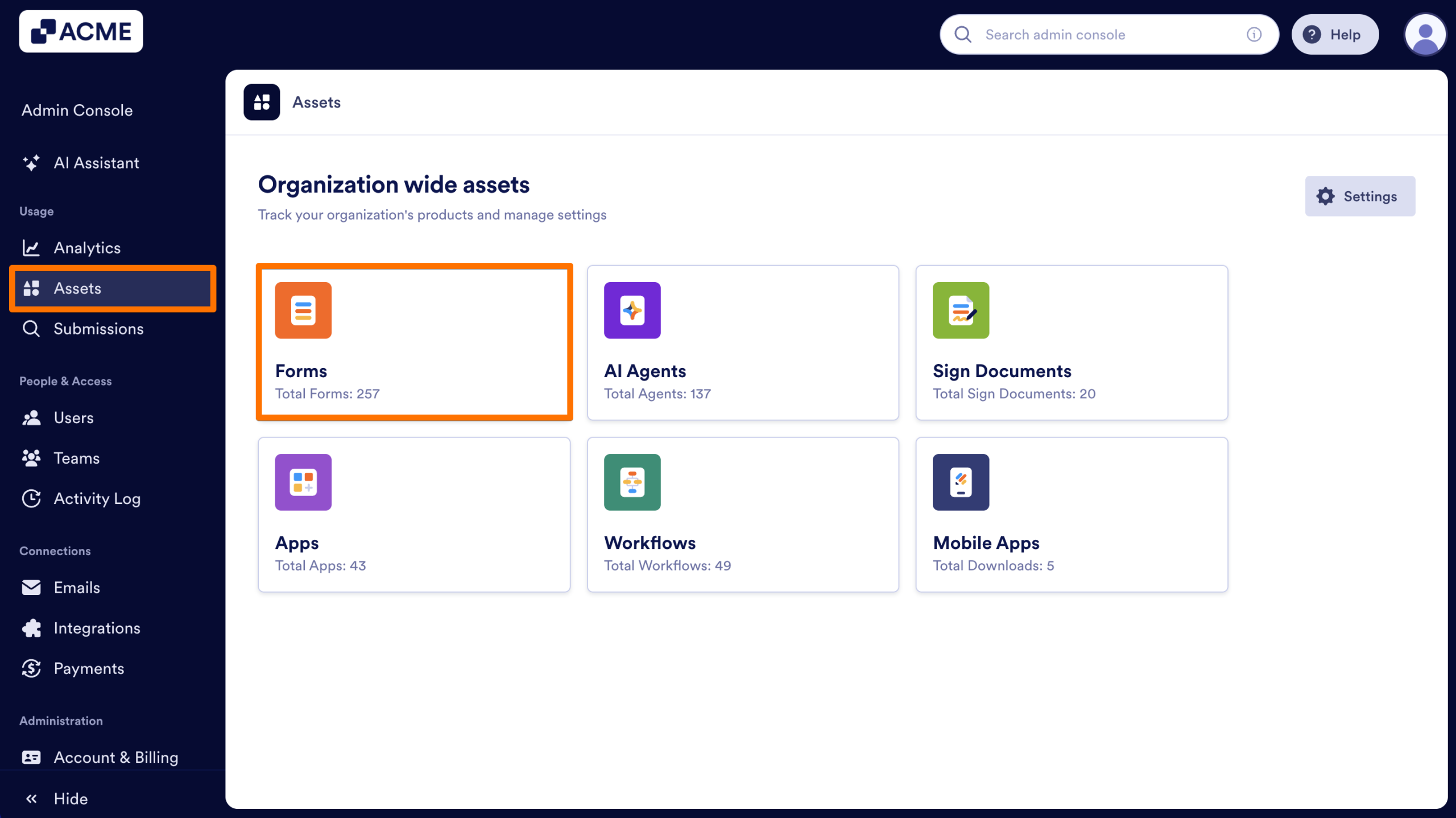
- Click on the Gear icon to open the Form Settings.
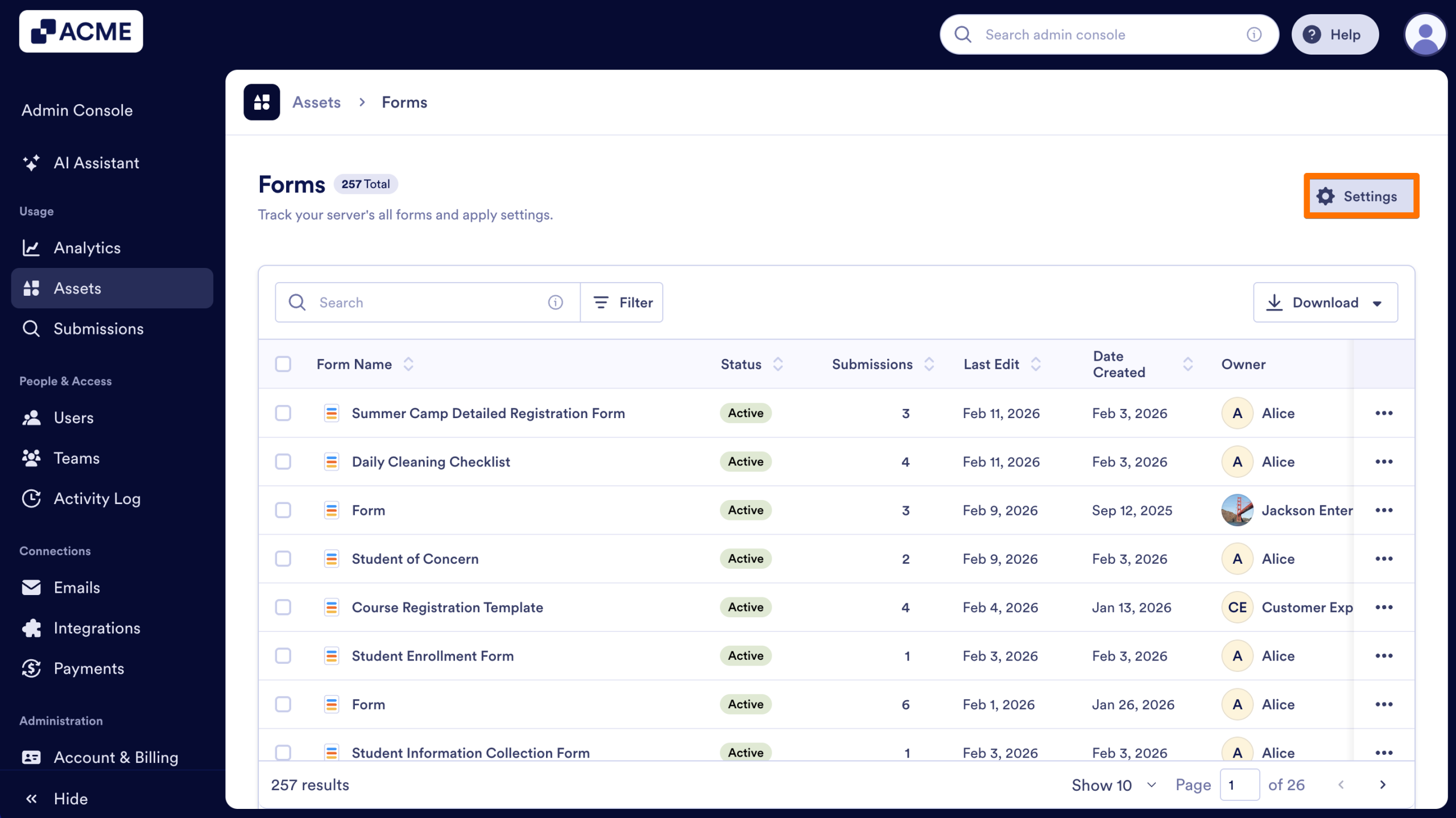
- Toggle On or Off the switch next to Widgets.
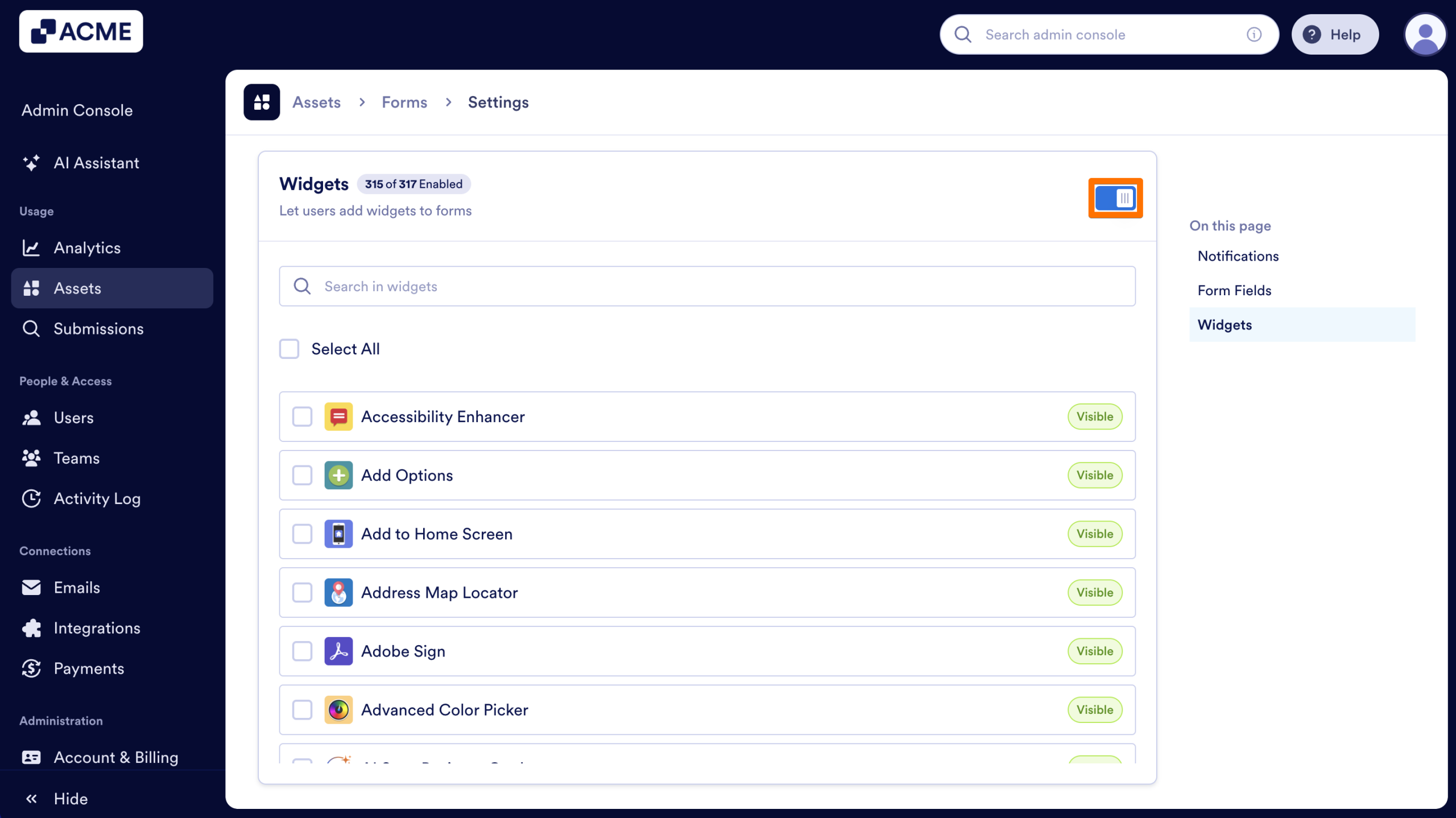
- Finally, confirm your selection in the pop-up window.
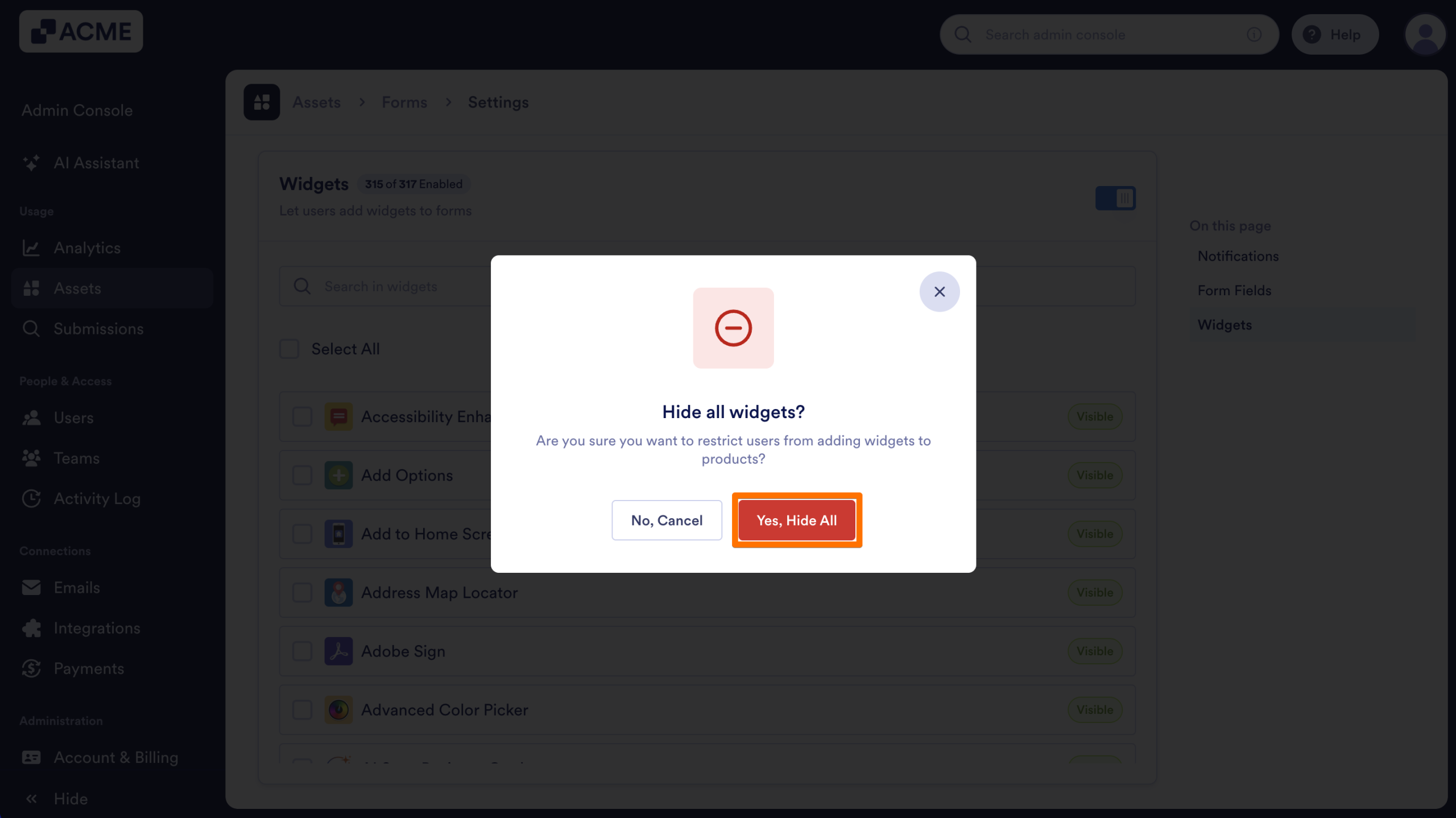
How it Looks in the Form Builder
Visible
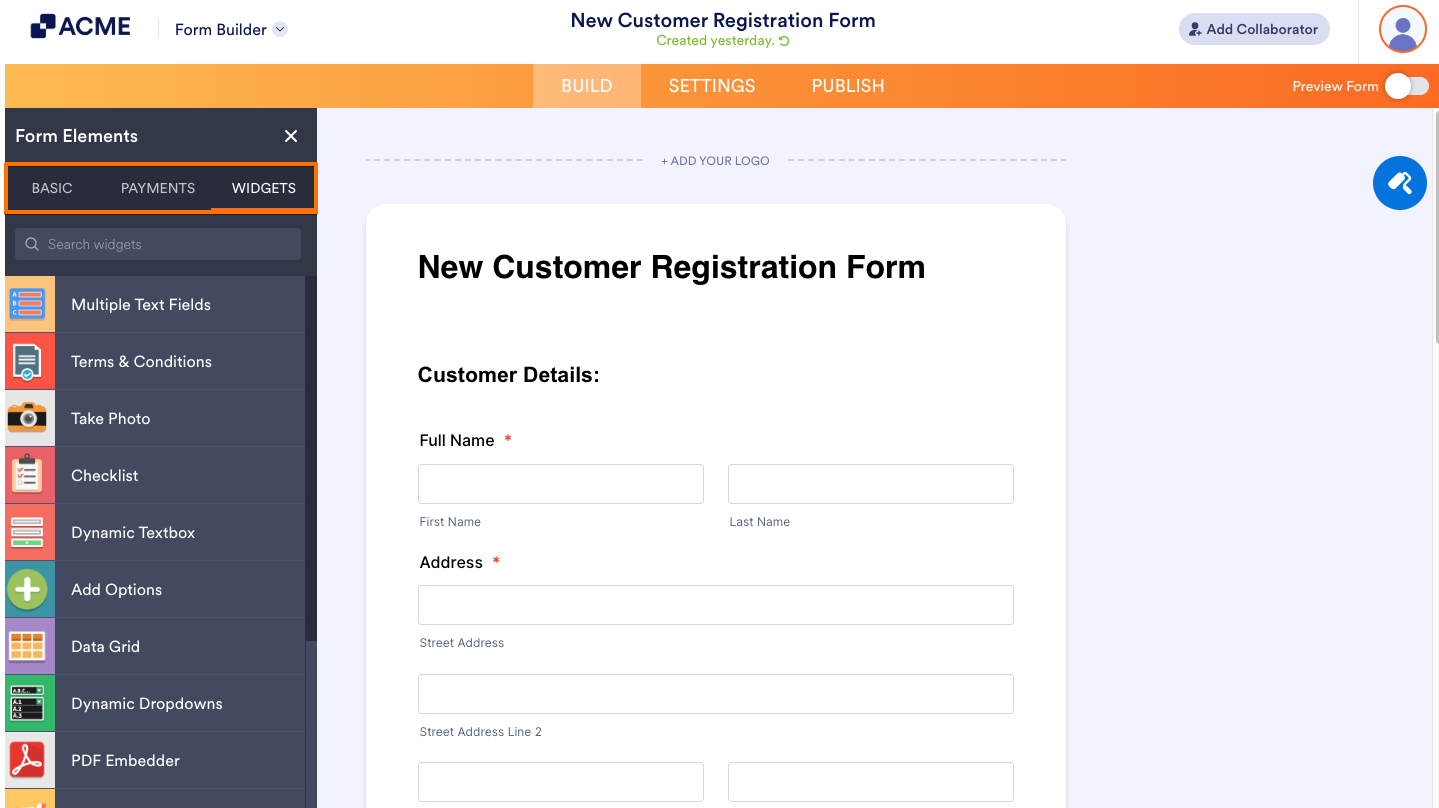
Hidden
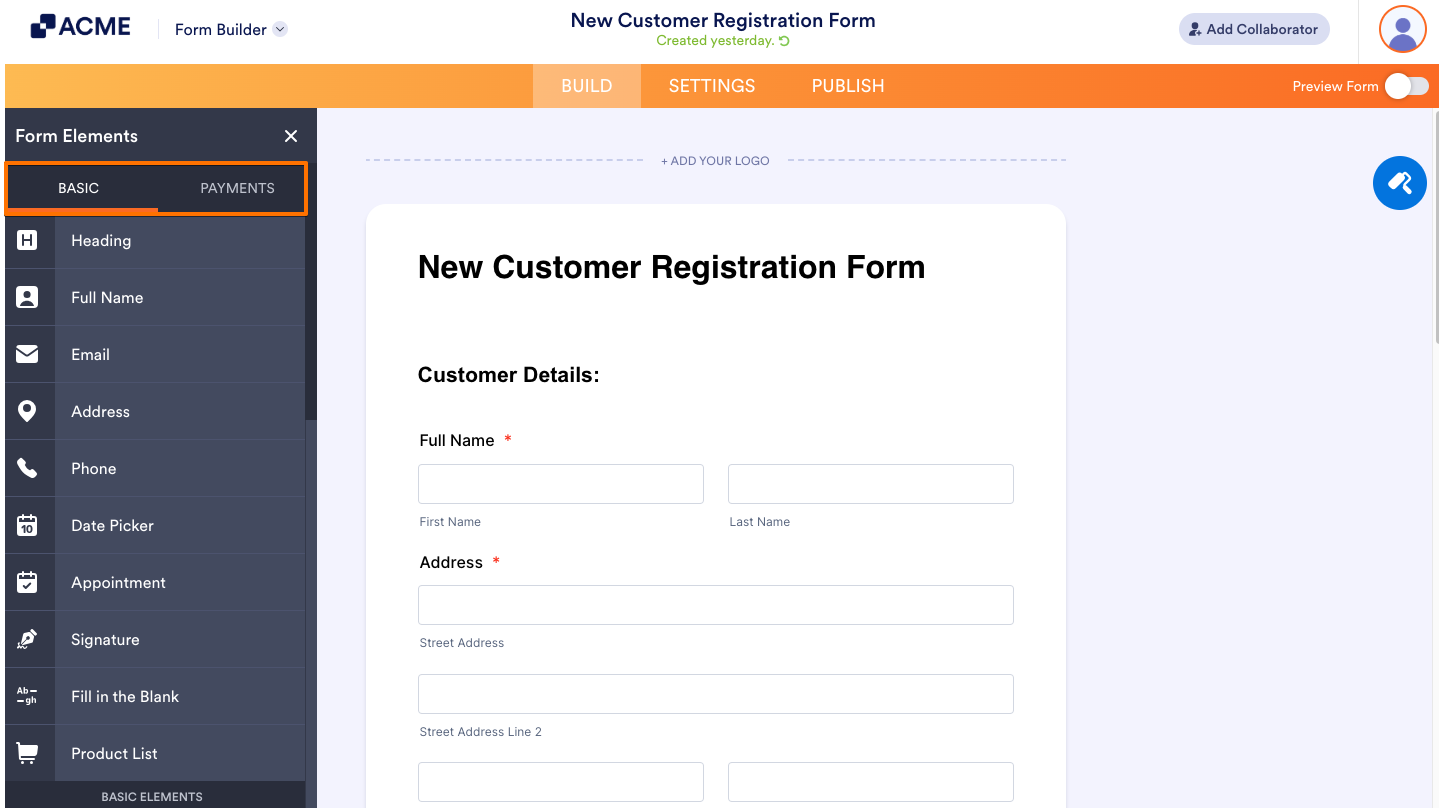
Note
If a form already contains a hidden widget, it remains fully functional. Users can still edit its settings or continue using it as is. However, hidden widgets cannot be duplicated or added to any forms. Once a hidden widget is deleted from a form, it cannot be recovered from the builder's panel.
Enabling or Disabling Individual Widgets
If you want to allow the Widget tab but restrict specific tools, you can hide individual widgets to maintain security or design standards.
- In the Admin Console, click on Assets on the left-hand side of the page.
- Then, select Forms from the list of assets.
- On the next page, click on the Gear icon to open the Form Settings.
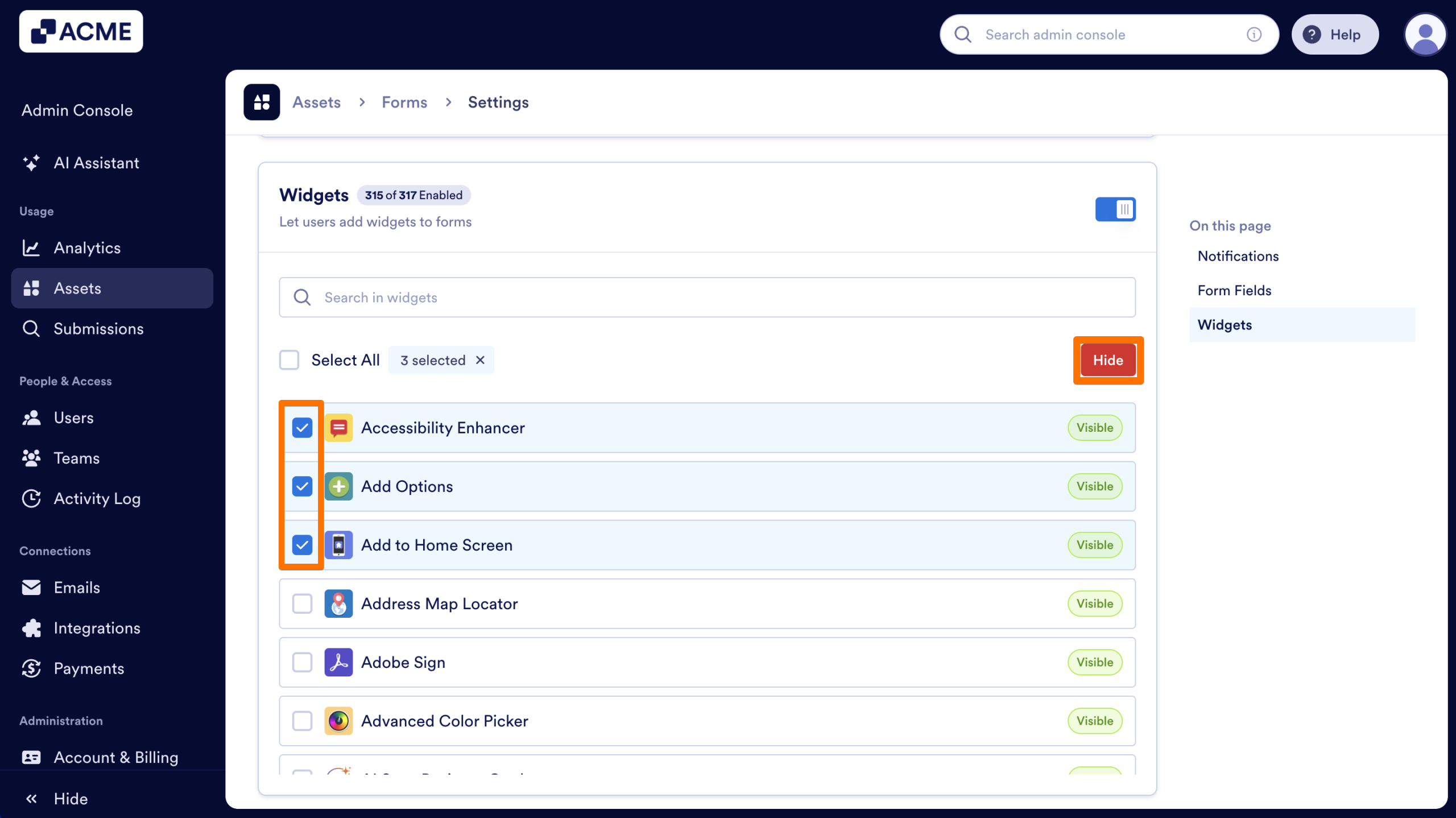
- Click on the checkbox next to each widget you’d like to disable.
- Then, select Hide/Show at the top of the list.
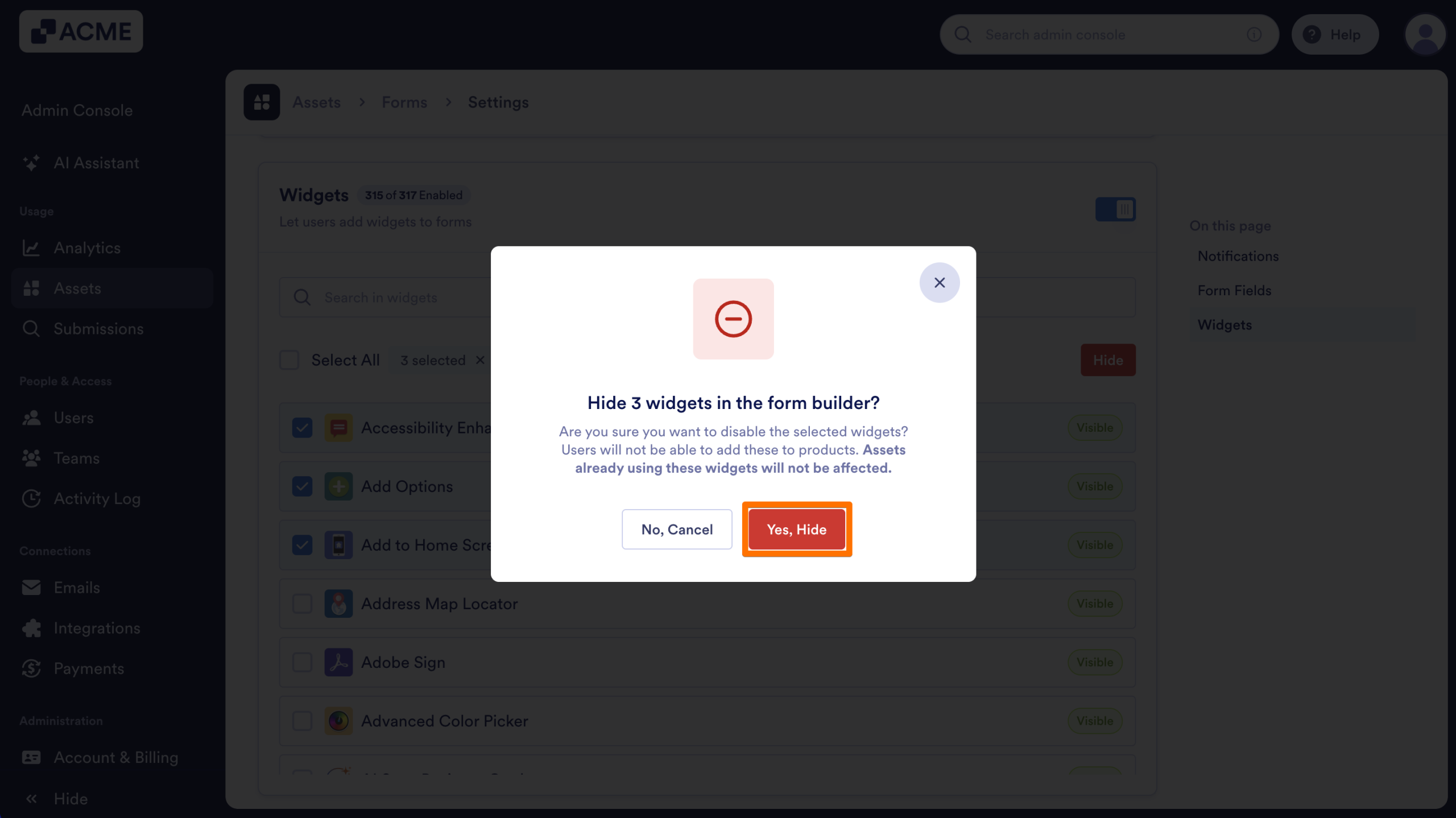
- Finally, confirm your selection in the pop-up window.

Send Comment: