Apps can be trashed or restored individually or in bulk, giving admins full control over their availability across the organization. By removing apps that are no longer needed or restoring them when necessary, you can keep your workspace organized, prevent clutter, and ensure users have access to the right tools. Bulk actions further streamline the process, making it easy to manage multiple apps at once and efficiently handle larger updates.
Moving Apps to Trash
- In the Admin Console, on the left side of the page, click on Assets.
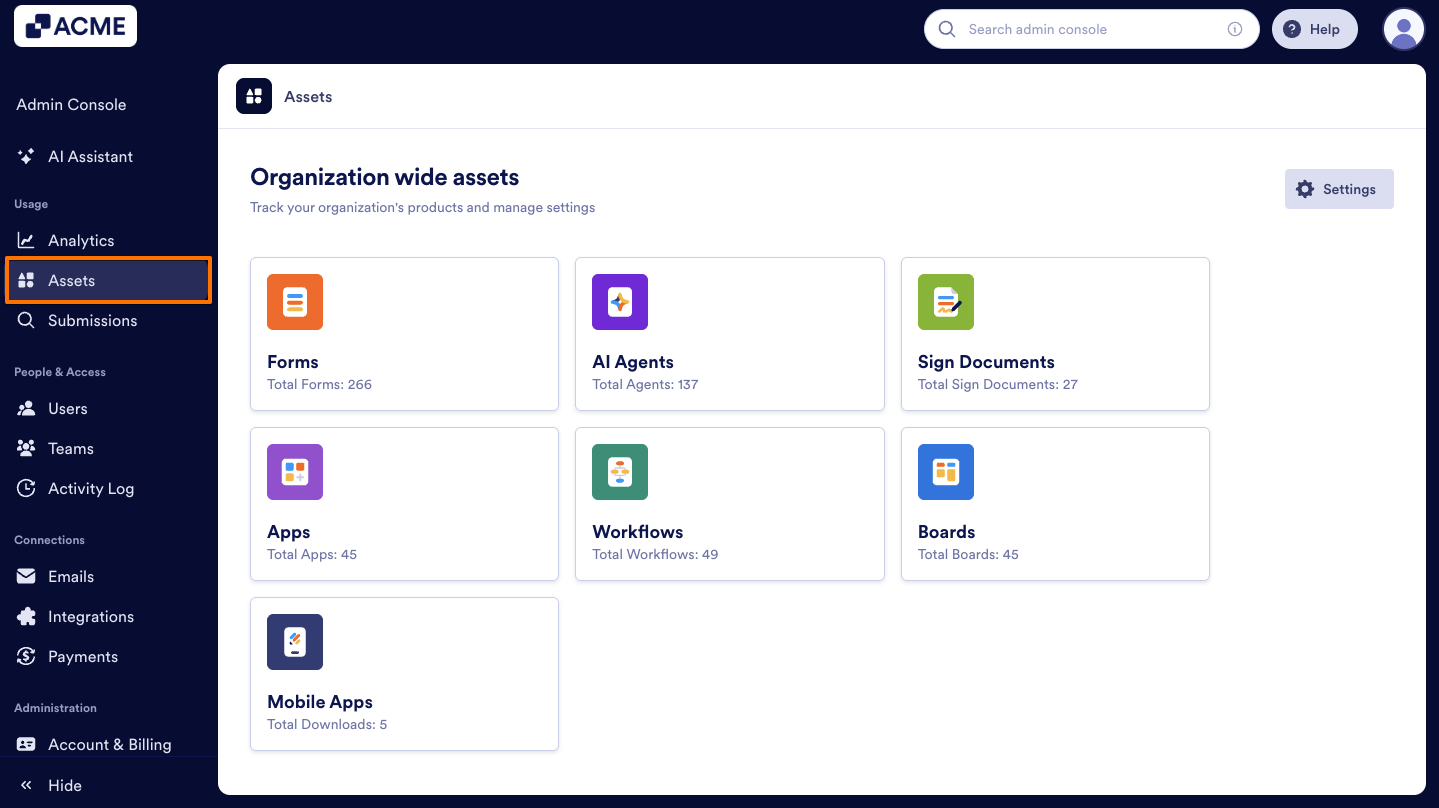
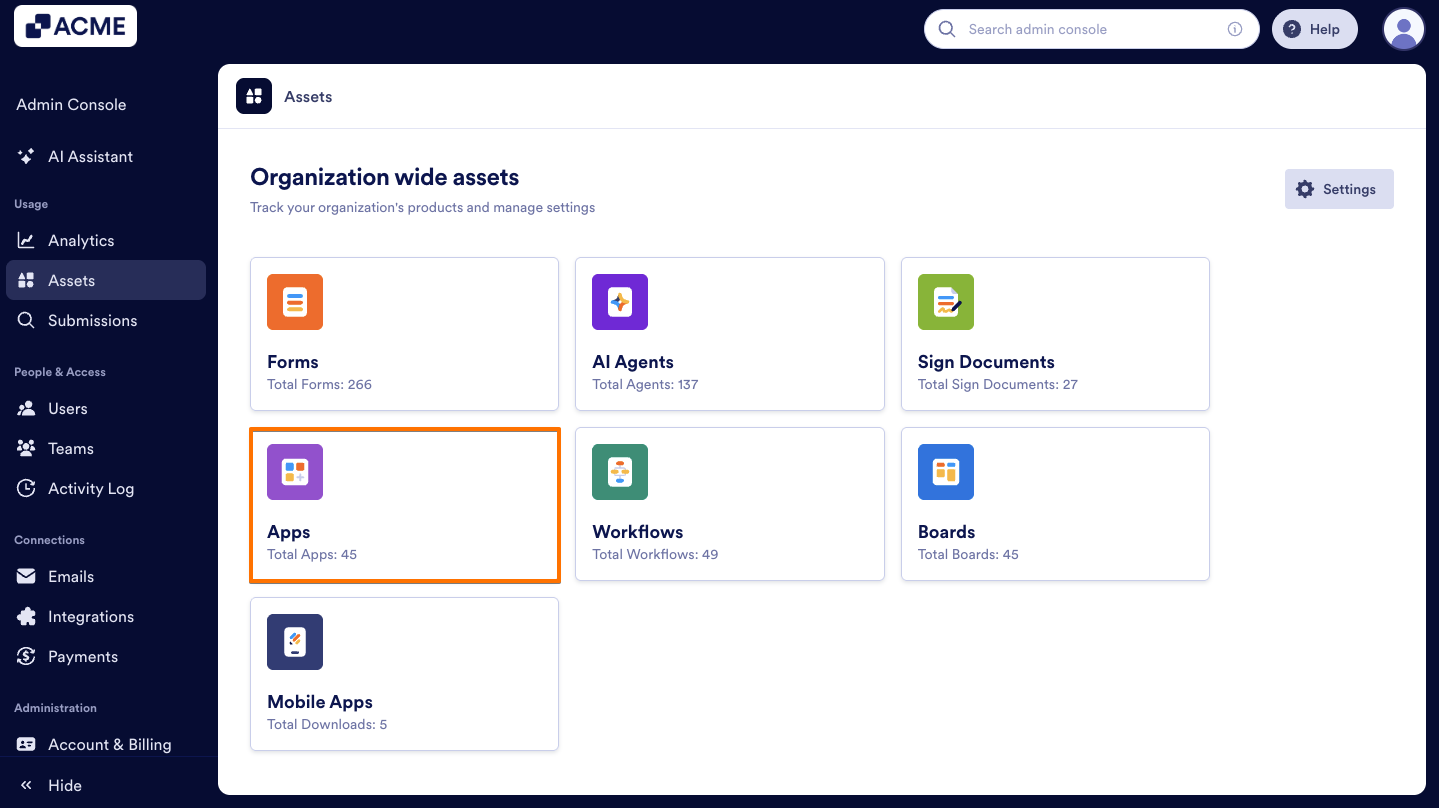
- Next, select Apps.
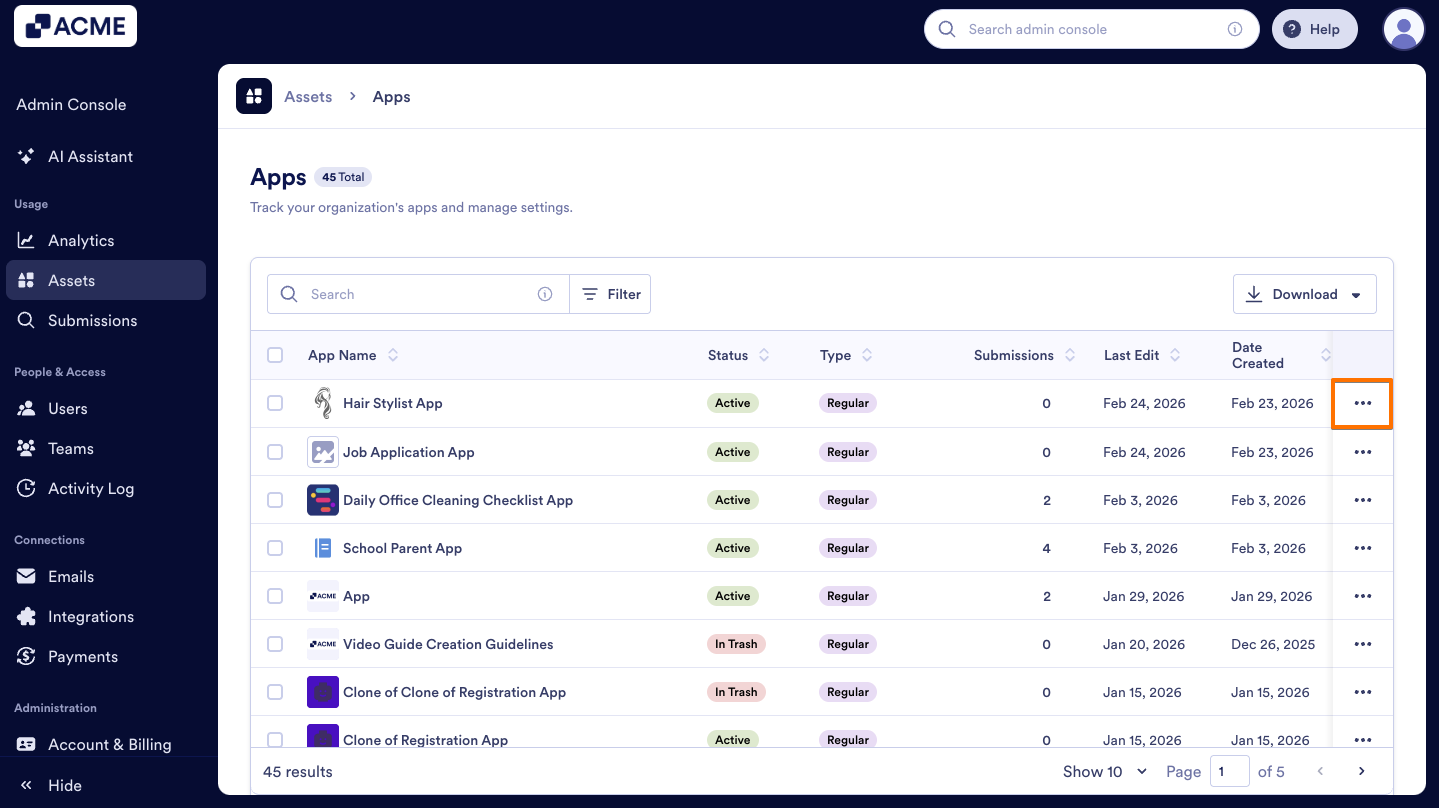
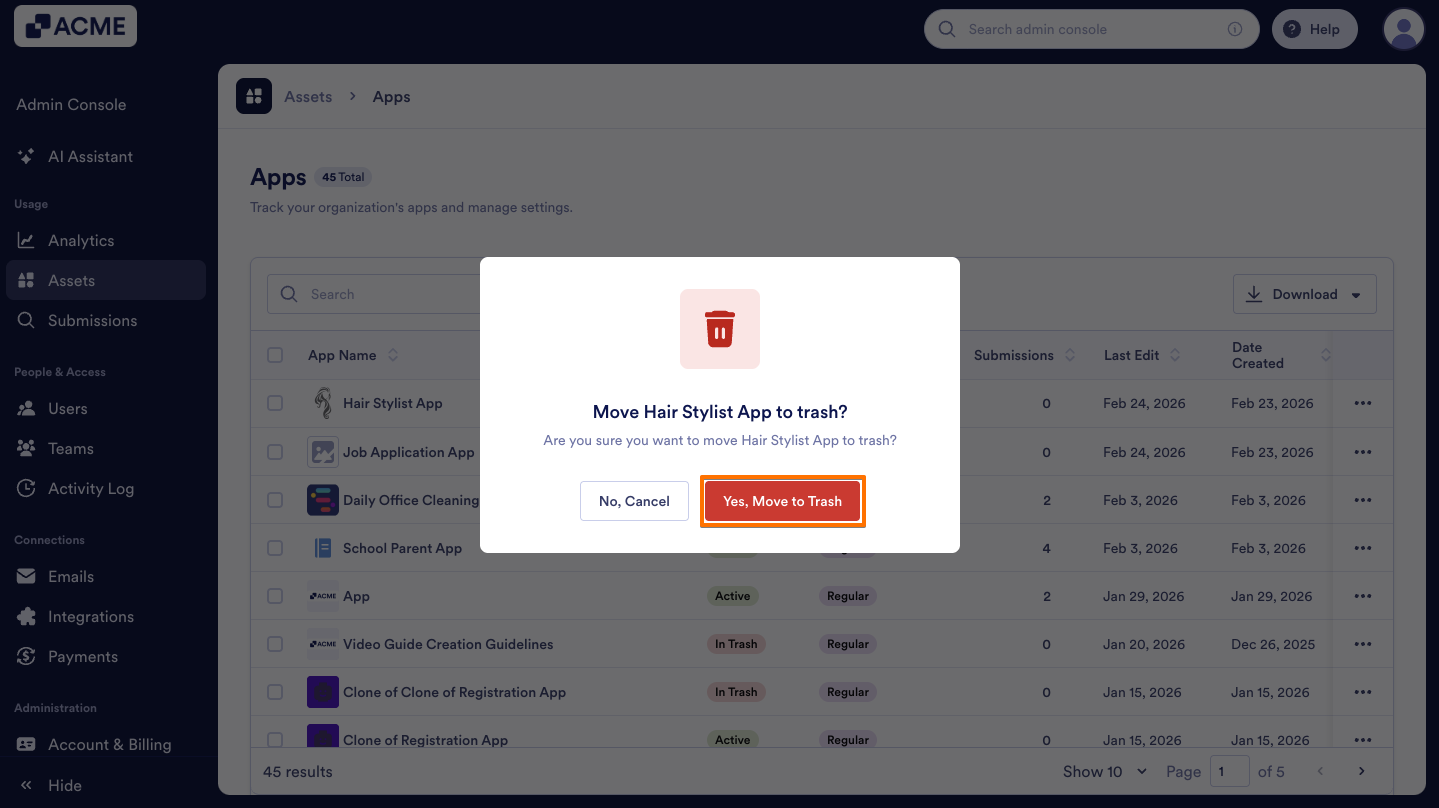
- Then, find the app you want to delete and click on the Three dots icon next to it.
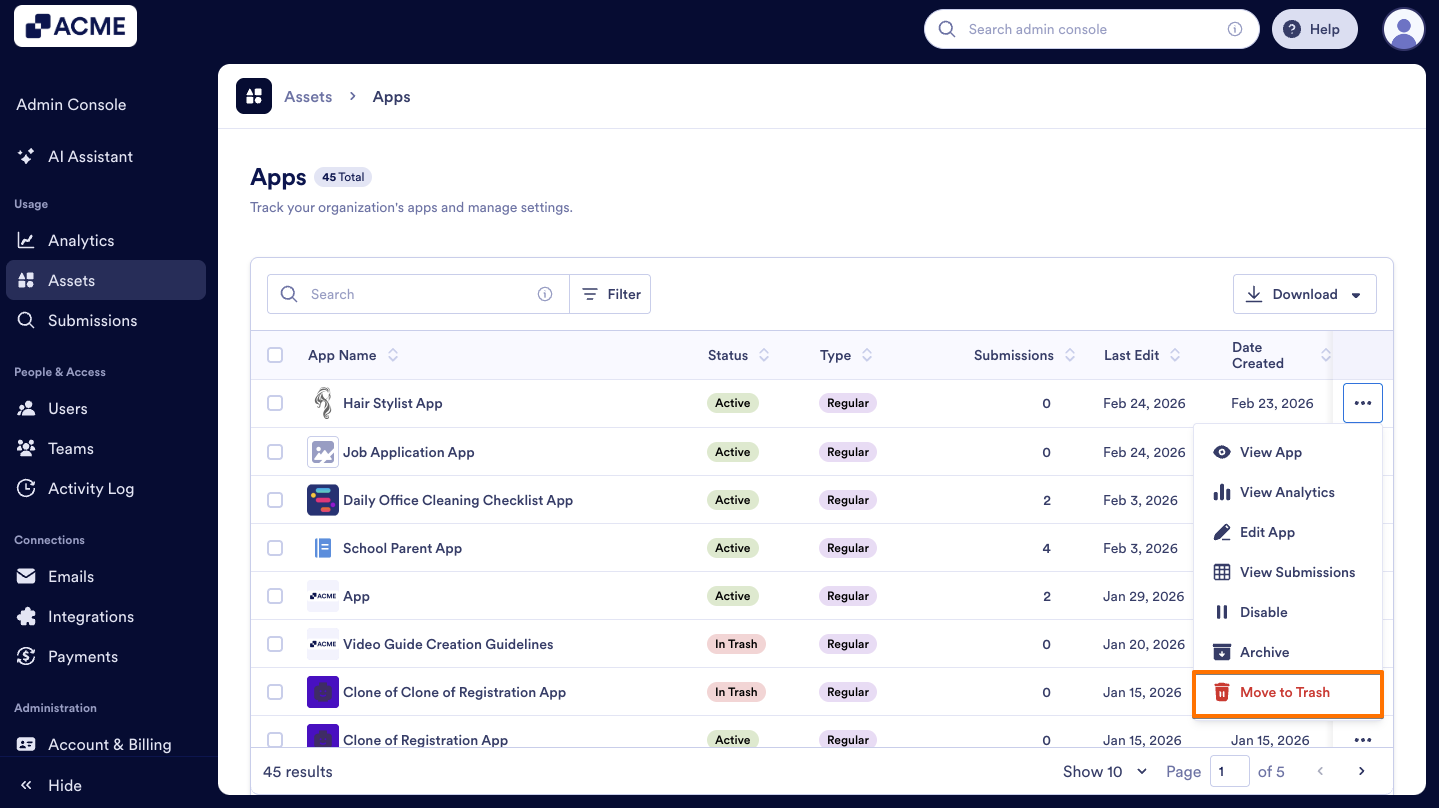
- From the menu, select Move to Trash.
- In the pop-up window, click on Yes, Move to Trash to confirm.
Another way to delete a single app is by using the Move to Trash button above the list. Here’s how:
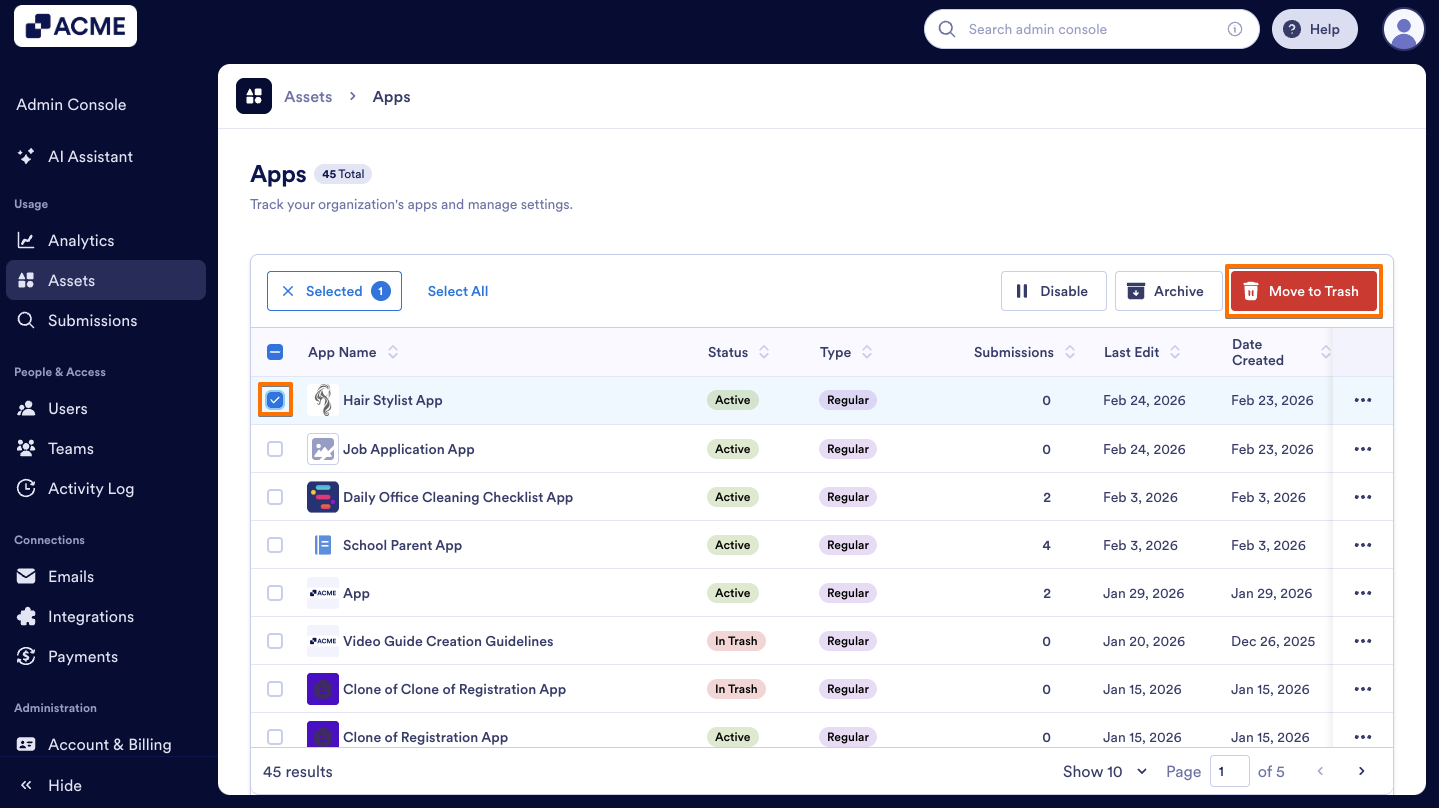
- On the Apps Assets page, click the Checkbox next to the app you want to delete, then select Move to Trash at the top of the list.
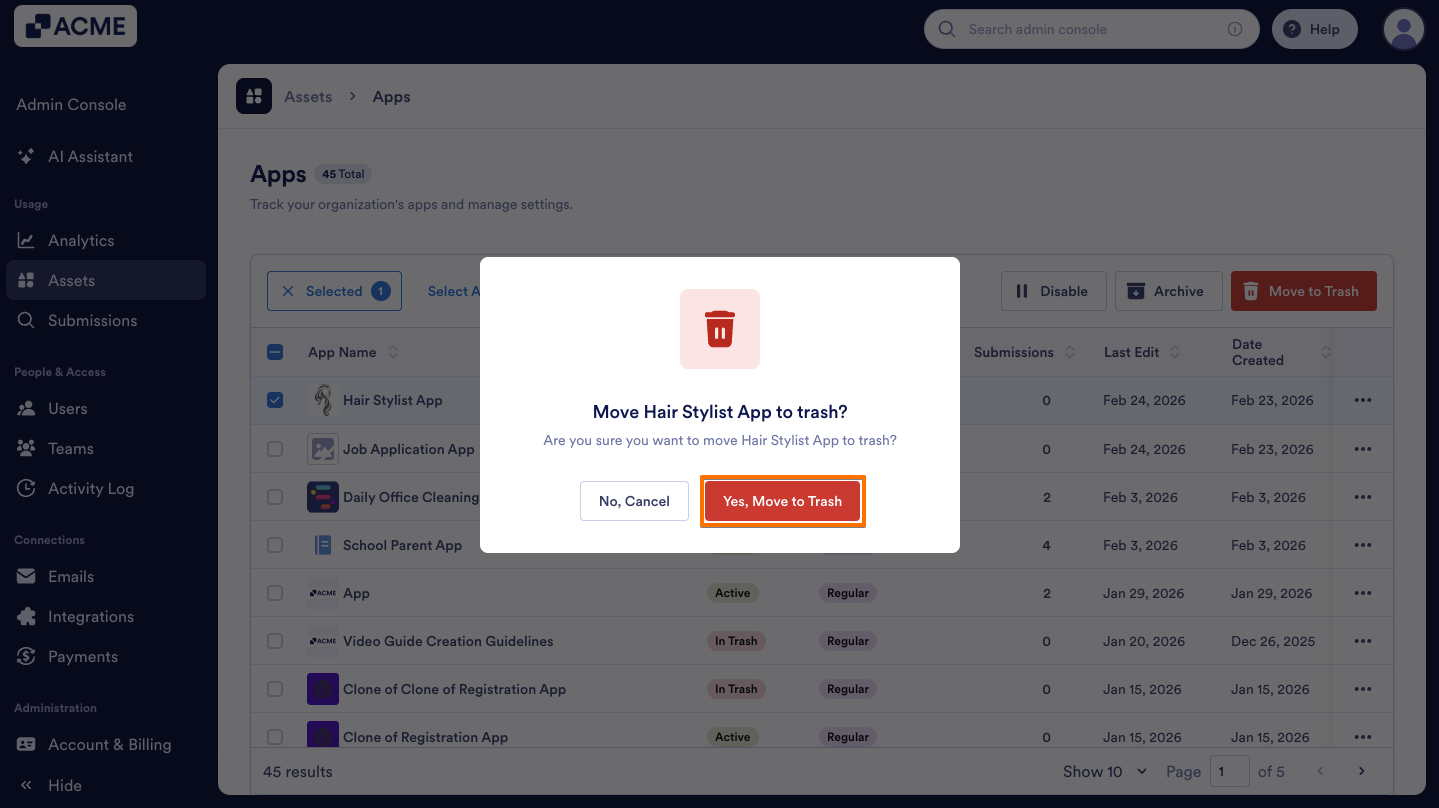
- In the pop-up window, select Yes, Move to Trash to confirm.
Note
Trashed apps remain available for restoration for 30 days. If no action is taken within this period, the deleted asset will be permanently deleted.
Restoring the Trashed Apps
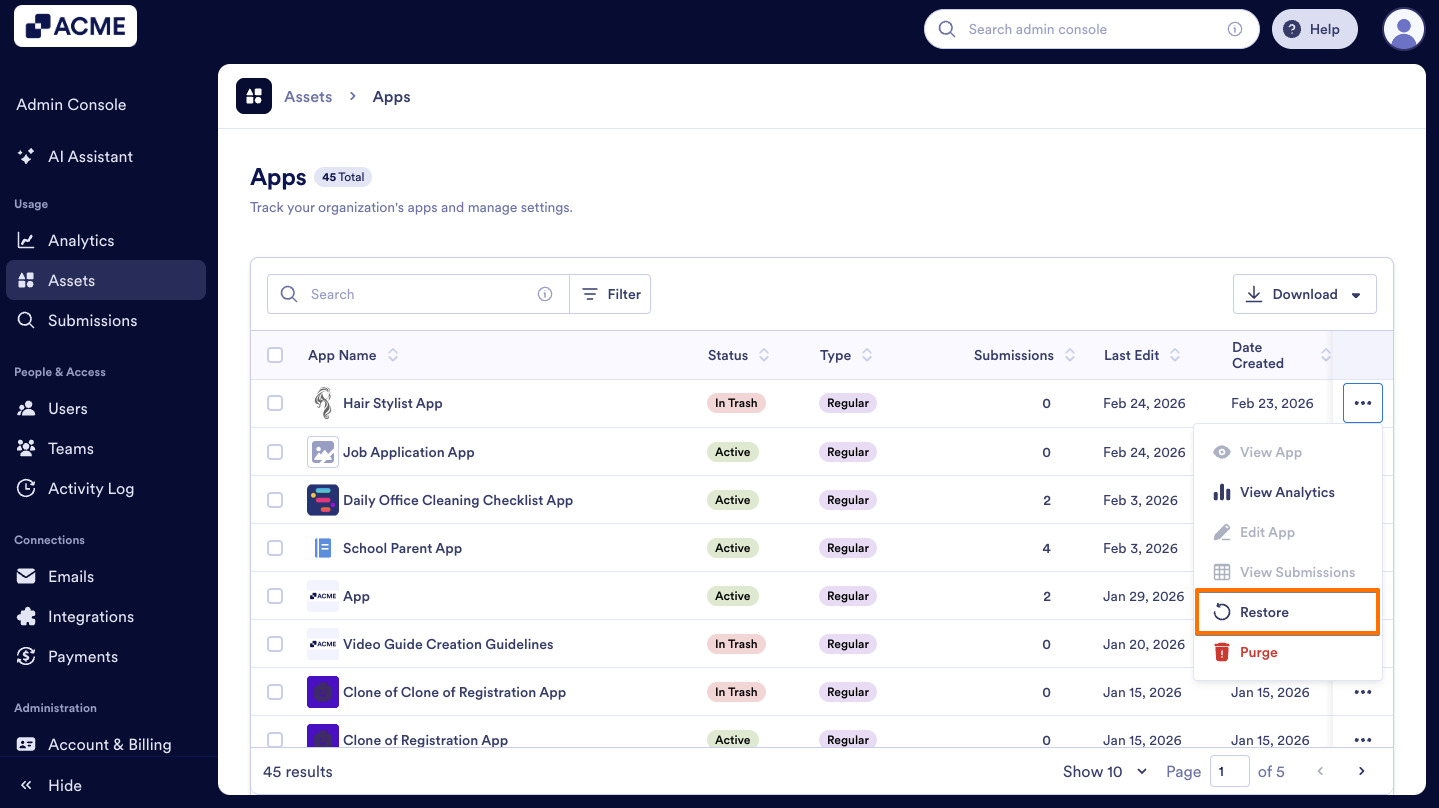
- On the Apps Assets page, on the right side of the app you trashed, click on the Three dots icon.
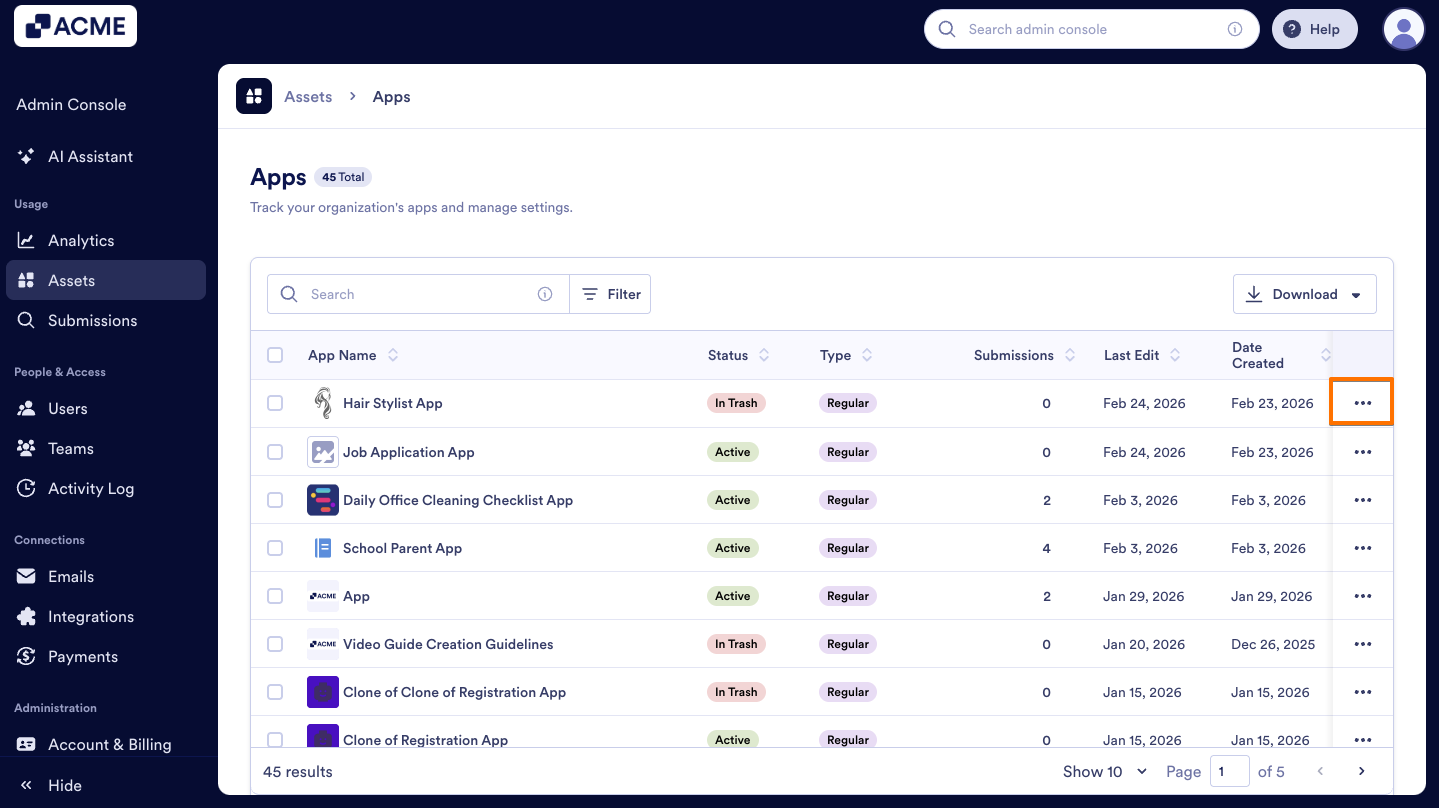
- In the menu, select Restore.
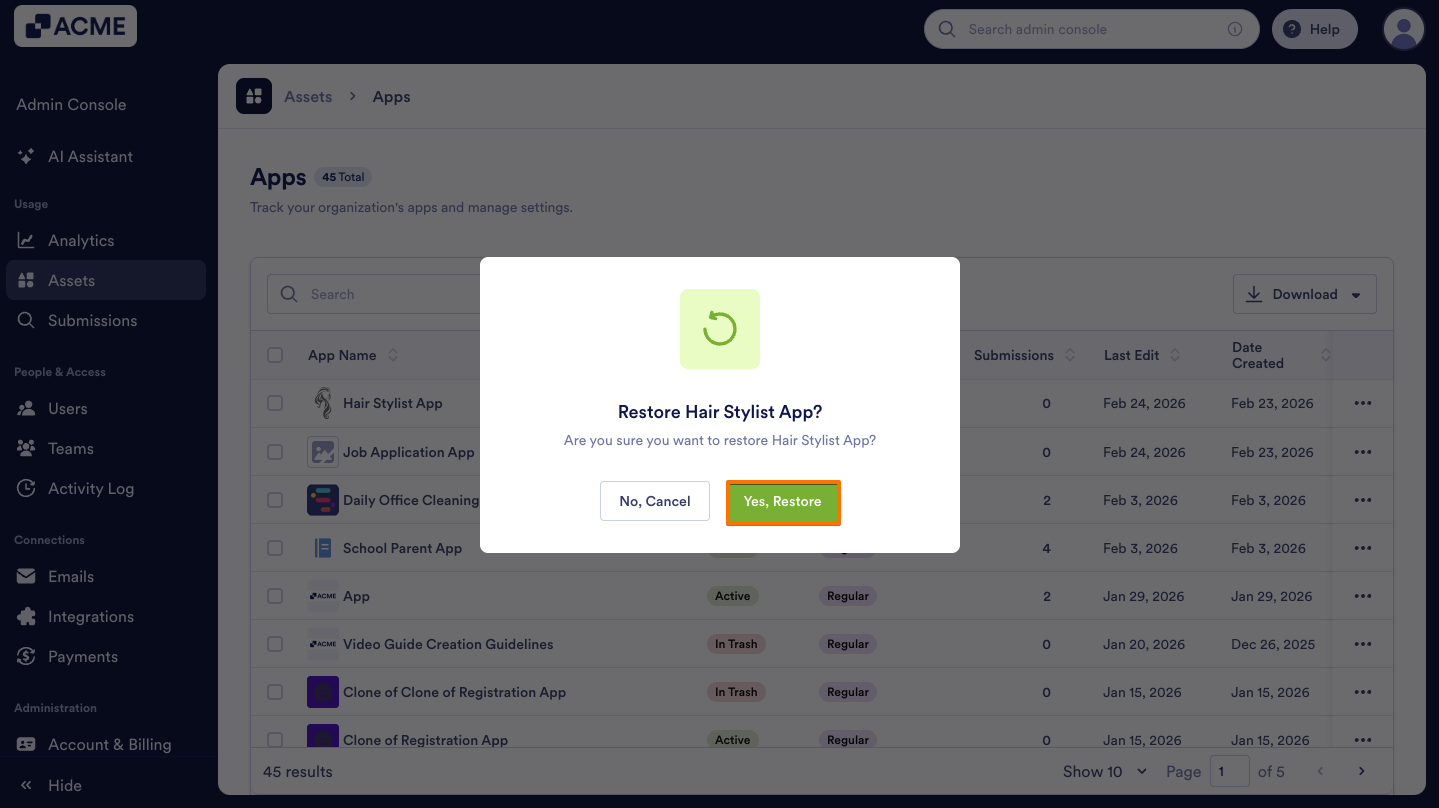
- Then, in the pop-up window, click on Yes, Restore.
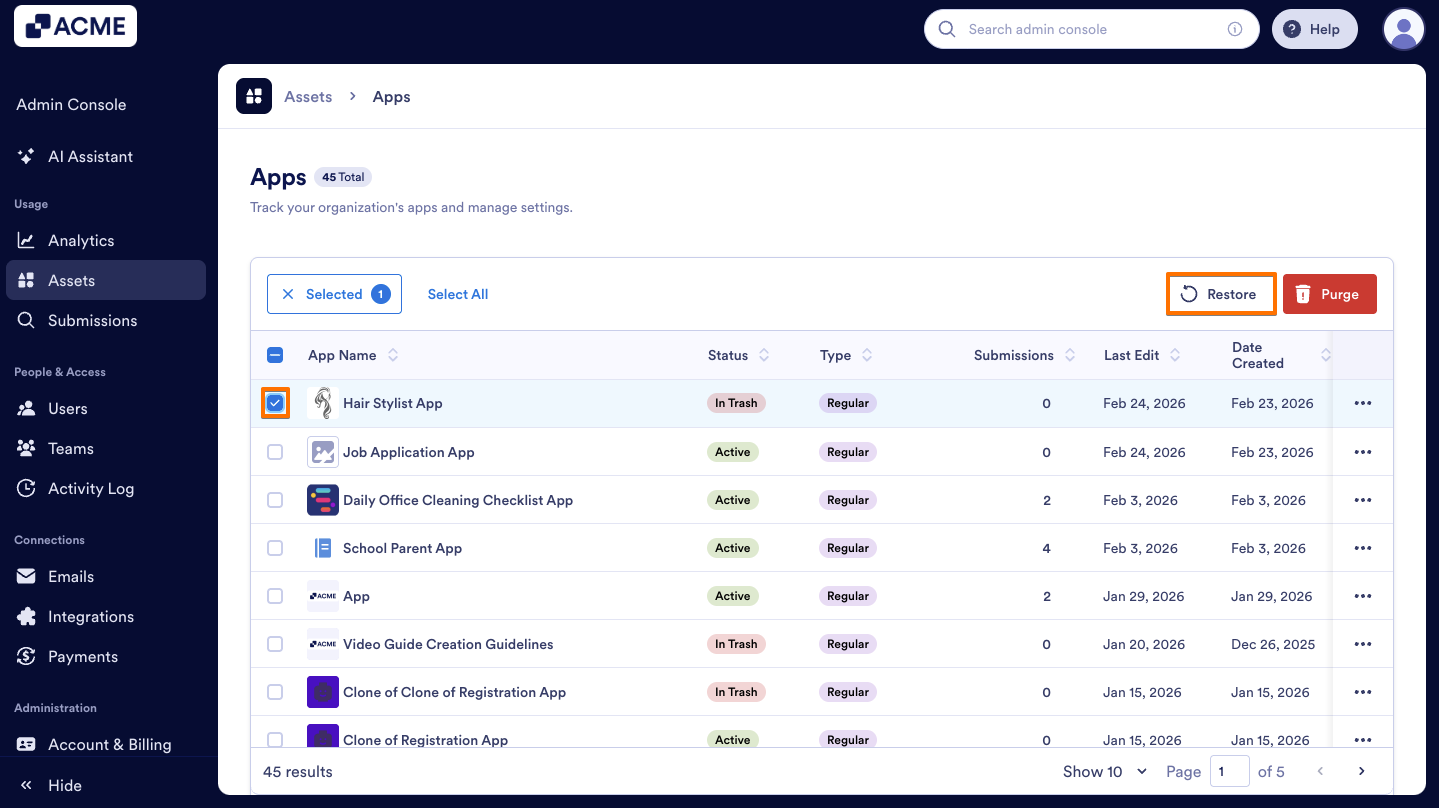
Another way to Restore a trashed app is to use the Restore button at the top. Let me show you how:
- On the Apps Assets page, on the left side of the app you want to restore, click on the Checkbox and then select the Restore option at the top.
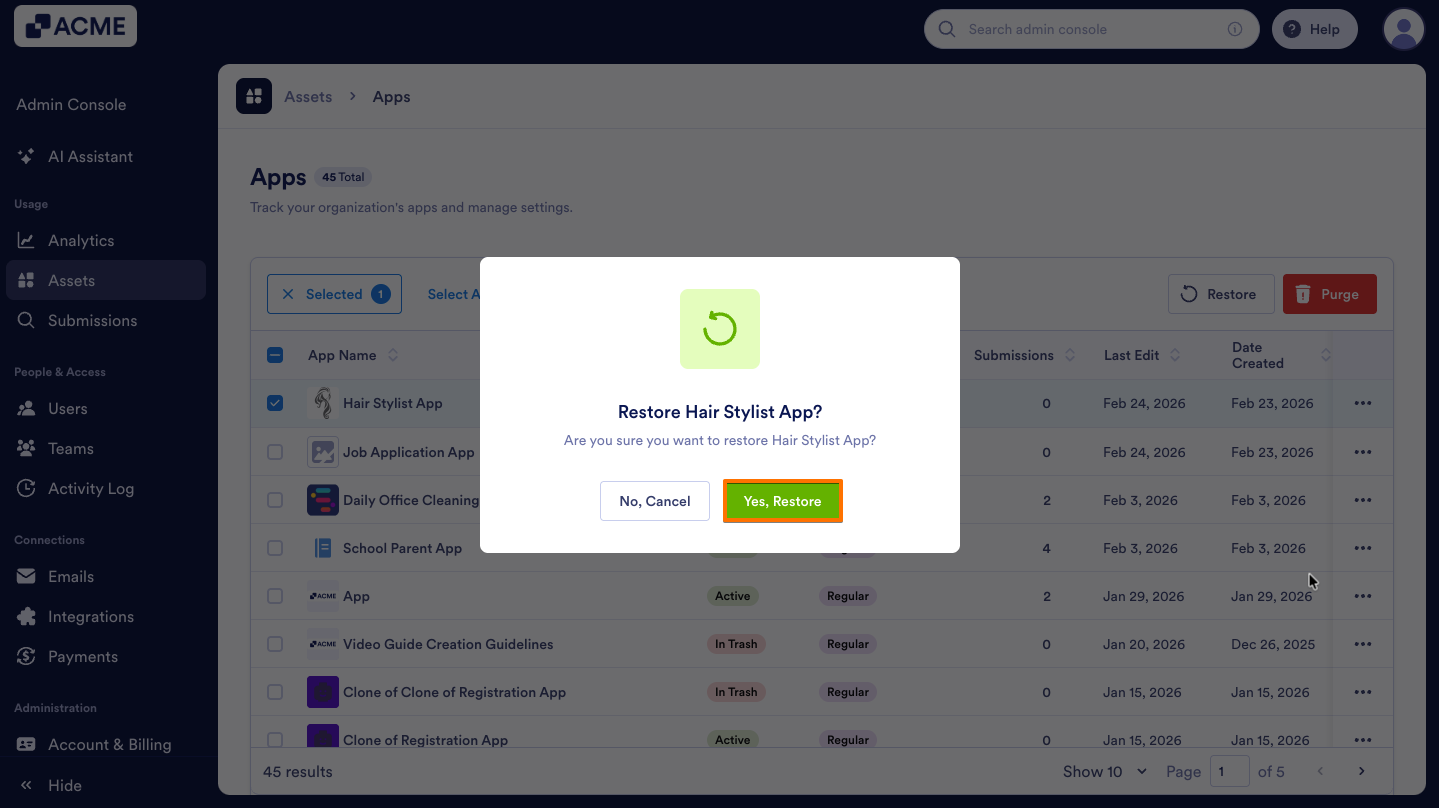
- Then, in the pop-up window, click on Yes, Restore.
Moving Apps to Trash in Bulk
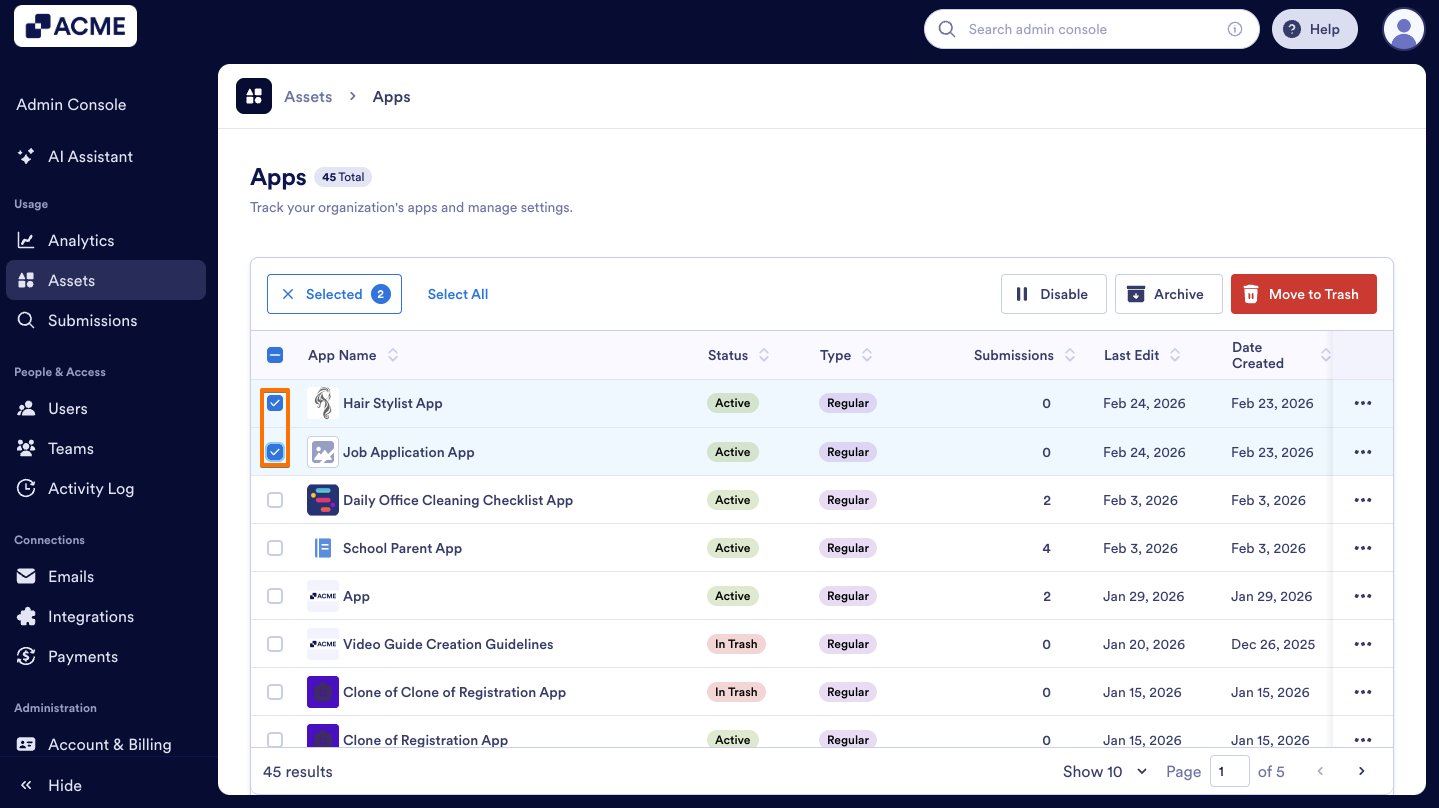
- On the Apps Assets page, on the left side of the apps you want to delete, click on the Checkboxes to select them.
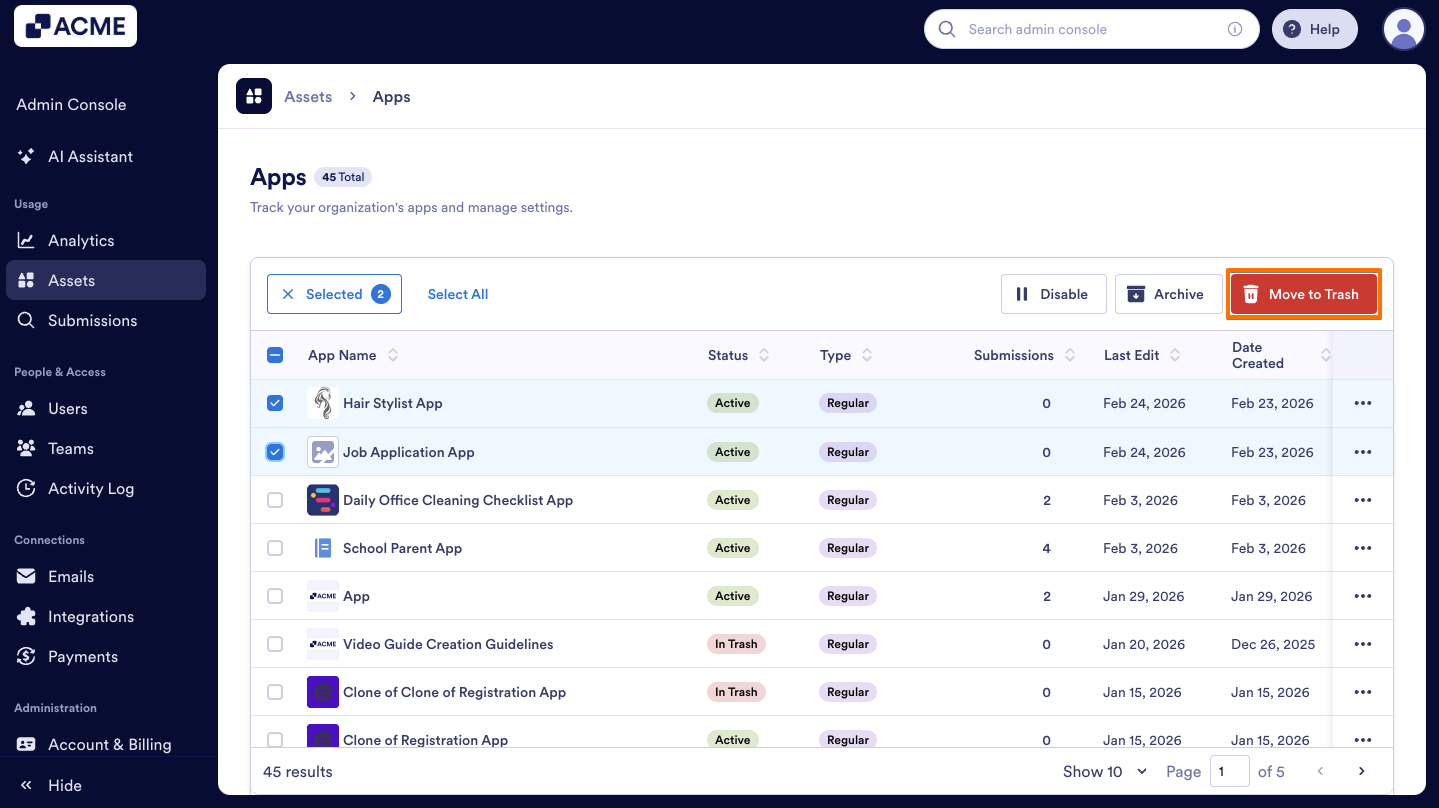
- Then, at the top of the list, click on the Move to Trash button.
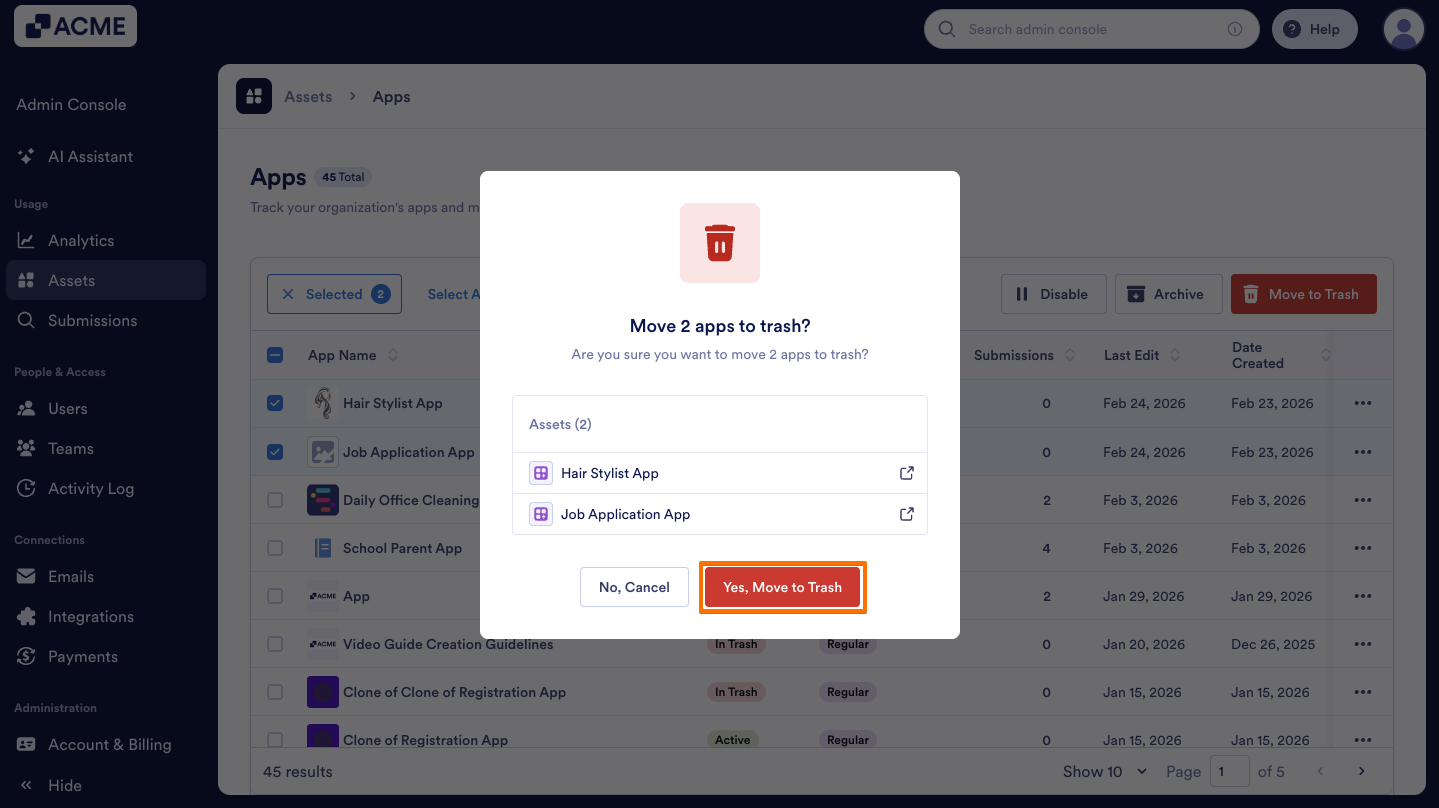
- In the pop-up window that comes up, select Yes, Move to Trash.
Restoring Apps in Bulk
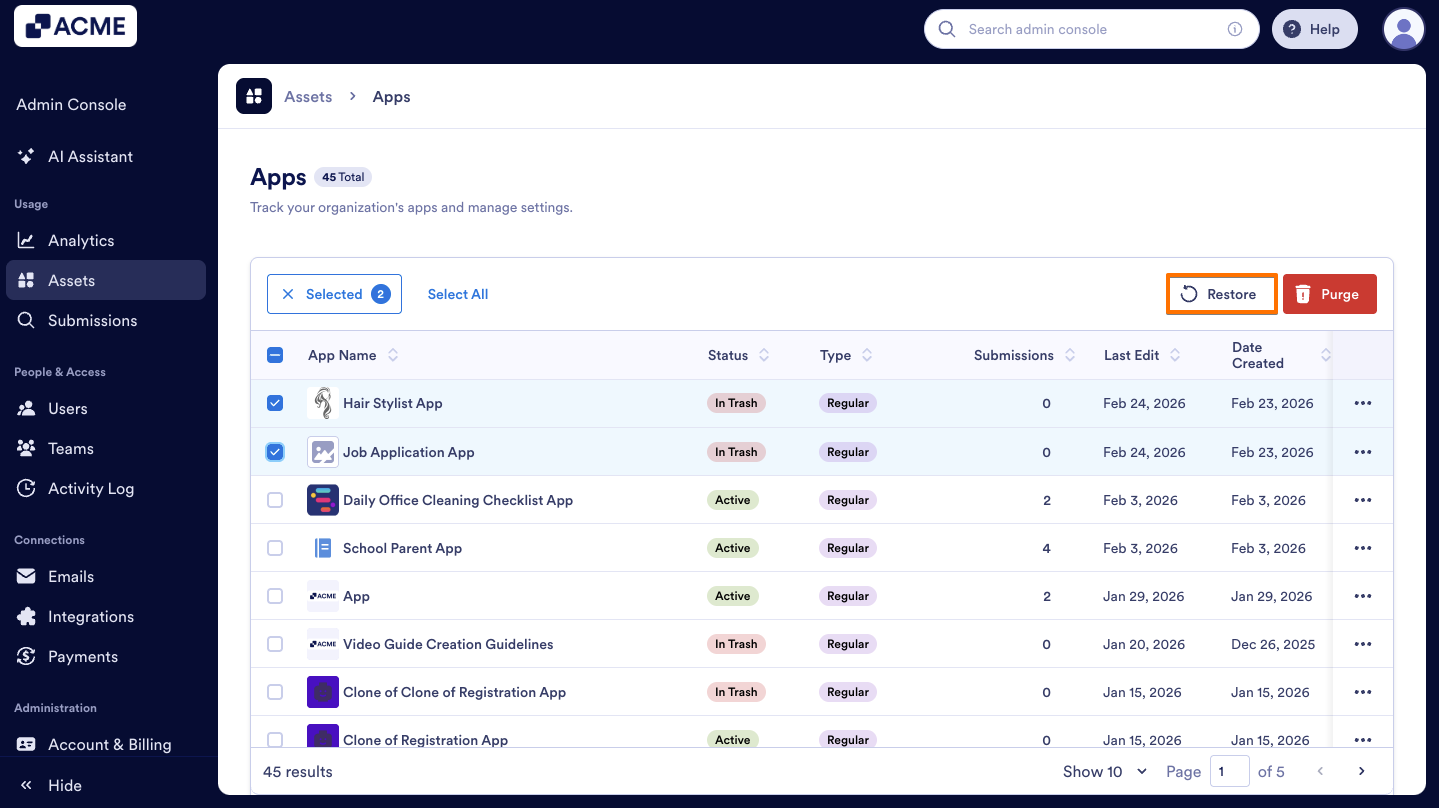
- On the Apps Assets page, check the Checkboxes on the left side of the apps you want to restore.
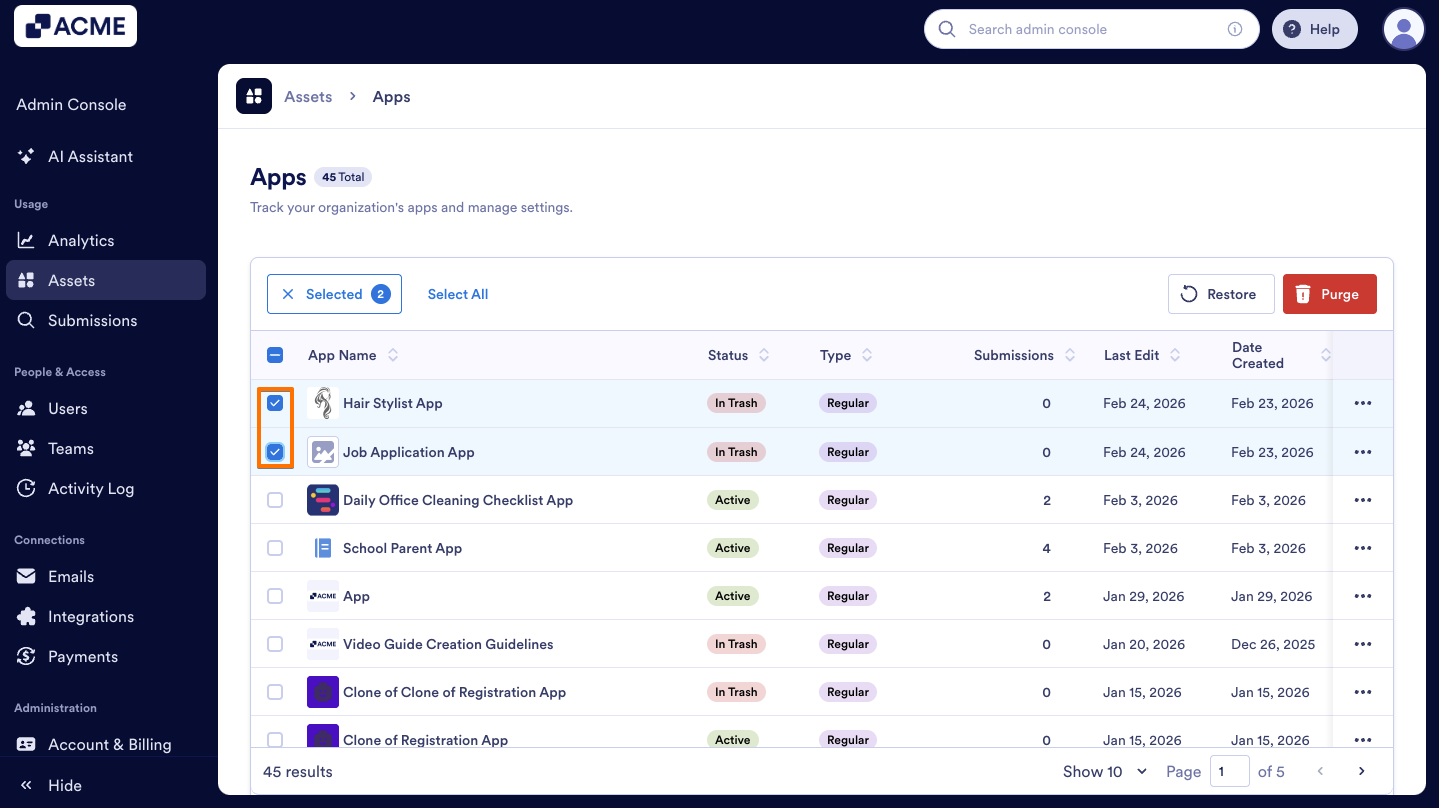
- Then, click on the Restore button above.
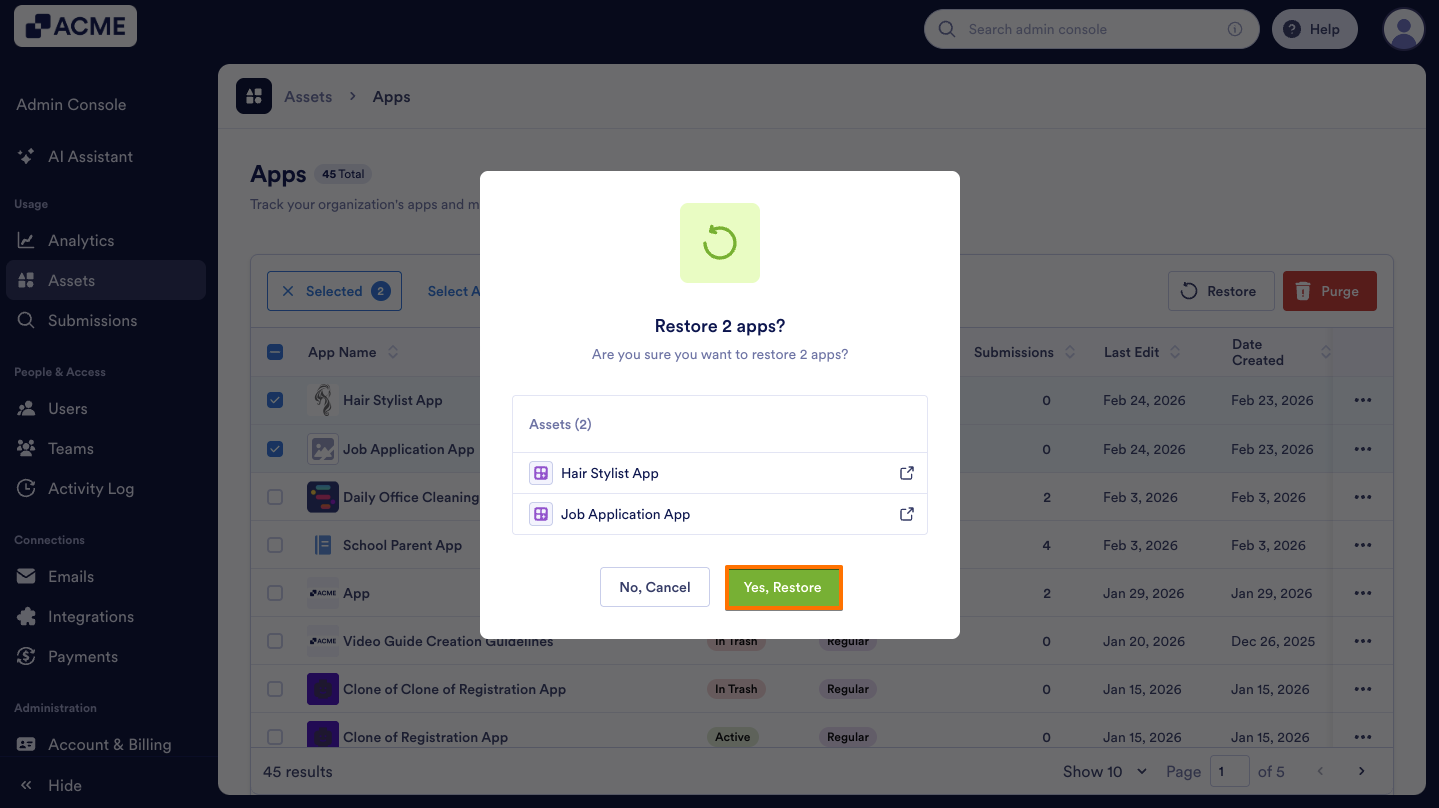
- In the pop-up window, select Yes, Restore.
Finding Trashed Apps in Your Organization Using Filters
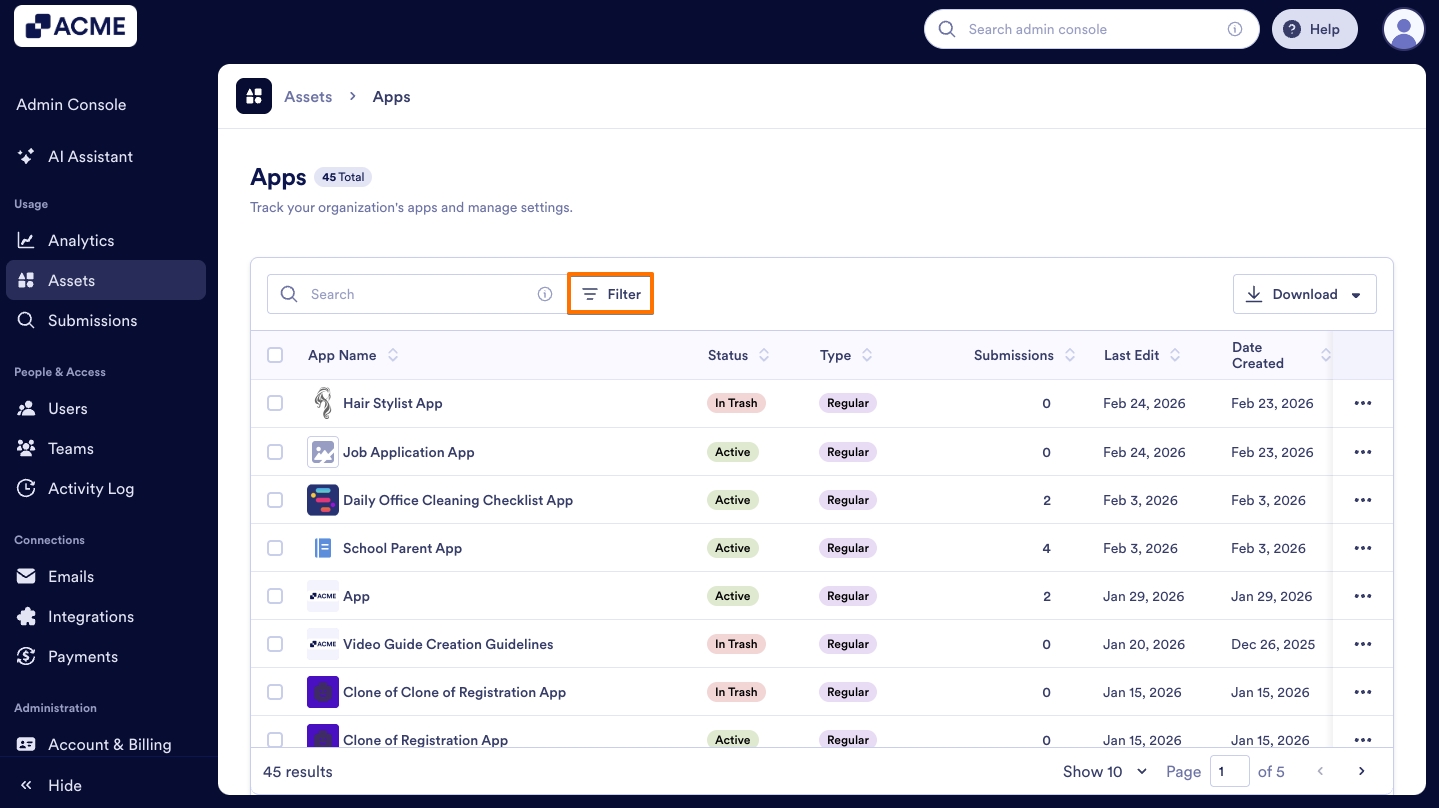
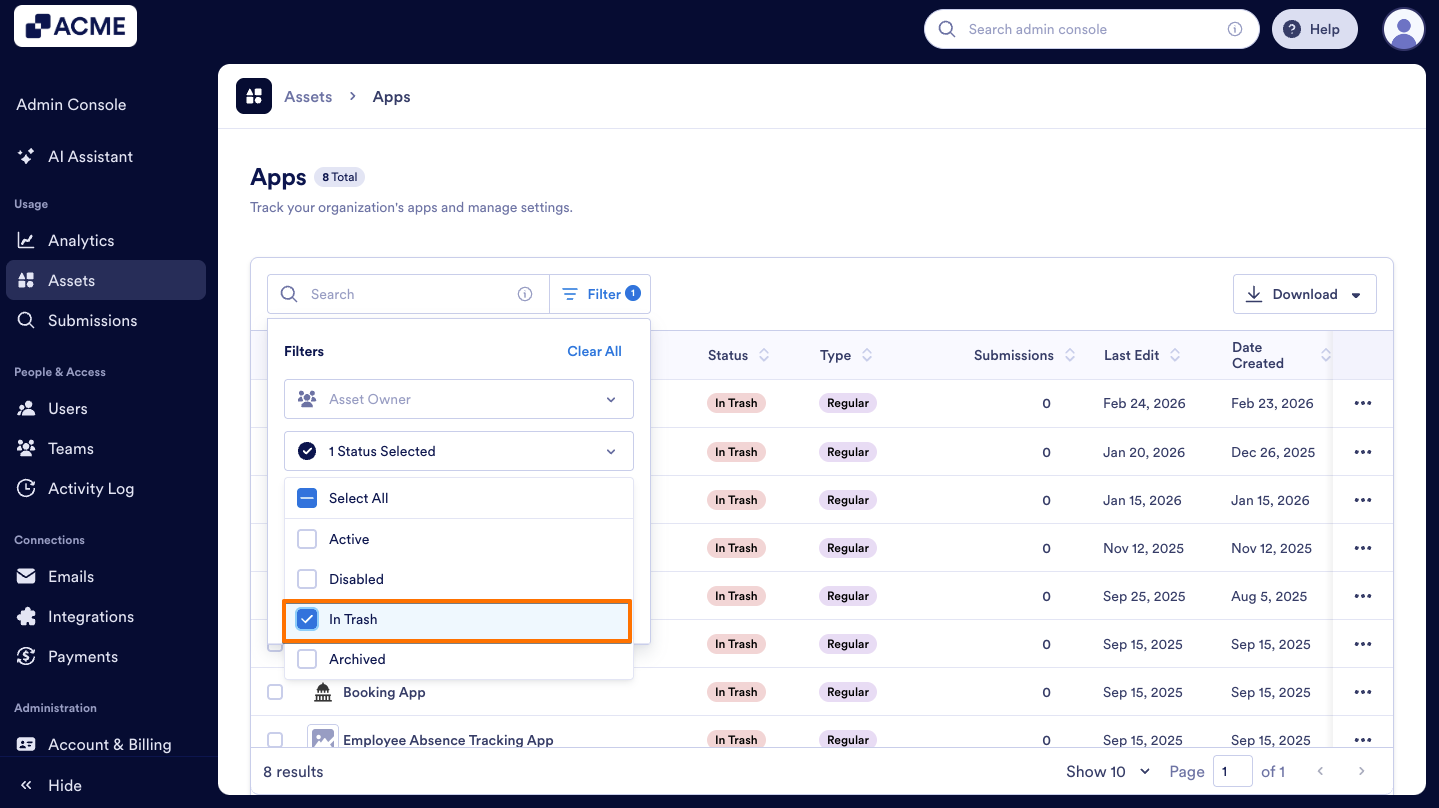
- In the Admin Console’s Apps Assets page, click on the Filter button on the right side of the Search bar.
- Then, click on the Status dropdown menu.
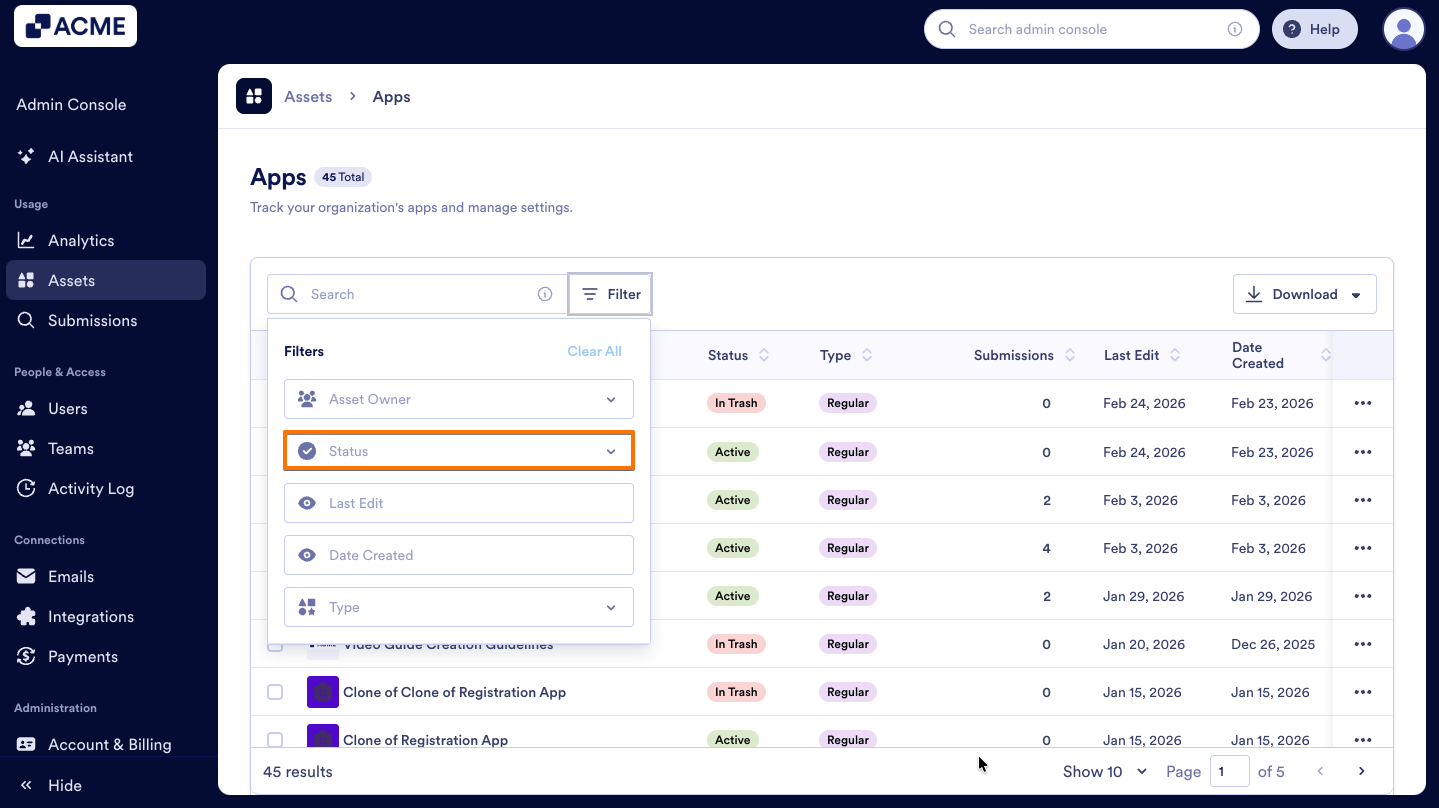
- In the dropdown menu, select In Trash to view all the apps that were deleted.

Send Comment: