It is easy to turn any form into a quiz or exam. Just set the correct answers, and it will automatically compare them to the user’s responses and show the results after submission. It’s a simple and effective way to test knowledge or track progress, perfect for educators, trainers, or anyone running assessments. Turning your form into a quiz or exam is easy. Here’s how to do it:
- Go to the Quiz Form page, and click on Open Quiz Form.
- Log in to your account in the window that pops-up, and then click on Allow to grant access to your account.
- Then, in the Form Picker window, select a form and then click on Continue.
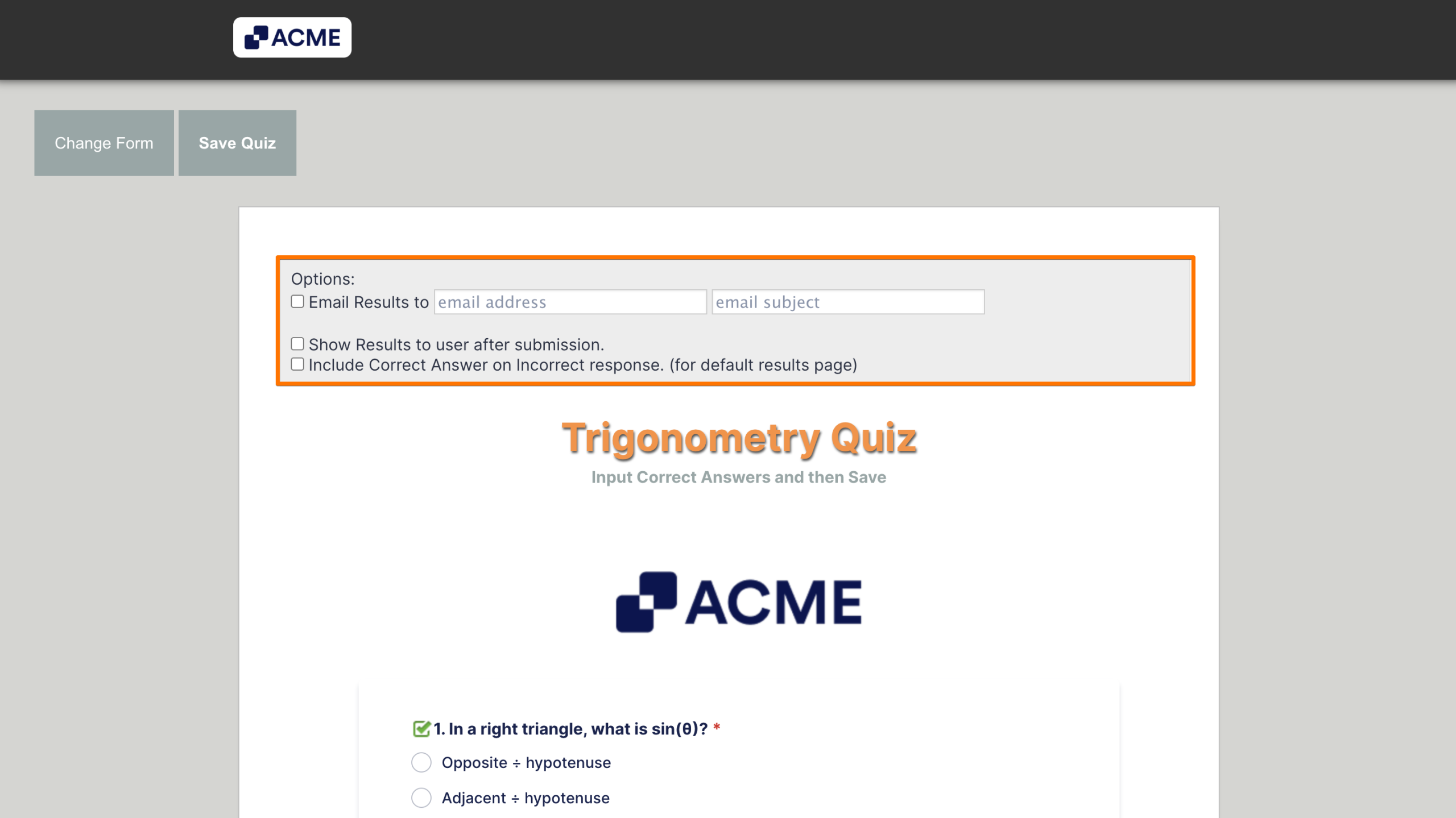
- Next, you can check the box next to the following options to configure them:
- Email Results to — Sends a copy of the results to the provided email. For example, you can enter your email address to get a copy of the form fillers’ answers and results after submission.
- Use Custom Email Page — Opens an editor where you can customize the emailed results.
- Show Results to user after submission — Displays the Results page to the form filler after clicking on the submit button.
- Open Results Page Inside Form’s Frame (if form is embedded) — If this option is enabled and the form is embedded, the results are displayed after submission without leaving the parent window.
- Use Custom Results Page — This opens an editor where you can customize the displayed results.
- Include Correct Answer on Incorrect Response (for default results page) — This displays the correct answers on the results page.
- Email Results to — Sends a copy of the results to the provided email. For example, you can enter your email address to get a copy of the form fillers’ answers and results after submission.
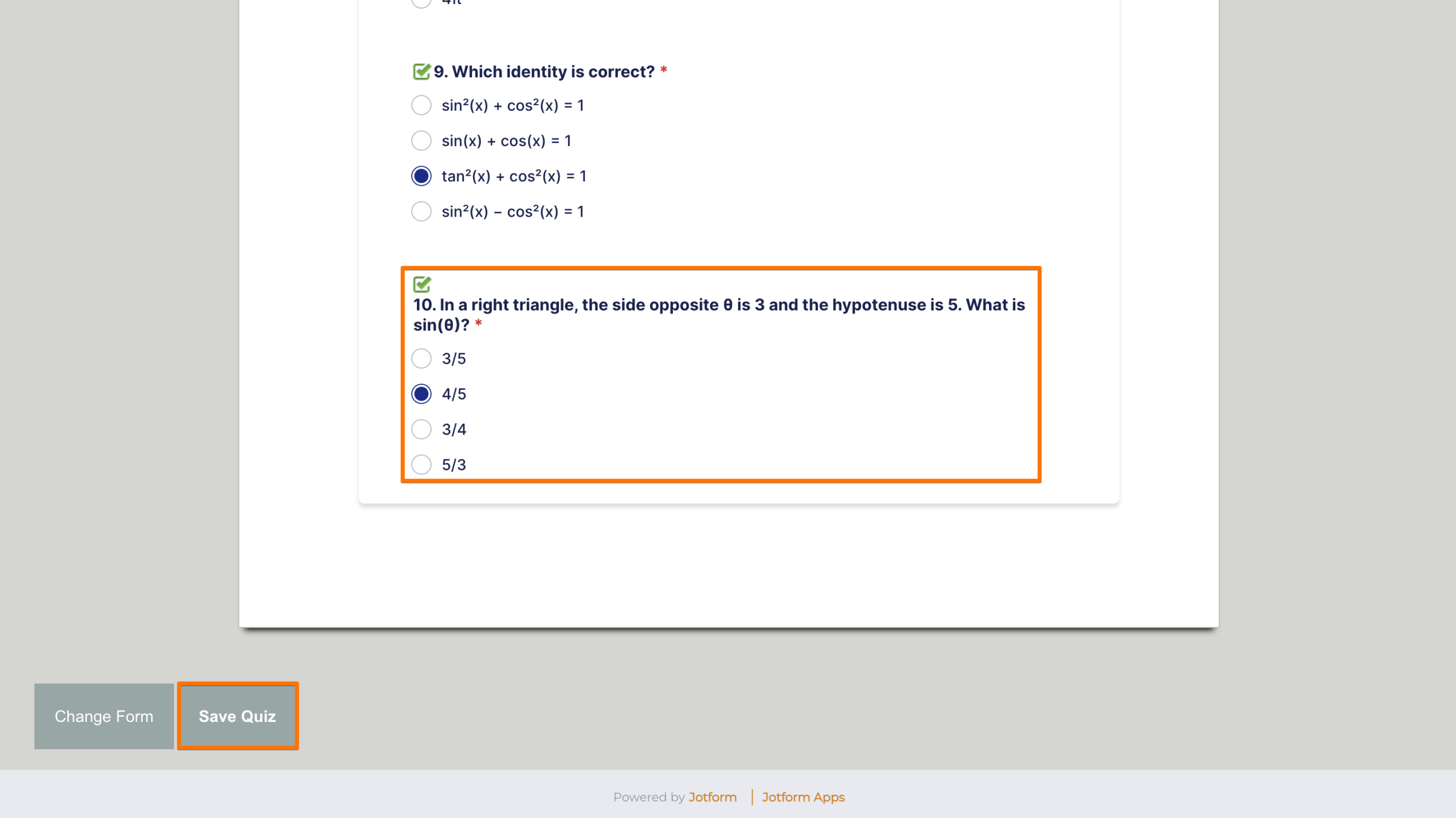
- Now, click on the Single Choice options to select the correct answers for each question.
- Finally, click on Save Quiz.
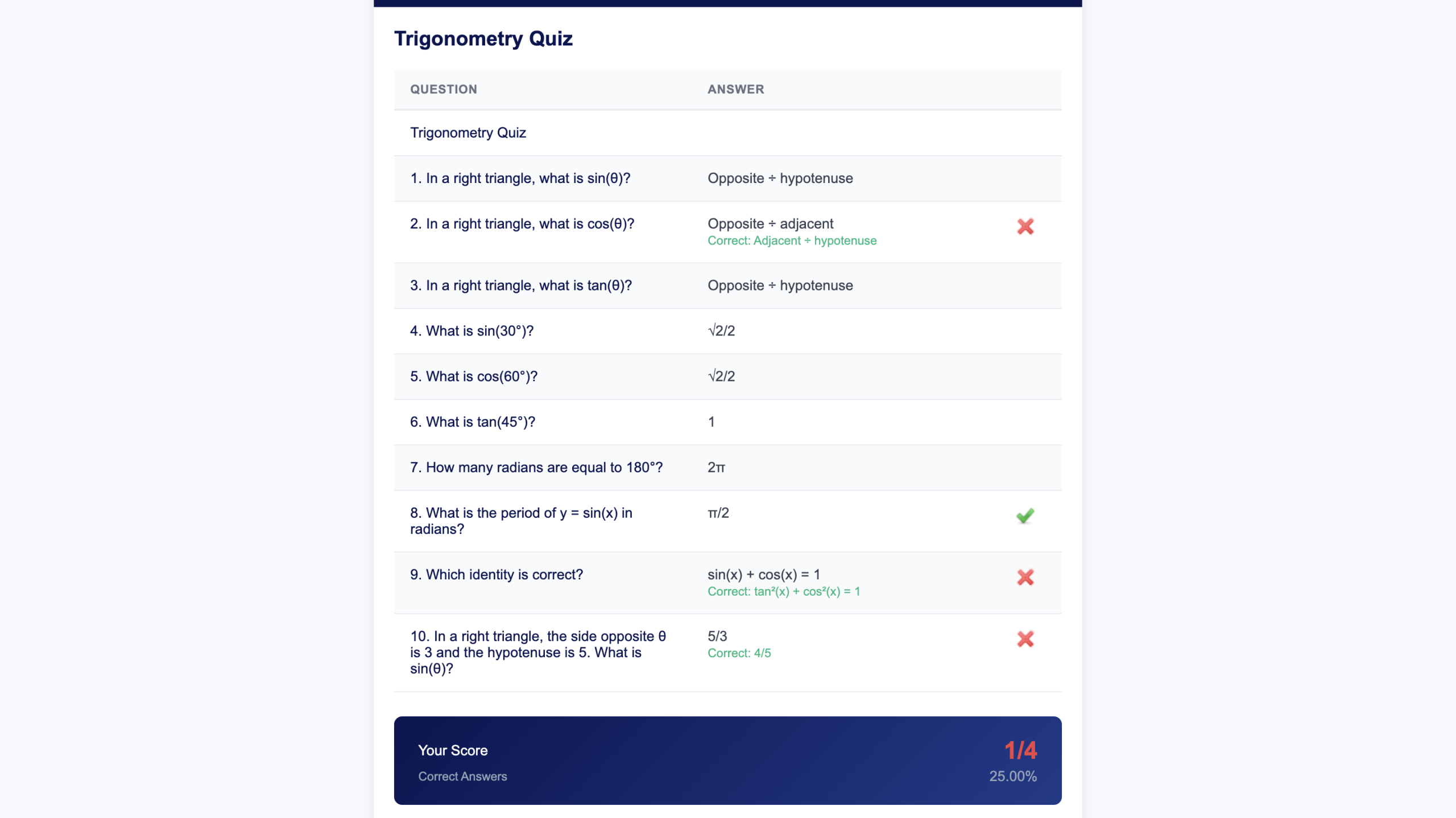
Now, when people fill out your quiz form, they’ll see their results at the end if the Include Correct Answer on Incorrect Response option is enabled. Here’s an example of how it’ll look:
Notes
- You can follow the same steps above to change the answers or view the results for forms already set up as a Quiz.
- You can turn on the Calculation Values feature in the field’s properties to assign a value to each option.

Send Comment: