As an Admin, you can also unassign assets from users in your organization directly from the Admin Console. This can be useful whenever an employee no longer needs access to a particular asset.
Unassigning Assets of Users
You can unassign assets from your users in two different locations—in your User Management screen or within the asset tab located in a specific user’s profile. Let’s walk through both of those options together, down below:
From the User Management Screen
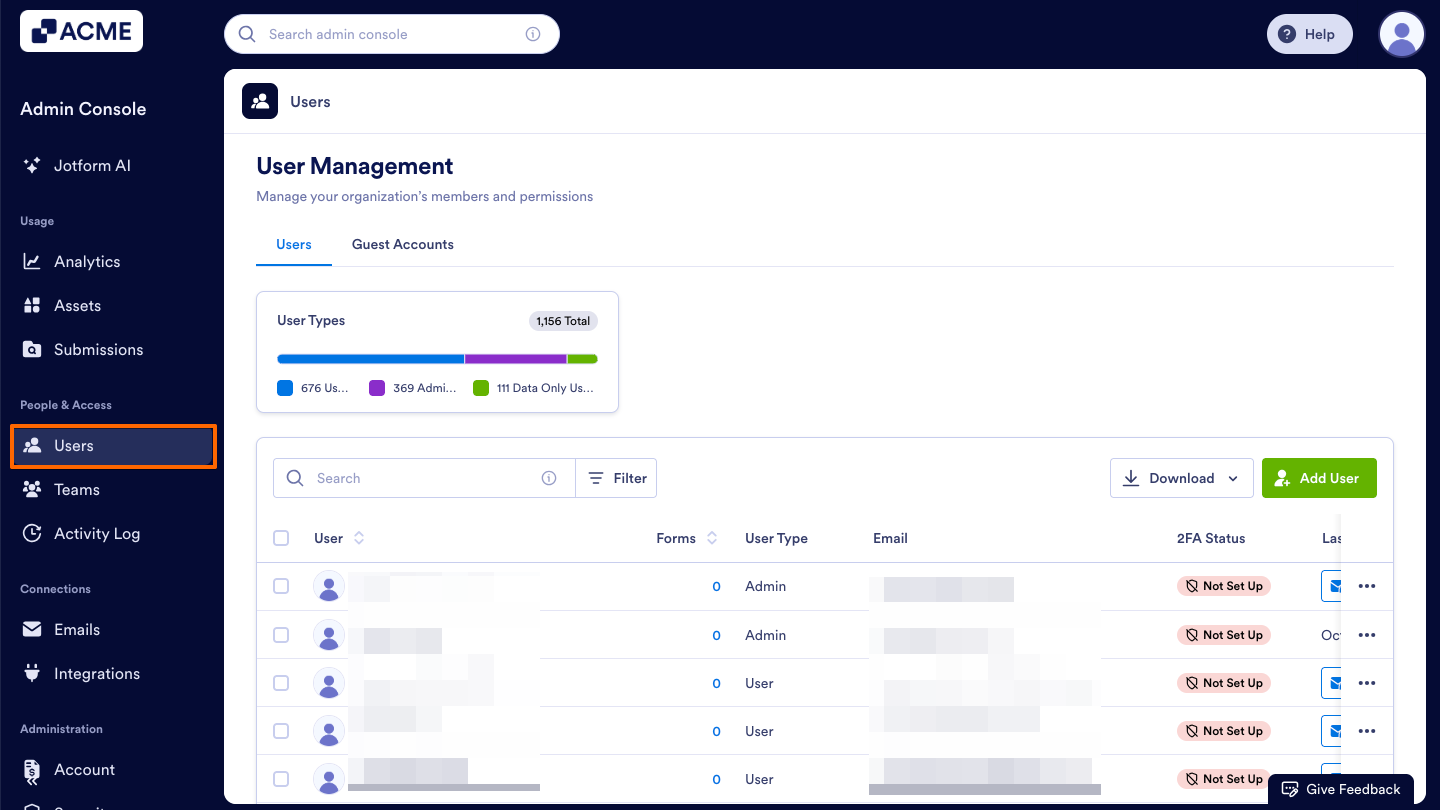
- Starting in the Admin Console, click on Users in the menu on the left side of the page.
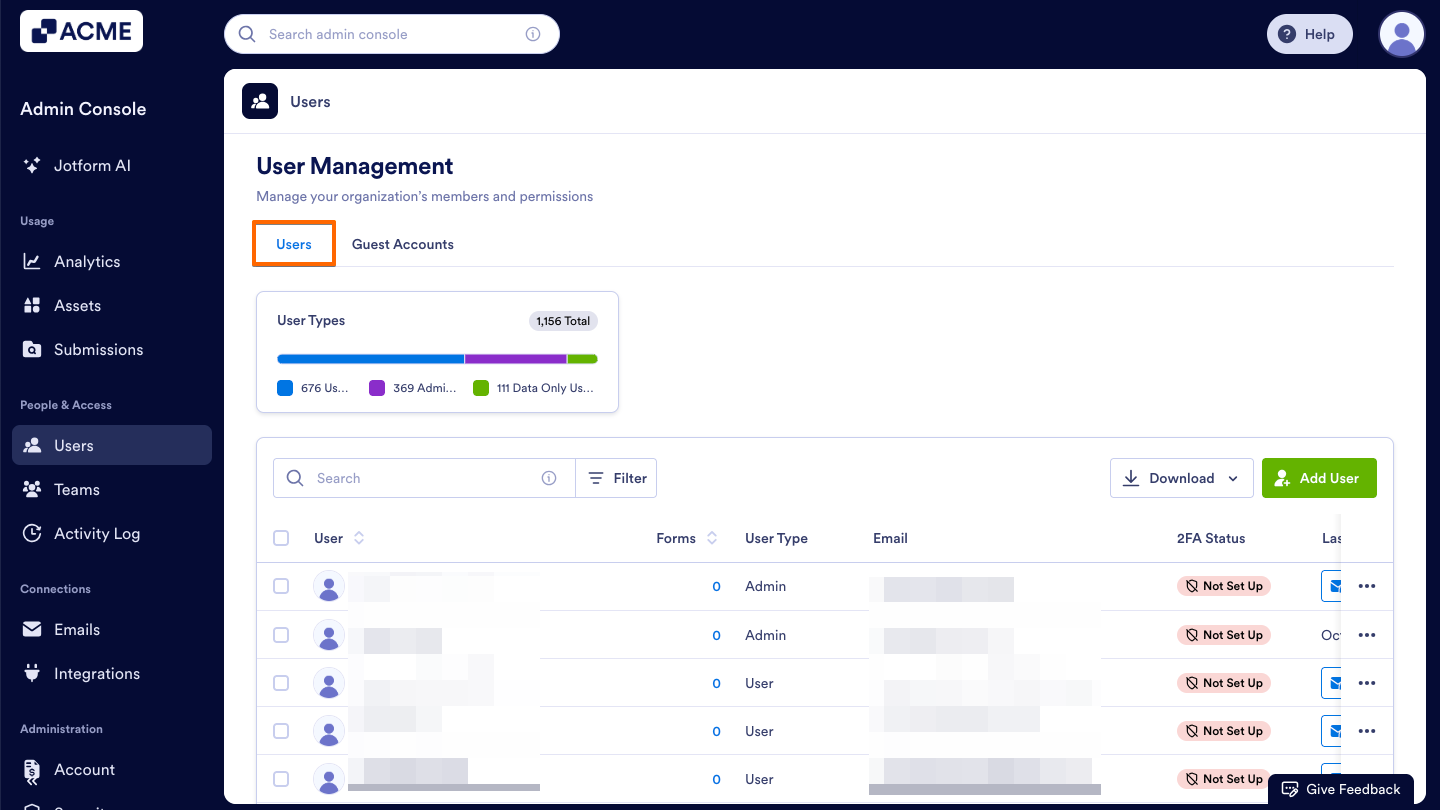
- Next, click on the Users tab located at the top of the User Management page.
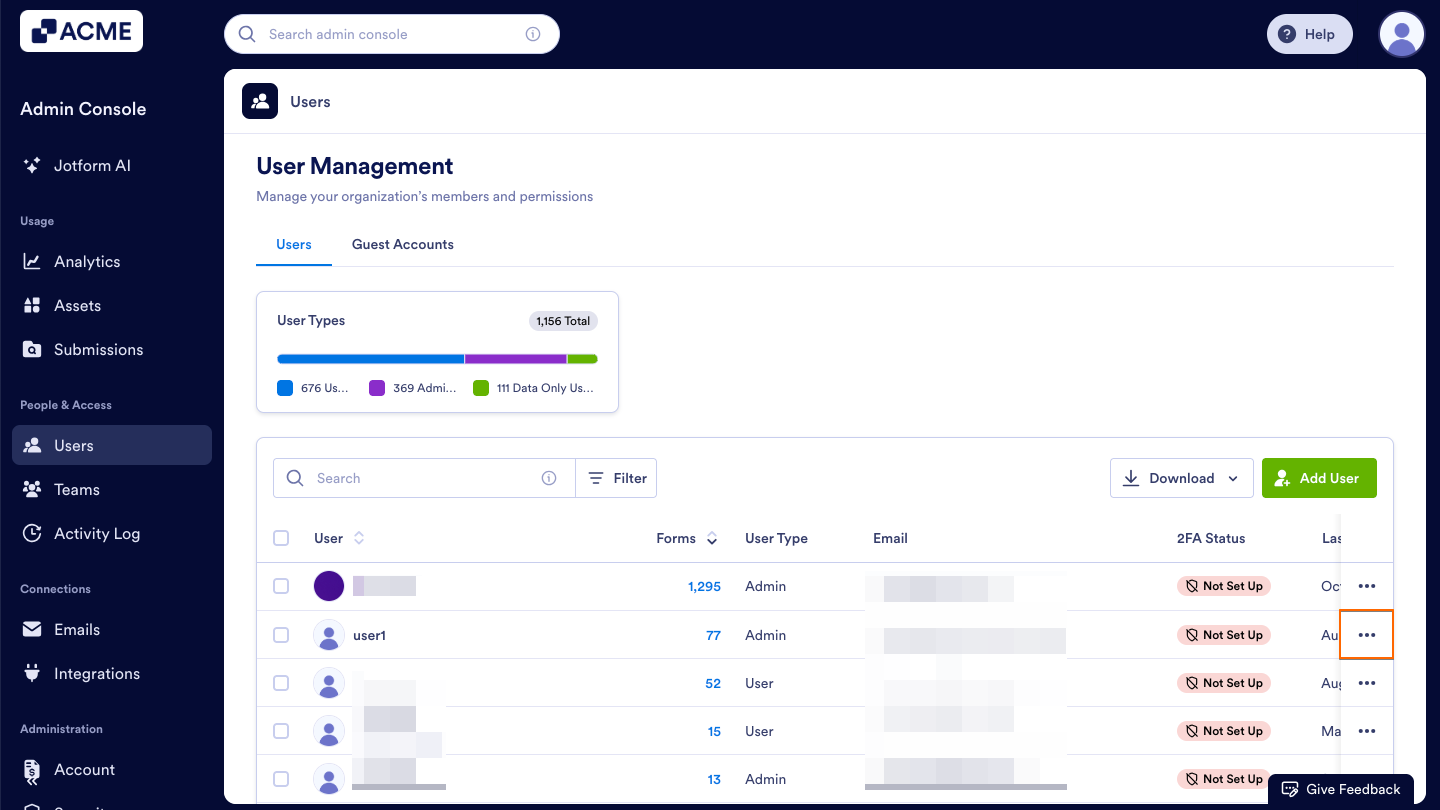
- Then, decide which user’s assets you’d like to view and click the Three Dots icon to the right of their name.
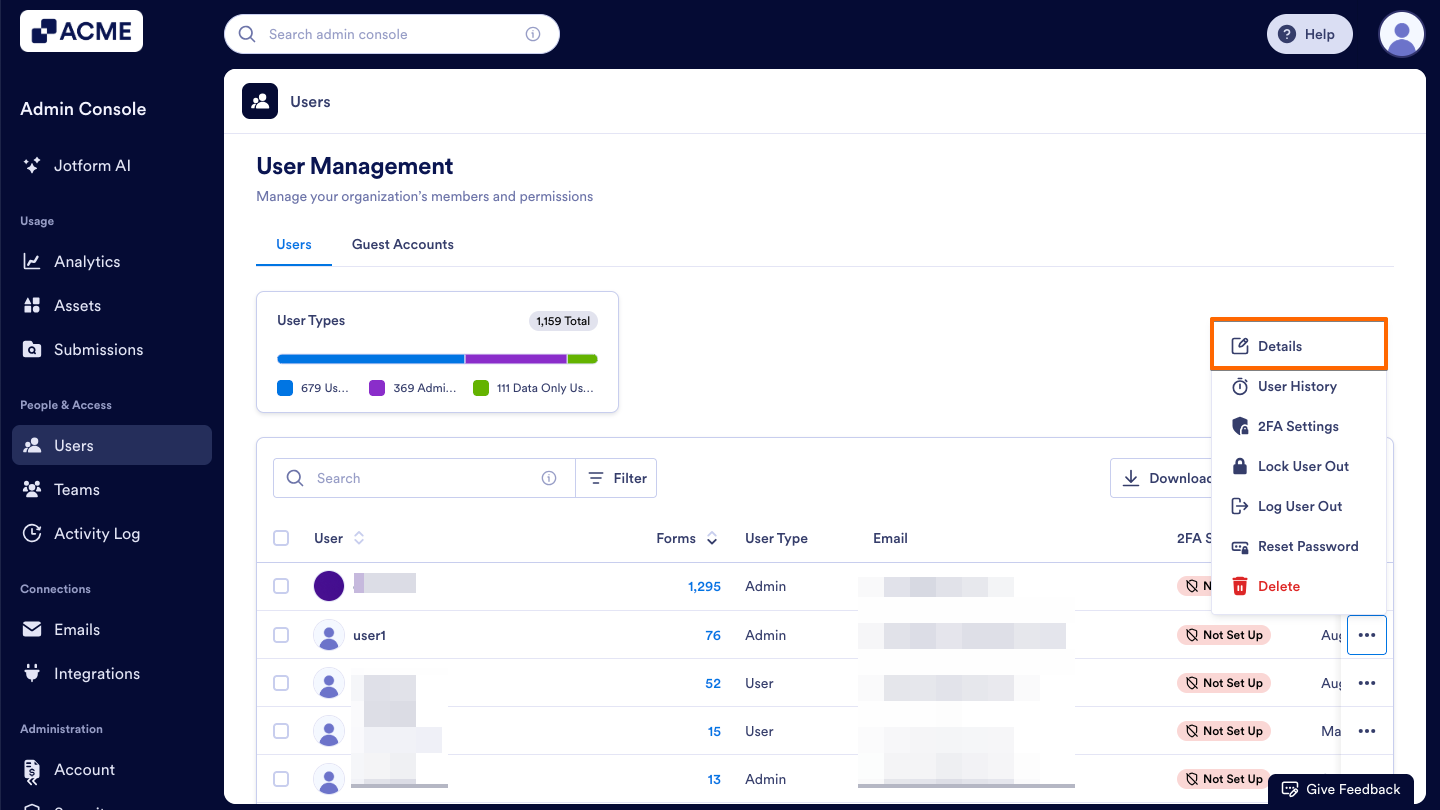
- Now, select Details in the dropdown menu. This opens a sidebar on the right side of the screen that contains several tabs, such as Details, Assets, and Activity.
- In that sidebar, select the Assets tab to view that specific user’s assets.
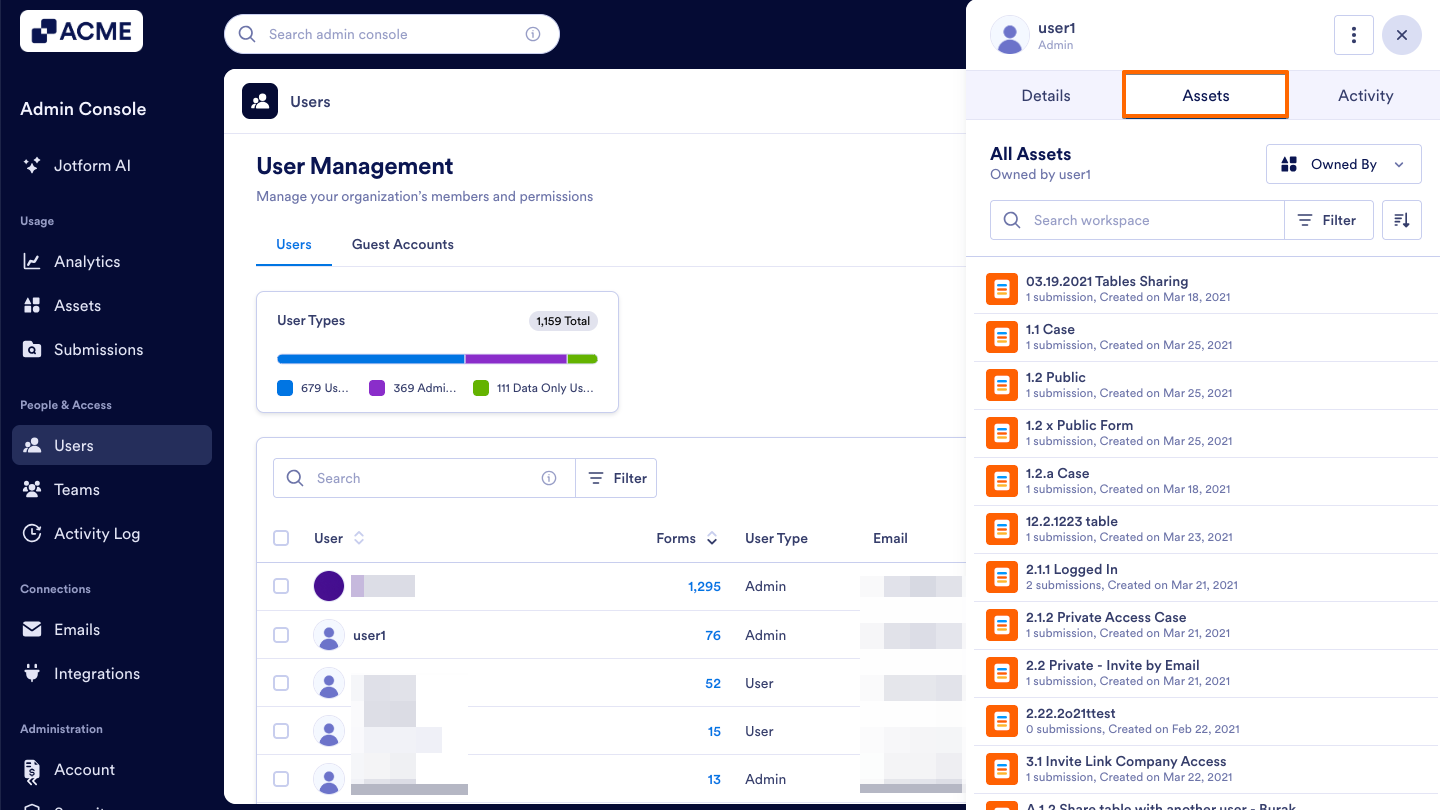
- Now, click on the dropdown located near the top right of the sidebar and change the asset type to Assigned.
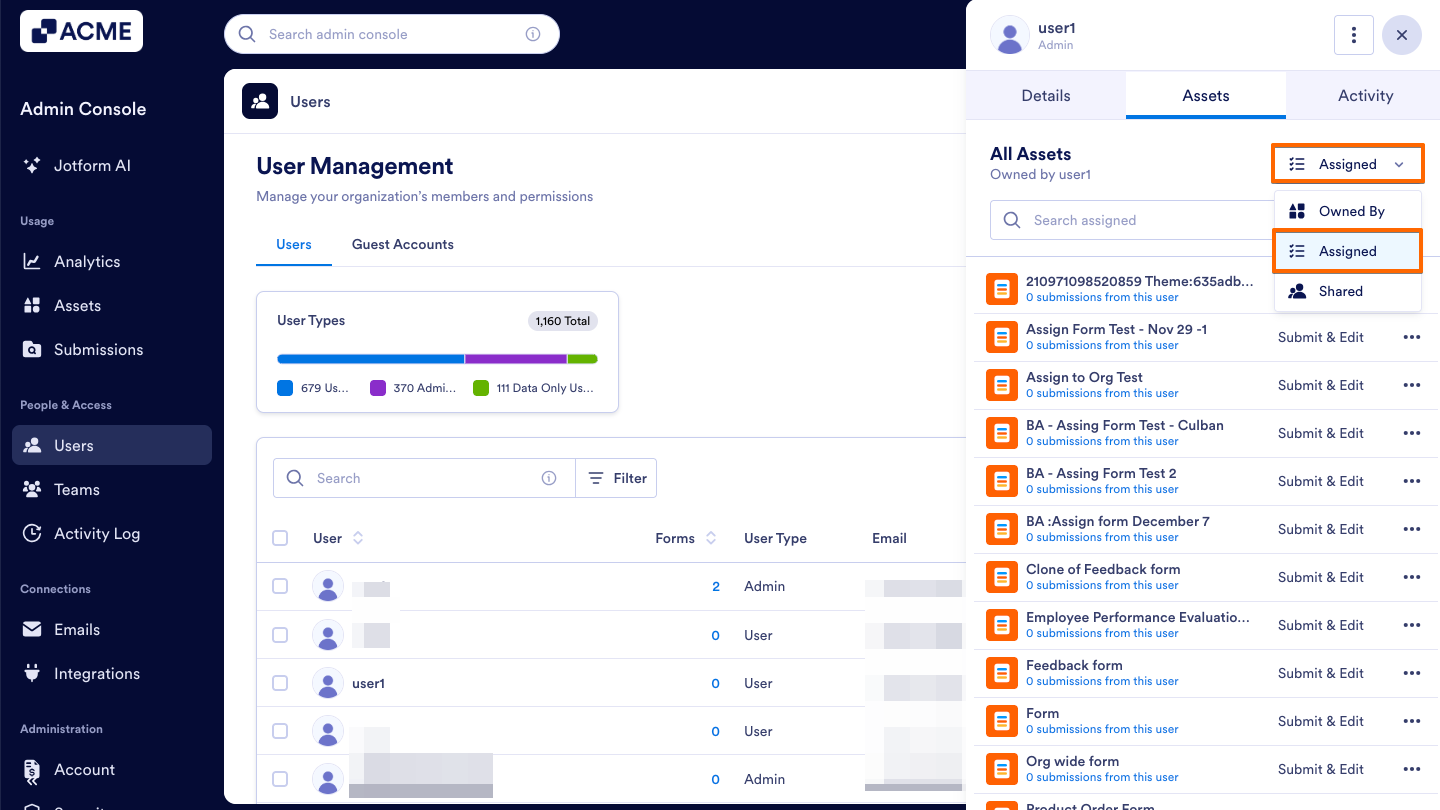
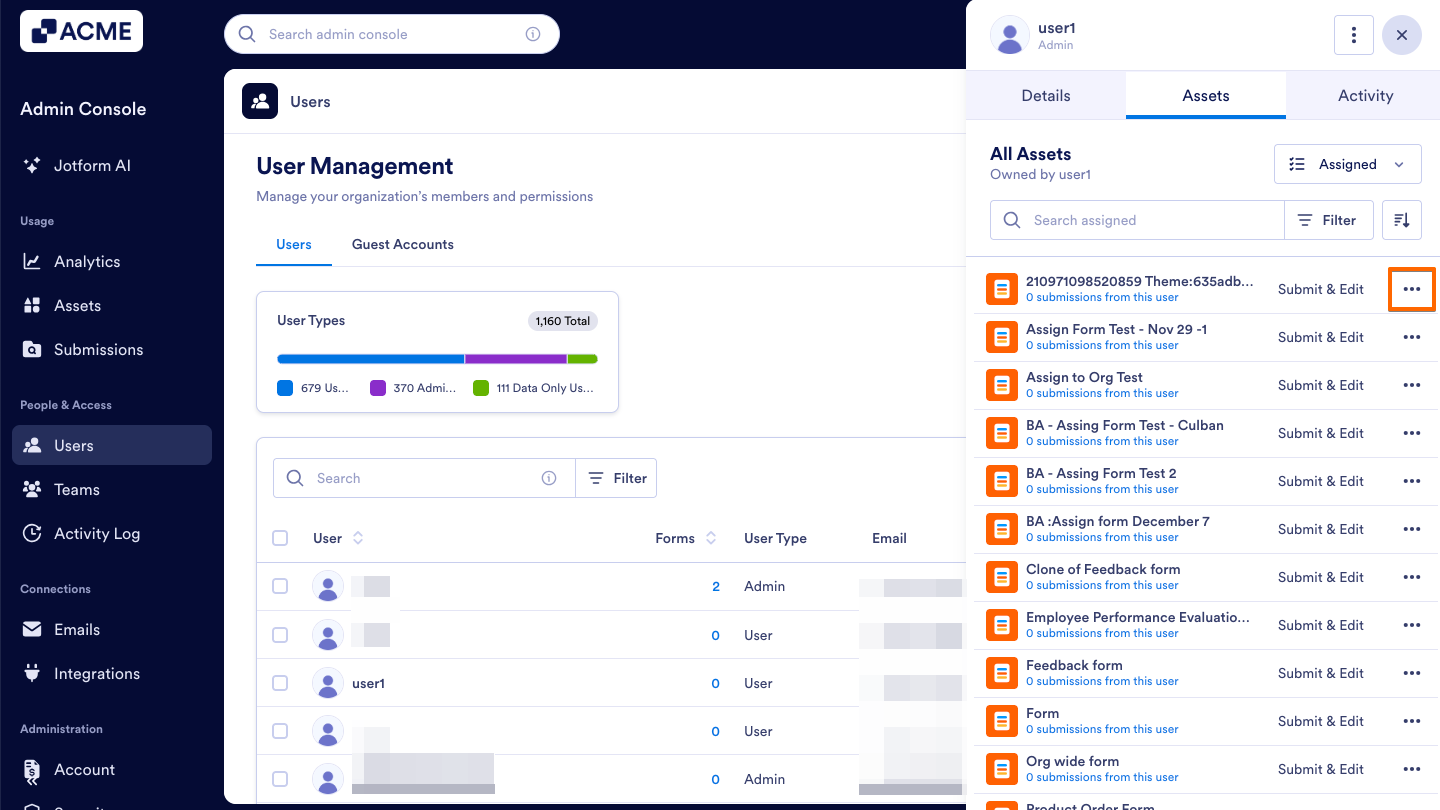
- Next, locate the specific asset you’d like to unassign and click on the Three Dots icon located to the right.
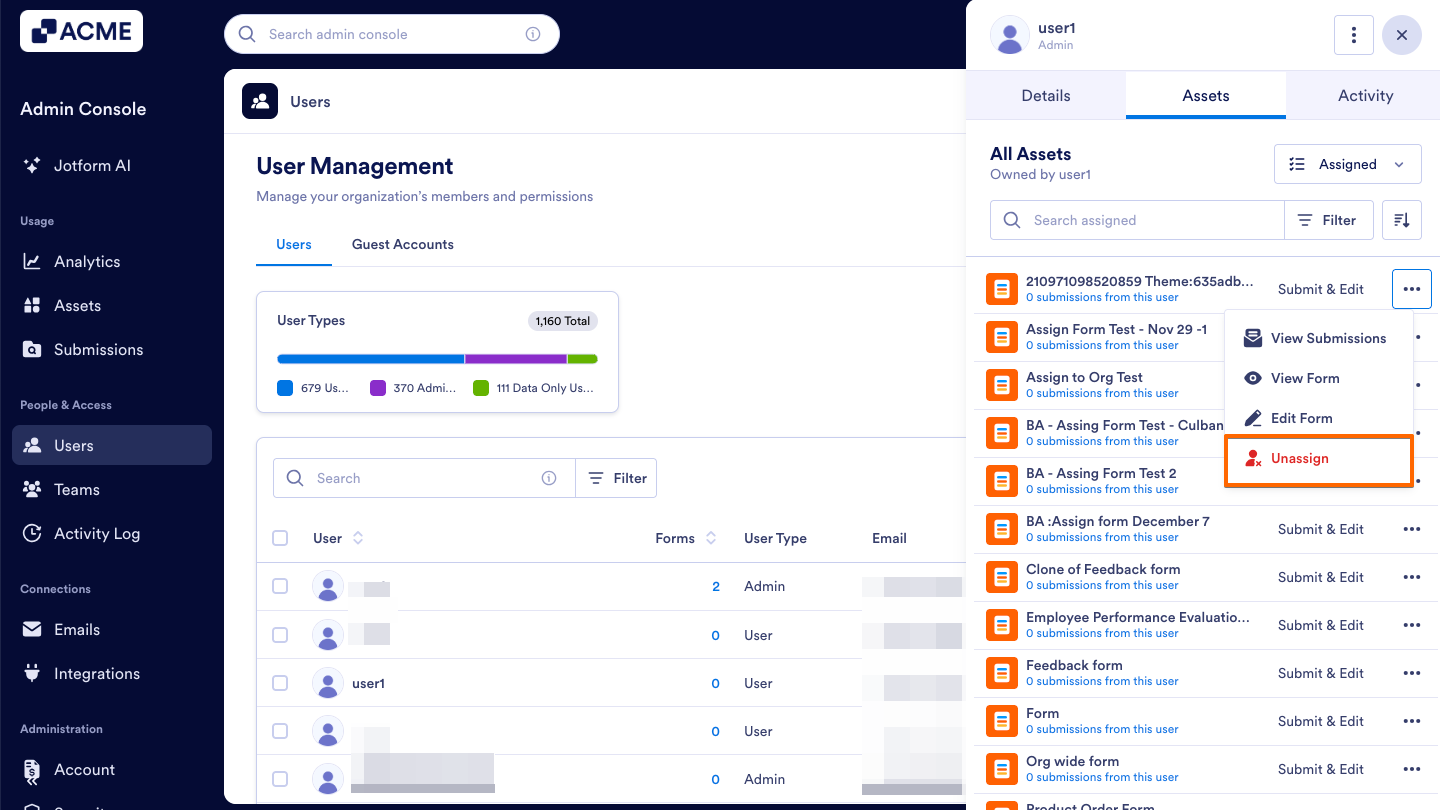
- From here, click on Unassign in the dropdown menu.
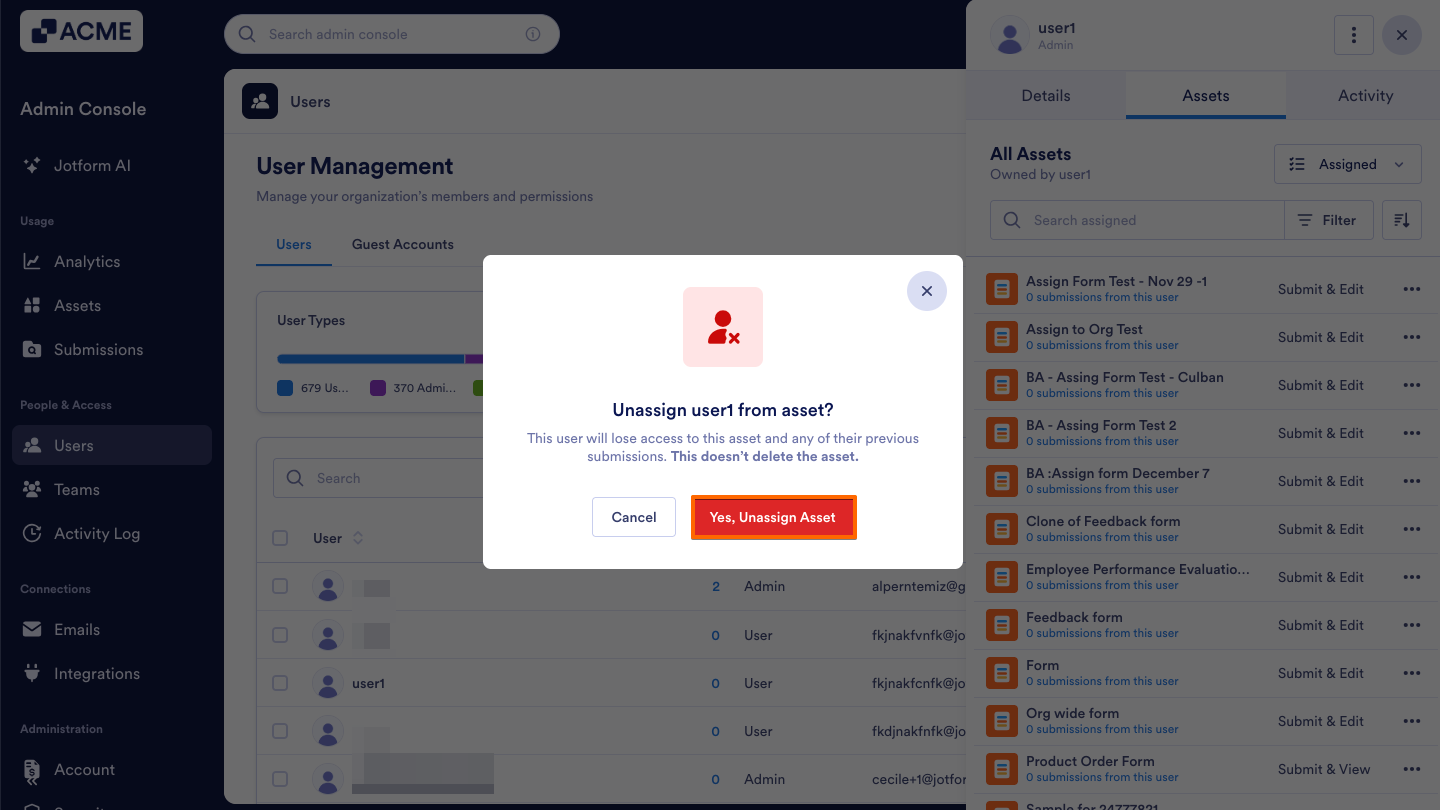
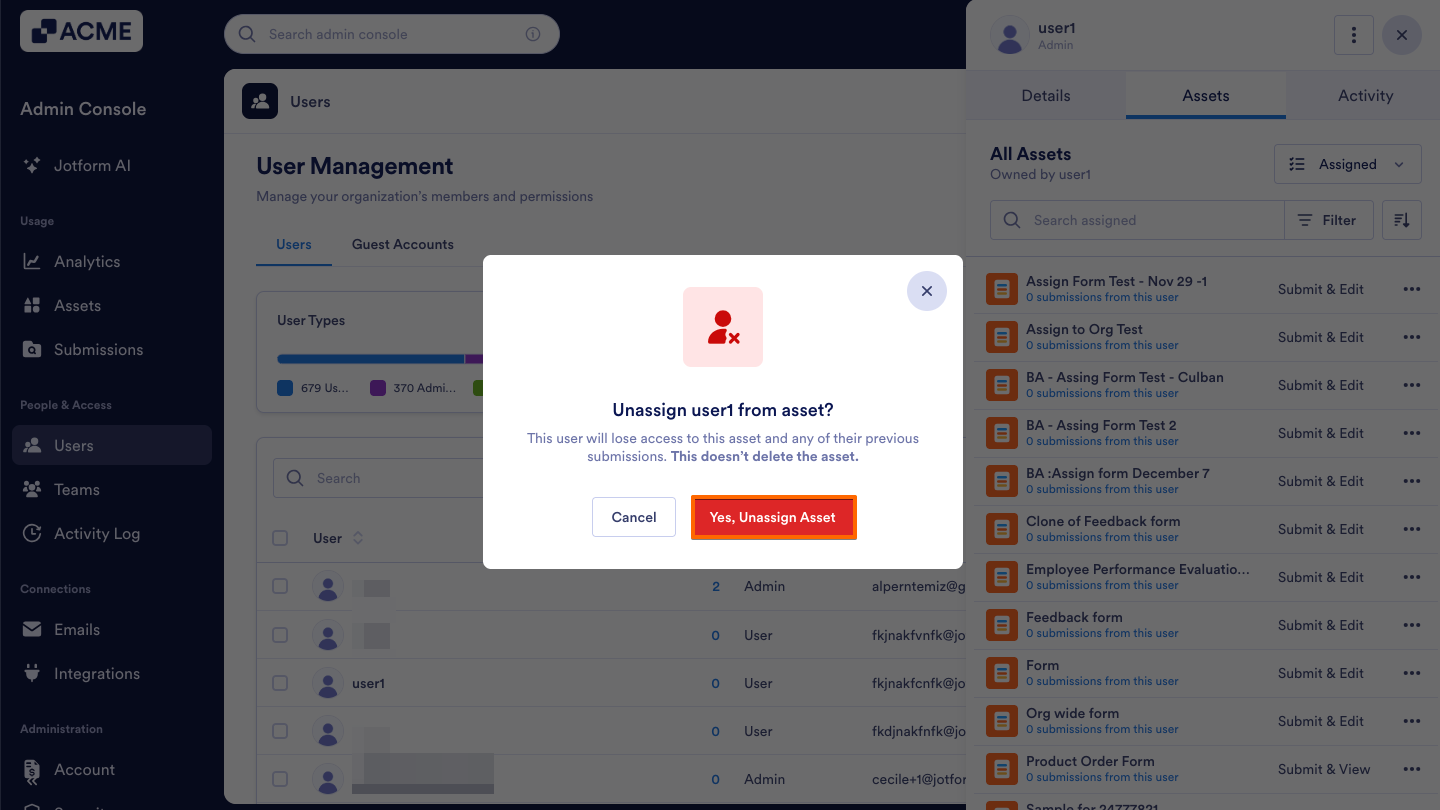
- Finally, confirm this action in the popup window by clicking Yes, Unassign Asset.
From the Assets Tab within a Specific User’s Profile
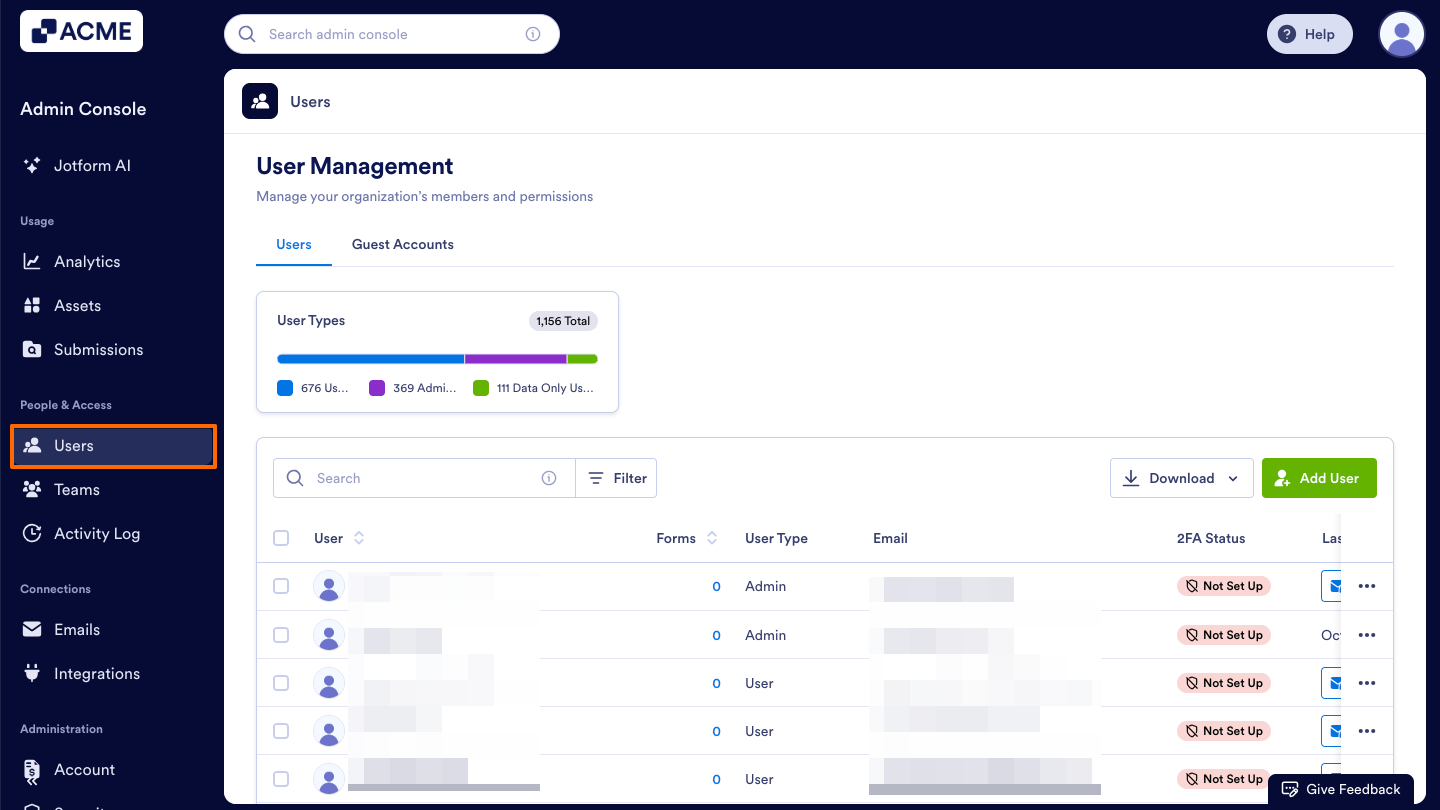
- Starting in the Admin Console, click on Users in the menu on the left side of the page.
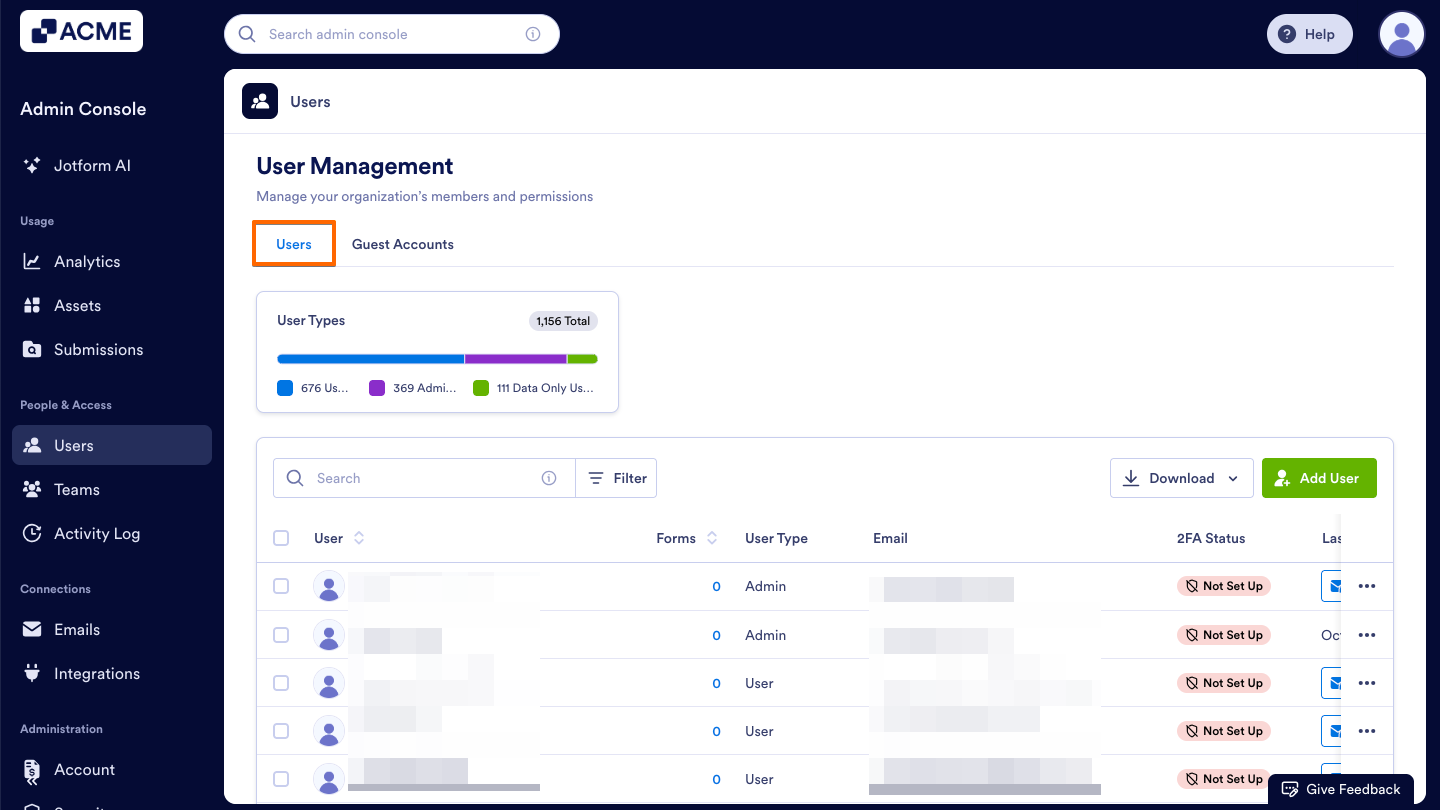
- Next, click on the Users tab located at the top of the User Management page.
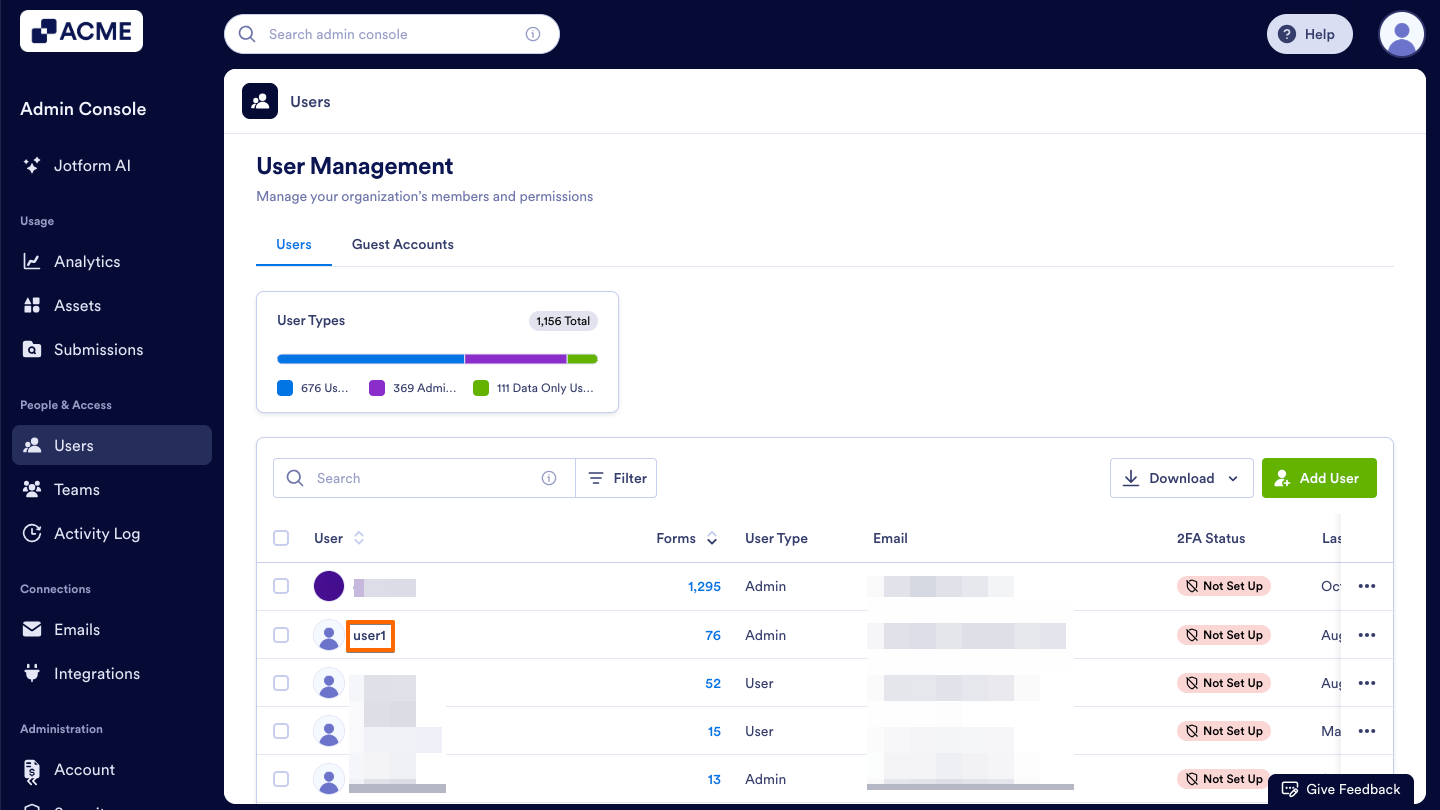
- Then, decide which user’s assets you’d like to unassign and click on their username. This opens a sidebar on the right side of the screen that contains several tabs, such as Details, Assets, and Activity.
- In that sidebar, select the Assets tab to view that specific user’s assets.
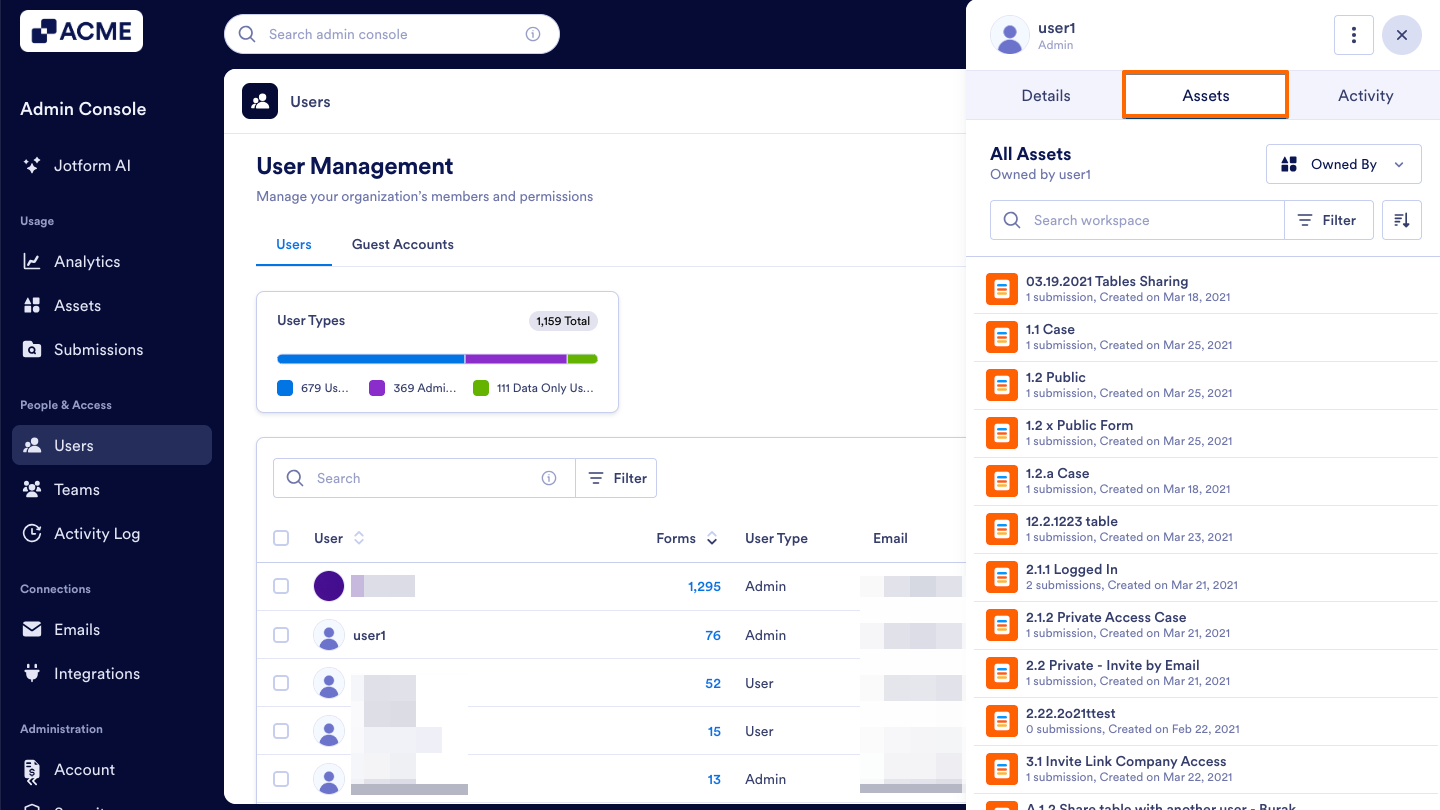
- Now, click on the dropdown located near the top right of the sidebar and change the asset type to Assigned.
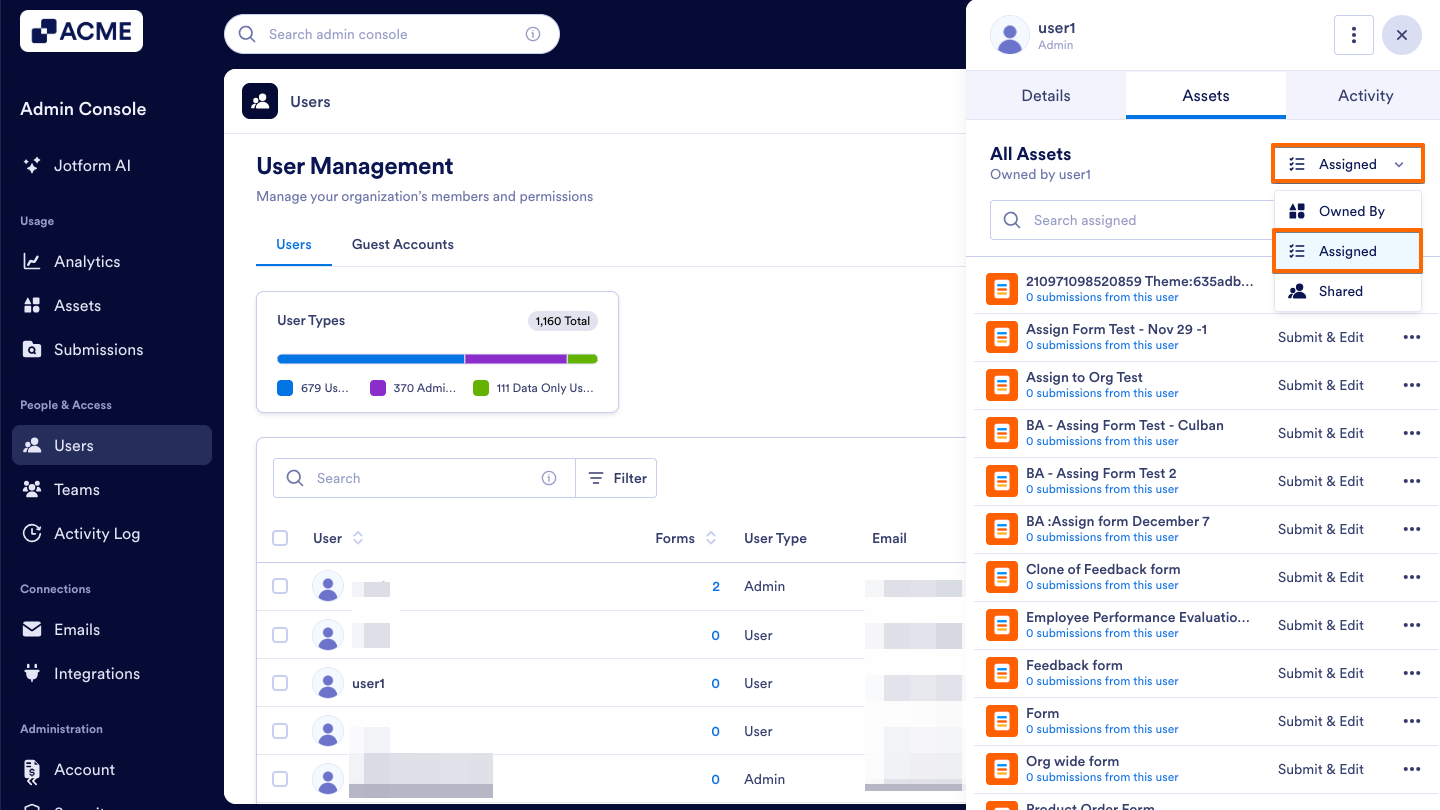
- Next, locate the specific asset you’d like to unassign and click on the Three Dots icon located to the right.
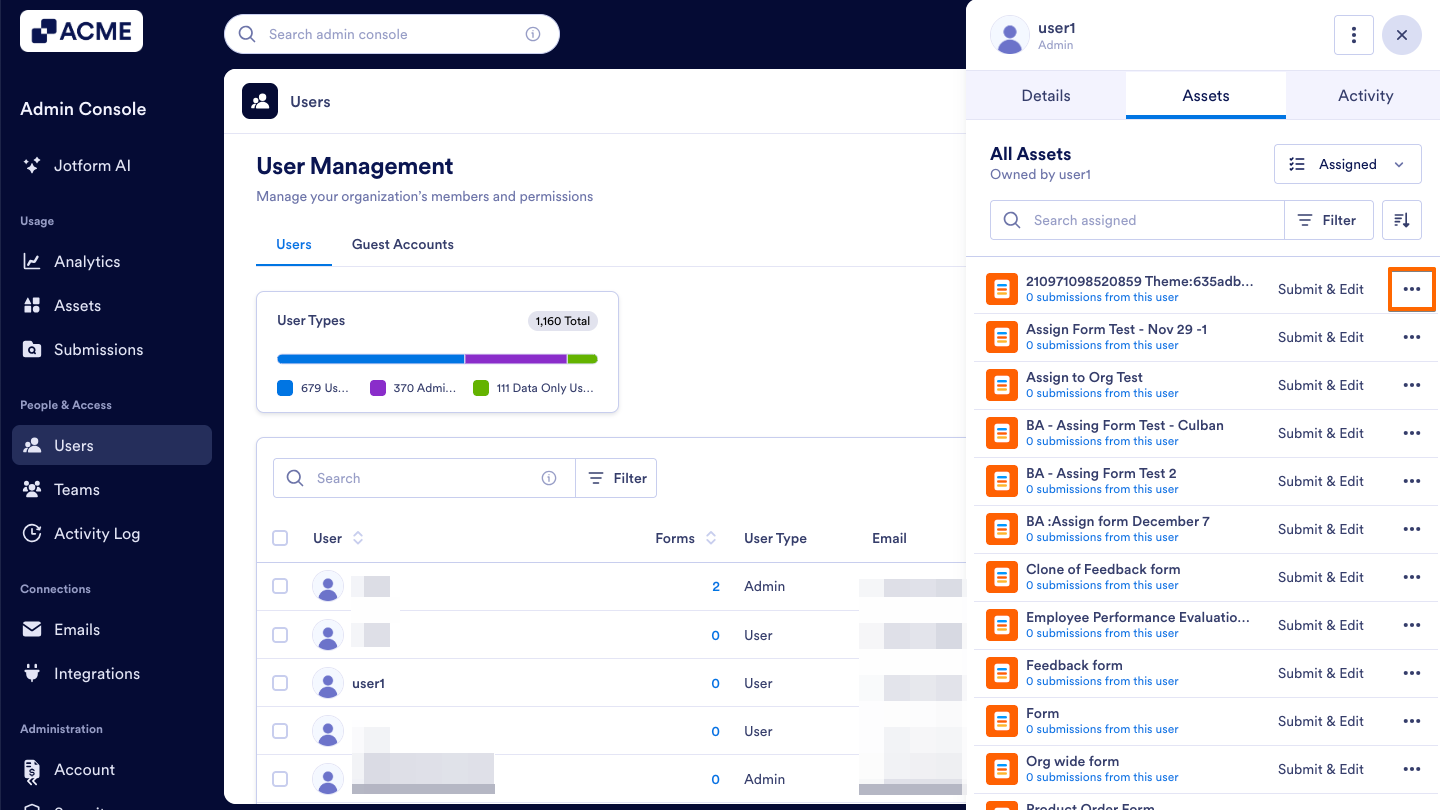
- From here, click Unassign in the dropdown menu.
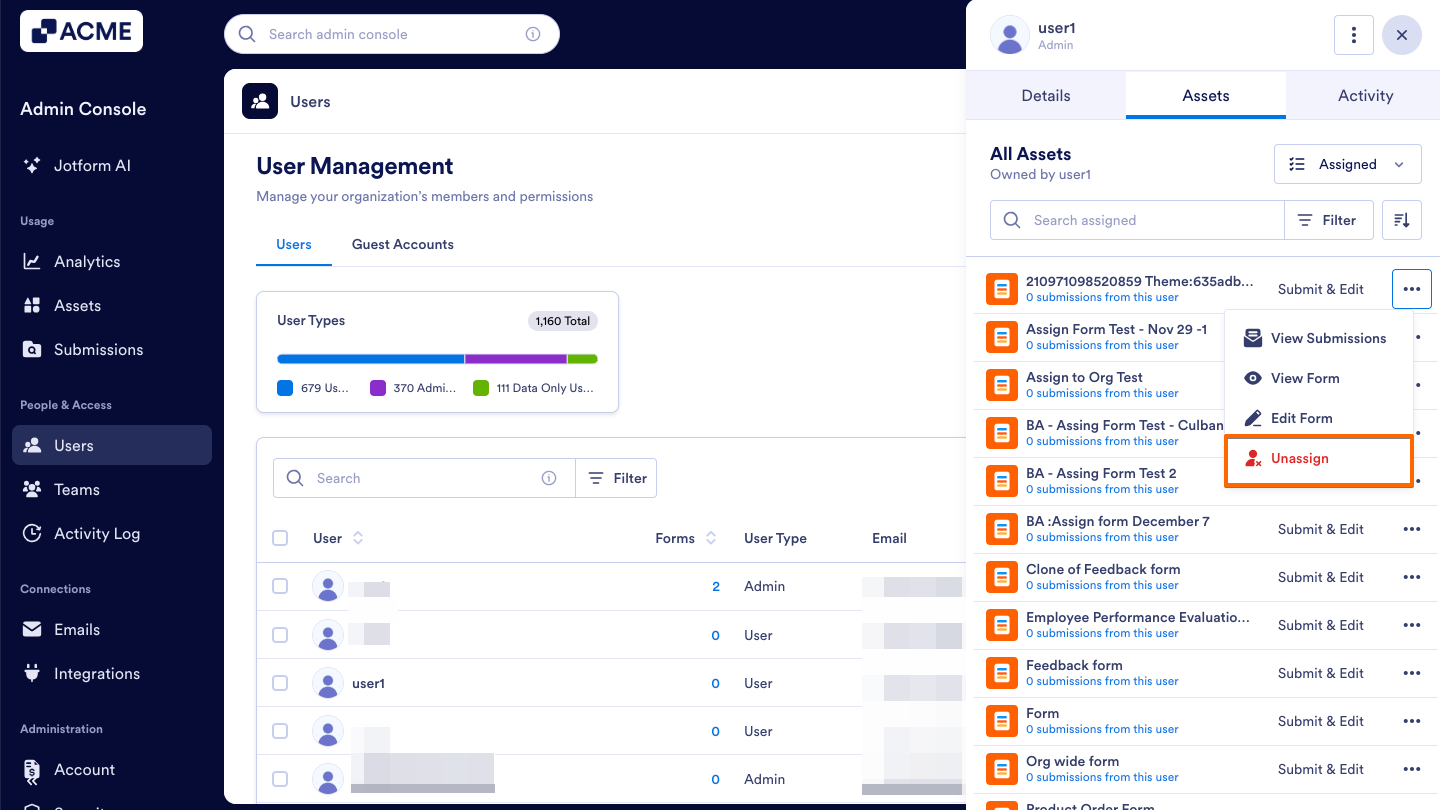
- Finally, confirm this action in the popup window by clicking Yes, Unassign Asset.
Tip:
If you’d like to view or manage assigned assets before unassigning them, see How to View and Manage Assigned Assets in Your Organization from the Admin Console.

Send Comment: