Unlocking User Accounts
As an Admin, you can unlock your user’s accounts from within the Admin Console. This can be done one of two ways—by either from your User Management screen or within a specific user’s profile. We’ll go through both methods of unlocking users together, below:
From the User Management Screen
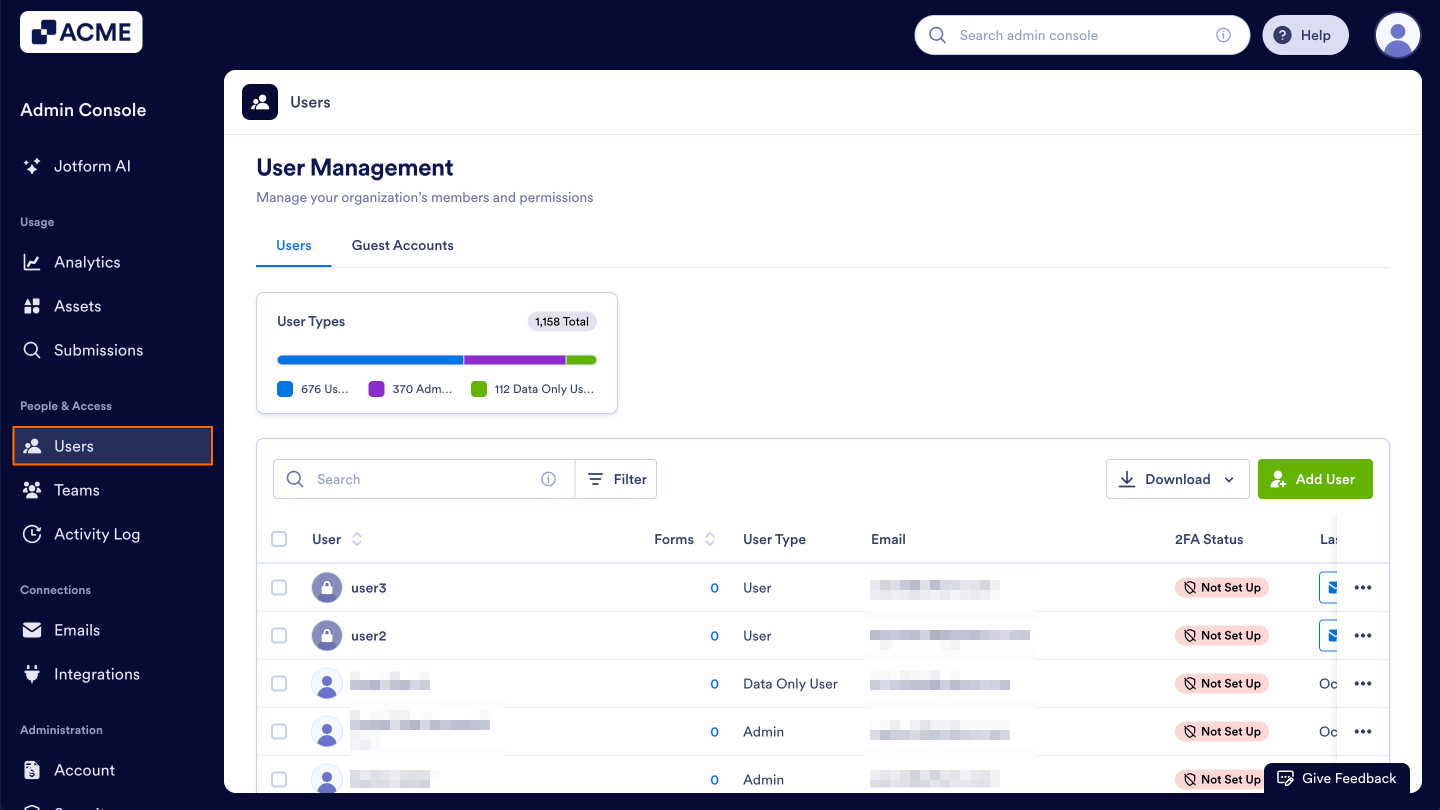
- Starting in the Admin Console, click on Users in the menu on the left side of the page.
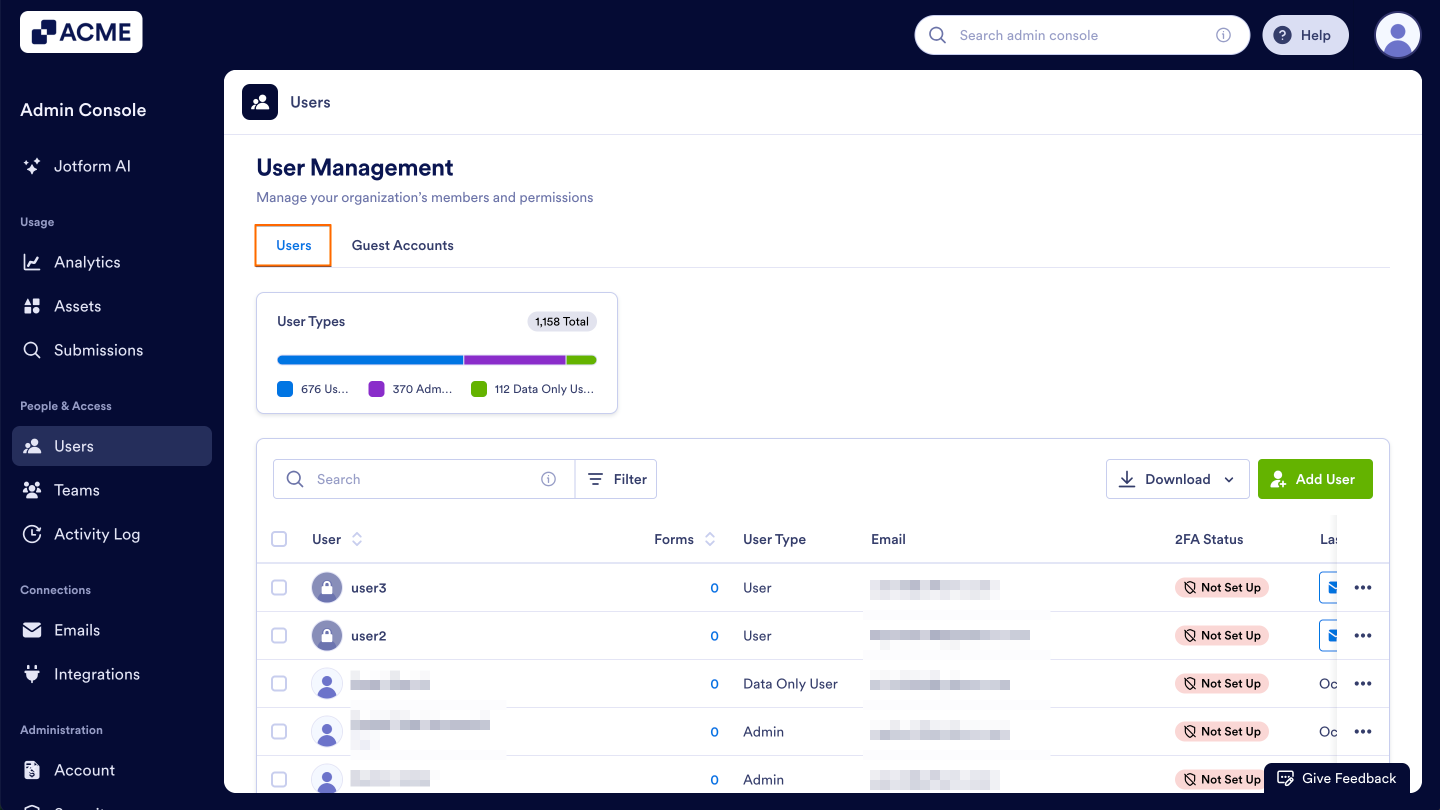
- Next, click on the Users tab located at the top of the User Management page.
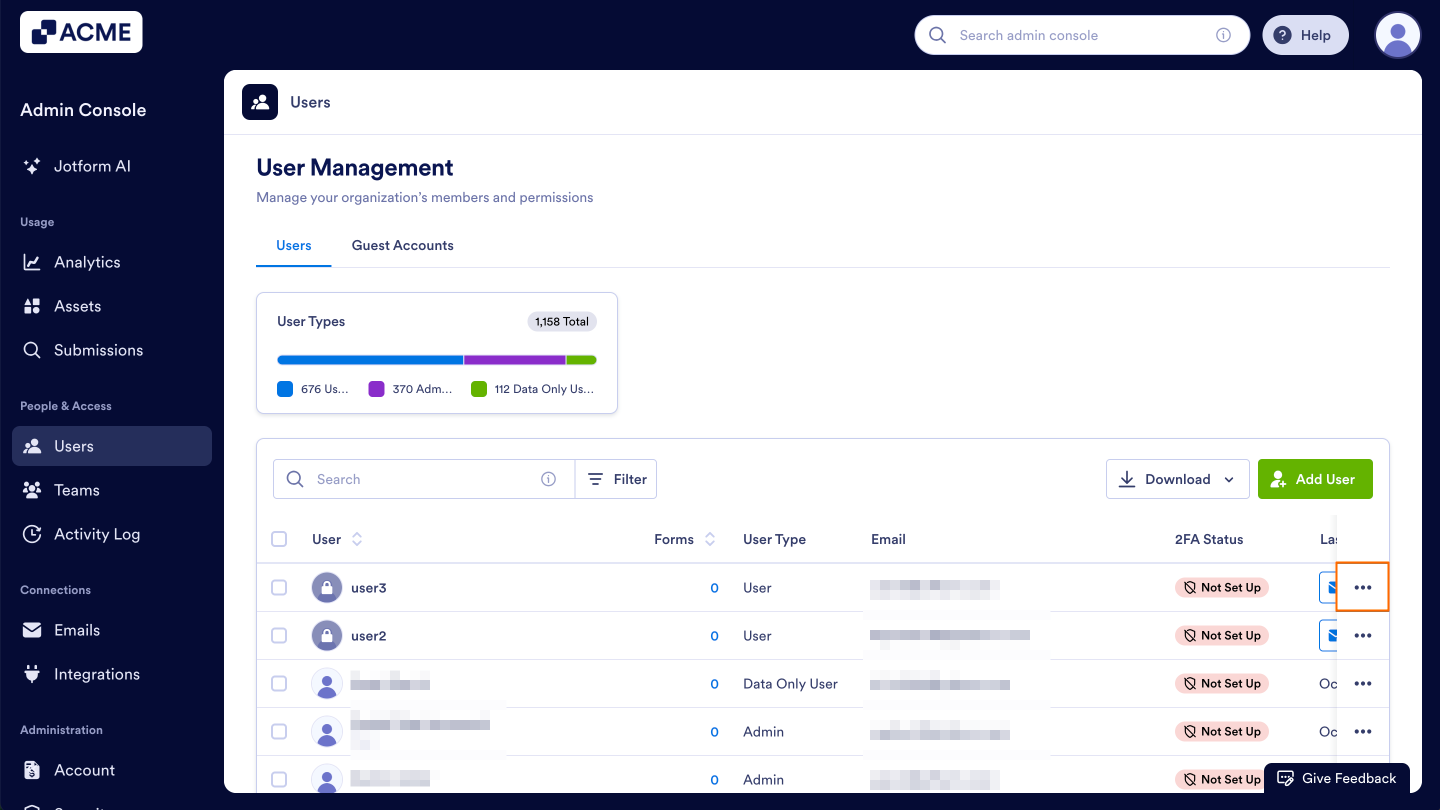
- Then, decide which user’s assets you’d like to view and click the Three Dots icon to the right of their name.
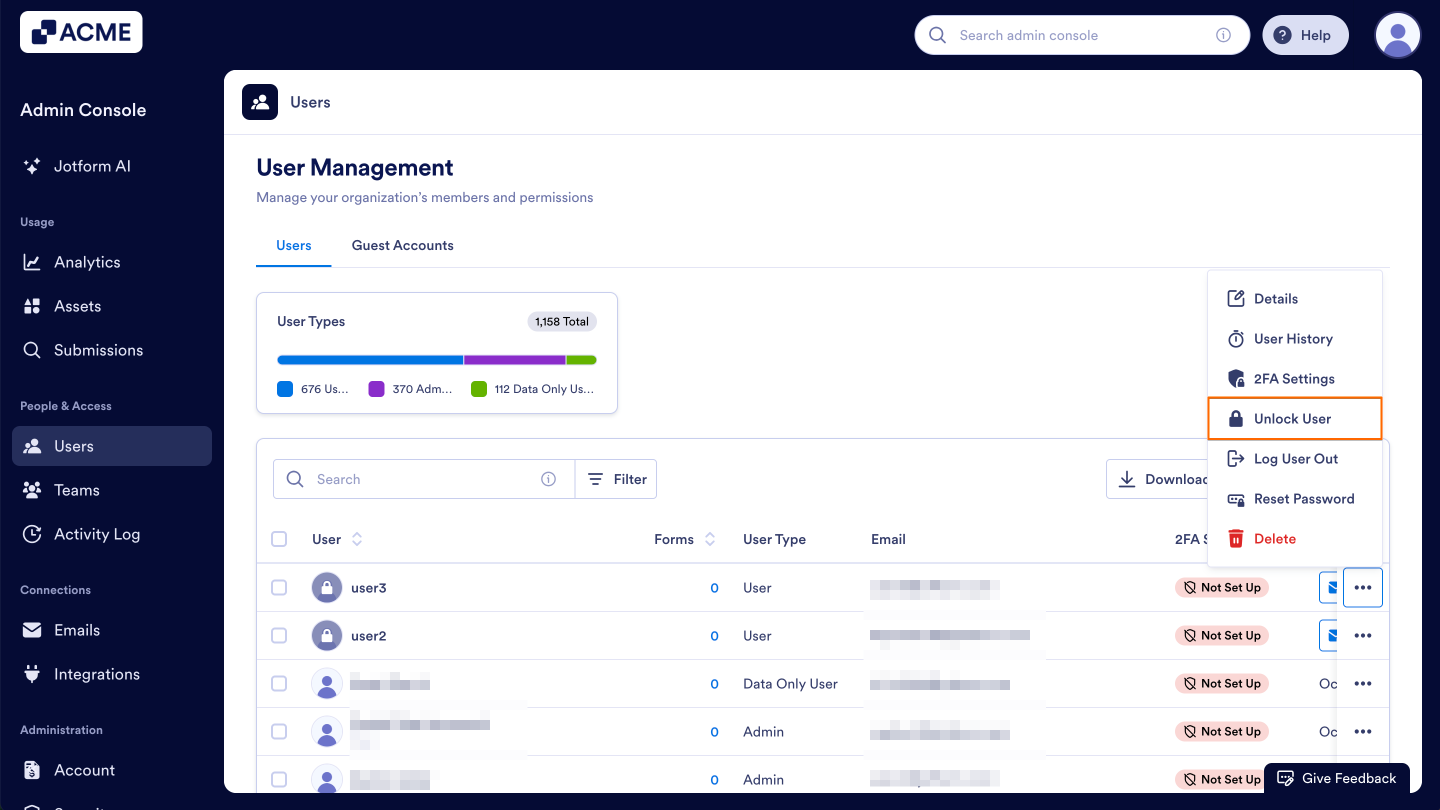
- Now, select Unlock User in the dropdown menu.
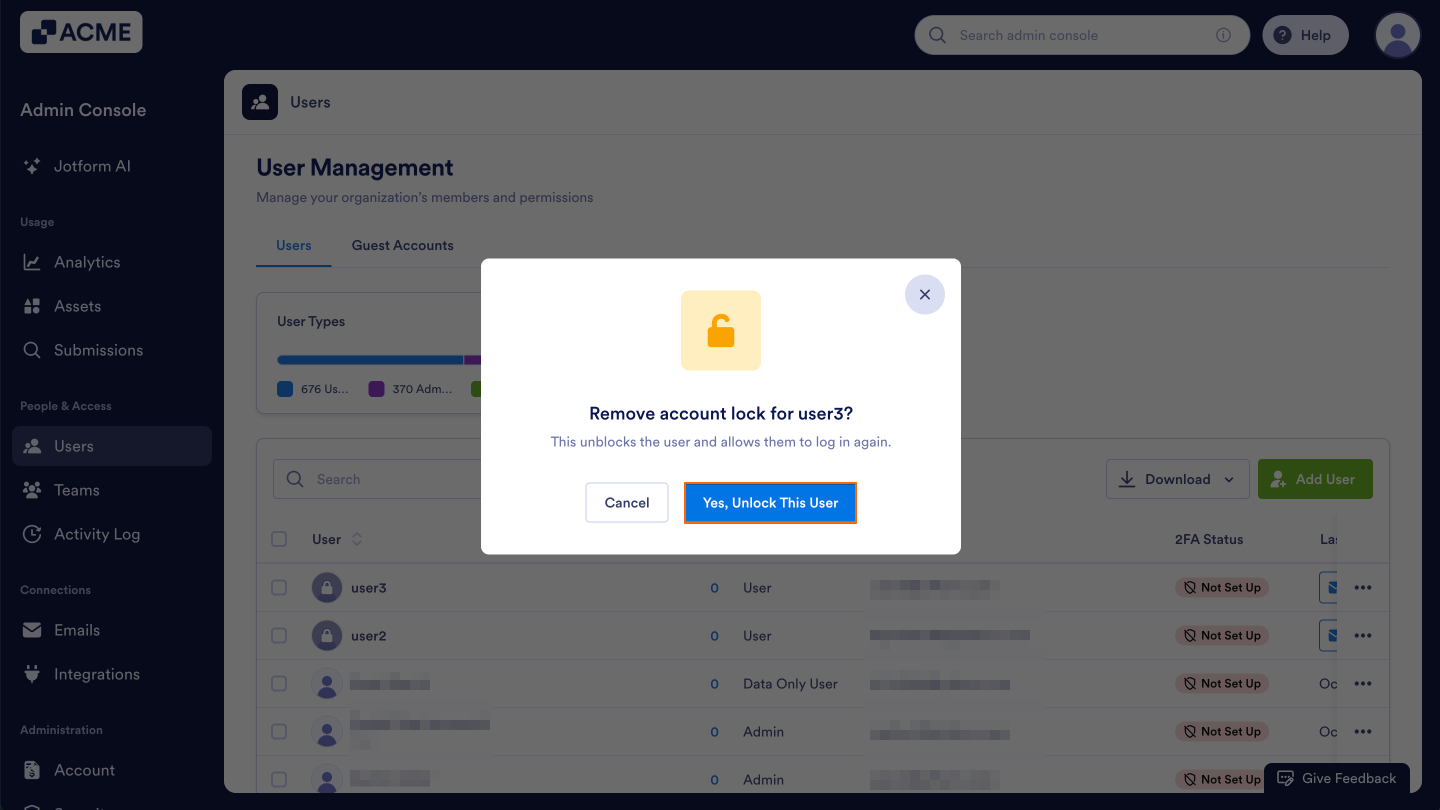
- Confirm the action.
From a Specific User’s Profile
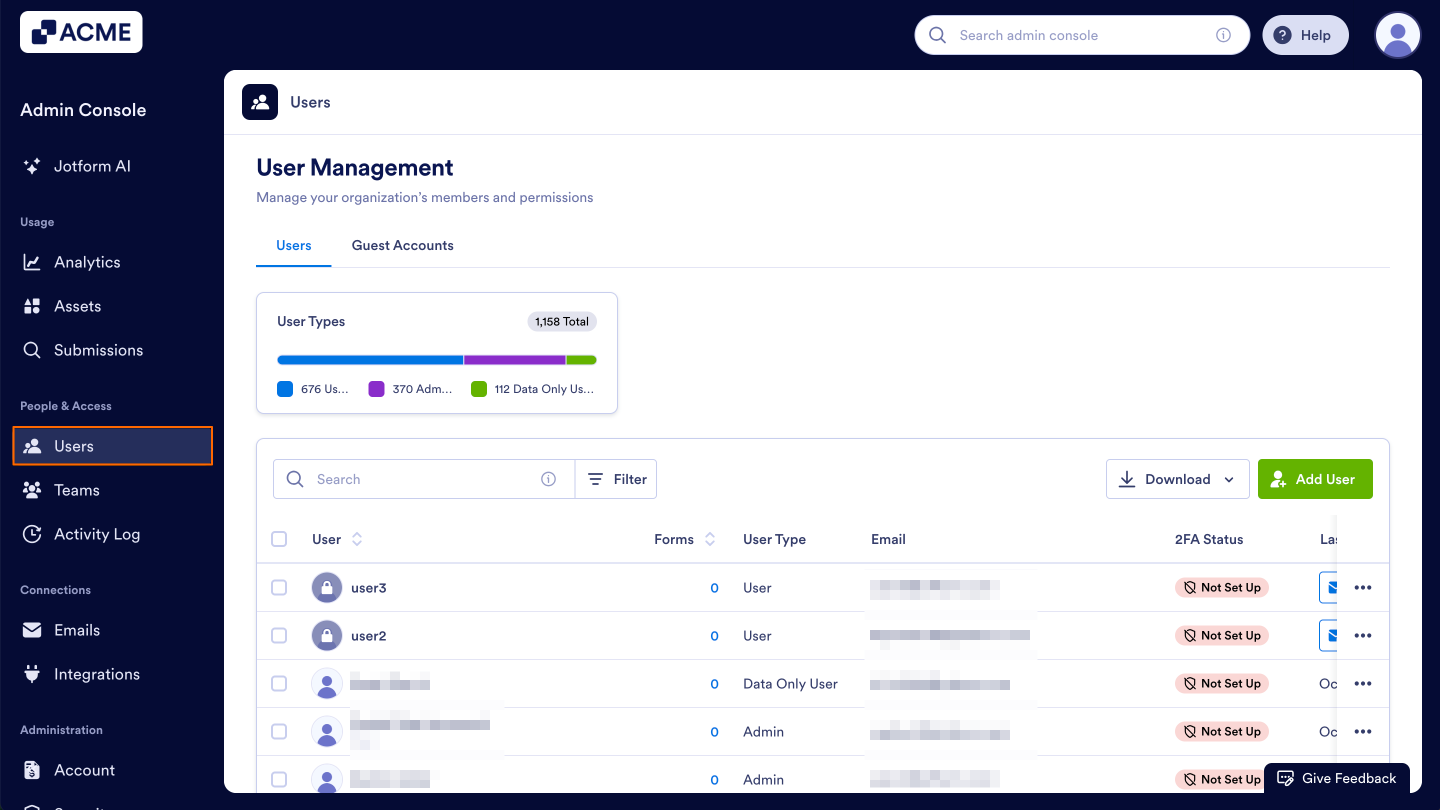
- Starting in the Admin Console, click on Users in the menu on the left side of the page.
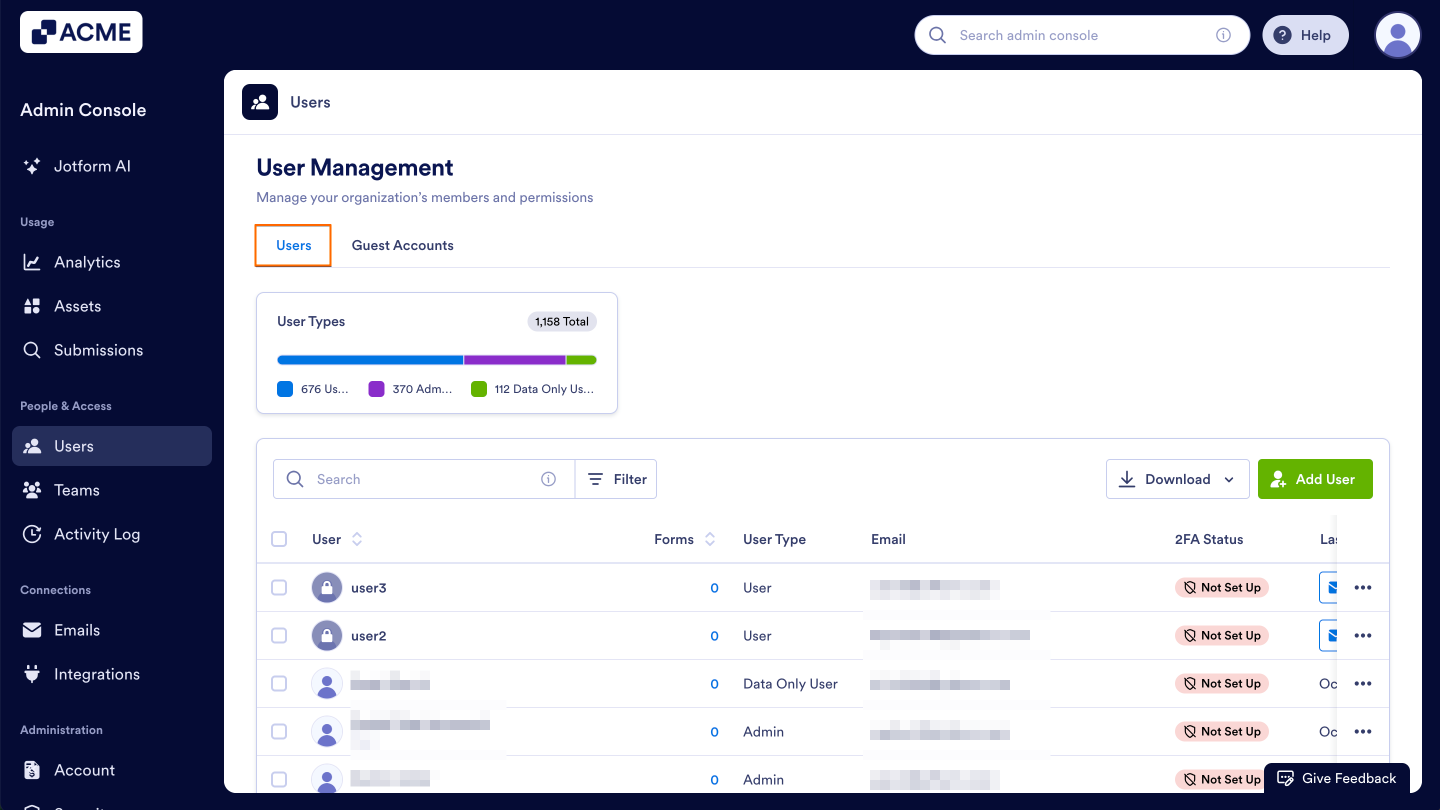
- Next, click on the Users tab located at the top of the User Management page.
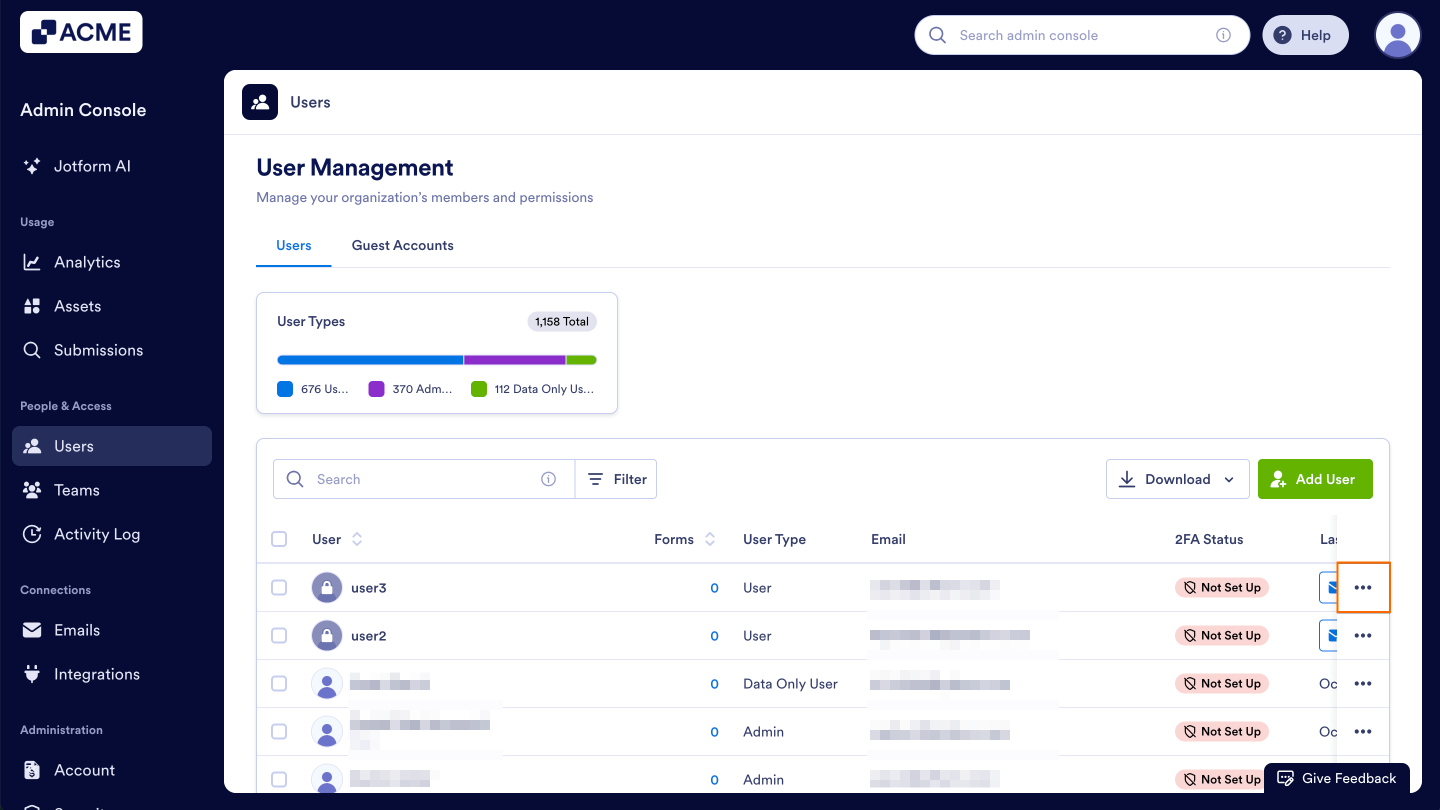
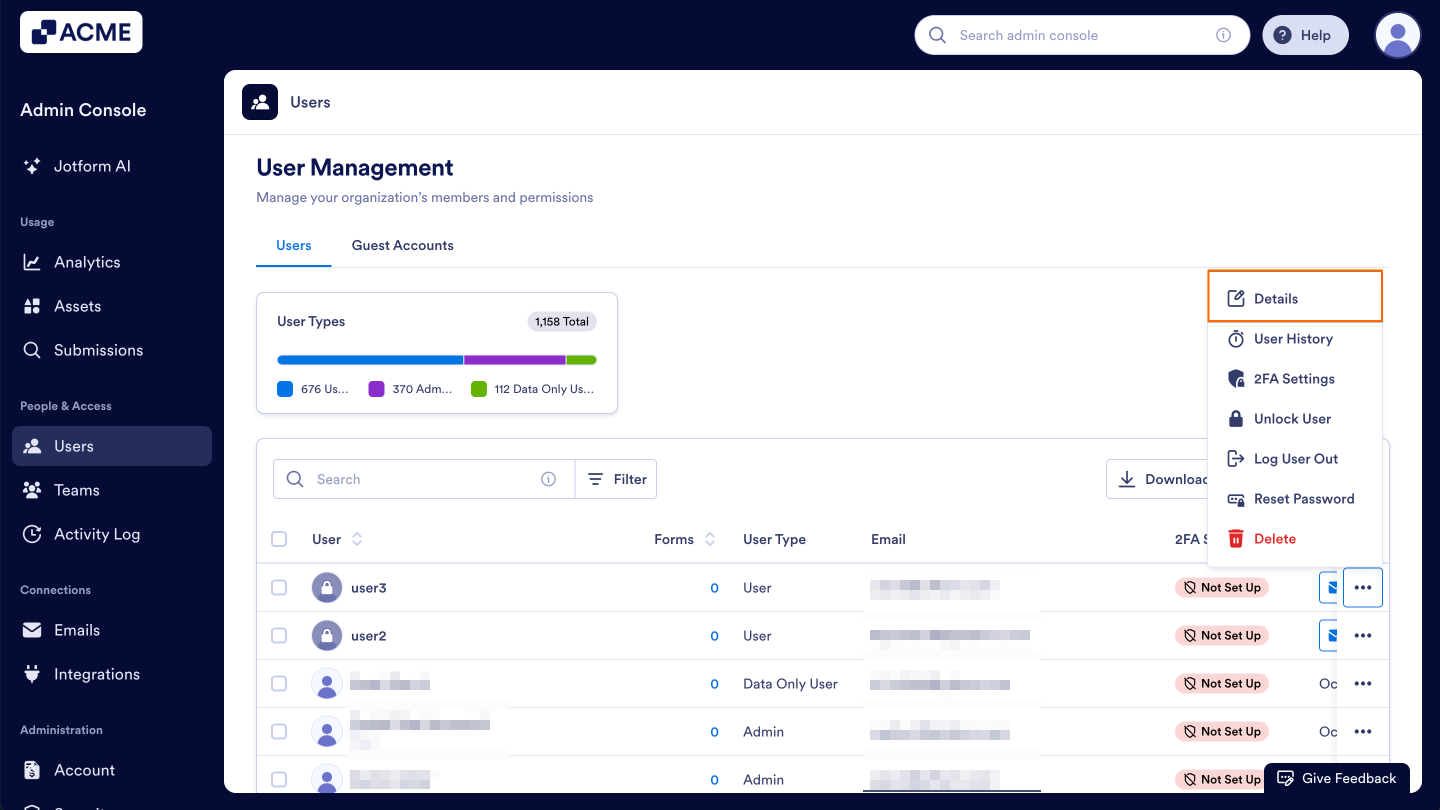
- Click on the Three-Dot icon for the user you want to unlock.
- Now, click Details in the dropdown menu. This opens a sidebar on the right side of the screen that contains several tabs, such as Details, Assets, and Activity.
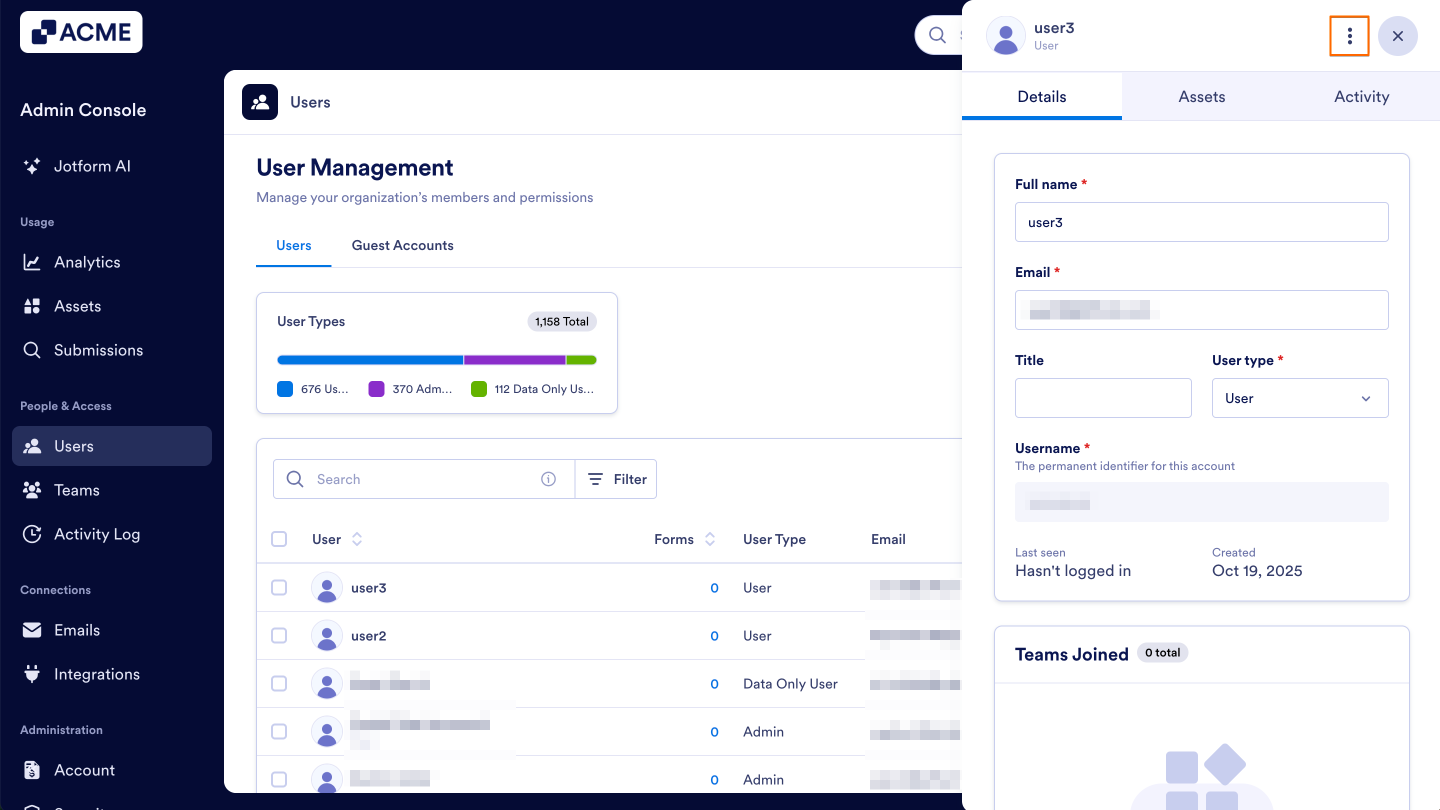
- In the Details section of that sidebar, click on Three-dots next to the username.
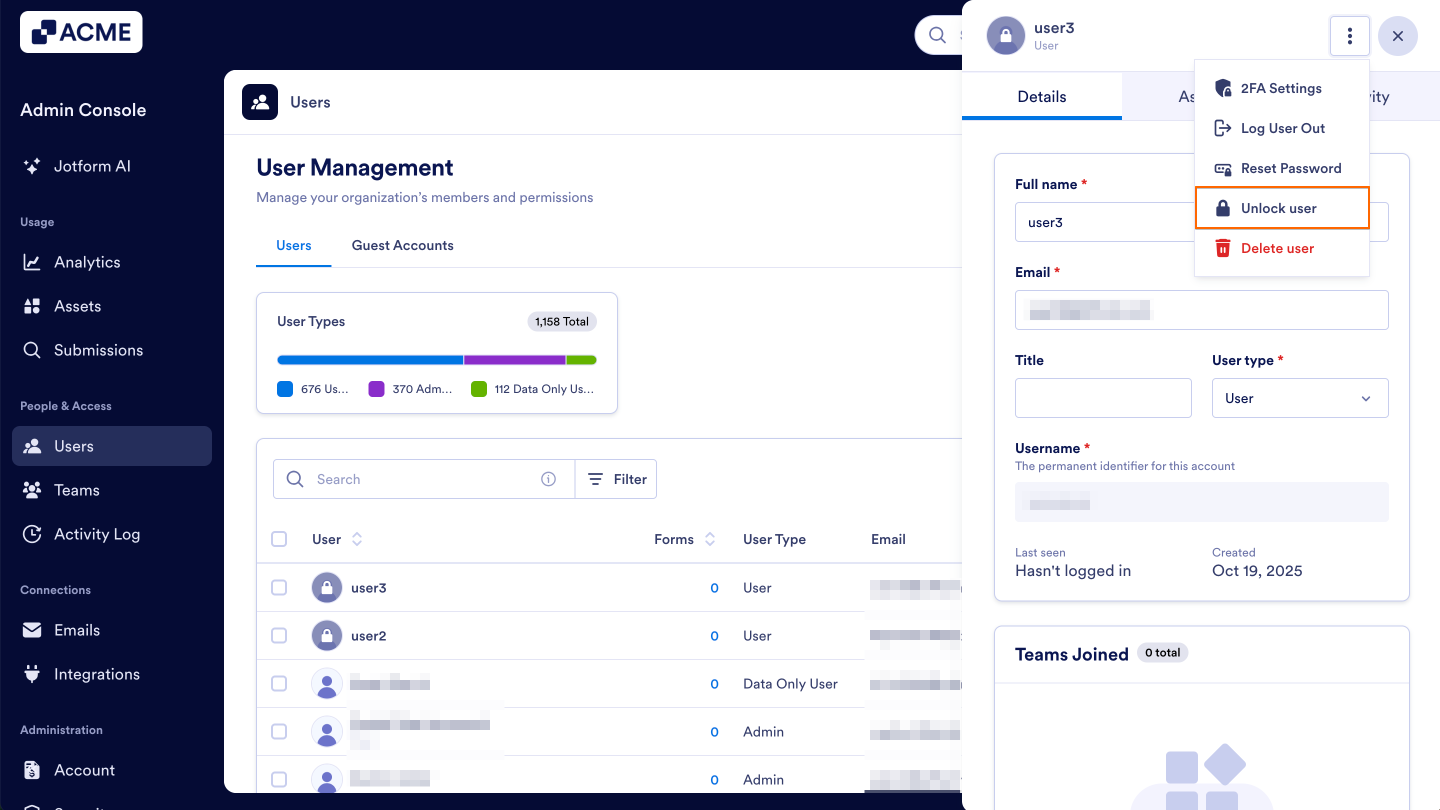
- Select Unlock User.
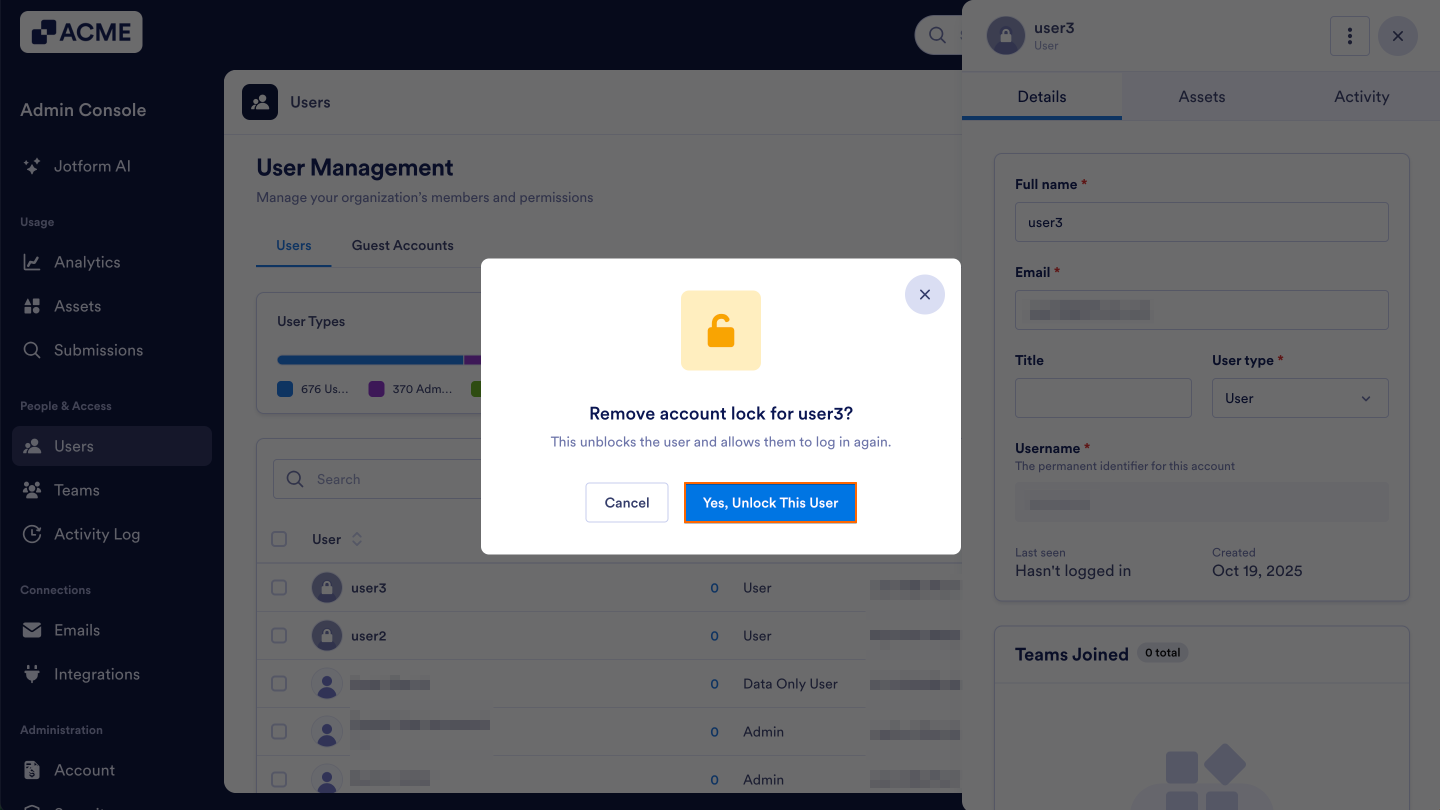
- Confirm the action.
Bulk Unlocking Users
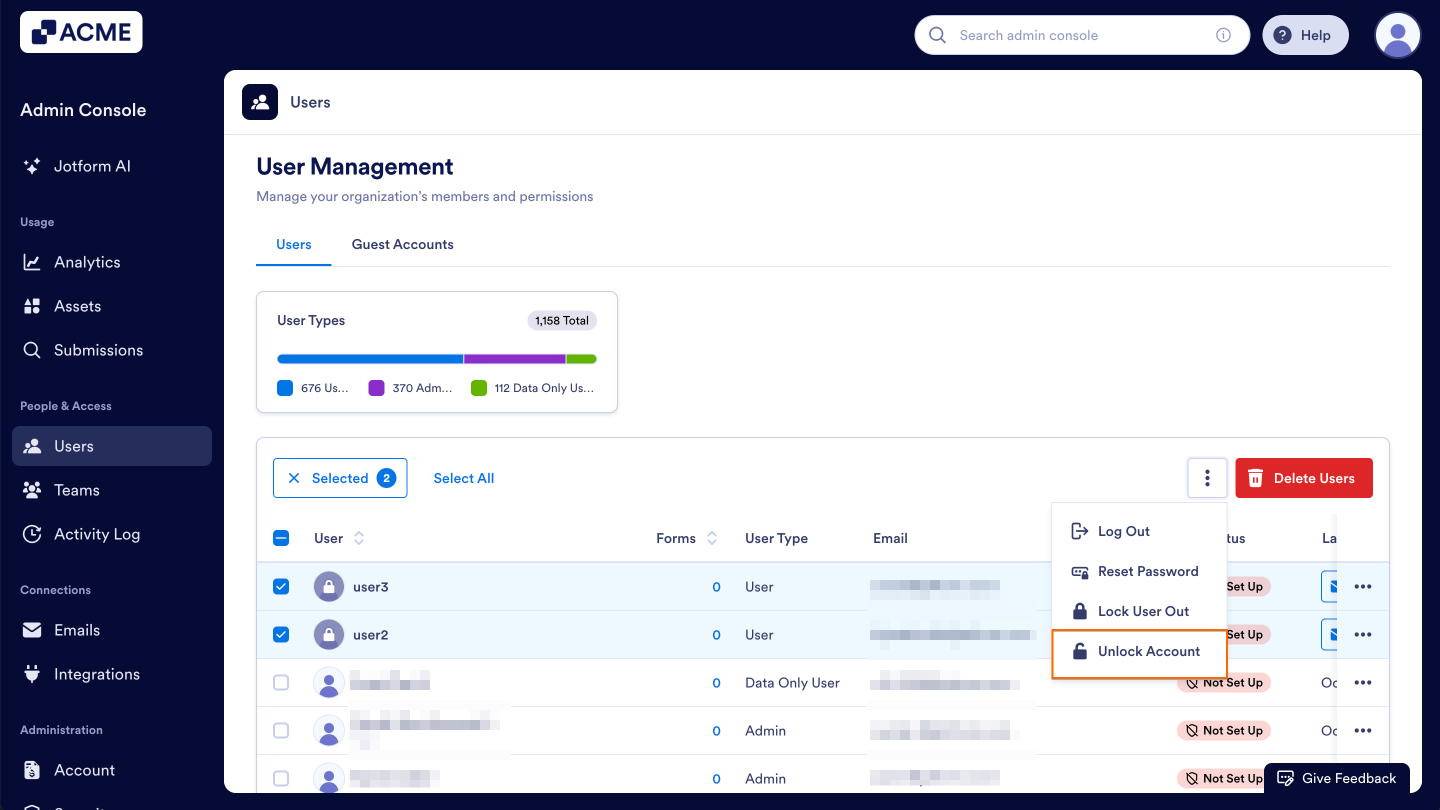
You can also unlock multiple users at once from within your User Management Screen.
- Starting in the Admin Console, click on Users in the menu on the left side of the page.
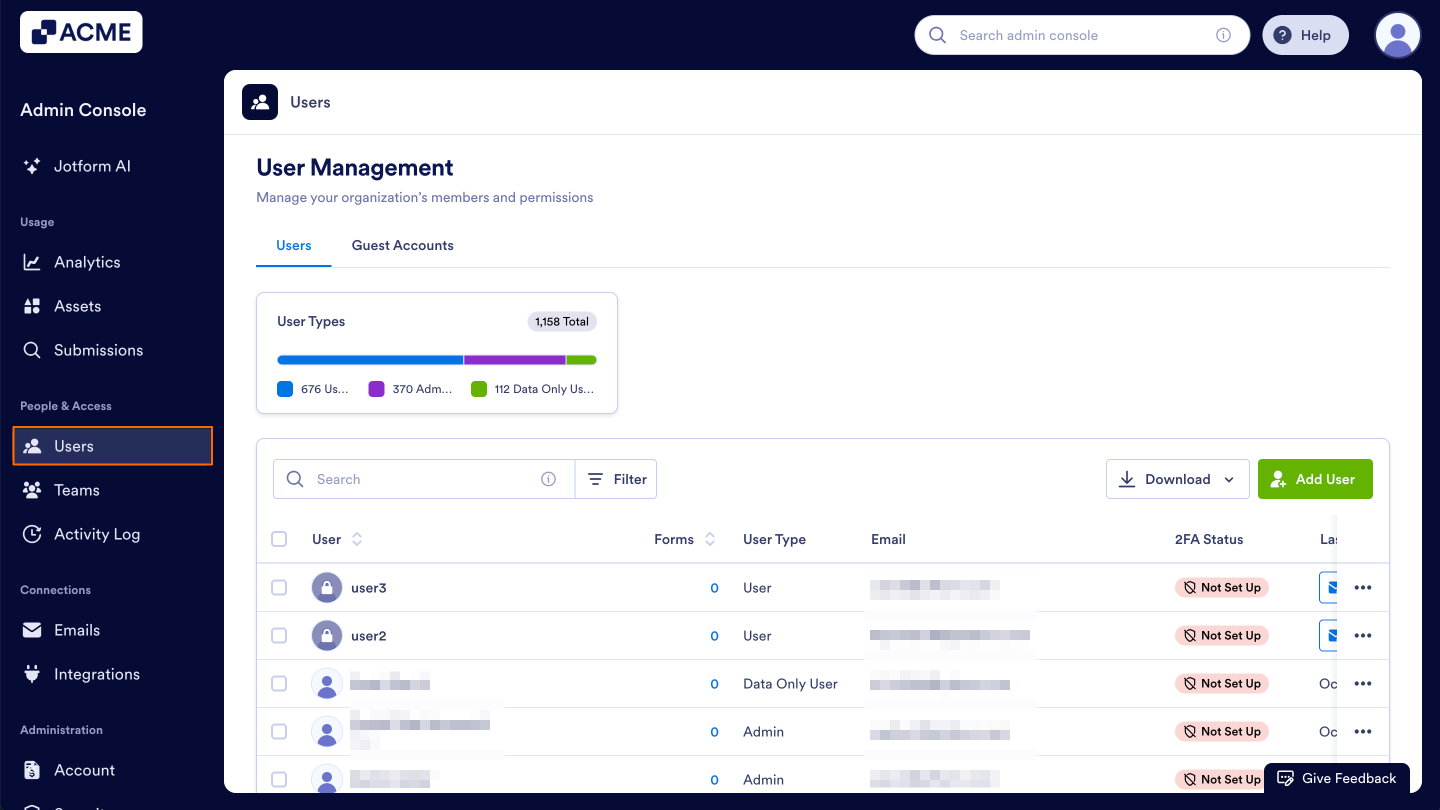
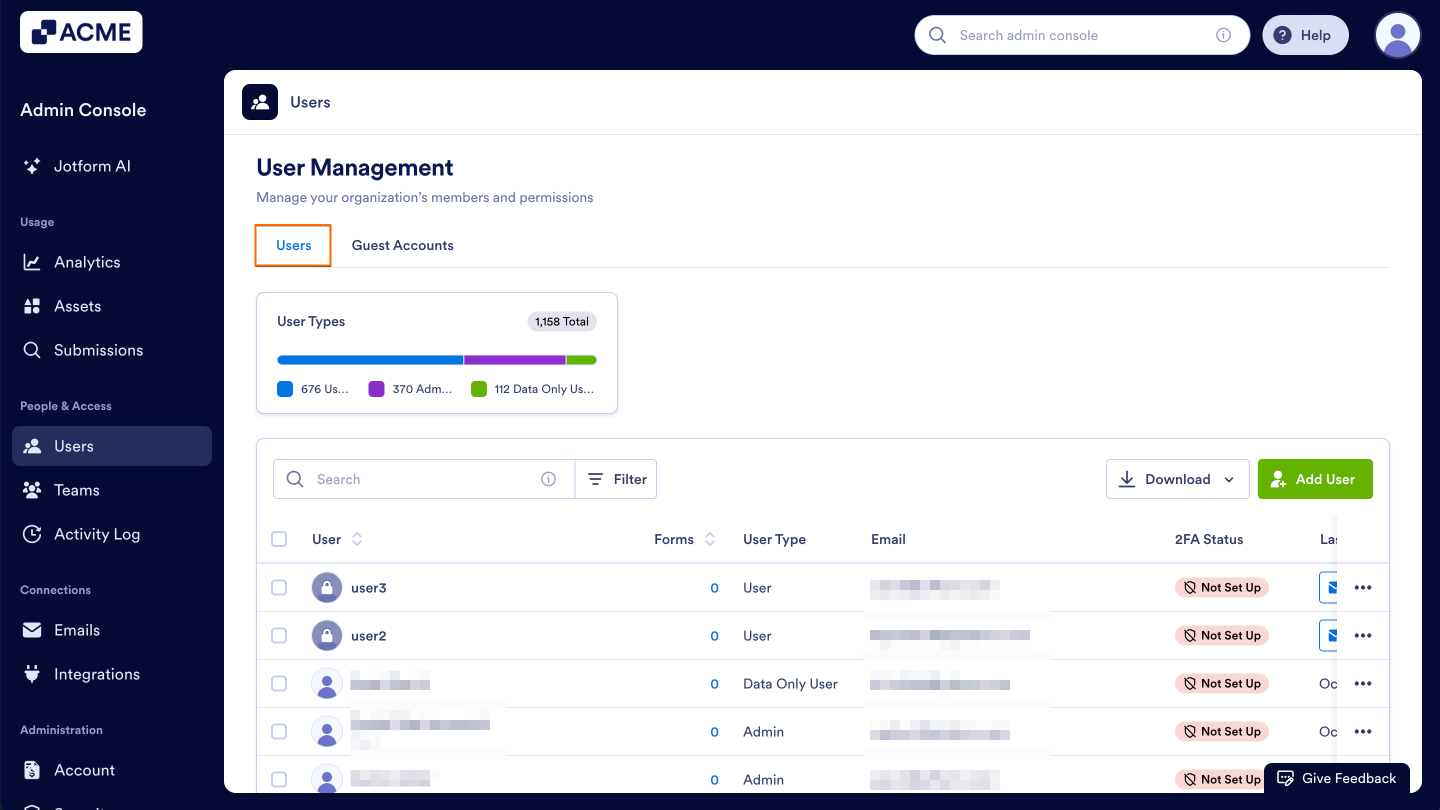
- Next, click on the Users tab located at the top of the User Management page.
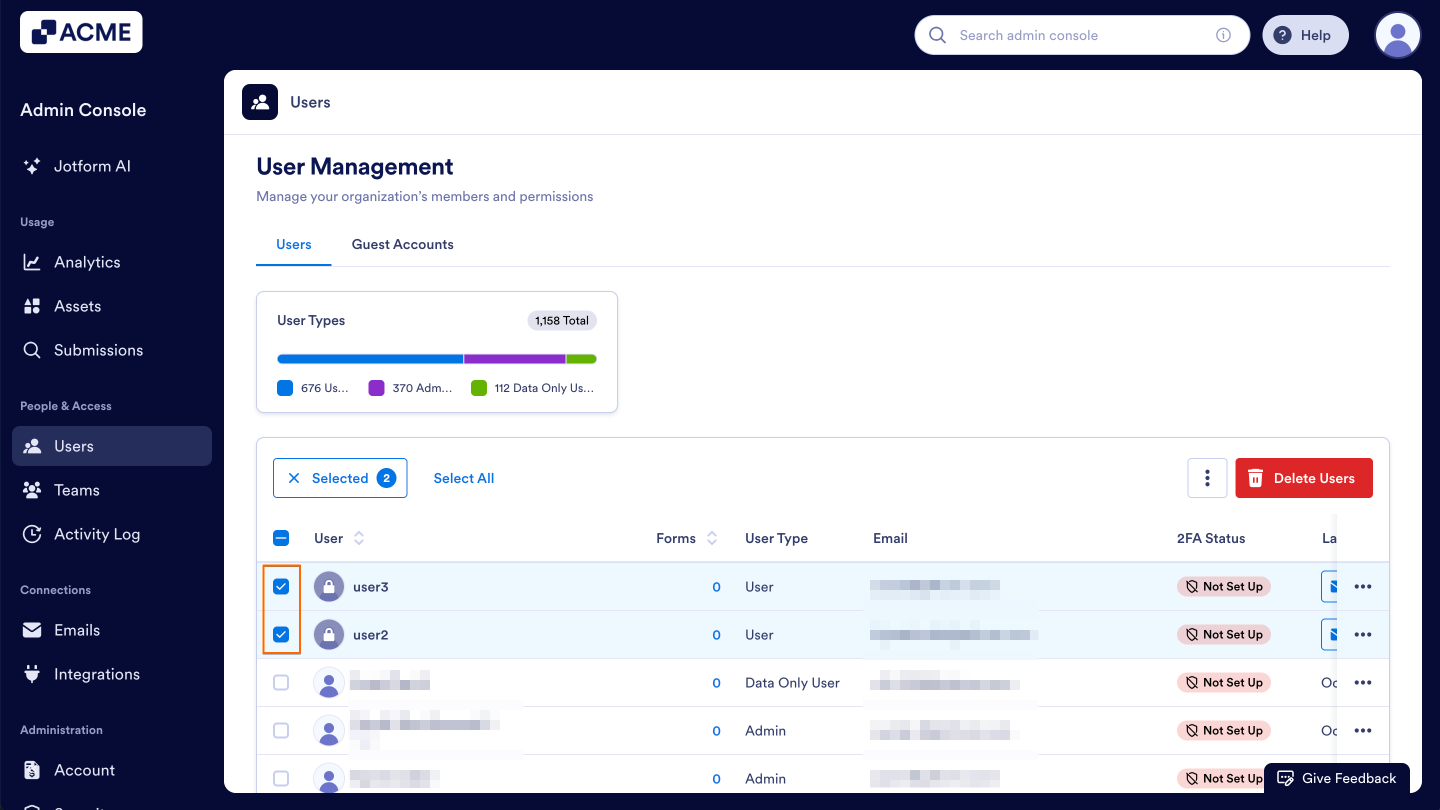
- Once you’ve decided which users you want to unlock, click on the checkboxes to the left of their names to select them.
- With those users selected, click on the Three Dots icon near the top right of the Accounts table.
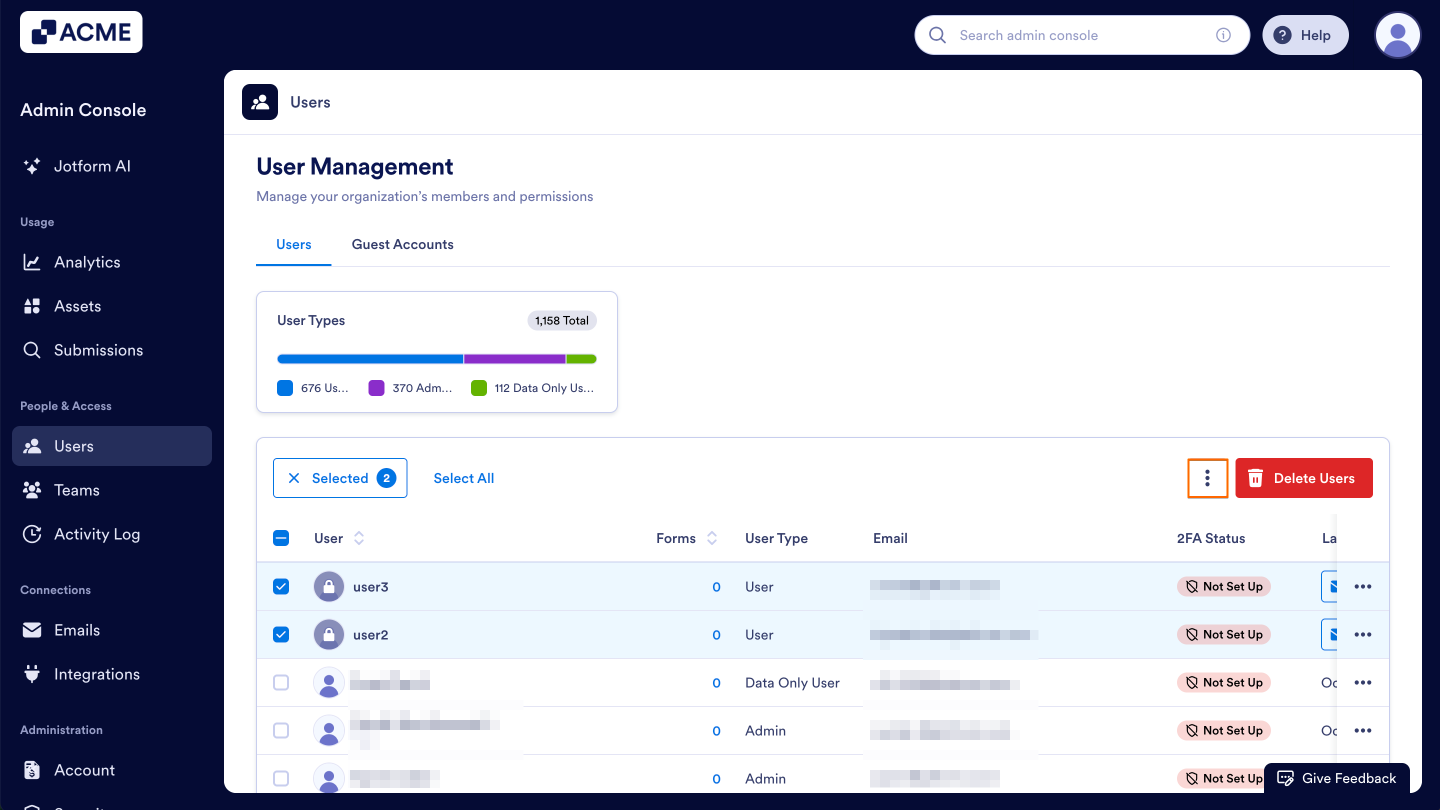
- Now, select Unlock Account in the dropdown menu.
See also:
- How to Lock Users in the Organization from the Admin Console
- How to Delete Users in the Organization from the Admin Console
- How to Update User Information in the Admin Console
- How to Reset User Passwords in Your Organization from the Admin Console
- How to Manage User-Based Two-Factor Authentication (2FA) Settings in the Admin Console

Send Comment: