This guide explains how to view and manage AI Agent usage within your organization through the Admin Console. You’ll learn how to monitor overall activity, track individual Agent performance, review usage metrics, and identify trends to ensure optimal resource allocation and governance. It also covers how to analyze usage data to maintain compliance with internal policies and make informed decisions about scaling or adjusting Agent access.
 How to Archive or Unarchive Agents in Your Organization from the Admin Console
 How to Trash or Restore Agents in Your Organization from the Admin Console
 How to Enable or Disable Individual Agents in Your Organization from the Admin Console
 How to Analyze Agents Usage in your Organization from the Admin Console
Viewing and Managing Options
- View Agent: View the live Agent.
- Edit Agent: Open the Agent in Build mode.
- View Conversations: Access the conversation history for the AI Agent.
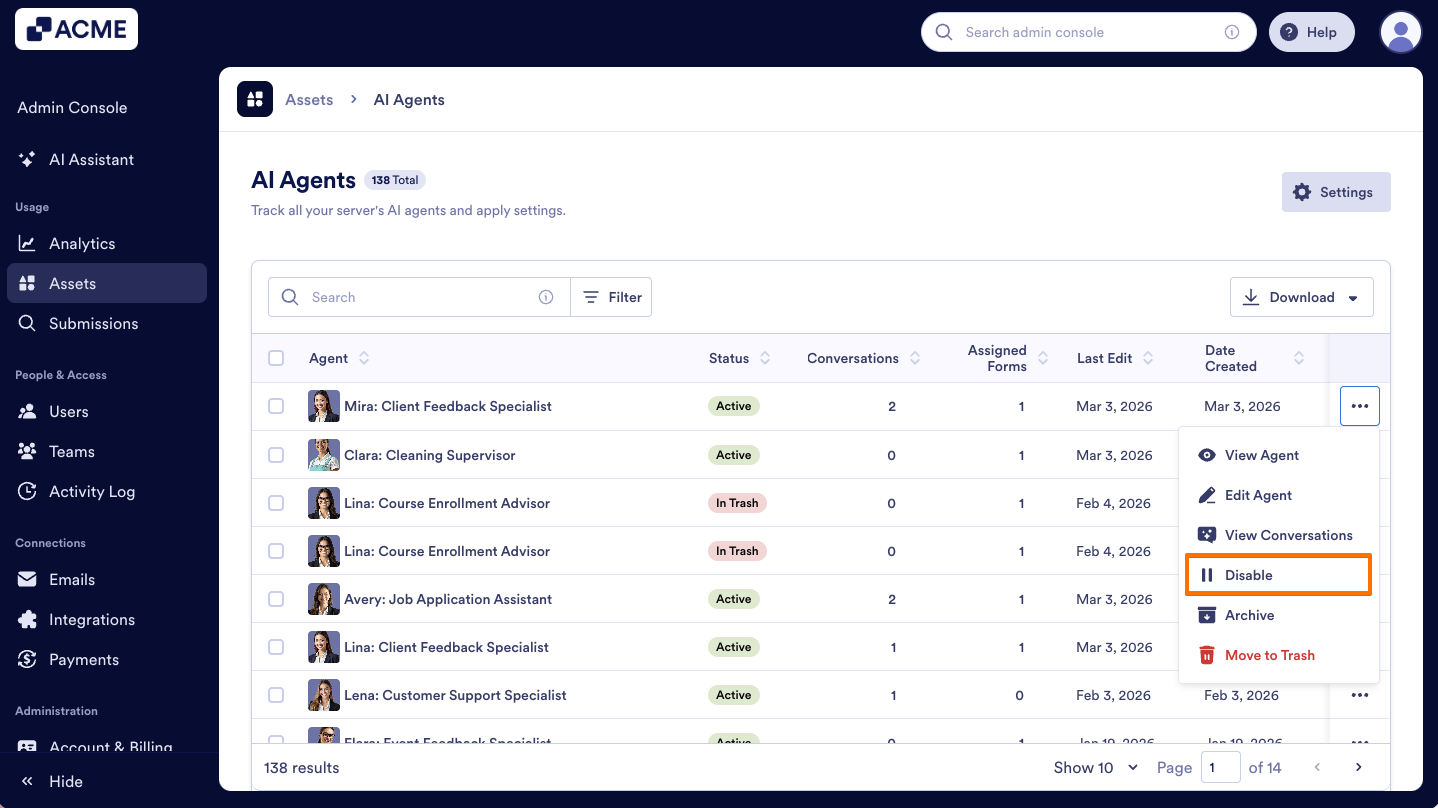
- Disable: Disable the AI Agent to prevent others from using it.
- Archive: Move the AI Agent to the archive for storage without deleting it.
- Move to Trash: Remove the AI Agent from the server.
Process
Let’s walk through the process of accessing these options together:
- In the Admin Console, click on Assets on the left-hand menu.
- Next, click on AI Agents to load all AI Agents on your server.
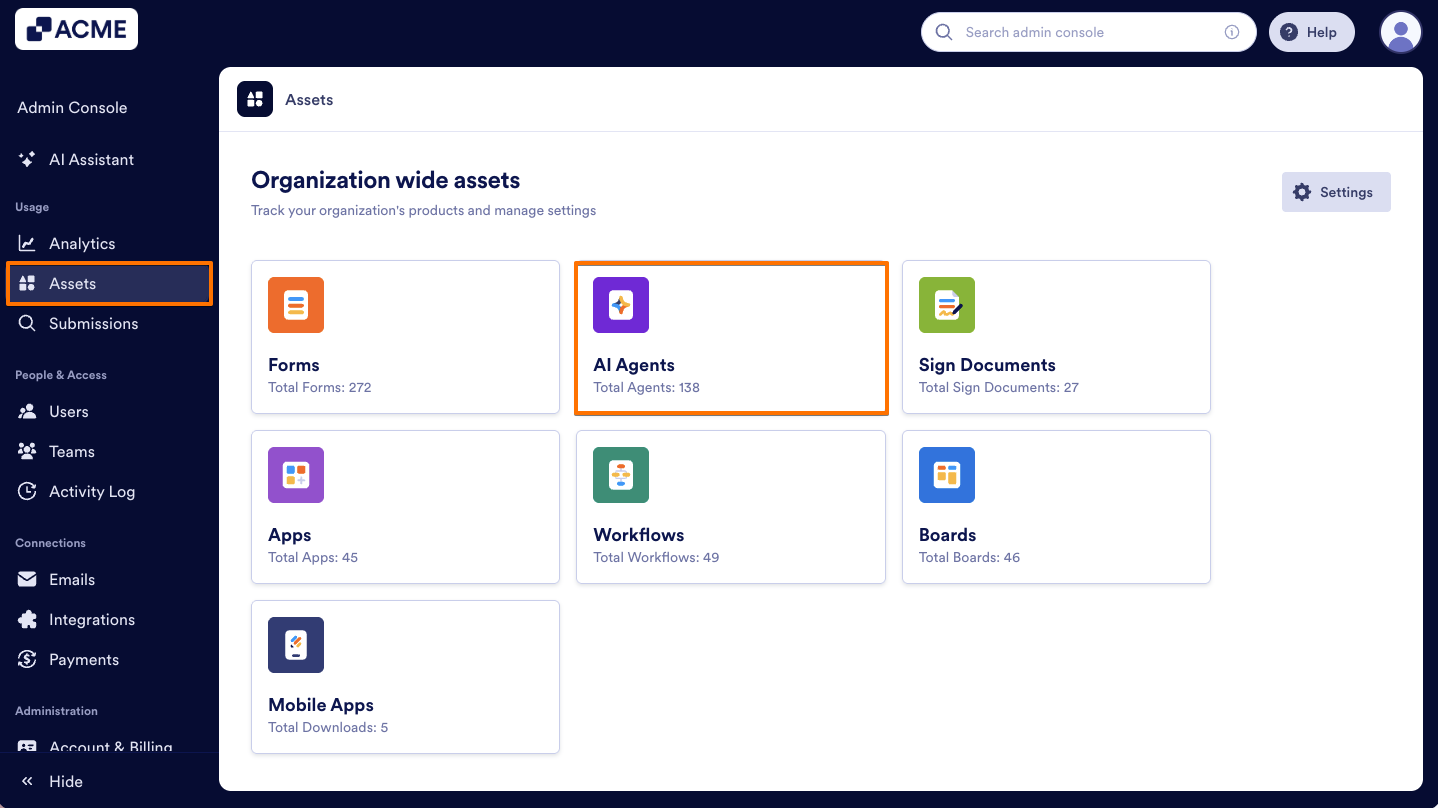
- Now, find the agent you’d like to manage and click on the Three dots icon to access the menu.
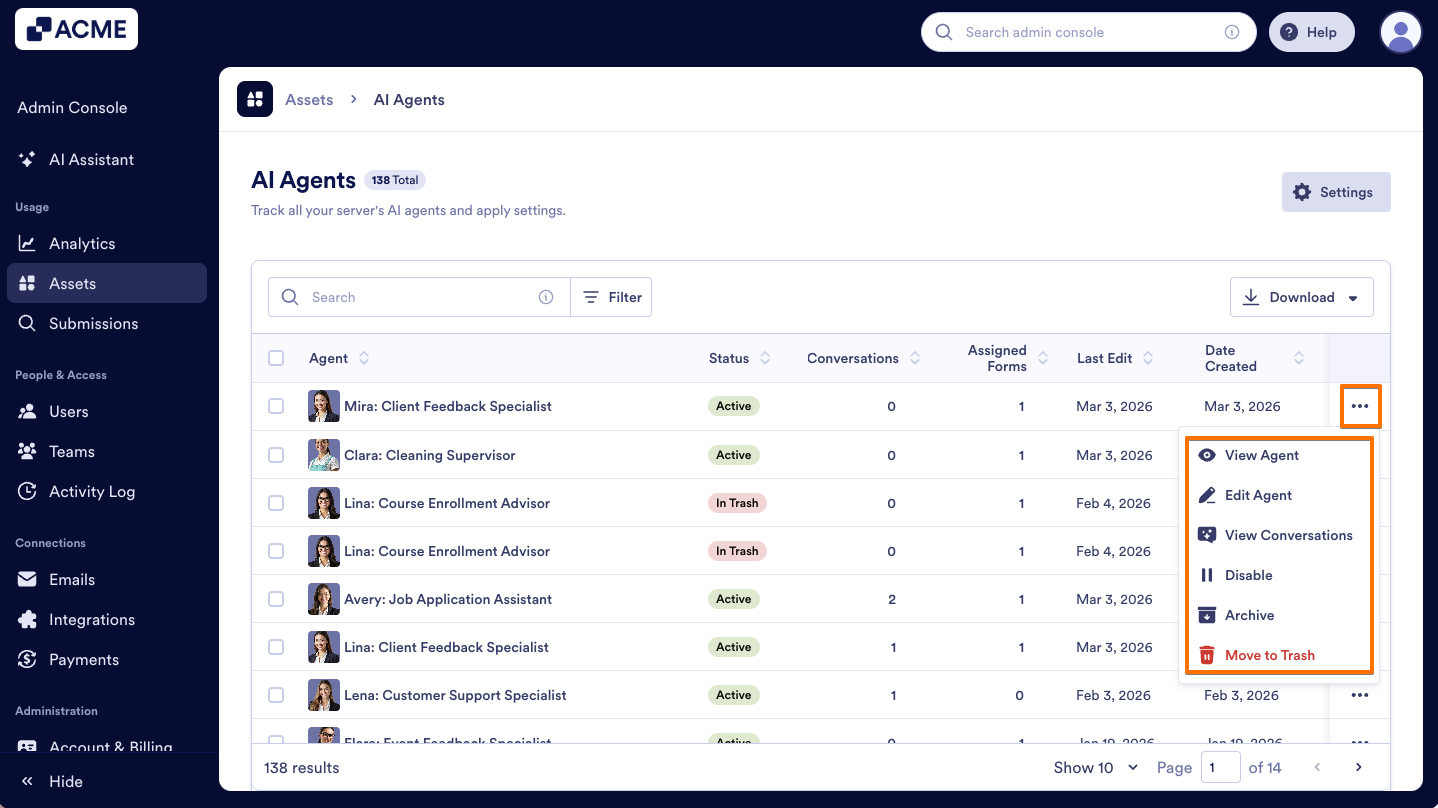
After accessing the menu, we can start selecting the options. Here’s what you can do:
View Agent
- In the menu, select View Agent.
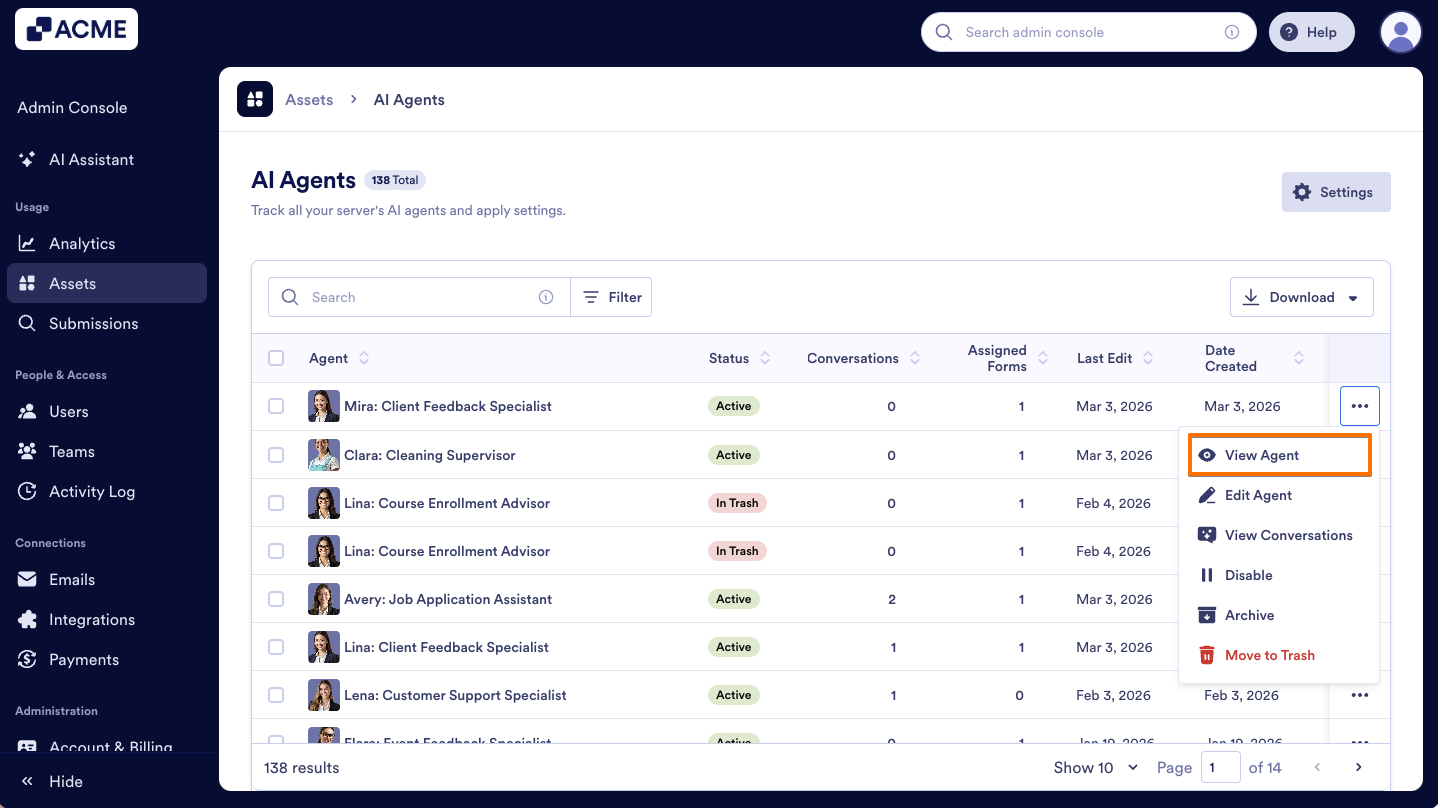
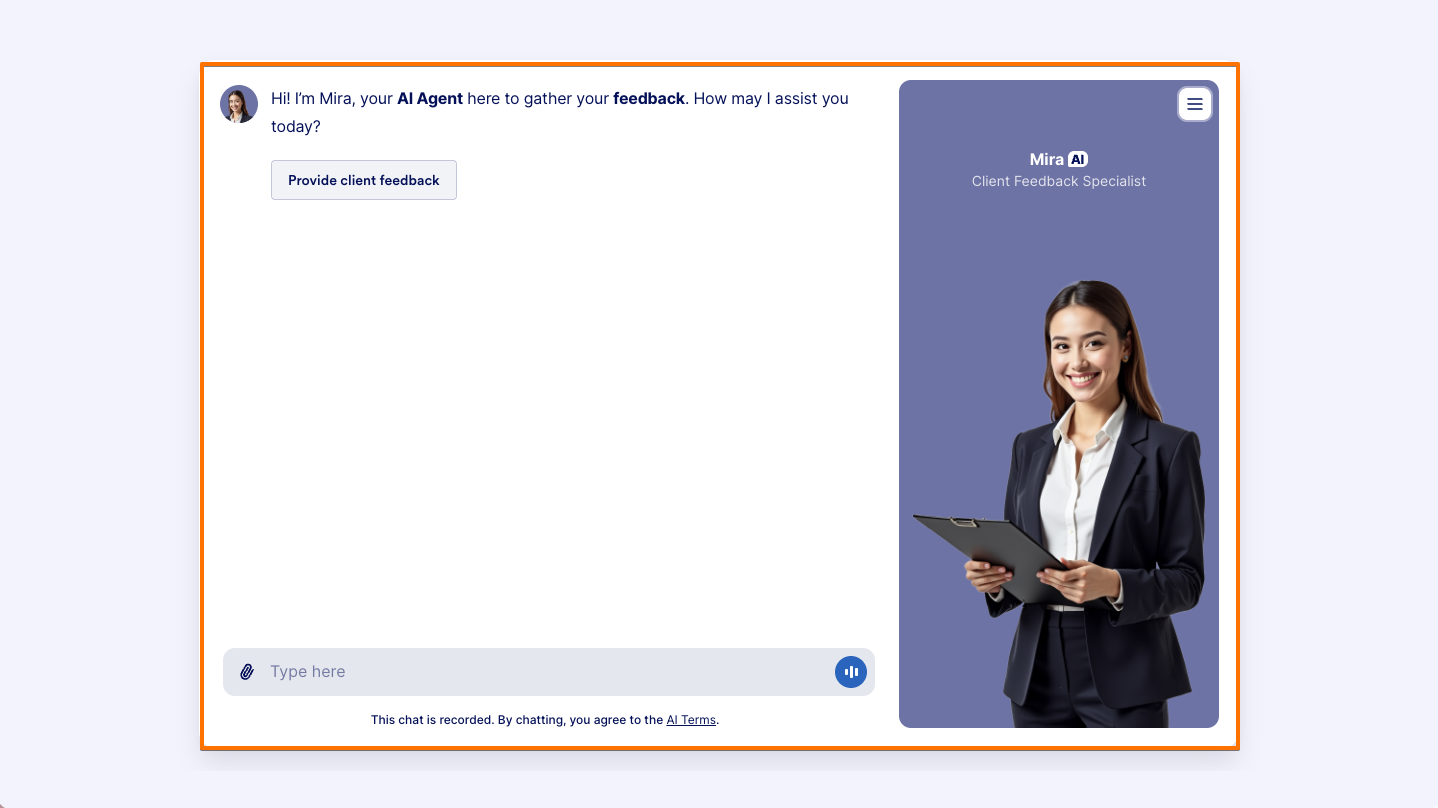
- After clicking on View Agent, you’ll be brought to a new window where you can chat with the AI Agent.
Edit Agent
- Select Edit Agent from the menu.
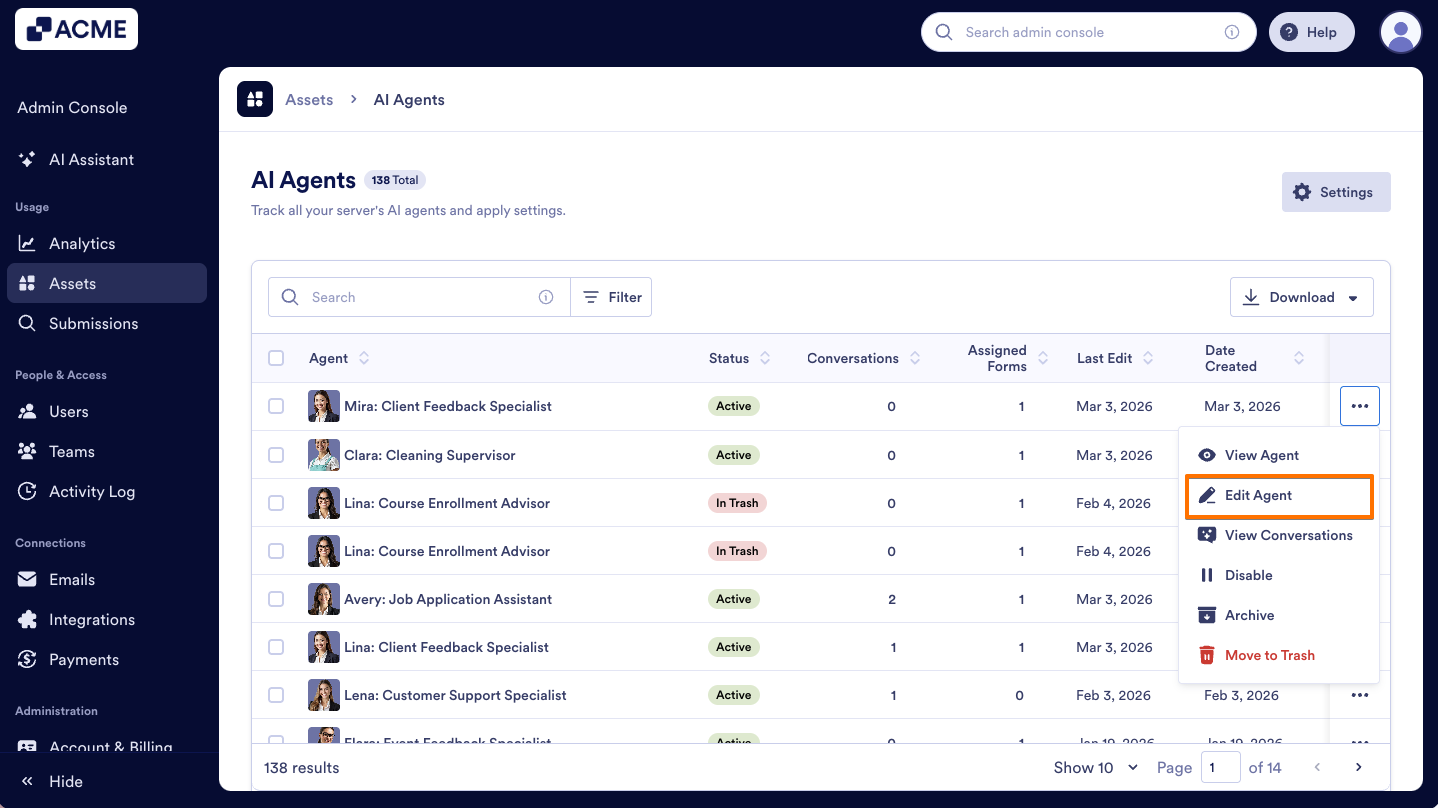
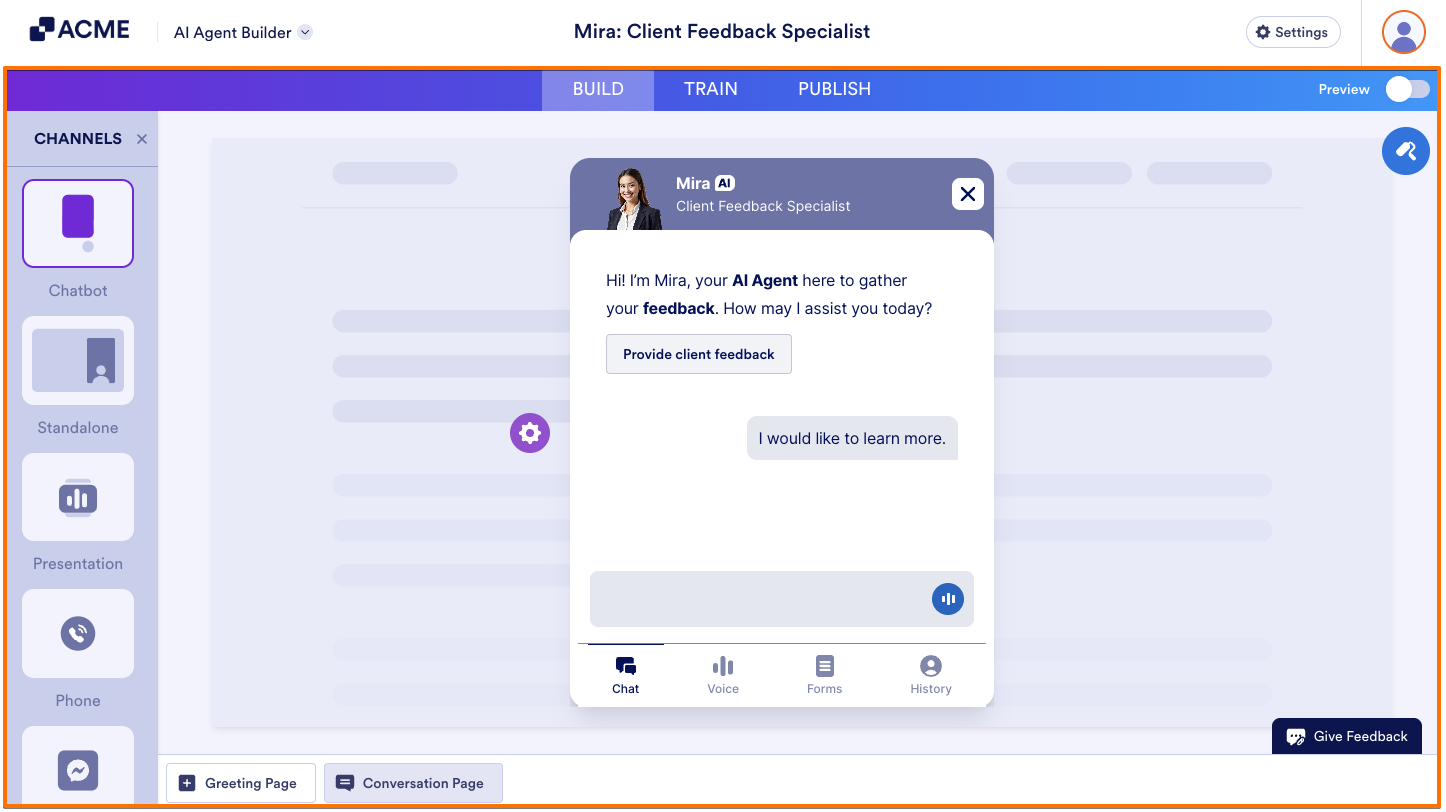
- After clicking on Edit Agent, you’ll be brought to the Agent Builder. Here, you can edit the AI Agent, train it, or make other changes.
Note
If this isn’t an agent you own, a red pop-up at the bottom of the page will show the Agent Owner’s username.
View Conversations
- Click on View Conversations in the menu.
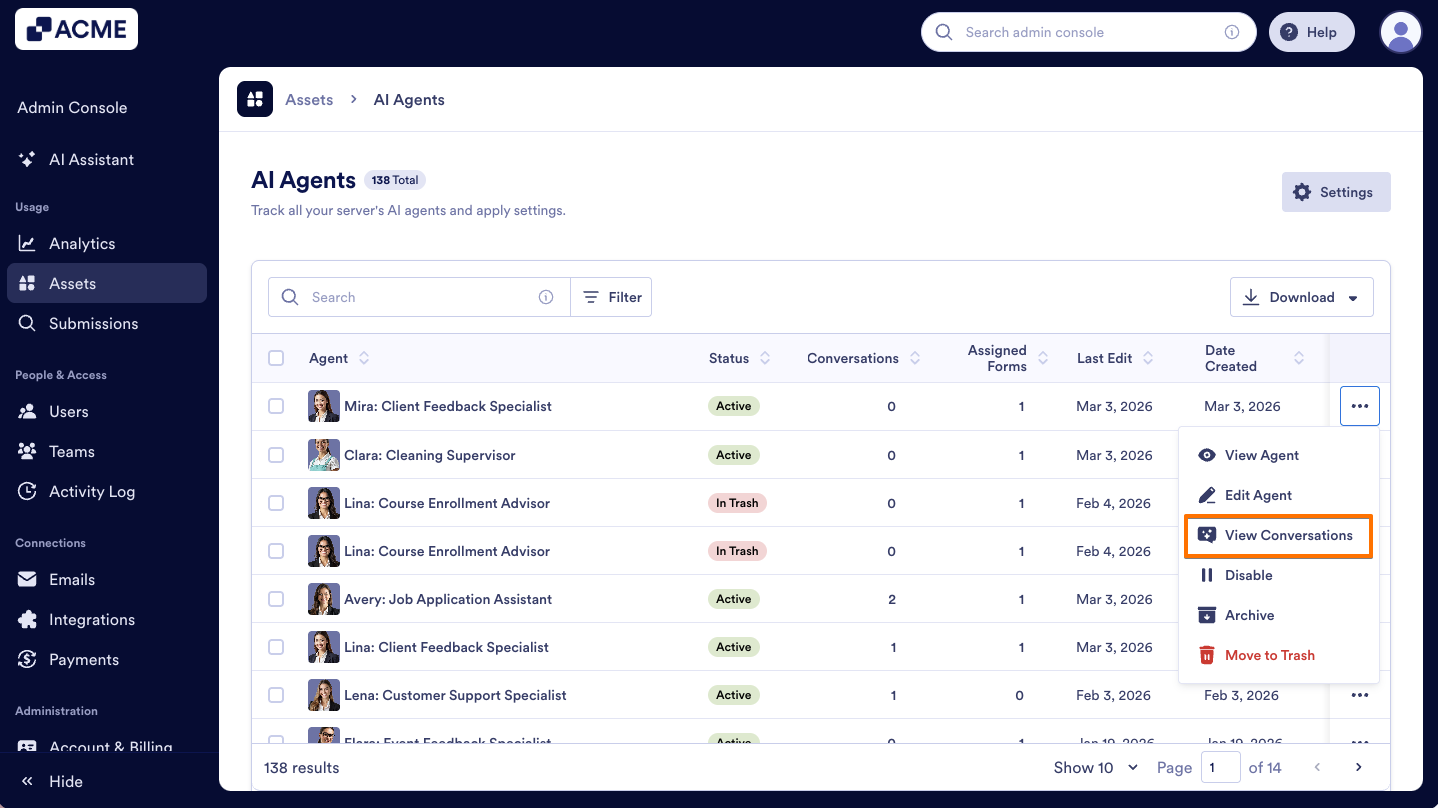
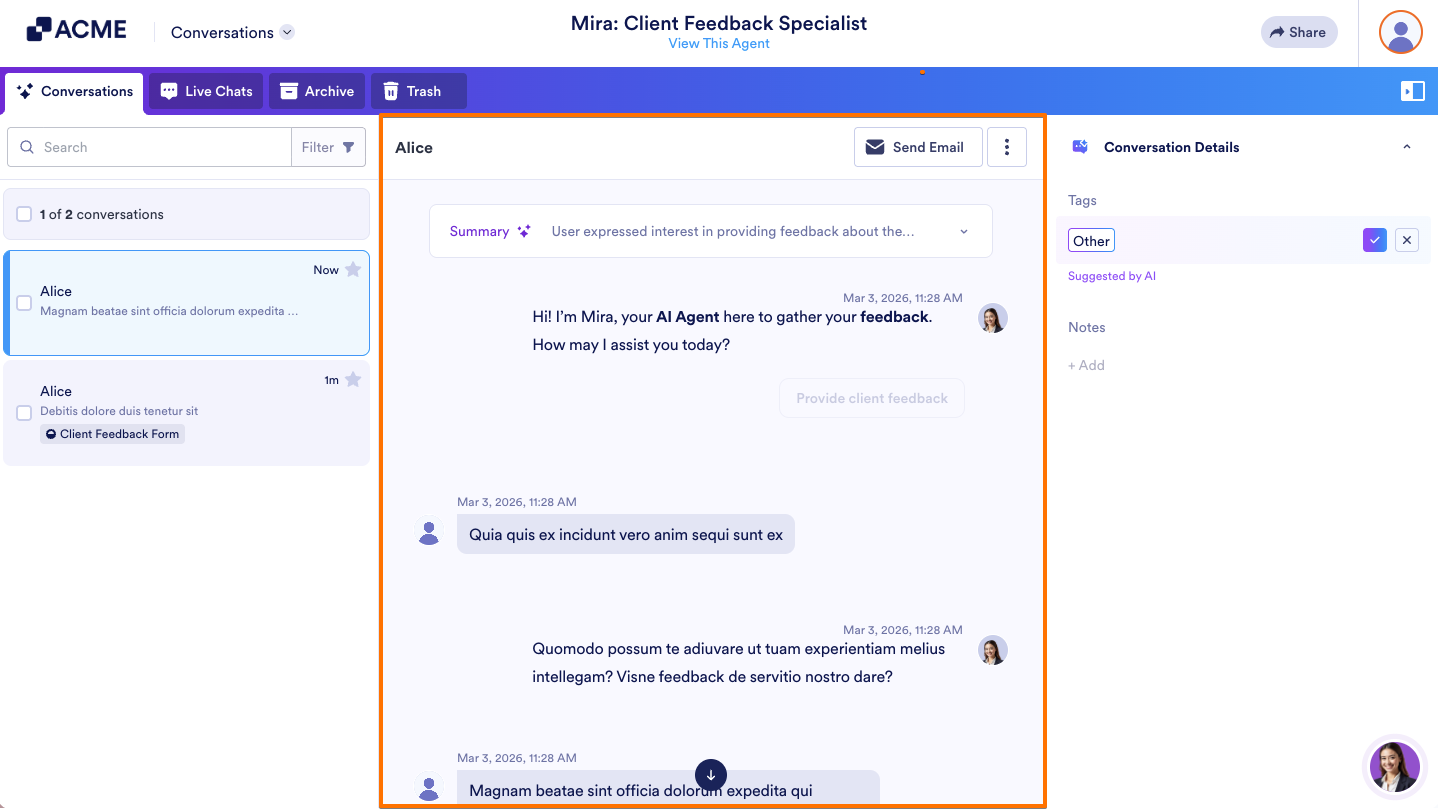
- After clicking on View Conversations, you’ll be brought to the transcripts for the AI Agent.
Disable
- Select Disable from the menu.
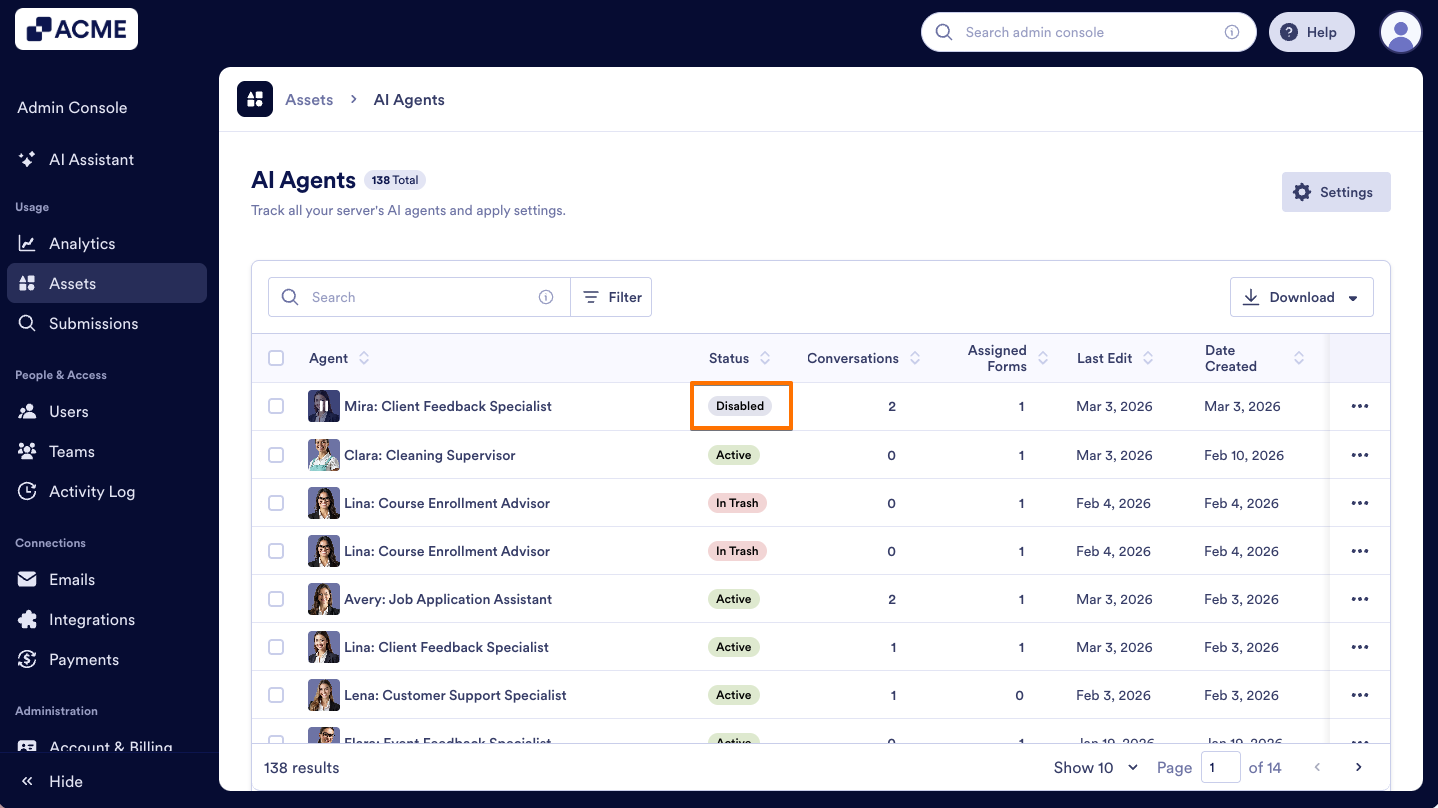
- After selecting the Disable option, your Agent will be inactive until you manually enable it again.
To learn more about disabling and enabling Agents check out our guide: How to Enable or Disable Individual Agents in Your Organization from the Admin Console
Archive
- In the menu, select Archive.
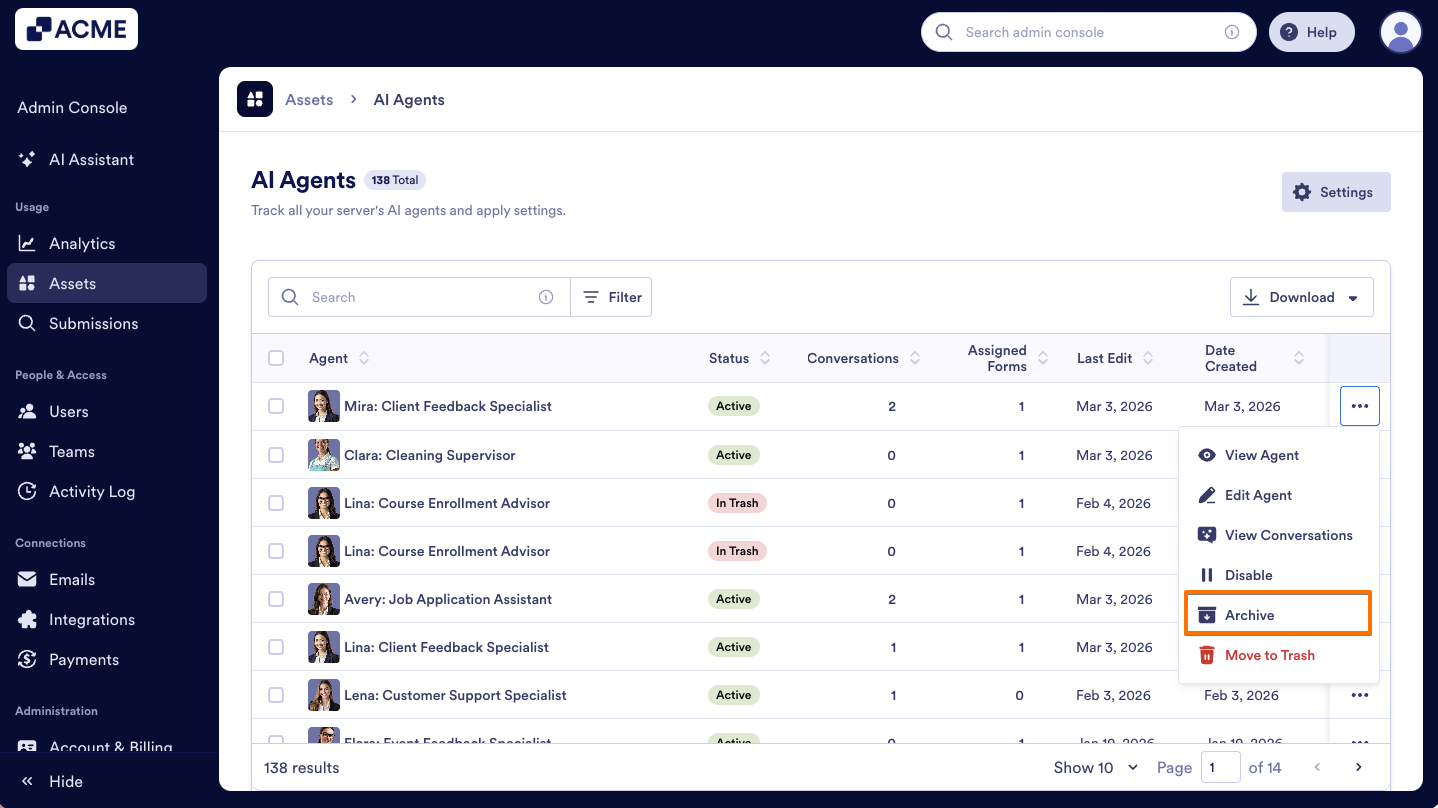
- Now your Agent will be stored and will no longer be active, keeping it accessible for future reference without cluttering your main workspace.
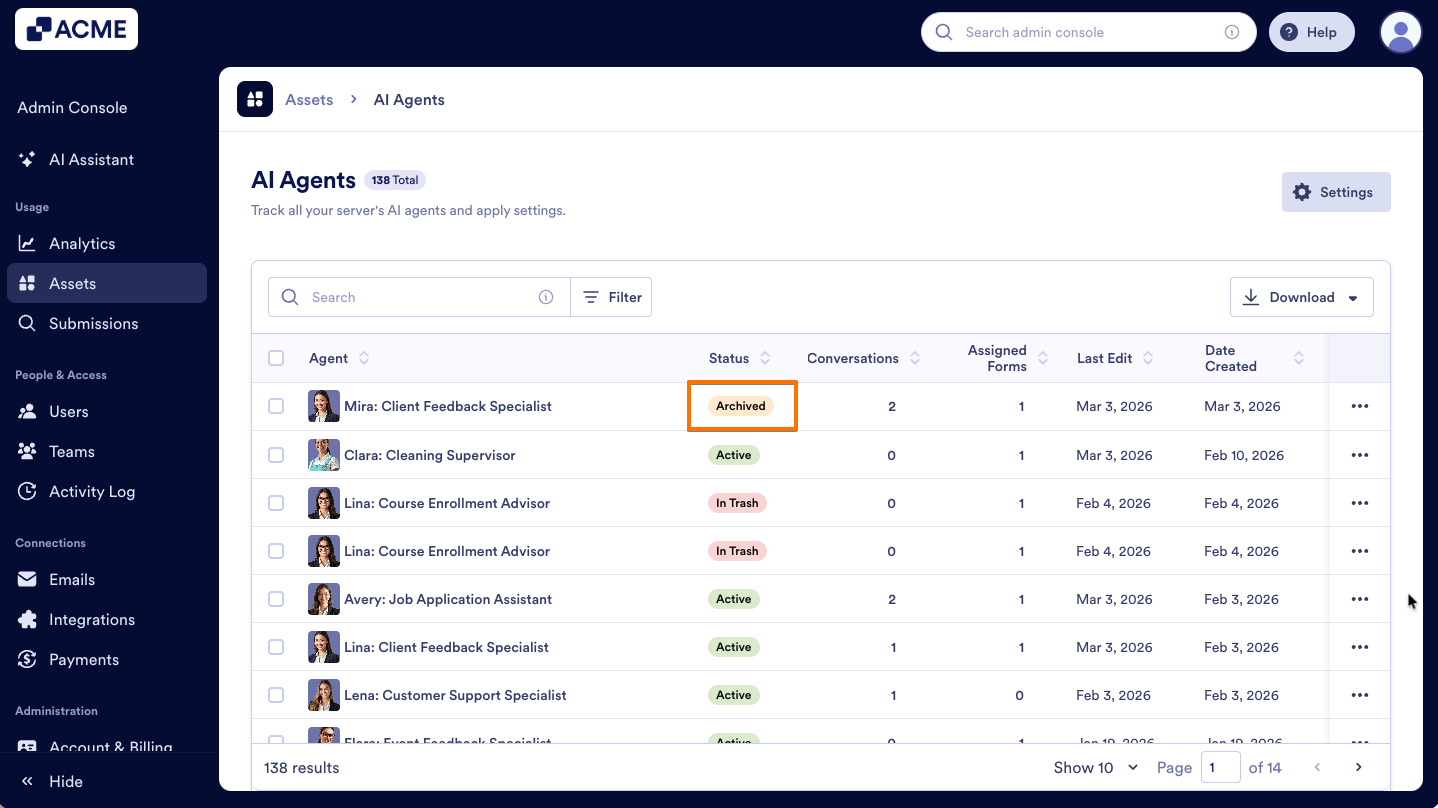
For more detailed information, please refer to our guide titled How to Archive or Unarchive Agents in Your Organization from the Admin Console.
Move to Trash
- In the Three dots menu, select Move to Trash.
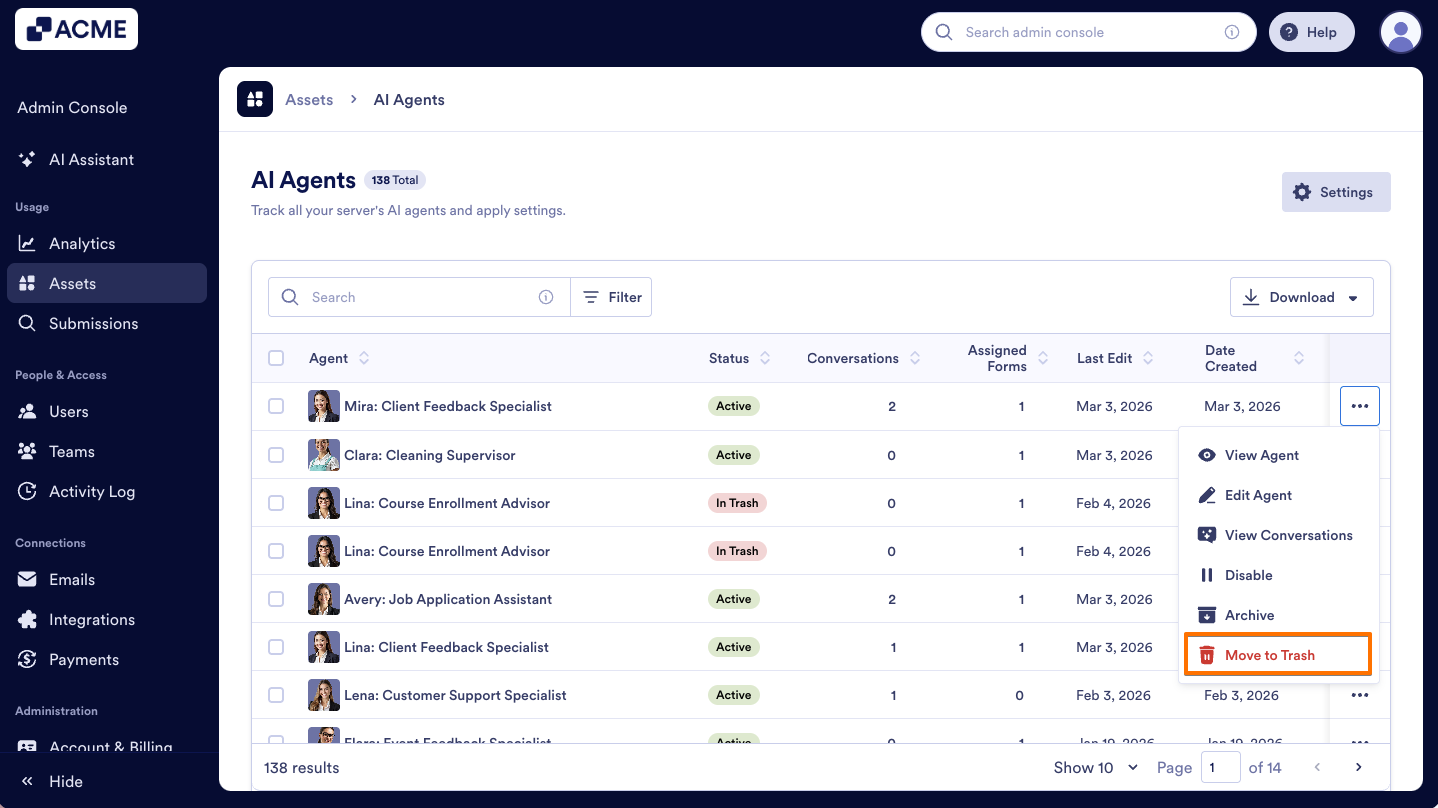
- After deleting the Agent, it will be moved to the creator’s Trash.
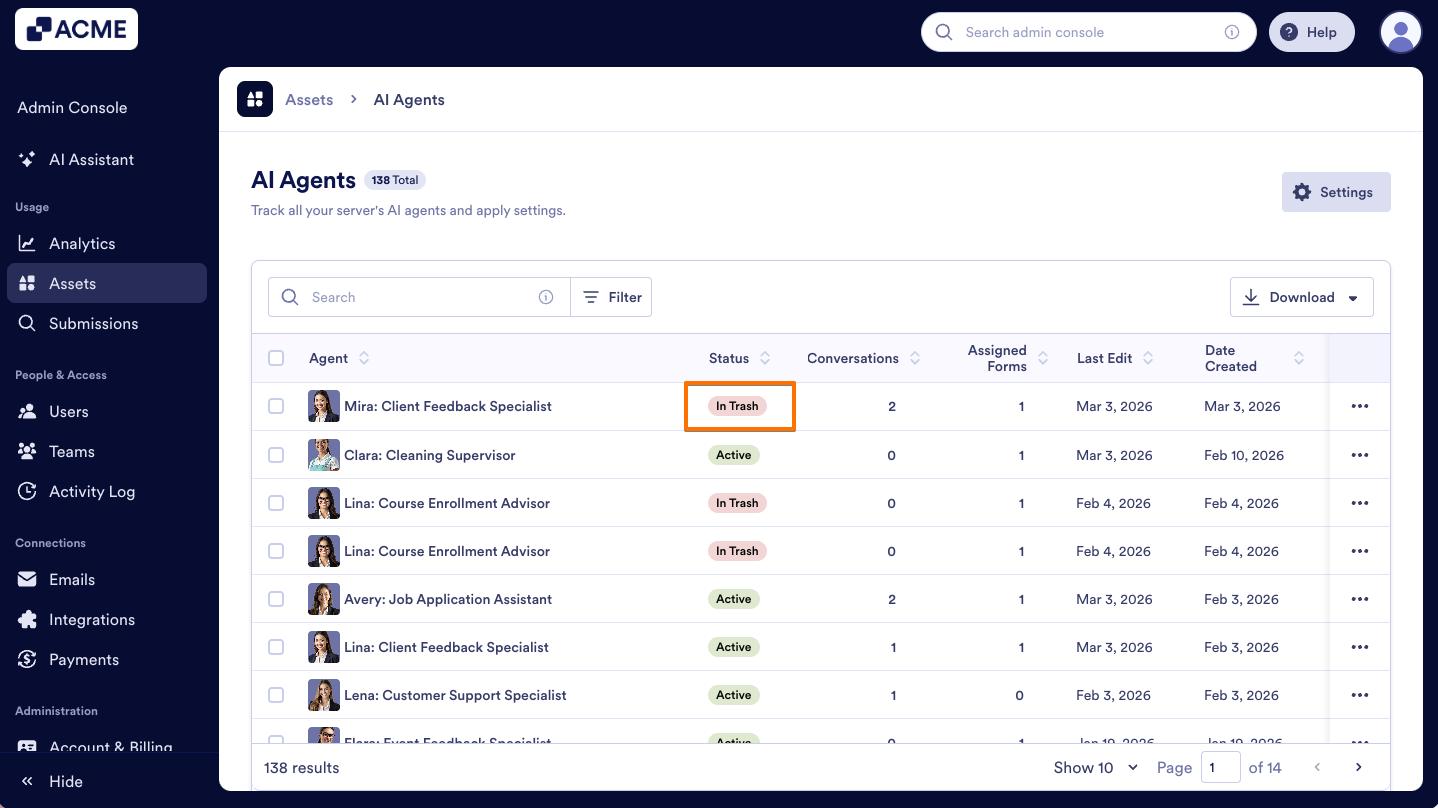
To learn more about moving Agents to the Trash and restoring them, please refer to our guide titled How to Trash or Restore Agents in Your Organization from the Admin Console.
Downloading AI Agent Information
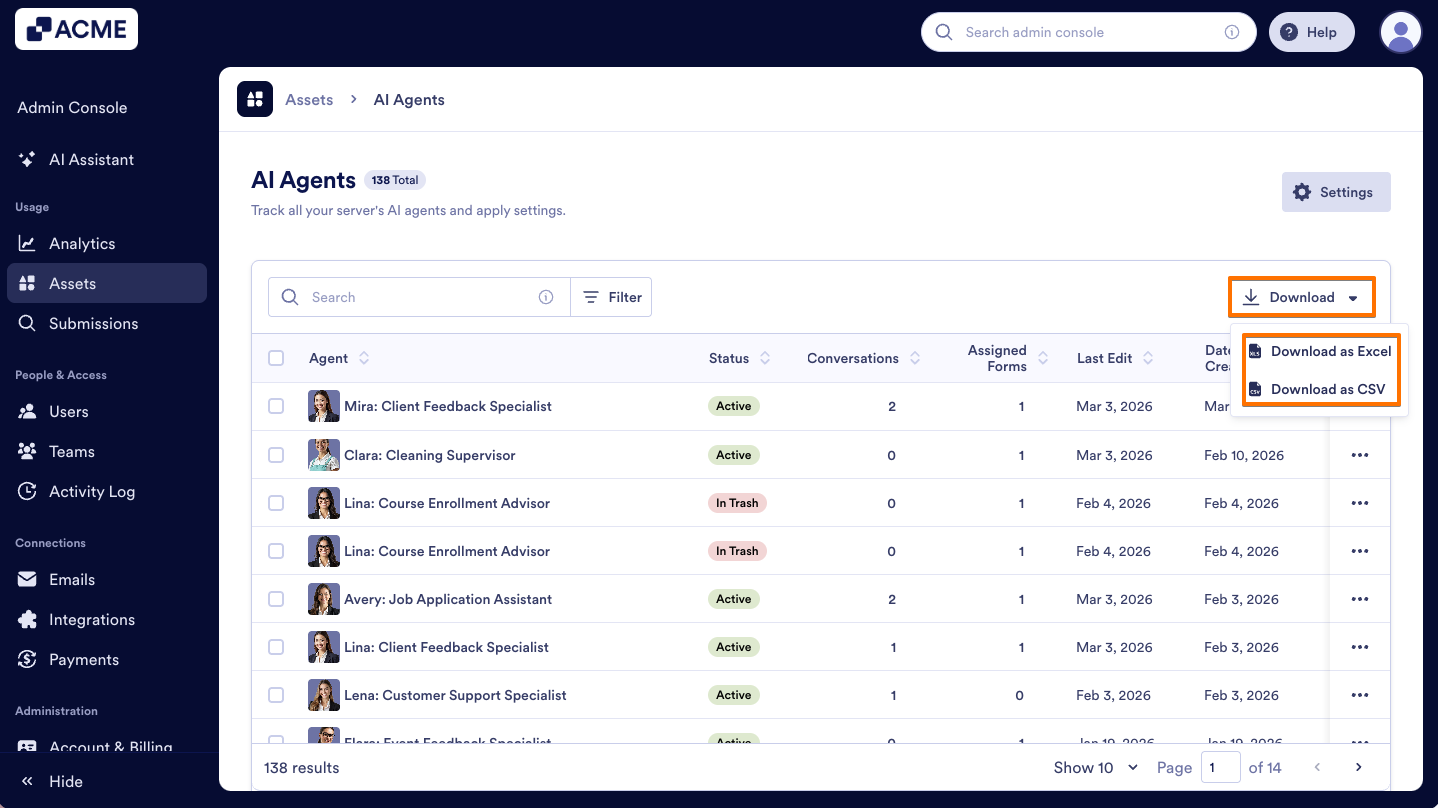
On the AI Agent landing page, you can download a quick overview of document information, including the AI Agent ID, owner, number of conversations, and edit and creation dates.
- In the AI Agents Assets page, on the right, click on Download.
- Then, select the type of download you’d like – CSV or Excel.
Filtering AI Agents
You can easily locate the Agents you need by applying filters such as Asset Owner, Status, Last Edited or Date Created.
- In the Admin Console’s AI Agents Assets page, on the right side of the Search bar, click on Filter.
- Select filters based on your search criteria, and the matching agents will appear automatically.
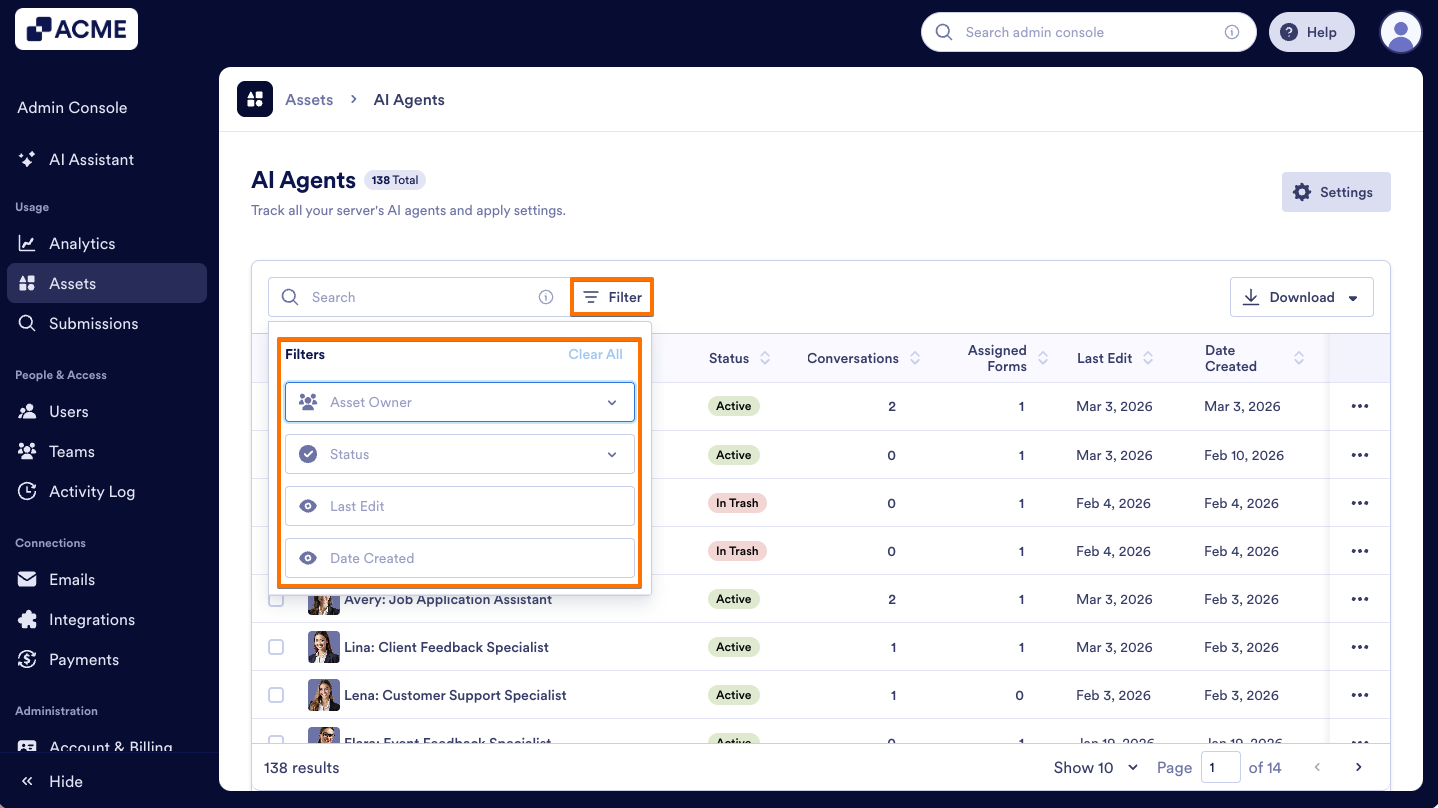
Asset Owner: Filter agents owned by individual users or those owned by a team.
Status: View agents that are Active, Disabled, In Trash, or Archived.
Last Edit: Filter agents by the date they were last modified.
Date Created: Filter agents by their creation date.
Sorting the Agents by Categories
To organize your agents by category, just click on the Column Header for the data you want to prioritize.
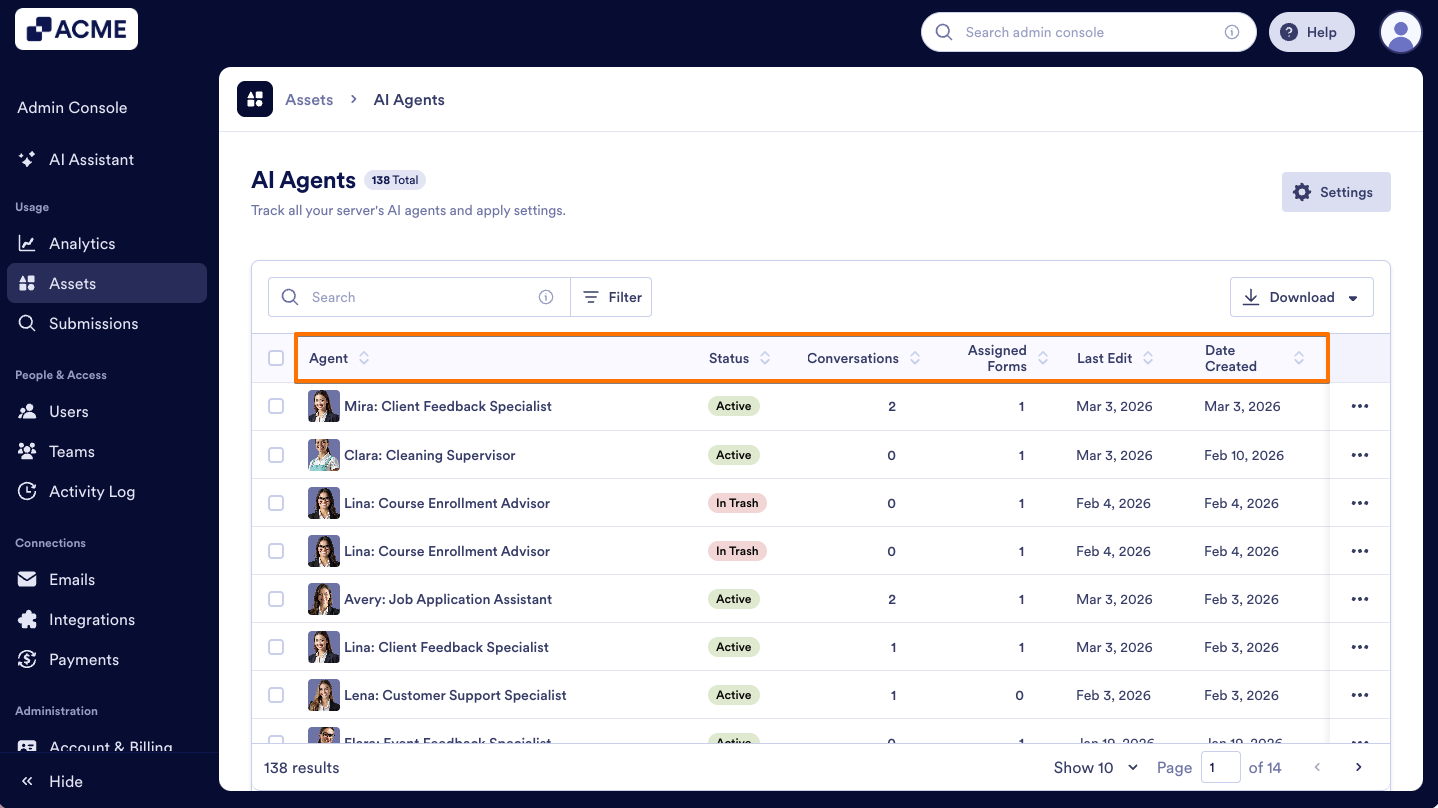
Agent: Click this header to sort your AI Agents alphabetically. You can switch between A–Z or Z–A to quickly locate a specific Agent.
Status: Use this column to group Agents by their current state. Easily view all active, disabled, archived, or trashed Agents together.
Conversations: Sort Agents by the number of conversations they have handled, from highest to lowest or vice versa.
Assigned Forms: Organize Agents based on how many forms they are connected to, helping you identify which Agents are widely deployed across your organization.
Last Edit: Sort Agents by the date they were last modified to quickly find recently updated configurations.
Date Created: Arrange Agents by their creation date to easily identify your newest or oldest Agents.

Send Comment: