As an Admin, you can use the Admin Console to view and manage all assets that have been shared with specific users in your organization.
Viewing and Managing Shared Assets
You can view and manage your organization’s shared assets in two different locations—starting from your User Management screen or within the Asset Tab located in a specific user’s profile. We’ll walk through the steps for both options together, down below:
From the User Management Screen
- Starting in the Admin Console, click on Users in the menu on the left side of the page.
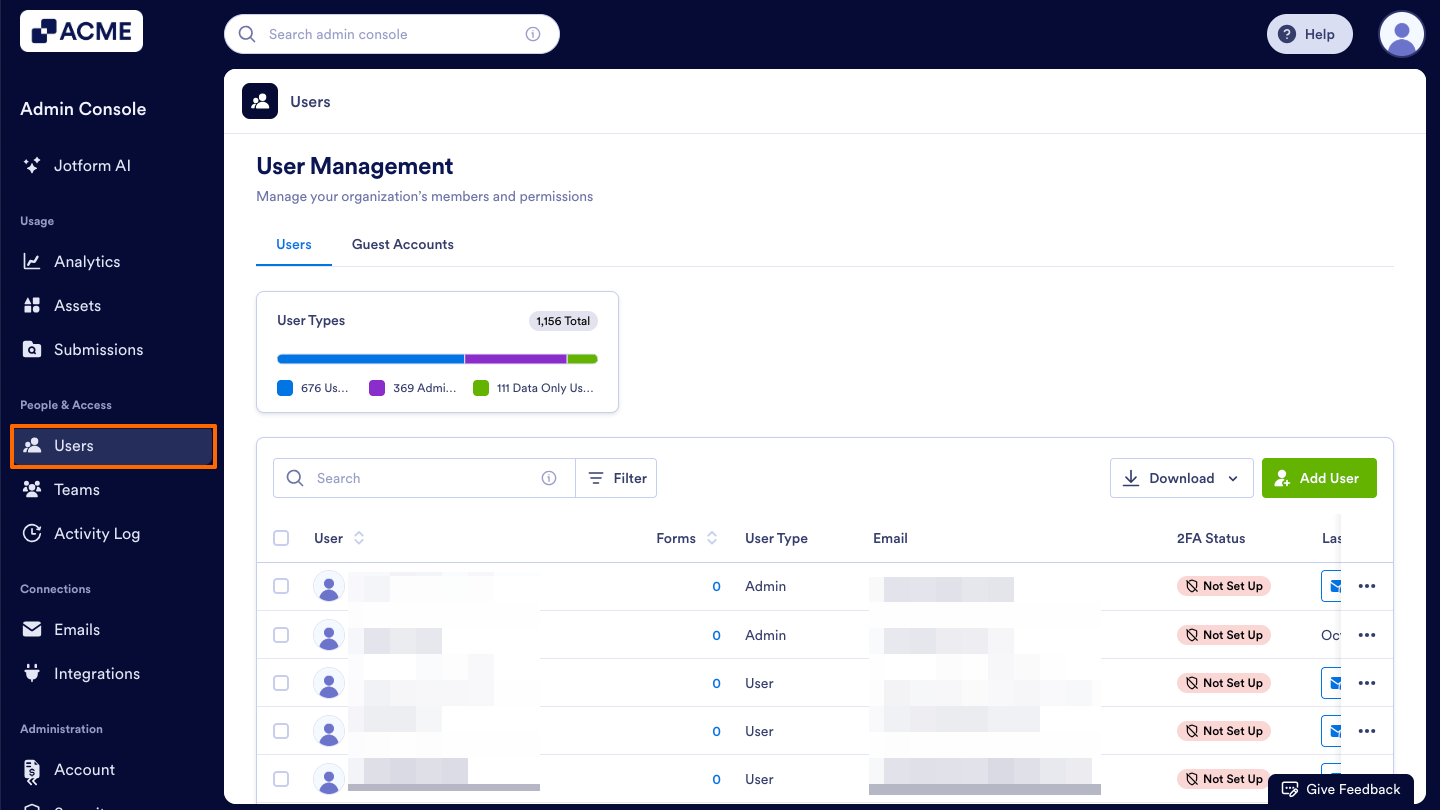
- Next, click on the Users tab located at the top of the User Management page.
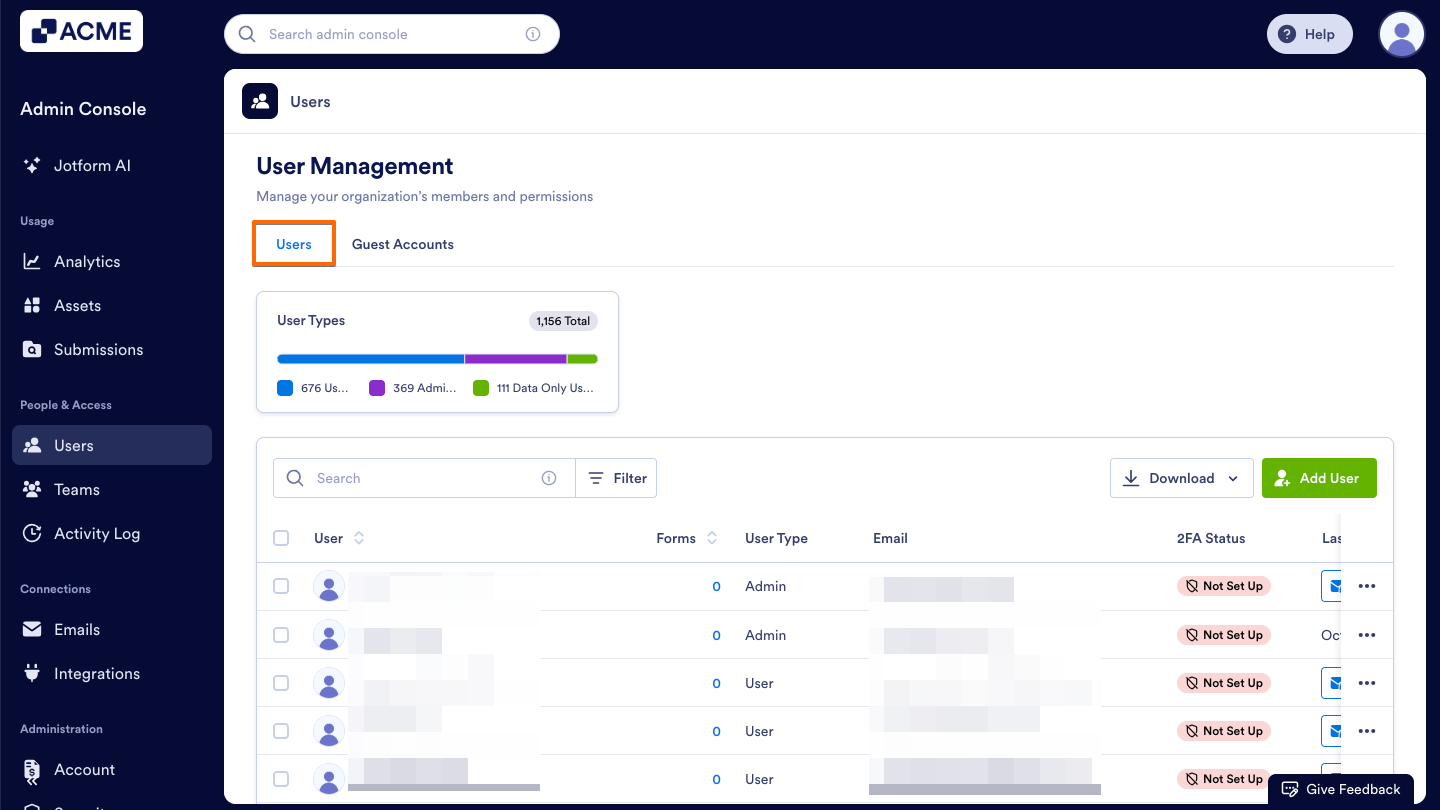
- Then, decide which user’s assets you’d like to view and click the Three Dots icon to the right of their name.
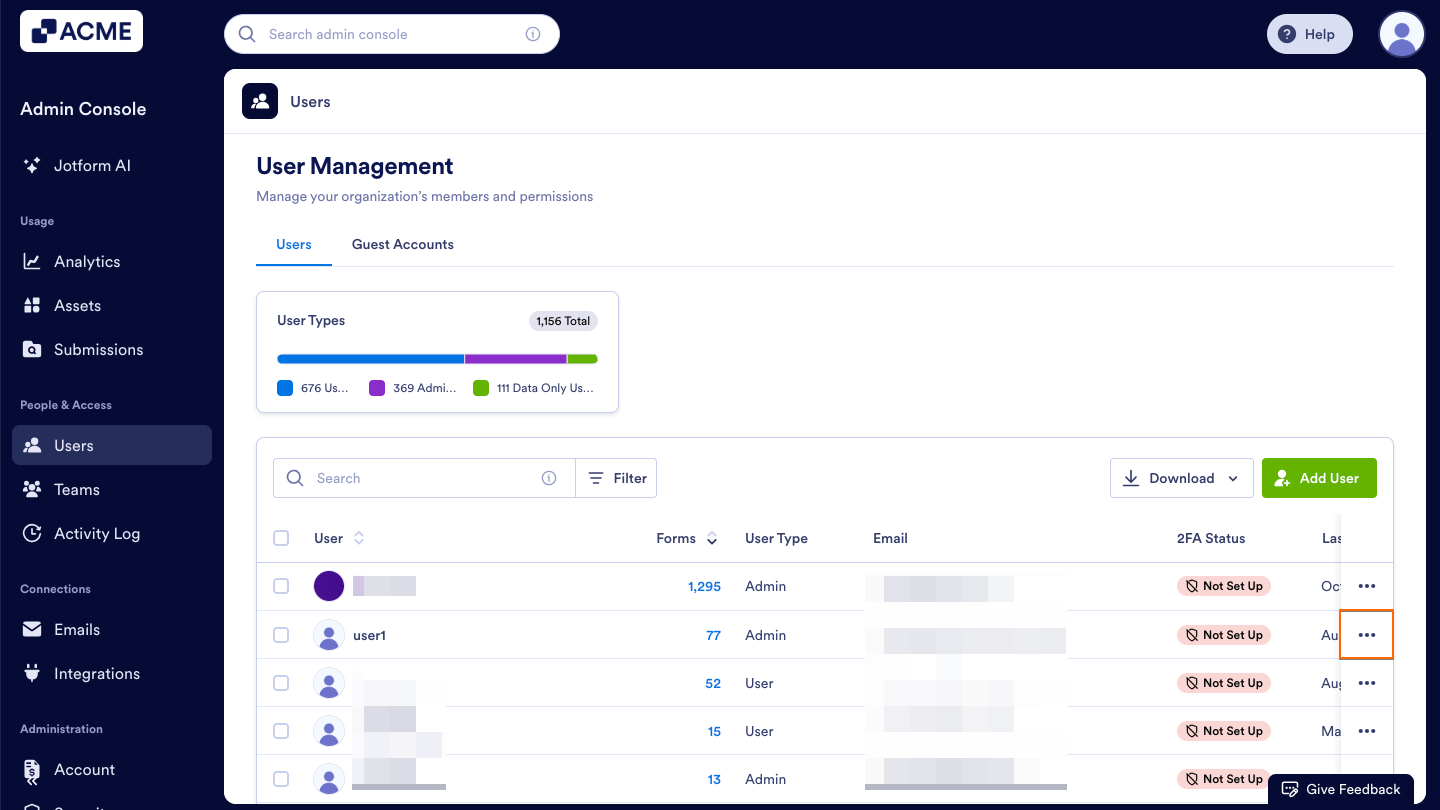
- Now, select Details in the dropdown menu.
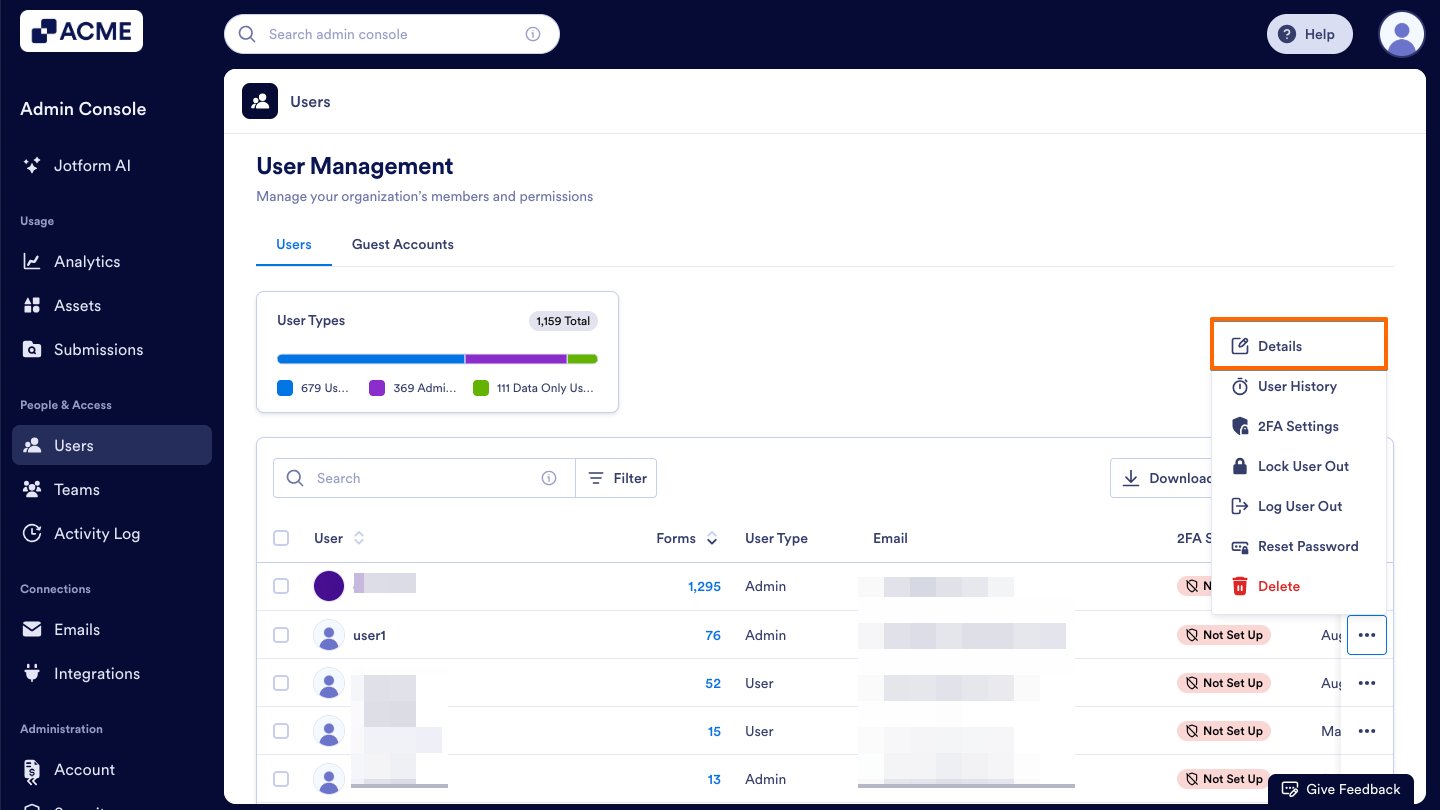
- From here, click on the Assets tab in the sidebar on the right side of the page.
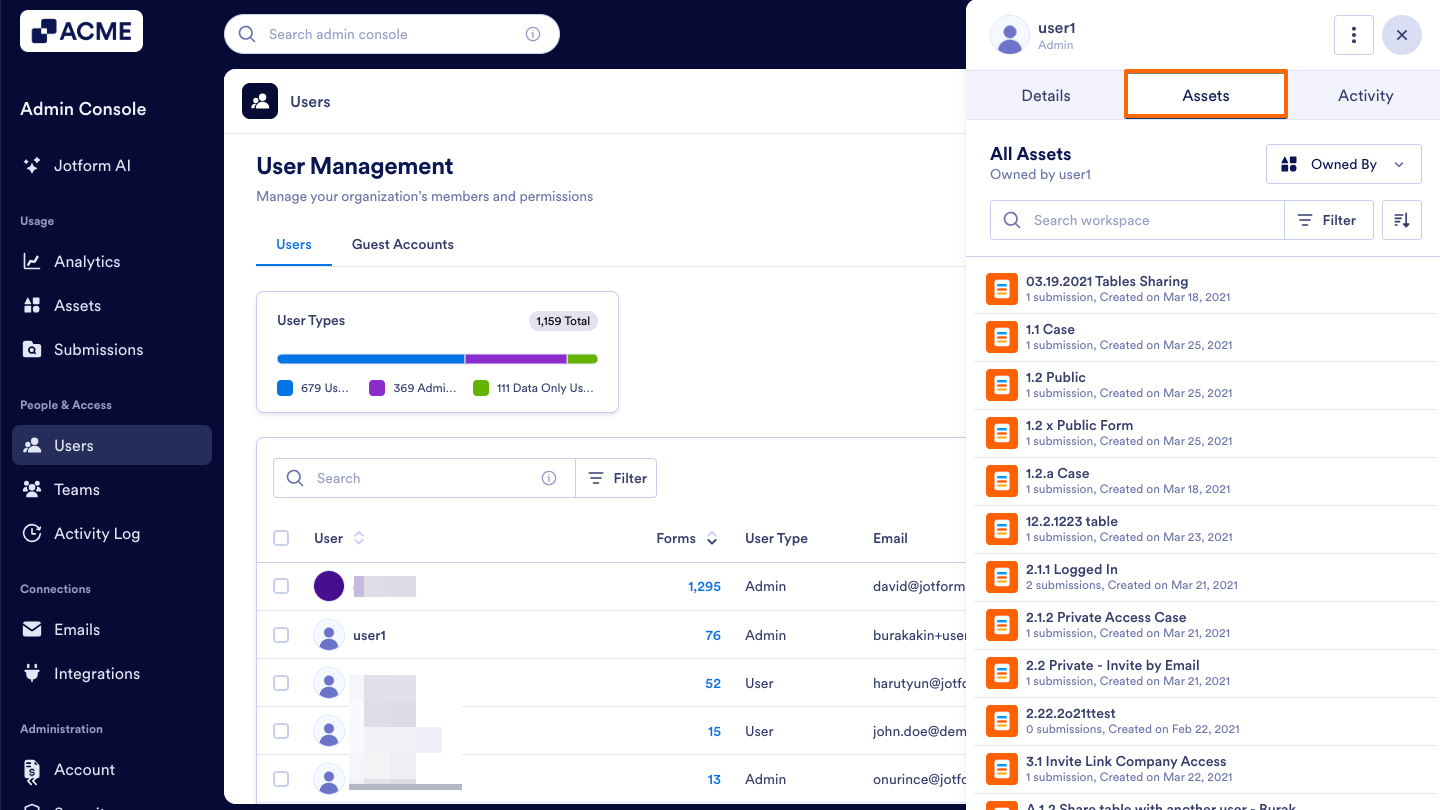
- Finally, make sure that Shared is selected in the dropdown menu on the right.
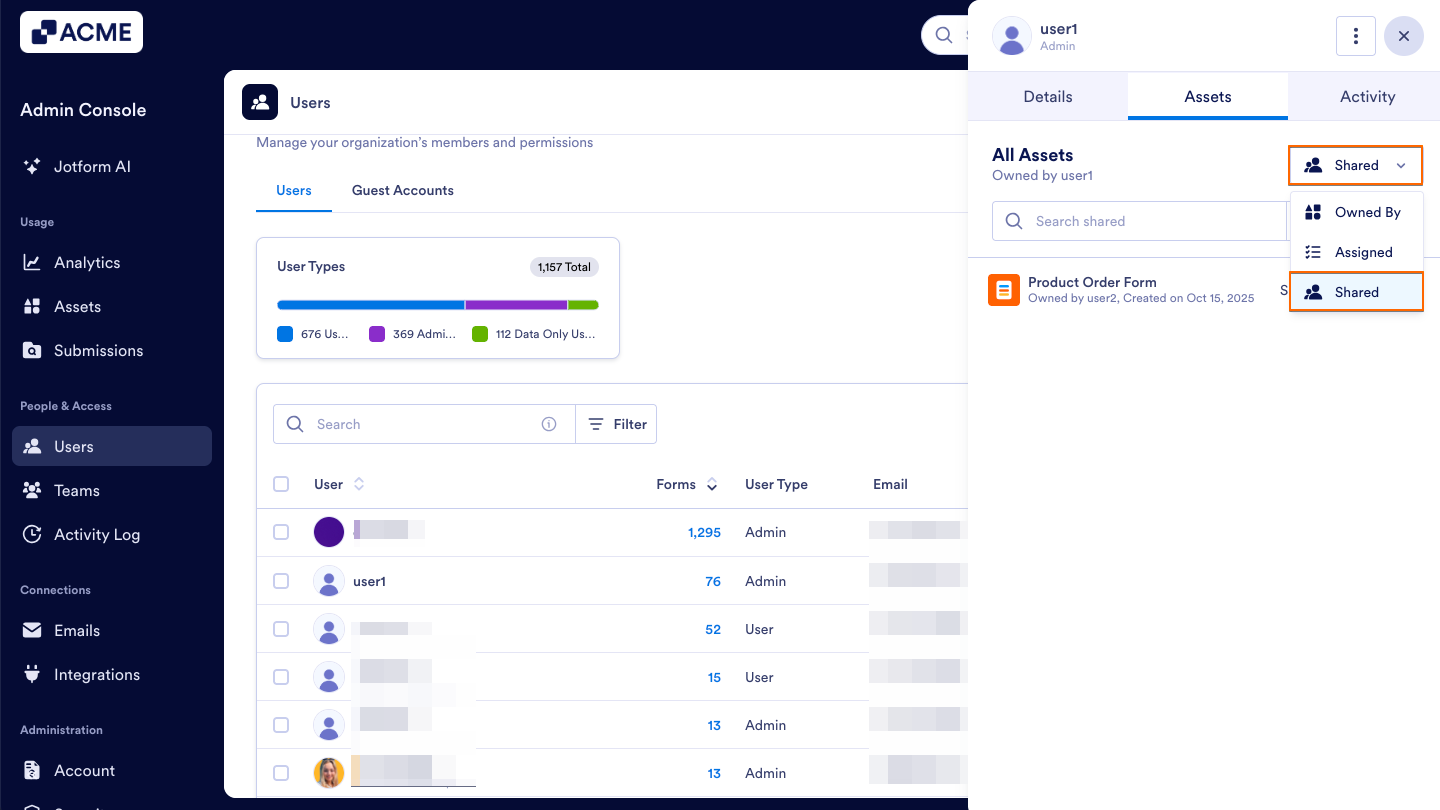
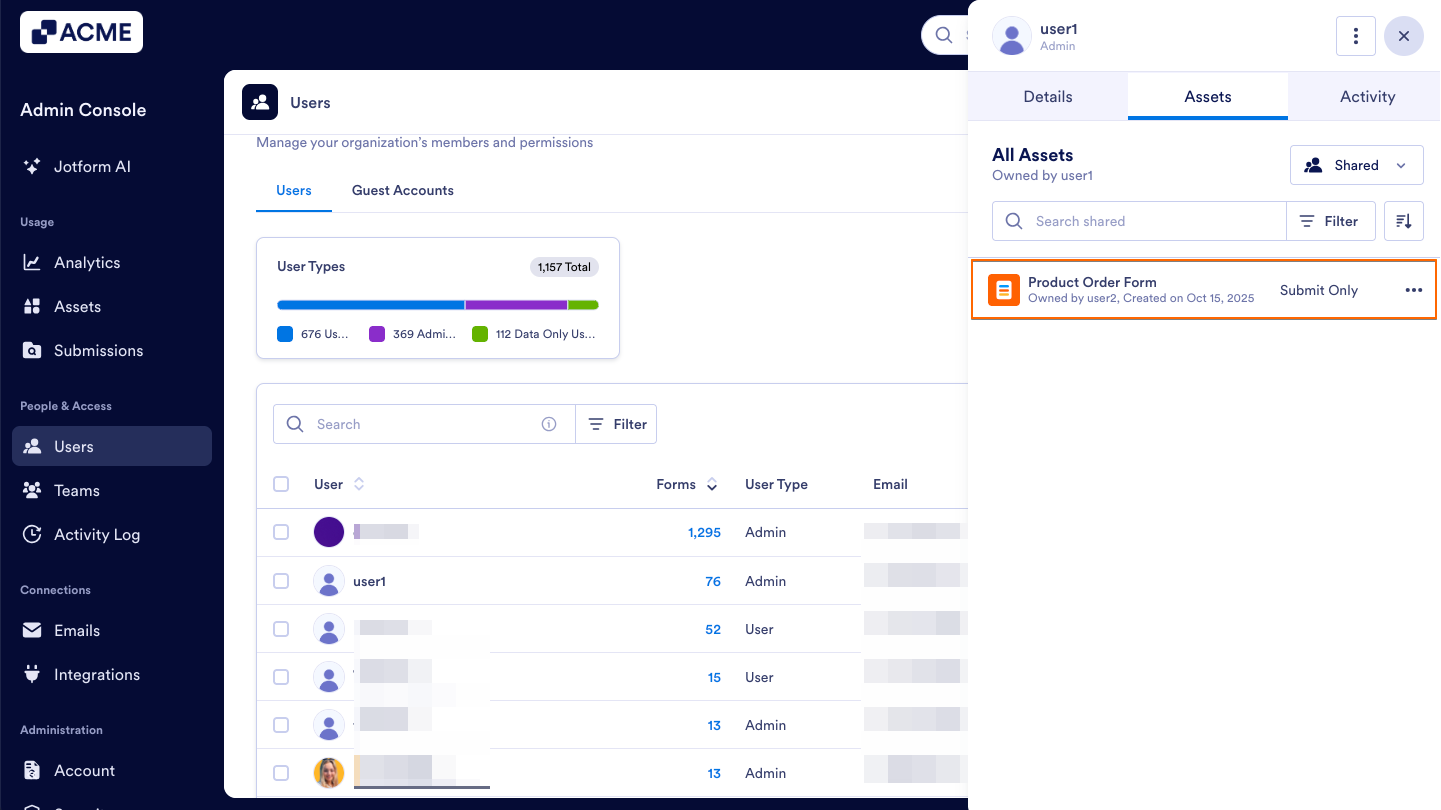
You will now see a list of the assets that have been shared with the selected user, below:
From the Assets Tab within a Specific User’s Profile
- Starting in the Admin Console, click on Users in the menu on the left side of the page.
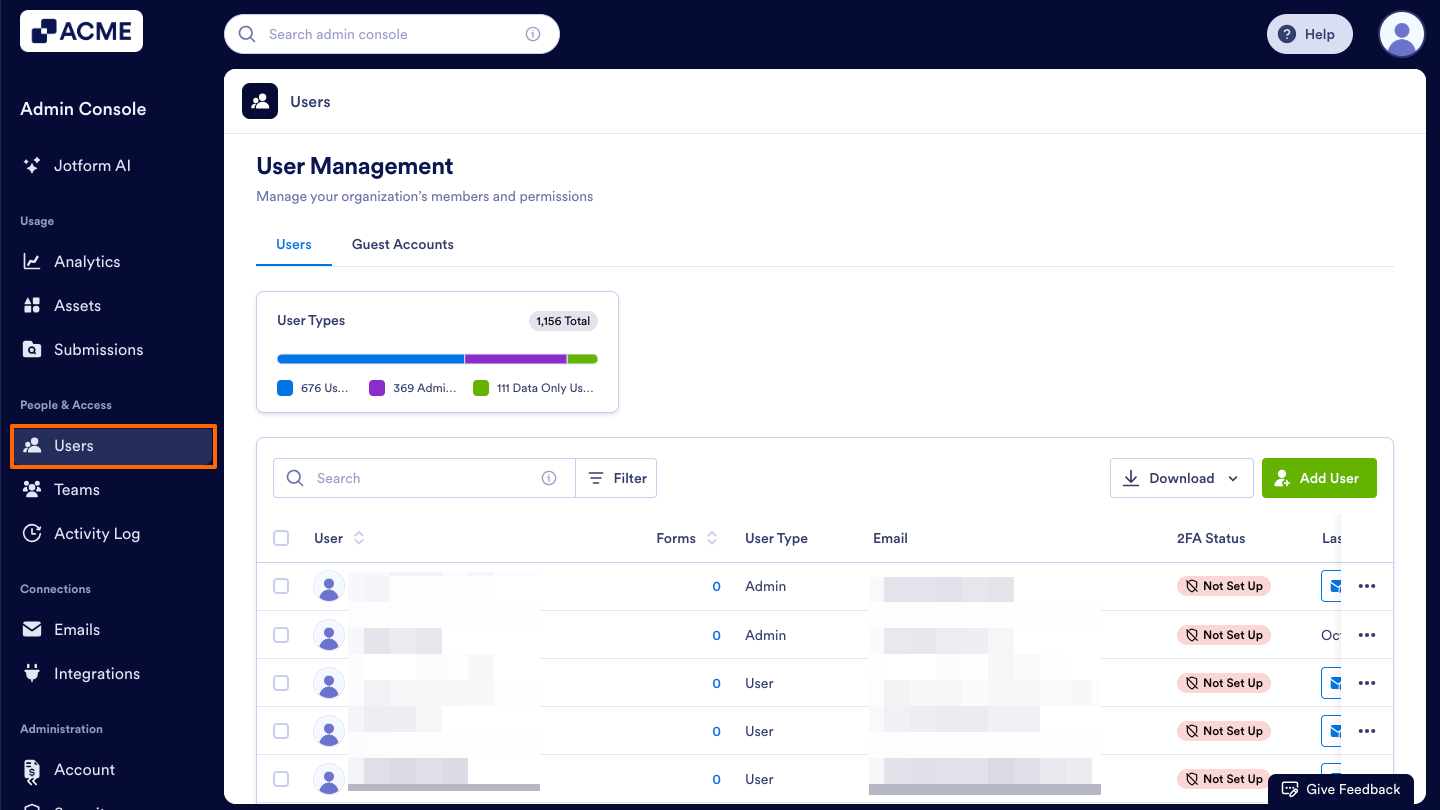
- Next, click on the Users tab located at the top of the User Management page.
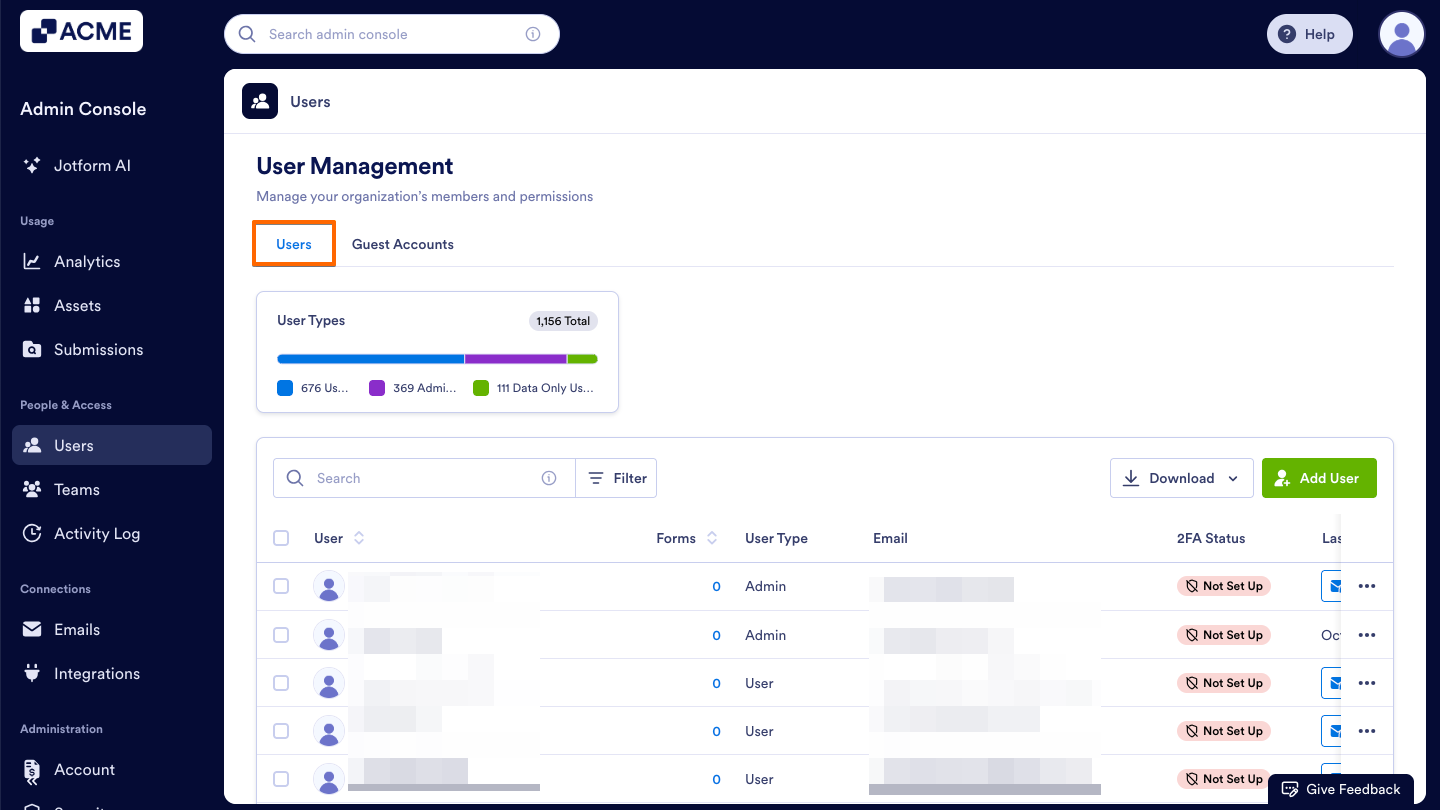
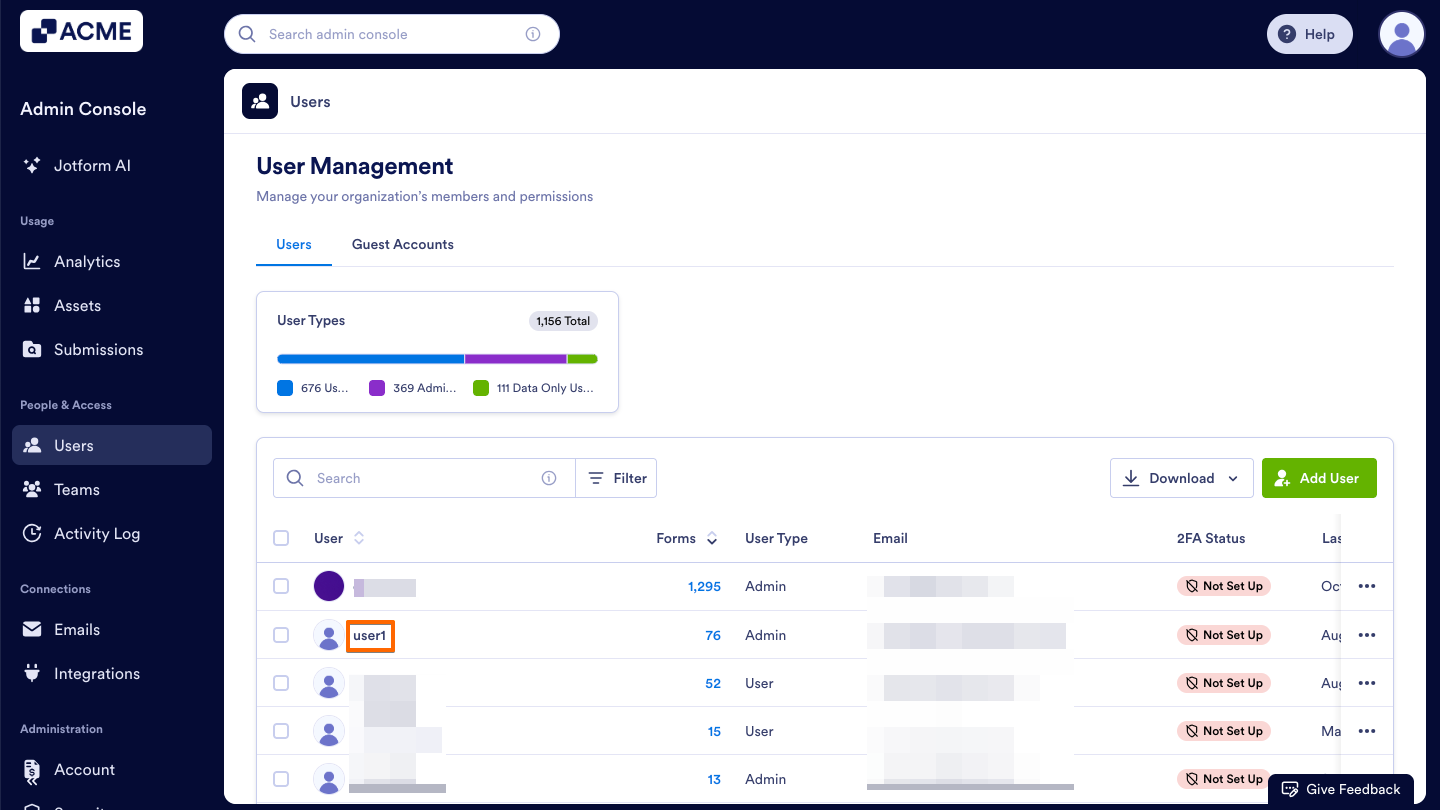
- Then, decide which user’s assets you’d like to view and click on their username.This opens a sidebar on the right side of the screen that contains several tabs, such as Details, Assets, and Activity.
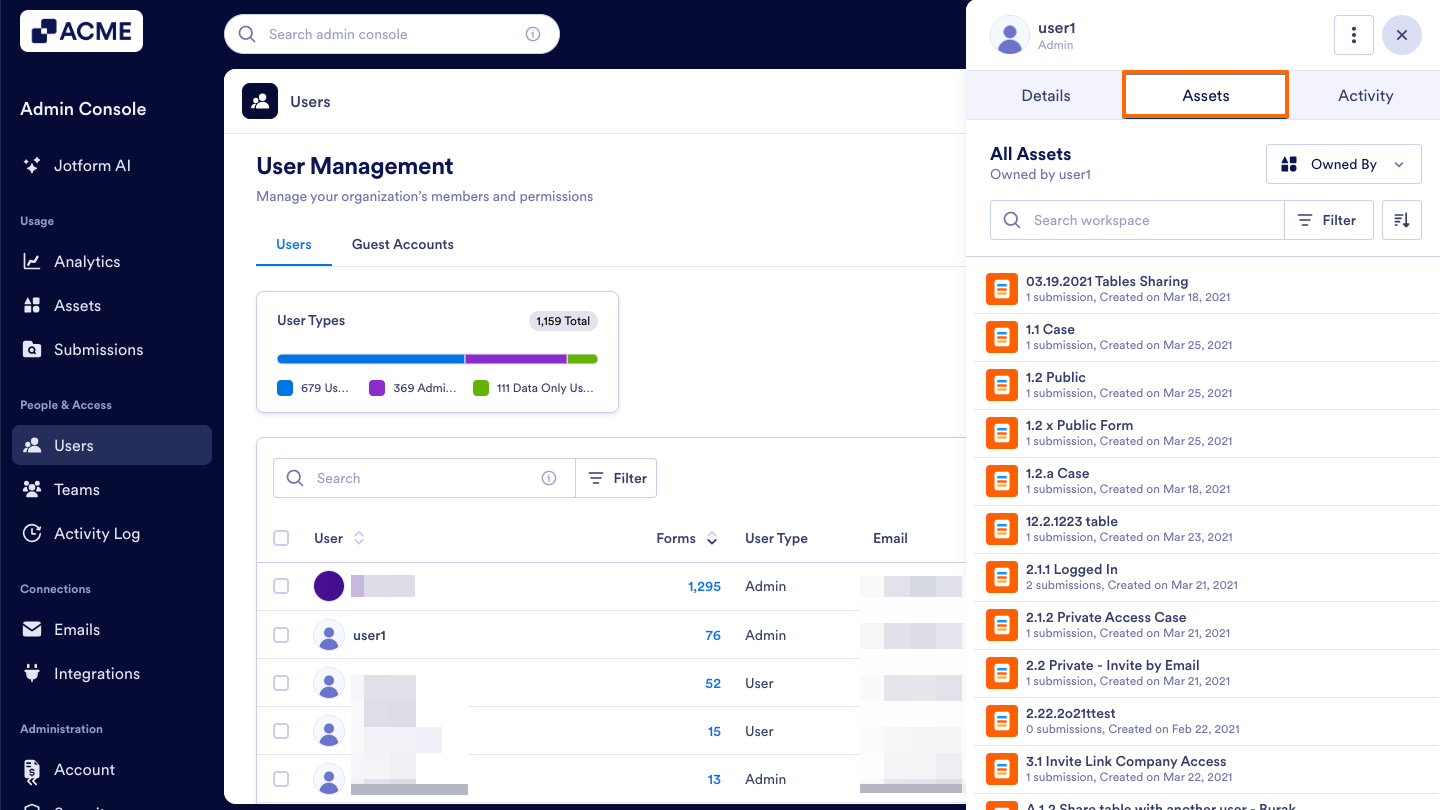
- From here, click on the Assets tab in the sidebar on the right side of the page.
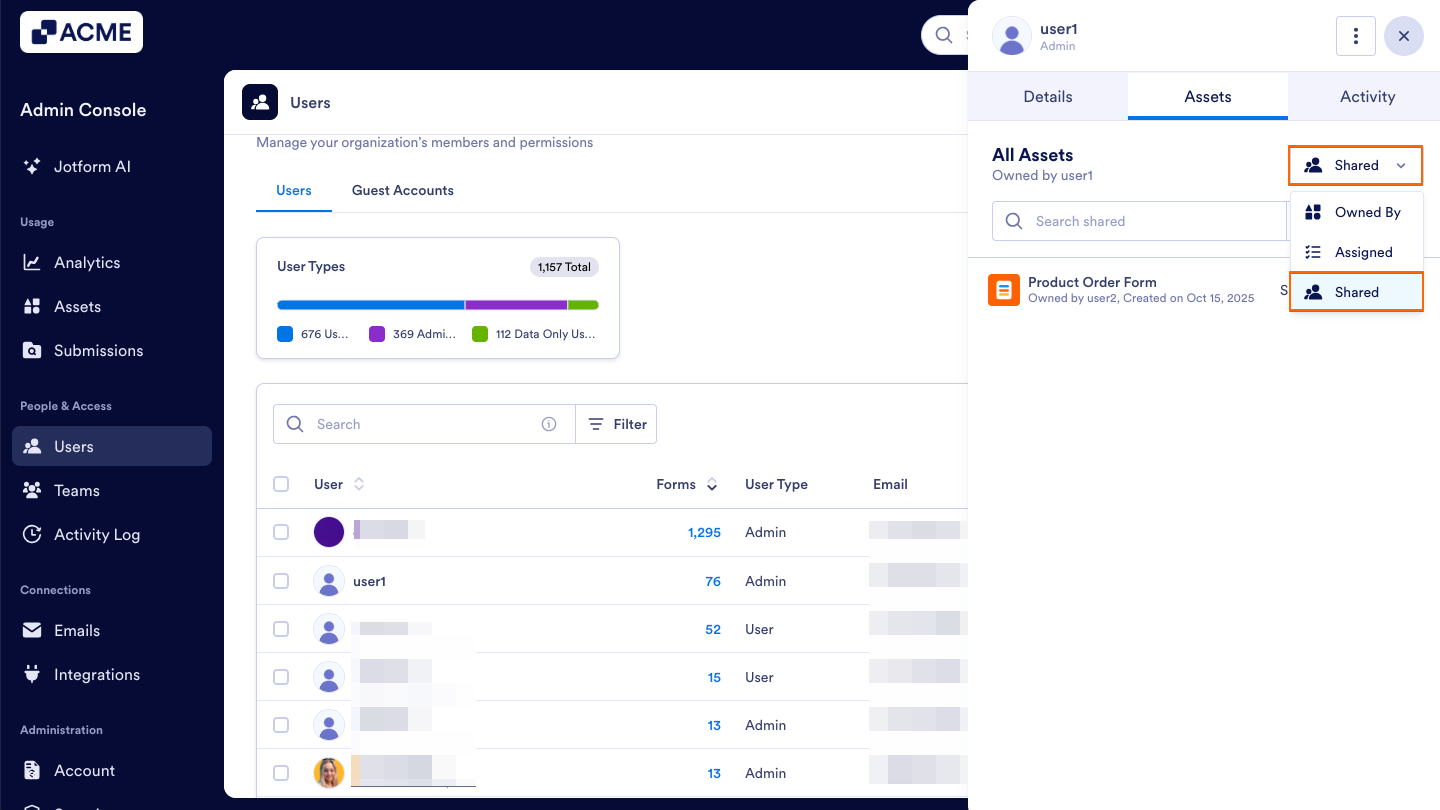
- Finally, make sure that Shared is selected in the dropdown menu on the right.
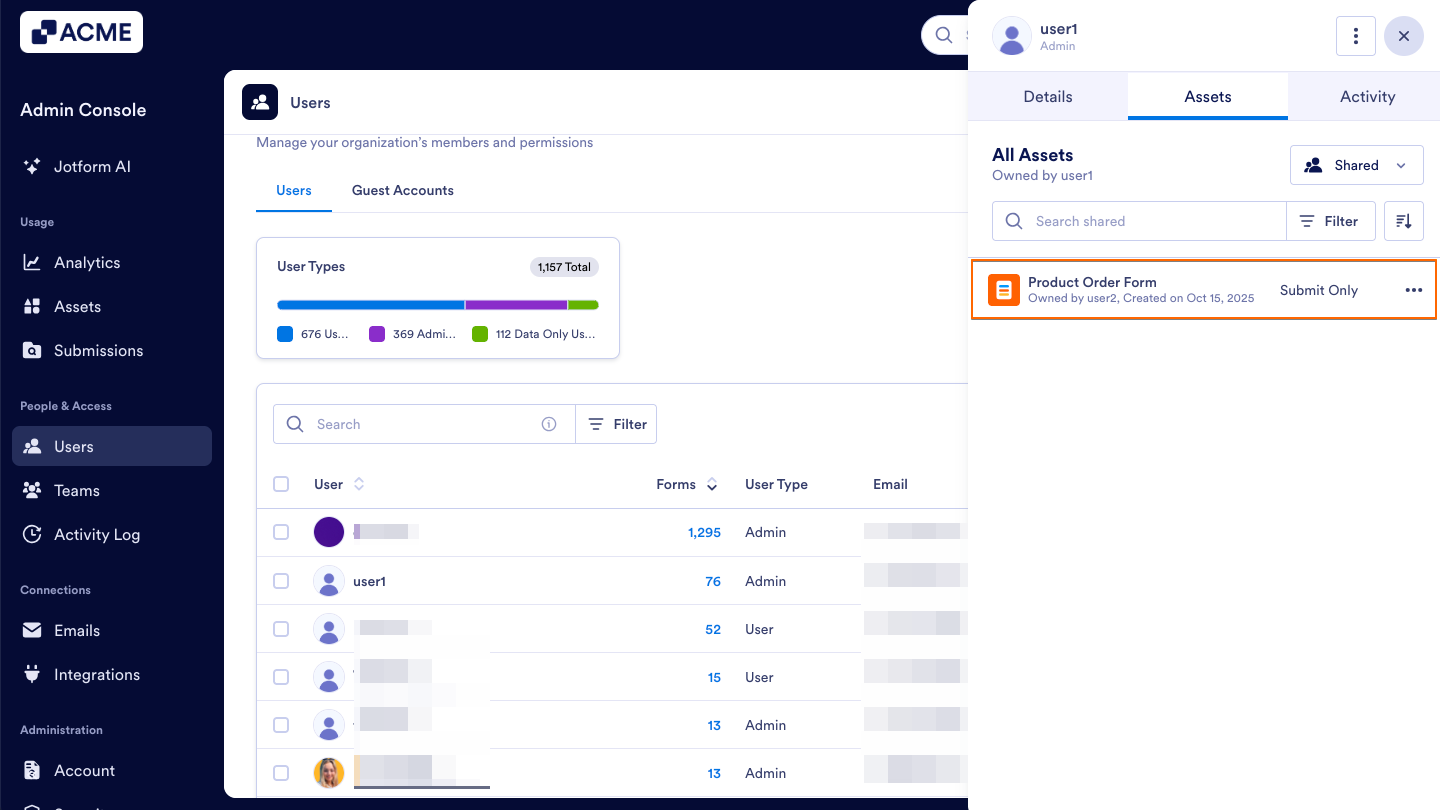
You will now see a list of the assets that have been shared with the selected user, below:
Tip
If you’d like to view assets that the user owns instead of what’s been shared with them, see How to View Users Owned Assets in Your Organization from the Admin Console.
Managing Shared Assets
The Shared asset list located within your user profiles displays information about each asset’s Owner, Name, and Type. It also indicates which role and permissions that user currently has in relation to that asset.A Three Dot menu is located on the right side of each listed item, offering different quick actions based on the asset type.
Below, we’ve provided a detailed breakdown of all shareable asset types and the permissions and quick actions available for each asset:
Forms
Permission Types
- Submit Only: The user only has permission to submit the form.
- Submit & View Later: The user can submit the form and view their submissions.
- Submit & Edit Later: The user can submit the form, as well as view and edit their submissions.
Quick Actions
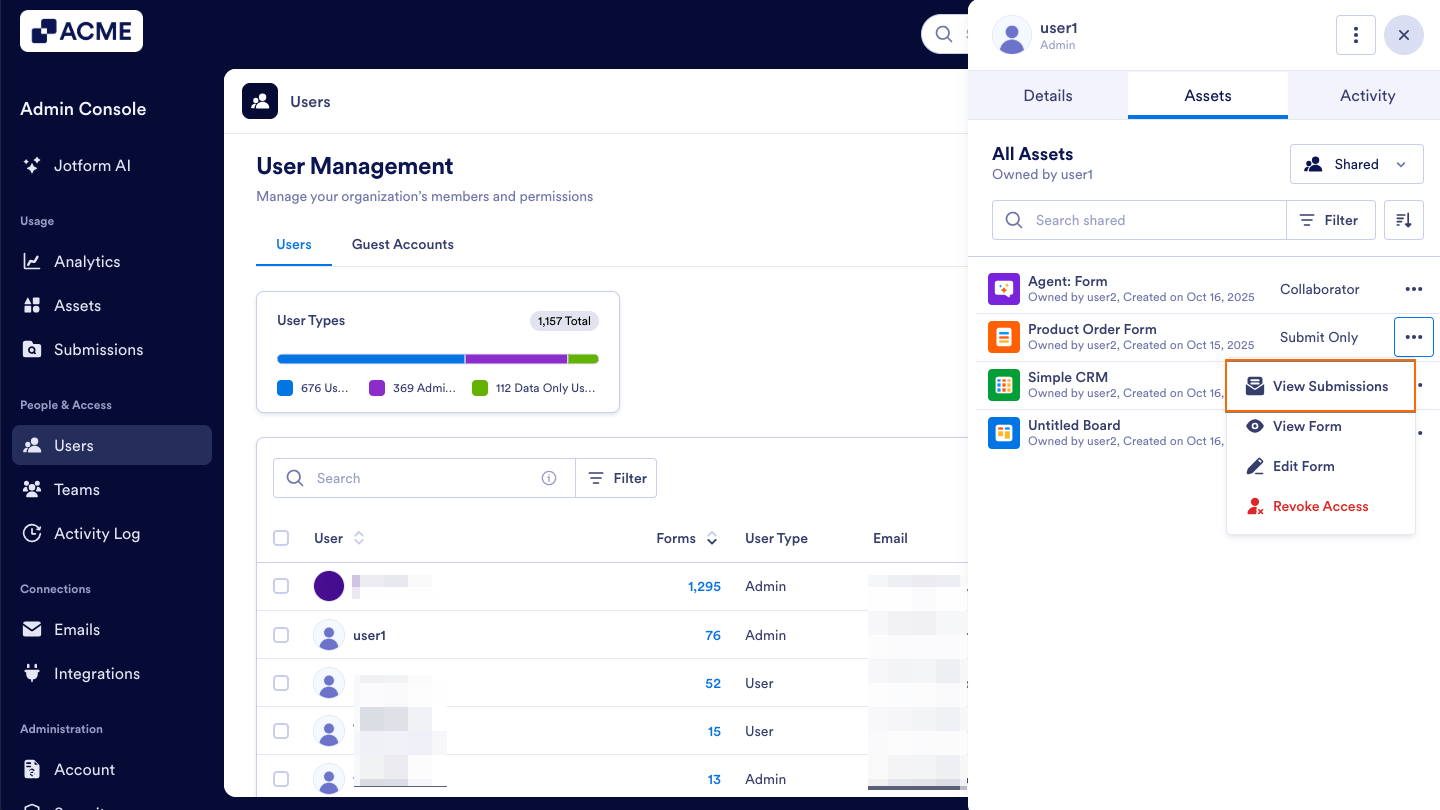
- View Submissions: Opens the submission table for the shared form.
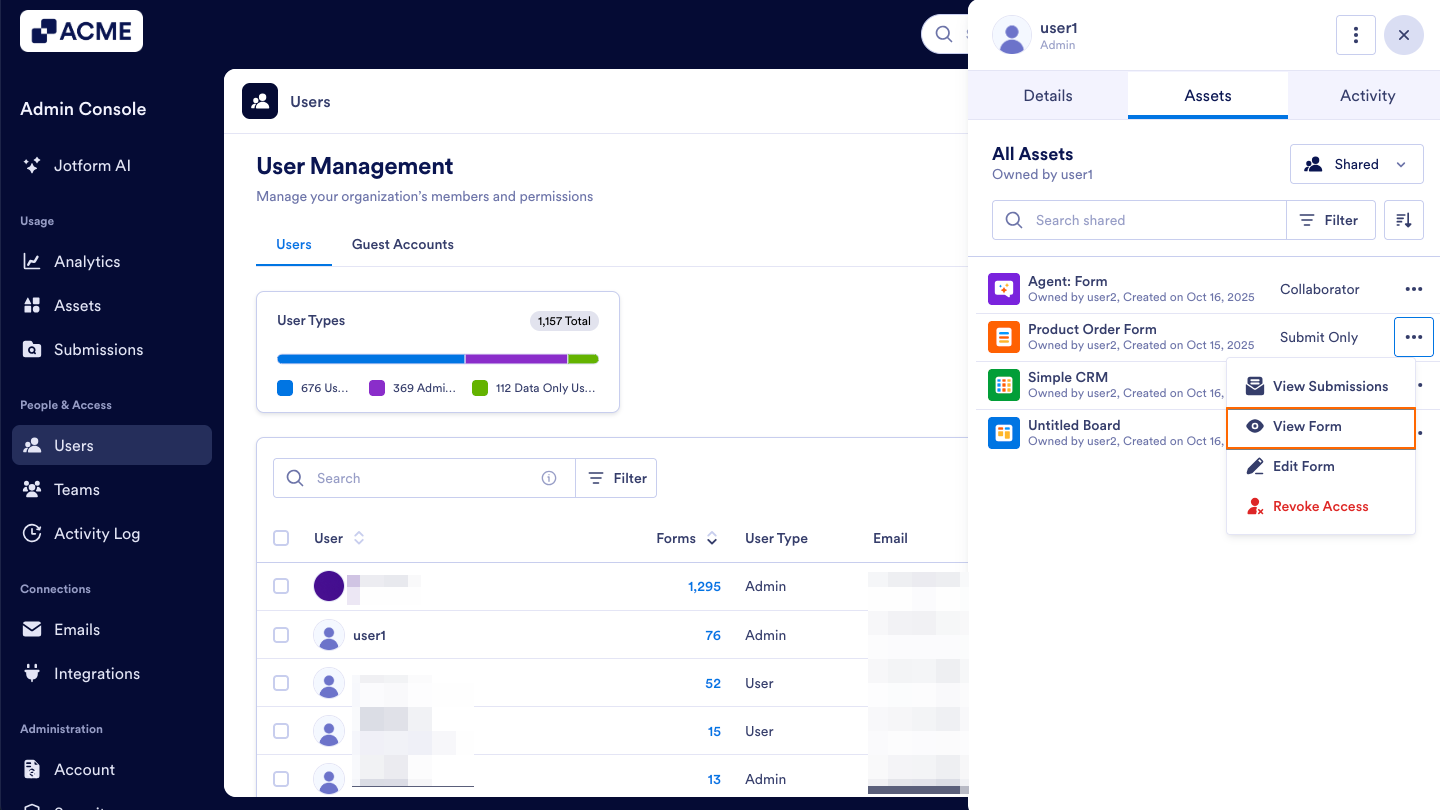
- View Form: Opens the form in preview mode for submitting responses.
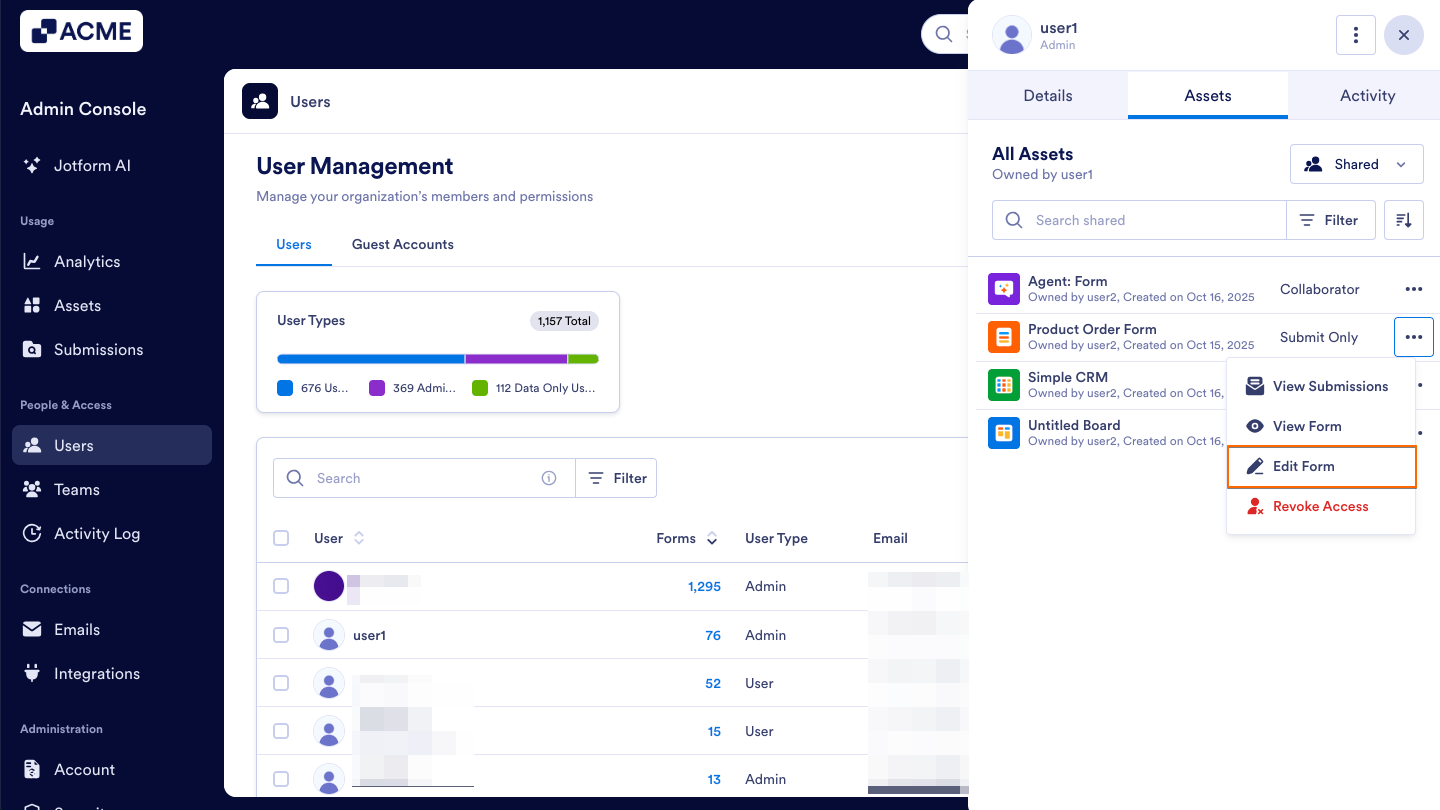
- Edit Form: Opens the form in the builder to edit its setup and content.
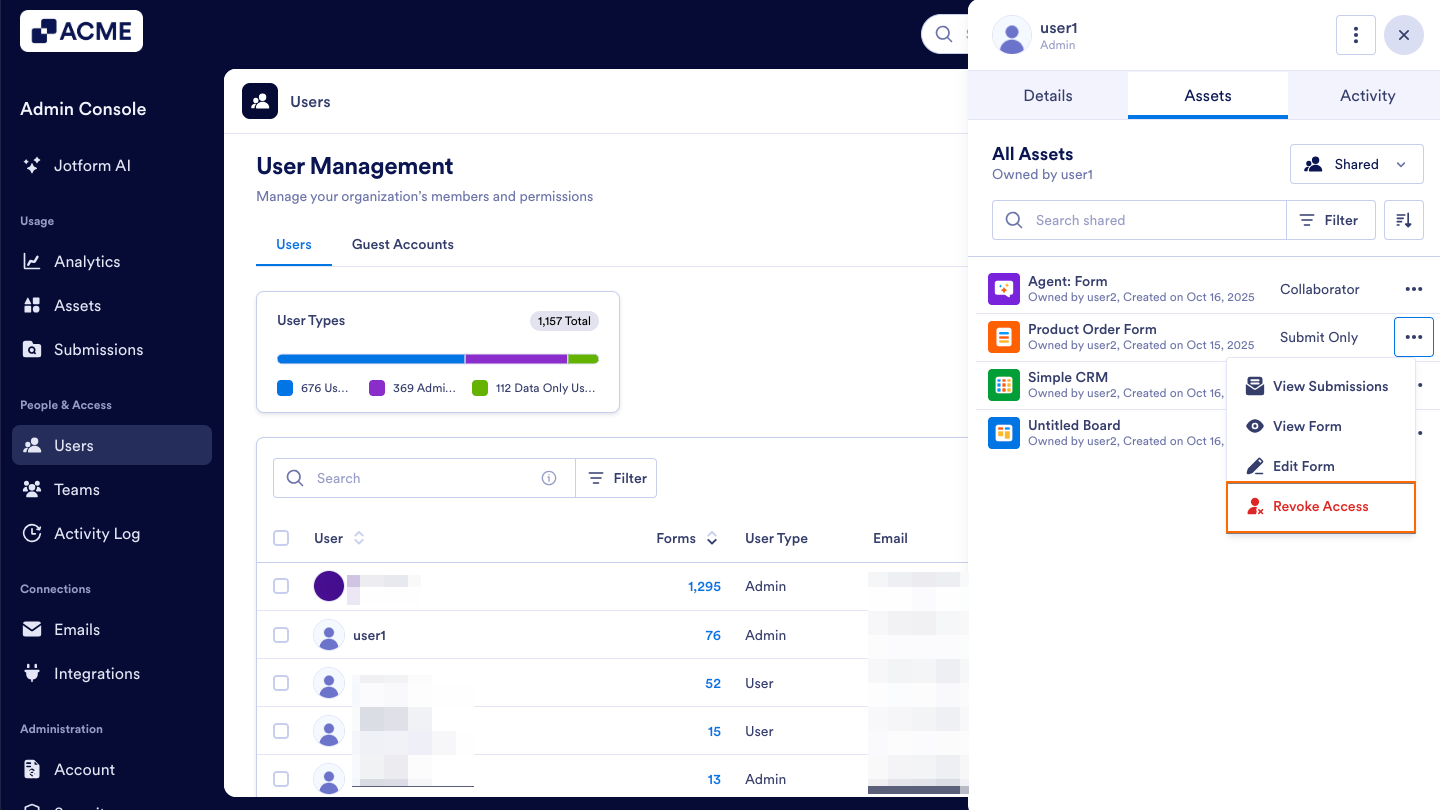
- Revoke Access: Removes the user’s access to the form.
Tables
Permission Types
- Read Only: The user can only view the table data.
- Commenter: The user can view the table data and add comments.
- Collaborator: The user can view and edit table data but cannot change any settings.
Quick Actions
- View Table: Opens the shared table to review submission data.
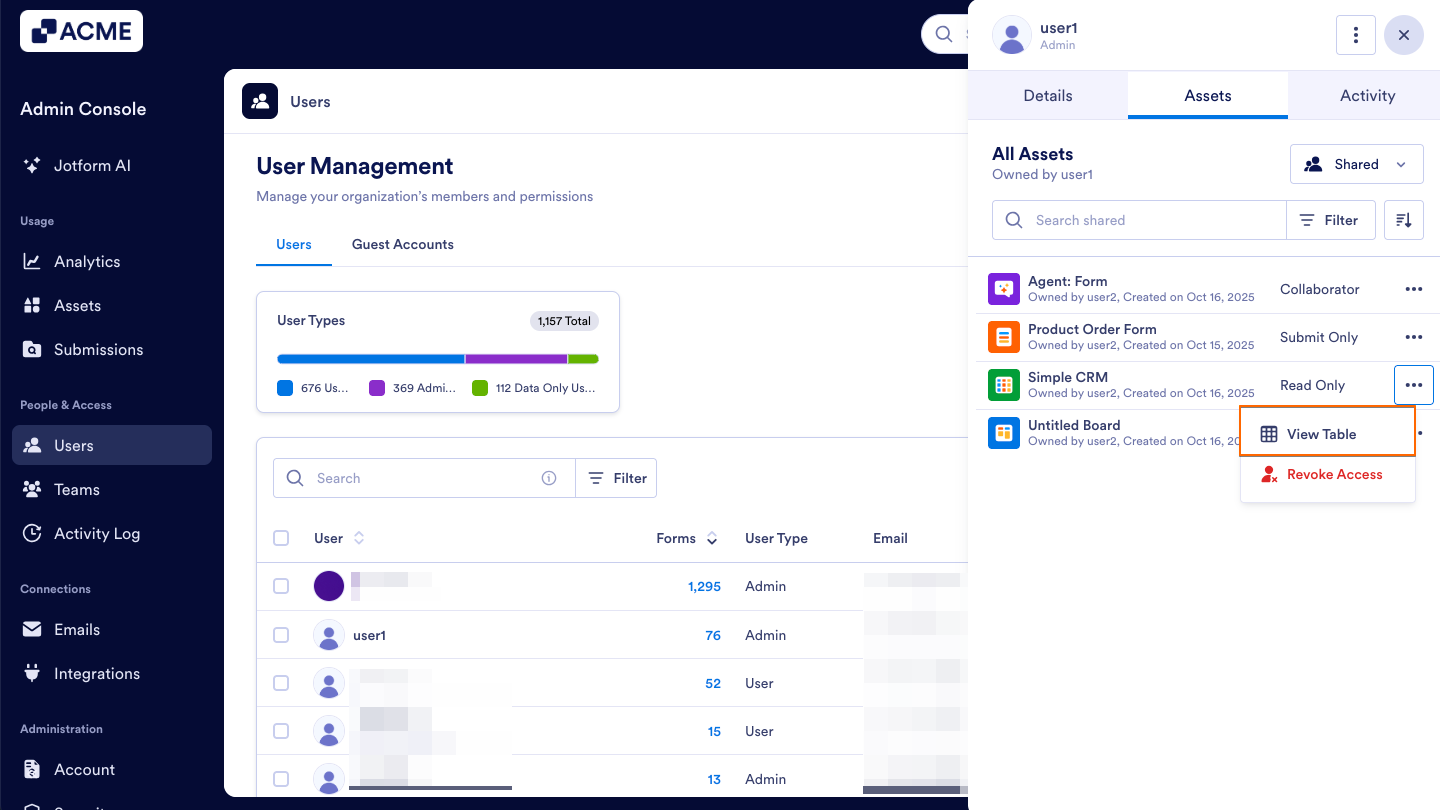
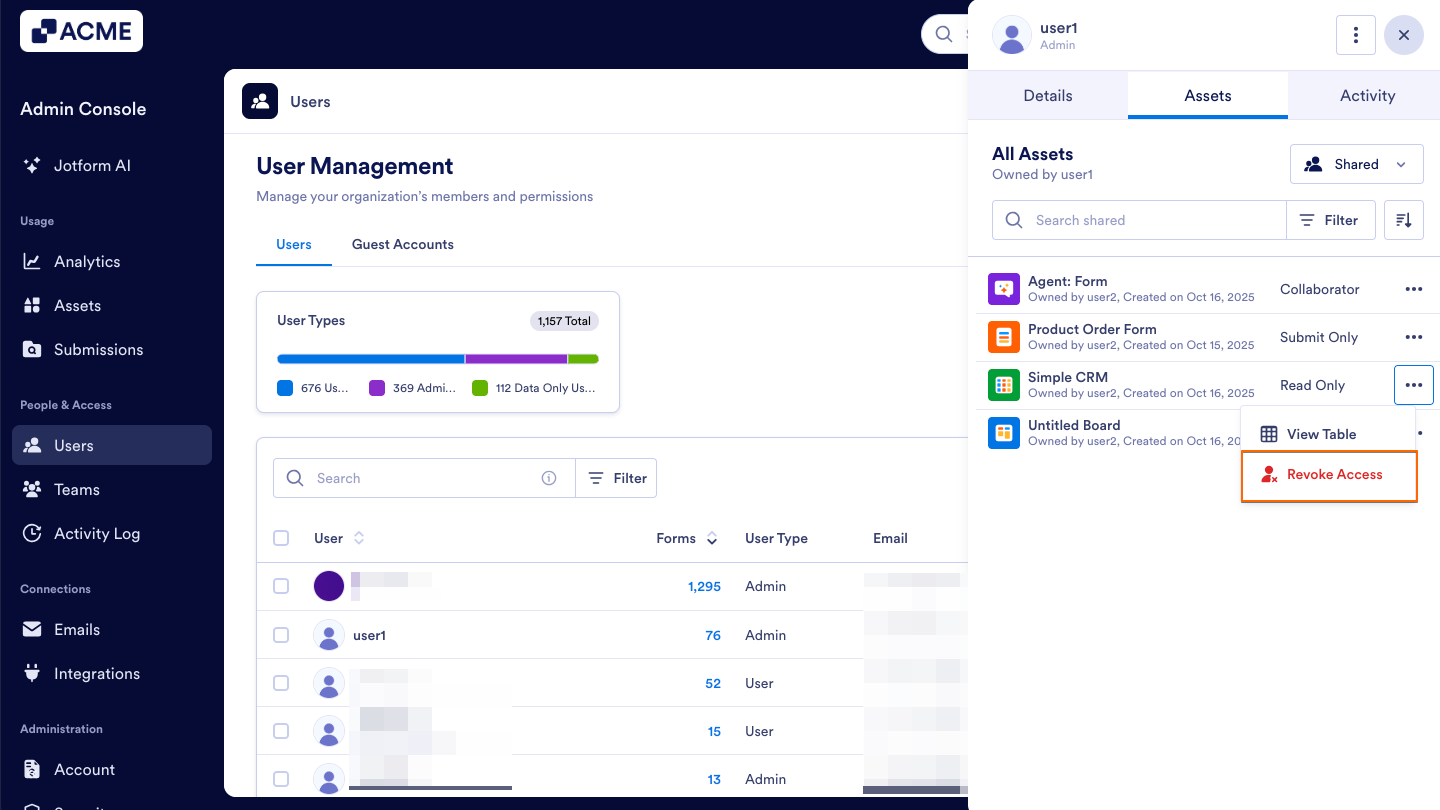
- Revoke Access: Removes the user’s access to the table while keeping the data intact.
Reports
Permission Types
- Collaborator: The user can view and edit report settings, layout, and content.
- Read Only: The user can only view the report.
Quick Actions
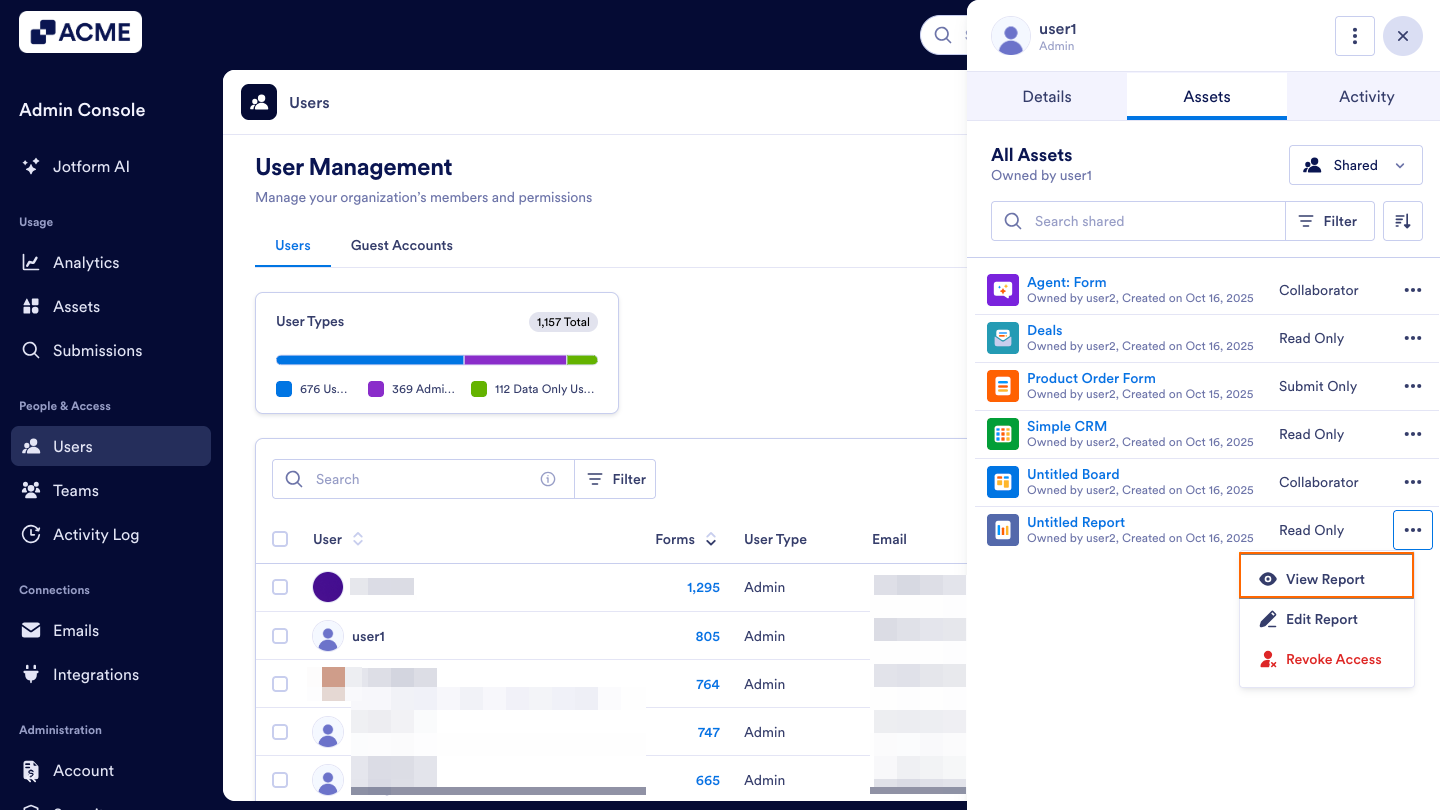
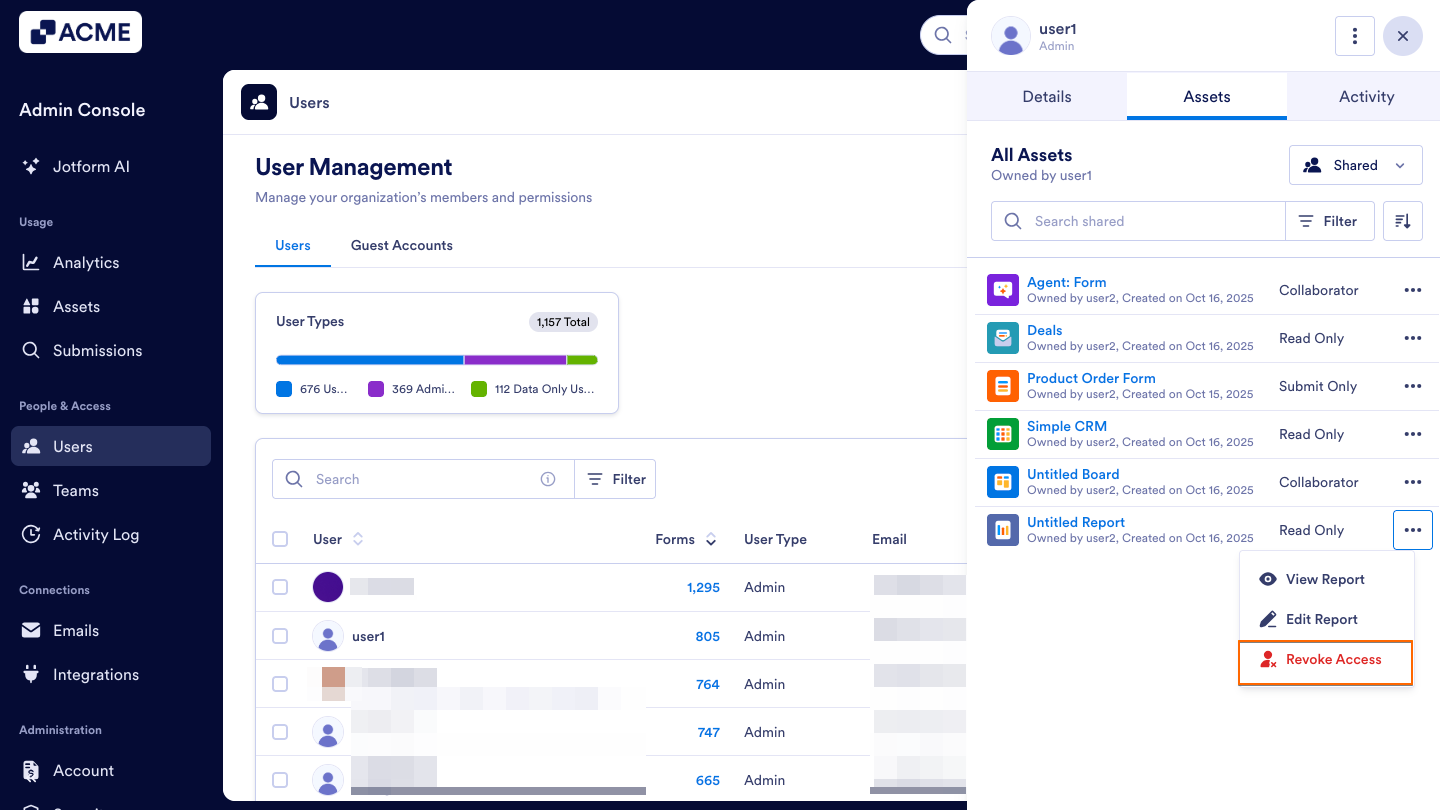
- View Report – Opens the shared report for viewing.
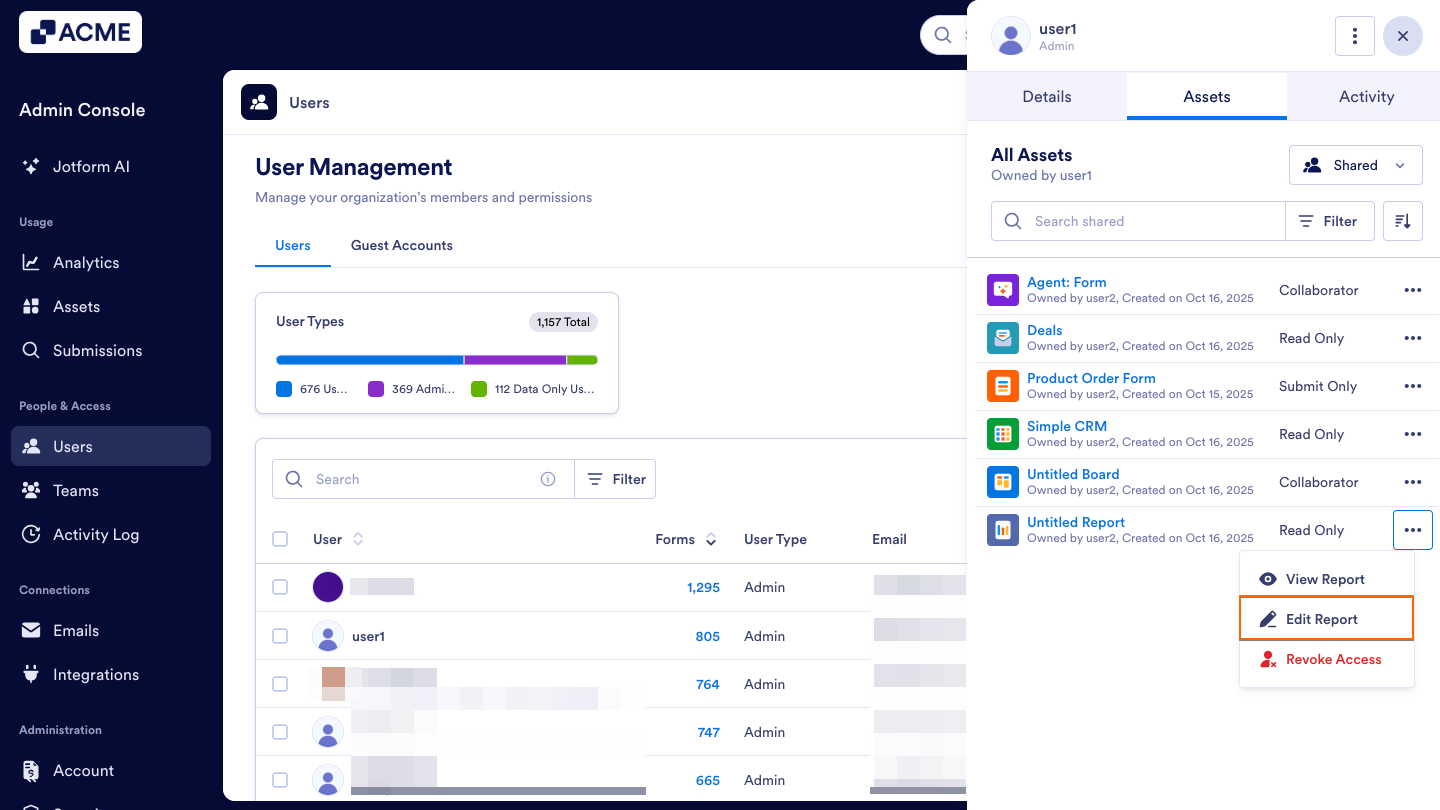
- Edit Report – Opens the report in edit mode for changes.
- Revoke Access – Removes the user’s access to the report.
Boards
Permission Types
- Read Only: The user can only view the Board’s data.
- Commenter: The user can view the Board’s data and add comments.
- Collaborator: The user can view and edit the Board’s data, but cannot change any settings.
Quick Actions
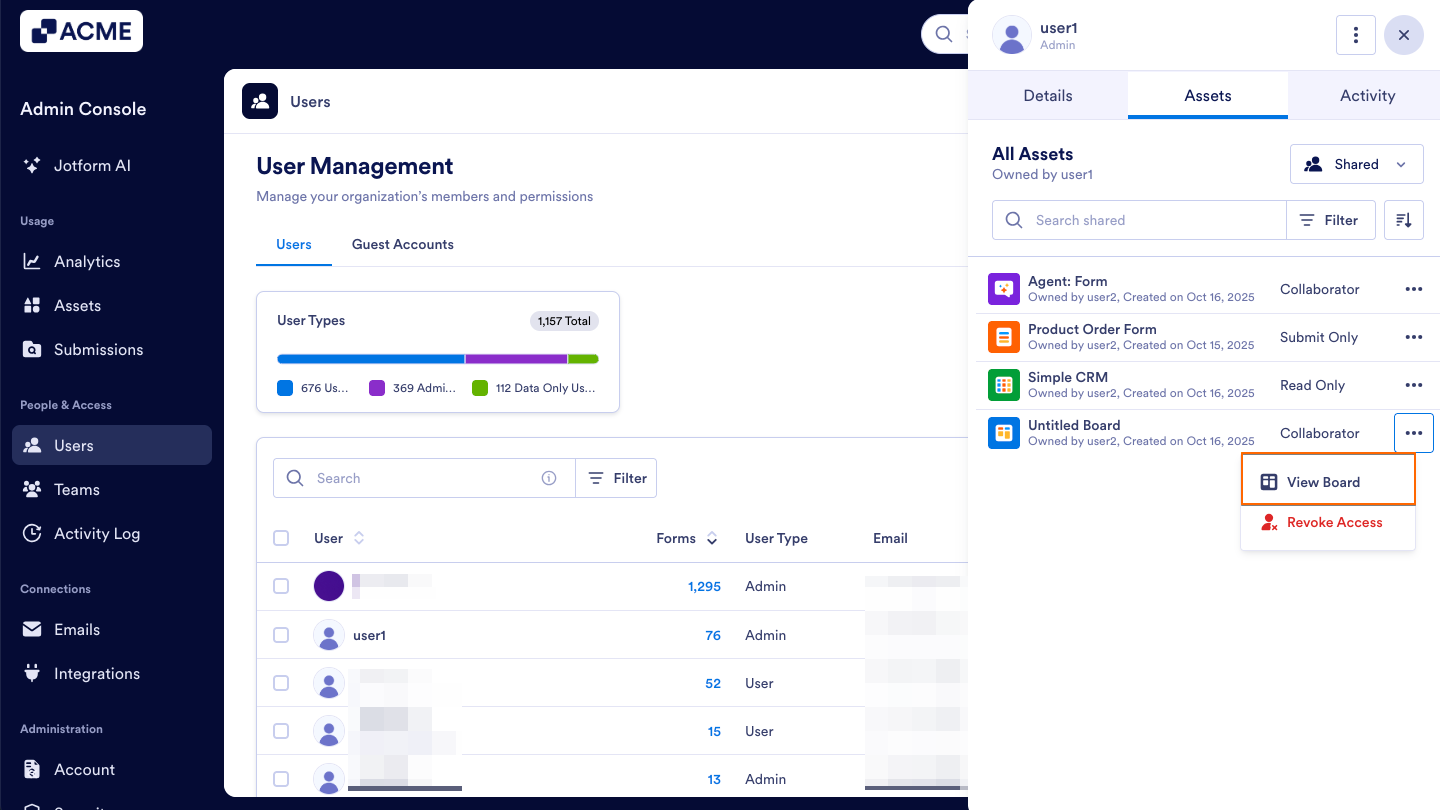
- View Board: Opens the shared board to view items or processes.
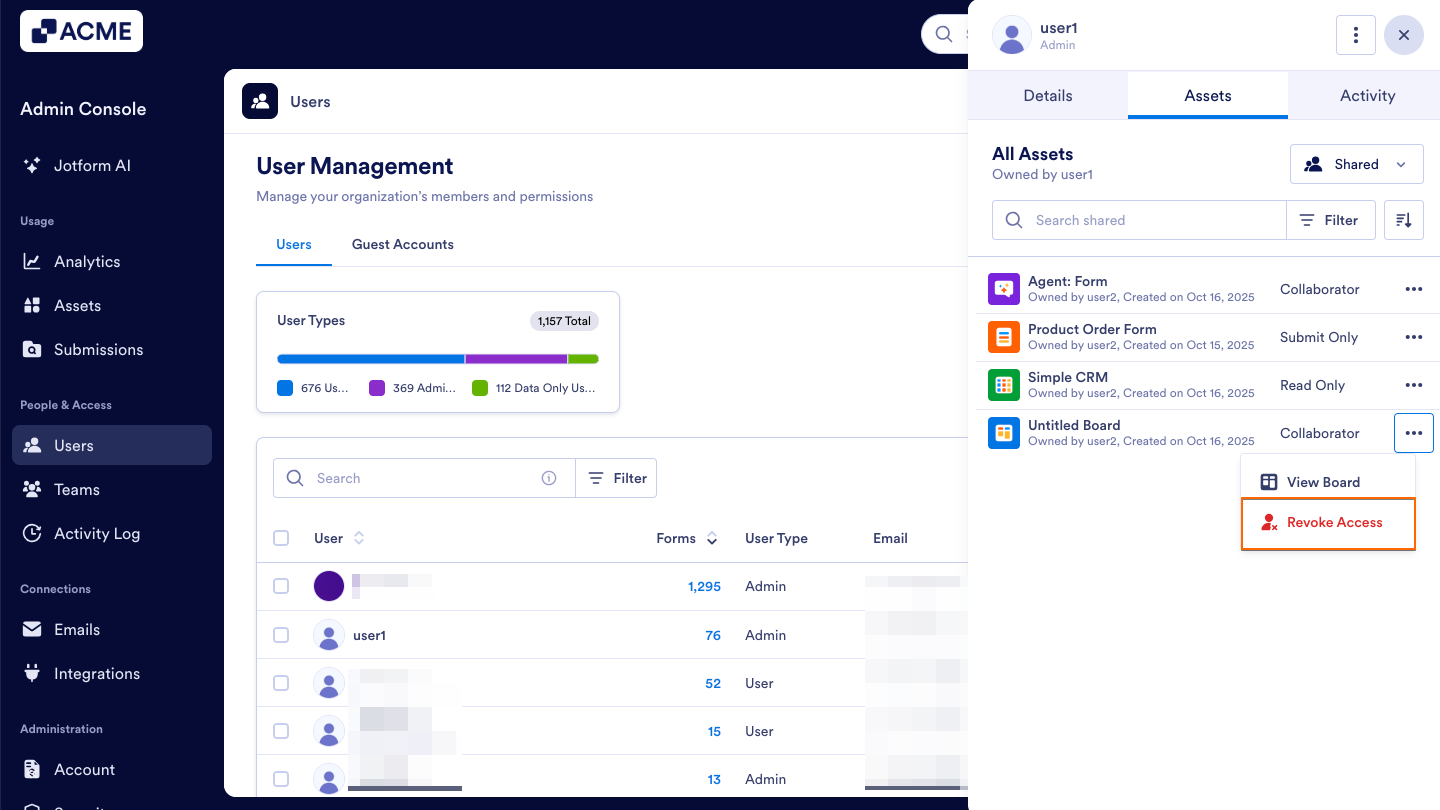
- Revoke Access: Removes the user’s access to the shared board.
Conversations
Permission Types
- Read Only: The user can only view and listen to AI Agent conversations.
- Collaborator: The user can view and edit AI Agent conversations, but cannot change any settings.
Quick Actions
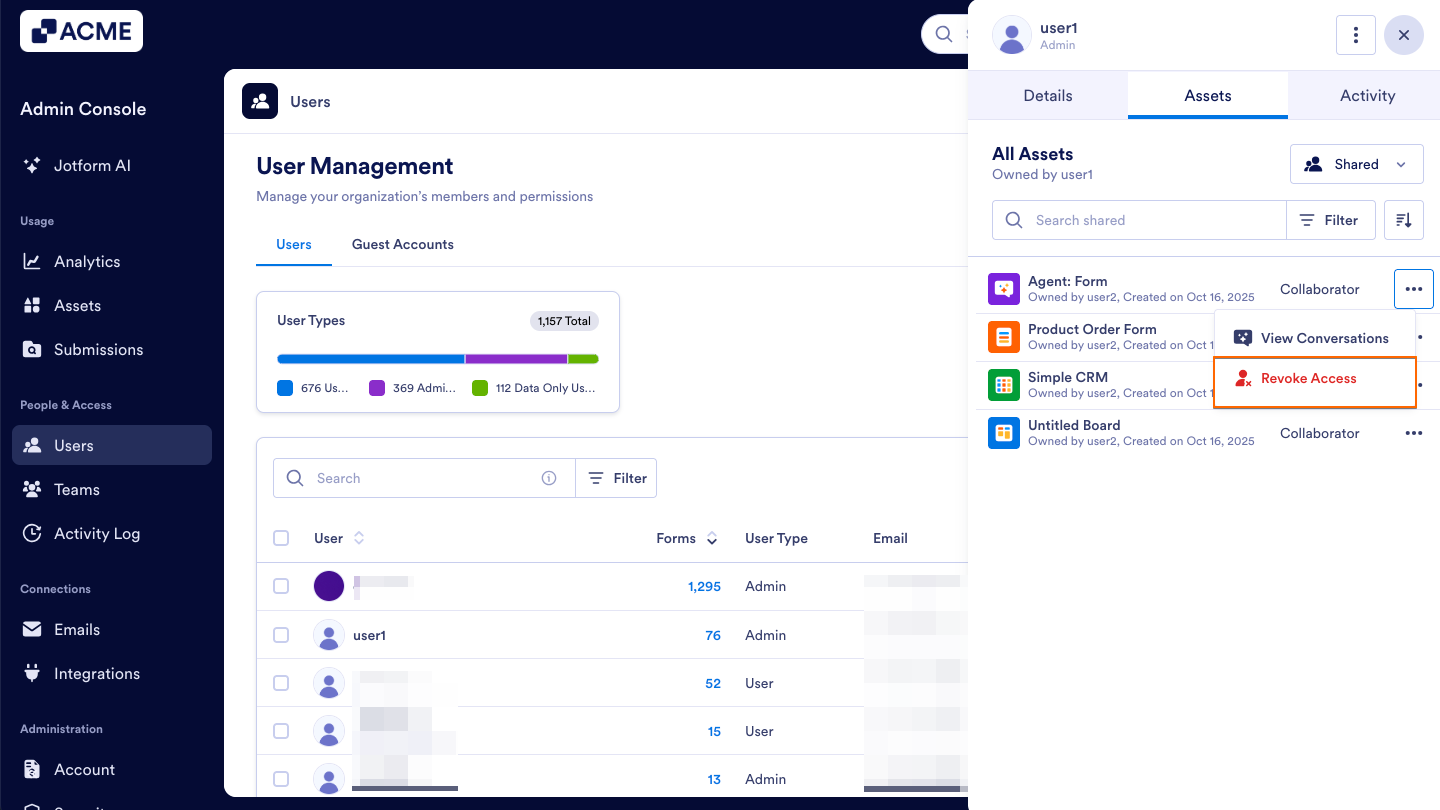
- View Conversations: Opens the shared AI Agent conversations.
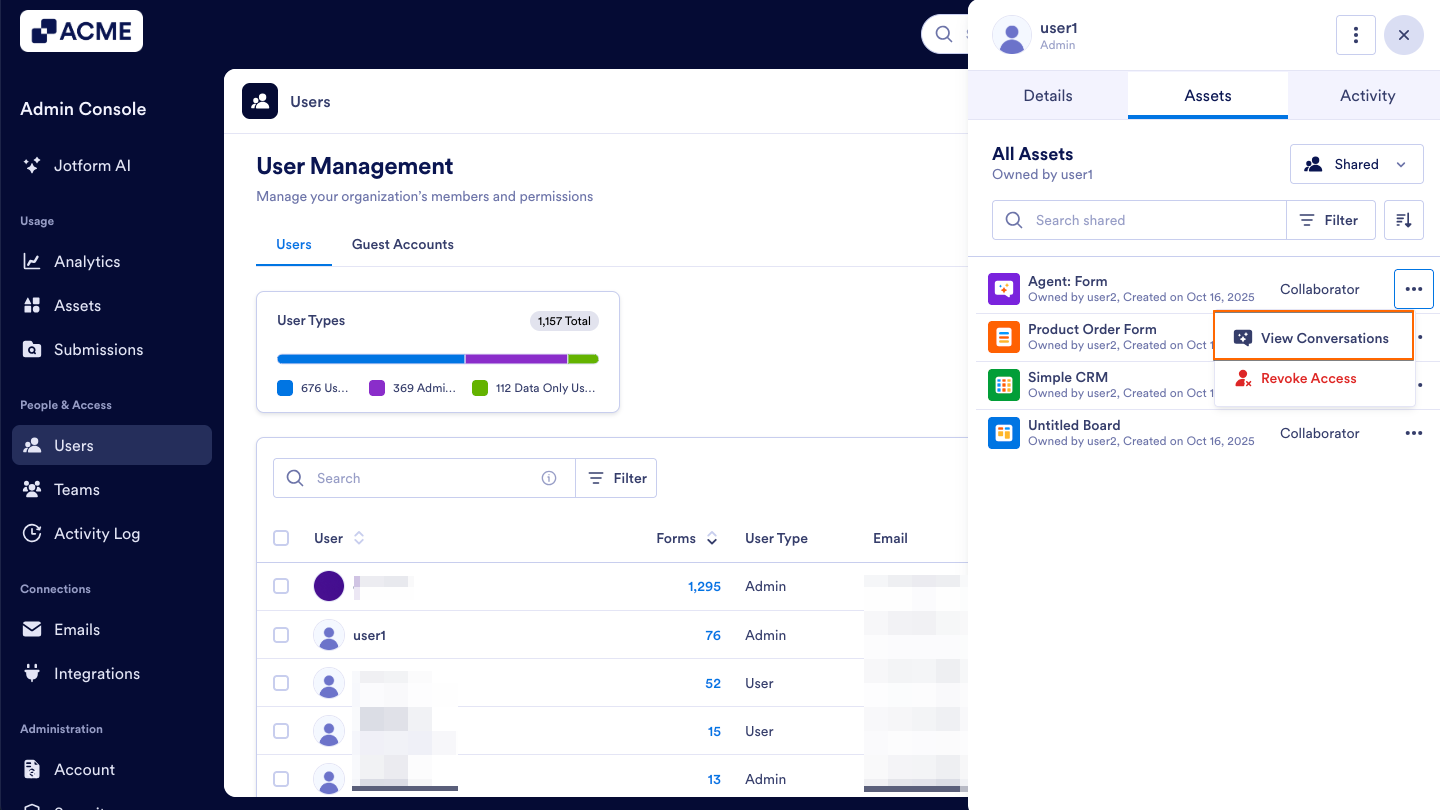
- Revoke Access: Removes the user’s access to the shared conversation.
Inbox
Permission Types
- Read Only: The user can only view Inbox data.
- Collaborator: The user can view, edit, and comment on Inbox data.
Quick Actions
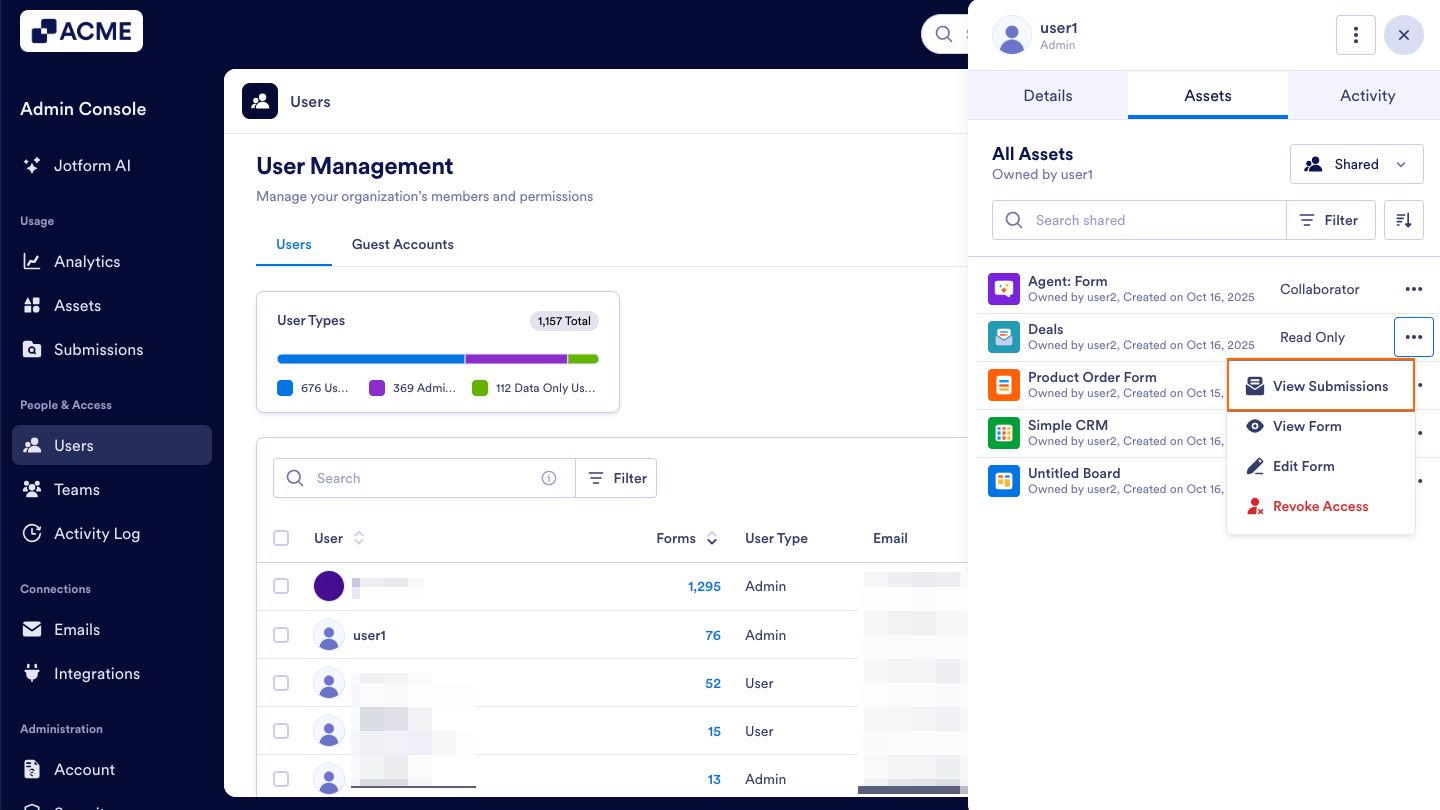
- View Submissions: Opens the inbox for the shared form.
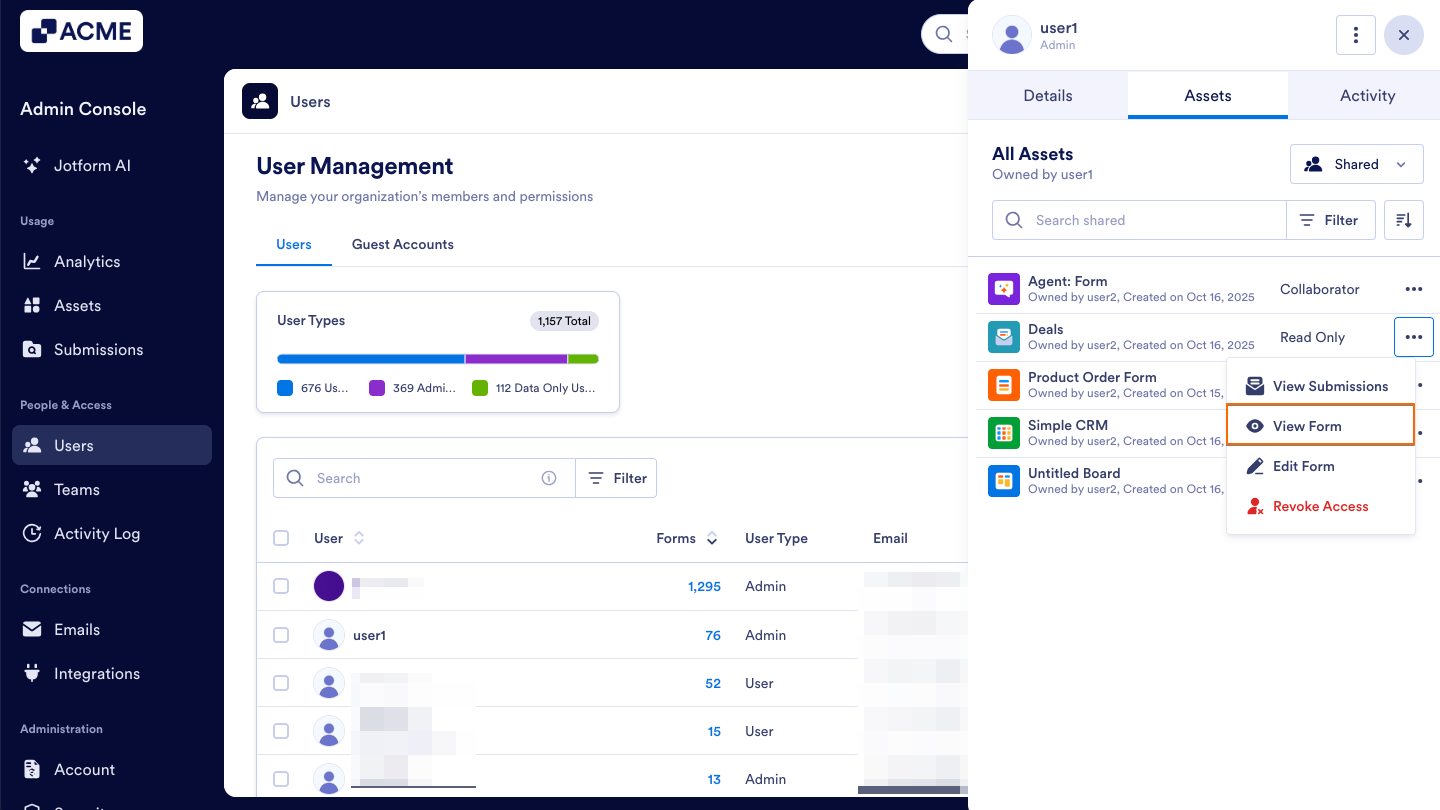
- View Form: Opens the form the inbox is tied to in preview mode.
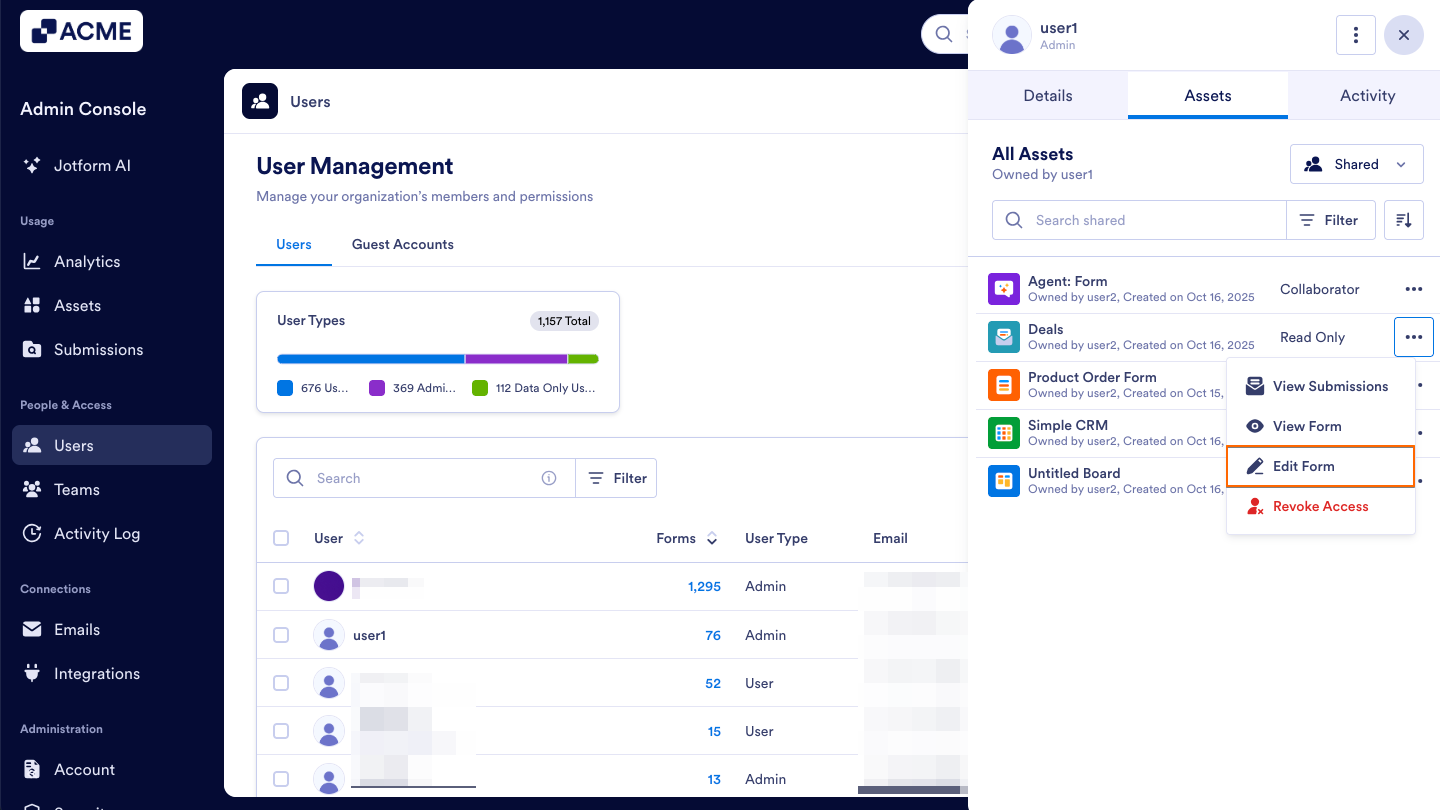
- Edit Form: Opens the form the inbox is tied to in the builder to edit its setup and content.
- Revoke Access: Removes the user’s access to the shared Inbox.
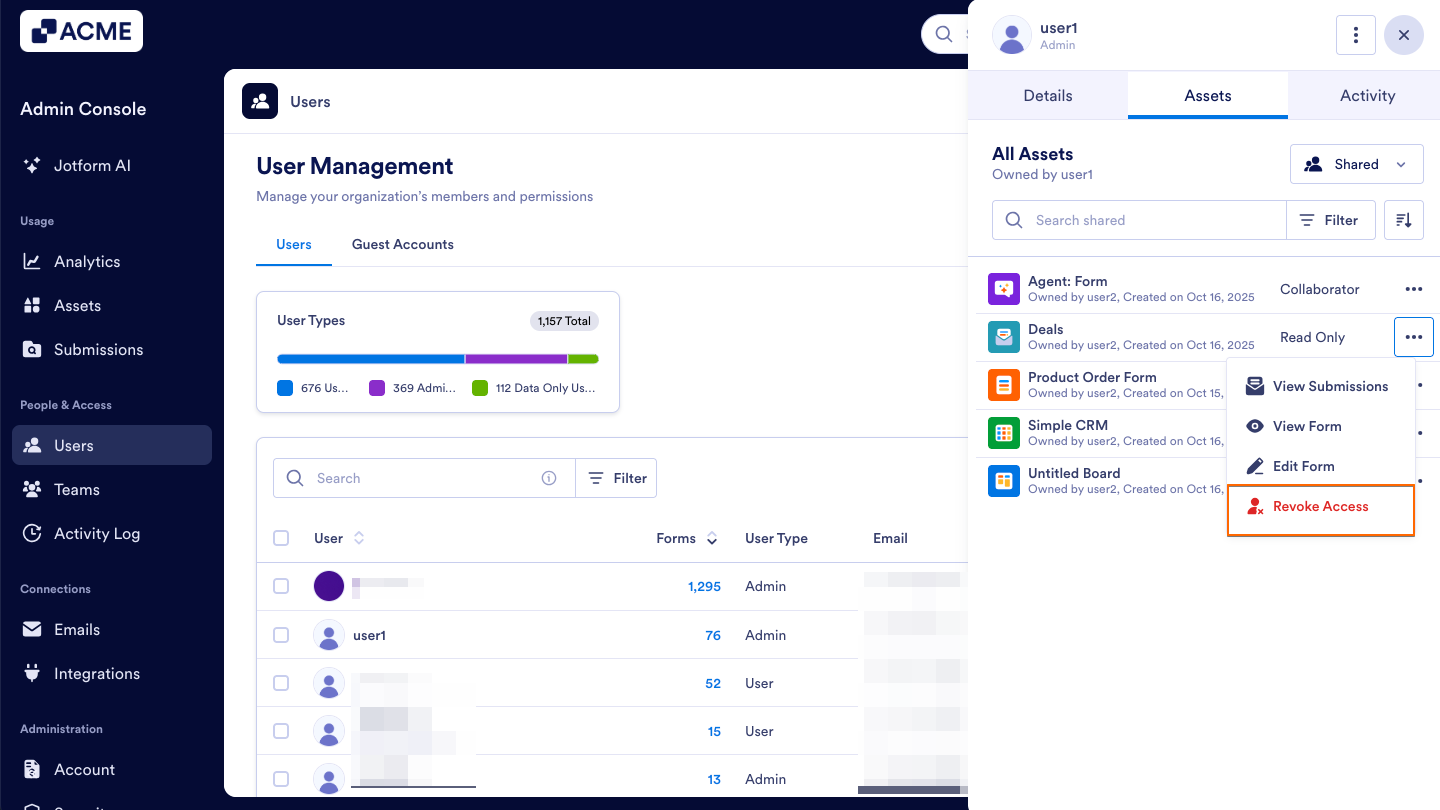
Managing Asset Visibility
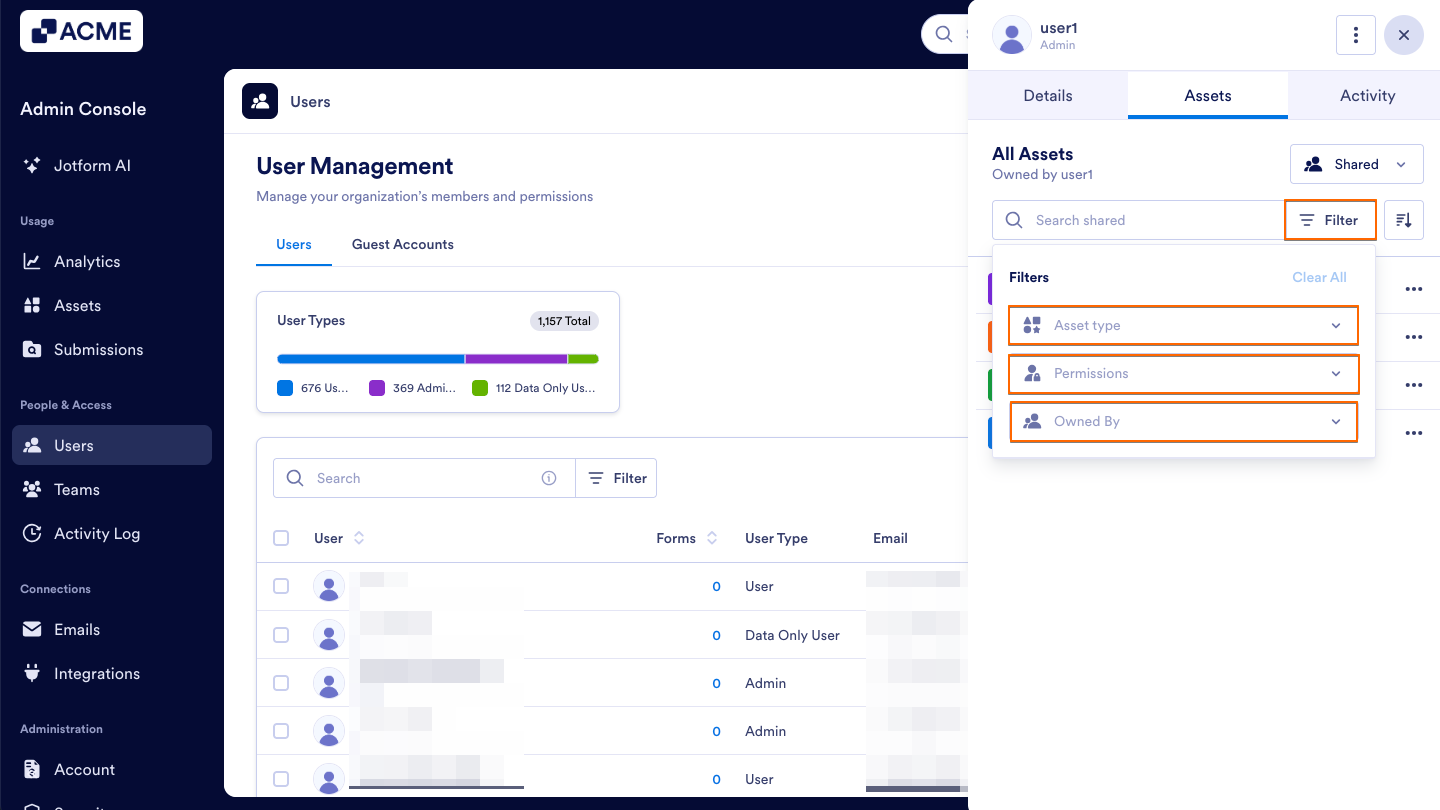
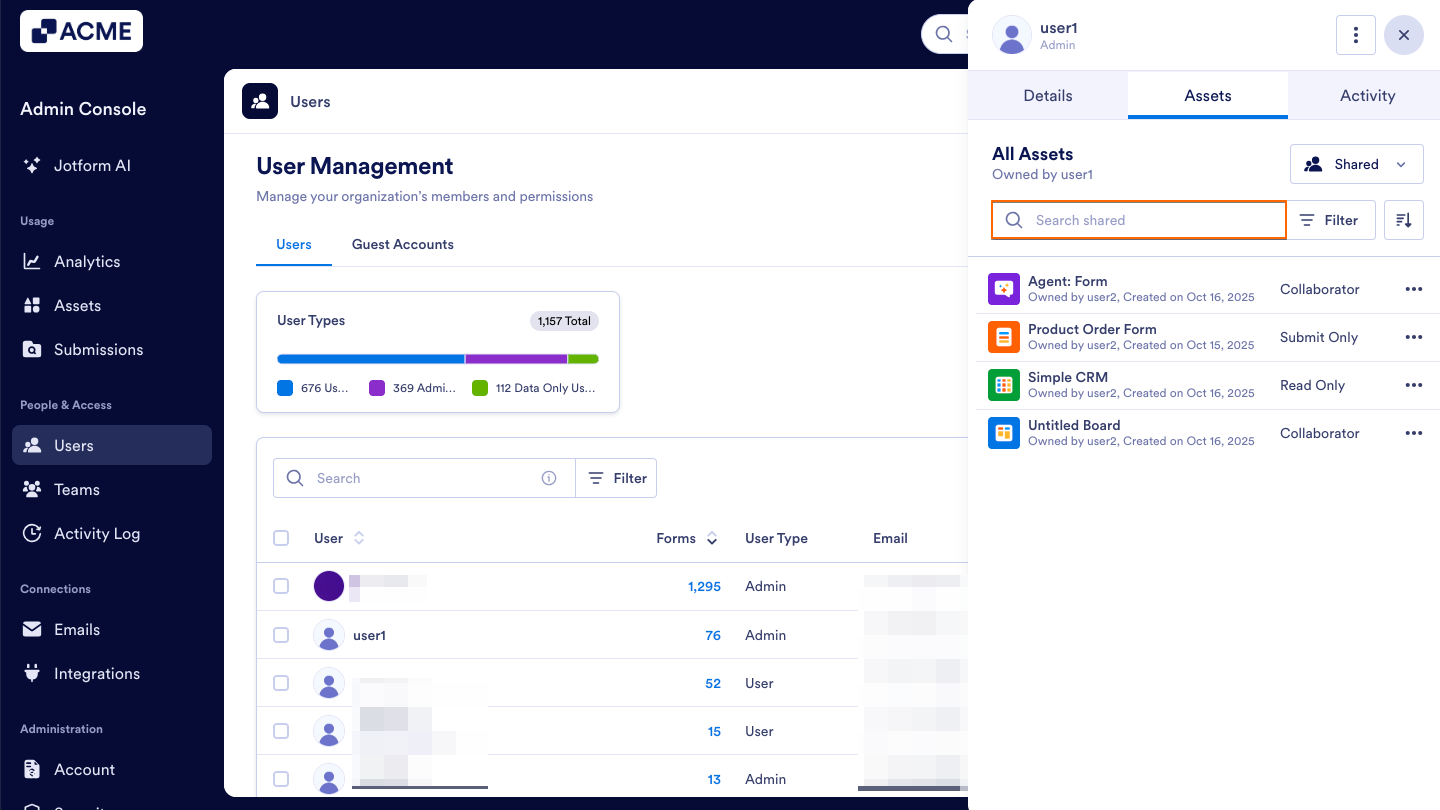
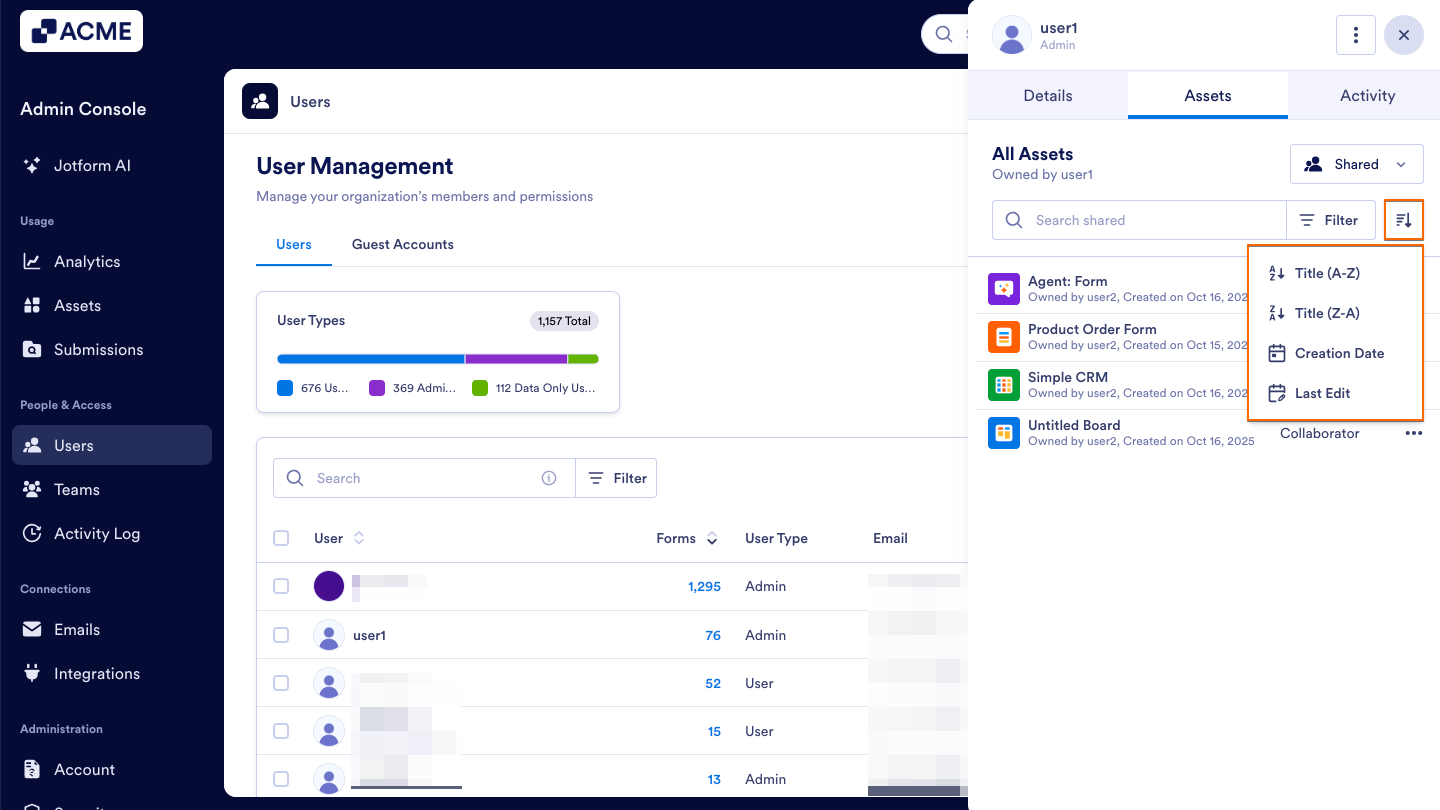
You can use the Filter menu, Search bar, and Sort dropdown located in the sidebar, to help refine and organize your results or locate specific assets.
Filter menu
You can use the Filter button to narrow these results down by asset type, permission type, and owner.
Search by name
Start typing part of any asset’s name into the Search bar, to help locate specific forms, apps, or tables.
Sort dropdown
Click on the Sort icon to sort these results by alphabetical order (both ascending and descending), creation date, or last edit date.
See also:
- How to View and Manage Assigned Assets in Your Organization from the Admin Console
- How to Unassign Assets in Your Organization from the Admin Console
- How to Revoke Users Access to Assets in Your Organization from the Admin Console
- How to View and Manage Assigned Asset Access for Guest Accounts in Your Organization from the Admin Console

Send Comment: