The Sign Insights page provides detailed analytics with various metrics and breakdowns, allowing users to track the performance of their sign documents. Users can analyze the performance of selected documents using specific metrics and date ranges customized to their needs.
Accessing Sign Document Metrics
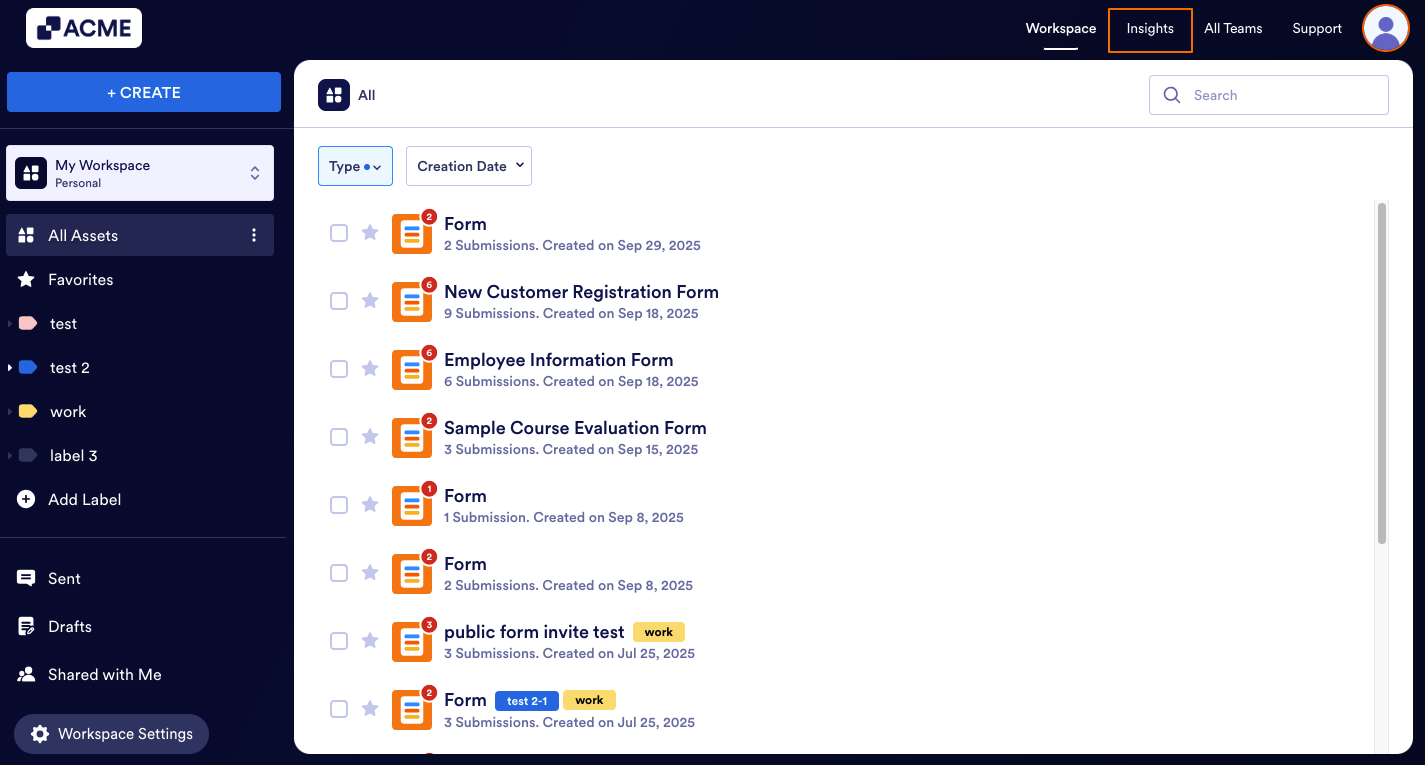
- In My Workspace page, click on Insights in the upper right-hand corner of the page.
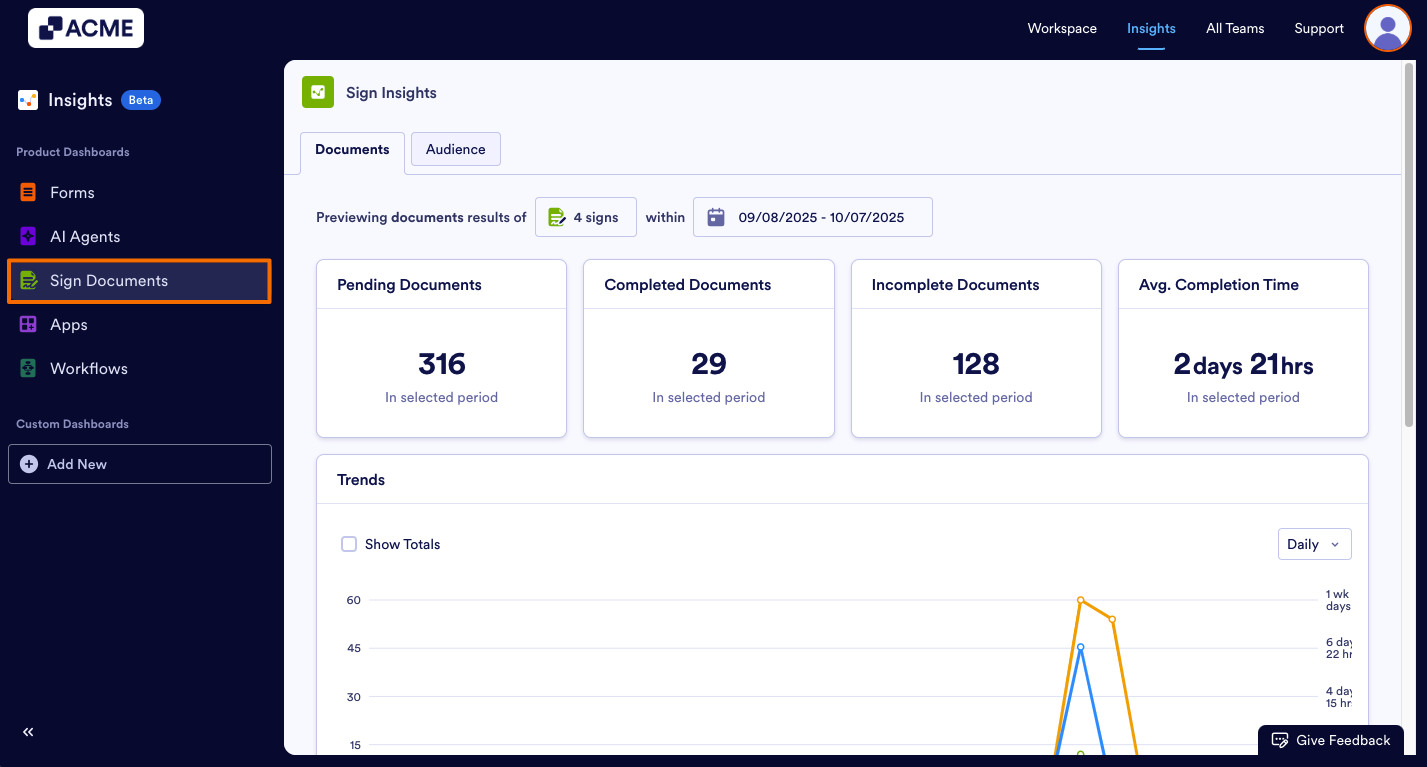
- In the Insights page, click on Sign Documents from the menu on the left.
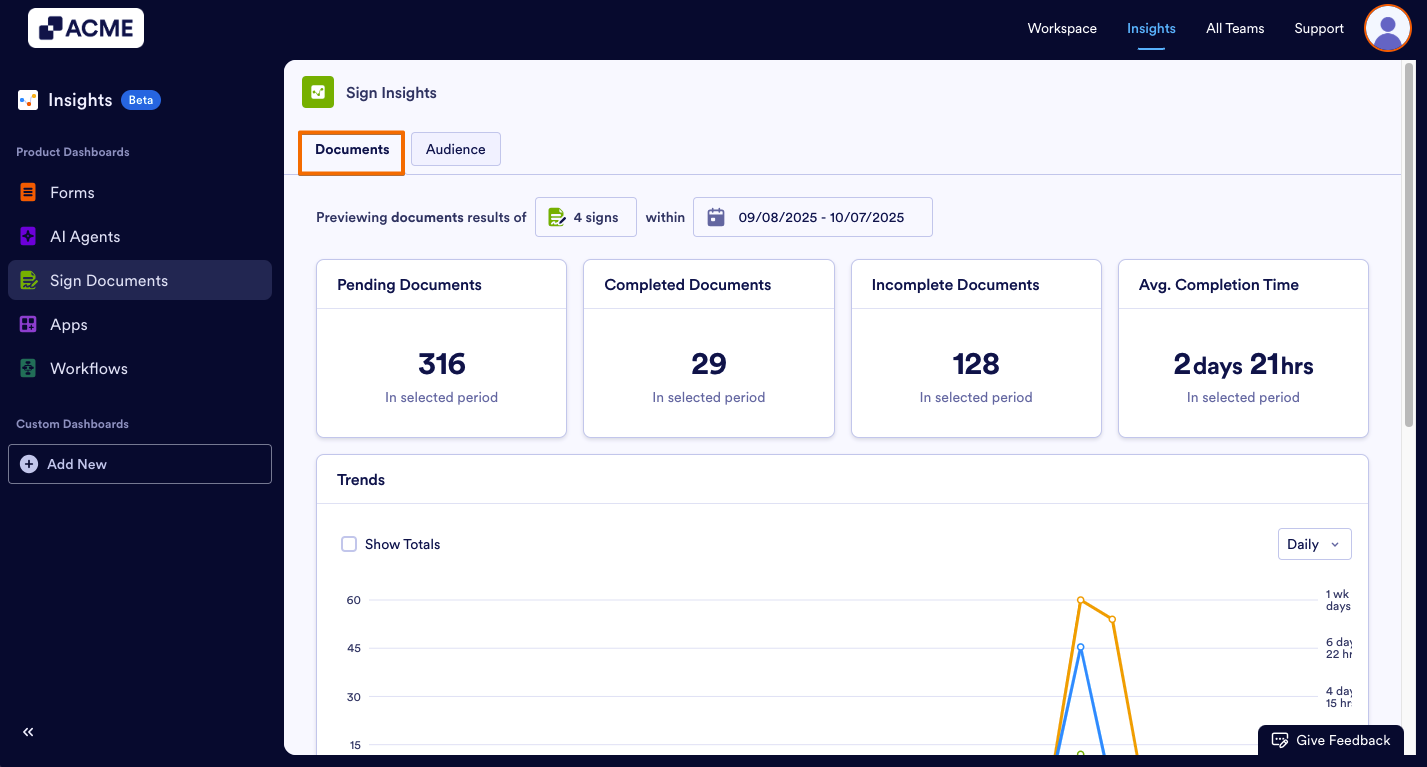
- In Sign Insights, click Documents at the top of the page.
What Metrics Do We Provide?
On this page, you can view key metrics for your selected Sign Documents, including Pending Documents, Completed Documents, Incomplete Documents, and Average Completion Time. Below is a detailed explanation of each metric:
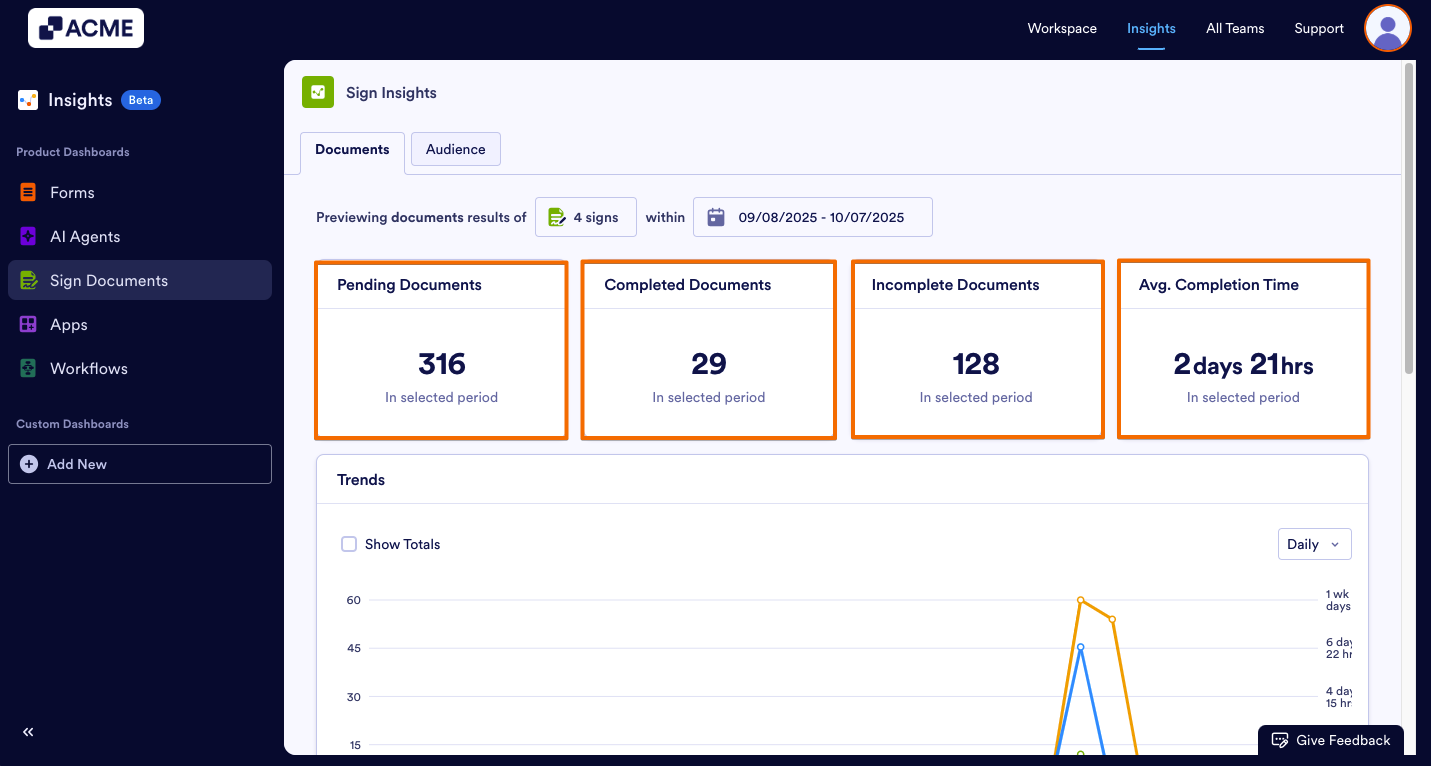
- Pending Documents: The total number of documents that are waiting to be processed or signed.
- Completed Documents: The total number of documents that have completed the signing process.
- Incomplete Documents: The number of documents that could not be completed due to cancellations, declines, or expirations. (If a document is sent to multiple signers, a single cancellation or decline will mark it as incomplete.)
- Average Completion Time: The average completion time of a document from being sent to be completed.
Trends
Want to see how sign document activities vary day-to-date within the selected date range? Using Trends, you can see a daily breakdown of each metric, and track any spikes or changes there.
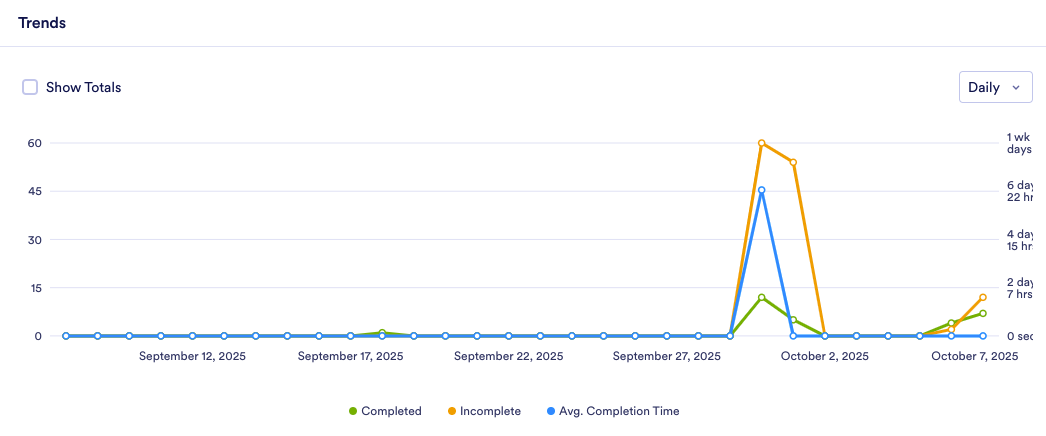
Trends, by default, shows all metrics in a daily breakdown, but you can customize this based on your needs.
- Add/Remove Metrics: Click on the metric name at the bottom of the chart to add or remove it from the chart.
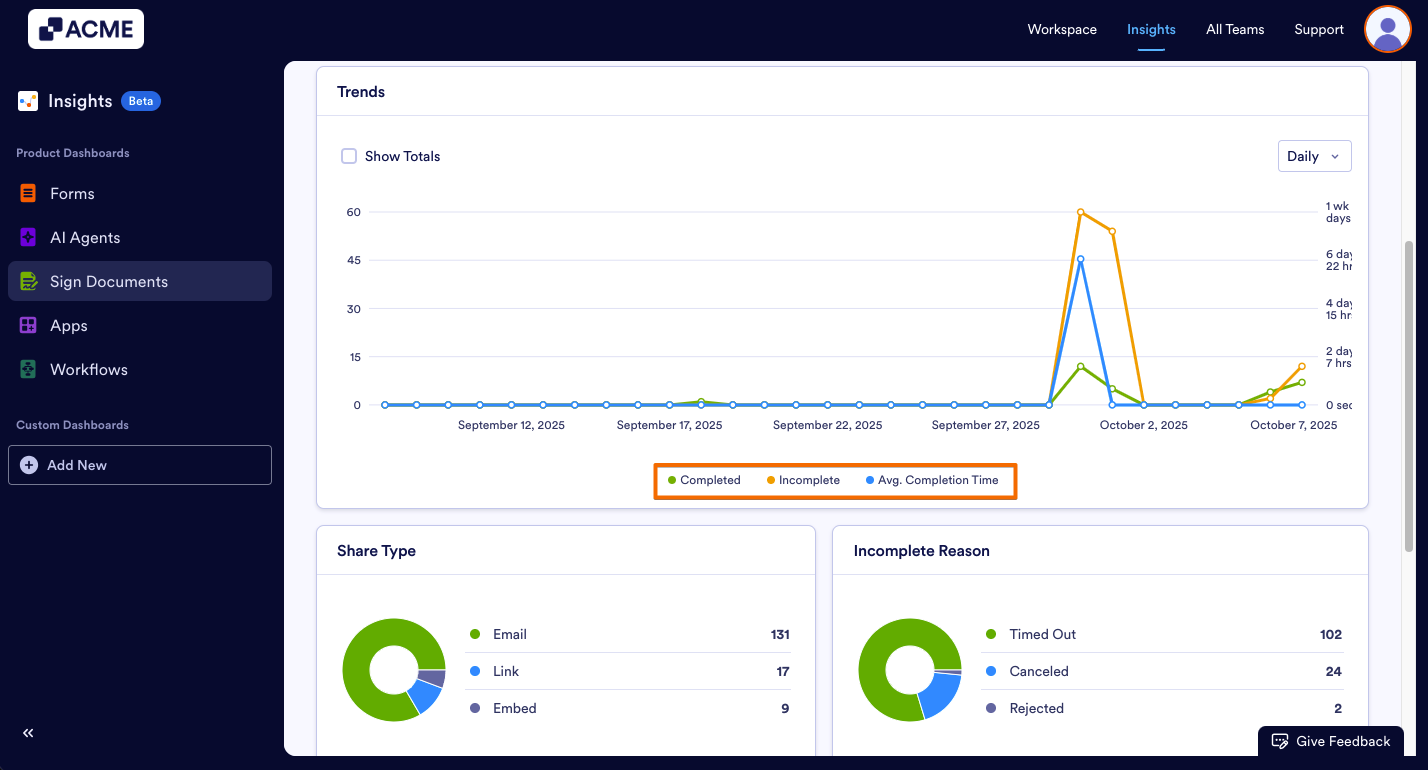
- Changing the Time Interval: Click on the drop-down menu at the top of the chart and select daily, weekly, monthly, or yearly.
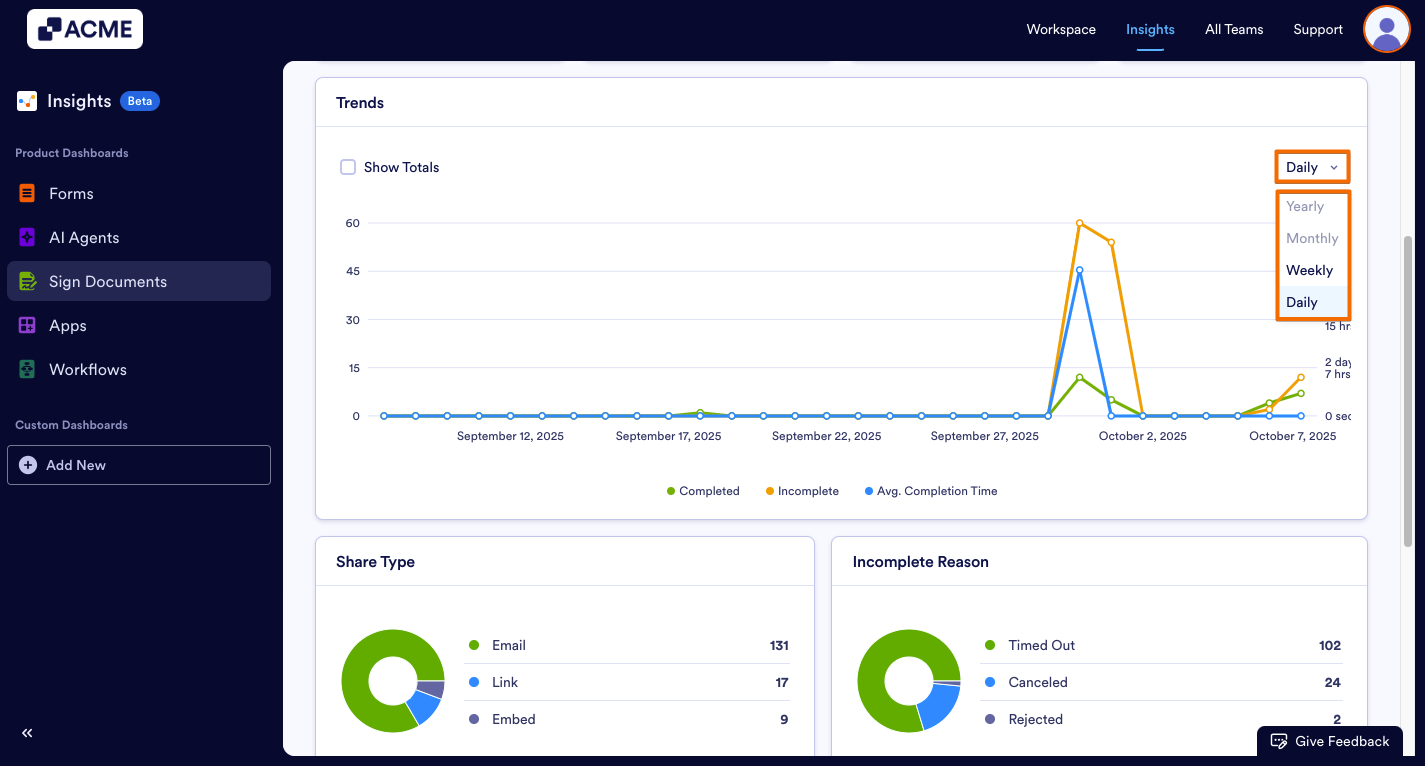
- Depending on the date range you’ve selected, some options might not be available. For example, if your date range for the tab is set to last seven days, you won’t be able to select monthly or yearly.
Other Card Metrics
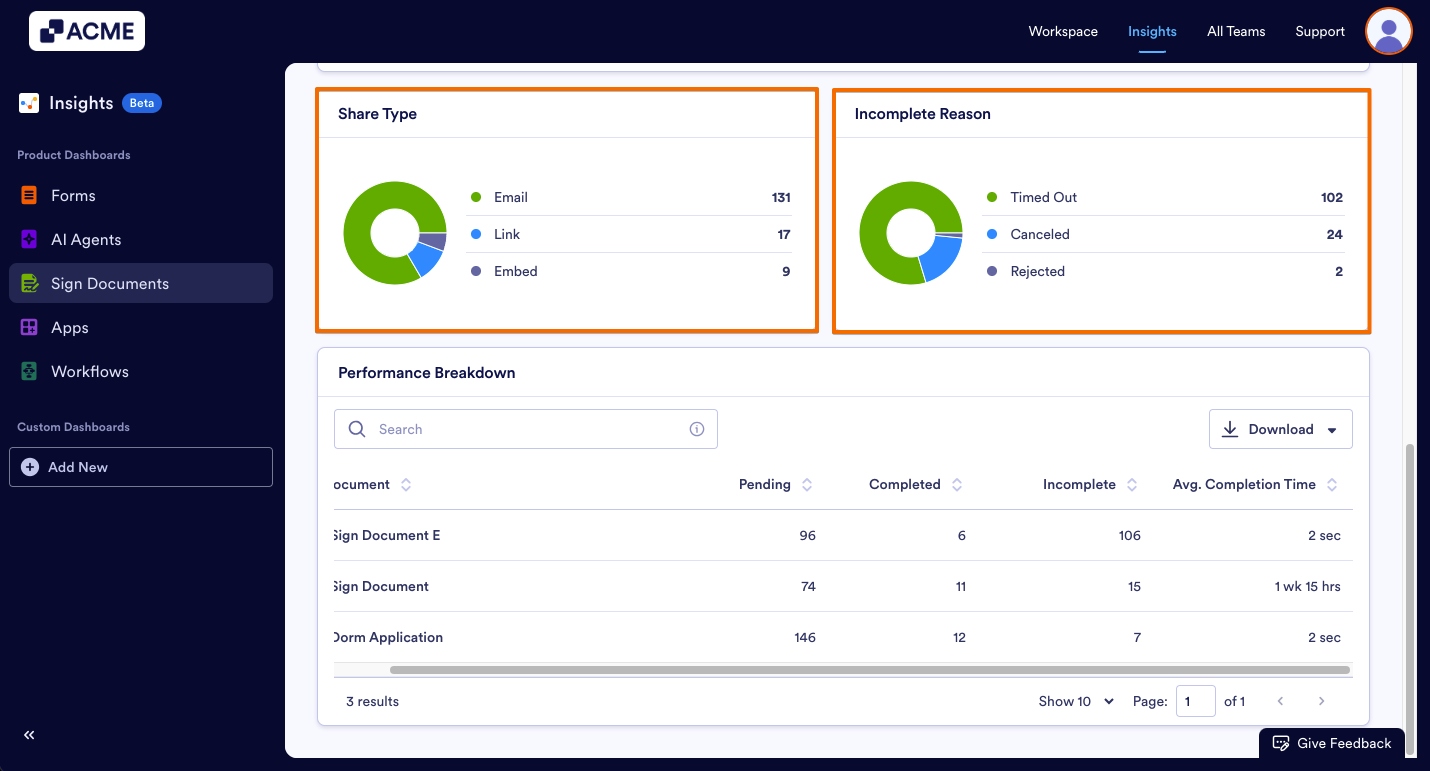
Share Type
You can view the distribution of completed documents by sharing type (Email, Link, or Embed) in the pie chart.
- Email: Total documents signed via email invite. For multi-signer documents, counted once all signees have signed.
- Link: The total number of documents signed via shared link.
- Embed: the total number of documents signed via embedded document.
Incomplete Reason
You can view the distribution of the number of documents by incompleteness reason (Cancelled, Declined, Timed out).
- Canceled: The total number of canceled documents by the document owner.
- Declined: The total number of declined sign documents by signees and document owners.
- Timed Out: The total number of documents that are expired before signing.
Performance Breakdown
Need an even more detailed overview for each sign document? Within the performance breakdown list, you can view all documents in the selected date range along with their individual metrics. These metrics include: Pending, Completed, Incomplete, Average Completion Time.
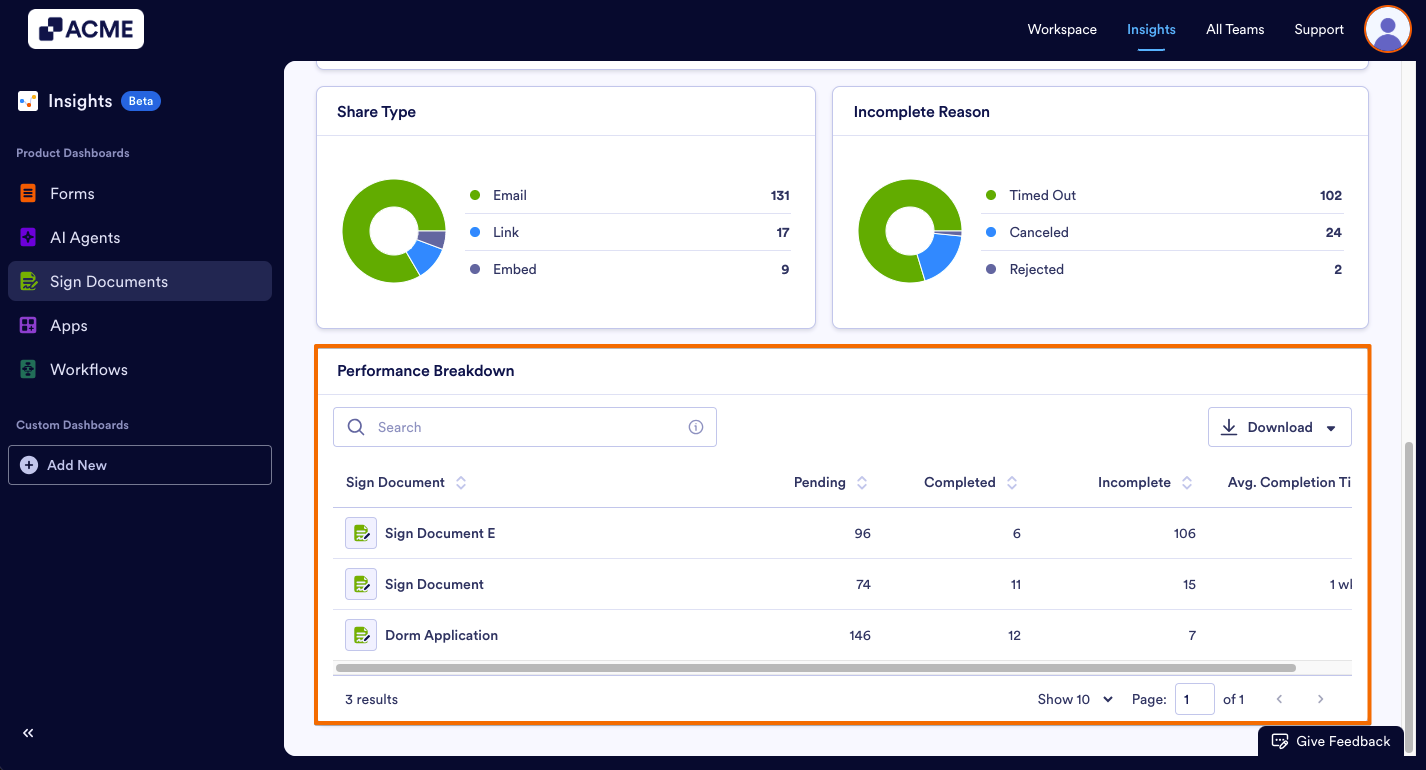
- These metrics are per document, and are specific to the date range selected at the top of the page.
- You can download the entire list by clicking the Download button on the right and saving it as a CSV or Excel file.
See also:
How to Filter Sign Document Metrics in a Specific Date Range in Insights?

Send Comment: