My Workspace is your unified home base. It brings all of your personal Forms, Tables, Apps, and documents into a single, intelligent interface. This guide walks you through the layout of the new workspace and the tools available to manage your individual projects.
Accessing My Workspace
When you log in to your account, My Workspace is your default landing page. If you are currently working within a Team Workspace, you can return to your personal dashboard at any time. Here’s how to do it:
- First, click on the Workspace dropdown located upper left corner of the screen, just above the Create button.
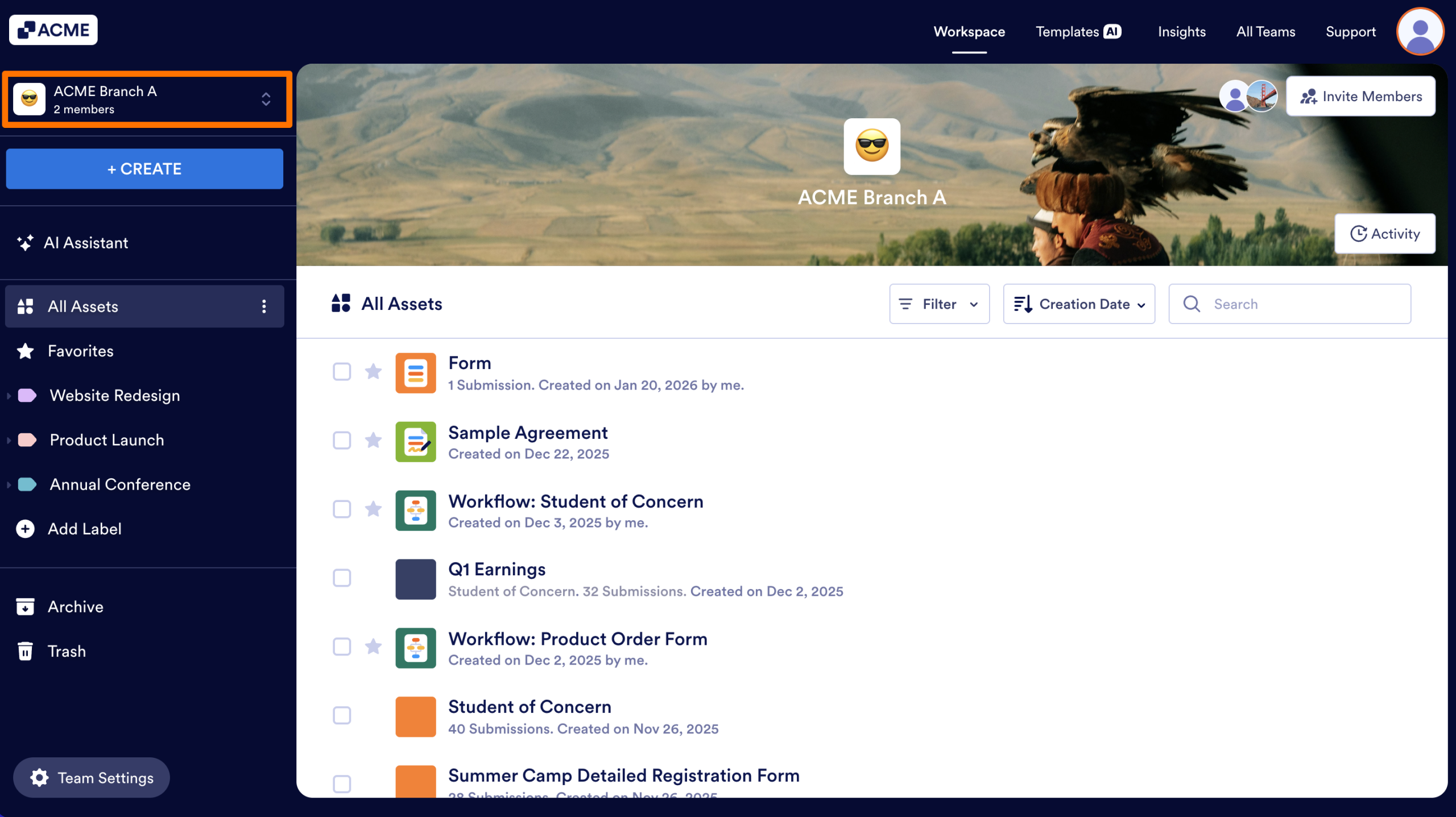
- Then, select My Workspace from the list.
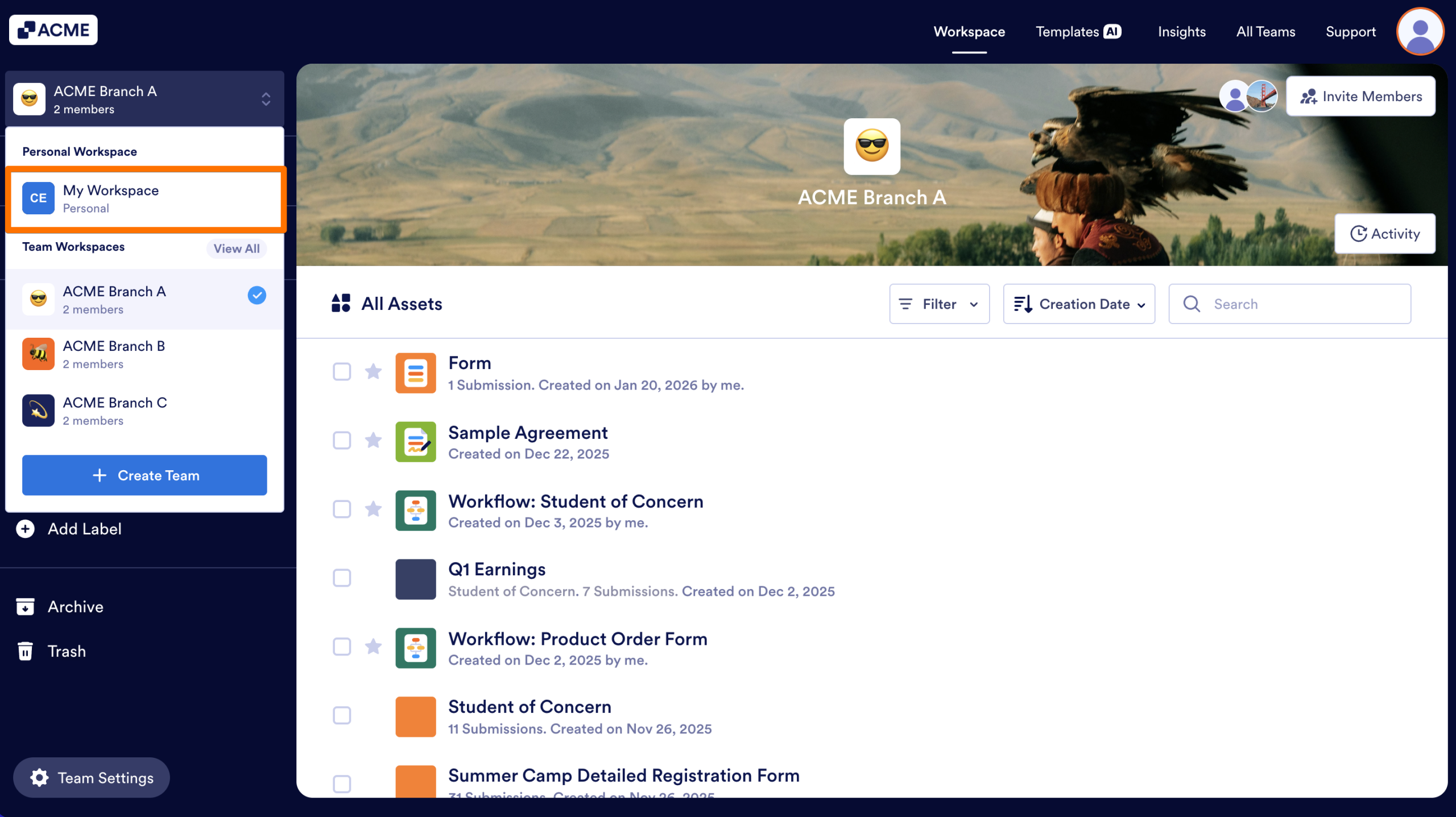
You will be brought to your personal Workspace, where all assets you own are stored.
Exploring the Workspace
The Workspace is designed so that all your different assets (Forms, Apps, Tables, etc.) are visible in one place, the middle of the page.
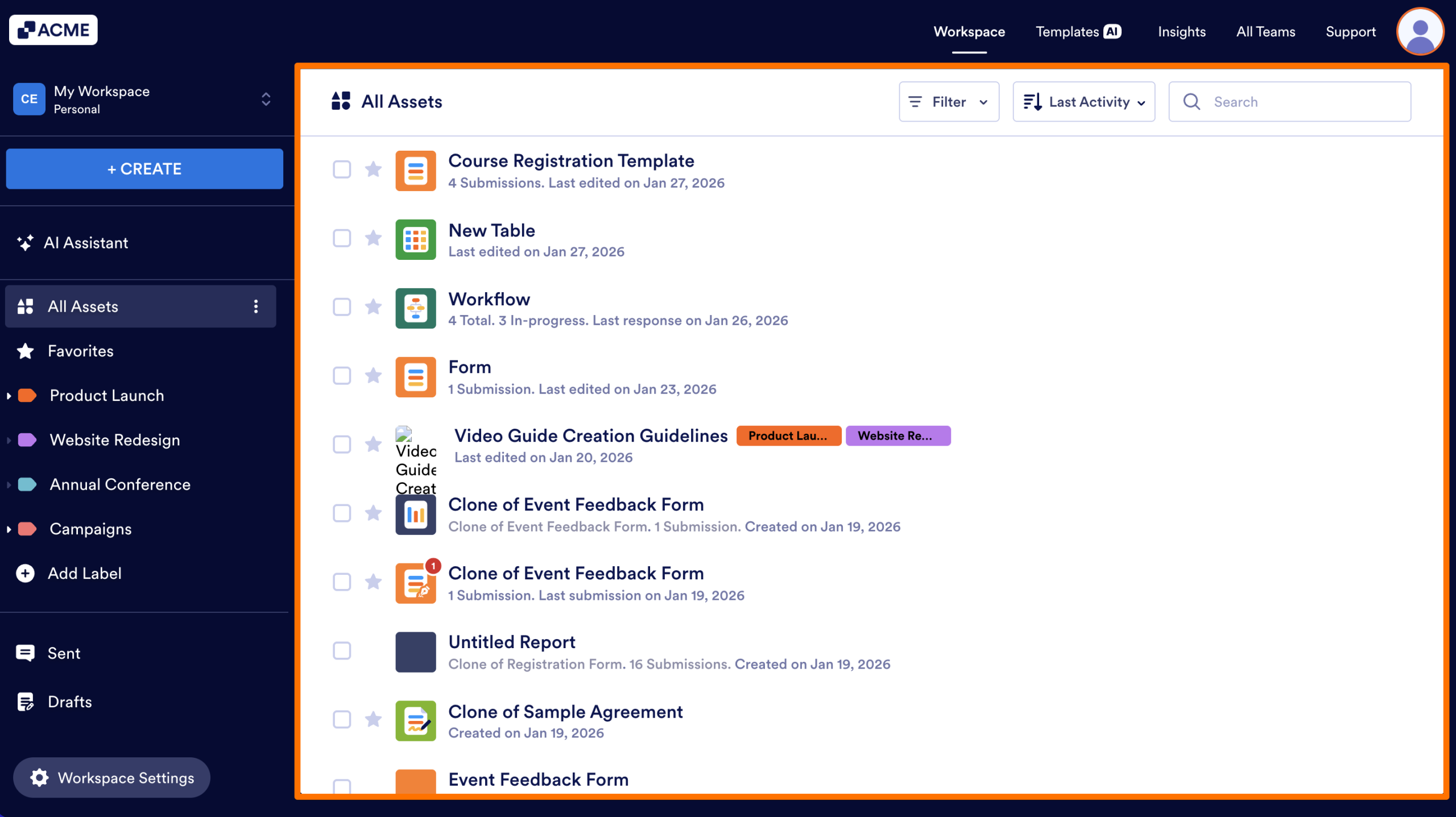
Create Button
Located prominently in the upper left corner of the screen, the Create button is your starting point for any new project. From here, you can launch the builders for Forms, Apps, Tables, Sign Documents, and Workflows.
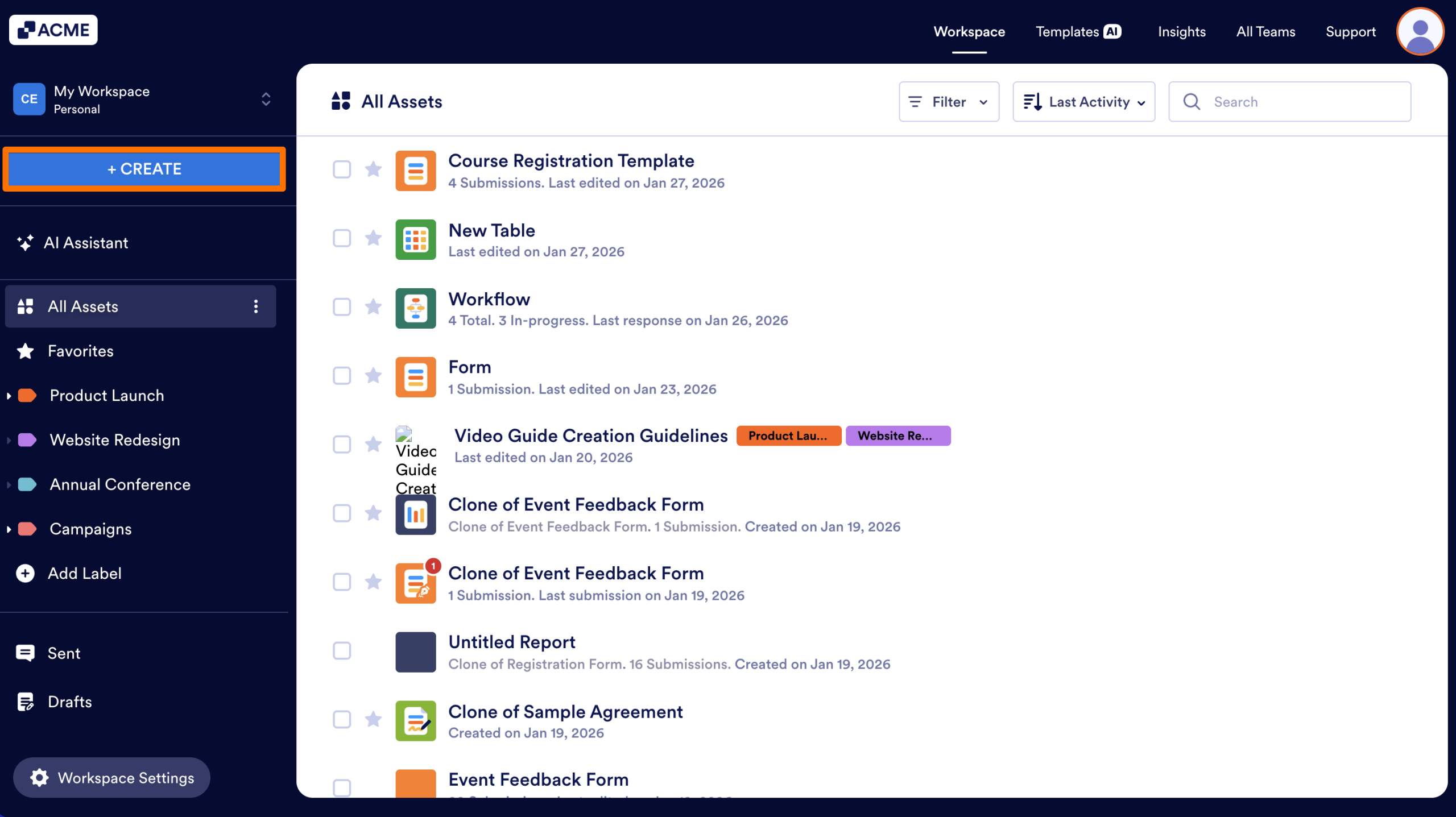
Left-Side Navigation
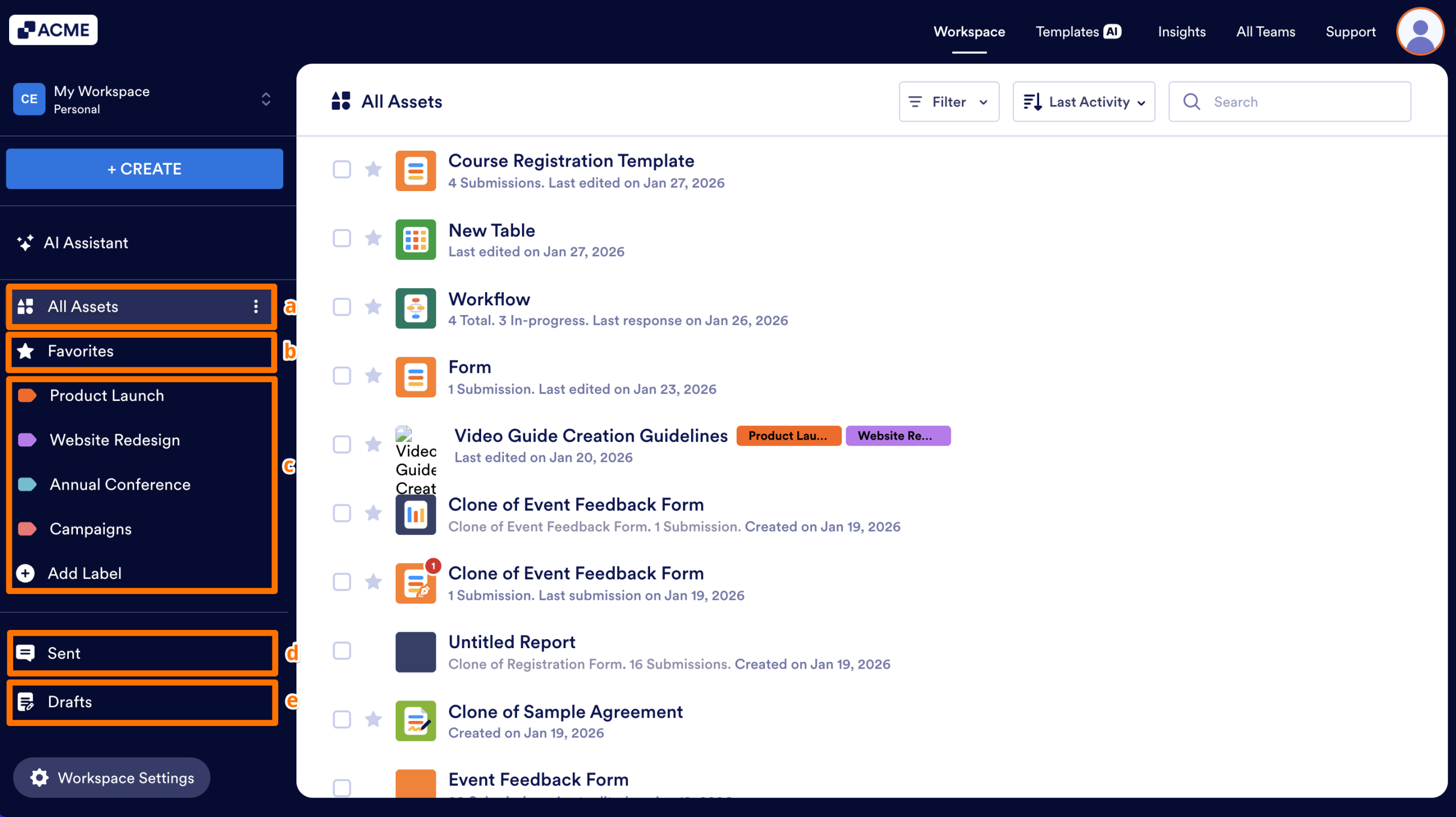
The sidebar on the left side of the screen is your primary organizational menu:
- All Assets: A combined list of every item you have created.
- Favorites: Quick access to any asset you’ve “starred.”
- Labels: Custom categories that you can assign to your assets
- Sent: Track forms you have submitted or past interactions with AI Agents.
- Drafts: Access Form responses you’ve started but haven’t finished yet.
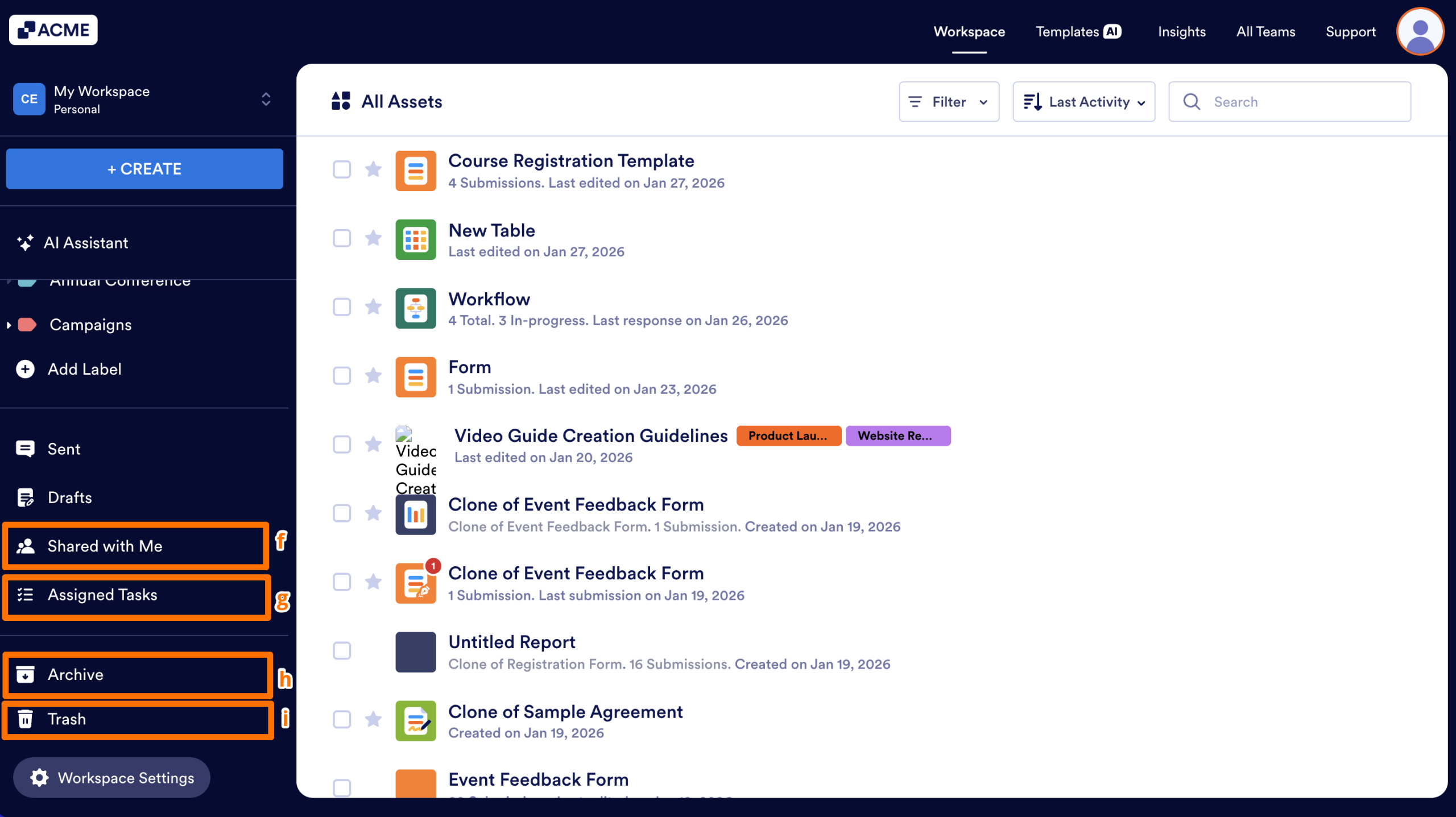
- Shared with Me: Access assets that colleagues have shared directly with you.
- Assigned Tasks: View forms and workflows where you have been assigned as a filler or an approver.
- Archive: Access assets you have moved out of your active list for long-term storage.
- Trash: Recover deleted items. Assets are stored here for 30 days before they are permanently deleted.
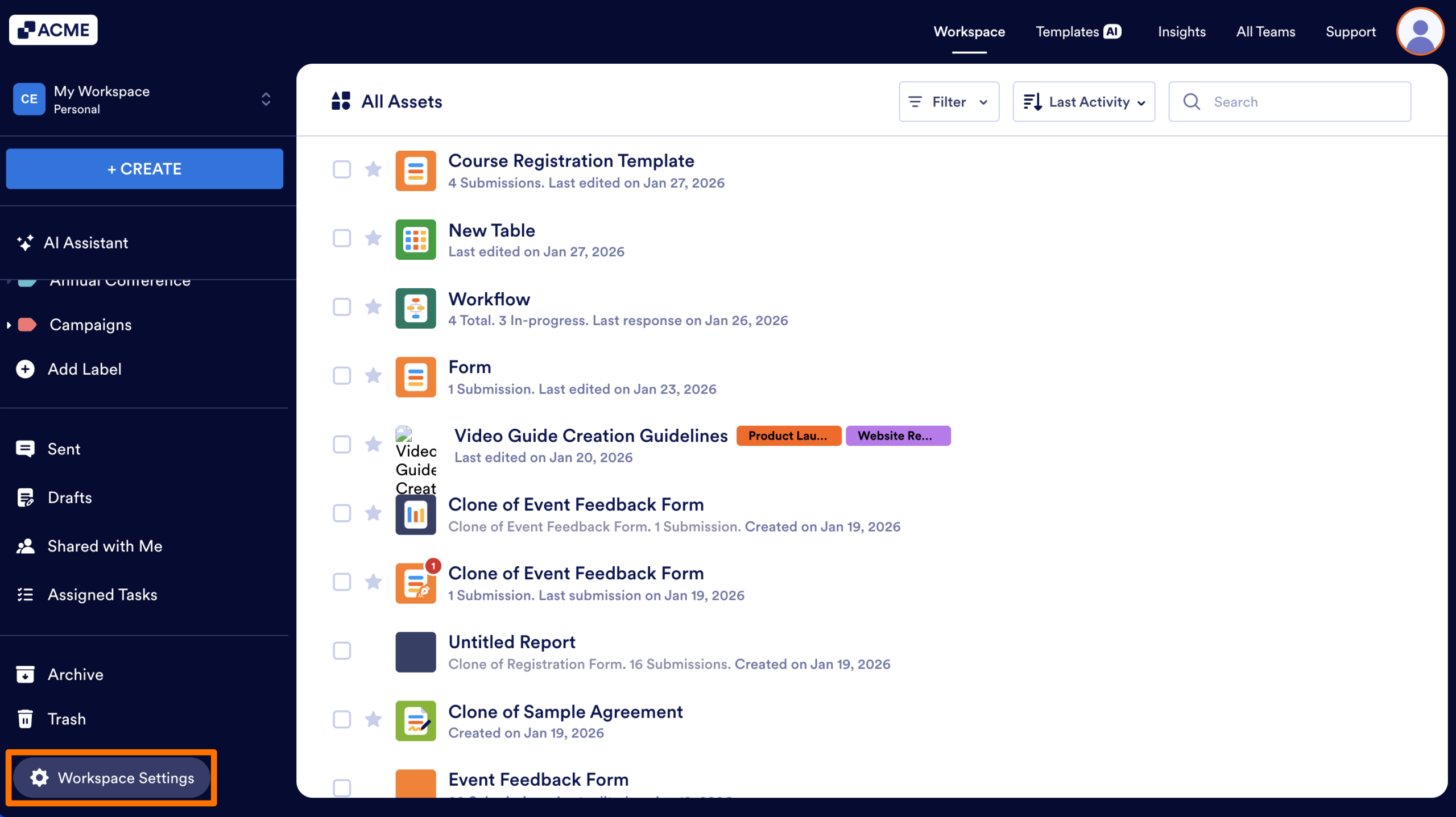
Depending on how your Admin users have your environment set up, you may also see a Workspace Settings button here, allowing you to personalize the background color or theme of your personal dashboard.
Toolbar Controls
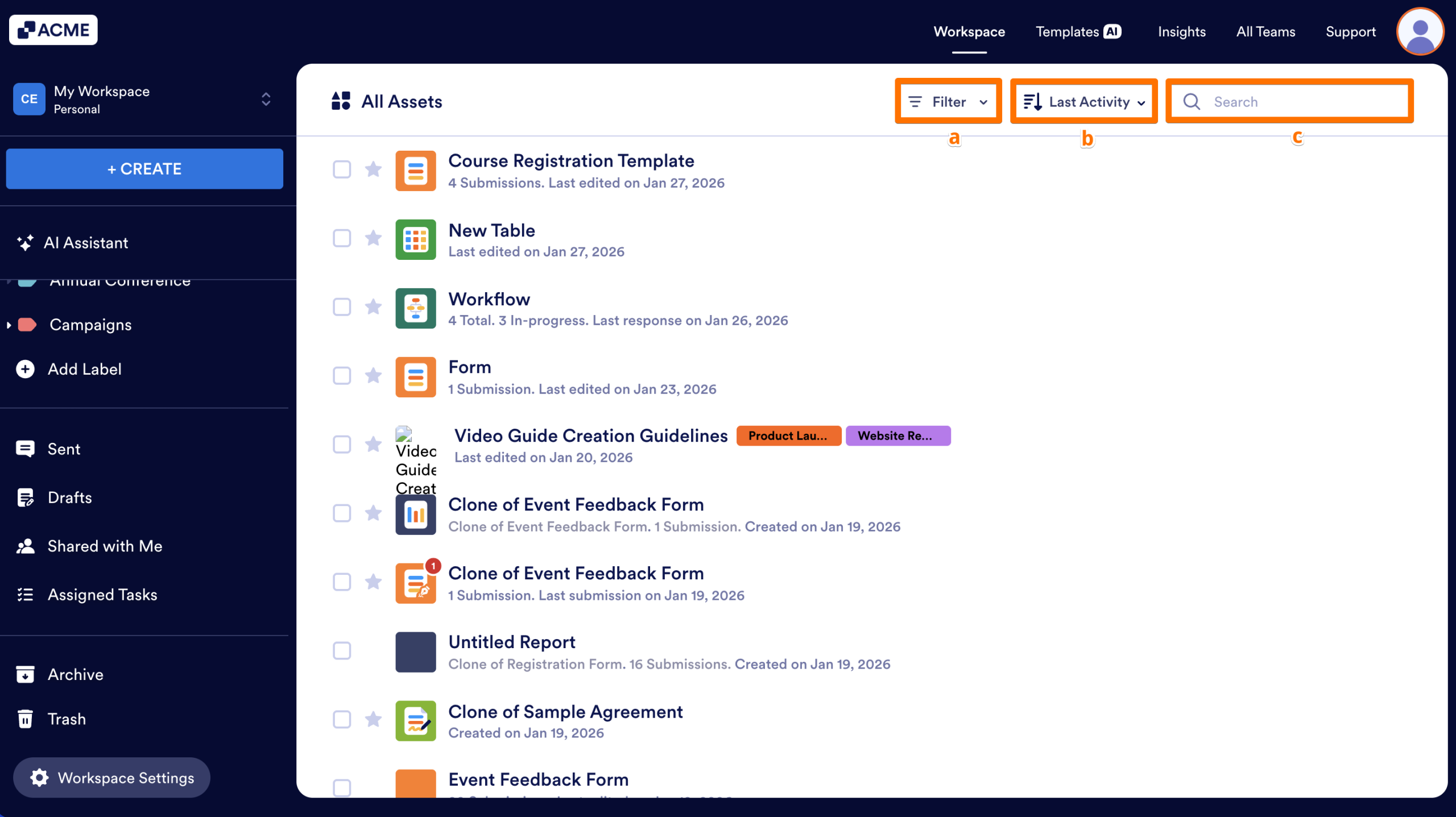
The toolbar at the top of your list helps you find and organize your work:
- Filter dropdown: Allows you to show or hide different asset types to keep your view clean when working on specific projects, like managing only your Sign Documents.
- Search Bar: Quickly find an asset by its name.
- Sort Menu: Arrange your view by “Last Edit,” “Creation Date,” “Alphabetical,” or “Submission Count.”
- Breadcrumbs: As you click into Labels, the breadcrumbs act as a navigation trail at the top of the screen. They show your current location within your file structure and allow you to jump back to any “parent” label with a single click.
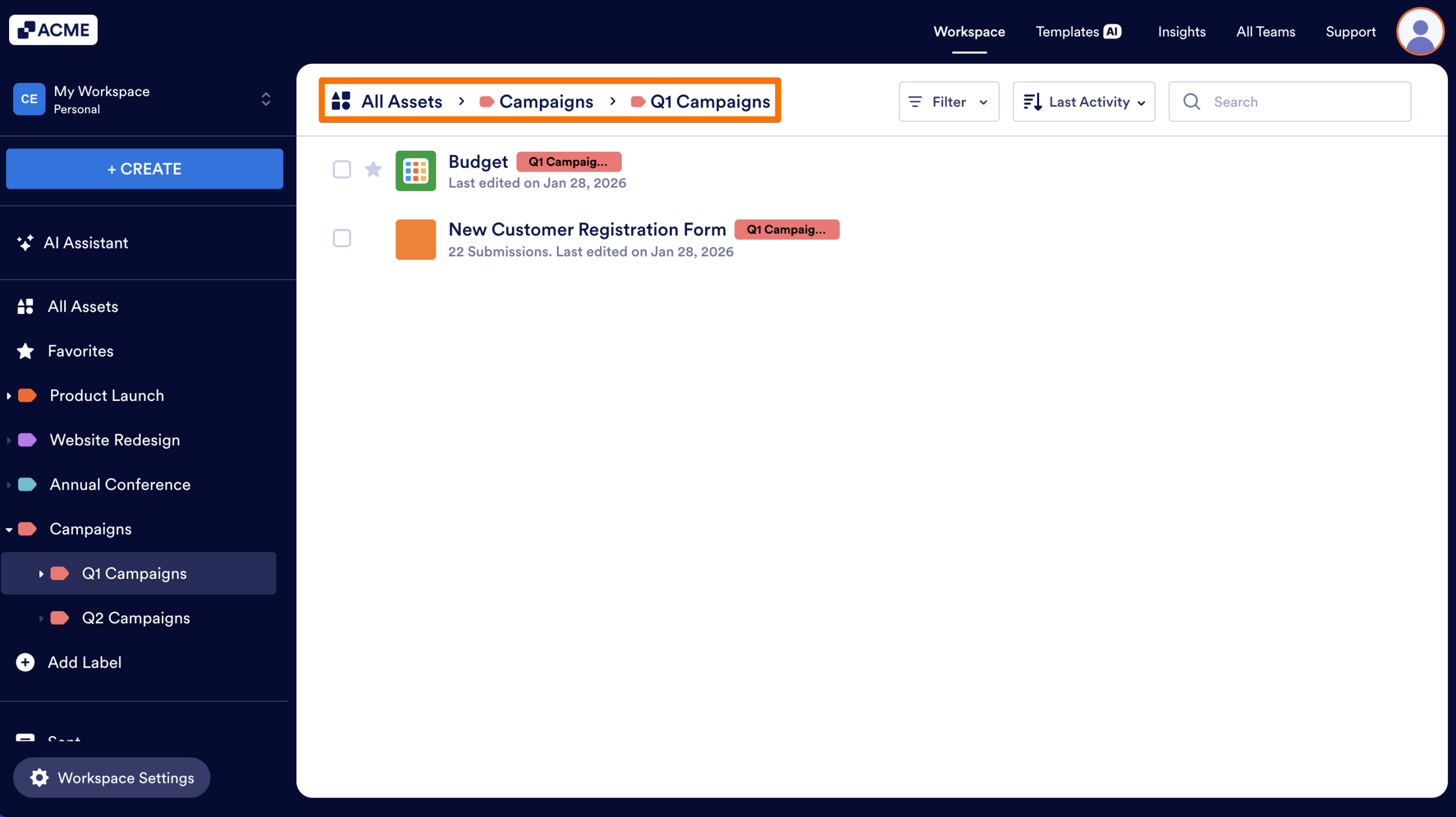
Asset List
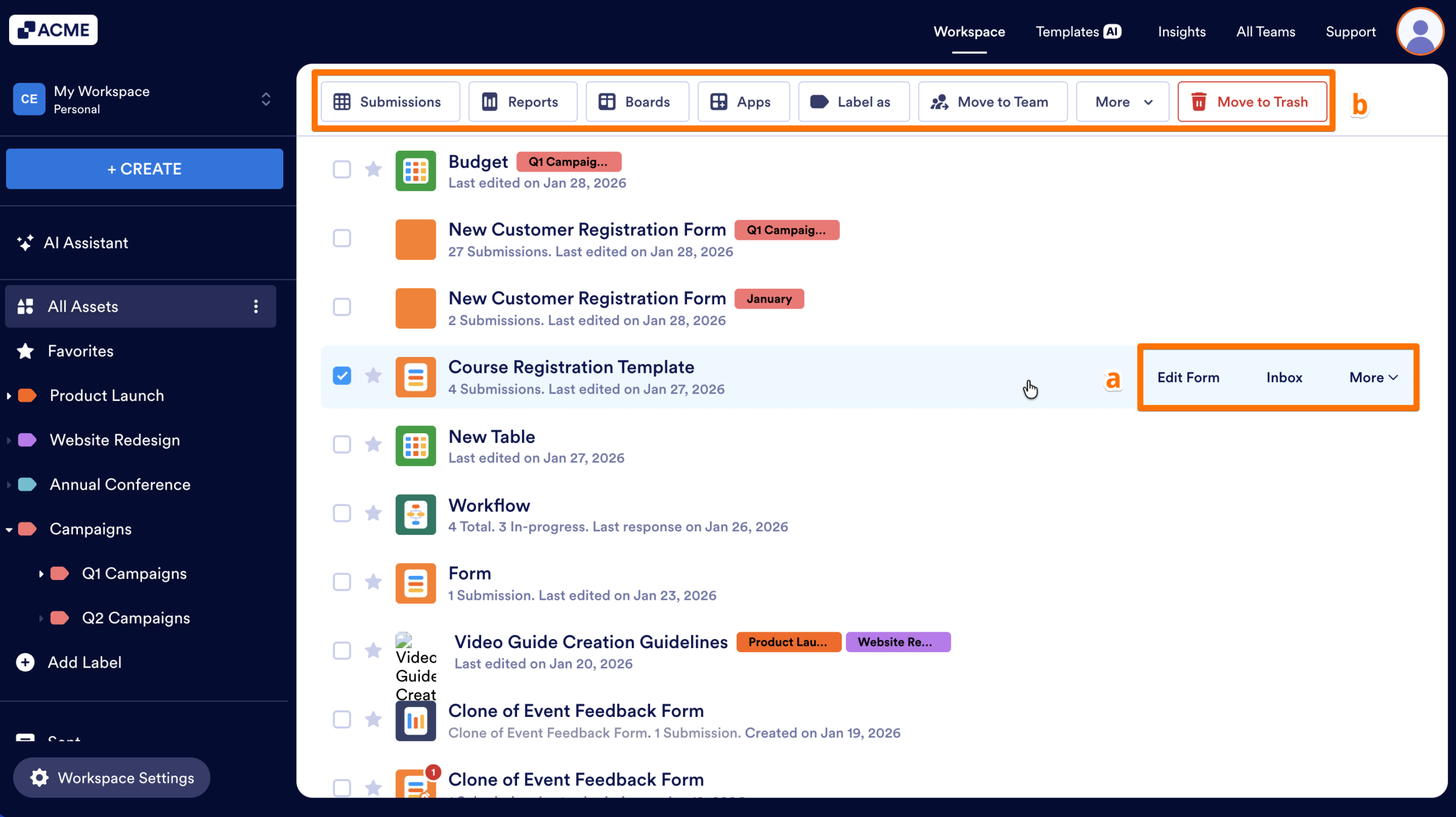
This central area displays all your assets. You can manage them using two methods:
- Hover Actions: As you move your mouse over an asset, quick options like Edit will appear. For more depth, the More button opens a full menu of shortcuts to help you jump directly into your Submissions (Tables), Inbox, or Publish settings.
- Selection Menu: Selecting the checkbox next to any asset triggers a toolbar at the top of the page. This menu is dynamic, updating to show you the most relevant actions for whatever you’ve selected—whether you are focusing on a single item or managing several at once.

Send Comment: