The Toolbar is the dynamic menu that appears at the top of your workspace whenever you select an asset. It provides quick access to core management actions like editing, viewing submissions, and organizing files, changing its available buttons automatically based on the specific asset type you select.
How to Use Toolbar Actions
Accessing the Toolbar
The toolbar remains hidden until you explicitly select an asset in the workspace where you’re working.
In My Workspace, click the checkbox on the left side of the asset.
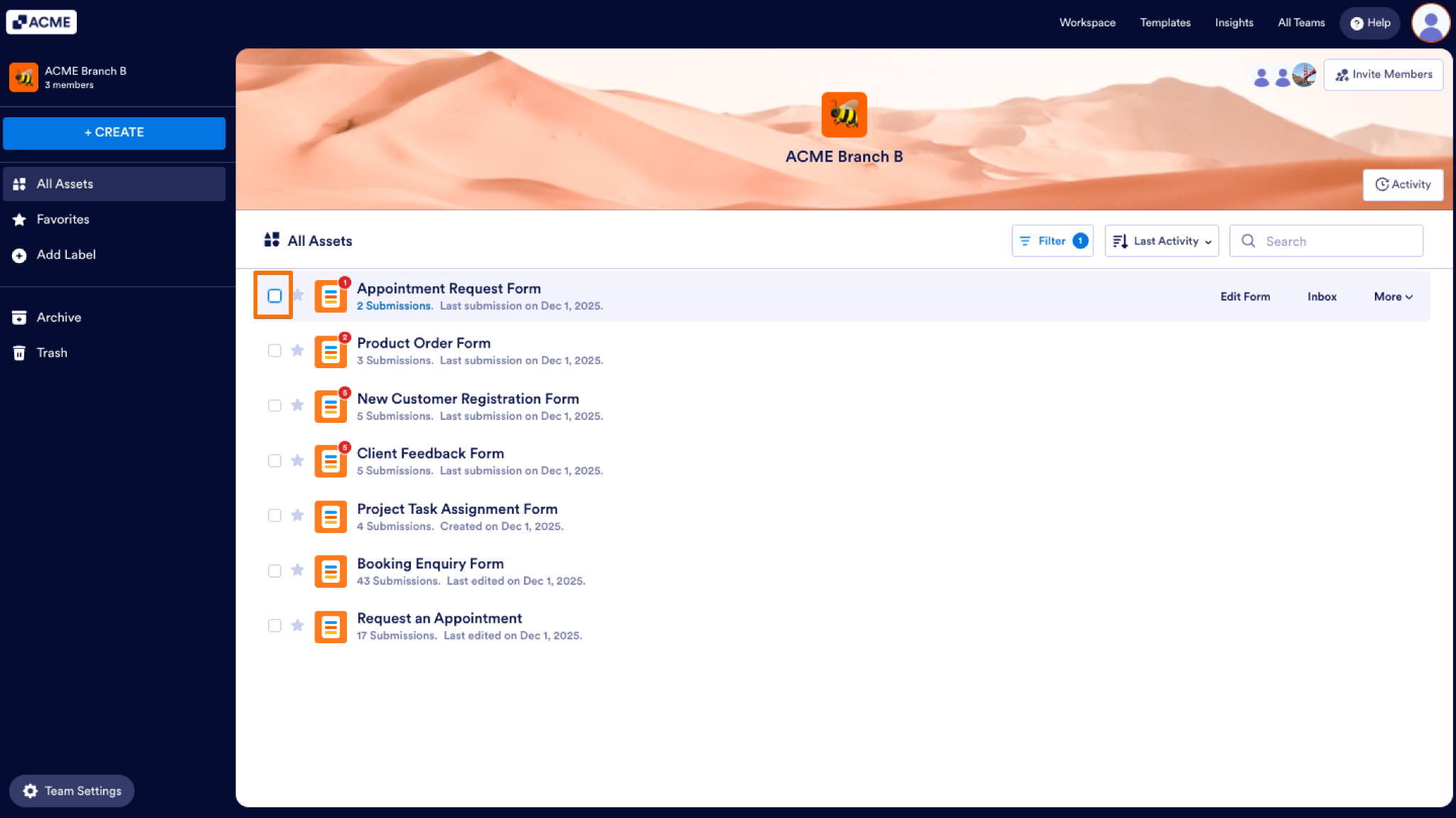
The toolbar will instantly appear on your screen.
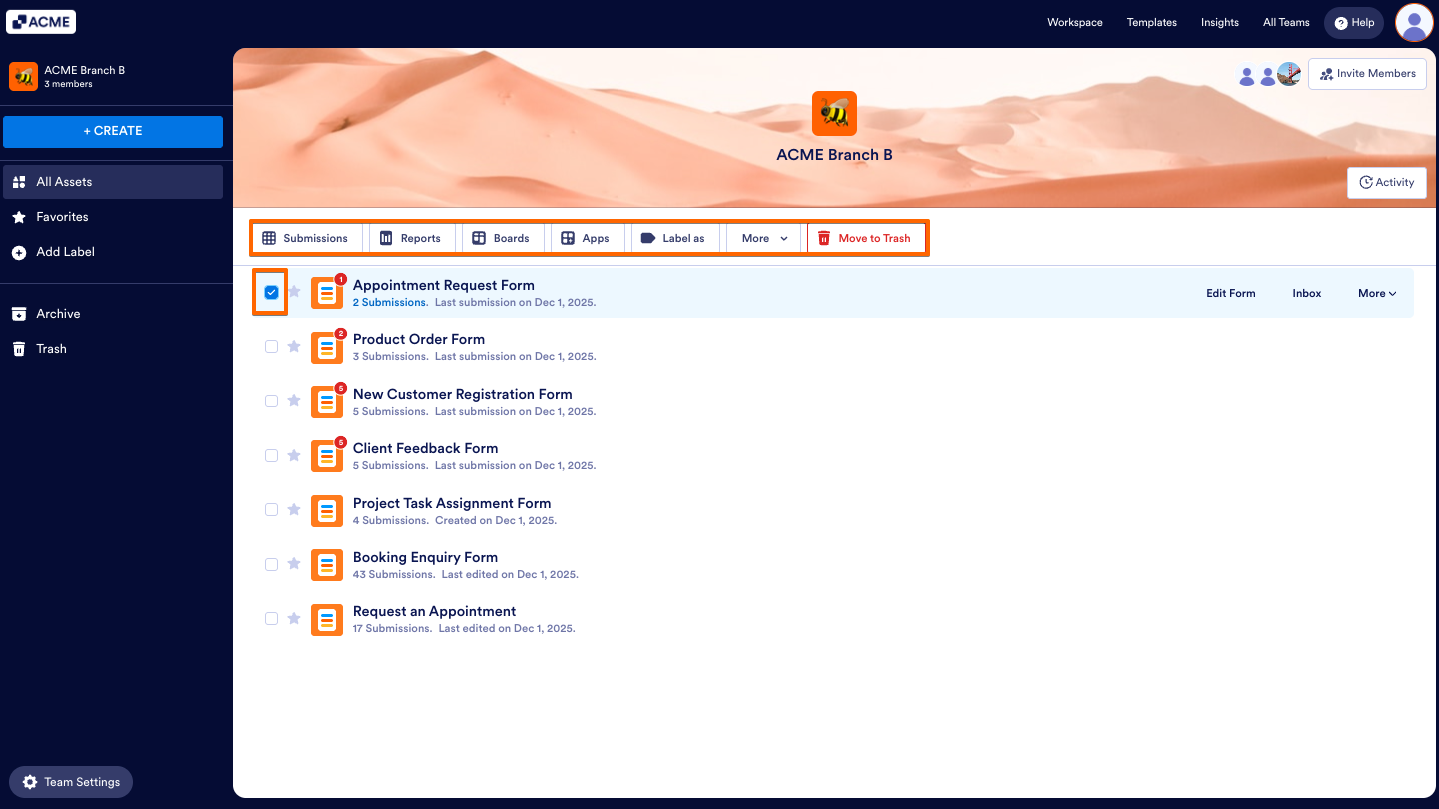
Executing Actions Based on Asset Type
The available buttons on the toolbar update dynamically depending on the asset you select.
Forms
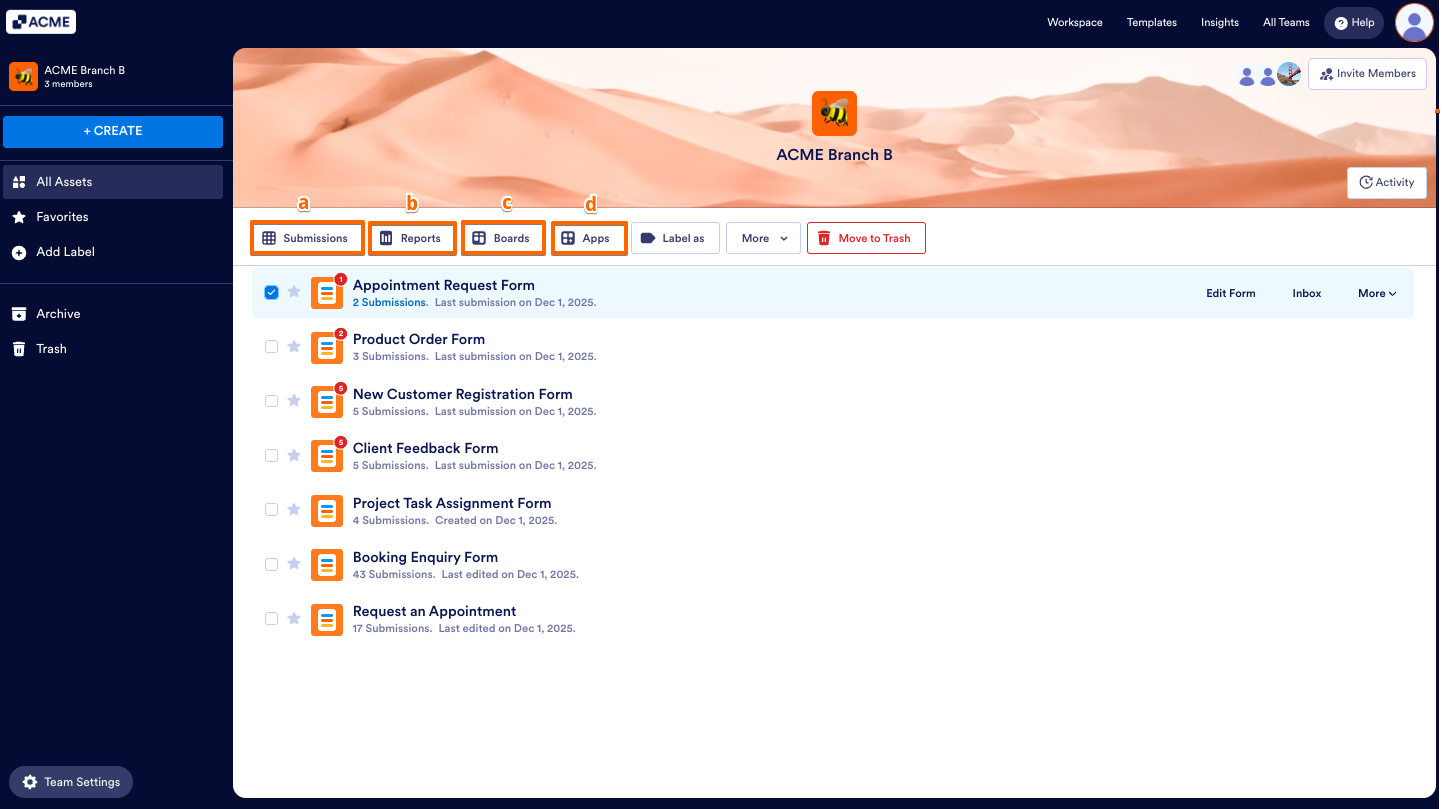
Product Buttons: Click to create a new asset or open an existing one connected to the selected form.
- Submissions: View, manage, and track form responses collected from form fillers.
- Reports: Generate data insights and analyze trends from your submissions.
- Boards: Turn submissions into actionable tasks instantly. Track progress, assign ownership, and manage workloads through a visual, drag-and-drop pipeline.
- Apps: Bundle your forms, links, and assets into a single, downloadable mobile portal. Give users seamless, centralized access to your tools on any device.
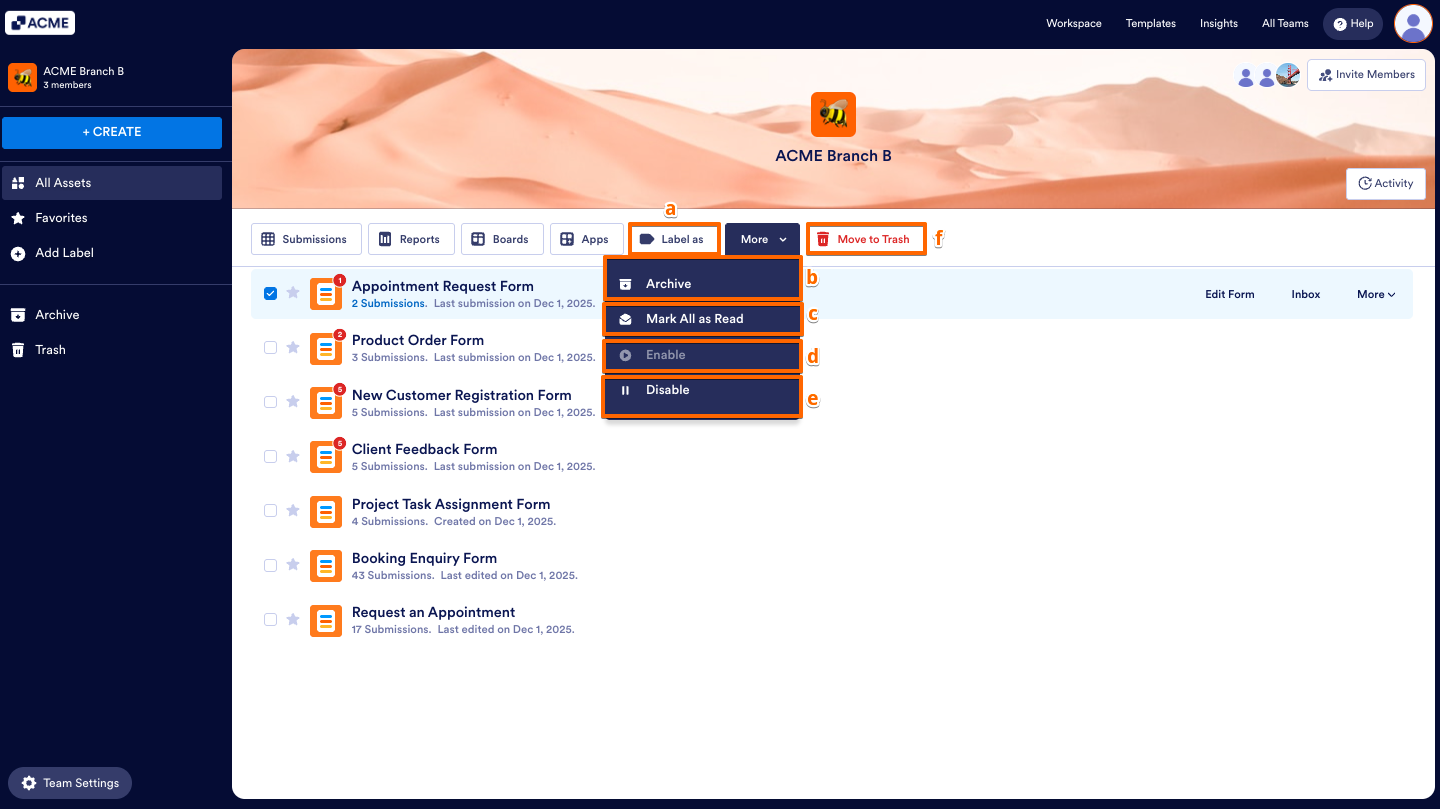
- Label as: You can assign specific labels to your workspace assets to better organize and categorize your work.
- Archive: Hides the form from the main workspace view without deleting it.
- Mark All as Read: Changes the status of all unread form submissions to “Read” instantly.
- Enable: Enabling a form restores access.
- Disable: Disabling a form takes it offline immediately, preventing fillers from accessing or submitting it.
- Move to Trash: Removes the form from the workspace and sends it to the Trash.
Note
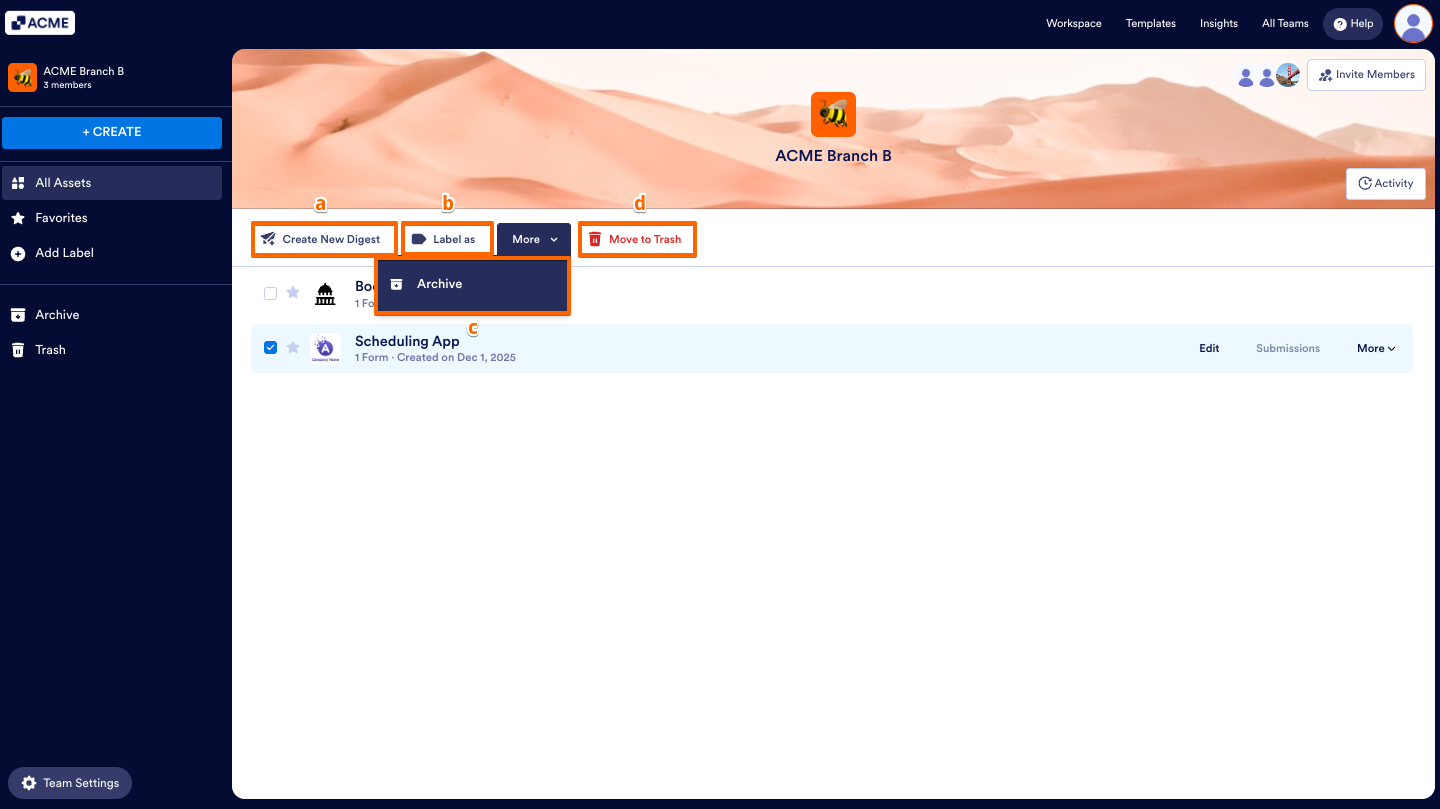
When selecting multiple forms at the same time, data-specific and view-specific toolbar actions, such as Submissions, Reports, Boards, and shifting to another Workspace, becomes unavailable.Selecting multiple forms will dynamically reveal a unique action on the top toolbar called Create New Digest, allowing you to combine data from multiple forms into a single summary report.
Apps
- Create New Digest: This allows you to create regular digest emails for new submissions.
- Label as: You can assign specific labels to your workspace assets to better organize and categorize your work.
- Archive: Hides the form from the main workspace view without deleting it.
- Move to Trash: Removes the form from the workspace and sends it to the Trash.
Note
When selecting multiple assets at the same time, Create New Digest action is unavailable on the toolbar to create a digest email you must select only one app at a time.
Other Assets (Tables, Sign Documents, Workflows, Reports, Boards)
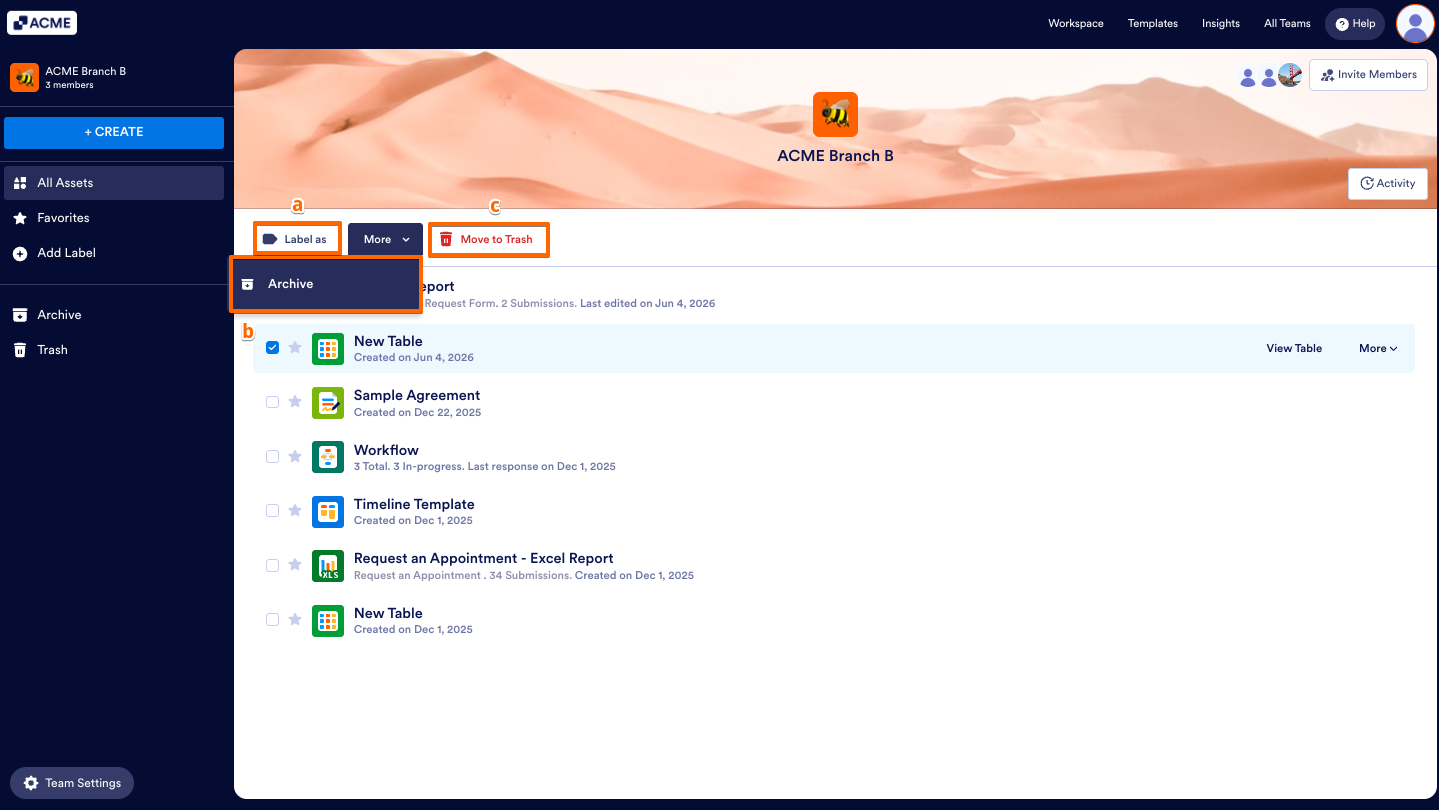
All other assets use the same set of toolbar actions.
- Label as: You can assign specific labels to your assets to better organize and categorize your work.
- Archive: Hides the form from the main workspace view without deleting it.
- Move to Trash: Removes the asset from the workspace and sends it to the Trash.
Note
When selecting multiple assets at the same time, Archive action becomes unavailable.

Send Comment: