
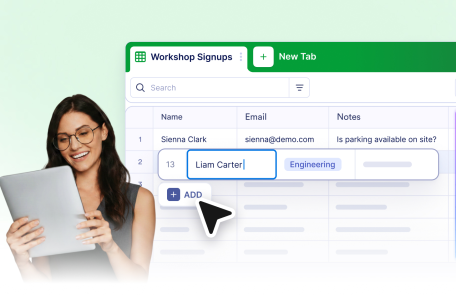
Add Entries Manually to Jotform Tables
Easily add new entries directly to Jotform Tables without submitting a form.
Entry Actions
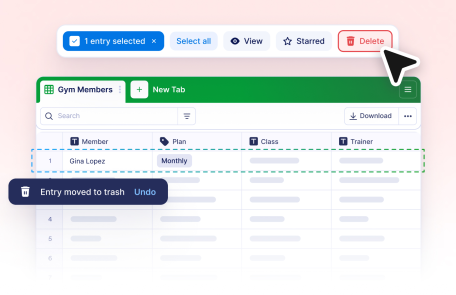
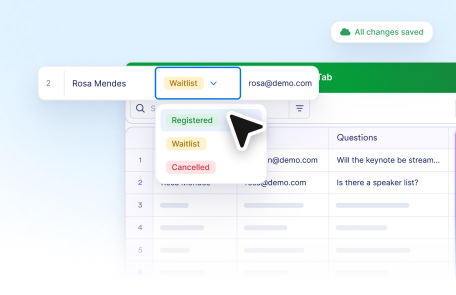
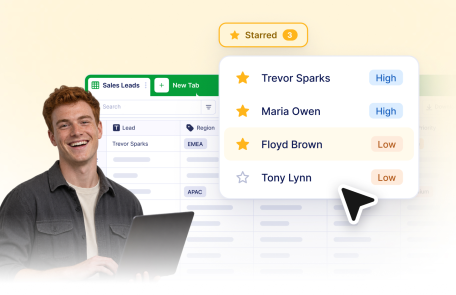
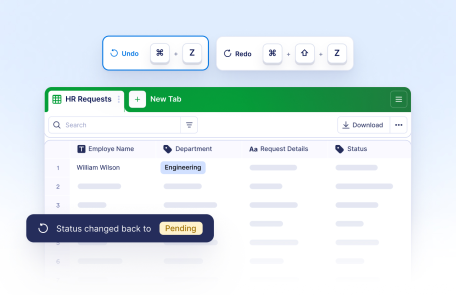
Add, edit, delete, and manage entries in Jotform Tables. Update submission data, mark important records as favorites, and undo or redo changes to keep your workflow organized.
View, manage, and complete unfinished form submissions in Jotform Tables. Access saved responses, continue partially completed forms, and keep track of entries that still need attention.

Don't let unfinished forms go overlooked. Keep saved drafts in one place, review information already provided, and help turn incomplete responses into completed submissions without starting over.
Access saved form drafts directly from Jotform Tables. Review unfinished responses, reopen forms to complete missing information, and remove unnecessary drafts to keep your records organized.
Find saved but unfinished form submissions in a dedicated panel. Review available session details, identify entries that need attention, and access drafts without searching through completed records.
Open an incomplete submission in its original form with previously entered information preserved. Review existing answers, fill in missing details, and submit the completed form.
Keep your incomplete submissions organized by removing outdated or unnecessary drafts. Delete individual sessions or select multiple entries to clear them together from the list.
Open the menu next to your table's main tab and select Incomplete Submissions. You'll see a dedicated panel containing saved drafts that haven't been submitted yet.
Yes. You can open a saved draft in its original form and continue from the information already entered. This allows you to review existing responses, complete missing fields, and submit the form.
No. Incomplete submissions are available when the form's Save and Continue Later feature is enabled and the user's progress has been saved. You can view these drafts in Jotform Tables.