
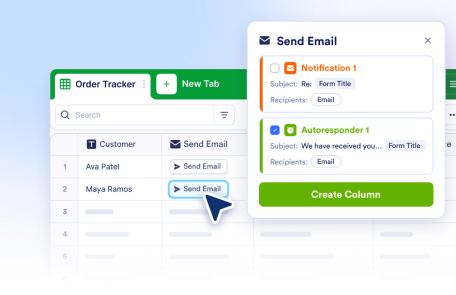
Send Email
Send personalized emails to contacts directly from Jotform Tables using action buttons.
Action Buttons
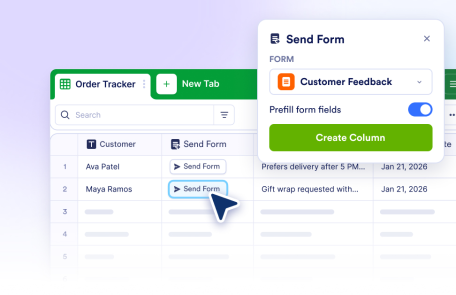
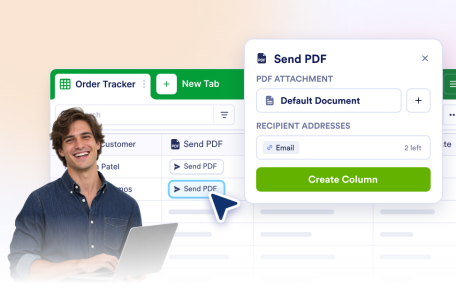
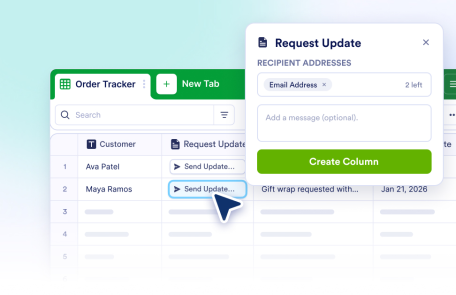
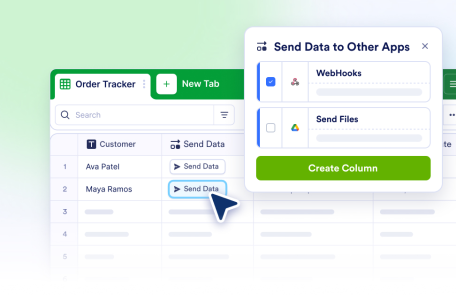
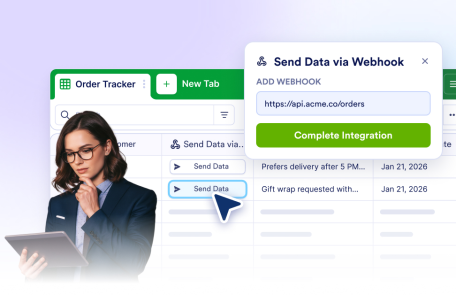
Automate tasks with action buttons in Jotform Tables. Send emails, forms, files, and PDFs, request updates, or transfer data to other apps and webhooks with a single click.
Transfer uploaded files from Jotform Tables to cloud storage services using action buttons. Send documents, images, and other attachments to connected apps with just one click.
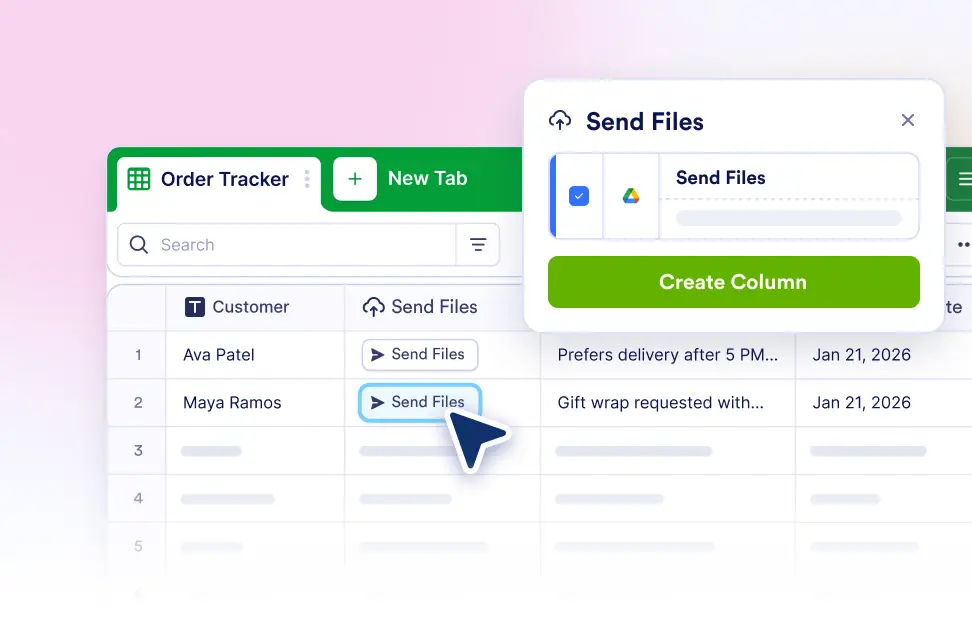
Simplify file management by sending attachments directly to your storage platforms. Connect Jotform Tables to cloud services and transfer files without manually downloading them.
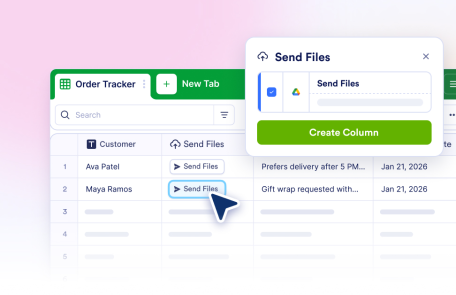
Use Send Files action buttons to transfer attachments from table entries to external storage services. Choose the files to send and connect your preferred platform for easy file management.
Connect Jotform Tables to services like Google Drive, Dropbox, OneDrive, Box, FTP, or Egnyte. Transfer uploaded attachments directly to your selected storage destination.
Select a File Upload column to specify which attachments to send. Click the Send Files action button to transfer files from the selected entry to your connected storage service.
Add a Send Files action button to your table, choose the File Upload column containing your attachments, and connect your preferred storage service. Click the button to transfer files from an entry.
You can send files to supported storage services such as Google Drive, Dropbox, OneDrive, Box, FTP, and Egnyte using Jotform's integrations.
Yes. You can select the File Upload column containing the attachments you want to transfer. When you click the action button, files from that column in the selected entry are sent to your connected storage service.