

Since its debut in 2024, Jotform Workflows has become vital to many users’ approval and task processes. But there were still some challenges in workflow building.
Some users wanted to test their workflow to ensure the right behavior (before deploying it). Some needed to ensure that certain workflow actions happened at just the right time, while others wanted to customize their workflow to connect with external tools. Now, all are possible.
We’re bridging the gap on these business needs by introducing three new Workflows capabilities:
- Preview
- Pause
- Webhook
These capabilities offer updated run simulations, timing controls, and connectivity options, giving you the flexibility you need to get more out of your workflows.
What you’ll learn in this post&
- How the new Preview feature helps you prep your workflows
- How to use the Pause element in Jotform Workflows
- What the Webhook element is and how to apply it in Jotform Workflows
Preview feature
Building workflows can be daunting. How many times have you wondered, will it work like it’s supposed to? Or, where does the logic break down when something goes wrong?
With the new Preview feature, you can run your workflow while watching each step run in real time inside a simulator. As the steps progress, you can inspect data, follow decision paths, and quickly spot where conditions fail or logic diverges from what you intended, without guessing.
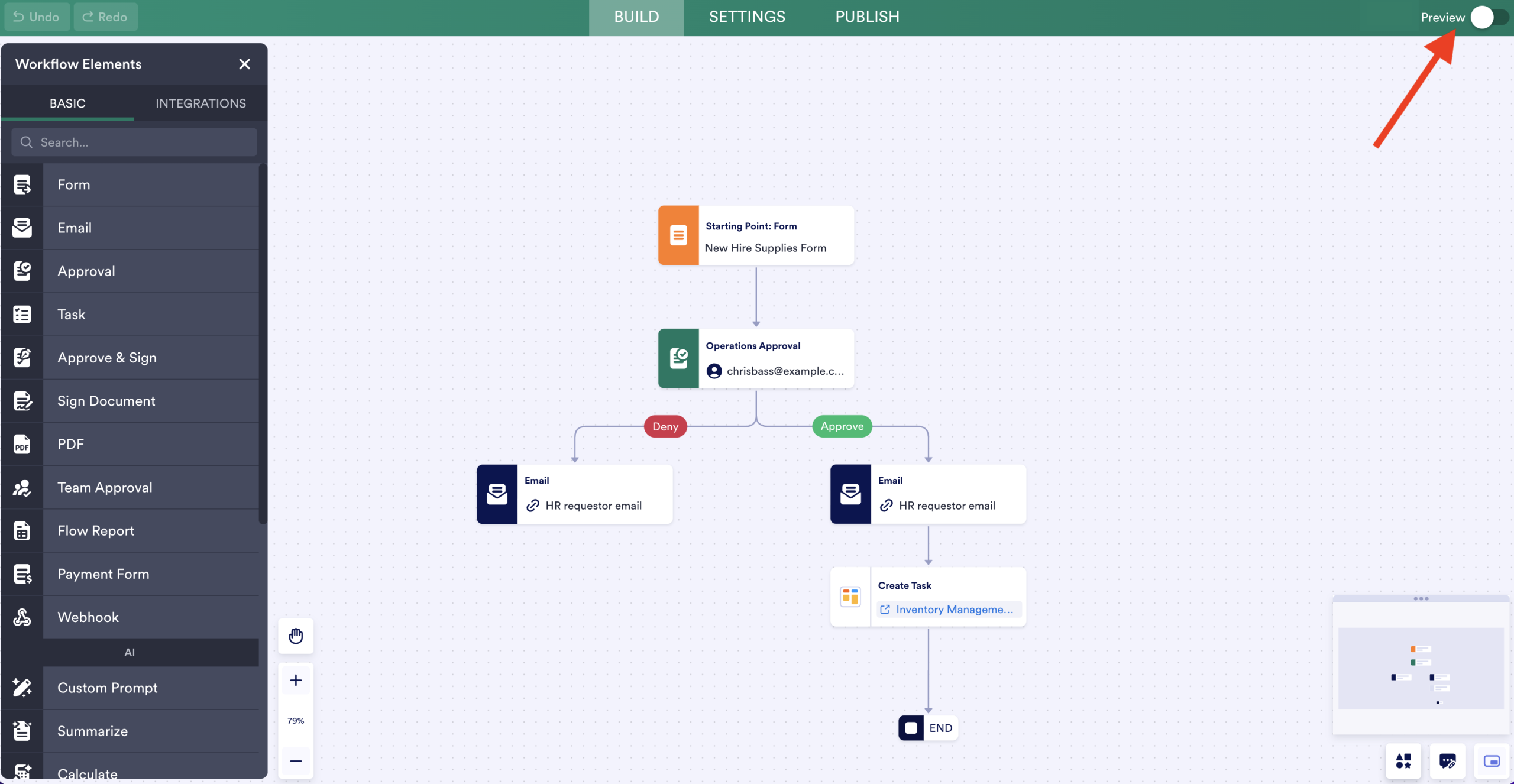
The Preview feature is located inside the Workflow Builder (at the top right corner). It will appear once you’ve configured at least one trigger for your workflow.
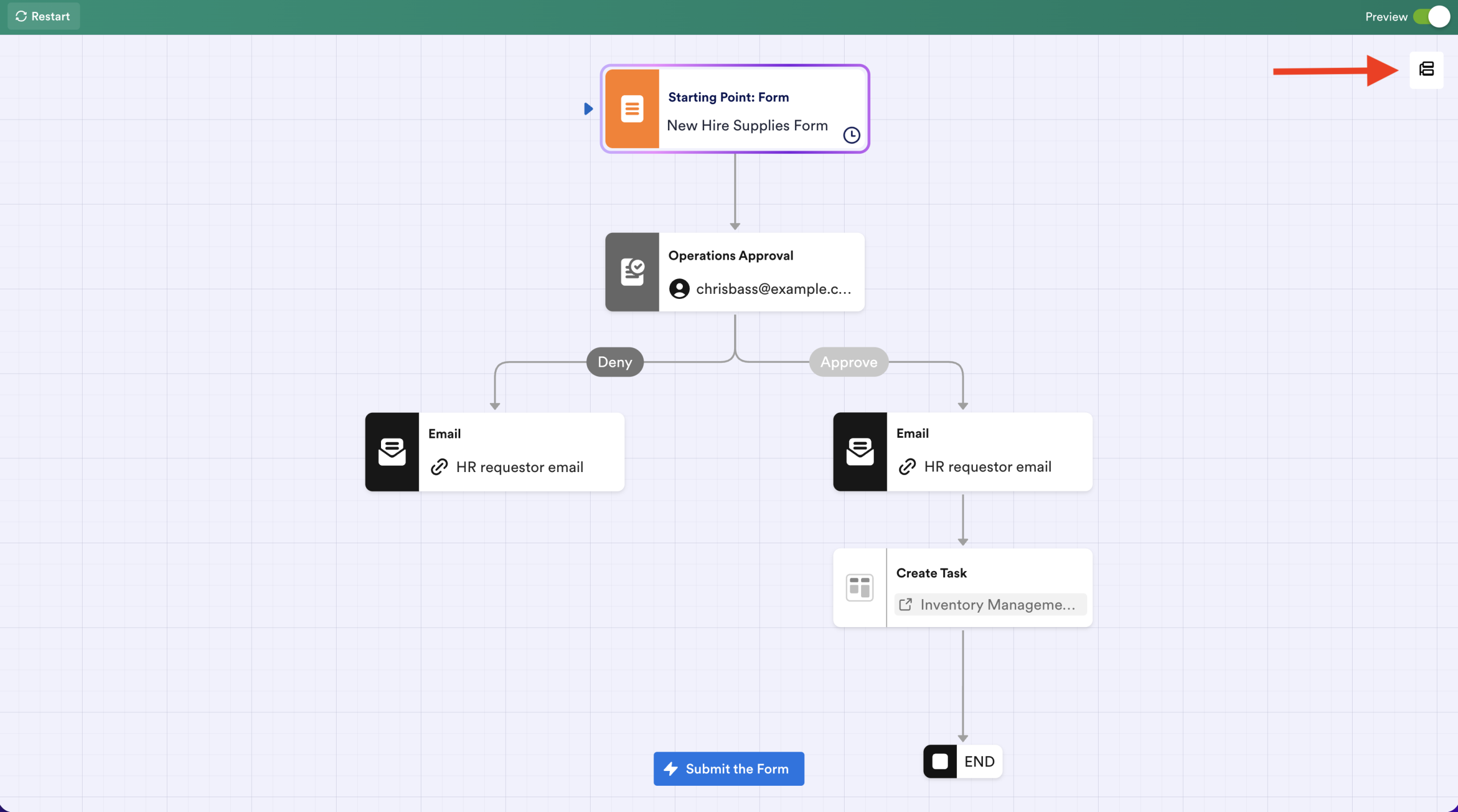
When you move through the steps of your workflow, you can opt to see the Run Summary by clicking the hierarchy symbol on the right.
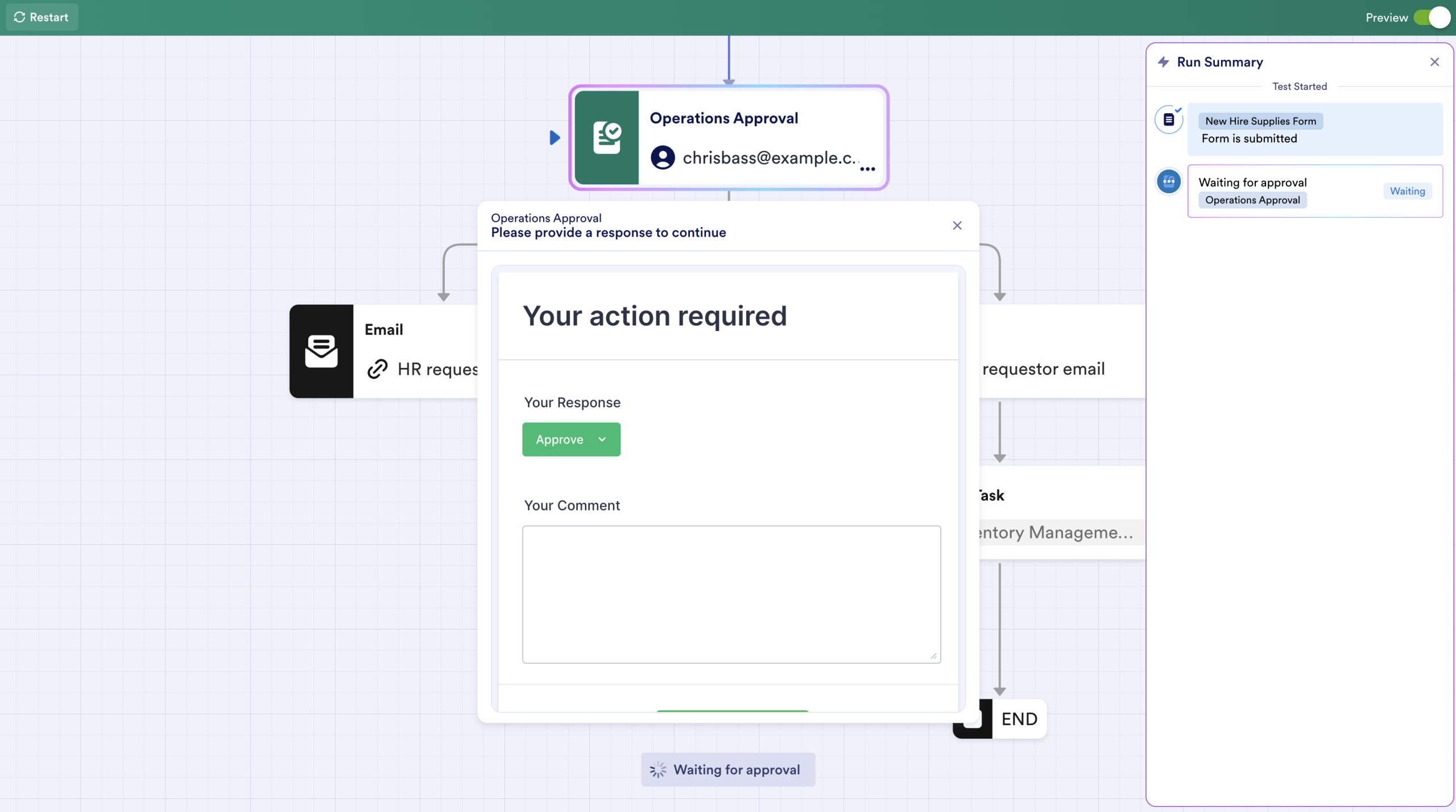
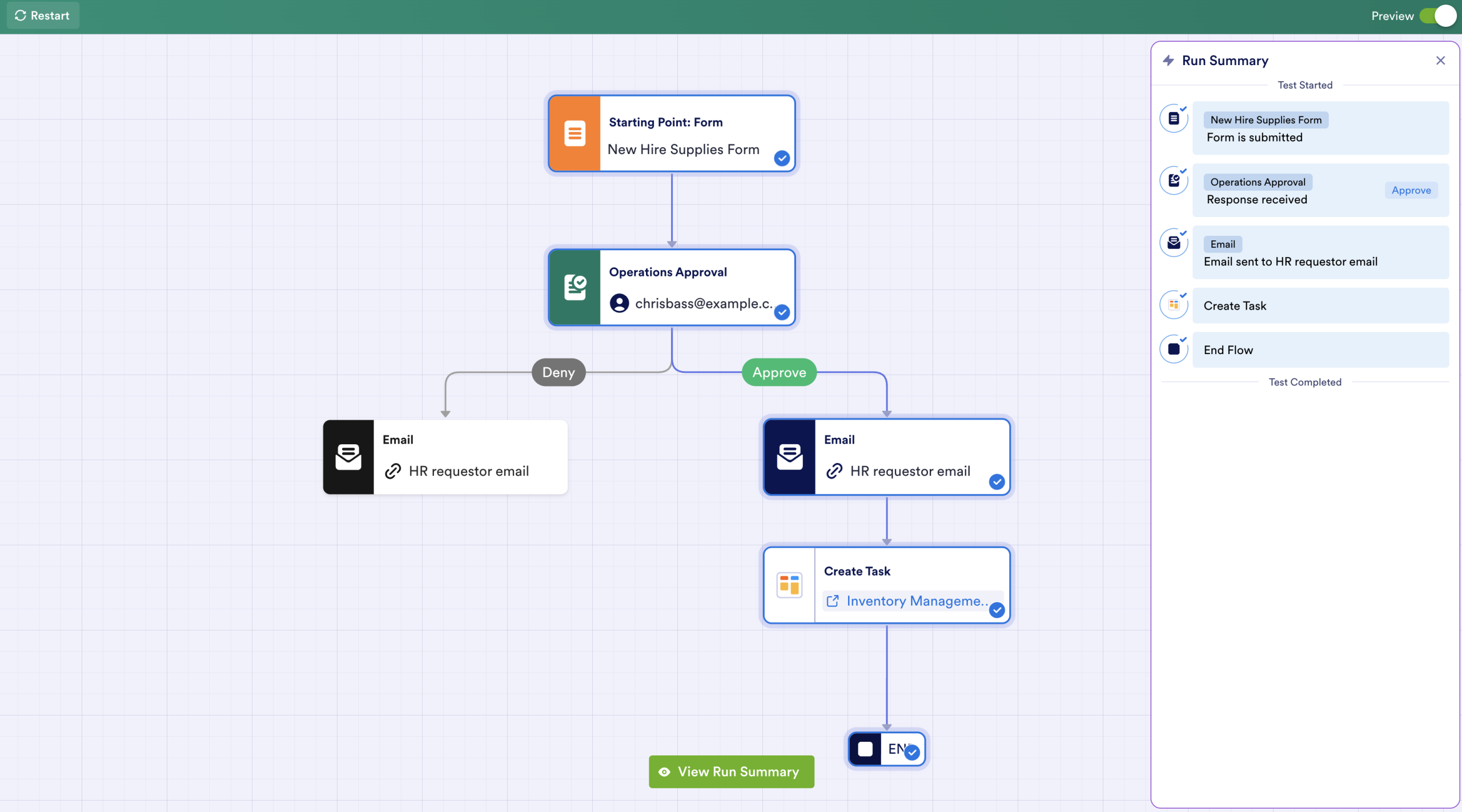
When your workflow is done, the Run Summary reveals the results of your test.
Pause element
There are times when a workflow needs an action to happen at just the right time, not necessarily right after the preceding step. As an example, scholarship approvals can be subjective and may happen on different days for different students, but all acceptance emails should be sent on one announcement date.
With the Pause element, this kind of custom timing can be built right into the flow. The pause can range from minutes to months, or until a specified date and time. When the waiting period ends, your workflow will auto-resume where it left off.
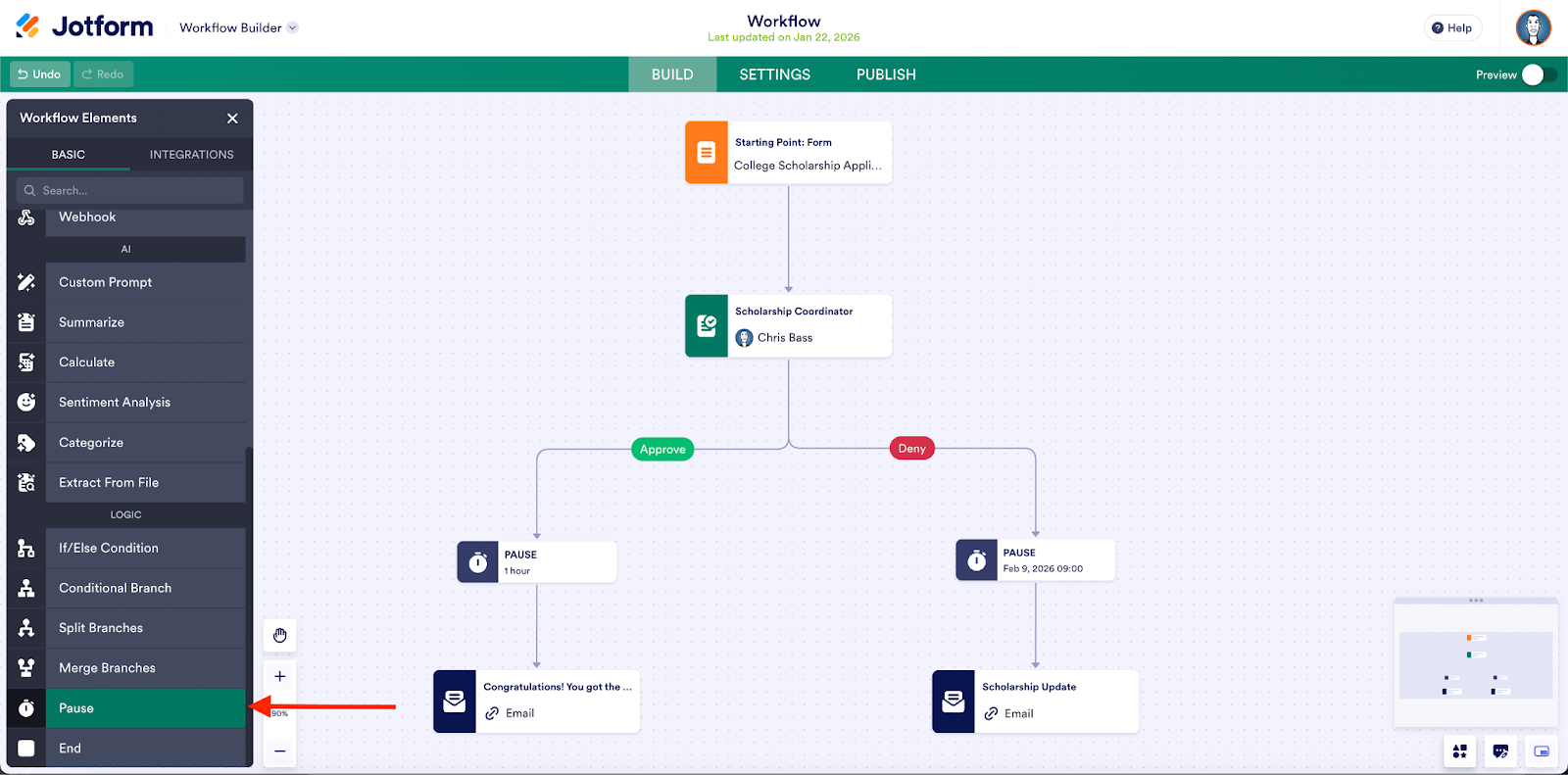
You can find the Pause element in the Workflow Builder under the Logic section in Elements.
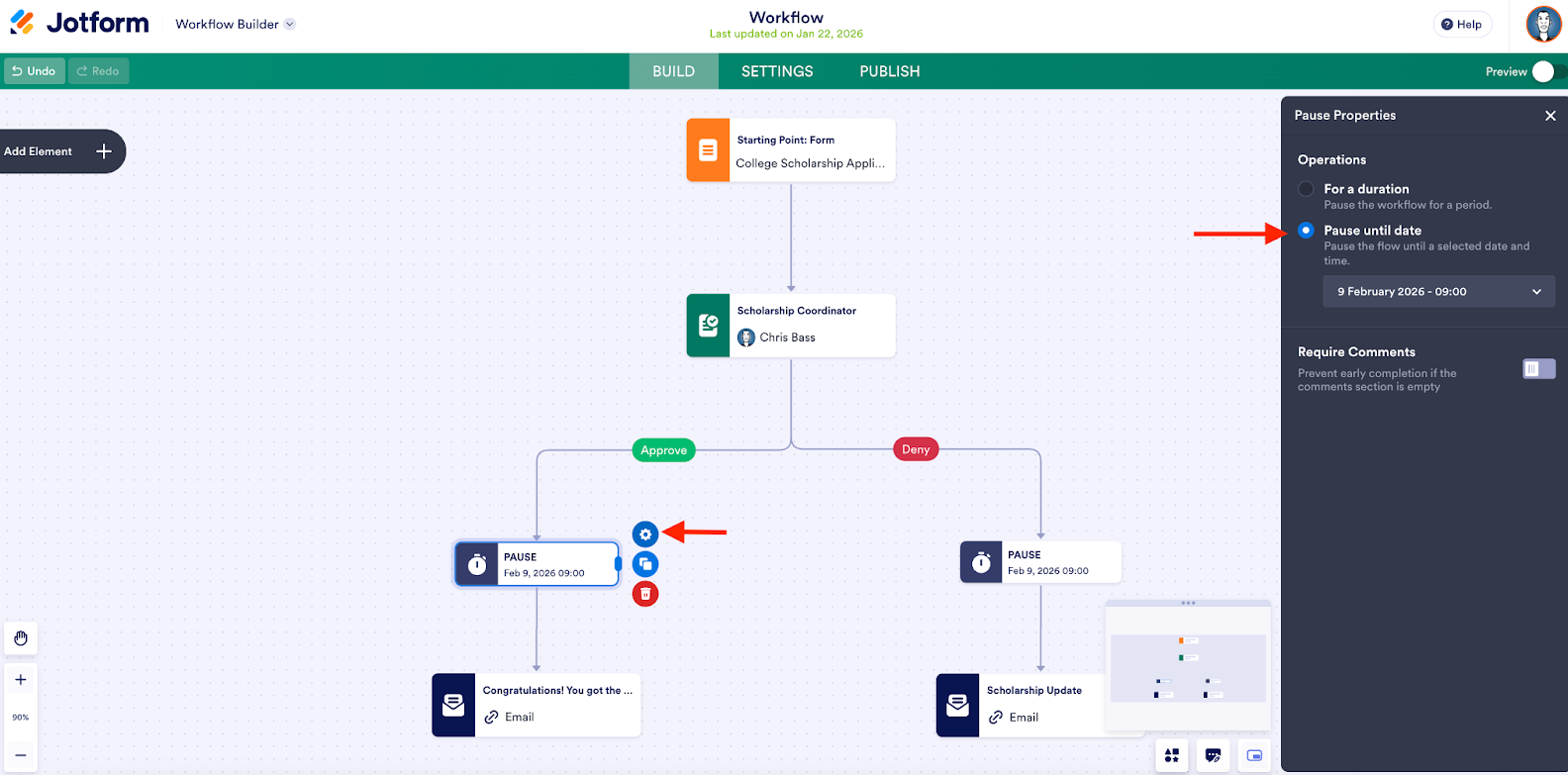
In the Pause element properties, you can set the workflow to hold until a specific date and time.
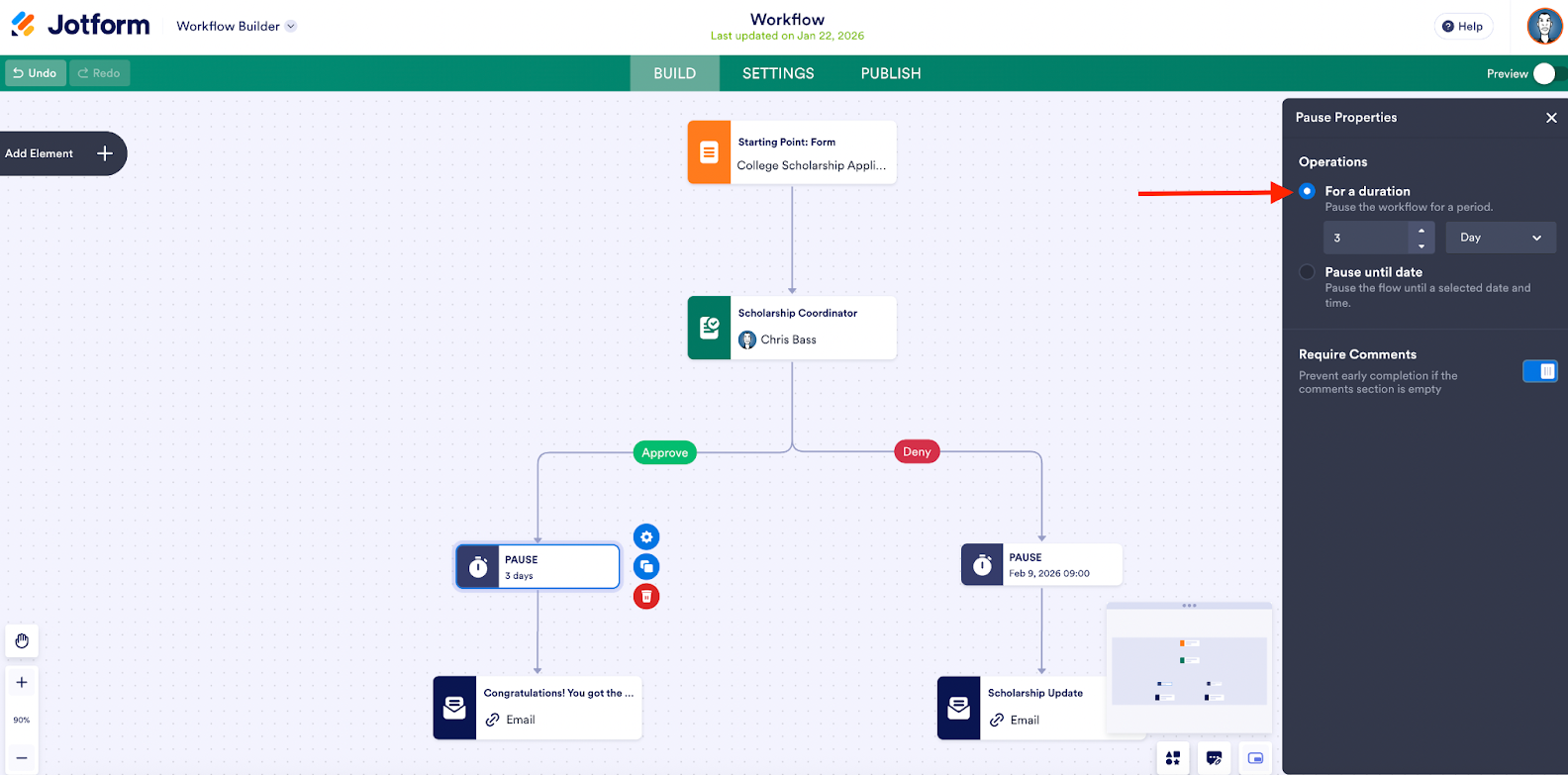
You can also pause for a set duration (e.g., a few days or one hour).
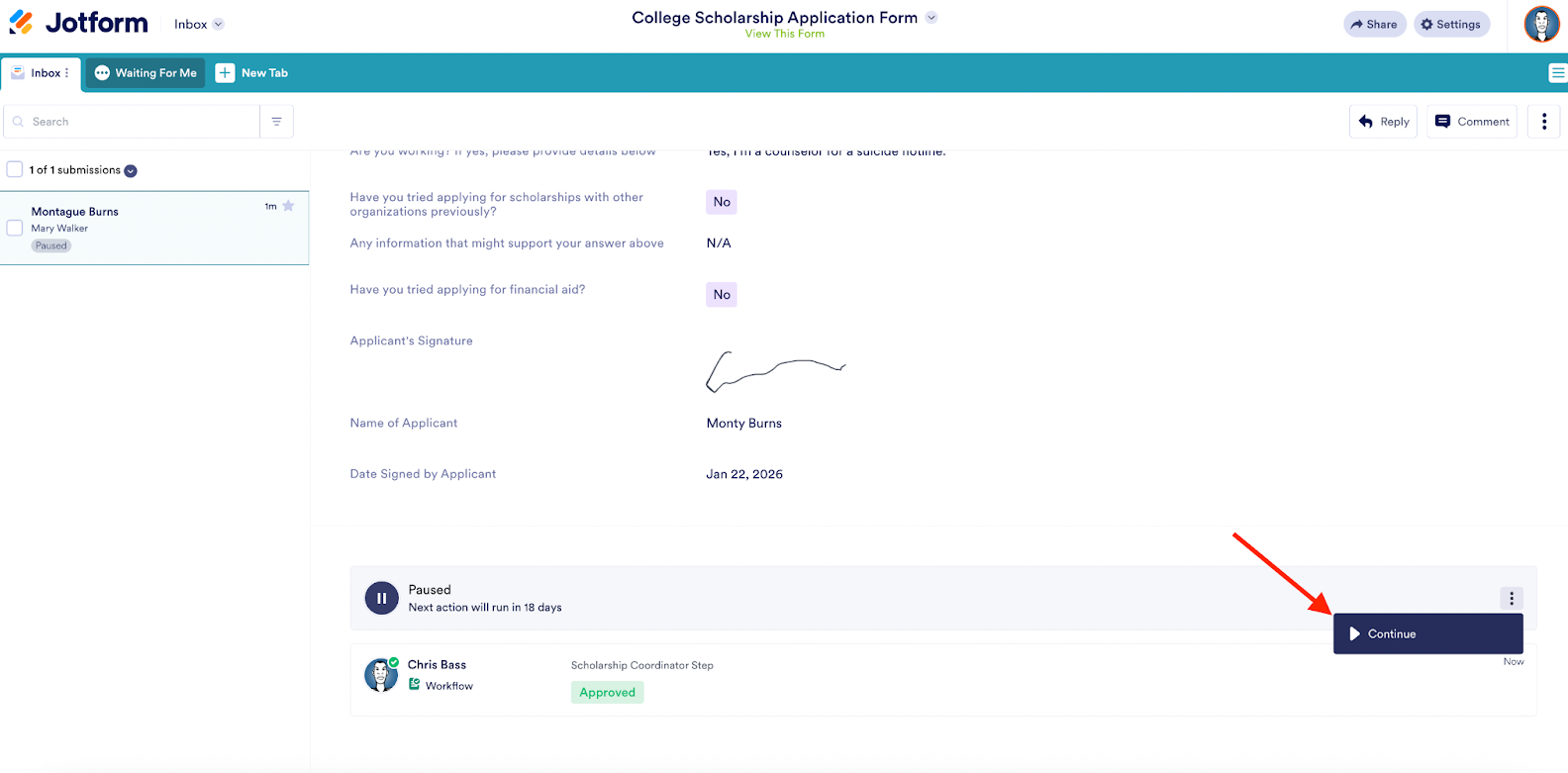
Once the workflow is in motion, the workflow owner can resume the flow early if they end the pause manually (by hitting Continue in their Jotform Inbox).
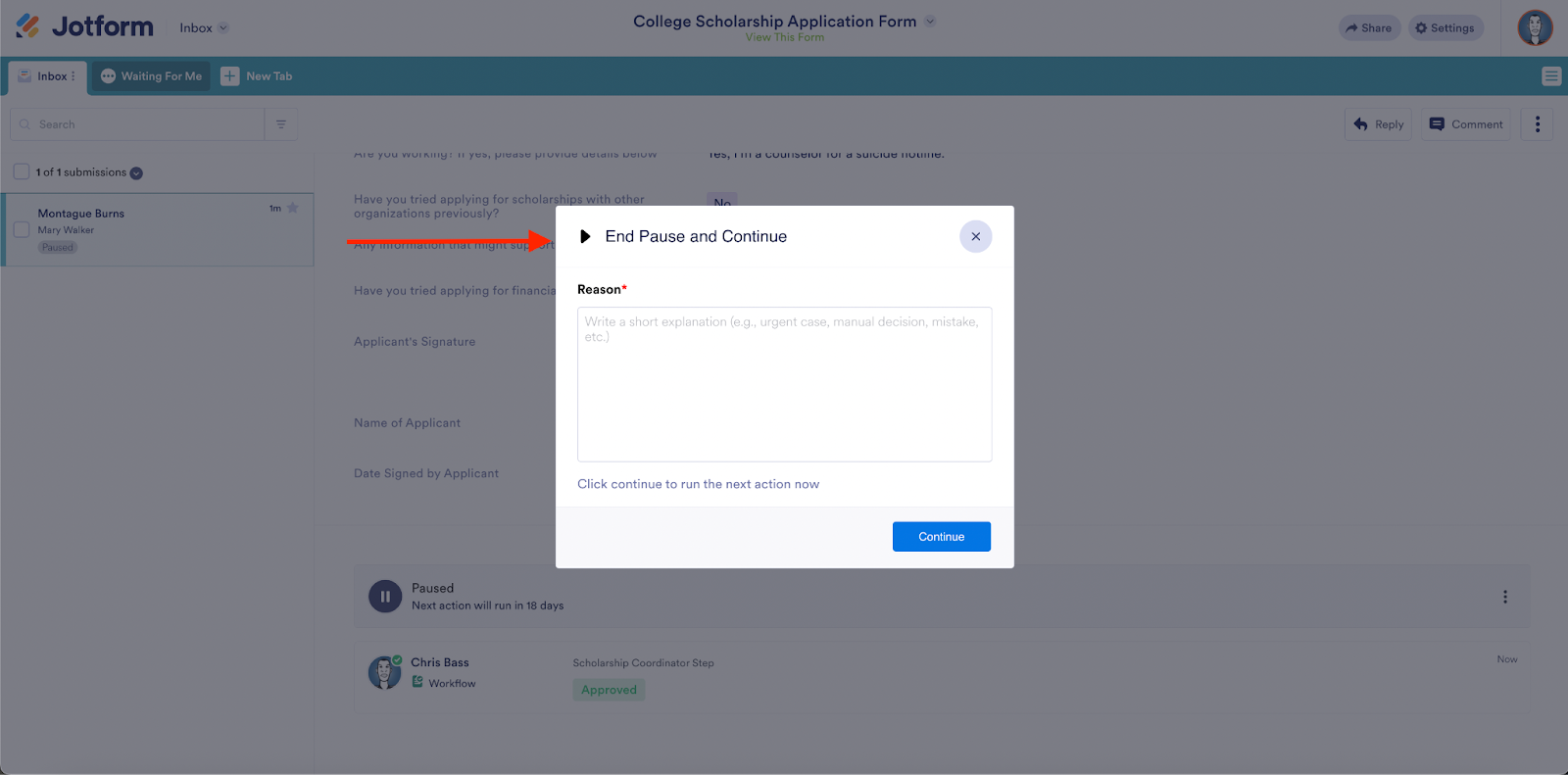
When the pause ends, the workflow continues automatically with the next action.
The Pause element gives you precise control over timing and helps ensure that your automated workflows are coordinated and reliable.
Webhook element
Since the dawn of software, there’s been a need to connect data in one system to another, separate system.
As much fun as ad hoc workarounds can be 🙄 — think seeding links within email notification elements — we’re happy to offer a formal Webhooks element that sends real-time data to another app, directly from your workflow.
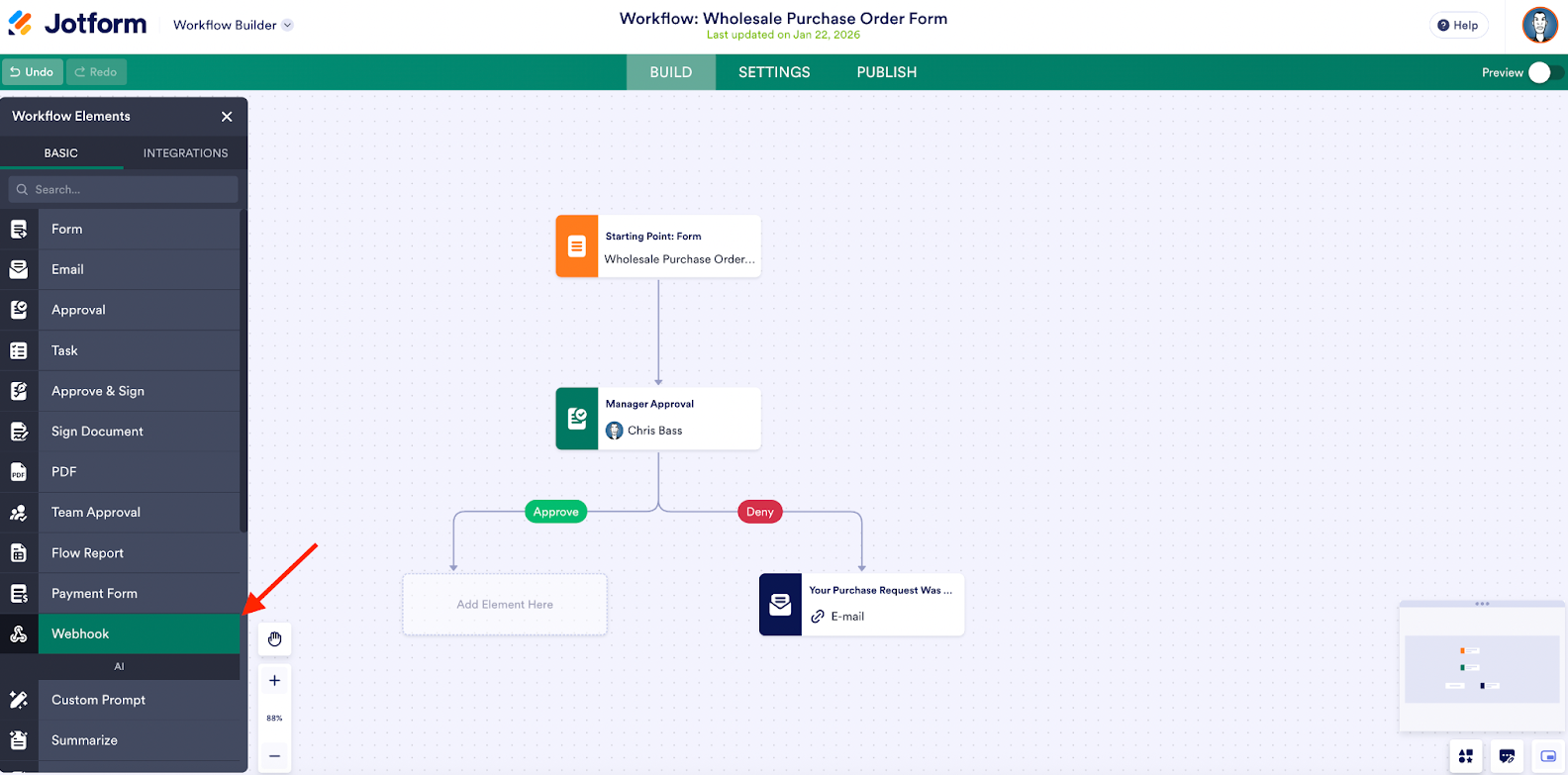
Webhooks can run conditionally at any step of the workflow, whether that’s after a form submission or an approval, or based on if-else logic. This kind of workflow element is tailor-made for users with custom workflows or those who are working with internal automation systems.
As an example, let’s say a purchase request form is submitted. It goes through approval and, once approved, a webhook sends the approved data (item, quantity, requestor) to an external finance system to initiate payment.
The request first goes to the manager for approval.
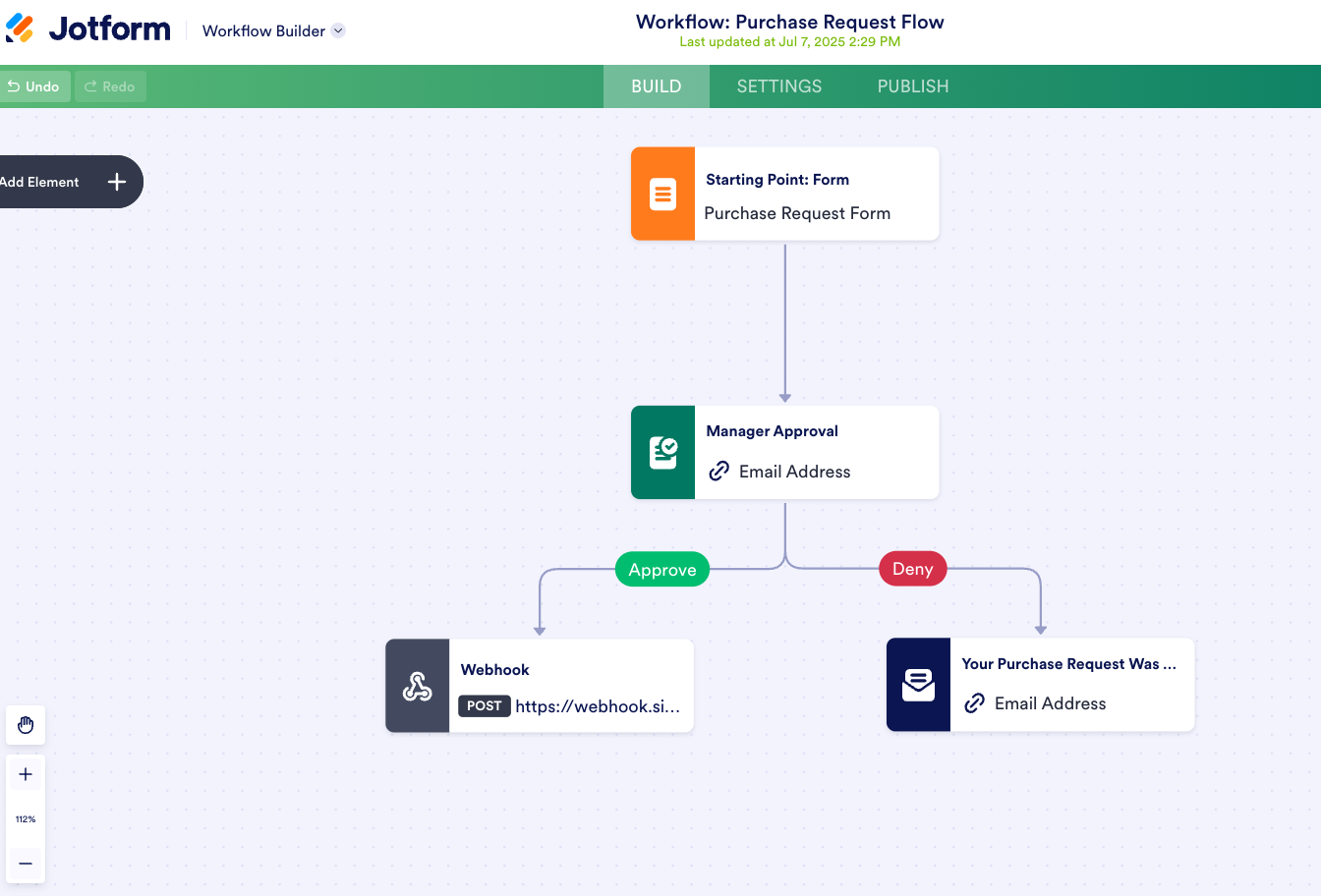
After it’s approved, a webhook sends the approved data to the finance system.
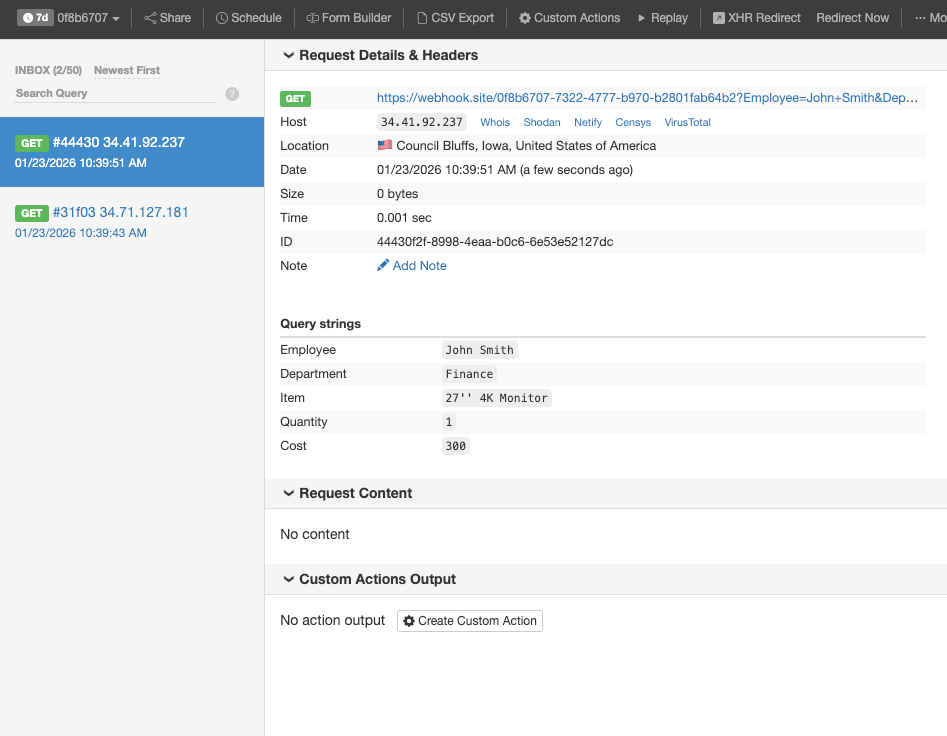
This is just one example. Webhooks can be leveraged for many other uses, such as sending form data to your SQL database, getting instant email notifications using your email server, and more.
For more information about creating, setting up, and testing the Webhook element, check out our Help Guide.
***
We hope the addition of Preview, Pause, and Webhook capabilities in Workflows gives you the added flexibility to automate your form submission data in just the way you need. As a reminder, Jotform Workflows already combines approvals, emails, integrations, conditional logic, e-signature, and task management features to simplify all of your work processes.











Send Comment: