
Harvest Green Back to Top
We couldn't create your widget. Please try again.
We couldn't create your widget. Please try again.

We couldn't create your widget. Please try again.

We couldn't create your widget. Please try again.

We couldn't create your widget. Please try again.
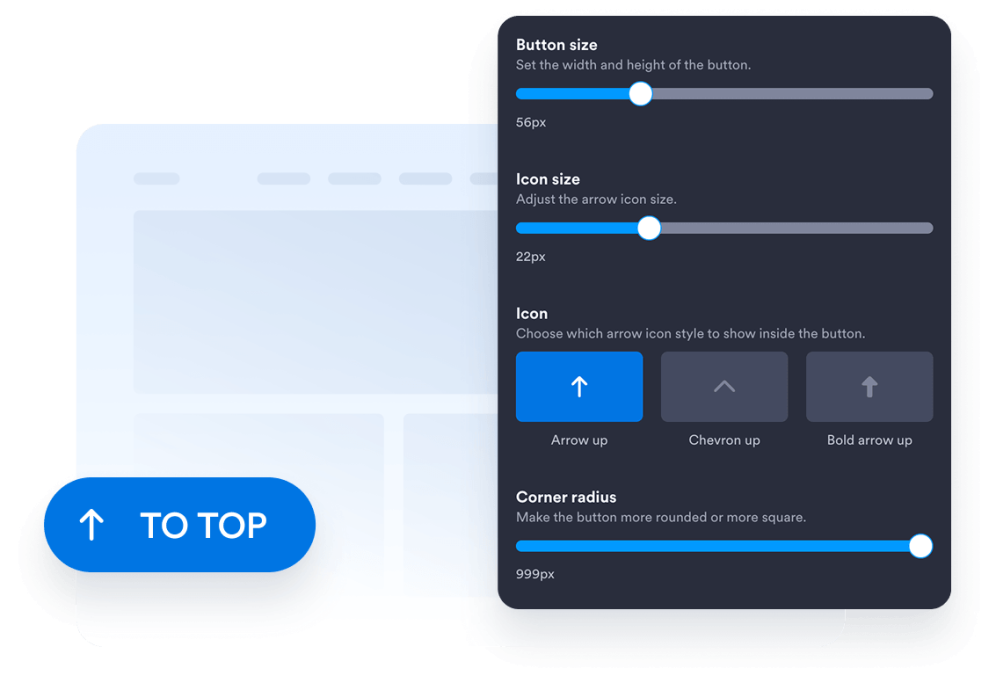
Choose the button style, icon, size, colors, corner radius, and screen position. Adjust its spacing and appearance to complement your website design.
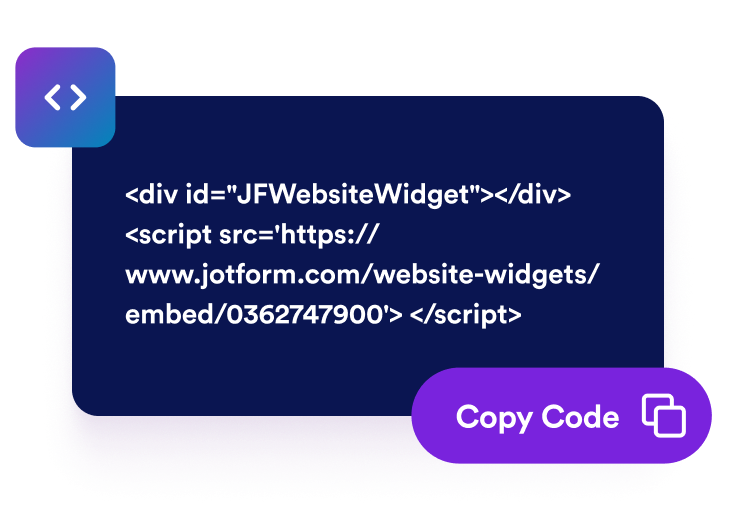
Copy the ready-to-use embed code generated by Jotform. No setup or coding required.
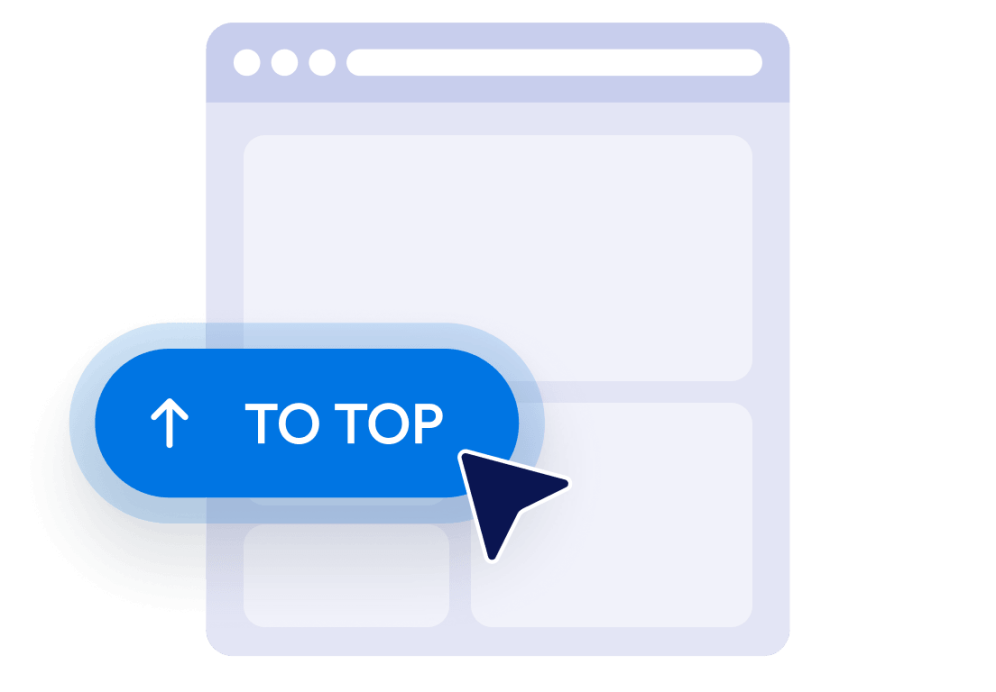
Preview the button, copy the generated embed code, and paste it into a custom HTML or embed block. Publish the page and test the button on desktop and mobile screens.
Give visitors a quick way to return to the beginning of long pages without manually scrolling. The button stays within easy reach and moves visitors smoothly back to the top when selected.
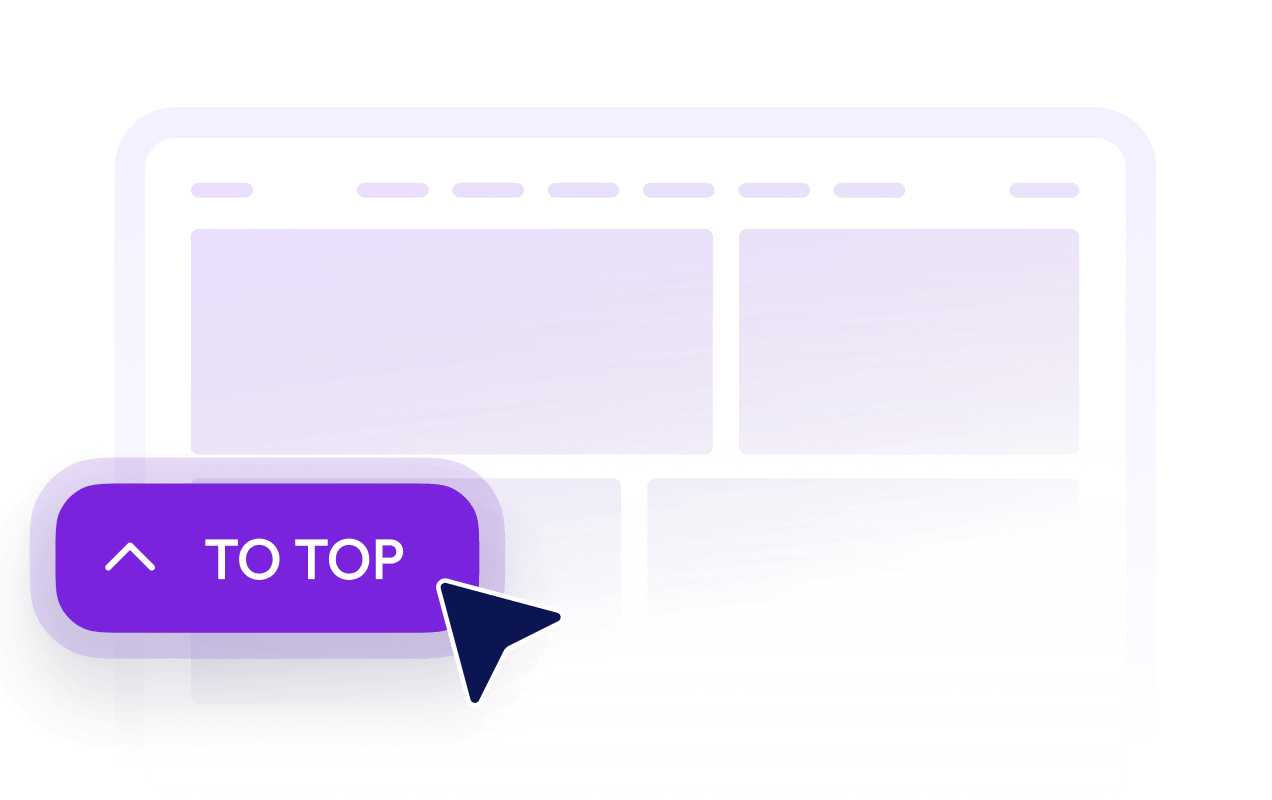
Set how far down the page visitors must travel before the button becomes visible. This keeps the button out of the way near the top while making it available when returning becomes useful.

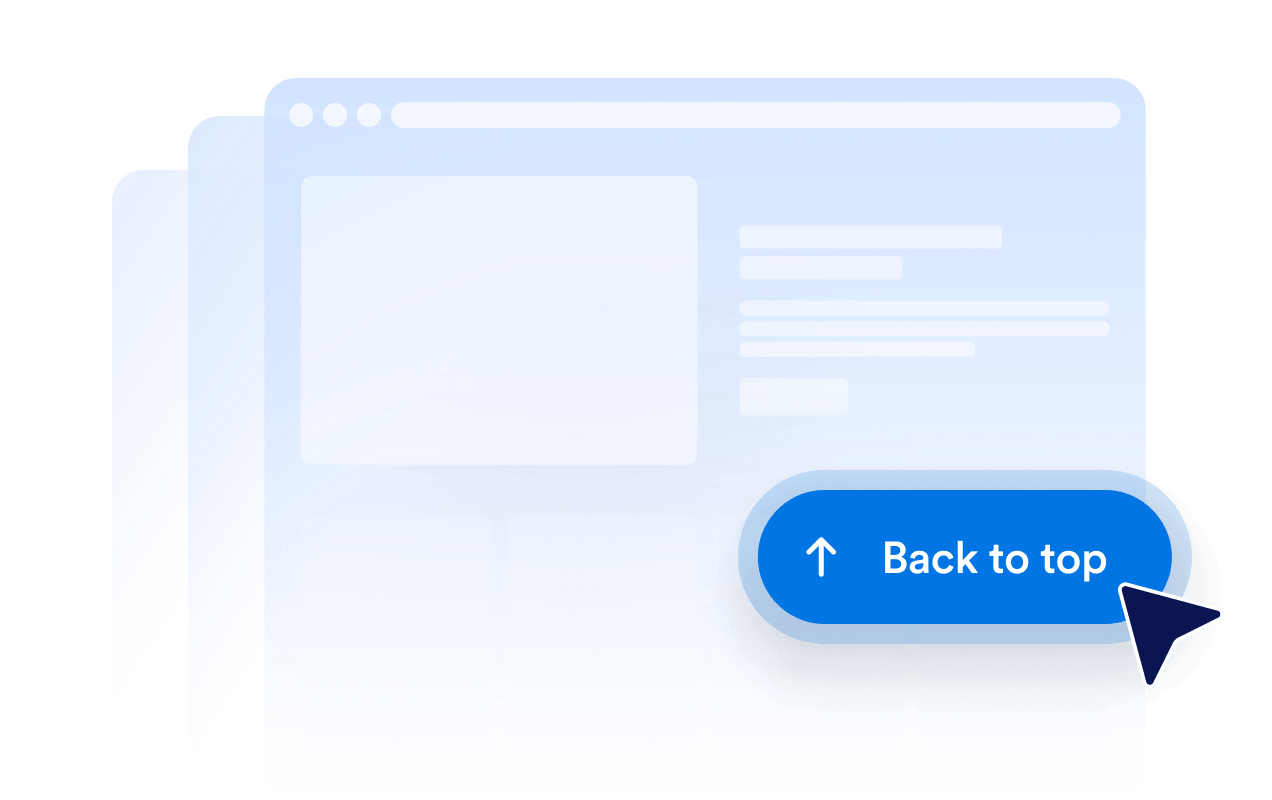
Customize the icon, size, colors, corner radius, and spacing to create a Back to Top button that suits your website. Place it on the left or right side based on your page layout.

Choose whether the button appears on desktop devices, mobile devices, or both. Device visibility and positioning controls help you avoid covering important page content while keeping navigation accessible on smaller screens.
Jotform’s widgets make your website more interactive and increase conversions. There are many tools available, from star ratings and testimonial sliders to social proof popups and media embeds. Add widgets to your forms or landing pages to collect data, display proof, and capture leads — no coding required.
Add Jotform widgets to your website with a simple embed code. Customize the widget, preview how it looks, and paste it into any page that supports custom HTML or embed blocks, all without a developer.
Use Jotform Website Widgets to collect leads, show customer feedback, display social proof, embed media, or add helpful web page tools. Each widget helps visitors interact with your business directly from your website.
If you need help setting up, customizing, embedding, or troubleshooting your widget, Jotform’s customer support team is available 24-7. You can move forward with confidence, knowing that help is there when you need it.
Add the button to pages where visitors must scroll through substantial content, listings, images, or supporting information.
Blog posts and articles to help readers return to the headline, navigation, or table of contents.
Product category pages to let shoppers return to filters, sorting controls, or category navigation.
Landing and sales pages to help visitors revisit introductory content and primary calls to action.
Documentation pages to simplify navigation through long guides, instructions, and reference materials.
Portfolio and gallery pages to help visitors restart their browsing after viewing extensive work.
FAQ and resource pages to provide a convenient return path after visitors explore multiple sections.
Turn engagement into action with Jotform. Create powerful forms that capture leads, collect payments, and automate responses, all in one place. Every submission lands in your Jotform Inbox, where you can follow up or connect with your favorite apps.
Get Started — It’s Free!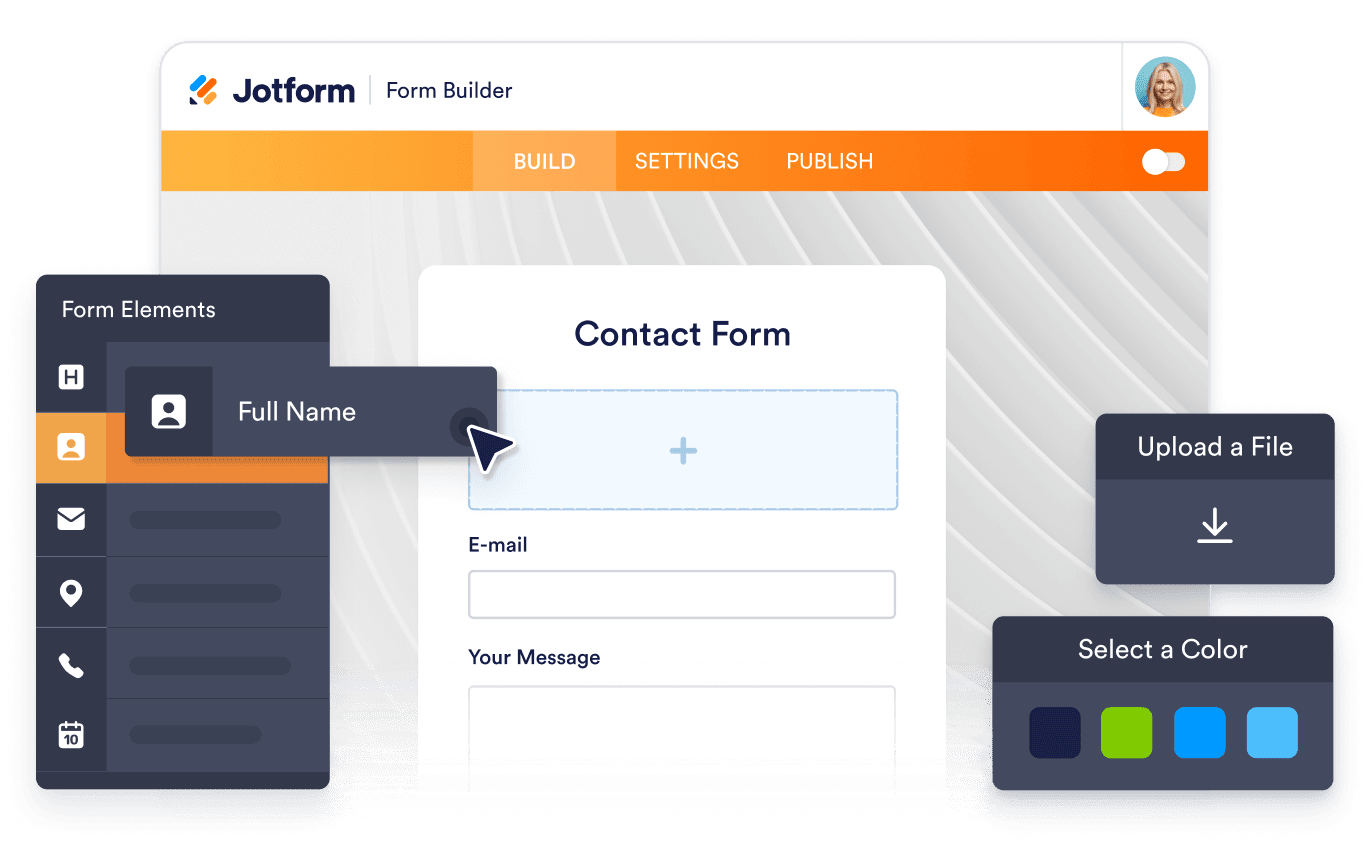
A Back to Top widget adds a floating button that returns visitors to the beginning of a page. It is especially useful on long articles, product listings, documentation, galleries, and other pages that require substantial scrolling.