
Not sure how to add a back to top button in WordPress? Unfortunately, most WordPress themes don’t include the button natively. But there are a few methods you can use to get the button on your website.
It’s worth the effort, too. If your website includes long pages where users scroll far away from your navigation menu or call to action, it can help users return to the primary focus of the page with minimal effort.
The most common ways to add a WordPress back to top button include using a plug-in, adding custom code, or embedding a no-code widget. Plug-ins and embedded widgets don’t require any coding expertise, so they’re the preferred methods if you’re unfamiliar with HTML, CSS, or JavaScript. Custom code gives you full control over your button, but it’s not a great solution for beginners.
In this guide, we explore how to add a back to top button in WordPress using these methods, plus the benefits and drawbacks of each.
Add a back to top button with a WordPress plug-in
WordPress offers a variety of plug-ins to boost the functionality of your website. Within its directory, you’ll find WordPress back to top plug-ins from multiple developers — it’s the most common way to add the button.
Options available in a back to top WordPress plug-in
Many of these plug-ins offer customization options that let you choose the placement of the button and its design. When searching for the right back to top button plug-in for your website, decide which settings matter most to you. A few to consider include
- Button position: This determines where the button appears on your page. Plug-ins may give you options to place the button on the right, left, or center. Some offer more granular control.
- Icon or label: Plug-ins may offer a single icon or give you a menu of options to choose from. Some let you customize the icon color, too.
- Visibility on mobile or desktop: Buttons may display differently on PC and mobile devices. Check the plug-in’s visibility options to understand how they’ll appear.
- Smooth scrolling: Some buttons offer scrolling options instead of jumping immediately to the top of the page. This is helpful if you want users to have more control over page navigation.
- Scroll offset or threshold: This setting determines how much space is provided between the elements at the top of the page and the scroll position. Ideally, clicking the back to top button won’t hide content from menus or headers.
Some plug-ins offer more customization than others. While you may not need a back to top button with lots of styling options, the one you choose shouldn’t feel out of place on your website. You want it to blend neatly with the other elements on the page.
How to add a back to top button in WordPress
Once you select a plug-in that suits your needs, install it using these steps:
- Log into your website’s administrator dashboard.
- Click Plugins.
- Locate the plug-in in the WordPress Plugin Directory. You can use the search box to type its name.
- Click the plug-in.
- Click Install and activate. (If you’re installing a paid plug-in, click Purchase and activate.)
After installing the program, visit its Settings menu to configure the back to top button’s appearance and scroll behavior.
Popular WordPress back to top plug-ins
There are hundreds of plug-ins that add a scroll to top button in WordPress. A few options include
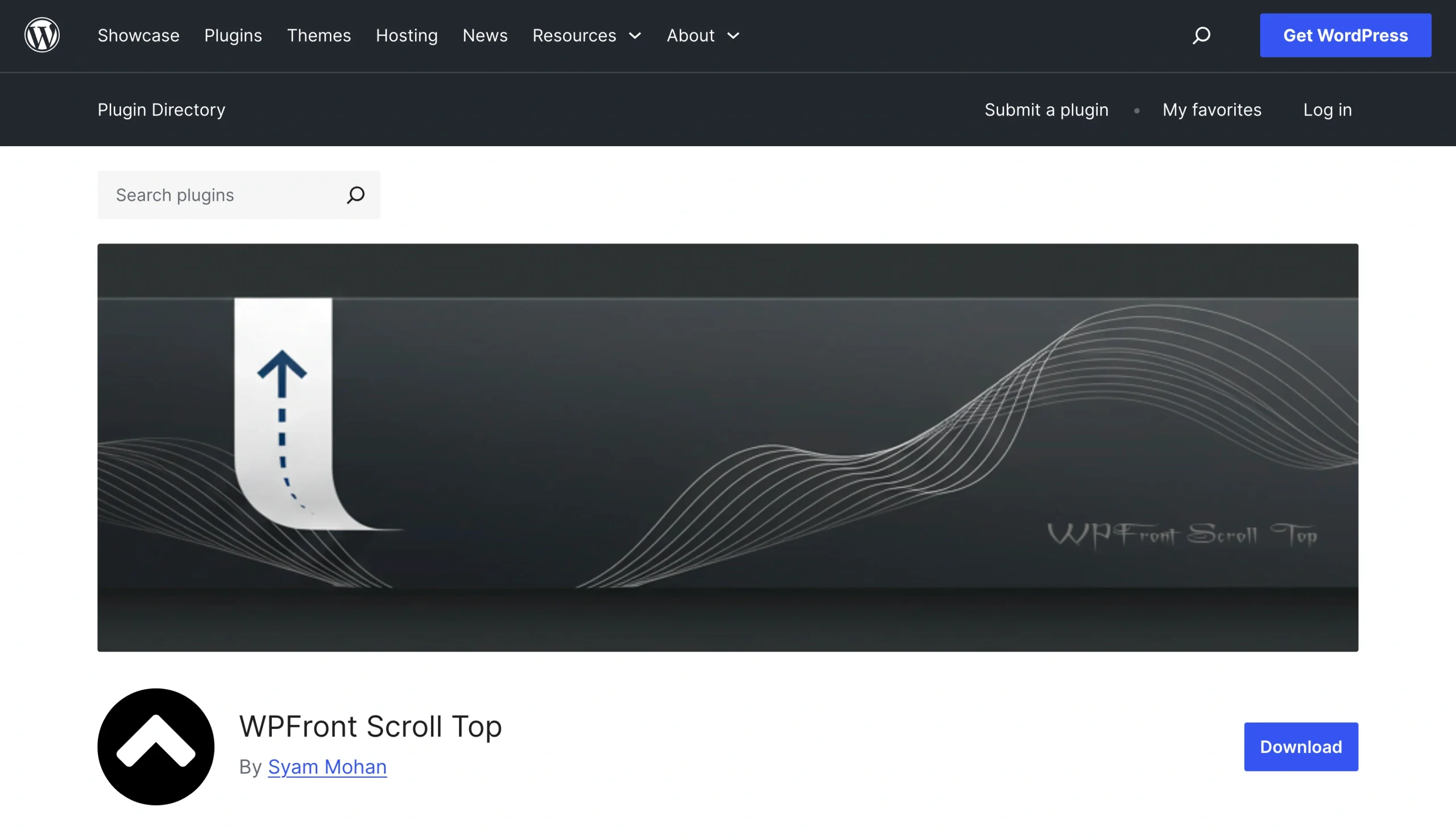
- WPFront Scroll Top: This plug-in offers dozens of pre-styled scroll to top buttons you can choose from. It also lets you set the button’s size, placement, and scrolling behavior.
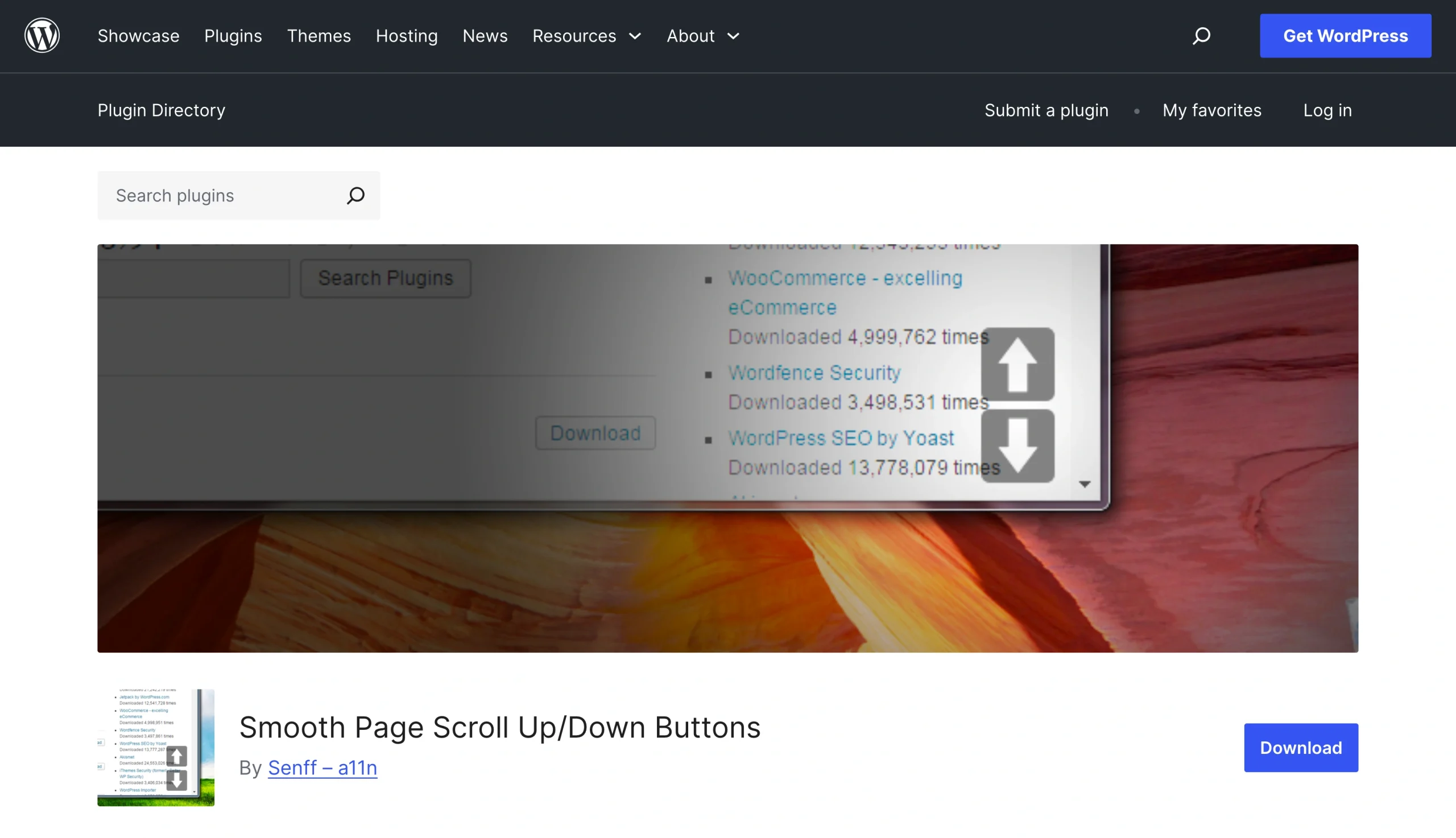
- Smooth Scroll Page Up/Down Buttons: If your site’s pages include lengthy documents, this plug-in can help. It offers a WordPress smooth scroll to top feature, allowing users to scroll between individual text documents or to the beginning of the page.
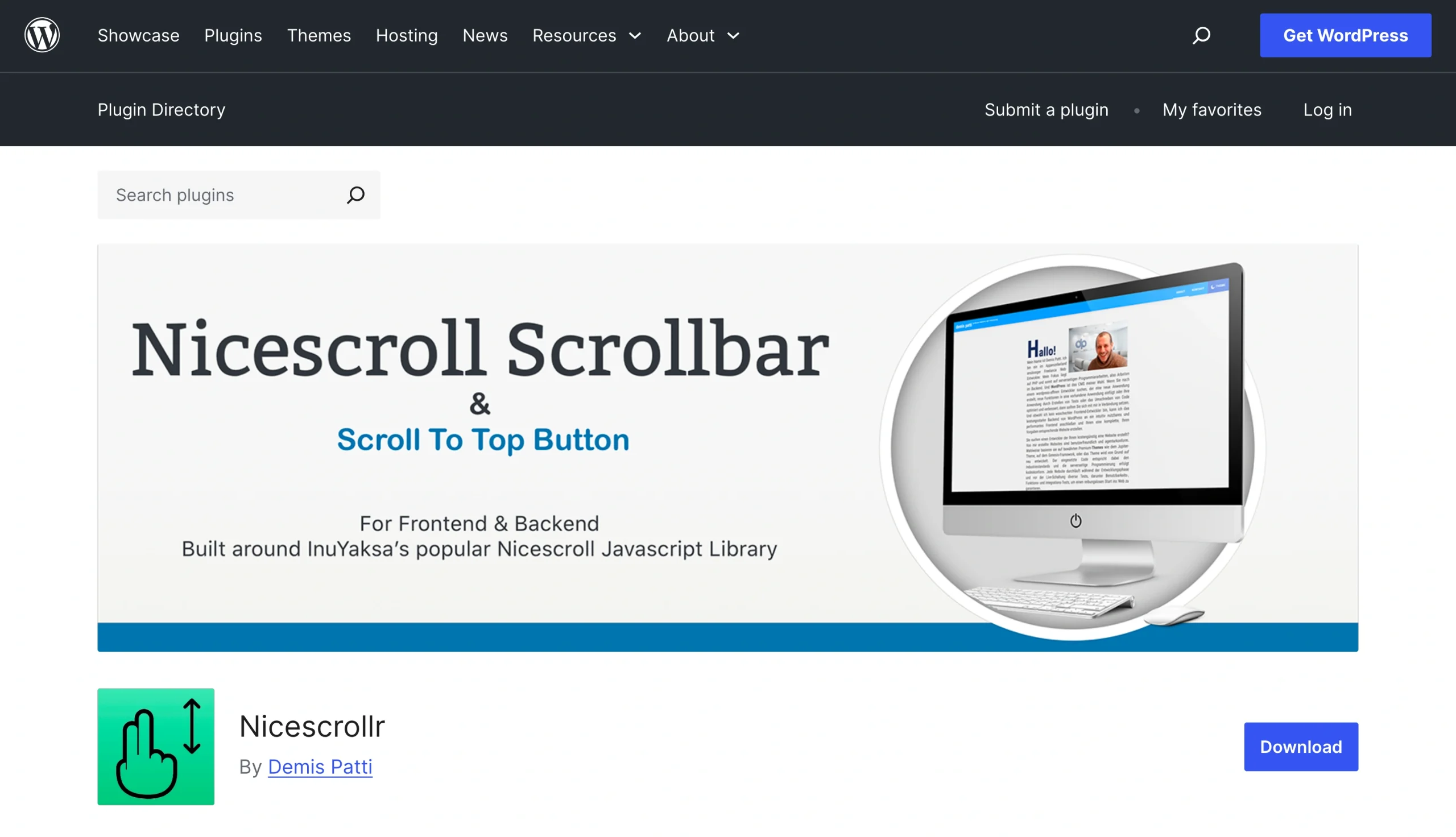
- Nicescrollr: This plug-in lets you add a back to top button and manage multiple settings, including button size and scroll speed.
While plug-ins are easy to install, they add a new dependency that you’ll have to maintain. It’s important to stay on top of any updates for the plug-in, as they may introduce security patches.
Add a back to top button in WordPress with custom code
A custom back to top button in WordPress gives you full control of its appearance and behavior. You’re not stuck with the settings options provided by a plug-in, and you can modify the button to perfectly suit your requirements. It’s a solid alternative for those who want a tailored design or prefer to avoid the page bloat that plug-ins can cause.
However, creating your own button requires expertise. You’ll need to be comfortable editing WordPress themes and have experience with custom HTML, CSS, or JavaScript.
To develop your own button, add your code to a custom HTML block, theme customization area, or code snippet workflow. Once implemented into your site, carefully test the new button to make sure it doesn’t introduce bugs.
Benefits and drawbacks of a custom button
A custom-made back to top button offers lots of flexibility. You can tailor the icon and color to blend naturally with your website, and you can adjust its visibility. For example, you can design the button so that it only appears when a user reaches a certain point on the page. Or, you can add a floating back to top button in WordPress that hovers while a user scrolls.
The main disadvantages of creating a custom button are the technical setup and testing. It takes time to write code that aligns with your website and won’t interfere with its WordPress theme.
Testing is key to custom button development, too. Plan on testing the button’s performance across multiple devices, including PCs, tablets, and smartphones. It’s a good idea to try the button on multiple platforms as well, such as iOS, Windows, and Android.
Easier no-code method: Use Jotform’s Back to Top Widget
There is an alternative to plug-ins and custom buttons: Jotform’s Back to Top Widget. It’s a no-code solution you can add to your website within minutes.
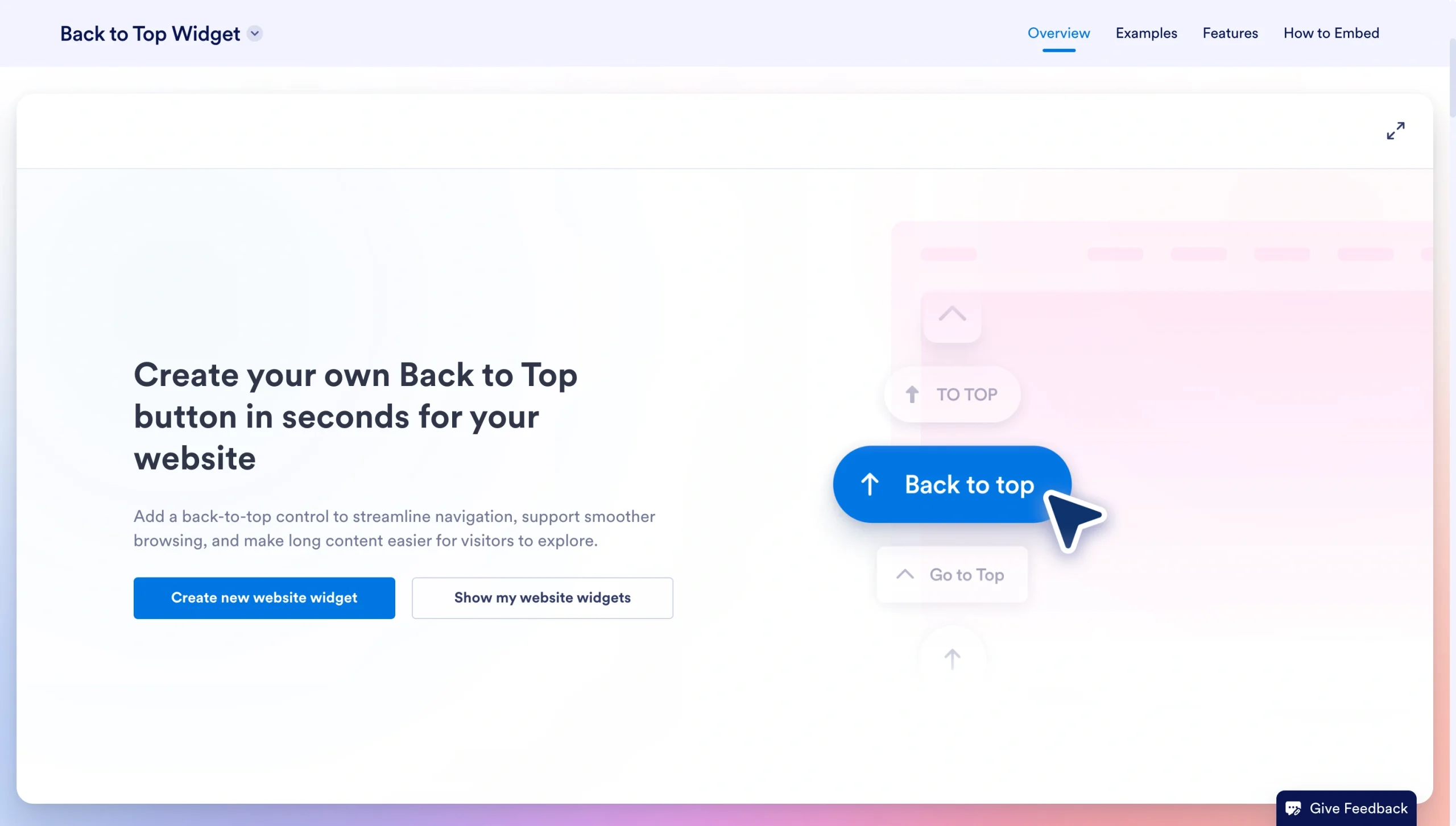
Unlike plug-ins, our Back to Top Widget won’t add page bloat and doesn’t require regular updates. There’s absolutely no coding required, and it won’t impact your WordPress theme’s functionality.
The Jotform Back to Top Widget is also fully customizable. You can adjust the icon style, colors, size, and corner radius. There are options to change the button’s placement and visibility when scrolling. And it works across all devices, including mobile screens.
How to install the Jotform Back to Top Widget
Integrating the widget into your website is easy. Start by navigating to our Back to Top Widget page, and then follow these steps:
- Give your widget a name by editing the “Untitled” field in the toolbar.
- Enter your preferred position and scrolling settings, then click Continue.
- Button Position: Choose Left or Right.
- Show Label: Toggle to enable or disable. Enter any text you want the button to display.
- Show after scrolling: Use the slider to indicate how many pixels the user should scroll before the button appears.
- Scroll animation: Select Smooth or Instant.
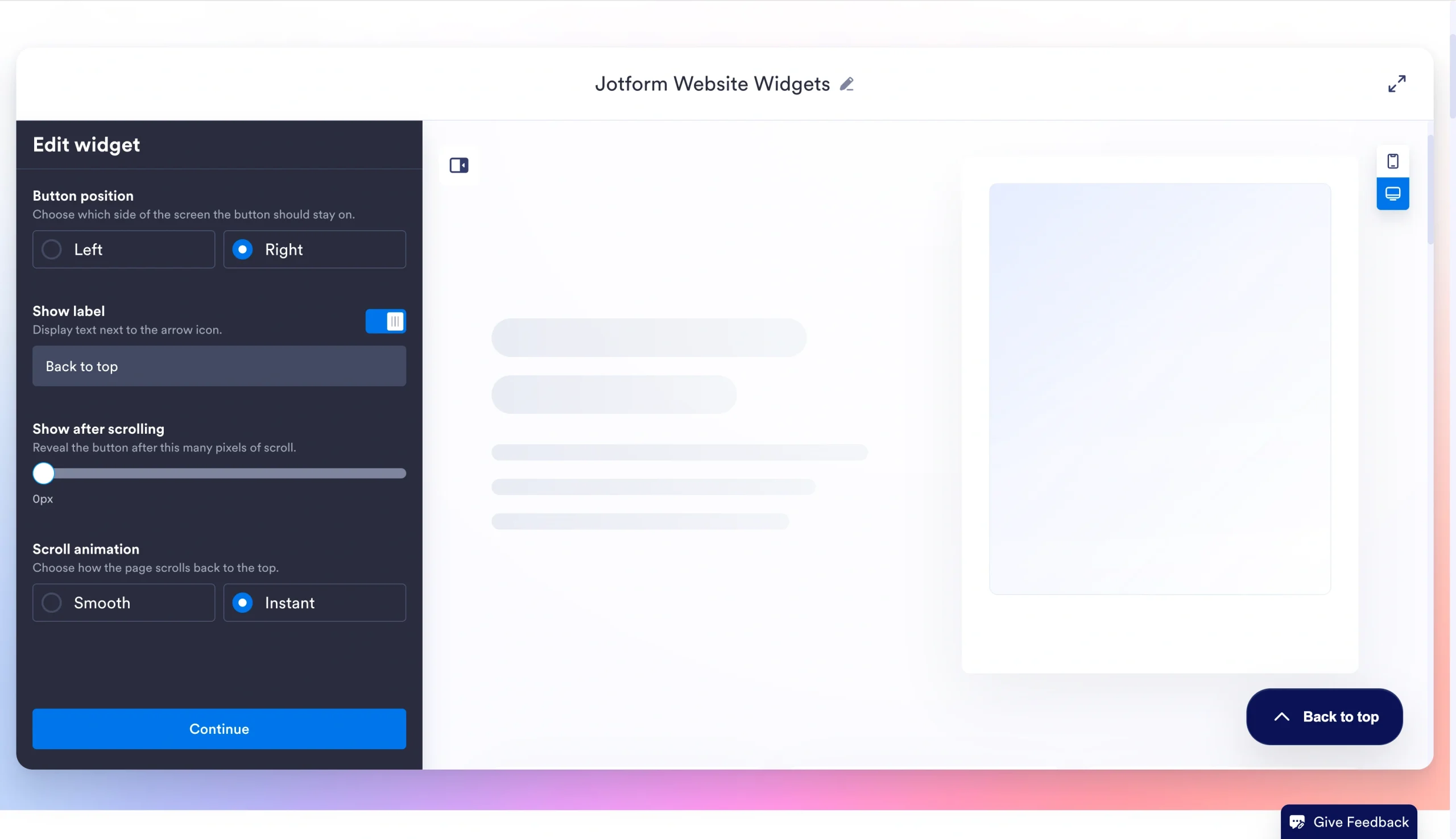
- Enter your style preferences for the button and click Continue.
- Button size: Use the slider to set the button’s width and height.
- Icon size: Use the slider to set the arrow icon’s size.
- Icon: Choose an arrow icon style for the button (Arrow up, Chevron up, or Bold arrow up).
- Corner radius: Select Square Corners, Rounded Corners, or Circular Corners.
- Button Colors: Enter your preferred hex color code for the background and text color.
- Drop shadow: Toggle to disable or enable a soft shadow under the button.
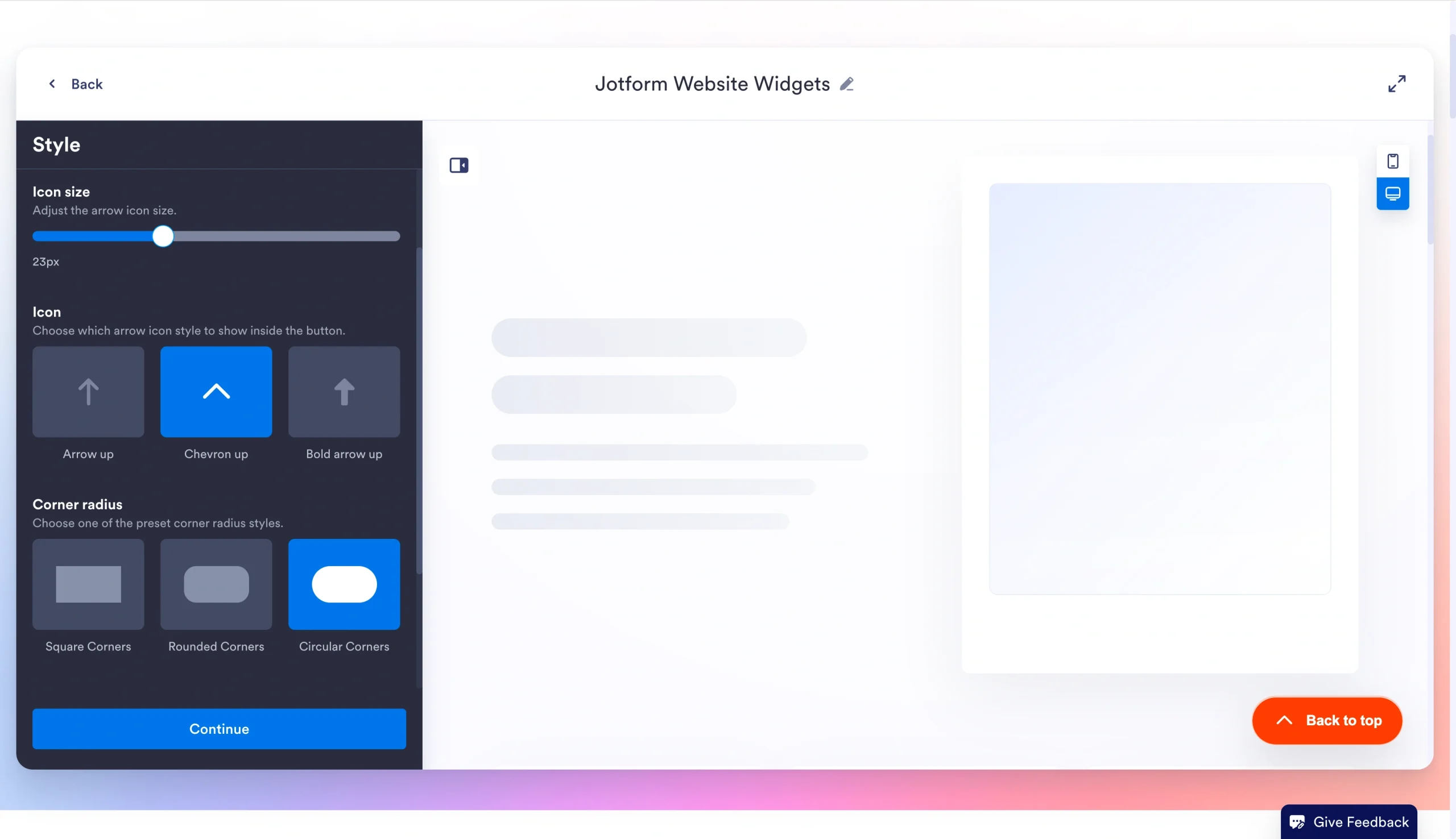
- Set up the display rules and click Try it on your website for free.
- Distance from bottom: Use the slider to define how far the button is from the bottom edge.
- Distance from side: Use the slider to control how far the button is from the side edge.
- Show on desktop: Enable or disable.
- Show on mobile: Enable or disable.
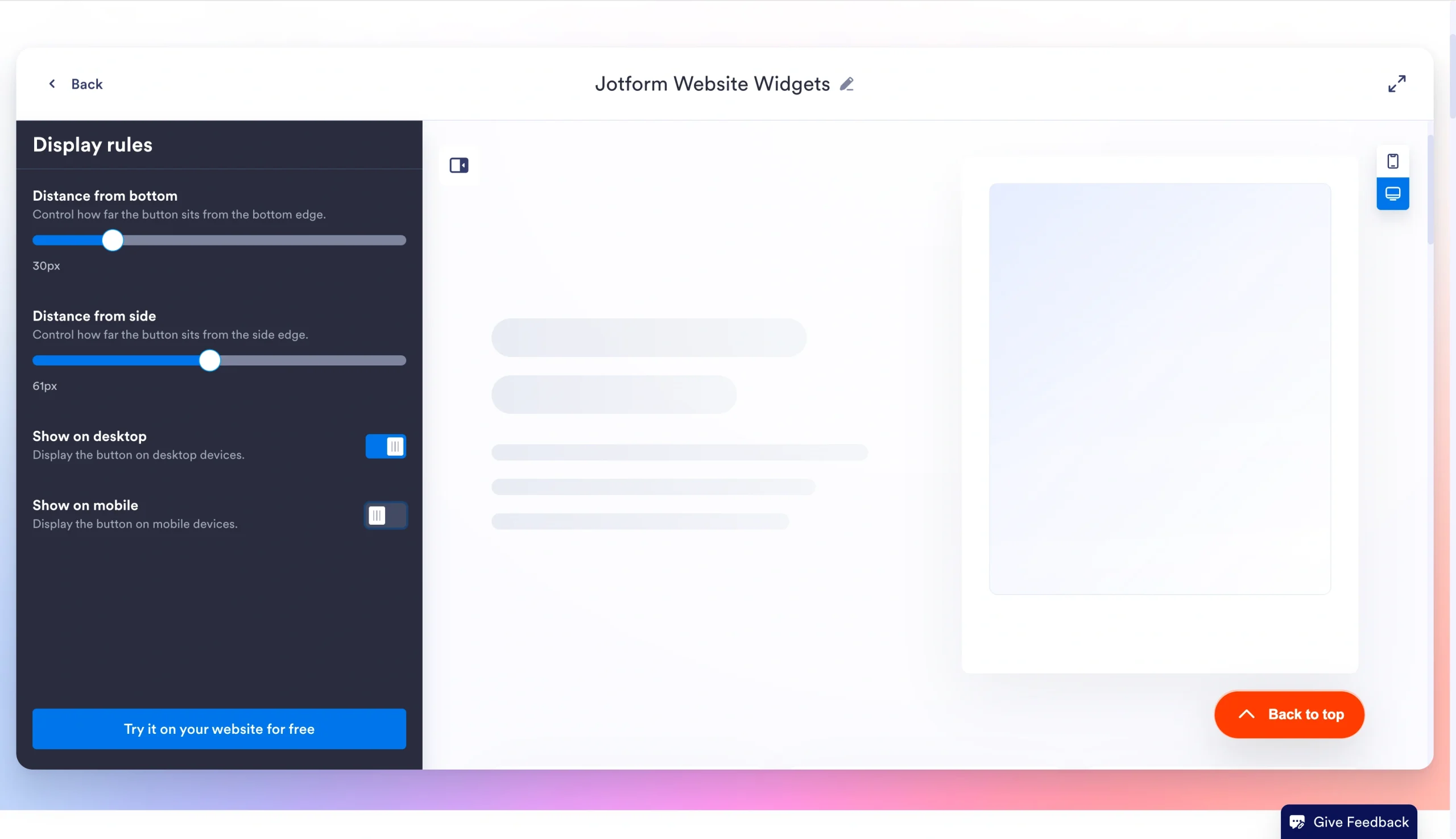
- Copy the embed code and paste it into your WordPress HTML editor.
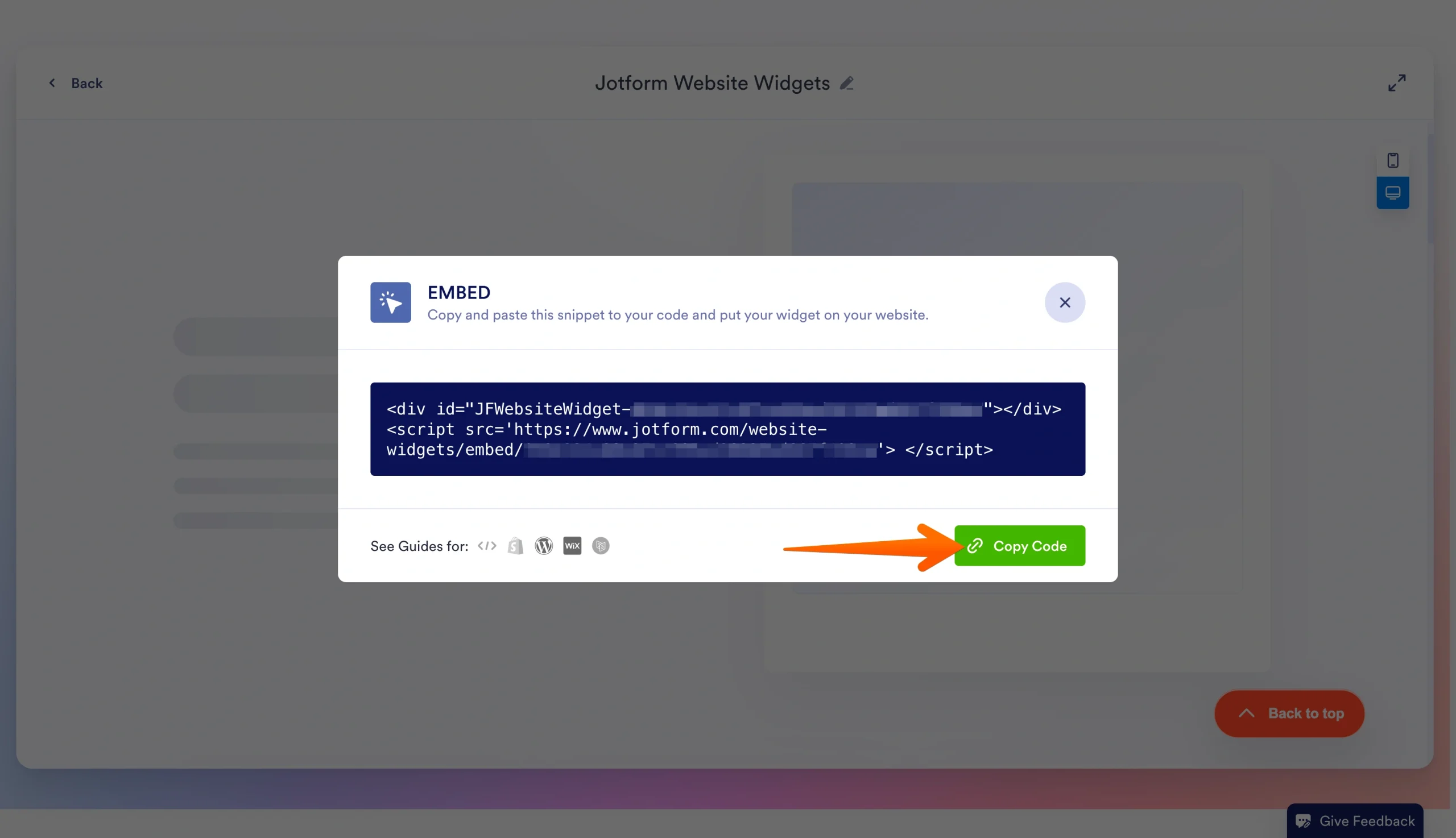
While customizing the button, you can click the PC or smartphone icon in the lower right-hand corner to see how it will appear.
Benefits of using Jotform tools in your WordPress website
Whether you’re an expert web designer or just learning how to use WordPress, Jotform has plenty of handy tools that support your website.
We offer several free Website Widgets you can customize to display your organization’s reviews from third-party sites, including Google, Facebook, and Tripadvisor — perfect for website owners who want to showcase testimonials but are wary of committing to the paid plug-in tools available through WordPress.
You can also take advantage of Jotform’s custom WordPress embed form plug-in. It allows you to collect form submissions from users who visit your site. We offer over 20,000 free custom WordPress form templates that cover common use cases, including contact information, payment information, and application submissions. You can embed your form in WordPress with just a few steps.
Best of all, Jotform offers a free plan that supports unlimited WordPress widgets and up to five forms. Upgrading to a paid plan increases the number of forms you can use, removes the Jotform branding, and provides additional storage.
Add a back to top button without slowing down your WordPress workflow
A back to top button enhances the user experience when scrolling lengthy content. It also supports engagement and conversions on e-commerce pages and landing pages. But while adding a button is possible using plug-ins or custom code, the easiest no-code solution is Jotform’s widget.
To see how Jotform’s Back to Top Widget adds a polished scroll to top button to your WordPress site, give it a try today.
FAQs about WordPress back to top buttons
There are several plug-ins in the WordPress Directory that support back to top buttons. These tools offer customization options and don’t require coding. However, if you want to minimize page bloat and have more control over the button’s functionality, coding your own back button may be a better option. And for a simpler alternative, you can use Jotform’s Back to Top Widget, which requires no coding experience or ongoing maintenance.
To create a back to top button in WordPress Elementor, open your page in the Elementor editor. Add a CSS ID at the top of the page, then insert a Button widget. Link to the CSS ID from the Content tab of the button. You can adjust the button’s appearance in the Style tab.
This article is for WordPress website owners, content managers, small business teams, web designers, and anyone who wants to add a customizable back to top button to long WordPress pages without disrupting site performance or workflow.























































































Send Comment: