
Your customers will thank you for adding a back-to-top button in Squarespace. But this feature is a bit more complicated than it seems. Squarespace doesn’t have a native back-to-top button. You’ll need to work around that with a no-code widget, a bit of custom code, or an anchor link.
This is absolutely worth doing. Long landing pages and deep blog posts leave visitors stranded at the bottom of a long scroll. On mobile, where the bulk of browsing happens these days, thumb-scrolling all the way back up is a quick way to lose a visitor’s attention.
A back-to-top button keeps people moving through your site instead of bouncing. It’s a small navigation tweak that supports a broader strategy for how to make a website that actually keeps people engaged.
This guide walks through the easiest no-code path first, then covers two alternatives for anyone who wants more design control or a stripped-down built-in option.
The easiest method: Use a back-to-top widget for Squarespace
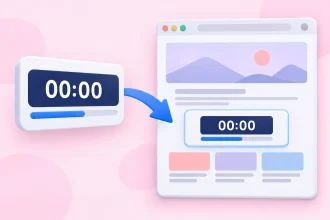
The fastest option is finding a pre-built back-to-top widget. For example, Jotform’s Back to Top Widget is a free, no-code tool that can get these buttons live on your pages in just a few minutes. You can use it to design a floating button, generate an embed code, and drop it into Squarespace without touching a single line of CSS or JavaScript.
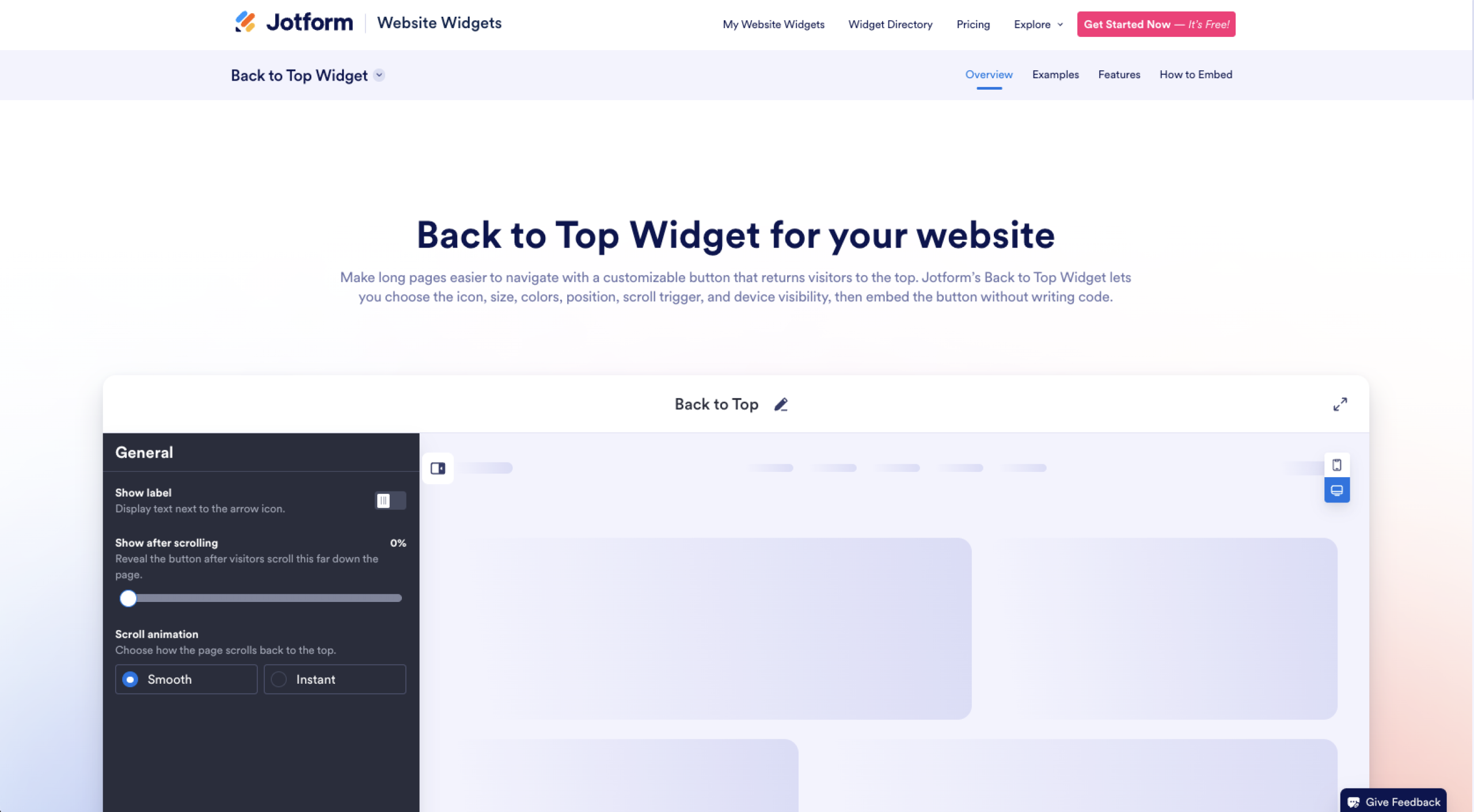
The process goes like this:
1. Customize your widget. Use the link above to open Jotform’s widget builder and start tweaking parameters. You can change icon styles, set the size and corner radius of your button, and even choose colors to match your brand. The widget makes it easy to move the button across the screen, adjust spacing at the edges, and toggle visibility for desktop and mobile users.
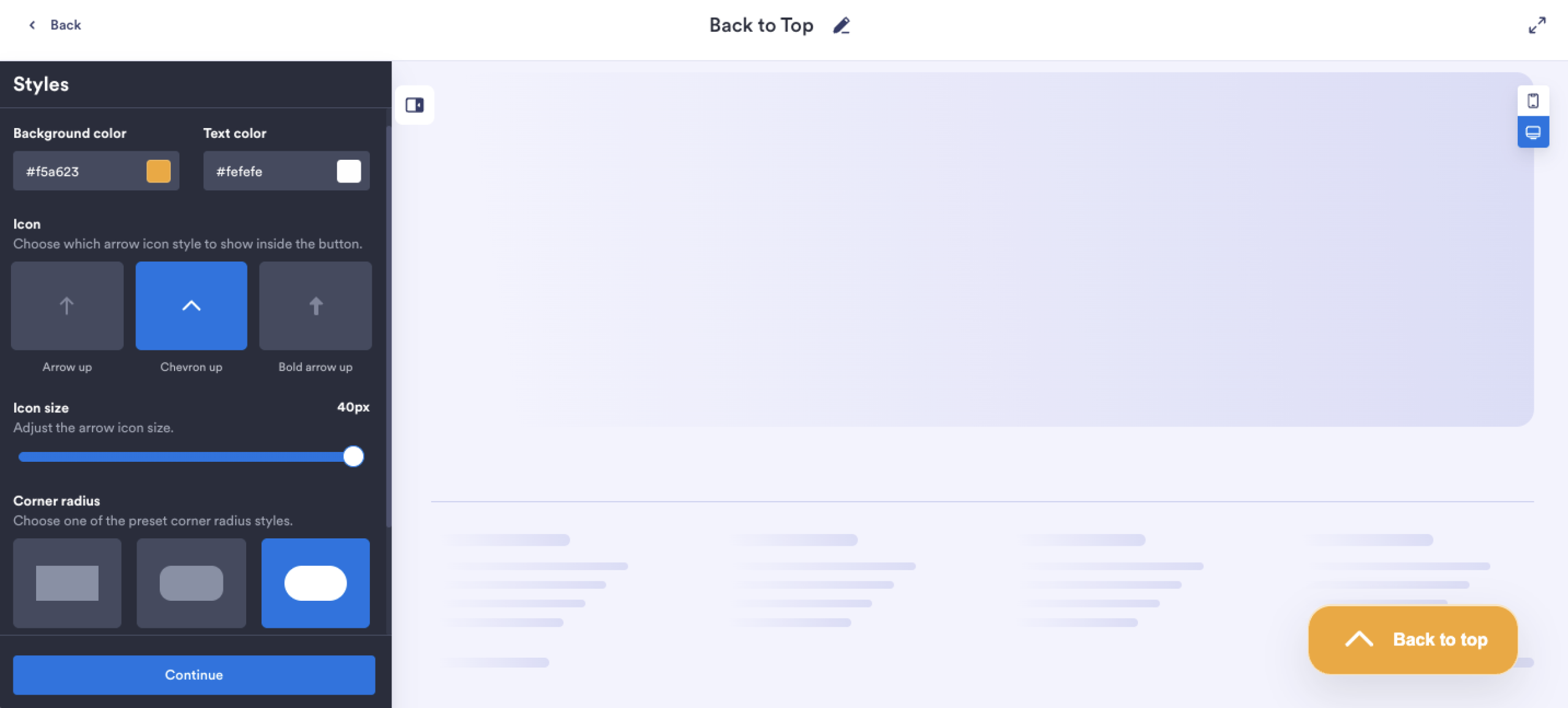
2. Get the embed code. Once the button looks the way you want it, Jotform generates a ready-to-use embed code. No plugin install, no setup steps, no drama.
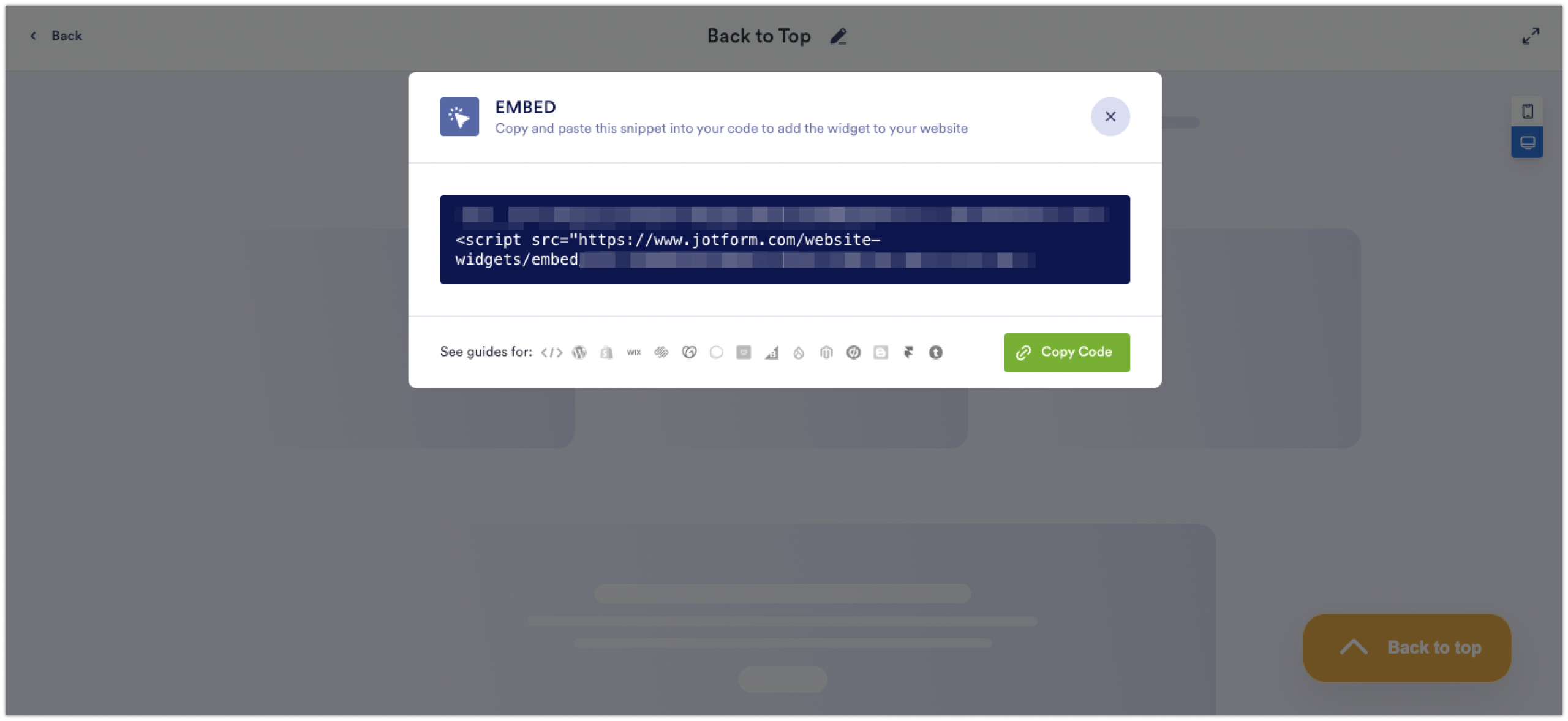
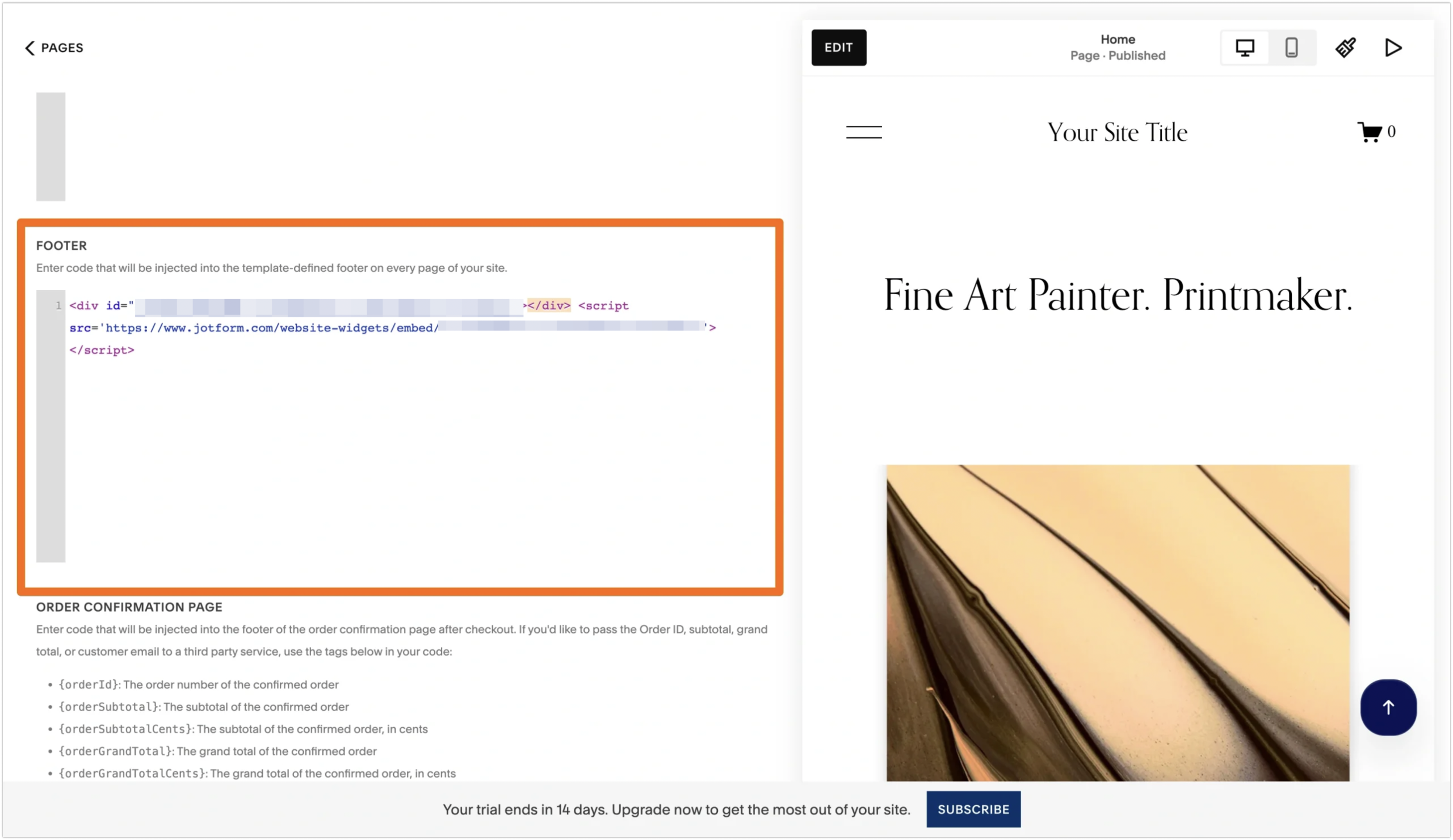
3. Paste it into Squarespace. This is where Squarespace’s current interface comes in. You have two main options:
- Site-wide (recommended for back-to-top buttons): In your Squarespace dashboard, go to Pages in the left menu, scroll down to find the Custom Code section, and click Code Injection. Paste the embed code into the Footer field, and click Save. The button will appear on every page automatically. (Note: Site-wide Code Injection is available on Business plans and higher.)
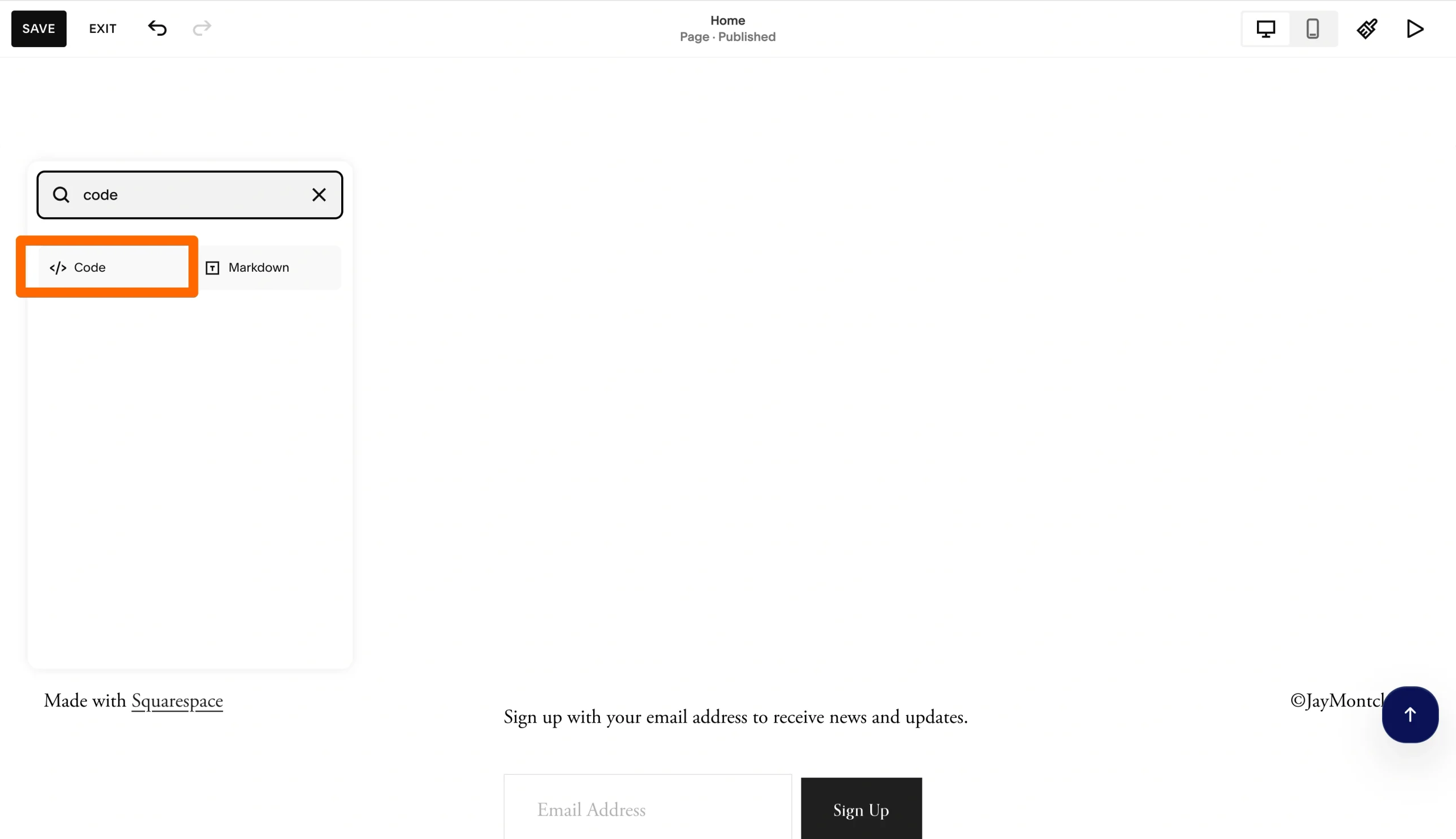
- Single page only: Edit the page where you want the button to live, click the + to add a block, and choose Code. Paste the embed code in there and save. The button will appear only on that page, but you can repeat this on any page that needs one.
That’s it. Refresh your site, and the button shows up, ready to whisk visitors back to the top of the page. If you’ve ever followed the steps for adding a form to Squarespace, the embed flow here will feel identical.
A few practical reasons this method tends to be the path of least resistance:
- It updates automatically. If you decide to change the color or position next month, you just edit your widget settings in Jotform. The live widget then reflects the change. No re-pasting code.
- It works alongside other free website widgets you might want, like announcement bars, social feeds, or contact buttons. They all use the same embed approach.
- It plays nicely with the rest of your Squarespace setup. If you also collect leads through forms, the Jotform + Squarespace integration makes it easy to add new forms, payments, and lead capture using the same embed pattern.
For most Squarespace users, this is where the project ends. But if you want full pixel-level control, keep reading.
Alternative method: Add a back-to-top button in Squarespace with custom code
If you’re comfortable with HTML, CSS, and a little JavaScript, you can build a floating back-to-top button entirely from scratch. Squarespace officially supports custom code through the Code Injection panel, the Custom CSS panel, and individual Code Blocks.
Just note the amount of time this takes. You’ll have more flexibility over the button itself, but you’ll also need to test and troubleshoot more. Therefore, this option is typically right only for developers who need a very specific look. You might also use it if you want specific control over animation, scroll thresholds, or breakpoint behavior.
Here’s how to do it.
- Choose where the code lives. For a button that should appear sitewide, use Website → Pages → Code Injection → Footer. Code added here is injected just before the closing </body> tag on every page. For a one-off button on a specific page, hover the page in the Pages panel, click the gear icon, choose Advanced, and use Page Header Code Injection instead.
- Add the HTML. Drop in a button element with an ID so you can target it later. That often looks something like this: <button id=”backToTop” aria-label=”Back to top”>↑ Top</button>. Be sure to keep the aria-label to help with screen reader accessibility.
- Style it with CSS. Now you edit the button’s appearance and performance with CSS. Start by opening the Custom CSS panel (under Website → Website Tools → Custom CSS). Position the button as fixed at the bottom right. Then hide it by default by setting opacity: 0 and pointer-events: none. You’ll also want a transition that fades in smoothly when a class like .visible is added. Finally, set a z-index value high enough that it sits above your content but below any modals.
- Add the JavaScript logic. You also need a small script that watches the scroll position. That way, the button appears only when it’s relevant to the user. For example, once the visitor scrolls past a chosen threshold (for example, 300 pixels), the script automatically adds the .visible class, and the button will appear. If the user clicks the button, it calls the window.scrollTo({ top: 0, behavior: ‘smooth’ }), which scrolls the page back to the top in a smooth animation.
The biggest upside to this approach is design freedom, but that’s not something most companies need. Widgets and tools like Jotform Apps for building apps without code offer enough flexibility to make the button your own and can save you a lot of coding time. Plus, you won’t have to update your code every time Squarespace releases a new structural change to its templates.
Simple workaround: Use an anchor link as a back-to-top shortcut
If you don’t actually need a floating button — just a clickable Back-to-top link at the bottom of long sections — Squarespace’s built-in anchor link feature does the job with zero code. Squarespace added this feature in 2025 as part of Squarespace 7.1. Here’s how it works:
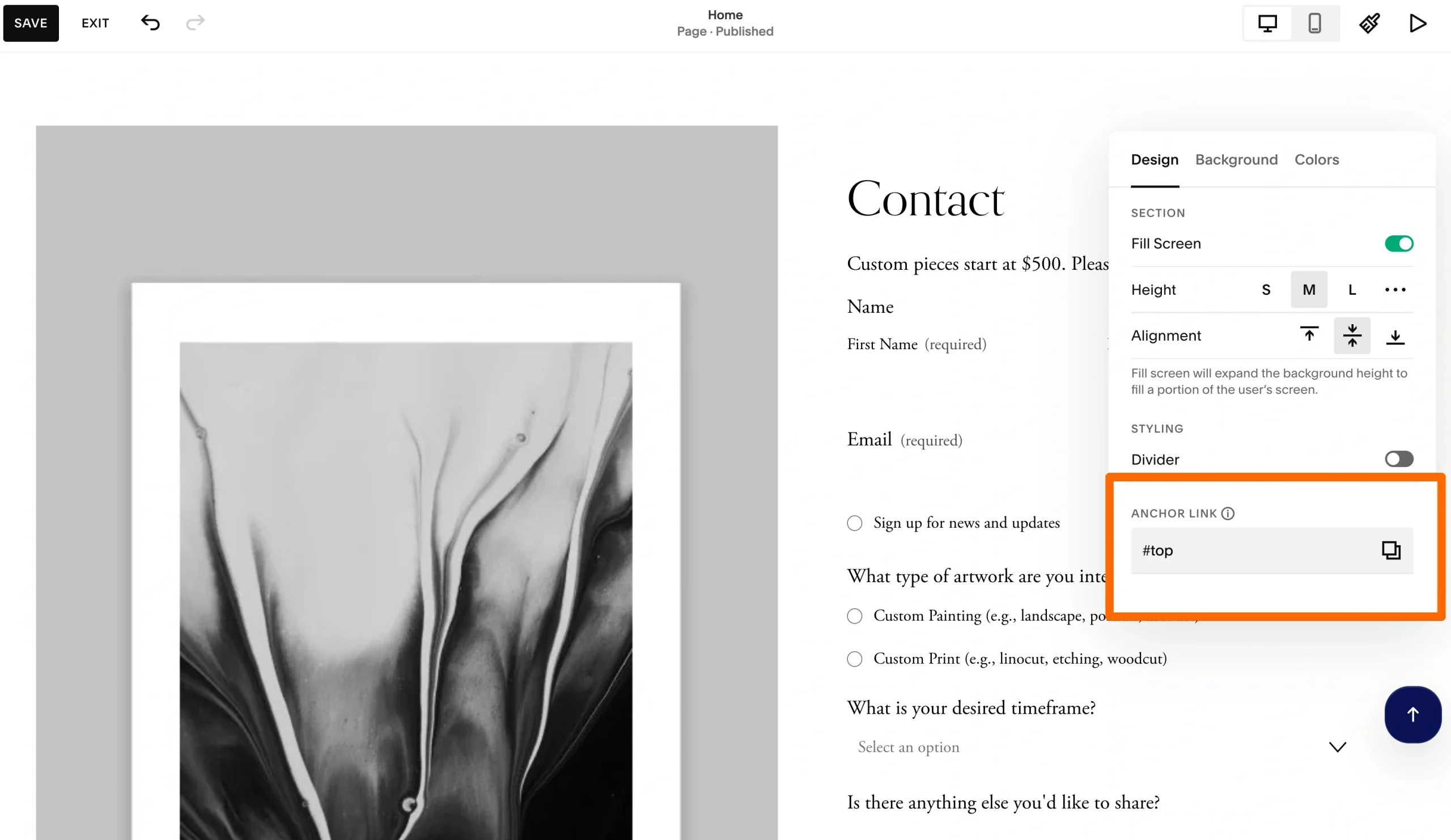
- Set the anchor on your top section. Click Edit on the page you want the back-to-top shortcut on. Hover your mouse over the very first section and click Edit Section. From there, scroll to the Anchor Link field, which is at the bottom of the section settings panel. Type a slug like “top” and click the copy icon to get your URL.
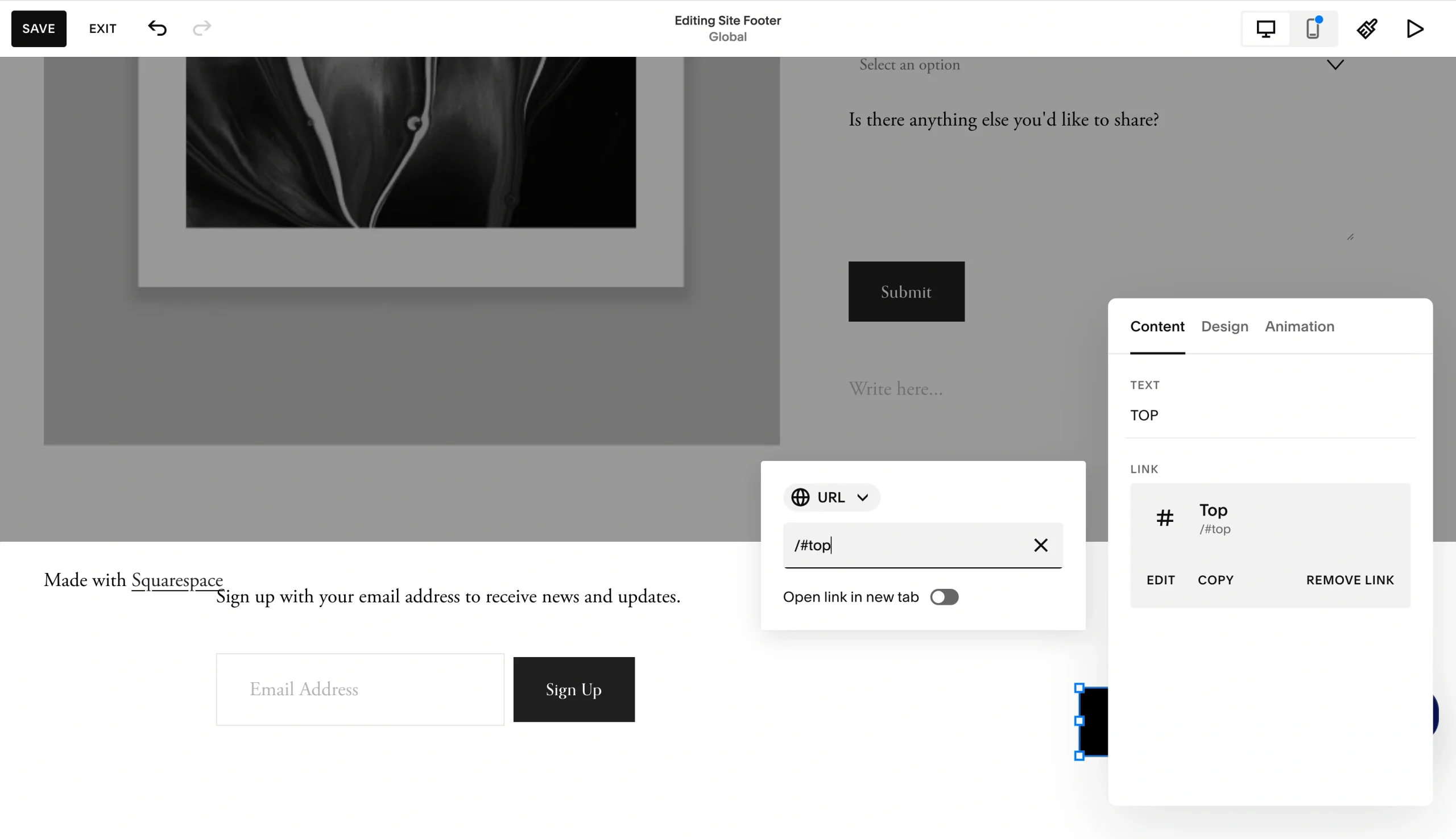
- Add a back-to-top link wherever you want it. Add a button block or text block farther down the page. Highlight the text or button, click the link icon, and paste the anchor URL. When a visitor clicks it, the page jumps back to that top section.
- Optional: Smooth out the scroll. Anchor links send the user to the top of the page instantly, which can be jarring and disrupt their immersion in your site. Fix this by adding a gentle scroll animation. Go to Website → Pages → Custom CSS and add:
html {

  scroll-behavior: smooth;

}
That one line applies a smooth scroll to every anchor link across your site.
This method has a few obvious limits. It’s not floating, so visitors see the link only at certain points on the page (usually at the end of long sections or near the footer). It also won’t appear on every page automatically, the way a widget or sitewide custom code button will. For long blog posts, sales pages, or one-page sites that just need a quick scroll-up, though, an anchor link is often enough.
Note: Anchor links don’t have direct support on blog, events, portfolio, or store sections. To use them on these pages, you need to add a blank section above the unsupported one and anchor to that instead. You can make this look right by toggling Fill Screen off in the blank section’s settings. Otherwise, you’ll have an awkward gap at the top of the page.
Add a back-to-top button without overcomplicating Squarespace
If you’re looking for the easiest way to add these buttons without complicating your Squarespace, a no-code widget is the fastest and most flexible option. For example, with Jotform’s Back to Top Widget, you can design, embed, and update without ever writing a line of code.
Custom code gives you full design control, which is useful if you have very specific visual goals. The native anchor link feature is a fine workaround, but it doesn’t give you as much control. Whatever you choose, match the method to what your site needs and don’t overbuild.
Try the Back to Top Widget today to add a polished scroll-to-top button to your Squarespace site in minutes. And if you’re already using Jotform for Squarespace forms, the embed flow will look familiar from the first click.
FAQ about back-to-top buttons in Squarespace
A back-to-top button widget is a small, embeddable tool that adds a floating scroll to top button to your website. When a visitor scrolls past a certain point on the page, the button appears. Clicking it returns the user to the top of the page instantly. It’s useful on long content pages and mobile-heavy sites.
In Squarespace 7.1, open your site editor and click Edit on the header section. In the left panel, find the Elements tab and toggle on Button. From there, you can edit the button’s text, style, alignment, and link destination. The button will appear sitewide in the header, which is handy for primary calls to action such as Book a Call or Sign Up.
To position a button at the top of the screen, use position: fixed, then set top: 0 and either left: 0 or right: 0 depending on which corner you want. Make sure to add a z-index value like 999 so the button stays above other content. You can apply this through Website → Website Tools → Custom CSS in Squarespace.
This article is for Squarespace website owners, content managers, web designers, marketing teams, and anyone who wants to improve site navigation by adding a back-to-top button without overcomplicating their website setup.




































Send Comment: