

Top 5 ChatGPT apps
Want to extend the functionality of ChatGPT so you can use it to complete specific processes? You can do it with ChatGPT plug-ins. With a plug-in, you can create an online form or build a marketing brochure directly within the generative AI platform.
More commonly referred to now as apps, plug-ins are third-party tools that connect to ChatGPT and exist as part of the tool’s ecosystem. Available from the ChatGPT App store, they can be accessed using paid ChatGPT plans (though some offer limited use with the free plan).
In this article, we’ll show you how to enable plug-ins in ChatGPT with step-by-step instructions. We’ll also share the top five ChatGPT apps to enhance your use of the platform, with an in-depth look at why these plug-ins are user favorites.
Step-by-step: How to enable plug-ins with ChatGPT
Want to know how to access ChatGPT plug-ins (now called apps) from the ChatGPT App store? Follow these step-by-step instructions:
- Go to ChatGPT.
- Click Sign up for free to create a ChatGPT account.
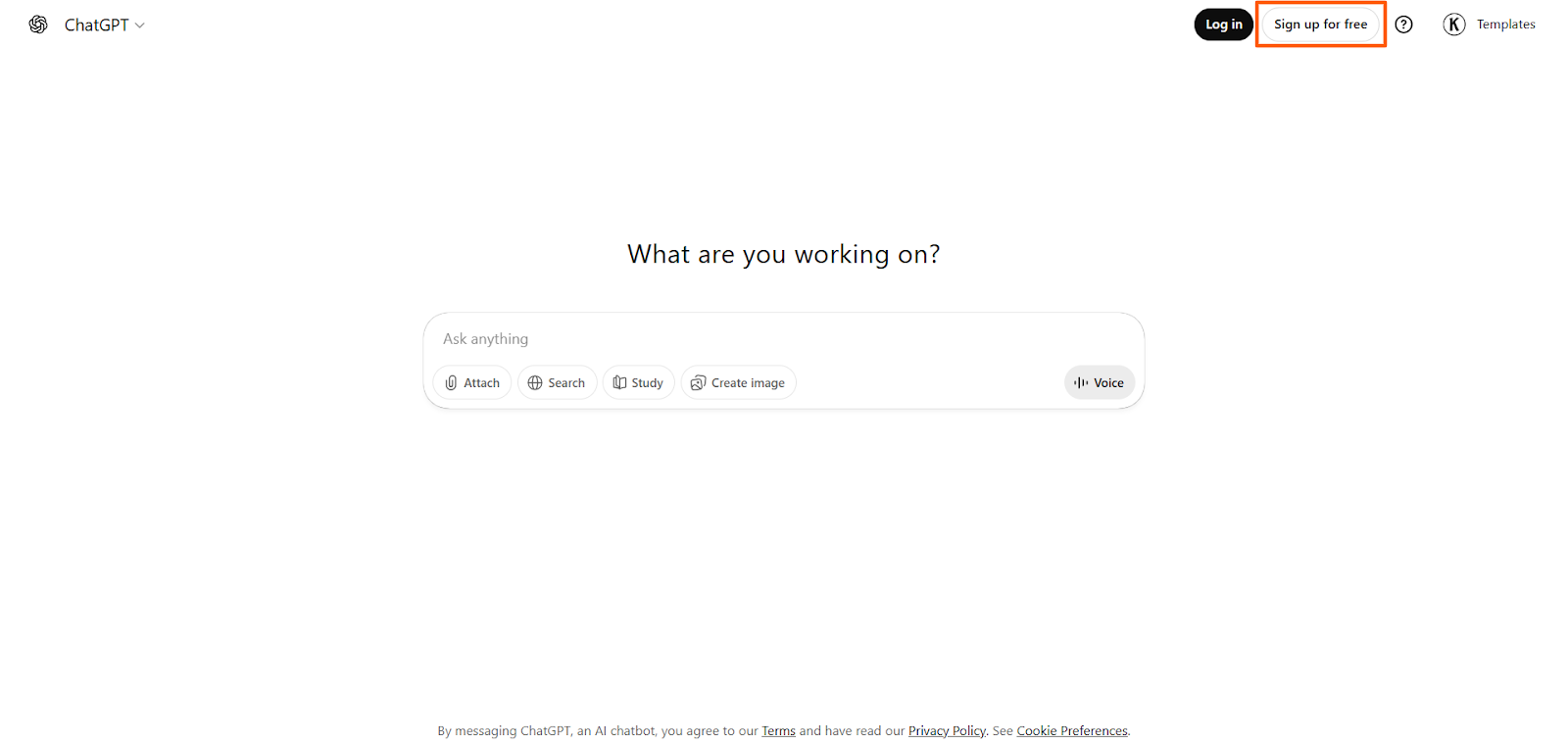
- Sign up for a ChatGPT account using the method that works best for you. Provide the necessary authorization by following the prompts to complete the signup.
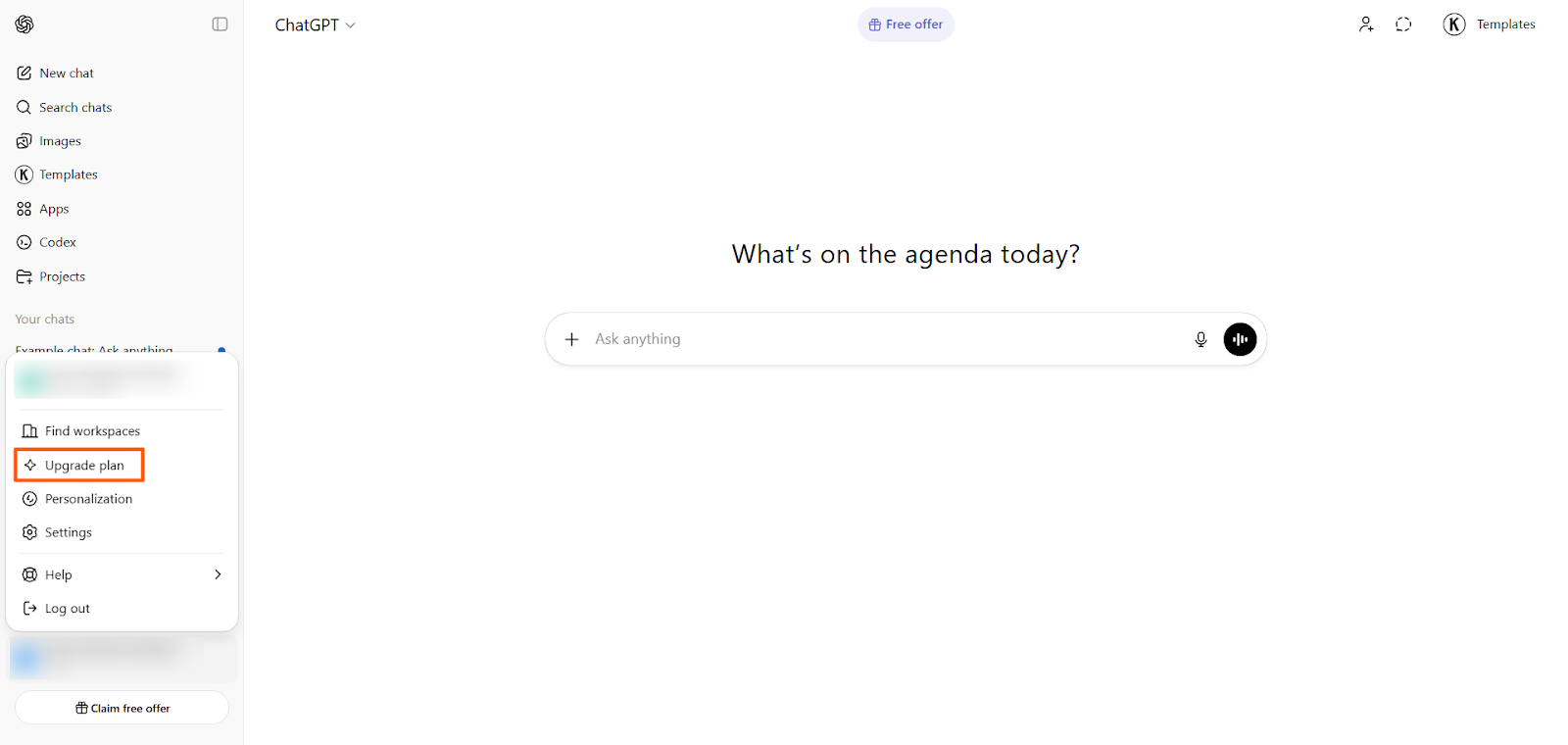
- Subscribe to ChatGPT Plus for full access to ChatGPT’s apps by clicking your name at the bottom left, then selecting Upgrade plan. Follow the prompts to sign up for ChatGPT Plus or a higher paid plan.
Note that you can still access some ChatGPT apps with a free account to ChatGPT. However, there may be some usage restrictions.
- Click Apps in the left menu.
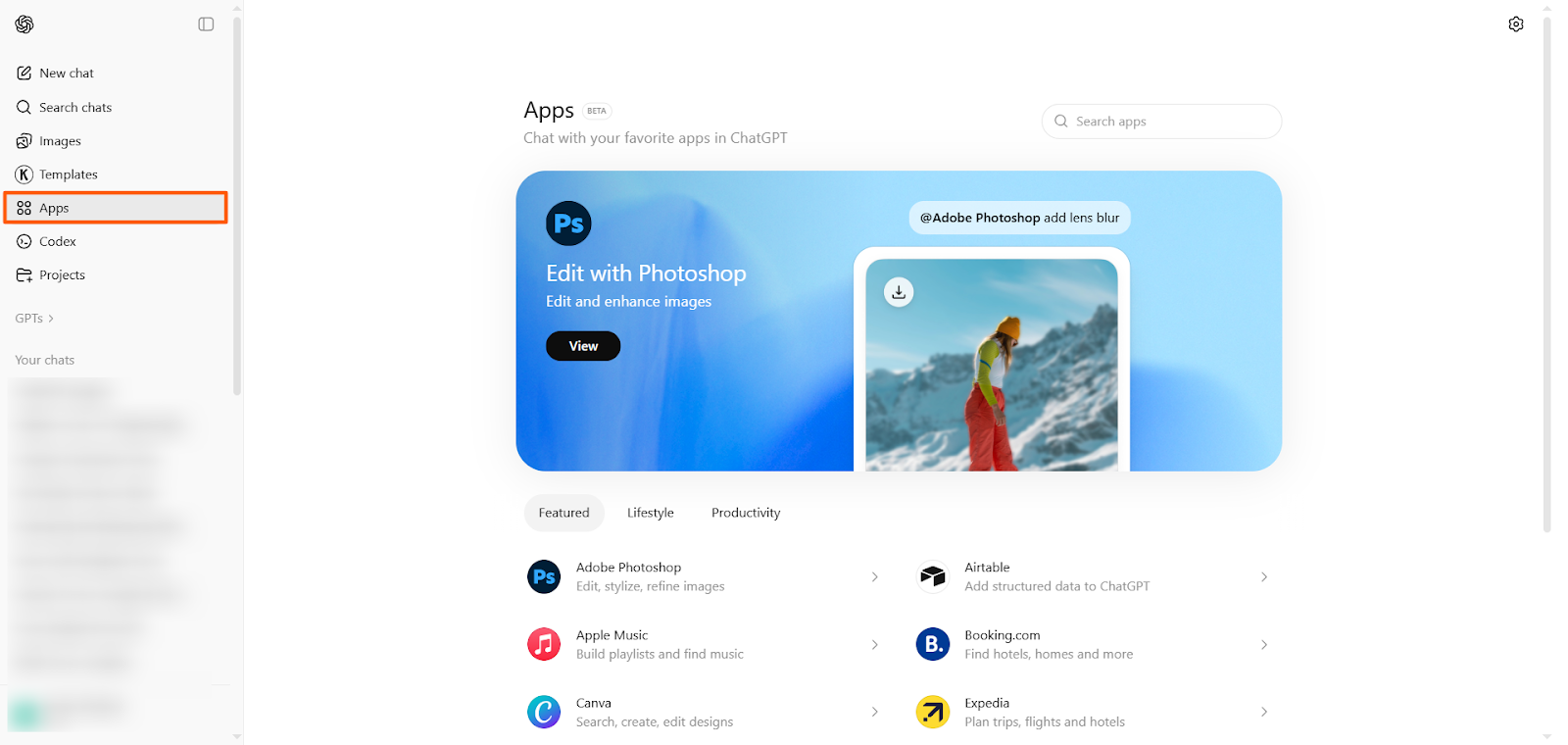
- Search for the app you’re interested in using.
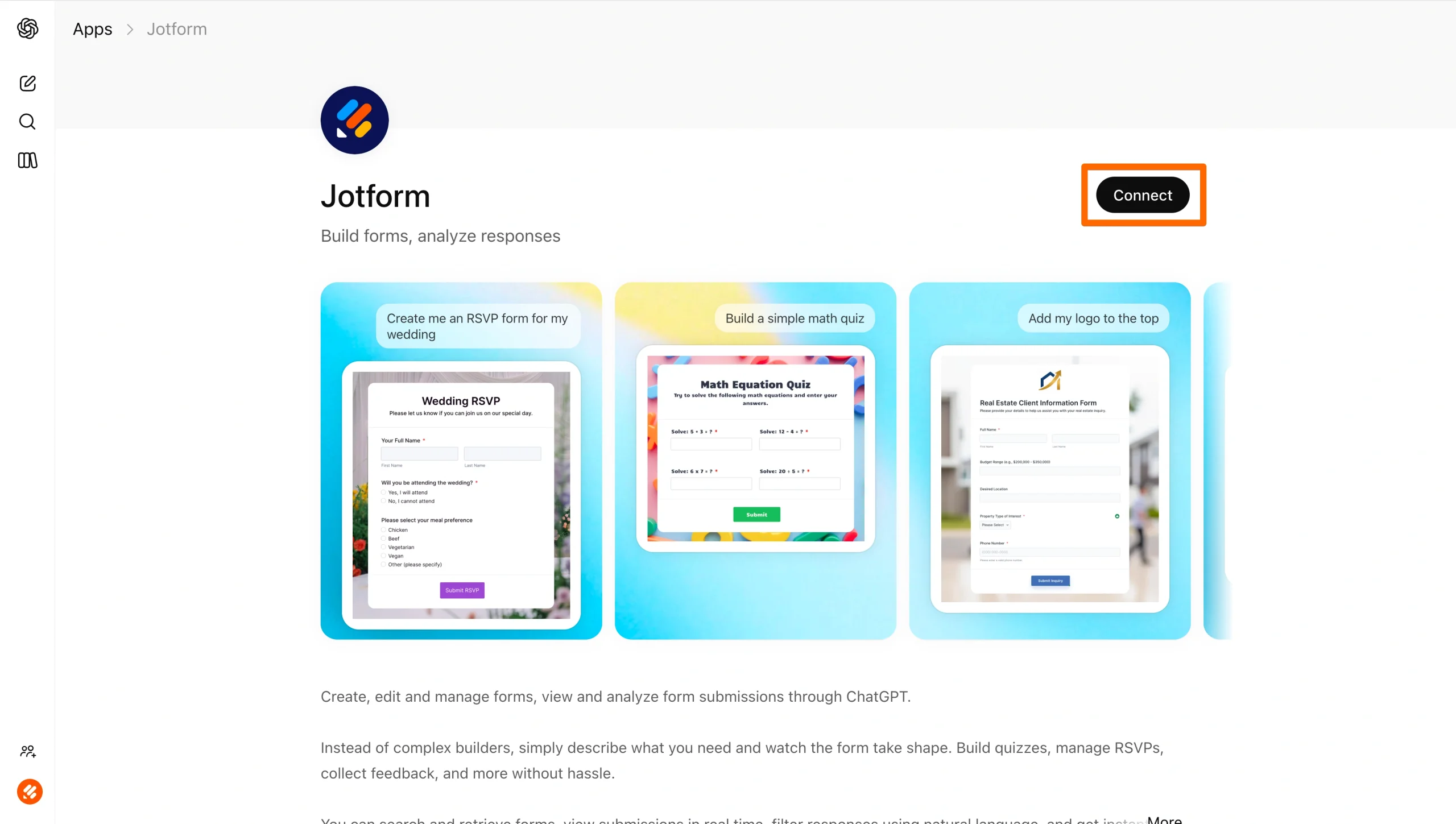
- Install the app by clicking Connect. Follow the prompts to complete the installation.
5 best ChatGPT plug-ins (now called ChatGPT apps)
Now that you know how to add plug-ins to ChatGPT, it’s time to look at some of the leading apps available for this platform. These apps extend the functionality of ChatGPT and enable you to use its features to complete specific workflows without leaving the generative AI tool.
1. Jotform
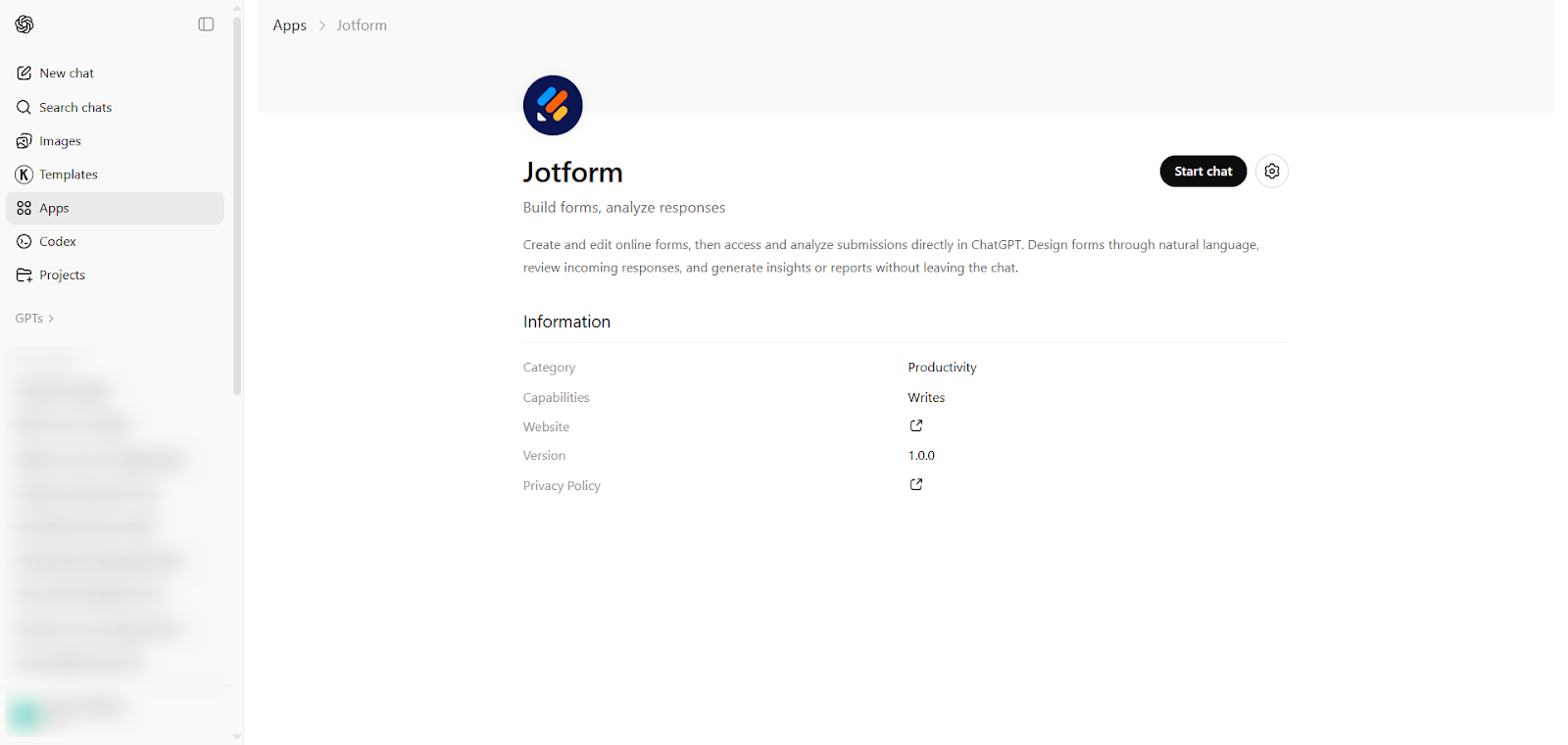
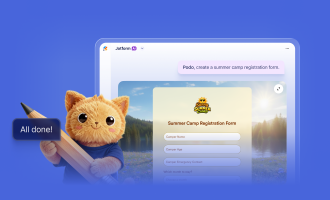
Jotform ChatGPT App lets you build online forms and analyze the responses with generative AI.
Use prompts in ChatGPT to create a form, edit it by updating questions and settings, and even select design themes, layouts, and structures. You can also use prompts in ChatGPT to add or remove fields in the form. Once your form is complete, pull response lists and filter submissions to better understand your data from within ChatGPT.
This app is a great choice for marketers, website operators, content managers, product teams, and others who want to streamline the process of collecting and analyzing data.
- Pros
- It’s an all-in-one workflow letting you create, edit, design, and analyze forms without switching between platforms.
- No coding skills are required, so even nontechnical users can enable AI to complete specific form-related tasks.
- Cons
- The Jotform ChatGPT App is not intended to replace the full Jotform platform, which offers many additional features for building, sharing, and analyzing forms.
- If you’re trying to create a complex form that needs context, it may require some back-and-forth conversation with ChatGPT to get it right.
- Plans/Pricing
- The Jotform ChatGPT App is free to use in connection with your existing Jotform account. Jotform has a free plan and paid plans starting at $34 per user per month. Click here for more pricing details.
While the Jotform ChatGPT App makes it easy to create and manage forms directly within ChatGPT, it’s just one part of a broader AI-powered experience. With Jotform AI, you can go beyond prompts to build complete forms, automate workflows, and create powerful no-code solutions — all from a single platform.
Build faster with Jotform AIDescribe what you need, and let Jotform AI build it for you instantly.
Get Started Now
2. Figma
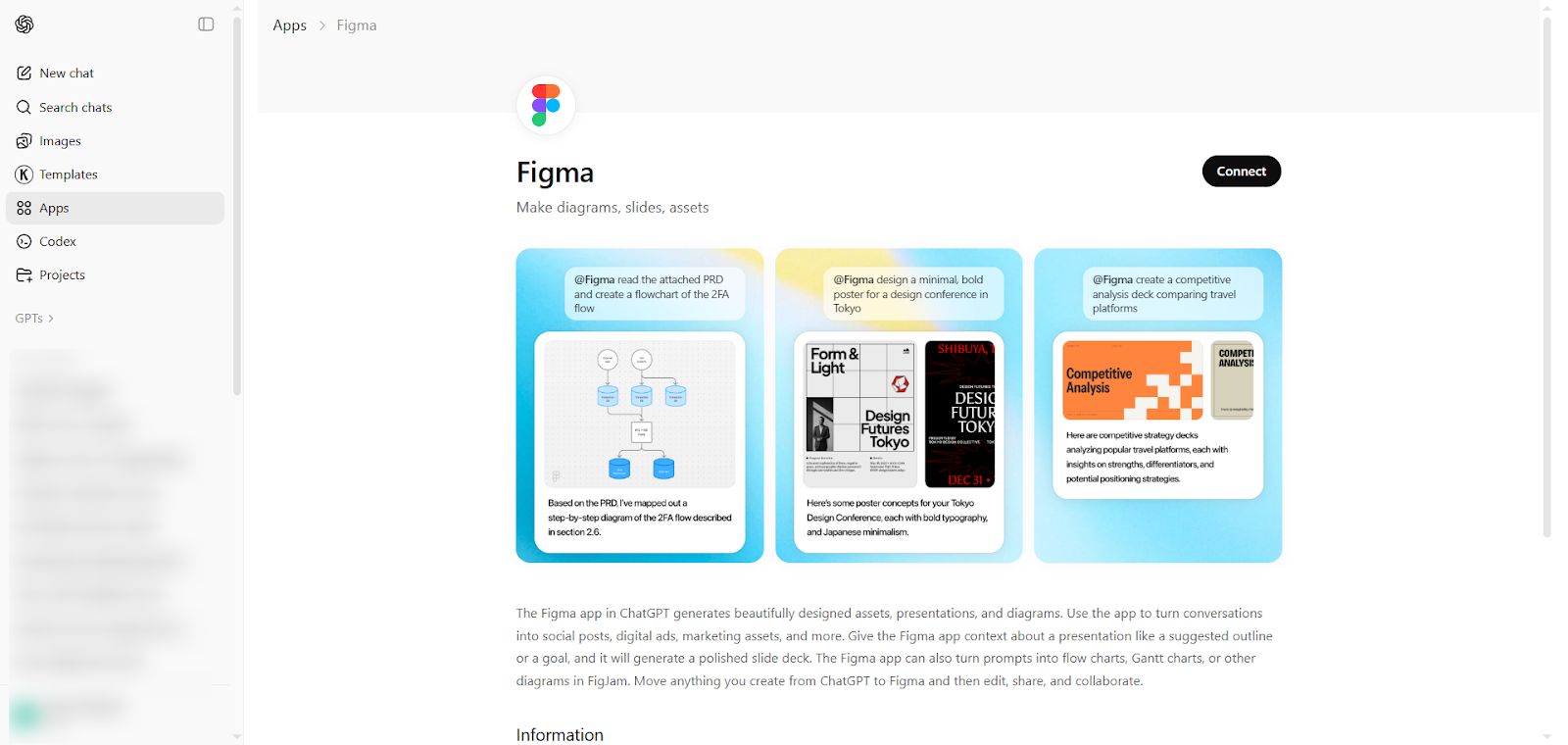
The Figma ChatGPT App lets users create marketing materials, presentations, and diagrams using ChatGPT prompts. You can also create many beautifully designed assets, such as social posts and digital ads. All you do is give the app details about the material you want to create, your outline or goals, and a few design details.
The Figma ChatGPT App is a great timesaver for those who need to create visual materials regularly.
- Pros
- The app makes the design process more accessible to non-designers who don’t have experience using visual tools.
- It speeds up the brainstorming and ideation process by doing the heavy lifting, so you just refine and edit your materials.
- Cons
- It can be difficult to use written prompts to accurately describe the visual results you’re looking for, especially if you’re not a designer.
- Not all Figma’s features and capabilities are available with the app, so it’s limiting if you’re experienced using the design platform.
- Plans/Pricing
- The Figma ChatGPT App is free. However, to use Figma’s features on the designs the app generates, you’ll need a Figma account. Figma has a free plan with paid plans starting at $3 per month. Click here for more pricing details.
3. Slack
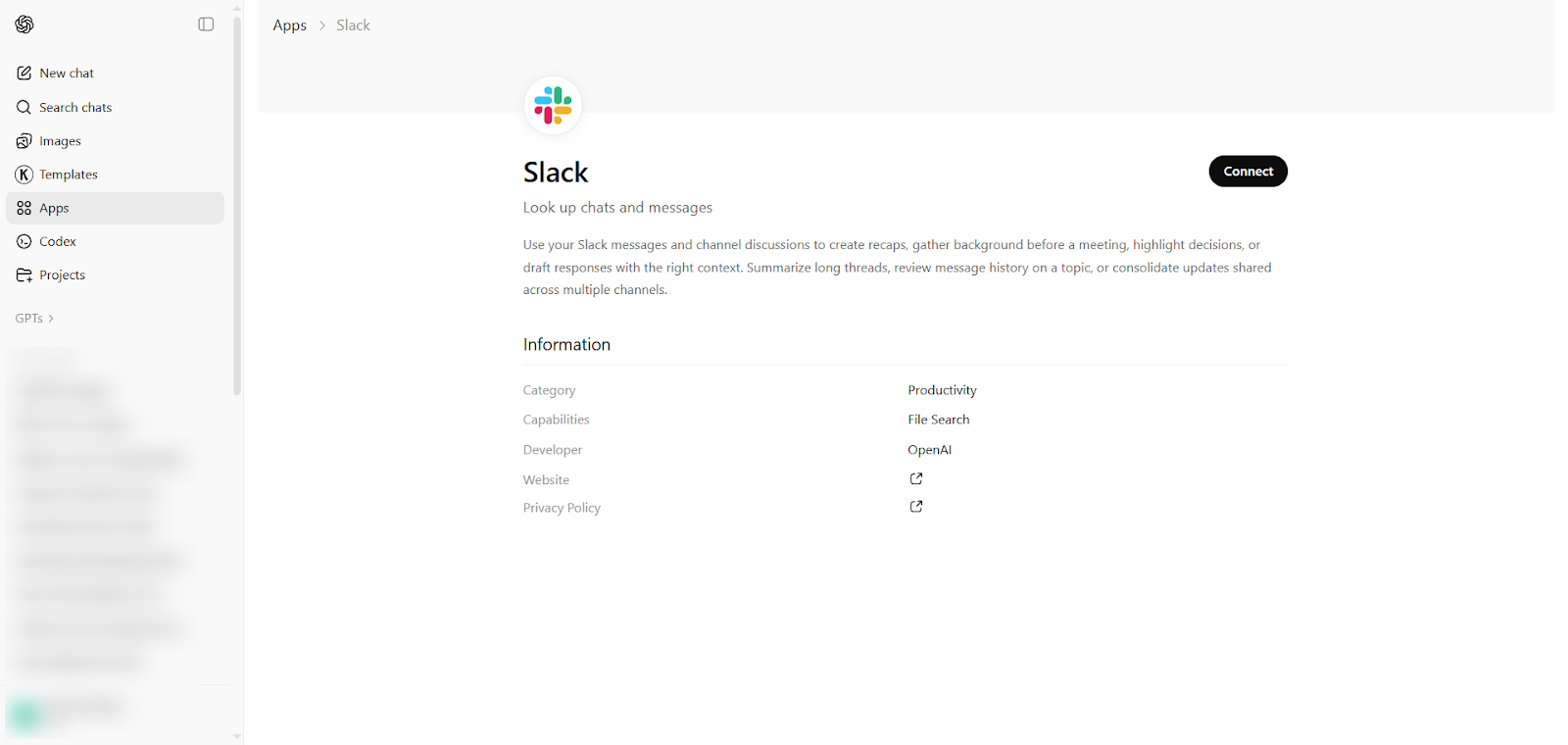
The Slack ChatGPT App helps you catch up on your Slack conversations and threads. Using ChatGPT, you can get recaps, background notes, and summaries of conversations. It also lets you draft responses and highlight decisions within conversations, as well as consolidate updates across multiple channels.
If you’re part of a conversation-heavy organization, this app can be a real productivity booster.
- Pros
- You can catch up on long conversations without having to read every thread thanks to the context and history provided by the app.
- The action items and notes features are genuine timesavers.
- Cons
- Conversations can be tricky, and ChatGPT sometimes misses specific nuances within the thread, leading to inaccurate summaries.
- You may need to review business-critical conversations, summaries, notes, and action items to ensure your understanding is 100 percent correct.
- Plans/Pricing
- The Slack ChatGPT App is free, but you will need a paid ChatGPT plan to use it. Slack itself has a free plan, as well as paid plans starting at $7.25 per user per month. Additional AI features are available in higher tiers of Slack plans. Click here for more pricing details.
4. Adobe Acrobat
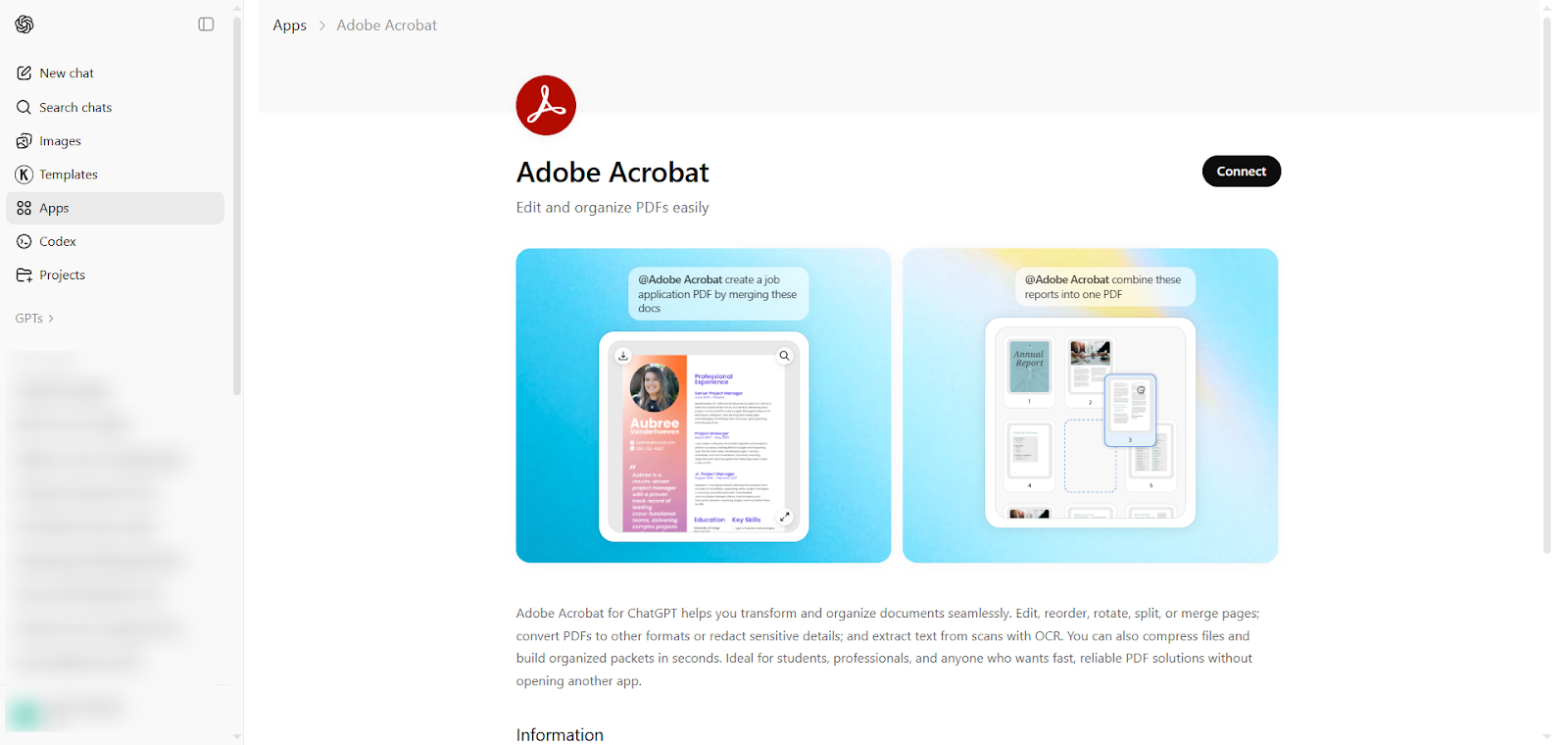
The Adobe Acrobat ChatGPT App is for editing and organizing PDFs. You can use the app to edit, reorder, rotate, split, and merge pages within PDFs or convert the PDF into different formats. The Adobe Acrobat ChatGPT App even redacts sensitive material and extracts important information from your documents.
This app is an excellent choice for those who frequently work with PDF documents like contracts, proposals, assignments, purchase orders, invoices, and more.
- Pros
- It makes working with PDFs easier as you can use AI prompts to edit seamlessly within ChatGPT.
- It is available for use on the ChatGPT free plan and can also be used with Adobe’s free plan, making it more accessible for users compared to some other options.
- Cons
- While you can use it to edit PDF documents, you can’t complete complex workflows like using digital signatures or making large-scale design edits.
- Adobe Acrobat provides ready-to-go prompts for ChatGPT, but the example use cases are limited so you may have to come up with your own prompts.
- Plans/Pricing
- The Adobe Acrobat ChatGPT App is available at no cost, but you do need to have an Adobe ID to use it. Adobe Acrobat has a free plan and paid plans starting at $14.99 per user per month. Click here for more pricing details.
5. Canva
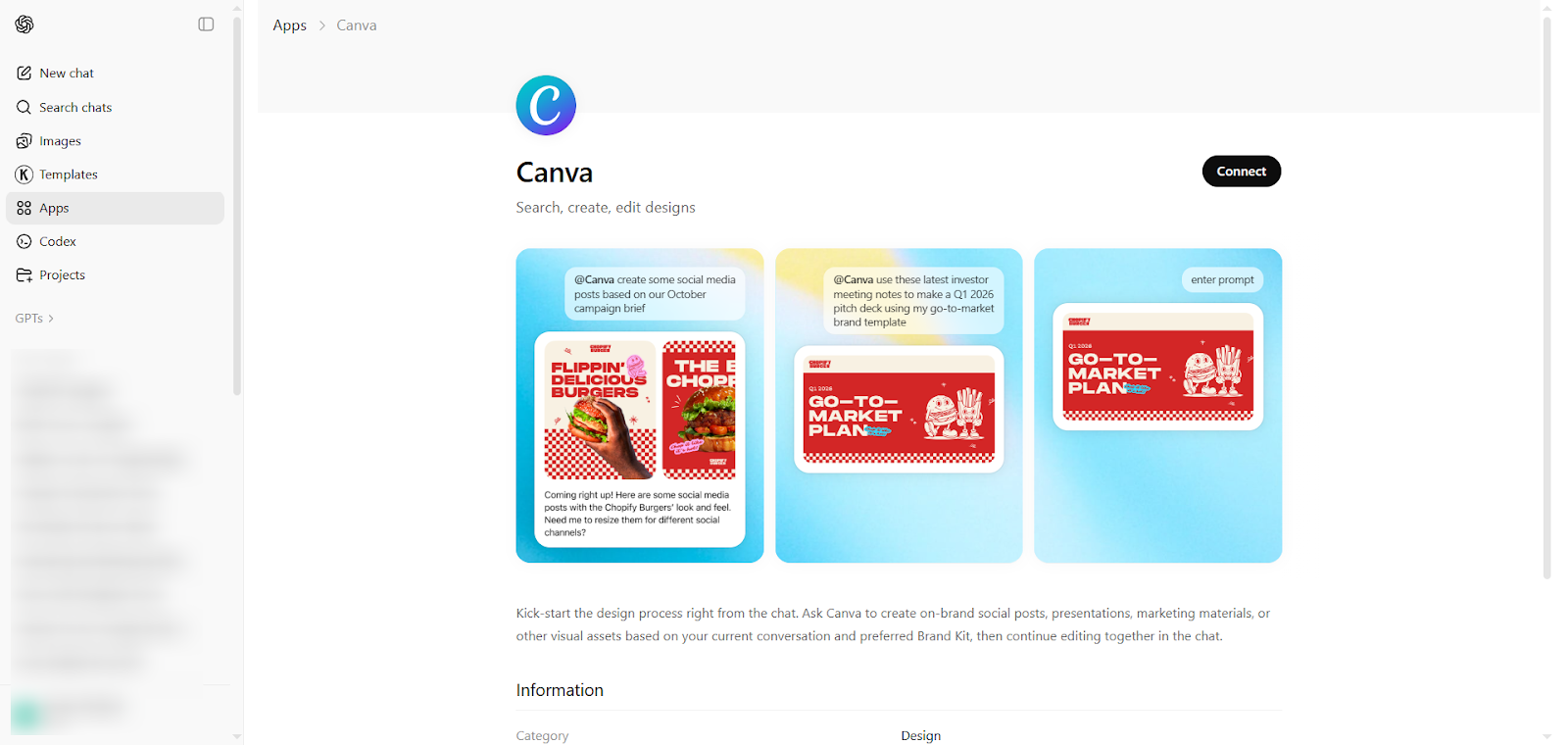
The Canva ChatGPT App streamlines the design process by helping you create on-brand marketing materials, presentations, and graphics through AI prompts. Once you get the visual assets started using the app, you can use prompts to edit them to your specific needs.
The Canva ChatGPT App is great for those who have specific brand guidelines to adhere to and want to expedite the design process.
- Pros
- The app is ideal for those who do not have graphic design experience, as it makes the ideation and creation process simple.
- It adheres to your existing brand standards to ensure your visual assets meet all guidelines.
- Cons
- The end result will depend on the clarity and specificity of your prompt — if your prompts aren’t detailed enough, you may not get the results you need.
- The app does not have the full features of Canva, so if you need to create or edit something complex, you may need to do it directly within the platform.
- Plans/Pricing
- The Canva ChatGPT App is available free but you may need to use a paid ChatGPT account to access it. You will also need to have a Canva account, either the free plan or one of the paid plans starting at $12.99 per user per month. Click here for more pricing details.
How to create a form with Jotform ChatGPT App
Now that you know how to get plug-ins for ChatGPT, put your knowledge to the test with the leading ChatGPT App. Follow these instructions to create your first form with Jotform ChatGPT App. Note that you will need to have both a ChatGPT account and a Jotform account.
- Open ChatGPT.
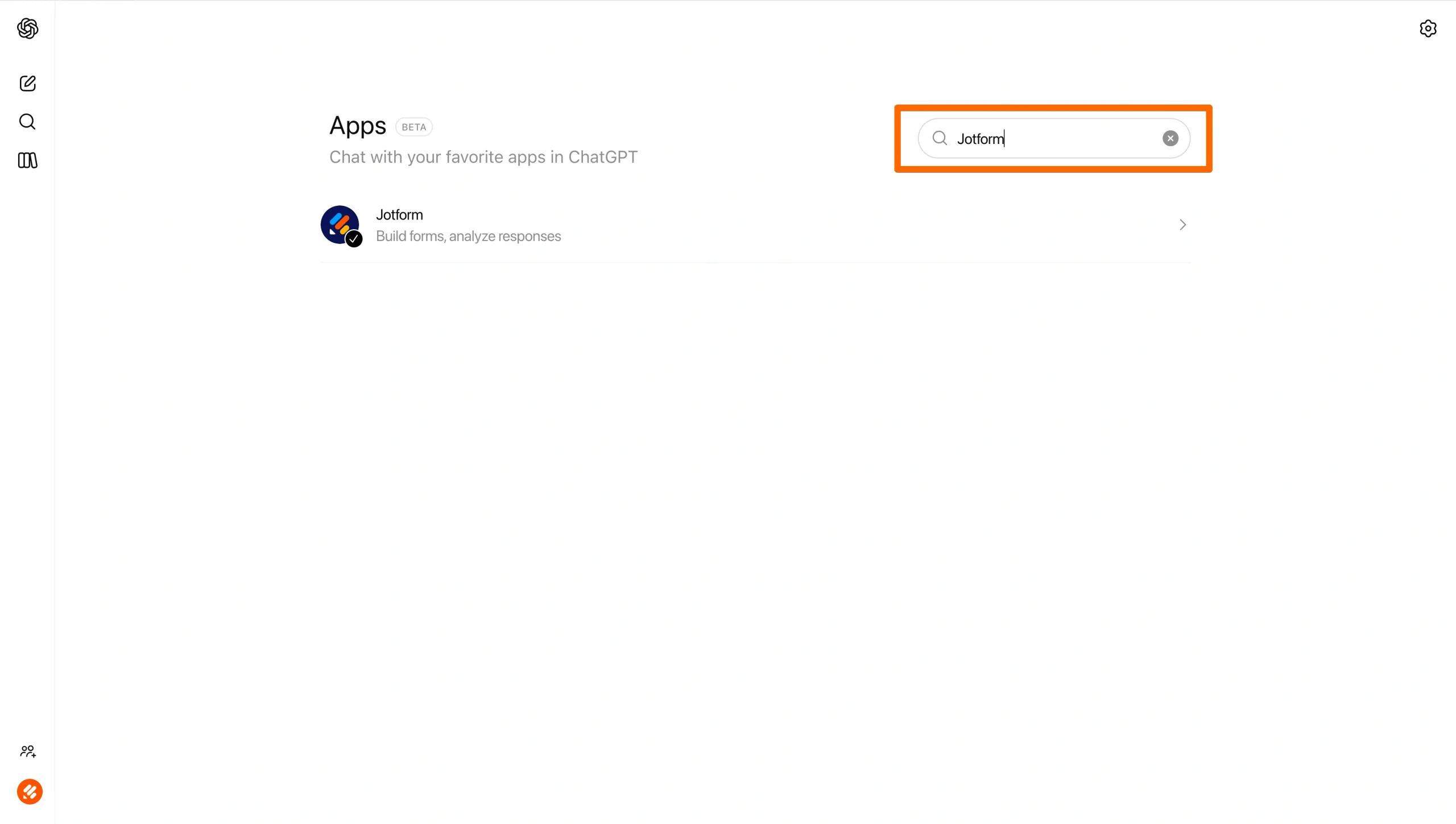
- Click Apps. Search for and click on Jotform.
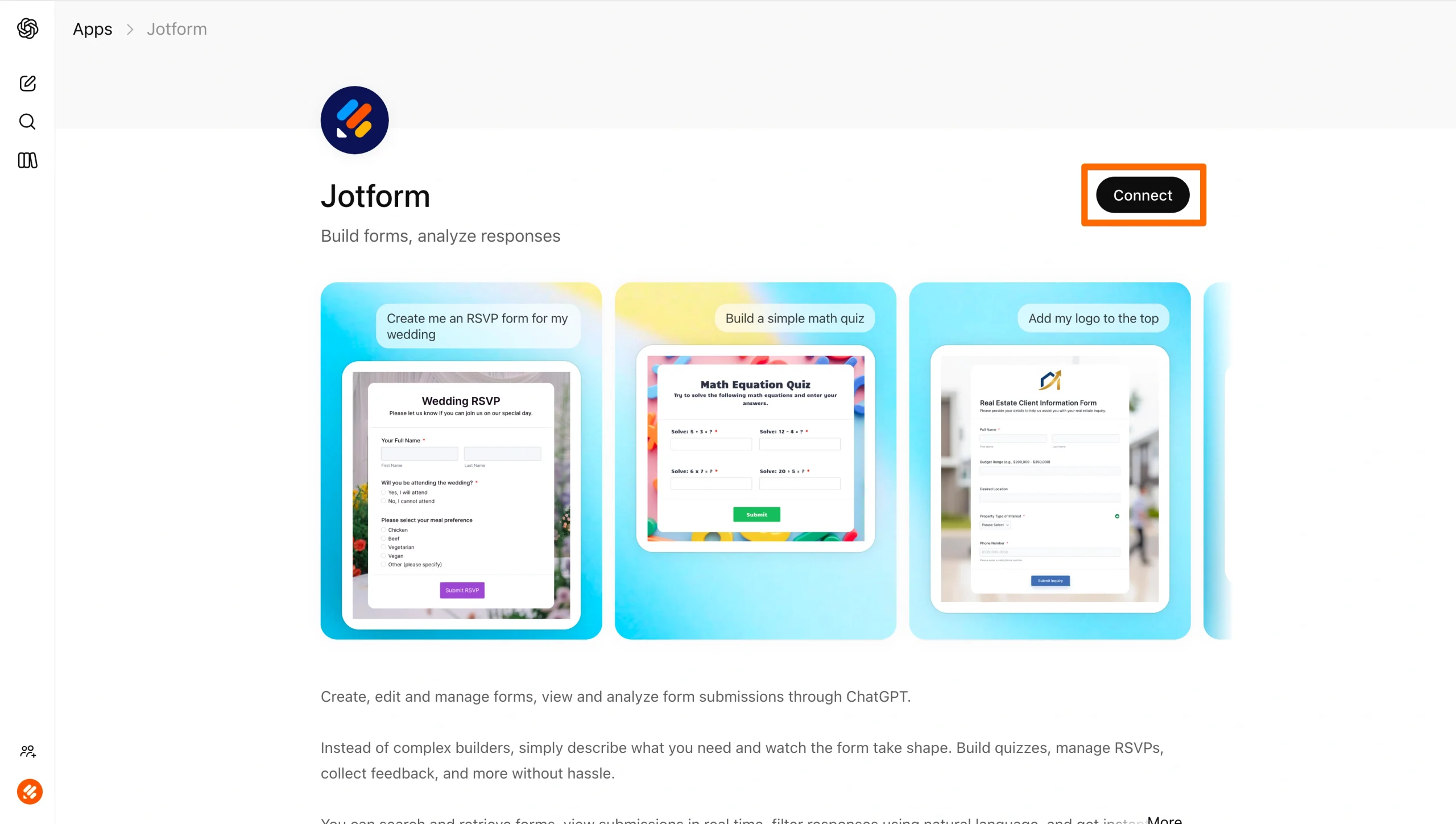
- Click Connect. Follow the prompts to connect with your Jotform account.
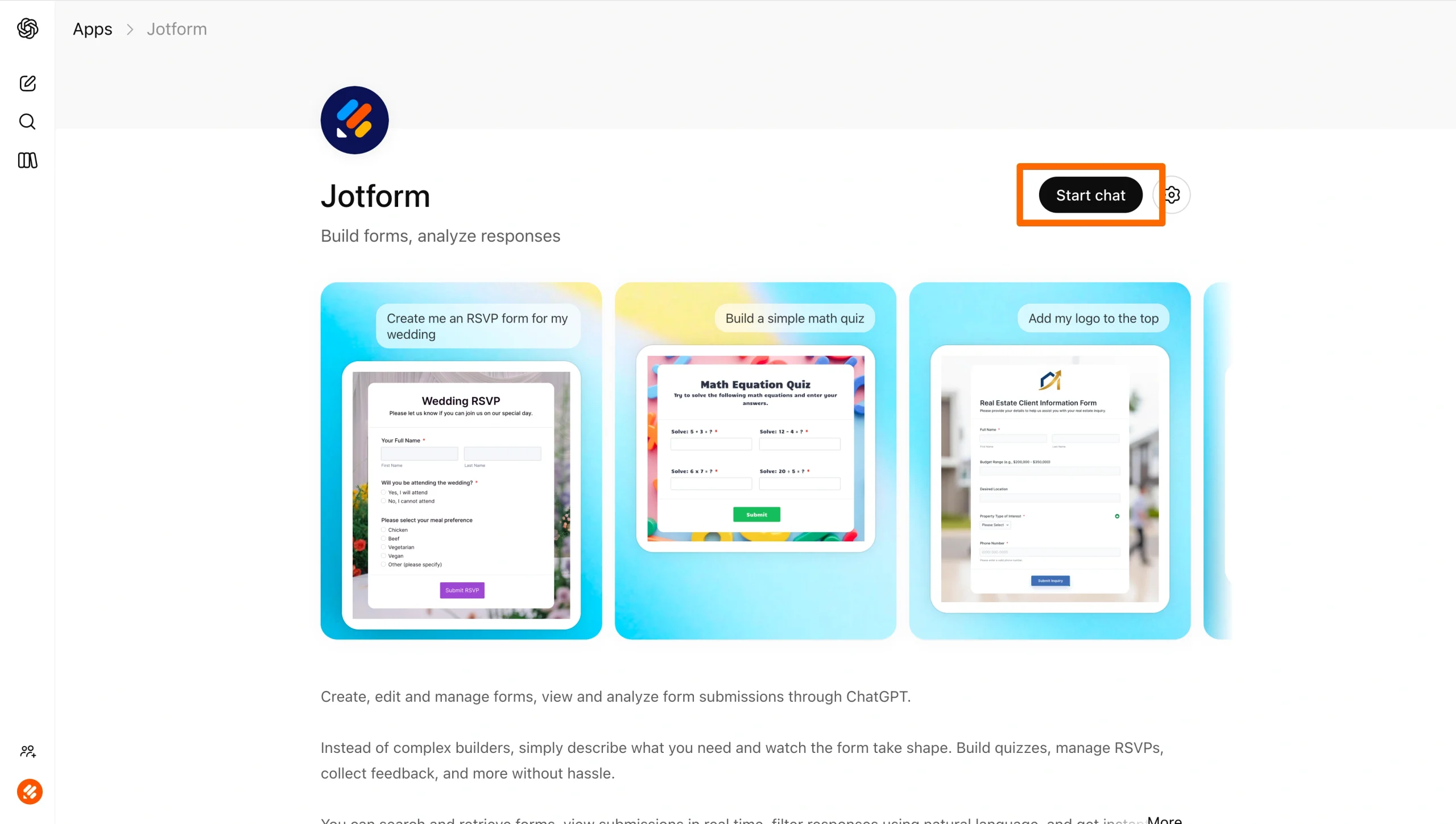
- Click Start Chat.
- Provide a prompt to create your form.
For example, “Create an RSVP form for the annual company sales conference dinner.”
ChatGPT will build the form directly in Jotform and display a live inline preview in the chat.
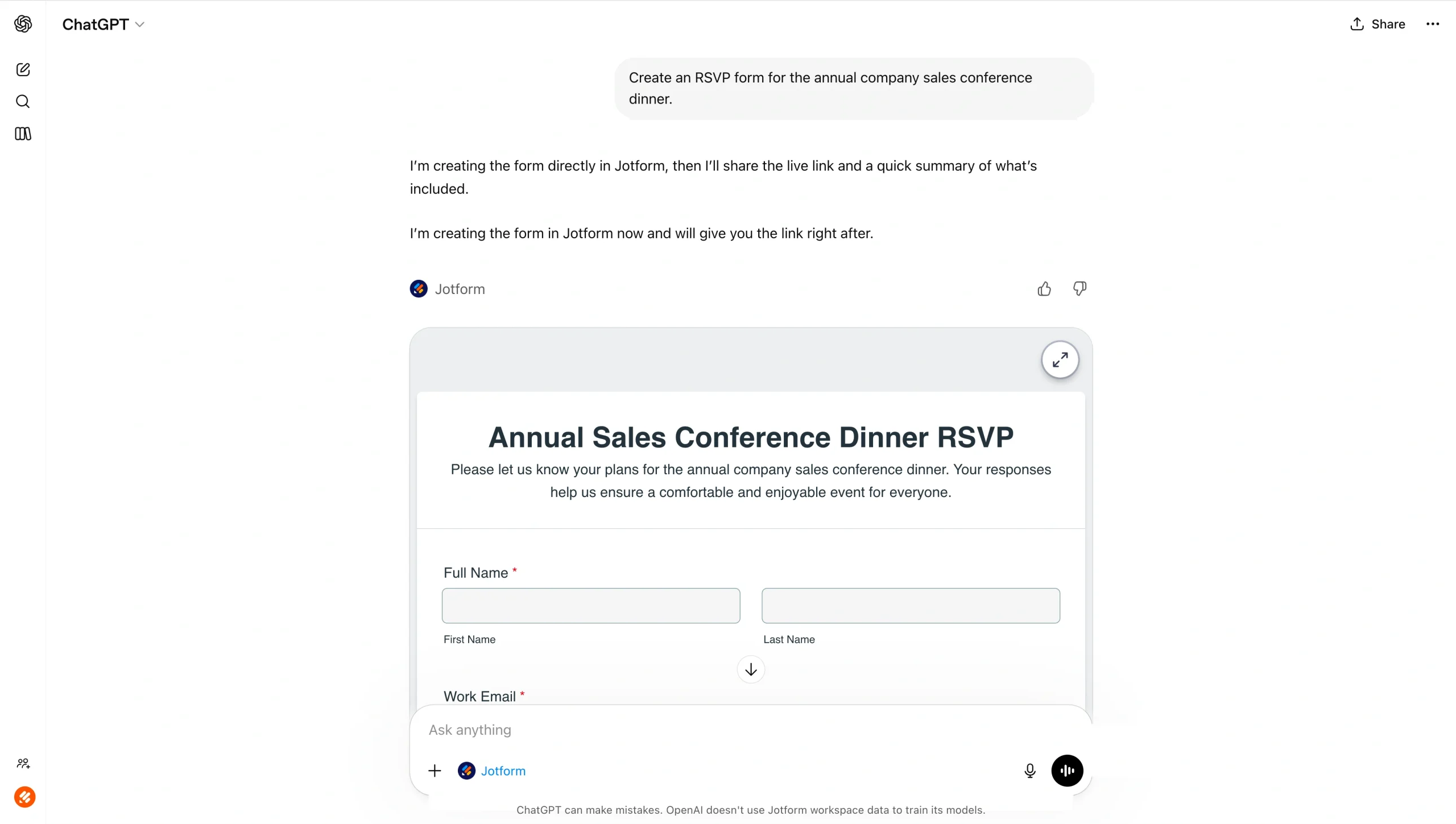
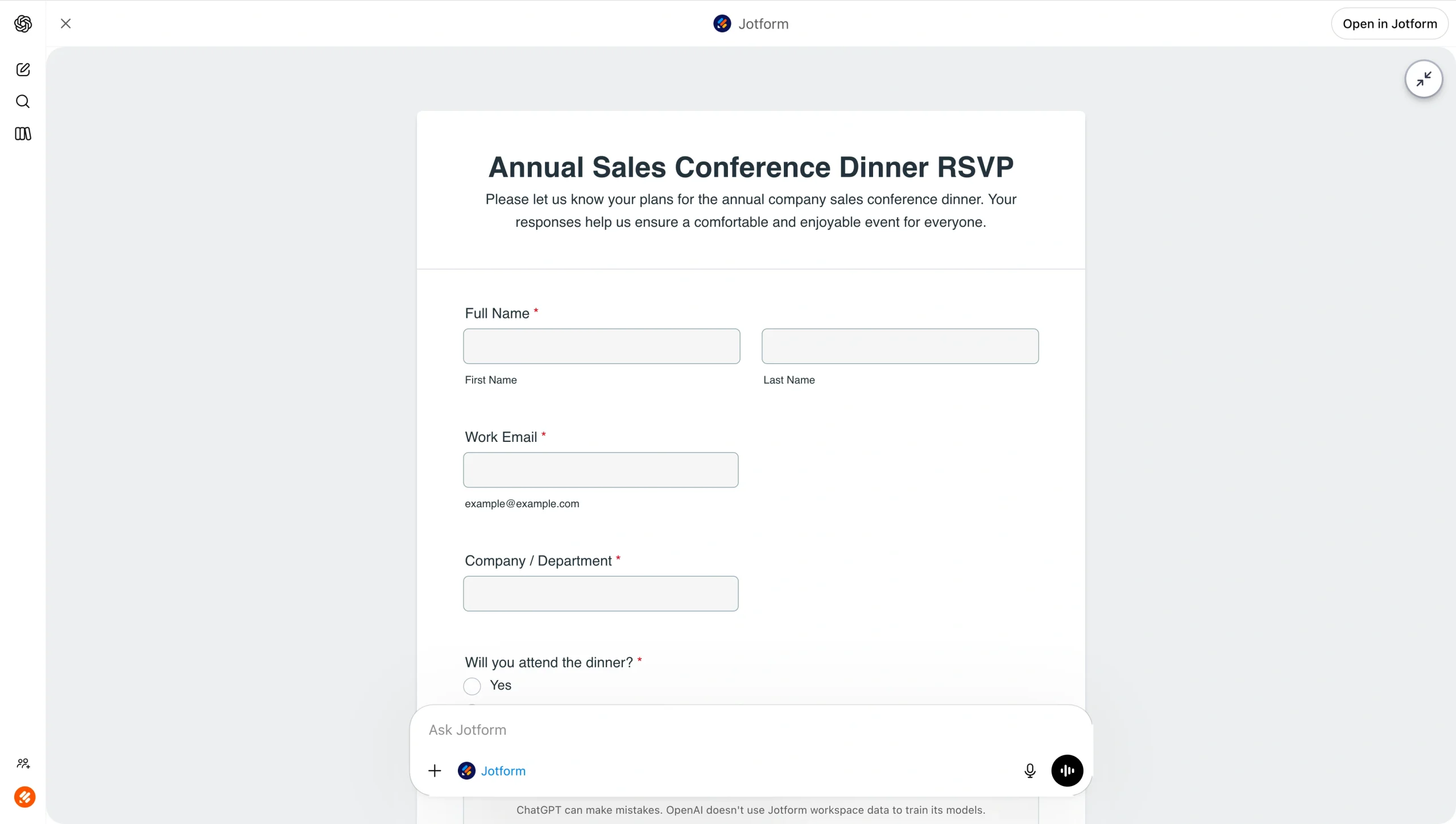
- View your form in the inline preview. Use the expand button (⛶) in the top-right corner of the preview to open it full screen. You can edit it and ask for more details by writing prompts in ChatGPT. For example, “Add a dietary preferences field.”
- Once the content of your form is to your liking, take time to polish the style of the form. Use prompts like “Refresh the design so it is clean and modern. Use green as the primary color.”
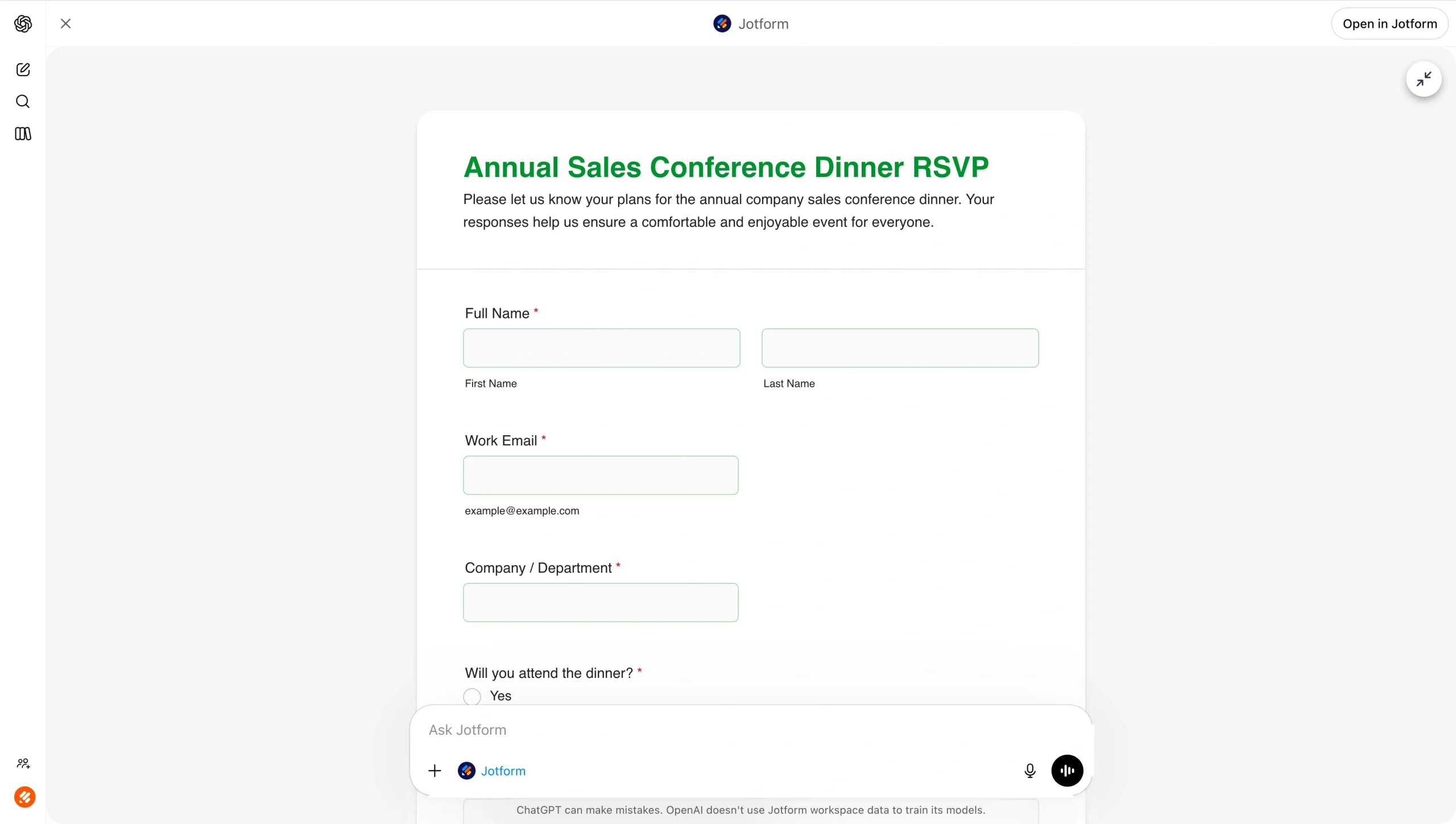
- Continue to use prompts in ChatGPT to edit your form until it meets your needs.
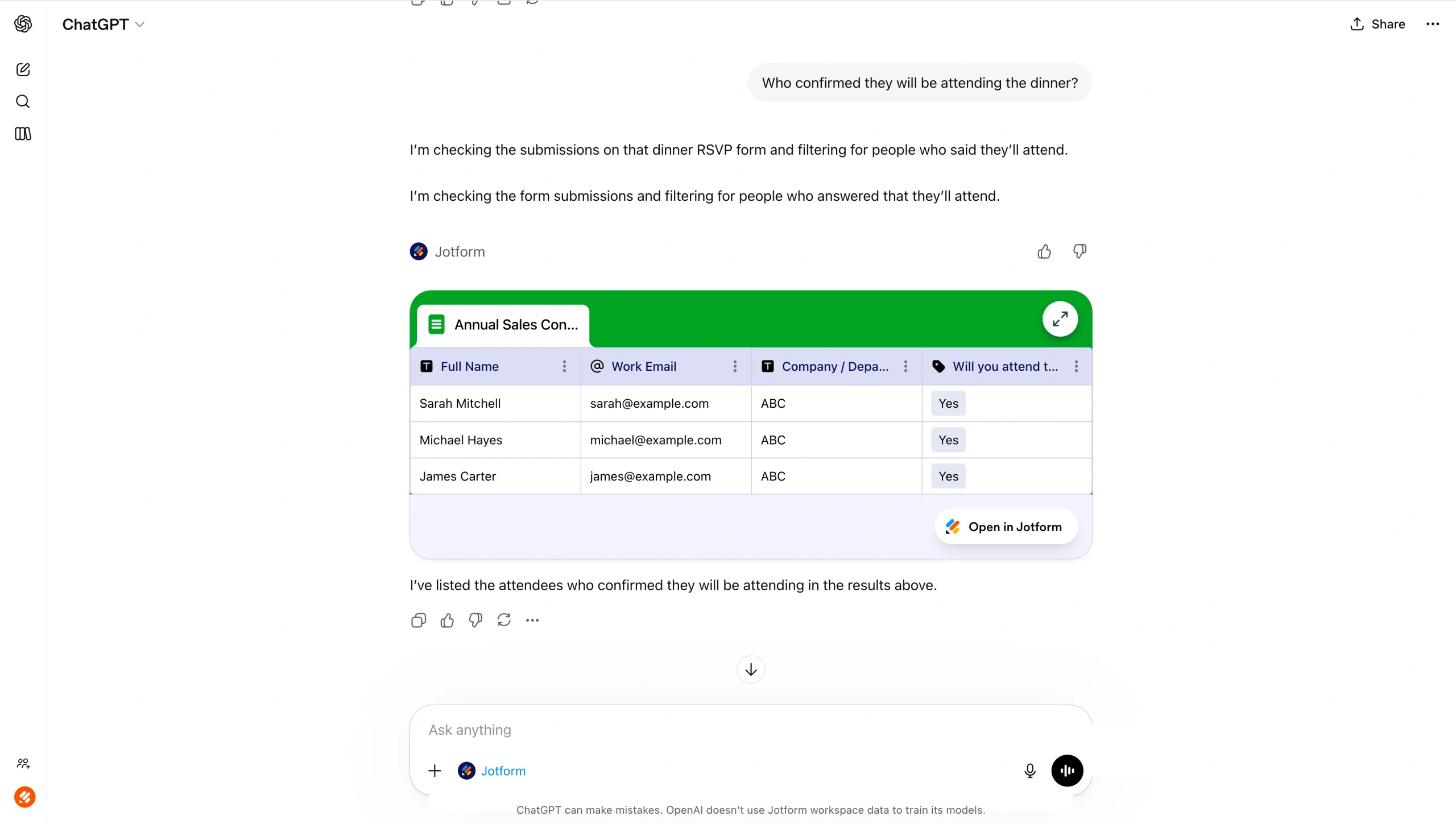
- Once your form is finalized and sent to recipients, use Jotform ChatGPT App to list and analyze responses. Ask ChatGPT to point out any trends or anomalies, or have it filter responses by a specific answer.
Time to explore plug-ins in ChatGPT for your workflow
Knowing how to install ChatGPT plug-ins, called apps, is a great skill to have. You can easily extend the functionality of ChatGPT with third-party tools while increasing the efficiency of your business processes like creating forms, editing PDFs, or building presentation decks.
The process of finding and installing plug-ins is easy. Simply create a ChatGPT account, sign up for a paid plan, and go to Apps. There, you can find a range of third-party tools that connect directly with ChatGPT. Many ChatGPT apps are available at no cost, and some are even available in the ChatGPT free plan, giving you plenty of opportunities to explore.
The Jotform ChatGPT App is available with the free ChatGPT plan and the free Jotform account plan, so there’s nothing standing in your way. See how you can use the form builder with ChatGPT and take creating forms to a new level. Explore the Jotform ChatGPT App today.
Frequently asked questions
ChatGPT no longer has plug-ins. Instead, it has an App store where you can find a range of third-party apps that connect directly with ChatGPT. Note that you may need to upgrade to a paid ChatGPT plan for access to a wider range of apps.
If your app (plug-in) isn’t working, check to ensure it is properly connected through the App store. Be sure to check you are on the right ChatGPT plan as well ensure you have access to that specific app.
ChatGPT no longer has plug-ins. However, you can consider making a ChatGPT App instead. OpenAI provides details for developers to learn how to make a successful ChatGPT App.
This article is for people exploring ChatGPT apps to improve workflows like form creation, document handling, team communication, and design, especially those comparing tools and learning how to install apps and use Jotform inside ChatGPT.





































































































Send Comment: