Widgets add an extra layer of flexibility and creativity to your app by letting you display content in dynamic and engaging ways. Whether it’s a slider, video, map, or another interactive element, widgets make your app more informative and visually appealing. They’re especially helpful when you want to present additional details, showcase media, or make navigation more intuitive—all without overwhelming users with plain text.
This feature is useful for anyone building apps that need to share information clearly or keep users engaged, such as businesses, educators, event organizers, or teams managing ongoing projects. By thoughtfully adding widgets, you can enhance the overall experience, making your app not only functional but also inviting and easy to explore.
Adding widgets to your app is easy—here’s how to do it:
- In App Builder, click on Add Element on the left side of the page.
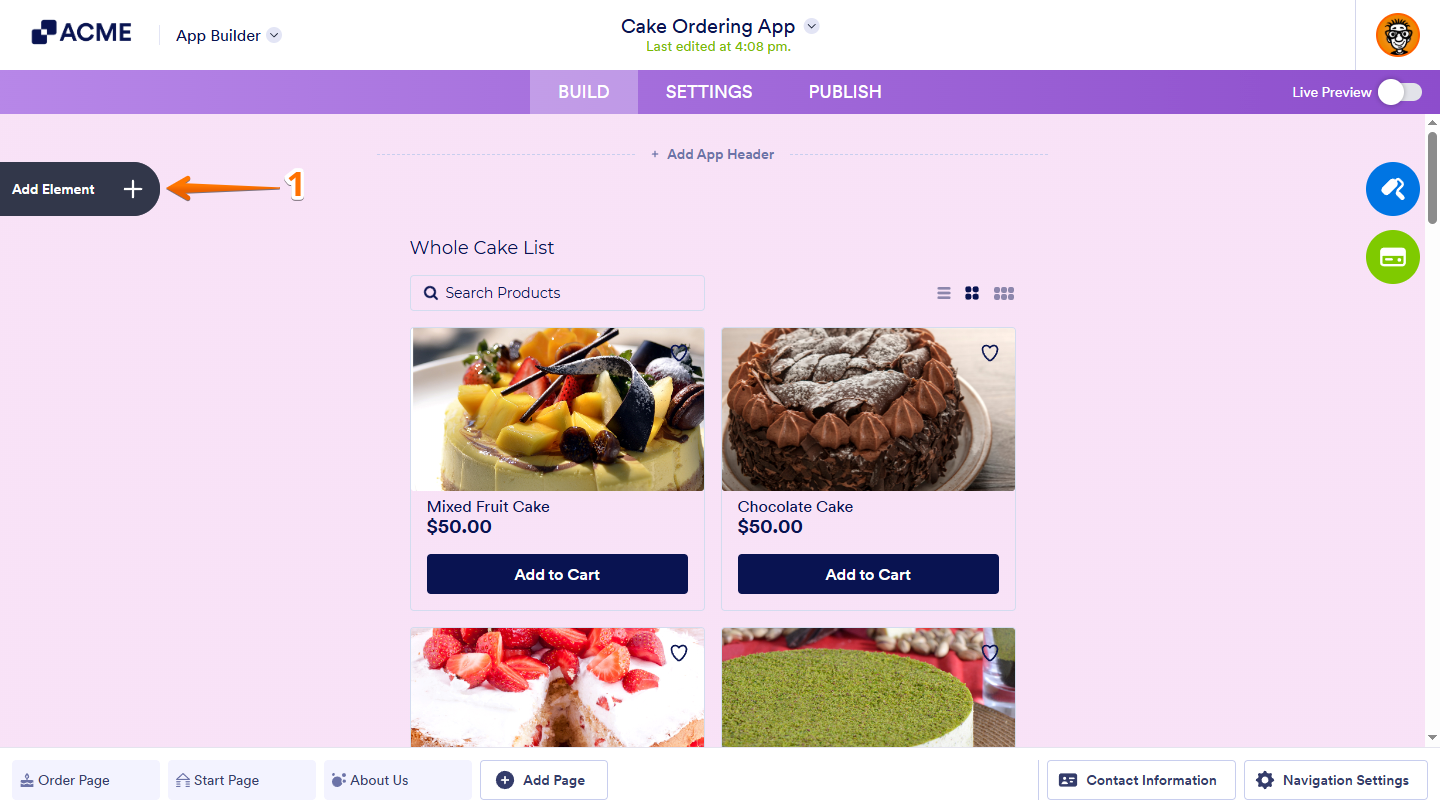
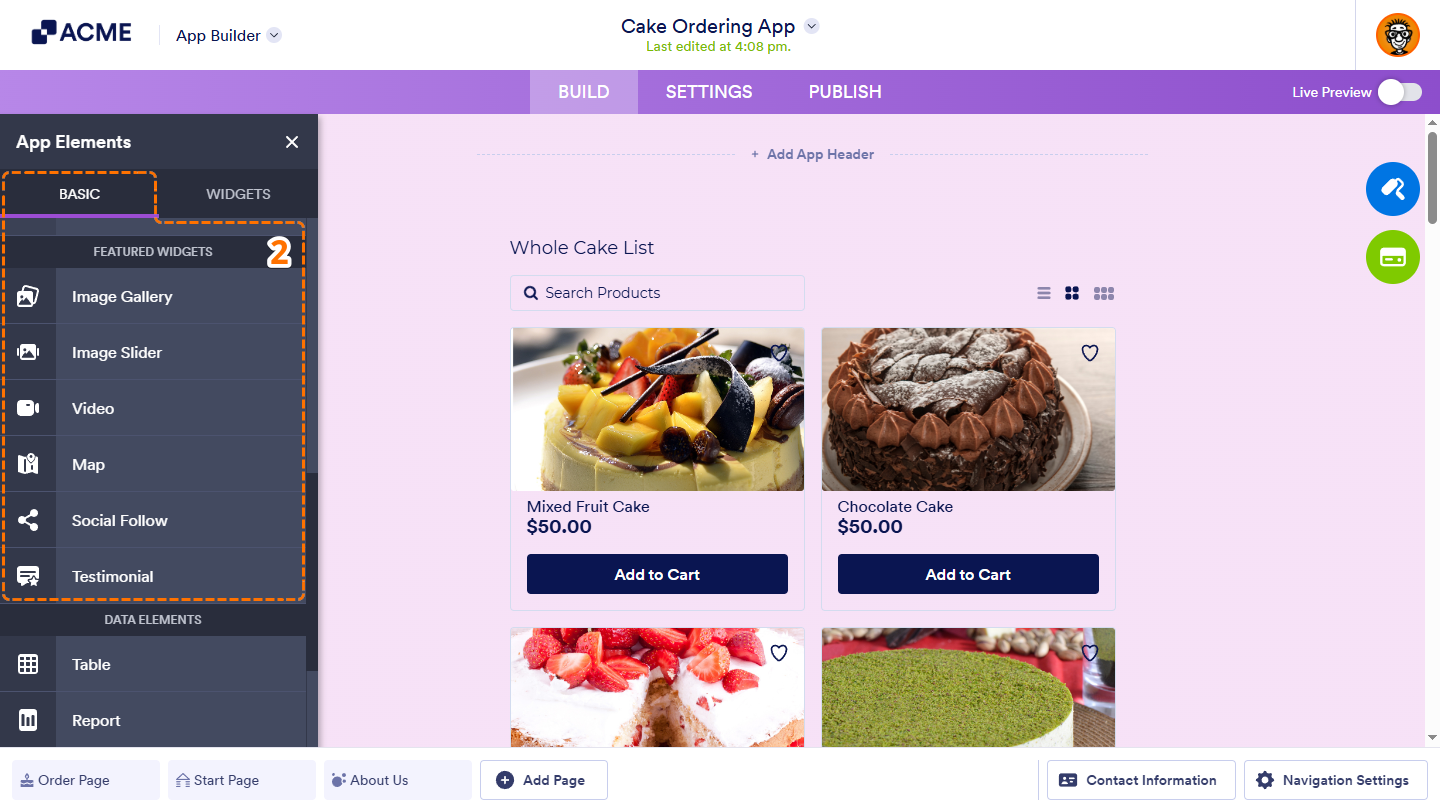
- Now, in the App Elements menu, under the Basic tab, scroll down to the Featured Widgets section and then click on the widget you want to use. Or, just drag and then drop it to where you want it to be on your form.
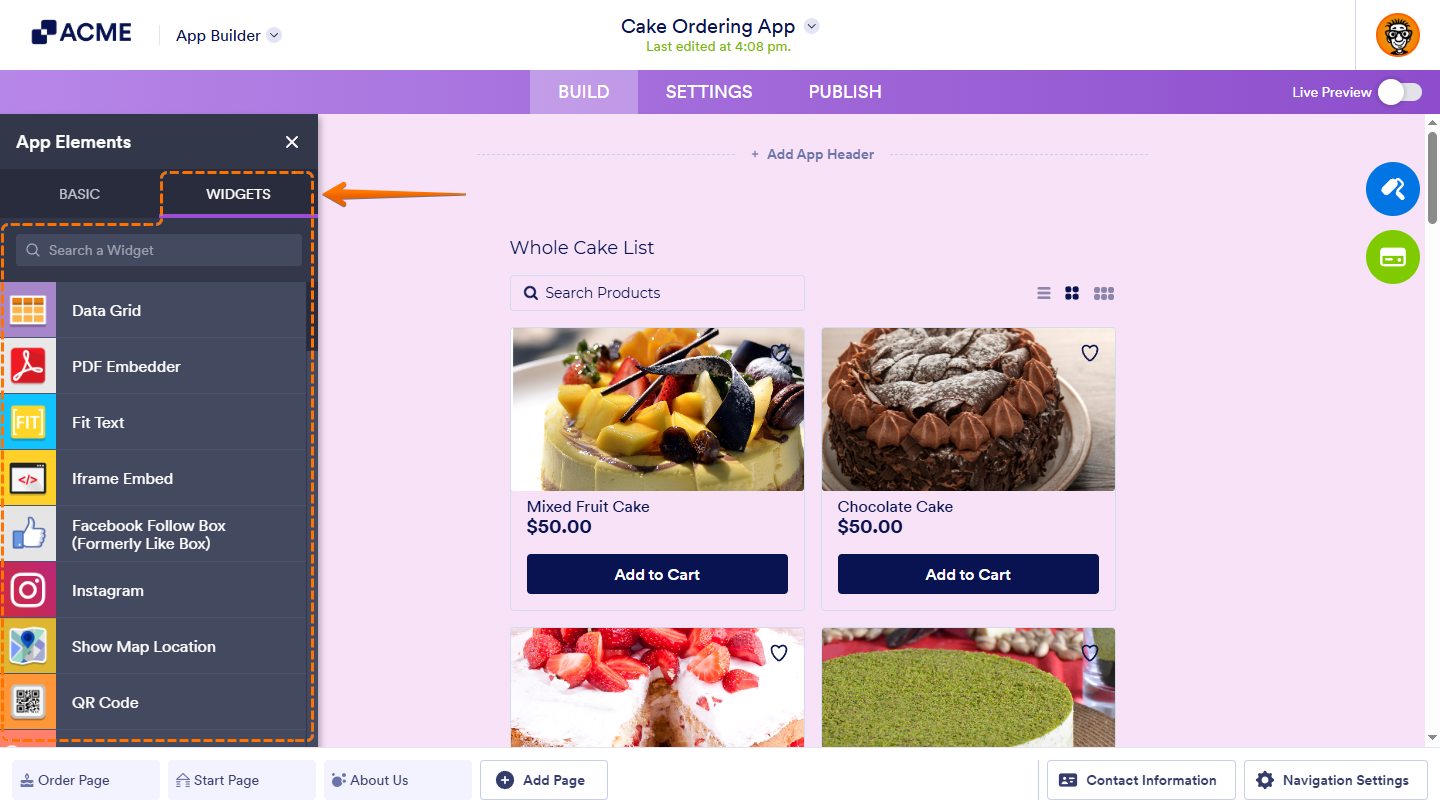
You’ll also see more widgets in the Widgets tab of the App Elements menu. Use the search bar at the top of it to find a specific one easily.
That’s it! Once you’ve added a widget to your app, click on the Gear icon on the right side of it. Then, in the Widget Properties menu, configure and adjust its settings.
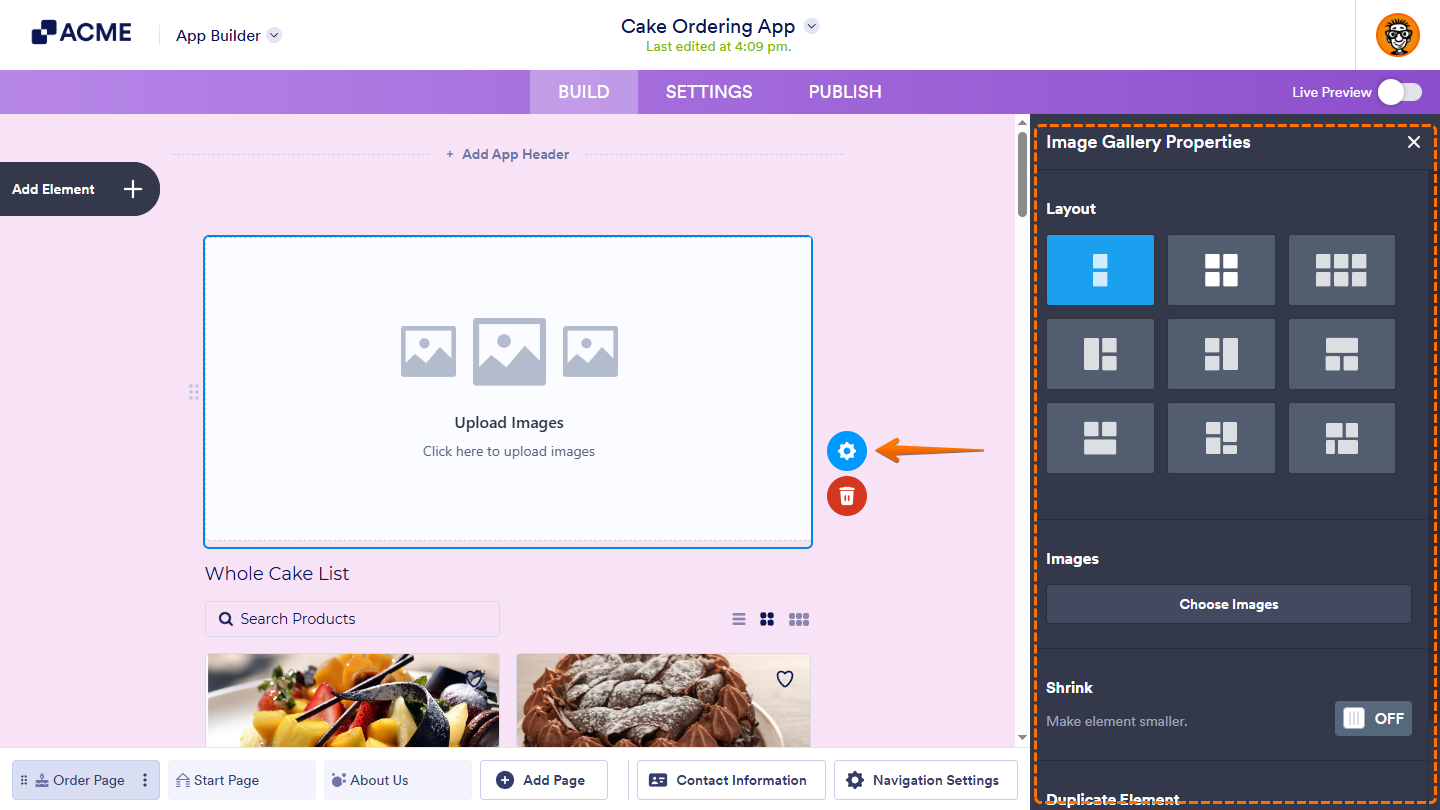
Note: Any changes you make in the Widget Properties menu are saved automatically.

Send Comment: