The Favorites feature allows you to bookmark your most frequently used assets with a star icon. Marking assets as favorites moves them into a dedicated shortcut list on your sidebar menu, saving you time by letting you bypass long asset lists and jump straight to your key projects.
How to Manage Your Favorite Assets
Adding an Asset to Favorites
You can add any asset to your favorites list directly from your workspace in just a few clicks.
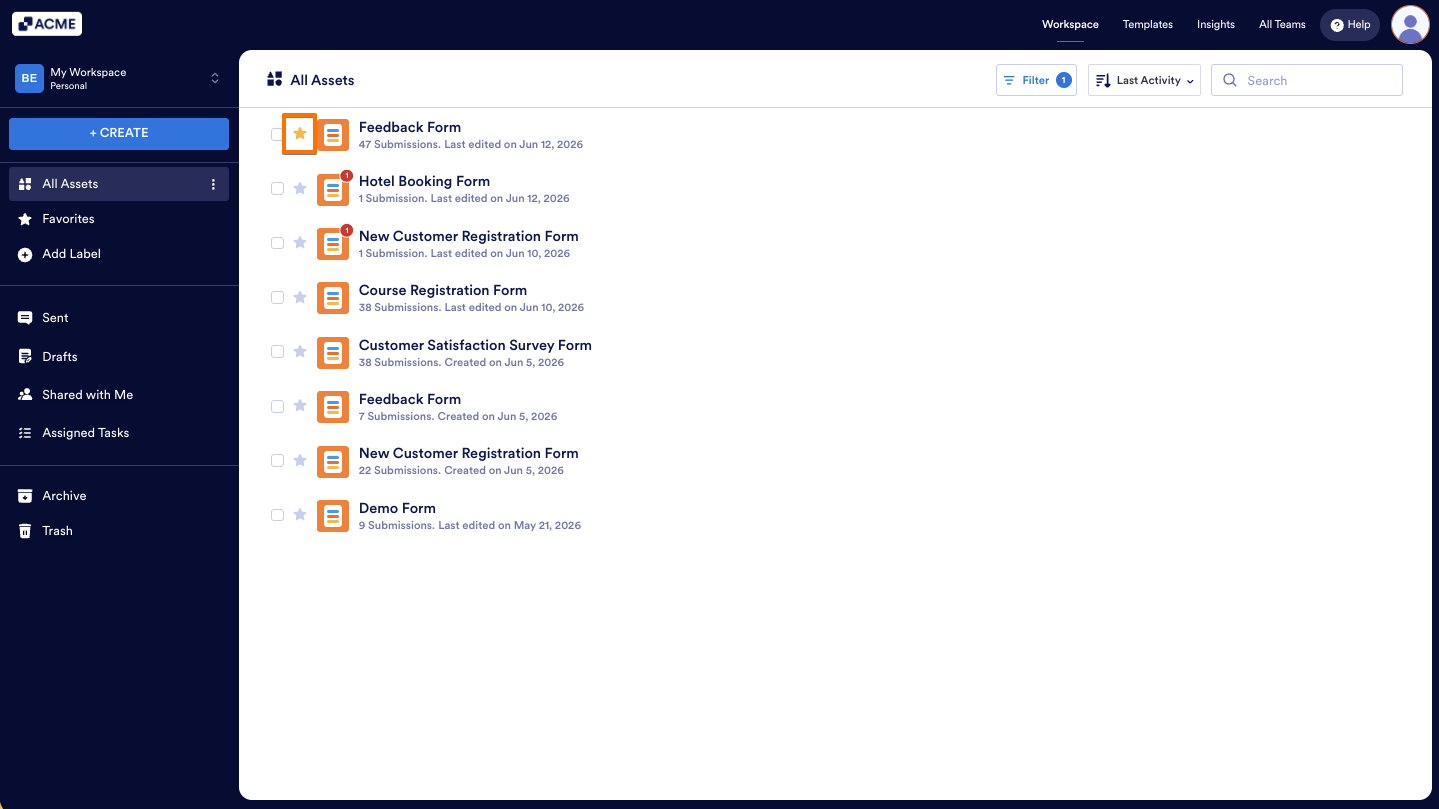
- On your Workspace page, click on the Star icon to instantly turn it yellow and add the asset to your favorites.
Removing an Asset from Favorites
When a project is complete, you can remove the asset from your favorites to keep your shortcuts organized.
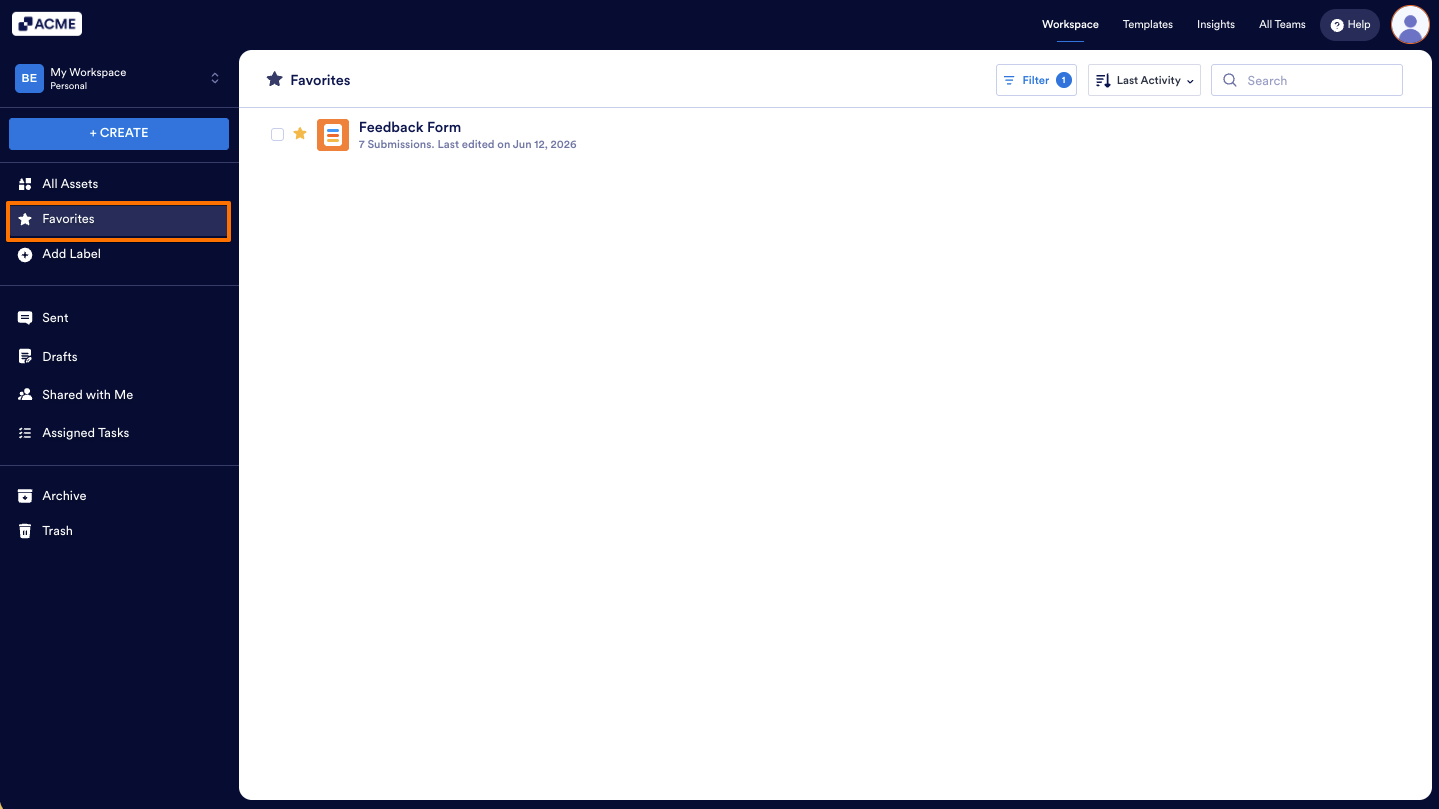
- First, on the left side of your Workspace Page, click on Favorites to view all your starred assets.
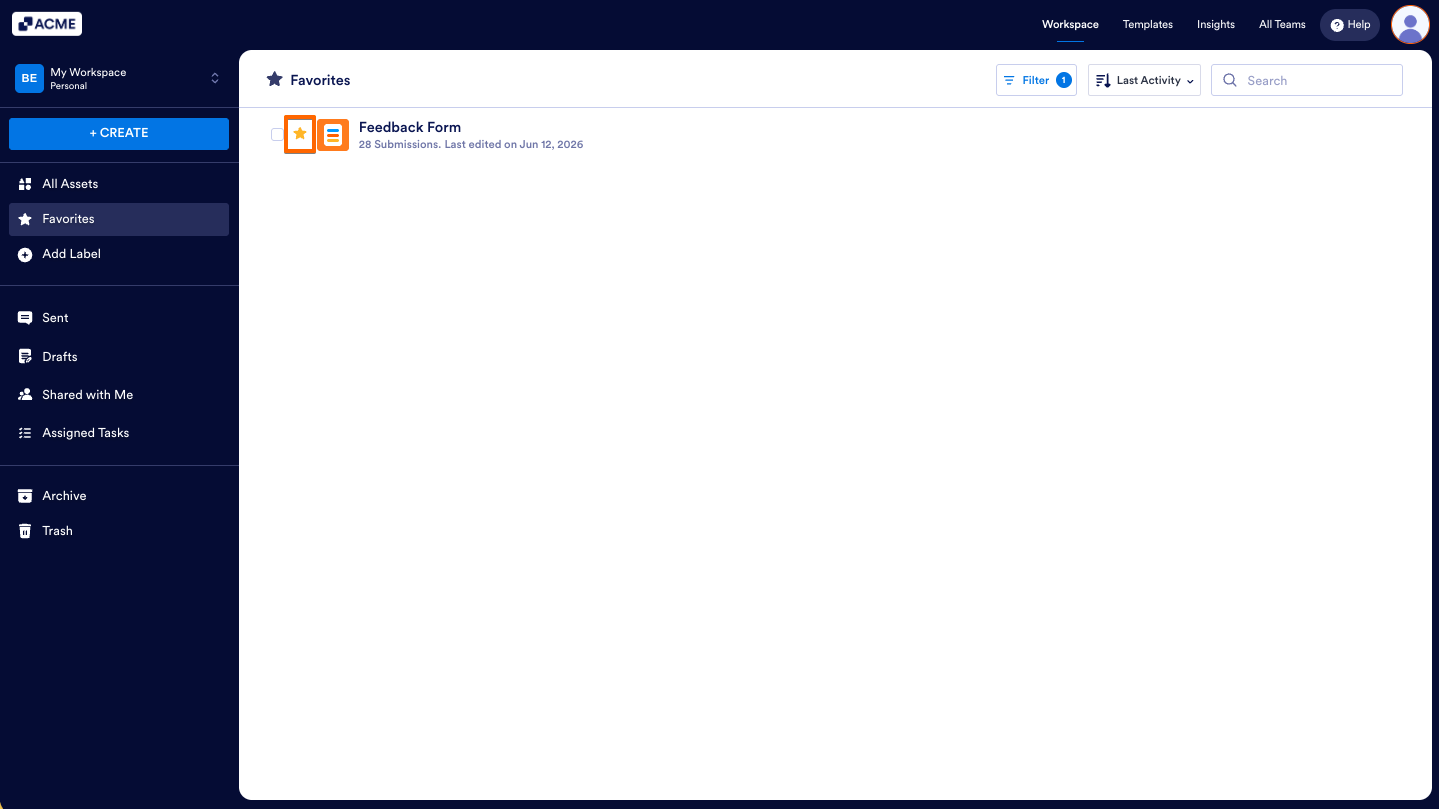
- Next, click on the Star icon on the left side of the asset you want to remove.
That’s it! Starred assets will help you to organize your work efficiently.

Send Comment: