The app builder gives you the freedom to create your very own mobile app—no coding required. You can easily add and arrange different elements to design an experience that fits your needs perfectly. Whether you’re adding forms for data collection, headings for clarity, paragraphs for extra details, or links to direct users to other resources, every part of your app can be customized to match your goals and style.
Creating an app is simple and flexible, whether you’re building something for your team, your customers, or personal use. You have complete control over how it looks and functions, so you can craft an app that feels truly your own.
Adding Elements to Your App
You can easily add elements to your app to make it more useful and uniquely yours. From forms and text to images and links, each piece you add helps you shape an experience that fits your goals and style perfectly. Here’s a quick how-to:
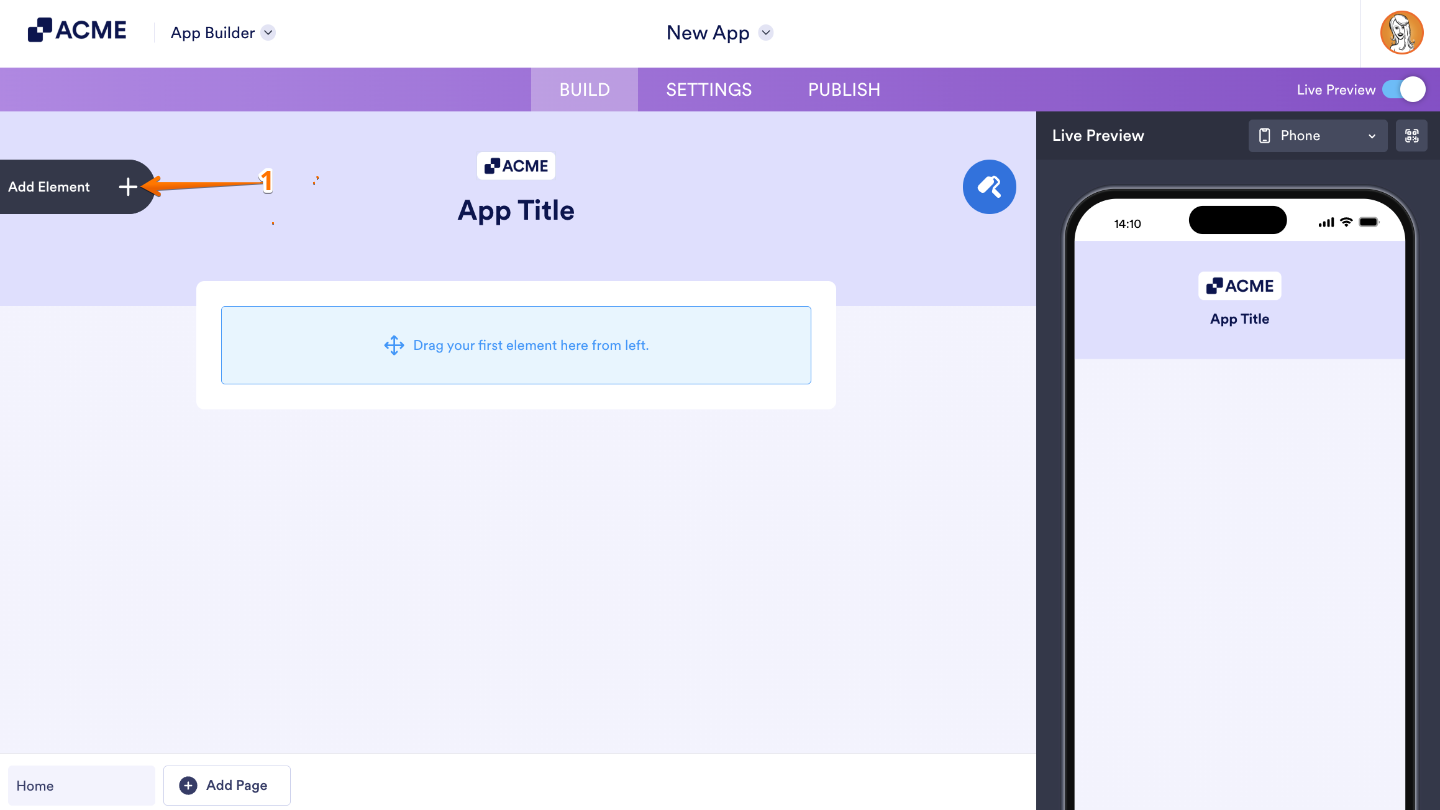
- In App Builder, click on Add Element menu on the left side of the page.
- In the App Elements menu, under the Basic tab, click an element. Or, just drag and then drop it to where you want it to be on your form.
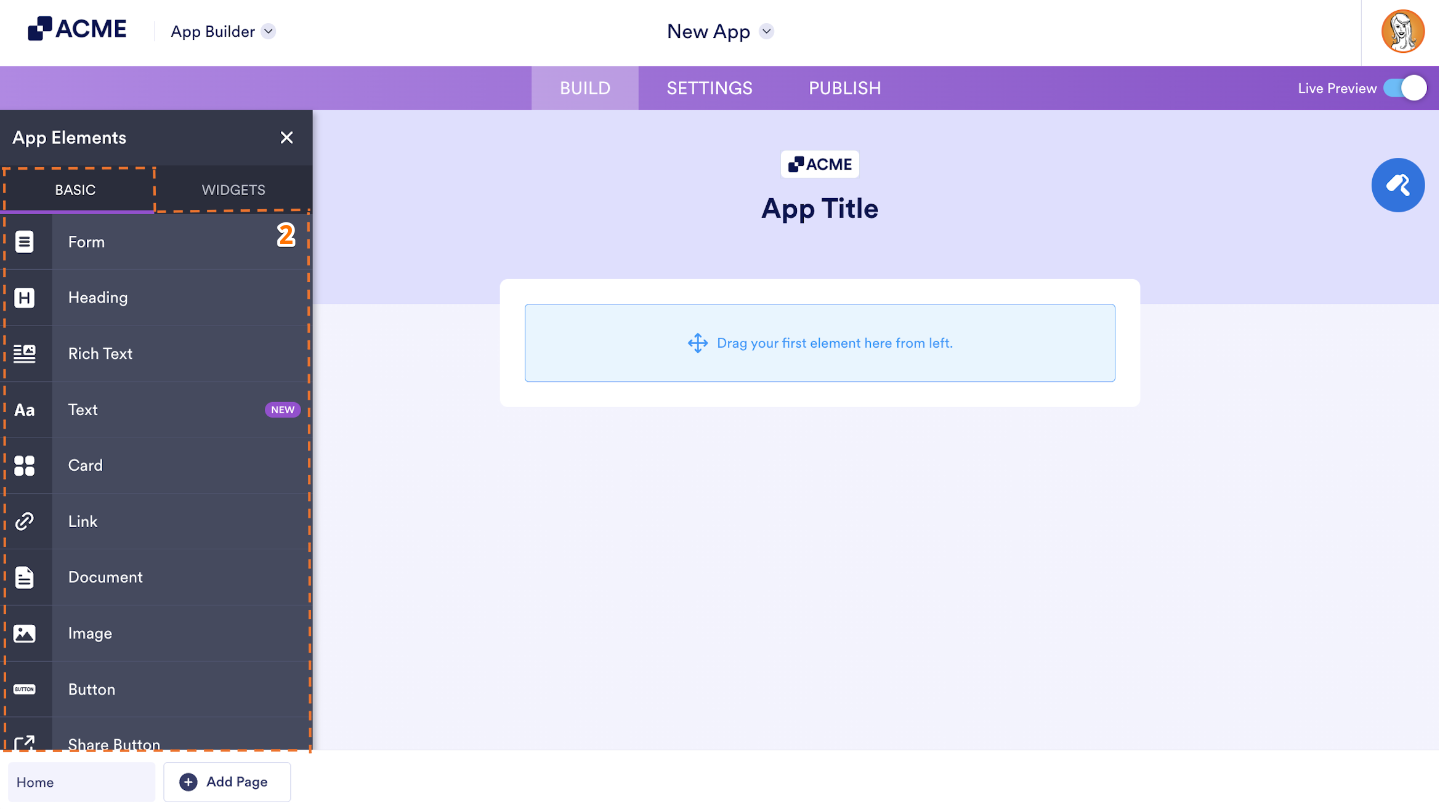
That’s it. You’ve successfully added an element to your app. From here, you can start customizing the element you just added or keep building by adding more elements to bring your app to life.
Check out some of the features you can bring into your app by adding these elements:
- Form Integration — The Form element allows you to incorporate single or multiple forms into your app. Users can interact with these forms seamlessly, making data collection efficient and organized.
- Headers and Sections — The Heading element lets you insert headers within your app. Use it to title content sections or create distinct segments on an app page.
- Rich Content — With the Paragraph element, you can enrich your app by adding formatted text, links, and images. Customize the content to convey information effectively.
- External Links — The Link element enables you to include external web links within your app. This is useful if you need to direct users to specific web pages.
- Document Sharing — Use the Document element to share files (in various formats) with app users. Whether it’s PDFs, spreadsheets, or other documents, you can seamlessly integrate them.
- Visual Elements — The Image element allows you to add images of different sizes and formats to your app. Enhance visual appeal and convey information through visuals.
- Interactive Buttons — The Button element serves as a call-to-action button. You can configure it to perform various actions, such as opening a URL, sending an email, making a call, or navigating to another app page.

Send Comment: