If you have permission to edit a form, you can choose which team members receive email notifications when a form is submitted. If you are receiving too many emails, you can also easily remove yourself from the list.
How to Add or Remove Team Members
- In Form Builder, click on Settings in the orange navigation bar at the top of the page.
- Then, select Emails in the left-hand menu.
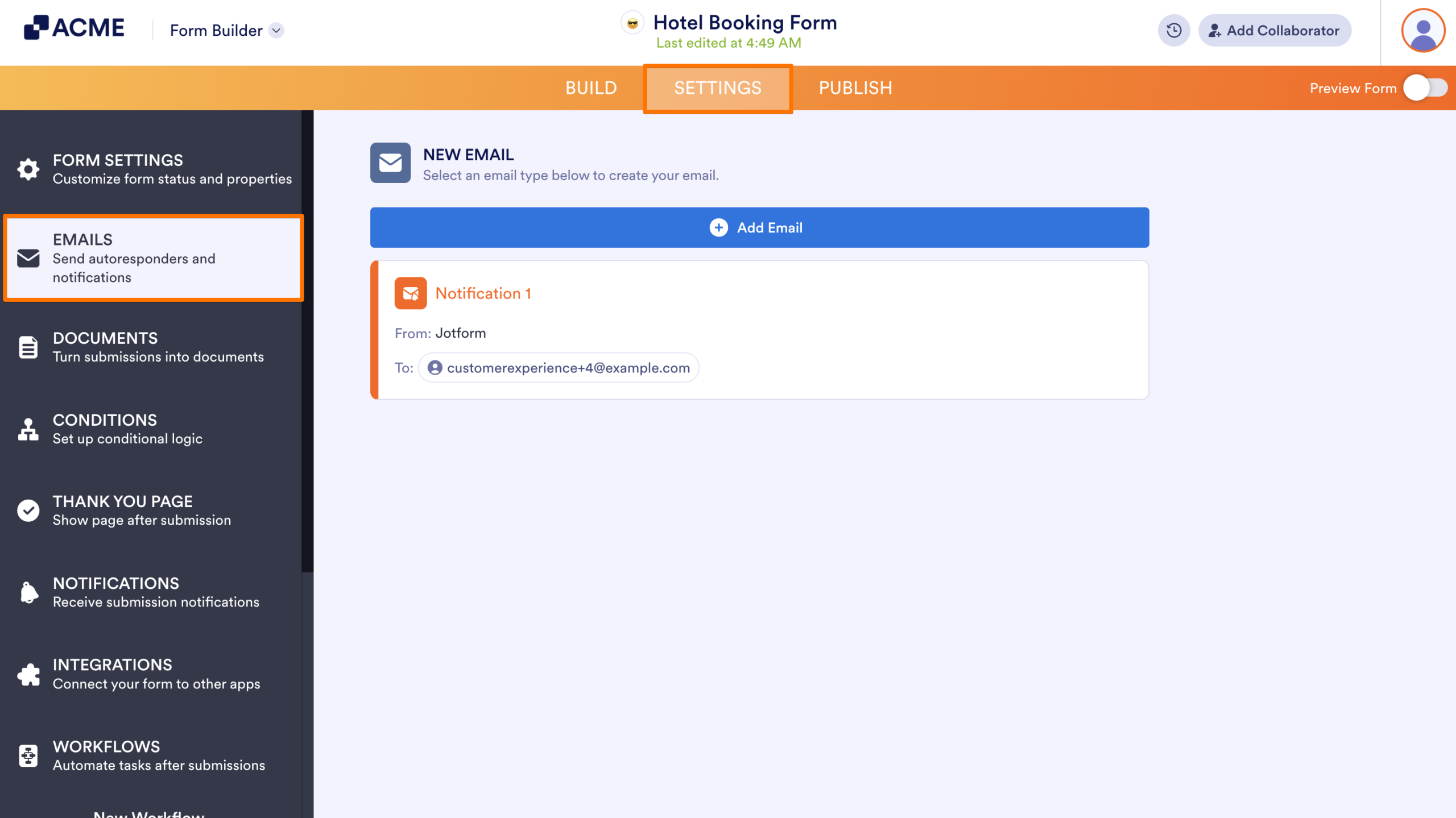
- Next, hover over the Notification you want to make changes to.
- And click on the Edit button.
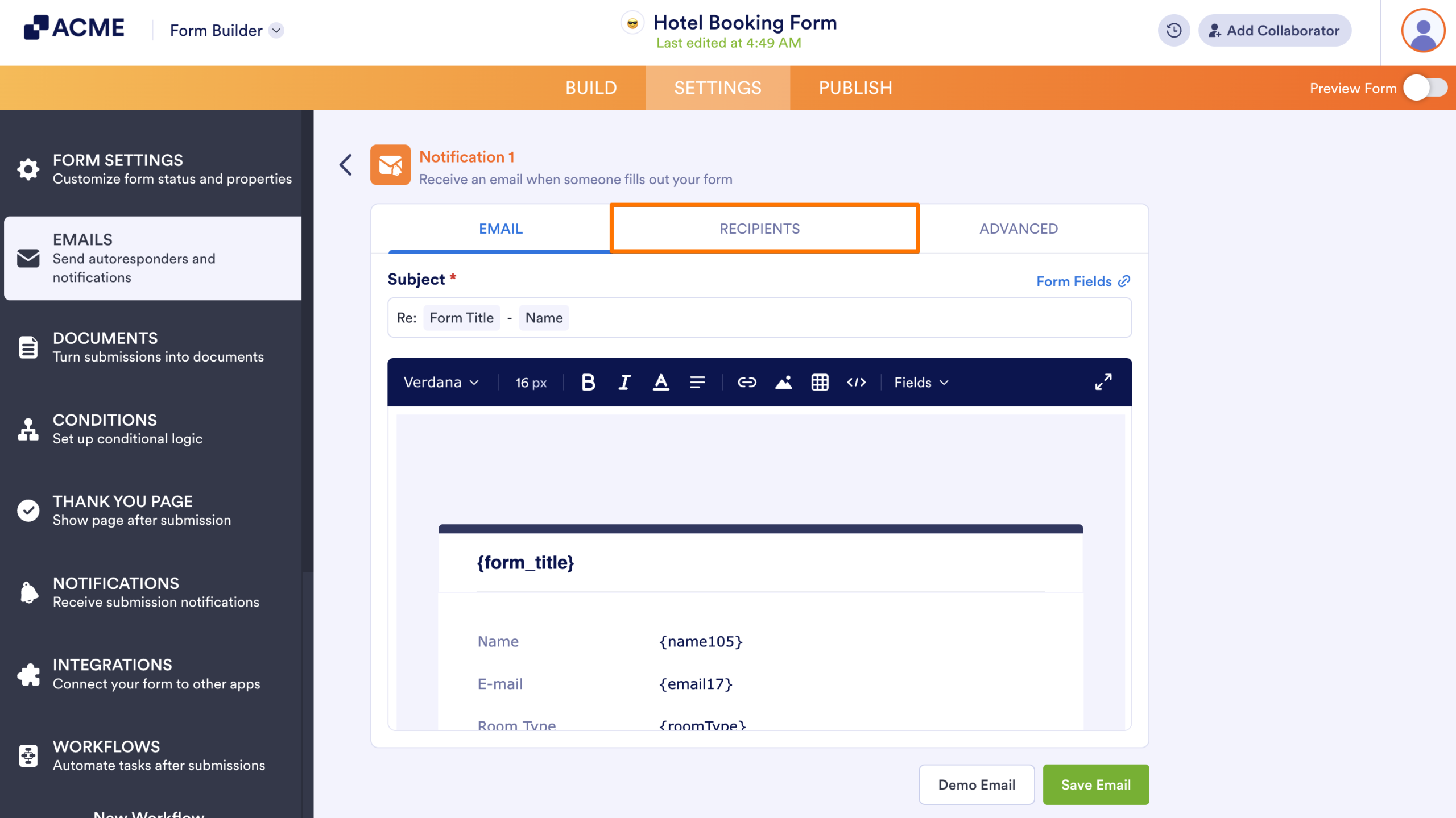
- Navigate to the Recipients tab.
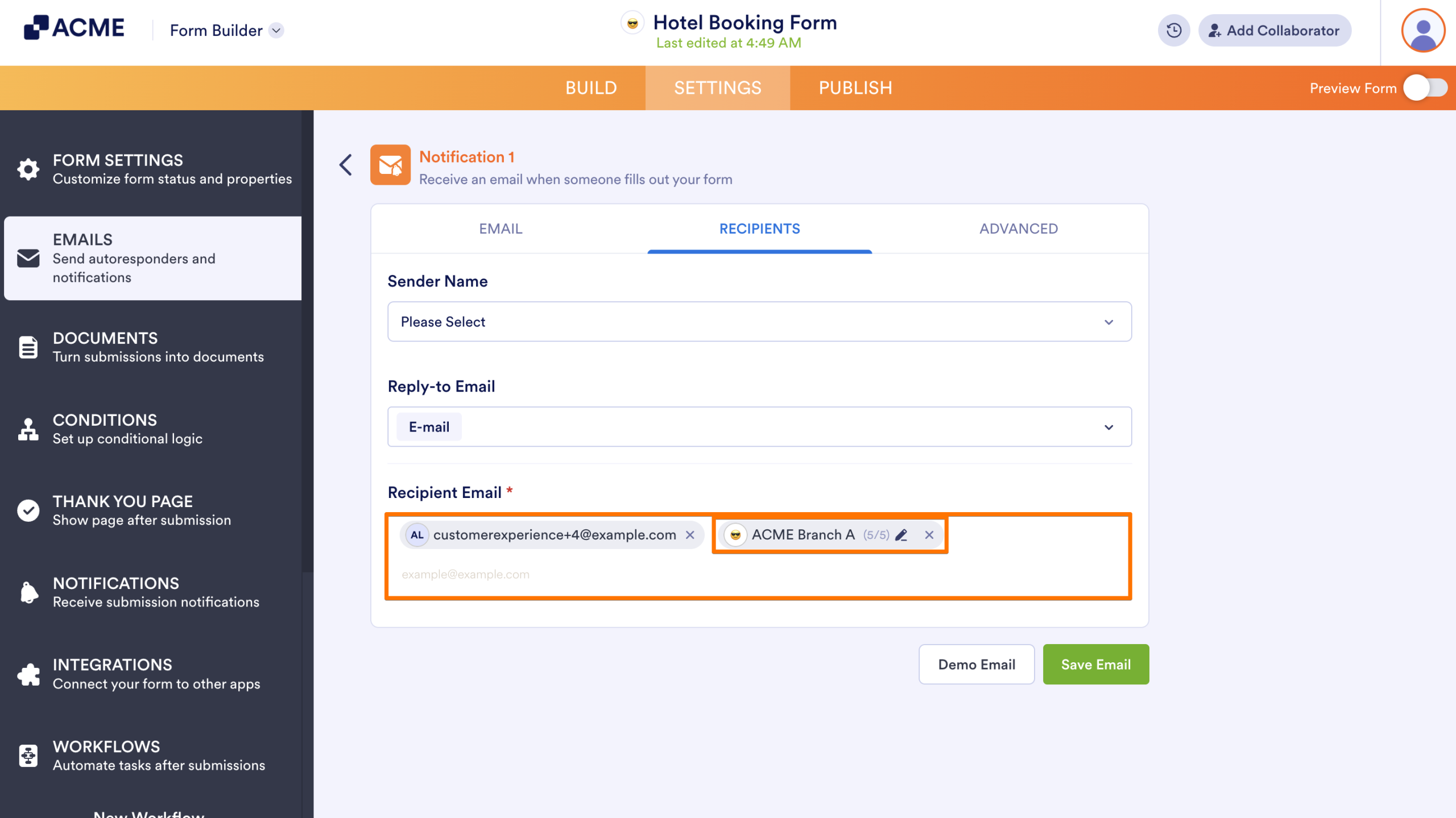
- If not added, you can simply add the entire team to receive the form notification by typing its name in the Recipient Email field.
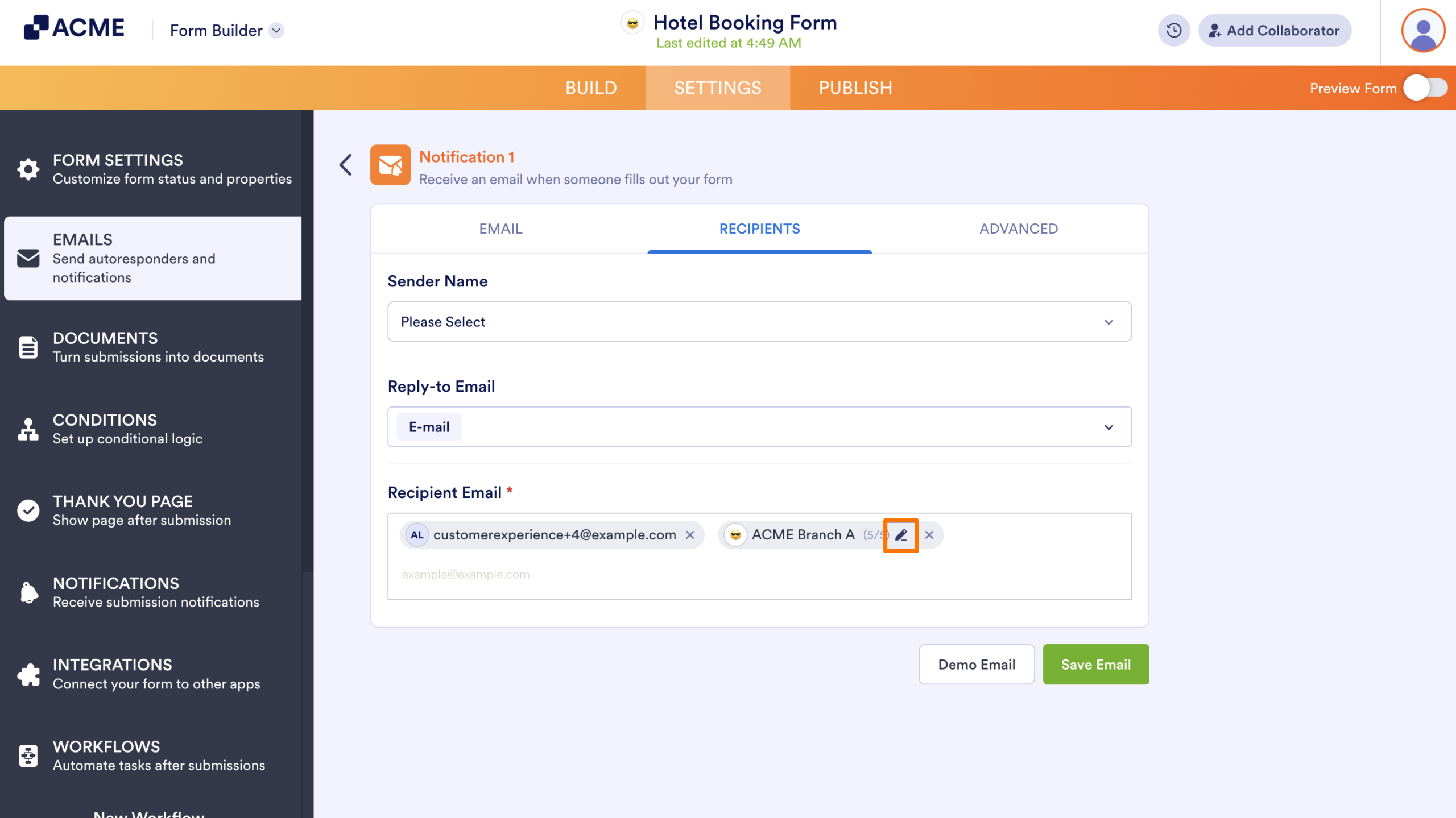
- Once added, click on the Pencil icon next to the team to manage its members’ notification settings.
- Select or remove who will receive the notification and click on Save.
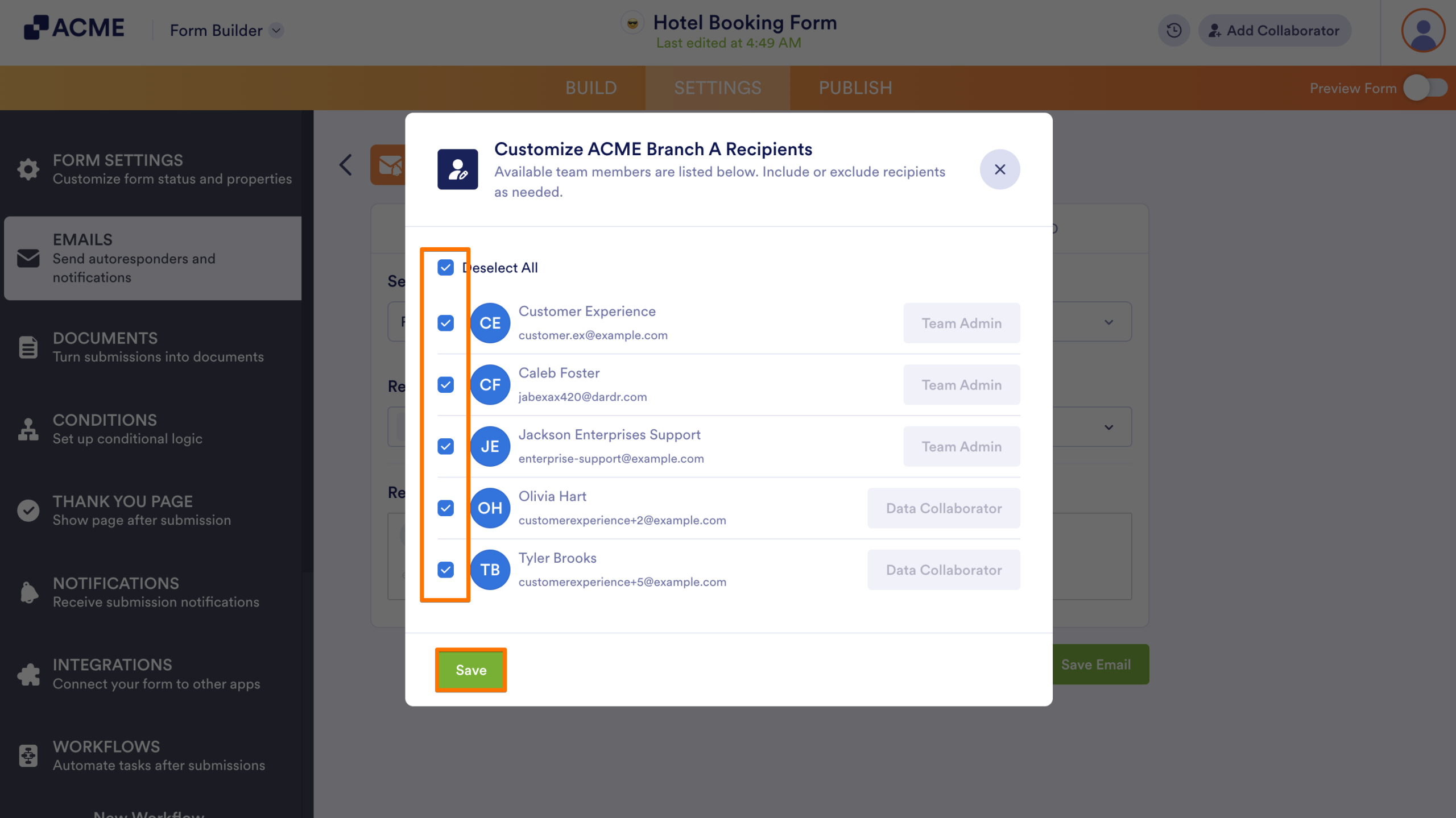
That’s it. Now the members of your team will only receive the form notifications they actually need.

Send Comment: