Learning how to calculate date and time in your form can make your workflow a whole lot easier. Whether you’re tracking deadlines, scheduling appointments, or figuring out the time between two events, adding date and time calculations helps you automate the process and avoid manual math.
With Jotform, you can set up these calculations in just a few steps—no coding needed. This guide will walk you through how to set it up so your form can automatically calculate dates, times, or durations based on your needs.
Notes :
- The Form Calculation widget converts dates into sequential serial numbers (known as datetime values) so you can use them in your calculations. For example, the date January 1, 1970 (00:00:00 UTC) is represented as 0, while January 23, 2095 (12:00:00 UTC) becomes 45678.50—that’s 45,678 days and 12 hours after the starting point.
- For your calculations to work properly, make sure the form fields you add in the Form Calculation widget are set to numeric. You’ll know they are when you see the [0-9] label next to them.
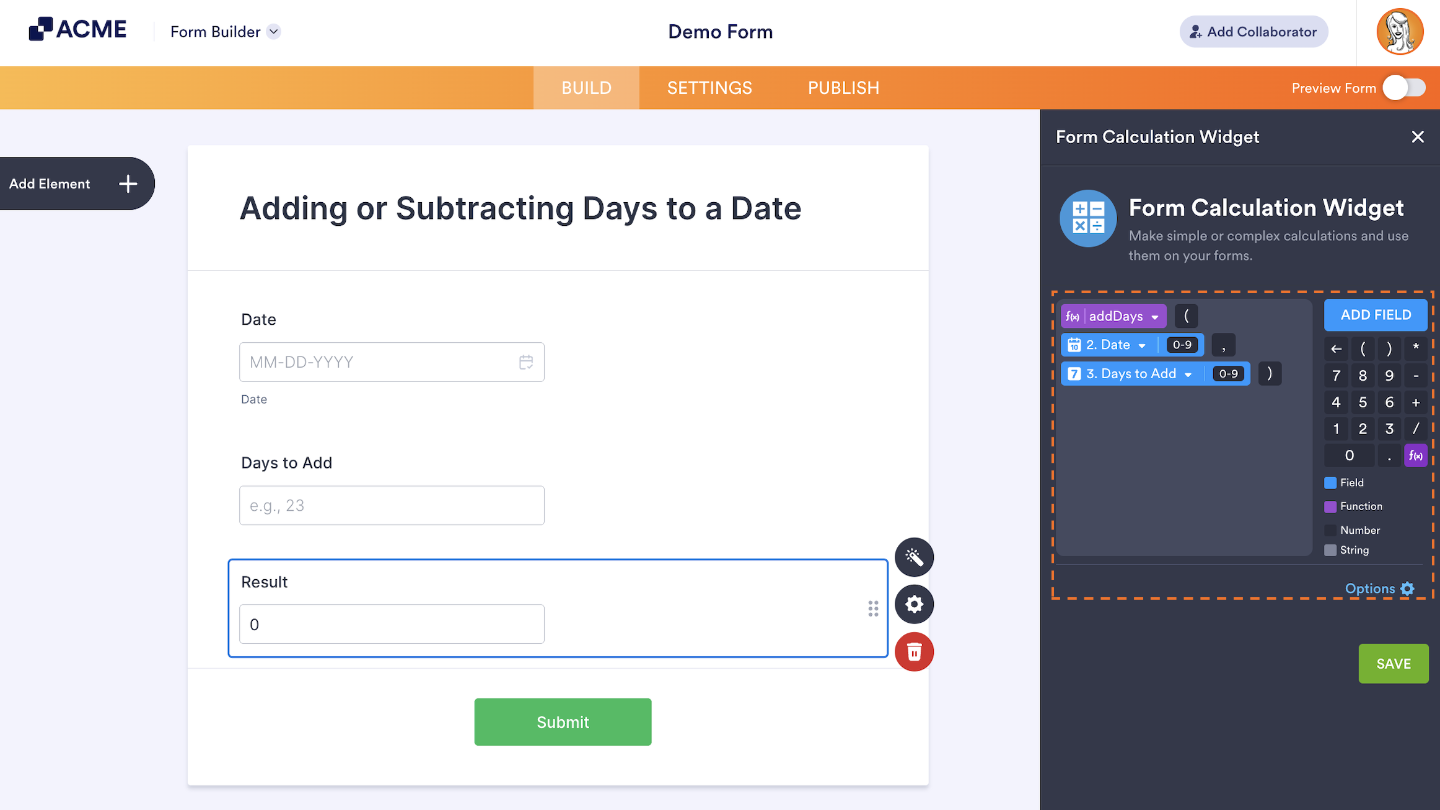
Adding or Subtracting Days to a Date
You can easily add or subtract days from a date in the Form Calculation widget using the addDays() and subtractDays() functions. The result will appear in the “D M d Y” format—for example, Sun Jan 06 2030.
Example :
| Formula | To – From |
| From | 2030-01-01 00:00 |
| To | 2030-01-02 12:00 |
| Result | 1.50 |
If you want to get the absolute difference between two dates—no matter which one comes first—you can use the abs() function in the Form Calculation widget. You can also find the difference between two dates in your preferred units directly in Tables using the DATETIME_DIFF function.
Getting the Difference Between Two Dates
To find the difference between two dates, simply subtract one Date Picker field from the other. The result will show you how many days are between those dates—displayed as a decimal value. It’s an easy way to calculate durations like project timelines, deadlines, or event countdowns right inside your form.
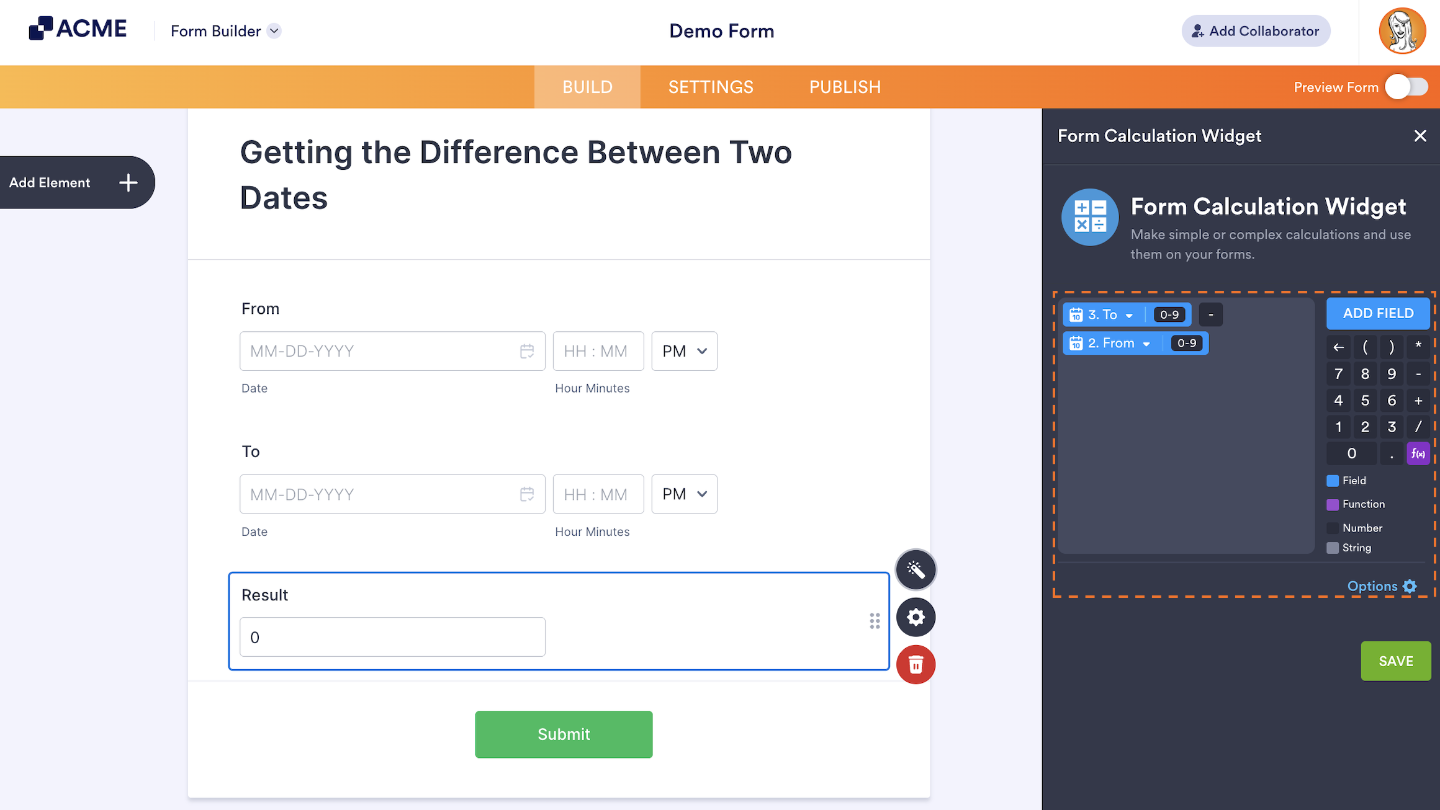
Example :
| Formula | To – From |
|---|---|
| From | 2030-01-01 00:00 |
| To | 2030-01-02 12:00 |
| Result | 1.50 |
If you want to get the difference between two dates without worrying about which one comes first, just use the abs() function in the Form Calculation widget—it gives you the absolute value every time.
You can also calculate the difference in specific units, like days, weeks, or months, right in Jotform Tables using the DATETIME_DIFF function.
Converting Days to a Different Unit of Time
When you calculate dates using the Form Calculation widget, the result is automatically shown in days. If you’d like to display it in a different time unit—like weeks, months, or years—you can easily do that too. Just add another Form Calculation widget to your form and set up the right formula using the guide below.
| Unit | Formula |
|---|---|
| Years | Days / 365 |
| Months | Days / 30 |
| Hours | Days * 24 |
| Minutes | Days * 1440 |
| Seconds | Days * 86400 |
Note :
The conversion factors for years and months are rounded for simplicity. If you need more precise values for other time units, you can check out the full list in Conversion Factors: Time.
Converting Days to Years, Months, and Days
Let’s say you already have the total number of days and want to break it down into years, months, and days. You can easily do that by adding three Form Calculation widgets to your form—one for each unit—and then applying the following formulas:
| Unit | Formula |
|---|---|
| Years | floor(Days / 365) |
| Months | floor((Days % 365) / 30) |
| Days | floor(Days % 365 % 30) |
Notes :
- The conversion factors for years (365 days) and months (30 days) are rounded for simplicity. For more precise conversions, check out Conversion Factors: Time.
- To use the modulo operator, just type the percent symbol (“%”) on your keyboard in the Form Calculation widget. This operation gives you the remainder after a division — super handy for breaking down numbers.
- The floor() function rounds a number down to the nearest whole value, which helps keep your results clean and accurate.
- To see it in action, you can try everything out in this demo form to make sure your setup works as expected.

Send Comment: