Field Manager App makes it easy to copy fields between forms without having to recreate them manually. This can save time when you’re building similar forms or reusing questions across multiple forms. With just a few clicks, you can transfer fields from one form to another and continue building without starting from scratch.
You can transfer fields from one form to another without recreating them manually. Here’s how:
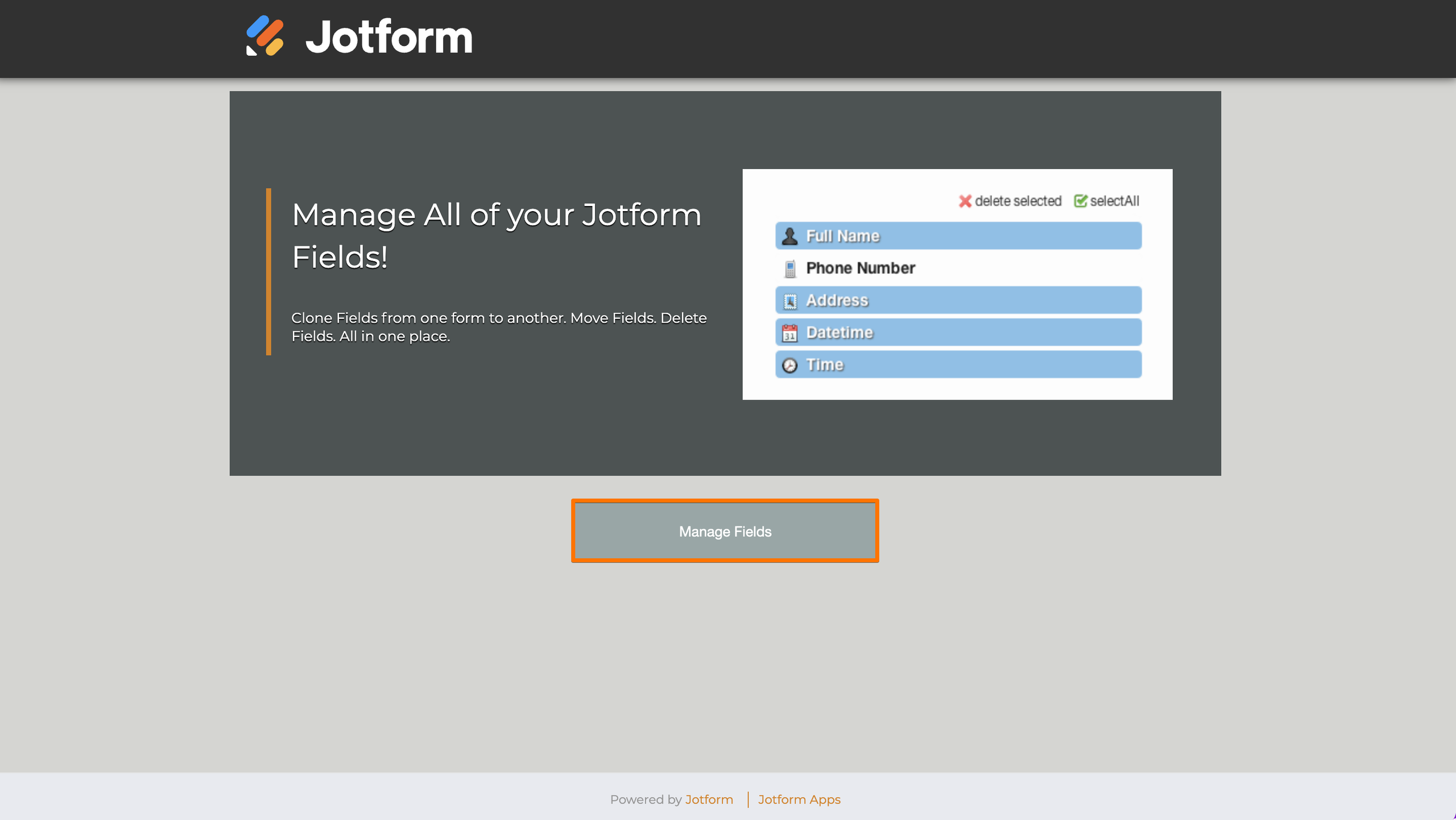
- Go to the Field Manager App, and in the center of the page, click on Manage Fields.
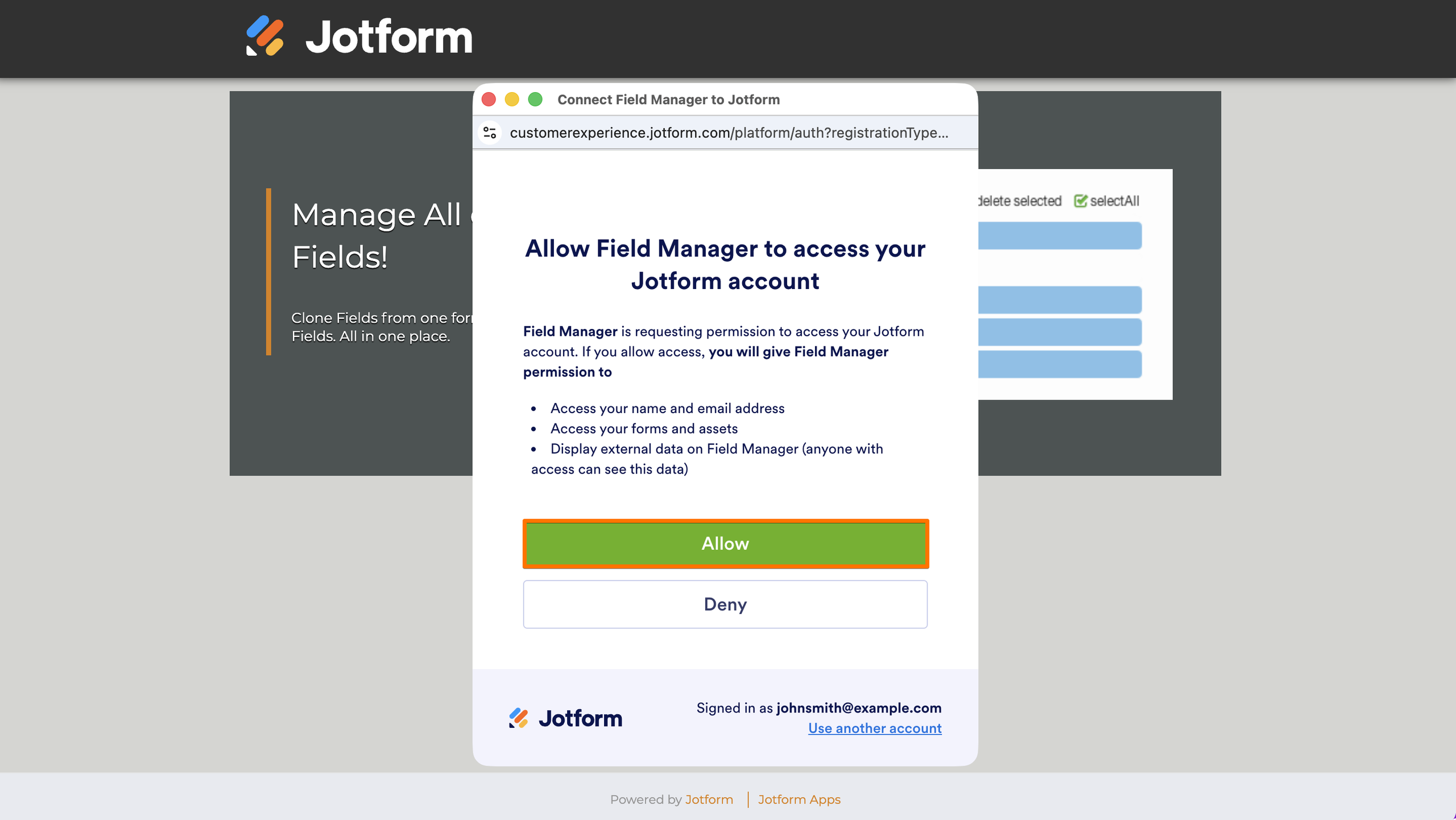
- Then, in the window that opens, click on Allow to grant the Field Manager App access to your Account.
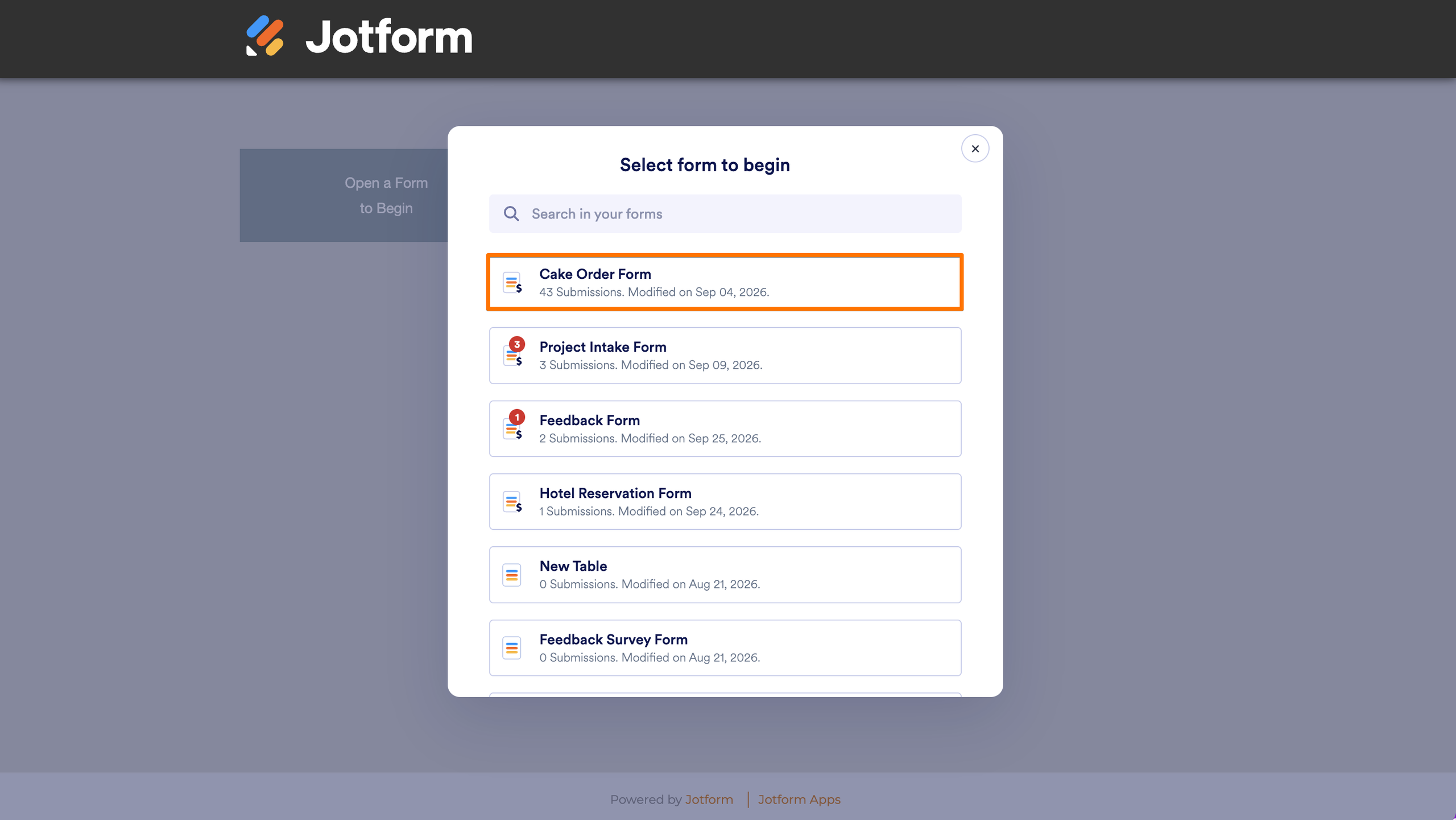
- Next, click on Open a Form to Begin.

- Then, in the Select Form to Begin window that opens, select the form you want to copy fields from. For example, the Freelance Service Agreement Form.
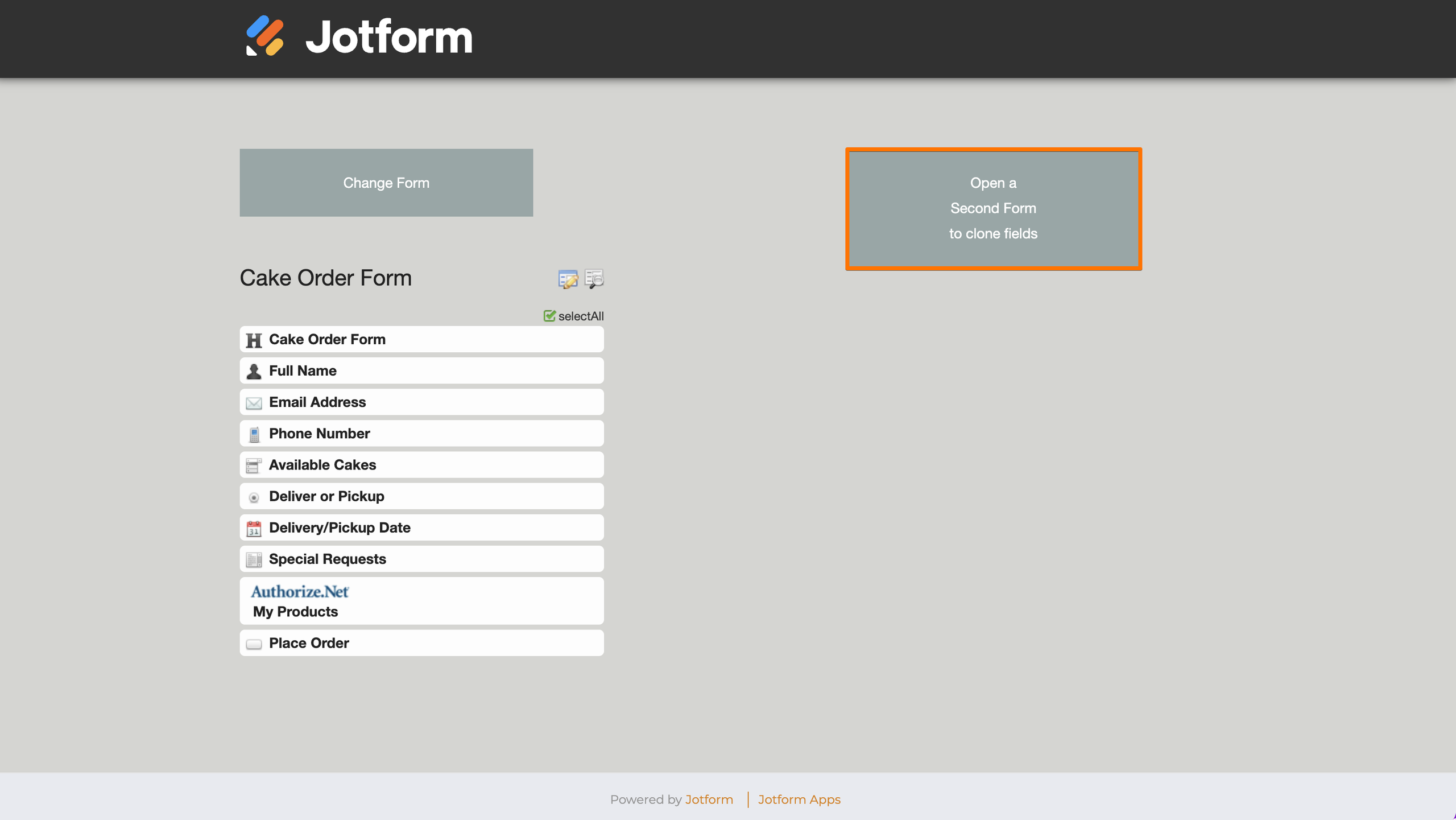
- Now, on the right side of the page, click on Open a Second Form to Clone Fields.
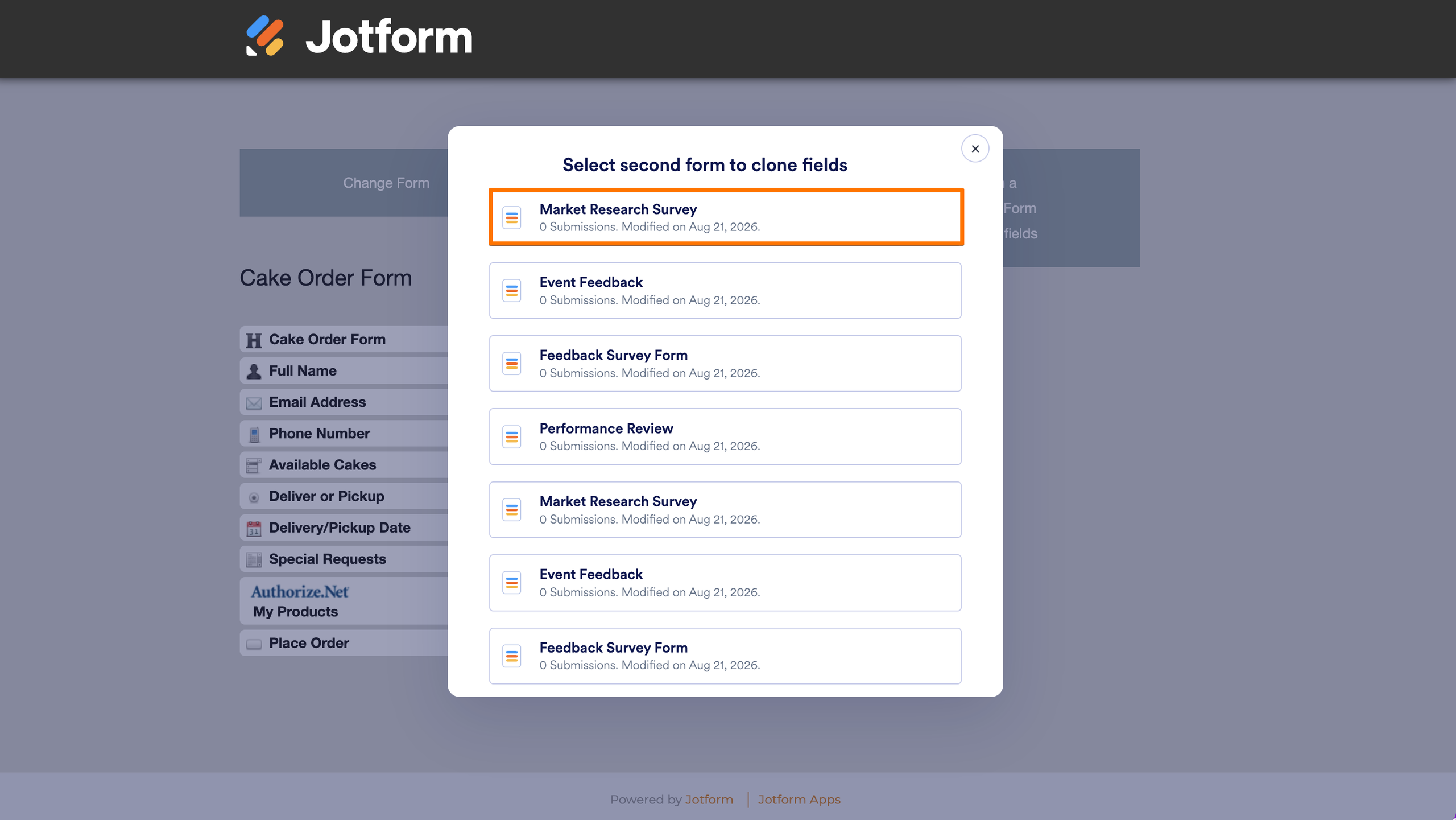
- Next, in the Second Form to Clone Fields window that opens, select the form you want to copy fields to. For example, the Customer Registration Form.
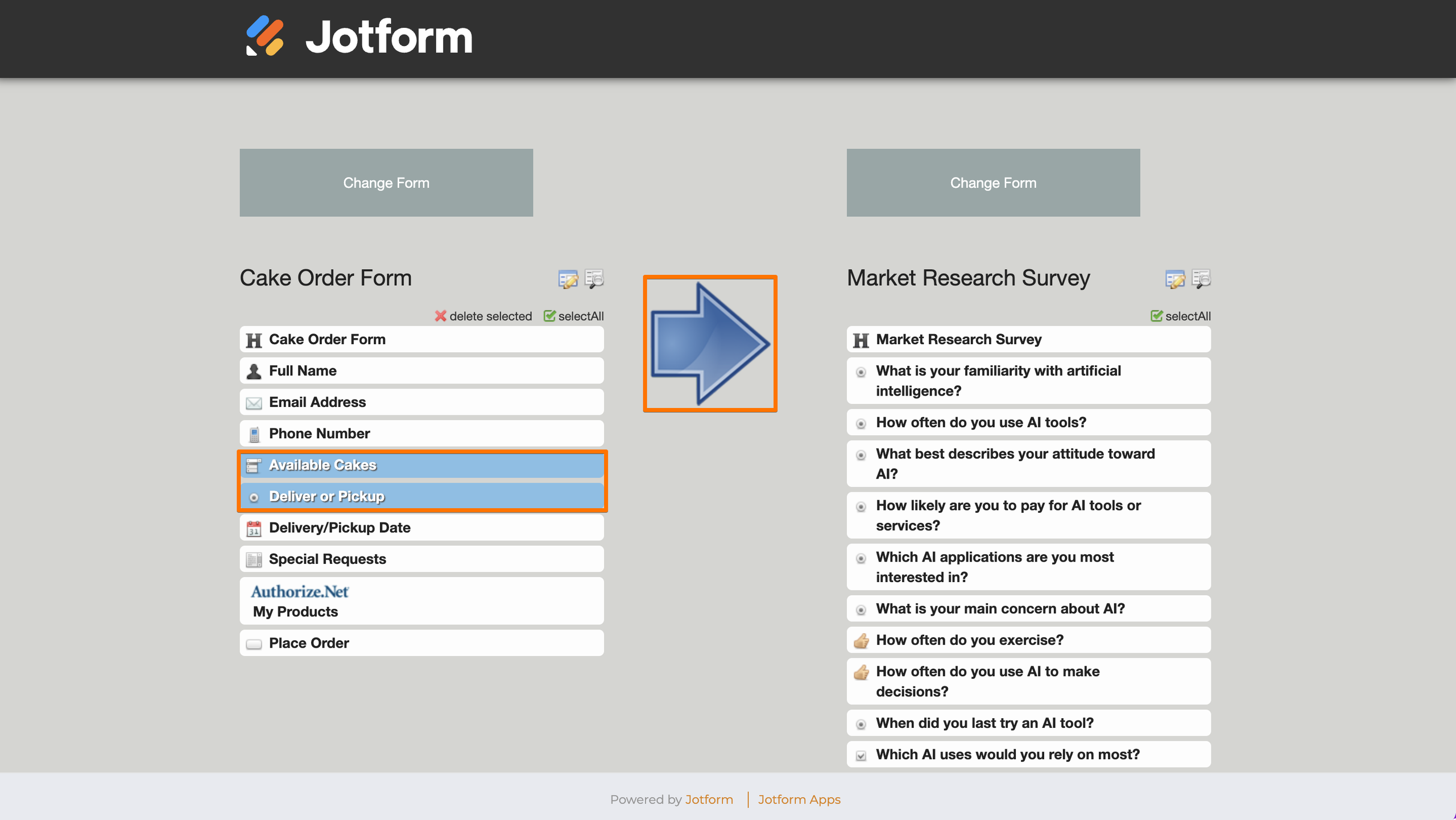
- Then, in the Source Form on the left side of the page, select the fields you want to clone.
- Now, click on the Right Arrow icon between the two forms to copy the selected fields to the destination form.
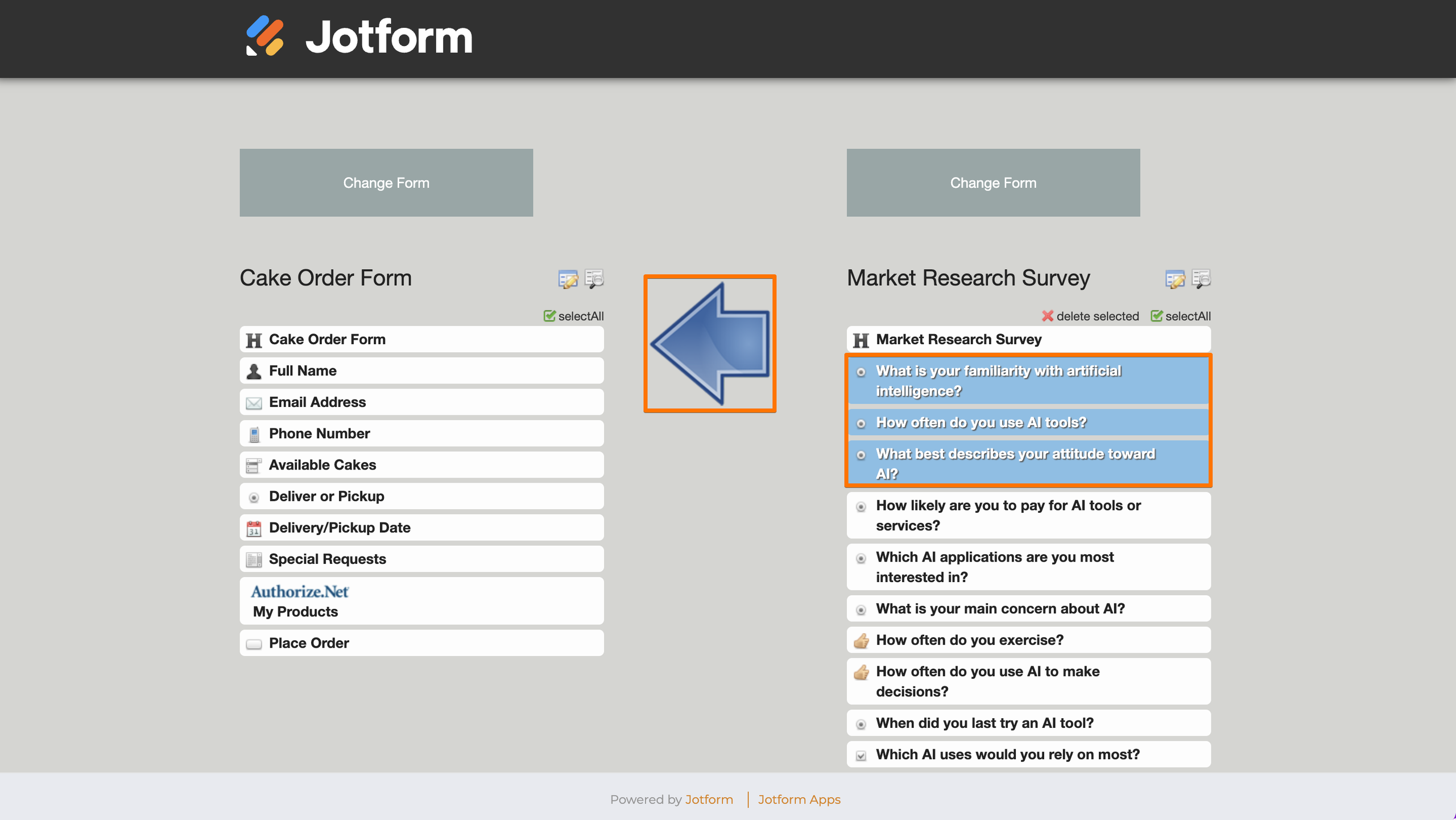
- Or, if you want to copy fields from the destination form back to the source form, select the fields on the right side of the page, and then click on the Left Arrow icon and you’re done.
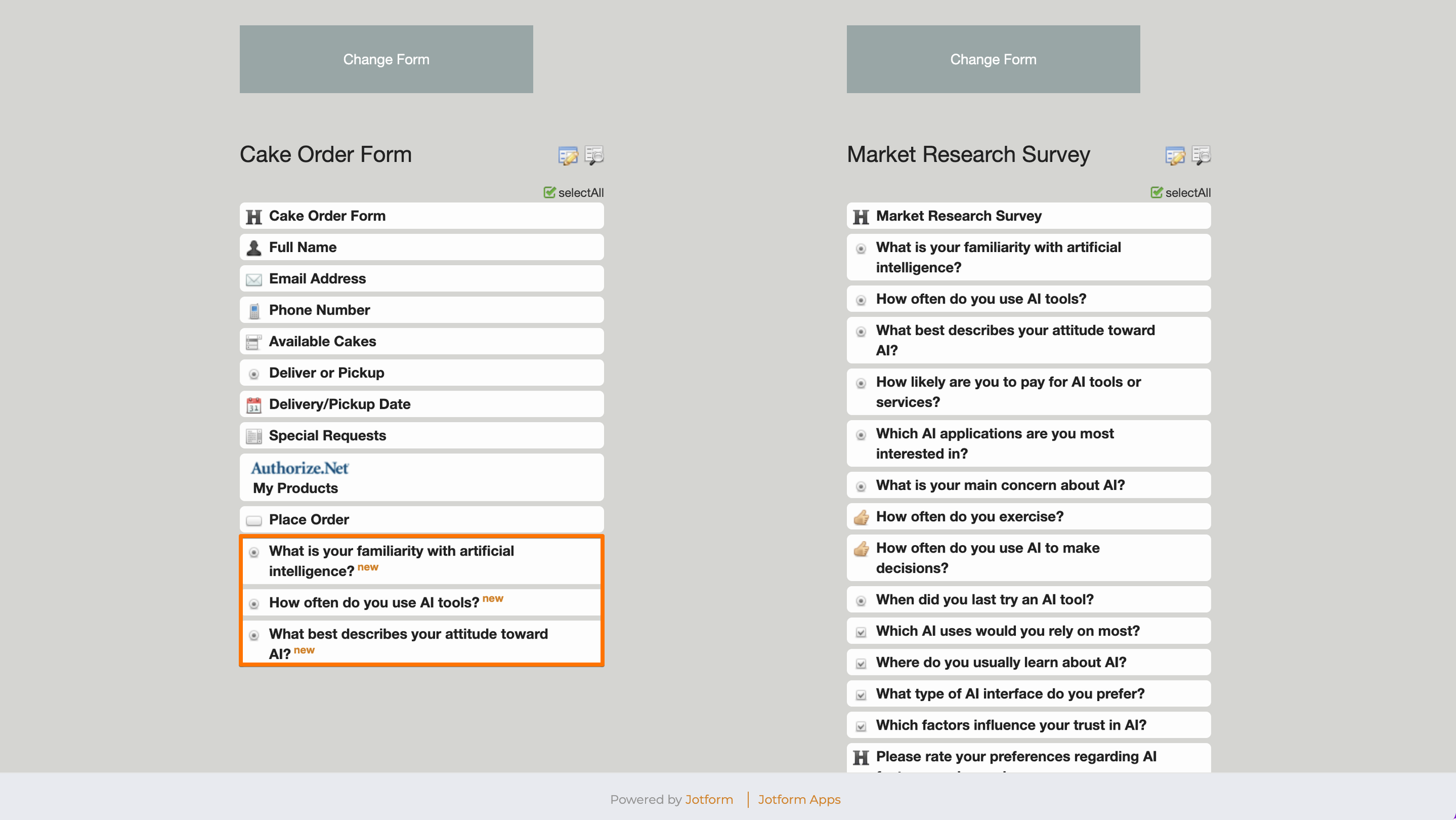
That’s it. Once copied, the fields will automatically appear in the destination form. Newly copied fields will be marked with a New label, making them easy to identify.

Send Comment: