With Apps, you can create mobile apps without coding. You can build custom apps to keep all of your forms in one place and easily share them with others.
Building Your App
There are several ways to start the process of creating an app. You can begin from your Workspace page, My Apps page, Form Builder, or the Apps Templates page. We’ll go over each method below, starting with the Workspace page.
Creating App From Workspace Page
After you log in to your account, you’re redirected to your Workspace page, where all your assets are listed. From there, you can easily build an app with your selected forms included automatically. Let’s go through the steps together:
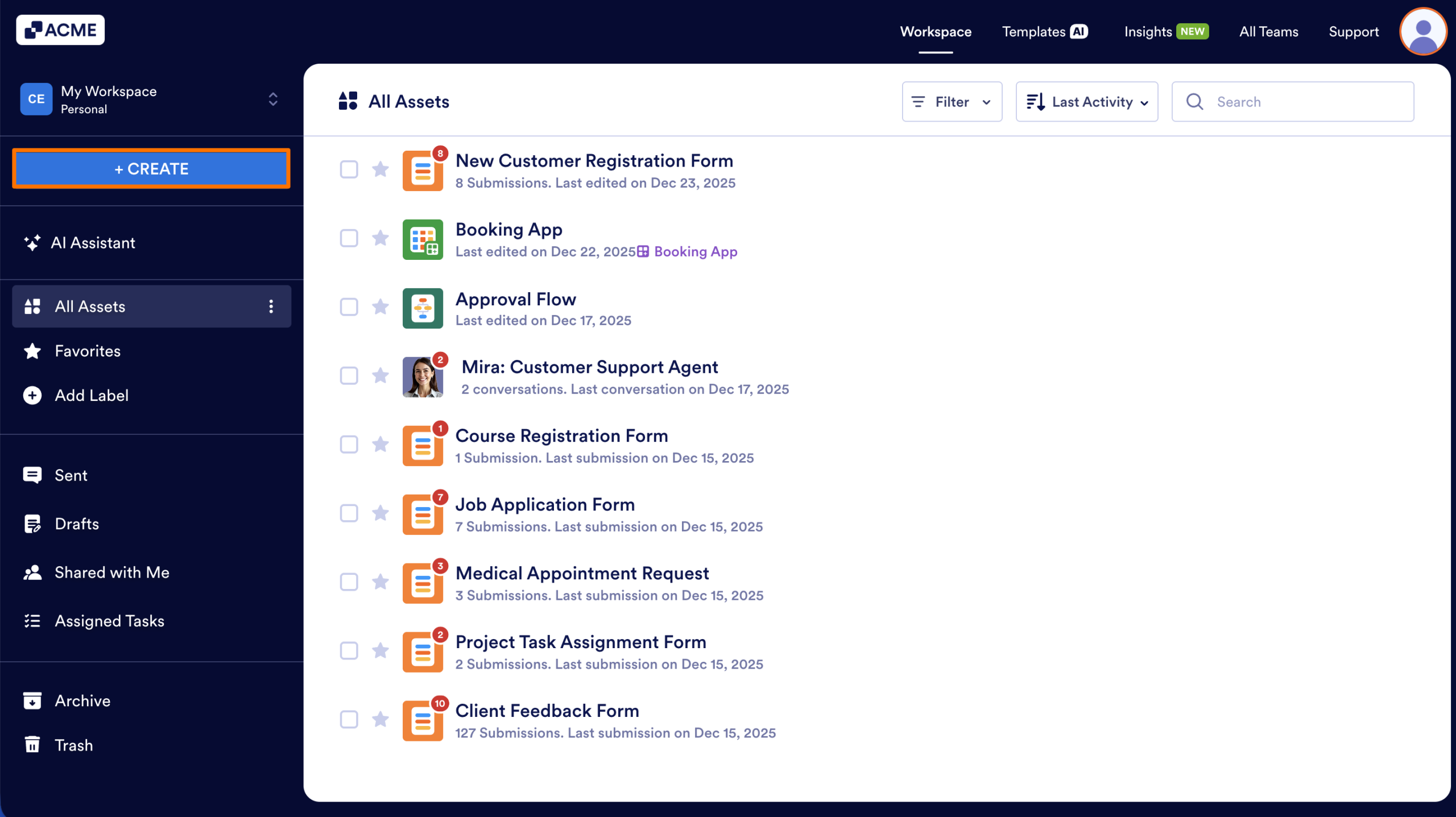
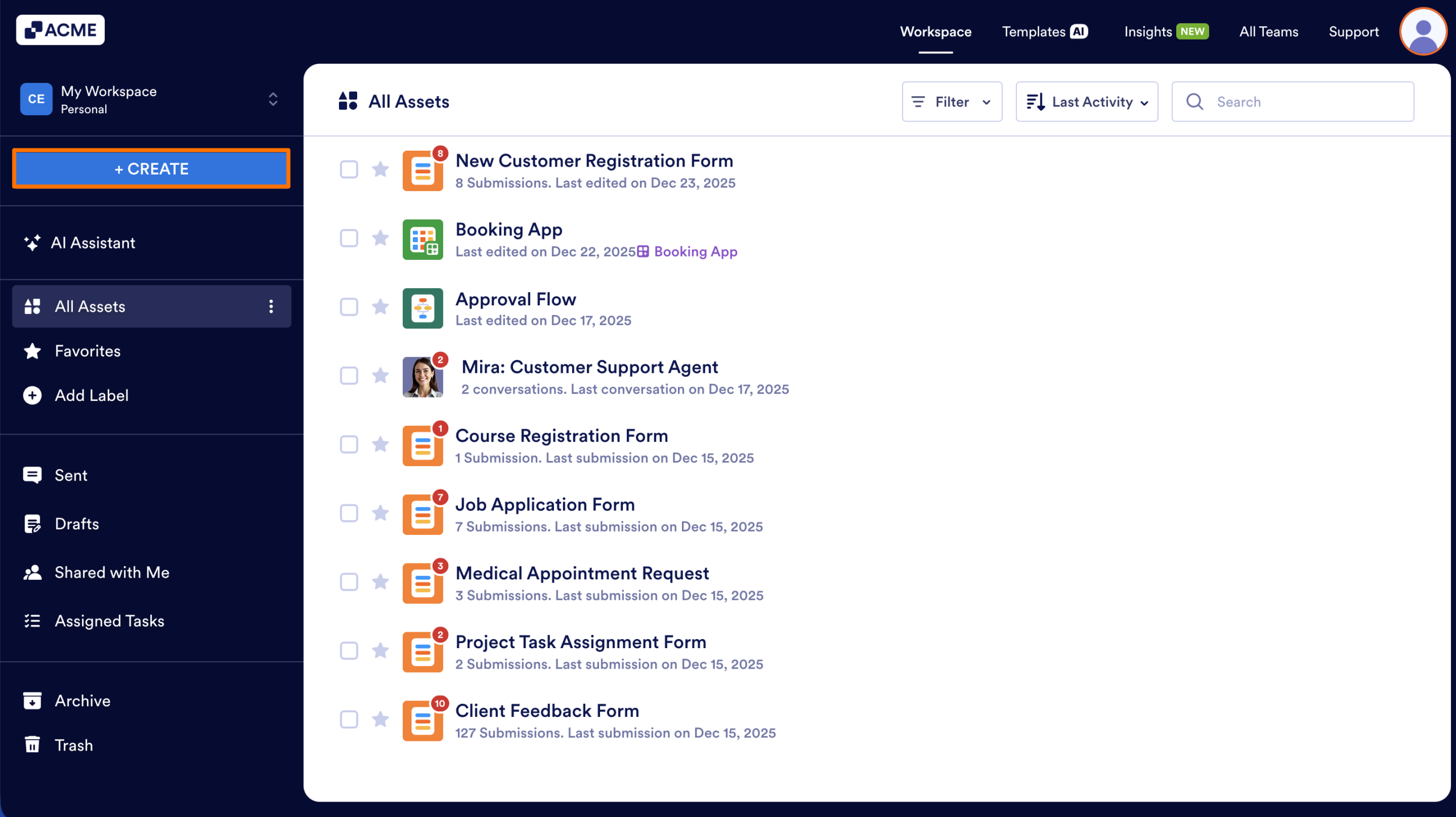
- In your Workspace page, click on Create on the top-left side of the screen.
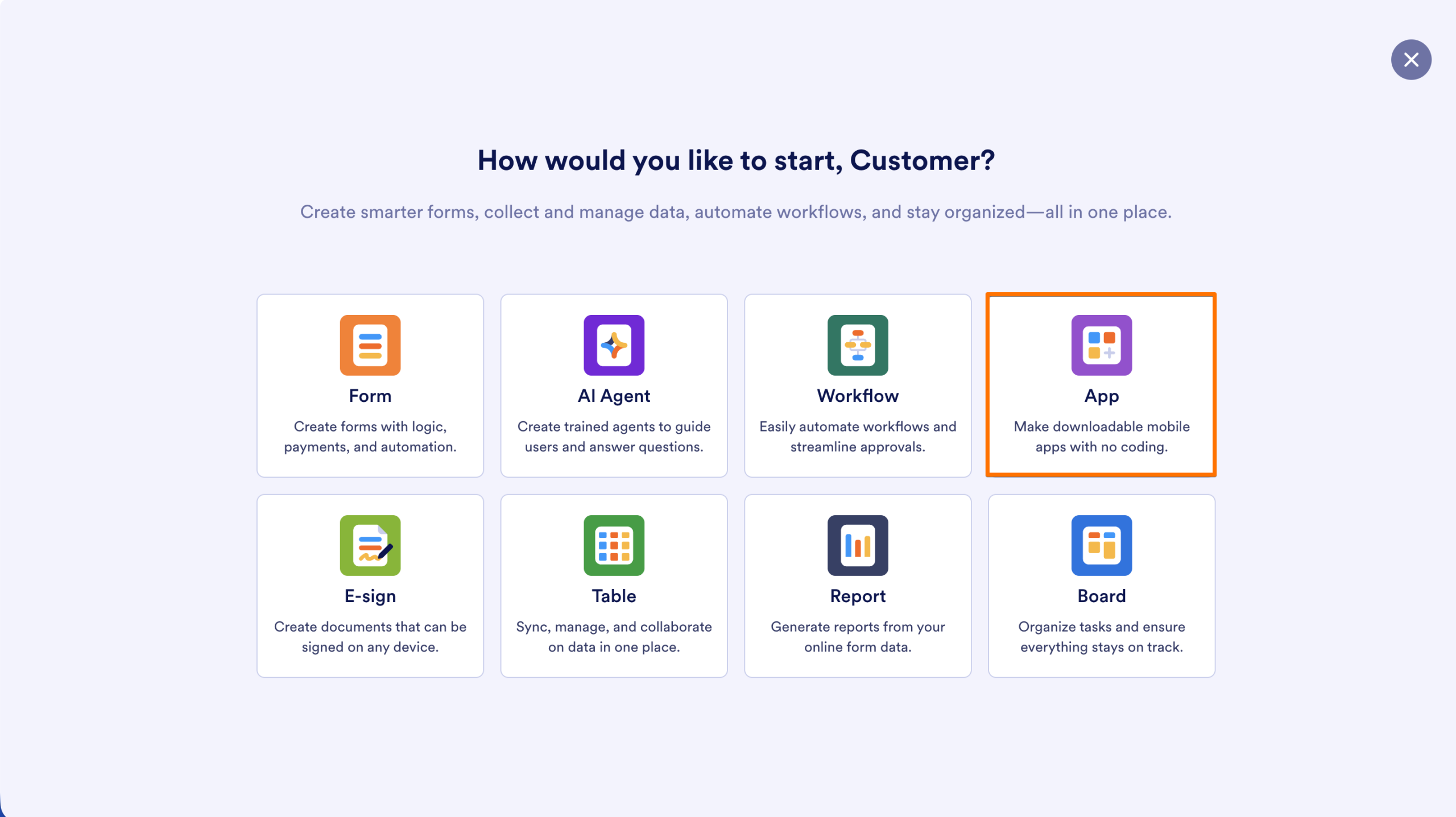
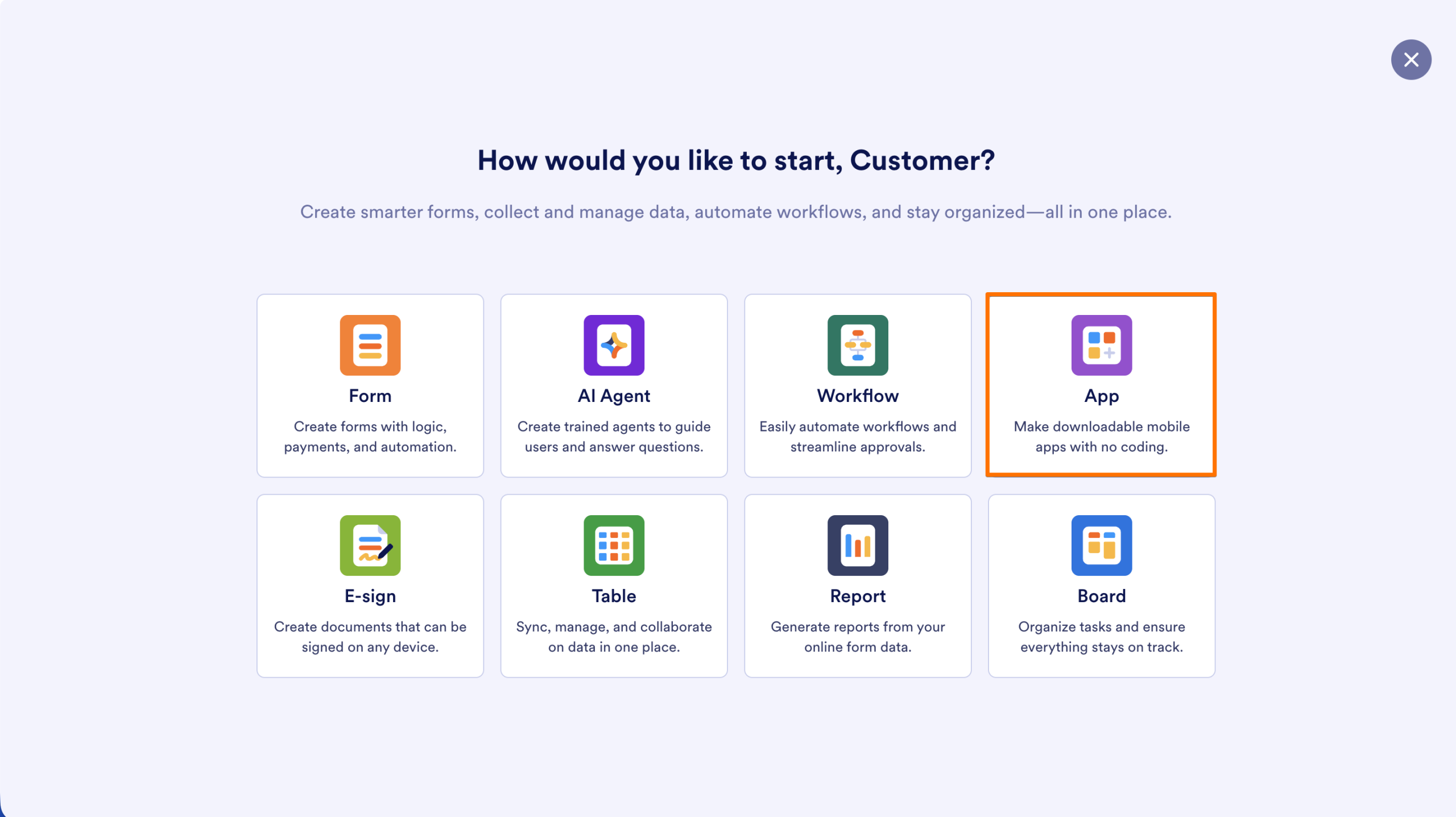
- On the next page, click on App.
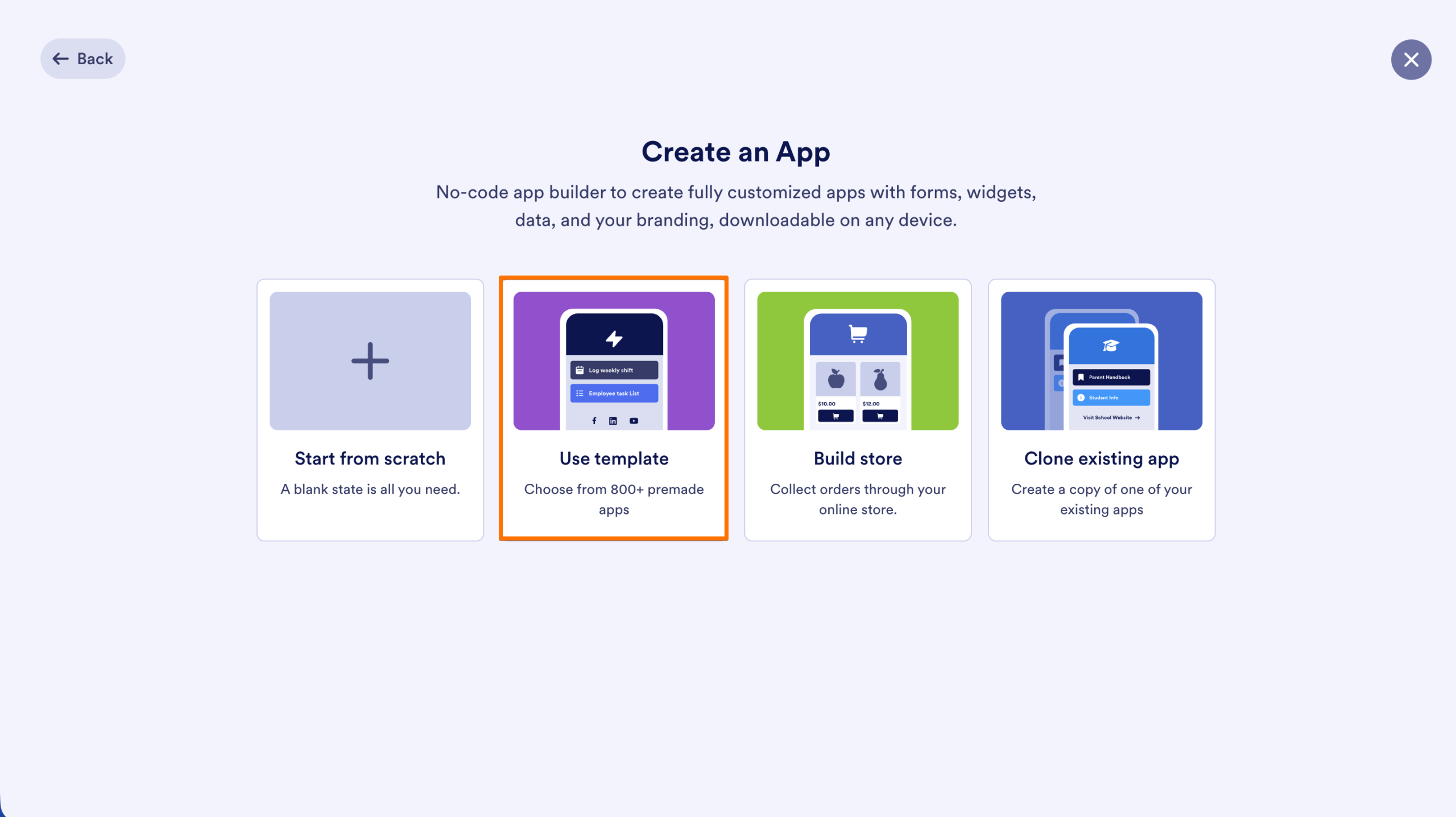
- Next, choose one of the following options:
- Start From Scratch — Create an app without any pre-added elements, giving you full control to build it from the ground up.
- Use a Template — Choose a template from the App Templates page to create a new app without leaving your My Apps page.
- Build a Store — Create a store app to collect orders. The app includes a pre-added Product List element to help you get started.
- Clone an Existing App — Duplicate an app already in your account.
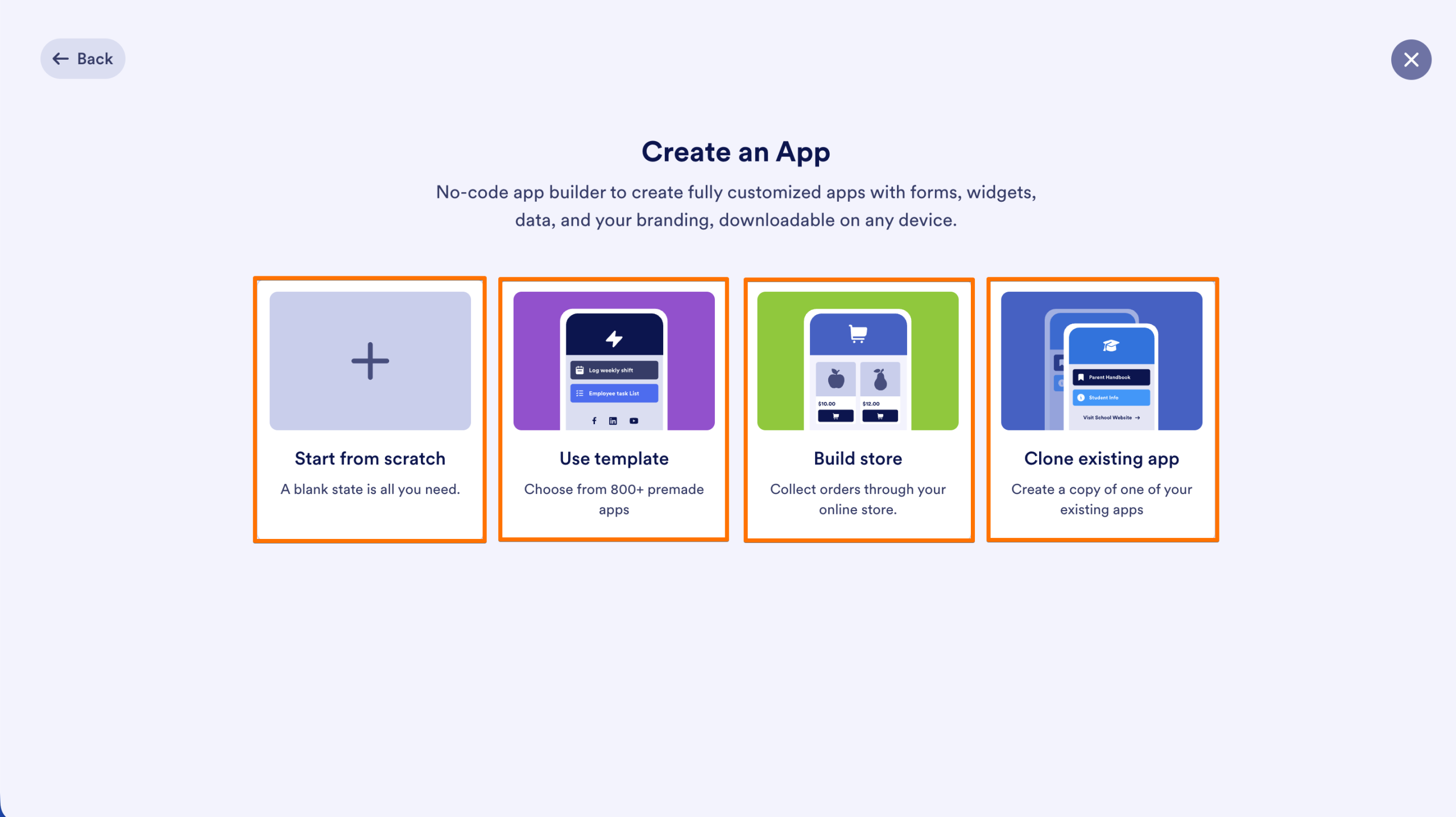
After making your selection, you’ll be redirected to App Builder where you can build and customize your app — and then you’re all set.
Creating an App Using a Form
With just a few clicks, you can transform your form into a shareable app that users can open right from their mobile devices—no coding required! It’s a great way to make your forms feel modern, organized, and easy to use on the go. You can do it in just a few steps:
- On your Workspace page, click on Filter at the top.
- Then, select only the checkbox next to Forms, and uncheck the boxes next to the other assets.
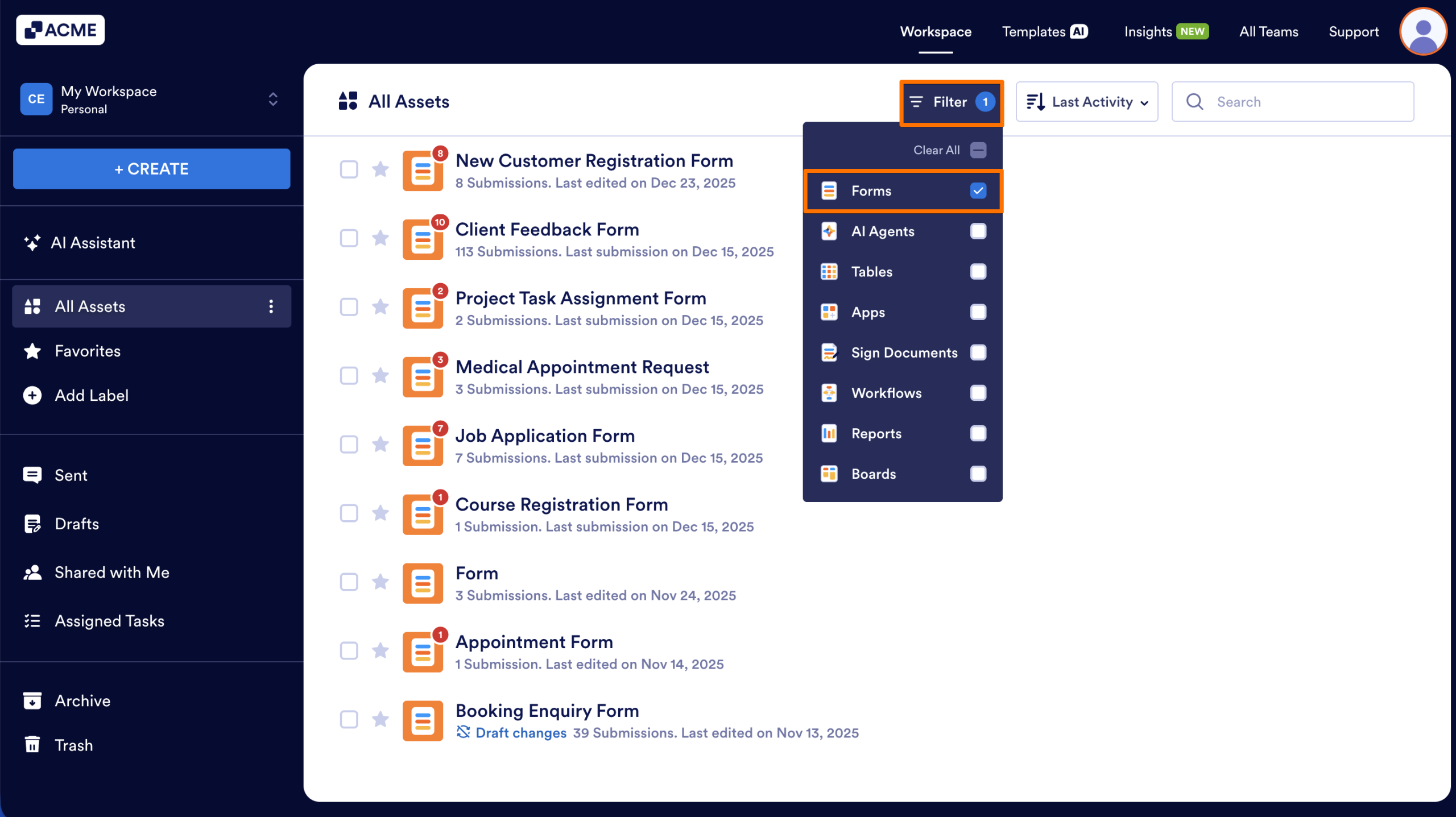
- Now, click on the checkbox next to the form title or the form that you want to generate an app for.
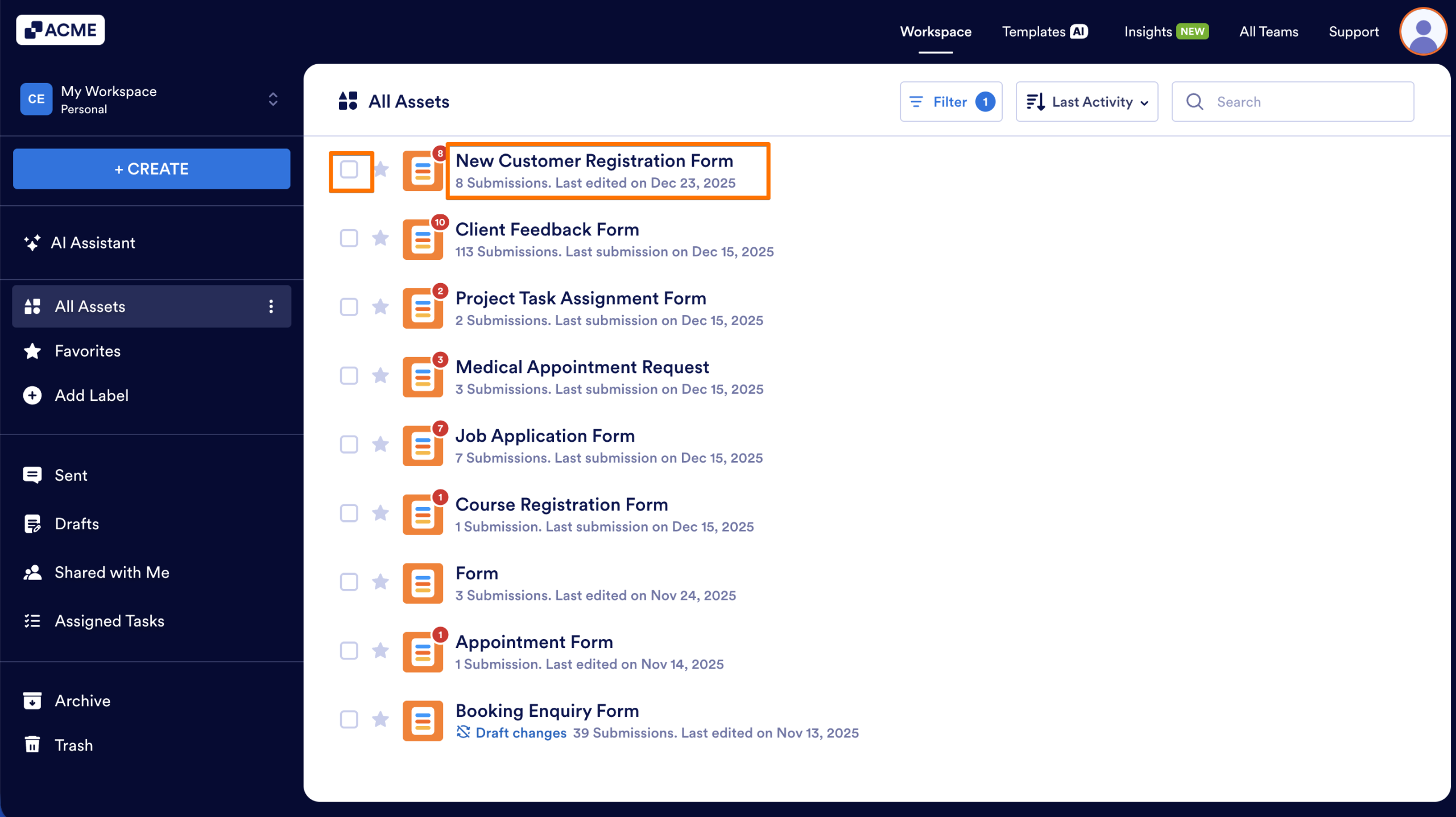
- In the menu at the top of the page, click on Apps.
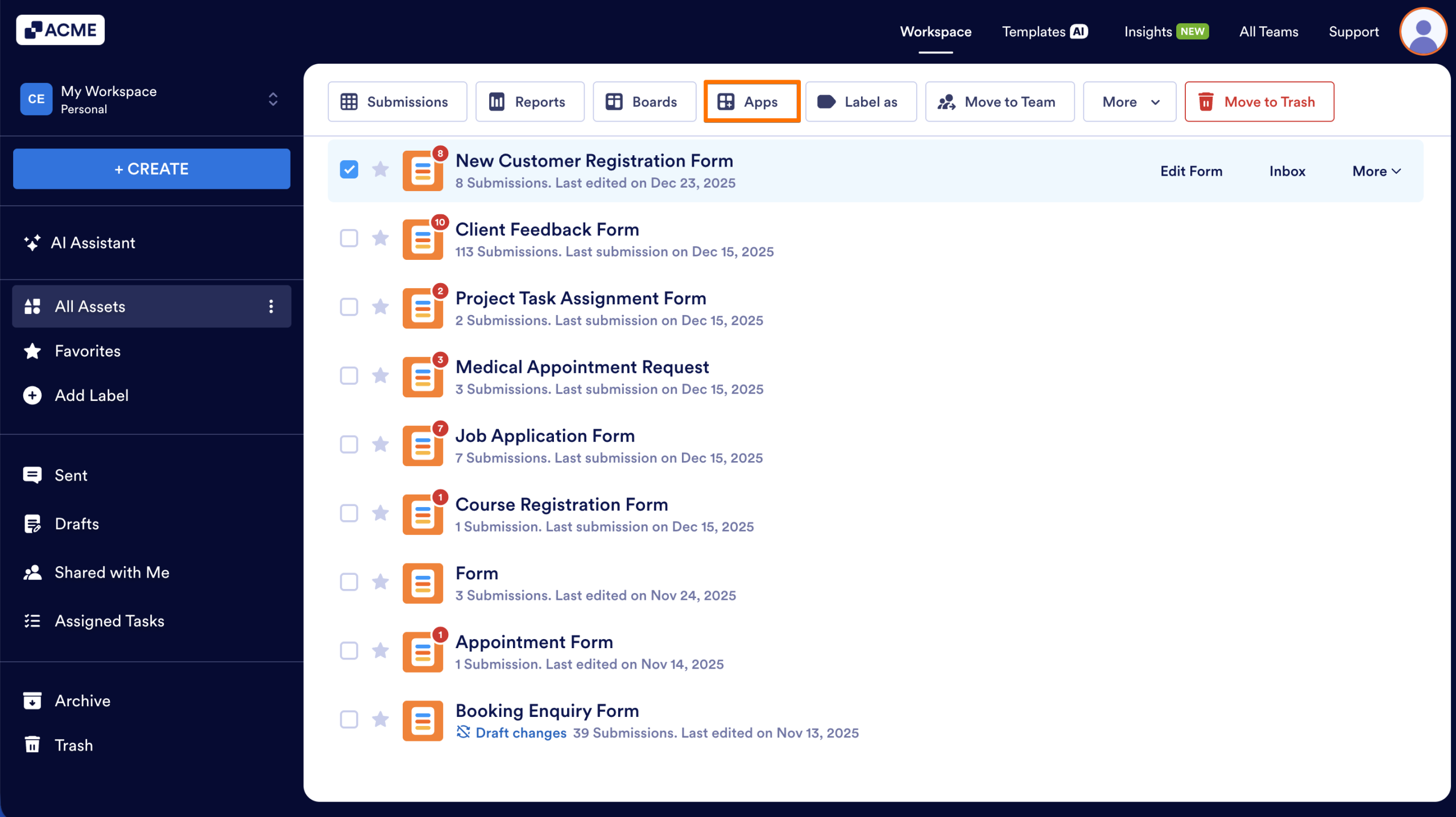
- Then, in the Dropdown menu, click on Create App.
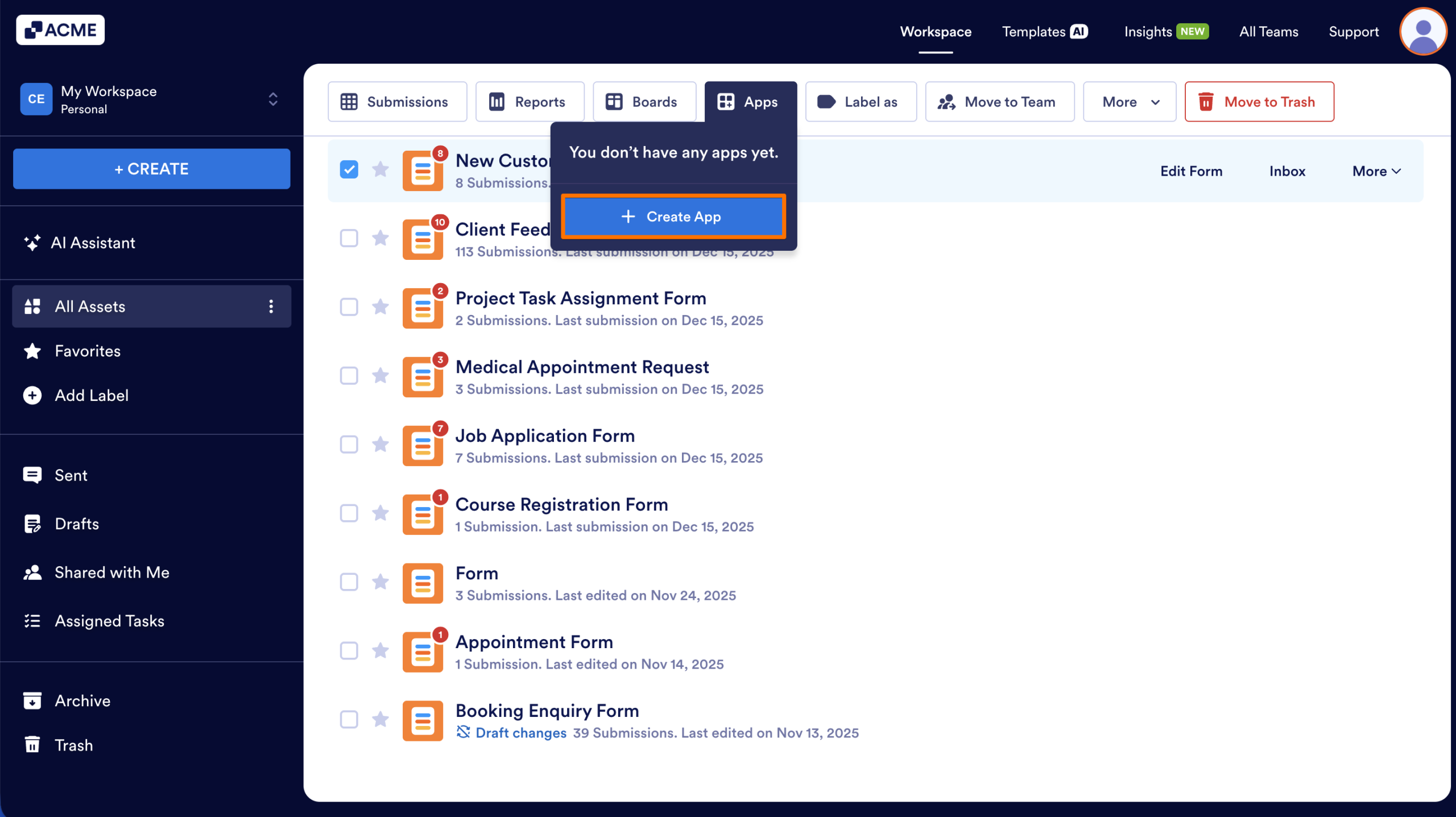
Alternatively, you can also create an app from the drop-down menu for the form:
- In My Workspace, hover over the form you want to generate an app from.
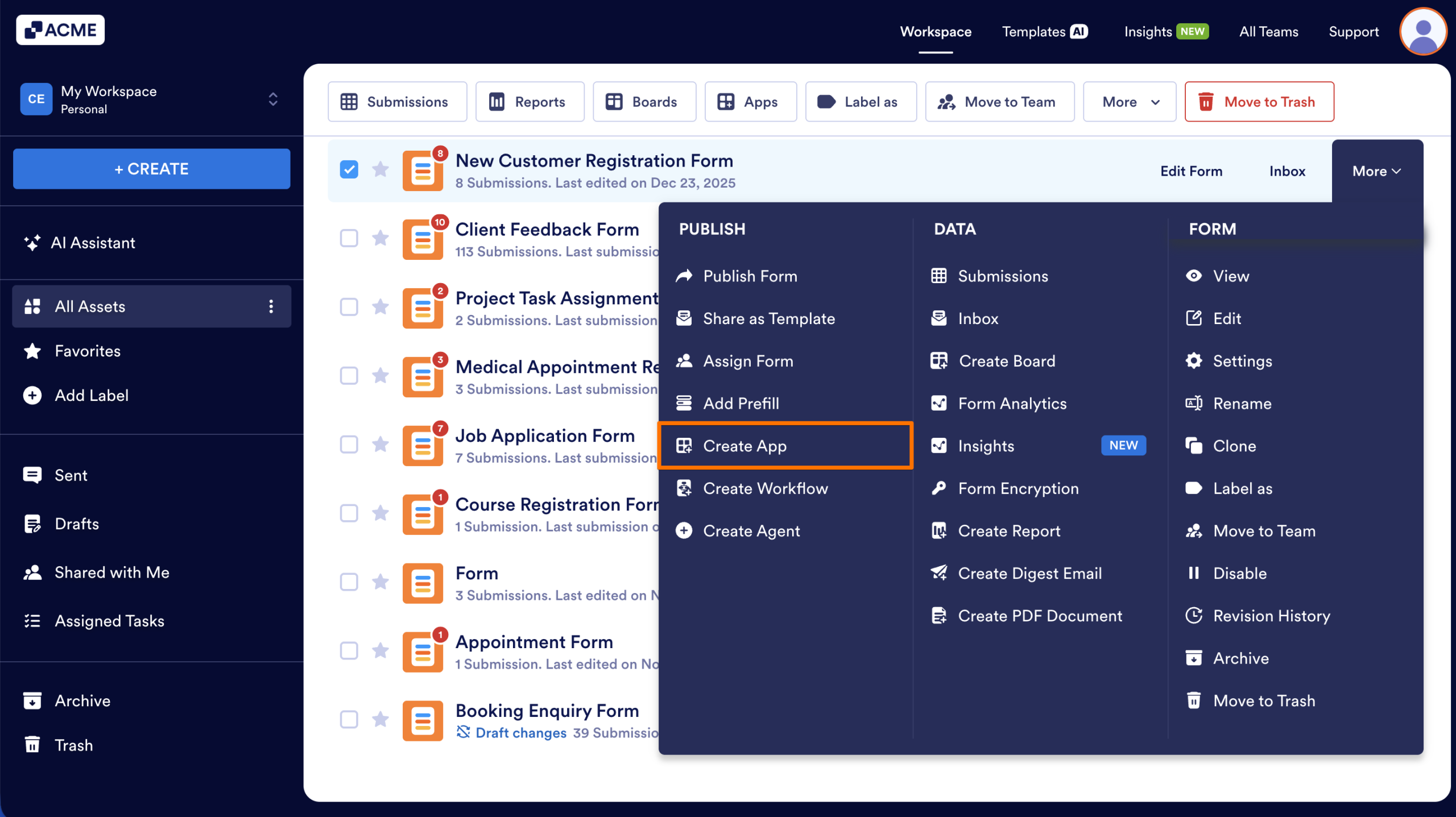
- Next, click on More on the right side of the screen.
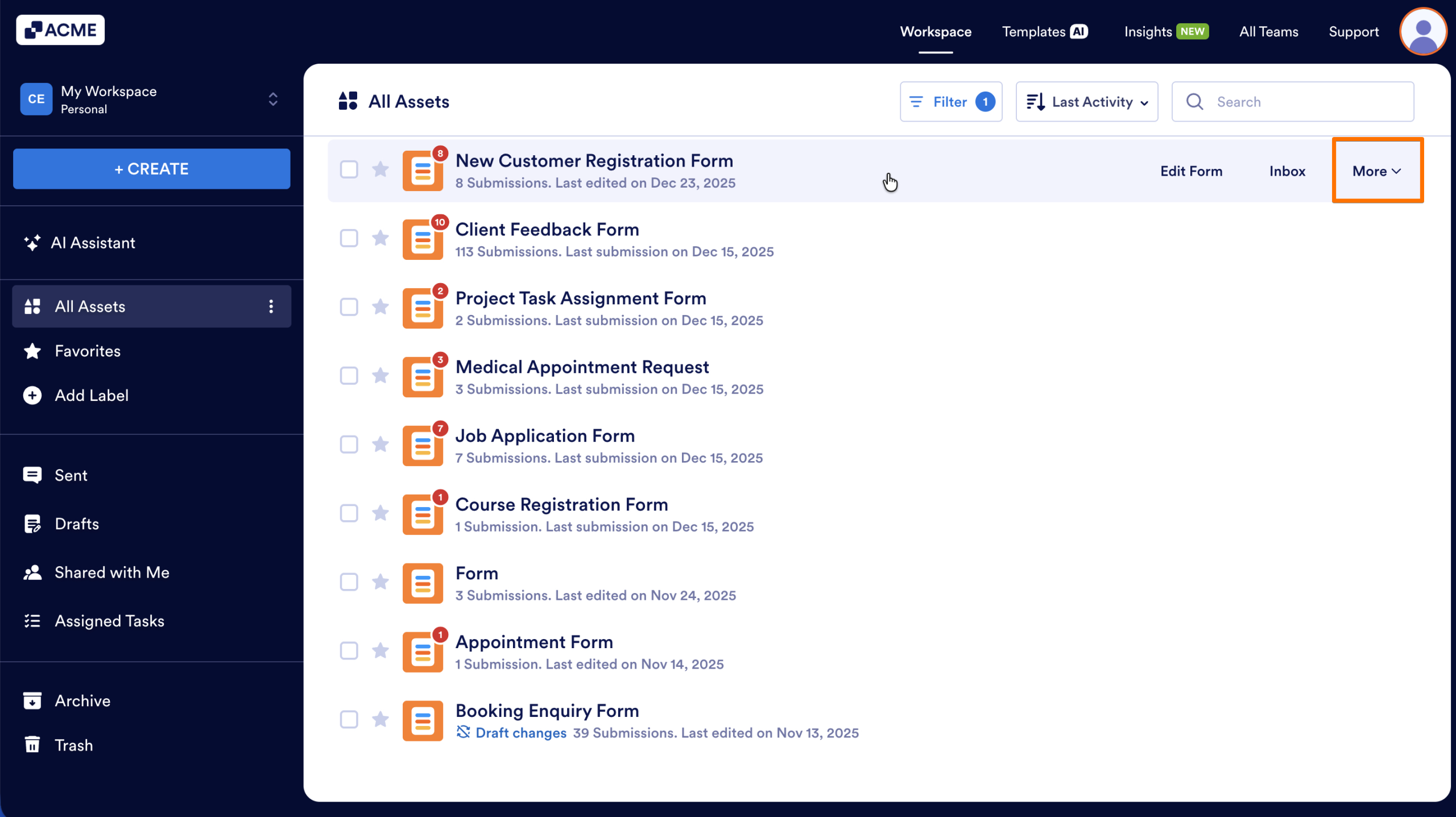
- Then, in the Dropdown menu, under the Publish column, click on Create App.
You can also add multiple forms to the app you’re creating.. Here’s how you can do that from My Workspace:
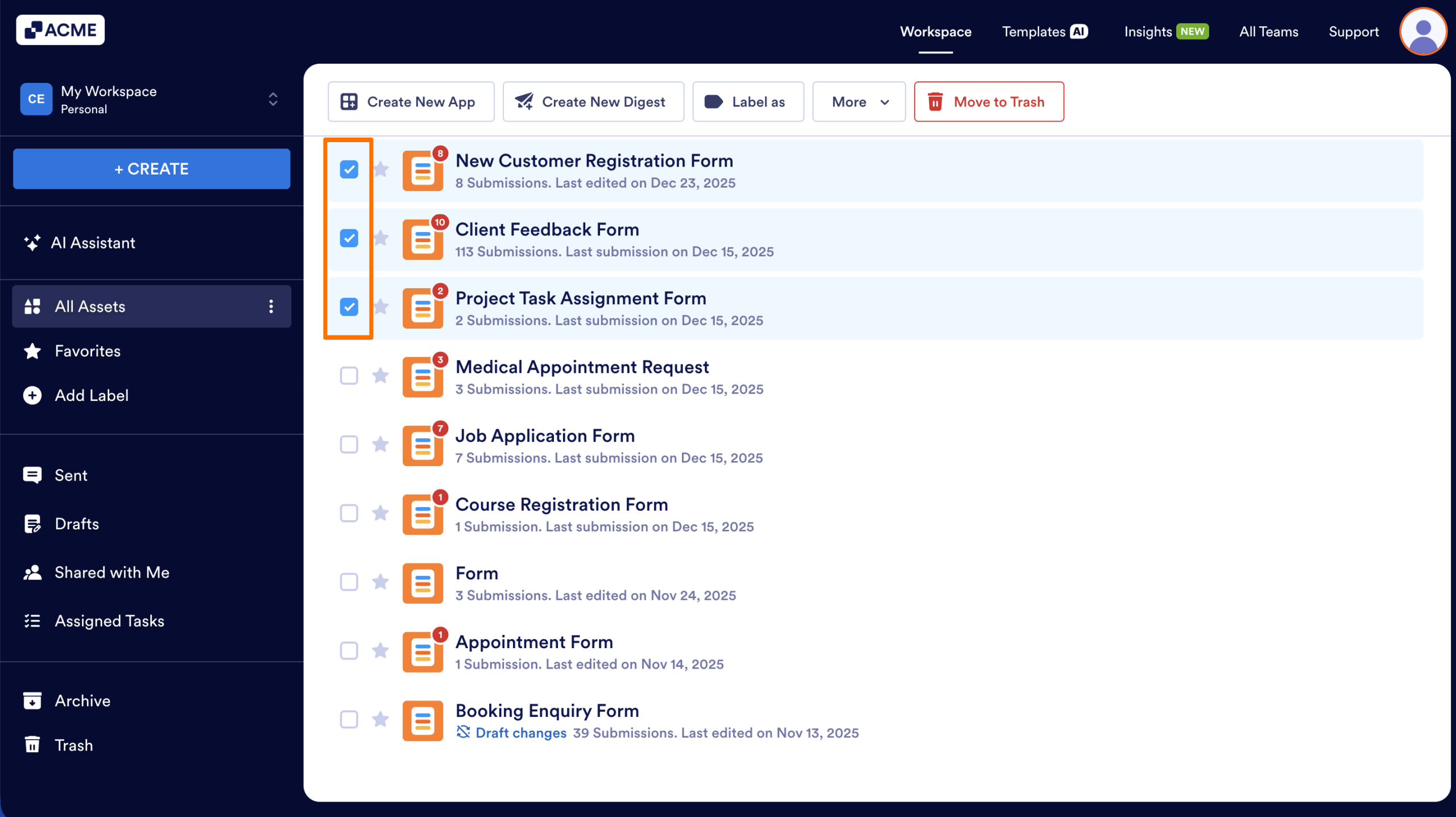
- On your Workspace page, select the checkbox next to the forms you want to add to your App.
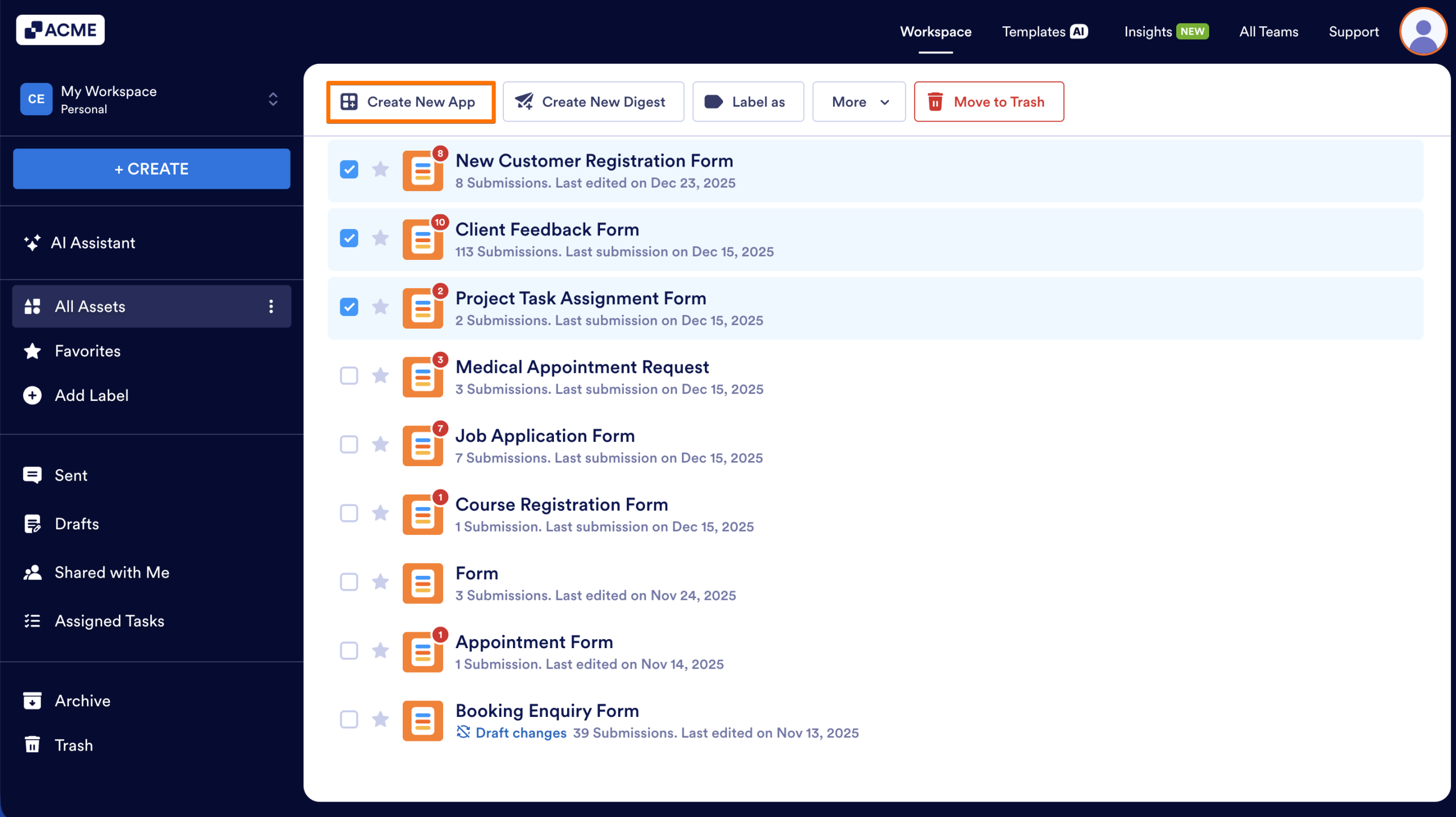
- Then, in the menu at the top of the page, click on Create New App.
Tip
Hold the Shift key to select or deselect multiple consecutive forms.
Creating an App From Form Builder
After you create or edit your form, you can use the form to create an app. Let’s walk through creating an app from the Form Builder together:t:
- In Form Builder, in the orange navigation bar at the top of the page, click on Publish.
- Then, scroll down, and click on Create App.
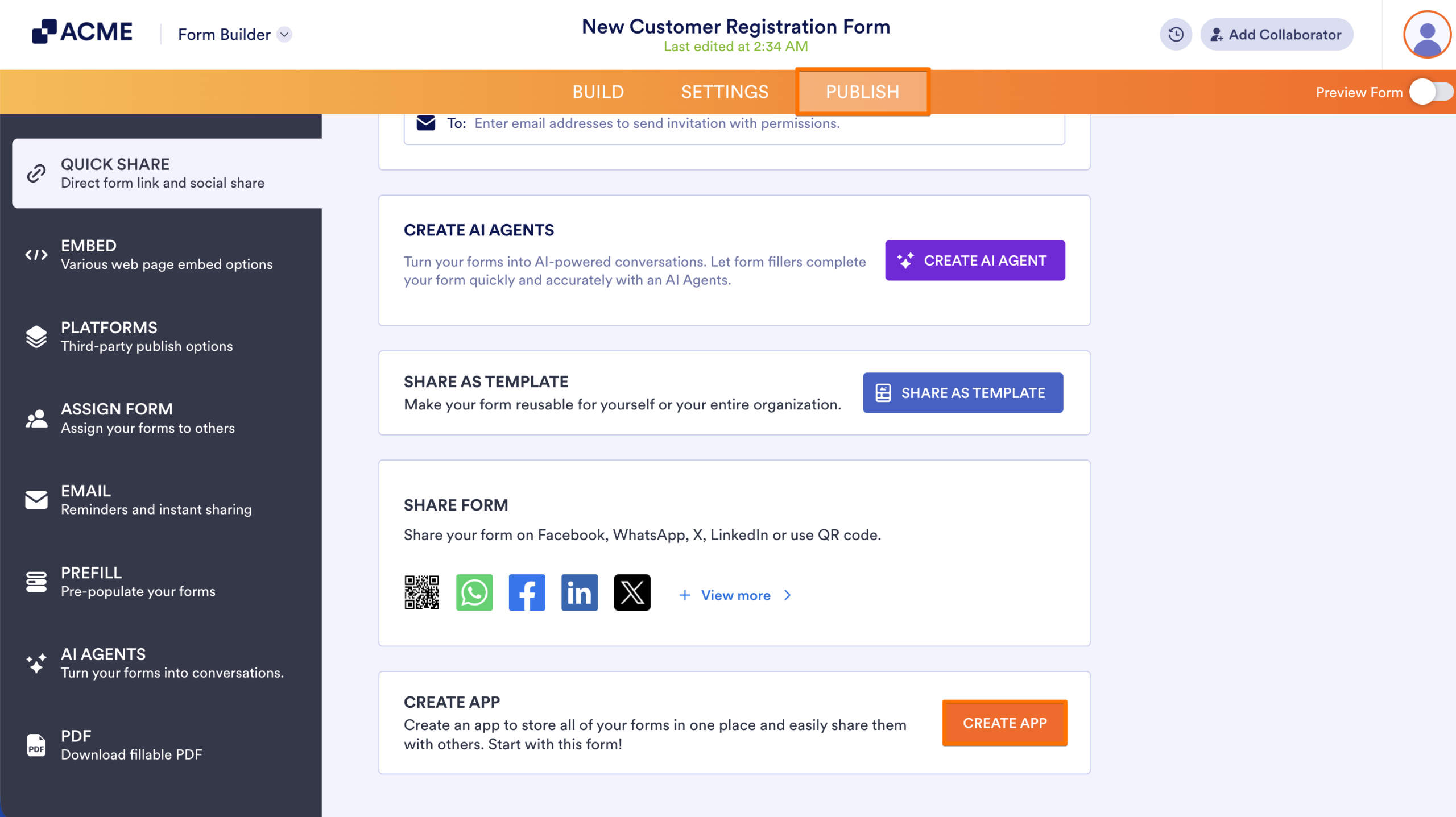
You’ll now be redirected to App Builder to start creating and building your app.
Creating an App From the Apps Templates Page
Choose from over 800 templates on the Apps Templates page to get started on your app. These templates make it easy to create your app with ready-made layouts and features for different purposes. Here’s how to do it:
- In My Workspace, click on Create in the upper left-hand corner of the page.
- On the next page, click App.
- Under Create an App, select Use Template.
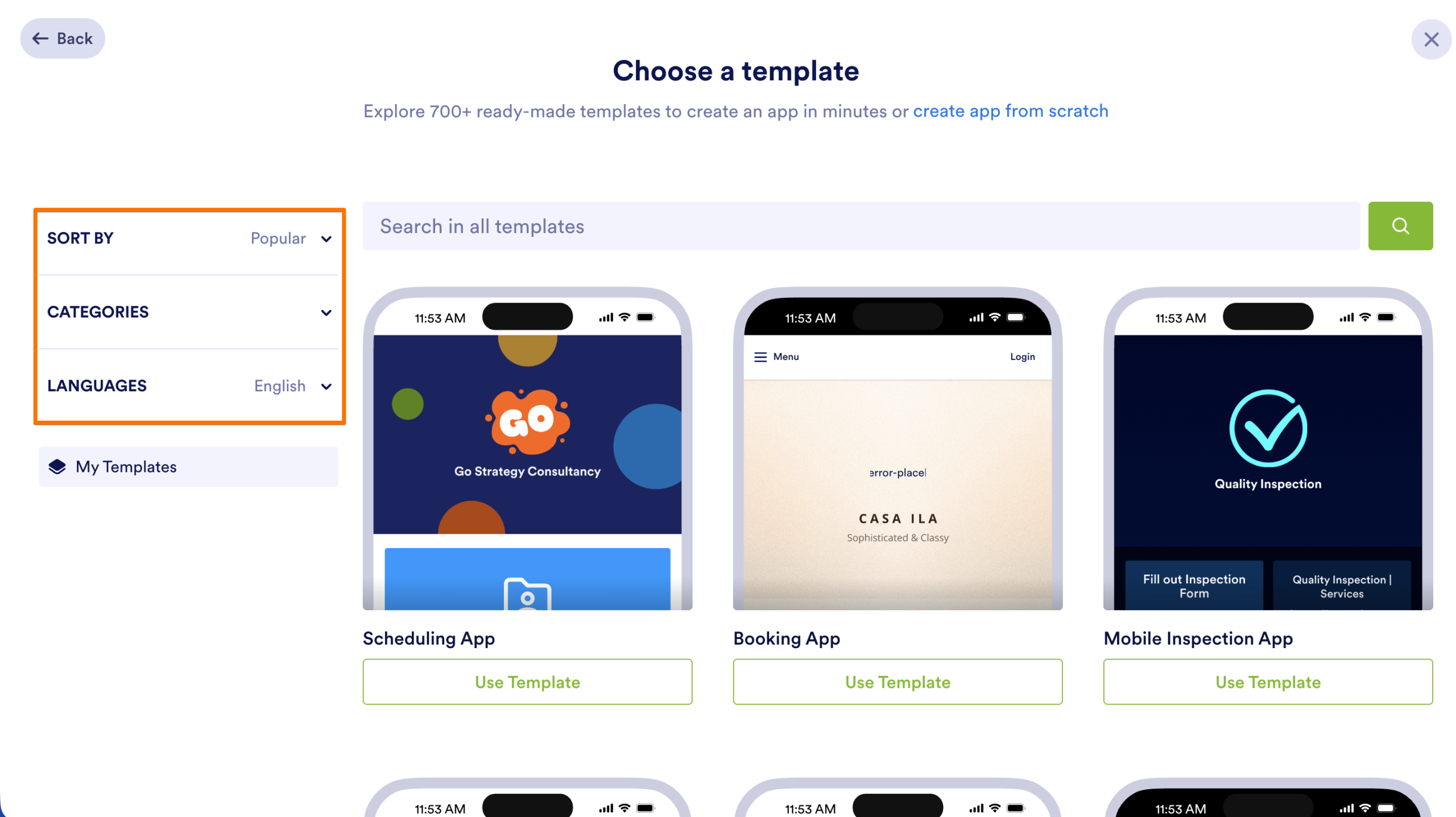
- On the Apps Template page, if you’re looking for a specific template, just enter it into the Search box.
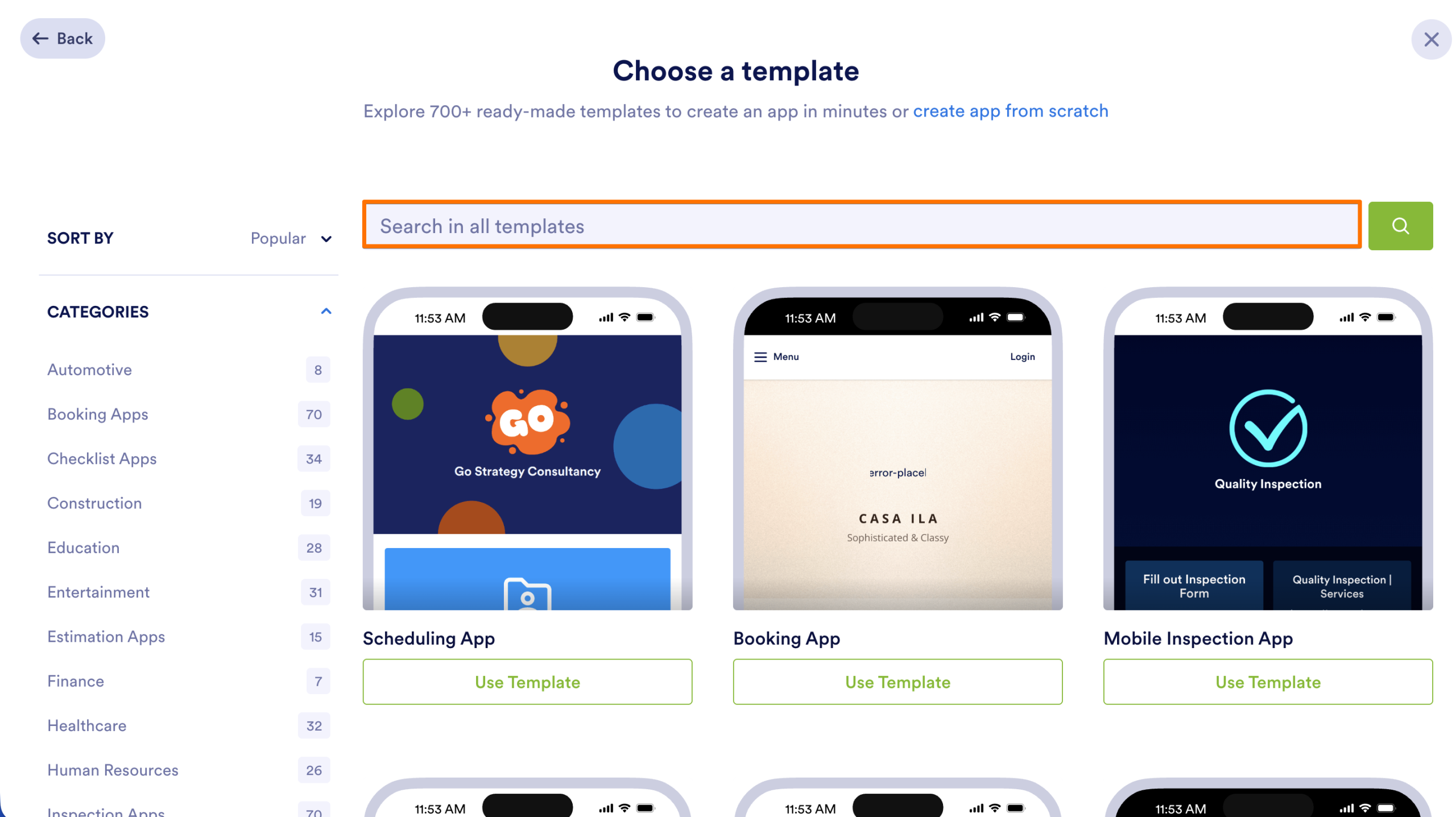
- Alternatively, on the menu on the left, setup the following filtering options:
- Sort by—Choose Popular or Recent to find the most relevant templates.
- Categories—Browse the templates by category to quickly find the right one for your needs.
- Language—Filter the templates to find the ones in your preferred language.
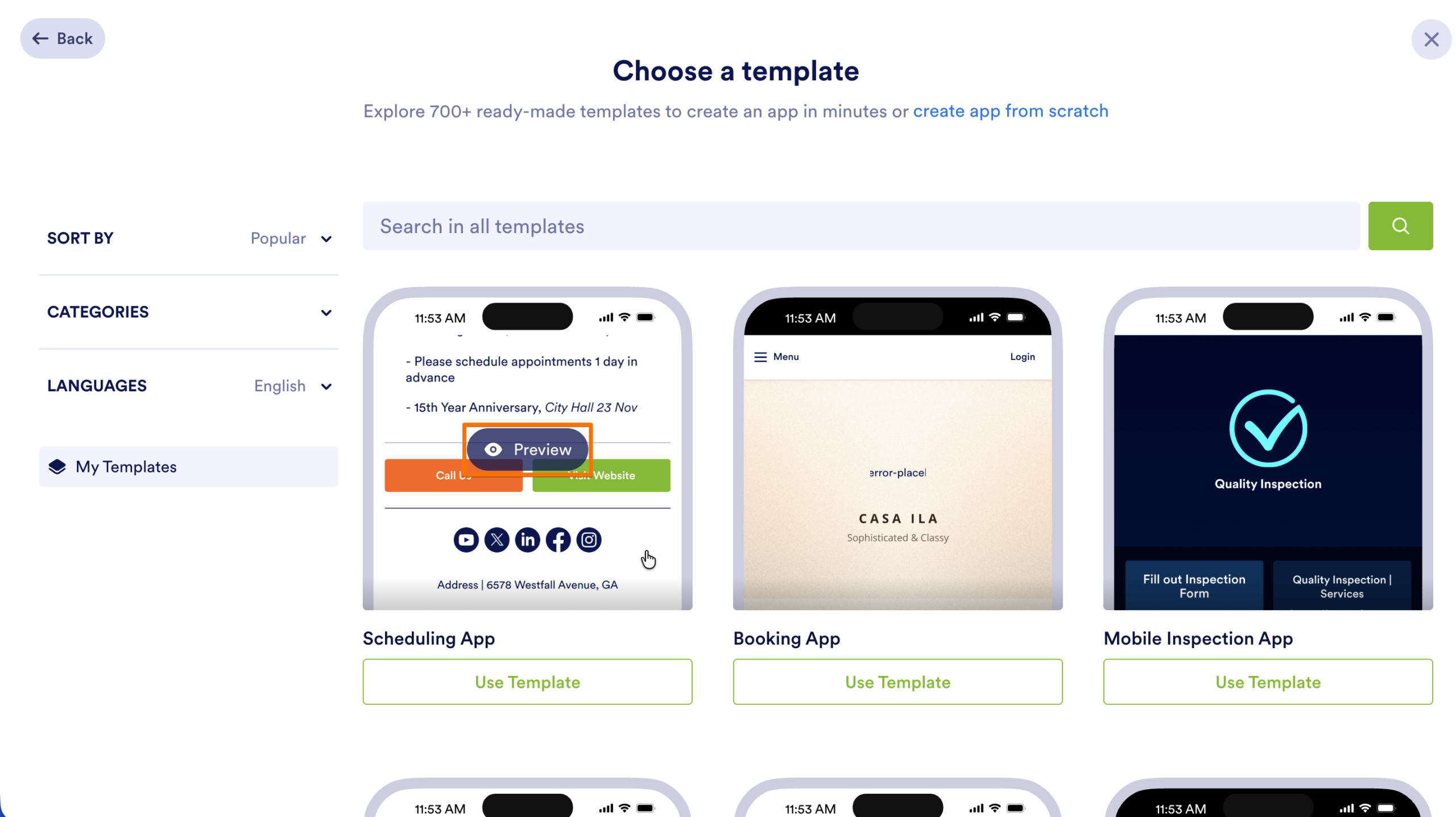
- Once you find a template you like, hover over and click on Preview to see more details about it.
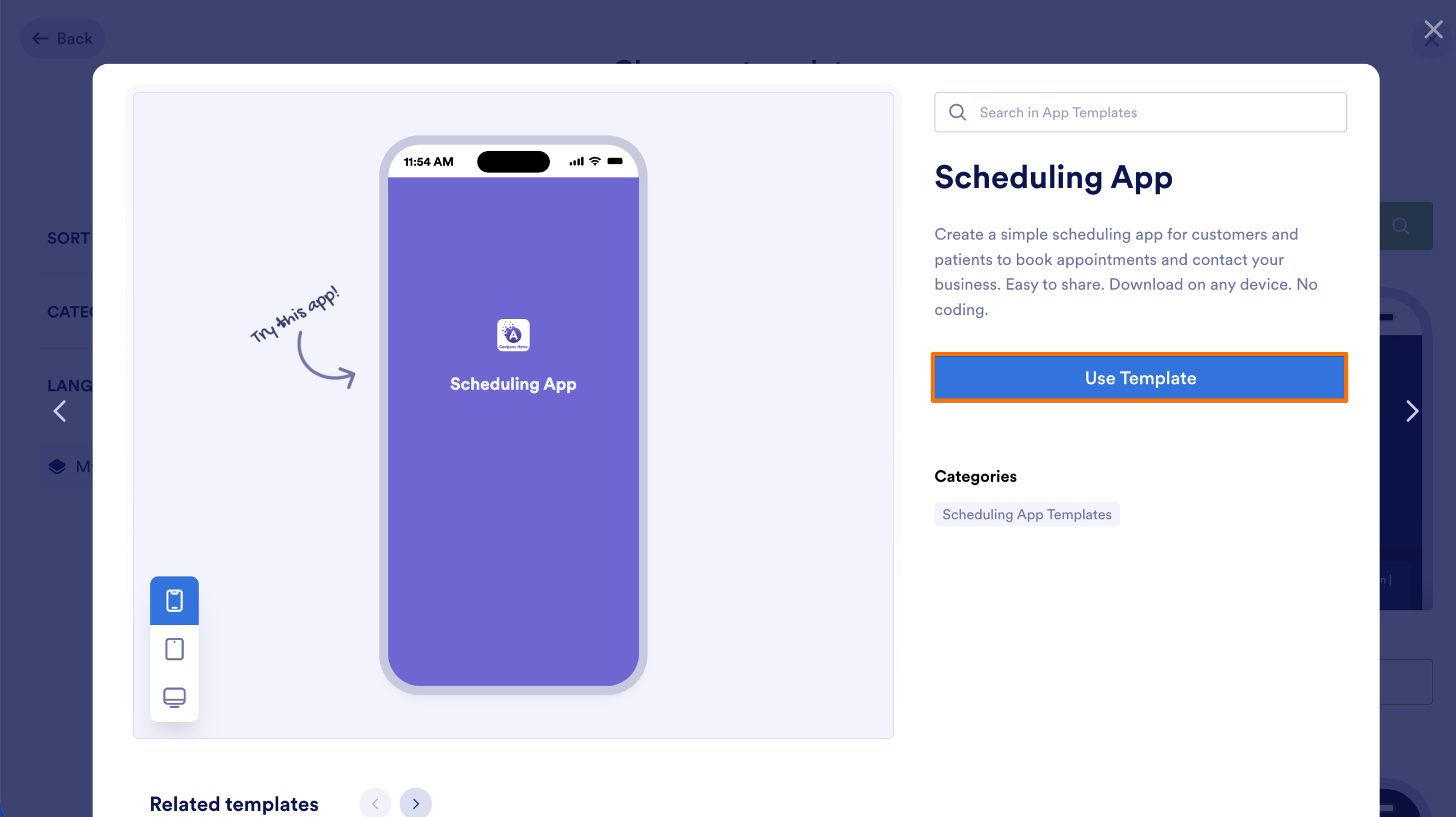
- If you’re ready to use it, just click on Use Template to start editing and customizing it.
Now that you know how to use App Templates, you’re ready to get started. Enjoy customizing and building your app!

Send Comment: