Jotform Boards lets you create boards from scratch, giving you full control over how everything works. You can set things up exactly the way you want before adding tasks, connecting forms, or manually importing existing submissions. Personalize your board by choosing your groups, task fields, card views, and themes. Everything is flexible, so you can build a structure that fits the way you work right from the start.


You can create a board from scratch in a few easy steps. Here’s how to do it:
- On your Workspace page, click on Create on the top-left side of the screen.

- In the window that opens up, click on Boards.
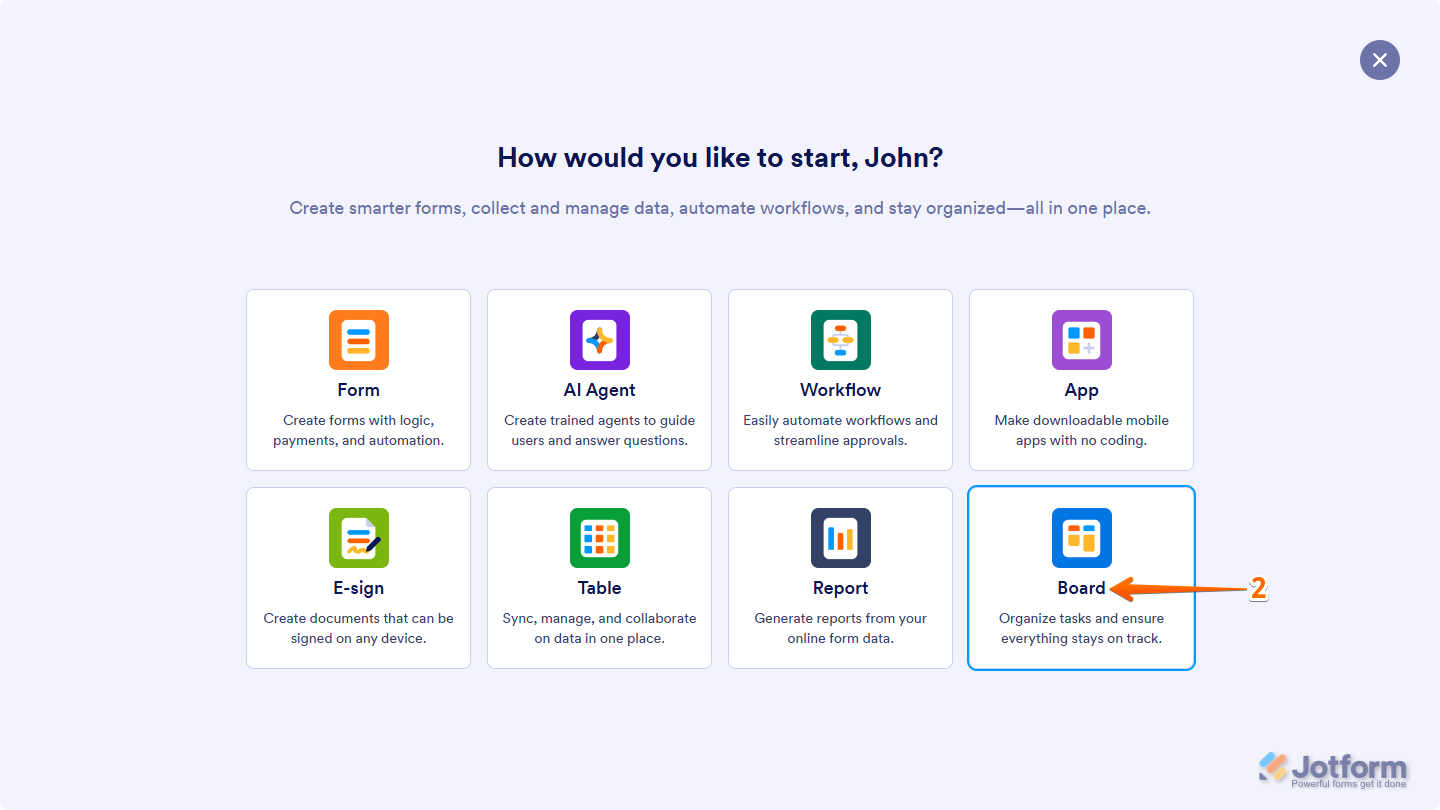
- Then, click on Start From Scratch.
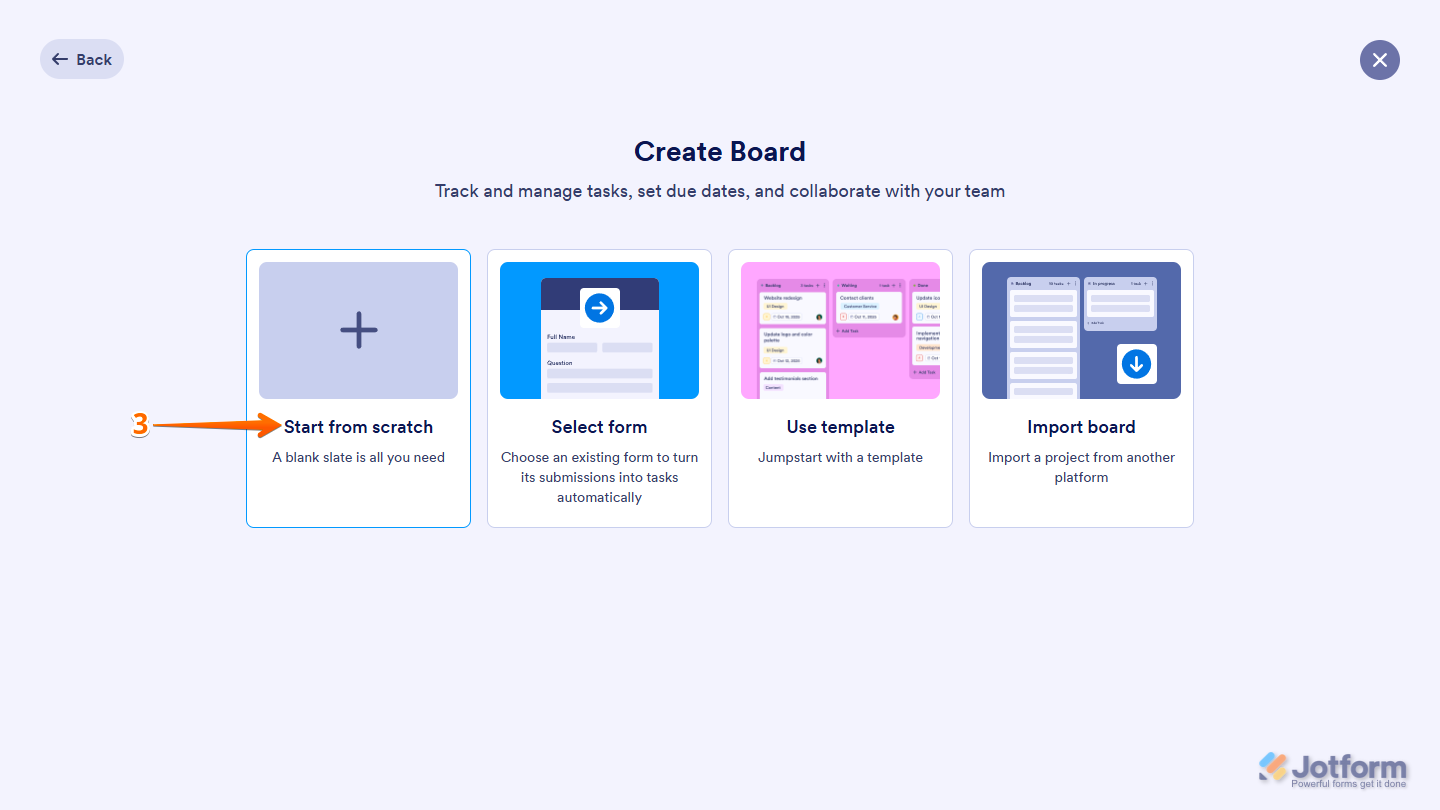
This creates a new board in your account and redirects you to Boards, where you can connect and manage forms to it, add, edit, and arrange its group, card, and task fields view, and customize its appearance by applying themes.
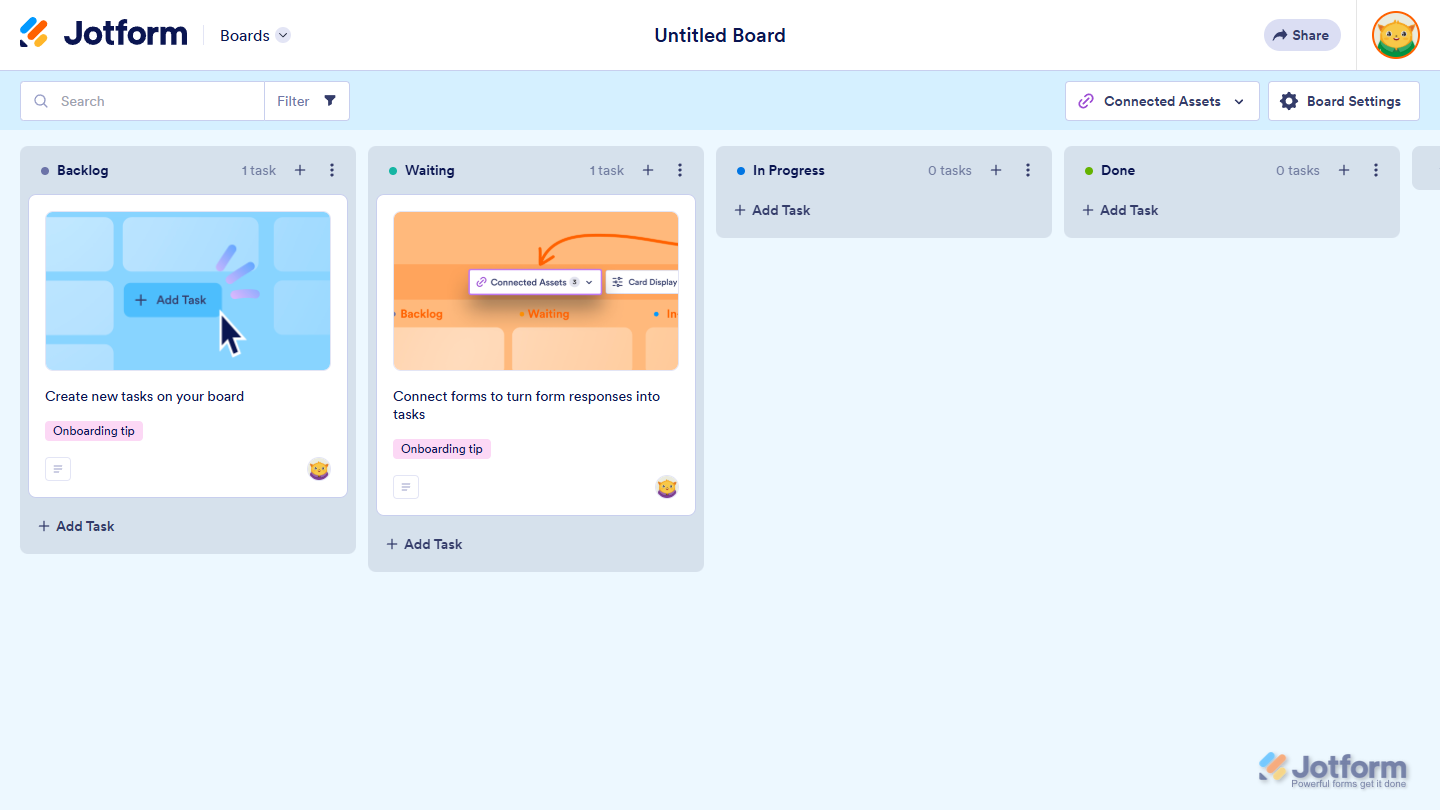
This is a step-by-step demo of board creation from scratch:
For more details, check out our guides on How to Personalize Jotform Boards and How to Manage Connected Forms on Jotform Boards.

Send Comment:
1 Comment:
December 19, 2025
I would like to use the Board view to display a column from my Jotform table called 'status'. Is there a way to link this status with the 'tasks' column as displayed so it easily shows my status and looks to this field.
I think I'm missing something while reviewing the video or maybe misunderstand how this is to be used