Jotform’s AI Form Builder helps you create forms right inside Google Workspace, using the tools you already work with every day. You can generate questions from simple prompts, reuse content from documents and spreadsheets, or pull questions from existing forms—without copying and pasting anything.
This is especially helpful when you’re creating similar forms, updating older ones, or turning documents into surveys. You can move questions easily between Google Forms, Jotform, Google Docs, Google Sheets, and Google Slides, keeping everything consistent across your projects. If you build forms for work, school, or team collaboration, this app saves you time and keeps your workflow simple.


Installing AI Form Builder
You can install the app in a few easy steps. Here’s how to get started:
- In the Search bar at the top of Google Workspace Marketplace, enter Jotform AI Form Builder.
- Then, from the search results, click on it (or directly click the app link to bypass these steps).
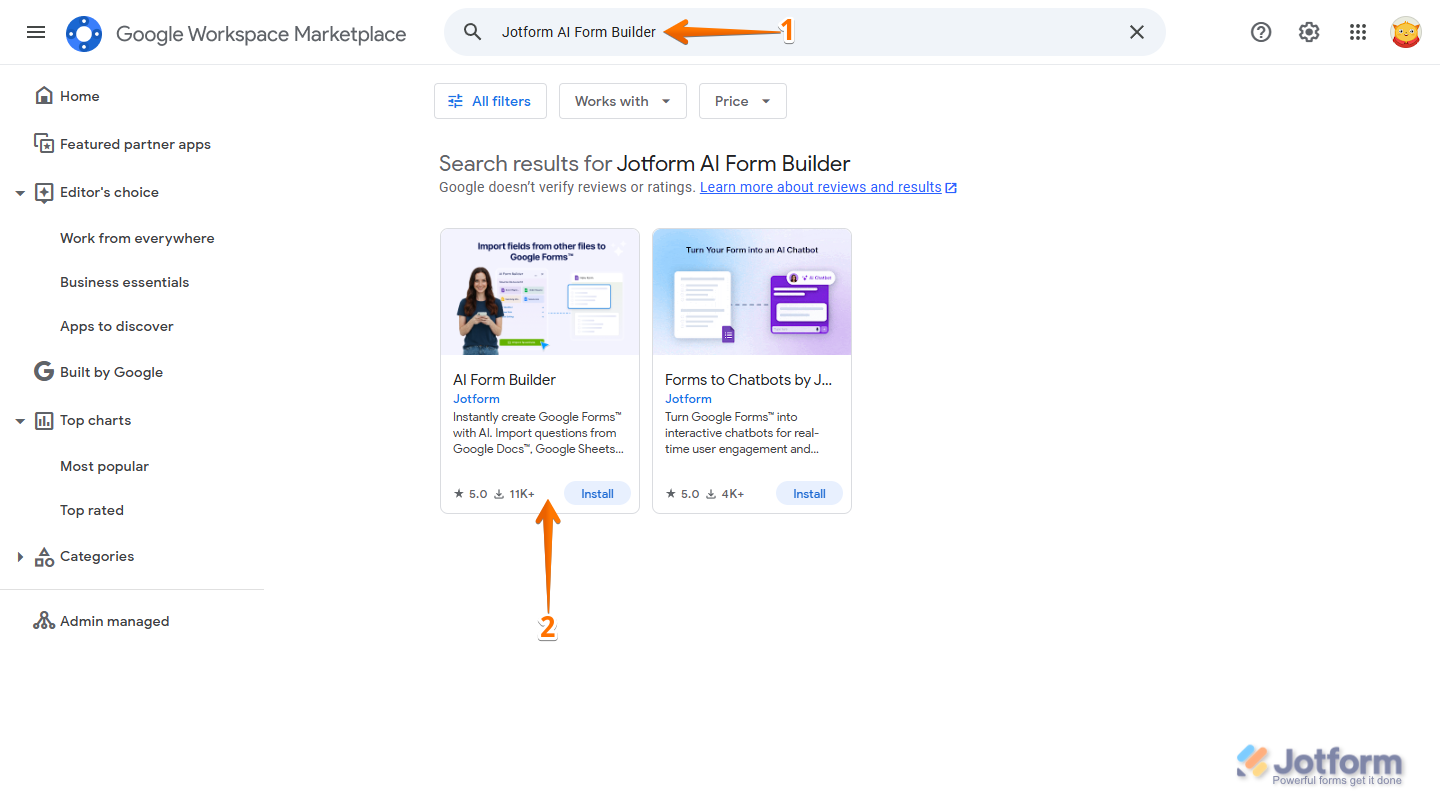
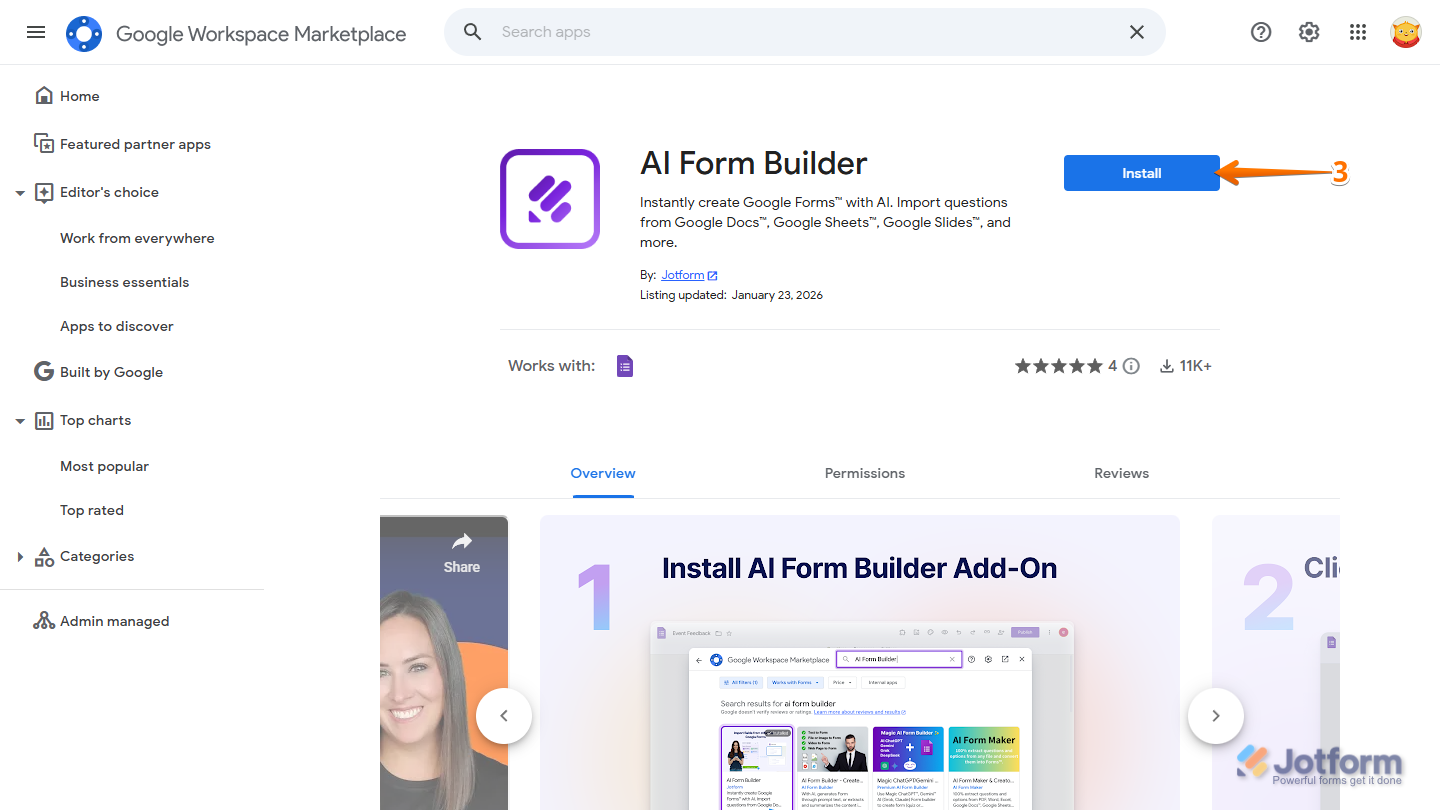
- Next, on the right side of the AI Form Builder section, click on Install.
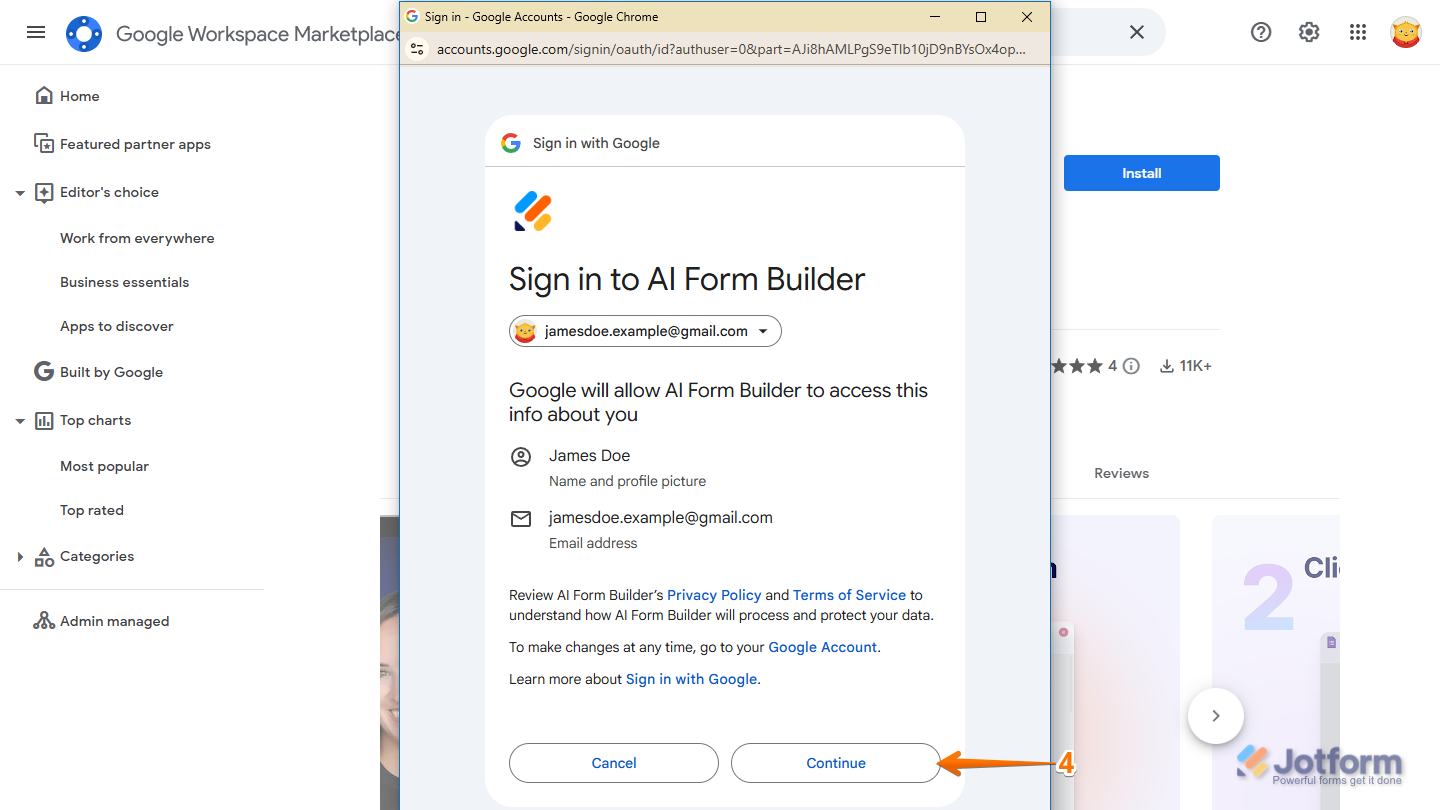
- Now, in the Sign In With Google window that pops up, log in to your Google Account and then click on Continue.
- Then, authorize access for AI Form Builder to your account.
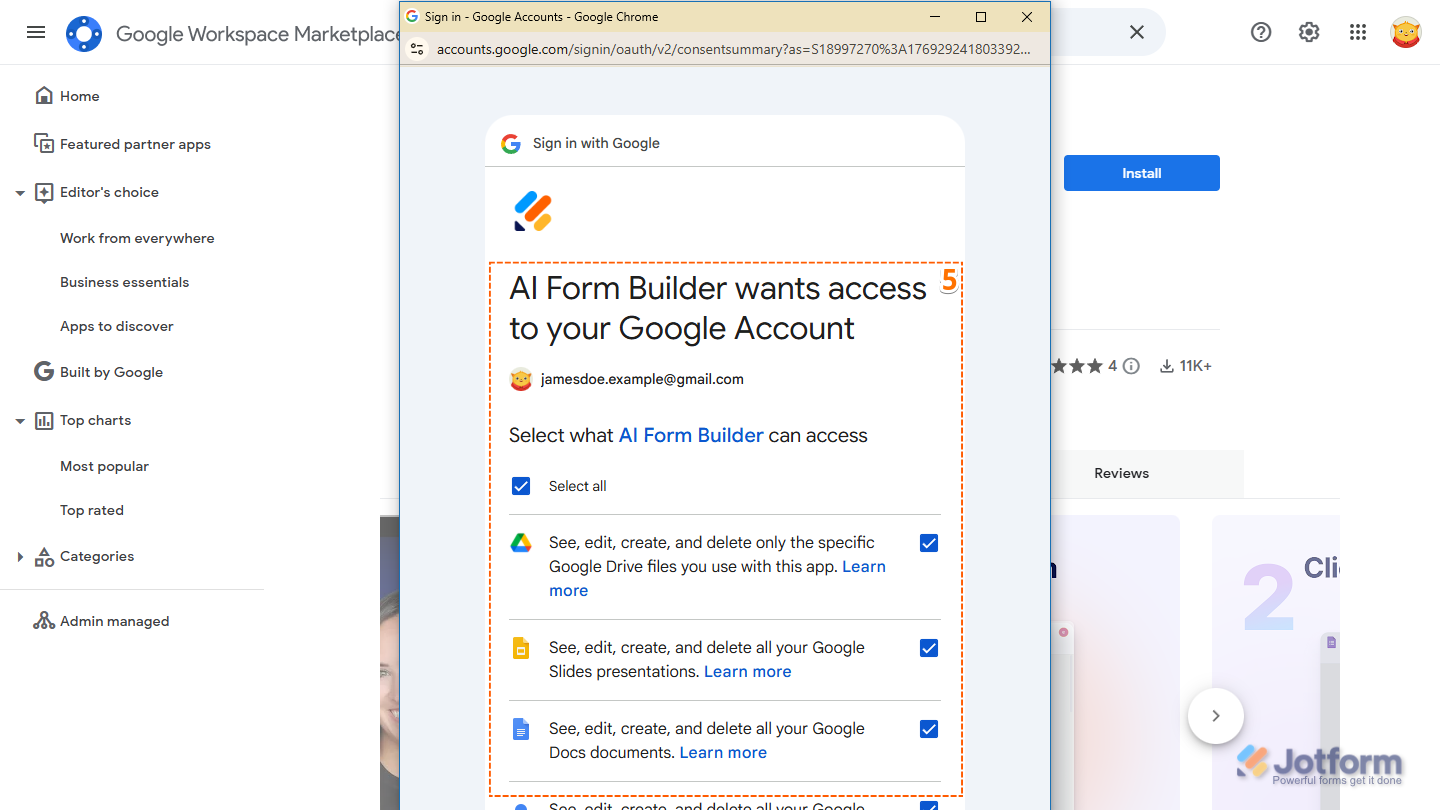
- When everything looks correct, scroll down to the bottom of the window and click on Continue.
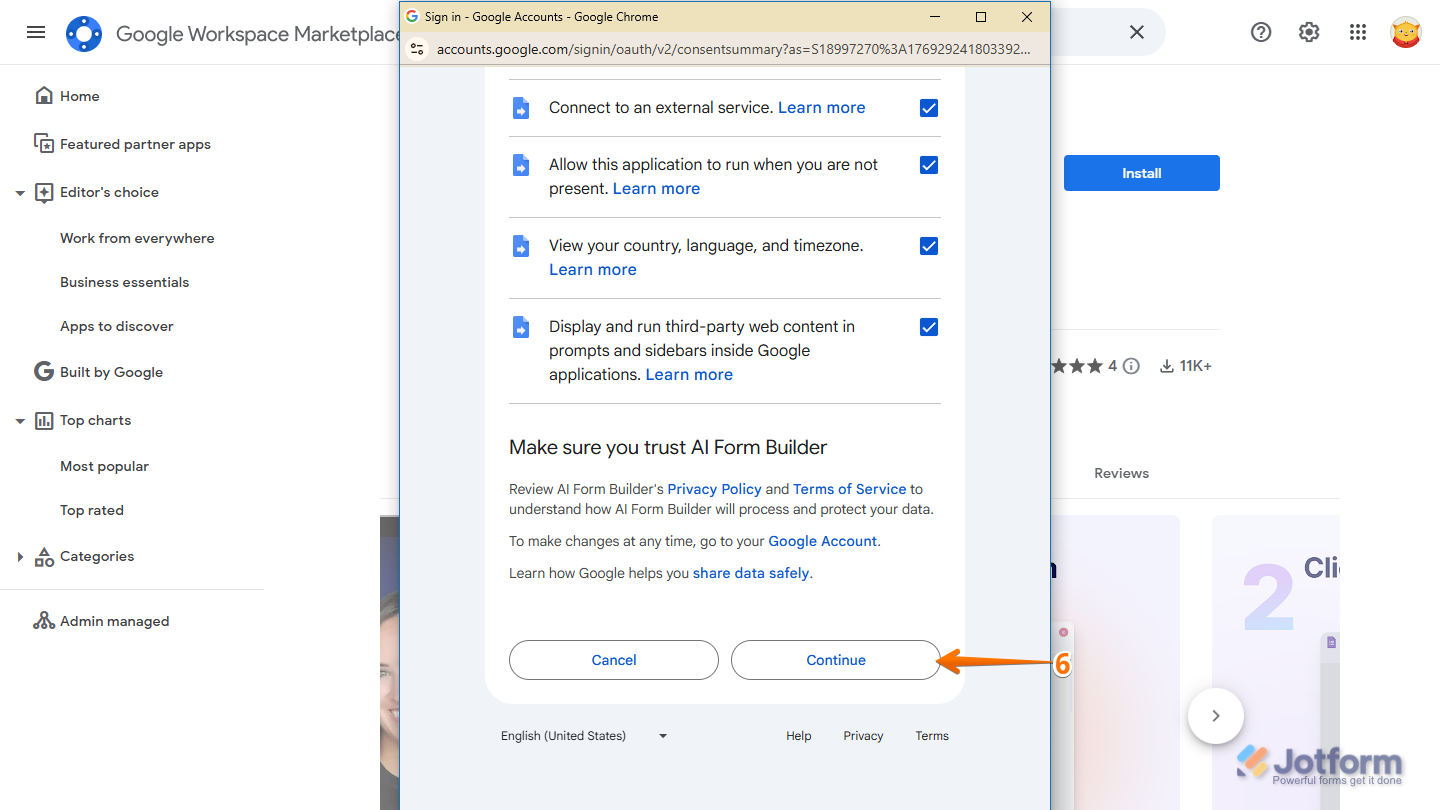
That’s it. You can now find and use AI Form Builder as an add-on when creating or editing forms in Google Forms.
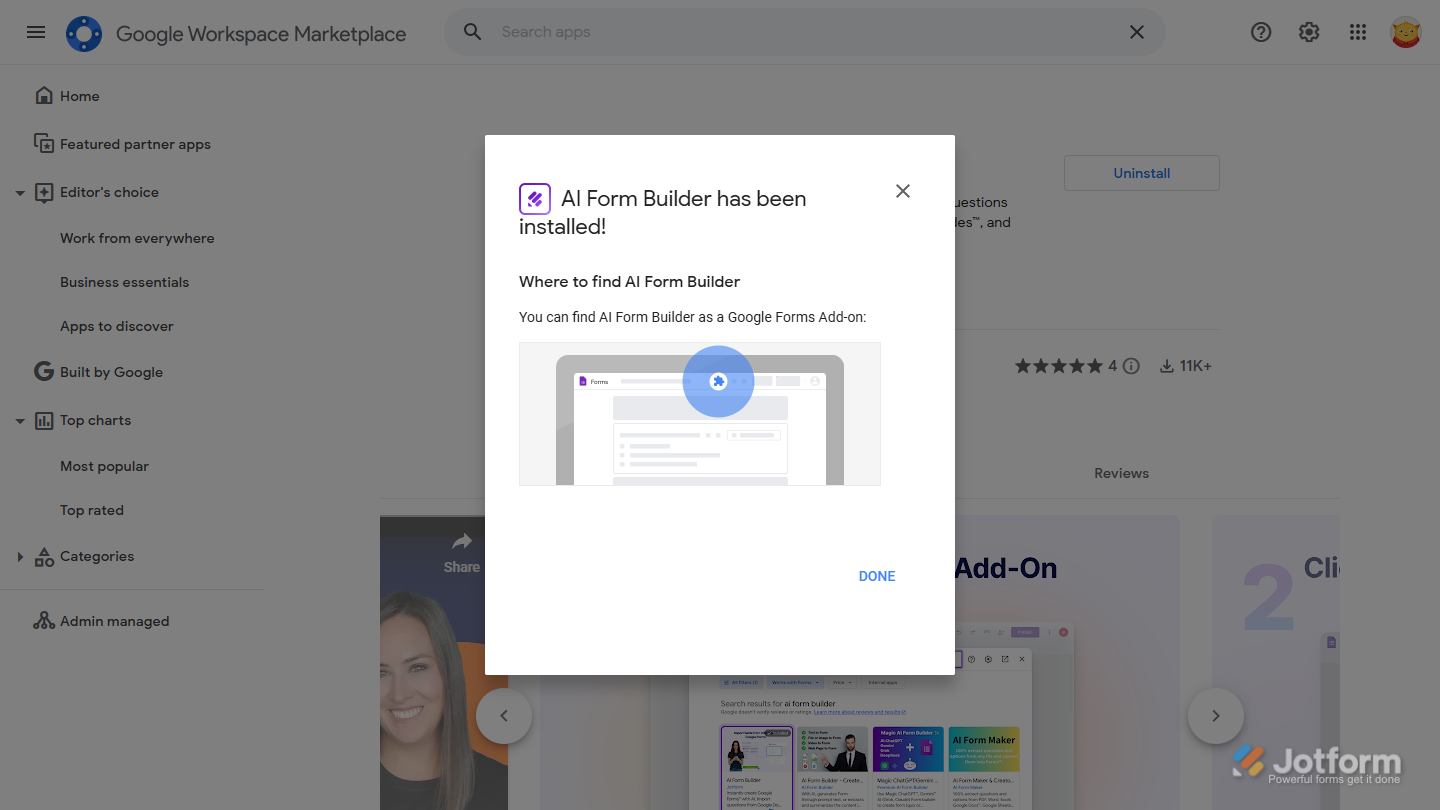
Using AI Form Builder in Google Forms
Once you’ve installed the app, you can start using AI Form Builder to create, reuse, and move form questions without extra work. It gives you a few flexible ways to build your forms, depending on what you want to do next.
You can access the app with just a few clicks. Follow these steps:
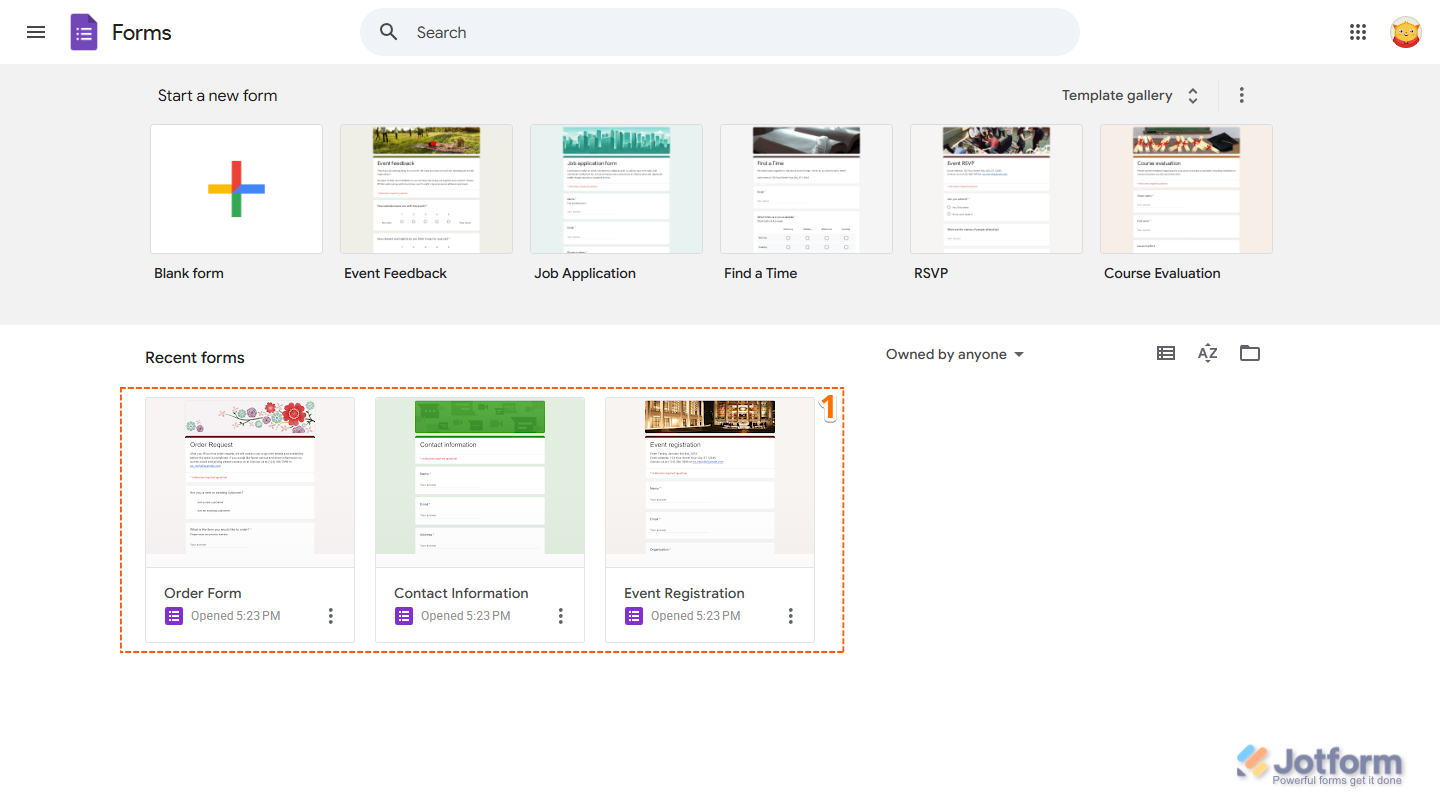
- In Google Forms, click on the form you want to import fields from or export fields to.
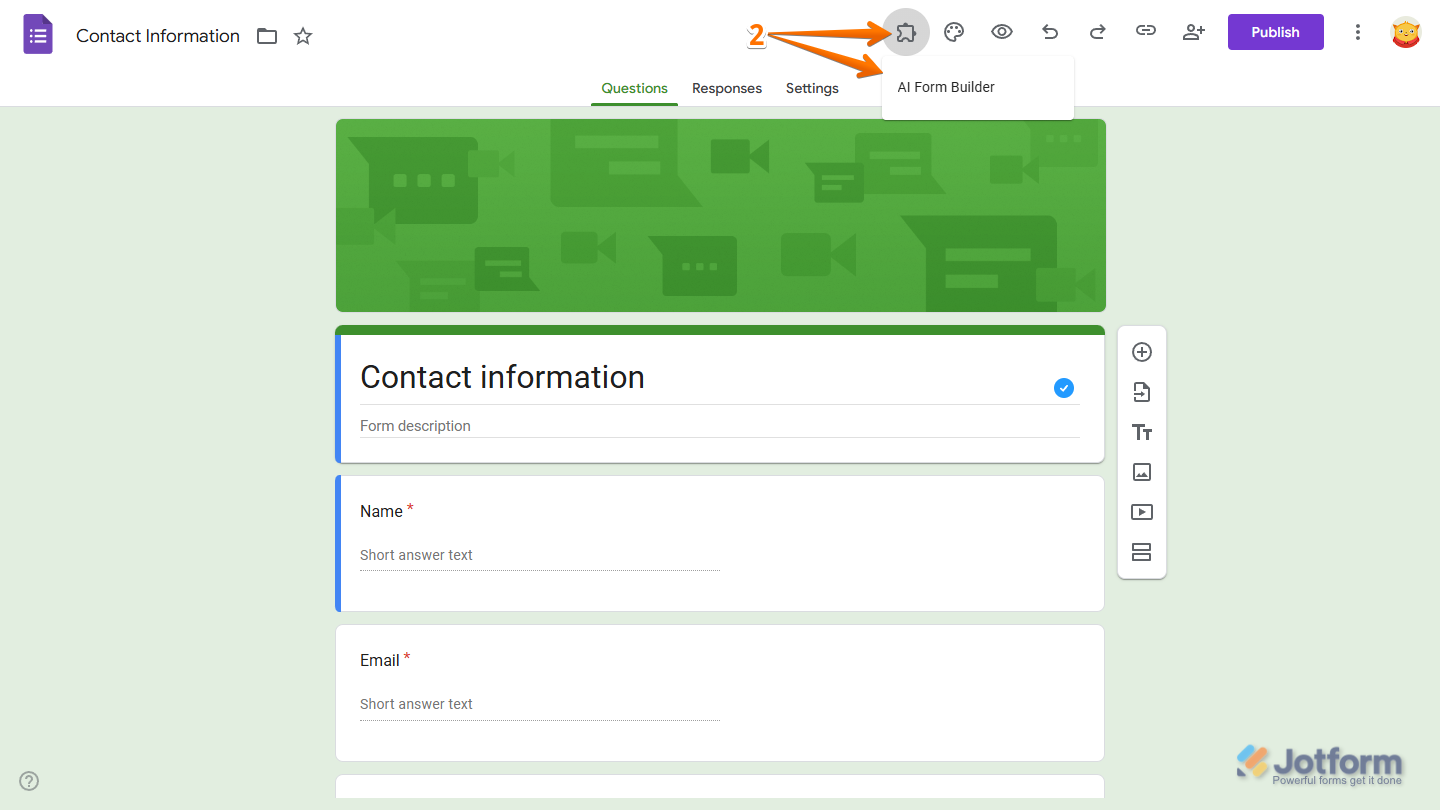
- Now, in Forms Editor, click on the Puzzle Piece icon at the top of the page, and then, in the menu that comes up, select AI Form Builder.
- Then, in the AI Form Builder window that pops up, click on Open Builder.
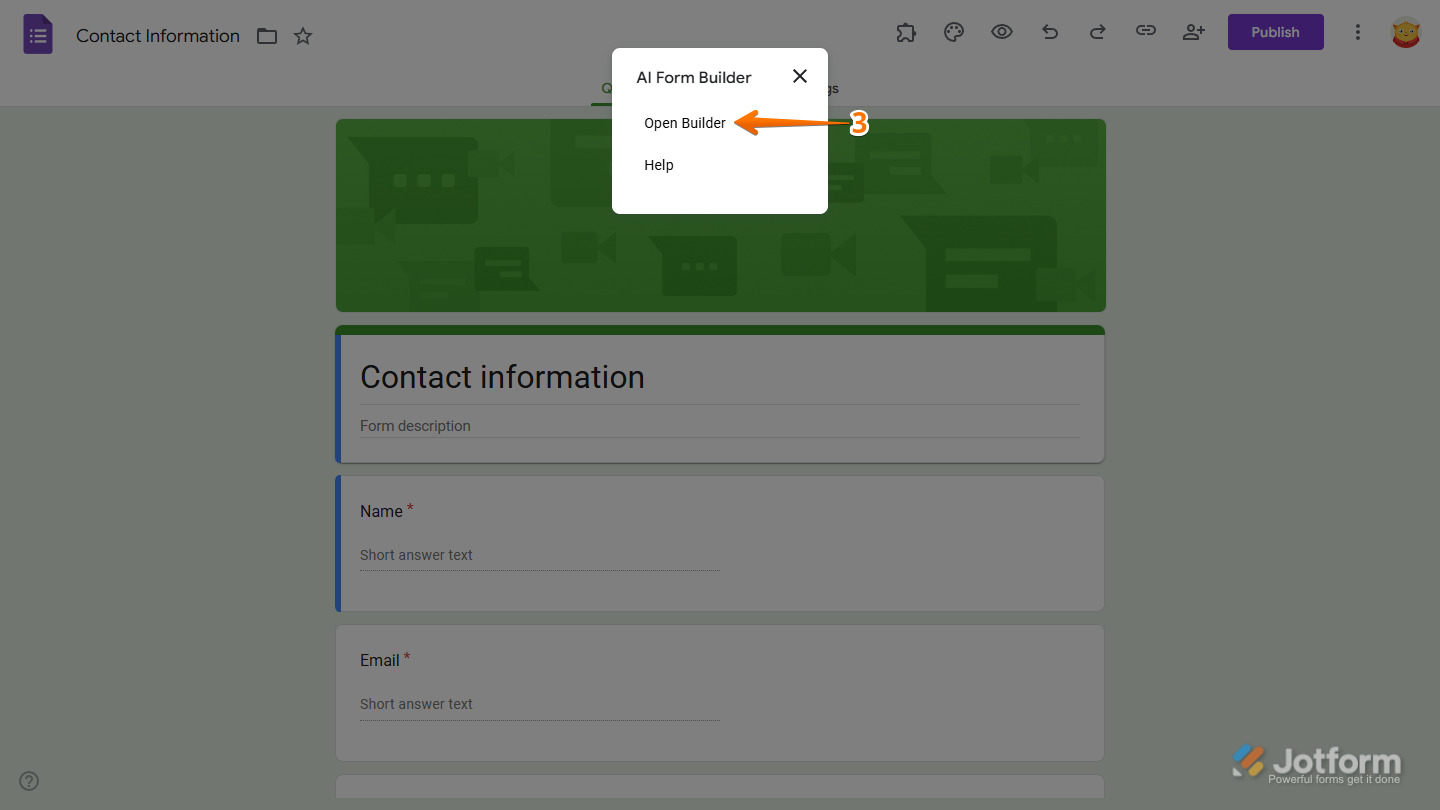
The AI Form Builder menu will open on the bottom-right side of the editor, where you can:
- Import Fields From Another File
- Generate Questions with Prompts
- Export Questions to Other Google Files
- Export Questions to Jotform Forms
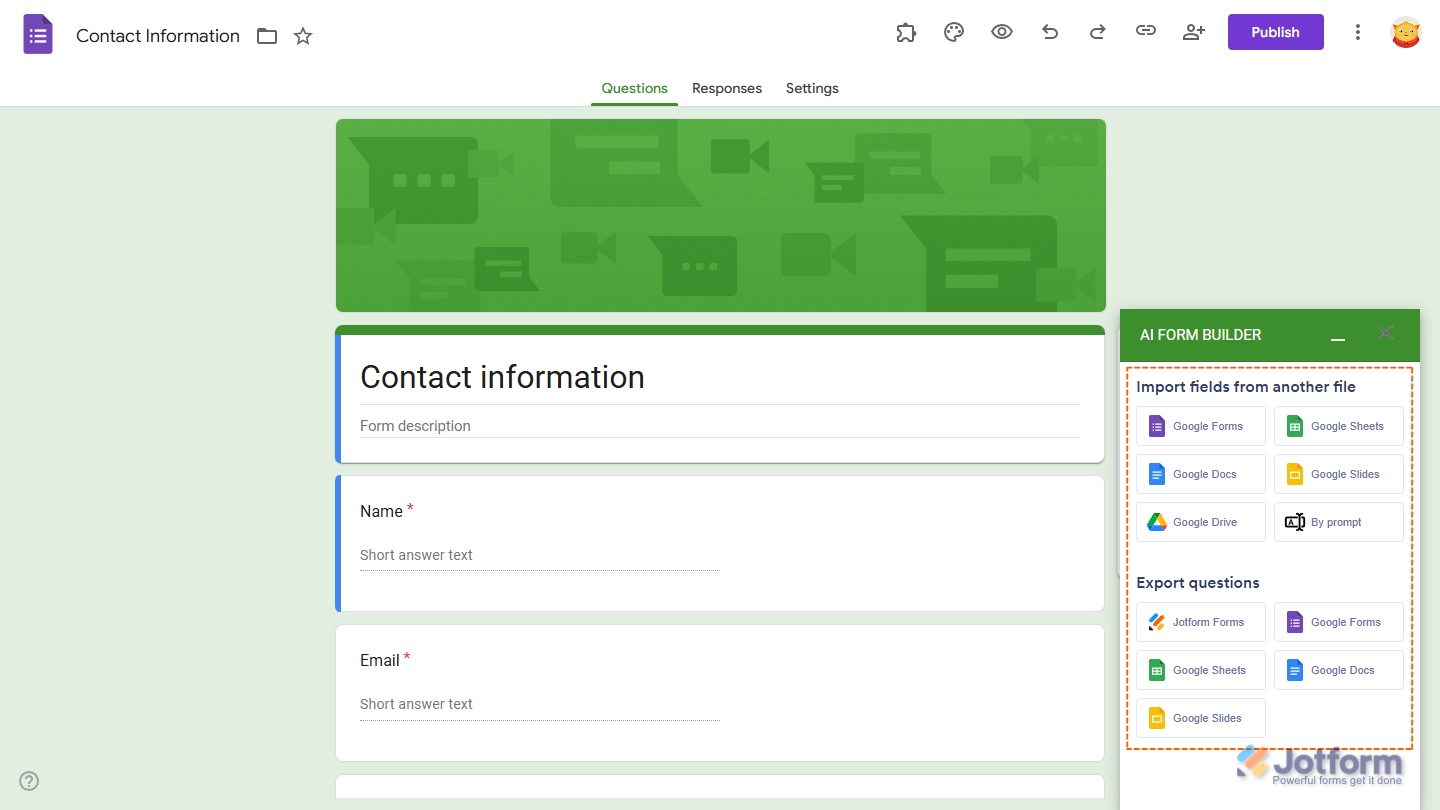
Importing Fields From Another File
You can import fields from another file to add questions to your form. Follow these quick steps to get started:
- In the Import Fields From Another File section in AI Form Builder, click one of the following import options:
- Google Forms — This lets you pull questions from another Google Form into your current form.
- Google Sheets — This allows you to import questions from a spreadsheet.
- Google Docs — This lets you import questions from a document and add them to your form quickly.
- Google Slides — This option allows you to extract questions from slides to include them as fields in your form.
- Google Drive — This lets you choose any supported file stored in your Google Drive to import questions from.

- Next, in the Select a File window, click on the file you want to import fields from. You can use the Search bar at the top of the window to find it easily.
- Then, click on Select.

- Now, in the Source Document section in AI Form Builder, select whether you want to format the imported fields for a form or a quiz. This option only shows when you choose a supported file that isn’t from Google Forms.
- Then, click on Get Questions.

You can also choose which worksheet the fields will come from if you selected a Google Sheets file.

- Next, click on See Questions, Preview Form, or Importing Settings to view or configure them in a pop-up window.

You can remove a check in the box next to any question from the file you selected to exclude it from your form.

You can preview how the imported questions will appear in your form to make sure everything looks right before adding them.

In the Import Settings section, you’ll see a list of options you can configure to control how questions are added to your form. You can choose where the fields appear in the form, pick which question types to include, decide whether questions are required or optional, and even sort or shuffle questions and options. You can also set how text and option types are handled, allow overwriting when importing, or select a random number of questions to include.

Note
Remember to click the Save button after making any changes to ensure your settings are applied.
- Once everything’s set, click on Import Questions.

That’s it! The fields you selected have now been added to your form and are ready to use.

Generating Questions with Prompts
You can generate new questions using prompts to quickly create questions for your form. Here’s how:
- In the AI Form Builder menu, in the Import Fields From Another File section, click on By Prompt.

- Now, in the Input box at the top of the Generate Questions with Prompt section, enter your prompt.
- Then, in Select a Form Type, select whether you want to format the generated questions for a form or a quiz.
- Next, click on the Dropdown menu below it and then select a language if you want a specific one for your questions. Or, keep it set to Auto-Detect Language to have them set automatically based on your form language.

- In the Number of Questions Input box, enter the number of questions you want to generate for your form. You can also use the Upward Arrow and Downward Arrow icons on the right side of it to increase or decrease the number. You can set it to a minimum of 1 question and a maximum of 10 questions at a time.
- Then, click on Generate Questions.

- Next, click on See Questions, Preview Form, or Importing Settings to view or configure them in a pop-up window.

You can remove a check in the box next to any generated question to exclude it from your form.

You can preview how the generated questions will appear in your form to make sure everything looks right before adding them.

In the Import Settings section, you’ll see a list of options you can configure to control how the generated questions are added to your form. You can choose where the fields appear in the form, pick which question types to include, decide whether questions are required or optional, and even sort or shuffle questions and options. You can also set how text and option types are handled, allow overwriting when importing, or select a random number of questions to include.

Note
Remember to click the Save button after making any changes to ensure your settings are applied.
- Once everything’s set, click on Import Questions.

That’s it! Your generated questions have been imported into your form and are ready to use.

Exporting Questions to Other Google Files
You can export questions from your form to other Google files, like Google Forms, Docs, Sheets, or Slides, to reuse or work with them outside your current form. Here’s what to do next:
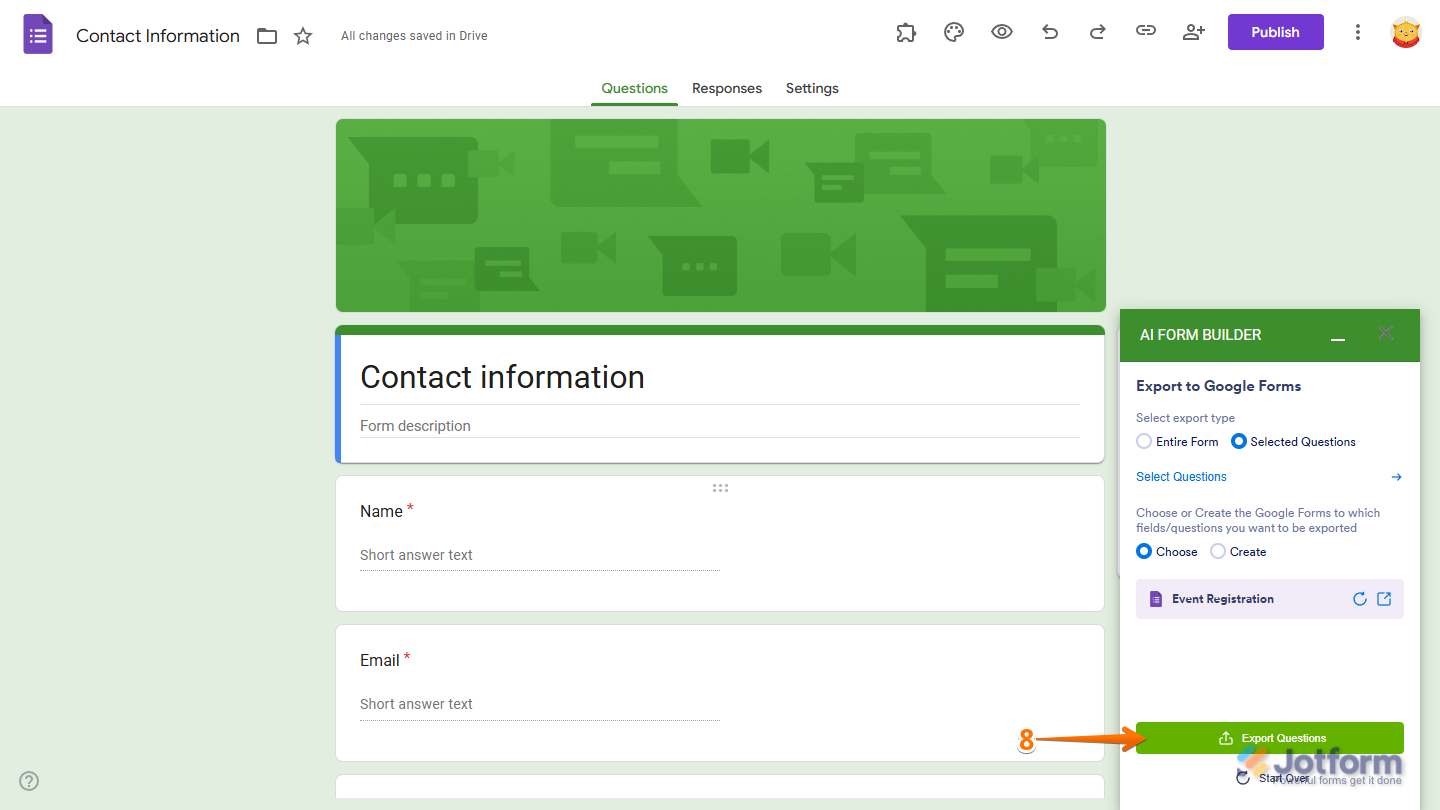
- In the AI Form Builder menu, in the Export Questions section, click one of the following export options:
- Google Forms — This allows you to export questions to another Google Form.
- Google Sheets — This lets you send your questions to a spreadsheet for easy storage or editing.
- Google Docs — This option allows you to export your questions to a document for reference or sharing.
- Google Slides — This lets you export your questions to Slides to use in presentations or training materials.

- Now, in the Select Export Type section, select Selected Questions to choose which questions to send to another file, and then click on Select Questions.

- In the Select Questions to Export window that pops up, remove the checks in the boxes next to the questions you don’t want to export.
- Then, click on Save.

If you want to send all the questions in your form to another file, you can select Entire Form instead.

- Next, select the Choose option, and then, depending on the export option you selected:
- Click on the Choose Google Forms button.
- Click on the Choose Google Sheets button.
- Click on the Choose Google Docs button.
- Click on the Choose Google Slides button.

- In the Select a File window that pops up, click on the file you want to export your questions to. You can use the Search bar at the top of the window to find it easily.
- Then, click on Select.

If you want to export your questions to a new file, select the Create option, enter the file name in the input box that appears below it, and then click on Create.

- Once everything’s set, click on Export Questions.
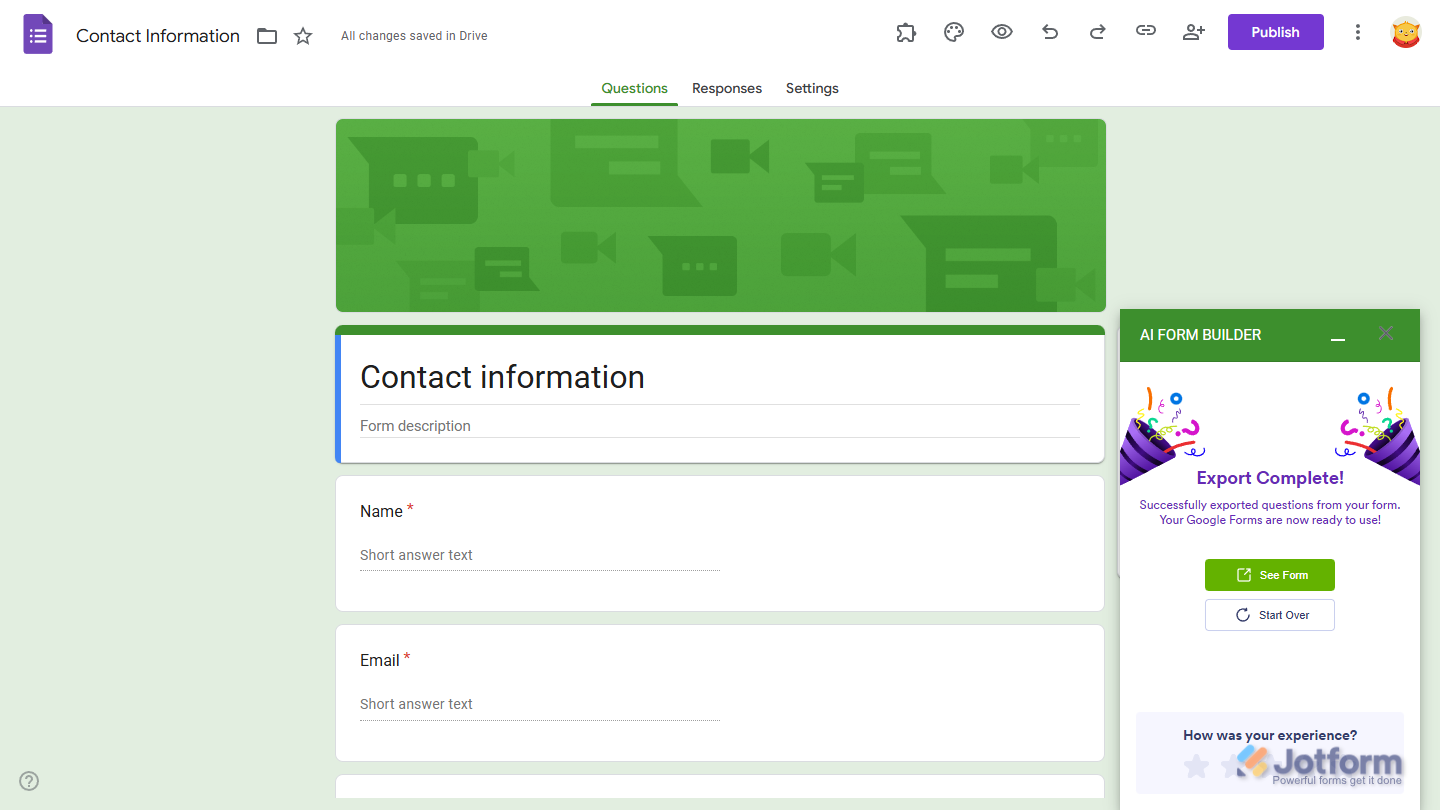
That’s it! You’ve successfully exported your questions. Click on the See Form button to open the Google file you chose or created with the new questions in a new browser tab.
Exporting Questions to Jotform Forms
You can export questions from your Google Form directly to a new Jotform form, making it easy to reuse your questions across platforms. Just set it up like this:
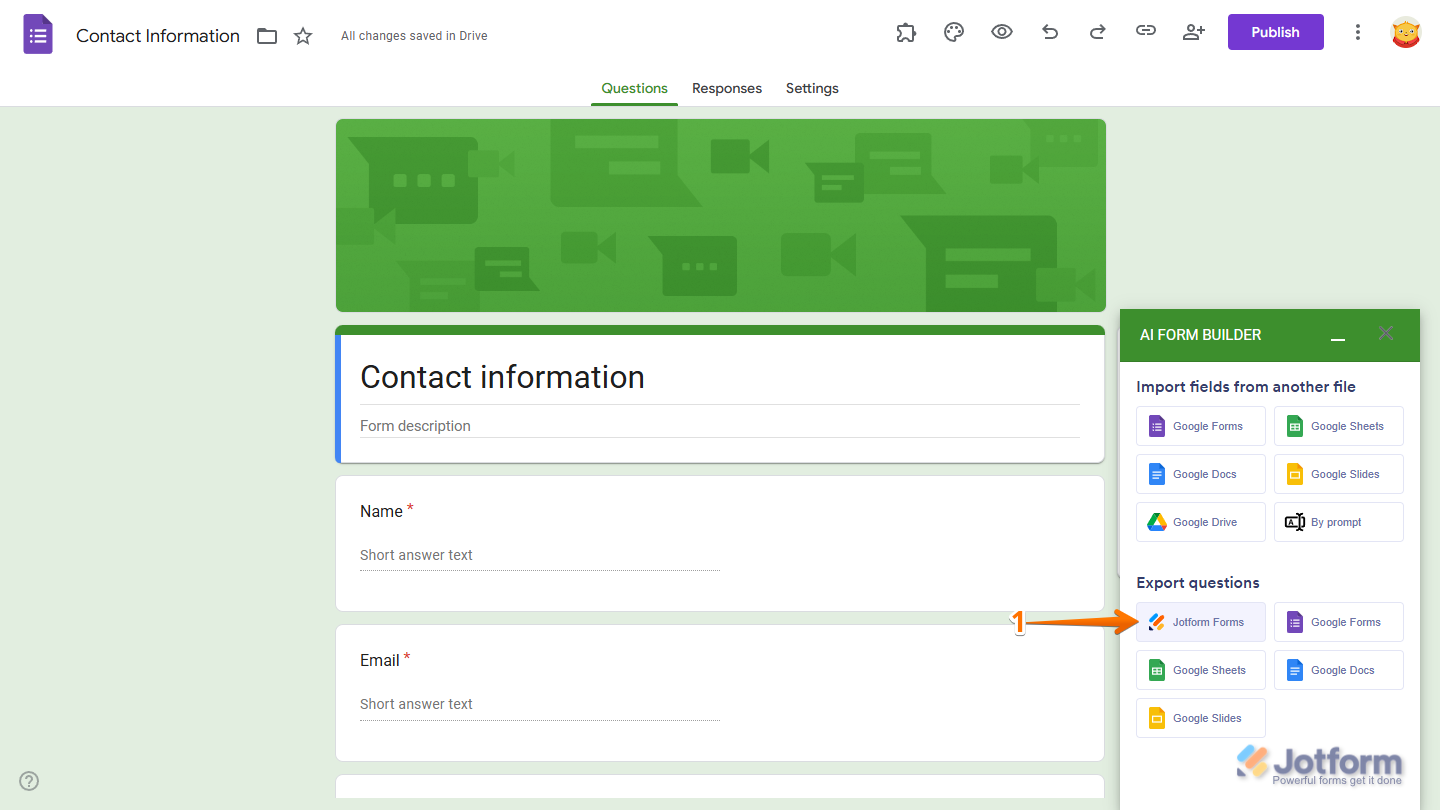
- In the AI Form Builder menu, in the Export Questions section, click on Jotform Forms.
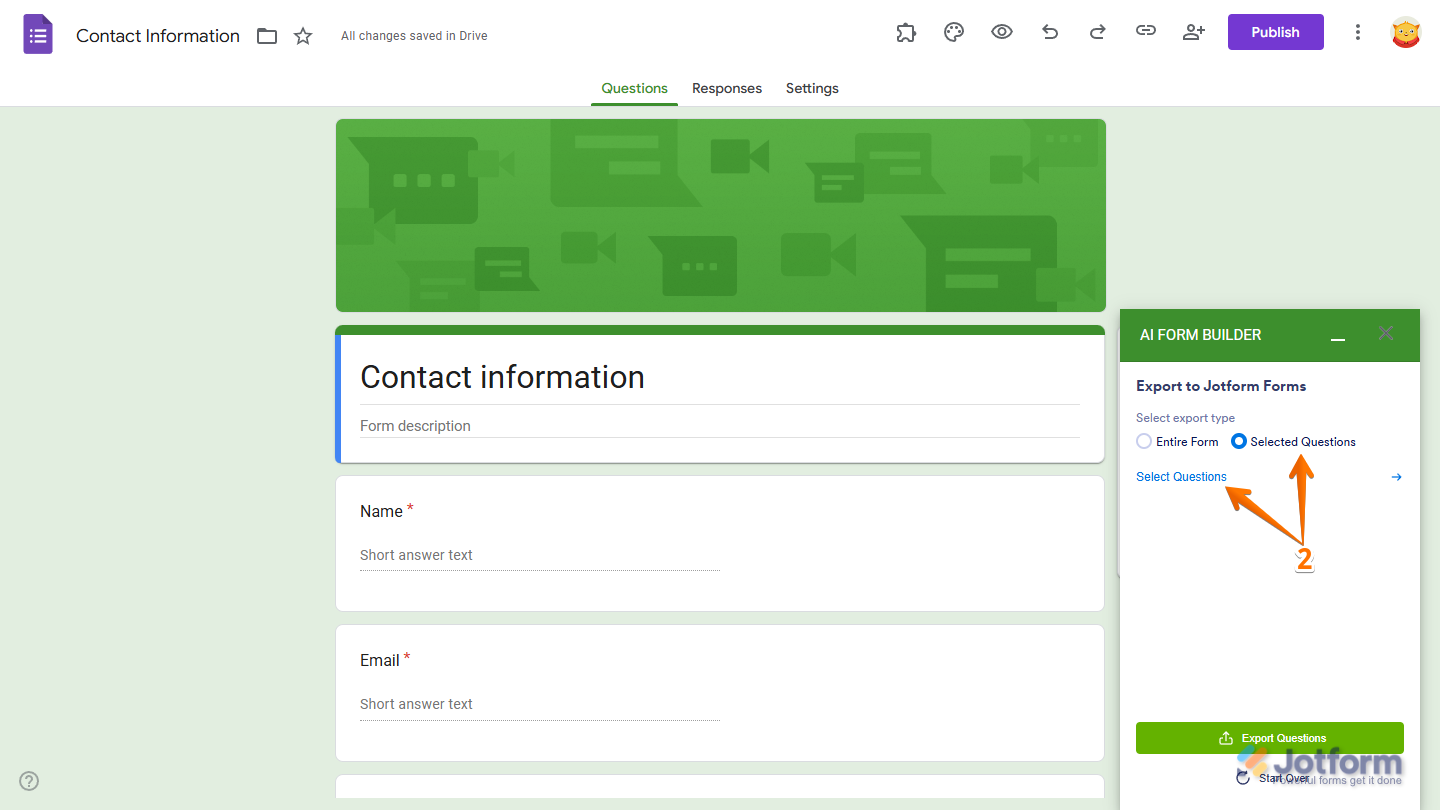
- Now, in the Select Export Type section, select Selected Questions to choose which questions to export, and then click on Select Questions.
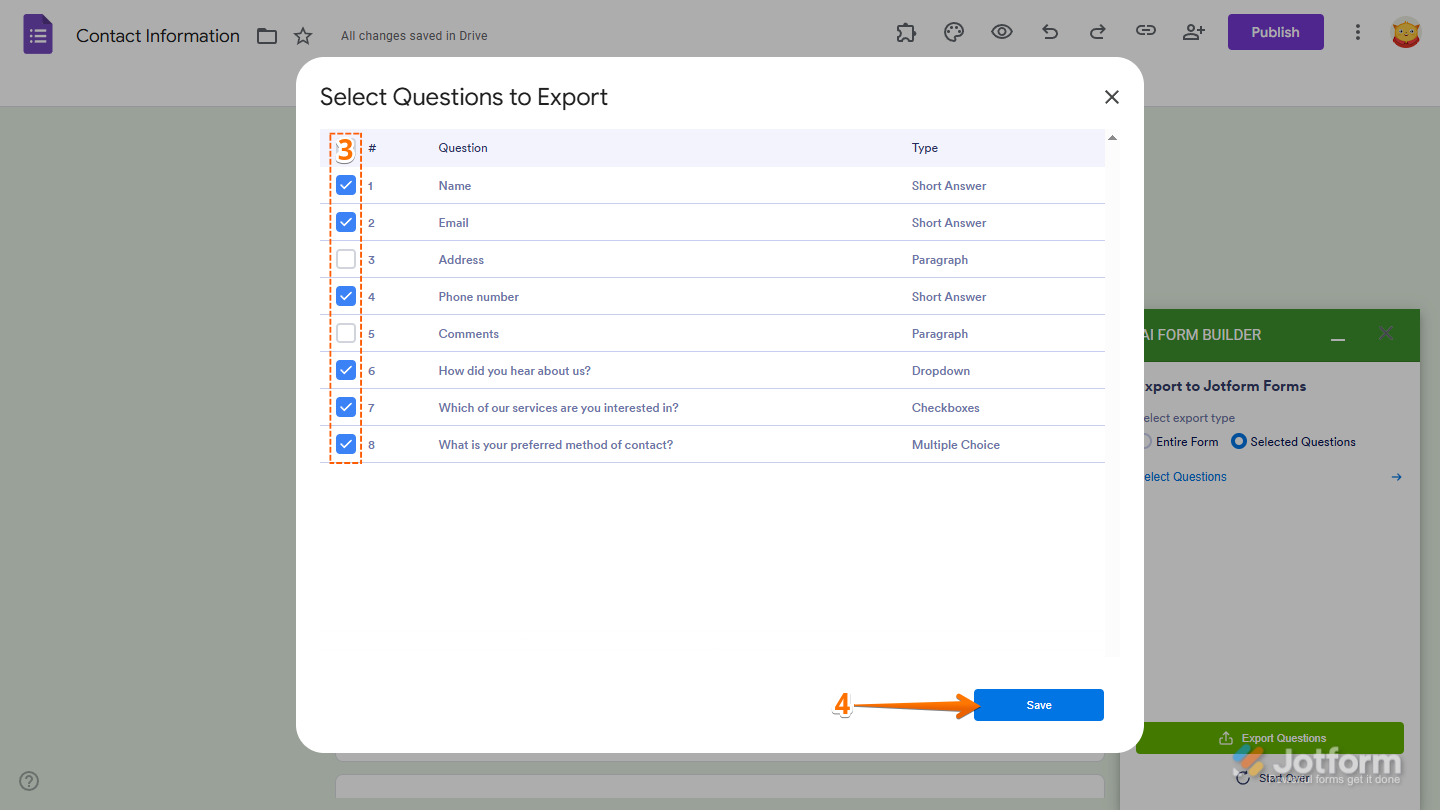
- In the Select Questions to Export window that pops up, remove the checks in the boxes next to the questions you don’t want to export.
- Then, click on Save.
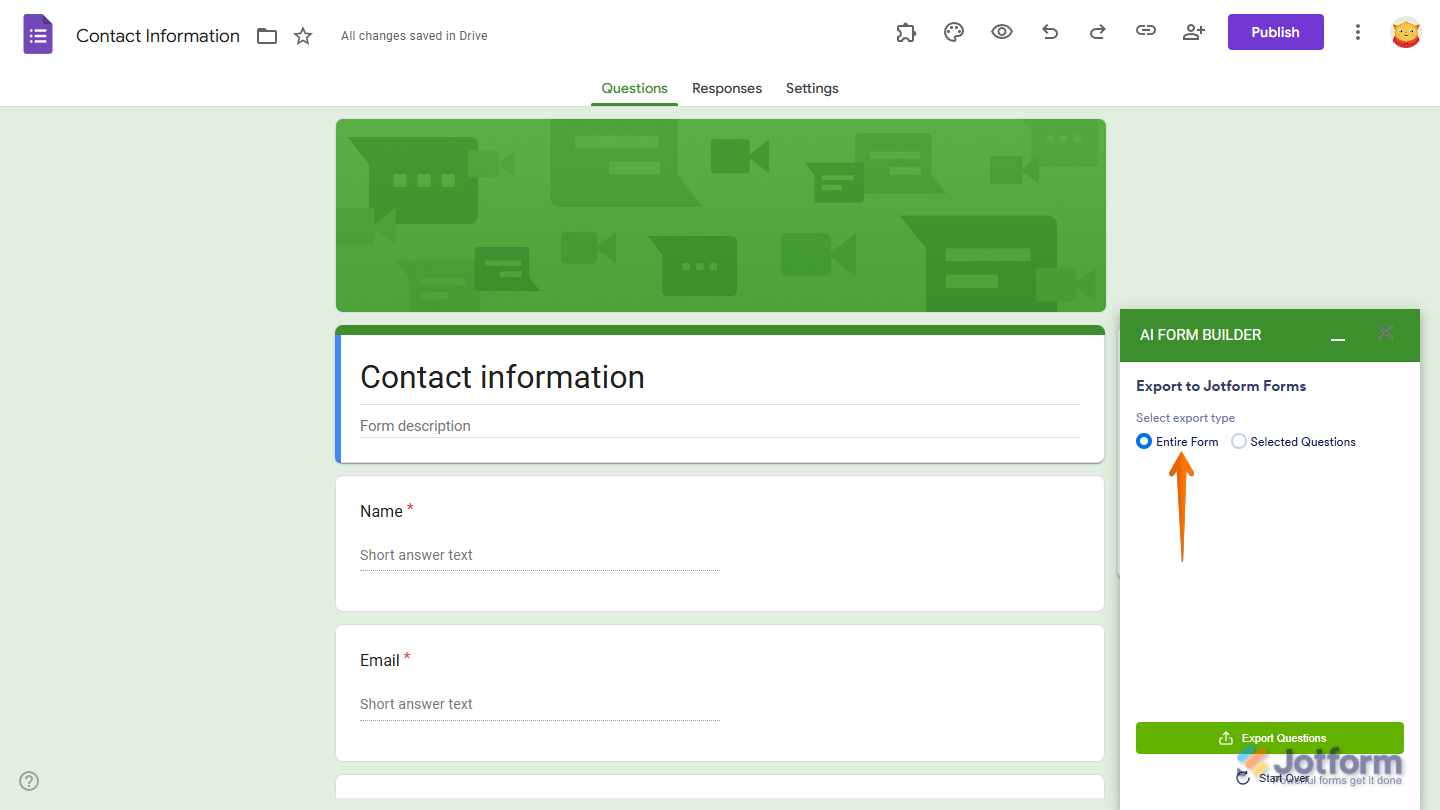
If you want to send all the questions in your form to a Jotform form, you can select Entire Form instead.
- Once everything’s set, click on Export Questions.
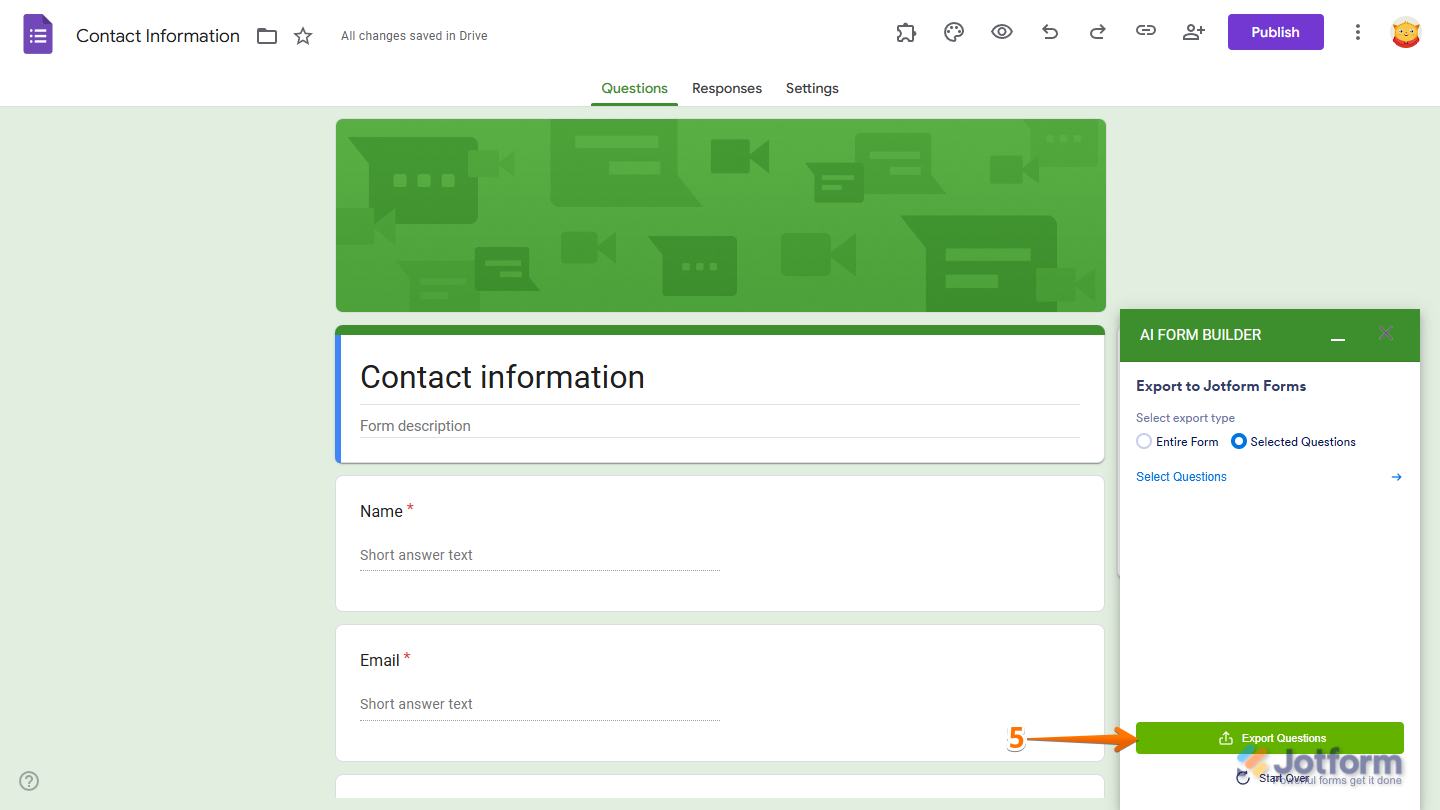
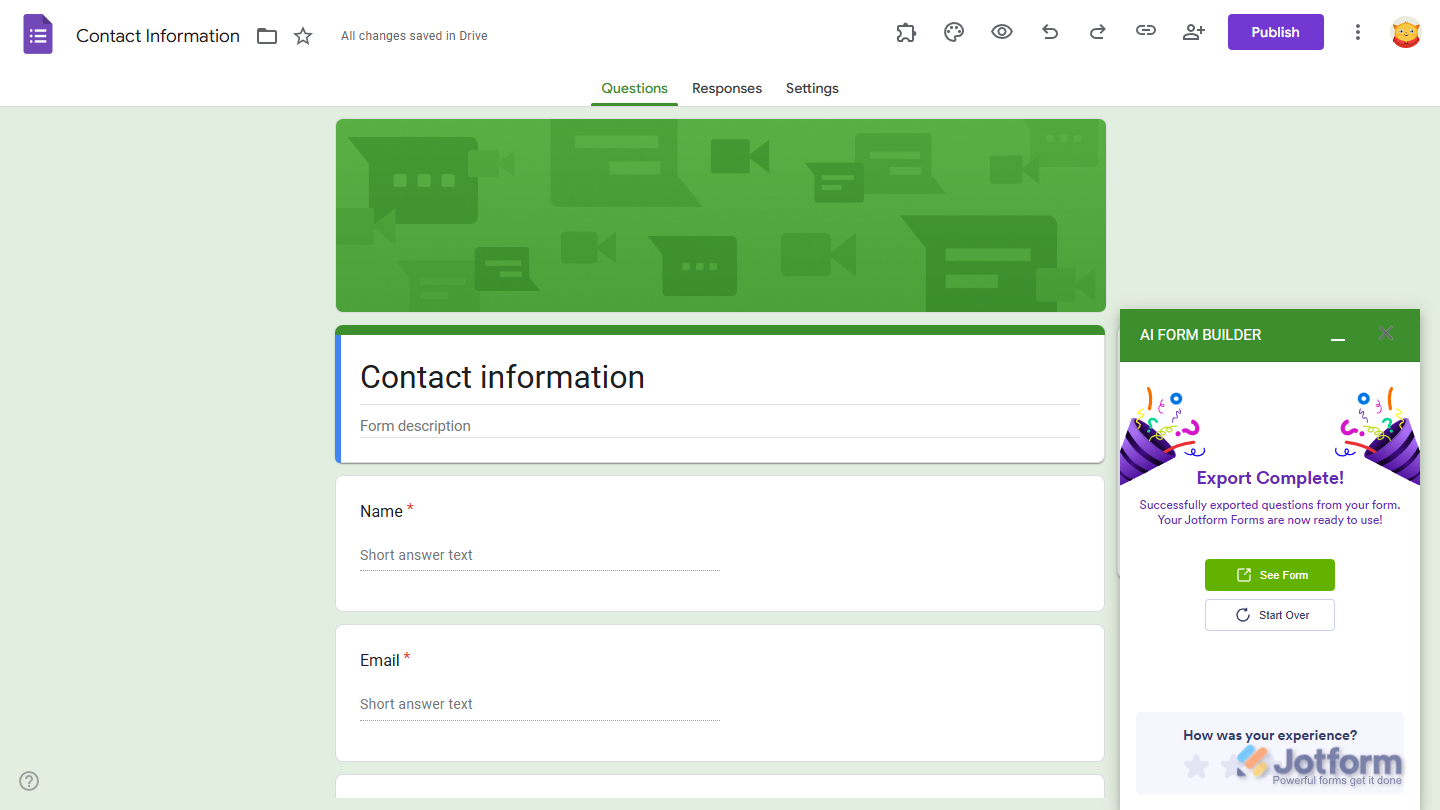
That’s it! You’ve successfully exported your questions. Click on the See Form button to open the newly created Jotform form with your questions in the Form Builder in a new browser tab.
Notes
- You’ll find the new form in the Jotform account linked to your Google Account. If you don’t have one yet, a new Jotform account will be created automatically.
- Your new form will appear in Jotform with the same name, prefixed by “[Imported].” If you want, you can change the form name later. You’ll find all the steps in our guide on How to Rename Your Form.

Send Comment: