Displaying a PDF file on your website is a simple way to share documents such as brochures, manuals, reports, menus, forms, or presentations without requiring visitors to download them first. Instead of opening a separate file, users can view the PDF directly on your website for a smoother browsing experience.
With the PDF File Embed widget, it’s easy to display PDF files on your website without any coding experience. Jotform lets you customize the viewer’s appearance, adjust display settings, and seamlessly match the widget to your website’s overall design.
Creating and Getting Your PDF Widget Embed Code
To embed a PDF File on your website, you’ll first need to configure the PDF Embed widget and copy its embed code. Here’s how to get started:
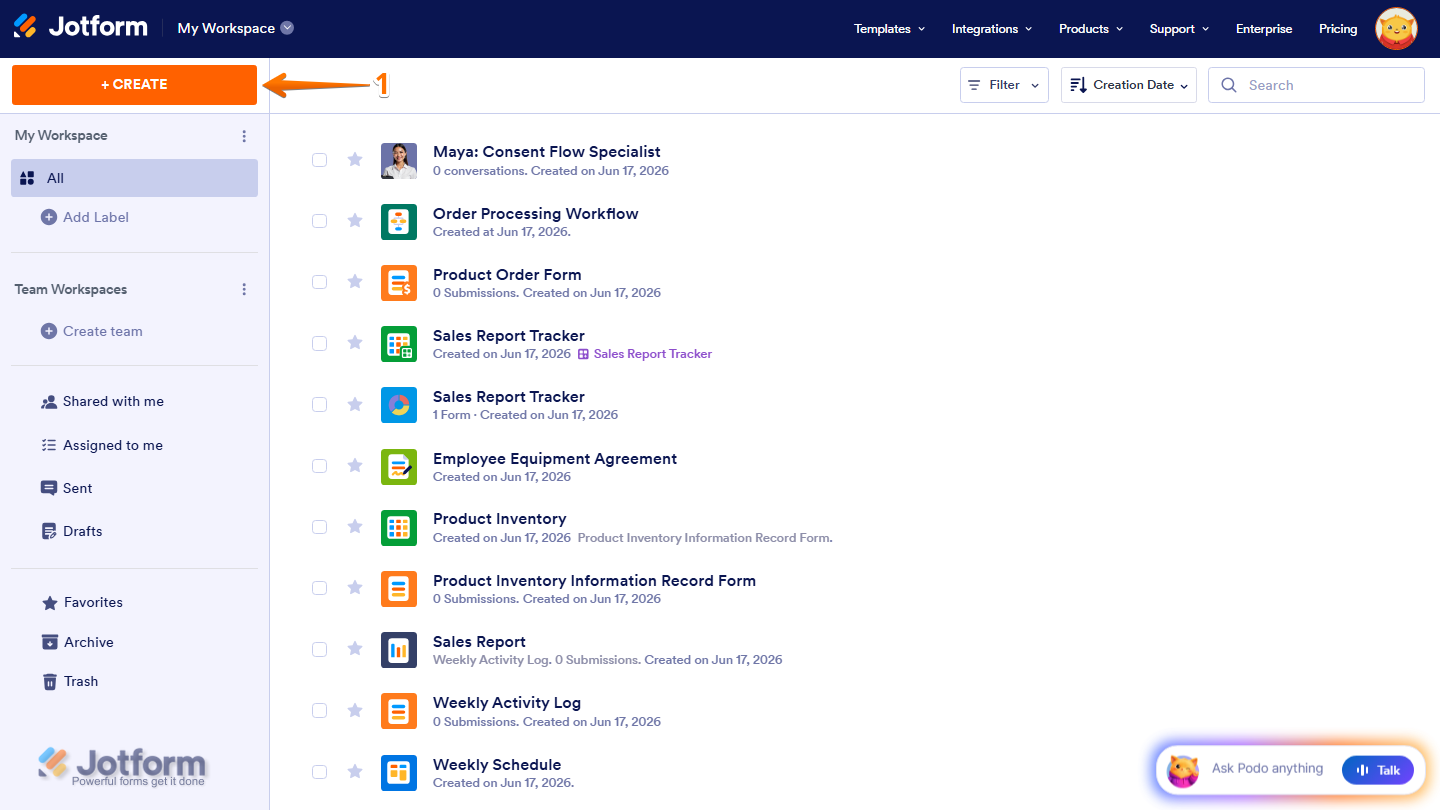
- On your Workspace page, click on Create on the top-left side of the page.
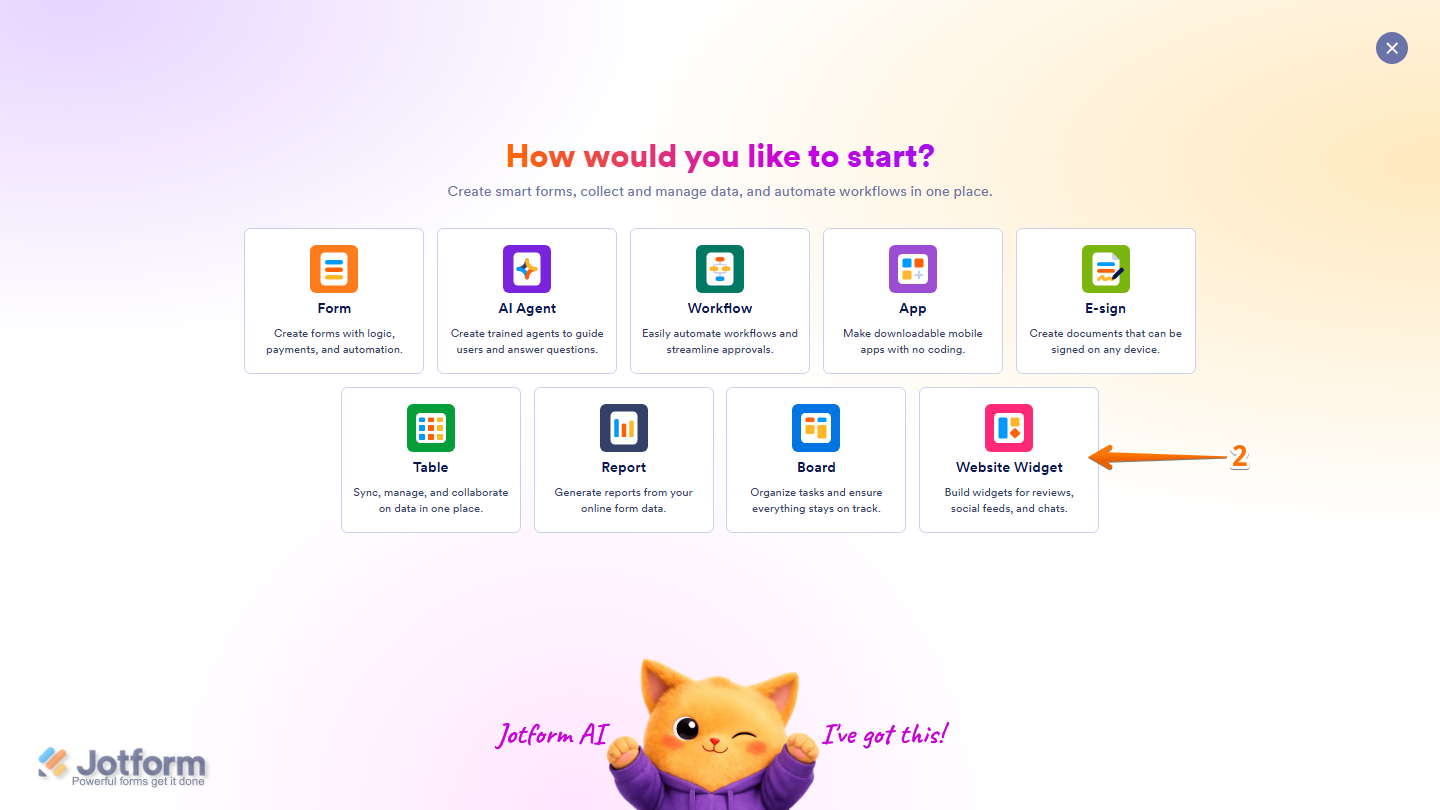
- Then, in the window that opens up, select Website Widget from the assets.
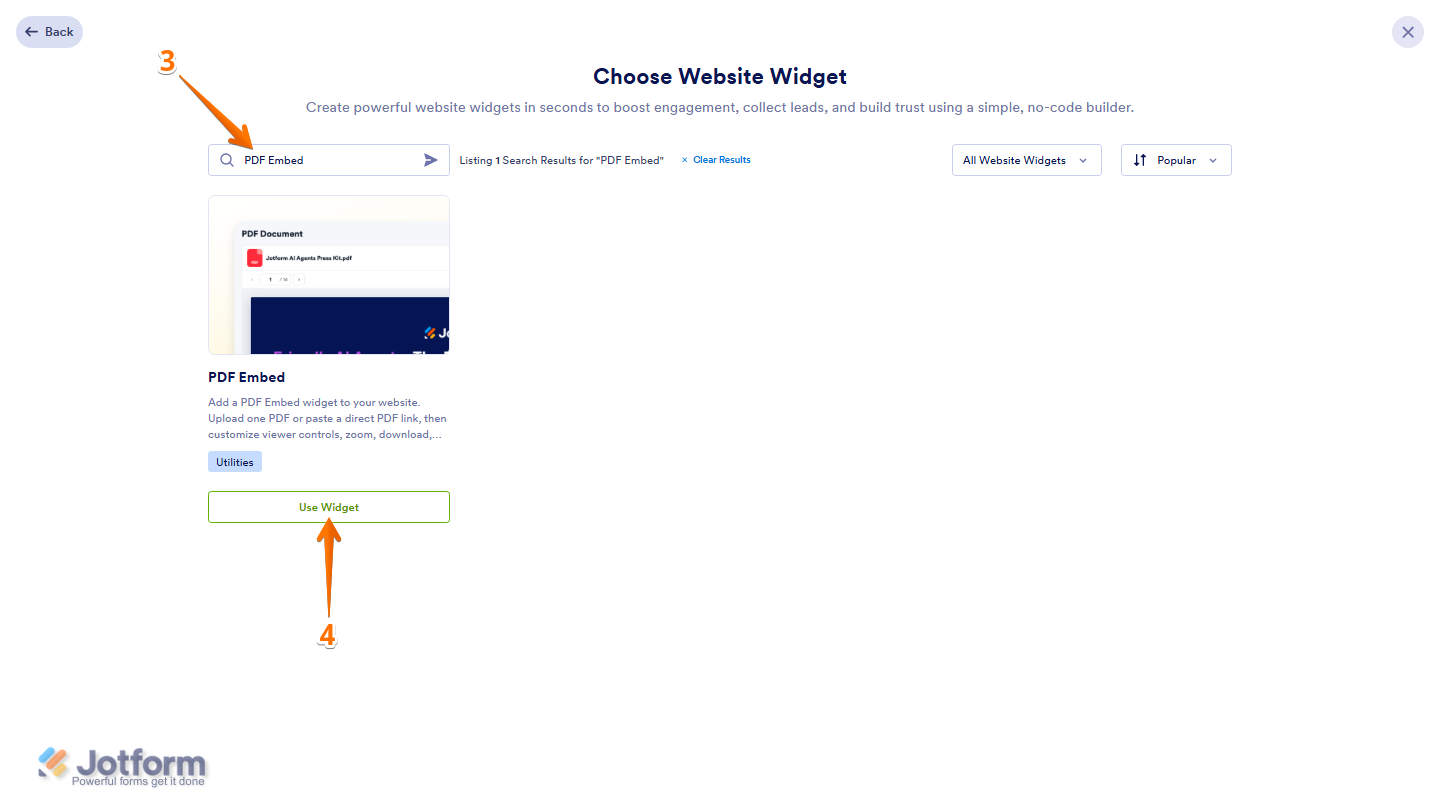
- Next, in the Search bar at the top of the Choose Website Widget page, search for the PDF Embed.
- Now, in the search results, click on Use Widget.
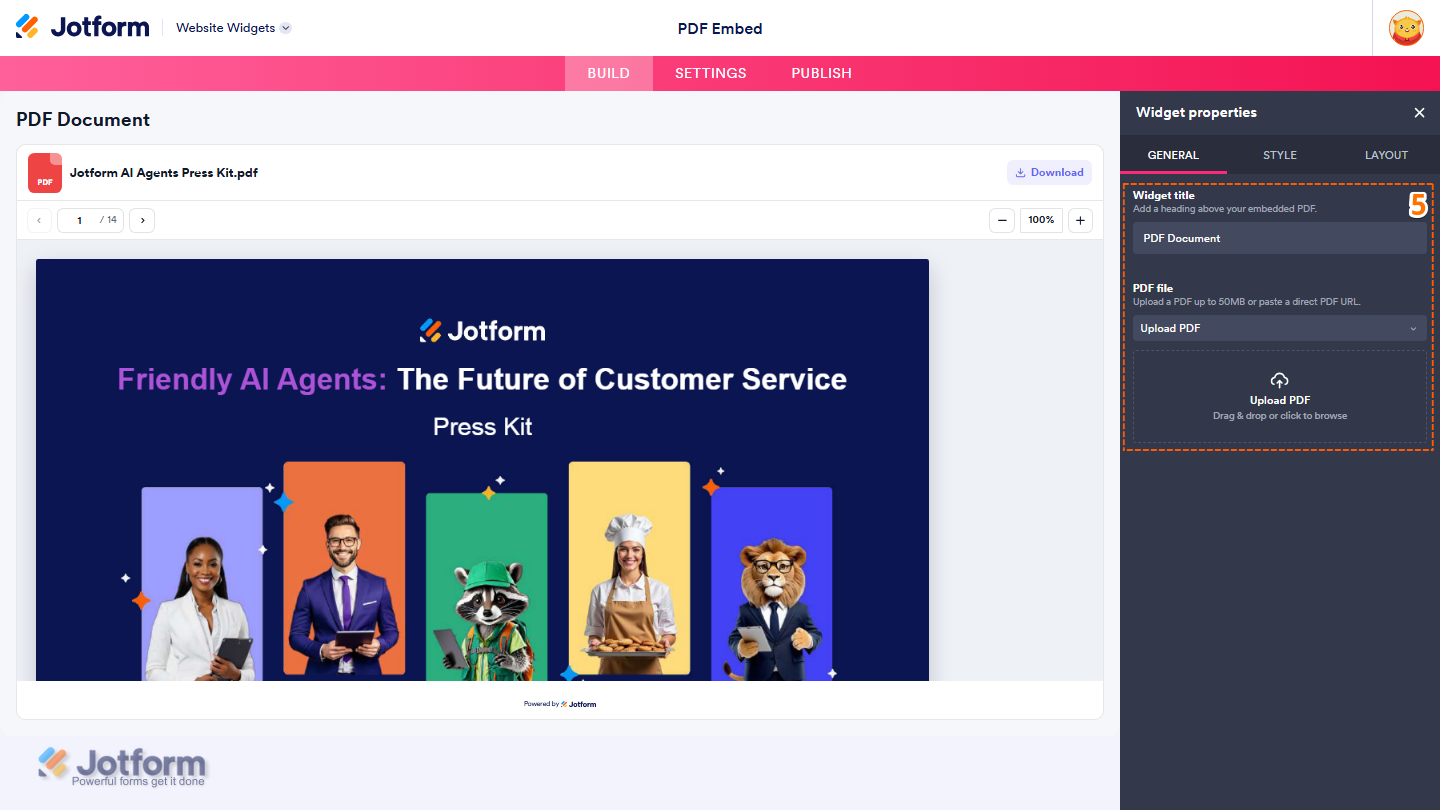
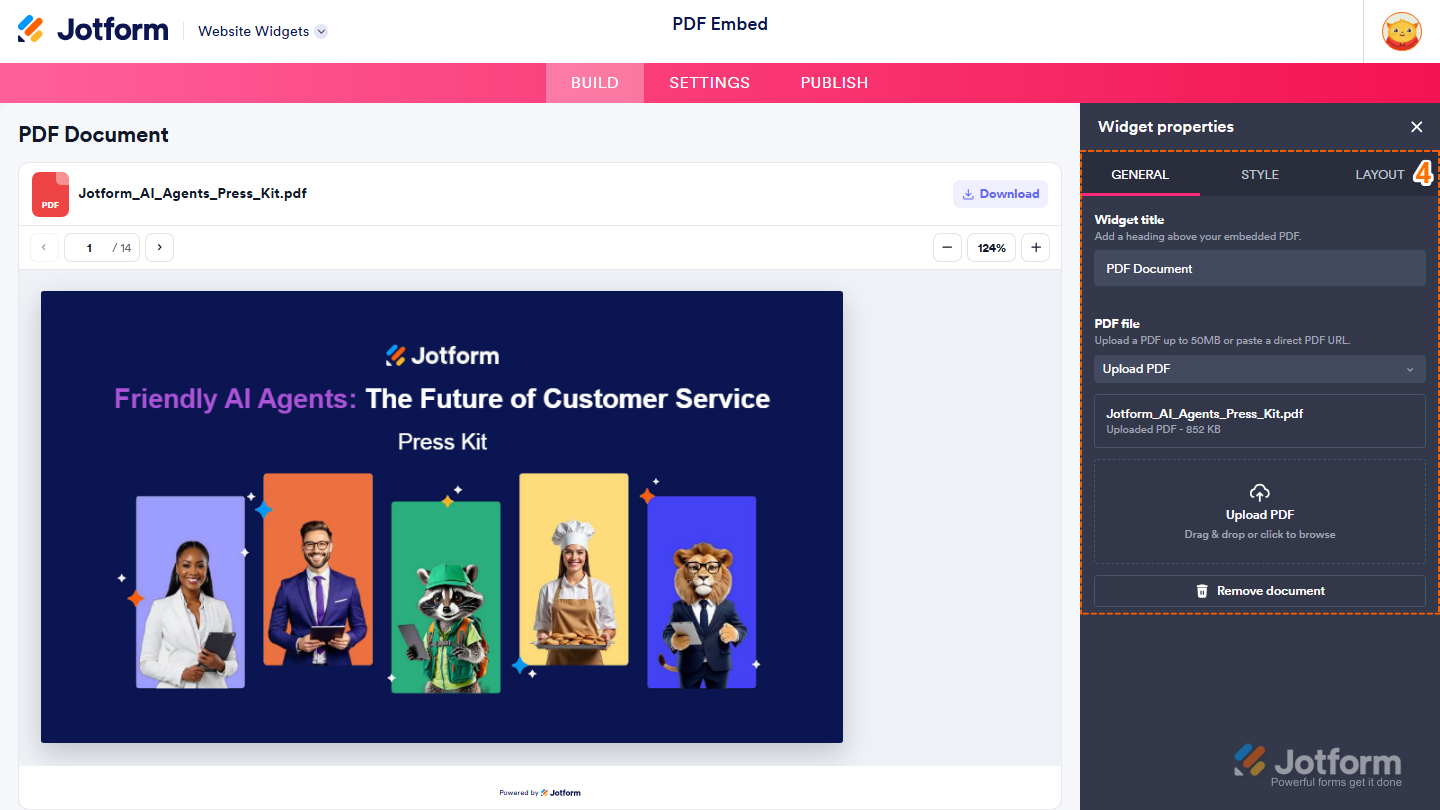
- Once the widget opens, the Widget Properties menu will automatically appear on the right side of the Website Widgets. Under the General tab, set up the following options:
- Widget Title — Enter the title displayed above the embedded PDF.
- PDF File — Drag and drop a PDF file from your device into the Upload Area, or select PDF URL from the Dropdown menu and paste the direct URL of your PDF.
Note
- If you choose Paste a Direct PDF URL, the widget automatically validates the link after you paste it. You can also click on Check PDF URL at any time to validate it again.
- Make sure the URL points directly to a PDF file that opens in your browser. Links from file-sharing services, such as Google Drive, may not work.
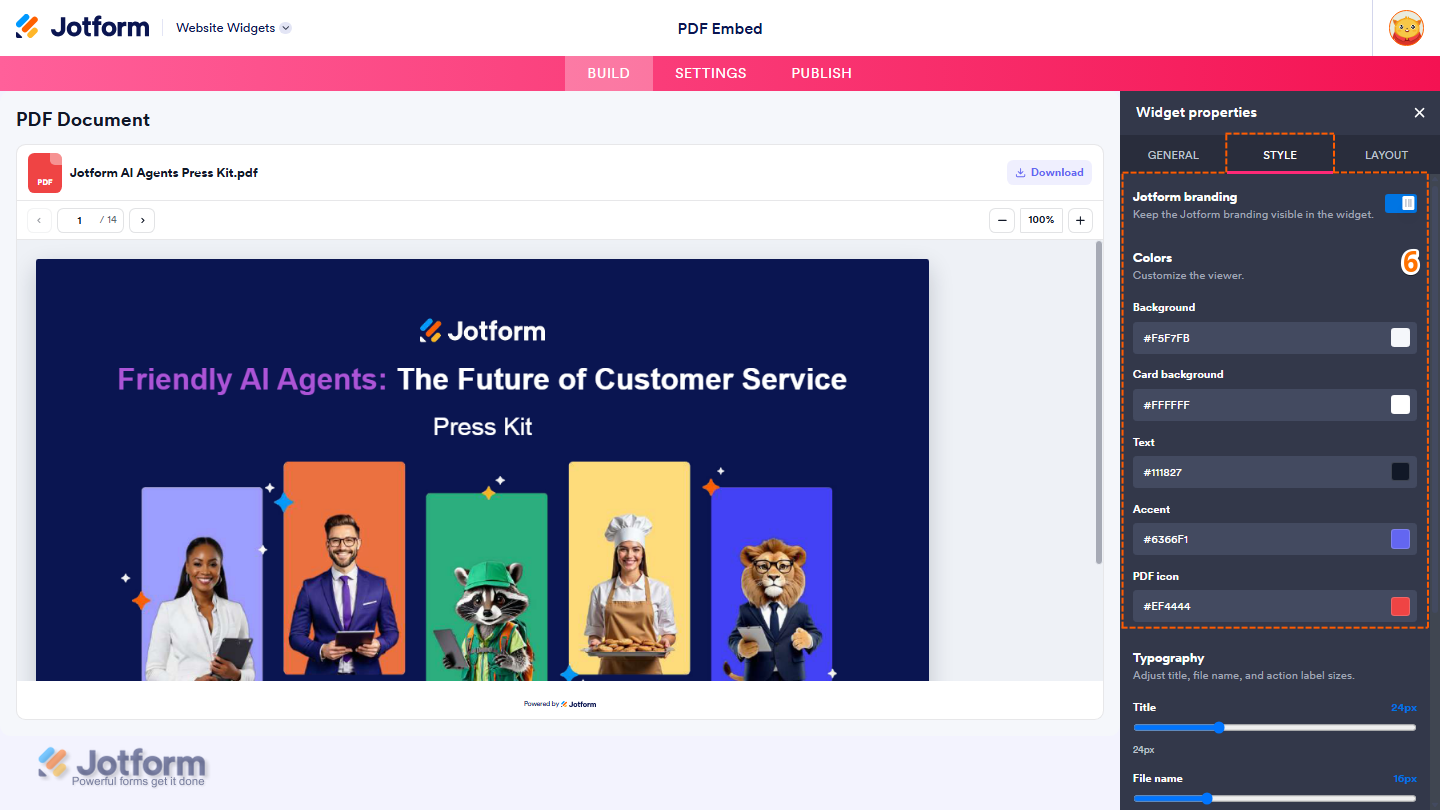
- Next, under the Style tab, personalize the appearance of your PDF viewer with these options:
- Jotform Branding — Show or hide Jotform branding on the widget.
- Background — Set the background color of the widget.
- Card Background — Choose the background color for the PDF card.
- Text — Customize the text color.
- Accent — Select the accent color used throughout the widget.
- PDF Icon — Choose the color of the PDF file icon.
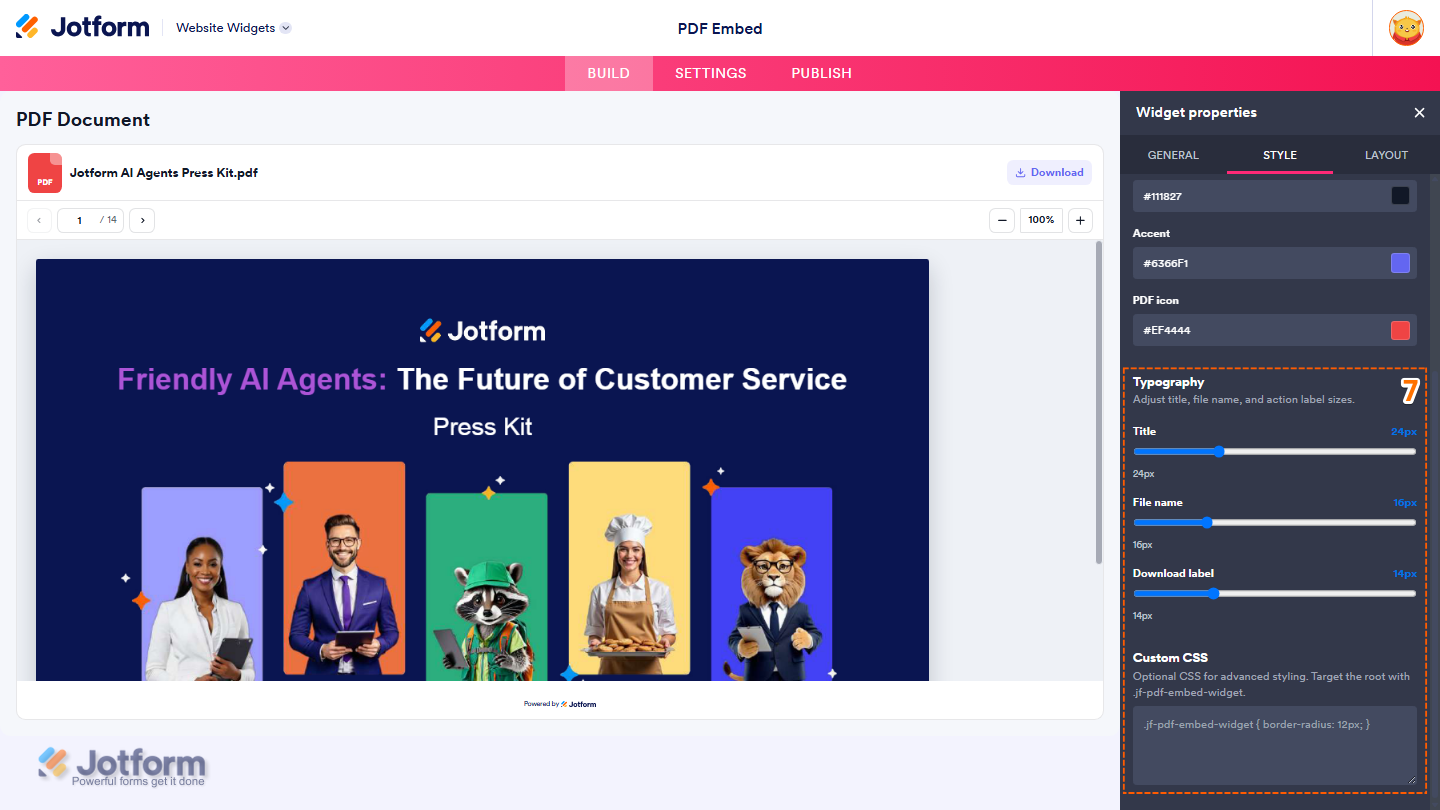
- Then, scroll down to continue customizing these things:
- Title — Adjust the size of the widget title.
- File Name — Set the size of the PDF file name.
- Download Label — Adjust the size of the download button label.
- Custom CSS — Add your own CSS for advanced styling.
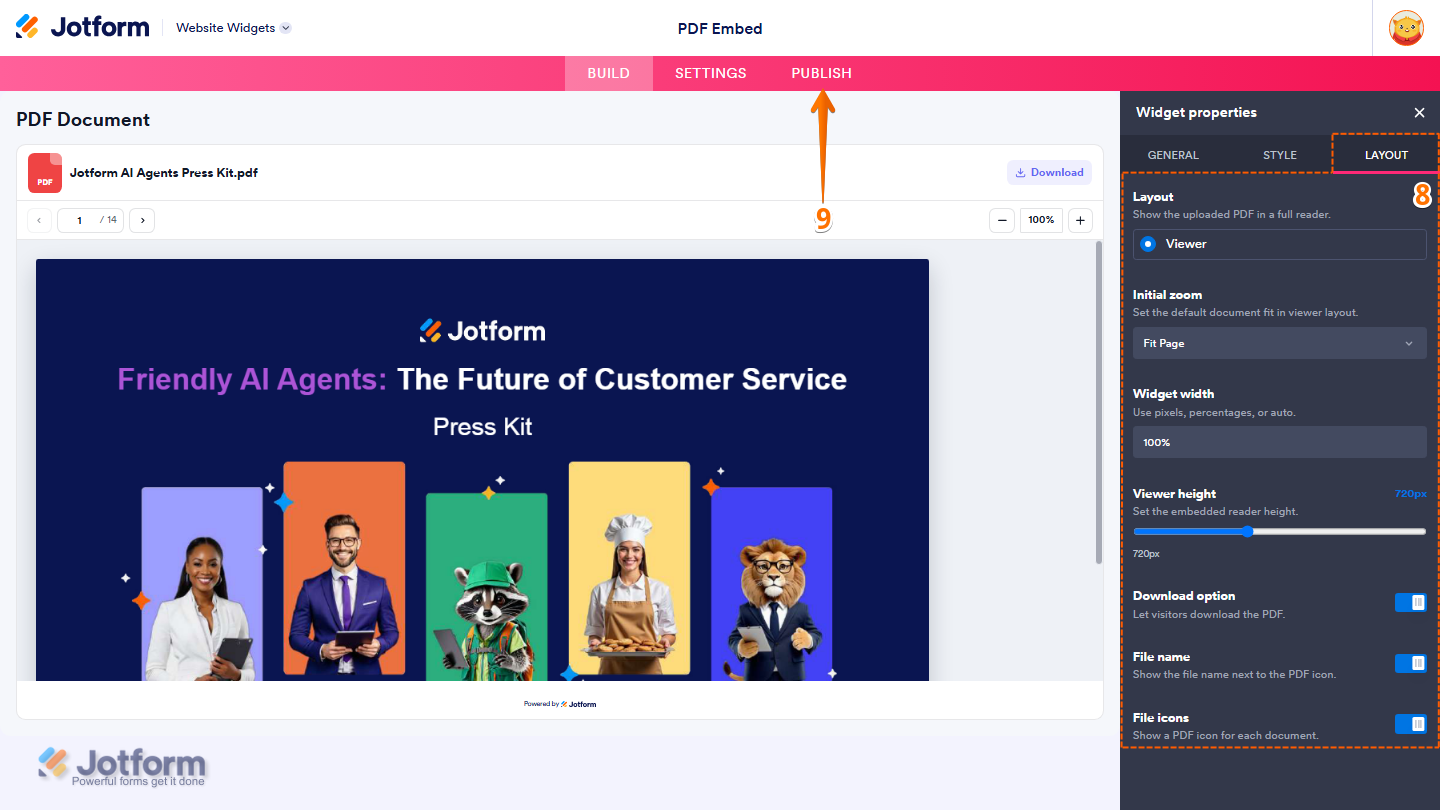
- Next, under the Layout tab, adjust these layout settings:
- Layout — Choose how the PDF is displayed.
- Initial Zoom — Set the default zoom level when the PDF opens.
- Widget Width — Adjust the width of the embedded PDF viewer.
- Viewer Height — Adjust the height of the embedded PDF viewer
- Download Option — Choose whether visitors can download the PDF.
- File Name — Choose whether to display the PDF file name.
- File Icons — Choose whether to display the PDF file icon.
- Once you’ve finished configuring the widget, in the pink navigation bar on the top of the page, click on Publish.
Note
If you’re not logged in, you’ll be asked to log in to your Jotform account or sign up for one. Once you’ve done that, you’ll be able to get the embed code for your widget.
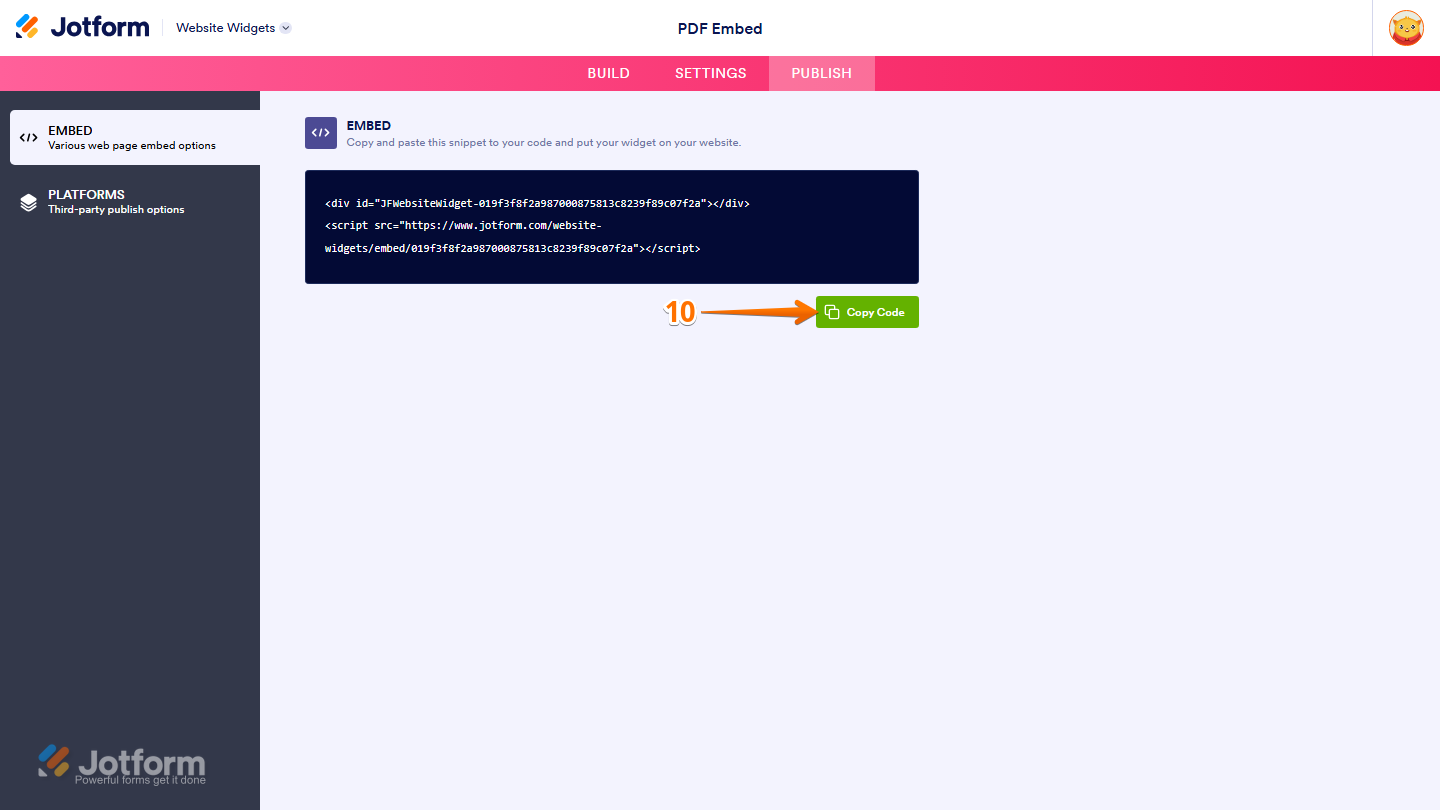
- Finally, in the Embed section, click on Copy Code.
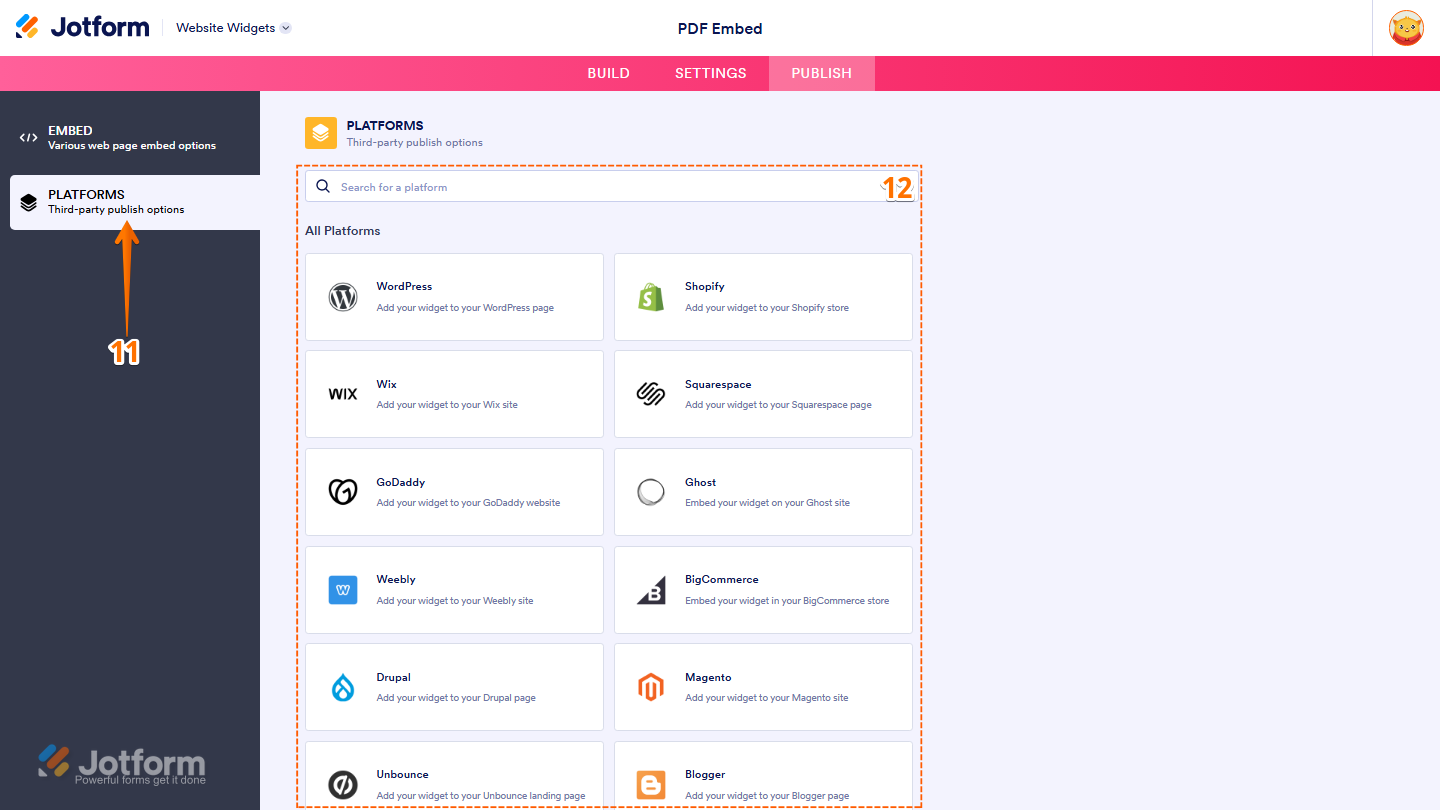
- Or, if your website is built on a supported platform, in the menu on the left side of the page, click on Platforms.
- Then, search for or select your platform to copy the embed code and view platform-specific embedding instructions, and you’re done.
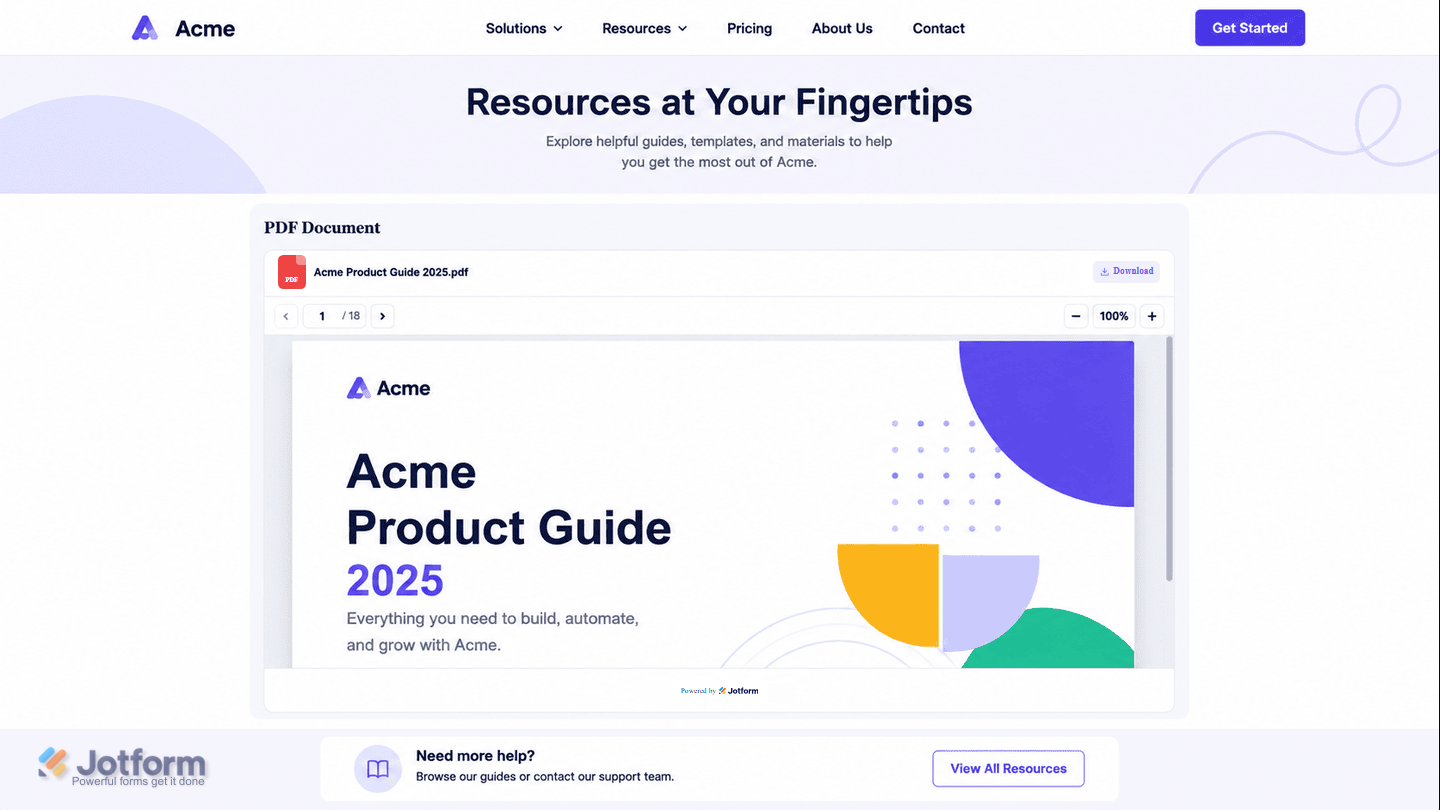
That’s it! You can now paste the copied embed code into your website or follow the platform-specific instructions to add the widget to your site. The screenshot below shows an example of how your PDF File will look when embedded:
Updating Your PDF Embed Widget
You can update your PDF Embed widget at any time after it’s embedded on your website. Here’s a quick how-to:
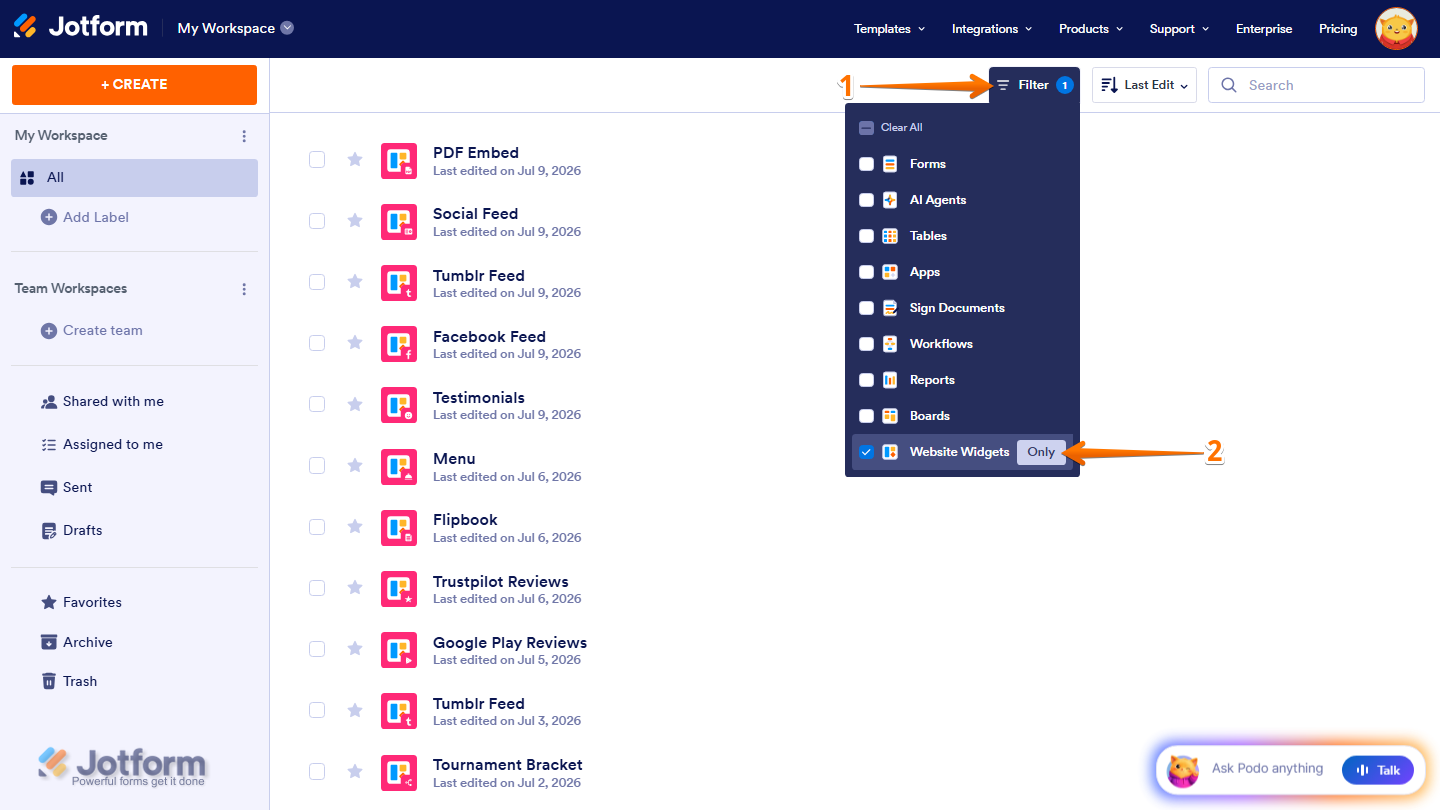
- On your Workspace page, at the top, click on Filter.
- Then, in the menu that opens, hover over Website Widgets and click on Only to display only website widgets assets on the page.
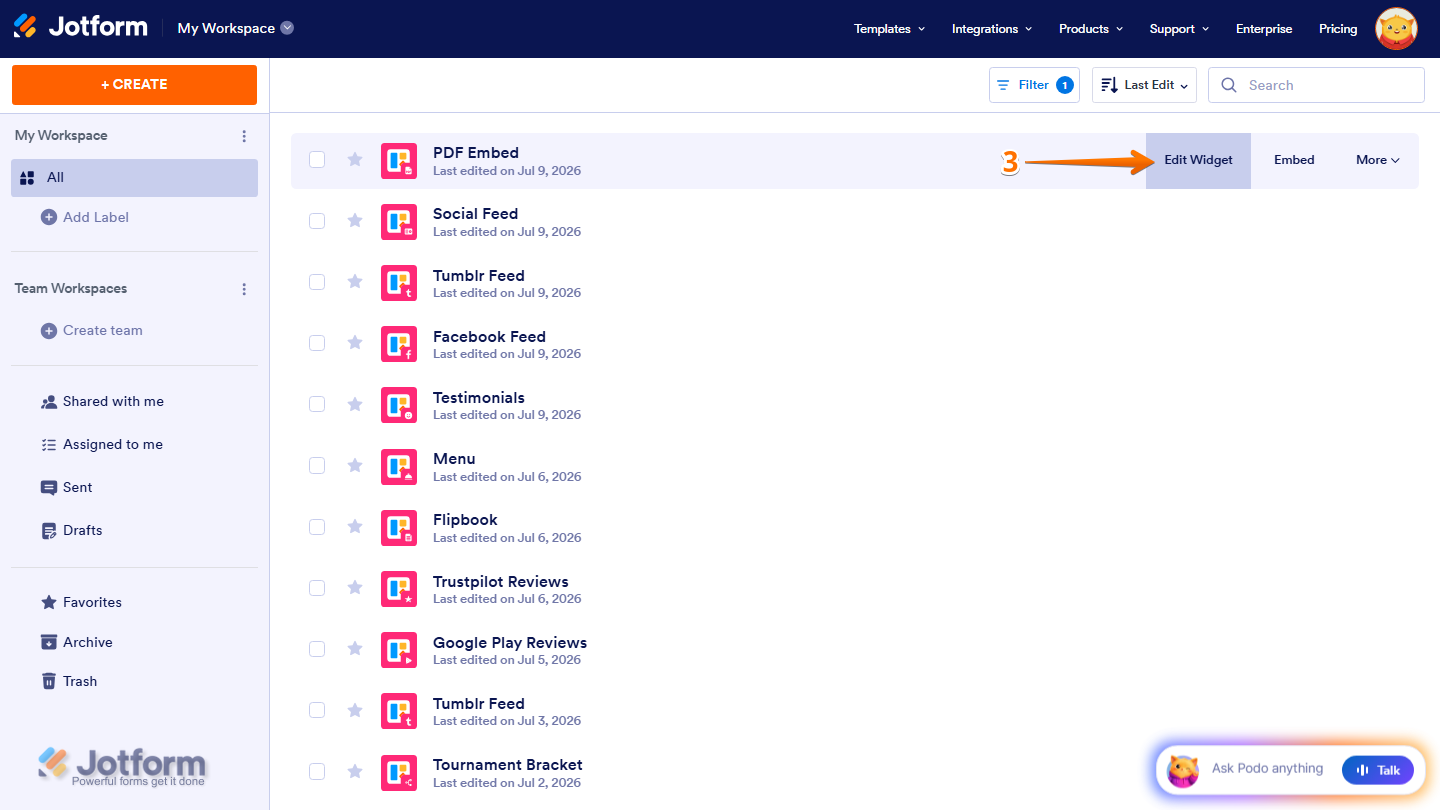
- Next, hover your mouse over the widget you want to edit and click on Edit Widget on the right side of the page.
- Now, in the Widget Properties menu that opens on the right side of Website Widgets, under the General, Style, and Layout tabs, edit the properties to change how your PDF Embed widget looks and works on your website.
That’s it! Your changes will be applied to your PDF Embed widget automatically.
Note
Your PDF Embed widget remains editable after it’s embedded on your website. Any changes you make will automatically appear on your website without requiring a new embed code.


Send Comment: