Learn how to secure your organization’s logins using the Jotform Enterprise Mobile App. This walkthrough covers the admin setup, user configuration, and the day-to-day login experience.
Enable Mobile App Authentication Organization-Wide
To begin, admins must enable the mobile app authentication method for the entire organization within the Admin Console.
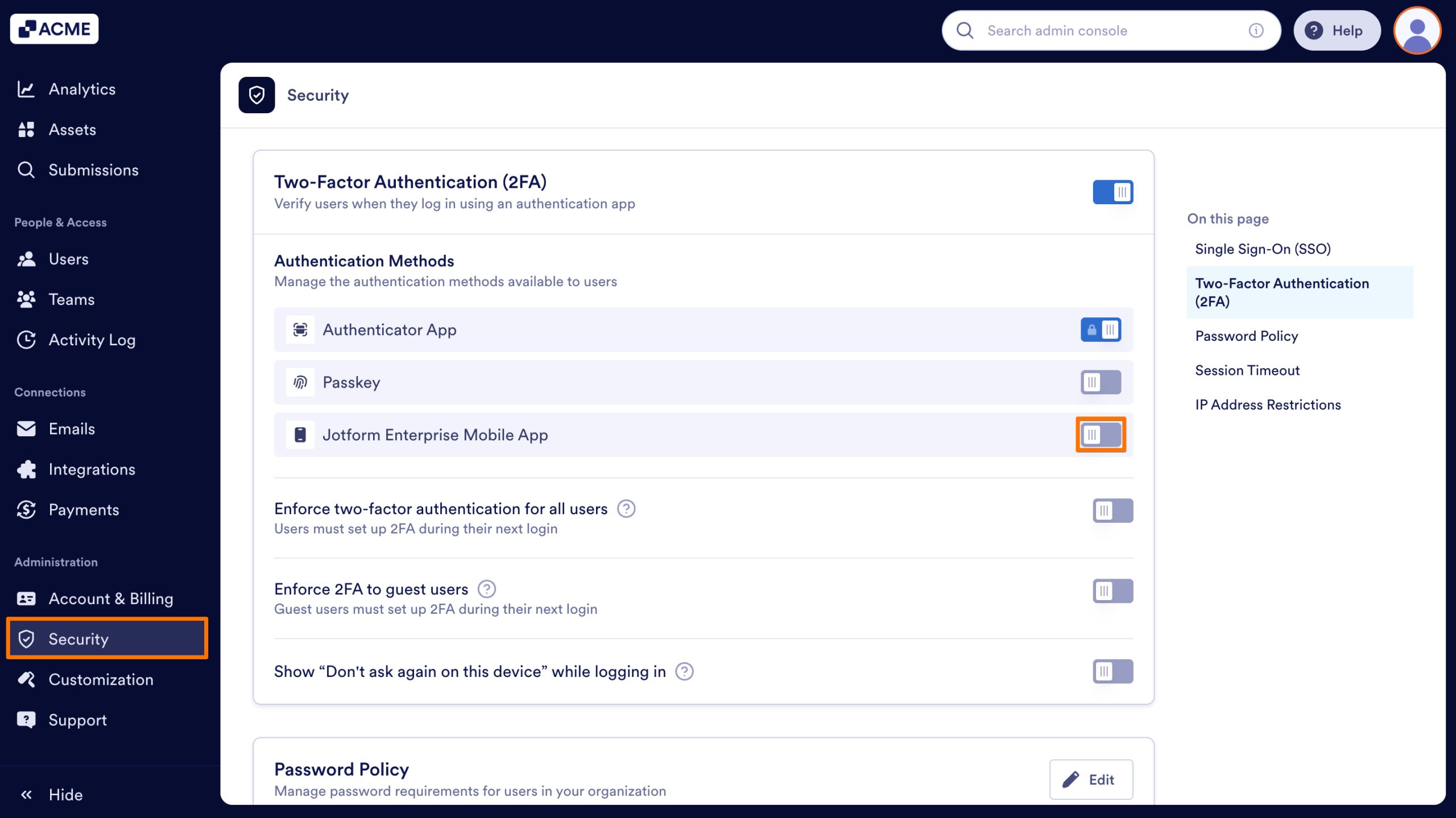
- Starting in the Admin Console, on the left side of the page, click on the Security tab.
- Next, in the Authentication Methods section, toggle the Jotform Enterprise Mobile App switch.
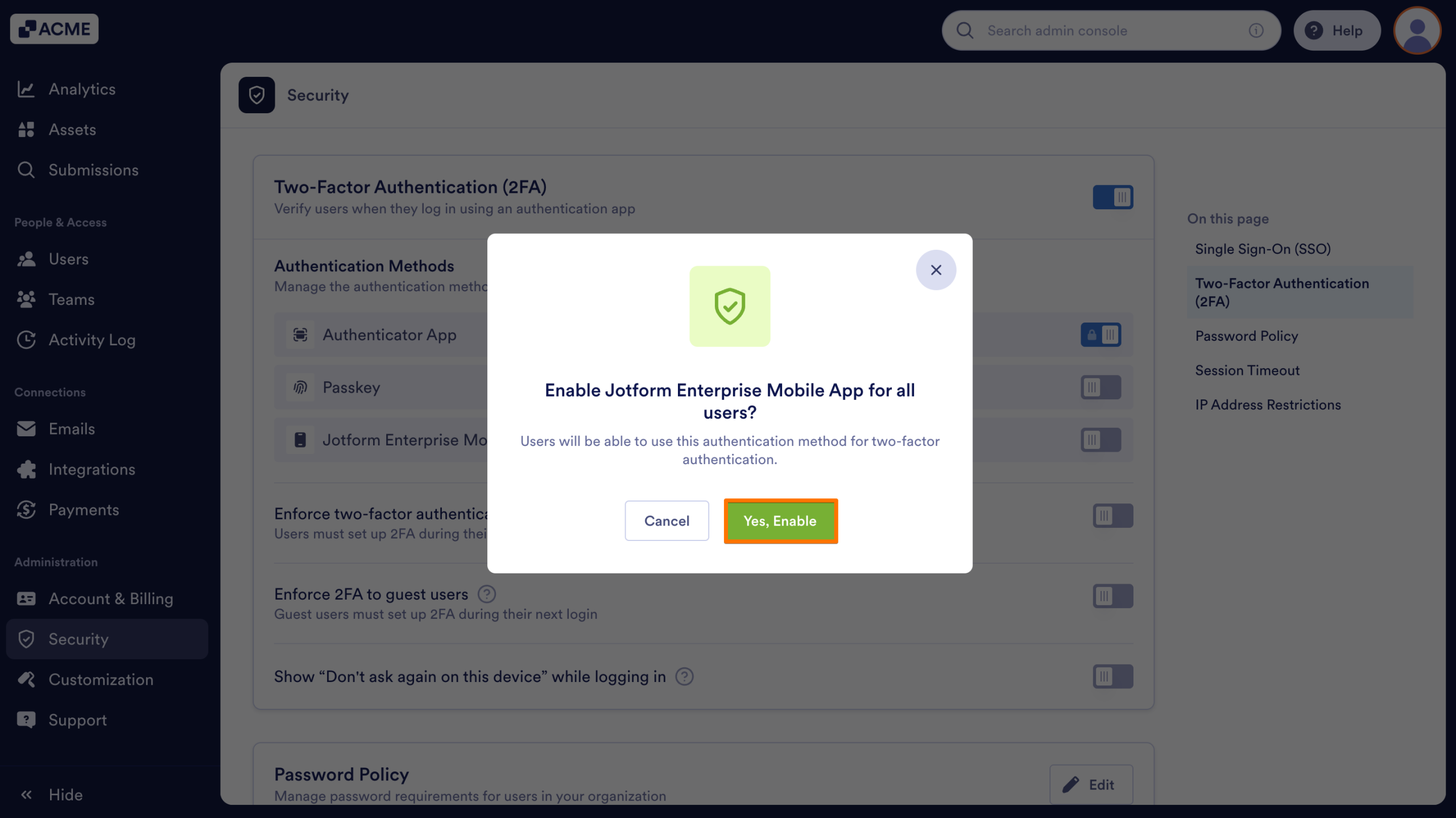
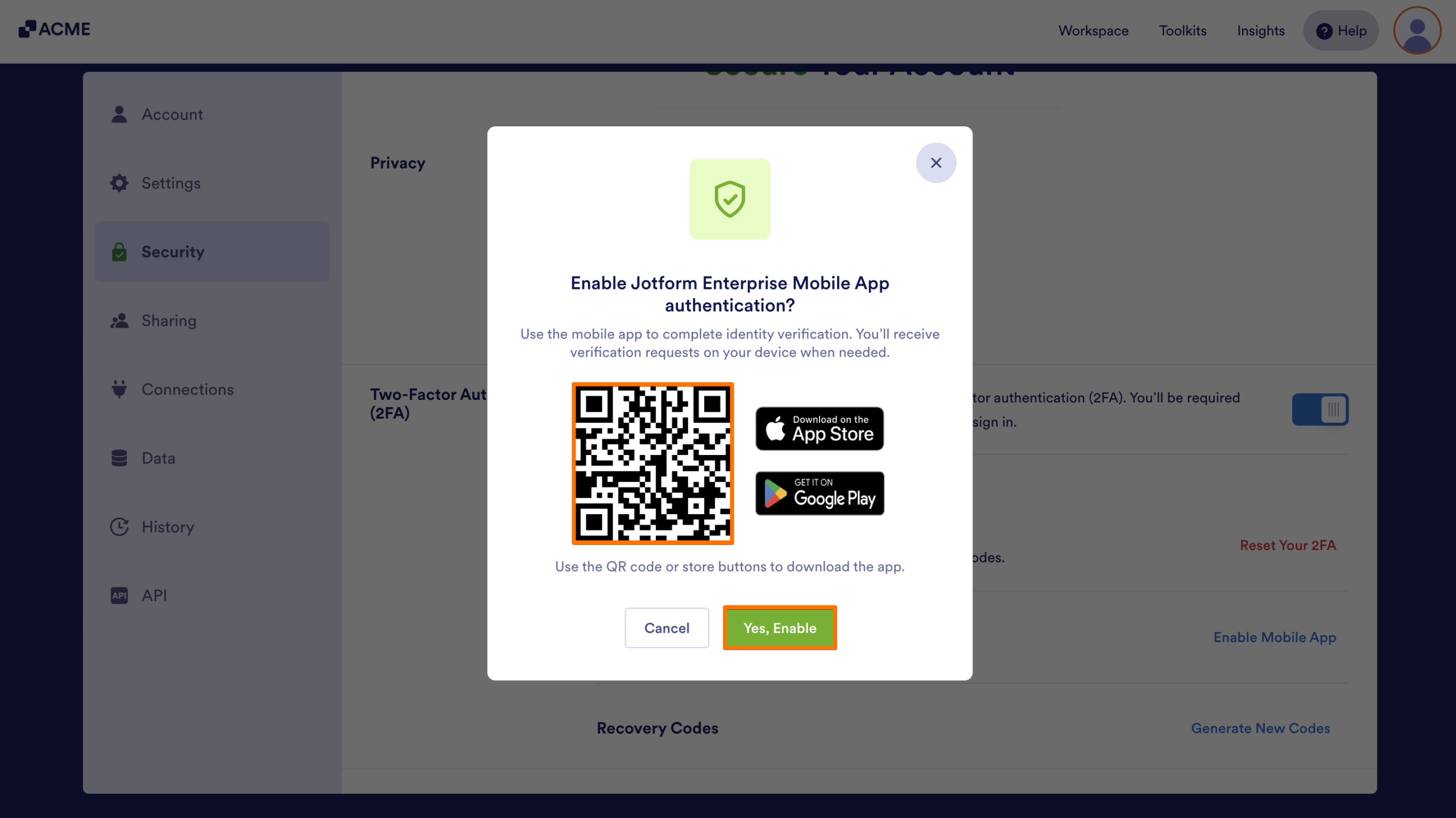
- Then, in the confirmation pop-up window, click on the Yes, Enable button.
Set Up Mobile App Authentication
Once the admin has enabled the feature, users must configure their own accounts to use the mobile app for authentication.
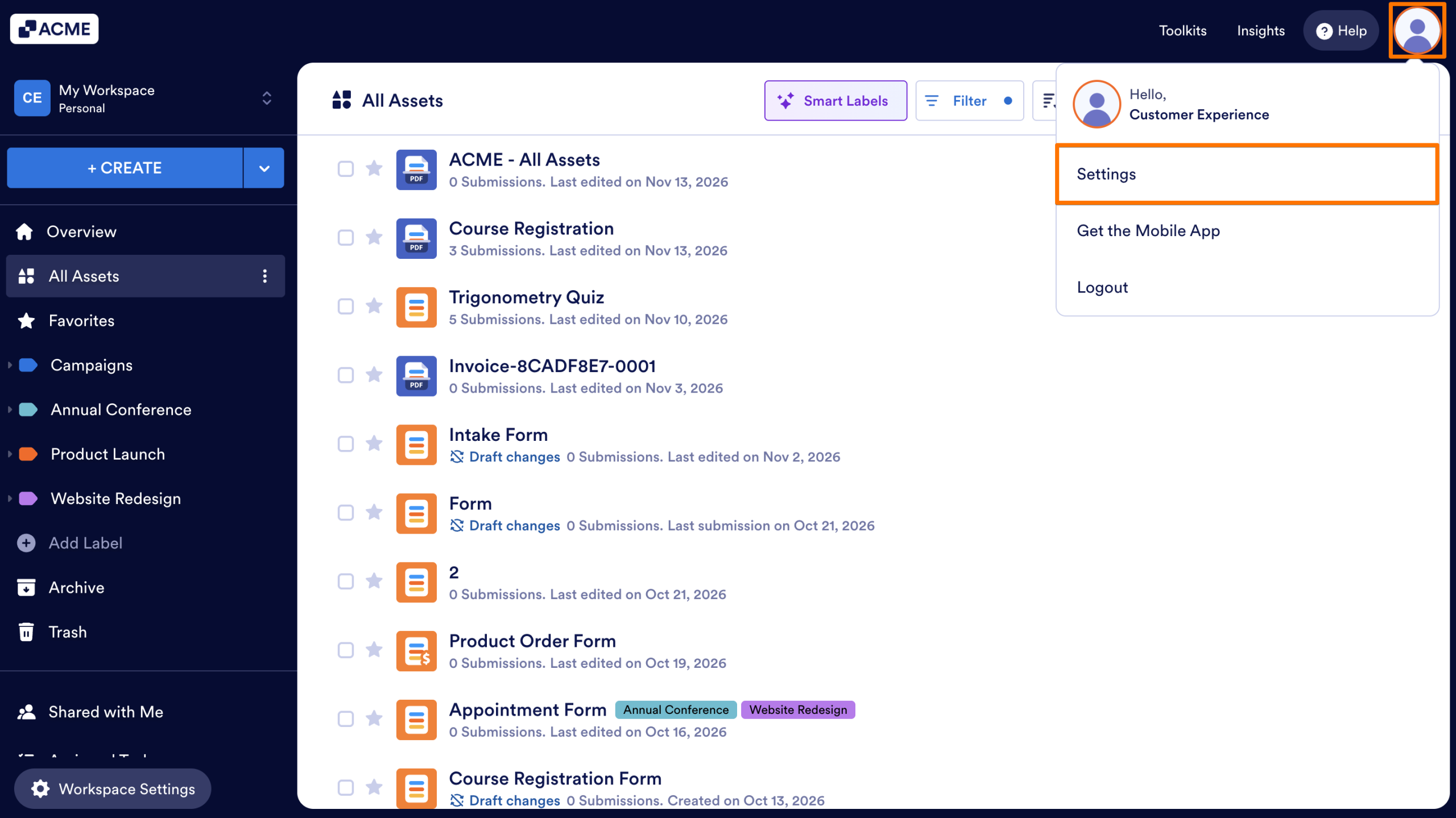
- Starting in My Workspace, click on the avatar in the upper-right corner of the screen.
- Next, in the dropdown menu, click on Settings.
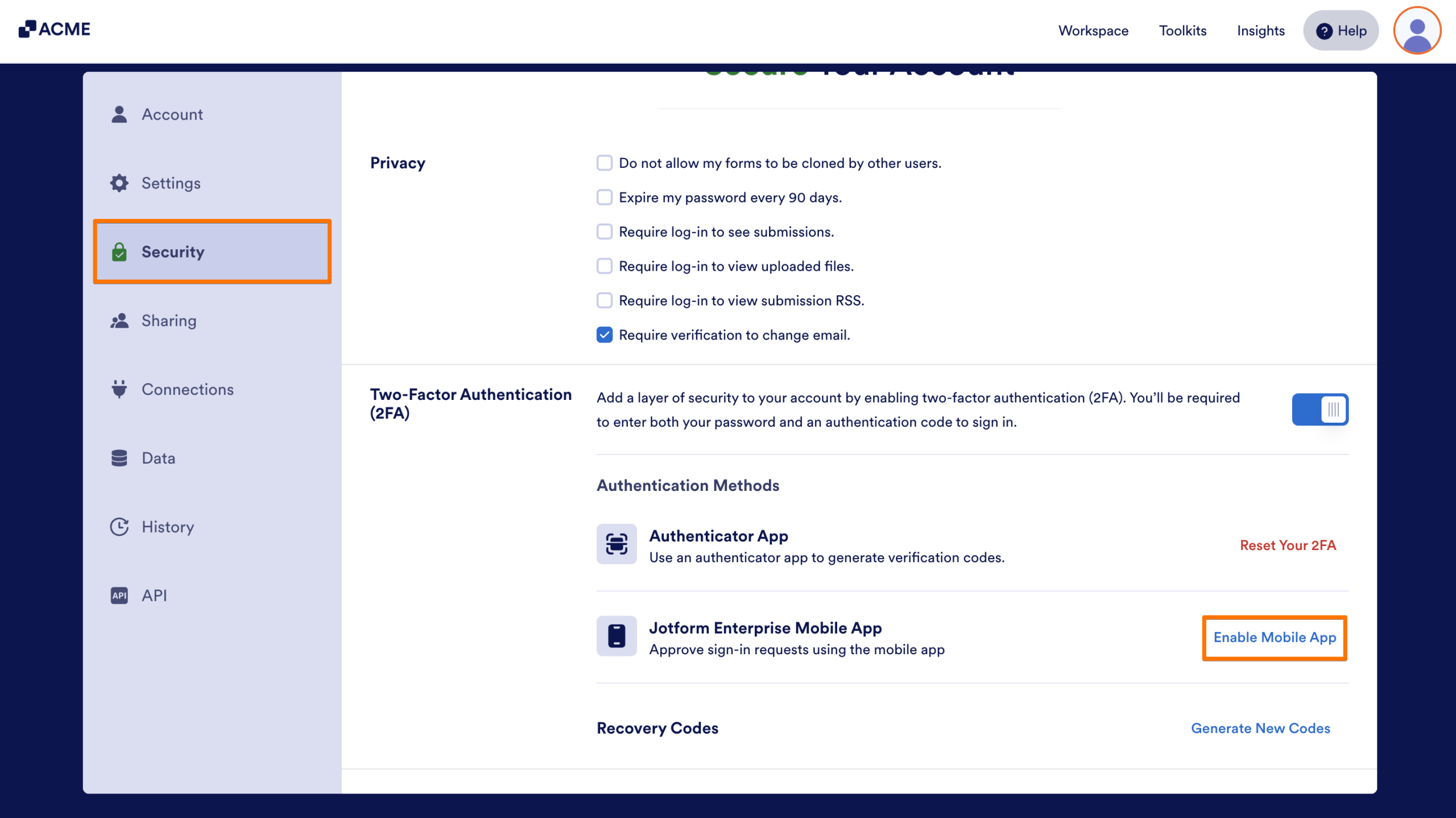
- Then, in the Settings page, click the Security tab on the left side of the screen.
- Next, in the Authentication Methods section, click on Enable Mobile App.
- Then, in the authentication window, scan the QR code to download the app.
- Finally, click on the Yes, Enable button.
After setting up the authentication method, users can securely log into their Jotform Enterprise accounts using the mobile app to verify their identity.
- Next time you log in, a verification number will be displayed on the screen.
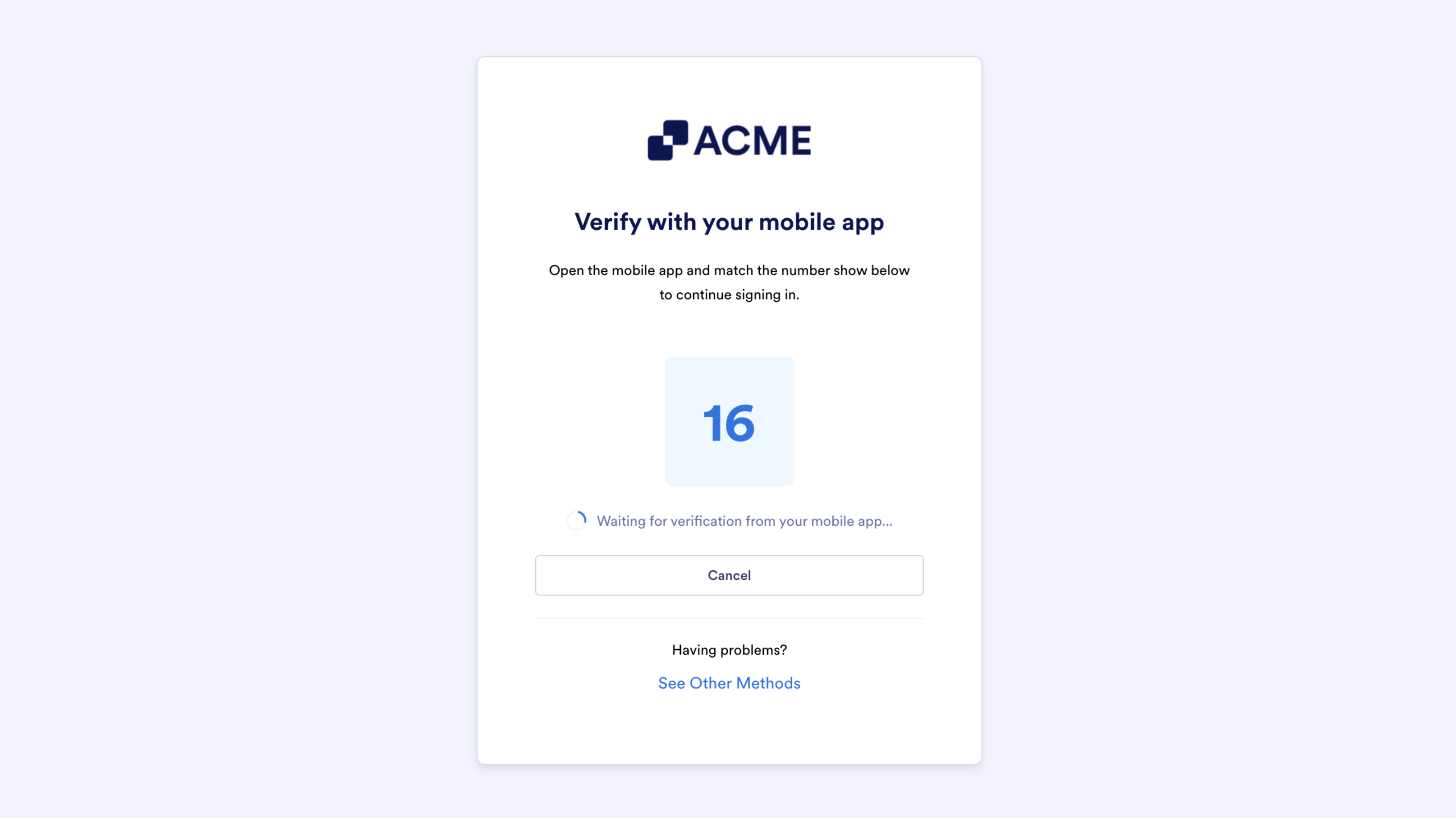
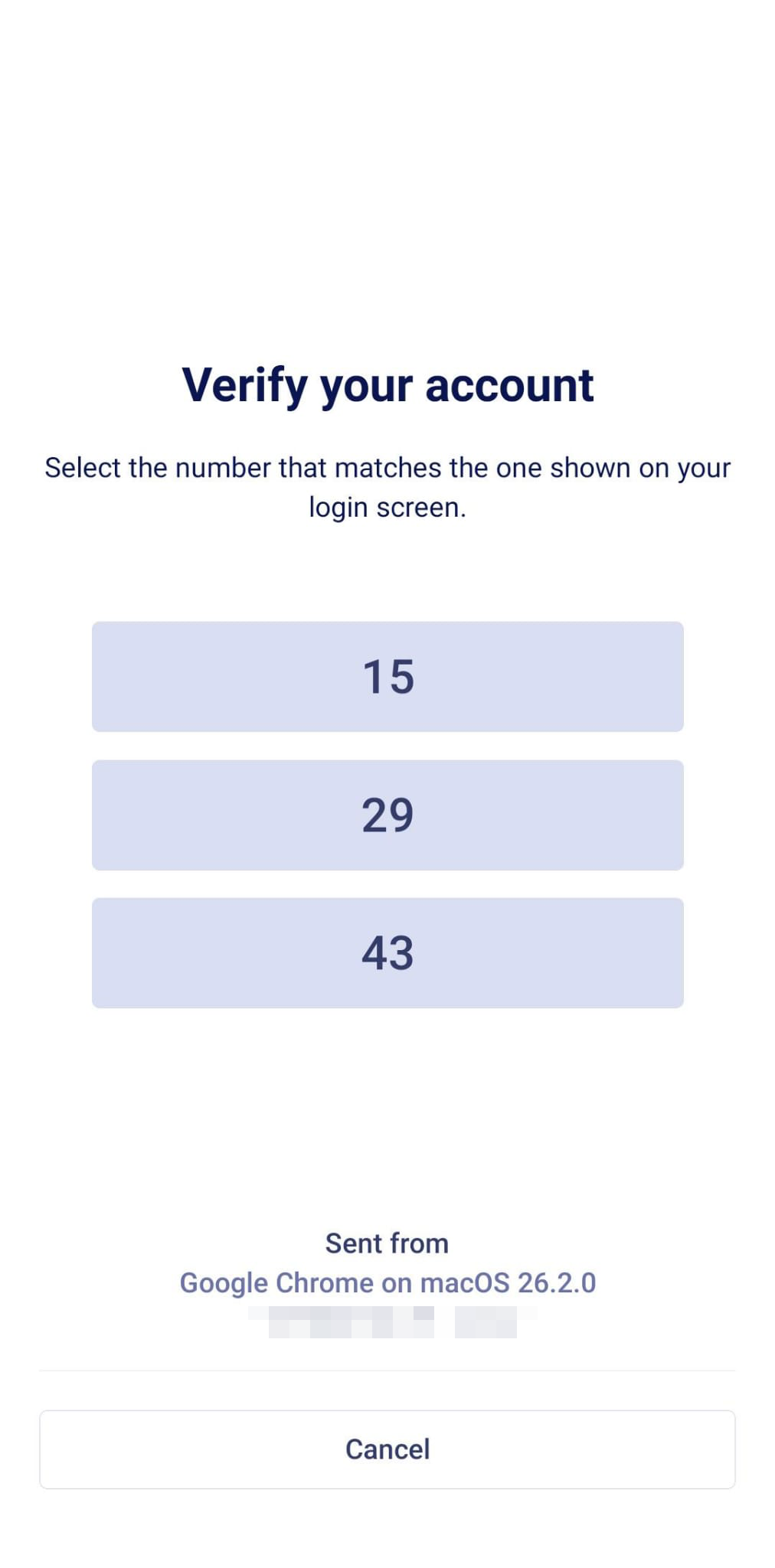
- In the Jotform Enterprise Mobile App, tap on the number that matches the one displayed on your web login screen to complete the sign-in process.

Send Comment: