Draft Mode provides a dedicated environment for your team to build, test, and review changes without affecting live forms. Configuring this feature at the account level ensures that all new forms automatically utilize this safe testing space.
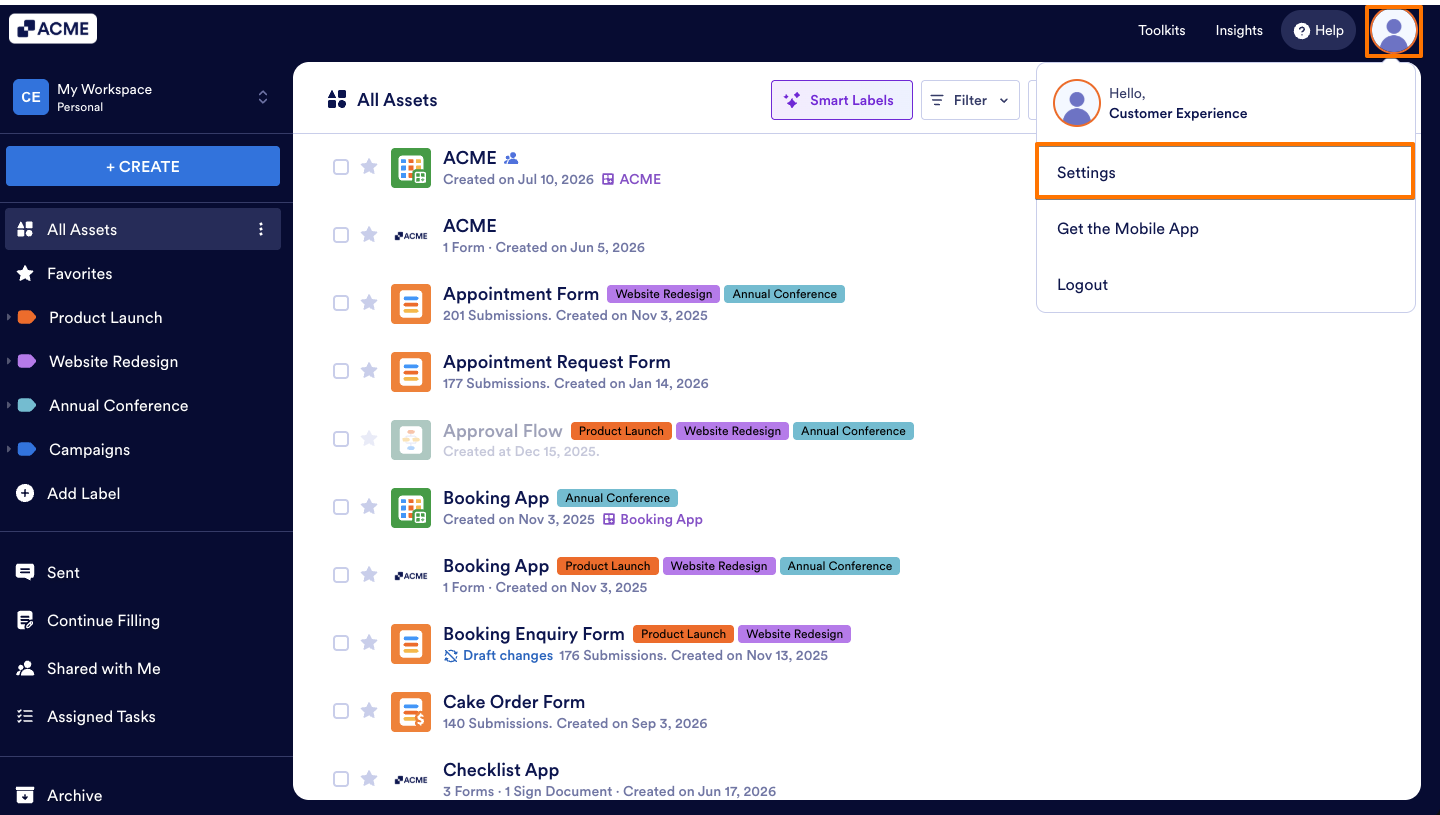
- Starting in your Workspace, in the top right corner of the page, click on your Profile picture.
- Next, in the dropdown menu, click the Settings option.
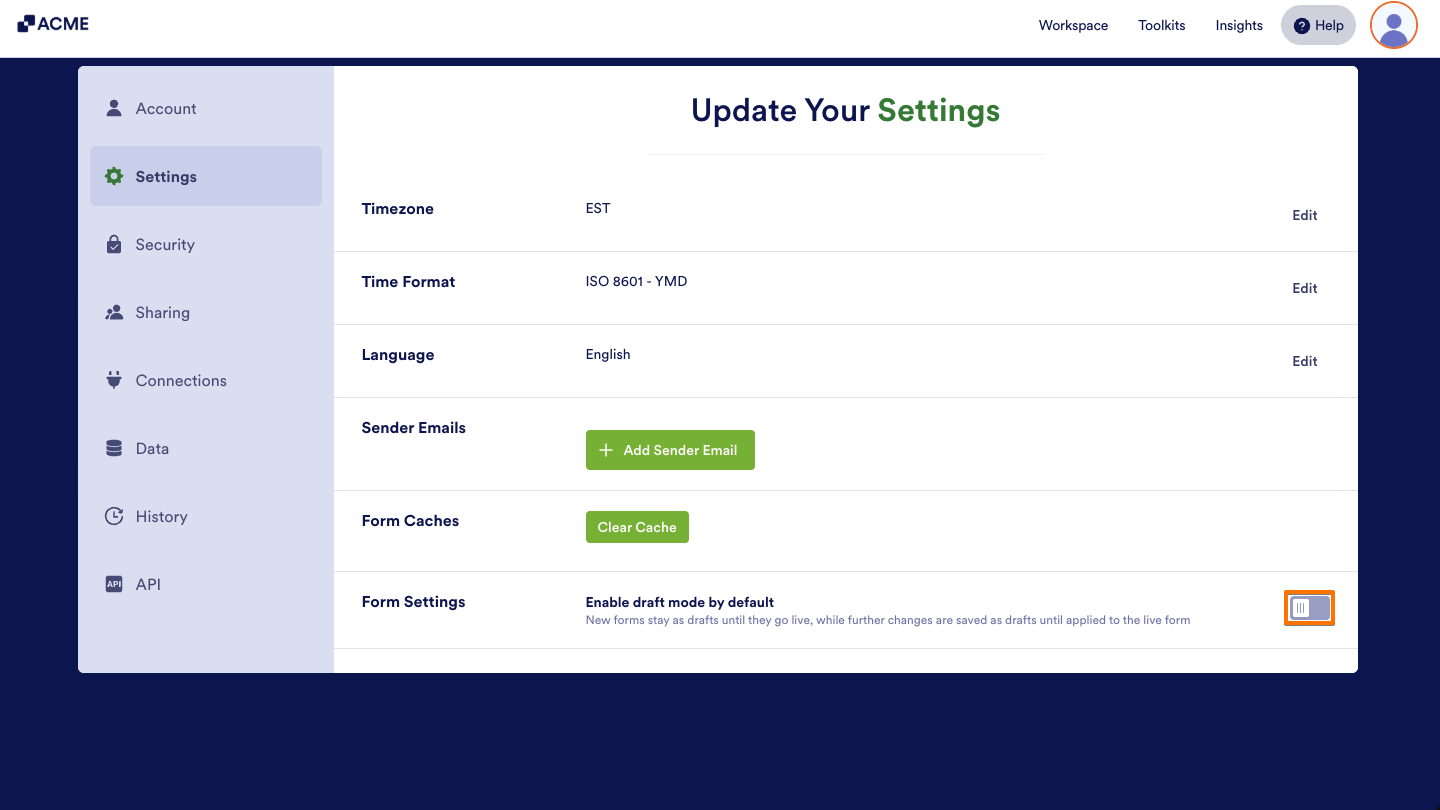
- Then, in the Form Settings section, click the Enable draft mode by default toggle.
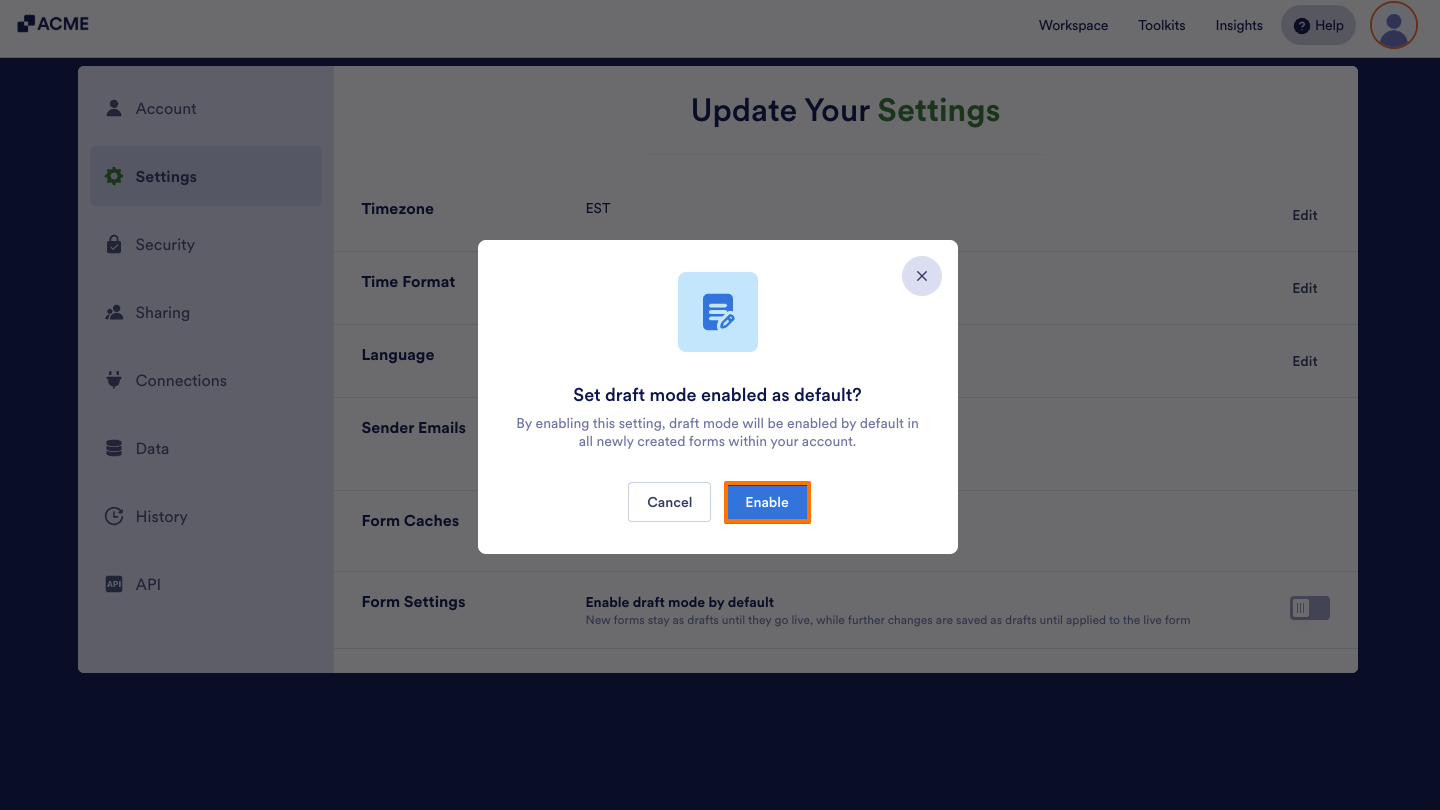
- Finally, in the popup, click on the Enable button to apply your changes.
Note
To disable this feature, click the Enable draft mode by default toggle again and confirm the popup.
This setting does not affect the default Draft Mode setting for forms created in Team Workspaces. Draft Mode defaults for team forms are configured separately in Team Settings. To learn more, see How to Enable or Disable Draft Mode by Default for Team Forms.
See also:

Send Comment: