You can enable Single Sign-On (SSO) so users can log in using their existing login credentials with your organization. This streamlines access management and adds an extra layer of security for your organization. Users only need a single login, reducing password-related issues and making sign-in faster and more convenient for your organization.
Note
You also have the option of letting users sign in using either Single Sign-On (SSO) or their email and password. You also have the option to require SSO for guest users. For more information, take a look at our How to Allow Licensed Users in Your Organization to Log In with Email and Password in Addition to SSO guide.
Enabling SSO Integration
If you’re the admin of your organization’s account, you can enable SSO through the Admin Console, so users can log in with your company’s identity provider. Here’s what to do:
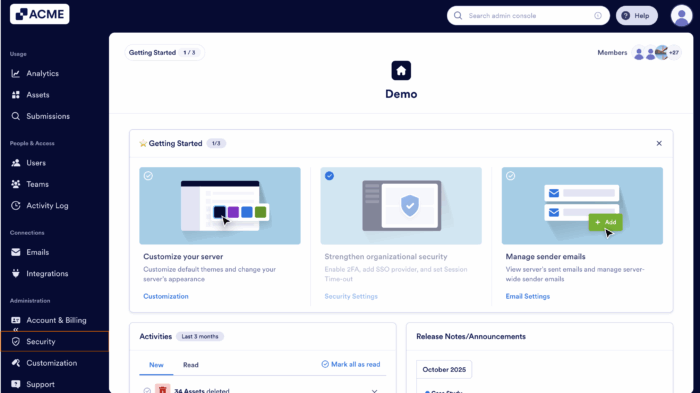
- First, in the Admin Console, in the menu on the left, click on Security.
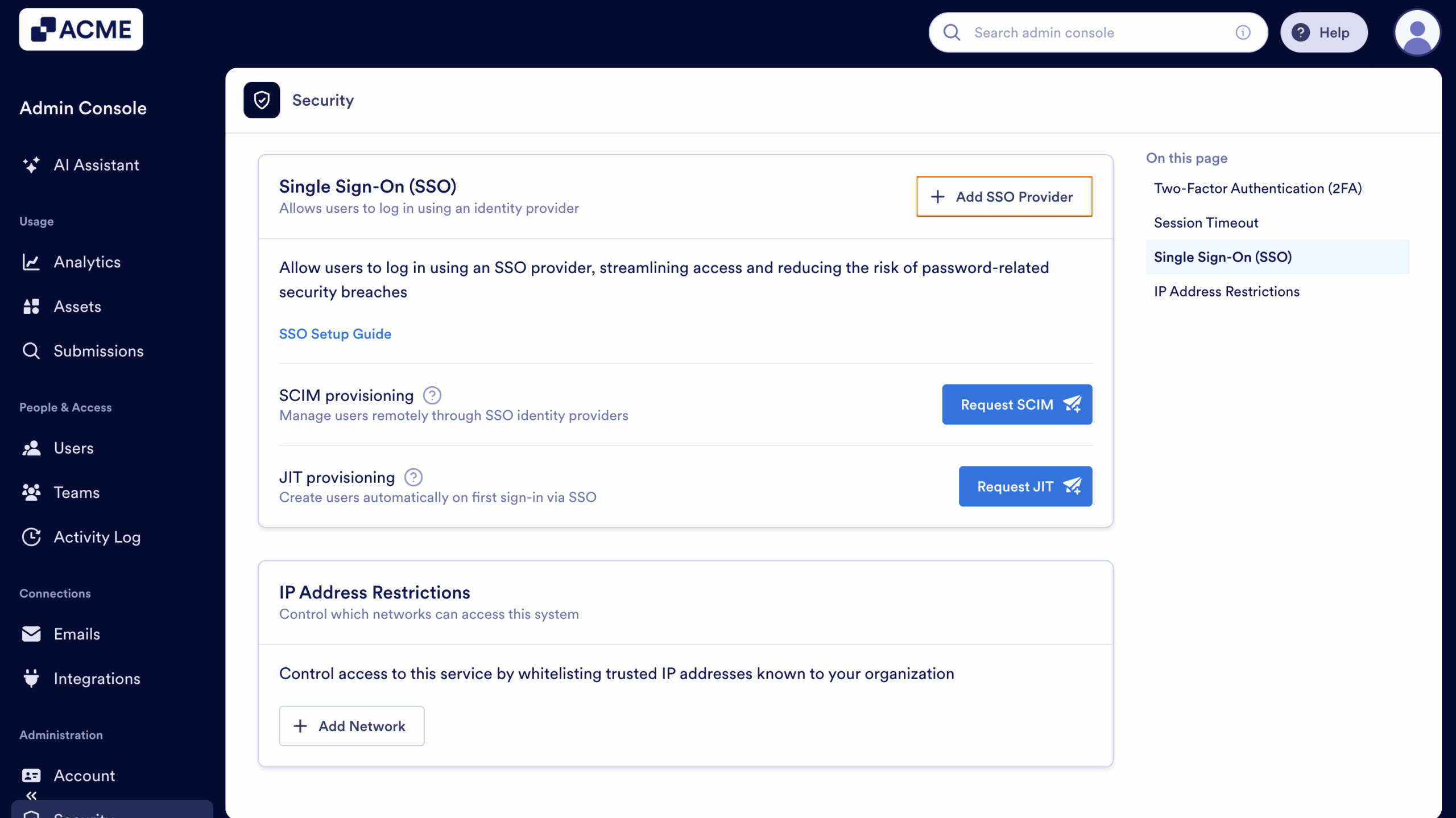
- Now, in the Single-Sign On (SSO) section, click on Add SSO Provider.
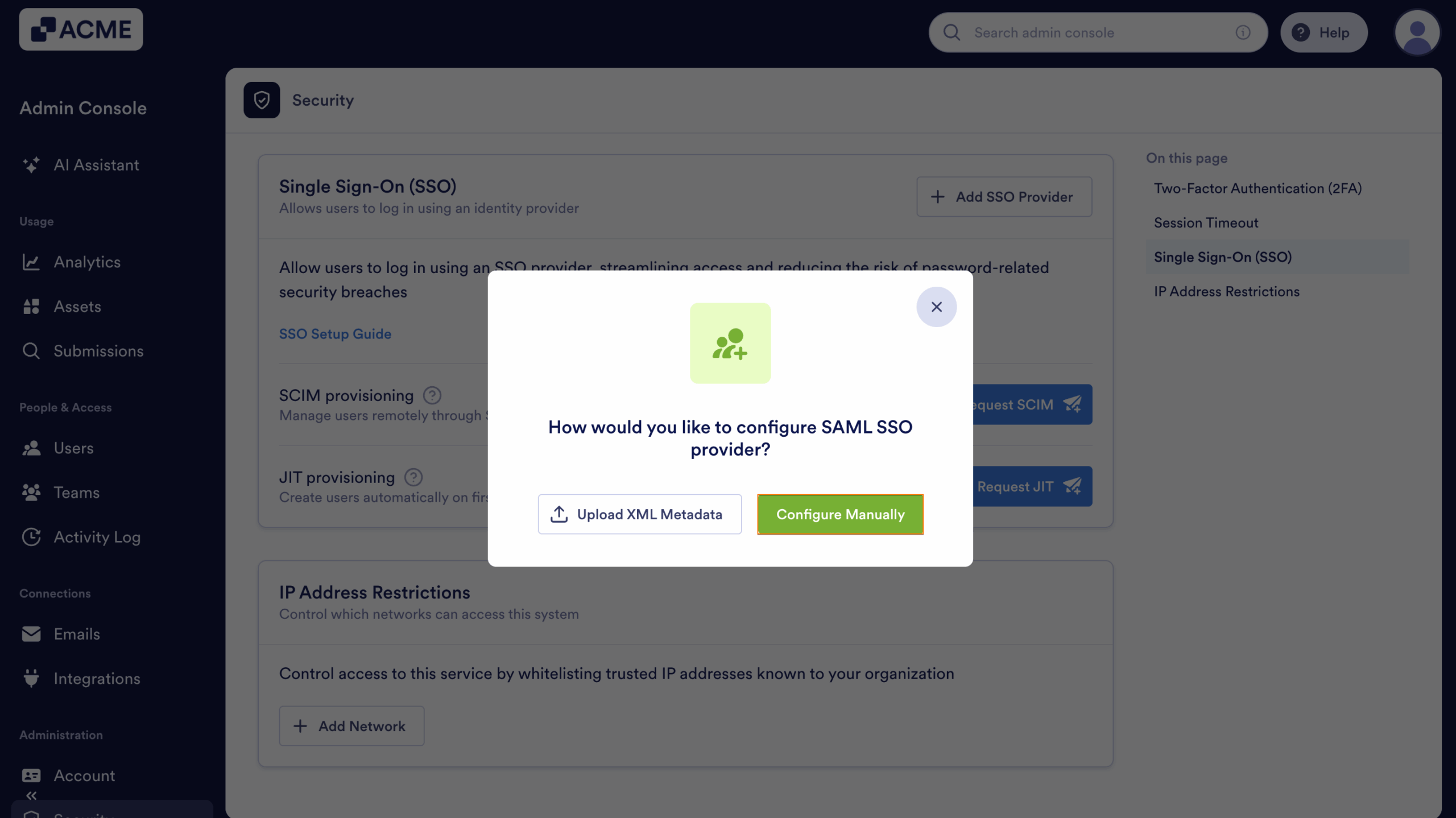
- Next, click on Configure Manually.
- Then, in the Add a SAML SSO Configuration window that opens up, fill in these details. You’ll find more info in our Identity Provider Reference Table below:
- Provider Name — The name you want users to see on the login page. You can use a more personalized name here for identification purposes.
- Entity ID —Your organization’s unique identifier in your Identity Provider (IdP).
- SSO URL — The login URL where users are redirected to authenticate via your IdP.
- Certificate — The X.509 Certificate or the one used to validate authentication requests.
- SLO URL — The logout URL to redirect users after signing out.
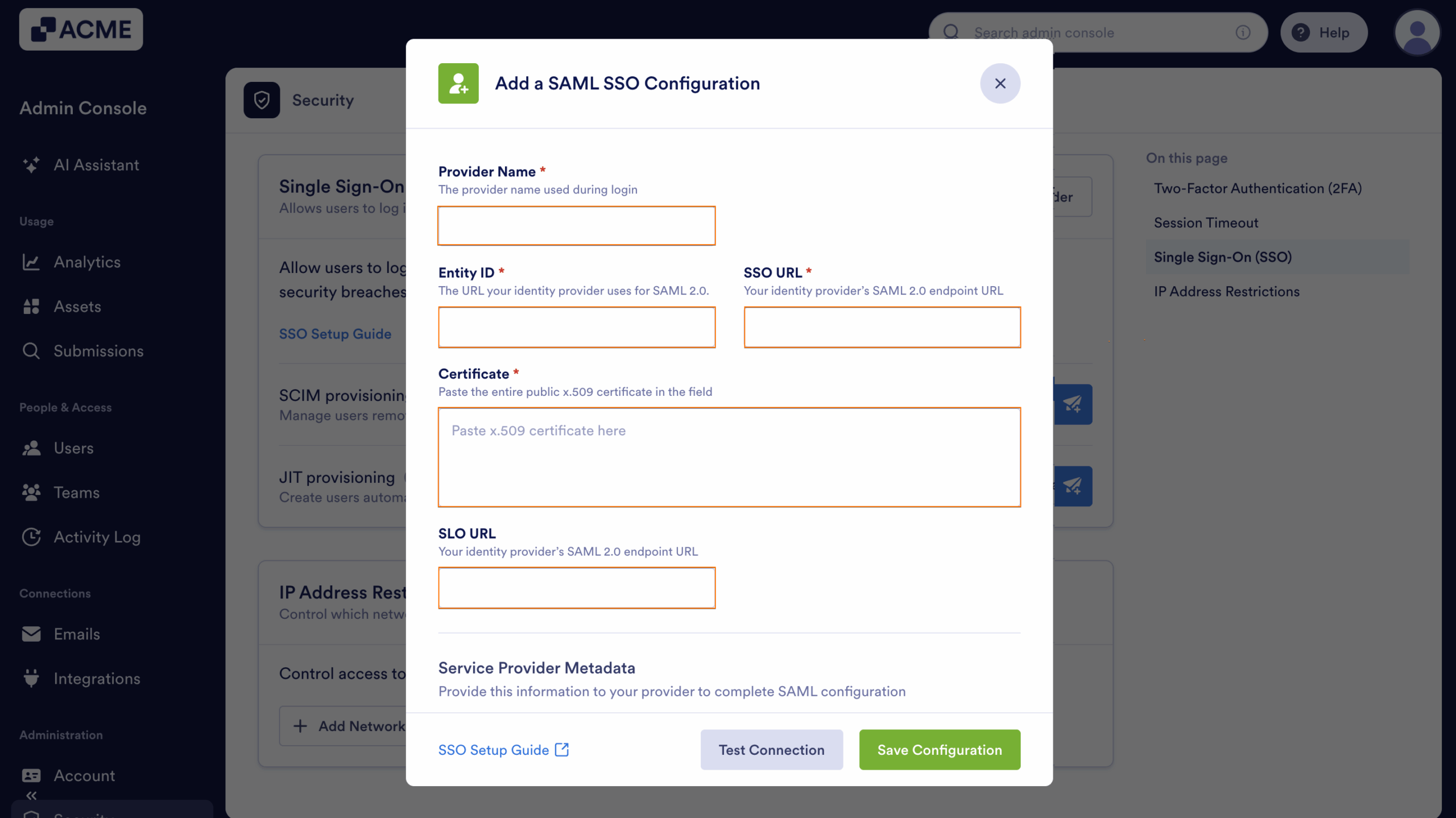
- Finally, click on Test Connection to make sure everything’s working correctly.
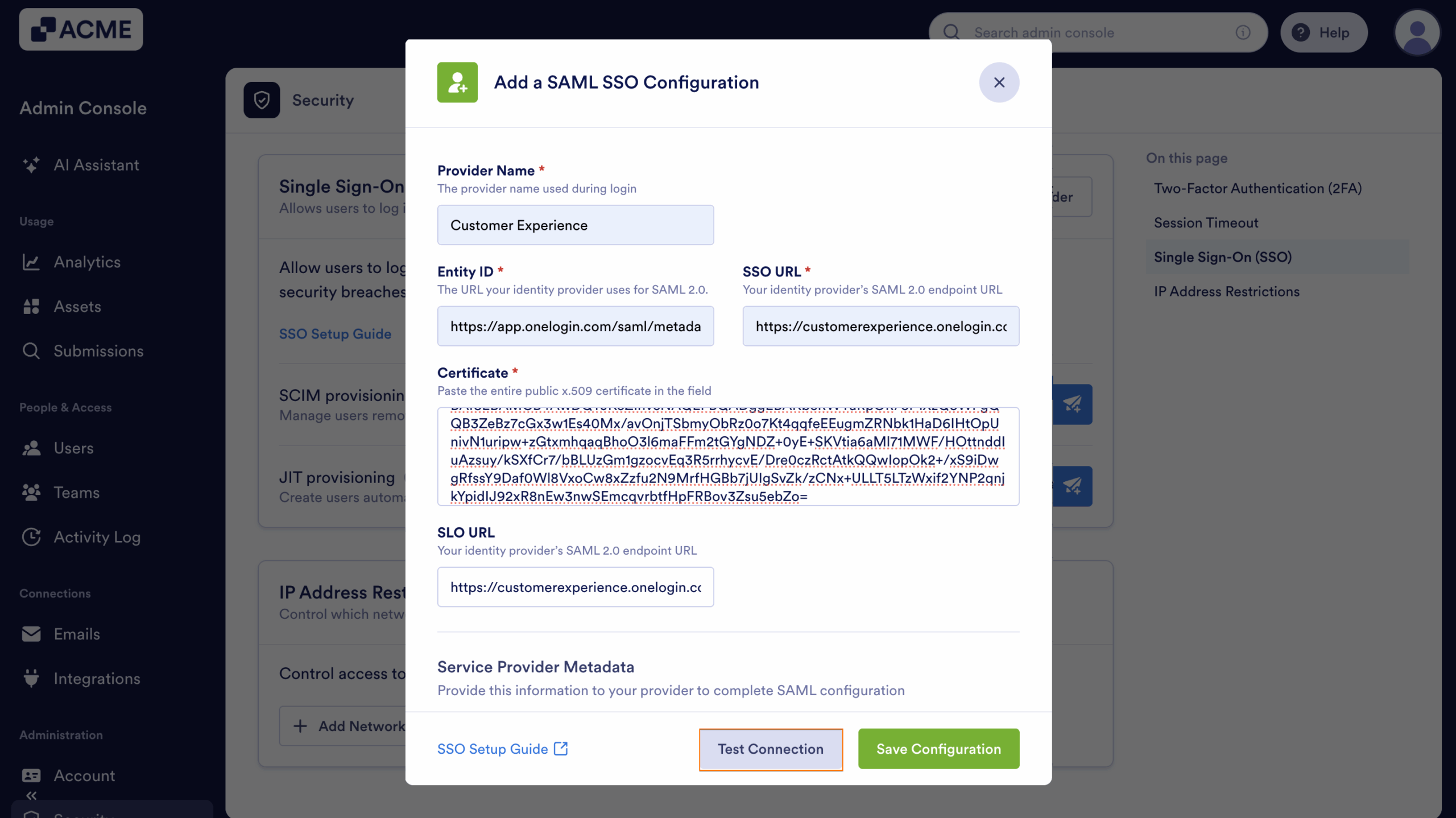
- If it’s successful, click on Save Configuration to apply your SSO settings—and you’re good to go.
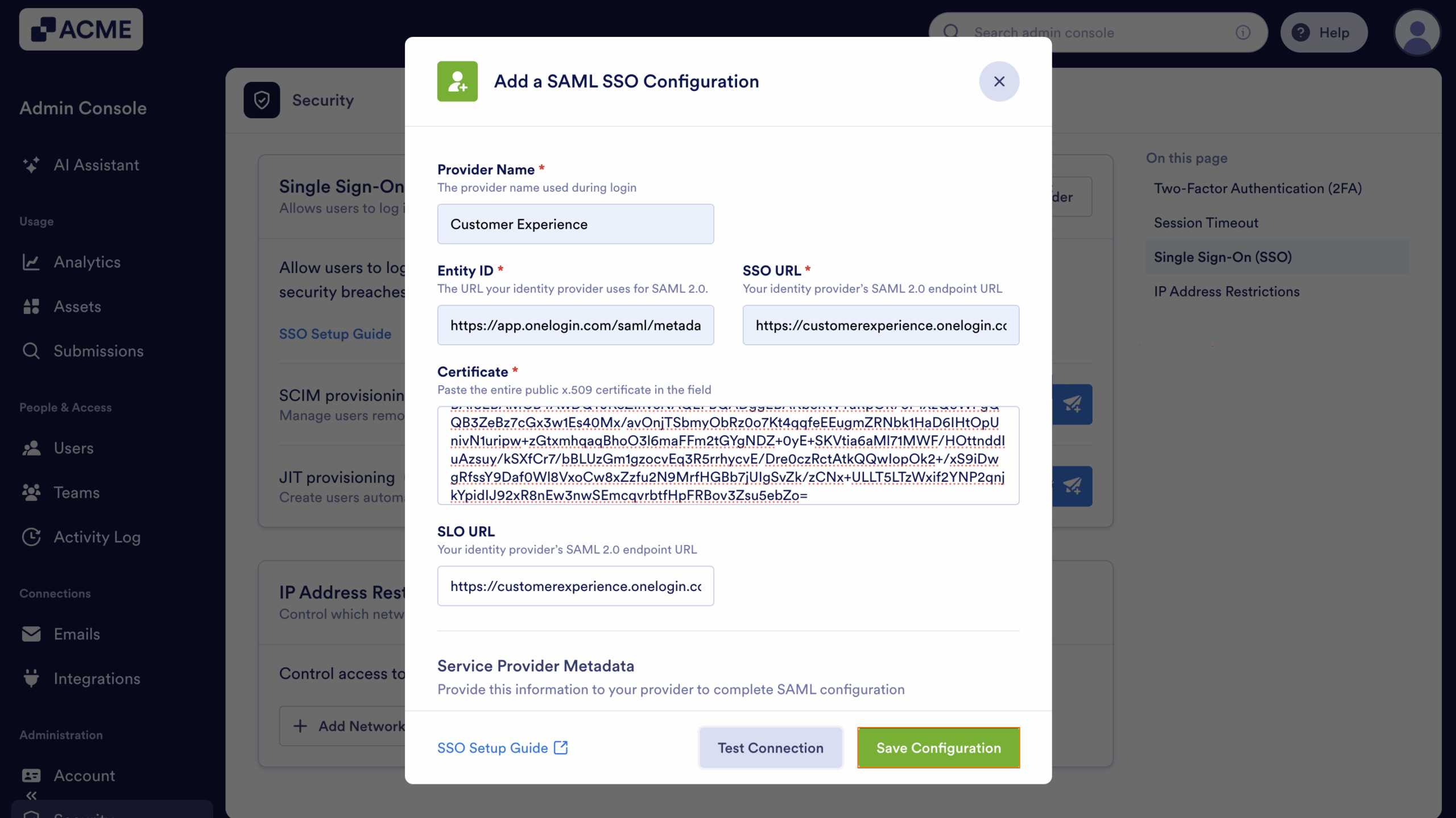
Now, after turning on SSO, you’ll see these extra options under the SSO settings:
- Allow Email Login for Licensed Users — This lets licensed users log in with their email and password too, not just through SSO.
- Require Single Sign-On for Guest Accounts — This makes sure guest users can only sign in through SSO, adding a bit more security.
- SCIM Provision Settings — This helps you automatically manage users by syncing with your identity provider, so you don’t have to update things manually.
- Just-In-Time (JIT) Access — This allows users to request temporary, time-limited access to restricted systems only when needed. It helps maintain security by granting elevated permissions on demand and automatically revoking them once the approved period ends.
Identity Provider Reference Table
Use this table to identify where to find the required SSO configuration fields in your specific IdP:
| Provider | Entity ID | SSO URL | Certificate |
|---|---|---|---|
| Microsoft Entra ID | Microsoft Entra Identifier | Login URL | Certificate |
| Google SSO | Entity ID | SSO URL | Certificate |
| Okta | Identity Provider Issuer | Identity Provider Single Sign-On URL | X.509 Certificate |
| OneLogin | Issuer URL | SAML 2.0 Endpoint (HTTP) | X.509 Certificate |

Send Comment: