Each time you create a form, a unique URL is generated, making it easy to share with others. Whether you share it via email, a messaging app, or online, having quick access to your form’s URL helps you reach people faster and start collecting responses right away.
You can find and copy your form’s URL in just a few steps. Here’s how to do it:
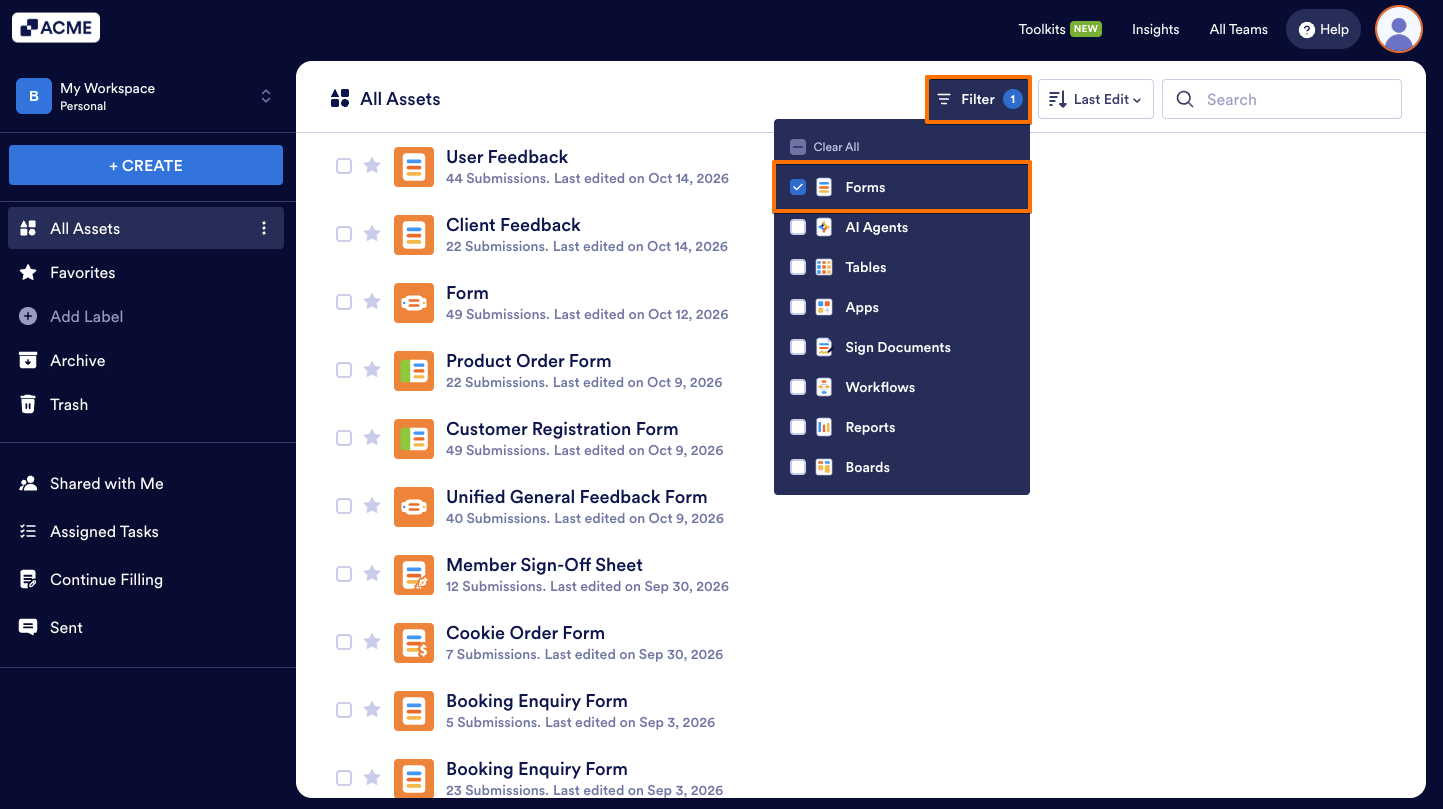
- On your Workspace page, click on Filter at the top and in the Dropdown menu that opens, uncheck the boxes next to all the assets except Forms, so only they’ll be shown on the page.
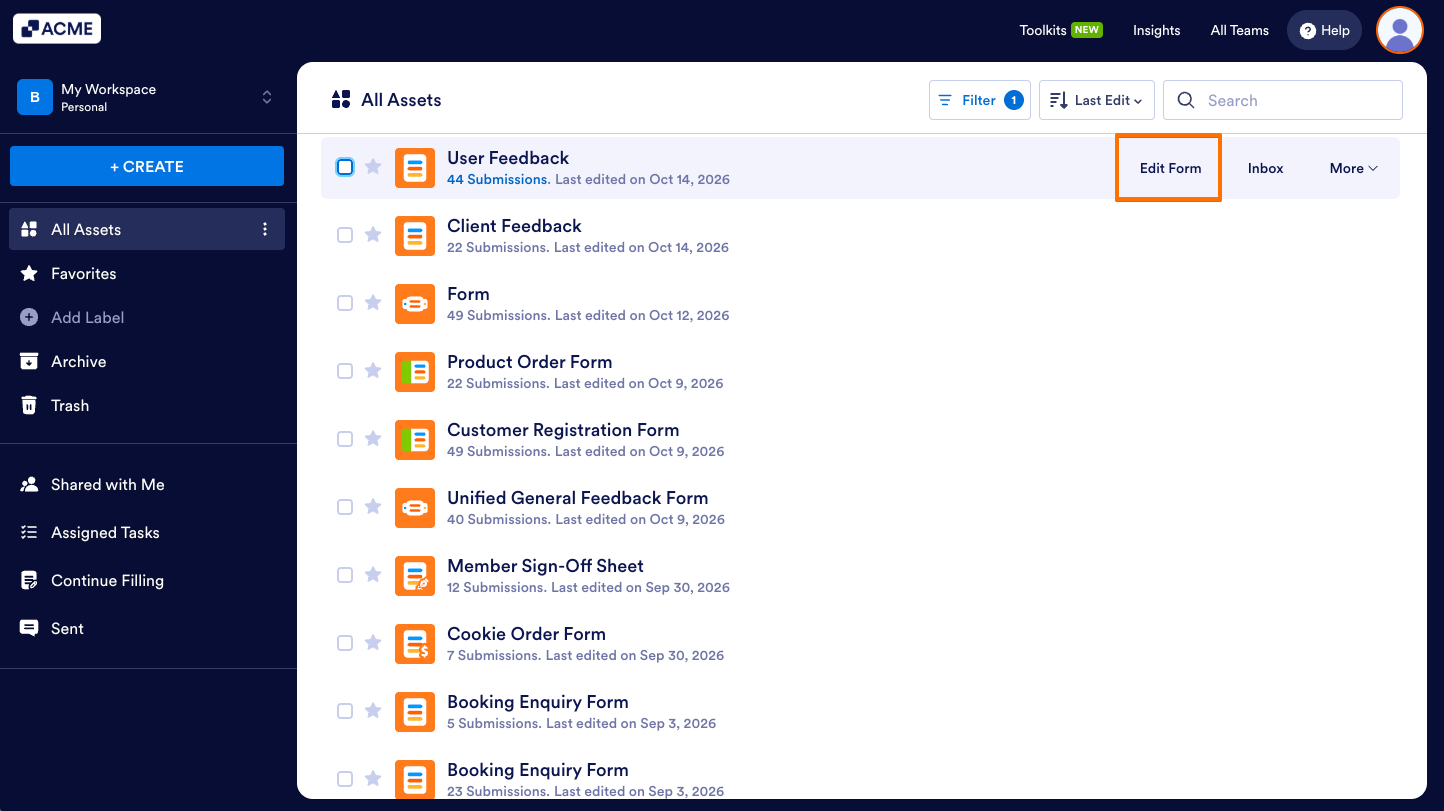
- Now, hover your mouse over the form you want to get the URL for, and click on Edit Form on the right side of the page.
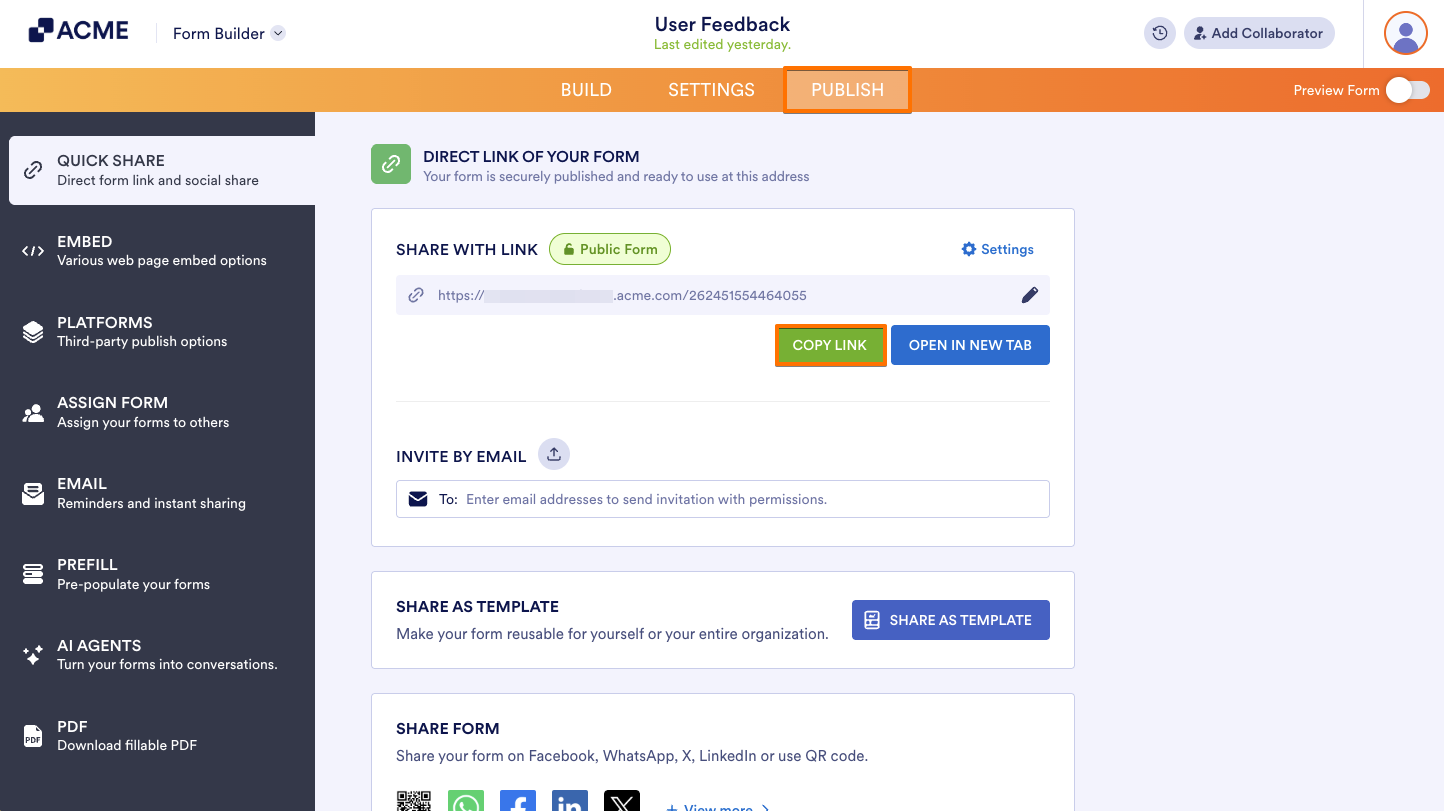
- In Form Builder, in the orange navigation bar at the top of the page, click on Publish.
- Then, under Share With Link, click on Copy Link.
That’s it! Now you can send the URL through any external messaging or email platform and start collecting responses right away.
Note
The unique series of numbers at the end of the Form URL is called the Form ID and is used to identify that specific form. The Form ID is sometimes required when connecting your form to other applications through third-party integrations, such as Microsoft Power Automate, or endpoints like APIs or Webhooks that need to define the form’s ID.
If you want the form URL without the Form ID, you can set up a custom URL for it. For more details, check out our guide on How to Create a Custom Form URL.

Send Comment: