With Jotform, you can easily connect your forms to Microsoft Teams and keep your team in the loop. This integration helps you share form submission data directly with your Teams channels, making it easier for everyone to stay updated without switching between tools. It’s especially useful for teams that rely on real-time communication, whether you’re tracking requests, registrations, approvals, or internal workflows. By bringing form data and notifications into Microsoft Teams, you can improve visibility, encourage faster collaboration, and keep conversations and updates in one familiar workspace.
Connecting Your Microsoft Teams Account
Getting your form ready to integrate with Microsoft Teams only takes a few steps—follow these quick steps to get started:
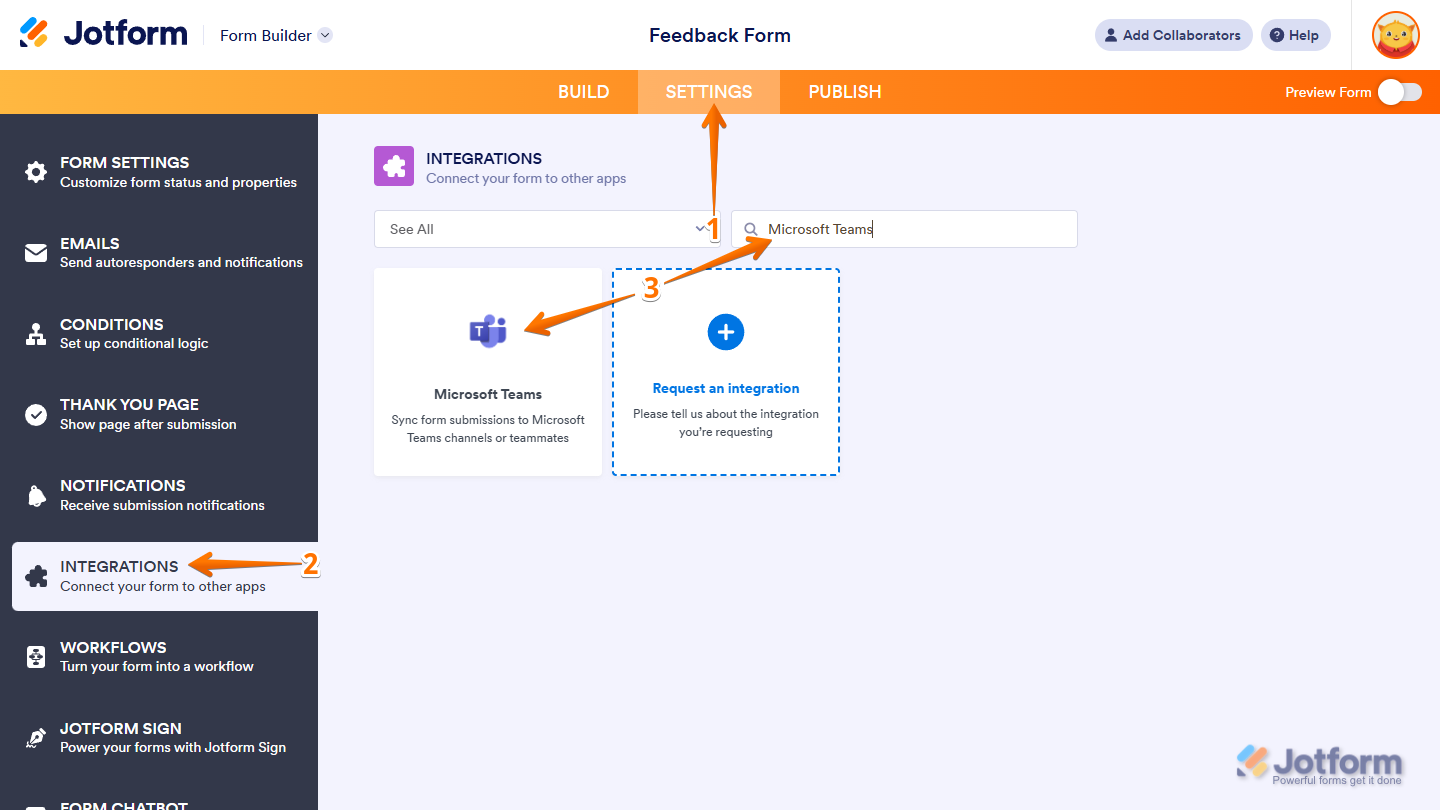
- In Form Builder, in the orange navigation bar at the top of the page, click on Settings.
- Then, in the menu on the left side of the page, click on Integrations.
- Now, in the Integrations section on the right, search for Microsoft Teams and click on it.
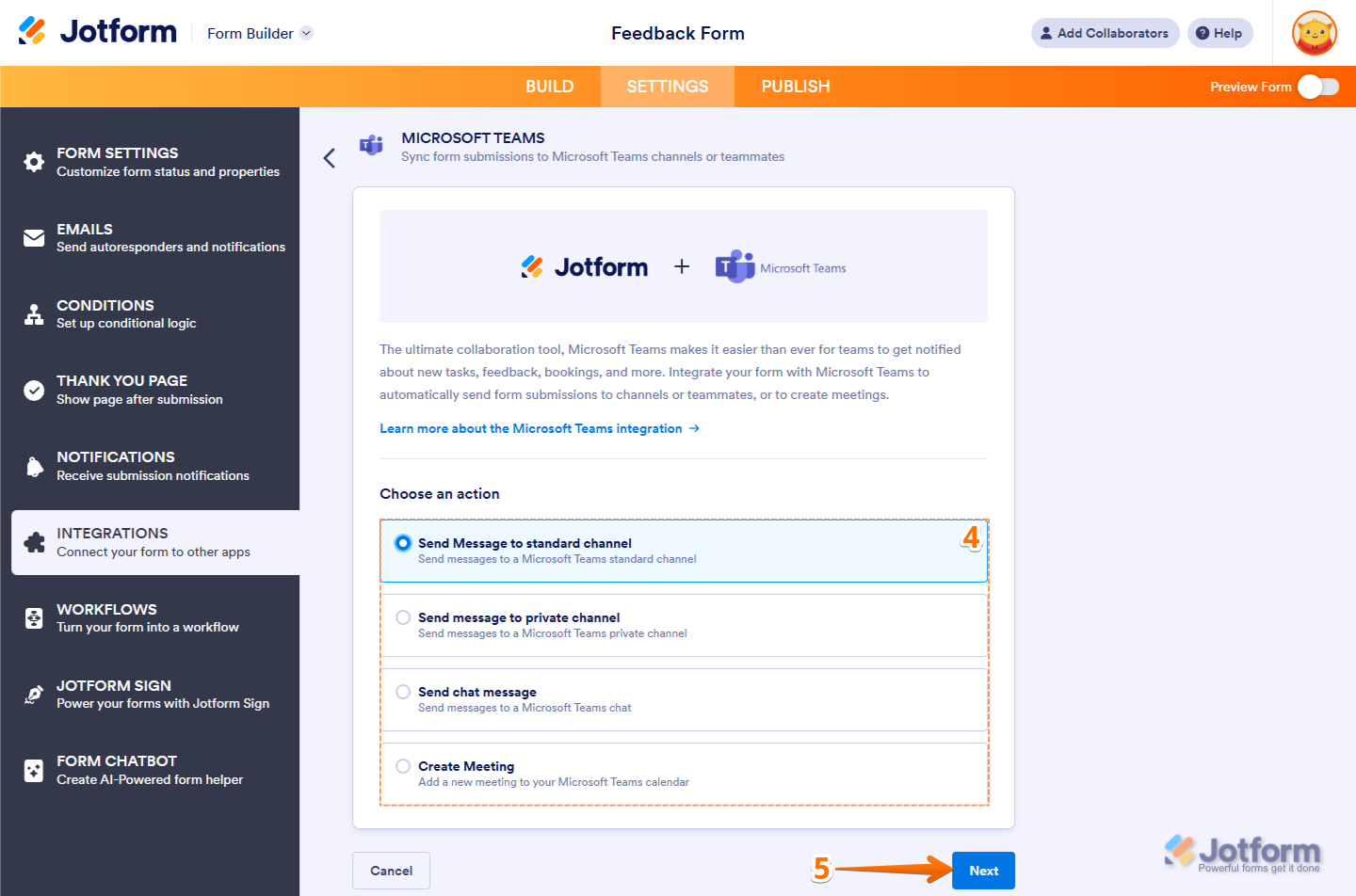
- In the Microsoft Teams section, select one of the following actions:
- Send Message to Standard Channel — Sends form submission details to a Microsoft Teams standard channel.
- Send Message to Private Channel — Sends form submission details to a Microsoft Teams private channel.
- Send Chat Message — Sends form submission details as a message in a Microsoft Teams chat.
- Create Meeting — Creates a new meeting in your Microsoft Teams calendar based on form submissions.
- Then, click on Next.
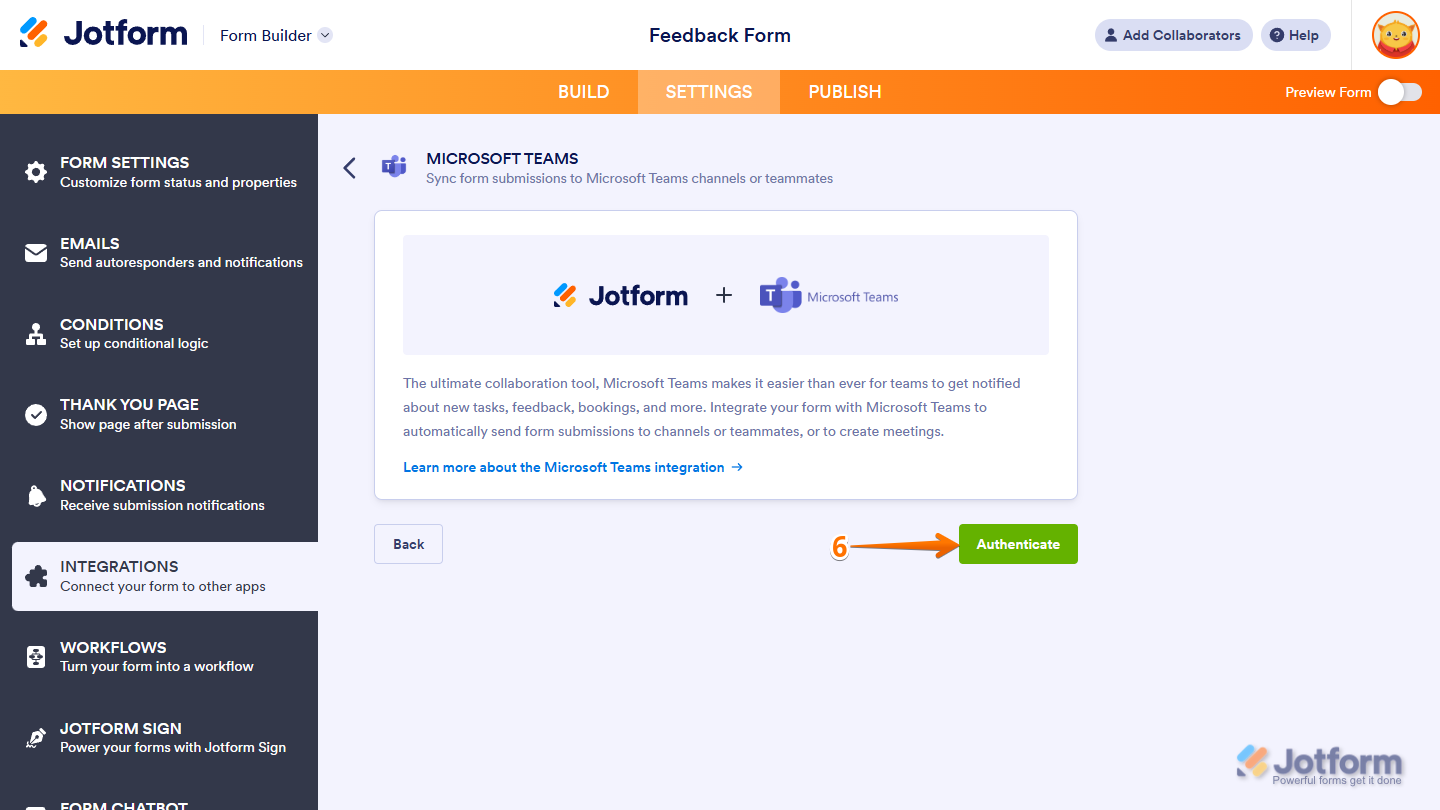
- Now, click on Authenticate. And then, in the pop-up window, log in to your Microsoft Teams Account.
Note
The Microsoft Teams integration requires a work or a school account. Personal Microsoft accounts aren’t supported.
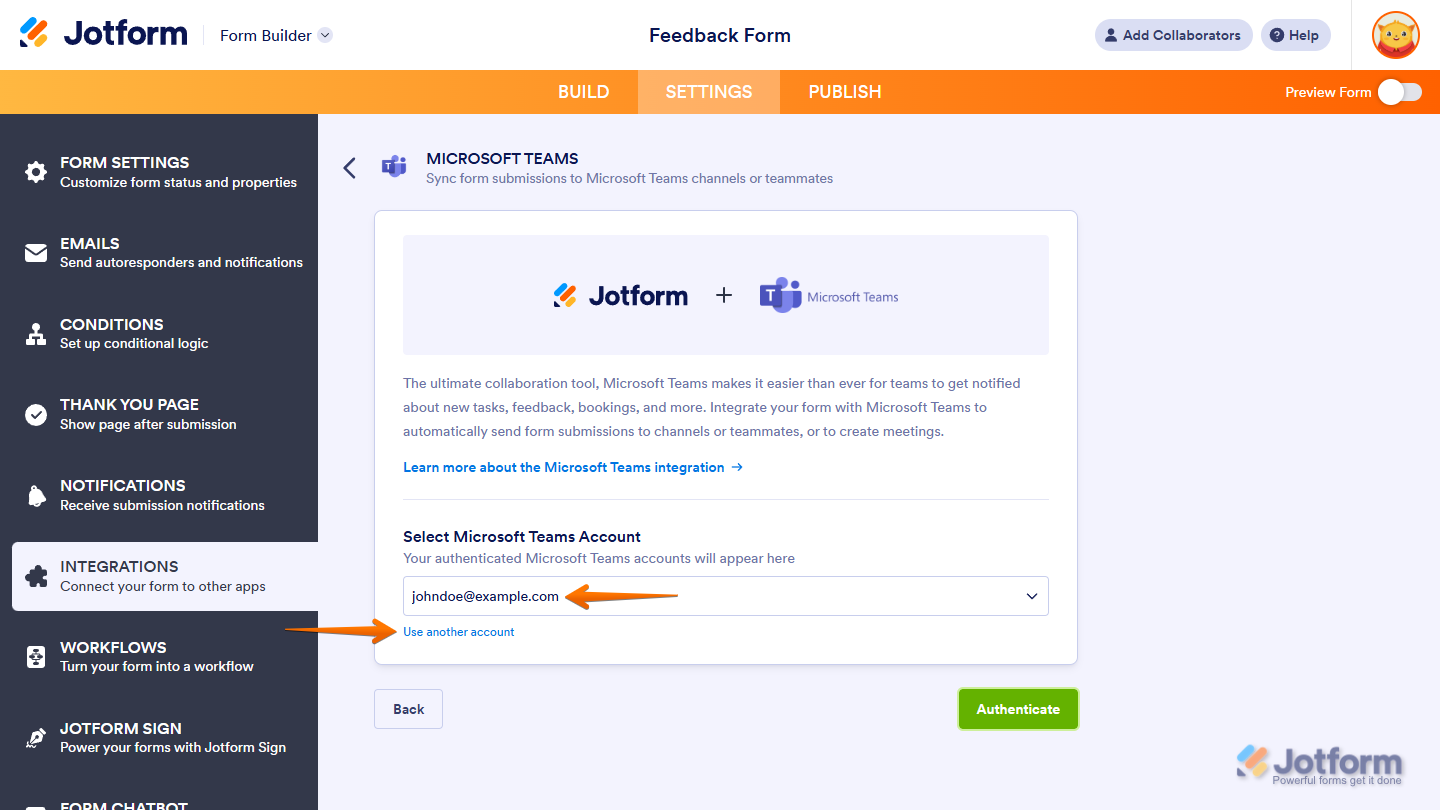
If there is a saved Microsoft Teams account you’ve integrated any of your forms with before, you can choose its email address from the dropdown and click on the Authenticate button on the right to use it. Or, you can also click on Use Another Account below the dropdown to log in and authorize access for the integration to a different Microsoft Teams account.
That’s it. You’ve successfully authenticated your Microsoft Teams account. Now, depending on the action you chose, you’ll find settings to configure for the following:
Setting Up Integration Actions
Once your Microsoft Teams account is authenticated, you can configure the action you want to create to set what happens after your form is submitted. Each action lets you send submission details, notify your team, or automatically create meetings.
Sending Messages to a Standard or Private Channel
Setting up your form to send messages to a Microsoft Teams standard or private channel is quick—here’s how:
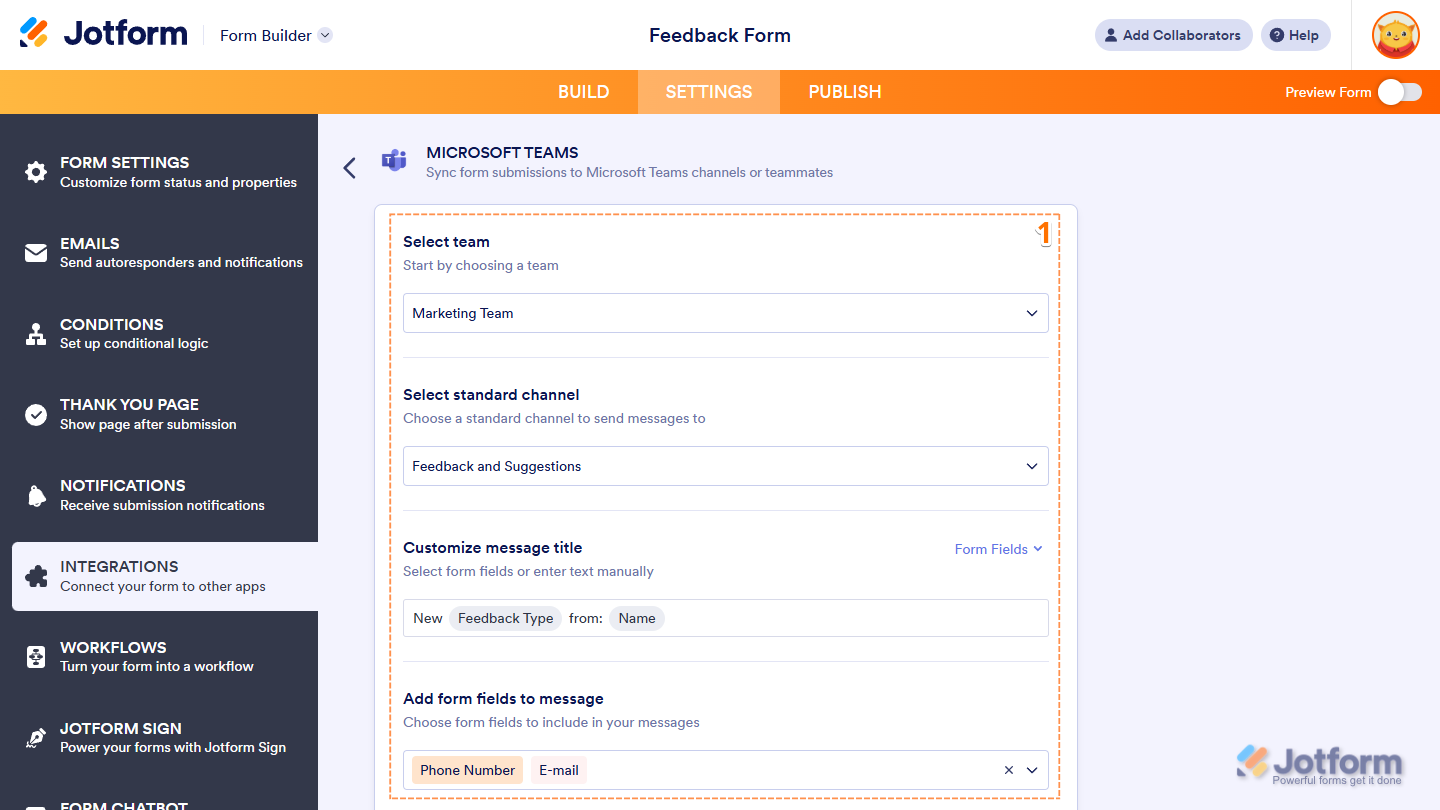
- While you’re in the Microsoft Teams integration section under the Settings tab in Form Builder, you’ll see this list of settings you can configure after authenticating your Microsoft Teams account:
- Select Team — Select the team in your Microsoft Teams account that has the channel you want to send messages to in the dropdown menu.
- Select Standard/Private Channel — Select a standard or private channel from the team you chose, where messages will be sent.
- Customize Message Title — Enter a custom title in the input box for your messages. You can also insert dynamic values from your form by selecting the supported form fields from the Form Fields dropdown menu on the right.
- Add Form Fields to Message — Select form fields in the dropdown menu to include their answers in messages sent to the selected channel.
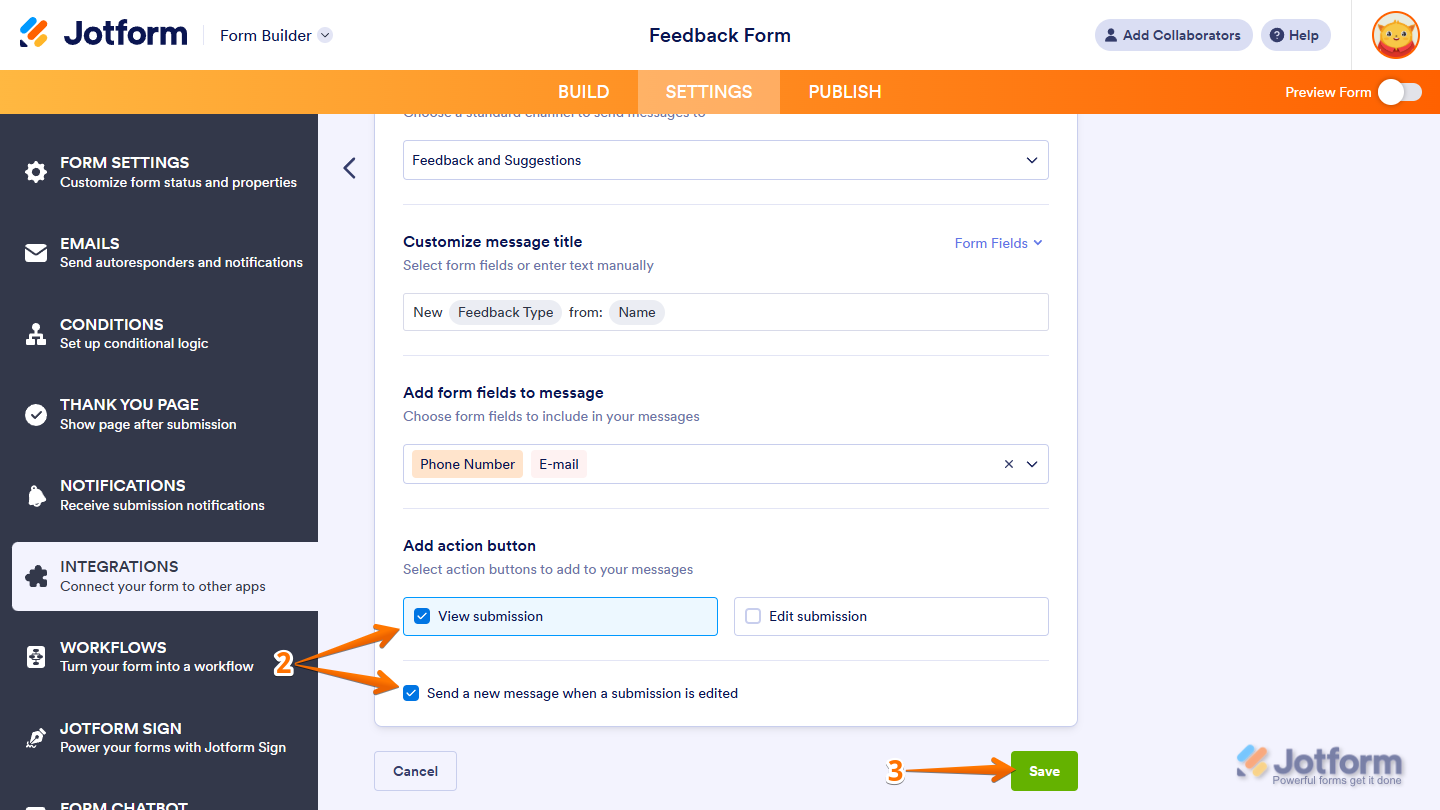
- Then, scroll down to the bottom and continue to set up these settings:
- Add Action Button — Put checks in the boxes next to the View Submission and Edit Submission options if you want to include these buttons in the message sent to the channel you chose.
- Send a New Message When a Submission is Edited — Uncheck the box next to this option if you don’t want a new message to be sent to the channel whenever a submission is edited.
- Once you’re done, click on Save.
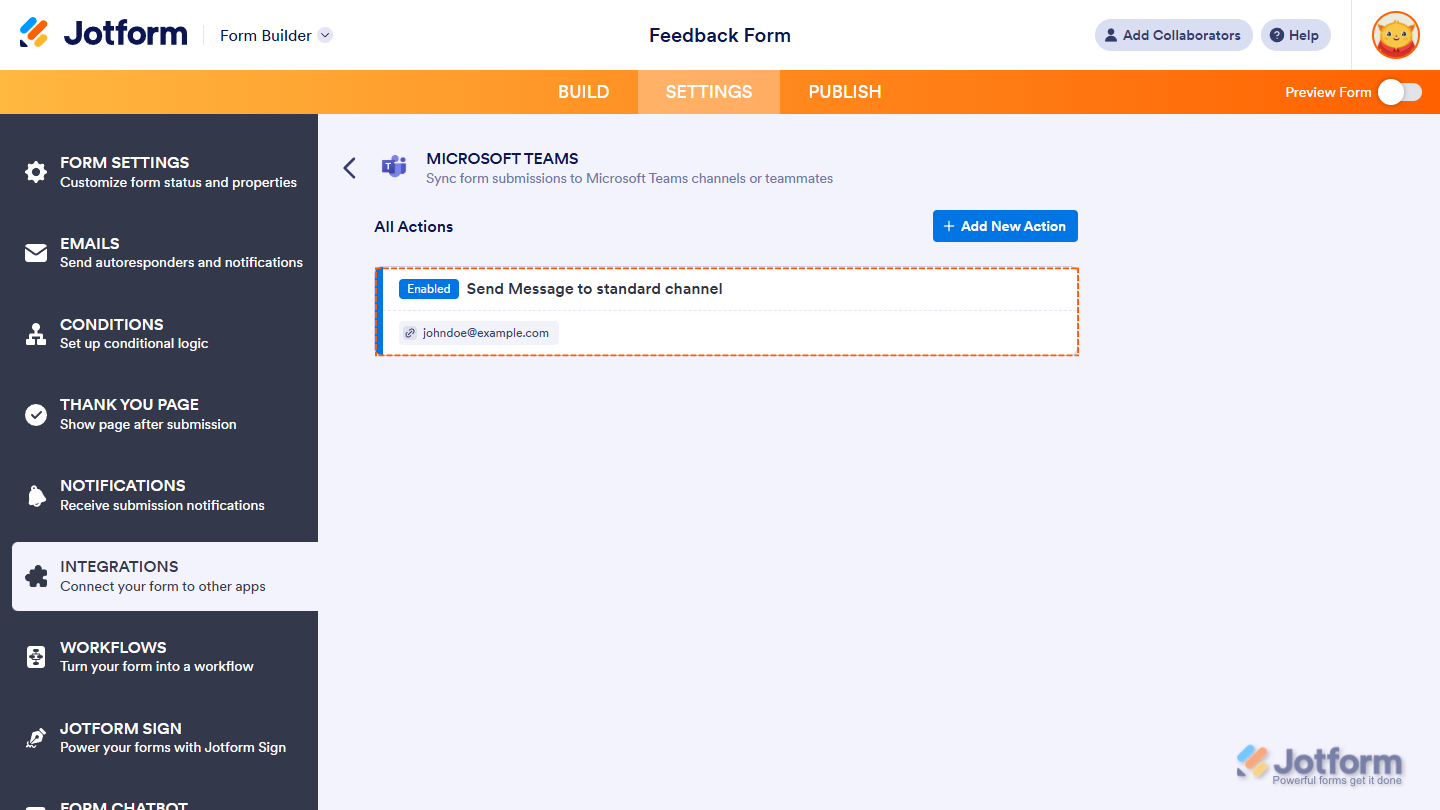
That’s it. You’ve successfully set up your form to send submission details to your selected Microsoft Teams standard or private channel.
Sending Chat Messages
Setting up your form to send chat messages in Microsoft Teams only takes a few steps. You’ll just need to follow these simple steps:
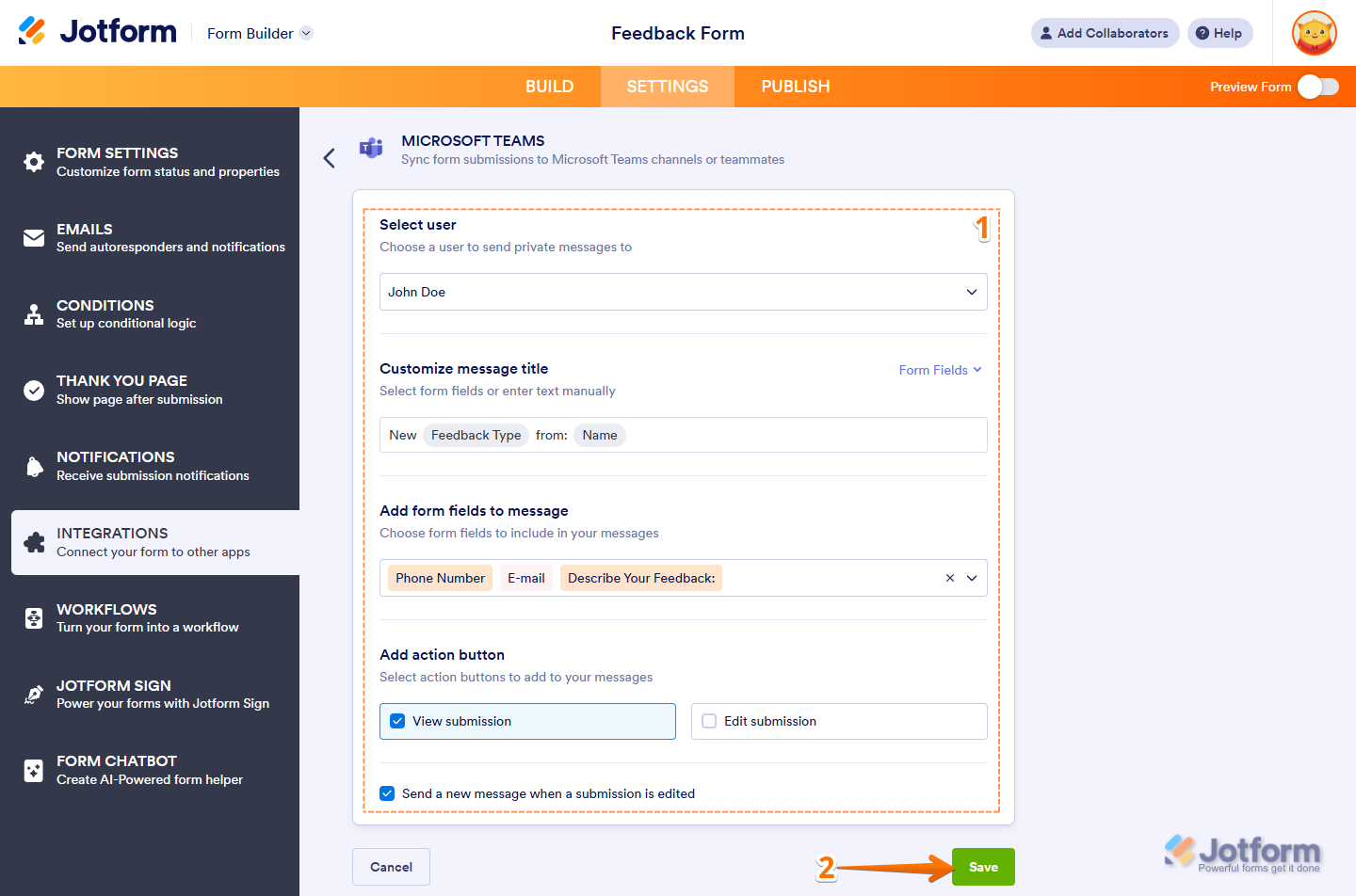
- While you’re in the Microsoft Teams integration section under the Settings tab in Form Builder, you’ll see this list of settings you can configure after authenticating your Microsoft Teams account:
- Select User — Select a user in your Microsoft Teams account from the dropdown menu you want to send private messages to.
- Customize Your Meeting Title — Enter a custom title for your meetings in the input box for your messages. You can also insert dynamic values from your form by selecting the supported form fields from the Form Fields dropdown menu on the right.
- Add Form Fields to Message — Select form fields in the dropdown menu to include their answers in the chat message sent to the user you selected.
- Add Action Button — Put checks in the boxes next to the View Submission and Edit Submission options if you want to include these buttons in the chat message sent to the selected user.
- Send a New Message When a Submission is Edited — Uncheck the box next to this option if you don’t want a new message to be sent to the user whenever a submission is edited.
- When everything looks correct, click on Save.
That’s it. You’ve successfully set up your form to send submission details as chat messages in Microsoft Teams.
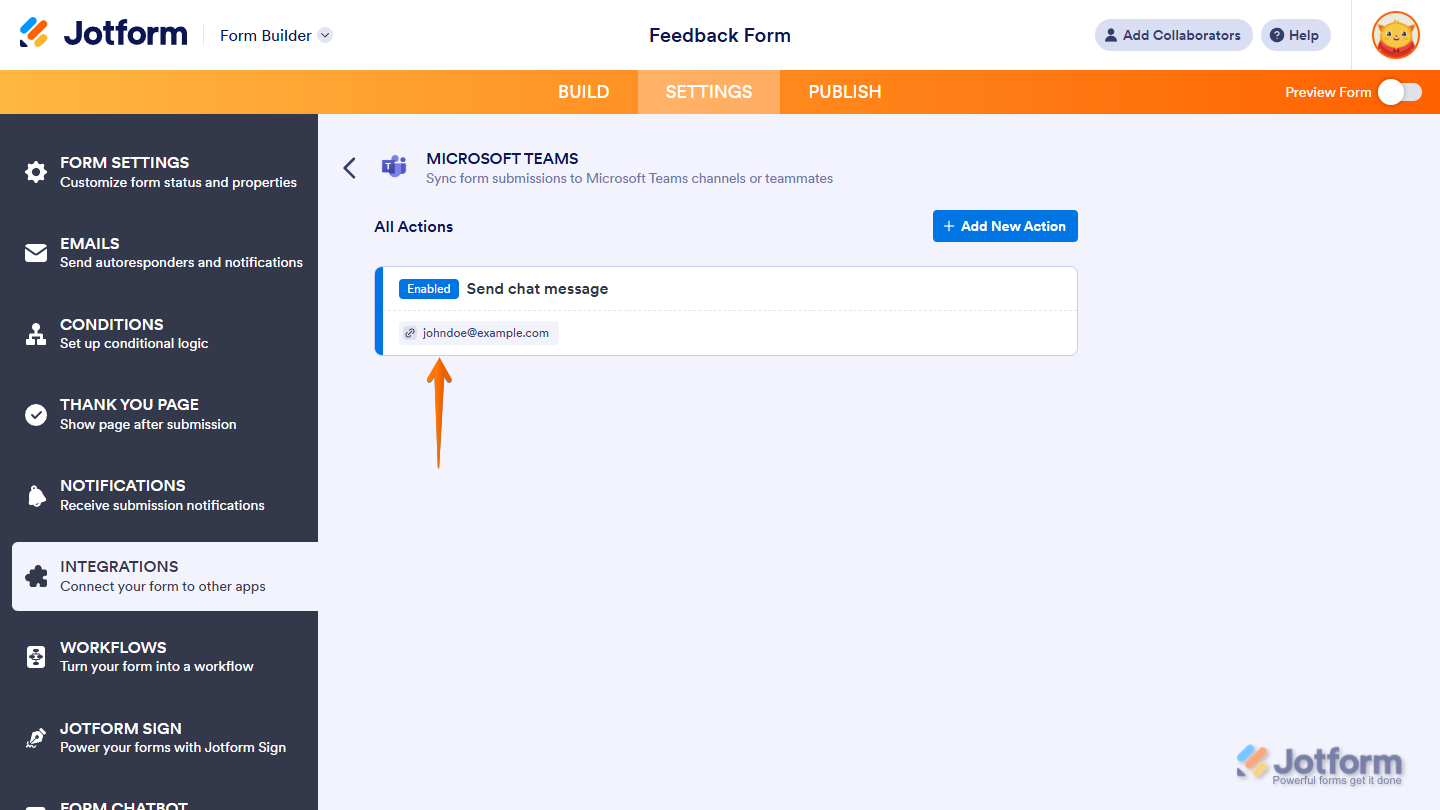
Creating Meetings
Setting up your form to create meetings in your Microsoft Teams calendar is simple—here’s what to do:
- While you’re in the Microsoft Teams integration section under the Settings tab in Form Builder, you’ll see this list of settings you can configure after authenticating your Microsoft Teams account:
- Customize Your Meeting Title — Enter a custom title in the input box for your meetings. You can also insert dynamic values from your form by selecting the supported form fields from the Form Fields dropdown menu on the right.
- Add Required Attendees — Select one or more basic Email Address fields to add email addresses of attendees for your meeting.
- Match Fields — Select a Date or an Appointment field from your form under the Form column to match the Start Time field in the Microsoft Teams column. Then, select a predefined option or a Number field from your form to match the Duration field in the Microsoft Teams column.
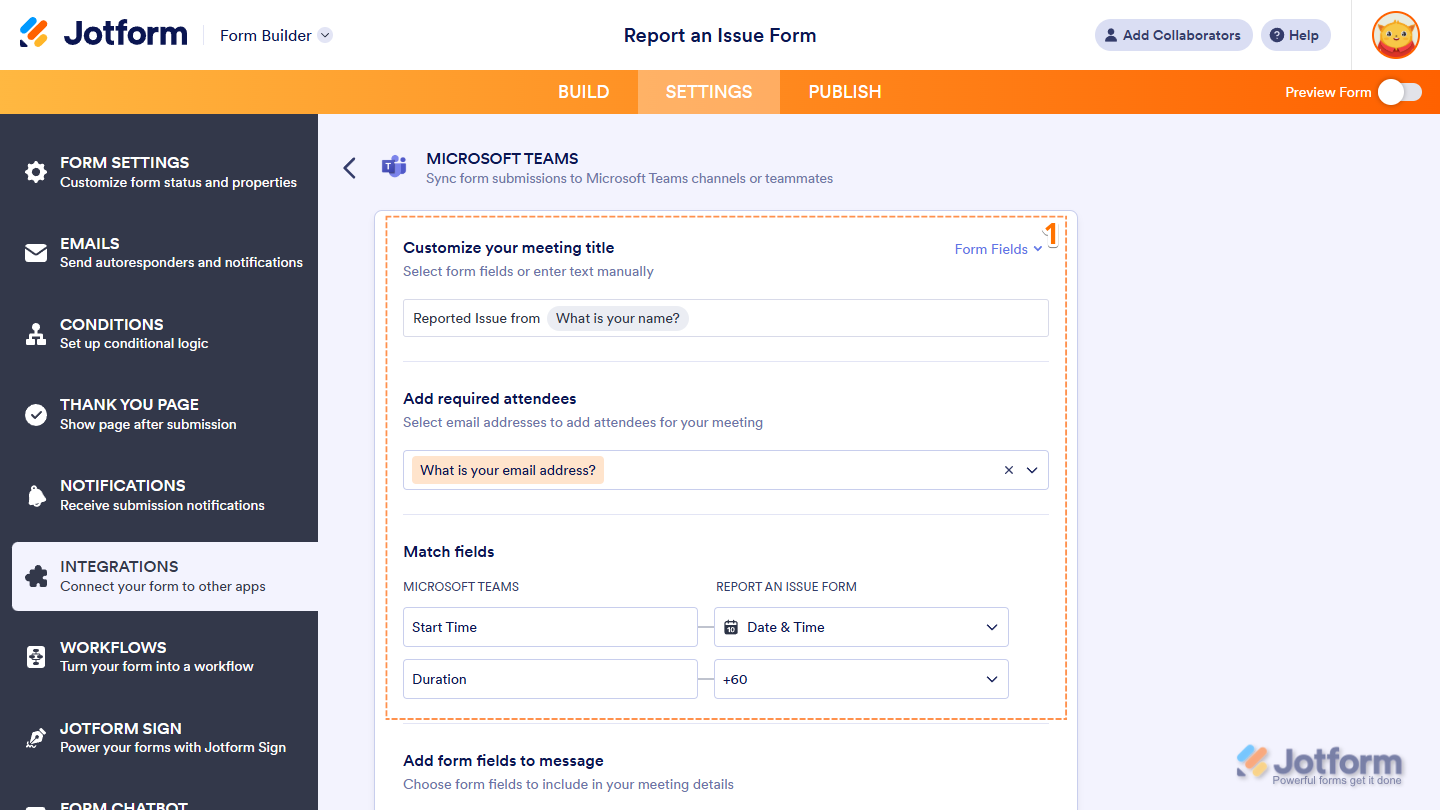
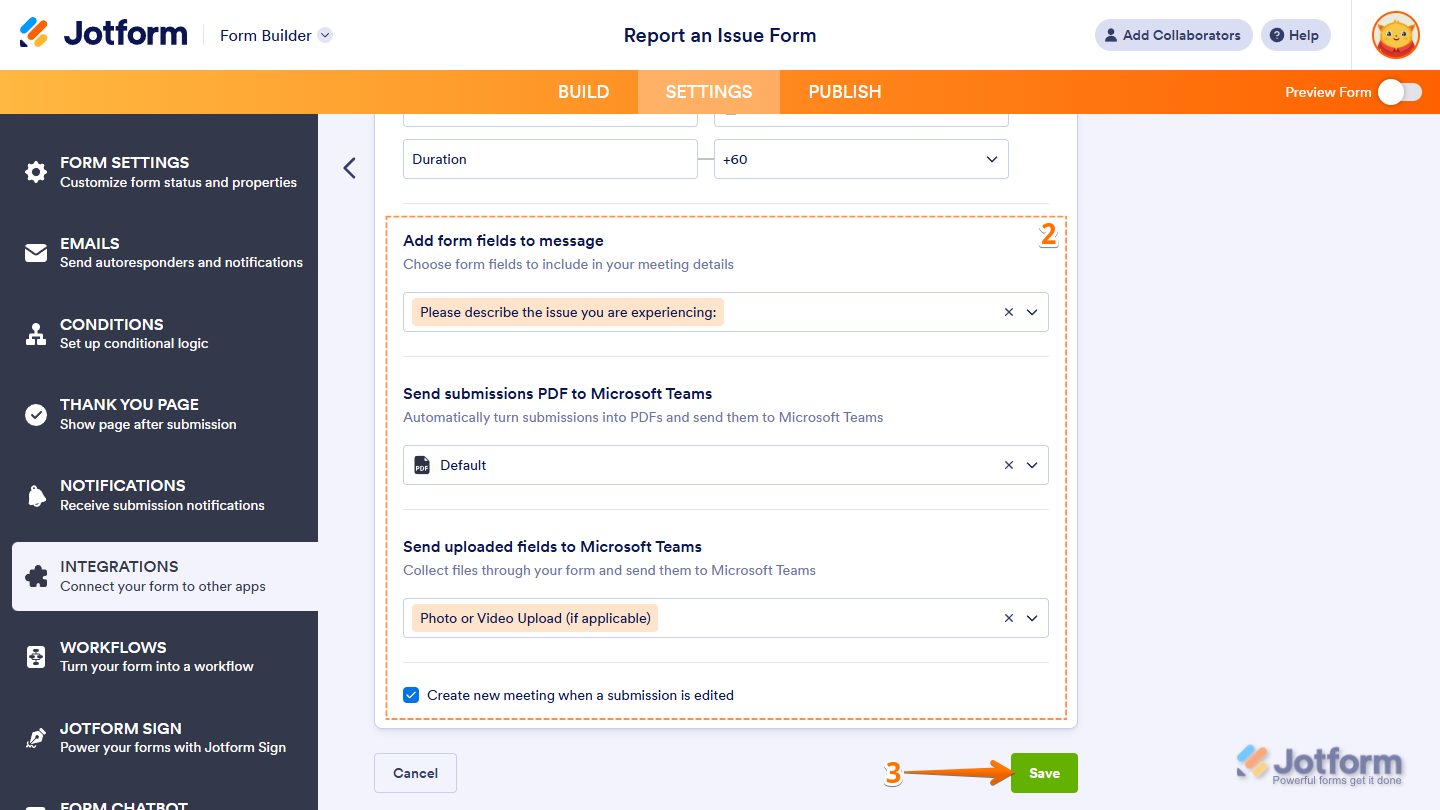
- Then, scroll down to the bottom and continue to set up these settings:
- Add Form Fields to Message — Select form fields in the dropdown menu to include their answers in the meeting details sent to Microsoft Teams.
- Send Submissions PDF to Microsoft Teams — Select a default or custom PDF document from the dropdown menu to send PDF copies of submissions to Microsoft Teams.
- Send Uploaded Fields to Microsoft Teams — Select one or more basic File Upload fields to collect files through your form and send them to Microsoft Teams
- Create New Meeting When a Submission is Edited — Uncheck the box next to this option if you don’t want a new meeting to be created in Microsoft Teams whenever a submission is edited.
- Once everything’s set, click on Save.
That’s it. You’ve successfully set up your form to create meetings in your Microsoft Teams calendar.
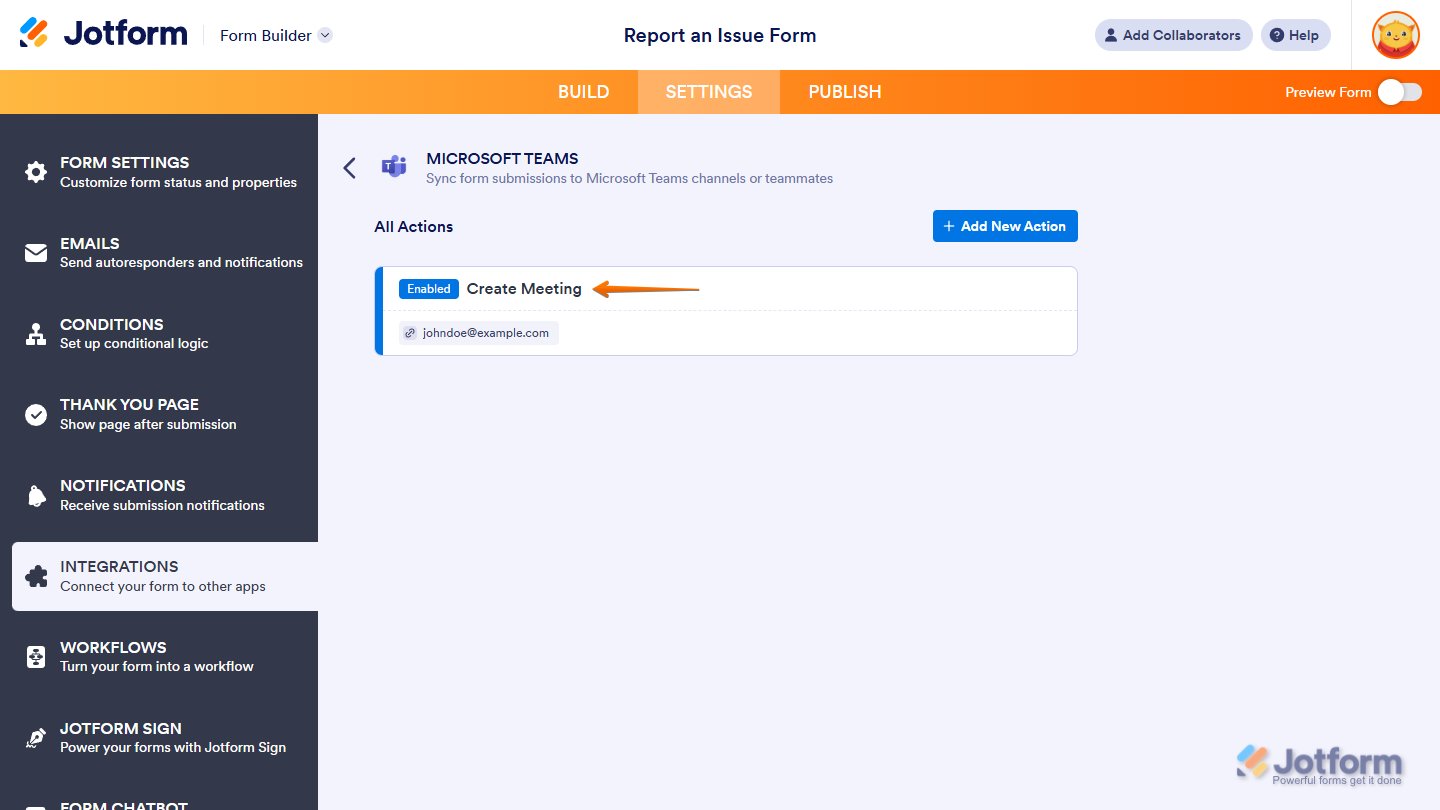
Note
You can click on the Add New Action button on the top right side of the All Actions section if you want to add another one.
Managing Actions
Once you’ve added your actions, you can manage them anytime to keep things organized and running the way you want. You can edit an action, check its logs, rename it, turn it on or off, or delete it if you don’t need it anymore.
Editing Actions
You can update an existing Microsoft Teams action to fine-tune how form submissions are handled or adjust the details it uses. Making changes to an existing Microsoft Teams action is simple—here’s how:
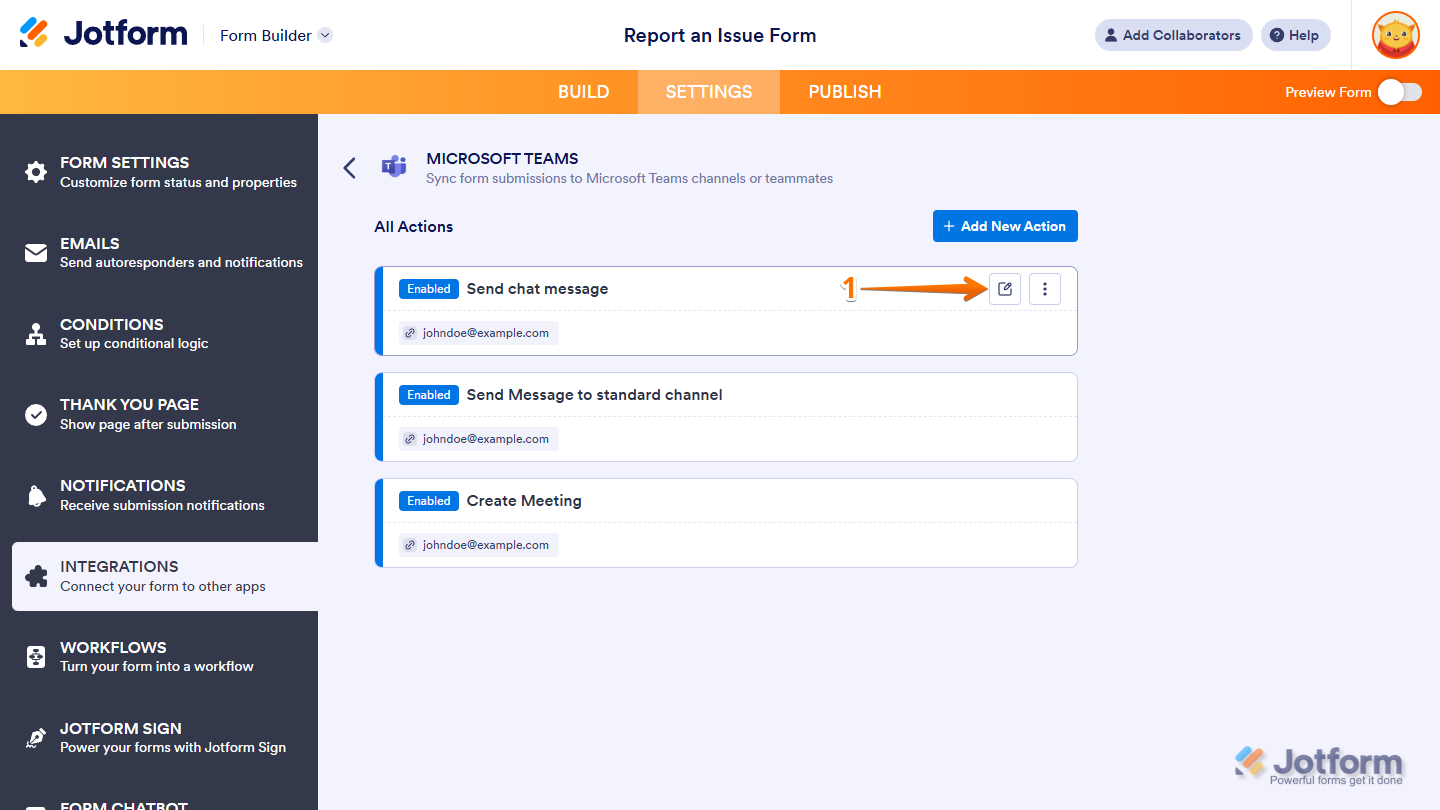
- While you’re in the All Actions section, hover your mouse over the action you want to edit, then click on the Edit icon on the right side of it.
- Now, in the Integration Settings, make your changes, then click on Save.
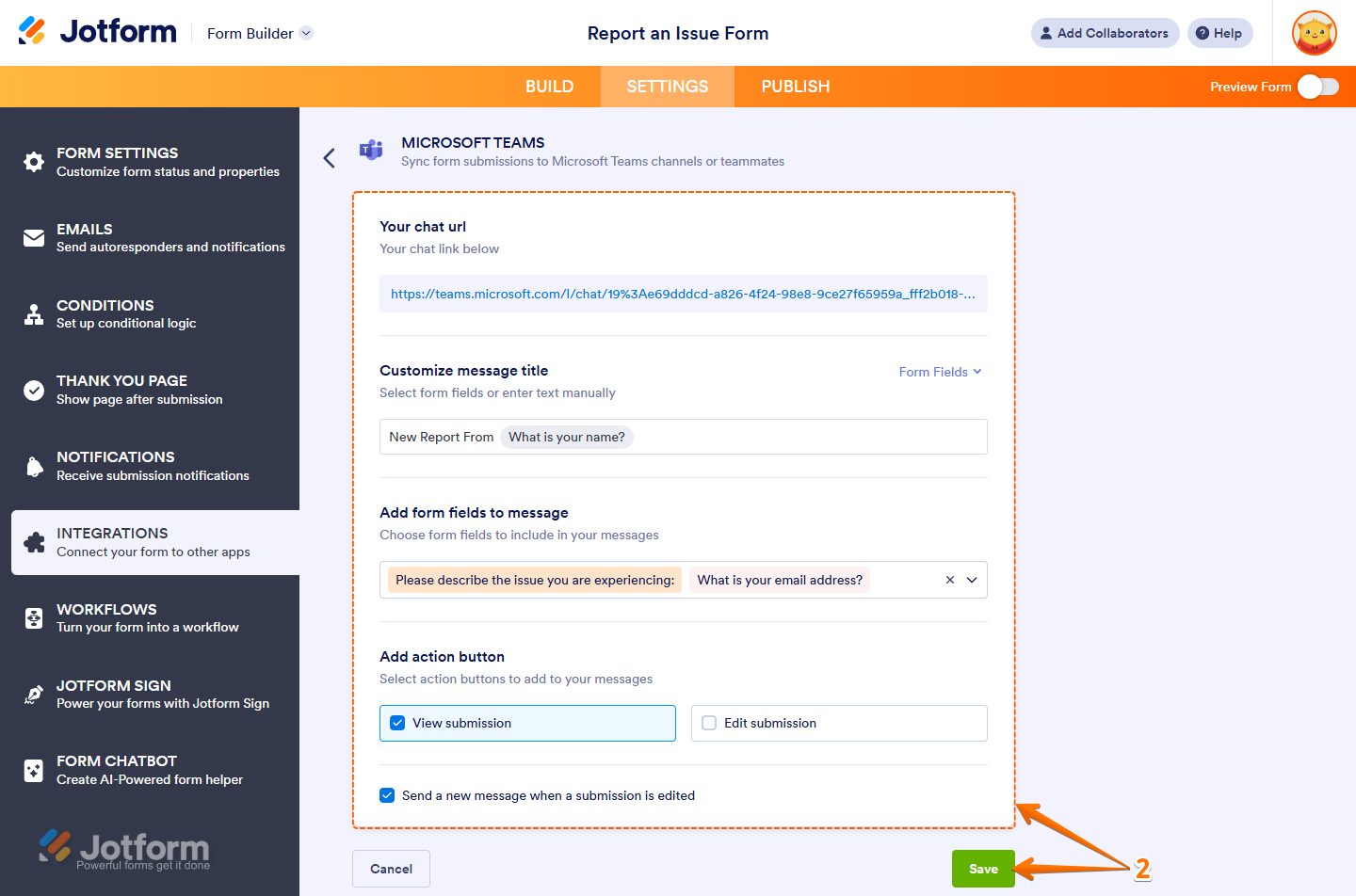
That’s it. Your changes have been saved, and the action is now updated.
Viewing Action Logs
You can review a Microsoft Teams action’s activity to see how it has run and whether submissions were processed successfully. Viewing your Microsoft Teams action logs is quick—here’s what to do:
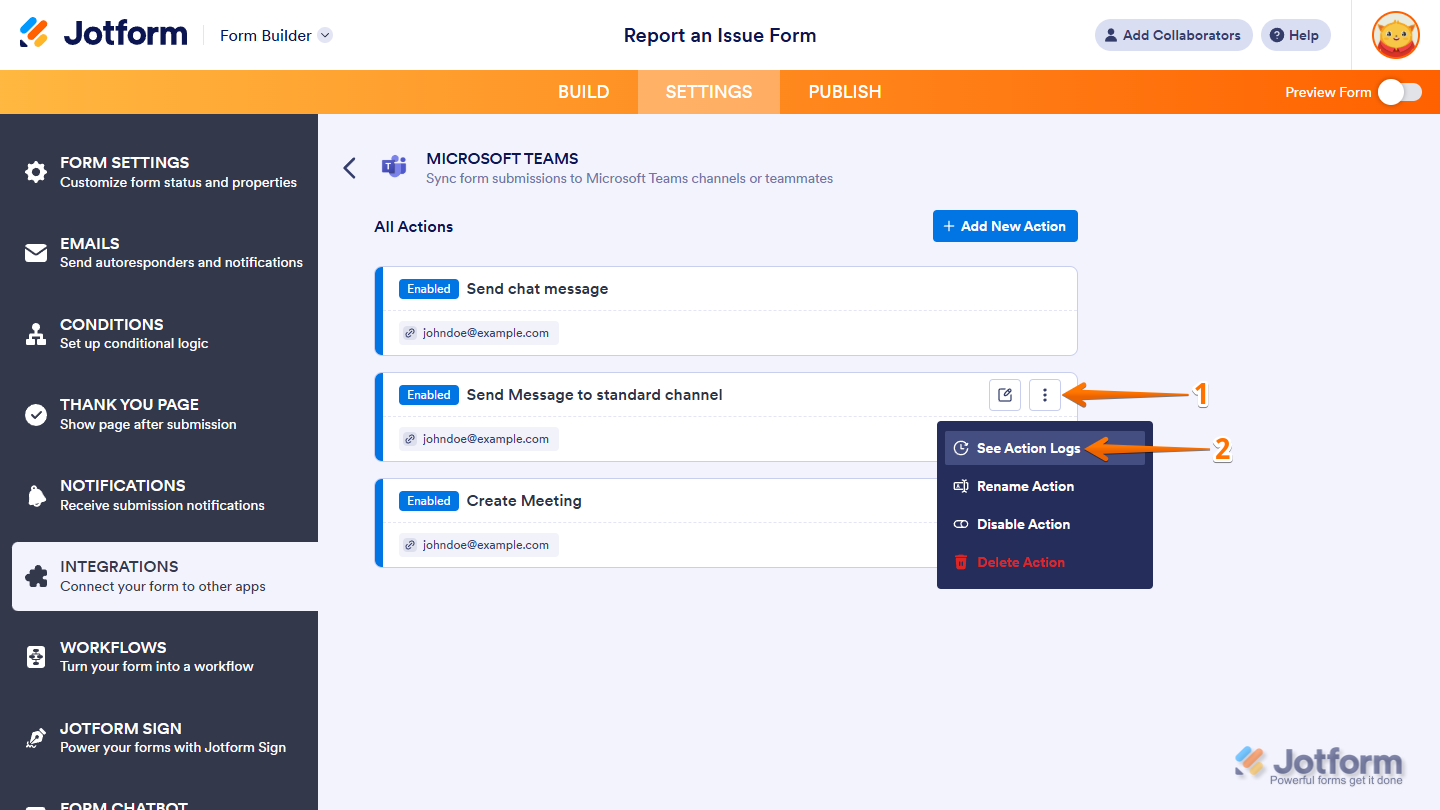
- While you’re in the All Actions section, hover your mouse over the action you want to view action logs for, then click on the Three Dots icon on the right side of it.
- In the menu that comes up, select See Action Logs.
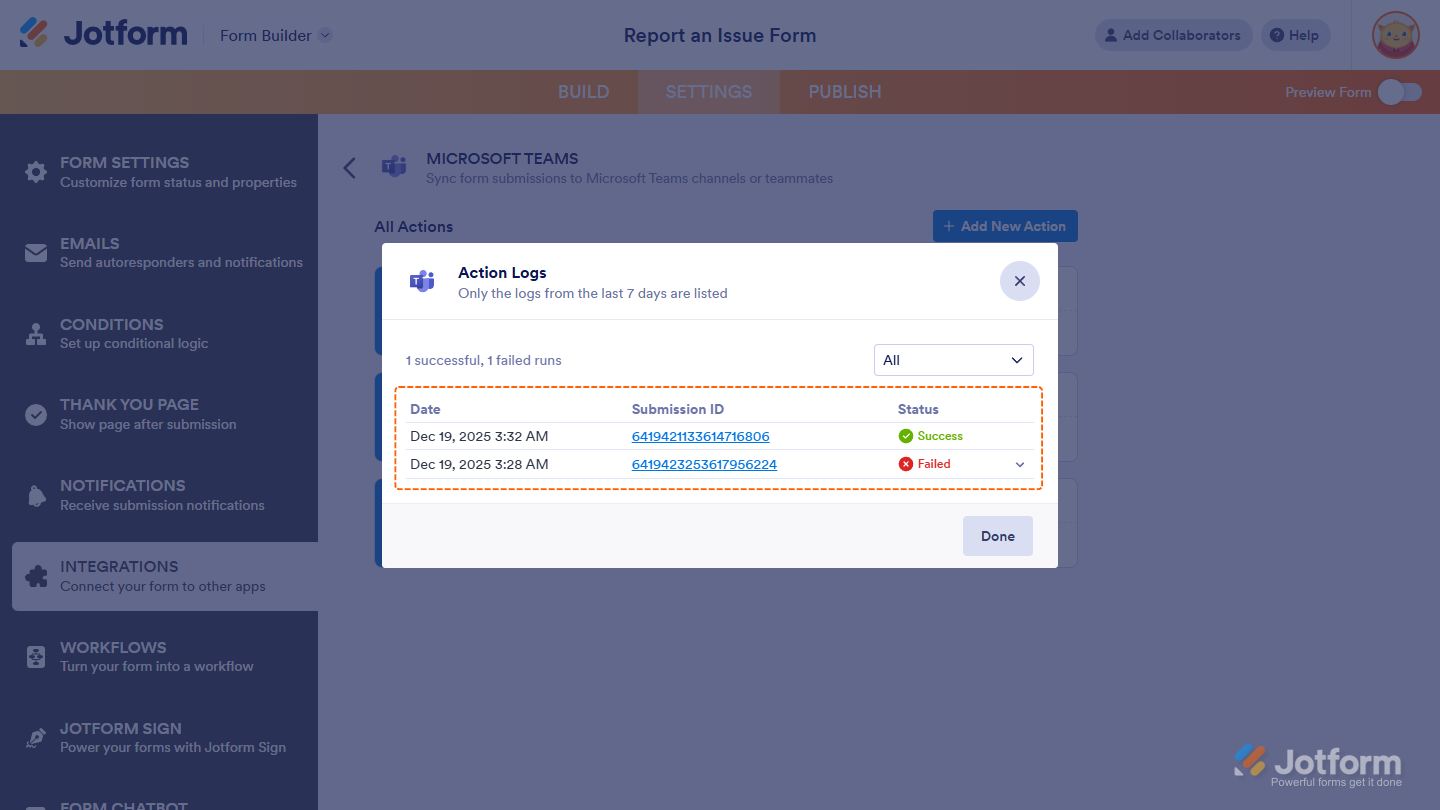
That’s it. This opens the Action Logs window, where you can see successful and failed run logs for the Microsoft Teams action from the last seven days.
Notes
- Use the dropdown menu on the right side of the Action Logs window to filter logs by All, Successful, or Failed.
- In the Status column, click on the Downward Arrow icon next to Failed to view the error details of a log.
- In the Submission ID column, click on an ID to open and review the details of the submission in another browser tab.
Renaming Actions
You can change the default name of an action to make it easier to identify, reflect workflow changes, and distinguish similar actions in the All Actions section. You can do it in a few simple steps:
- While you’re in the All Actions section, hover your mouse over the action you want to rename, then click on the Three Dots icon on the right side of it.
- In the menu that comes up, select Rename Action.
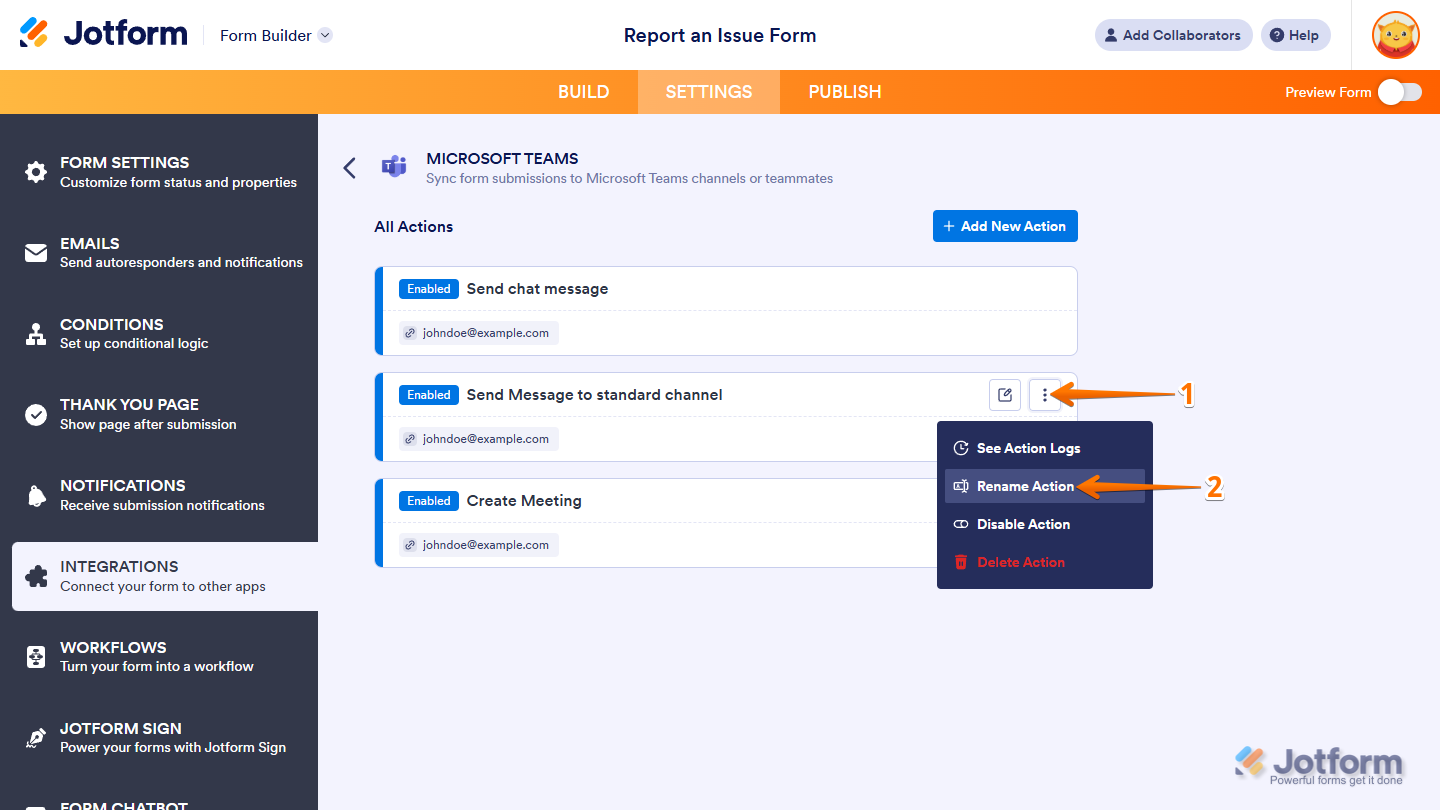
- Now, enter a new name for your action and press the Enter key on your keyboard to save your changes.
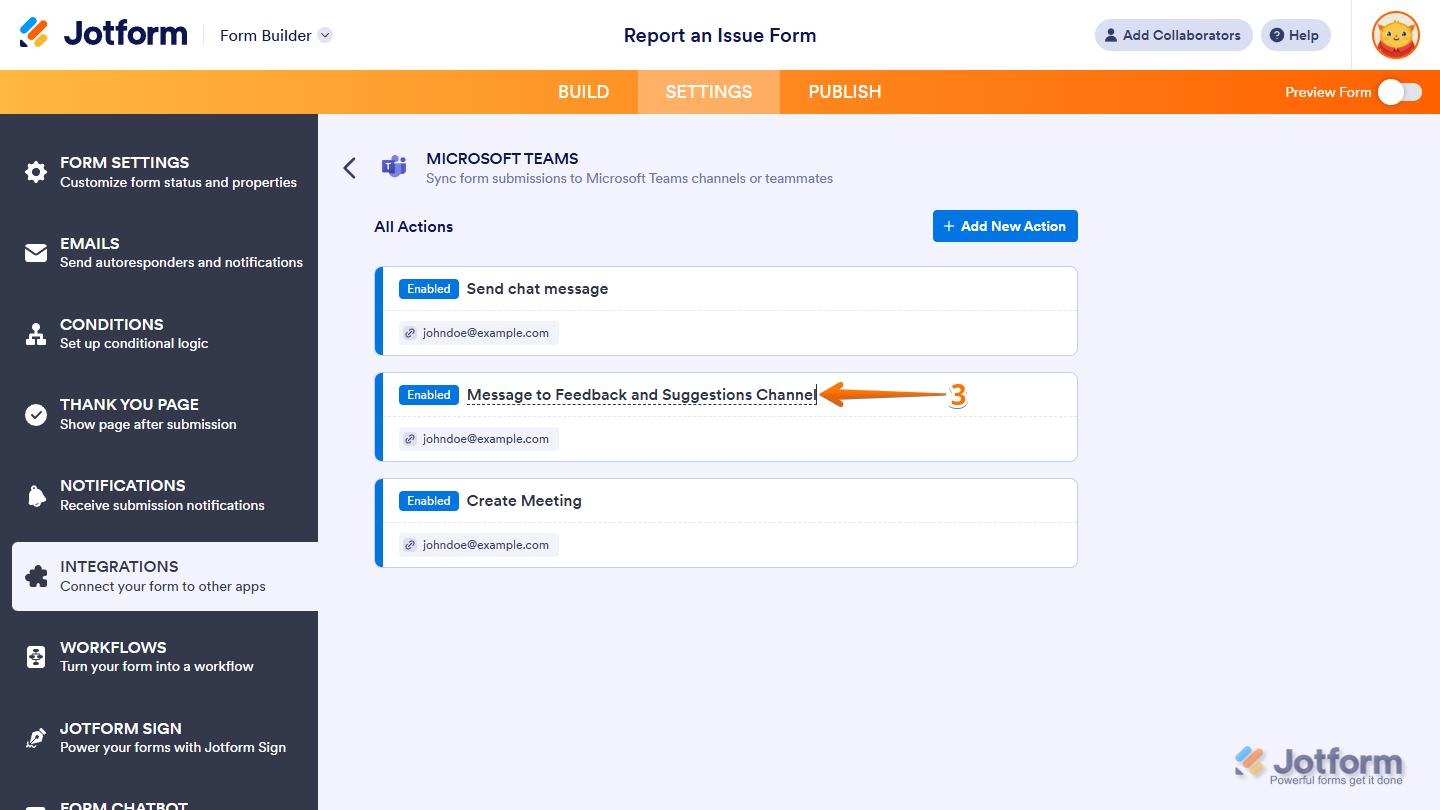
That’s it. Your action has been renamed successfully.
Disabling Actions
You can temporarily stop a Microsoft Teams integration action from running. It’s helpful when you want to pause it without deleting it or affecting other actions in the integration. You can do it in just a few steps:
- While you’re in the All Actions section, hover your mouse over the action you want to disable, then click on the Three Dots icon on the right side of it.
- In the menu that comes up, select Disable Action.
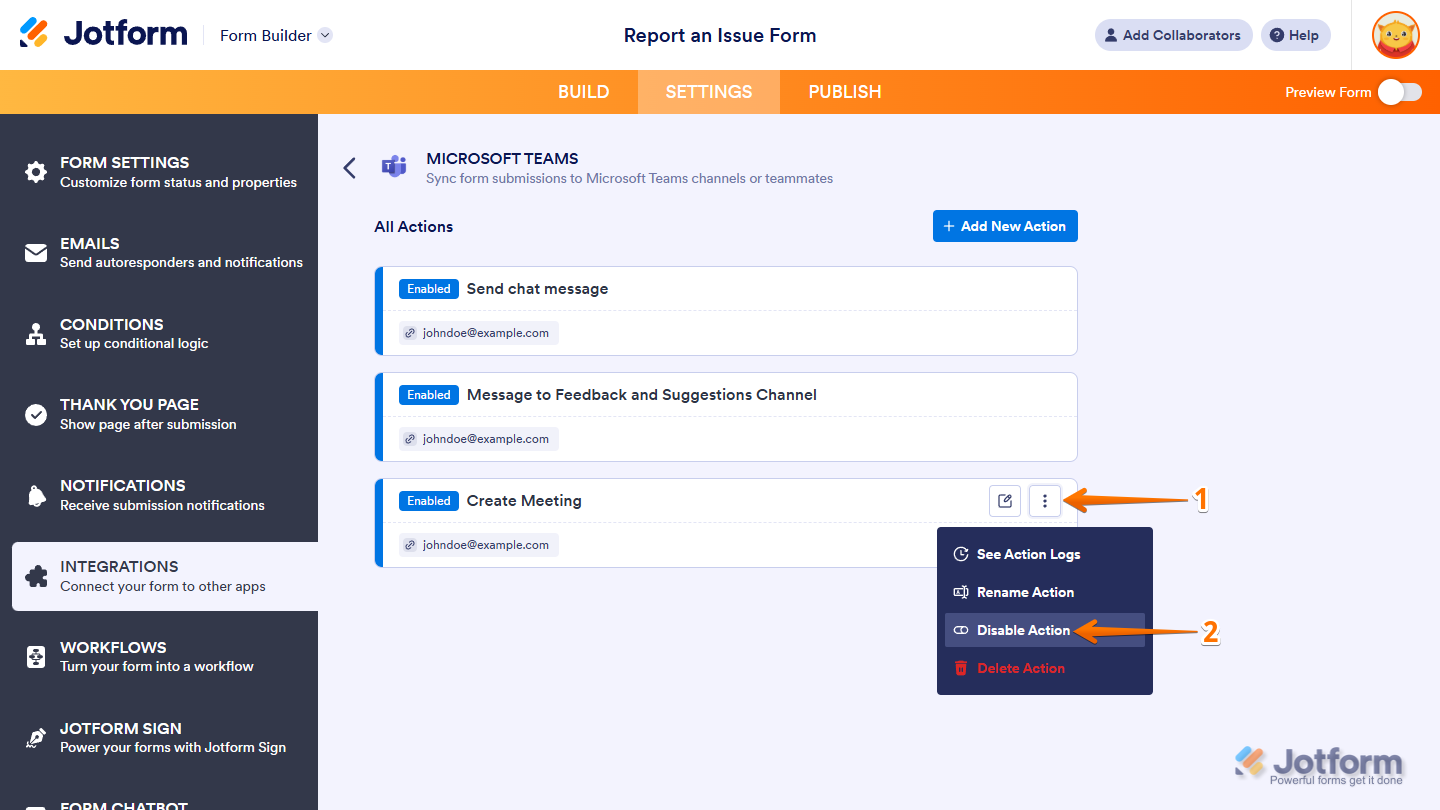
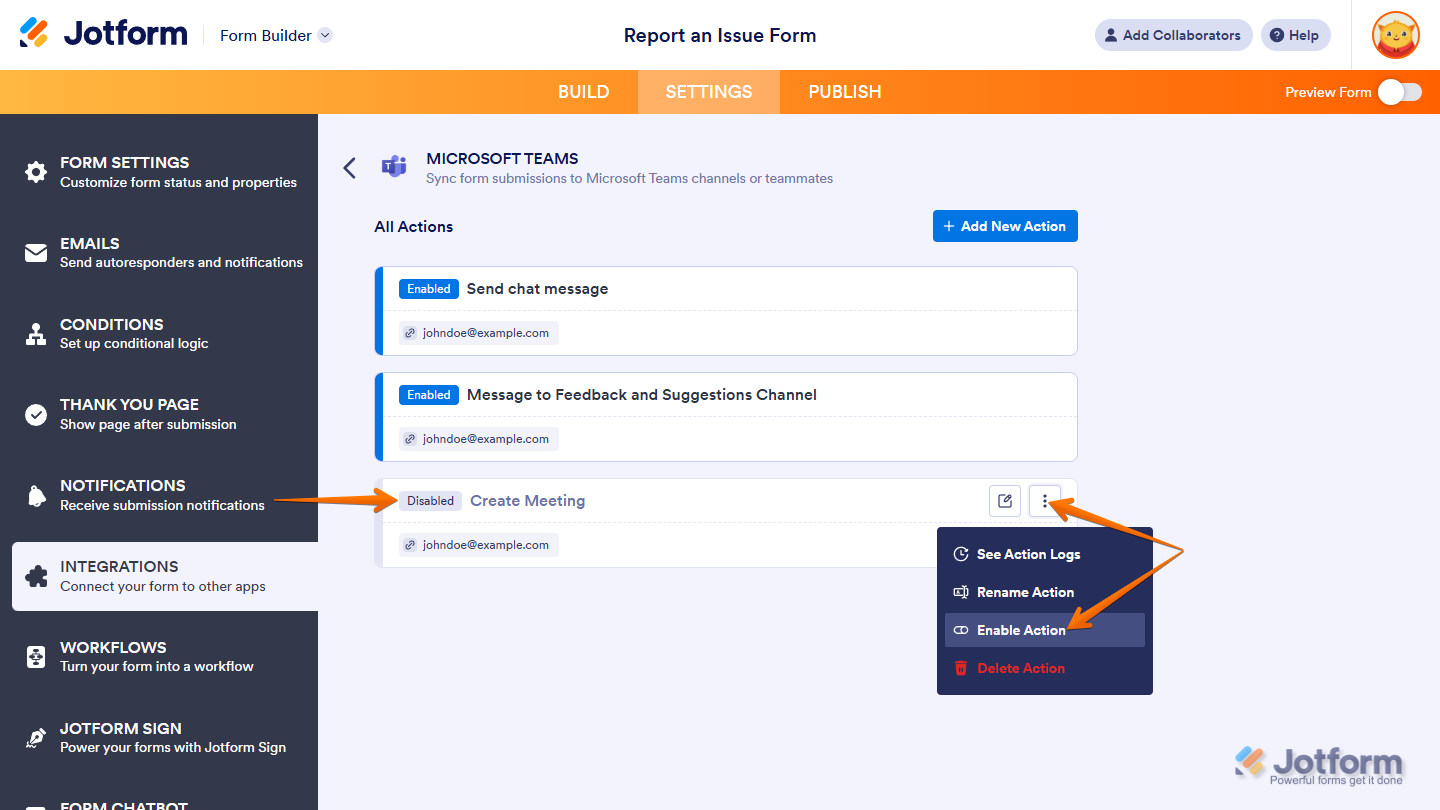
That’s it. The action is now disabled and won’t run until you turn it back on. When an action is disabled, the indicator next to its name changes from Enabled to Disabled. To re-enable it, click the three-dots icon again and select Enable Action.
Deleting Actions
You can delete a Microsoft Teams integration action to remove it permanently. This keeps your integration setup clean and organized. Here’s a quick how-to:
- While you’re in the All Actions section, hover your mouse over the action you want to delete, then click on the Three Dots icon on the right side of it.
- In the menu that comes up, select Delete Action.
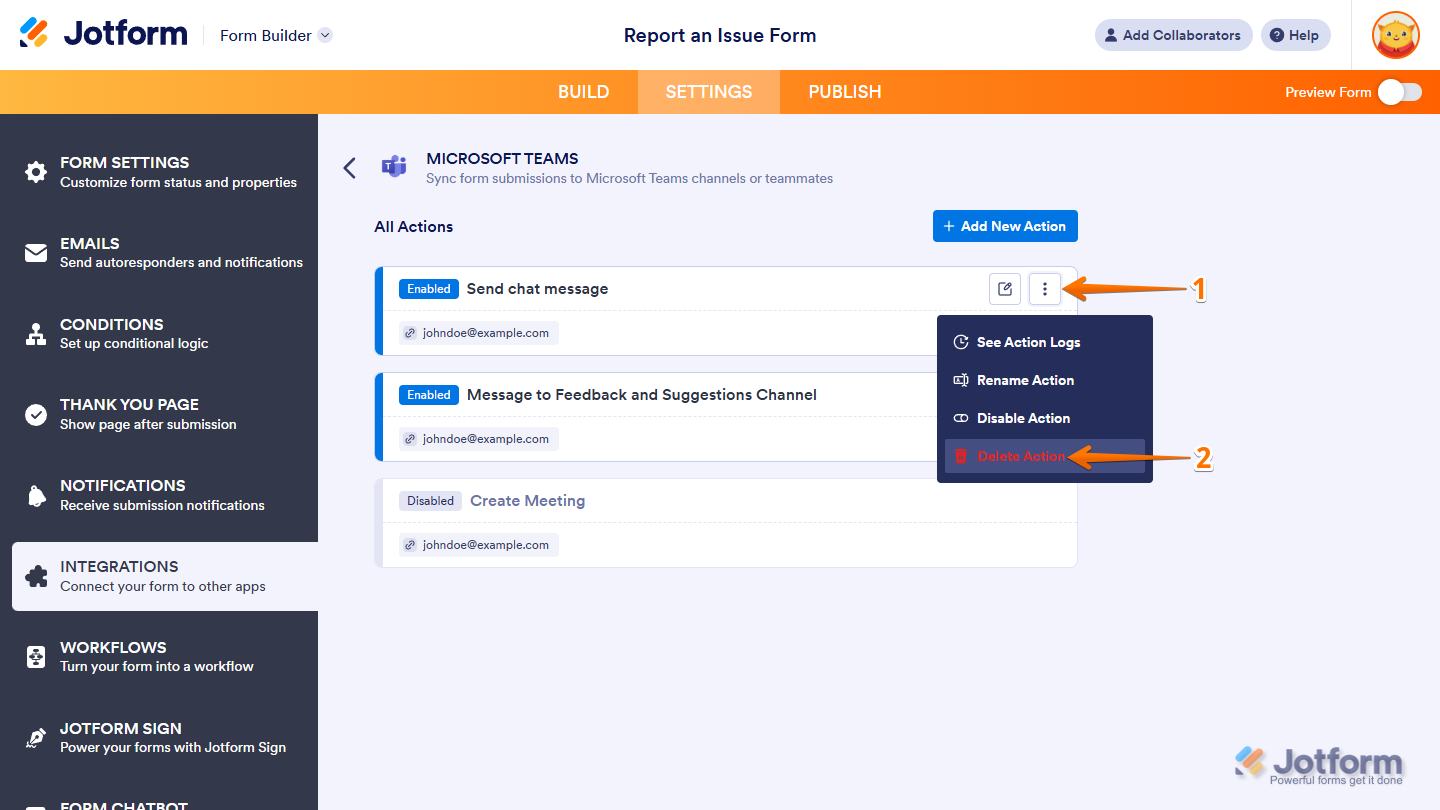
- Then, in the Delete Integration Confirmation window that pops-up, click on Yes, Delete.
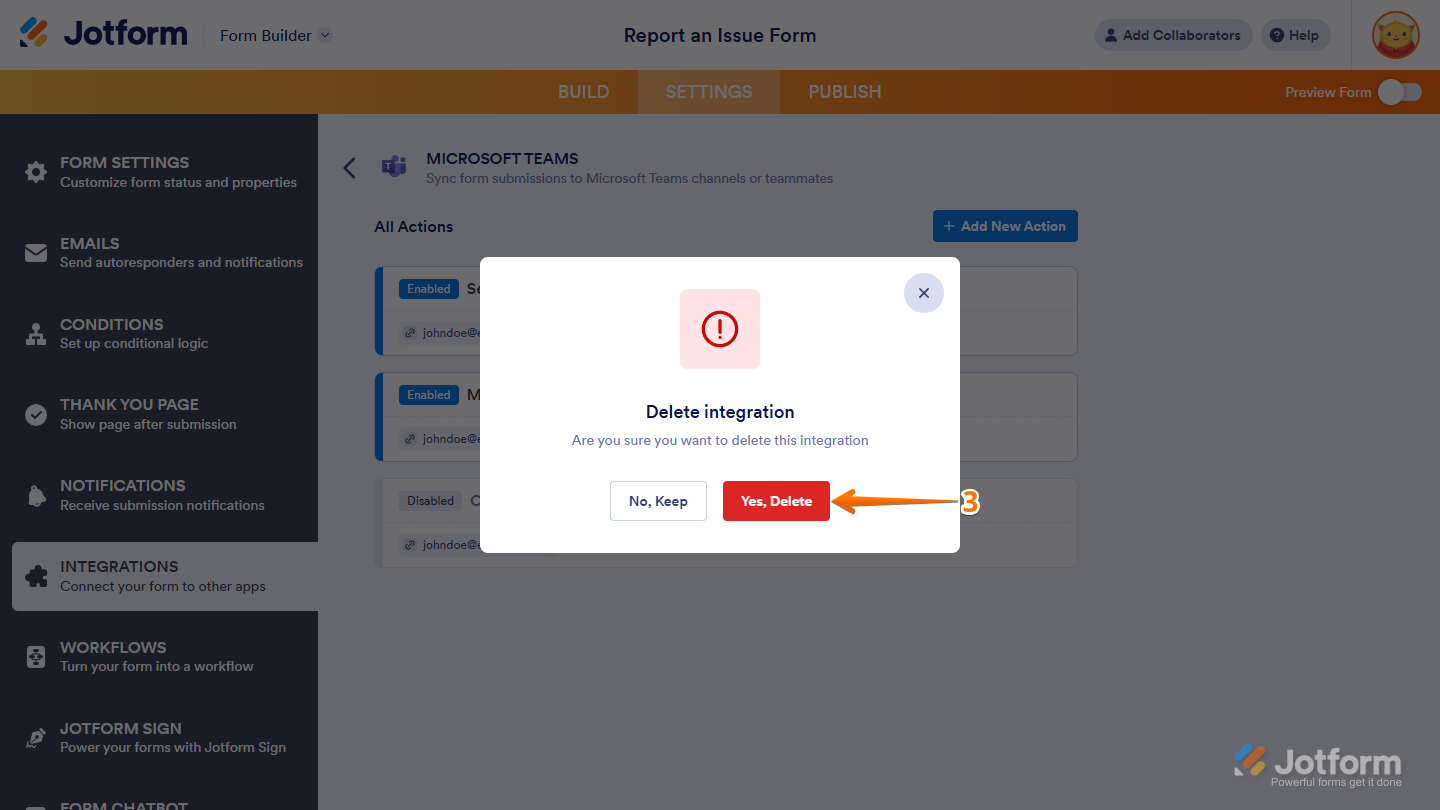
That’s it. The action is removed. If you only want to pause it temporarily, consider disabling it instead.
Sending Form Submission Notifications to Microsoft Teams
Setting up your form to send submission notifications in Microsoft Teams is quick—here’s what to do:
- In Form Builder, in the orange navigation bar at the top of the page, click on Settings.
- Then, in the menu on the left side of the page, click on Notifications.
- Now, in the Notifications section on the right, click on Microsoft Teams.
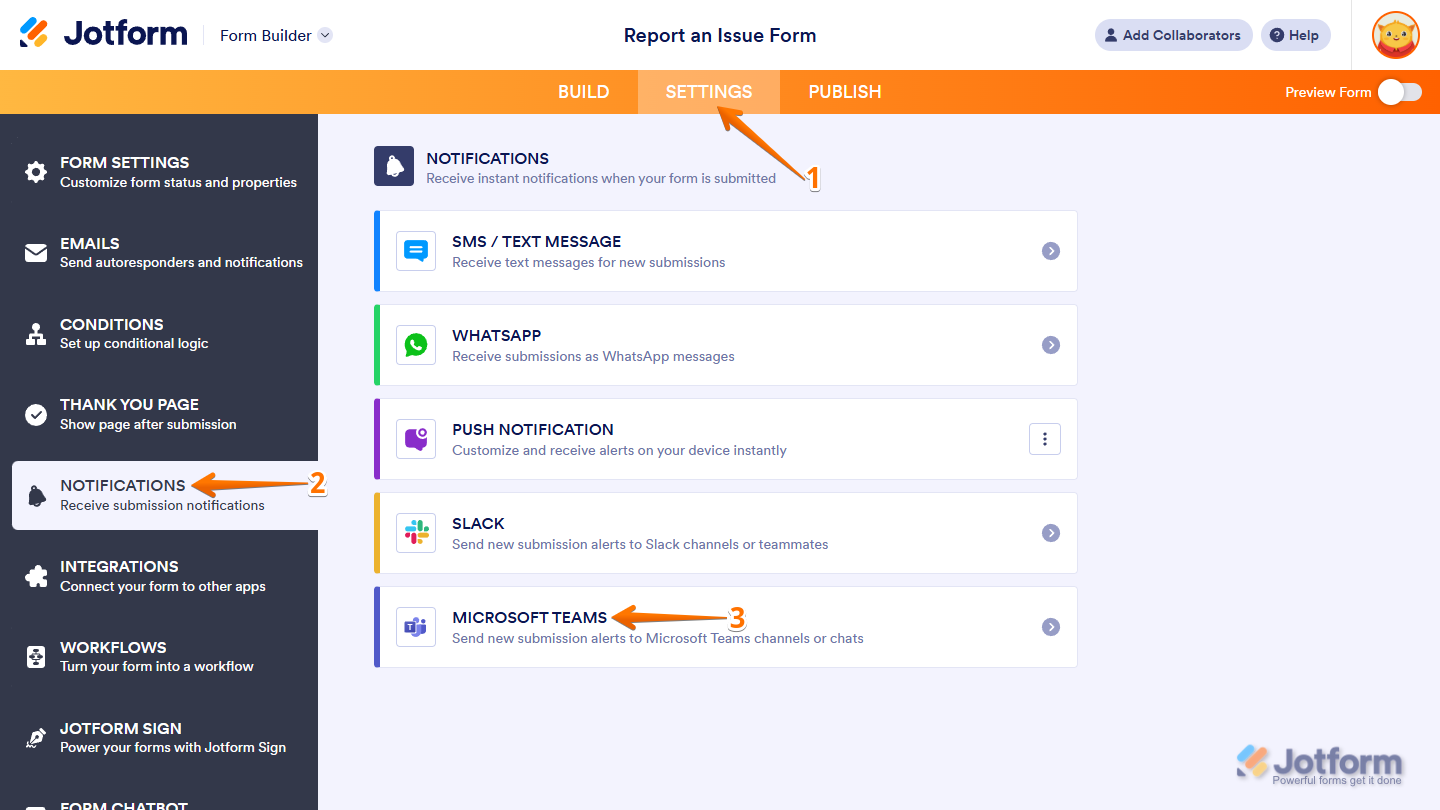
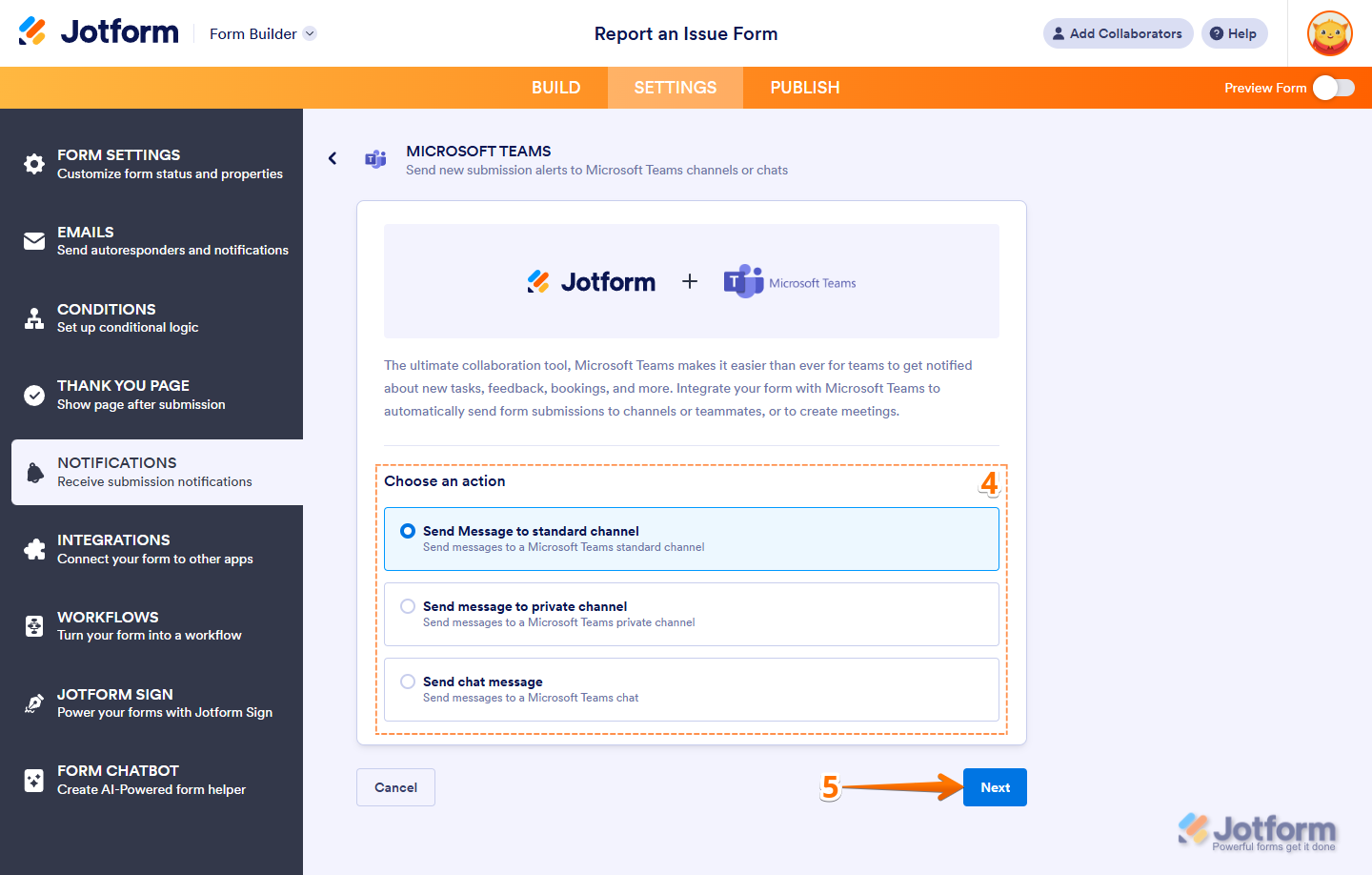
- In the Microsoft Teams section, select one of the following actions:
- Send Message to Standard Channel — Sends form submission details to a Microsoft Teams standard channel.
- Send Message to Private Channel — Sends form submission details to a Microsoft Teams private channel.
- Send Chat Message — Sends form submission details as a message in a Microsoft Teams chat.
- Then, click on Next.
- Now, click on Authenticate. And then, in the pop-up window, log in to your Microsoft Teams Account.
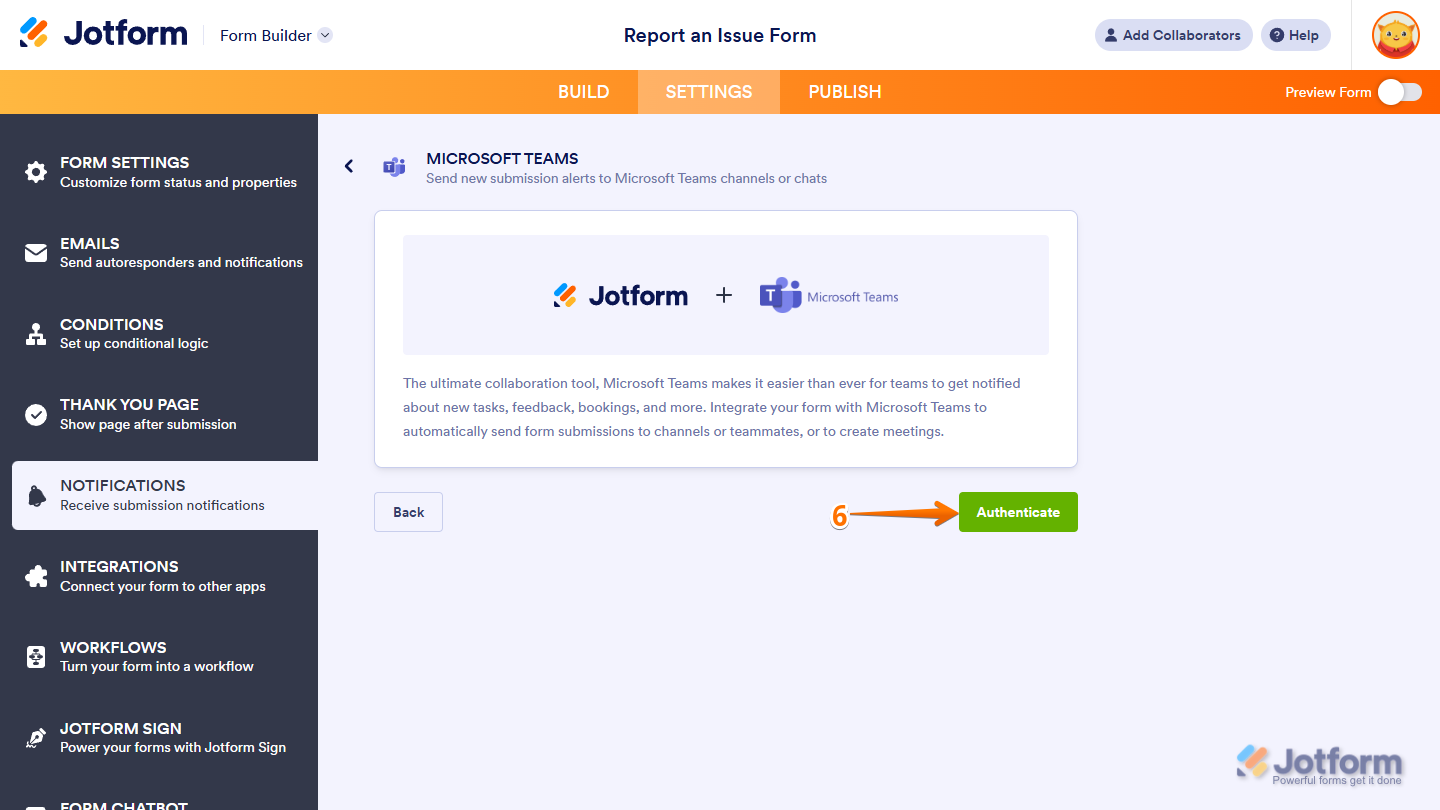
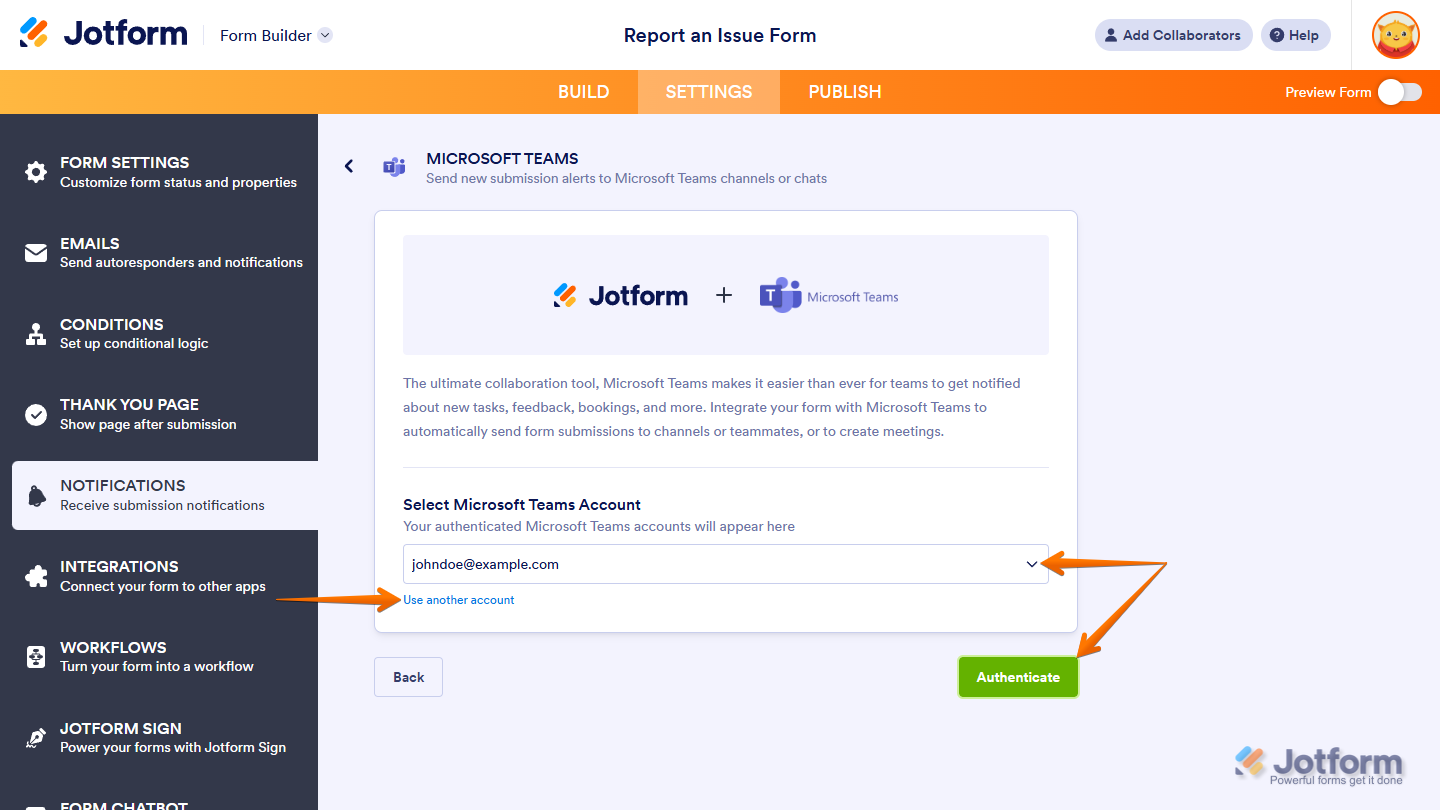
If there is a saved Microsoft Teams account you’ve integrated any of your forms with before, you can choose its email address from the dropdown and click on the Authenticate button on the right to use it. Or, you can also click on Use Another Account below the dropdown to log in and authorize access for the integration to a different Microsoft Teams account.
- Next, depending on the action you chose:
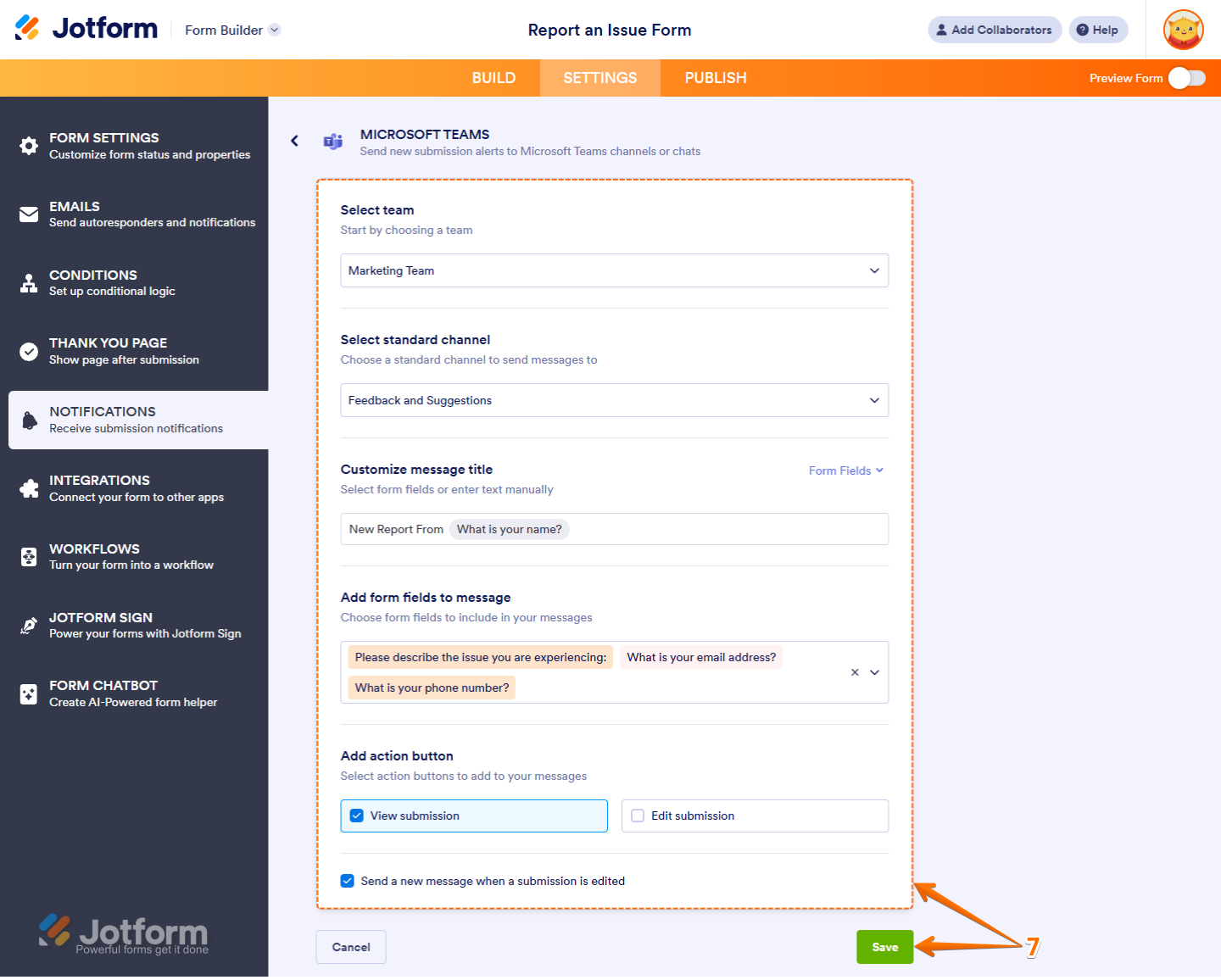
- Configure how submission details are sent to a Microsoft Teams standard or private channel, and then click on Save.
- Select Team — Select the team in your Microsoft Teams account that has the channel you want to send messages to in the dropdown menu.
- Select Standard/Private Channel — Select a standard or private channel from the team you chose, where messages will be sent.
- Customize Message Title — Enter a custom title in the input box for your messages. You can also insert dynamic values from your form by selecting the supported form fields from the Form Fields dropdown menu on the right.
- Add Form Fields to Message — Select form fields in the dropdown menu to include their answers in messages sent to the selected channel.
- Add Action Button — Put checks in the boxes next to the View Submission and Edit Submission options if you want to include these buttons in the message sent to the channel you chose.
- Send a New Message When a Submission is Edited — Uncheck the box next to this option if you don’t want a new message to be sent to the channel whenever a submission is edited.
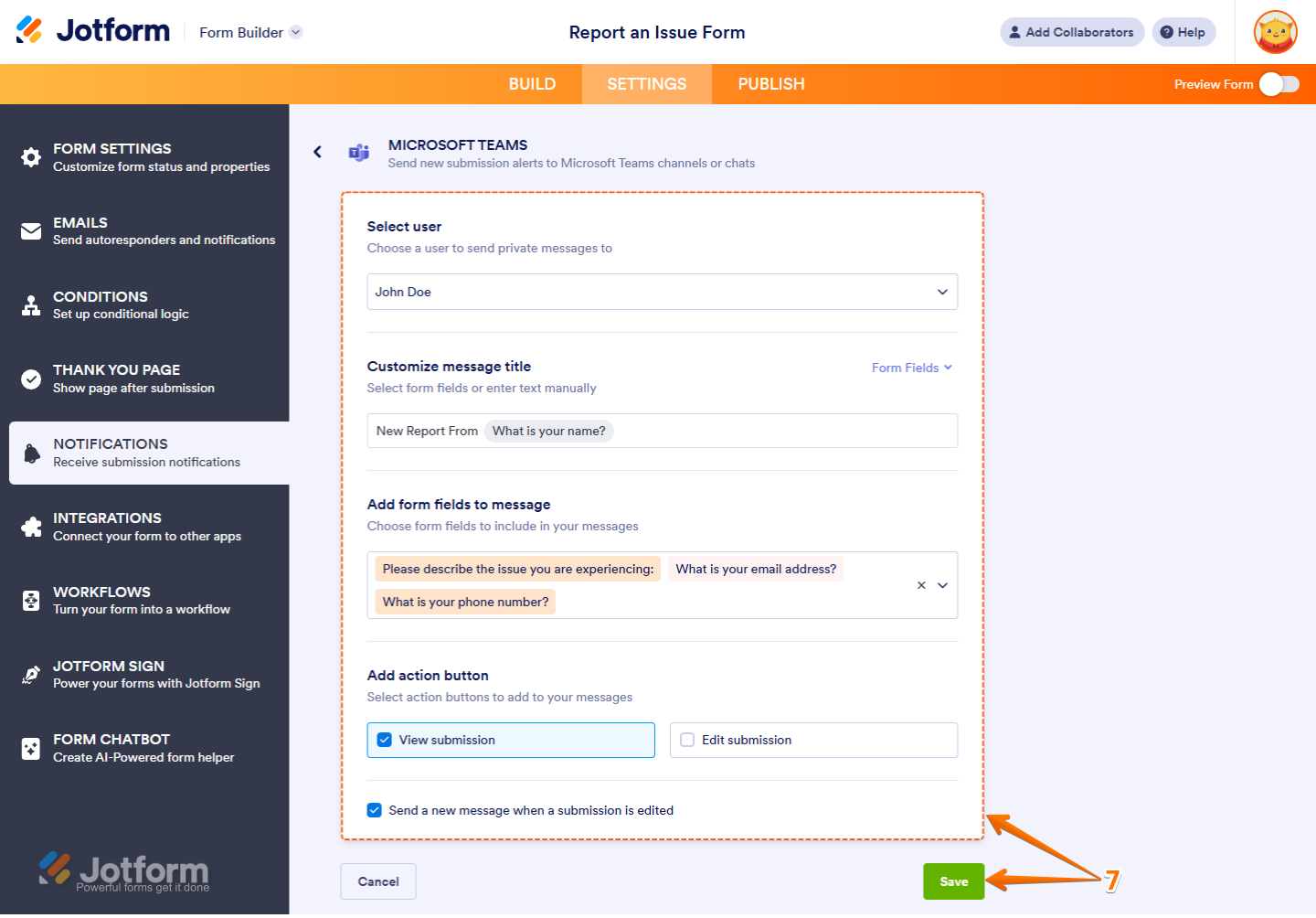
- Configure how submission details are sent as private chat messages in Microsoft Teams, and then click on Save.
- Select User — Select a user in your Microsoft Teams account from the dropdown menu you want to send private messages to.
- Customize Your Meeting Title — Enter a custom title for your meetings in the input box for your messages. You can also insert dynamic values from your form by selecting the supported form fields from the Form Fields dropdown menu on the right.
- Add Form Fields to Message — Select form fields in the dropdown menu to include their answers in the chat message sent to the user you selected.
- Add Action Button — Put checks in the boxes next to the View Submission and Edit Submission options if you want to include these buttons in the chat message sent to the selected user.
- Send a New Message When a Submission is Edited — Uncheck the box next to this option if you don’t want a new message to be sent to the user whenever a submission is edited.
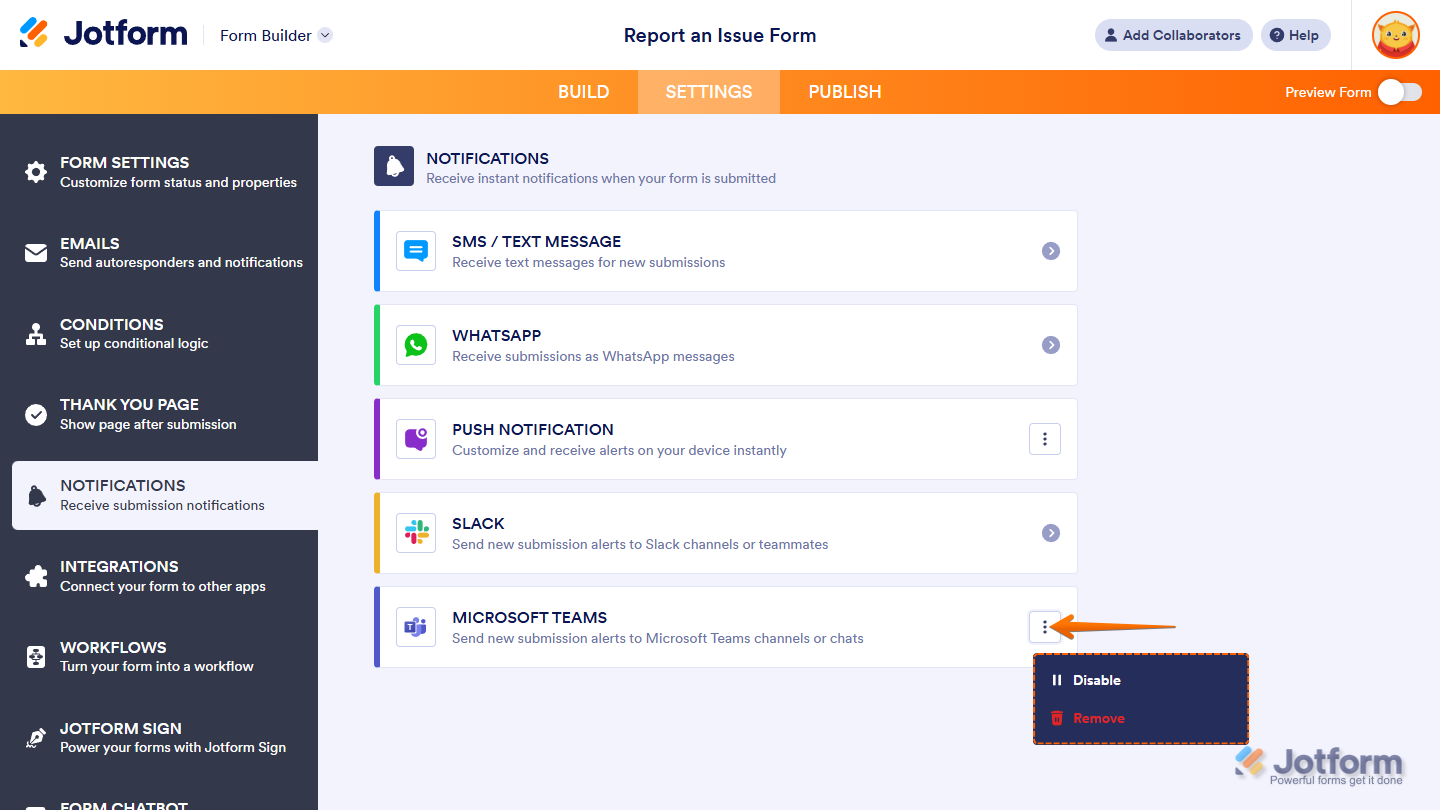
That’s it. Your form is now set up to send submission notifications to Microsoft Teams. You can click on the Three Dots icon next to Microsoft Teams while you’re under the Settings tab, in the Notifications section, to disable or remove it.

Send Comment:
6 Comments:
February 6, 2025
Can't send to an existing group chat.
Can't include the completed PDF in the Teams message.
Hopefully this integration will improve in the future.
January 20, 2025
if ive created the teams - will ousiders be abkle to accet the meeting on there repsonse to the webinar
October 6, 2024
I like that, but i have to login to Jotforms when i want to see the attachments of my form.
Can i send just a pdf with all the content like in the emails?
August 28, 2024
I think this integration is great, but sending data directly into an Excel sheet or list located in teams would be amazing. Is that something that is coming?
August 22, 2024
There are several big issues with this integration that I've experienced so far.
1. The integration can't "see" the group chats I've created, which means our only option is to notify 1 person of a form submission. This significantly limits the functionality of this integration.
2. While sending channel messages is nice, given Teams' restriction on sending "alerts" to the person creating the form submission, it means I can't see my own alerts that I'm sending to my team.
For these reasons, this integration is useless - and I was really excited to start using this!
May 8, 2023
I can`t find teams in our solutions?
Grethe