It is easy to let your users edit their submissions directly from your app. By using the Open Edit Form action with a List element connected to a Public Table, users can open and update existing entries with just a tap—no extra steps needed. This helps keep information accurate while giving users a smooth, seamless editing experience.
There are two ways to let users edit submissions from your app. Choose the setup that best fits your app’s user experience:
- Editing Submissions by Tapping a List Item
- Editing Submissions from the List Detail Page Using Button or Card Element
Notes
- The table linked to the List Element must be a Public Table so users can access and edit submissions.
- Only a List element supports the Open Edit Form action. Without it, this feature won’t work.
Editing Submissions by Tapping a List Item
Use this option when you want users to edit submissions directly from the list view. It’s simple, fast, and works best when the list itself shows th key information users need to update. Here’s what to do:
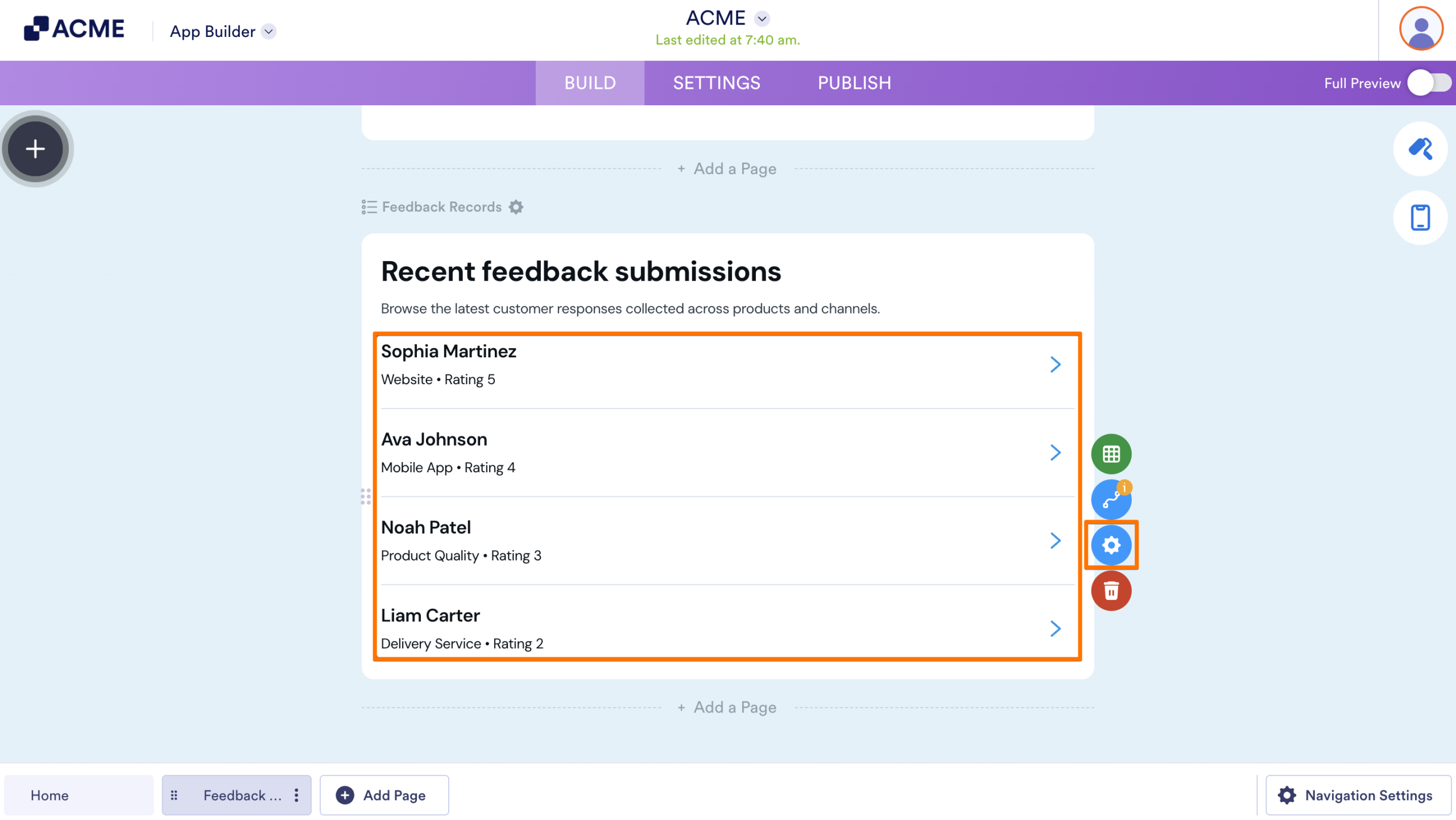
- In App Builder, select the List Element field and click on Gear icon.
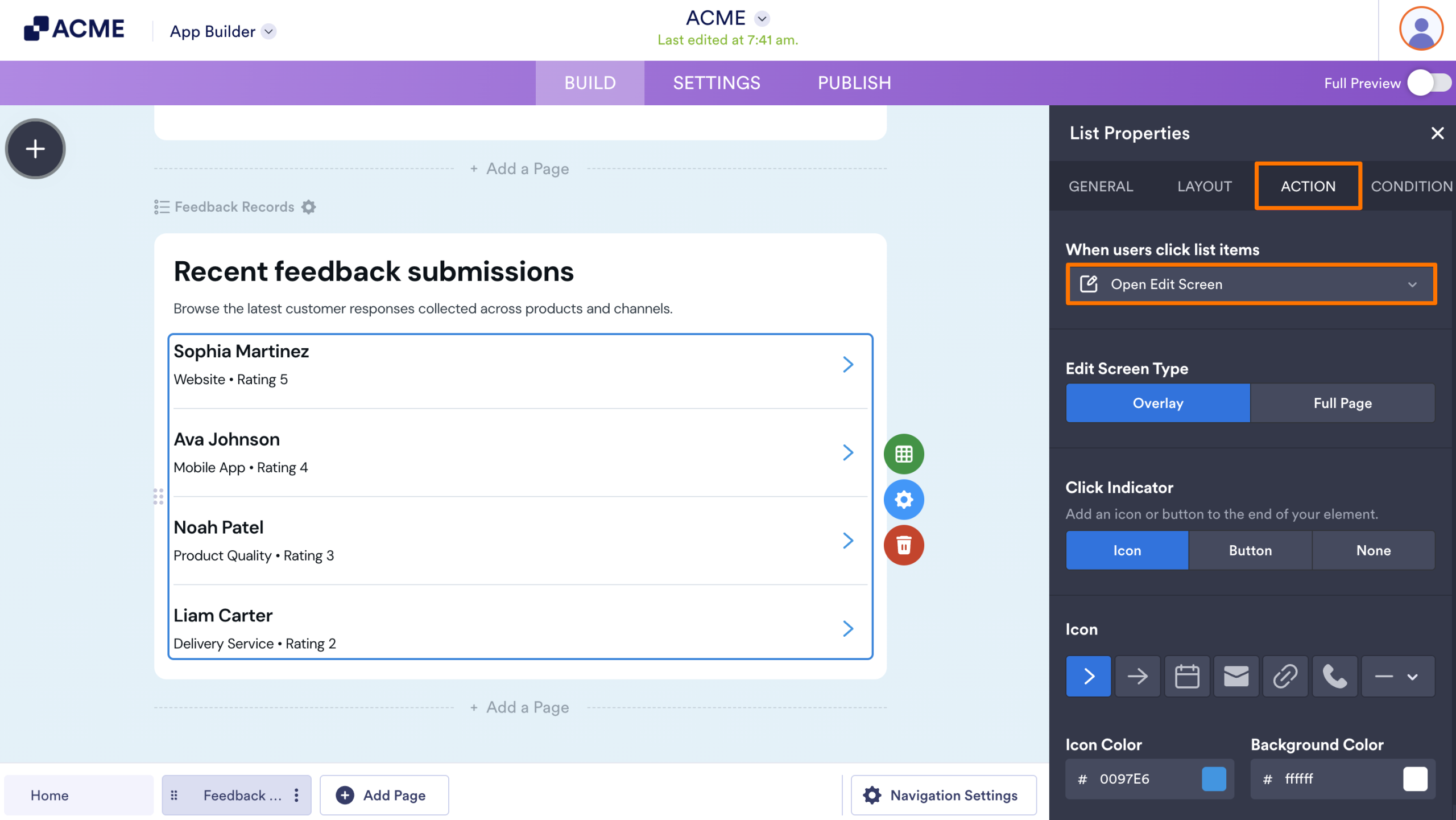
- Then, in the List Properties menu that opens on the right side of the page, under the Action tab, click on When Users Click List Items Dropdown menu and select Open Edit Screen.
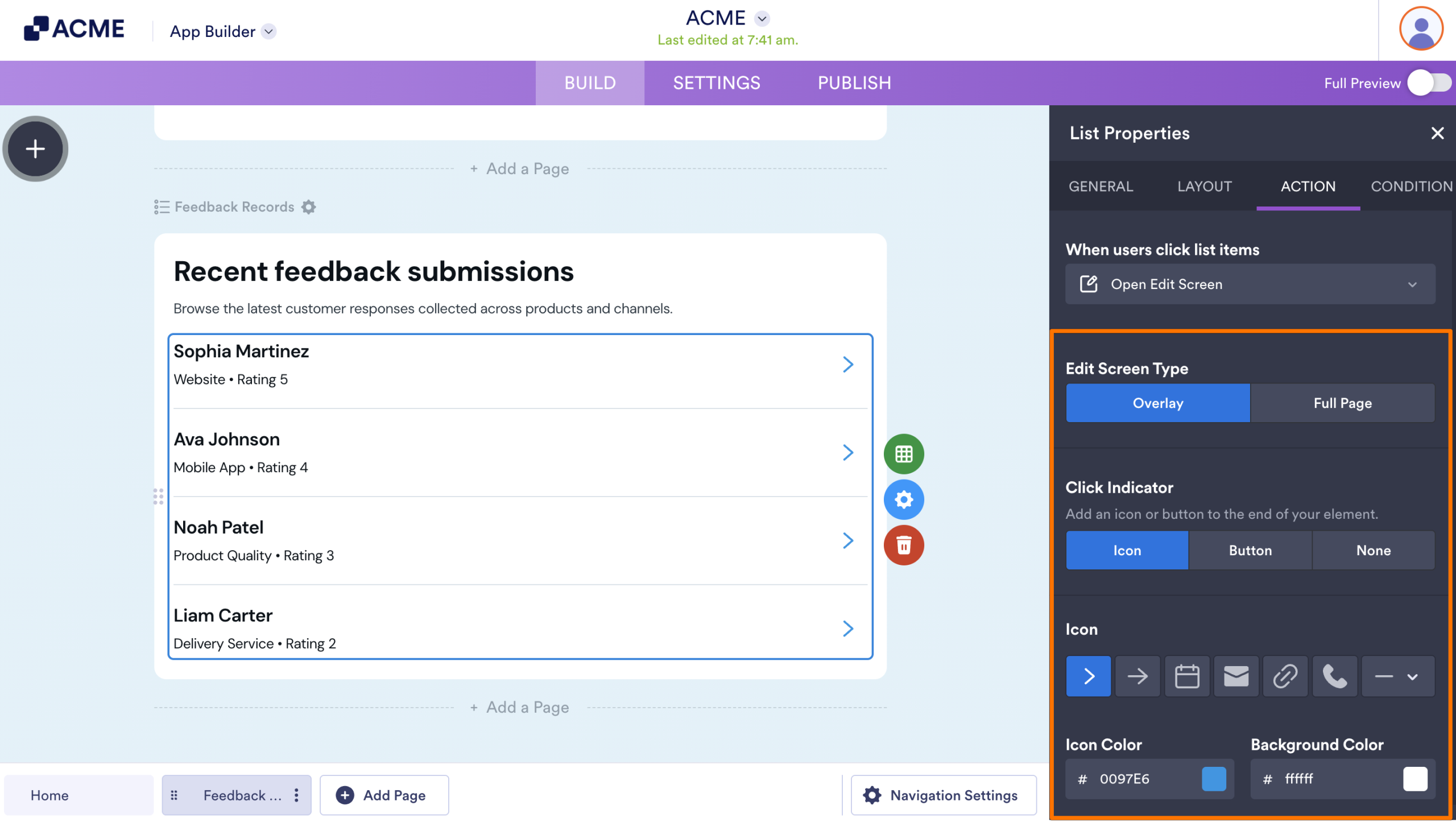
- Next, in the Edit Screen Type section, choose how you want the edit screen to appear on the screen:
- Overlay — Opens the edit form in a new window over the current screen.
- Full Page — Opens the edit form in a full-page view.
- Finally, in the Click Indicator section, select how users know the item is clickable, and you’re done:
- Icon — Shows a small icon next to the item to indicate it can be clicked.
- Button — Displays a button for users to click to edit the item.
- None — No visual cue is shown. Users can still click the item if they know it’s editable.
Once this is set up, users can simply tap a list item to open the edit screen and update their submission.
Editing Submissions from the List Detail Page Using Button or Card Element
Choose this approach if you want a more detailed view before editing, or if you want to provide a clear button or card for users to open the edit form. It’s ideal for apps with complex data or where a “call-to-action” is helpful. This is how it’s done:
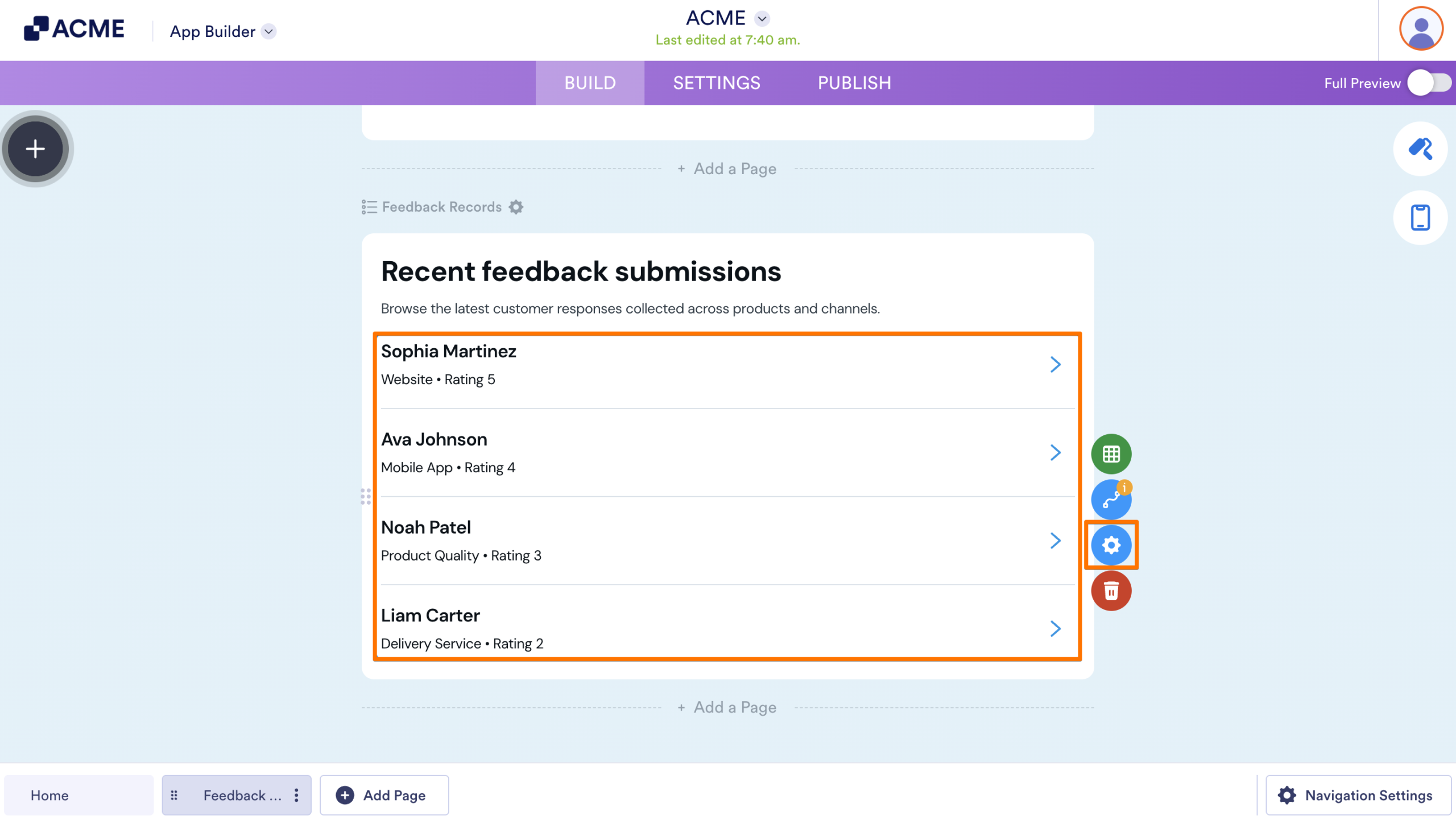
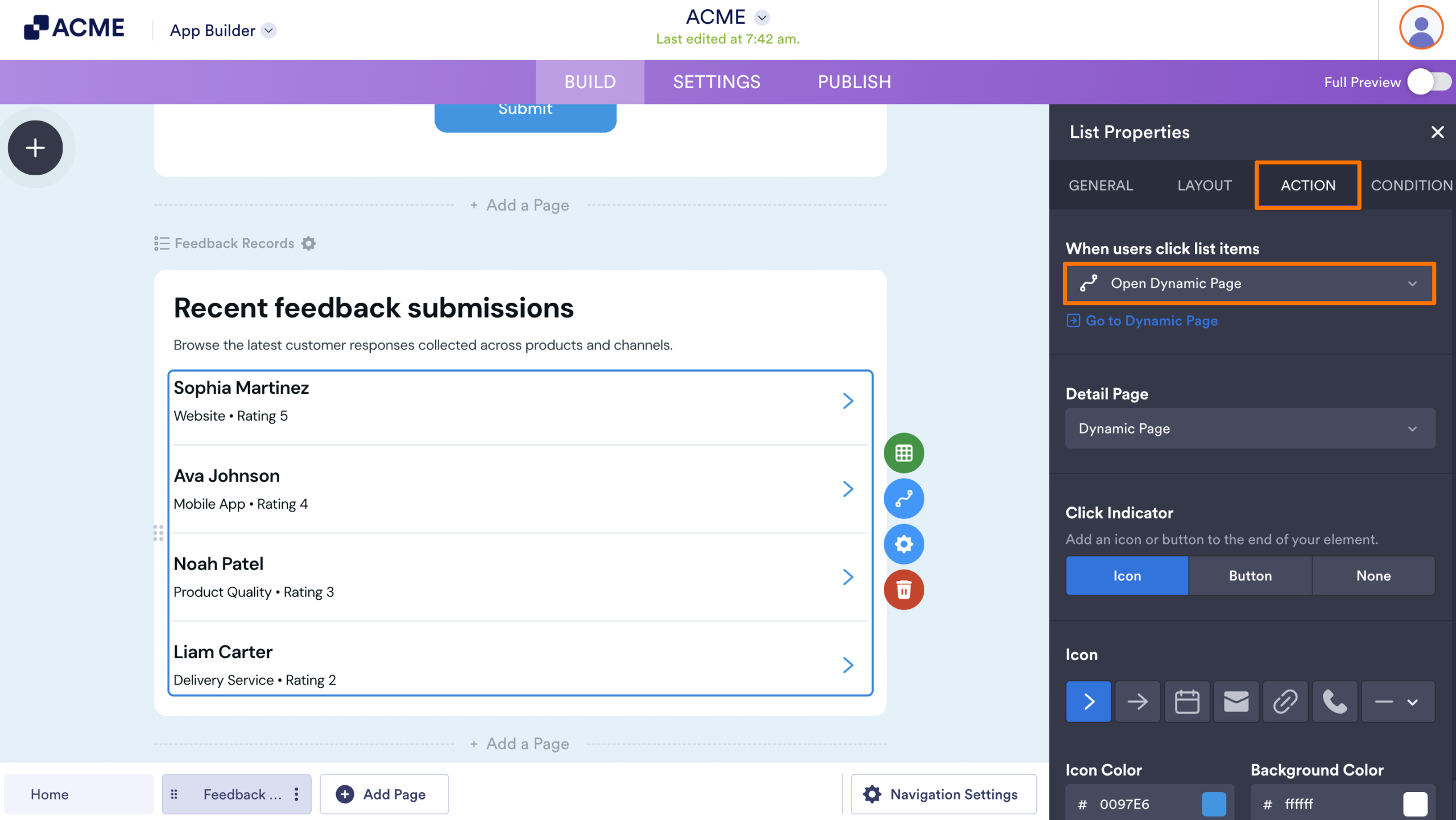
- In App Builder, select the List Element field and click on Gear icon.
- Then, in the List Properties menu that opens on the right side of the page, under the Action tab, click on When Users Click List Items Dropdown menu and select Open Dynamic page.
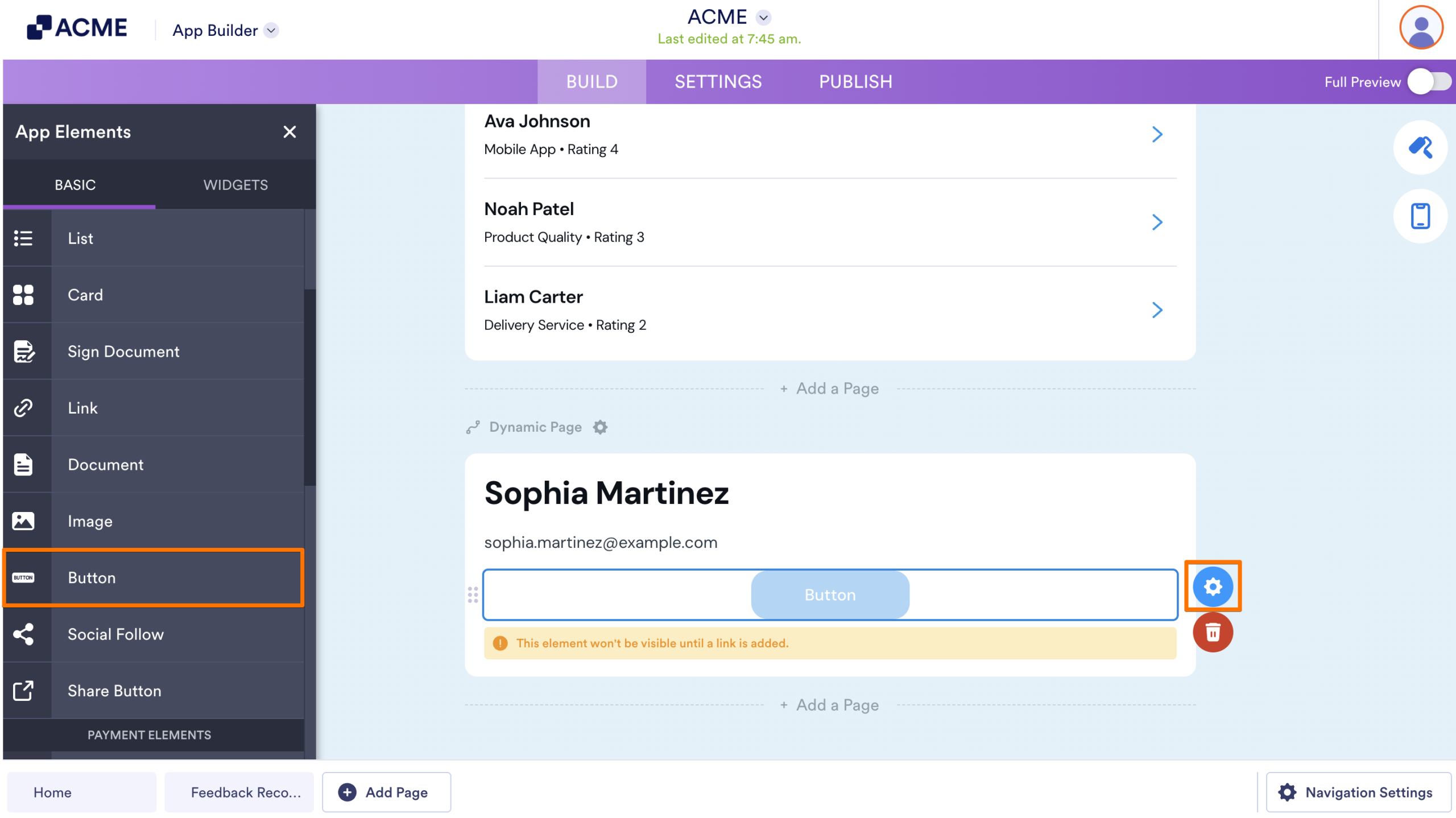
- Next, on the Dynamic Page, add a Button or Card Element.
- Then, select the element you’ve just added and click on the Gear icon.
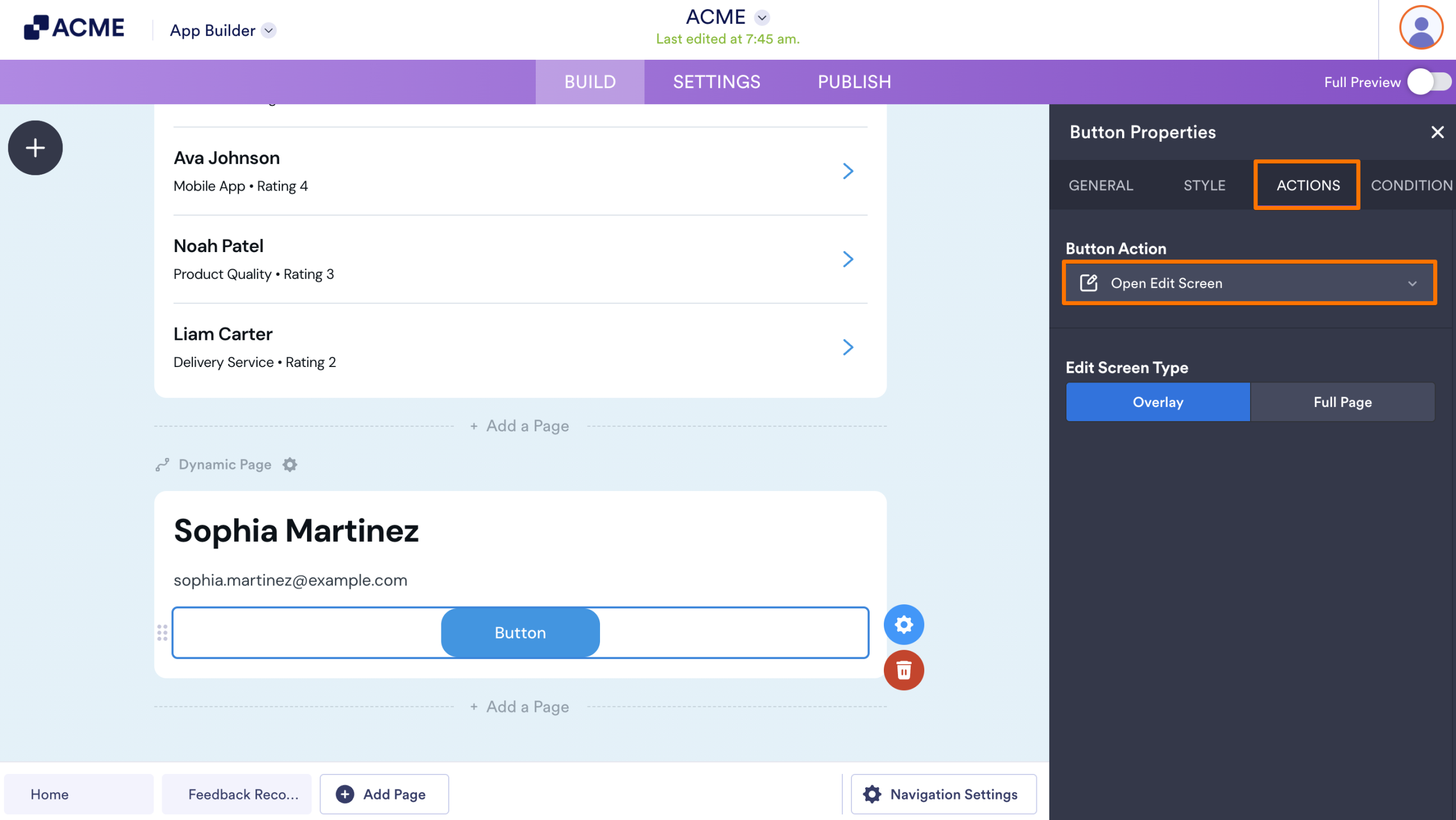
- Next, in the Button Properties menu that opens on the right side of the page, under the Action tab, click on the Button Actions Dropdown menu and select Open Edit Screen.
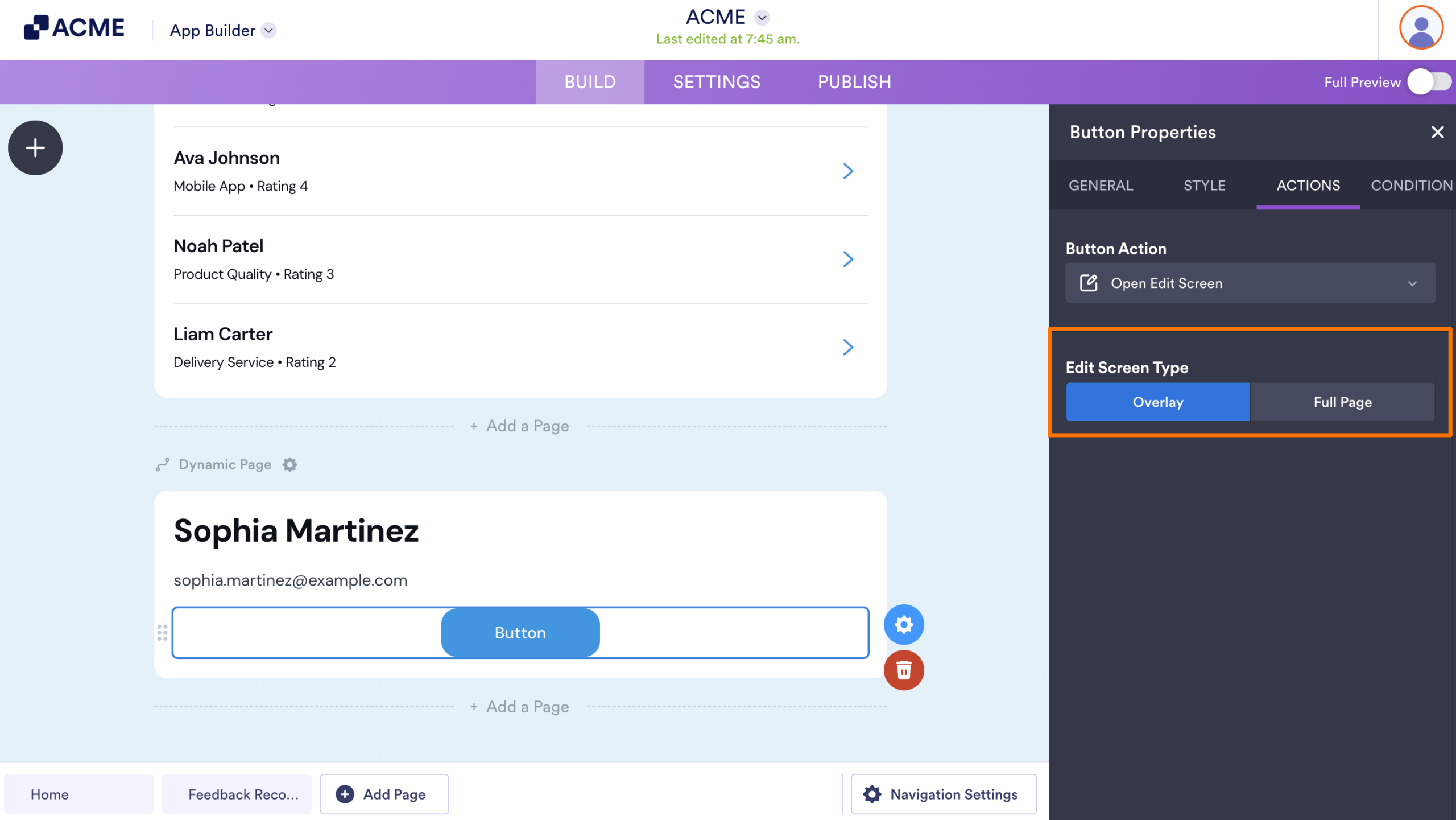
- Now, in the Edit Screen Type section, choose how you want the edit screen to appear on the screen, and you’re done.
- Overlay — Opens the edit form in a new window over the current screen.
- Full Page — Opens the edit form in a full-page view.
And that’s it! Users can open the edit form from the list detail page using a clear button or card—making it easier to review details before making changes.

Send Comment: