Form archiving offers a reliable way to store essential forms that aren’t needed immediately. This feature makes it easy to search for and retrieve these forms later, ensuring that they’re never truly deleted and remain accessible when you want them.
Archiving Individual Forms
You can archive a form in a few easy steps. Here’s how to do it:
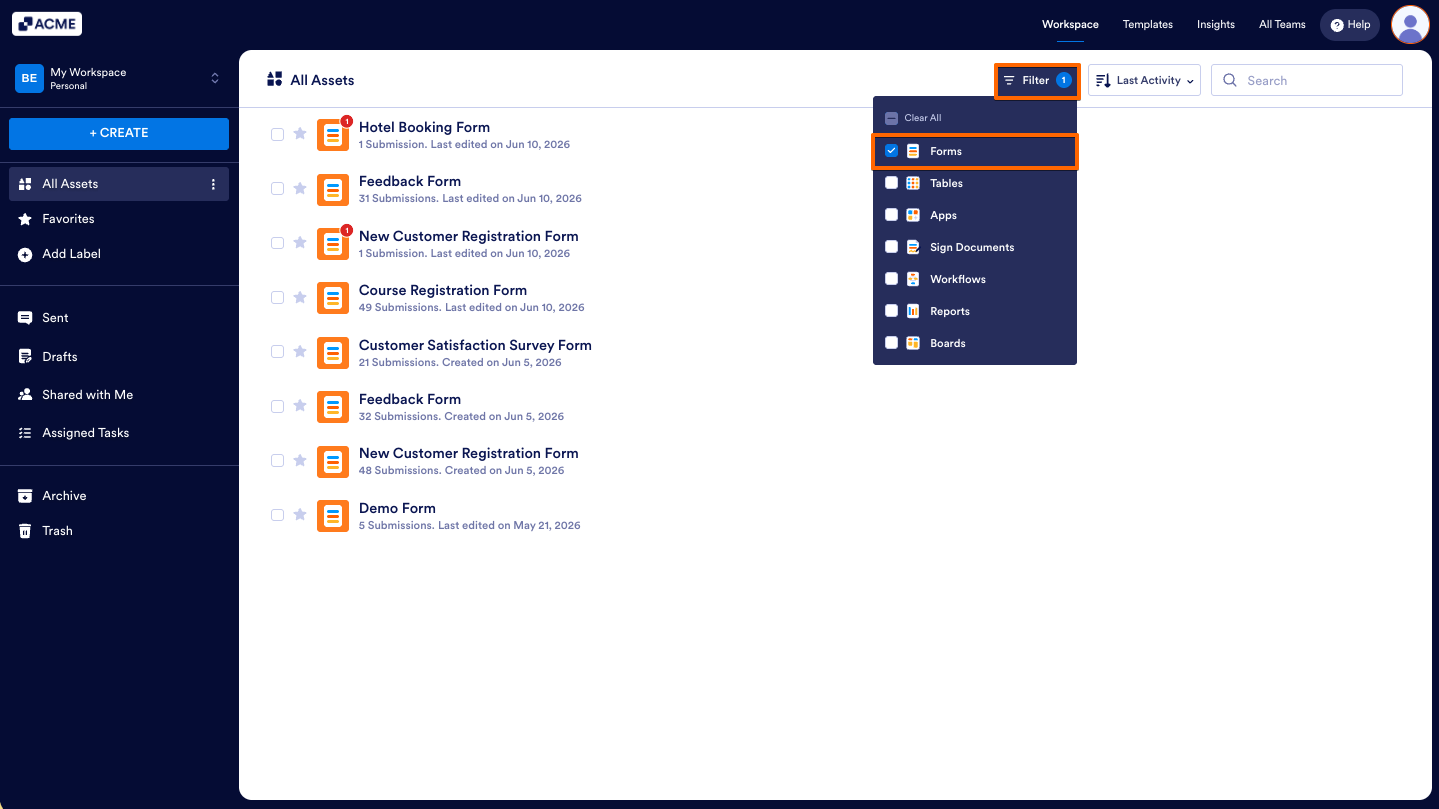
- On your Workspace page, click on Filter at the top and in the Dropdown menu that opens, uncheck the boxes next to all the assets except Forms, so only they’ll be shown on the page.
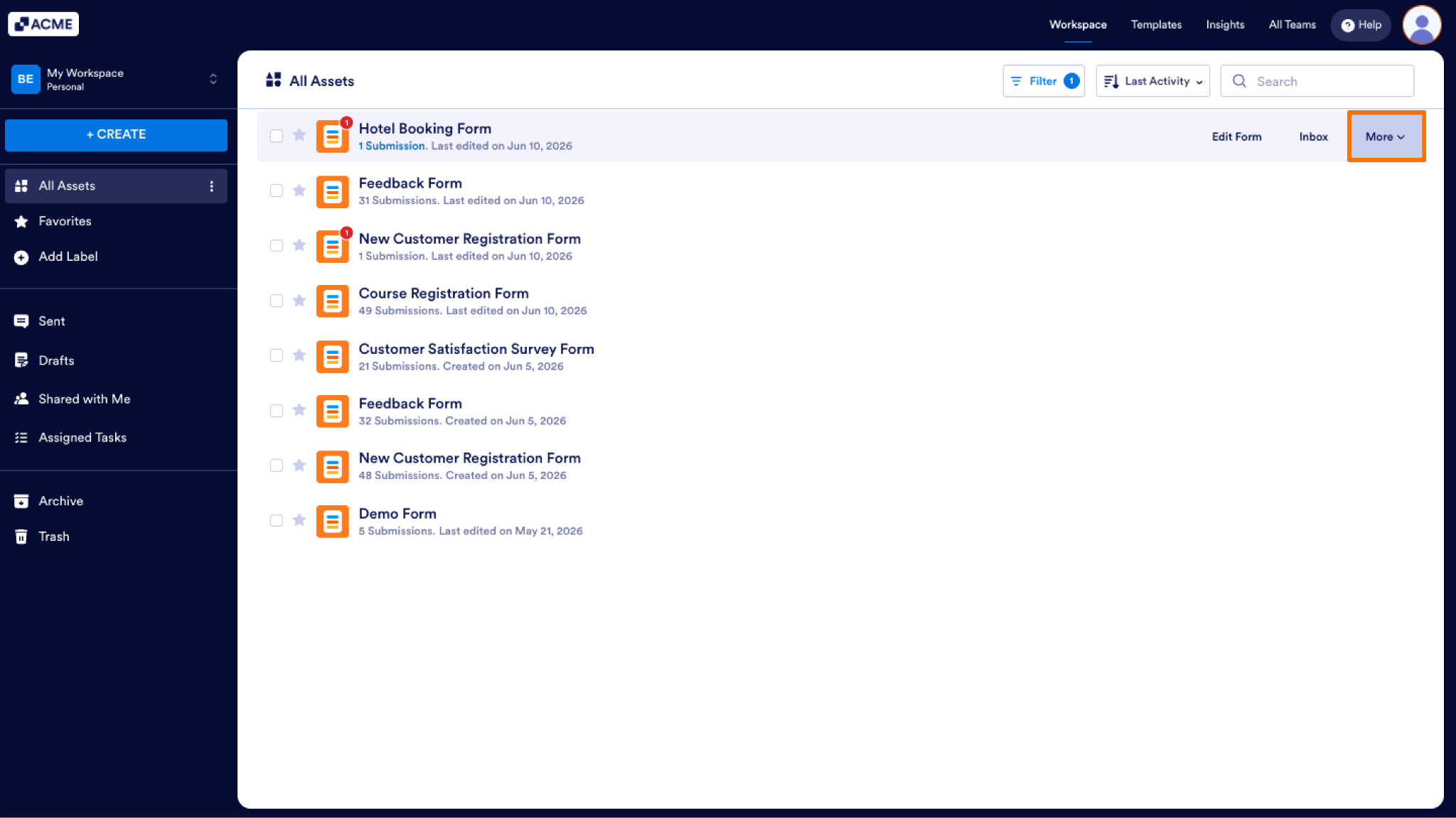
- Now, hover your mouse over the form you want to archive, and click on More on the right side of the page.
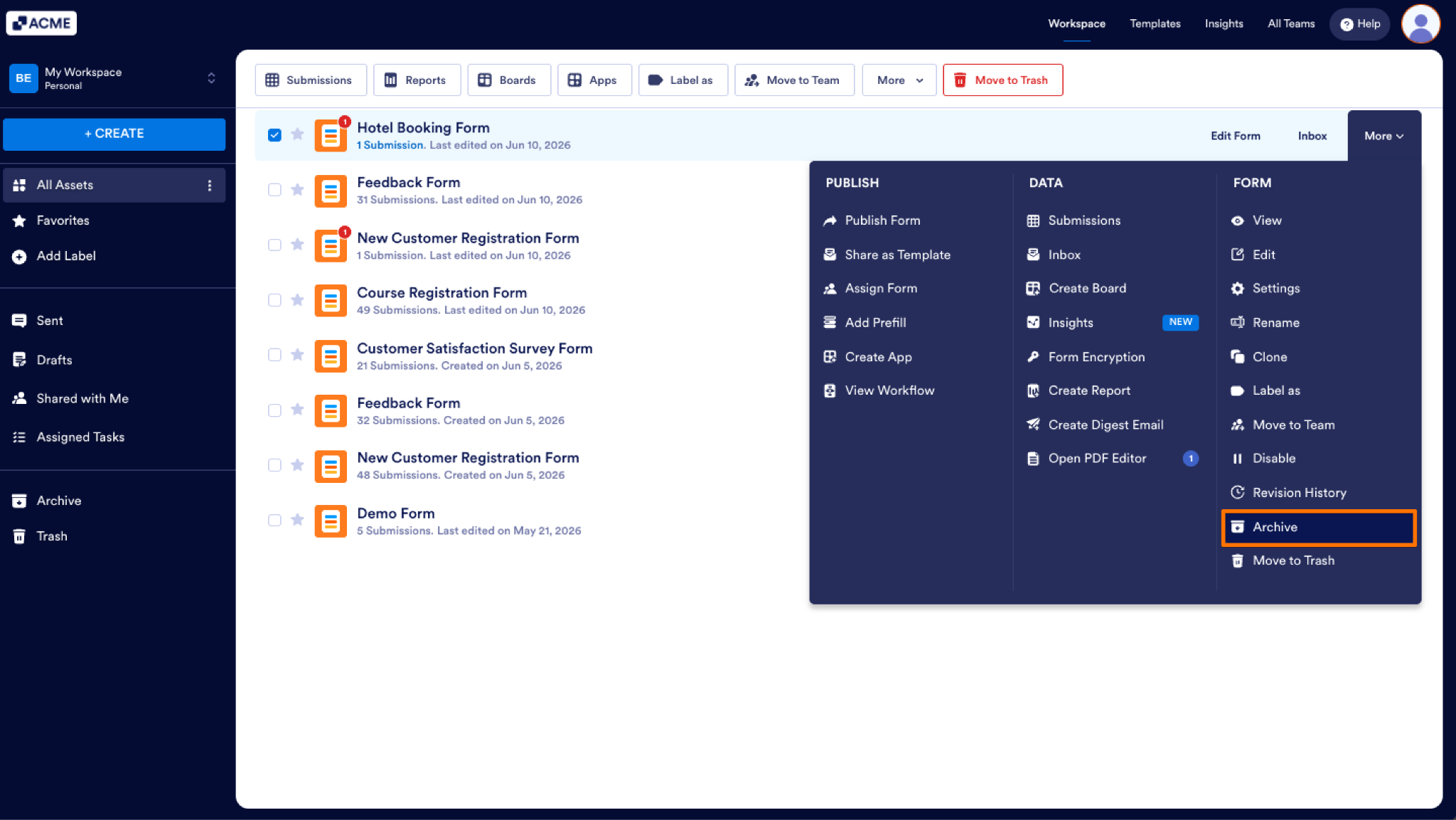
- Then, in the More dropdown menu, under the Form column, click on Archive.
That’s it! Your form’s now been archived.
Archiving Multiple Forms
You can also archive multiple forms at the same time. Here’s how to do it:
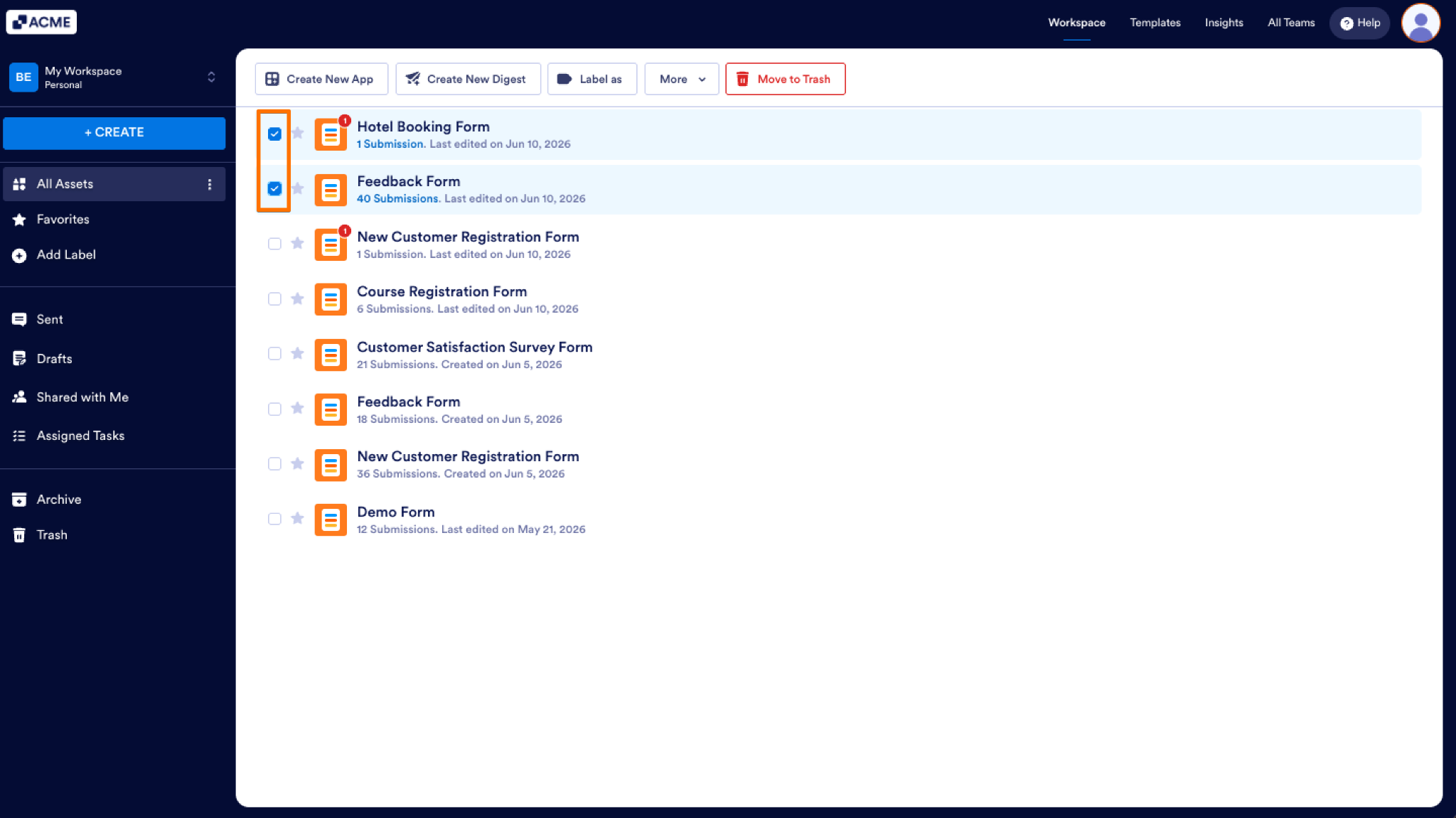
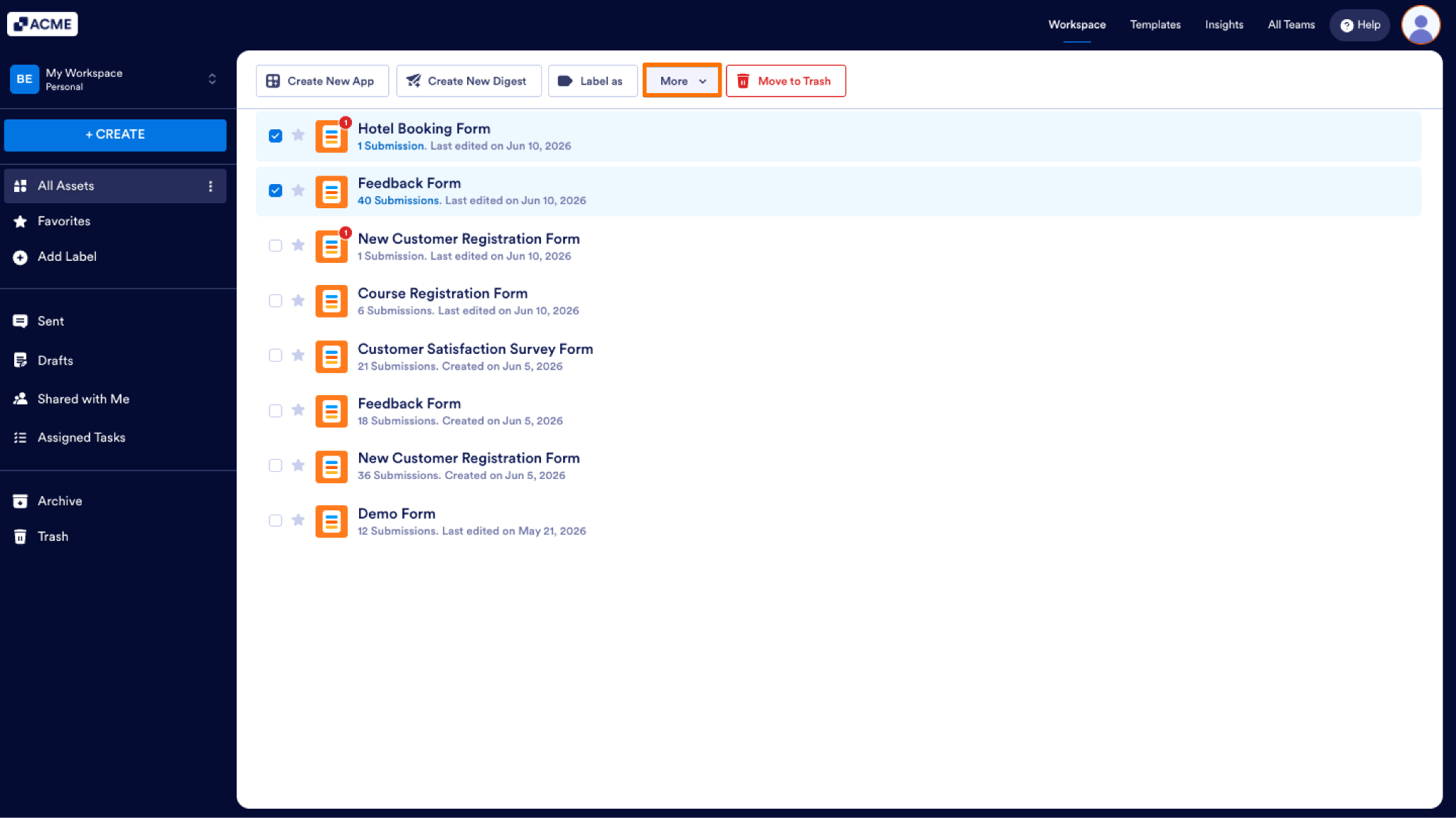
- While your assets are filtered by the Form type on your Workspace page, put checks in the boxes next to the forms you want to archive.
- Now, in the menu at the top of the page, click on More.
- Then, in the Dropdown menu that opens up, select Archive.
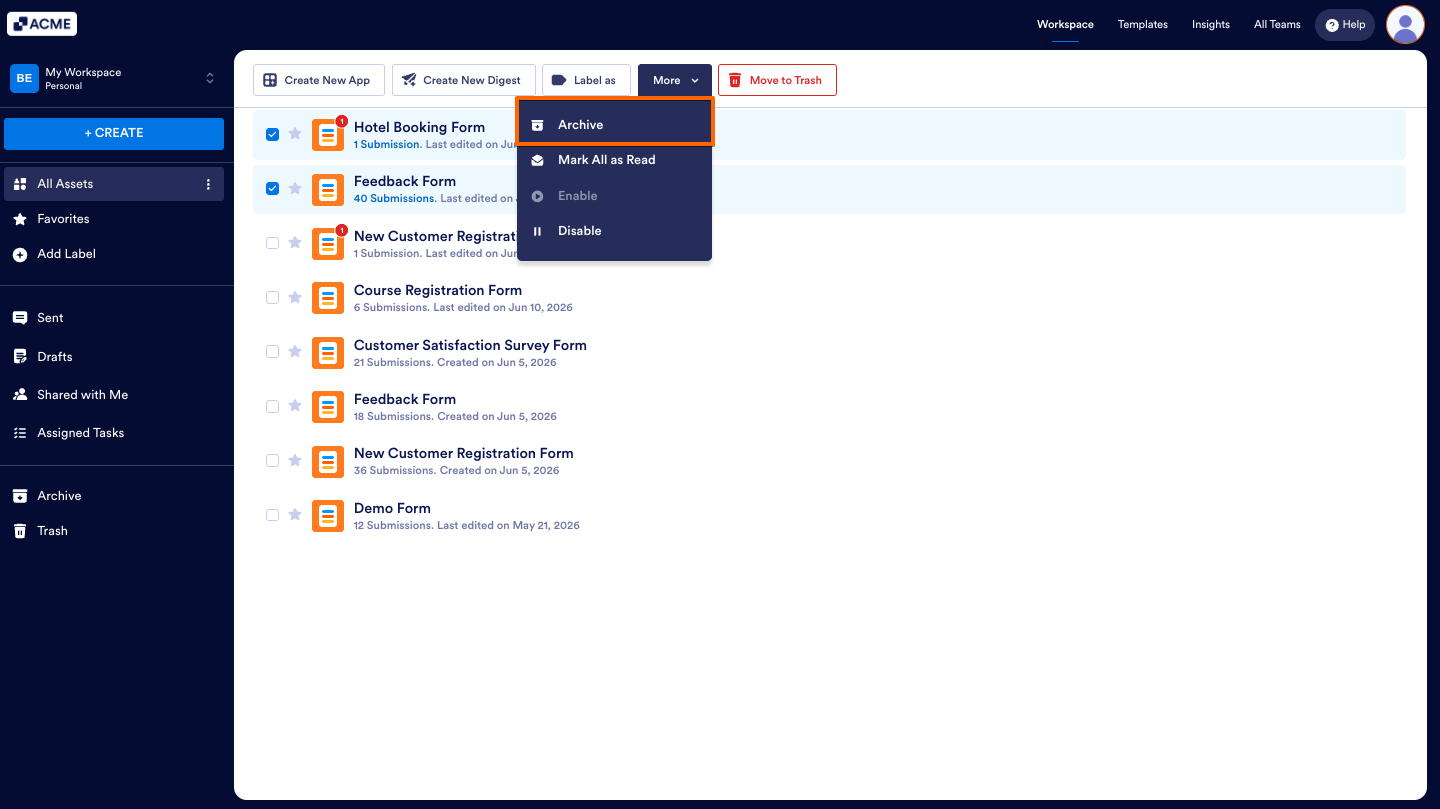
That’s it! Your forms have now been archived.
Tip
Hold down the Shift key on your keyboard to select or deselect multiple consecutive forms.
Viewing and Unarchiving Archived Forms
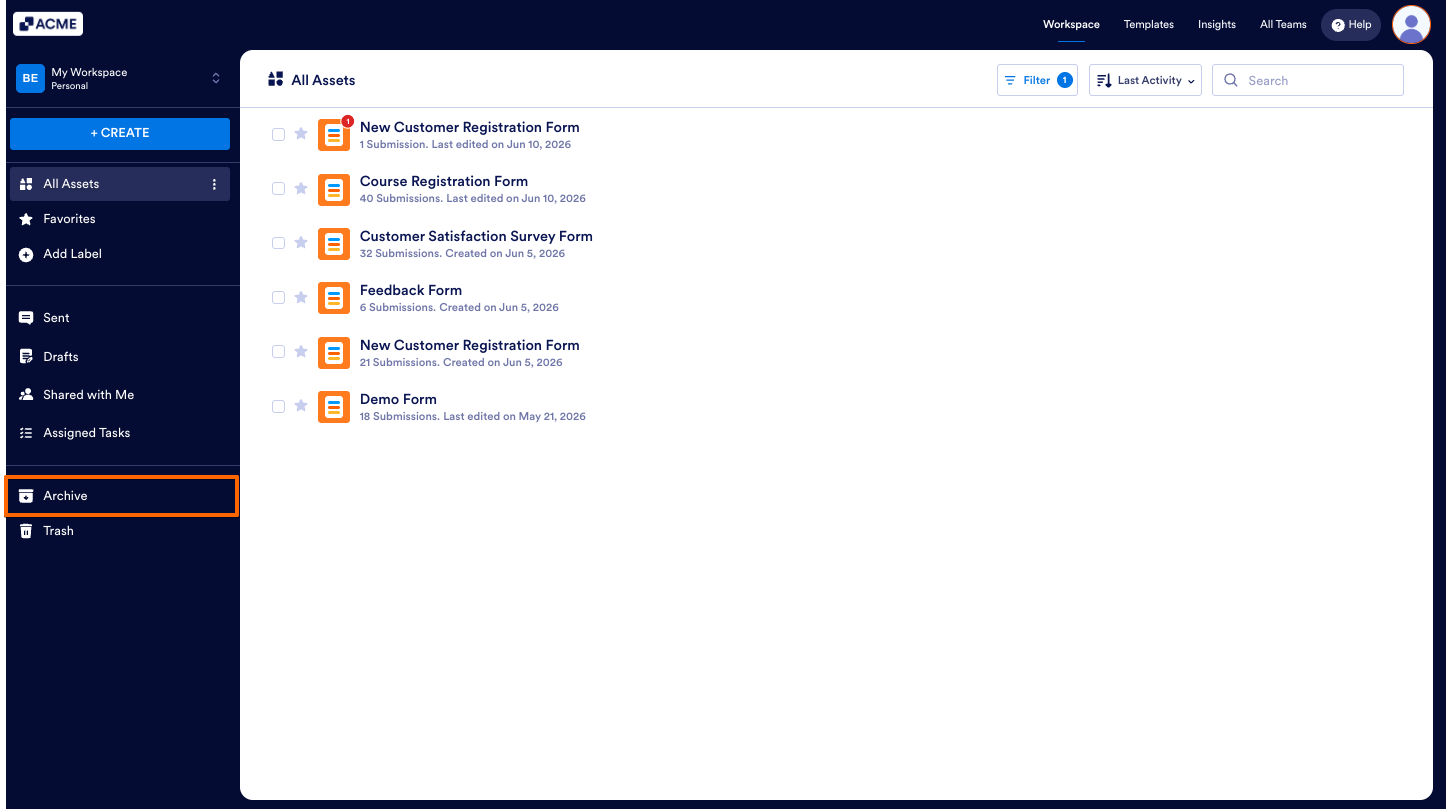
Archived forms are automatically disabled by default and moved to the Archive folder on your Workspace page. You can unarchive forms just as easily as you can archive them. Here’s how to do it:
- On your Workspace page, on the left side of the screen, click on the Archive tab.
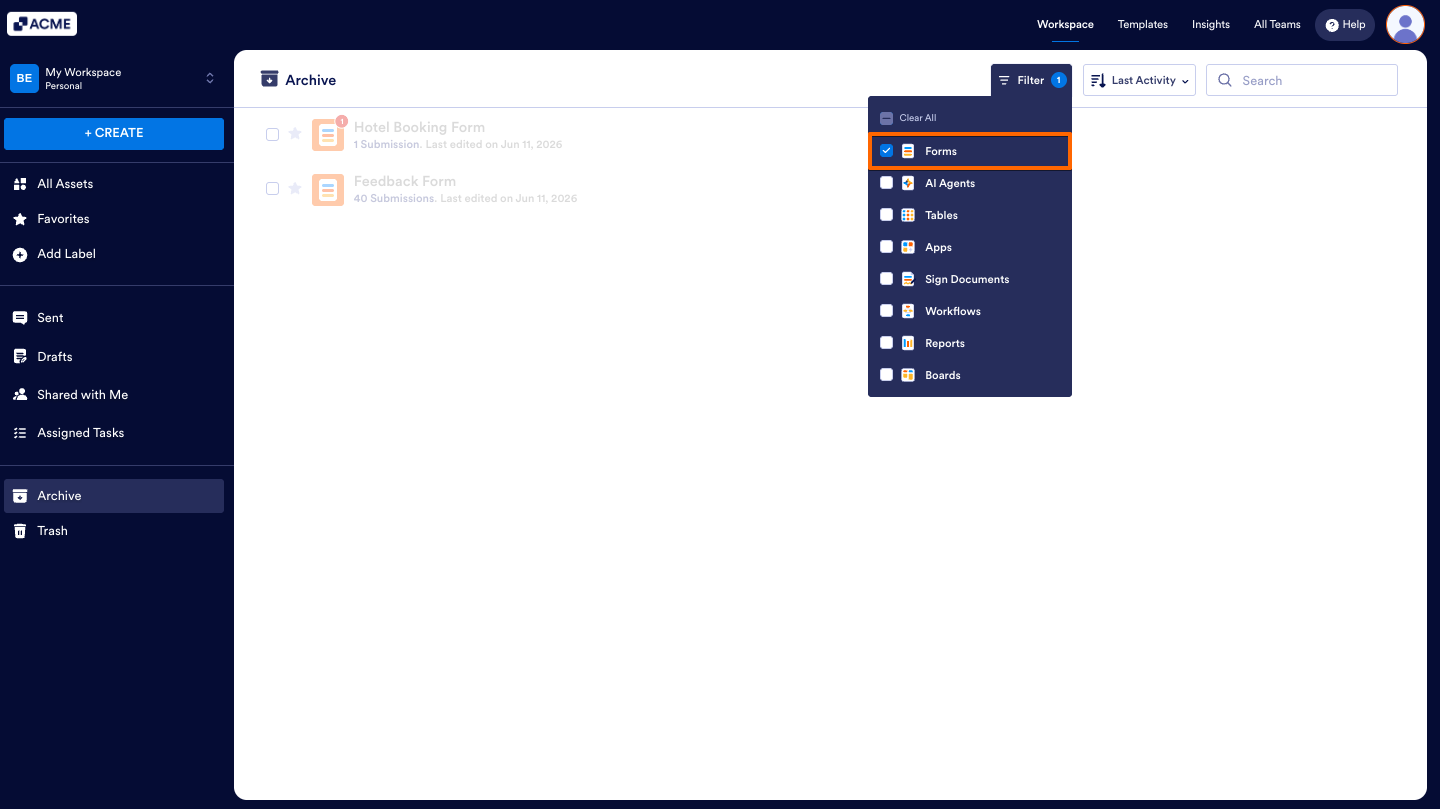
- Now, click on Filter at the top and in the Dropdown menu that opens, uncheck the boxes next to all the assets except Forms, so only they’ll be shown on the page.
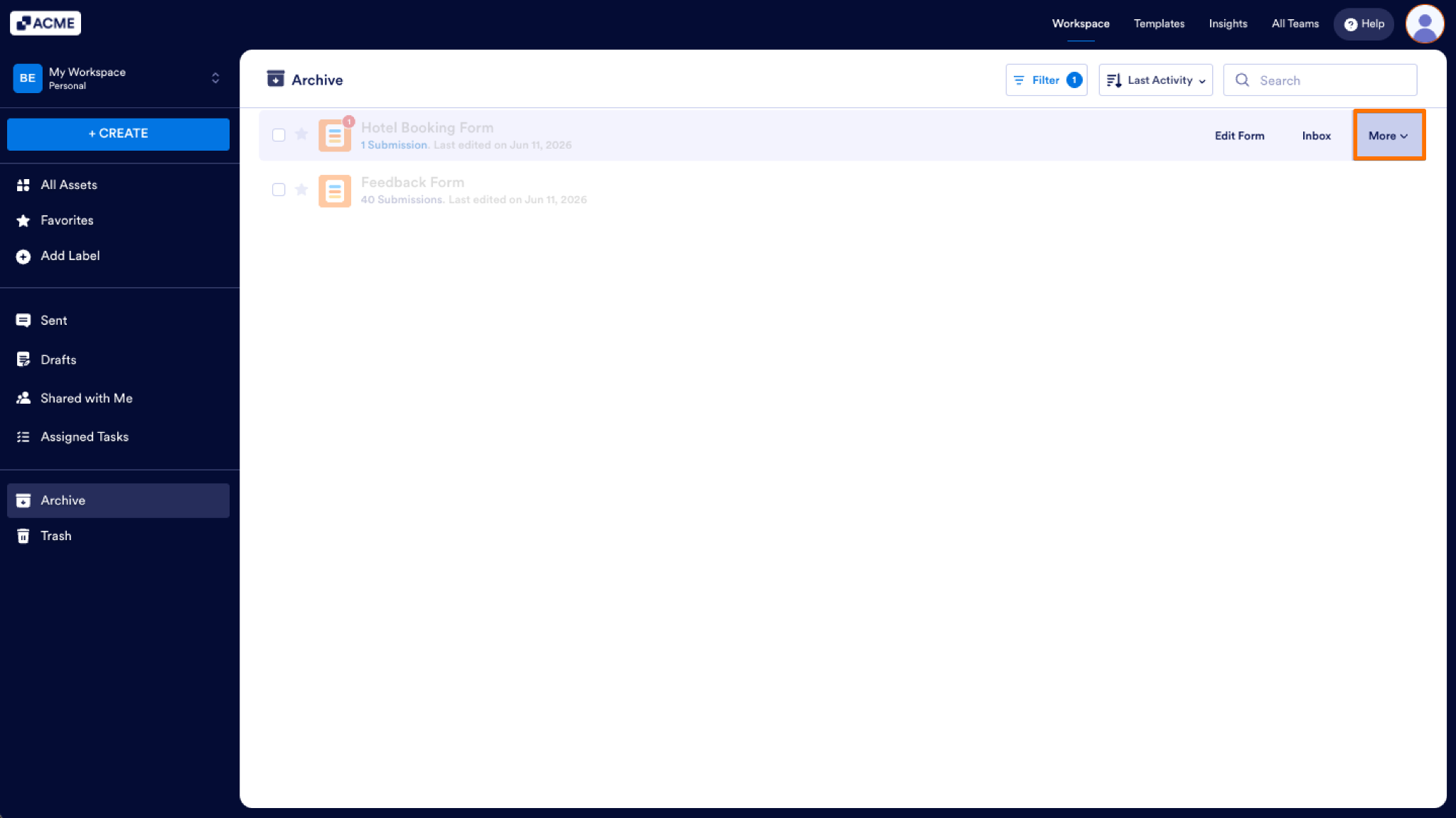
- Then, hover your mouse over the form you want to unarchive, and click on More on the right side of the page.
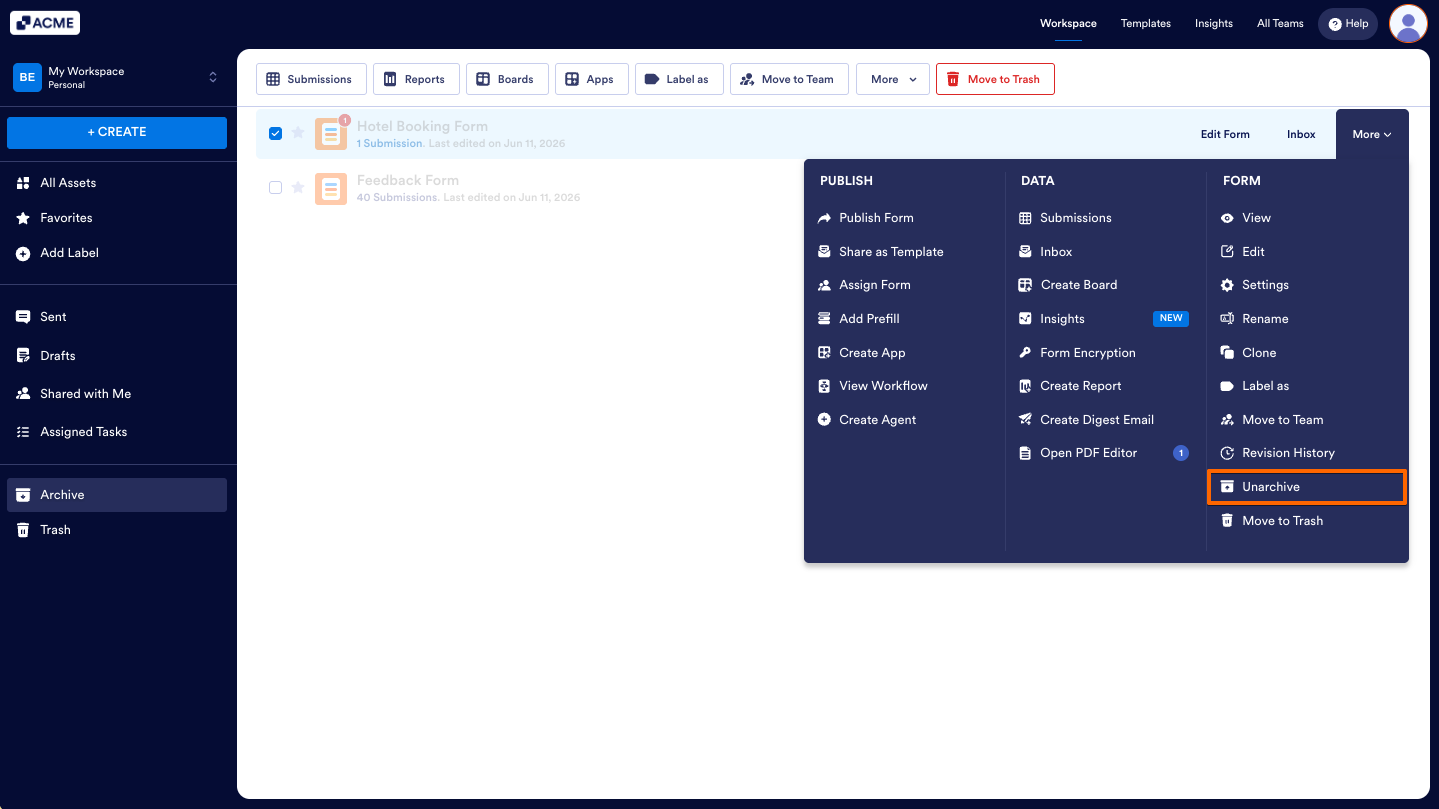
- Next, in the Dropdown menu, under the Form column, click on Unarchive.
You can also unarchive multiple forms at the same time. Here’s how:
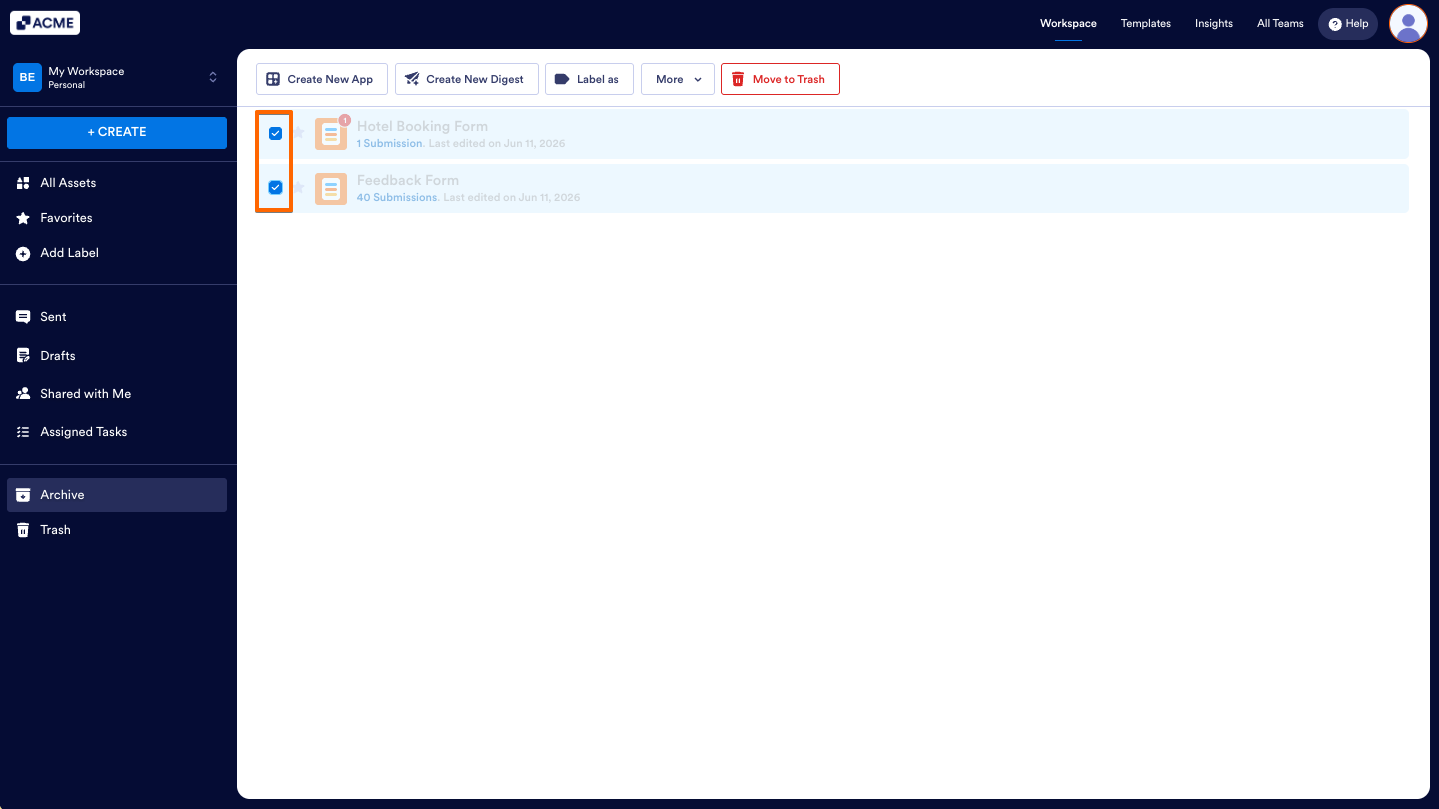
- While your assets are filtered by the Form type in the Archive folder, check the boxes next to the forms you want to unarchive.
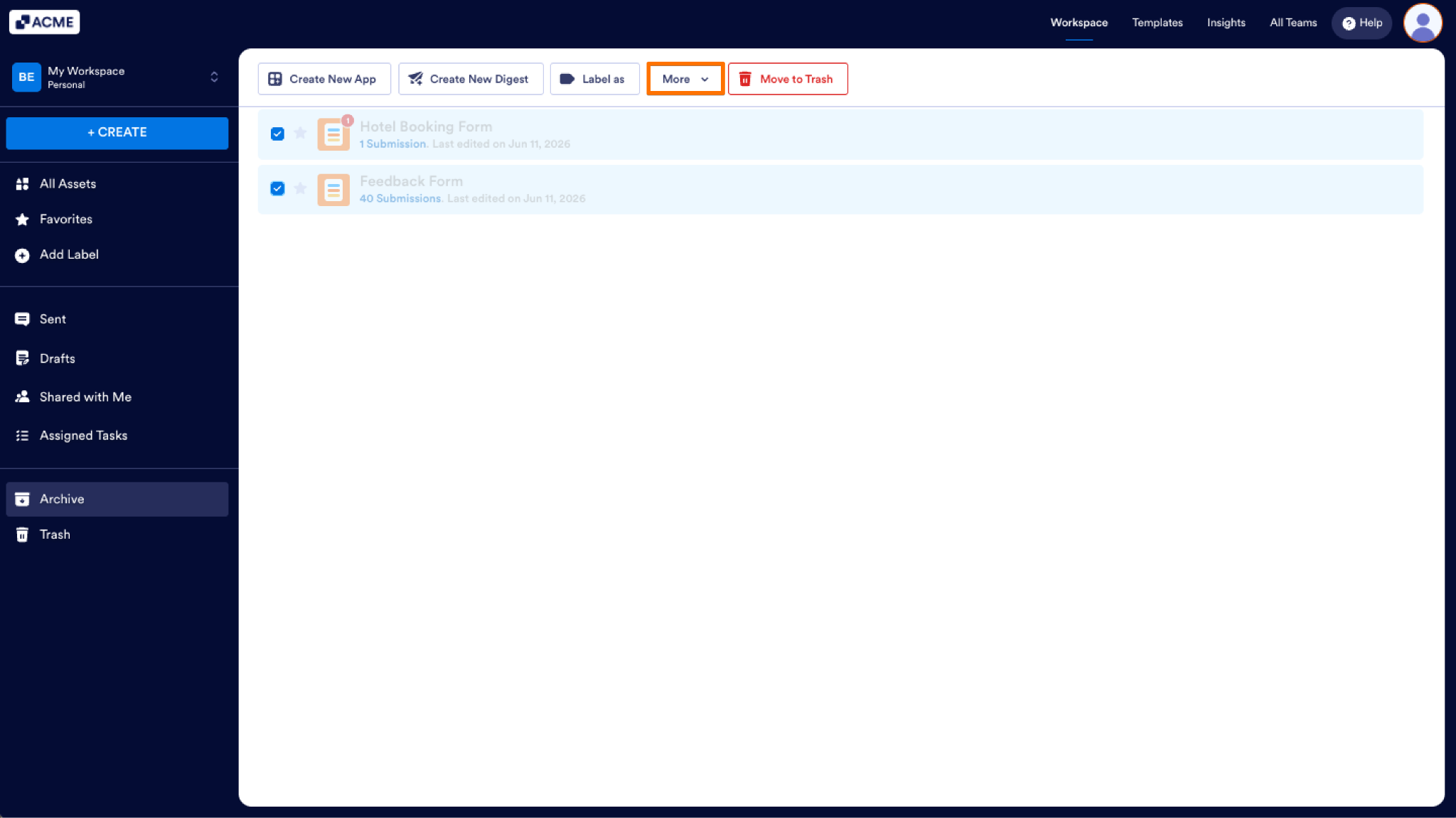
- Now, in the menu at the top of the page, click on More.
- Then, in the Dropdown menu that opens up, select Unarchive.
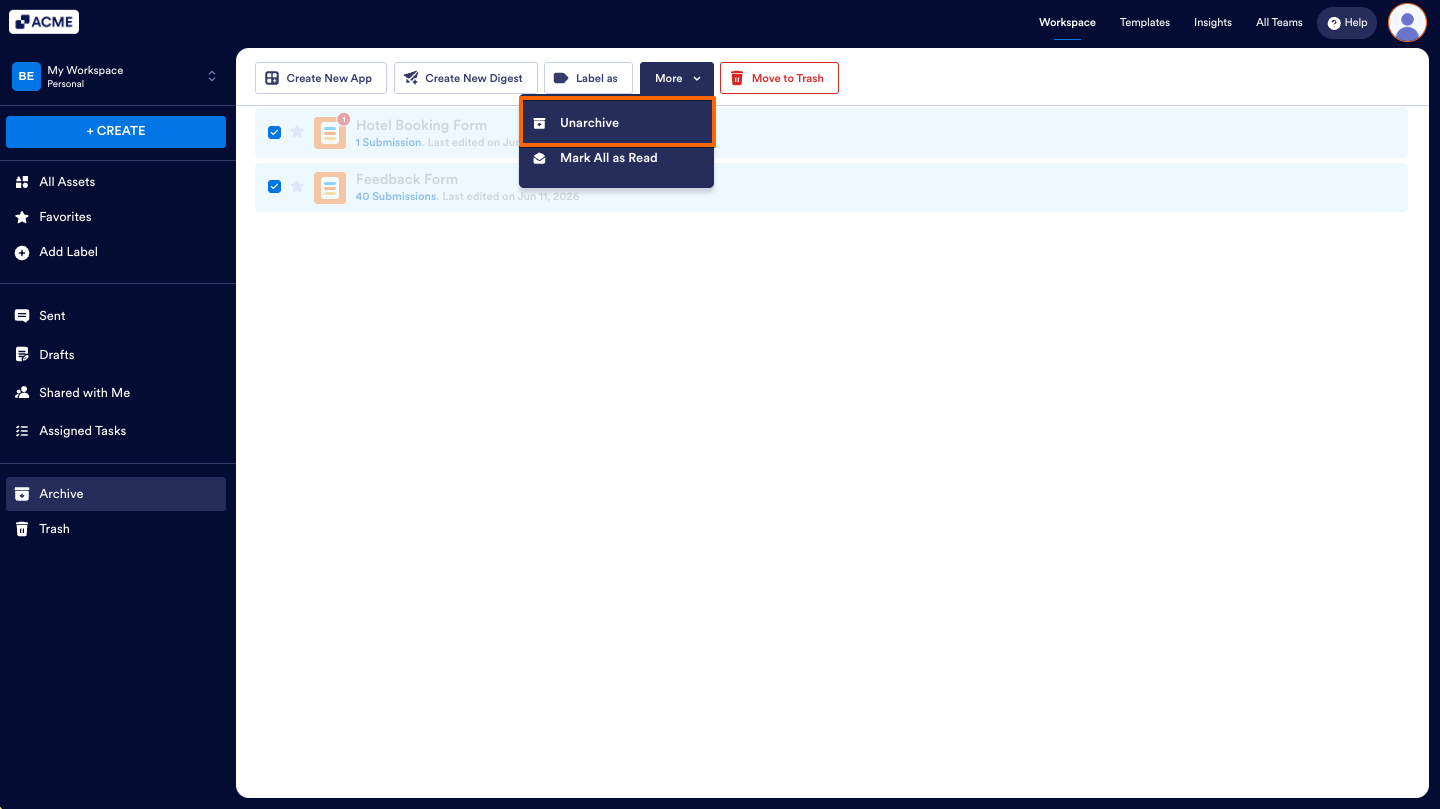
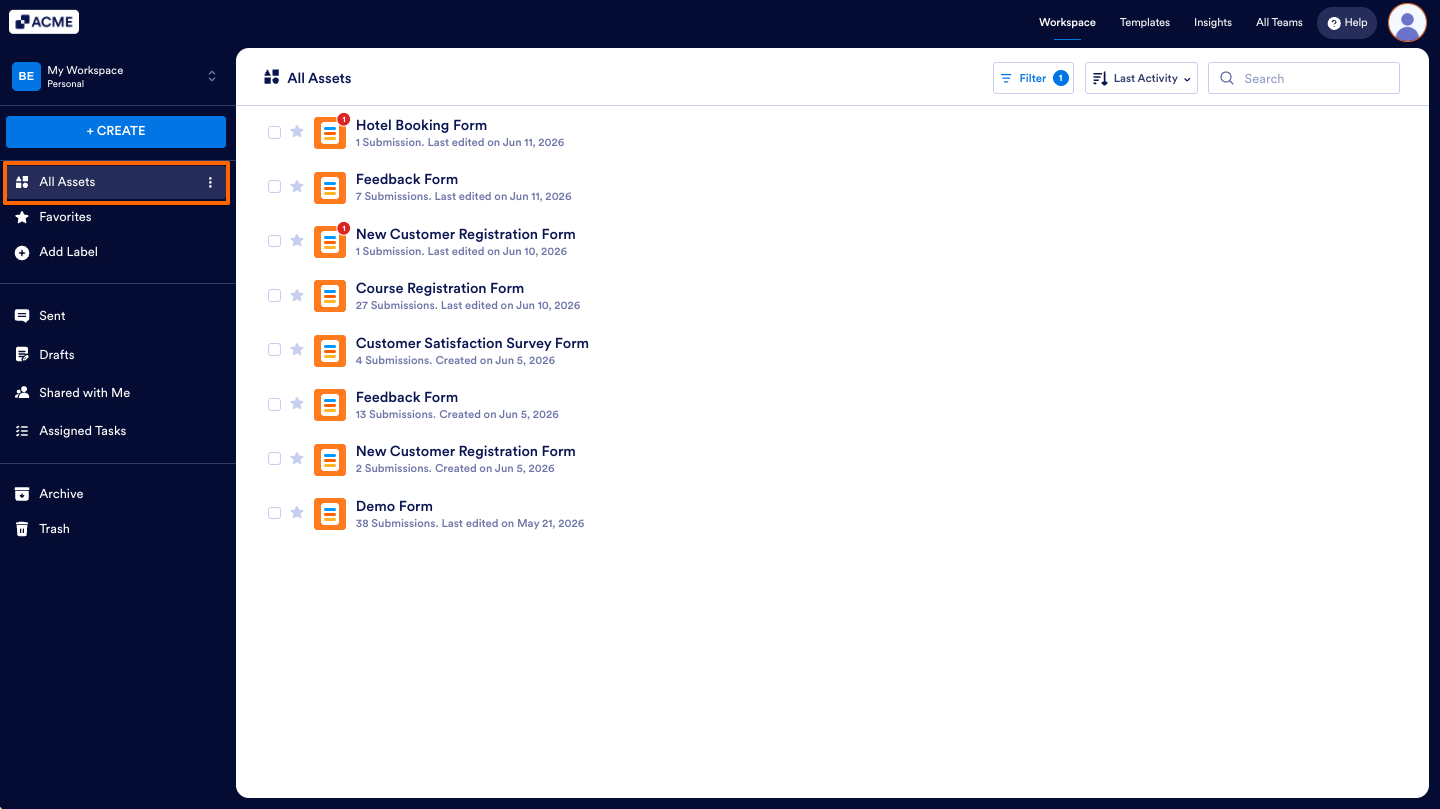
That’s it! Unarchiving forms will enable and move them back to your main Workspace page.
Note
Forms in the Archive folder on your Workspace page are grayed out regardless of whether they’re enabled or disabled. You can enable archived forms and still keep them in that Archive folder.

Send Comment: