After installing and logging in to the Jotform Enterprise Mobile app, you can start using its features and manage your Workspace on the go. Create new items and organize your assets, browse shared and assigned items, and customize your app settings, all from your mobile device. Here are the things you can do:
- Access Your Workspace Product List
- Filter Your Assets by Type
- Sort Your Assets
- Search Your Assets
- Create New Assets
- View Your Feed
- Access More Options
- Managing the Settings
Accessing Your Workspace Product List
Your Workspace Product List lets you view and manage specific assets within a selected listing. It provides a more focused way to access and organize relevant assets, making it easier to find, review, and manage the items you need. Get started like this:
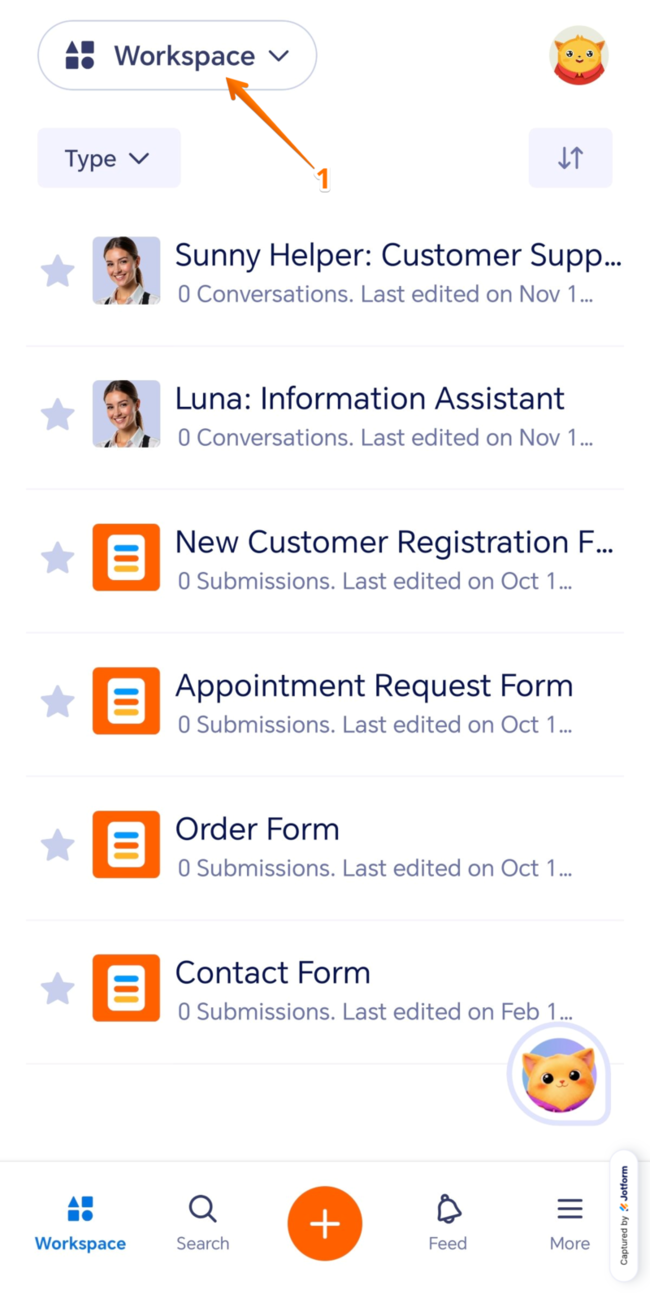
- In the Enterprise Mobile app, tap on Workspace in the top-left corner of the screen.
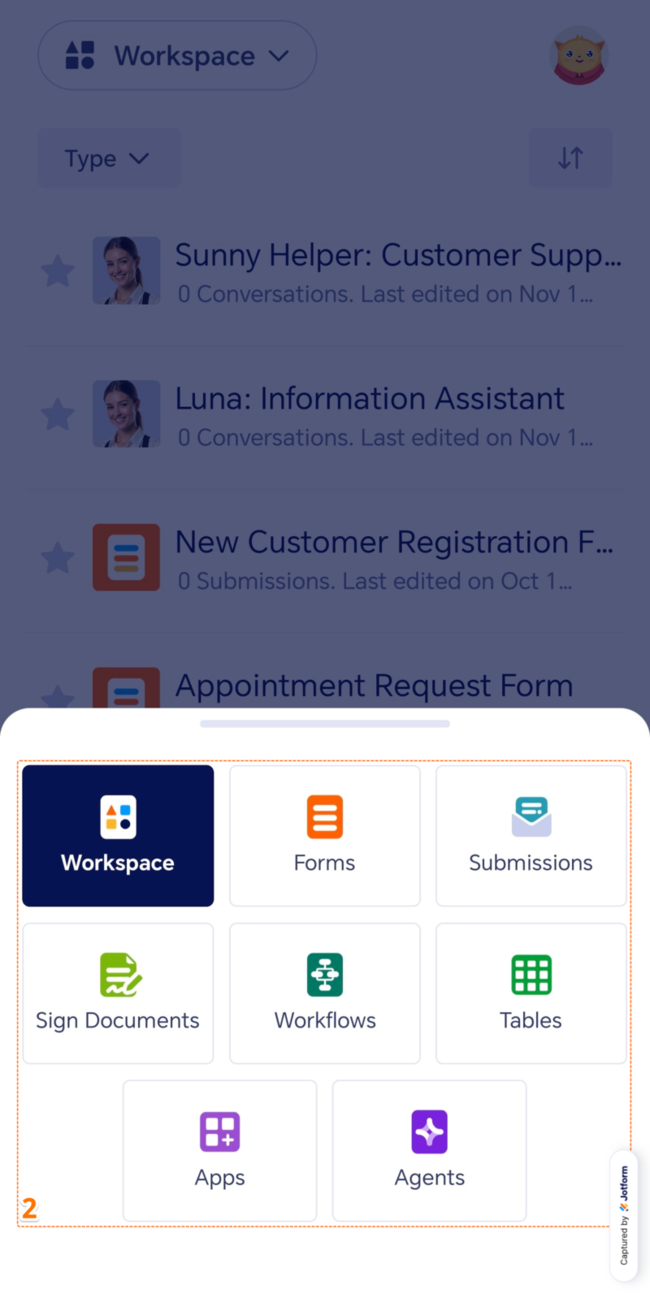
- Then, in the Product List menu at the bottom, you can do the following things:
- Forms — Browse and organize all your forms.
- Submissions — Access a unified Inbox and Sentbox containing submissions from all your forms.
- Sign Documents — Keep track of documents awaiting signatures and those already signed.
- Workflows — Explore workflow data, make edits, or archive workflows as needed.
- Tables — Find tables created from form submissions or manually built in your workspace.
- Apps — Access and organize apps across your Enterprise workspace.
- Agents — Interact with your AI Agents, review their conversations, make changes, or turn them into mobile kiosks.
Filtering Your Assets by Type
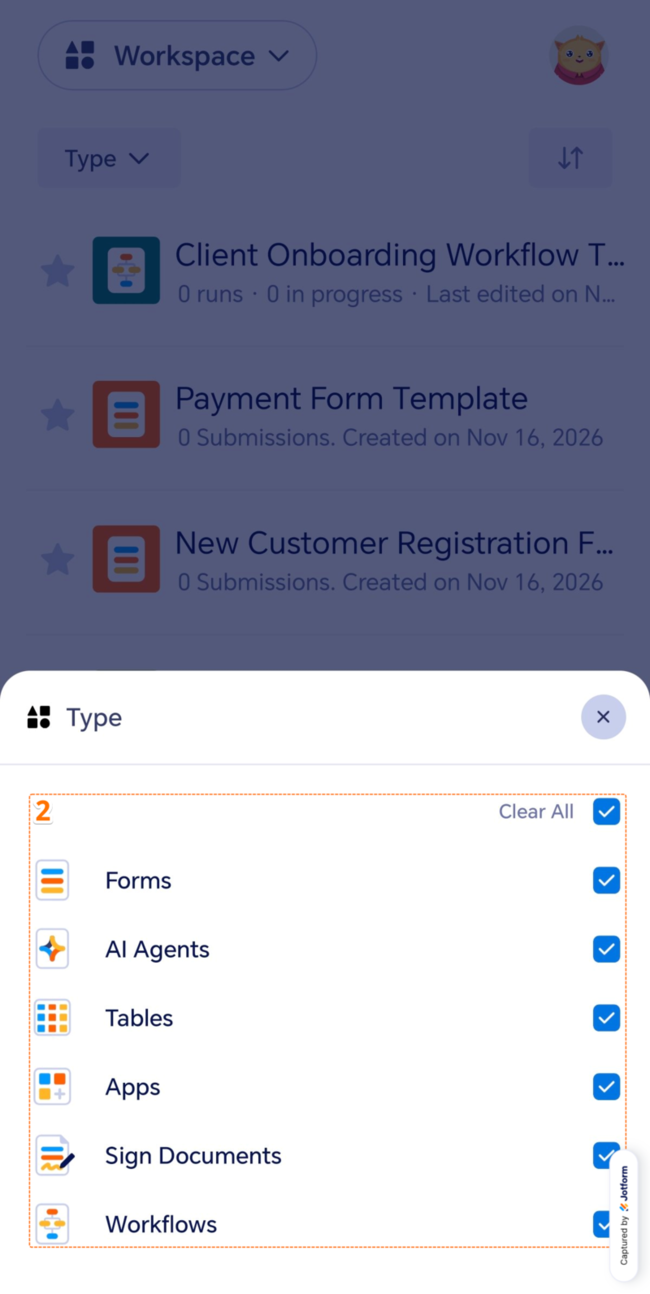
In your Enterprise Mobile Workspace, you can filter your assets by type, including Forms, AI Agents, Tables, Apps, Sign Documents, and Workflows. Here’s what to do:
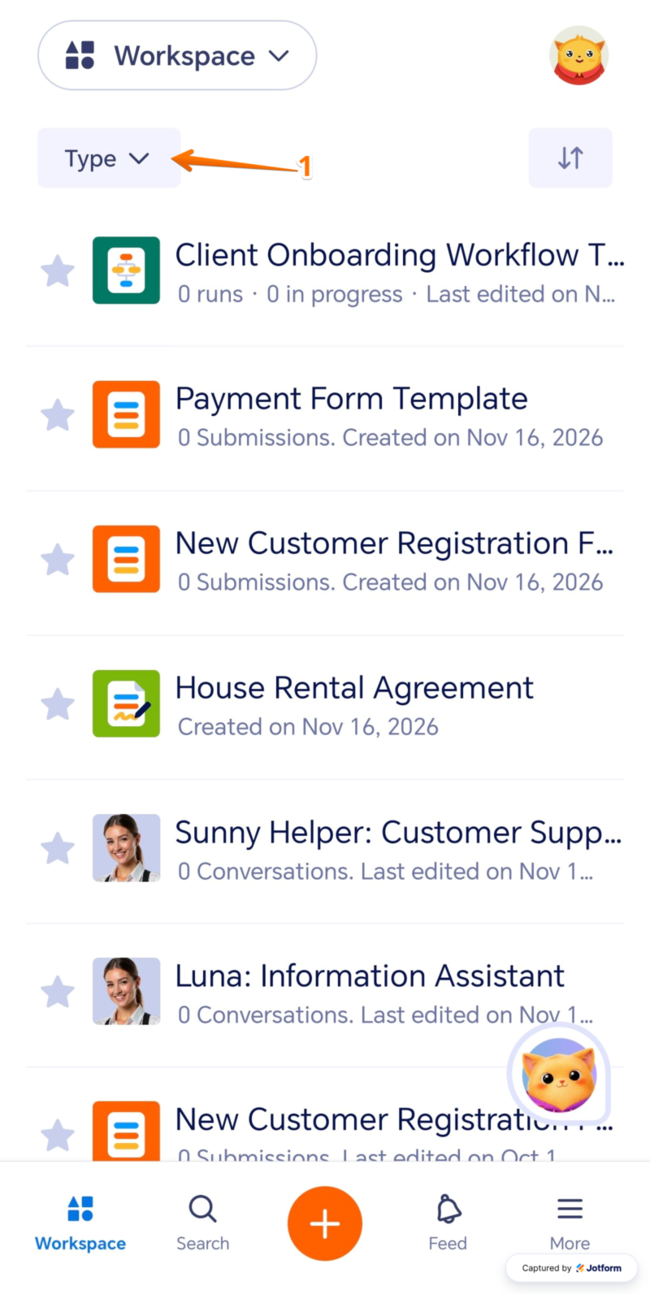
- Just below the Workspace menu, in the top-left corner of the screen, tap on Type.
- Now, in the Type menu that opens, untick the box on the right side of each asset to hide them from the view. You can also tap on Clear All to hide them all, and then tick each one to unhide them.
Sorting Your Assets
You can also sort your assets by various criteria—such as Last Activity, Last Edit, Creation Date, etc.—making it easier to find and organize what you need. Here’s the quick way to do it:
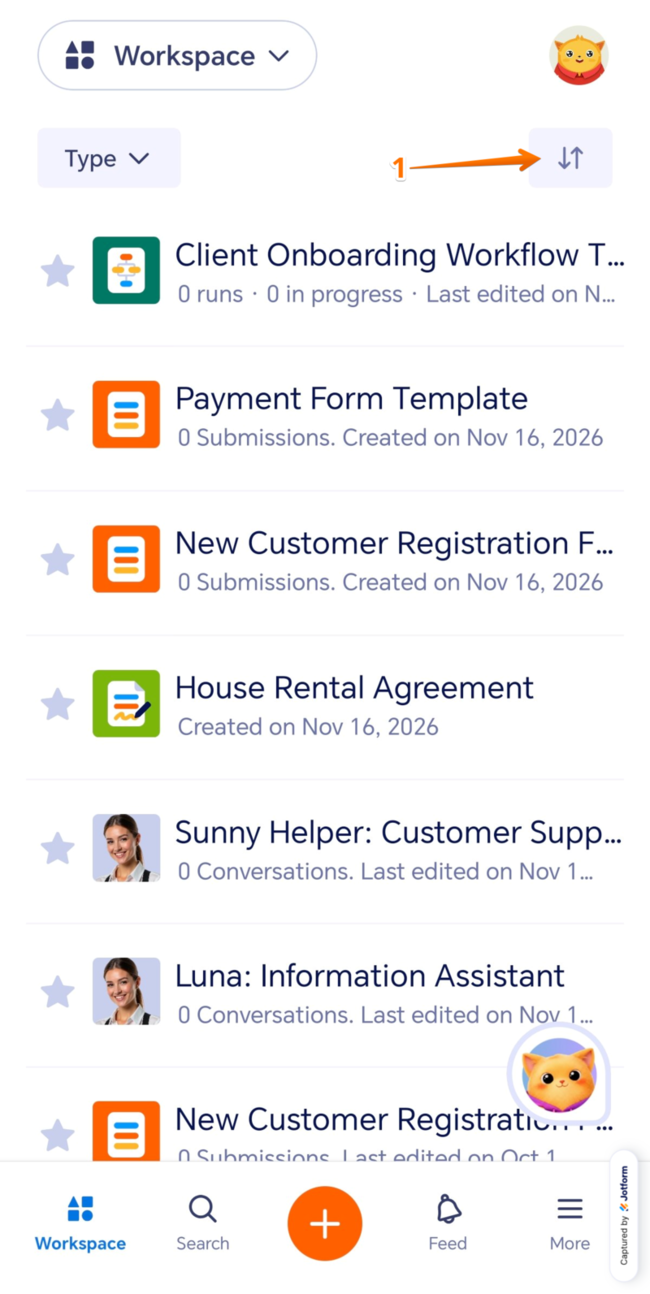
- In the top-right corner of your Workspace screen, tap on the Upward/Downward Arrow icon.
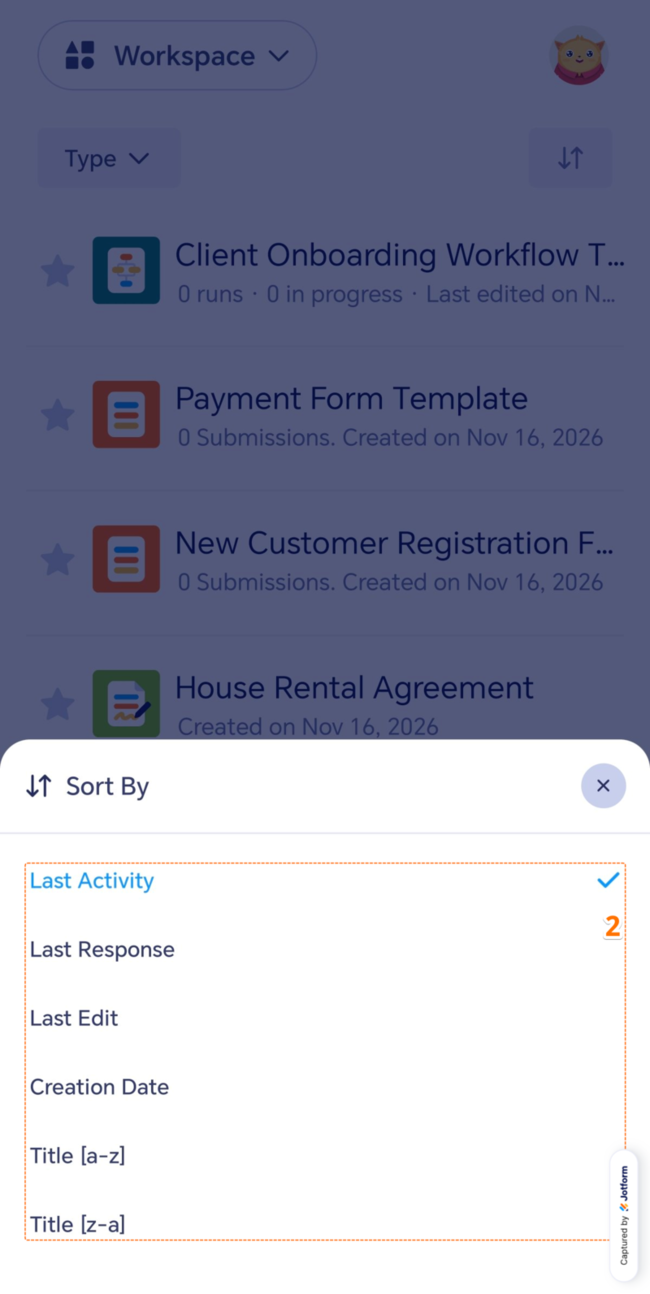
- Now, in the Sort By menu that opens, you can do these things:
- Last Activity — Sort assets based on the most recent activity, with the latest first.
- Last Response — Arrange assets according to when they last received a submission or response.
- Last Edit — Sort assets by the date they were last modified, showing recent edits first.
- Creation Date — Arrange assets based on when they were created, with the newest assets first.
- Title (A–Z) — Sort assets alphabetically by title, from A to Z.
- Title (Z–A) — Sort assets in reverse alphabetical order by title, from Z to A.
Searching Your Assets
If you have lots of assets, manually scrolling through them can be time-consuming. Using the search bar gives you a quicker and more convenient way to find a specific one. Here’s how:
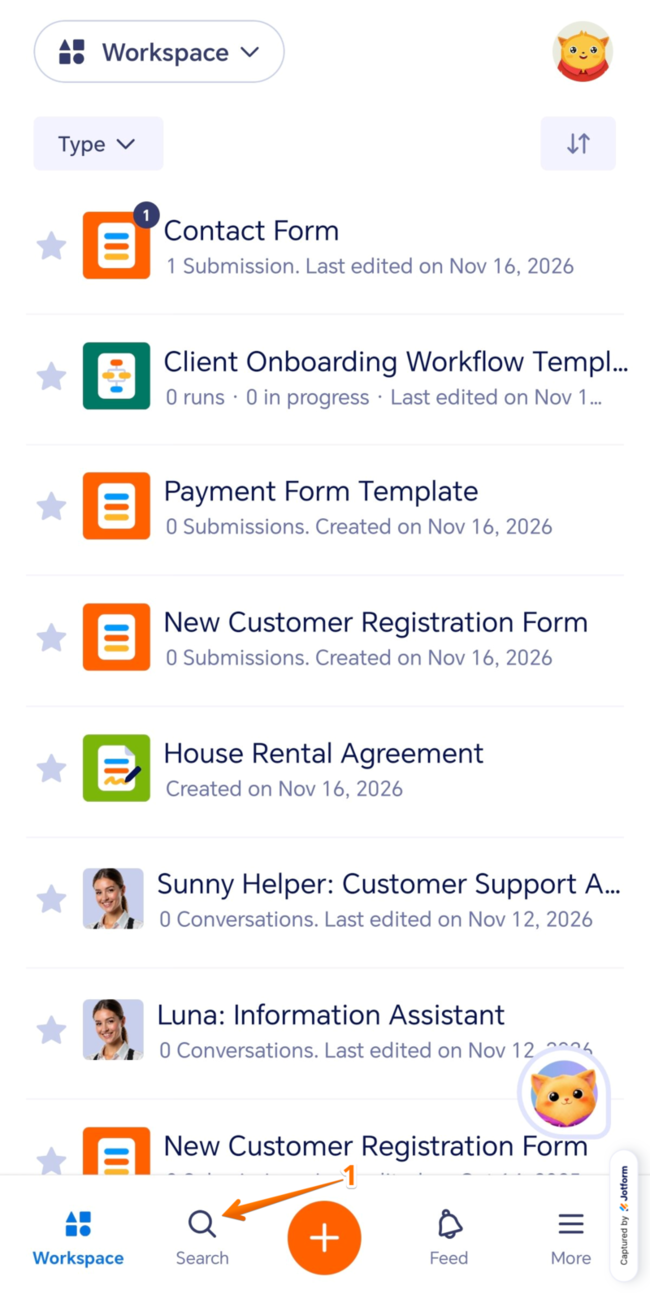
- In the bottom-left corner of your Workspace screen, tap on Search.
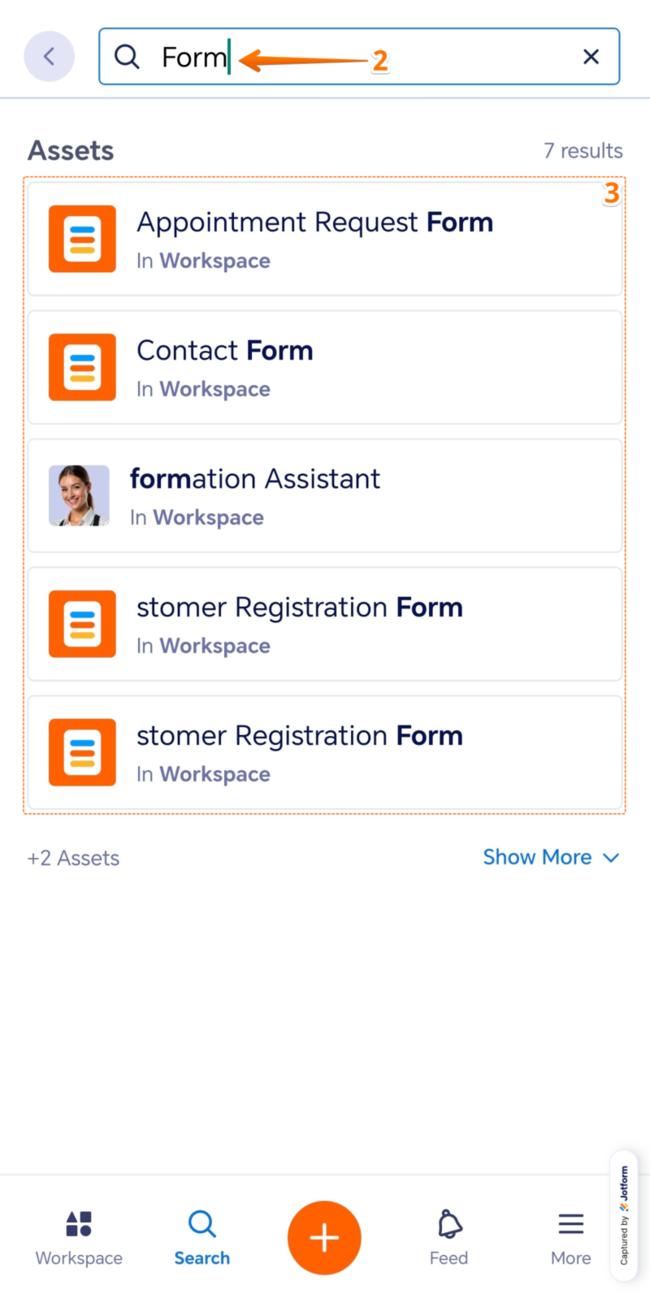
- Then, in the Search field at the top, enter your search keyword—for example, Form.
- Next, in the search results, tap on the asset you want to see.
Creating a New Asset
The Enterprise Mobile app makes it easy to create new assets wherever you are, giving you the flexibility to get work done and keep your projects moving even when you’re away from your desk. This is how it’s done:
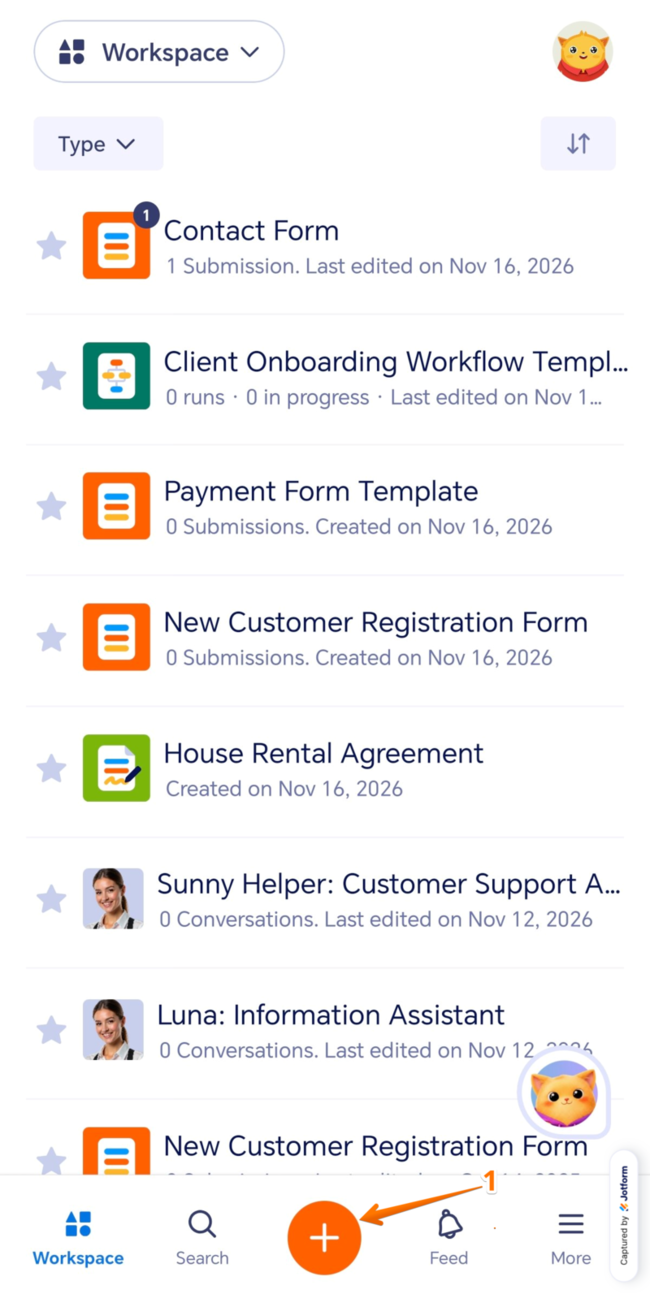
- At the bottom of your Workspace screen, tap on the Plus icon.
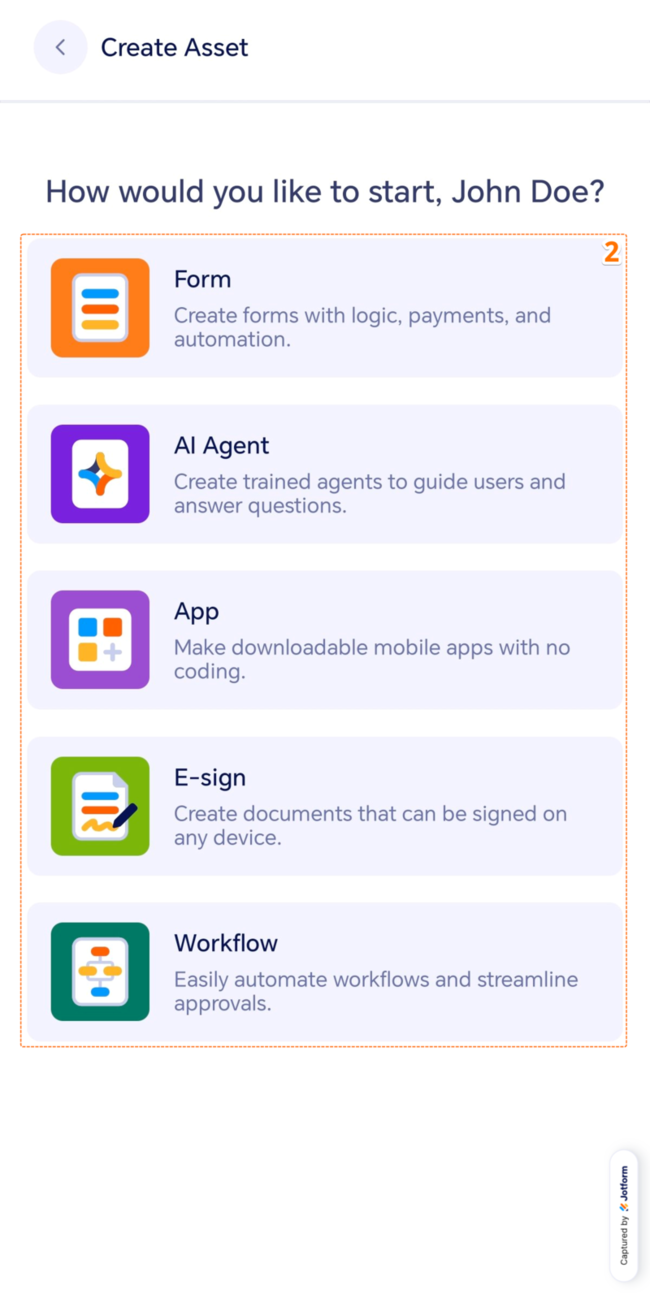
- Then, in the Create Asset screen , tap on the type of asset you want to create. For example, tap on Form.
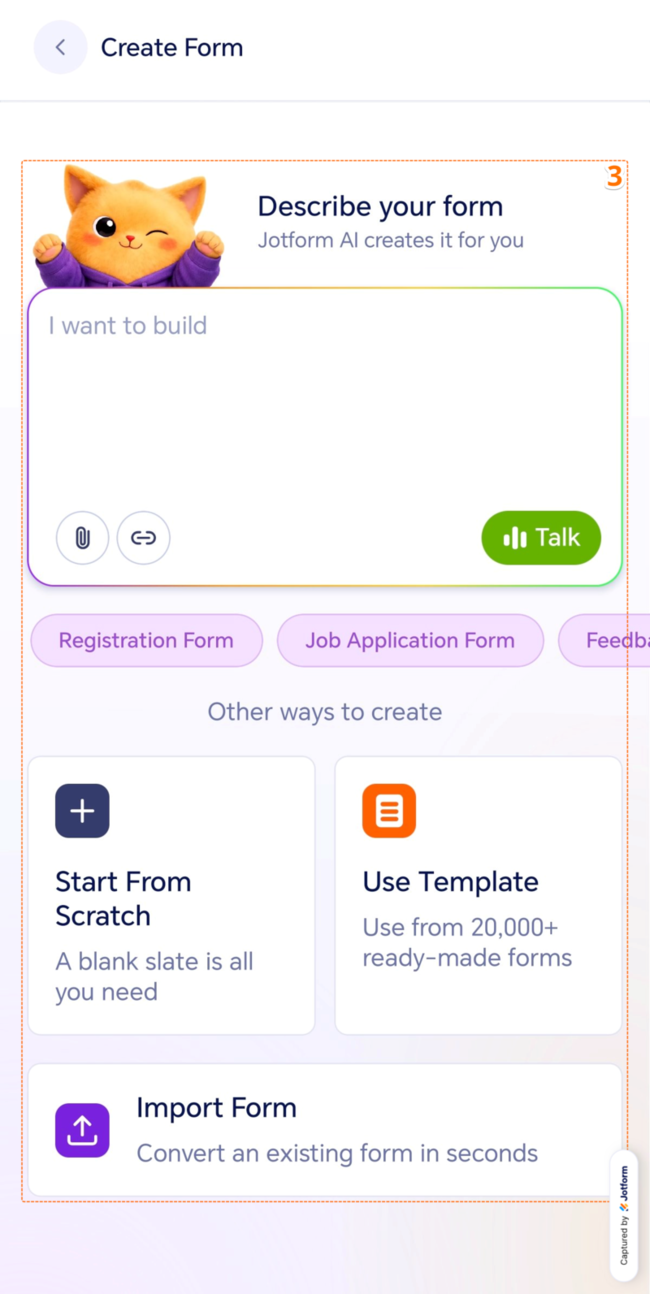
- Next, either describe the kind of form you want Jotform AI to create for you, or tap on Start From Scratch, Use Template, or Import Form.
Viewing Your Feed
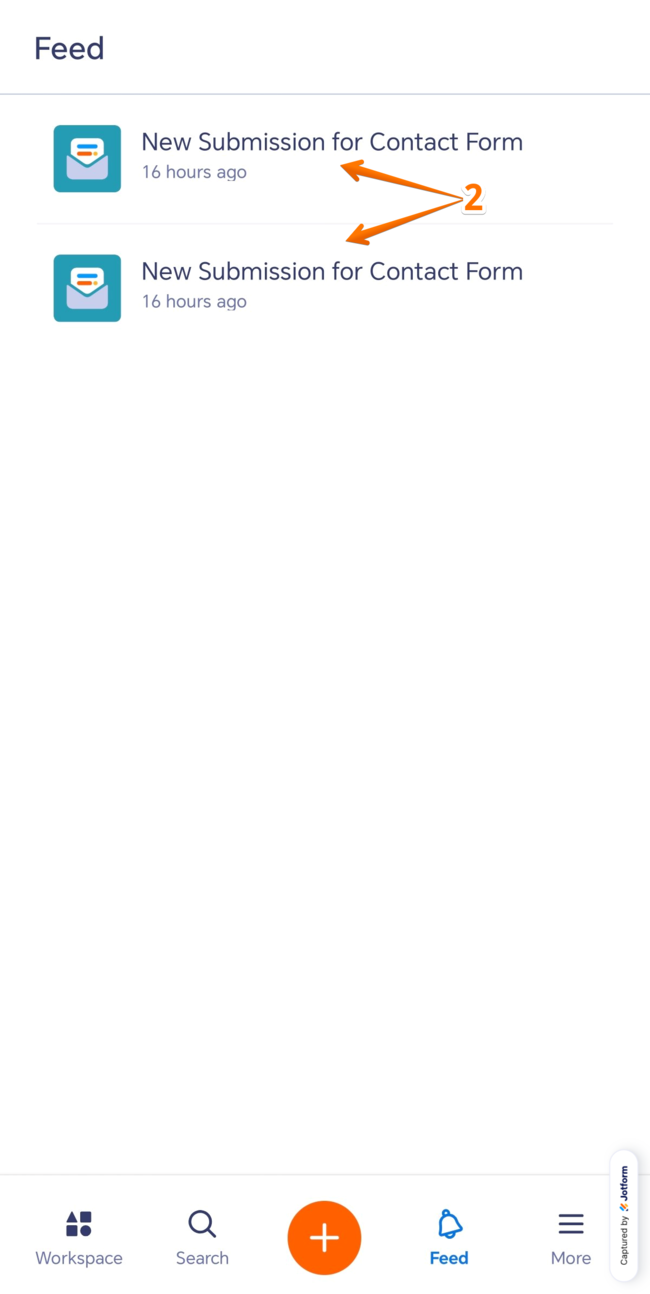
If you missed an instant notification, the Feed lets you catch up on new form submissions as they come in. It provides a convenient way to stay up to date on the latest responses collected through your forms without opening each form individually. Here’s a quick how-to:
- In the bottom-right corner of your Workspace screen, tap on Feed.
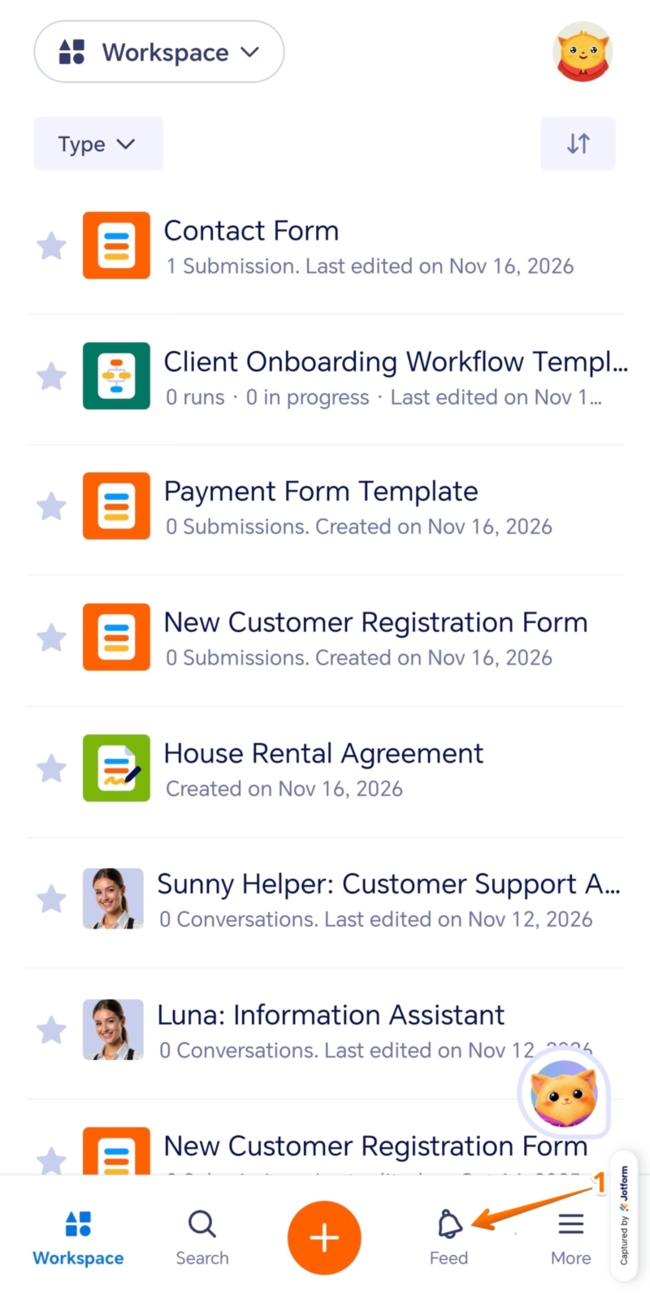
- Then, on the Feed screen, tap on a feed item to view it.
Accessing More Options
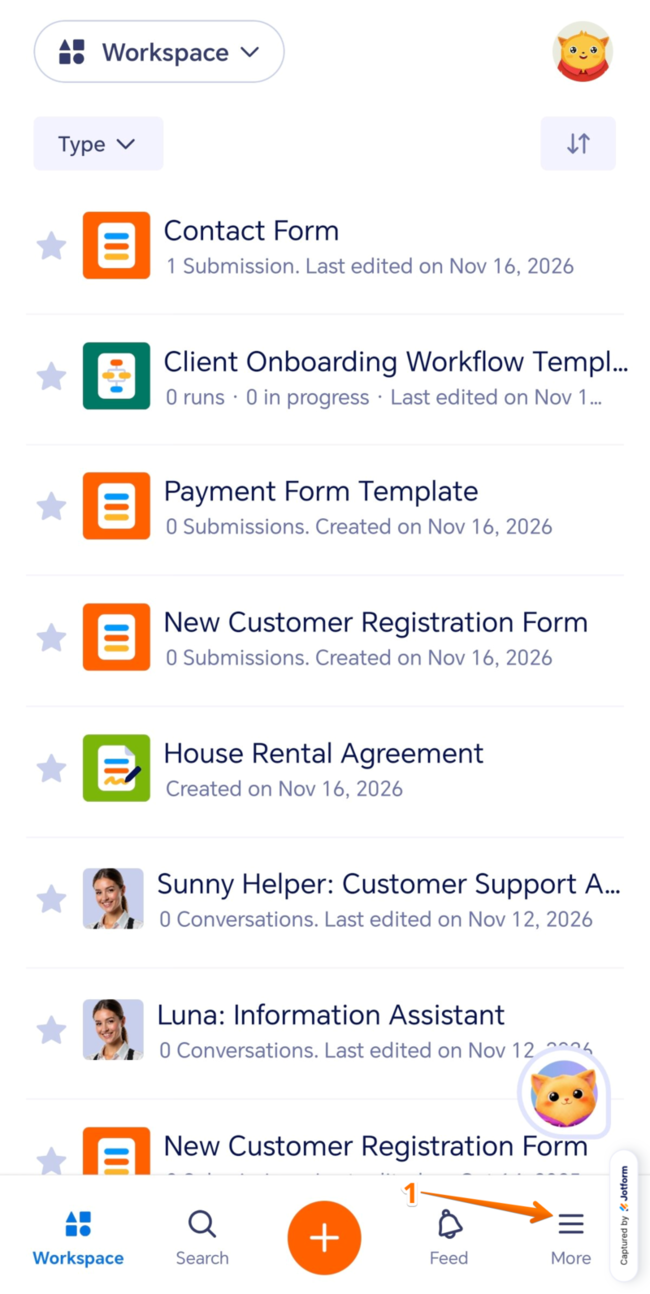
The More section provides quick access to various areas of your Enterprise Workspace. From here, you can browse your Team Workspaces, access assets assigned to you, explore assets shared with you, find your favorite assets, and retrieve archived or trashed items. Here’s what you’ll do:
- In the bottom-right corner of your Workspace screen, tap on More.
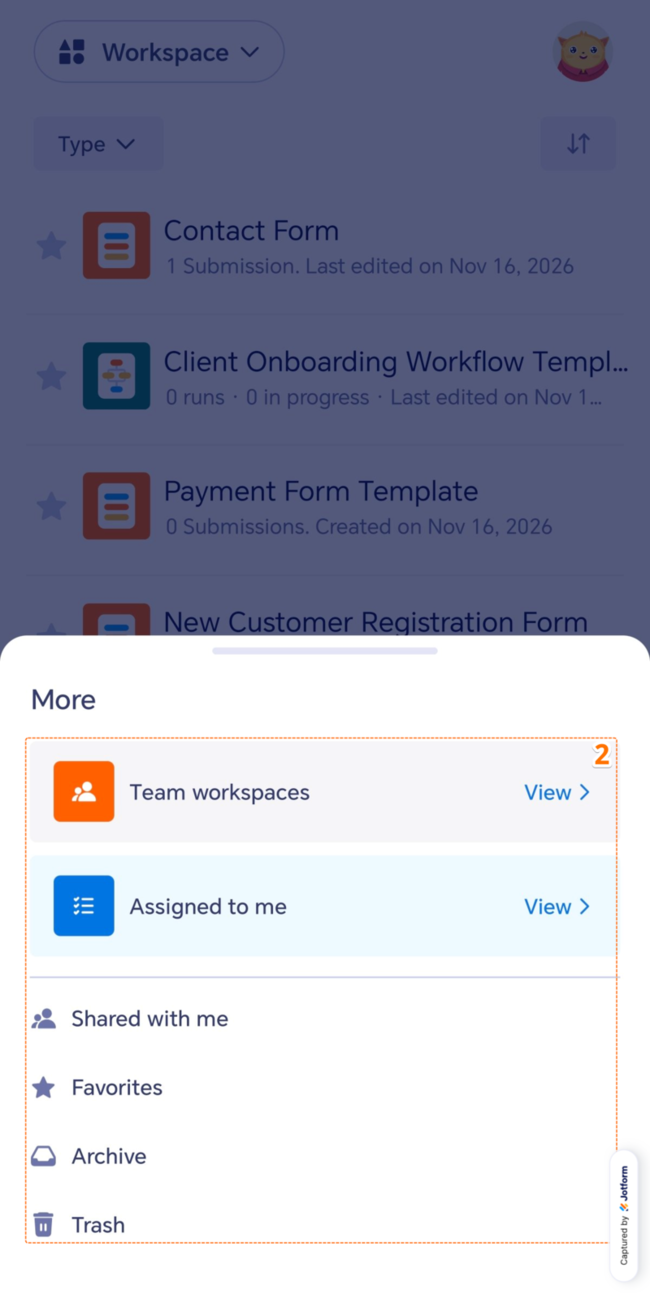
- Then, in the More menu that opens, tap on the following:
- Team Workspaces — Browse and access your team’s Workspaces.
- Assigned to Me — Find assets that have been assigned to you.
- Shared with Me — Access assets that other team members have shared with you.
- Archive — Browse assets that have been archived and are no longer in your active Workspace.
- Trash — Find deleted assets and restore them if you need them again.
Managing the Settings
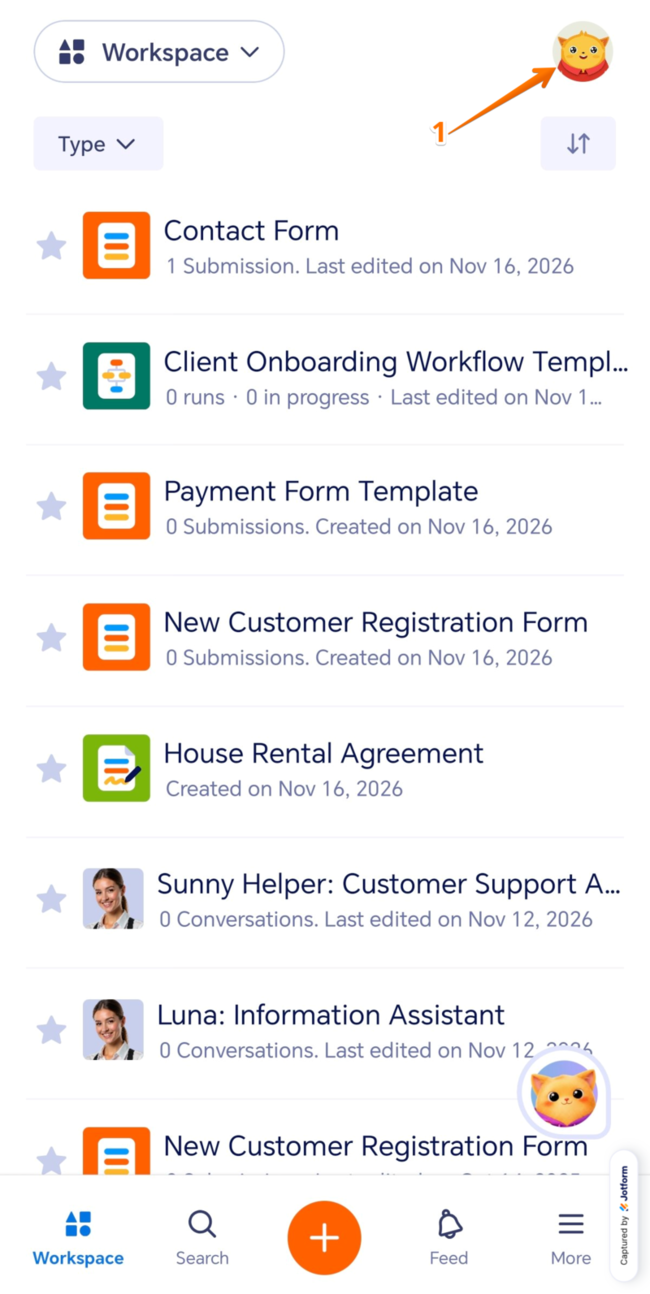
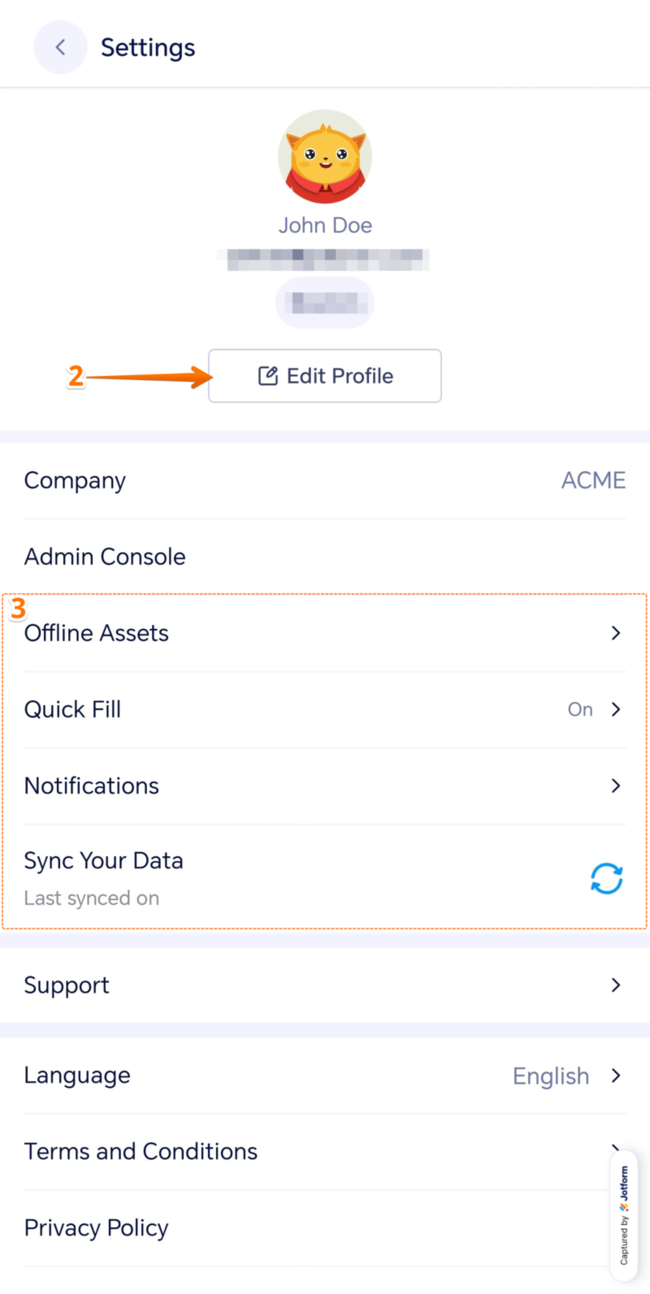
The Settings tab in the Jotform Enterprise Mobile app lets you manage your account and app preferences in one place. You can view and update your profile, access offline assets, configure Quick Fill settings, enable form notifications, and sync your data to keep everything up to date. Here’s how to get going:
- At the top-right side of your Workspace screen, tap on your Avatar/Profile picture.
- Then, in the Settings tab, tap on Edit Profile if you want to update your profile settings such as your Name, Email, or Reset Password.
- Next, tap on the following to update their individual settings:
- Offline Assets — Configure which assets, particularly forms, are available for offline use.
- Quick Fill — Keep this feature enabled to let users prefill forms using information from a photo, document, or their previous submissions.
- Notifications — Notifications are enabled by default. Tap this option to customize notification settings for individual forms in your account.
- Sync Your Data — Tap this option to synchronize your data, including submissions and other information collected while working offline, with your Enterprise Workspace.
That’s it for navigating the Jotform Enterprise Mobile app! You now have an overview of its main sections and features, from managing your Workspace and creating new assets to accessing shared resources and customizing your settings. Explore the different sections to discover more ways to stay organized, collaborate with your team, and keep your work moving wherever you are.

Send Comment: