With Jotform, you can easily preview and test your workflows before putting them into action. Test Run lets you see how everything works in real time, so you can follow each step, understand how data moves between blocks, and make sure your workflow behaves the way you expect.
This is especially useful when building or updating workflows, as it helps you spot issues early and fine-tune your logic without relying on guesswork. Whether you’re setting up simple automations or more complex processes, Test Run gives you the clarity and confidence to move forward knowing everything is working smoothly.
Starting a Test Run
Whether you’re creating a new workflow or editing an existing one, you can run a test to see how it works in real time. Here’s what to do:
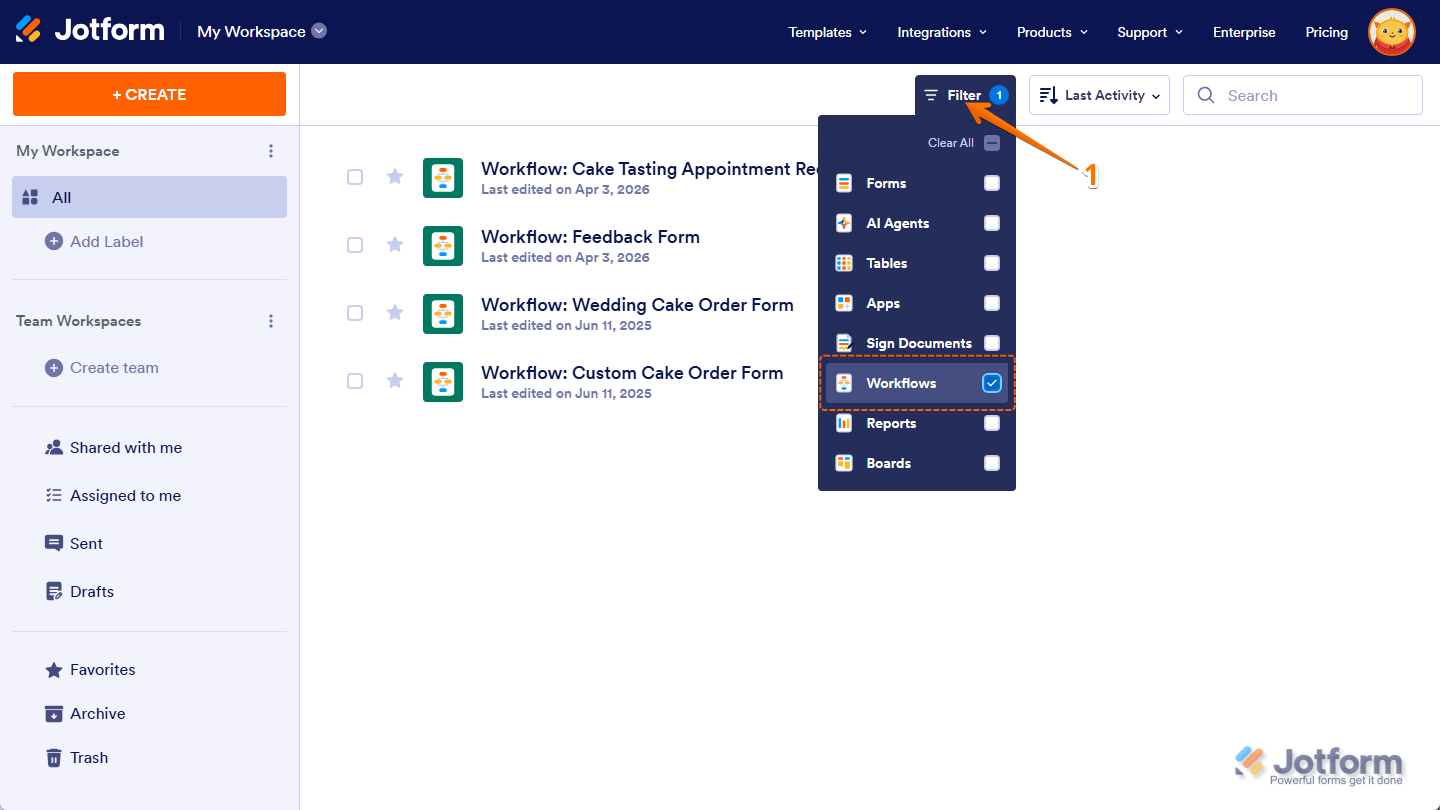
- On your Workspace page, click on Filter at the top, and in the Dropdown menu that opens, uncheck the boxes next to all the assets except Workflows, so only they’ll be shown on the page.
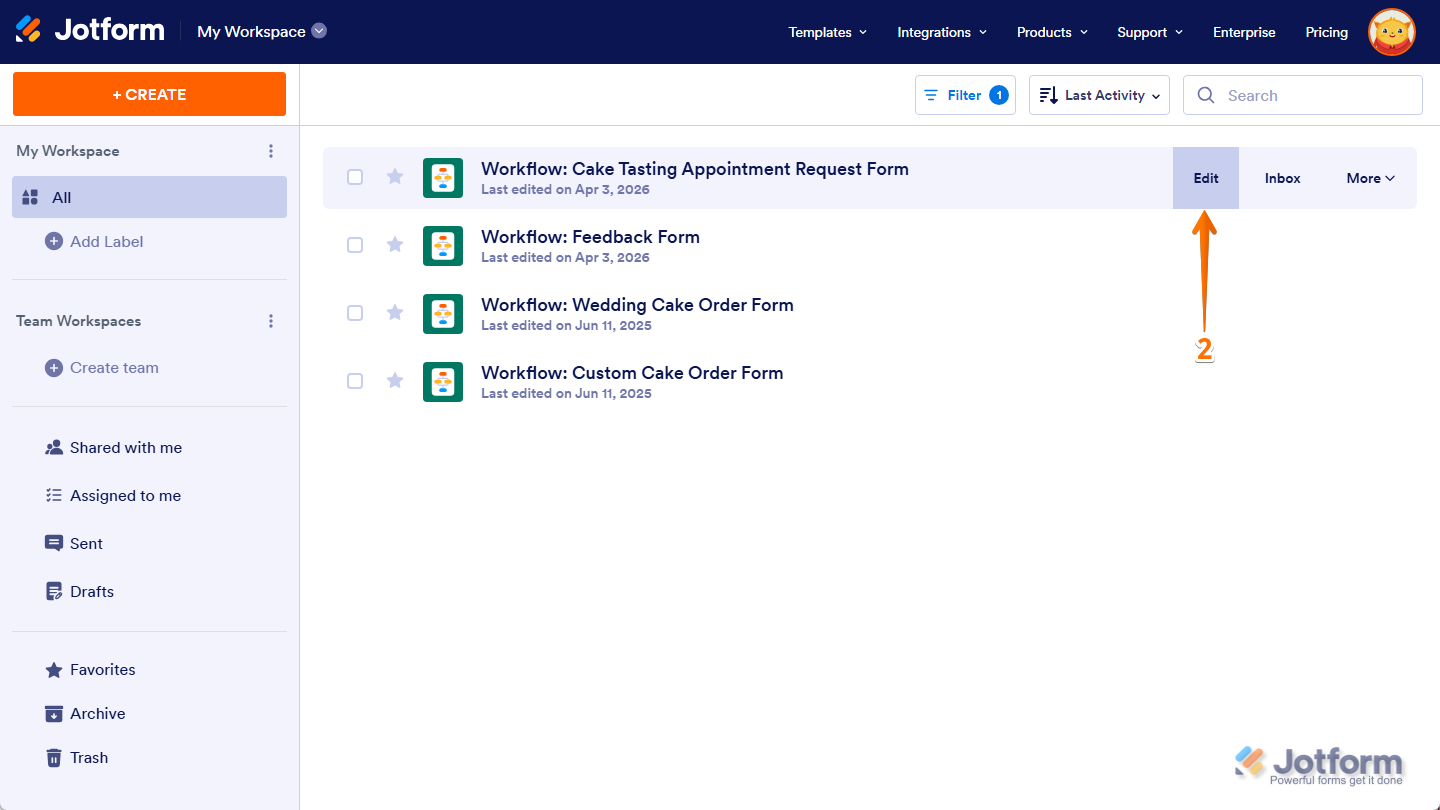
- Next, hover your mouse over the workflow you want to test and, on the right side of the page, click on Edit.
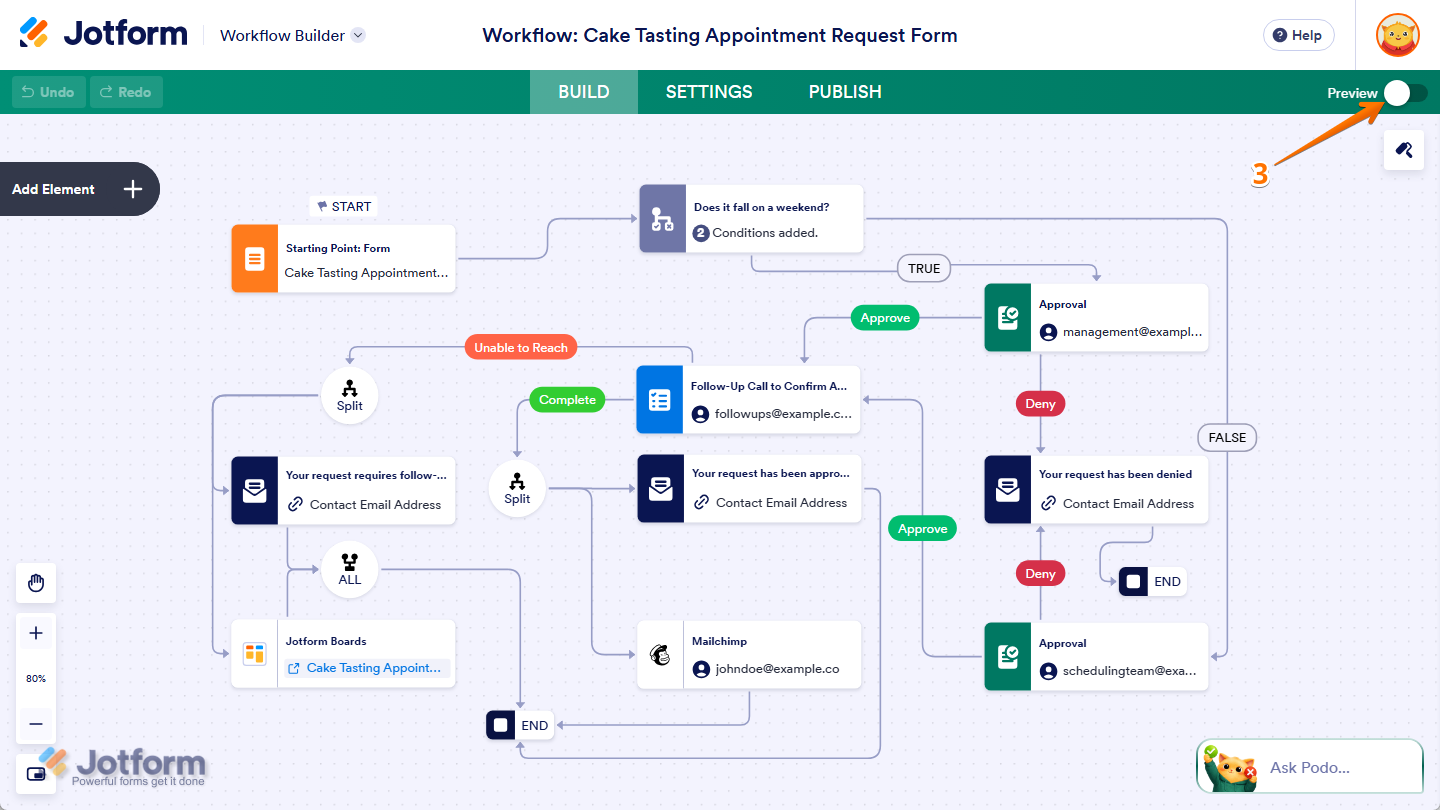
- In Workflow Builder, on the top right side of the page, toggle on Preview.
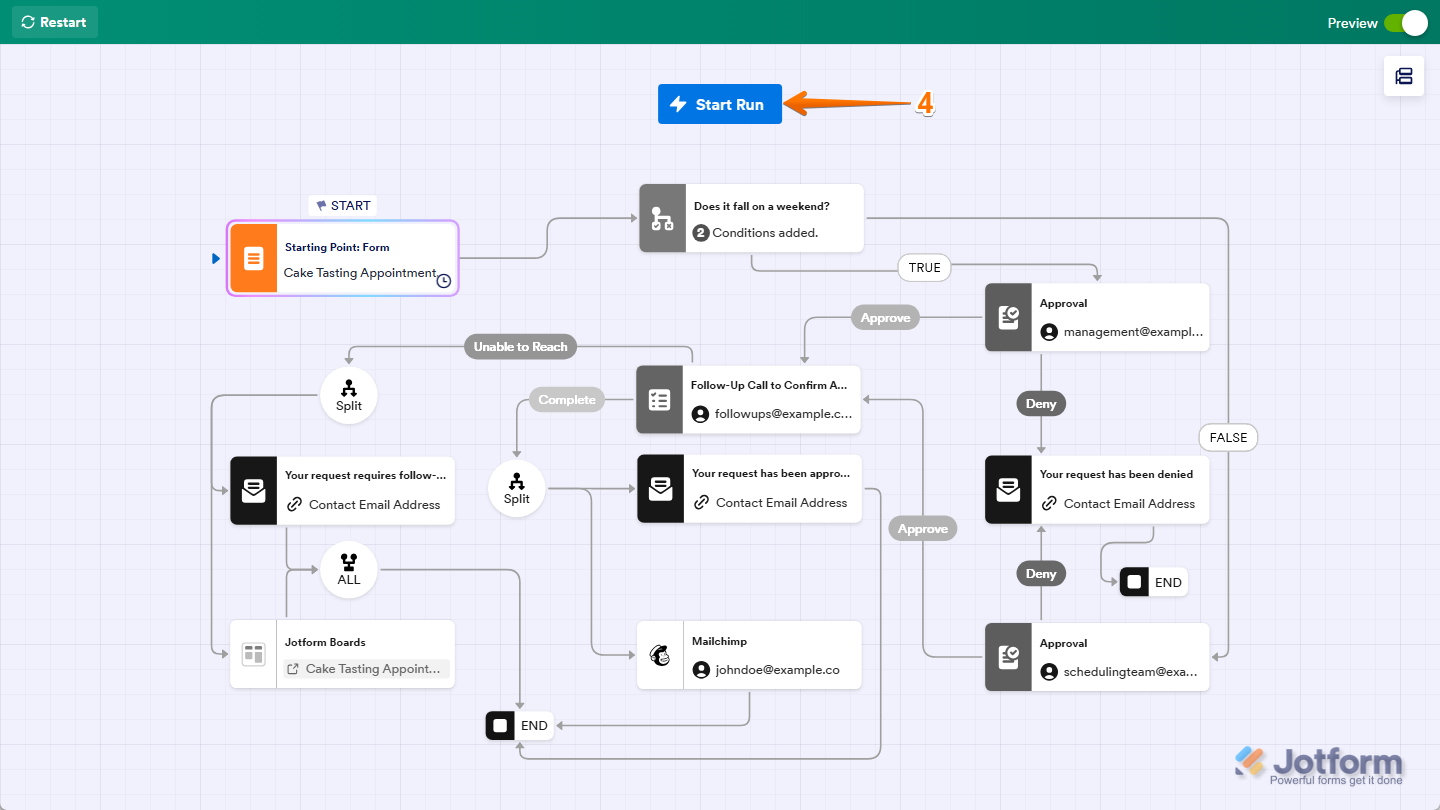
- Then, at the top of the page, click on Start Run.
Note
Your workflow needs a form as the starting point before you can run a test.
- Now, in the Starting Point: Form window that pops up, fill out and submit your form to begin the test run.
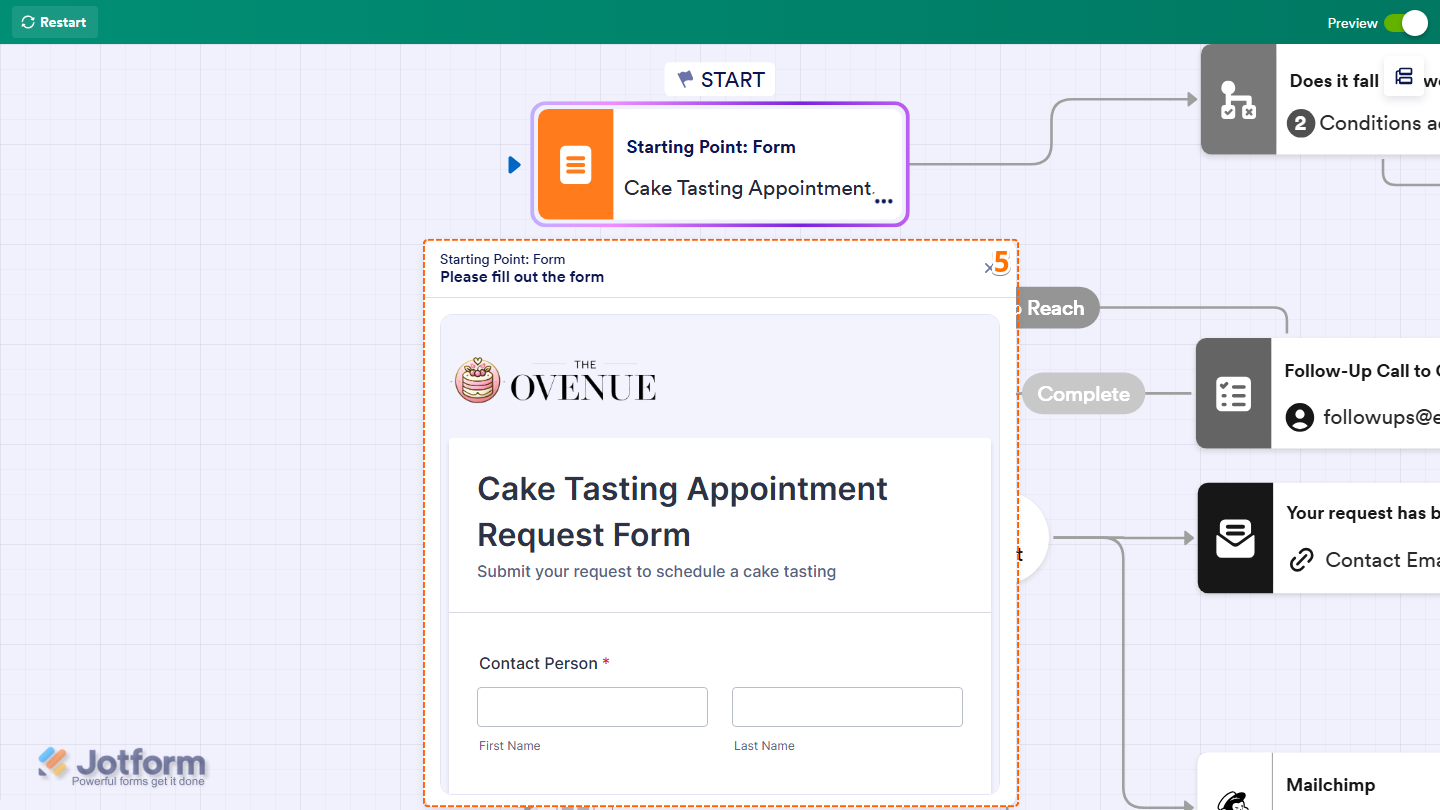
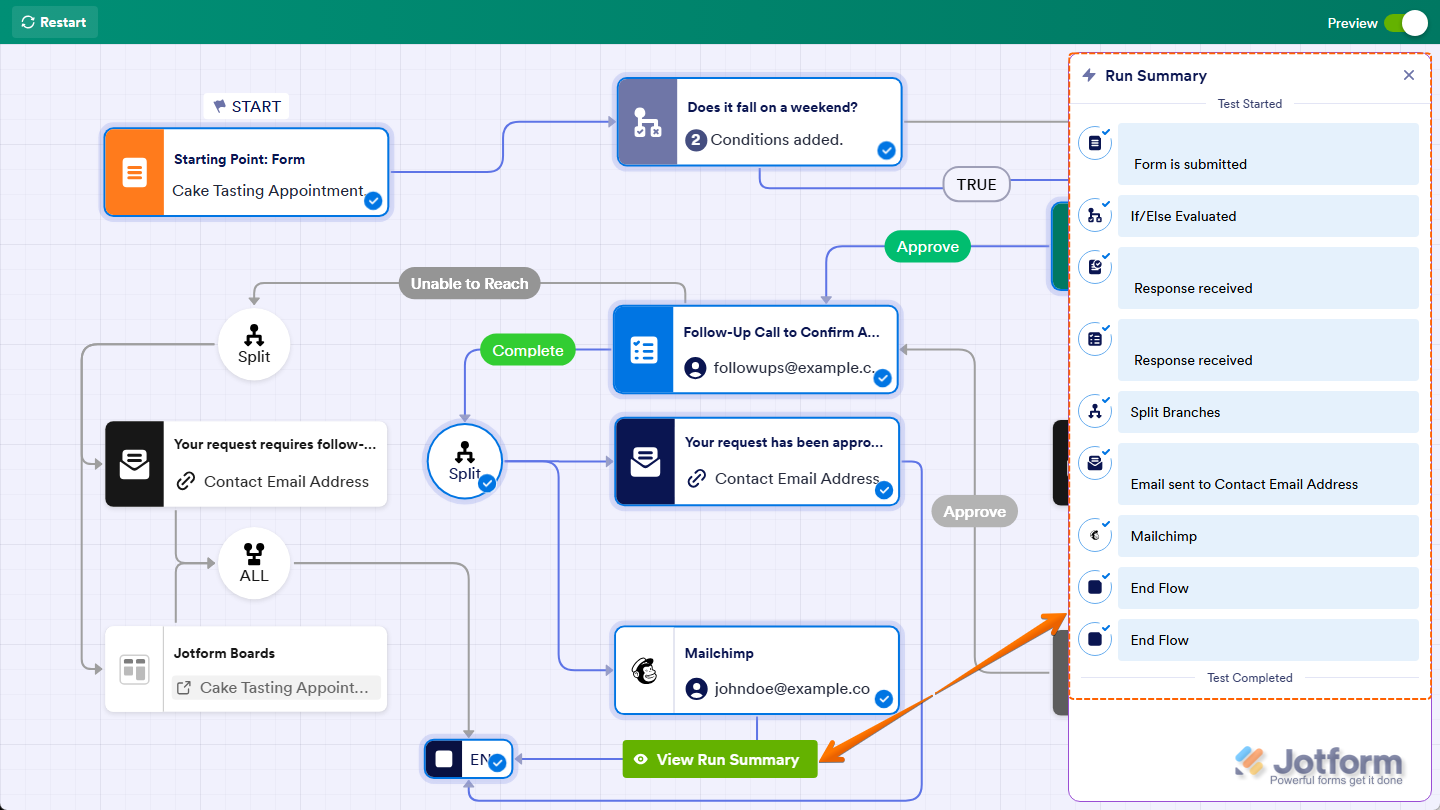
You can click on the Flowchart icon on the right side of the page to open the Run Summary window during your test if you want to check how each step executes.
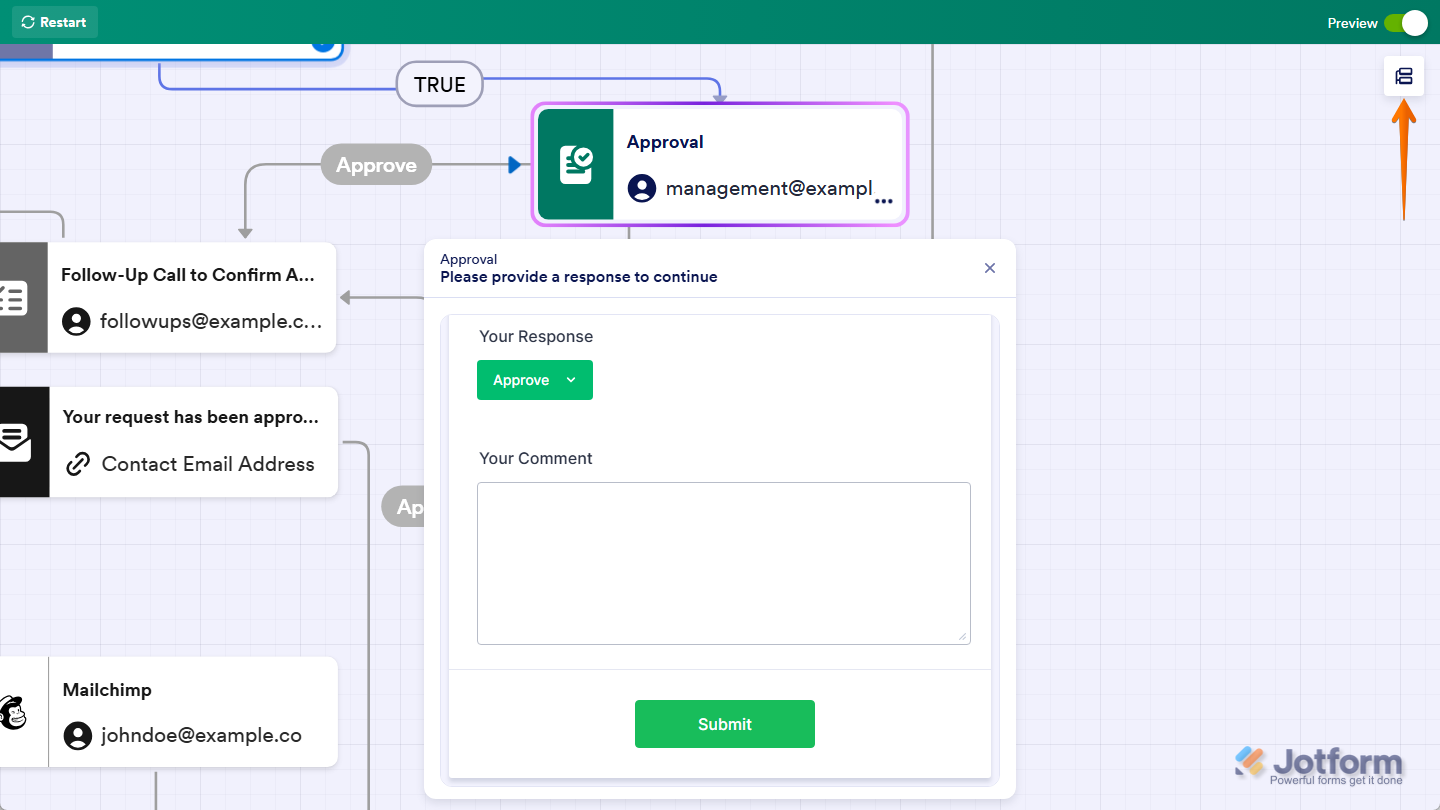
- Next, depending on how your workflow is set up, go through the other workflow elements that need user interaction, such as:
- Form
- Approval
- Task
- Approval & Sign
- Sign Document
- Team Approval
- Payment Form
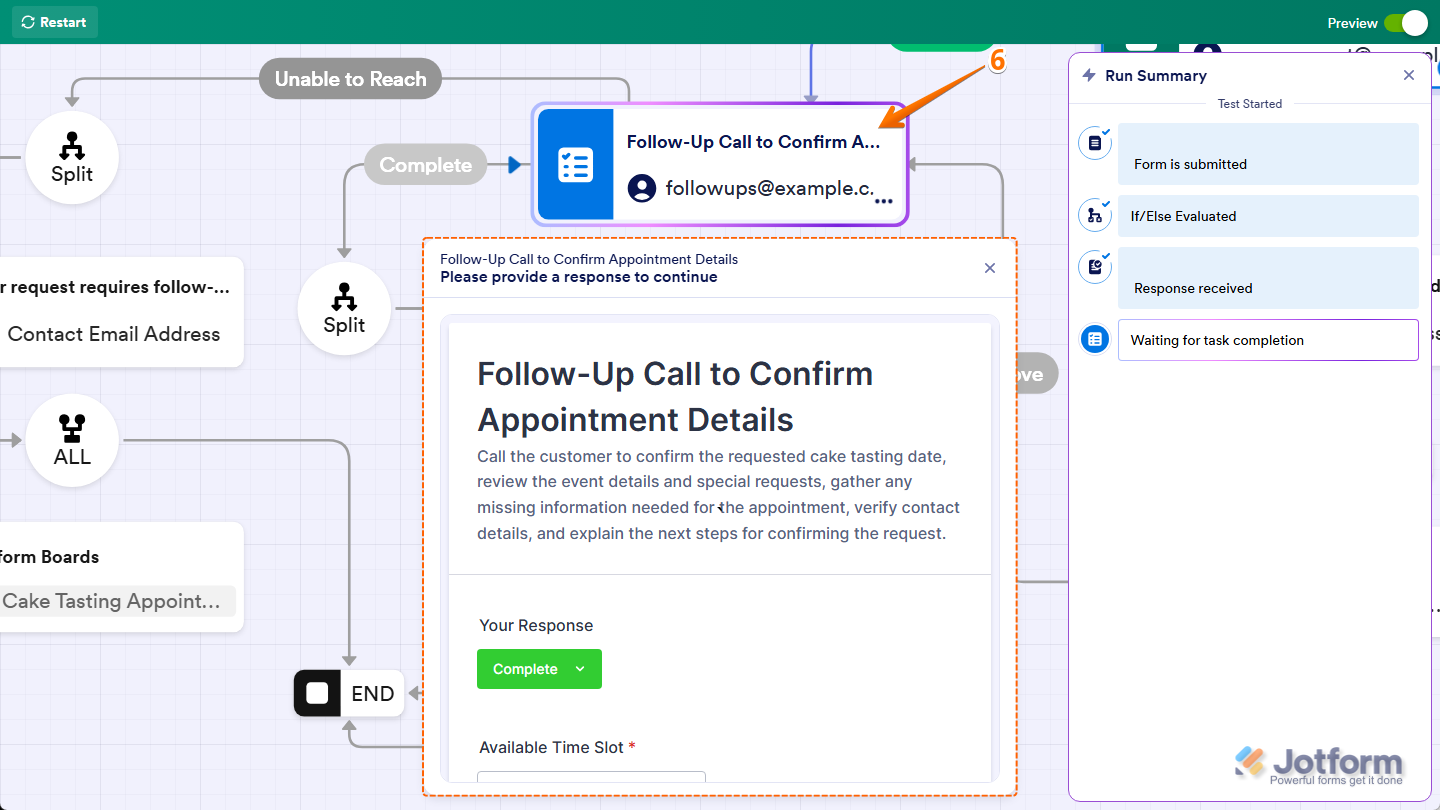
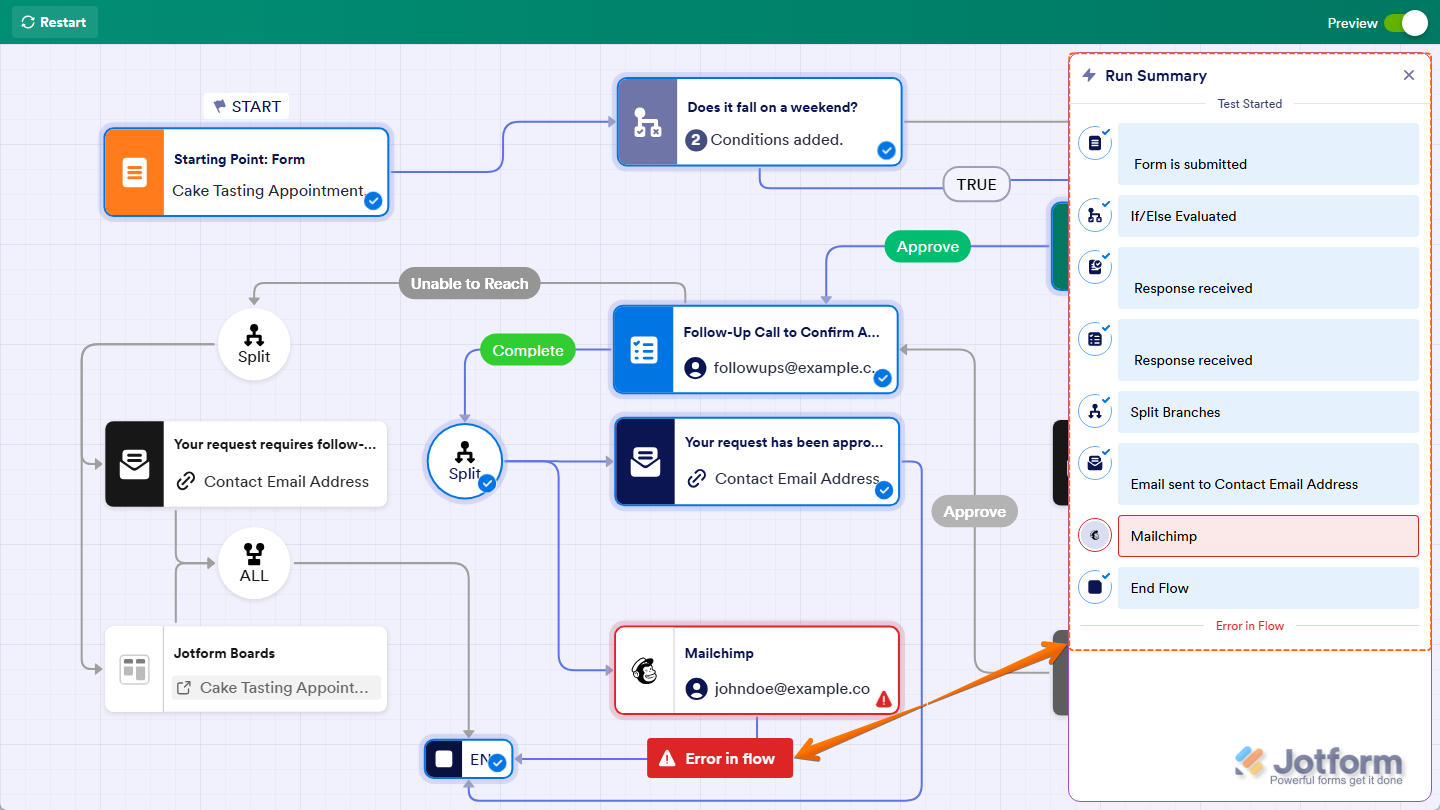
That’s it. Once you’ve gone through your workflow, you’ll see either an Error in Flow message or a View Run Summary message at the bottom of the page. Clicking on the message also opens the Run Summary window, where you can review how your workflow executed.
Notes
- Your test runs count as regular submissions and toward your account’s monthly submission usage. You can view them in your Inbox and Tables, and submissions in your Inbox are marked with “Test.”
- Emails sent from your workflow during a test run have “Test” added to the beginning of the subject line. This includes emails sent to your approvers, task notification emails sent to your assignee, and emails sent to users after their submission is approved or denied.
- The integrations you’ve set up with Boards and other third-party applications in your workflow still trigger during a test run.
Restarting a Test Run
If you want to try a different path or entered incorrect input while testing your workflow, you can restart the test at any time. Here’s how to do it:
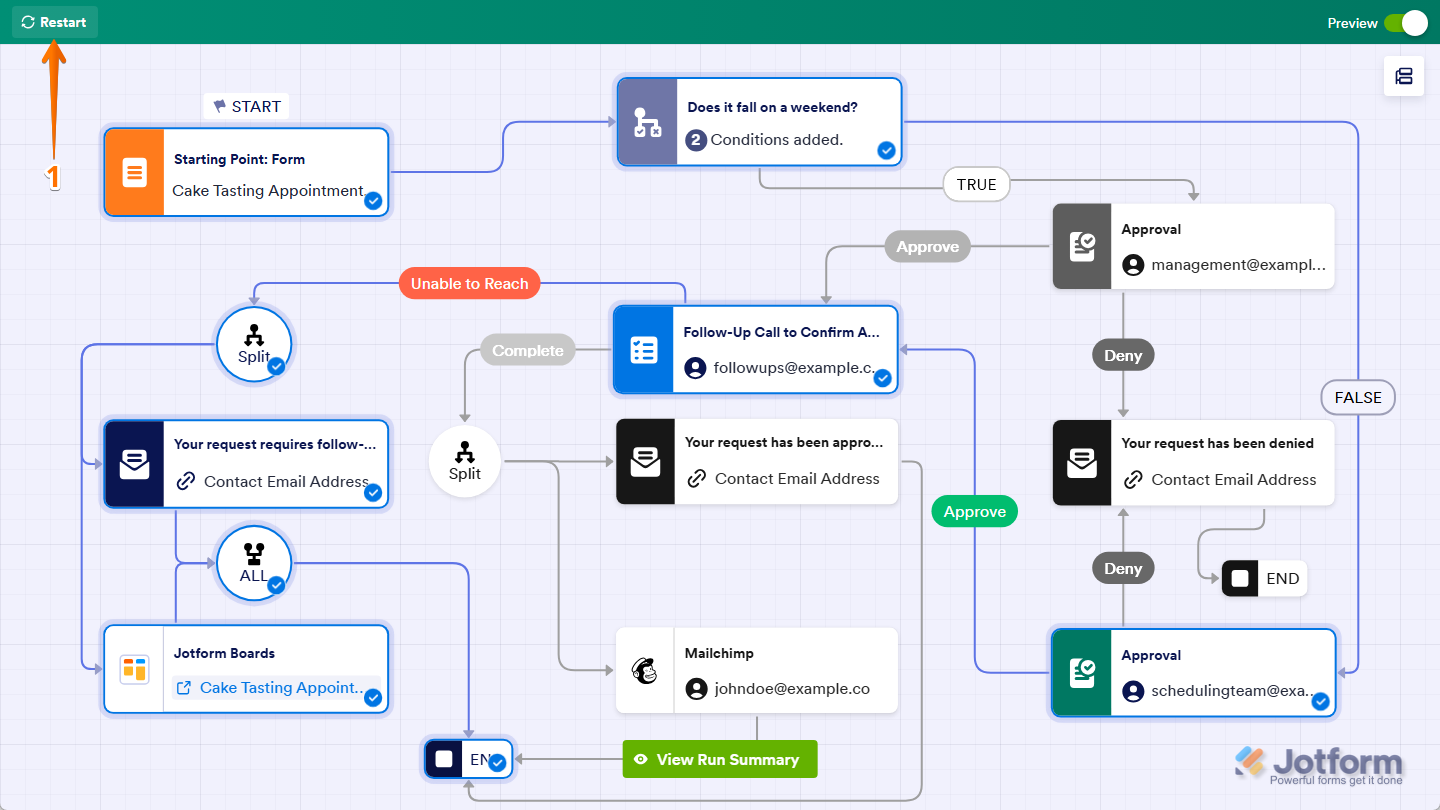
- In the top-left corner of the Workflow Builder in Preview mode, click on Restart.
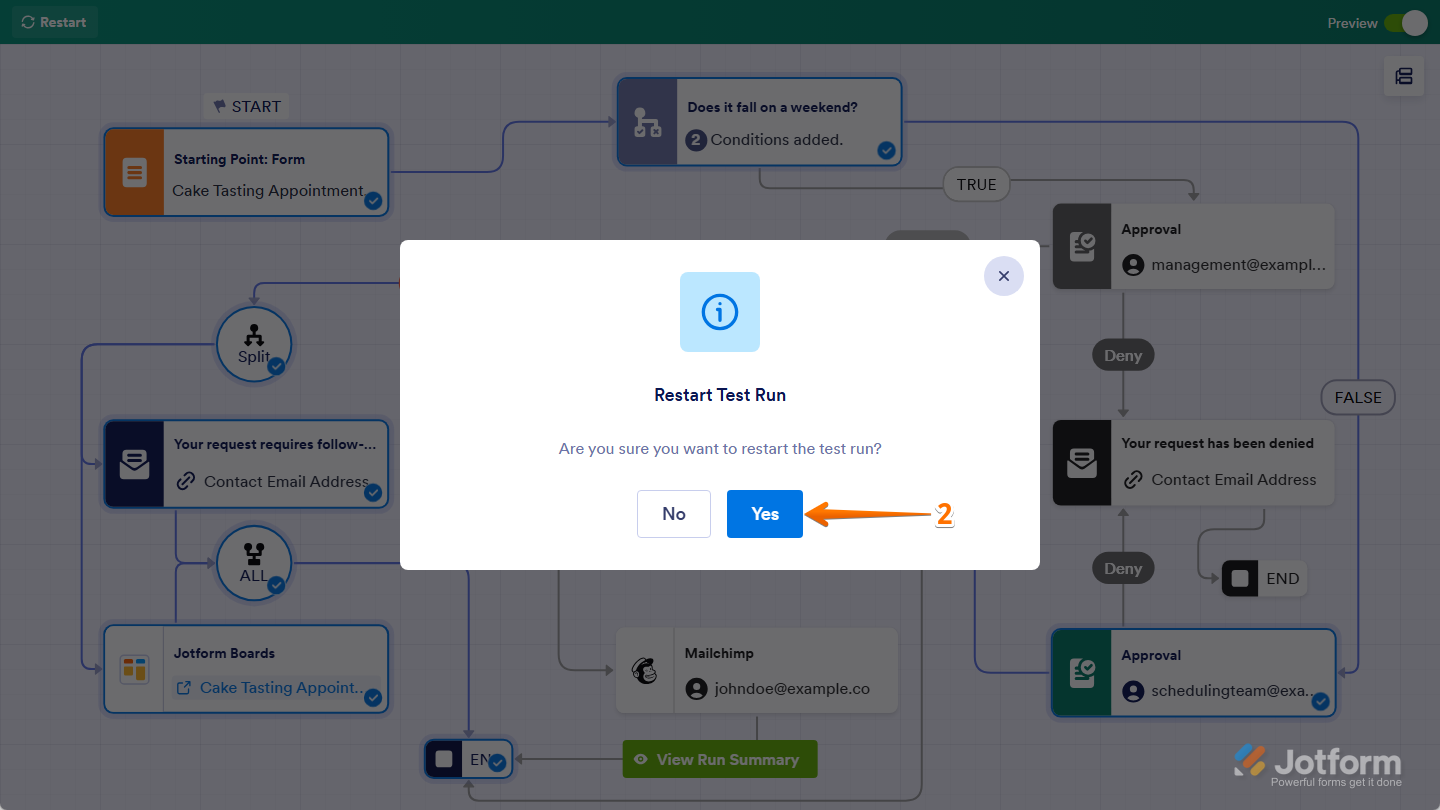
- Then, in the Restart Test Run window that pops up, click on Yes.
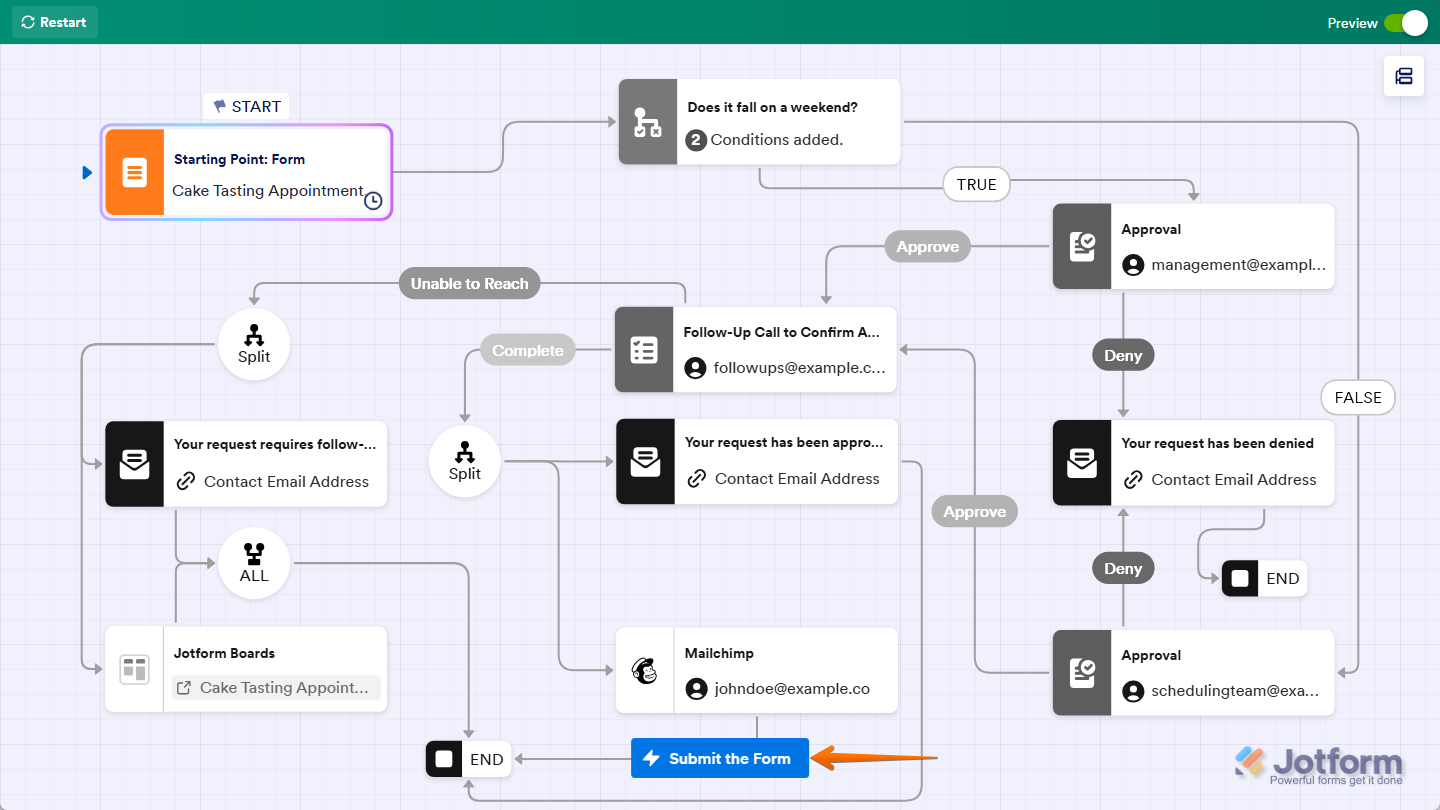
That’s it. Your test run will restart from the beginning. You can then click on the Submit the Form button at the bottom of the page to open the form and run your workflow again.

Send Comment: