The Sent section in Workspace shows the activity related to forms you’ve submitted and AI Agents you’ve interacted with—helping you keep track of what you’ve completed or which AI Agents you’ve engaged with.
Viewing and Filtering Submitted Forms and AI Agent Conversations
You can access your submitted forms and past AI Agent interactions directly in the Sent section. Here’s how to do it:
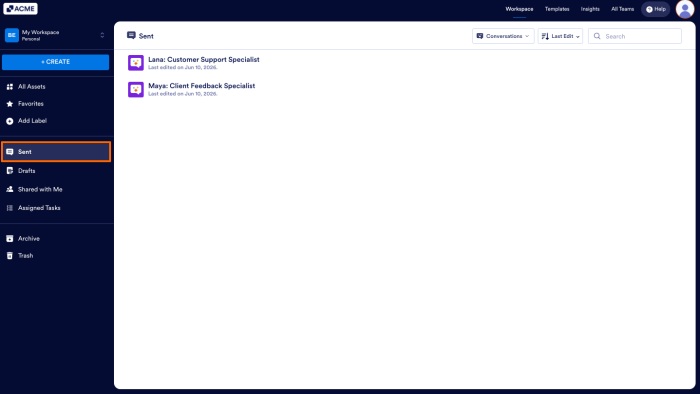
- On your Workspace page, click on Sent in the menu on the left side of the page.
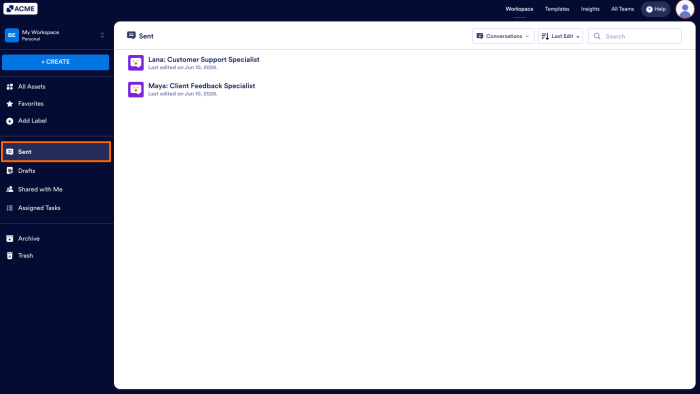
- Then, next to Create, in the top-left corner of the page, click on Conversations to open the Dropdown menu and select the asset type you want to view:
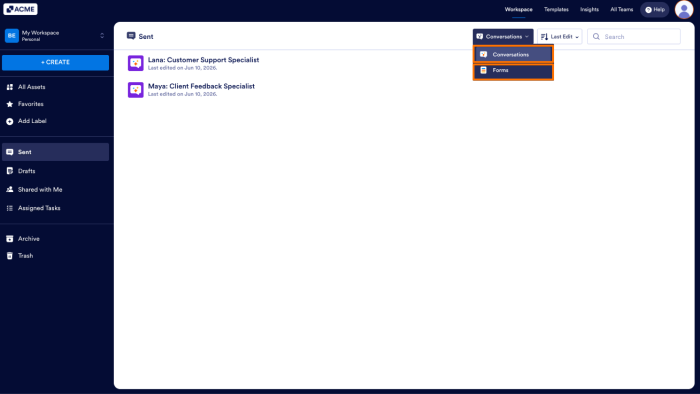
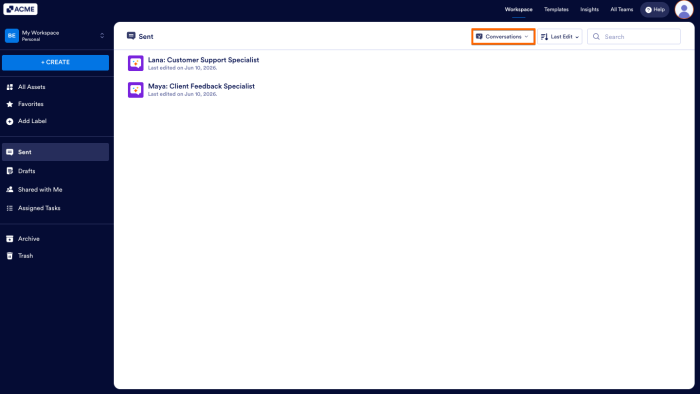
Conversations
This option is selected by default. It shows the AI Agents you’ve interacted with, including any you’ve accessed through a direct link or embedded on a website. You can revisit these conversations anytime from your Conversation Inbox.
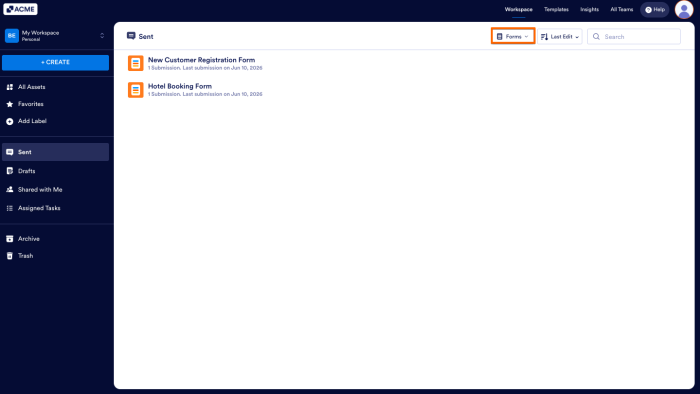
Forms
This option shows the forms you’ve filled out—but only if those forms were assigned to you. If you filled out a form that wasn’t, you won’t see that here.
Sorting Sent Forms and Conversations
You can sort the assets in your Sent section to find what you need faster. The same sorting options apply whether you’re viewing Forms or AI Agents.
- On your Workspace page, click on Sent in the menu on the left side of the page.
- Then, click on the Last edit on the top-right side of the page.
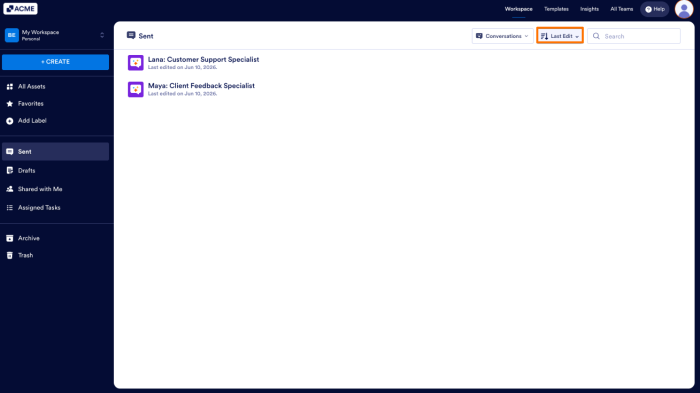
- Now, in the Dropdown menu, you can sort your assets by selecting one of these choices:
- Last Edit — Displays the most recently updated assets at the top.
- Creation Date — Shows the newest assets first.
- Title (A–Z) — Arranges assets in alphabetical order.
- Title (Z–A) — Lists assets in reverse alphabetical order.
That’s it! The Sent section helps you quickly find the forms you’ve submitted and AI Agents you’ve talked to—all in one place.

Send Comment: